

Avast Mobile Security for Android is a security app designed to protect your device against unwanted phishing, malware, spyware, and malicious viruses such as Trojans.
Avast Mobile Security is available as both a free and paid app. The installation is the same in all cases. After you install the app, you choose how to start using it: continue with the free version, purchase a subscription, or use a subscription you already have.
Install Avast Mobile Security
- On your Android device, tap the button below to open the Avast Mobile Security app page in Google Play Store.
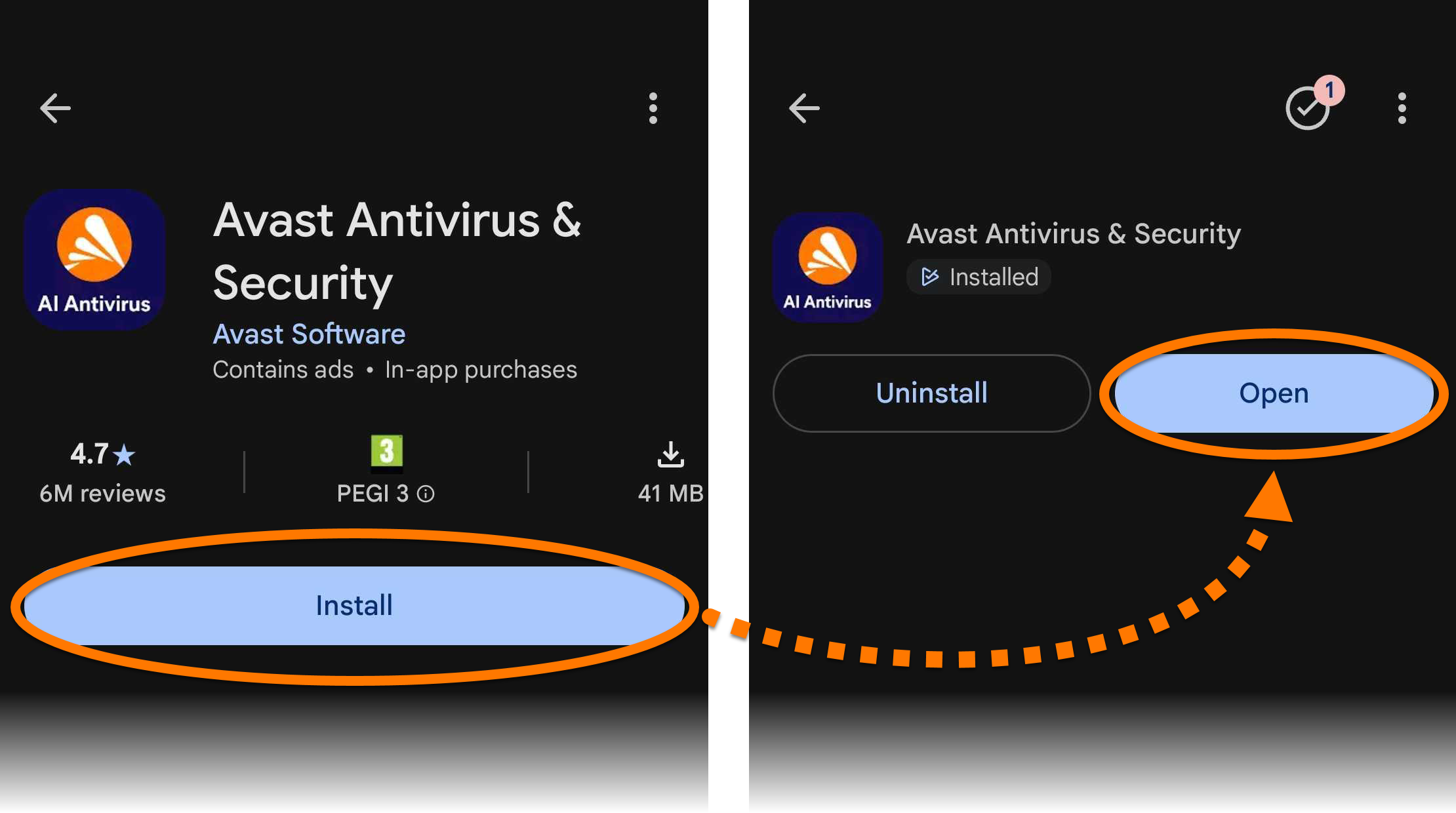
Go to Google Play Store - Tap Install to download and install the app. When installation is complete, tap Open.

Choose how to start
The next steps depend on how you want to use Avast Mobile Security. Select the option that matches your situation and follow the steps in the relevant tab:
- Tap Get started.
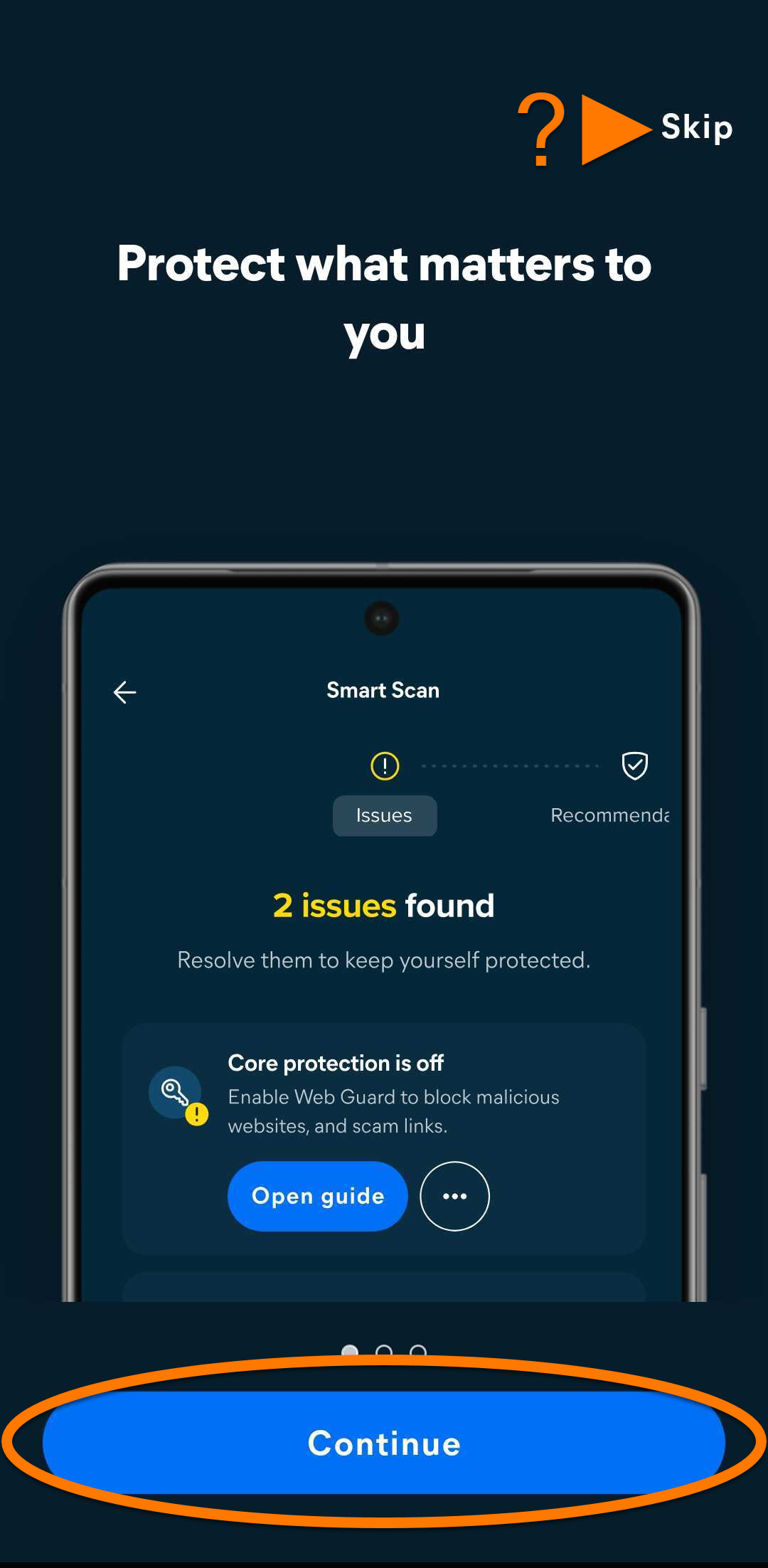
- Tap Continue to move through the welcome pages. Optionally, tap Skip.
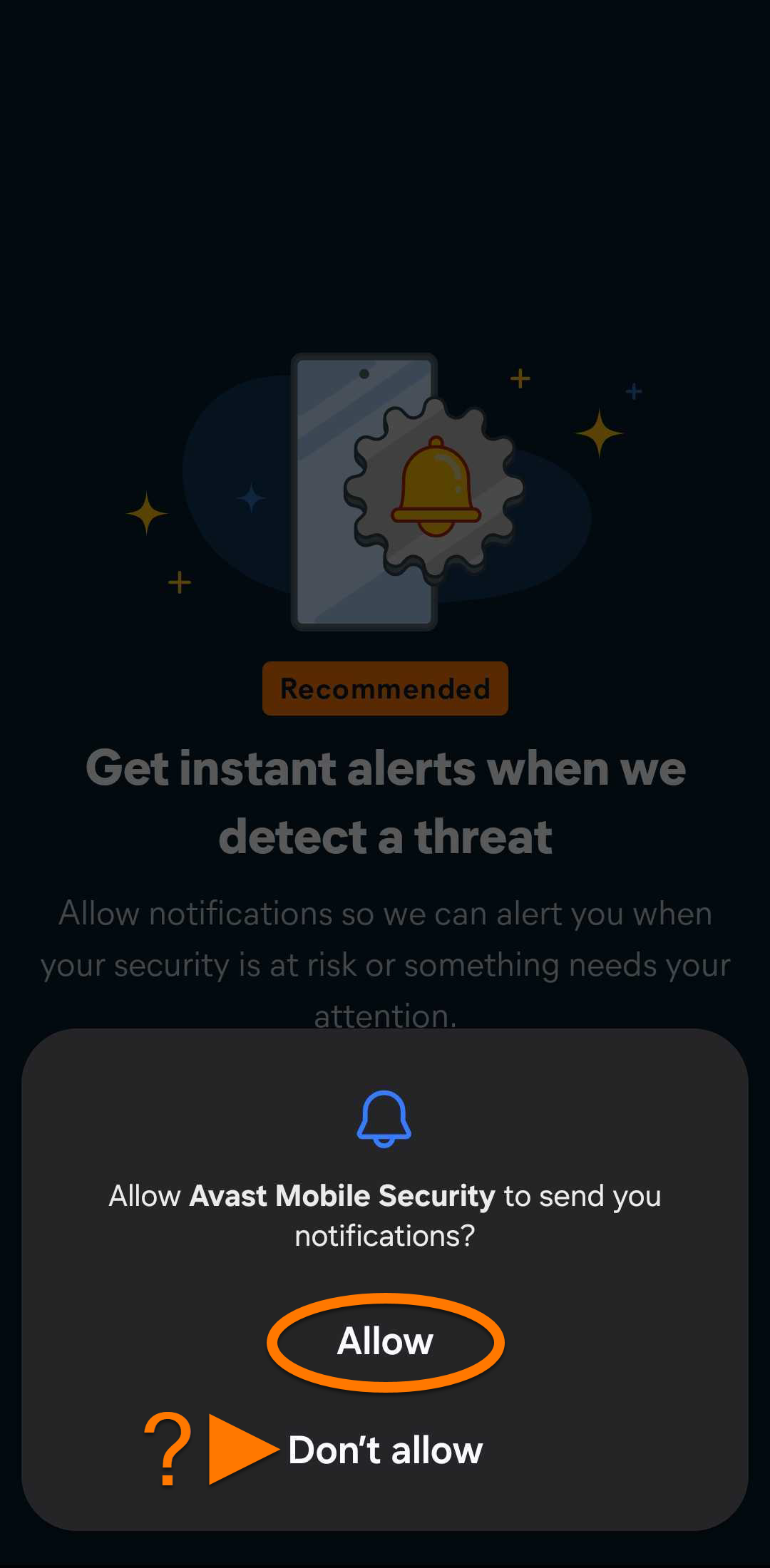
- Select whether you allow Avast Mobile Security to send you notifications.
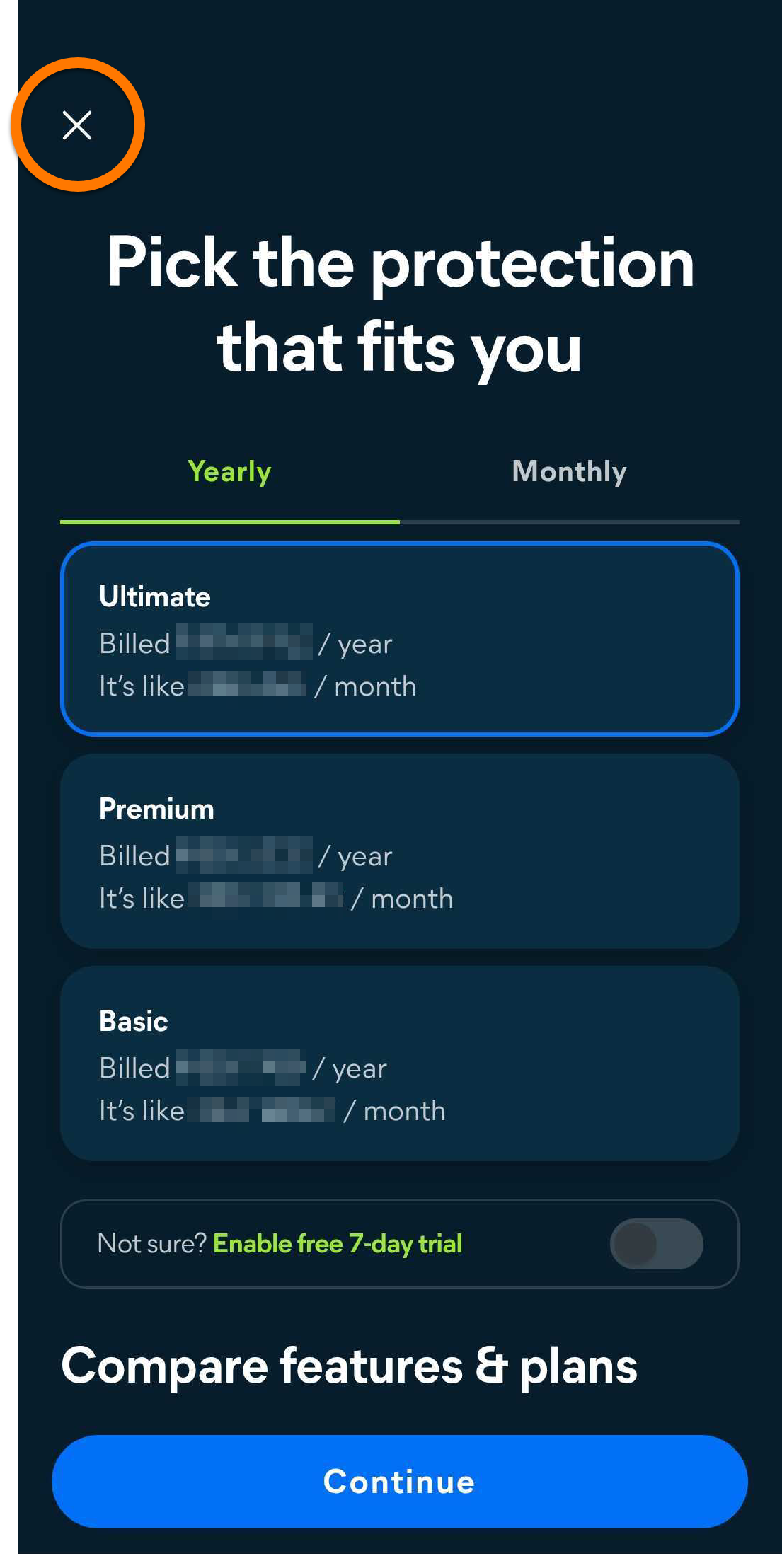
- On the purchase screen, tap
Xto close it.
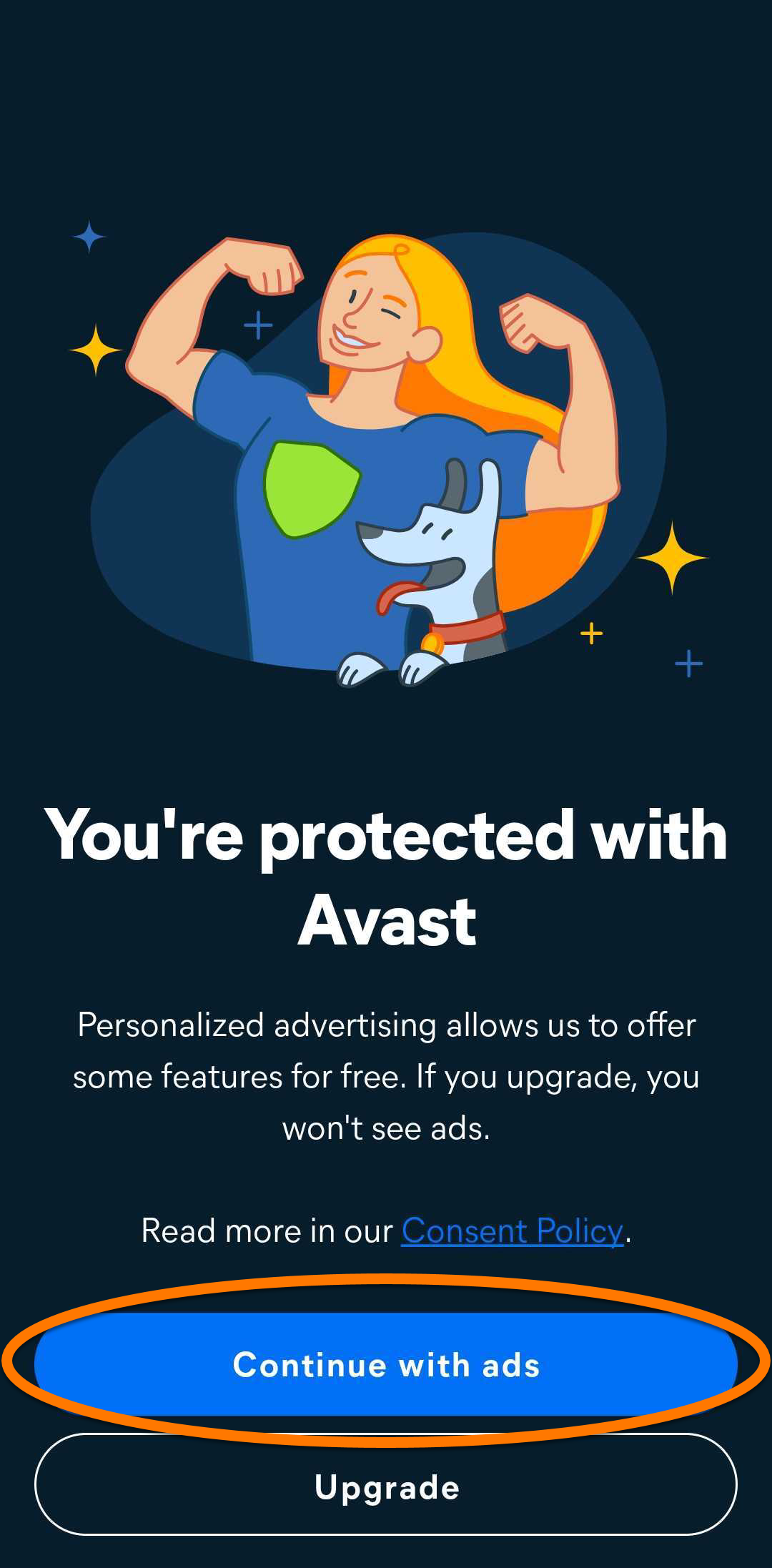
- Tap Continue with ads to continue with the free version.
You can upgrade to a paid version at any time by tapping Upgrade in the top-right corner of the main app screen. For more information, refer to the following article: Avast Mobile Security - FAQs ▸ How do I upgrade to one of the paid versions of Avast Mobile Security?
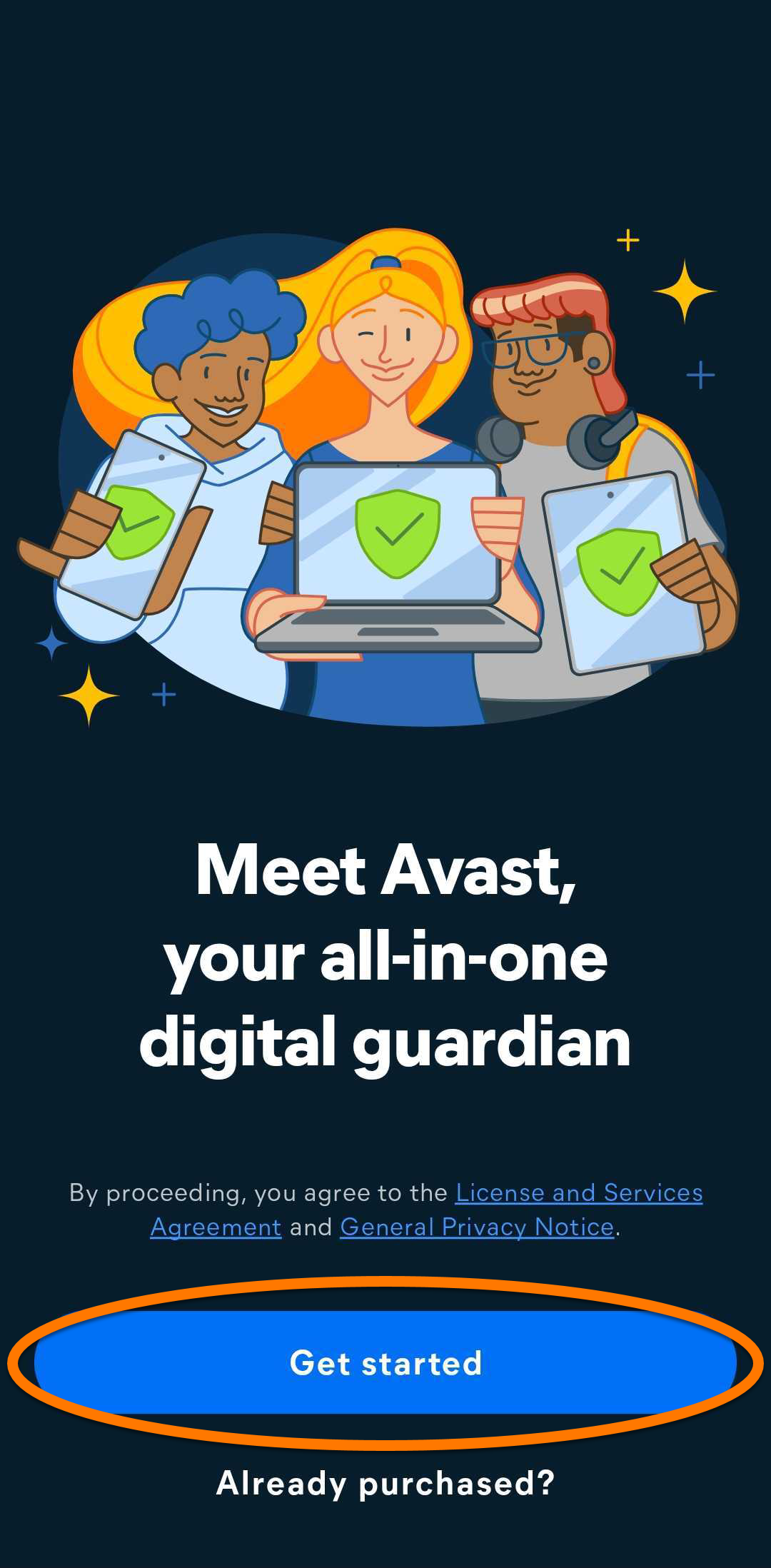
- Tap Get started.
- Tap Continue to move through the welcome pages. Optionally, tap Skip.
- Select whether you allow Avast Mobile Security to send you notifications.
- On the purchase screen, select the subscription tier that suits you (Avast Mobile Security Premium or Avast Mobile Security Ultimate), then tap Continue or Choose plan.
The available plans may differ according to your region. For a comparison of the tiers, refer to the following article: Avast Mobile Security - FAQs ▸ Which paid Avast Mobile Security subscriptions are available?
- Follow the on-screen instructions in Google Play to complete the payment.
Your paid subscription activates automatically. It is valid on devices that are connected to the Google Account you used to purchase it and have Avast Mobile Security installed.
If a 7-day free trial is offered during this step, a payment method is required to sign up. When the free trial ends, the payment card provided will be charged, unless the subscription is canceled before the end of the free trial. For more information, refer to: Avast Mobile Security - FAQs ▸ Is there a free trial option for the paid versions of Avast Mobile Security?
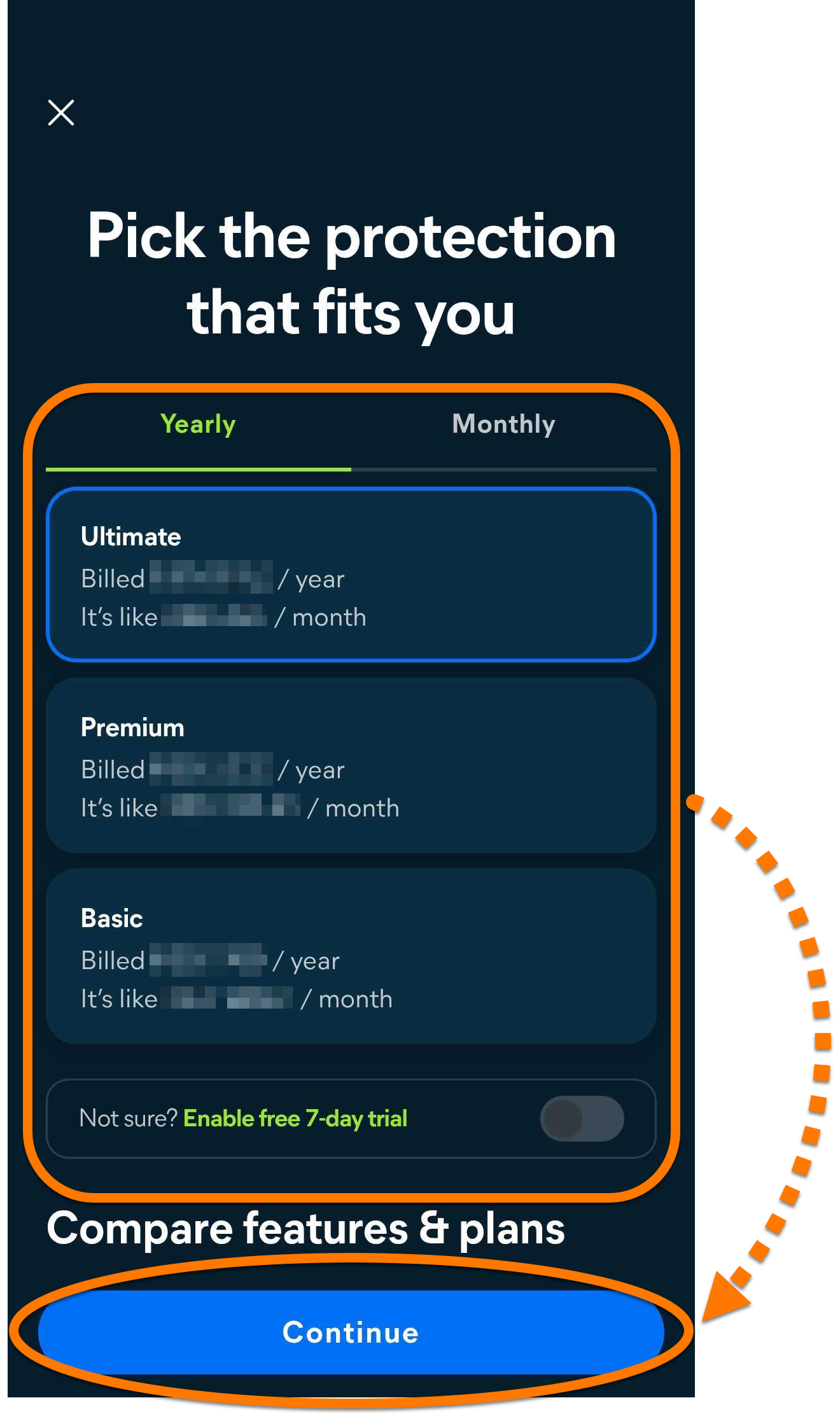
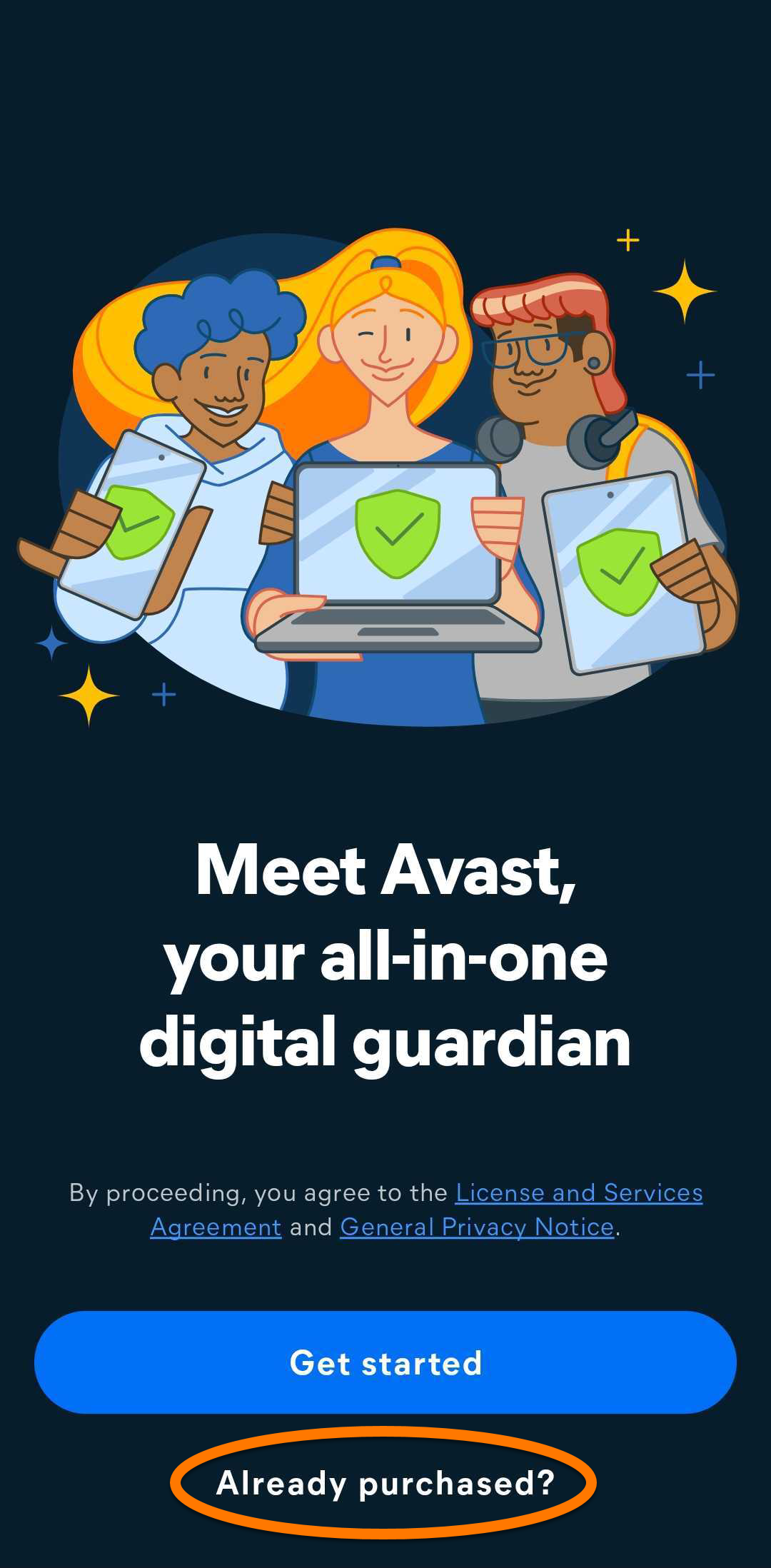
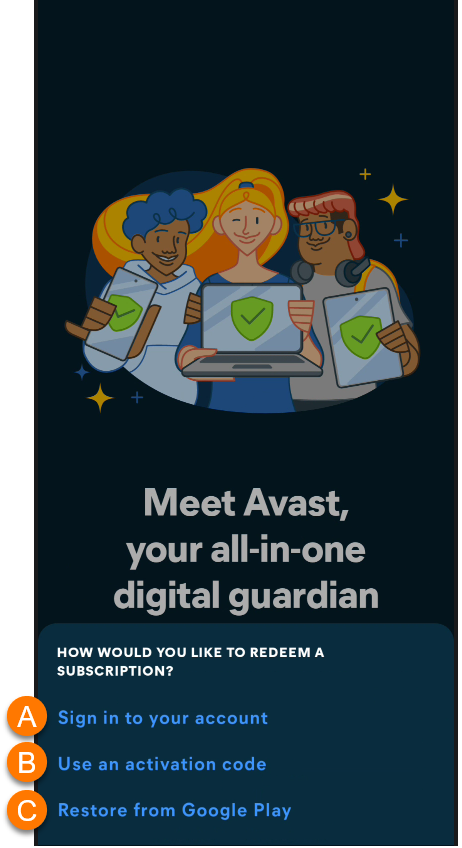
- Tap Already purchased?.
- Select the option that matches how you purchased your subscription:
- Sign in to your account: Select this option if you purchased your subscription from another sales channel, such as the Avast Store. Sign in with your Avast Account credentials.
- Use an activation code: Select this option if you have an activation code, for example from your order confirmation email.
- Restore from Google Play: Select this option if you purchased your subscription through Google Play. Ensure you are signed in to the Google Play Store with the same Google Account that you used for the purchase. To restore a subscription on a new or reset device, refer to: Transferring or restoring Avast mobile subscriptions.
- Follow the on-screen instructions to activate your subscription.
For detailed activation instructions, including what to do if activation fails, refer to the following article: Activating Avast Mobile Security.Multi-device subscriptions can also activate Avast Mobile Security. For details, refer to the following article: Avast Mobile Security - FAQs ▸ Can I use my multi-device subscription to activate Avast Mobile Security?
Complete the initial setup
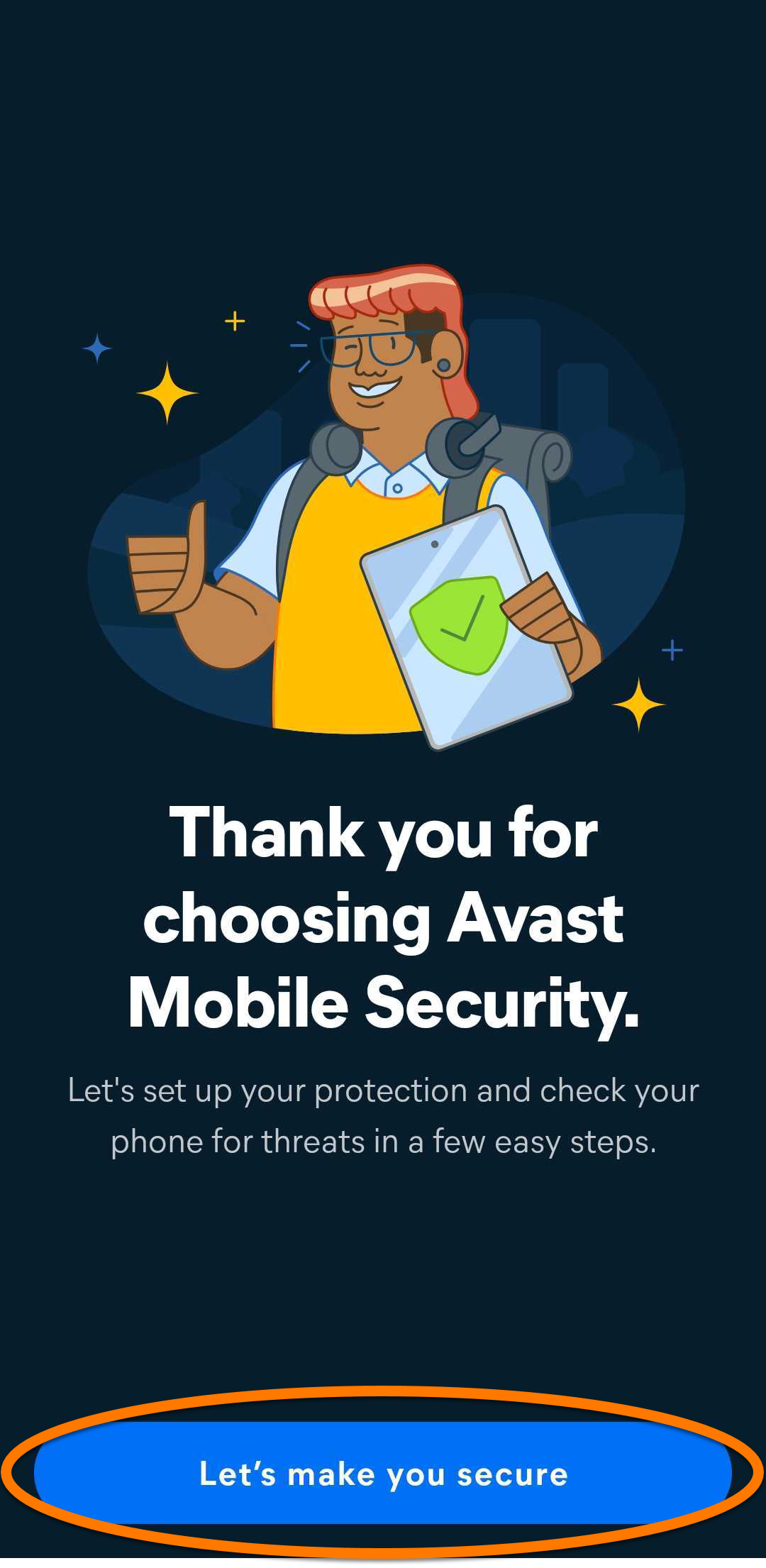
After you continue with the free version, purchase a subscription, or activate an existing subscription, Avast Mobile Security prompts you to complete the setup so that it can protect your device. To begin:
- Tap Let's make you secure.
- Tap Start setup.
- Follow the on-screen instructions to grant Avast Mobile Security the required permissions.
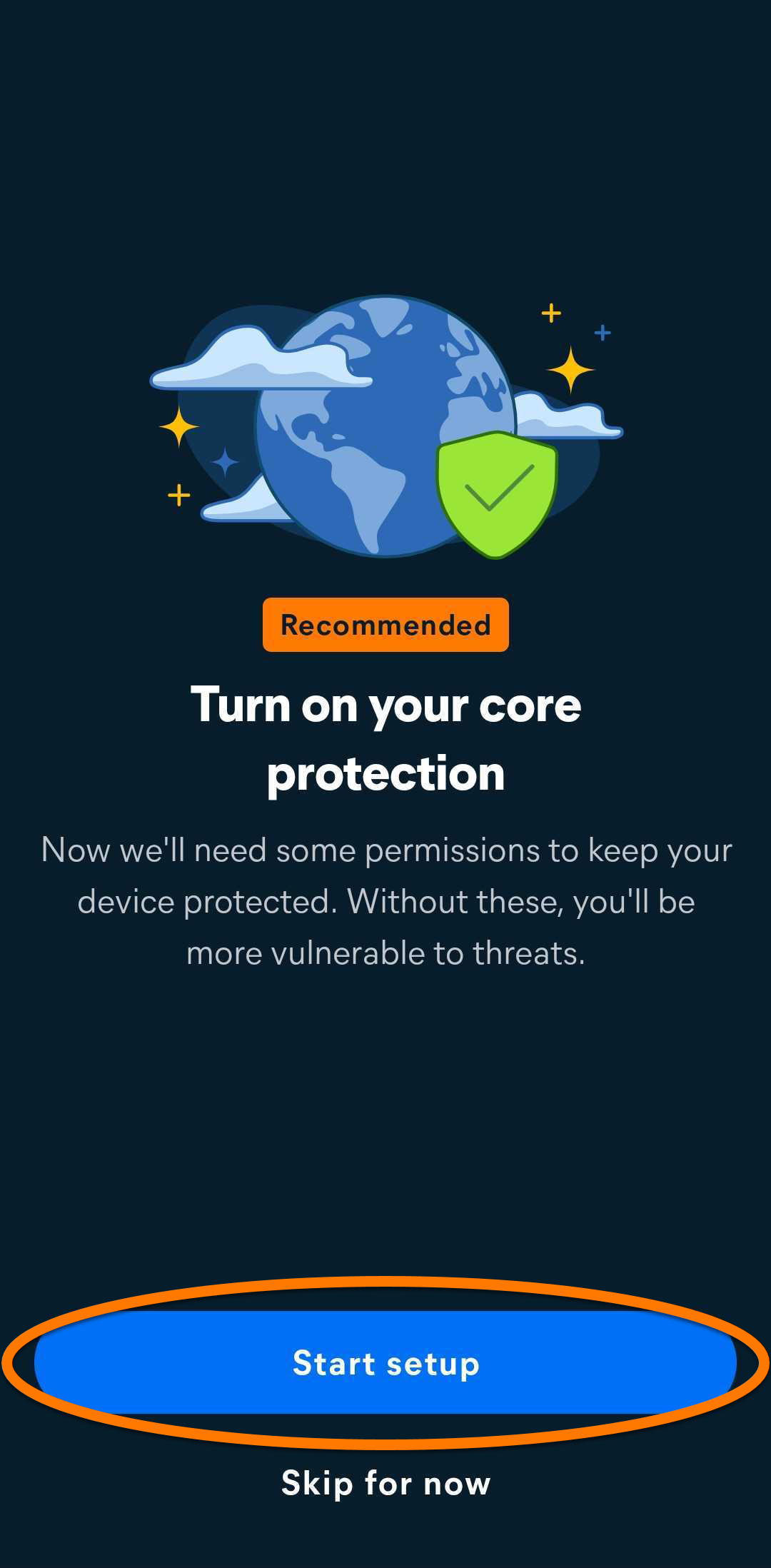
You can tap Skip for now to go straight to the main app screen and complete the setup later, but some protection features do not work until the permissions are granted.
The required permissions include Background access (battery optimization exemption), Appear on top (used for screen overlay alerts), and Accessibility (used for real-time detections). For more information, refer to the following article: Avast Mobile Security - FAQs ▸ Why does Avast Mobile Security need so many permissions?
Avast Mobile Security is now installed on your Android device. If you purchased or activated a subscription, your paid features are available.
Troubleshooting
If you experience any installation issues, ensure your Android device meets the system requirements.
If you experience an issue with activation, refer to the following articles:
- Troubleshooting activation issues in Avast mobile apps
- Troubleshooting common activation error messages
If a permission keeps getting turned off, refer to the following article: Avast Mobile Security - FAQs ▸ What should I do if the Accessibility permission is disabled repeatedly?
If you are unable to resolve your issue, contact Avast Support.
Avast Mobile Security for iOS is a security app designed to protect your privacy online, securely store your photos, block dangerous websites, and alert you if your online accounts or email addresses have been leaked online.
Avast Mobile Security is available as both a free and paid app. The installation is the same in all cases. After you install the app, you choose how to start using it: continue with the free version, purchase a subscription, or use a subscription you already have.
Install Avast Mobile Security
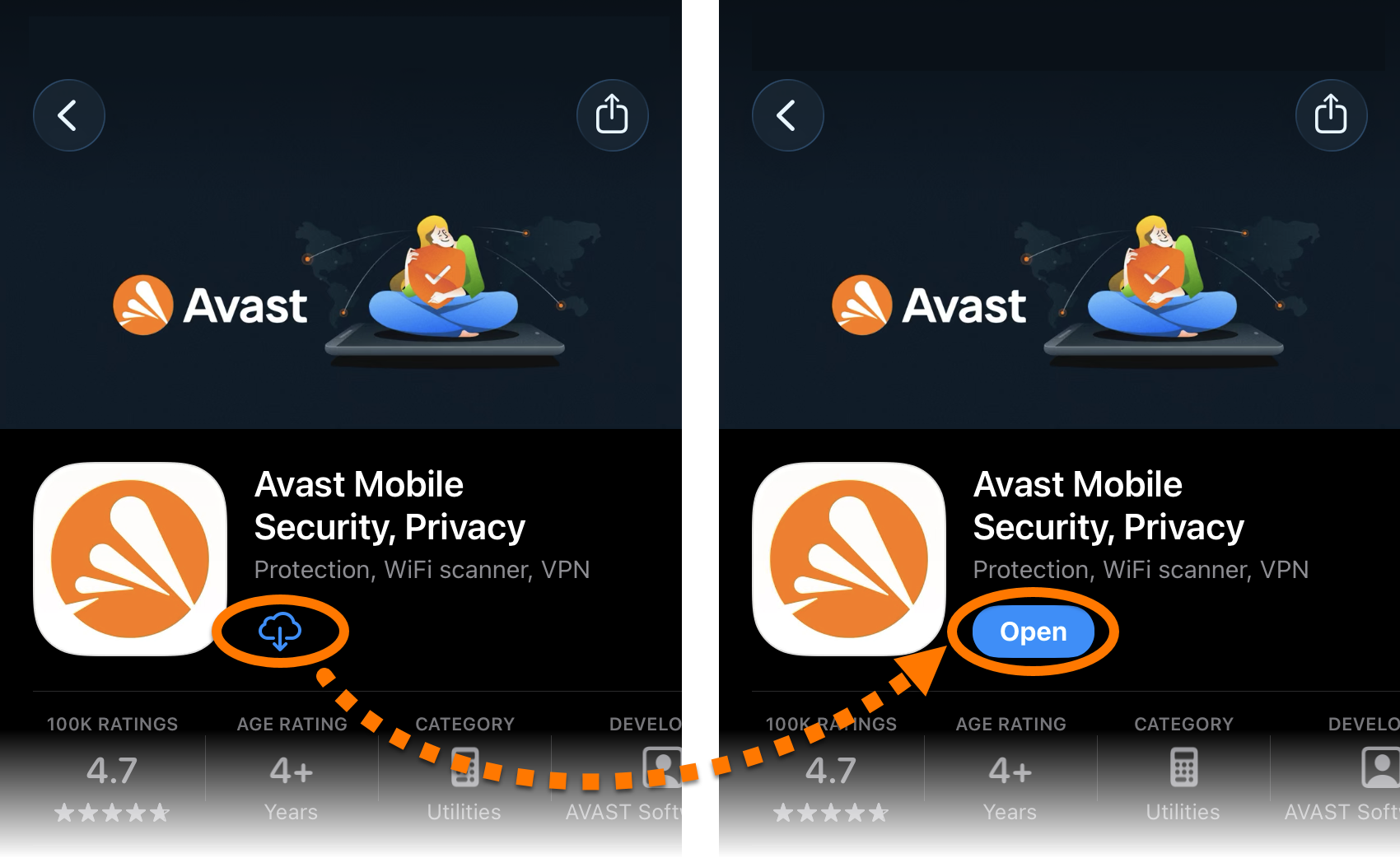
- On your iOS device, tap the button below to open the Avast Mobile Security app page in the App Store.
Go to the App Store - Tap Get (or the download button) to download and install the app. When installation is complete, tap Open.
Choose how to start
The next steps depend on how you want to use Avast Mobile Security. The Get started and Already purchased? buttons appear on the same screen. Select the option that matches your situation and follow the steps in the relevant tab:
- Tap Get started.
- Tap Continue to read through the welcome pages. Optionally, tap Skip.
- Select whether you allow Avast Mobile Security to send you notifications.
- Tap the
Xbutton twice to continue to the free version.
You can upgrade to a paid version at any time by tapping Upgrade in the top-right corner of the main app screen. For more information, refer to the following article: Avast Mobile Security - FAQs ▸ How do I upgrade to one of the paid versions of Avast Mobile Security?
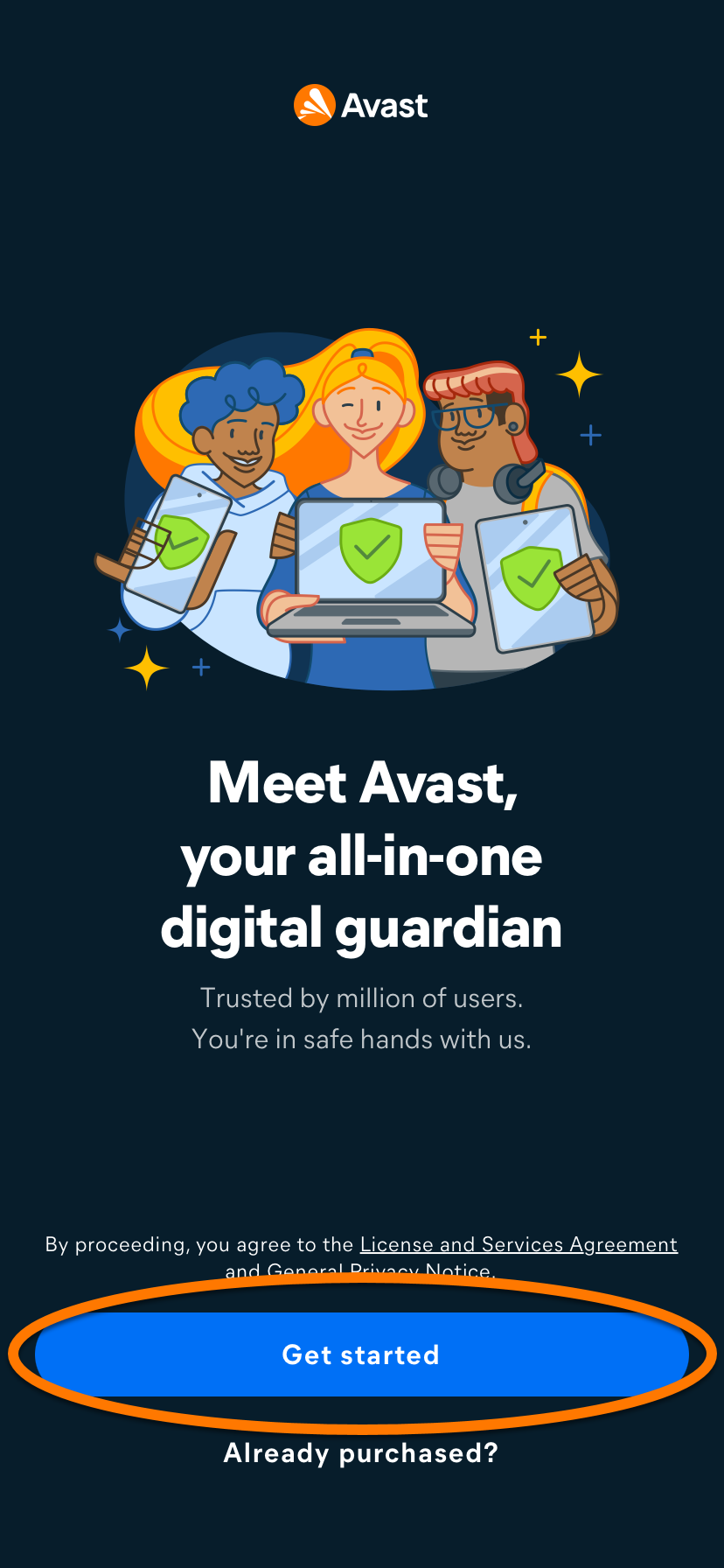
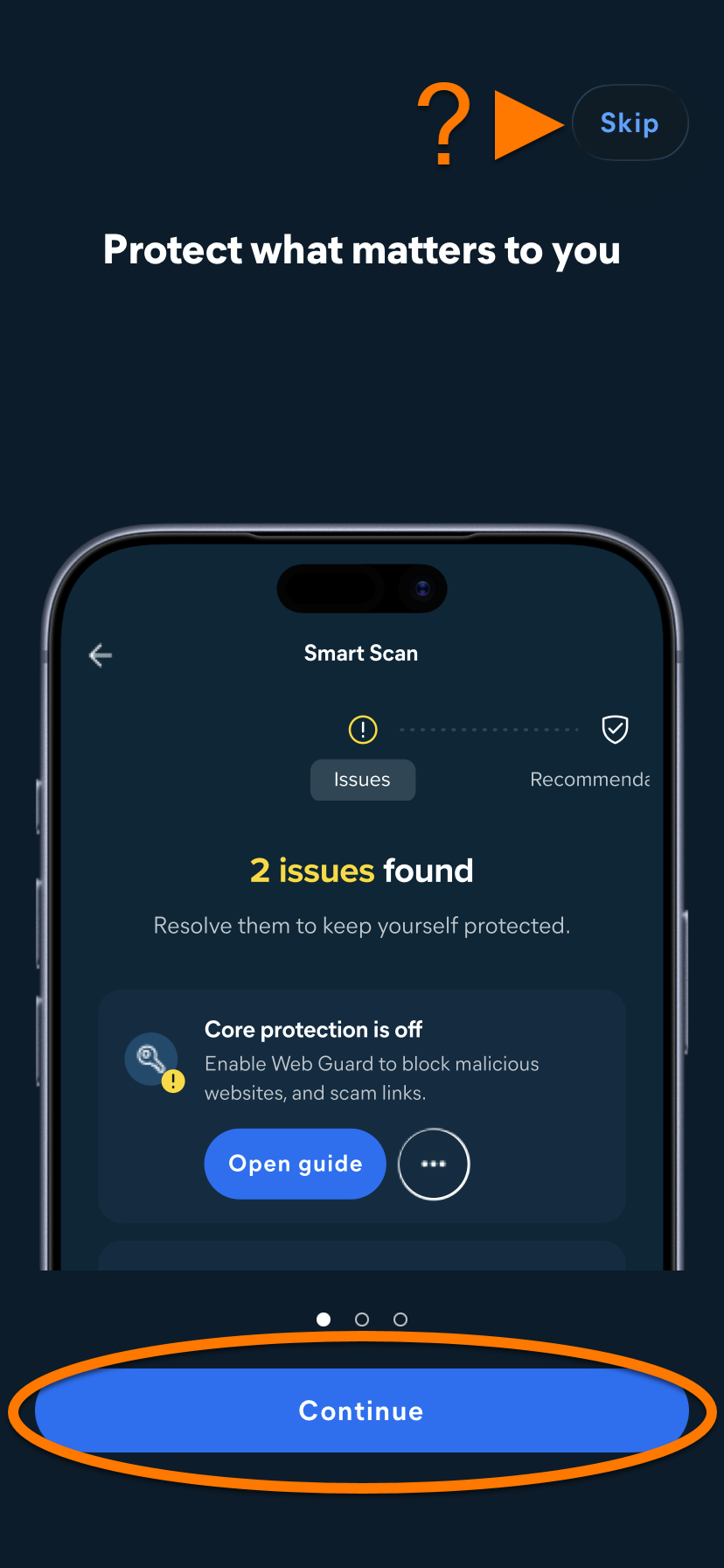
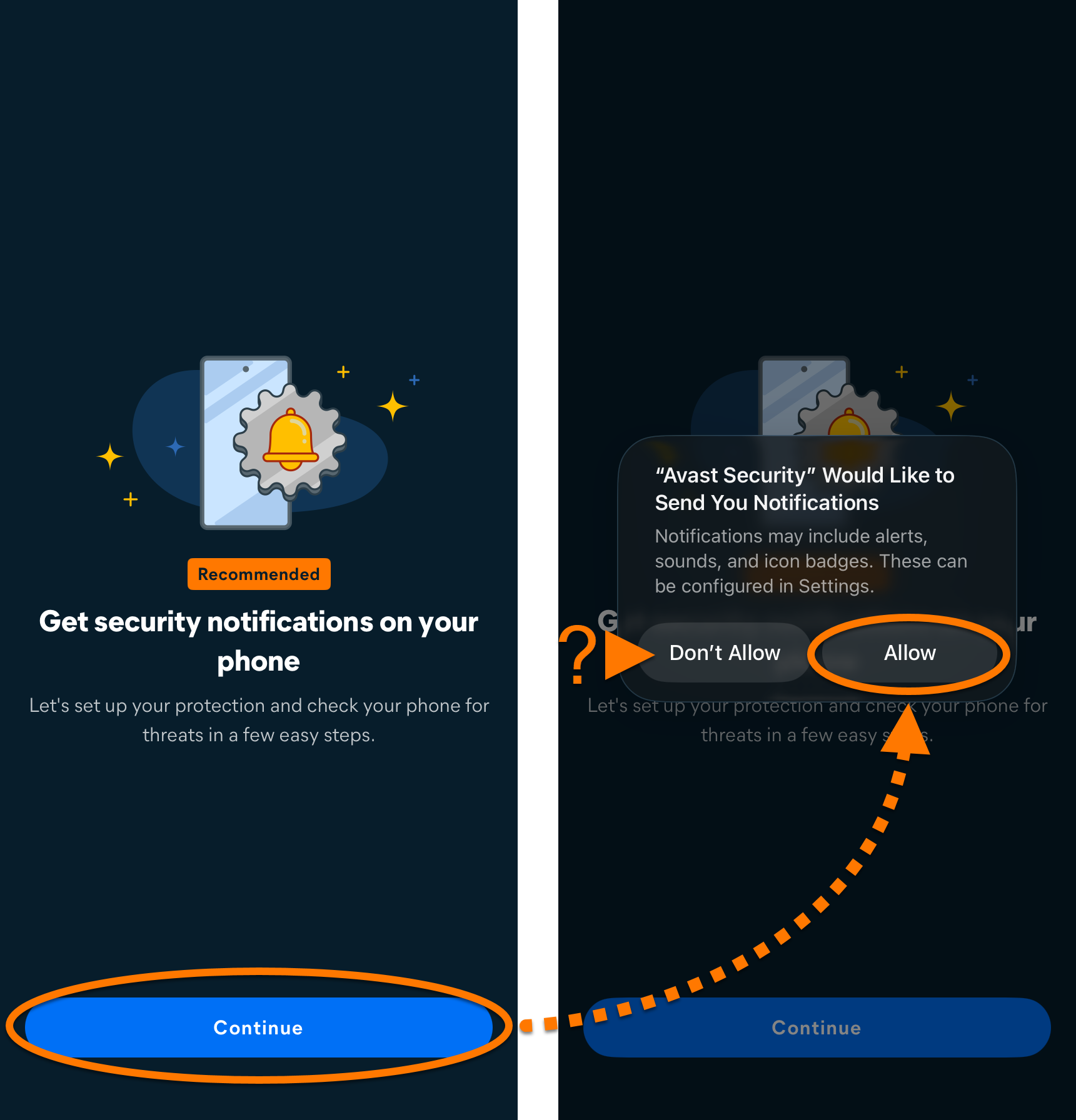
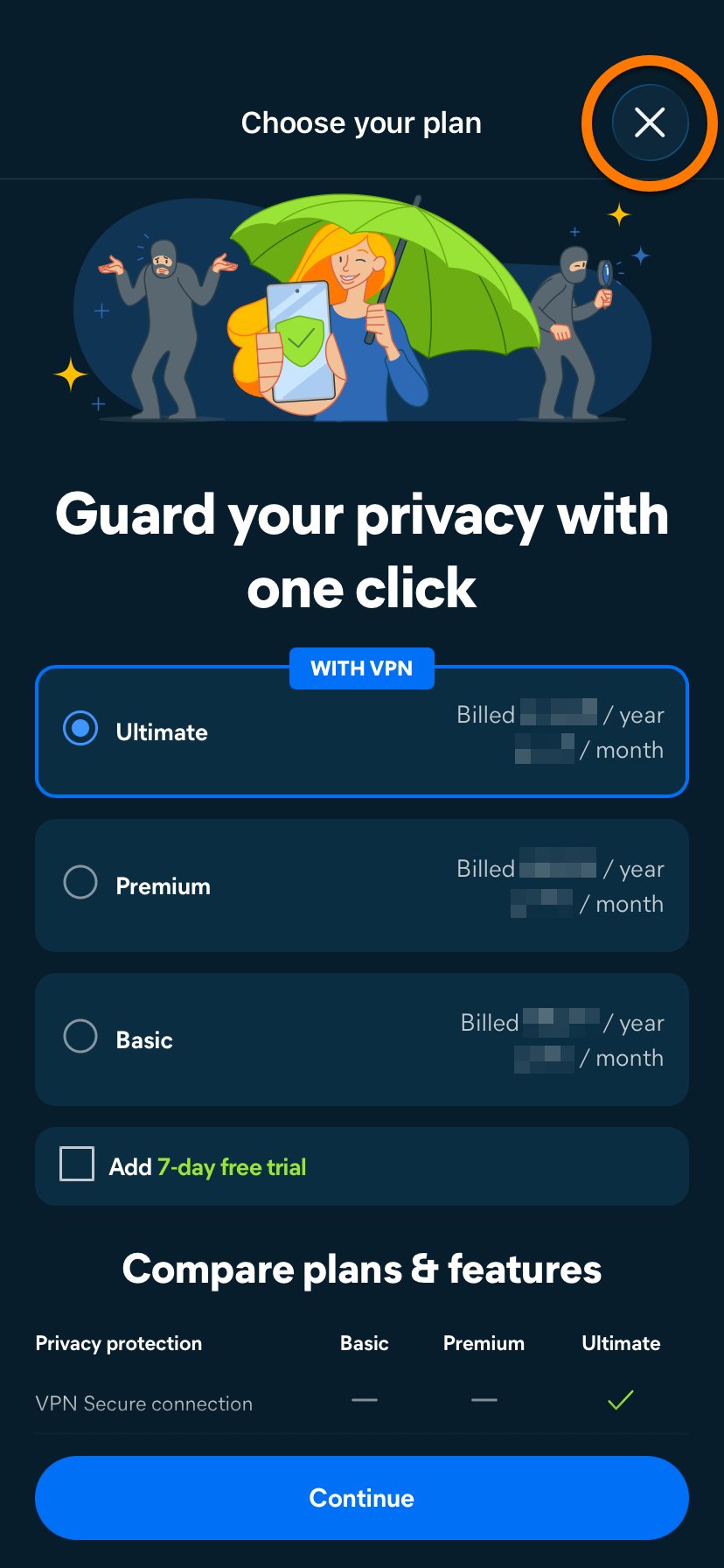
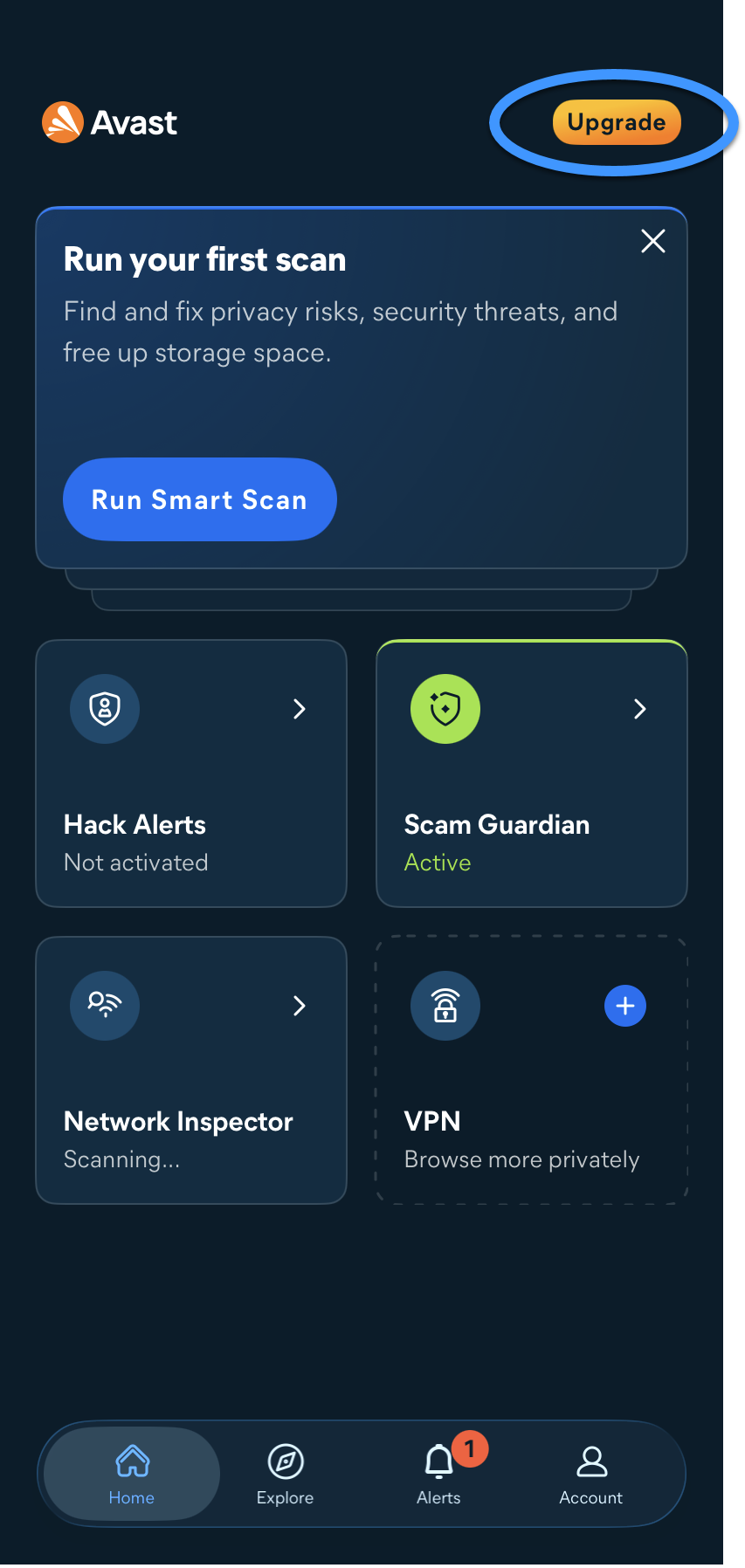
- Tap Get started.
- Tap Continue to read through the welcome pages. Optionally, tap Skip.
- Select whether you allow Avast Mobile Security to send you notifications.
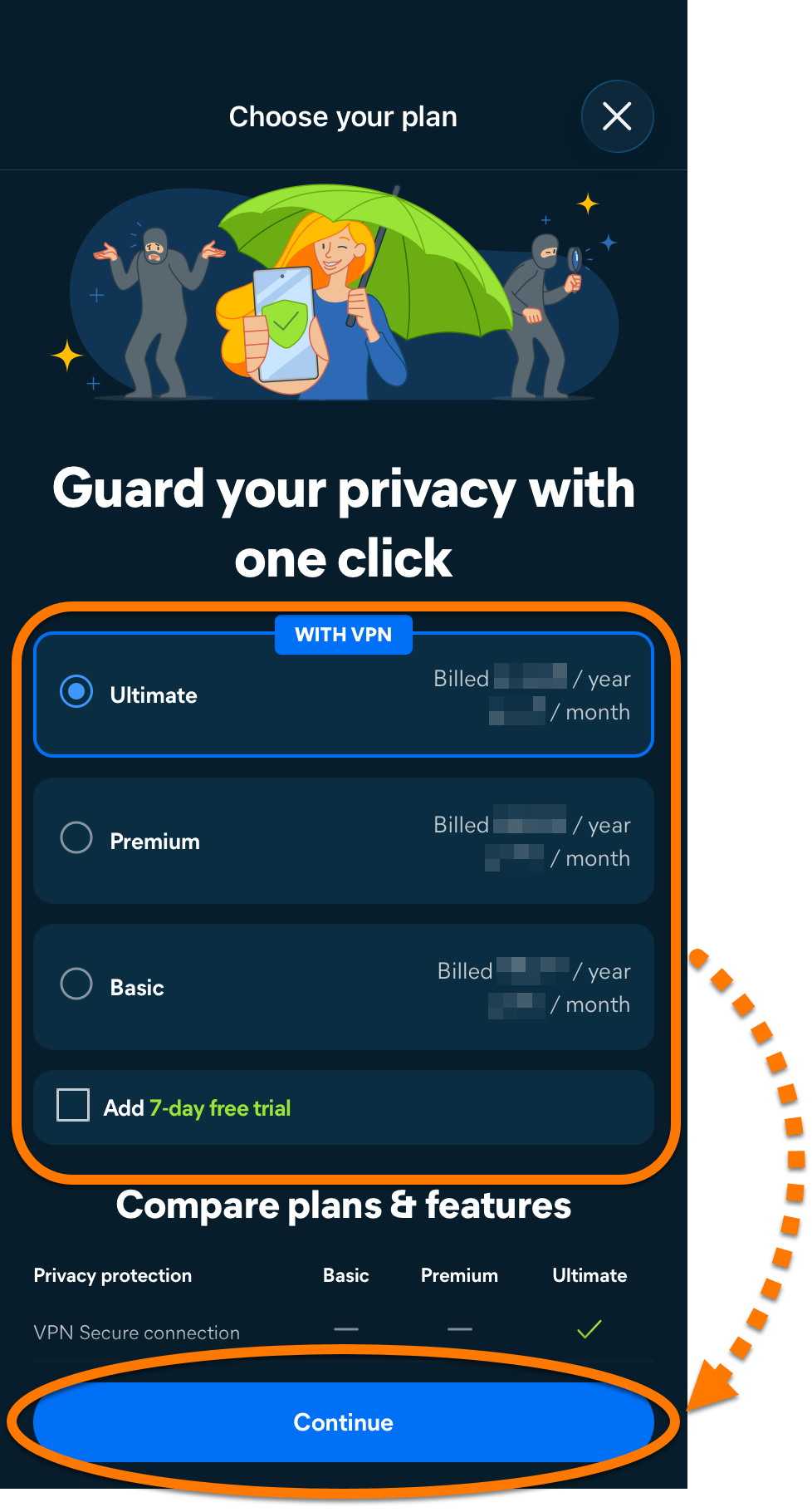
- On the purchase screen, select the subscription tier that suits you (Avast Mobile Security Premium or Avast Mobile Security Ultimate).
The available plans may differ according to your region. For a comparison of the tiers, refer to the following article: Avast Mobile Security - FAQs ▸ Which paid Avast Mobile Security subscriptions are available?
- Follow the on-screen instructions to complete the purchase via the App Store.
Your paid subscription activates automatically. It is valid on devices that are connected to the Apple Account you used to purchase it and have Avast Mobile Security installed.
If a 7-day free trial is offered during this step, a payment method is required to sign up. When the free trial ends, the payment card provided will be charged, unless the subscription is canceled before the end of the free trial. For more information, refer to: Avast Mobile Security - FAQs ▸ Is there a free trial option for the paid versions of Avast Mobile Security?
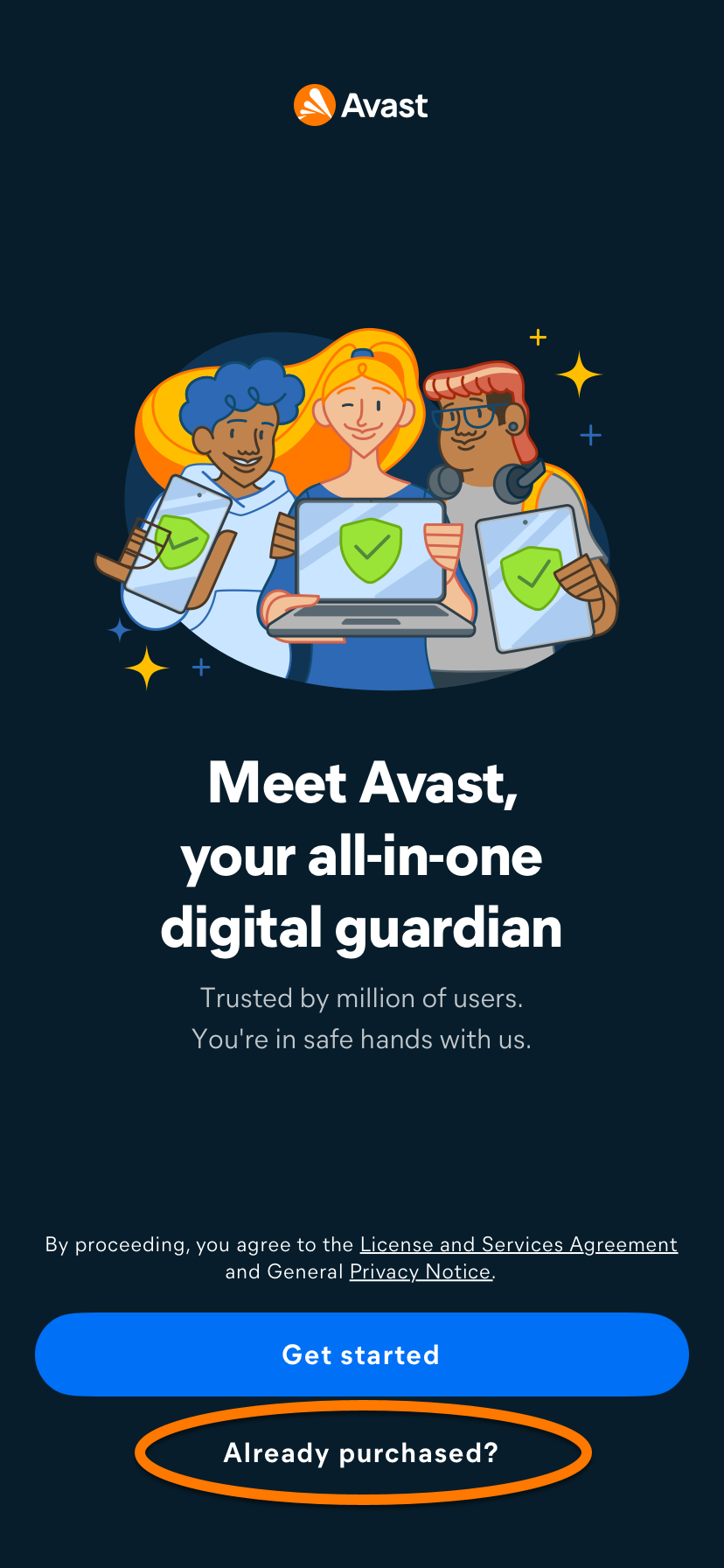
- Tap Already purchased?.
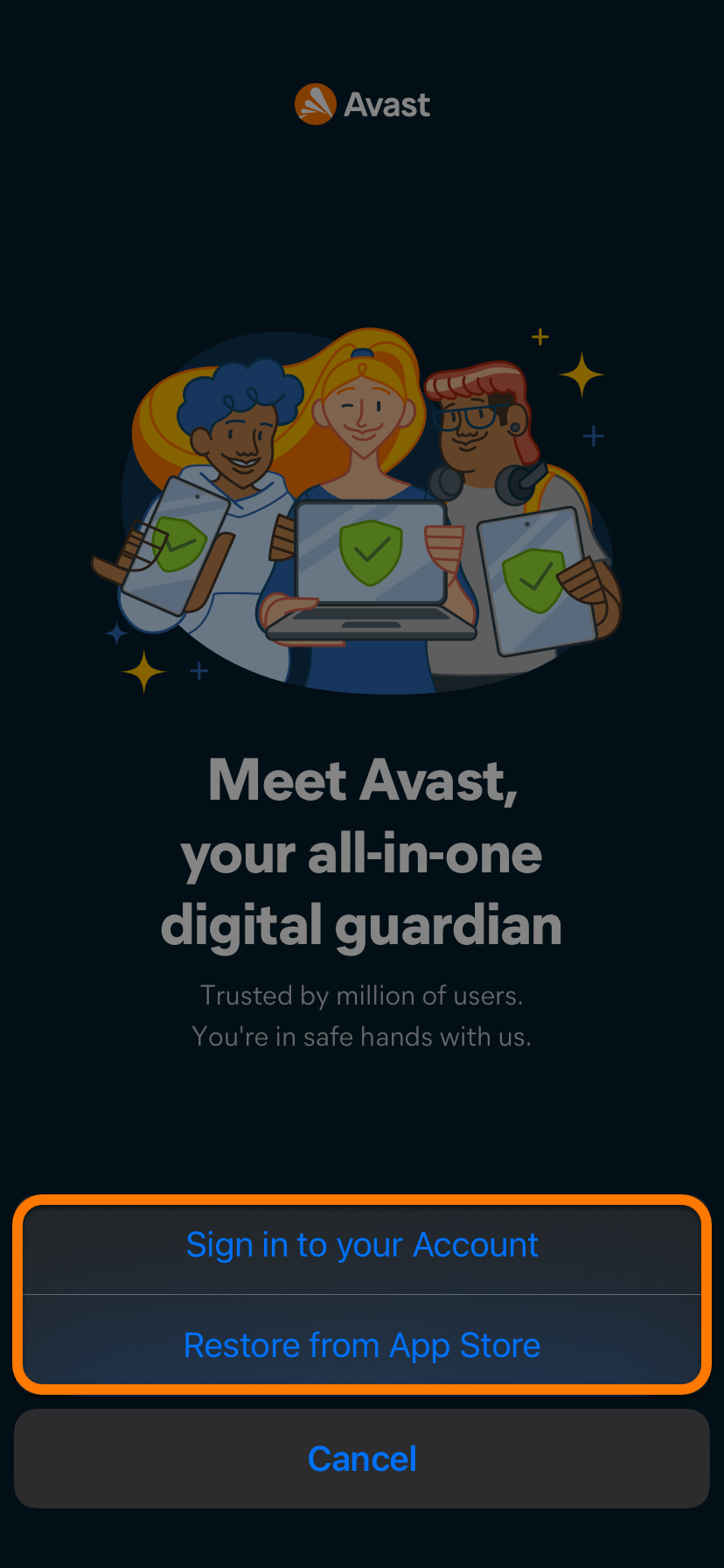
- Select the option that matches how you purchased your subscription:
- Sign in to your Account: Select this option if you purchased your subscription from another sales channel, such as the Avast Store. Sign in with your Avast Account credentials.
- Restore from App Store: Select this option if you purchased your subscription through the App Store. Follow the on-screen instructions to restore your subscription. Ensure you are signed in to the App Store with the same account that you used for the purchase. To restore a subscription on a new or reset device, refer to: Transferring or restoring Avast mobile subscriptions.
- Follow the on-screen instructions to activate your subscription.
For detailed activation instructions, including what to do if activation fails, refer to the following article: Activating Avast Mobile Security.Multi-device subscriptions can also activate Avast Mobile Security. For details, refer to the following article: Avast Mobile Security - FAQs ▸ Can I use my multi-device subscription to activate Avast Mobile Security?
Complete the initial setup
After you continue with the free version, purchase a subscription, or activate an existing subscription, Avast Mobile Security prompts you to complete the setup so that it can protect your device. Tap Get Started to begin.
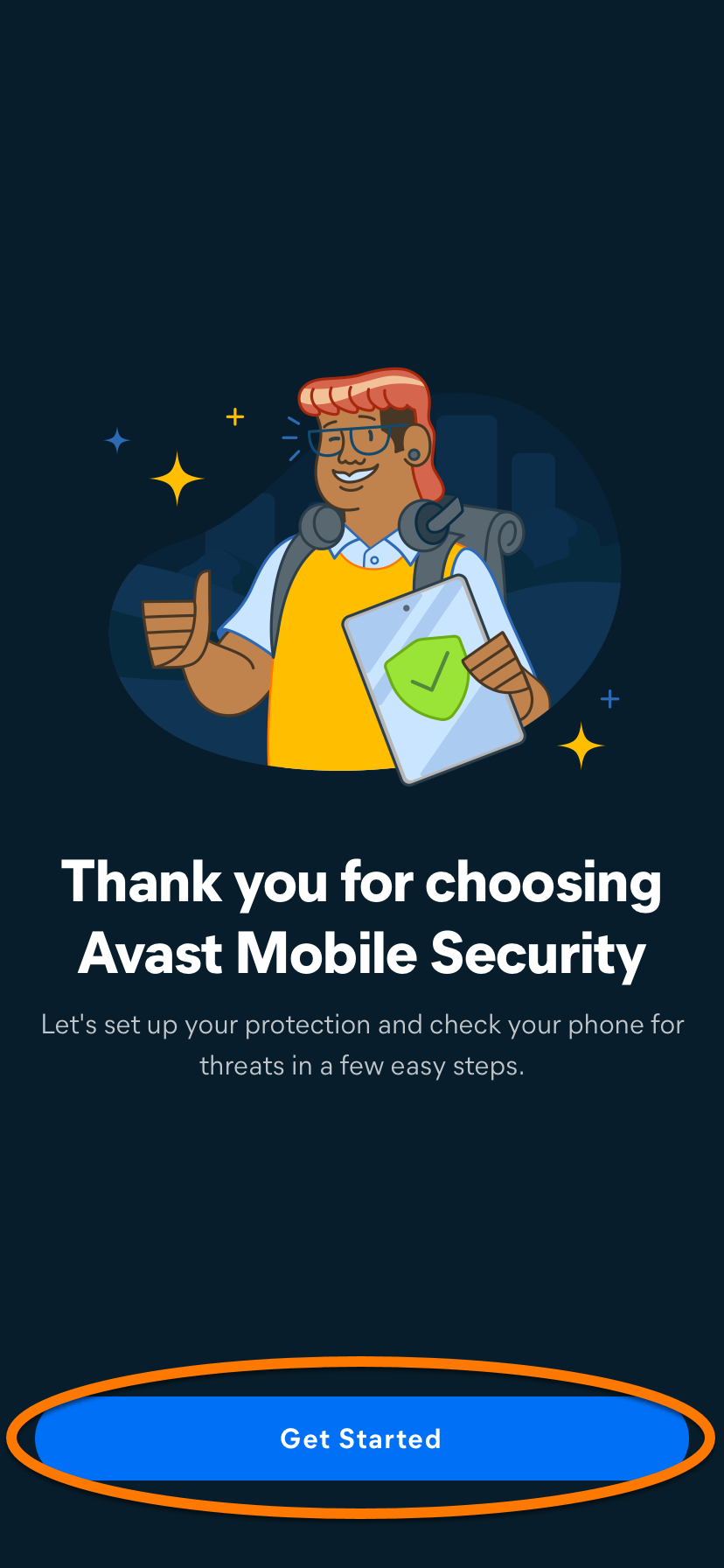
Avast requests permission to collect limited data and to add VPN configurations. To grant these permissions, tap Allow in the data usage dialog. If you prefer not to grant them, tap Ask App Not to Track or Don't Allow.
Avast Mobile Security is now installed on your iOS device. If you purchased or activated a subscription, your paid features are available.
Troubleshooting
If you experience any installation issues, ensure your iOS device meets the system requirements.
If you experience an issue with activation, refer to the following articles:
- Troubleshooting activation issues in Avast mobile apps
- Troubleshooting common activation error messages
If you are unable to resolve your issue, contact Avast Support.
Further recommendations
For more information about the features available in Avast Mobile Security, refer to the following article:
For instructions on how to use Avast Mobile Security, refer to the following article:
- Avast Mobile Security
- Android and iOS
Updated on: 16/11/2026

 © 2025 Gen Digital Inc.