

The Avast VPN browser extension is an optional component that lets you manage Avast VPN directly from your web browser. It is supported on Google Chrome, Microsoft Edge, and Mozilla Firefox. The extension is available on Windows only. This article explains how to install it using:
- Avast VPN (standalone version)
- Avast VPN within Avast One
Install the browser extension
You can use the browser extension only if Avast VPN is installed and activated on your device, either as a standalone application or as part of Avast One. For detailed instructions, refer to the following articles:
- Standalone Avast VPN:
- Avast One - Avast VPN:
To install the Avast VPN browser extension:
- Open Avast One, then hover your cursor over the side menu and select Avast VPN.
- Go to Browser Extension.
- Next to each relevant browser, click Add extension.
- Follow the on-screen instructions to install the chosen extension:
- Google Chrome: On the Chrome web store page, click Add to Chrome ▸ Add extension. Optionally, click
 Extensions ▸ Pin next to Avast VPN with Ad Blocker to pin the extension to your browser toolbar.
 - Mozilla Firefox: On the Mozilla Firefox Add-ons extension page, click Add to Firefox ▸ Add. Optionally, tick Pin extension to toolbar, then click OK.
- Microsoft Edge: On the Edge Add-ons extension page, click Get ▸ Add extension. Optionally, click Extensions ▸ Pin next to Avast VPN with Ad Blocker to pin the extension to your browser toolbar.
- Google Chrome: On the Chrome web store page, click Add to Chrome ▸ Add extension. Optionally, click
 Extensions ▸
  Pin next to Avast VPN with Ad Blocker to pin the extension to your browser toolbar.
- Open Avast VPN, then go to Browser extensions.
- Next to each relevant browser, click Add extension.
- Follow the on-screen instructions to install the chosen extension:
- Mozilla Firefox: On the Mozilla Firefox Add-ons extension page, click Add to Firefox ▸ Add. Optionally, tick Pin to extension to toolbar, then click OK.
- Google Chrome: On the Chrome web store page, click Add to Chrome ▸ Add extension. Optionally, click Extensions ▸ Pin next to Avast VPN with Ad Blocker to pin the extension to your browser toolbar.
- Microsoft Edge: On the Edge Add-ons extension page, click Get ▸ Add extension. Optionally, click Extensions ▸ Pin next to Avast VPN with Ad Blocker to pin the extension to your browser toolbar.
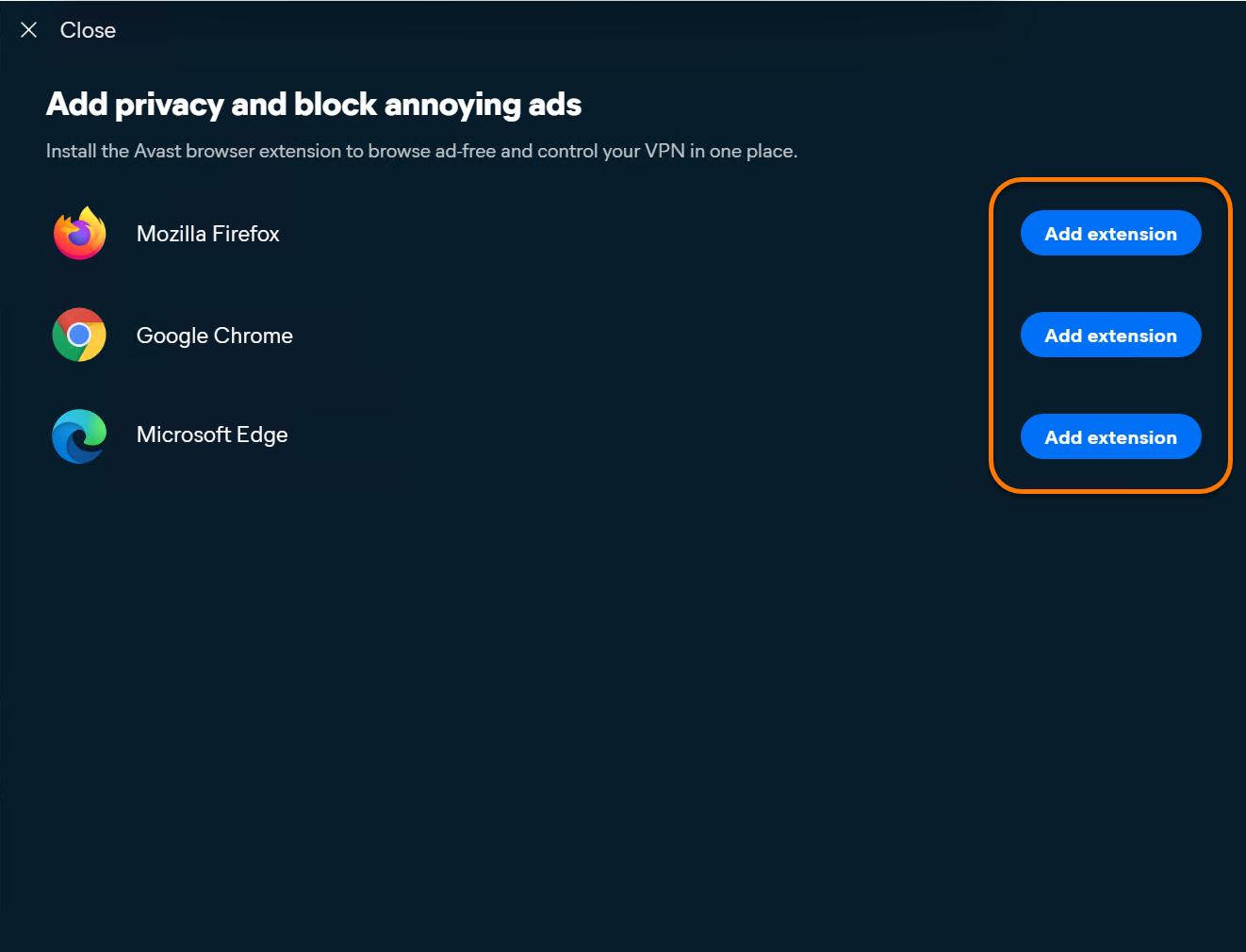
Avast VPN is now installed in your browser.
Connect to the VPN
To connect to the VPN using your Avast VPN browser extension, follow the steps below:
- Open your browser with the Avast VPN browser extension.
- In the top-right corner of the screen, click the Avast VPN browser extension icon.
- On the extension panel, click Connect. Optionally, click the drop-down arrow next to the currently selected VPN location to choose a specific server.
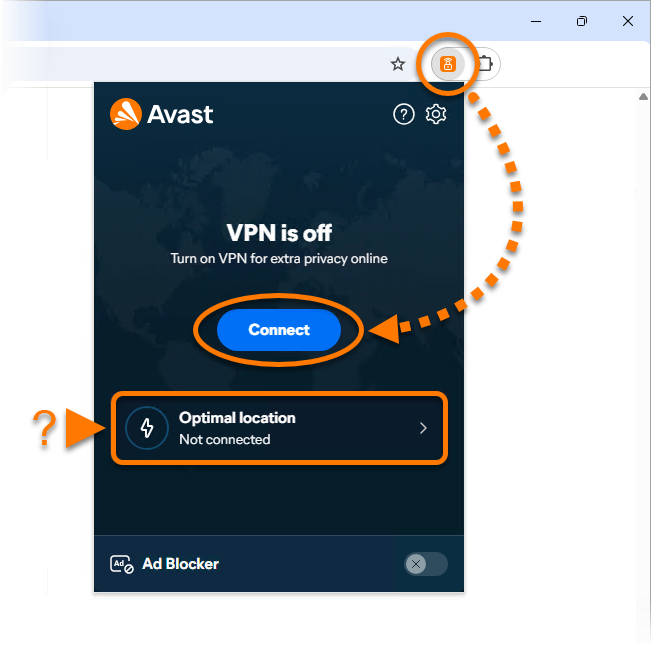
You are now connected to the Avast VPN default server.
Further recommendation
For information on how to enable and use the Ad Blocker feature within the browser extension, refer to the following article: Ad Blocker and Acceptable Ads in the Avast VPN browser extension.
- Avast One
- Avast VPN
- Windows
Updated on: 09/10/2026

 © 2025 Gen Digital Inc.