

Avast Mobile Security is available as both a free and paid app. After you install the free version of the app, you may need to activate it. A subscription purchased via Google Play Store or the App Store activates automatically on the device you use to make the purchase. If you purchase your subscription through another Avast sales channel, such as the Avast Store, you need to manually activate the app by signing in to your Avast Account or by using a valid activation code.
Open the activation options
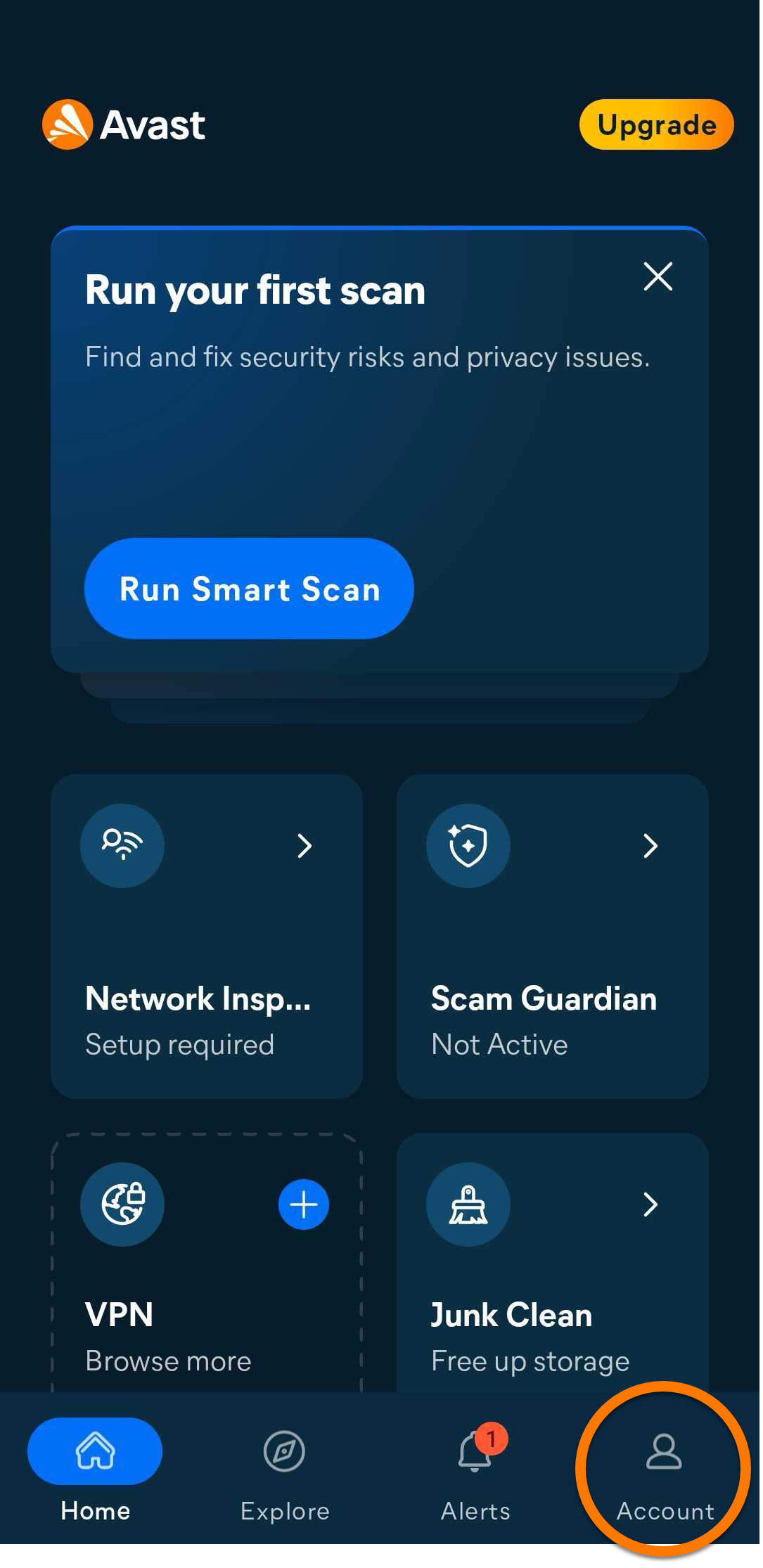
- Open Avast Mobile Security and tap
 Account.
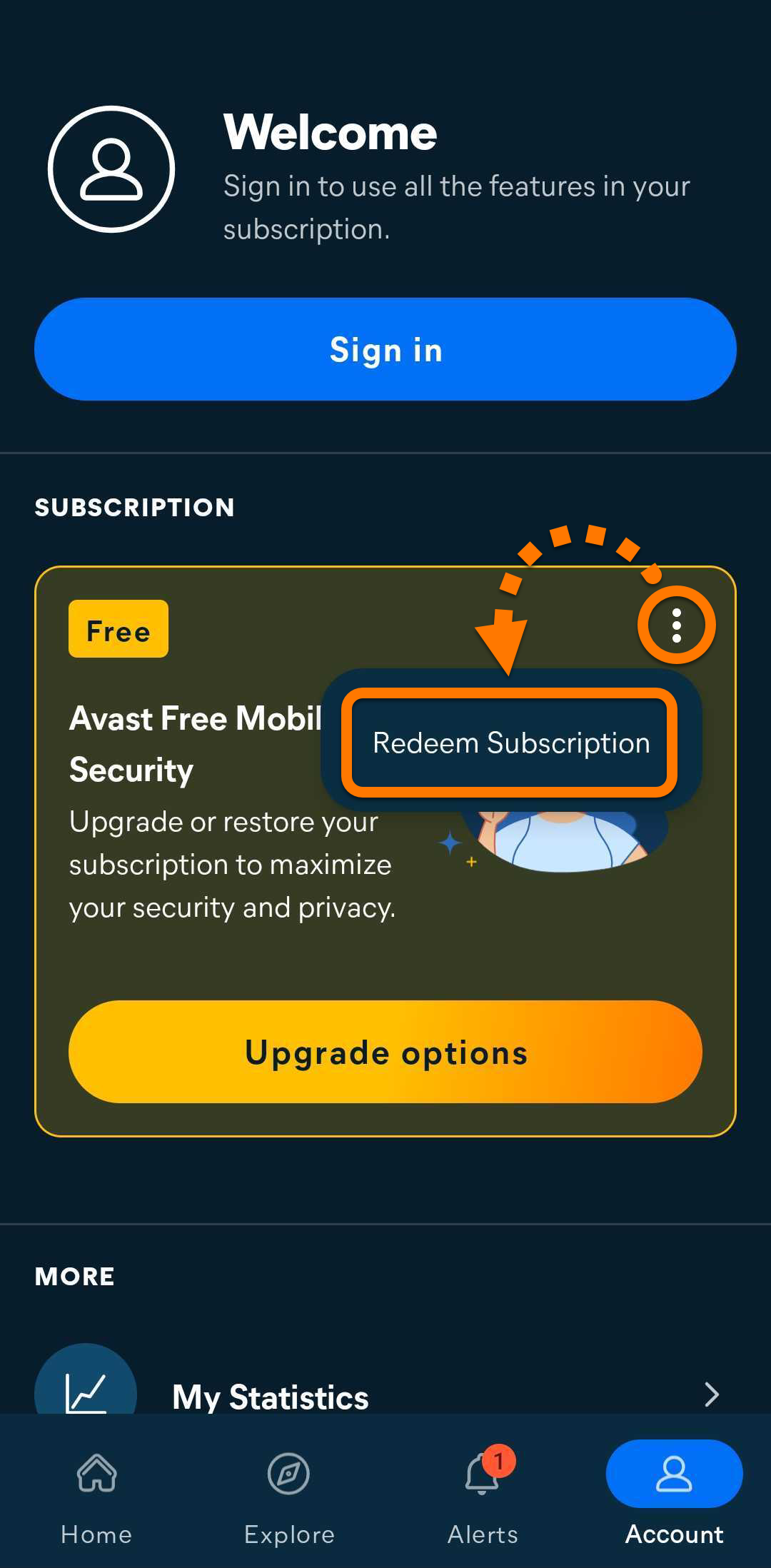
- Under Subscription, tap
⋮Menu (the three dots) ▸ Redeem Subscription.
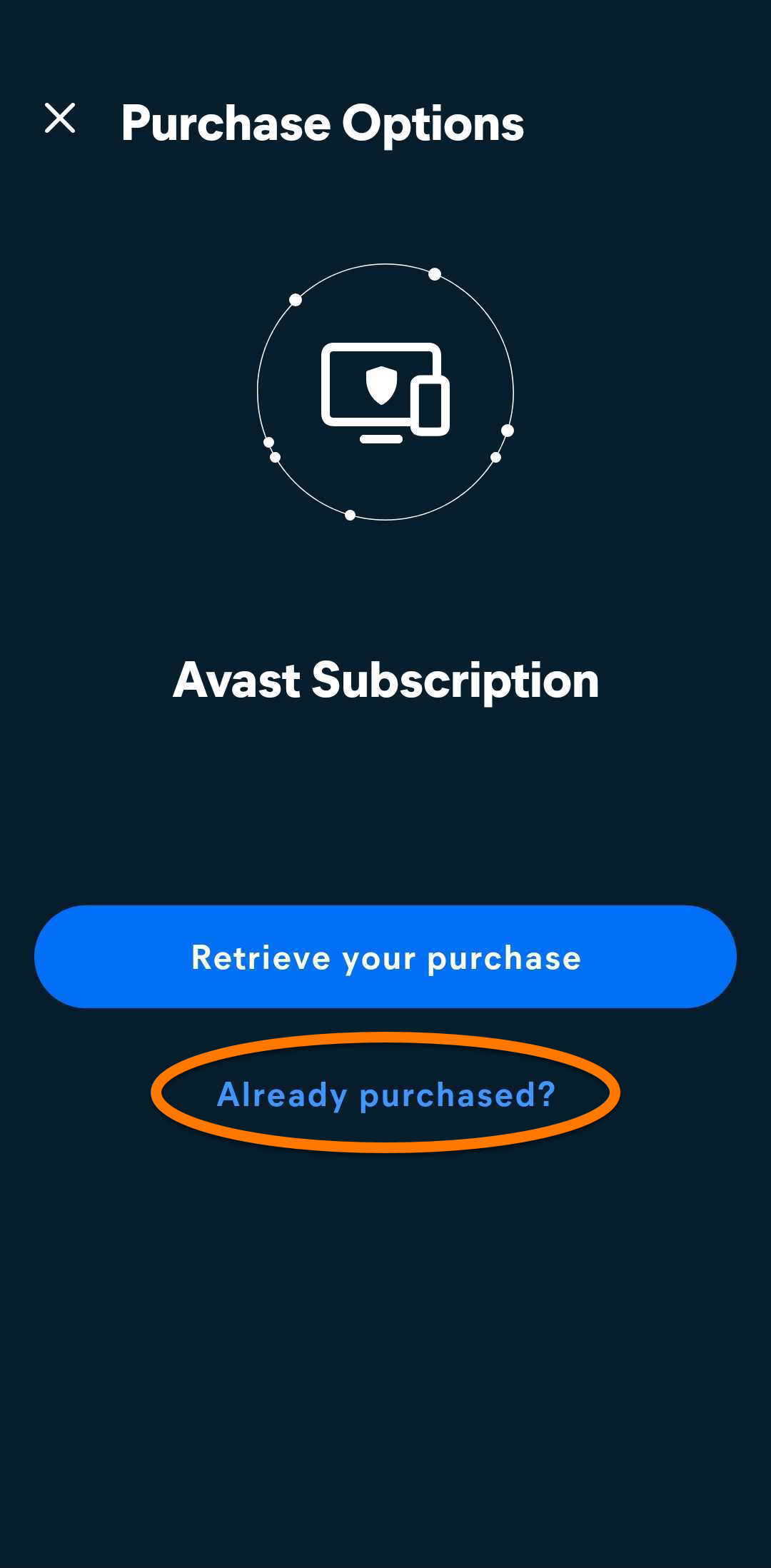
- Tap Already purchased?.
 Account.
Choose how to activate
Select the option that matches how you purchased your subscription and follow the steps in the relevant tab:
Select this option if you purchased your subscription from another Avast sales channel, such as the Avast Store.
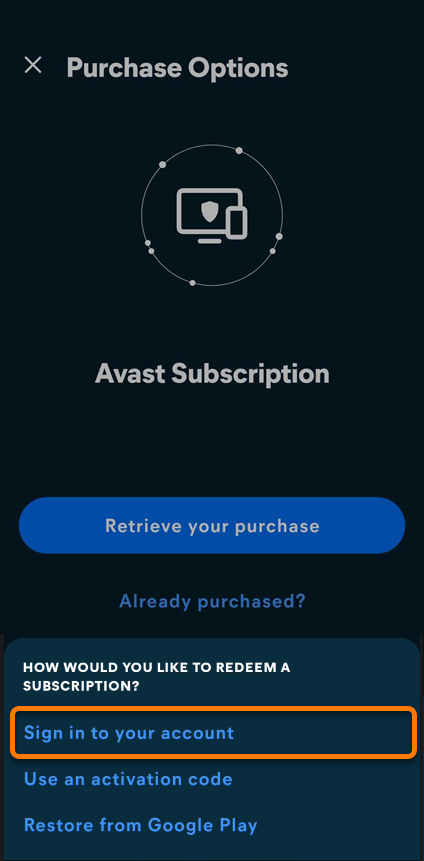
- Tap Sign in to your account.
- Enter the email address associated with your Avast Account, then tap Continue.
- Enter the 6-digit code sent to the email address you provided.
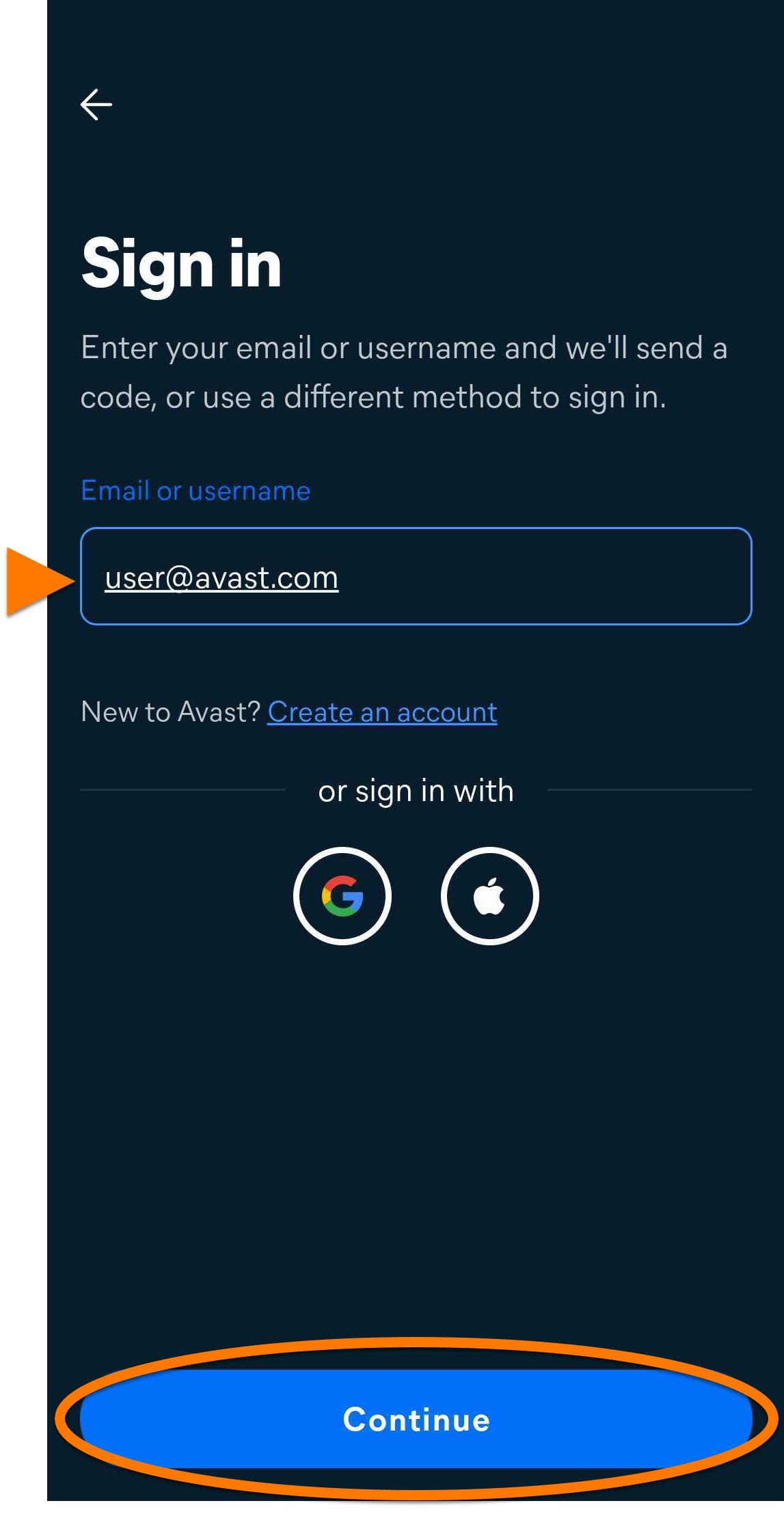
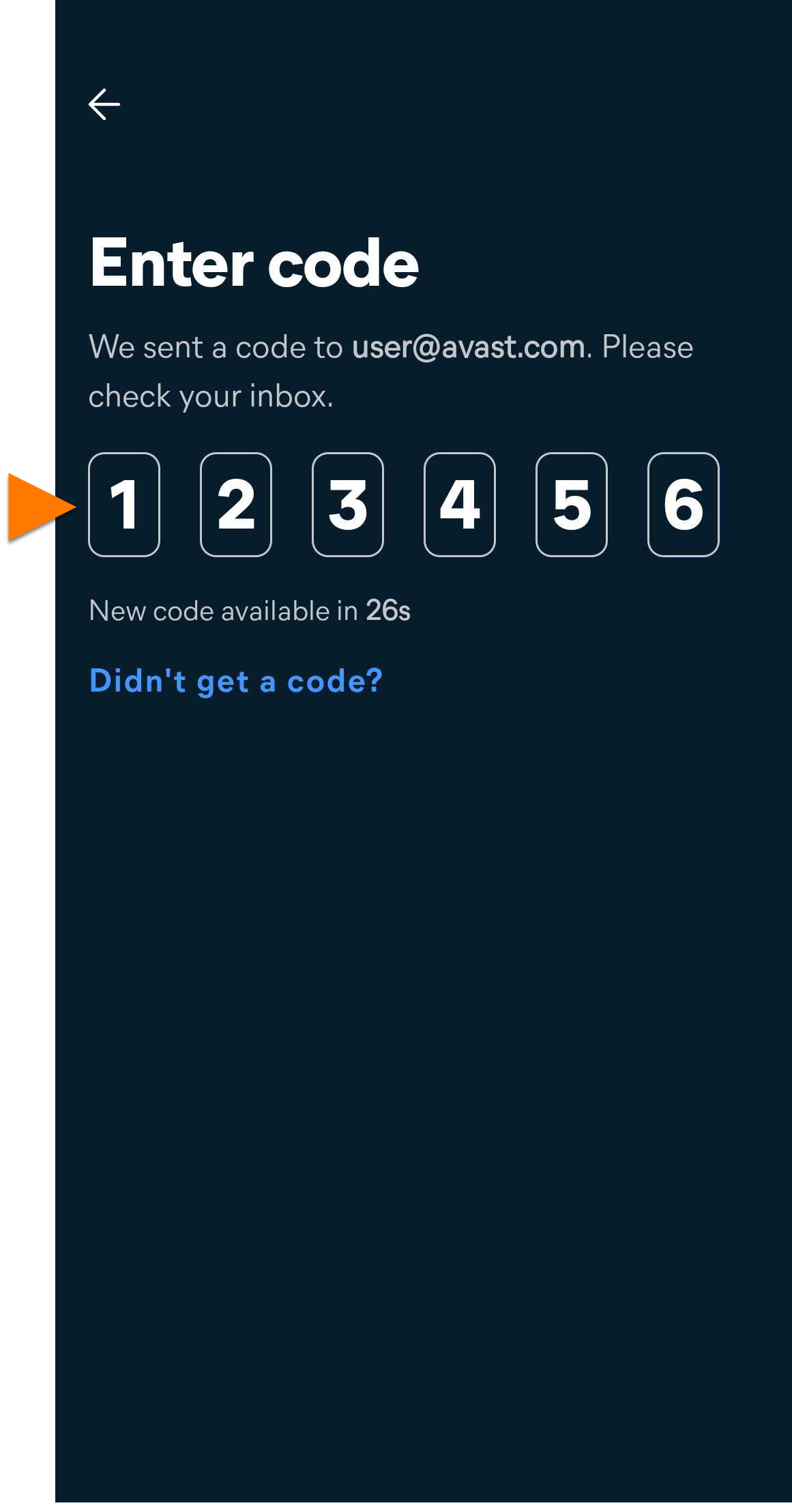
Avast Mobile Security is now activated. If activation is unsuccessful, ensure your Avast Account is registered to the email address that you used to purchase your subscription. If you used a different email address for purchase, you can add it to your Avast Account. For detailed instructions, refer to the following article: Adding a missing subscription to your Avast Account.
If you do not receive the code
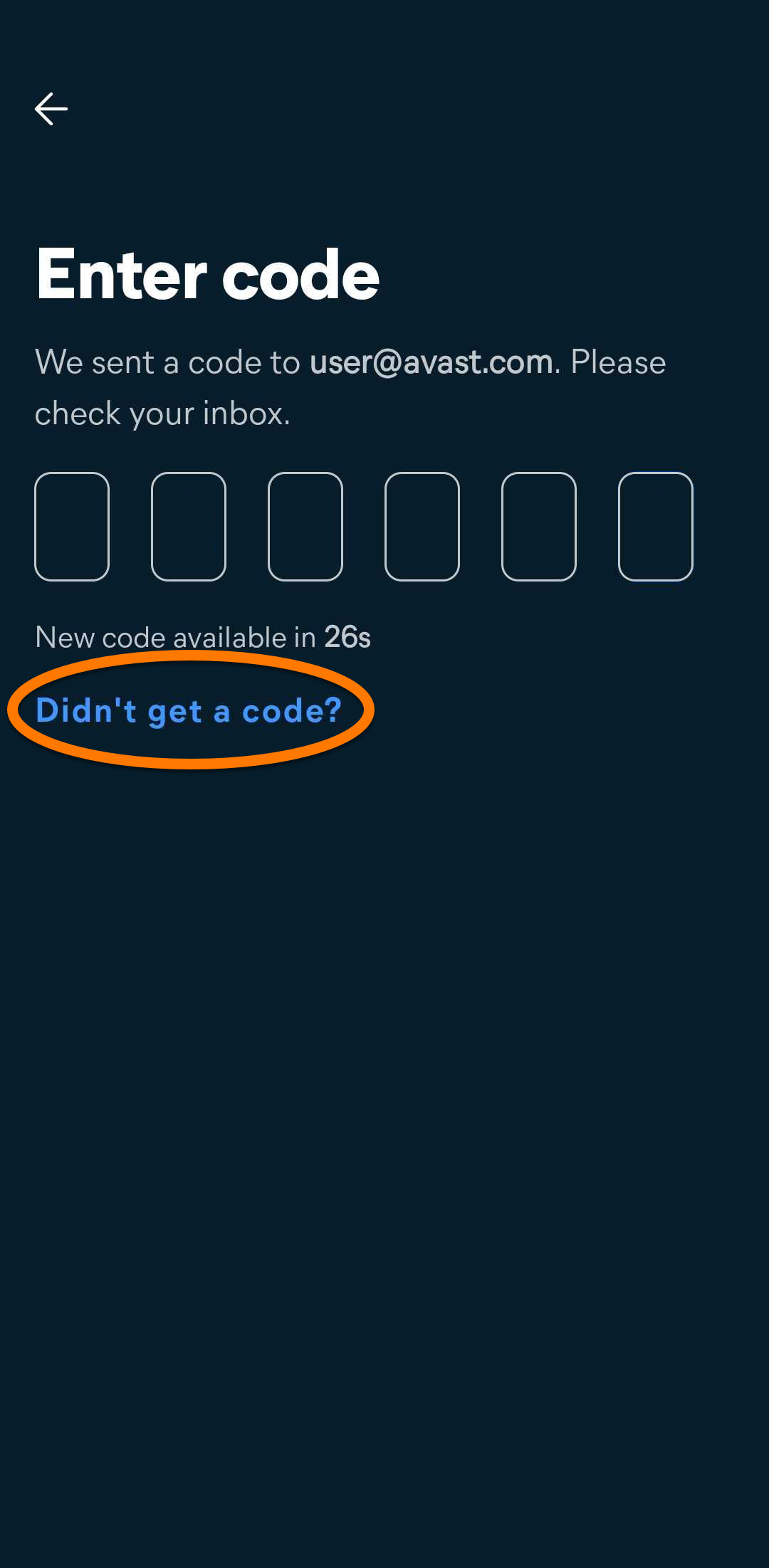
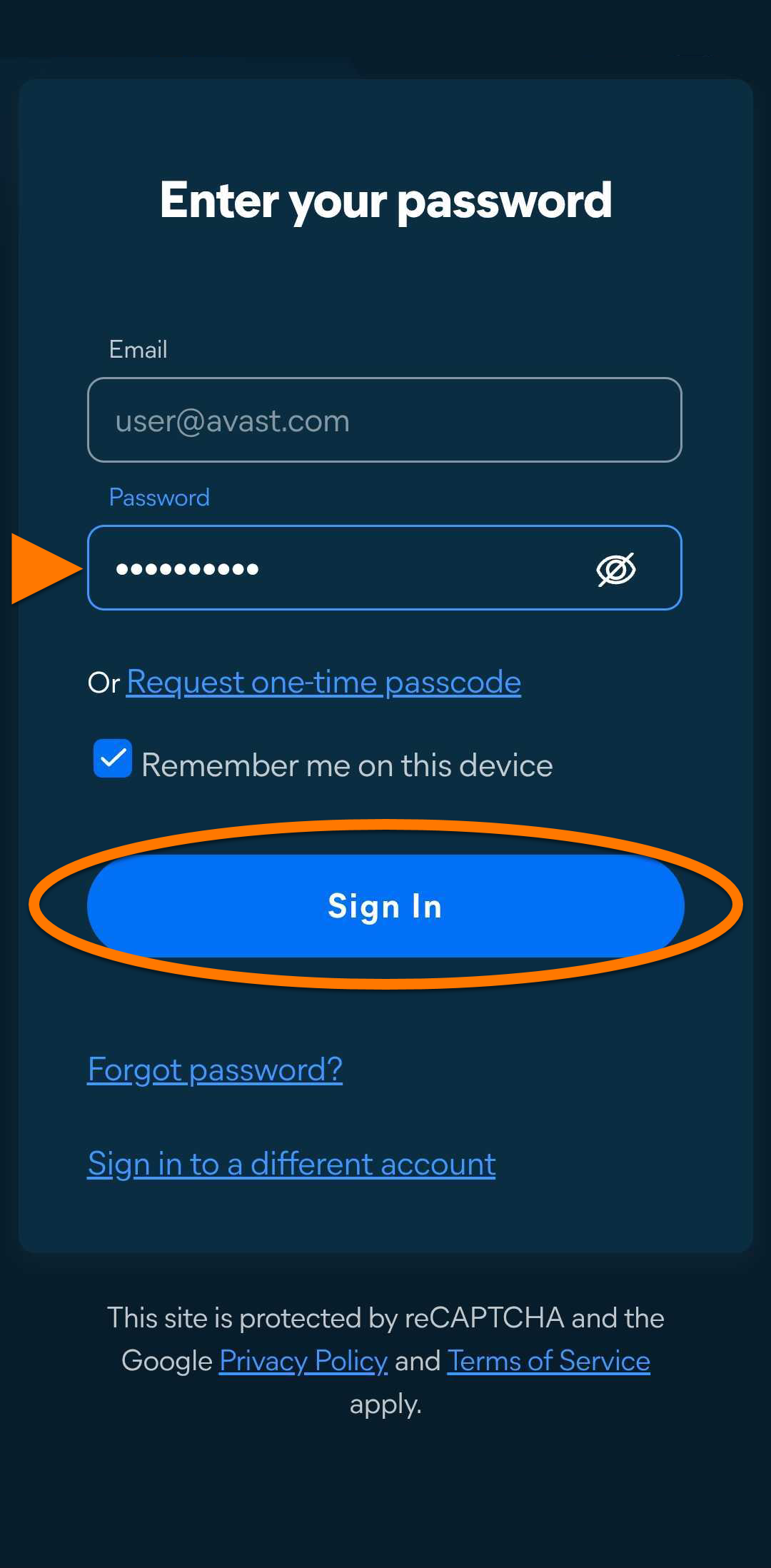
If the 6-digit code does not arrive, check your spam or junk folder. You can also sign in with your Avast Account password instead:
- On the screen where you enter the code, tap Didn't get a code? ▸ Use a different method.
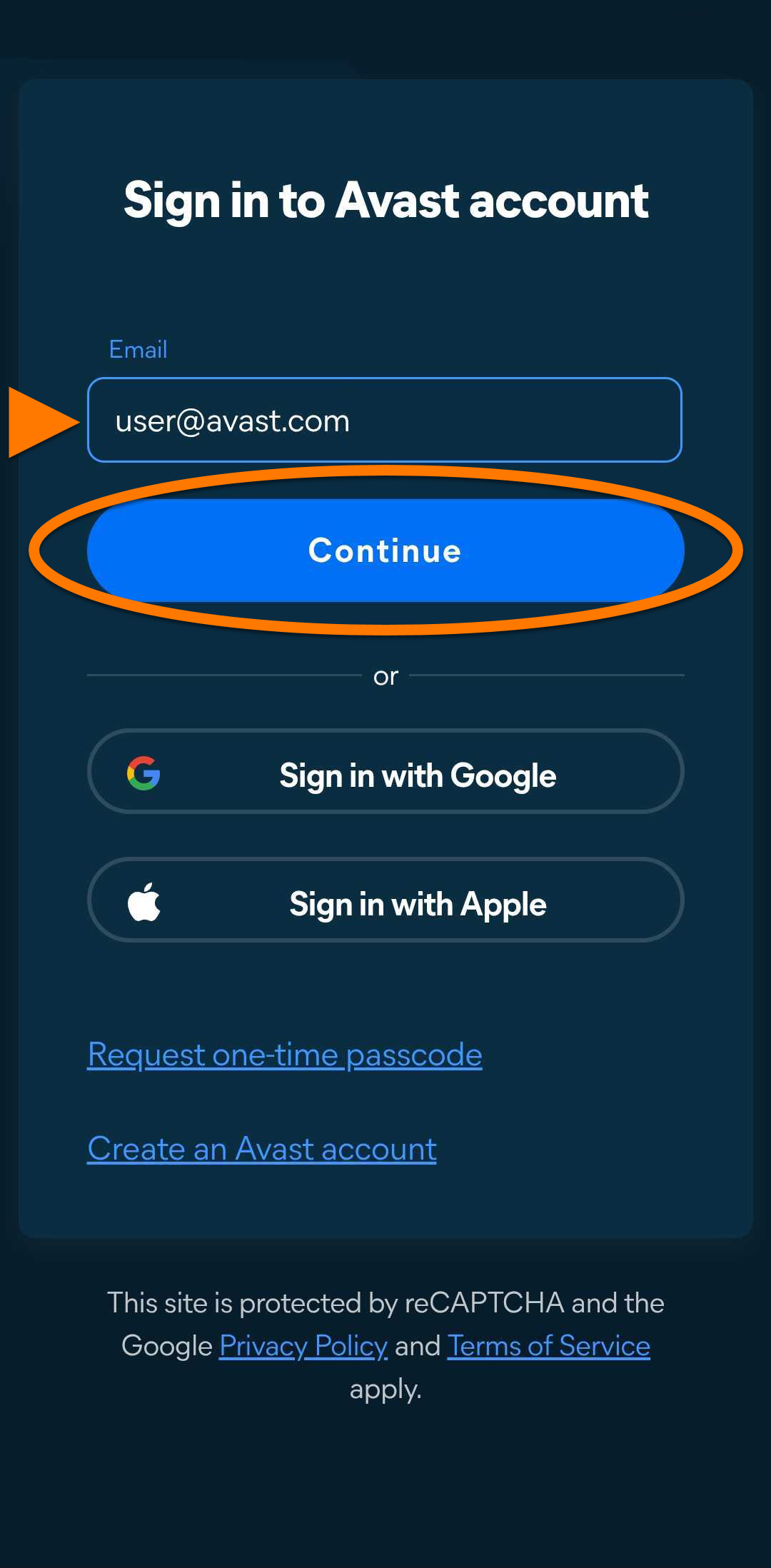
- Enter the email address associated with your Avast Account, then tap Continue.
- Enter the password associated with your Avast Account, then tap Sign In.
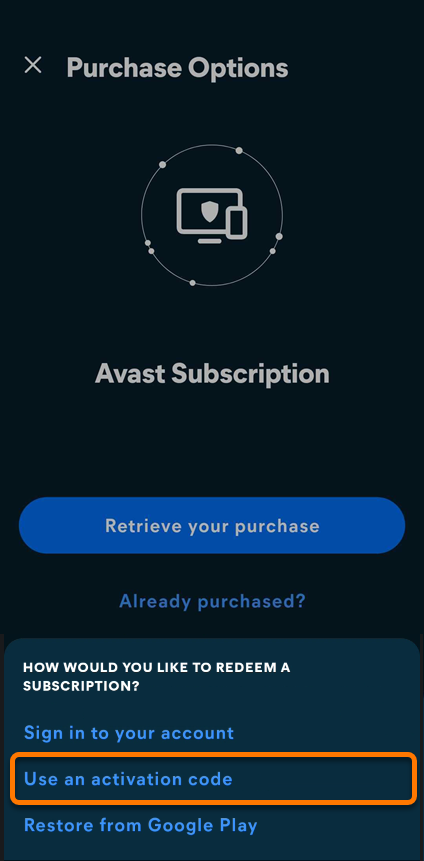
Select this option if you have an activation code, for example from your order confirmation email. For detailed instructions on how to find it, refer to the following article: Locating your Avast activation code.
- Tap Use an activation code.
- Type or paste your activation code (including hyphens) into the text box, then tap Next.
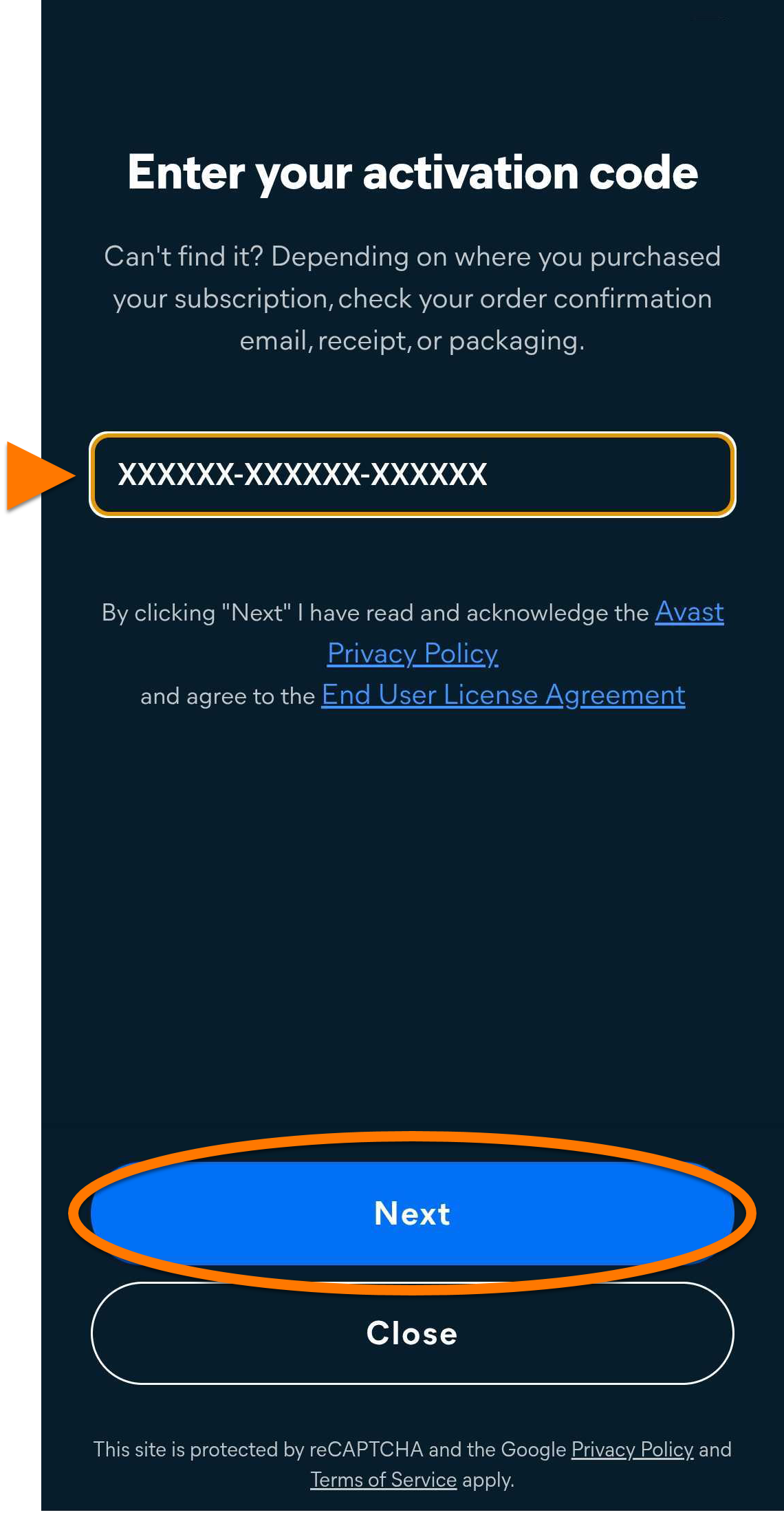
Avast Mobile Security is now activated. If activation is unsuccessful, ensure you have entered your activation code correctly, including hyphens. If it still does not work, try the Sign in to your account option instead.
Use this option to start using your subscription on a new device, or after you reset your existing device. Before you begin, ensure you are signed in to Google Play Store with the same Google Account that you used to purchase your subscription. For instructions on how to verify this, refer to the following Google Play Help article: Google Play Help ▸ How to add & use accounts in the Google Play Store on your device.
- Tap Restore from Google Play.
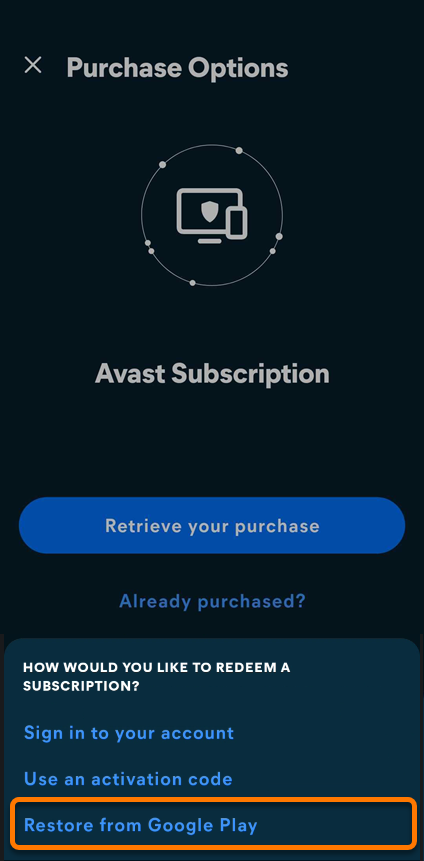
If you are signed in to the Google Account associated with your subscription, Avast Mobile Security is activated automatically. If activation is unsuccessful, check that you are signed in to the correct Google Account in Google Play Store.
Troubleshooting
If you experience any activation issues, refer to the following articles:
- Troubleshooting activation issues in Avast mobile apps
- Troubleshooting common activation error messages
If you are still unable to activate your application, contact Avast Support.
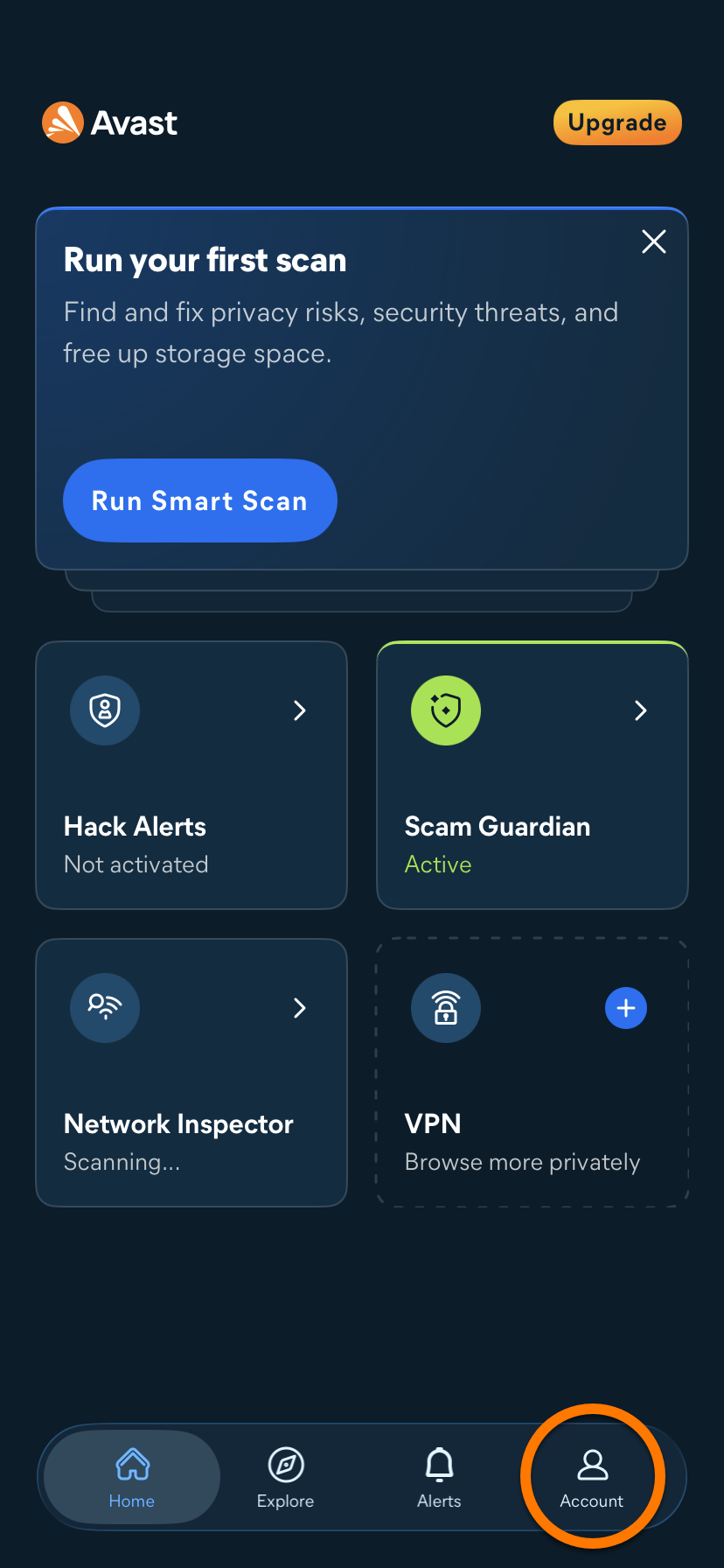
Open the activation options
- Open Avast Mobile Security and tap Account.
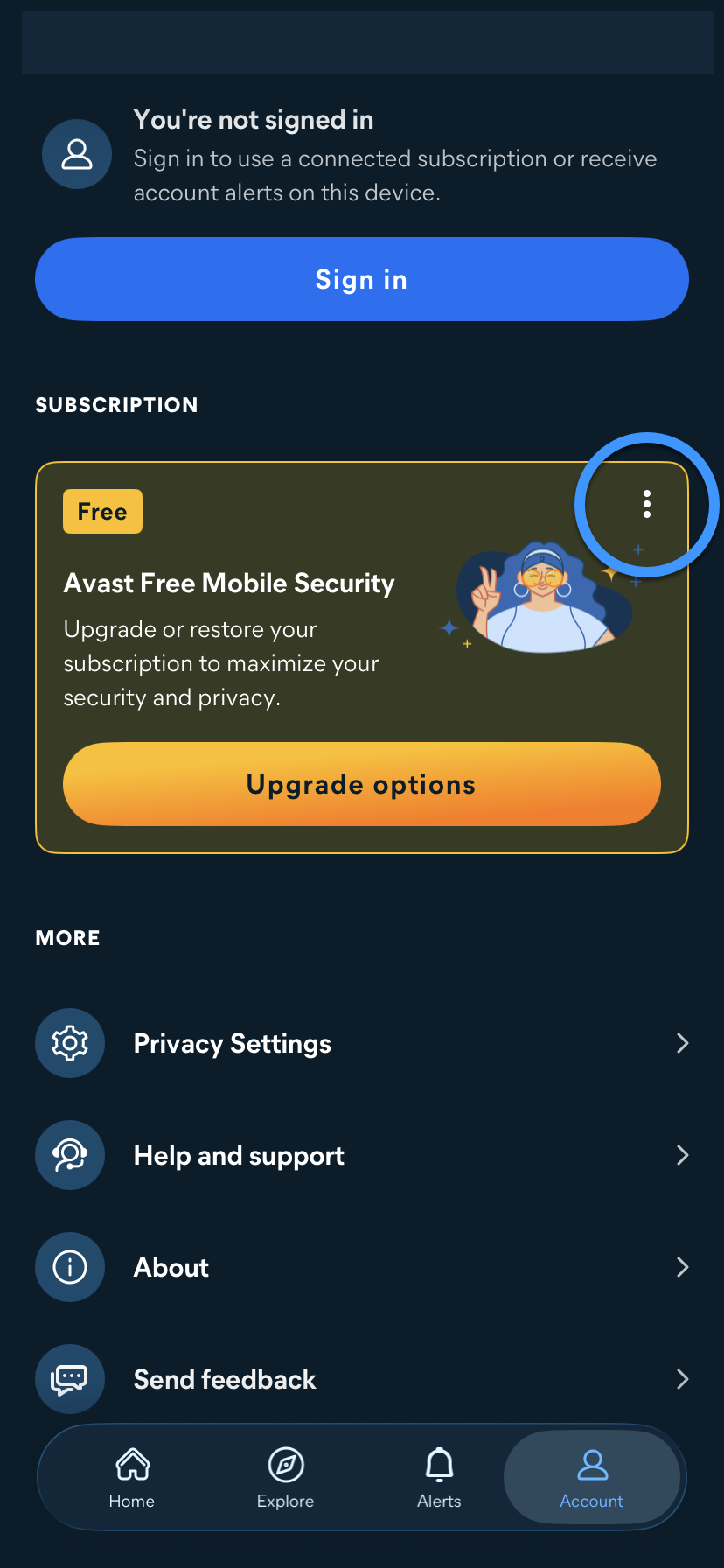
- Under Subscription, tap
⋮Menu (the three dots).
Choose how to activate
Select the option that matches how you purchased your subscription and follow the steps in the relevant tab:
Select this option if you purchased your subscription from another Avast sales channel, such as the Avast Store.
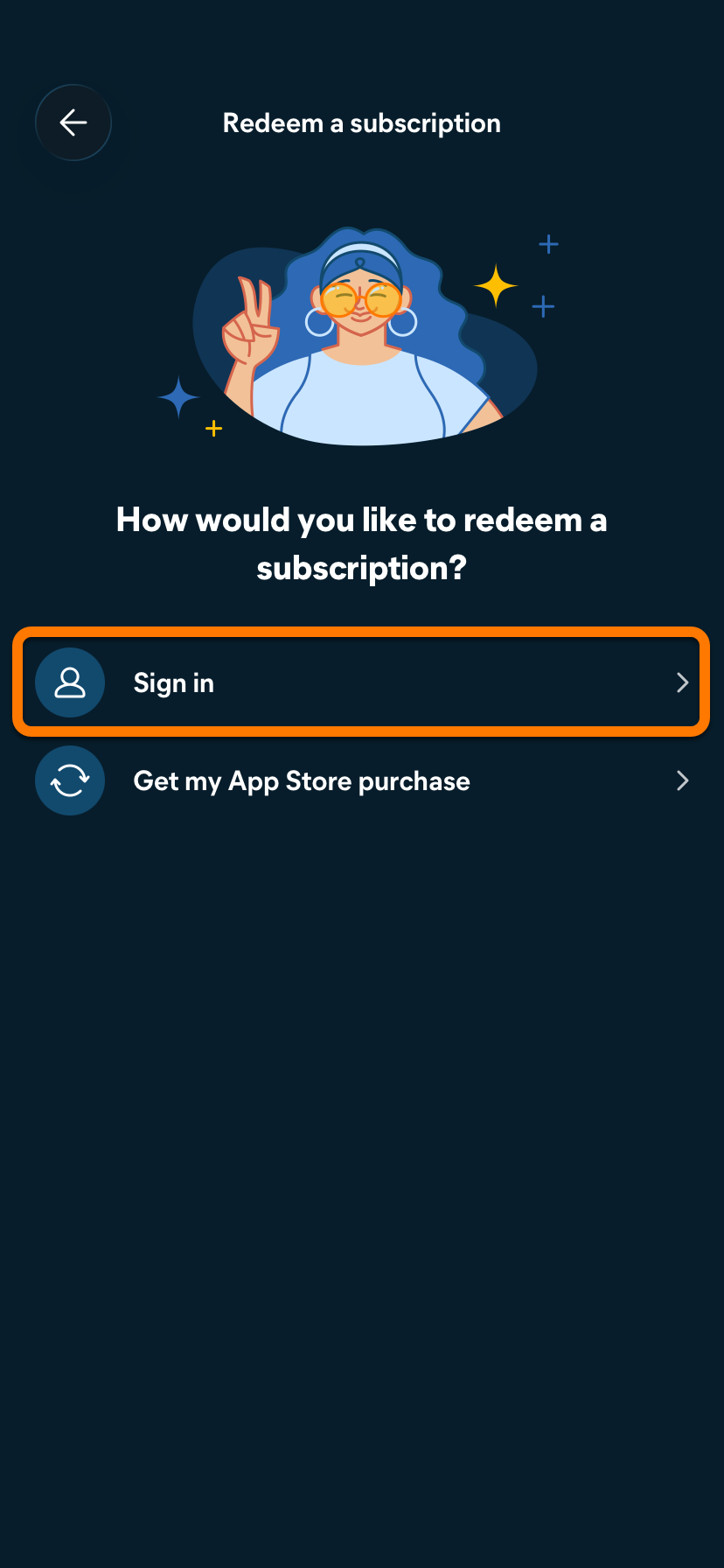
- Tap Sign in.
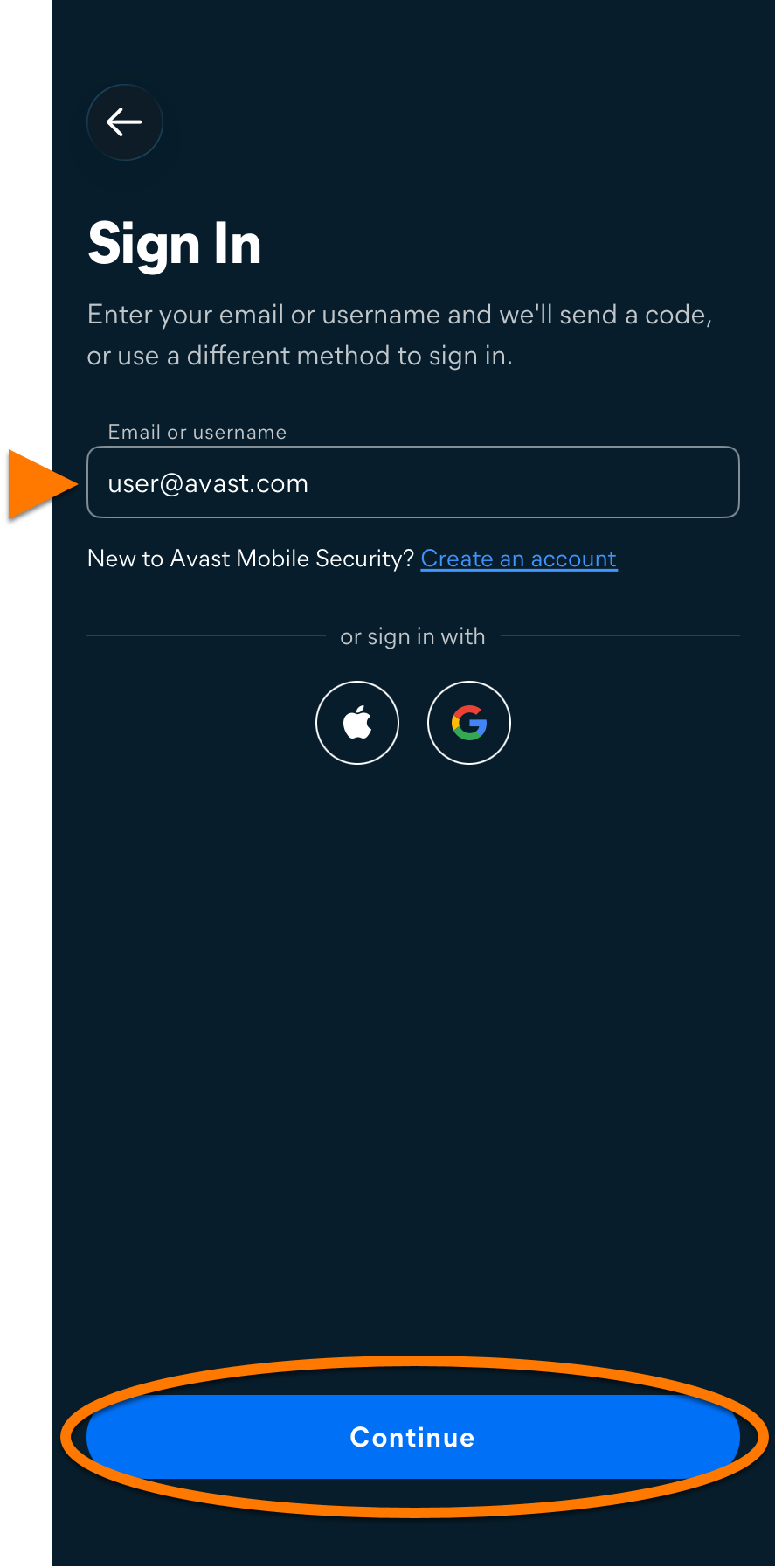
- Enter the email address associated with your Avast Account, then tap Continue.
- Enter the 6-digit code sent to the email address you provided.
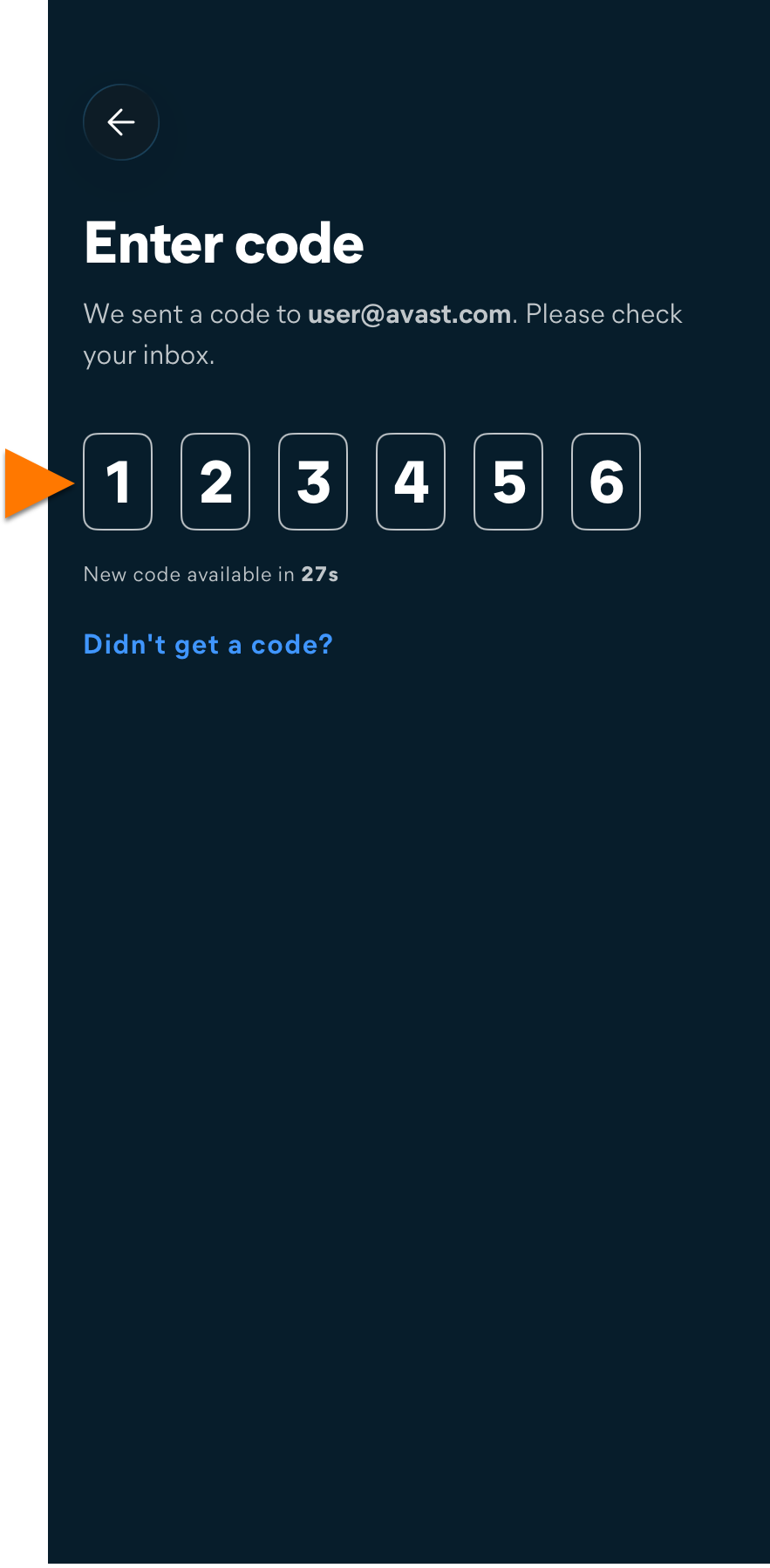
Avast Mobile Security is now activated. If activation is unsuccessful, ensure your Avast Account is registered to the email address that you used to purchase your subscription. If you used a different email address for purchase, you can add it to your Avast Account. For detailed instructions, refer to the following article: Adding a missing subscription to your Avast Account.
If you do not receive the code
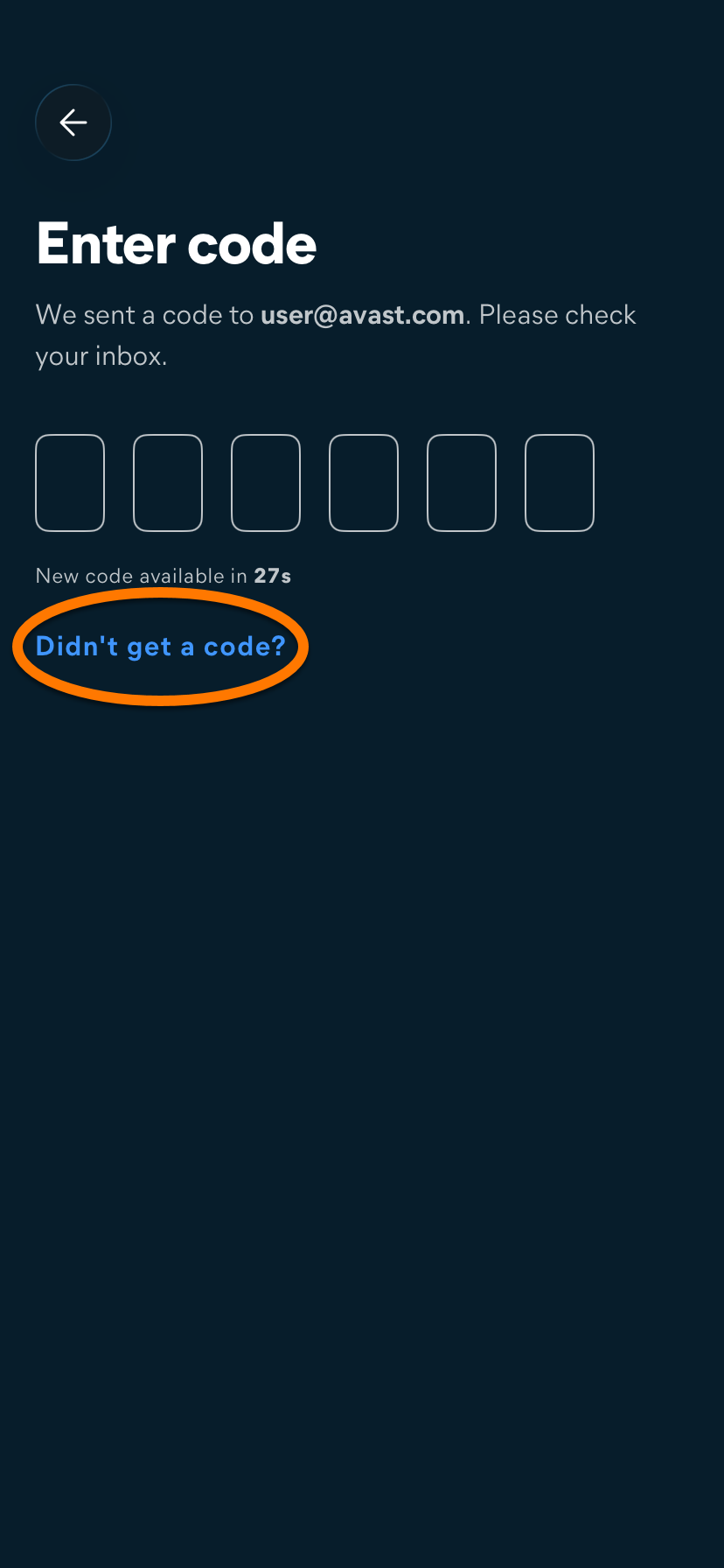
If the 6-digit code does not arrive, check your spam or junk folder. You can also sign in with your Avast Account password instead:
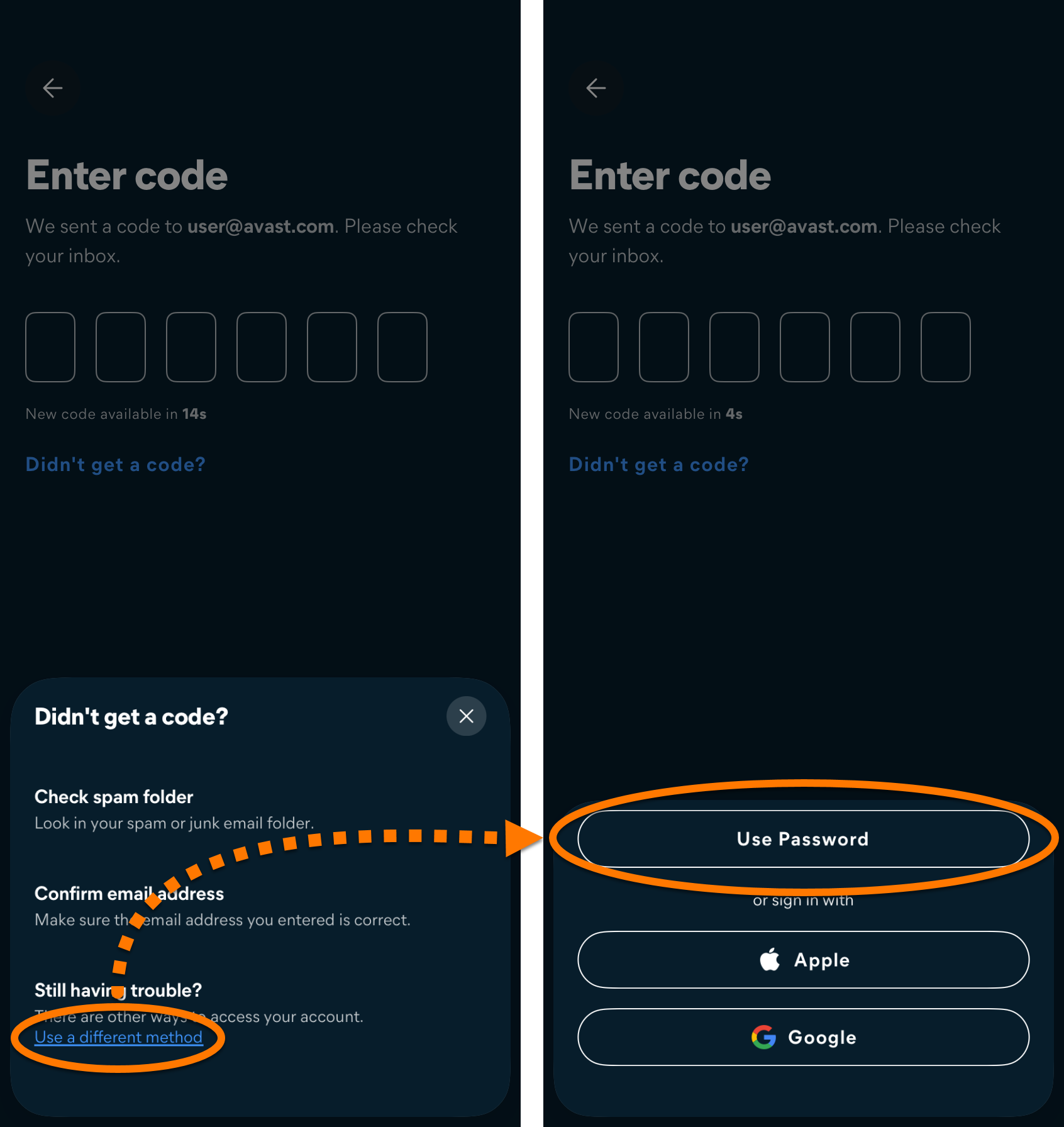
- On the screen where you enter the code, tap Didn't get a code?.
- Tap Use a different method ▸ Use Password.
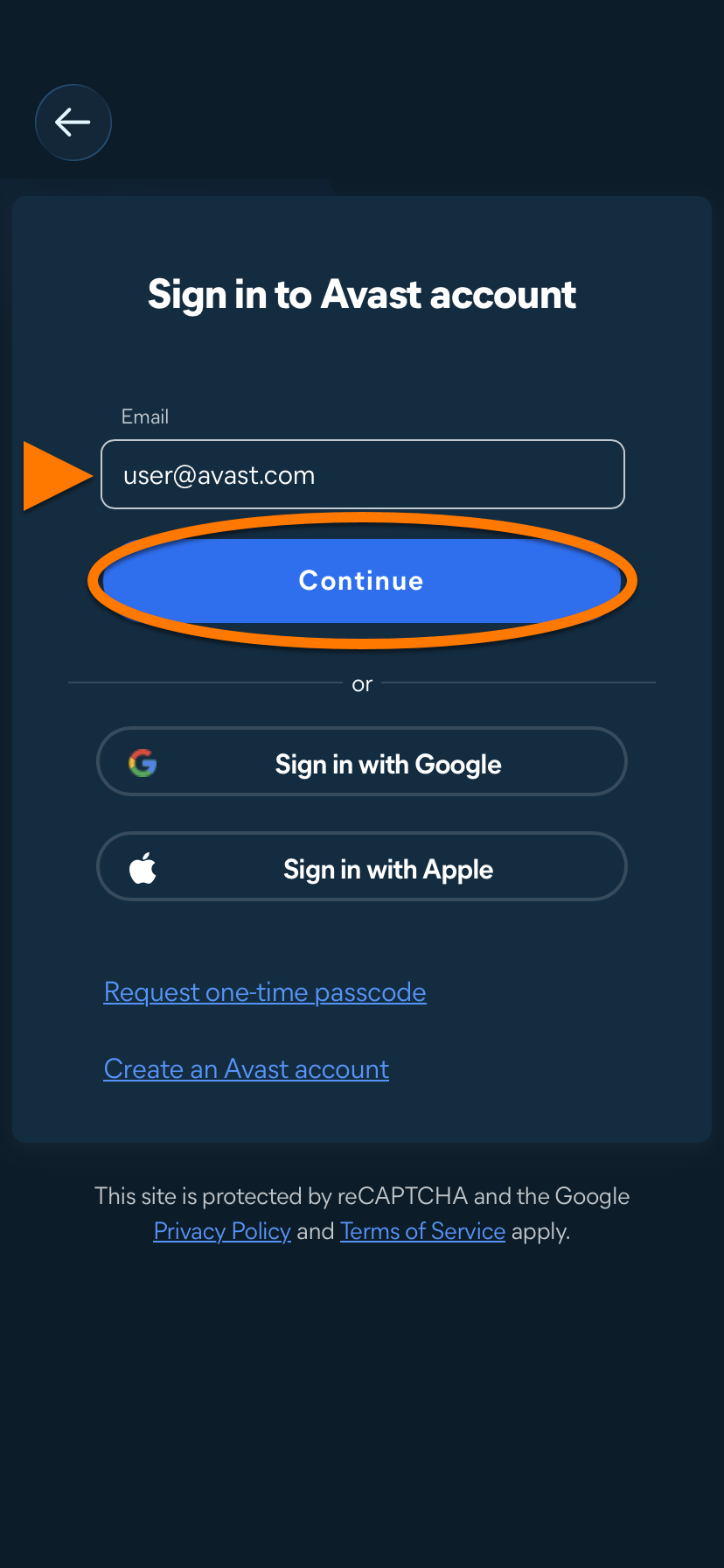
- Enter the email address associated with your Avast Account, then tap Continue.
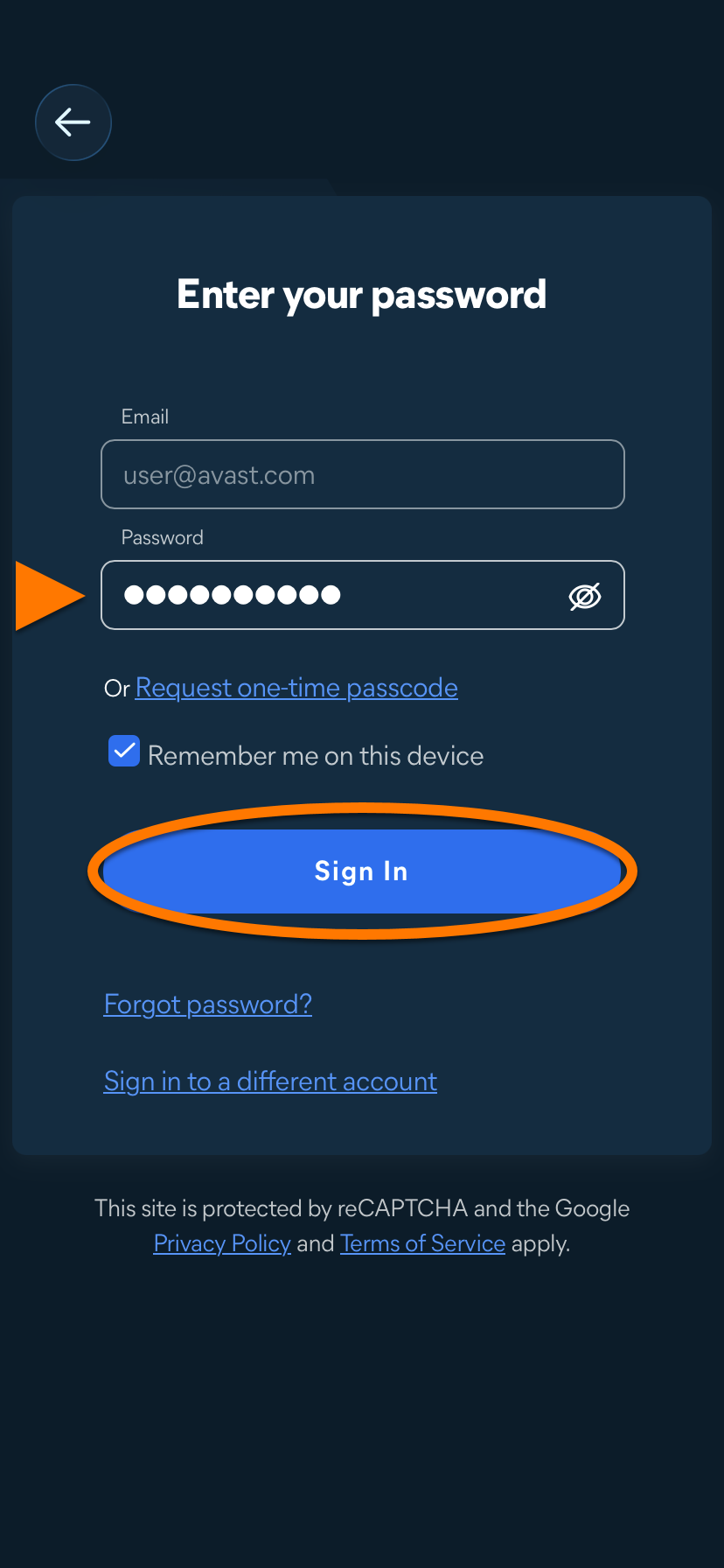
- Enter the password associated with your Avast Account, then tap Sign In.
Use this option to start using your subscription on a new device, or after you reset your existing device. Before you begin, ensure you are signed in to the App Store with the same Apple Account that you used to purchase your subscription. For instructions on how to verify this, refer to the following Apple Support article: Apple Support ▸ Sign in with your Apple ID.
- Tap Get my App Store purchase.

If you are signed in to the Apple Account associated with your subscription, Avast Mobile Security is activated automatically. If activation is unsuccessful, check that you are signed in to the correct Apple Account in the App Store.
Troubleshooting
If you experience any activation issues, refer to the following articles:
- Troubleshooting activation issues in Avast mobile apps
- Troubleshooting common activation error messages
If you are still unable to activate your application, contact Avast Support.
Further recommendations
To learn more about how to use Avast Mobile Security, refer to the following articles:
- Avast Mobile Security - FAQs
- Avast Mobile Security for Android - Getting Started
- Avast Mobile Security for iOS - Getting Started
For instructions on how to transfer your subscription from one device to another, refer to the following article:
- Avast Mobile Security
- Android and iOS
Updated on: 16/11/2026

 © 2025 Gen Digital Inc.