Promotional banner image

IS YOUR COMPUTER SLOW? RUN LIKE NEW

If they are not maintained, computers lose performance over time. Avast Cleanup Premium can help significantly improve the performance of your computer.

Avast SecureLine VPN for Android and iOS - Getting Started

Android

Avast SecureLine VPN allows you to connect to the internet via secure Avast VPN servers, protecting your connection and ensuring your privacy.

This article assumes that the latest version of Avast SecureLine VPN is installed and activated on your device. For detailed instructions, refer to the following articles:

Connect to the VPN

Avast SecureLine VPN can be used any time you want to connect to the internet with extra security and privacy, and is especially recommended when you are connected to a public or unsecured Wi-Fi network.

To connect to Avast SecureLine VPN:

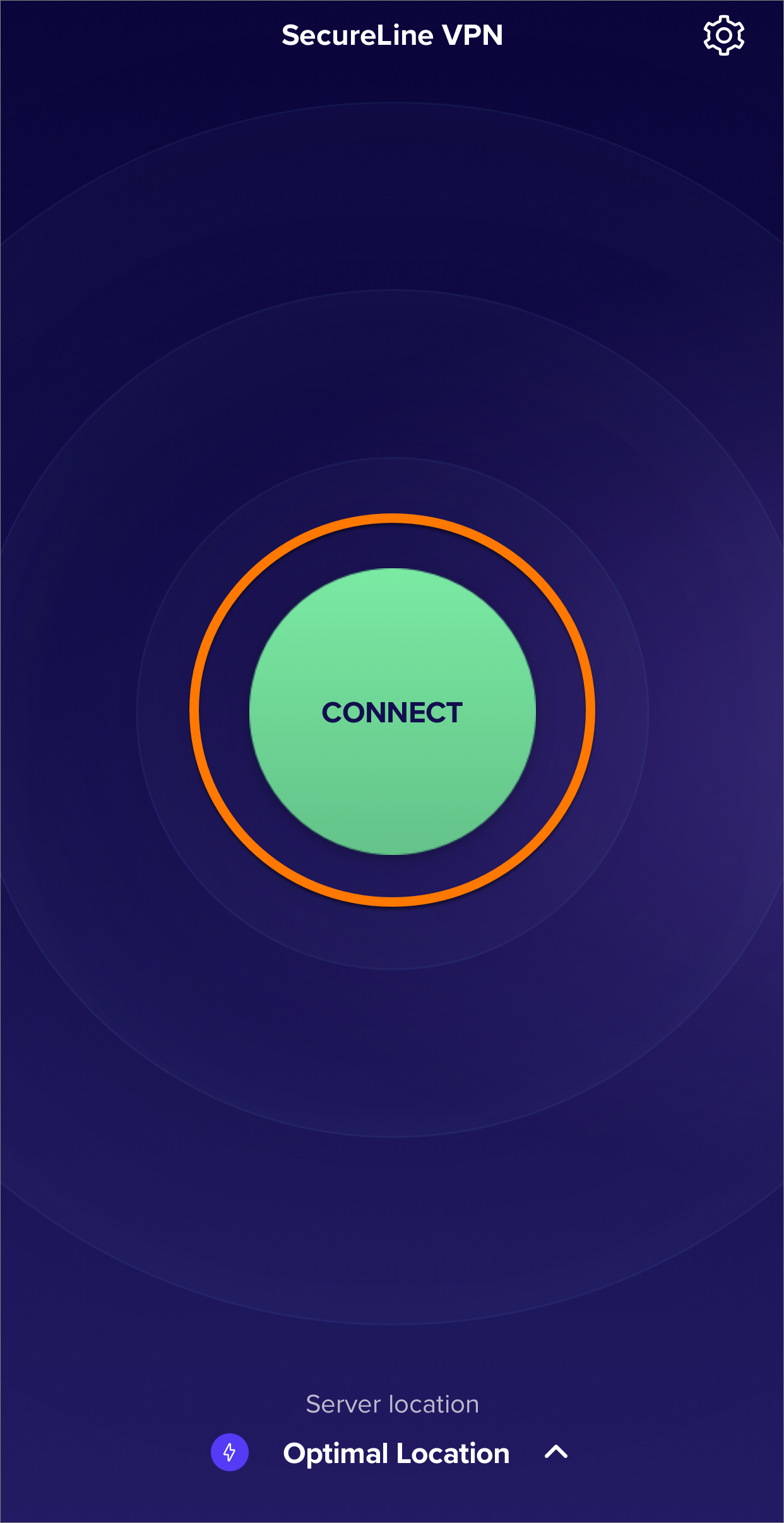
  1. Tap the Avast SecureLine icon on the Home screen of your device. The app opens.
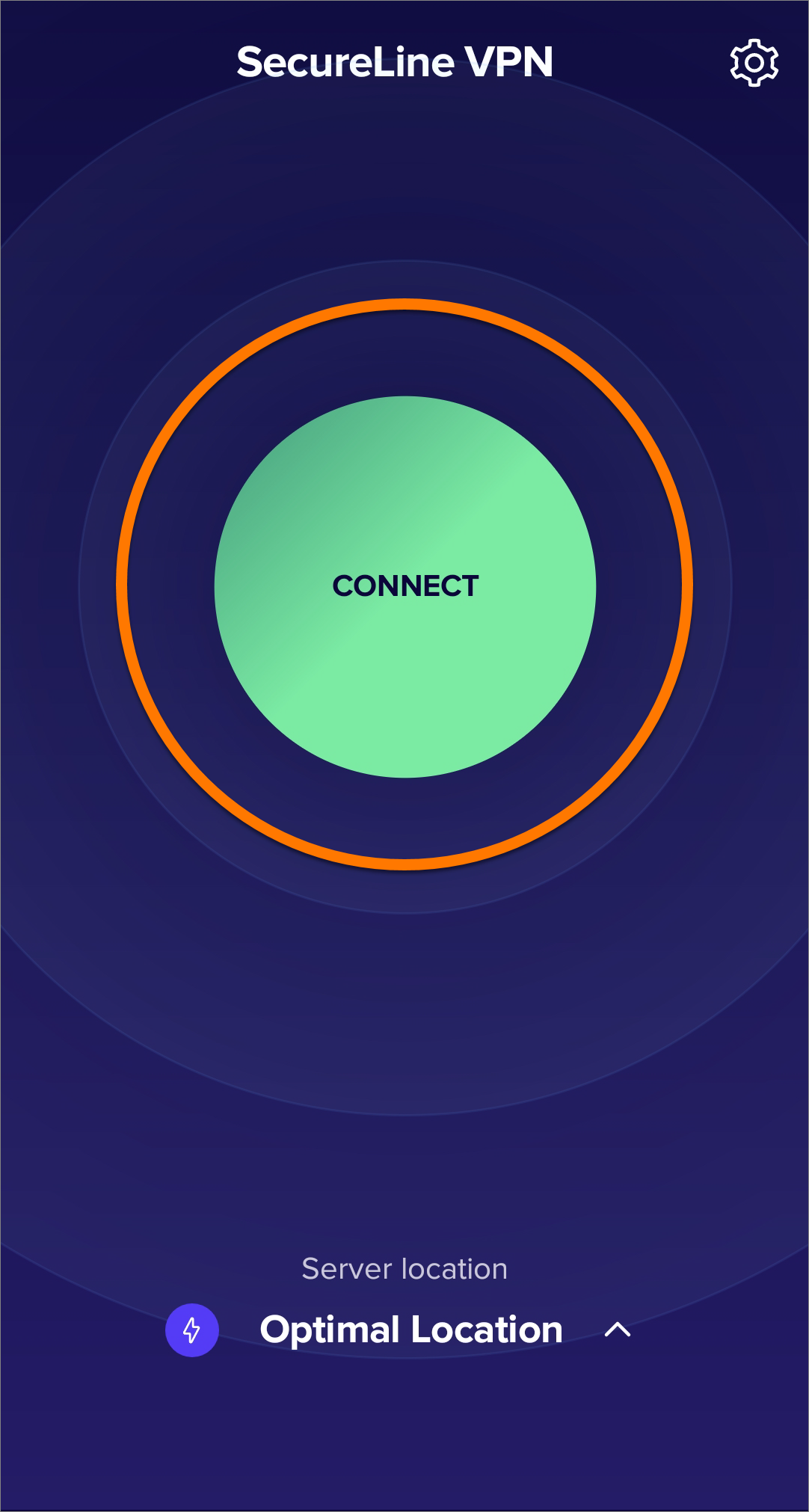
  2. Tap Connect.
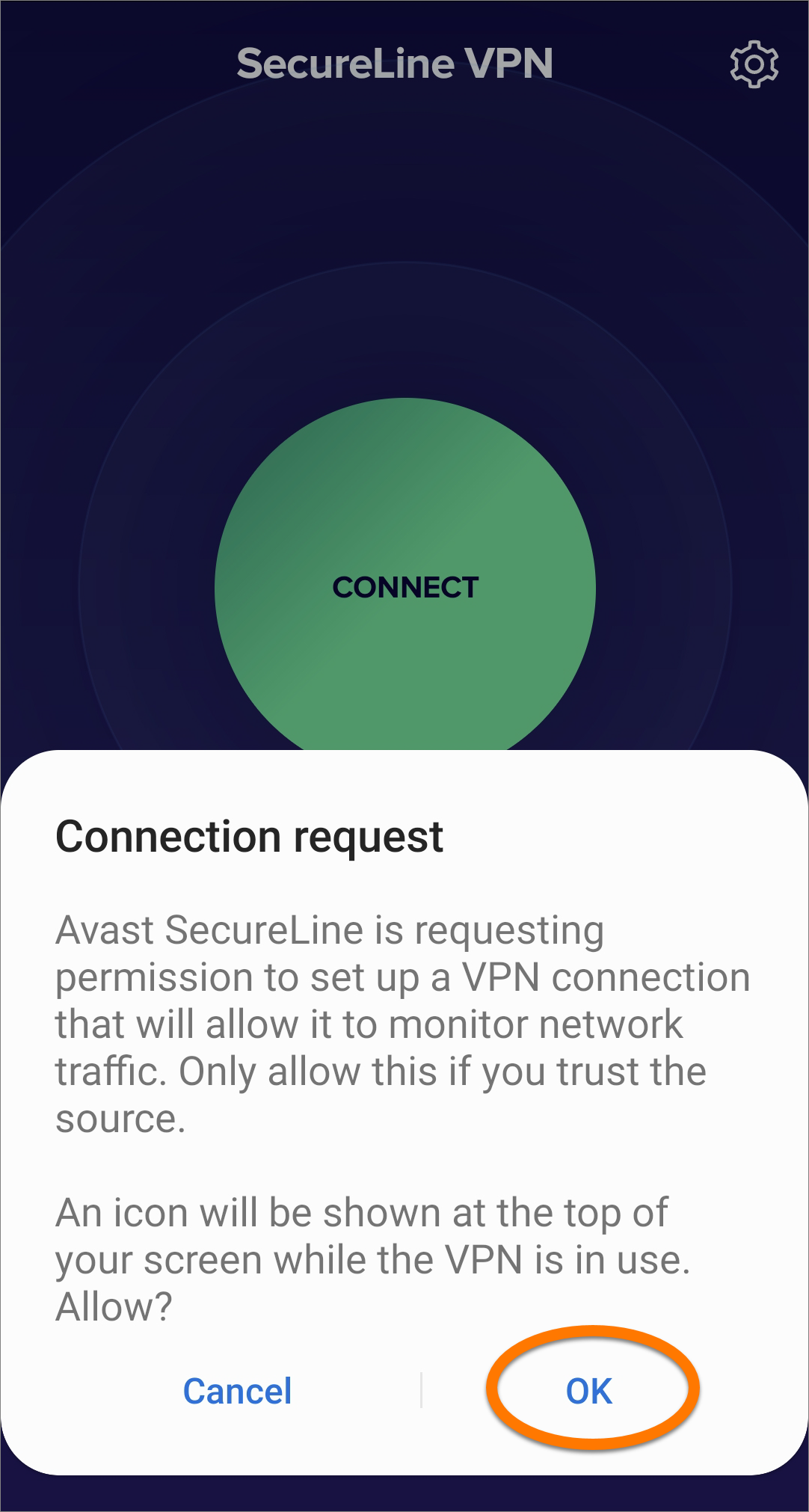
  3. If prompted, tap OK to give Avast SecureLine VPN permission to set up a VPN connection.
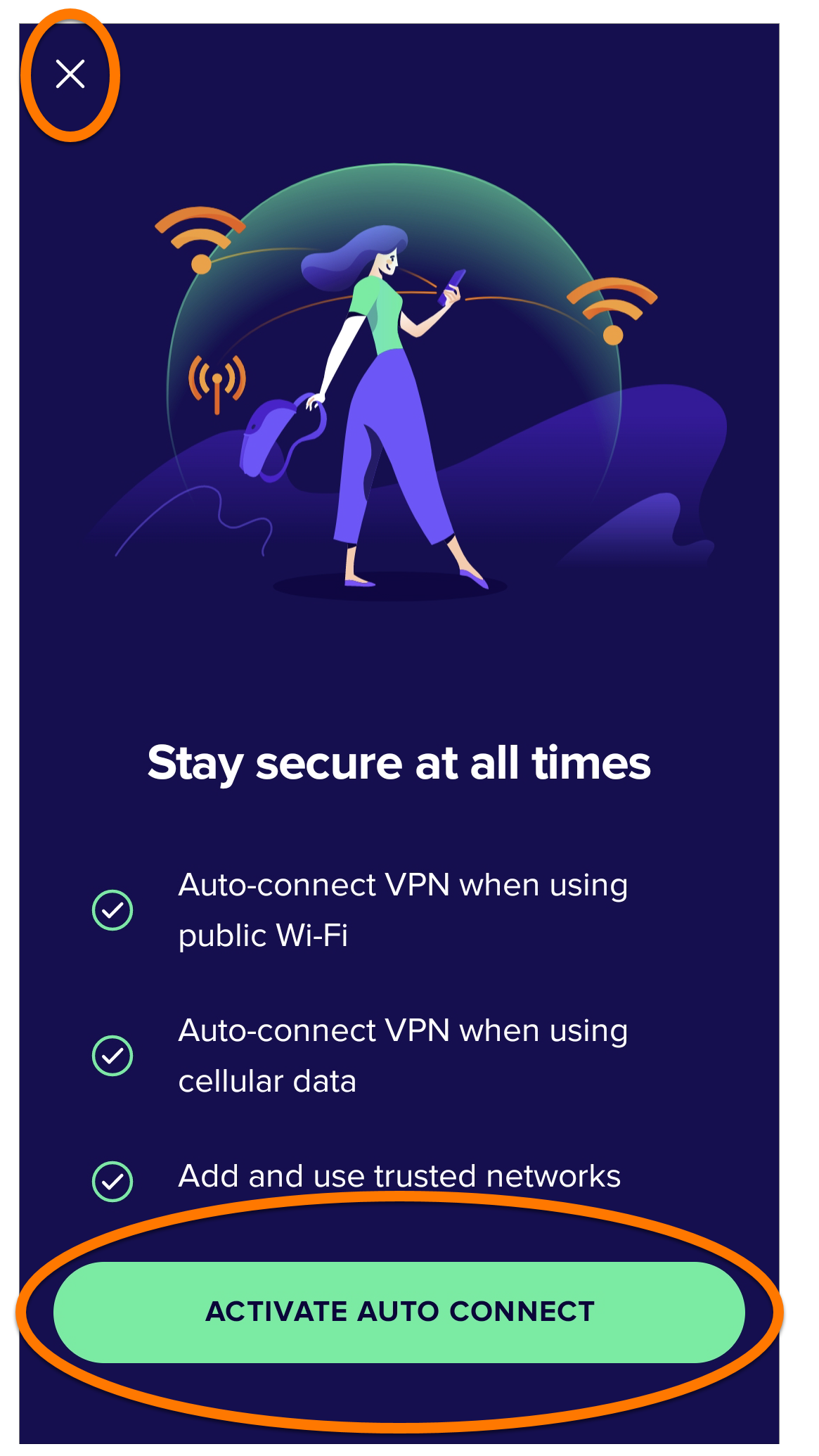
  4. If prompted, you can optionally tap Activate Auto Connect to allow Avast SecureLine VPN to connect automatically. Alternatively tap the X icon in the top-left corner to return to the main app screen.

You can manage Auto Connect behavior at any time via the app settings. For more information, refer to the following article: Enabling auto-connect in Avast SecureLine VPN.

You are now connected to the Avast SecureLine VPN default server. You can connect to a different location if needed.

Connect to a different location

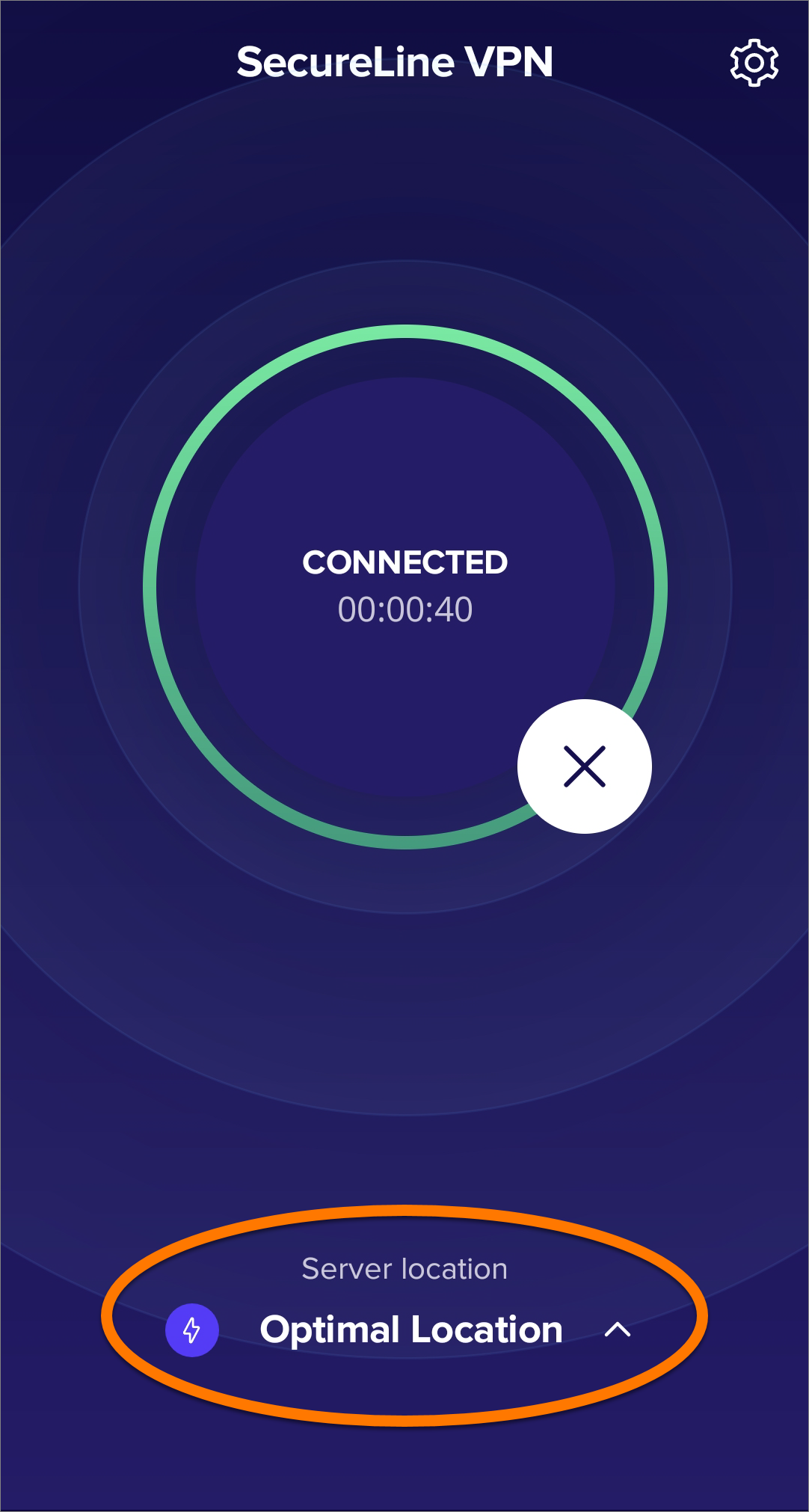
Avast SecureLine VPN has servers in several locations, meaning you can bypass geolocation restrictions and access your favorite content while traveling. By default, you connect to the Optimal Location.

To connect to a different location:

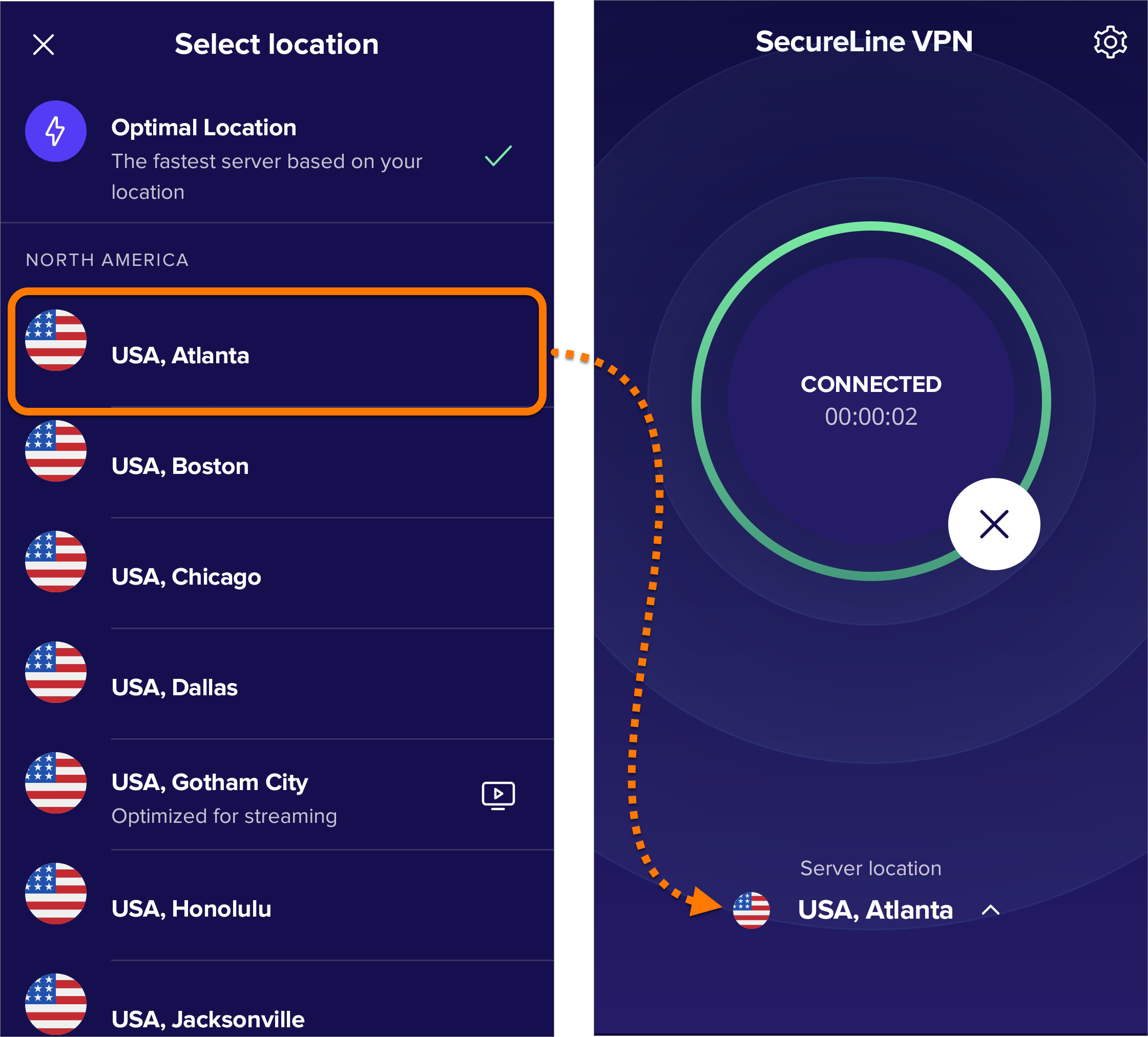
  1. Tap Server location at the bottom of the main app screen.
  2. Tap your preferred country and city to change your location.

Your server location is now changed.

Manage connection rules

Tap Settings (the gear icon) in the top-right corner of the main app screen to configure the following connection settings:

  • Auto Connect: Set your VPN to turn on automatically when you connect to different network types, or disconnect when you are on a trusted network. For more information, refer to the following article: Enabling auto-connect in Avast SecureLine VPN.
  • Split Tunneling: Exclude certain apps from being encrypted by your VPN.
  • Kill Switch: Gives you the option to immediately block all internet traffic if your VPN connection unexpectedly drops.
  • Wi-Fi Threat Shield: Automatically turns on the VPN if a threat is detected on your Wi-Fi connection.
  • Local network bypass: Allows you to access other devices on your local network even with the VPN on.
  • VPN Protocol: Choose between available VPN protocols.

For more information about these features, refer to the following article:

Further recommendations

To learn more about Avast SecureLine VPN, refer to the following articles:

Avast SecureLine VPN allows you to connect to the internet via secure Avast VPN servers, protecting your connection and ensuring your privacy.

This article assumes that the latest version of Avast SecureLine VPN is installed and activated on your device. For detailed instructions, refer to the following articles:

Connect to the VPN

Avast SecureLine VPN can be used any time you want to connect to the internet with extra security and privacy, and is especially recommended when you are connected to a public or unsecured Wi-Fi network.

To connect to Avast SecureLine VPN:

  1. Tap the SecureLine icon on the Home screen of your device. The app opens.
  2. Tap Connect.
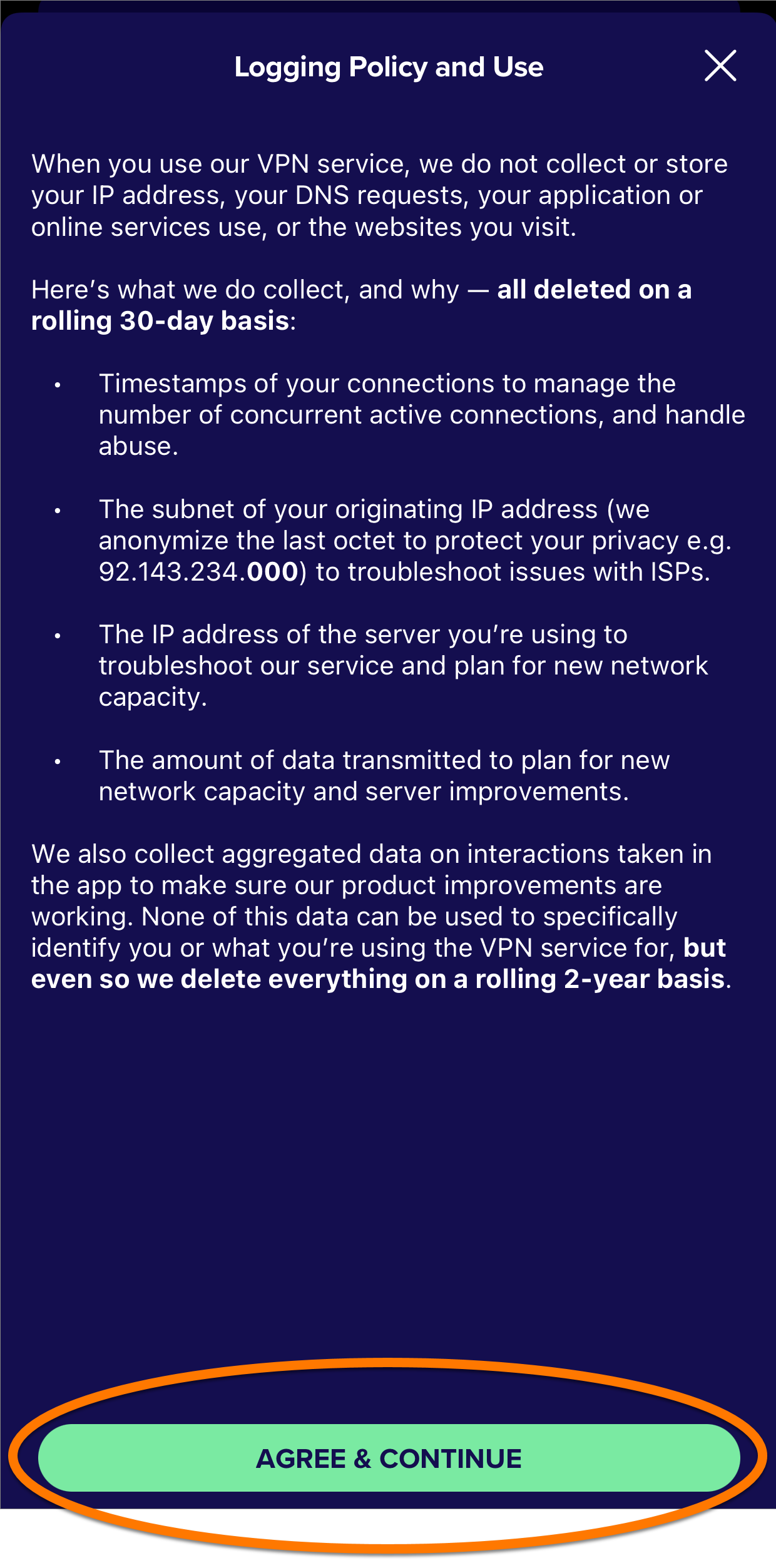
  3. Tap Agree & continue to confirm that you accept our Logging Policy and terms of use.
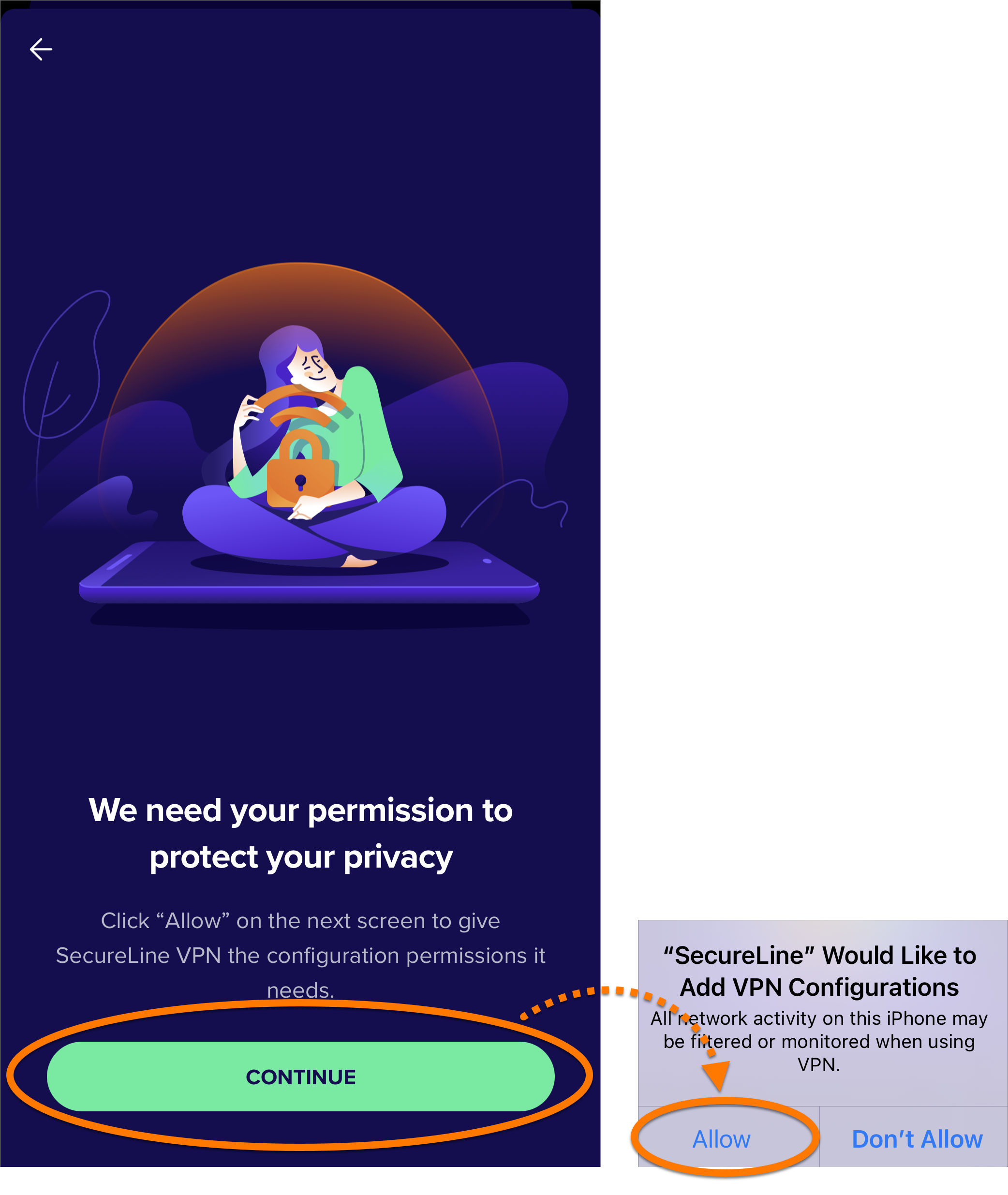
  4. If prompted, tap Continue ▸ Allow to give Avast SecureLine VPN permission to set up a VPN connection.
  5. If prompted, you can optionally tap Activate auto-connect to allow Avast SecureLine VPN to connect automatically. Alternatively tap the X icon in the top-right corner to return to the main app screen.
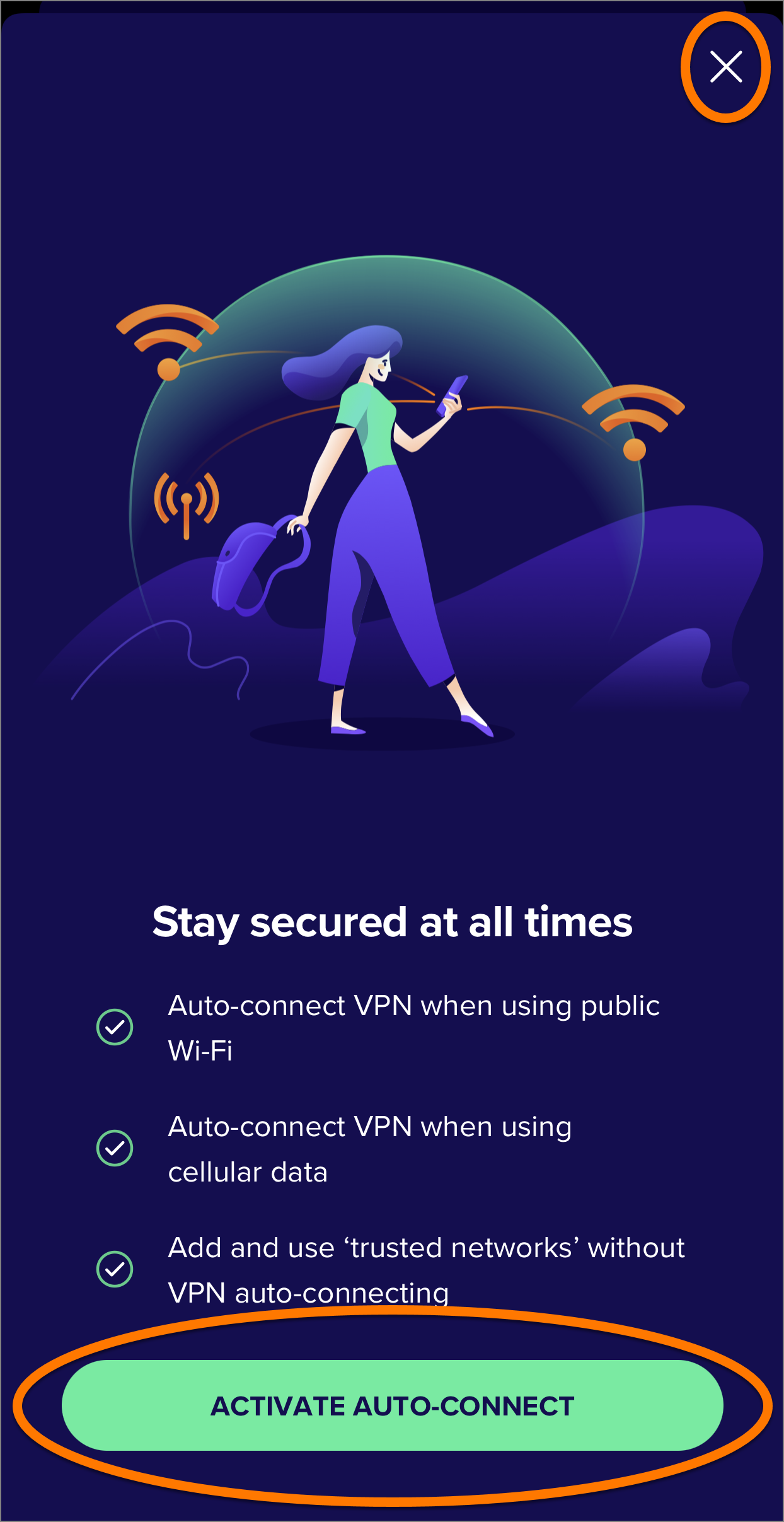
You can manage Auto Connect behavior at any time via the app settings. For more information, refer to the following article: Enabling auto-connect in Avast SecureLine VPN.

You are now connected to the Avast SecureLine VPN default server. You can connect to a different location if needed.

Connect to a different location

Avast SecureLine VPN has servers in several locations, meaning you can bypass geolocation restrictions and access your favorite content while traveling. By default, you connect to the Optimal Location.

To connect to a different location:

  1. Tap Optimal Location at the bottom of the main app screen.
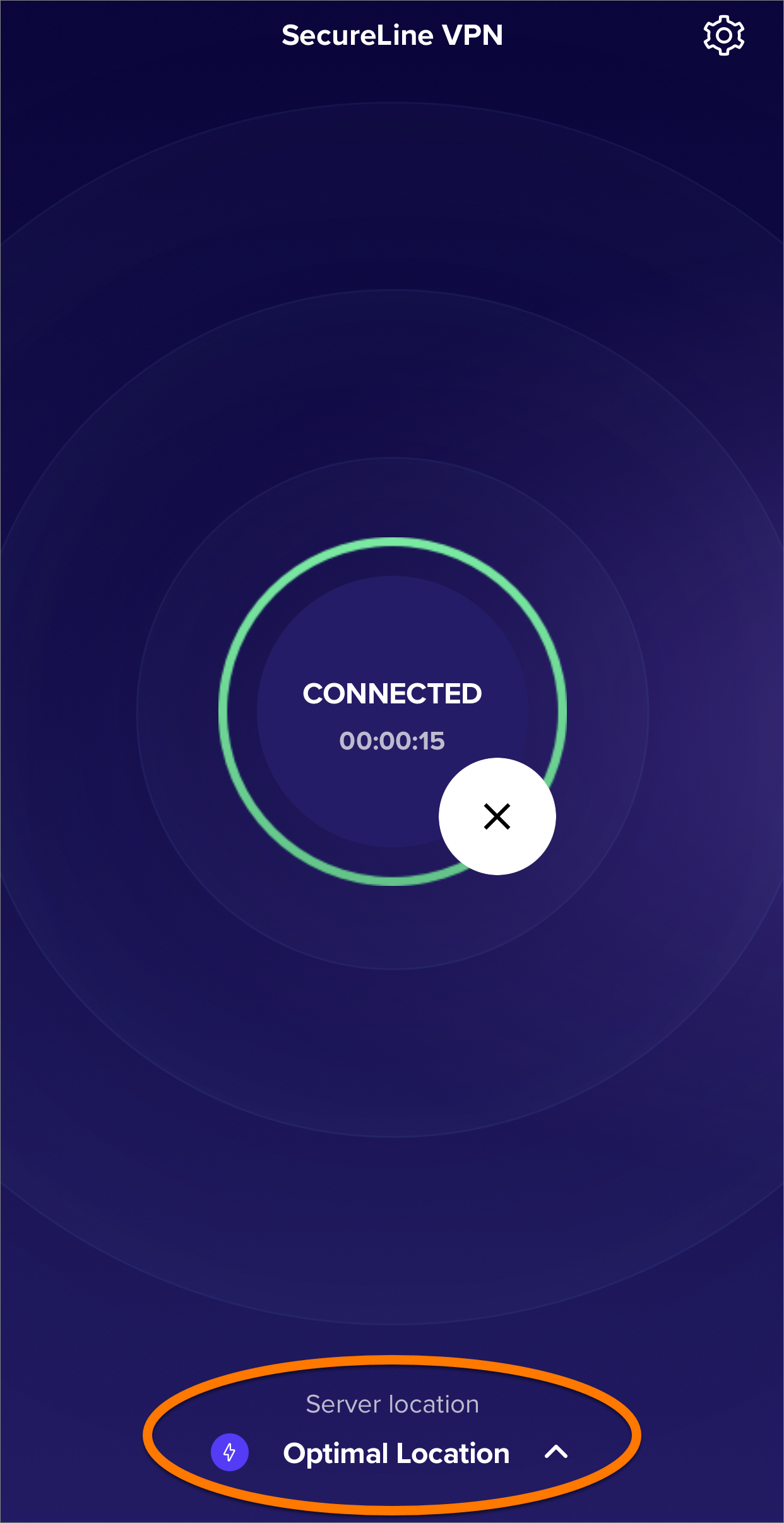
  2. Tap your preferred country and city to change your location.
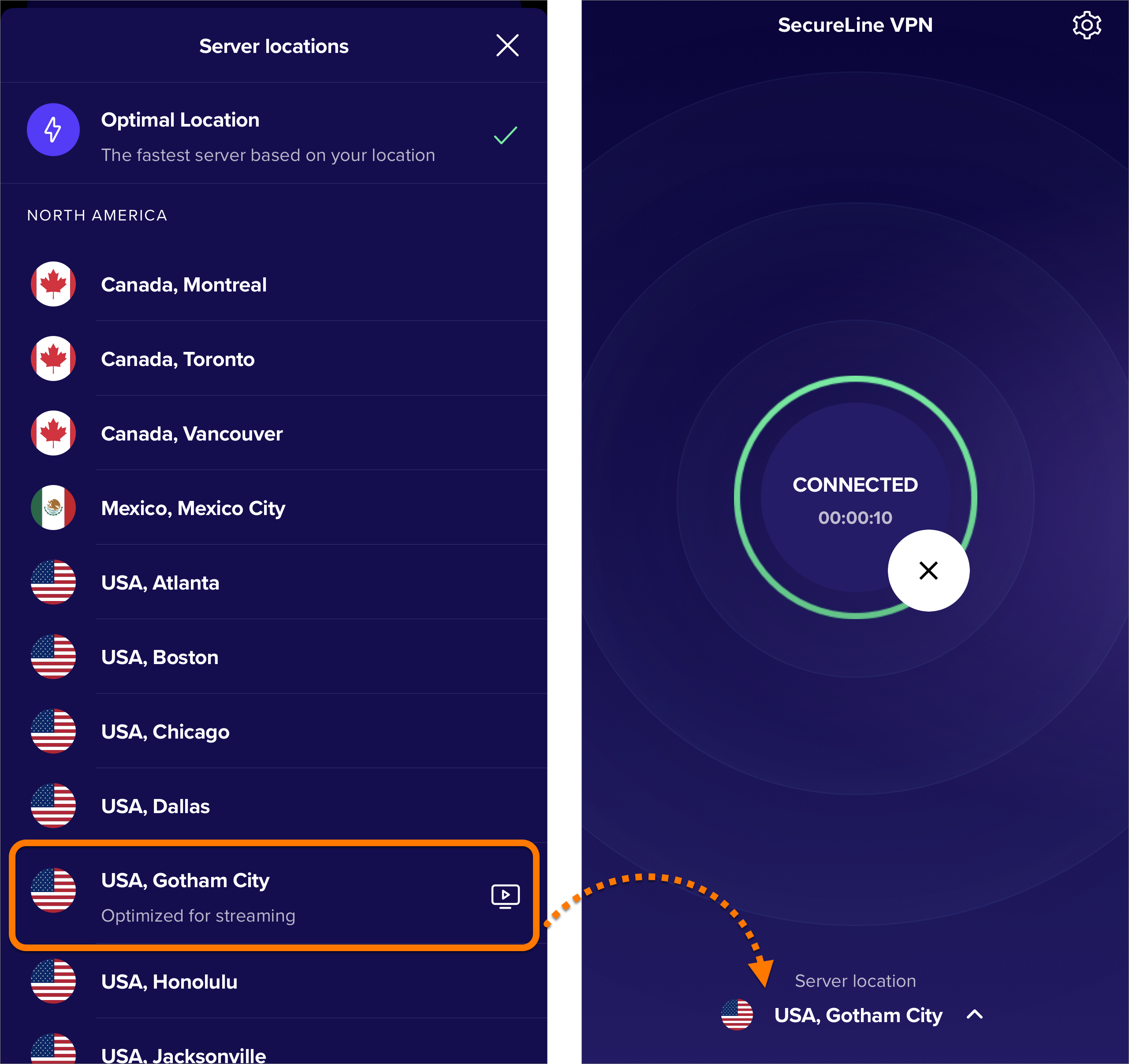
Your server location is now changed.

Manage connection rules


Tap Settings (the gear icon) in the top-right corner of the main app screen to configure the following connection settings:

  • Auto Connect: Set your VPN to turn on automatically when you connect to different network types, or disconnect when you are on a trusted network. For more information, refer to the following article: Enabling auto-connect in Avast SecureLine VPN.
  • VPN Protocol: Choose between available VPN protocols.

Further recommendations

To learn more about Avast SecureLine VPN, refer to the following articles:

DocID: use-mobile-secureline-vpnLast modified: 09/03/2026

Was this article helpful?

Promotional banner image

Keep your online identity private!

Browse like no one’s watching with Avast anti-tracking software.

Need more help?

Contact us
Avast account
Visit our forums
Visit academy