If you started a free-trial period before purchasing your subscription, you need to cancel the subscription connected to the trial period before following the activation instructions below.
If you started a free-trial period before purchasing your subscription, you need to cancel the subscription connected to the trial period before following the activation instructions below.
Your chosen activation method:
Enter activation code
To activate Avast SecureLine VPN using an activation code:
- Open Avast SecureLine VPN, then go to
☰ Menu ▸ Enter activation code. 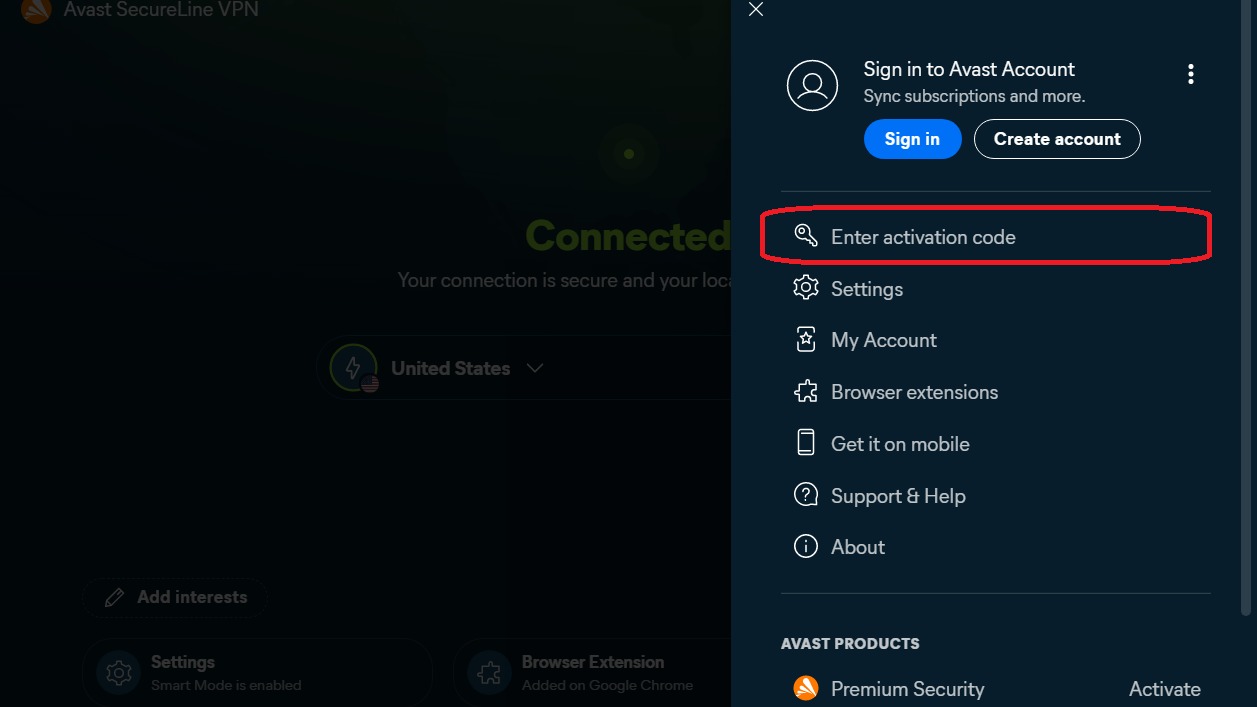
- Type or paste your activation code (including hyphens) into the text box, then click Enter.
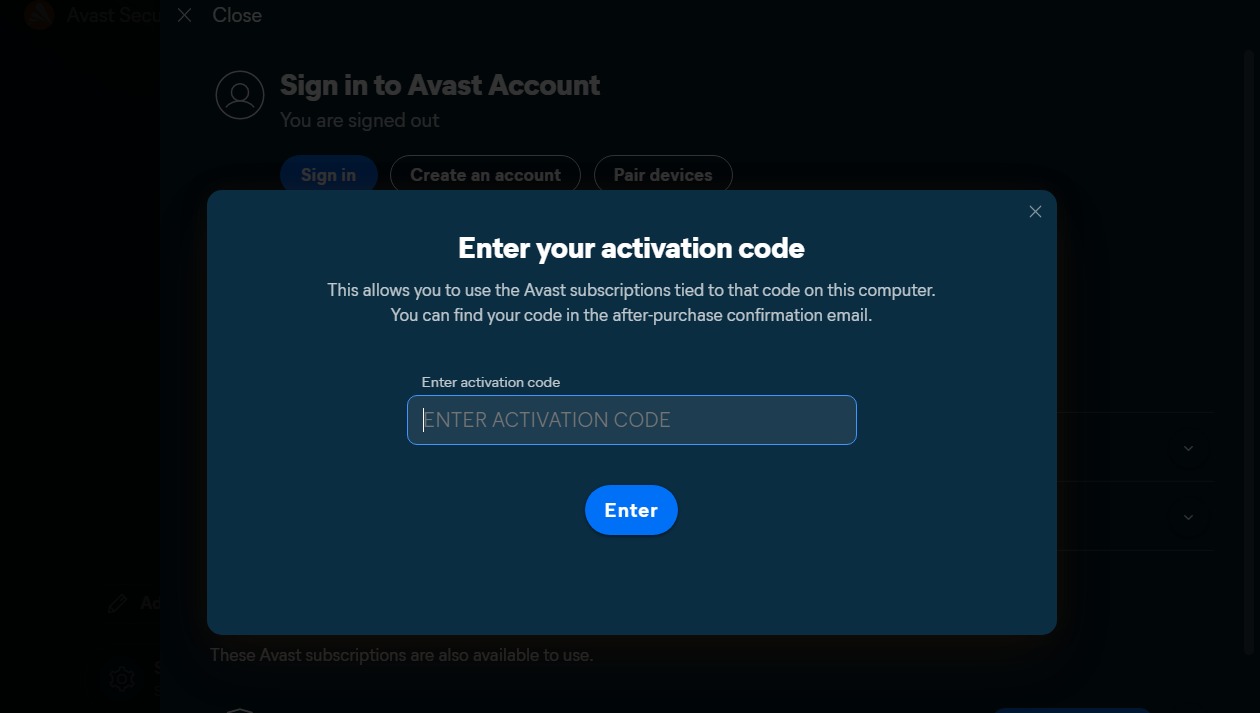
- If more than one product is associated with your activation code, ensure the products you want to use are selected, then click Activate & install. The products you select are installed and activated automatically.
Your Avast SecureLine VPN subscription is now active. If activation is unsuccessful, refer to the Still need help? section in this article.
If you purchased Avast SecureLine VPN (Multi-Device), you can activate Avast SecureLine VPN on your Windows, Mac, Android, and iOS devices.
To confirm which subscription you purchased, check your order confirmation email or the Avast Account that contains your Avast SecureLine VPN subscription.
Sign in to Avast Account
Your Avast Account login is the email address that you provided during the subscription purchase. To sign into your Avast Account for the first time, refer to the following article: Activating your Avast Account.
To activate Avast SecureLine VPN using your Avast Account:
- Open Avast SecureLine VPN, then go to
☰ Menu ▸ Sign in. Your default web browser opens. 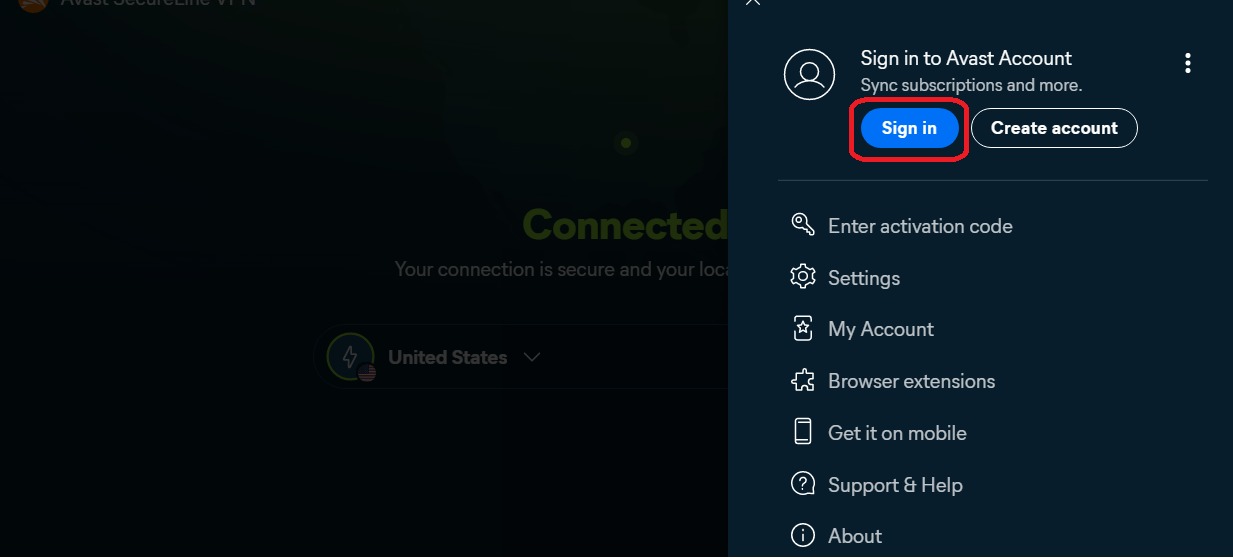
- Follow the on-screen instructions to sign in to your Avast account.
- When prompted by your browser, follow the on-screen instructions to re-open Avast SecureLine VPN.
- If more than one product is associated with your Avast Account, ensure the products you want to use are selected, then click Activate & install. The products you select are installed and activated automatically.
Your Avast SecureLine VPN subscription is now active. If activation is unsuccessful, refer to the Activate via sign-in key section below.
Activate via sign-in key
If activation via Avast Account fails, you can activate Avast SecureLine VPN using the sign-in key from your web browser. To use this alternative activation method, follow the steps below:
- Open Avast SecureLine VPN, then go to
☰ Menu ▸ Sign in. Your default web browser opens.
- Follow the on-screen instructions to sign in to your Avast account.
- Click Get a sign-in key instead.
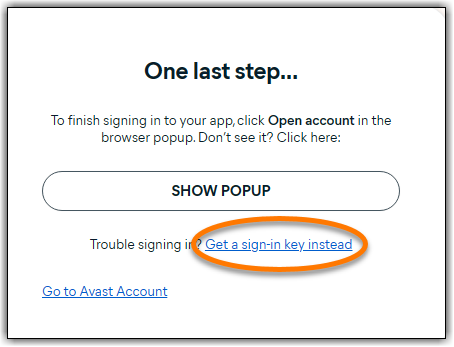
- Click Copy to clipboard.
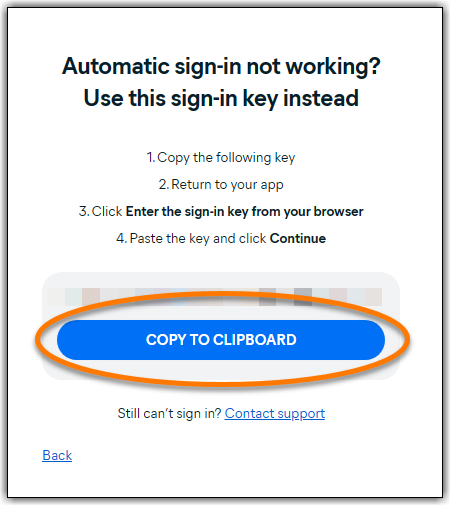
- Go to Avast SecureLine VPN, and click enter the sign-in key from your browser.
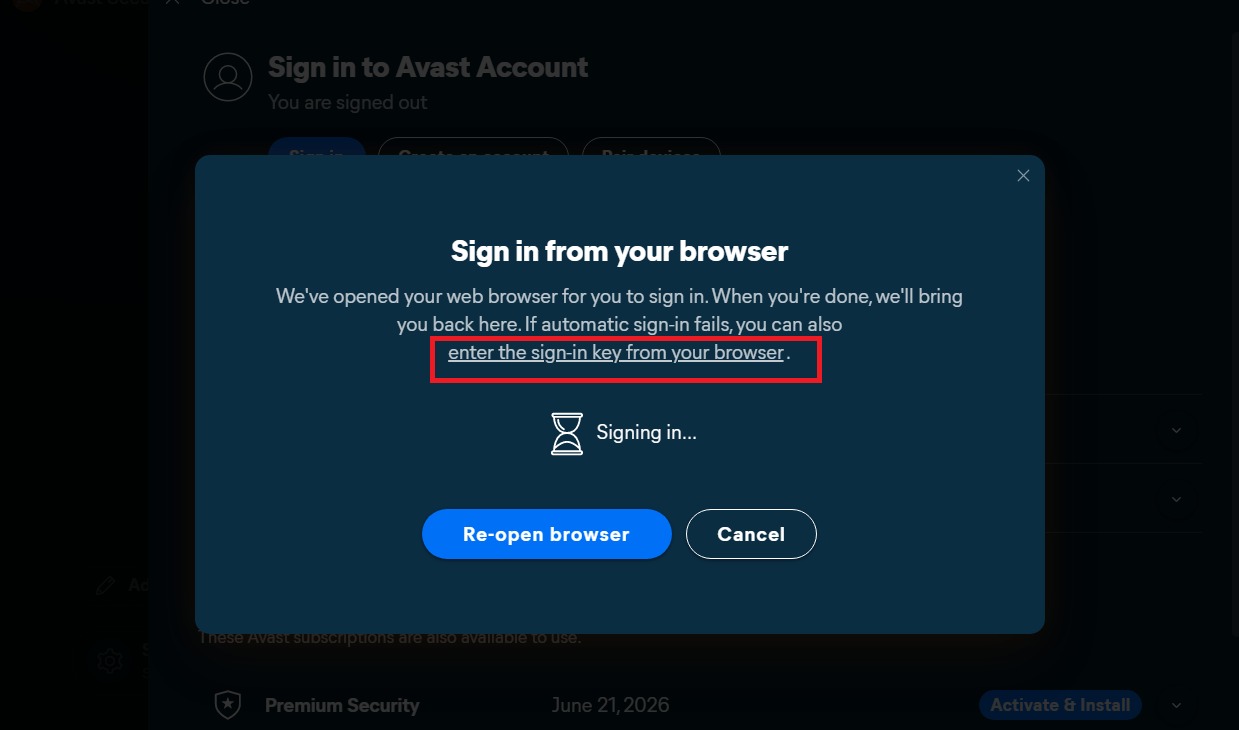
- Click in the text box, then press the
Ctrl key and the V key on your keyboard simultaneously to paste the sign-in key. 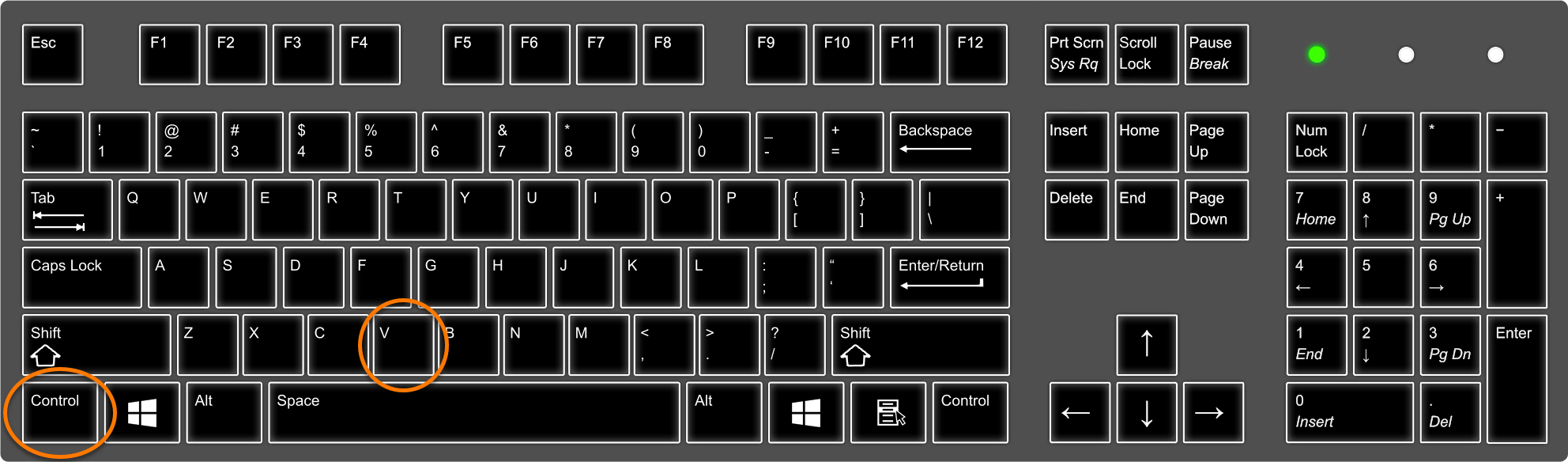
- When the sign-in key is entered, click Continue.
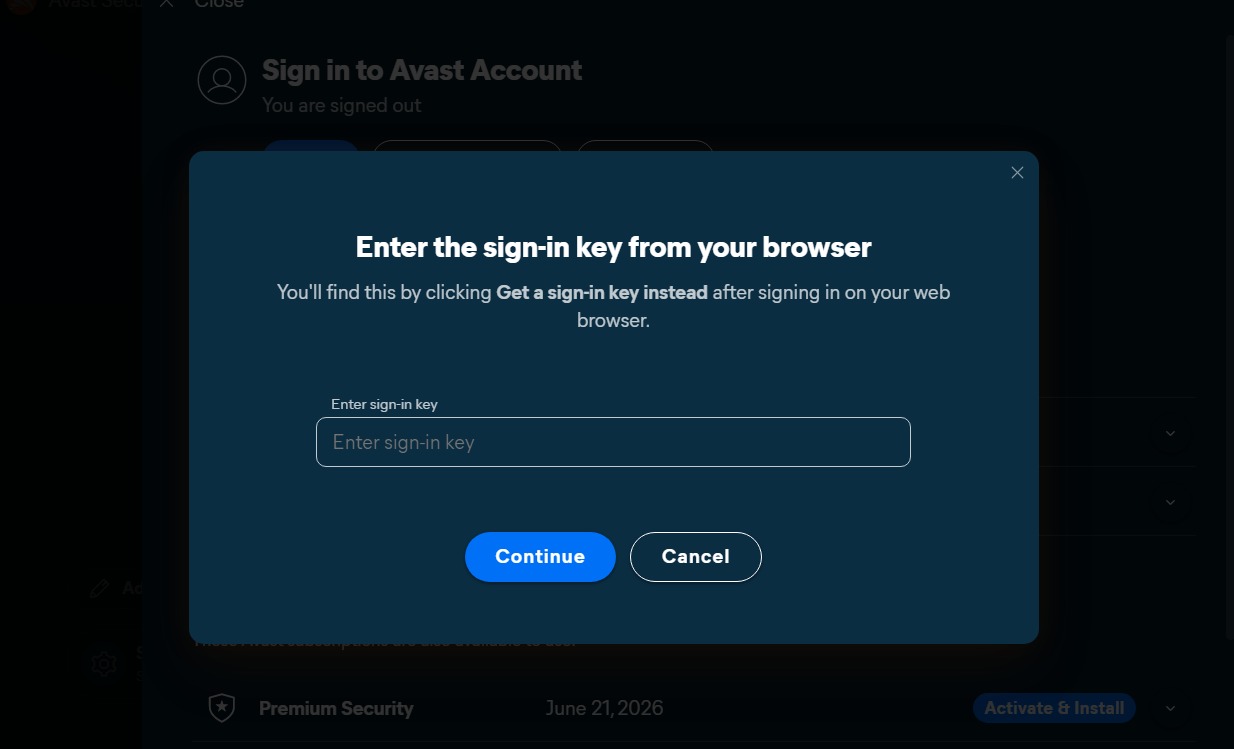
- If more than one product is associated with your Avast Account, ensure the products you want to use are selected, then click Activate & install. The products you select are installed and activated automatically.
Your Avast SecureLine VPN subscription is now active. If activation is unsuccessful, refer to the Still need help? section below.
If you purchased Avast SecureLine VPN (Multi-Device), you can activate Avast SecureLine VPN on your Windows, Mac, Android, and iOS devices.
To confirm which subscription you purchased, check your order confirmation email or the Avast Account that contains your Avast SecureLine VPN subscription.
Device pairing
After you activate an Avast SecureLine VPN (Multi-Device) subscription on your first device using either an activation code or your Avast Account, you can then use device pairing to activate your subscription on additional devices.
For more information about device pairing, refer to the following article:
Still need help?
To learn how to resolve some of the most common activation issues, refer to the following article:
If the issue persists, contact Avast Support.
Further recommendations
To learn more about Avast SecureLine VPN, refer to the following articles:
For instructions on transferring your subscription to a new device, refer to the following article:
If you started a free-trial period before purchasing your subscription, you need to cancel the subscription connected to the trial period before following the activation instructions below.
If you started a free-trial period before purchasing your subscription, you need to cancel the subscription connected to the trial period before following the activation instructions below.
Your chosen activation method:
Enter activation code
To activate Avast SecureLine VPN using an activation code:
- Open Avast SecureLine VPN, then go to
☰ Menu ▸ My subscription. 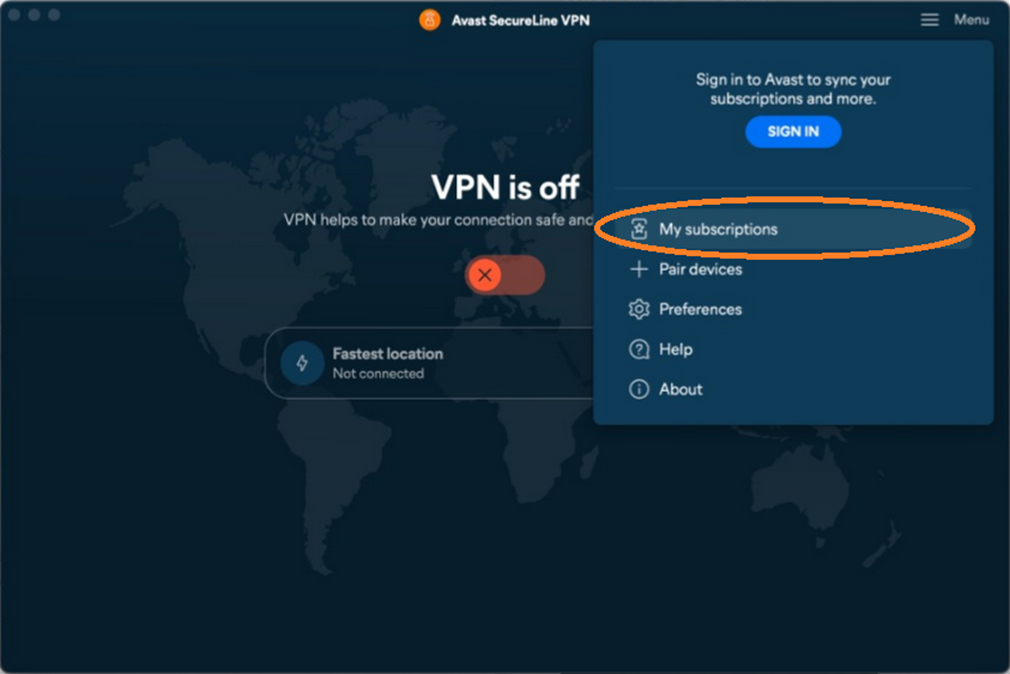
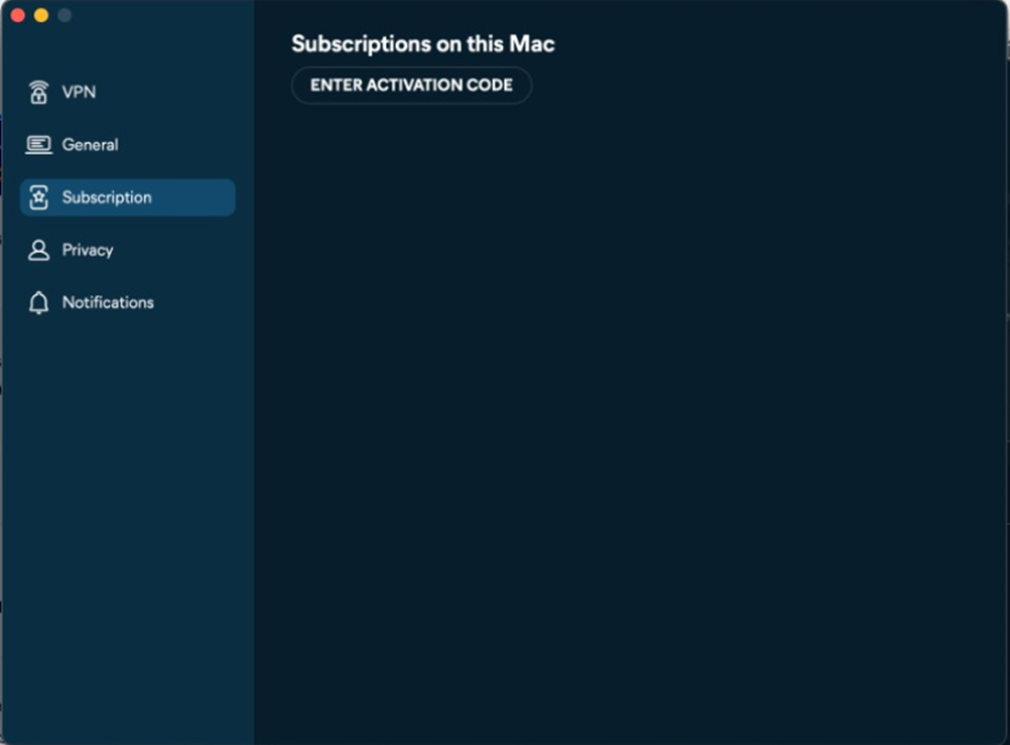
- In the screen that appears, in the Subscription tab, click Enter Activation Code.
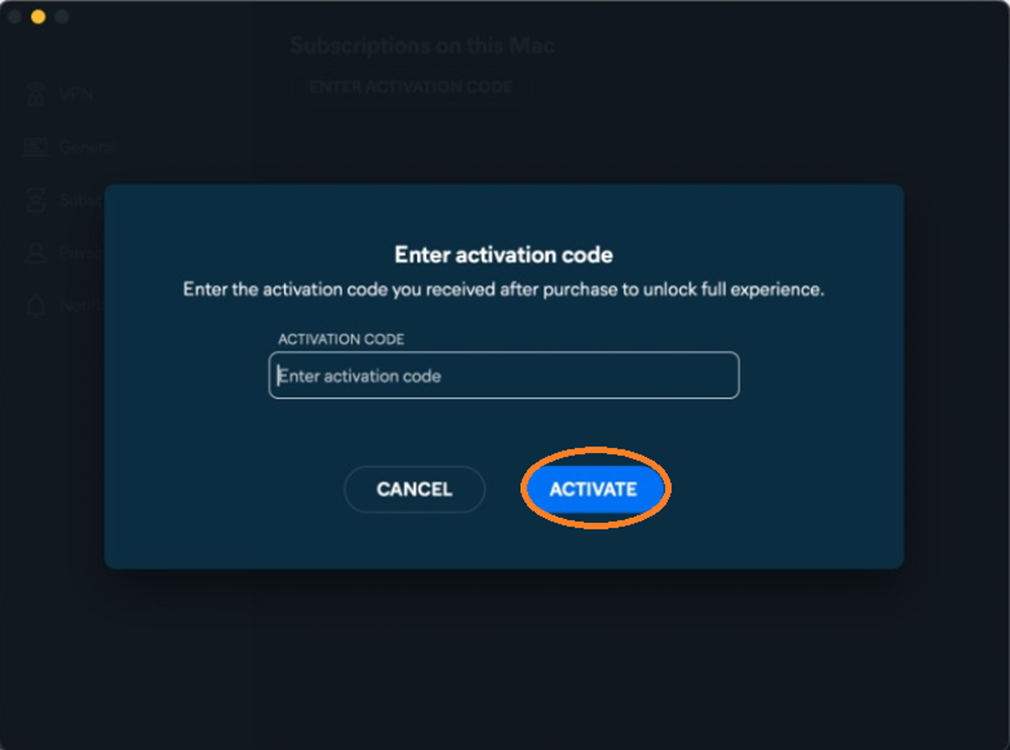
- In the Enter Activation Code screen, enter the activation code (including hyphens) into the text box, then click Activate.
- Click OK to return to the Subscription screen.

Your Avast SecureLine VPN subscription is now active. If activation is unsuccessful, refer to the Still need help? section in this article.
If you purchased Avast SecureLine VPN (Multi-Device), you can activate Avast SecureLine VPN on your Windows, Mac, Android, and iOS devices.
To confirm which subscription you purchased, check your order confirmation email or the Avast Account that contains your Avast SecureLine VPN subscription.
Sign in to Avast Account
Your Avast Account login is the email address that you provided during the subscription purchase. To sign into your Avast Account for the first time, refer to the following article: Activating your Avast Account.
To activate Avast SecureLine VPN using your Avast Account:
- Open Avast SecureLine VPN, then go to
☰ Menu ▸ Sign in. 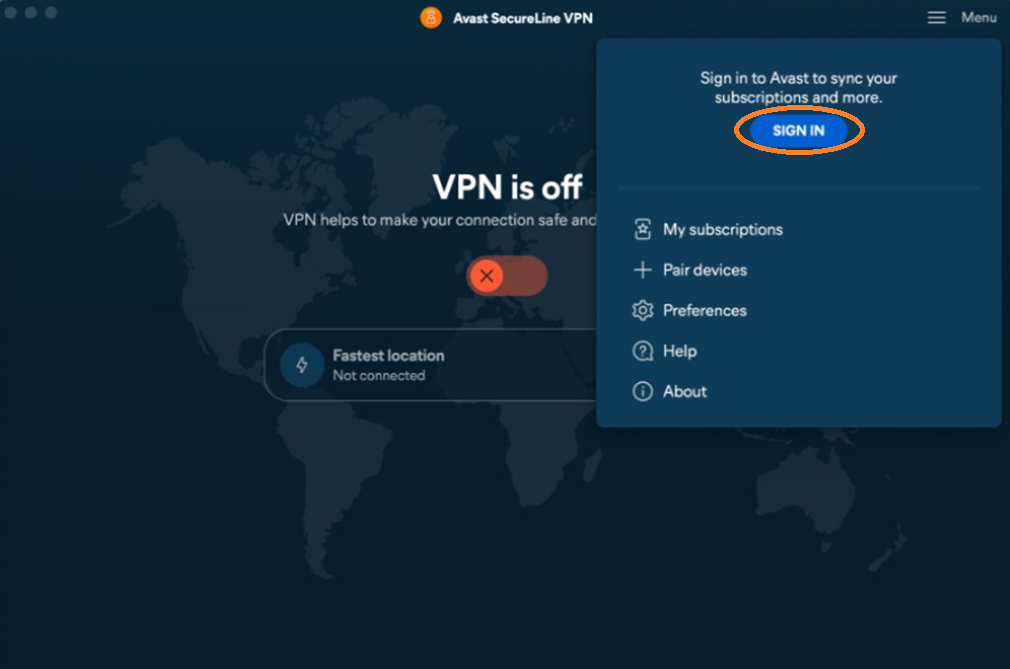
- Follow the on-screen instructions to sign in to your Avast account.
- Click OK to return to the Subscription screen.
Your Avast SecureLine VPN subscription is now active. If activation is unsuccessful, refer to the Still need help? section below.
If you purchased Avast SecureLine VPN (Multi-Device), you can activate Avast SecureLine VPN on your Windows, Mac, Android, and iOS devices.
To confirm which subscription you purchased, check your order confirmation email or the Avast Account that contains your Avast SecureLine VPN subscription.
Device pairing
After you activate an Avast SecureLine VPN (Multi-Device) subscription on your first device using either an activation code or your Avast Account, you can then use device pairing to activate your subscription on additional devices.
For more information about device pairing, refer to the following article:
Still need help?
To learn how to resolve some of the most common activation issues, refer to the following article:
If the issue persists, contact Avast Support.
Further recommendations
To learn more about Avast SecureLine VPN, refer to the following articles:
For instructions on transferring your subscription to a new device, refer to the following article:
If you started a free-trial period before purchasing your subscription, you need to cancel the subscription connected to the trial period before following the activation instructions below.
If you started a free-trial period before purchasing your subscription, you need to cancel the subscription connected to the trial period before following the activation instructions below.
Your chosen activation method:
Enter activation code
To activate Avast SecureLine VPN using an activation code:
- Tap the Avast SecureLine VPN icon on the Home screen of your device. The app opens.

- Tap
⋮ Options (three dots) ▸ Already purchased?, or go to  Settings▸ Subscription ▸ Already purchased?.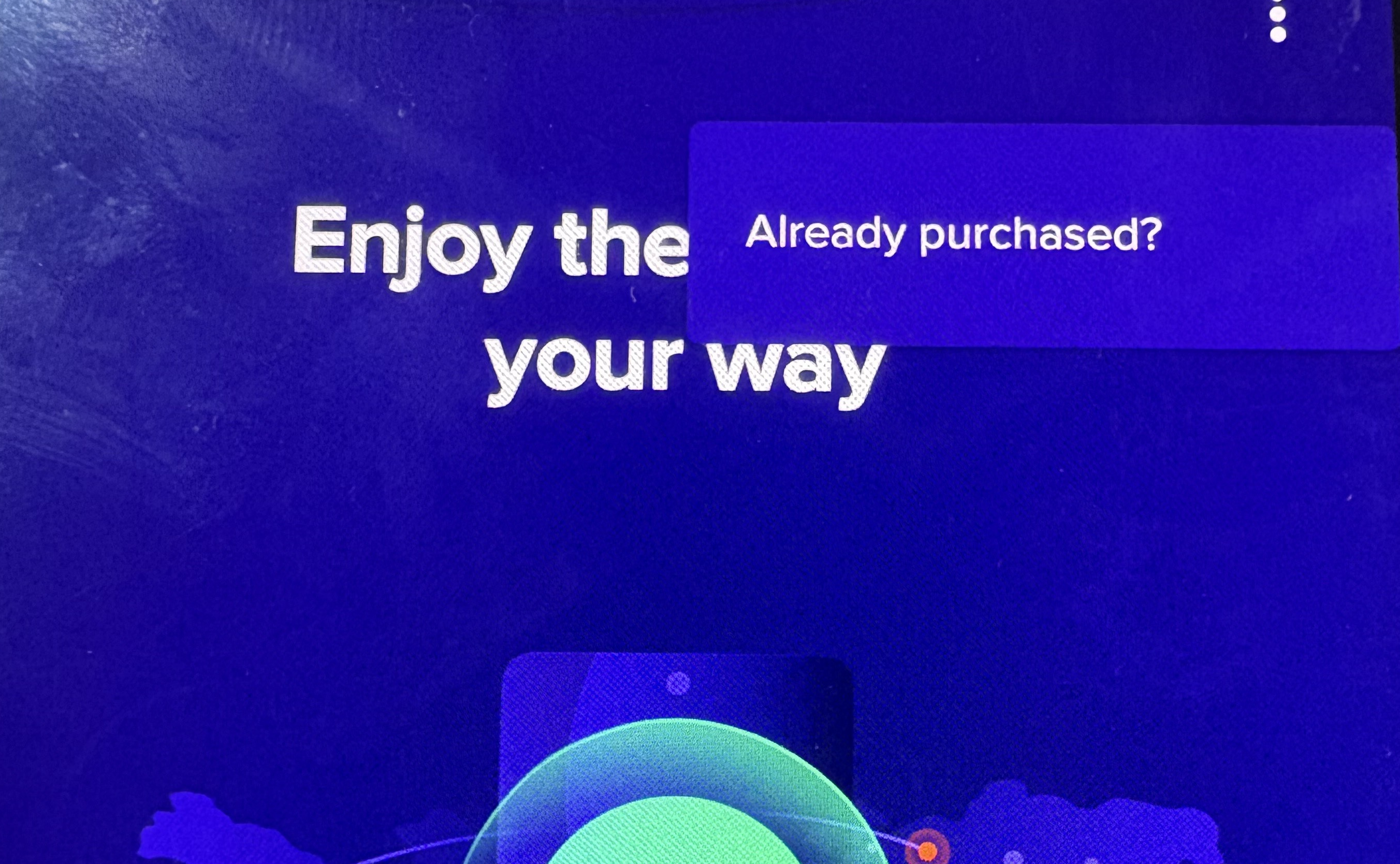
- Select Enter activation code.
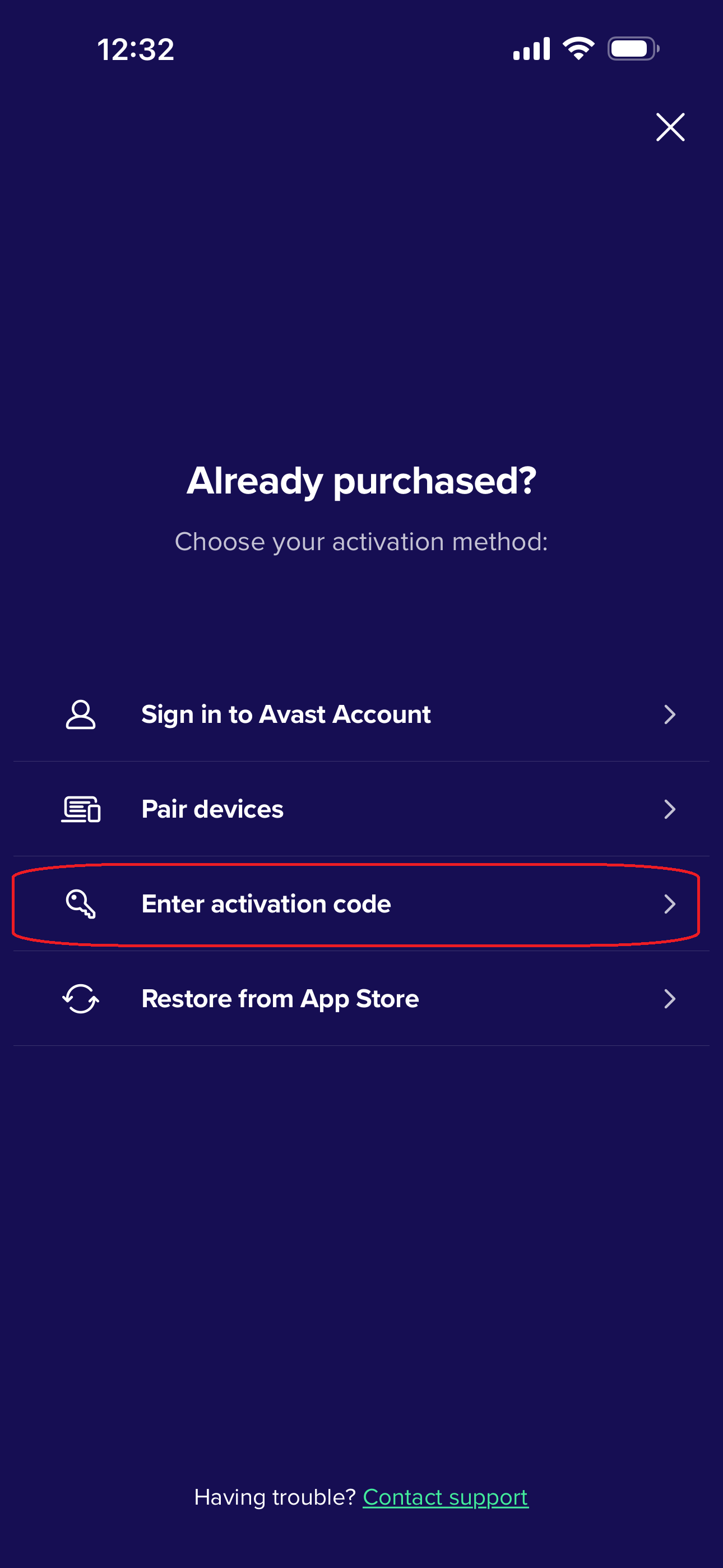
- Type or paste your activation code (including hyphens) into the text box, then tap Continue.
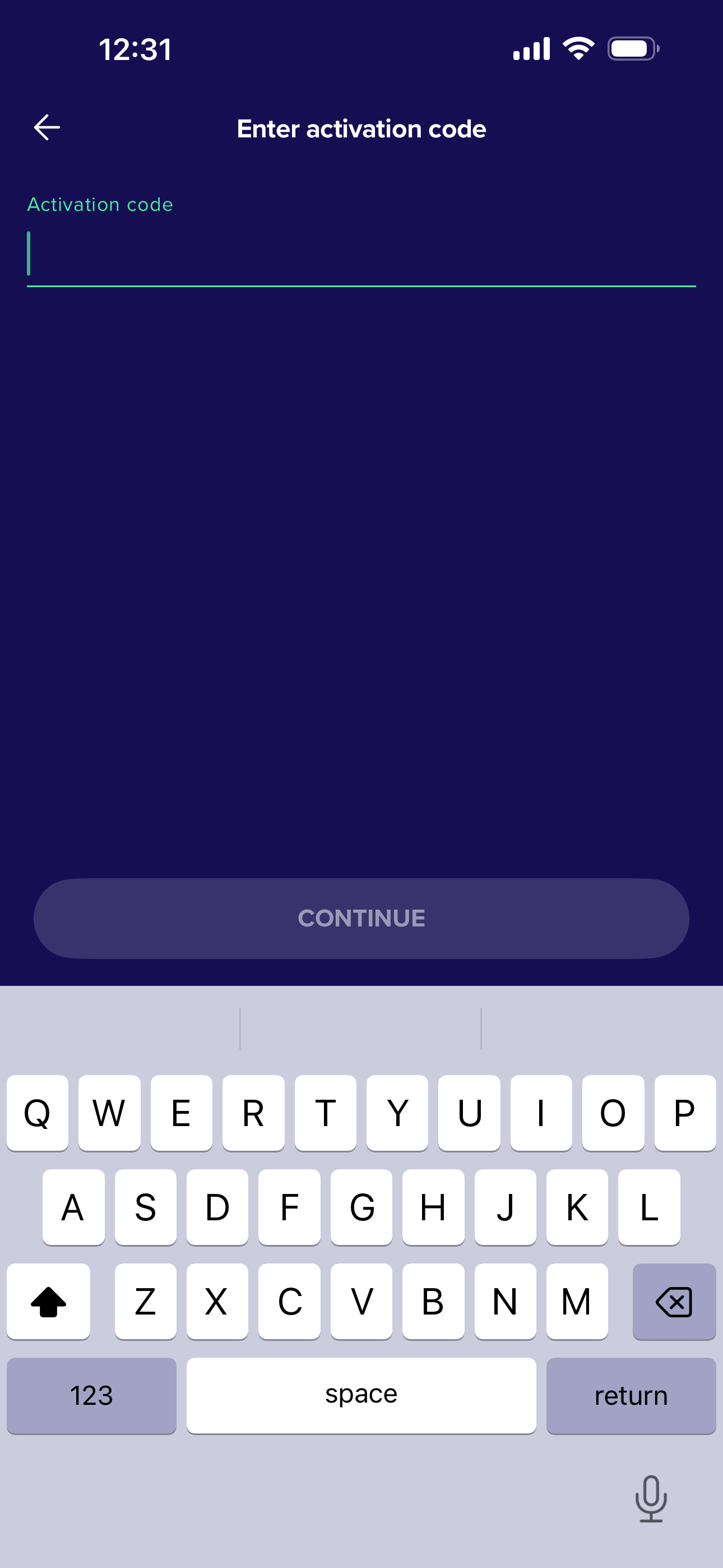
Your Avast SecureLine VPN subscription is now active. If activation is unsuccessful, refer to the Still need help? section in this article.
If you purchased Avast SecureLine VPN (Multi-Device), you can activate Avast SecureLine VPN on your Windows, Mac, Android, and iOS devices.
To confirm which subscription you purchased, check your order confirmation email or the Avast Account that contains your Avast SecureLine VPN subscription.
Sign in to Avast Account
Your Avast Account login is the email address that you provided during the subscription purchase. To sign into your Avast Account for the first time, refer to the following article: Activating your Avast Account.
To activate Avast SecureLine VPN using your Avast Account:
- Tap the Avast SecureLine VPN icon on the Home screen of your device. The app opens.
- Tap
⋮ Options (three dots) ▸ Already purchased?, or go to Settings▸ Subscription ▸ Already purchased?.
- Tap Sign in to Avast Account.
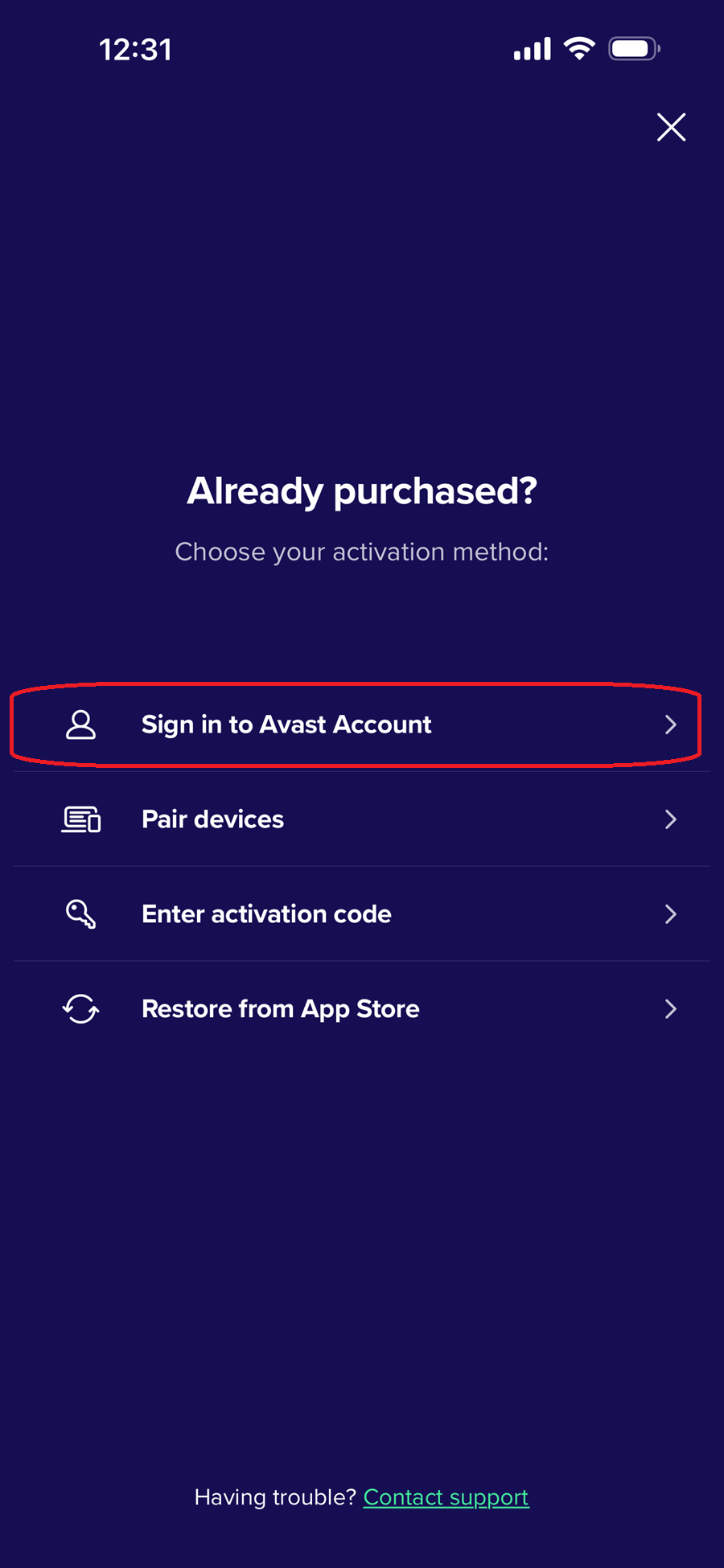
- Enter the credentials for the Avast Account that contains your Avast SecureLine VPN subscription, then tap Sign in.
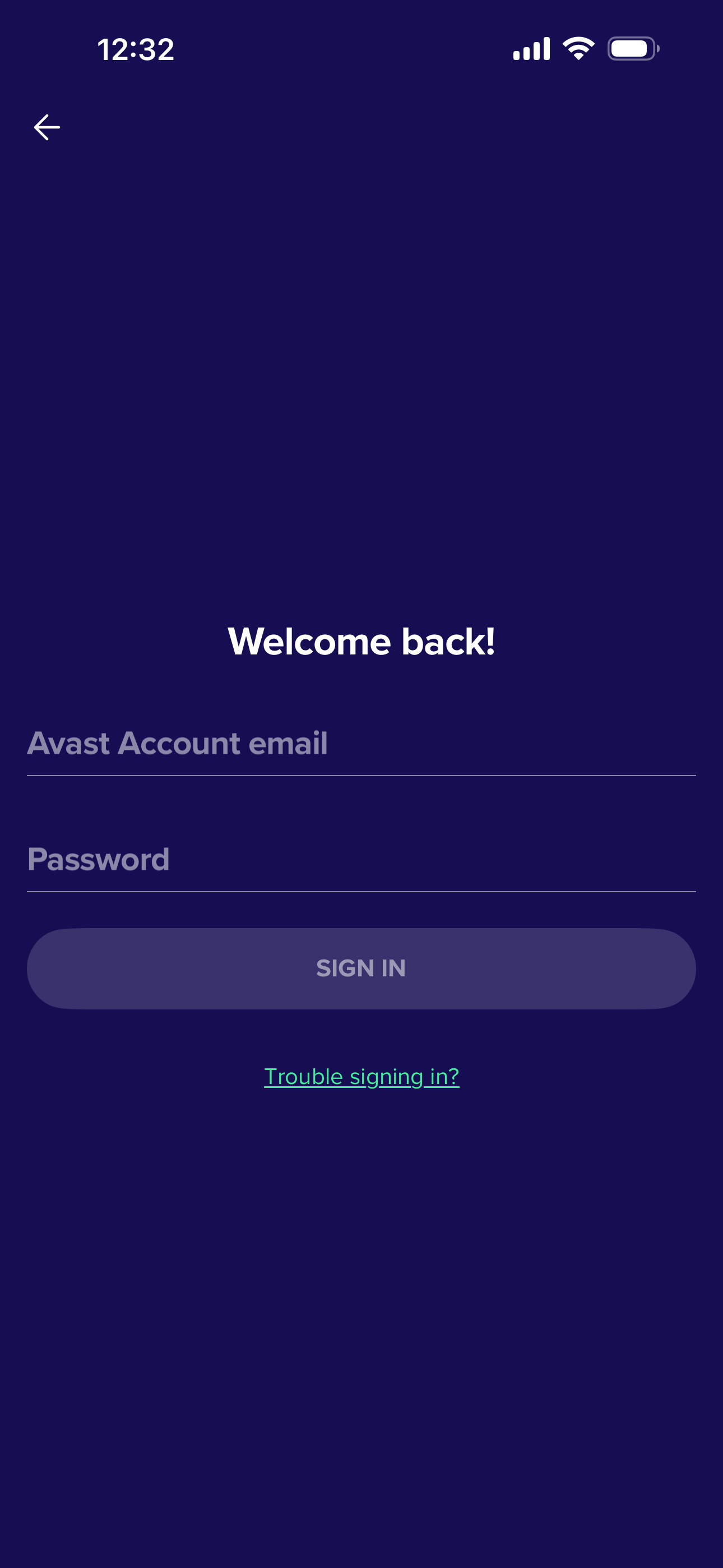
Your Avast SecureLine VPN subscription is now active. If activation is unsuccessful, refer to the Still need help? section below.
If you purchased Avast SecureLine VPN (Multi-Device), you can activate Avast SecureLine VPN on your Windows, Mac, Android, and iOS devices.
To confirm which subscription you purchased, check your order confirmation email or the Avast Account that contains your Avast SecureLine VPN subscription.
Device pairing
After you activate an Avast SecureLine VPN (Multi-Device) subscription on your first device using either an activation code or your Avast Account, you can then use device pairing to activate your subscription on additional devices.
For more information about device pairing, refer to the following article:
Still need help?
To learn how to resolve some of the most common activation issues, refer to the following article:
If the issue persists, contact Avast Support.
Further recommendations
To learn more about Avast SecureLine VPN, refer to the following articles:
For instructions on transferring your subscription to a new device, refer to the following article:
If you started a free-trial period before purchasing your subscription, you need to cancel the subscription connected to the trial period before following the activation instructions below.
If you started a free-trial period before purchasing your subscription, you need to cancel the subscription connected to the trial period before following the activation instructions below.
Your chosen activation method:
Enter activation code
To activate Avast SecureLine VPN using an activation code:
- Tap the Avast SecureLine VPN icon on the Home screen of your device. The app opens.

- Tap Already purchased?, or go to Settings ▸ Subscription ▸ Already purchased?.
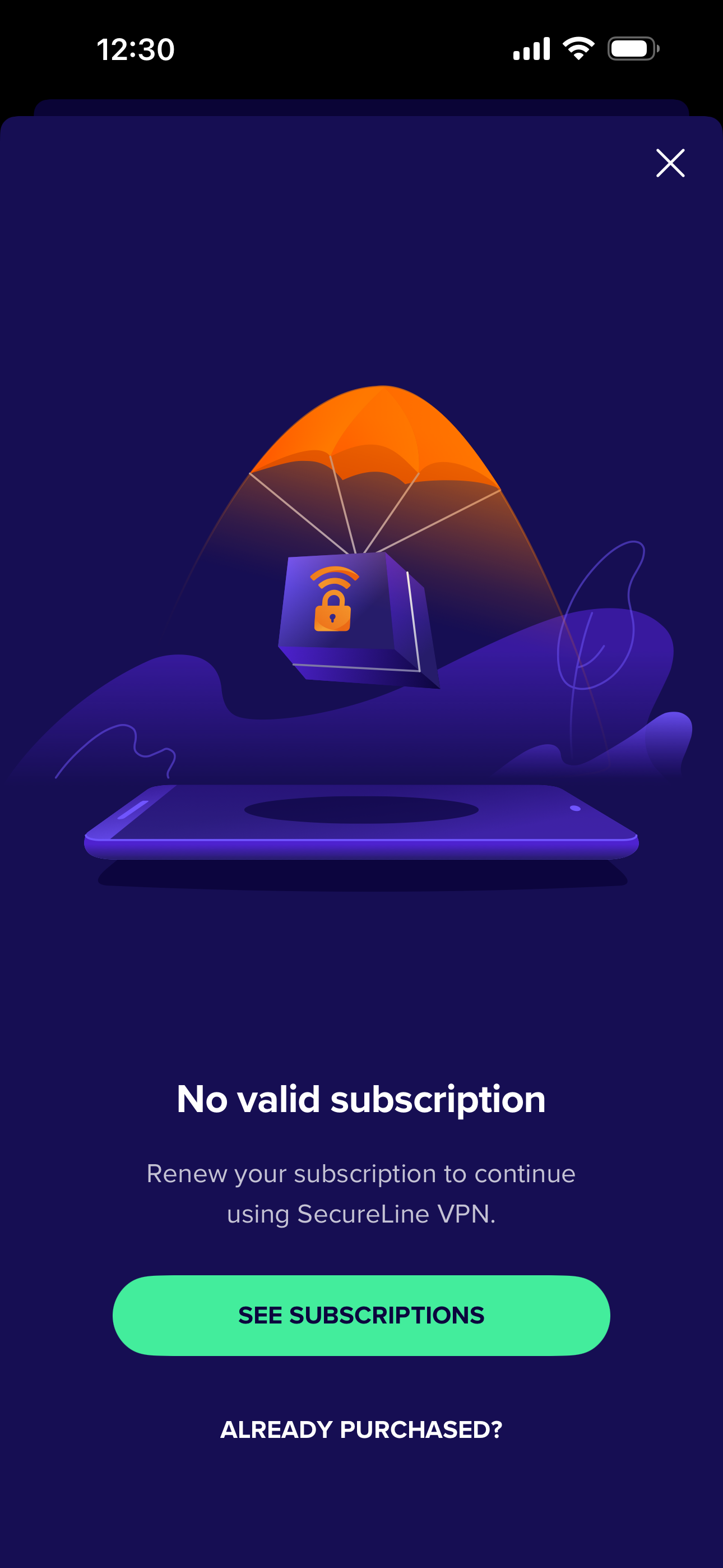
- Select Enter activation code.
- Type or paste your activation code (including hyphens) into the text box, then tap Continue.
Your Avast SecureLine VPN subscription is now active. If activation is unsuccessful, refer to the Still need help? section in this article.
If you purchased Avast SecureLine VPN (Multi-Device), you can activate Avast SecureLine VPN on your Windows, Mac, Android, and iOS devices.
To confirm which subscription you purchased, check your order confirmation email or the Avast Account that contains your Avast SecureLine VPN subscription.
Sign in to Avast Account
Your Avast Account login is the email address that you provided during the subscription purchase. To sign into your Avast Account for the first time, refer to the following article: Activating your Avast Account.
To activate Avast SecureLine VPN using your Avast Account:
- Tap the Avast SecureLine VPN icon on the Home screen of your device. The app opens.
- Tap Already purchased?, or go to Settings ▸ Subscription ▸ Already purchased?.
- Select Sign in to Avast Account.
- Enter the credentials for the Avast Account that contains your Avast SecureLine VPN subscription, then tap Sign in.
Your Avast SecureLine VPN subscription is now active. If activation is unsuccessful, refer to the Still need help? section below.
If you purchased Avast SecureLine VPN (Multi-Device), you can activate Avast SecureLine VPN on your Windows, Mac, Android, and iOS devices.
To confirm which subscription you purchased, check your order confirmation email or the Avast Account that contains your Avast SecureLine VPN subscription.
Device pairing
After you activate an Avast SecureLine VPN (Multi-Device) subscription on your first device using either an activation code or your Avast Account, you can then use device pairing to activate your subscription on additional devices.
For more information about device pairing, refer to the following article:
Still need help?
To learn how to resolve some of the most common activation issues, refer to the following article:
If the issue persists, contact Avast Support.
Further recommendations
To learn more about Avast SecureLine VPN, refer to the following articles:
For instructions on transferring your subscription to a new device, refer to the following article:
If you started a free-trial period before purchasing your subscription, you need to cancel the subscription connected to the trial period before following the activation instructions below.
If you started a free-trial period before purchasing your subscription, you need to cancel the subscription connected to the trial period before following the activation instructions below.
Your chosen activation method:
Enter activation code
To activate Avast SecureLine VPN using an activation code:
- On your Android TV, select Settings (the gear icon) ▸ Apps ▸ Avast SecureLine VPN ▸ Open.
- In Avast SecureLine VPN, select Settings in the top-right corner.
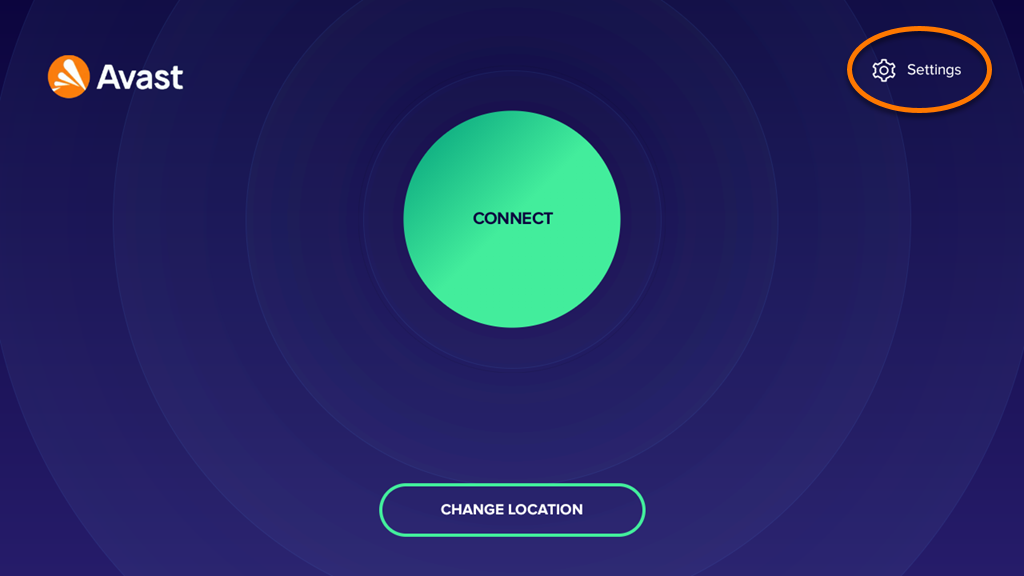
- Select Subscription.
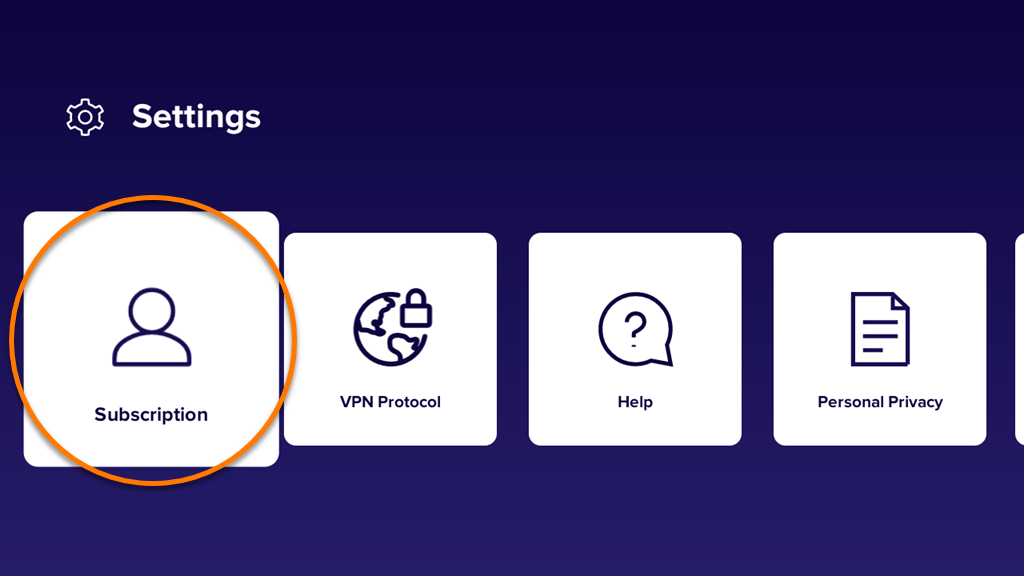
- Select Already purchased?.
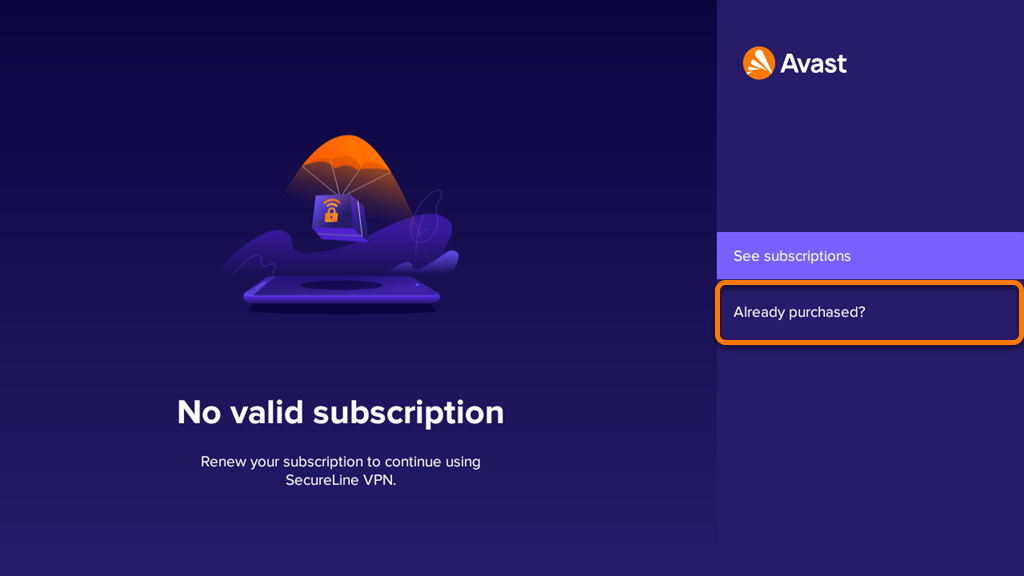
- Select More pairing options.
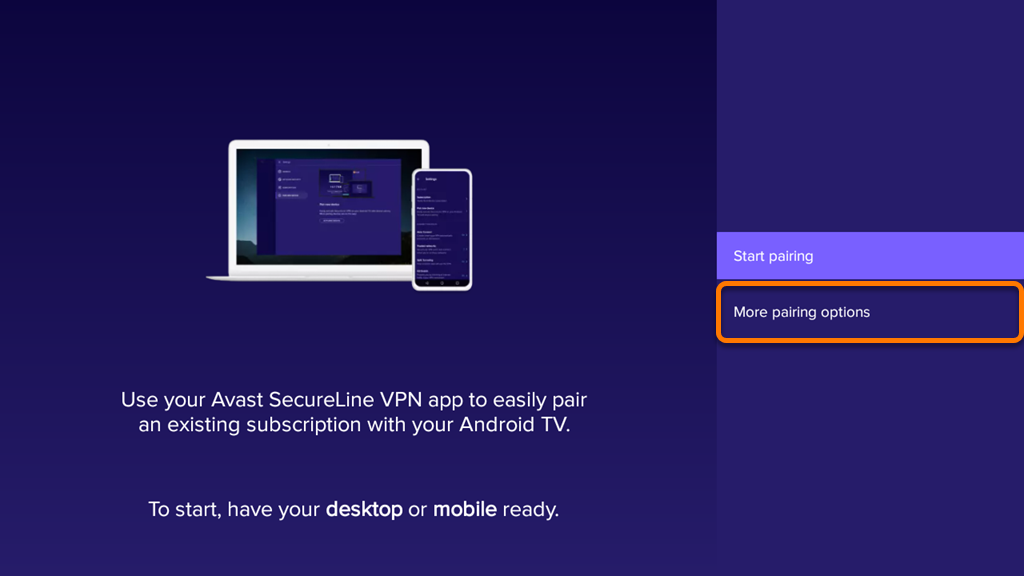
- Select Enter Activation code.
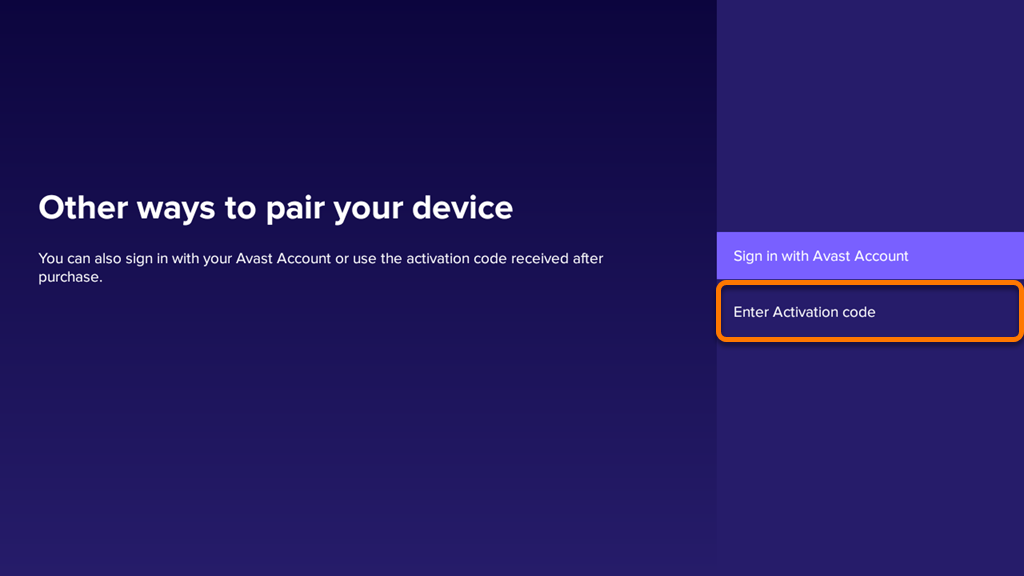
- Enter your activation code (including hyphens) into the text box, then select Continue.
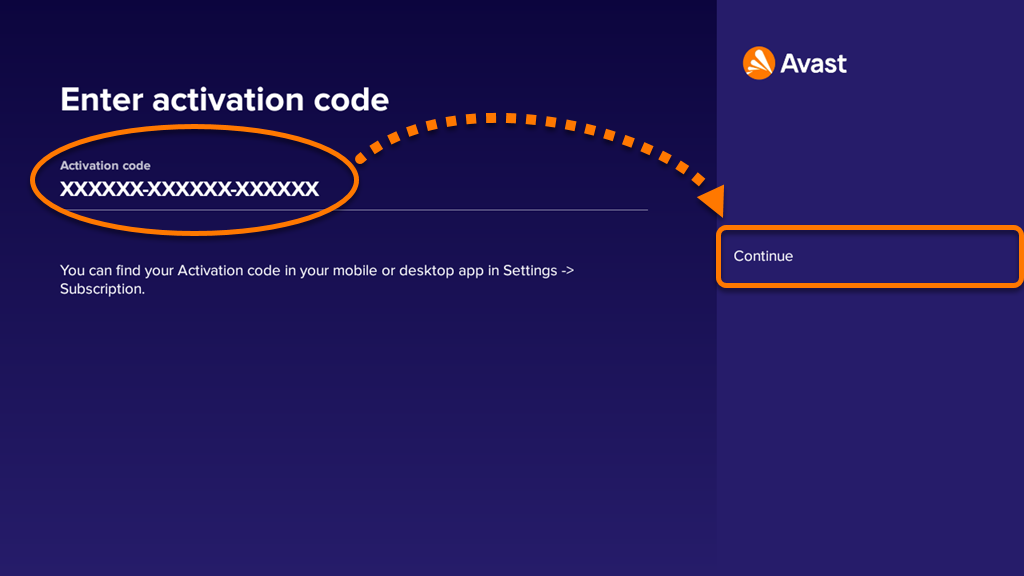
Your Avast SecureLine VPN subscription is now active. If activation is unsuccessful, refer to the Still need help? section in this article.
If you purchased Avast SecureLine VPN (Multi-Device), you can activate Avast SecureLine VPN on your Windows, Mac, Android, and iOS devices.
To confirm which subscription you purchased, check your order confirmation email or the Avast Account that contains your Avast SecureLine VPN subscription.
Sign in to Avast Account
Your Avast Account login is the email address that you provided during the subscription purchase. To sign into your Avast Account for the first time, refer to the following article: Activating your Avast Account.
To activate Avast SecureLine VPN using your Avast Account:
- On your Android TV, select Settings (the gear icon) ▸ Apps ▸ Avast SecureLine VPN ▸ Open.
- In Avast SecureLine VPN, select Settings in the top-right corner.
- Select Subscription.
- Select Already purchased?.
- Select More pairing options.
- Select Sign in with Avast Account.
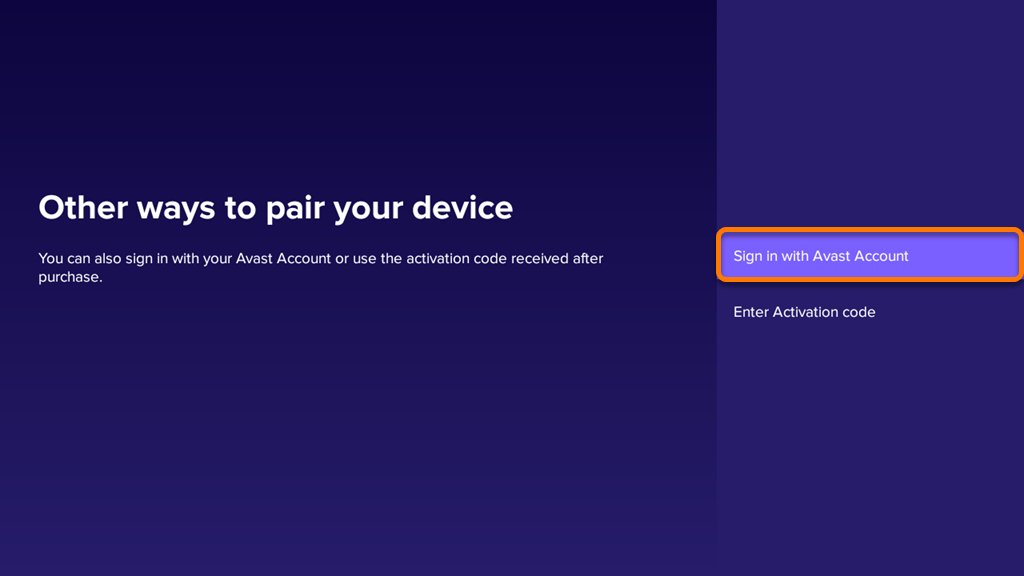
- Enter the credentials for the Avast Account that contains your Avast SecureLine VPN subscription, then select Sign in.
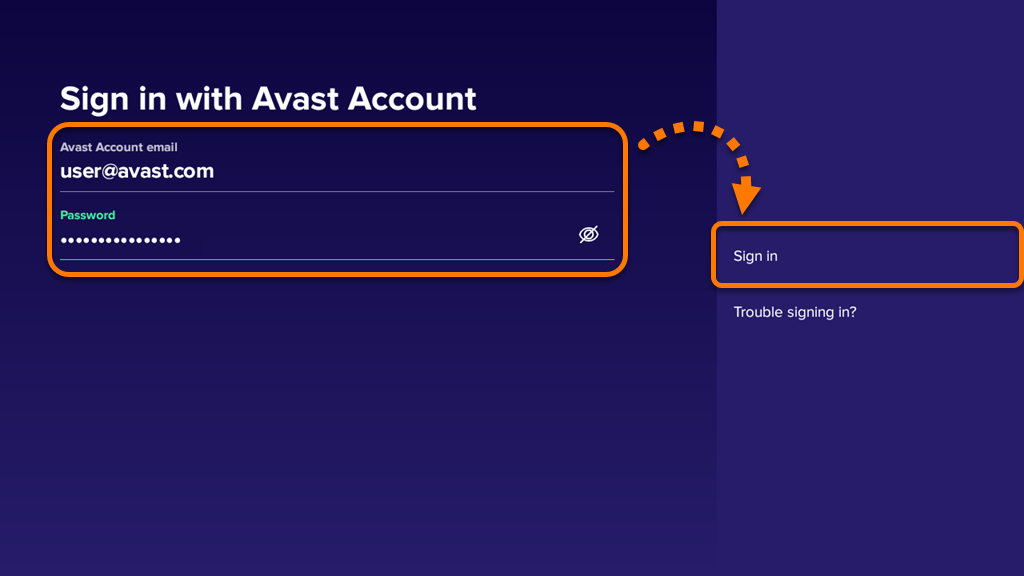
Your Avast SecureLine VPN subscription is now active. If activation is unsuccessful, refer to the Still need help? section below.
If you purchased Avast SecureLine VPN (Multi-Device), you can activate Avast SecureLine VPN on your Windows, Mac, Android, and iOS devices.
To confirm which subscription you purchased, check your order confirmation email or the Avast Account that contains your Avast SecureLine VPN subscription.
Device pairing
After you activate an Avast SecureLine VPN (Multi-Device) subscription on your first device using either an activation code or your Avast Account, you can then use device pairing to activate your subscription on additional devices.
For more information about device pairing, refer to the following article:
Still need help?
To learn how to resolve some of the most common activation issues, refer to the following article:
If the issue persists, contact Avast Support.
Further recommendations
To learn more about Avast SecureLine VPN, refer to the following articles:
For instructions on transferring your subscription to a new device, refer to the following article:

