
IS YOUR COMPUTER SLOW? RUN LIKE NEW
If they are not maintained, computers lose performance over time. Avast Cleanup Premium can help significantly improve the performance of your computer.
Managing connection rules in Avast SecureLine VPN for Android
Android
Avast SecureLine VPN for Android allows you to specify rules for your VPN connection behavior. This article explains how to enable Split Tunneling, Kill Switch, Wi-Fi Threat Shield, Local Network Bypass, and VPN Protocol.
For basic information about how to use Avast SecureLine VPN or the auto-connect feature, refer to the following articles:
- Avast SecureLine VPN for Android and iOS - Getting Started
- Enabling auto-connect in Avast SecureLine VPN
Split Tunneling
Split Tunneling ensures that certain apps never connect to the internet via Avast VPN servers, even when Avast SecureLine VPN is enabled. For example, you can specify that your email app is excluded from VPN connection, allowing you to send and receive emails from your real location, but still access online content without restrictions when you use your preferred web browser app.
To exclude apps from VPN connection:
- Tap
 Settings (the gear icon) in the top-right corner of the main app screen.
- Select Split Tunneling, then tap the white (Off) slider so that it changes to green (On).
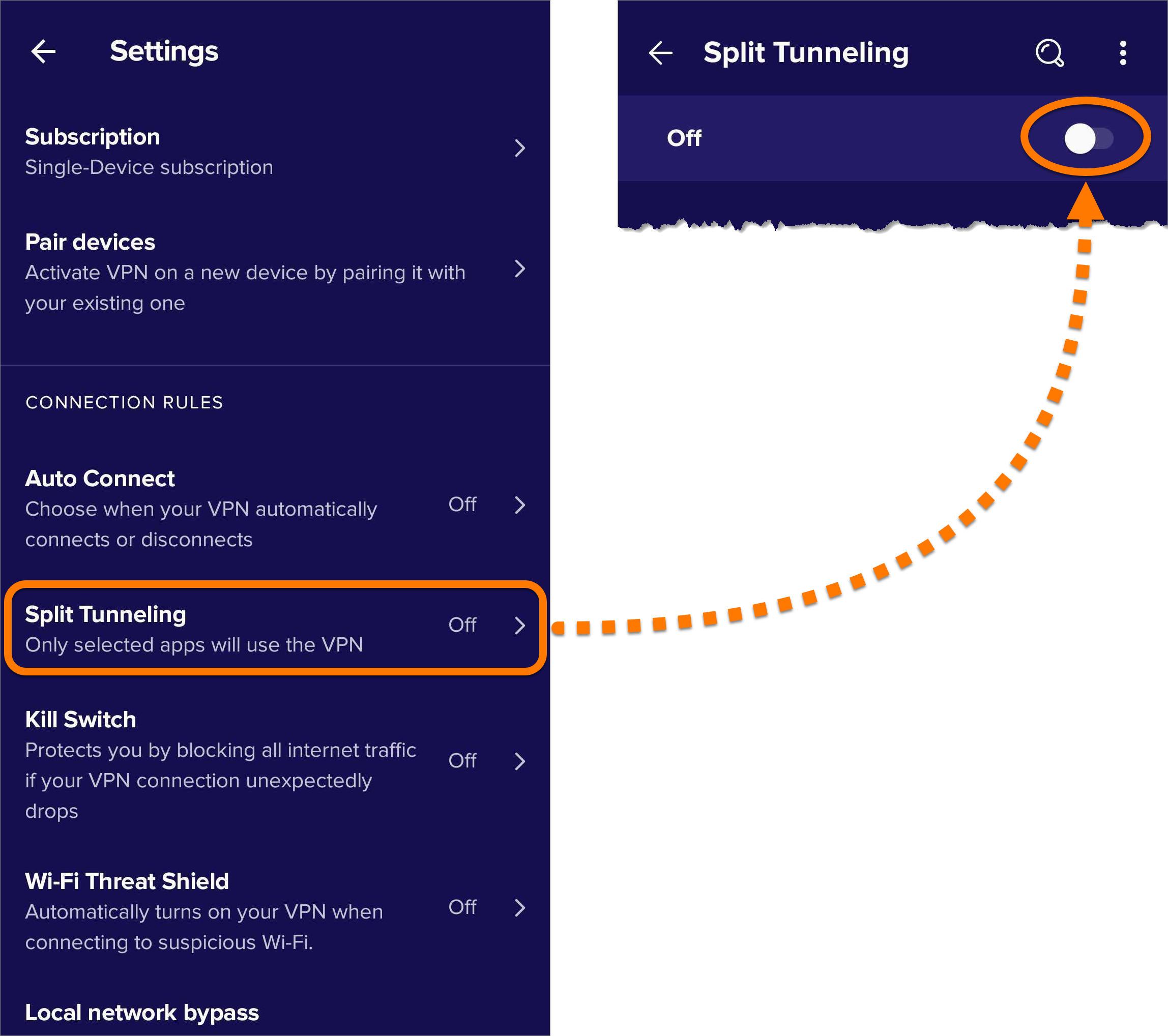
- All apps are ticked by default. Untick any apps that you want to exclude from Avast SecureLine VPN connection.
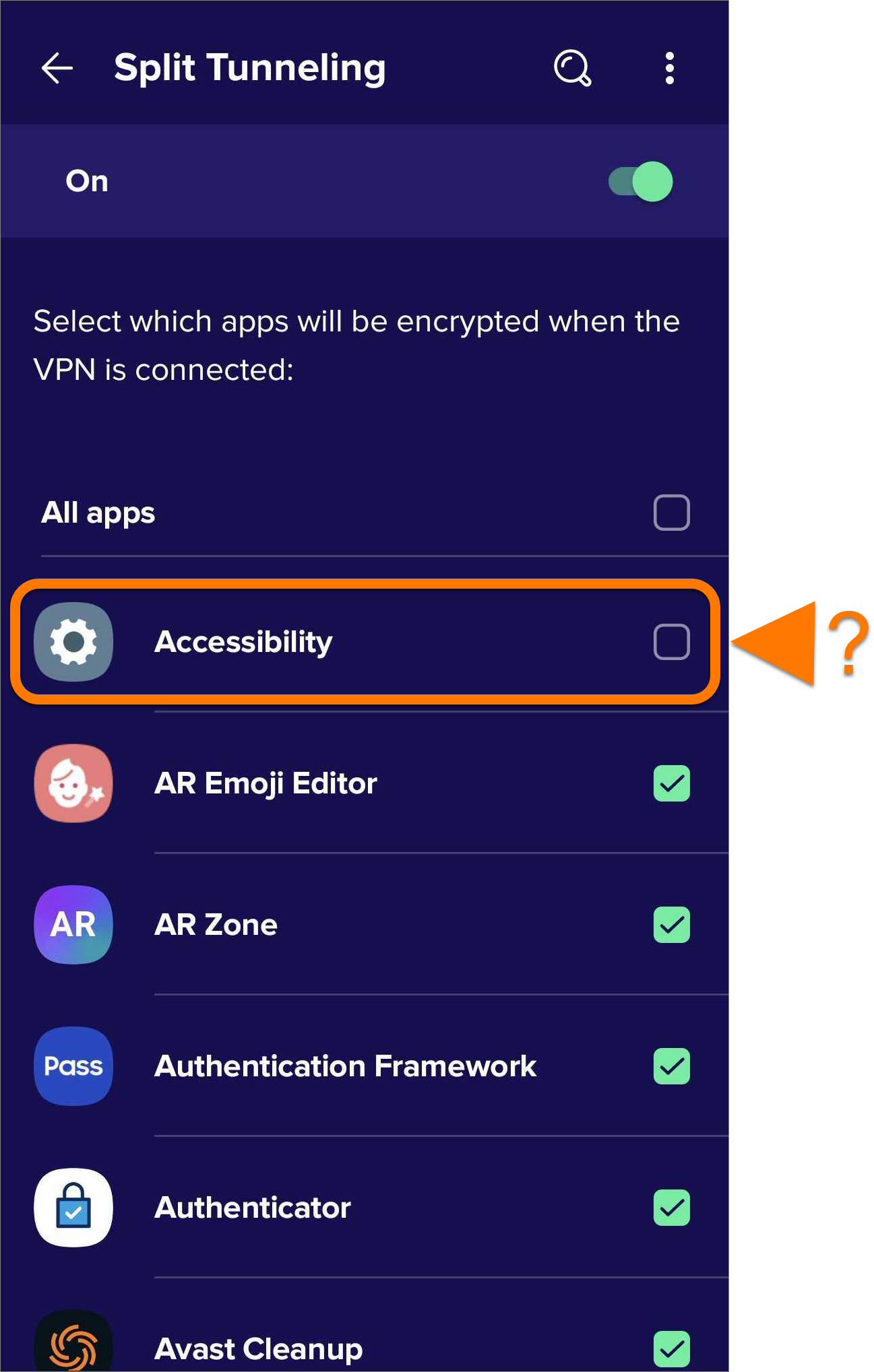
When you use an excluded app, your connection is not encrypted and your real location is visible.
Kill Switch
If your VPN suddenly disconnects, your real IP address and other sensitive information could be exposed and your online activity tracked. To protect your data from leaking, Kill Switch blocks all internet traffic if your VPN connection unexpectedly drops.
Using Kill Switch alongside other Avast SecureLine VPN features can disrupt your internet access. You may experience the following behavior:
To regain access to the internet it is necessary to either connect to the VPN again or disable Kill Switch.
- Trusted networks: When you connect to a trusted network, the VPN will disconnect and Kill Switch will block access to the internet.
- Split Tunneling: Apps excluded from VPN connection via Split Tunneling will be unable to access the internet.
- Auto Connect: If you have Auto Connect enabled for Any Wi-Fi and then switch to a cellular network, the VPN disconnects and Kill Switch will block your internet.
To enable Kill Switch:
- Tap Settings (the gear icon) in the top-right corner of the main app screen.
- Select Kill Switch.
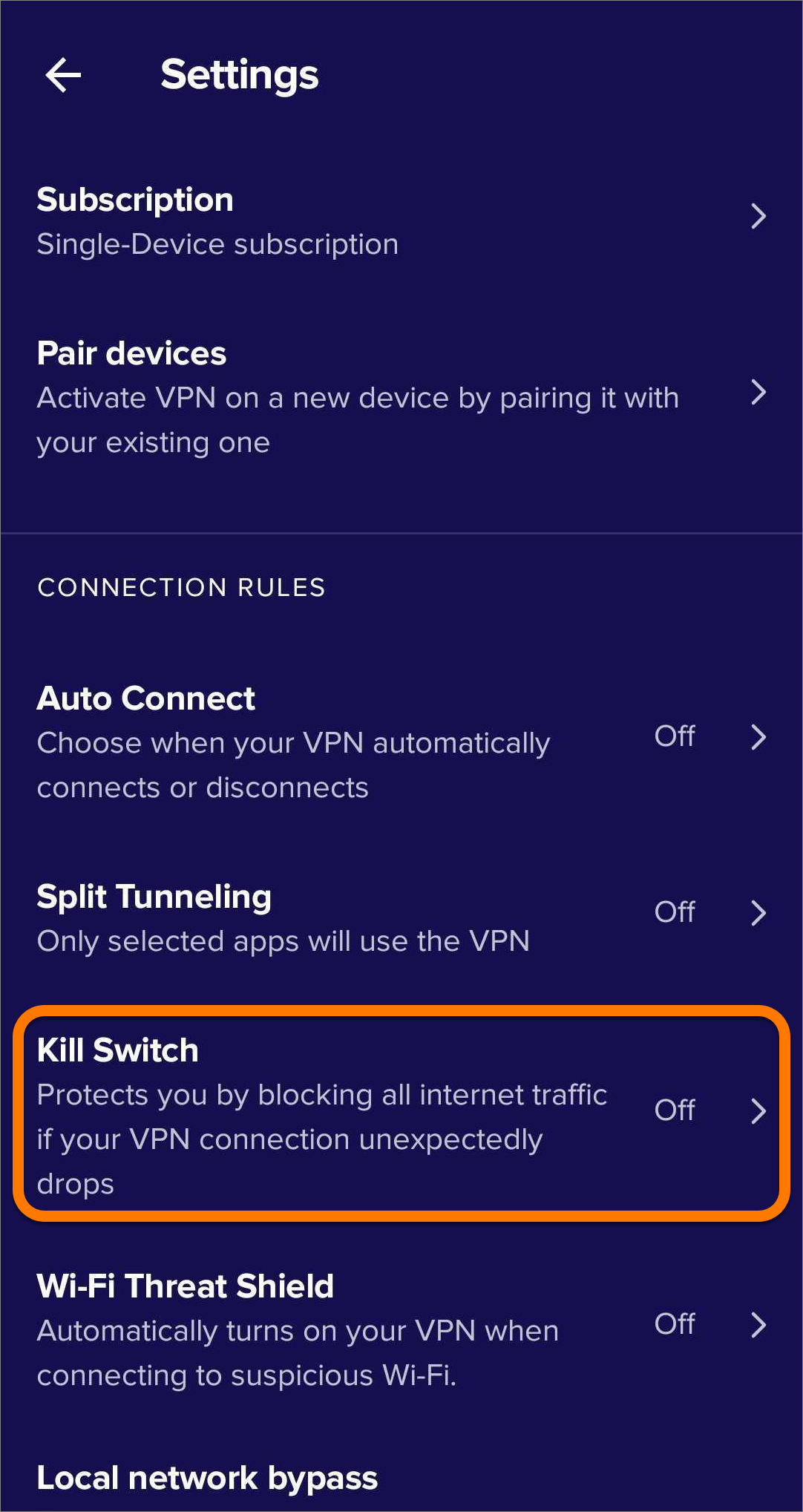
- Tap Open Android Settings.

- Tap the Settings icon next to Avast SecureLine.

- Tap the white (OFF) slider next to Always-on VPN so that it changes to blue (ON).
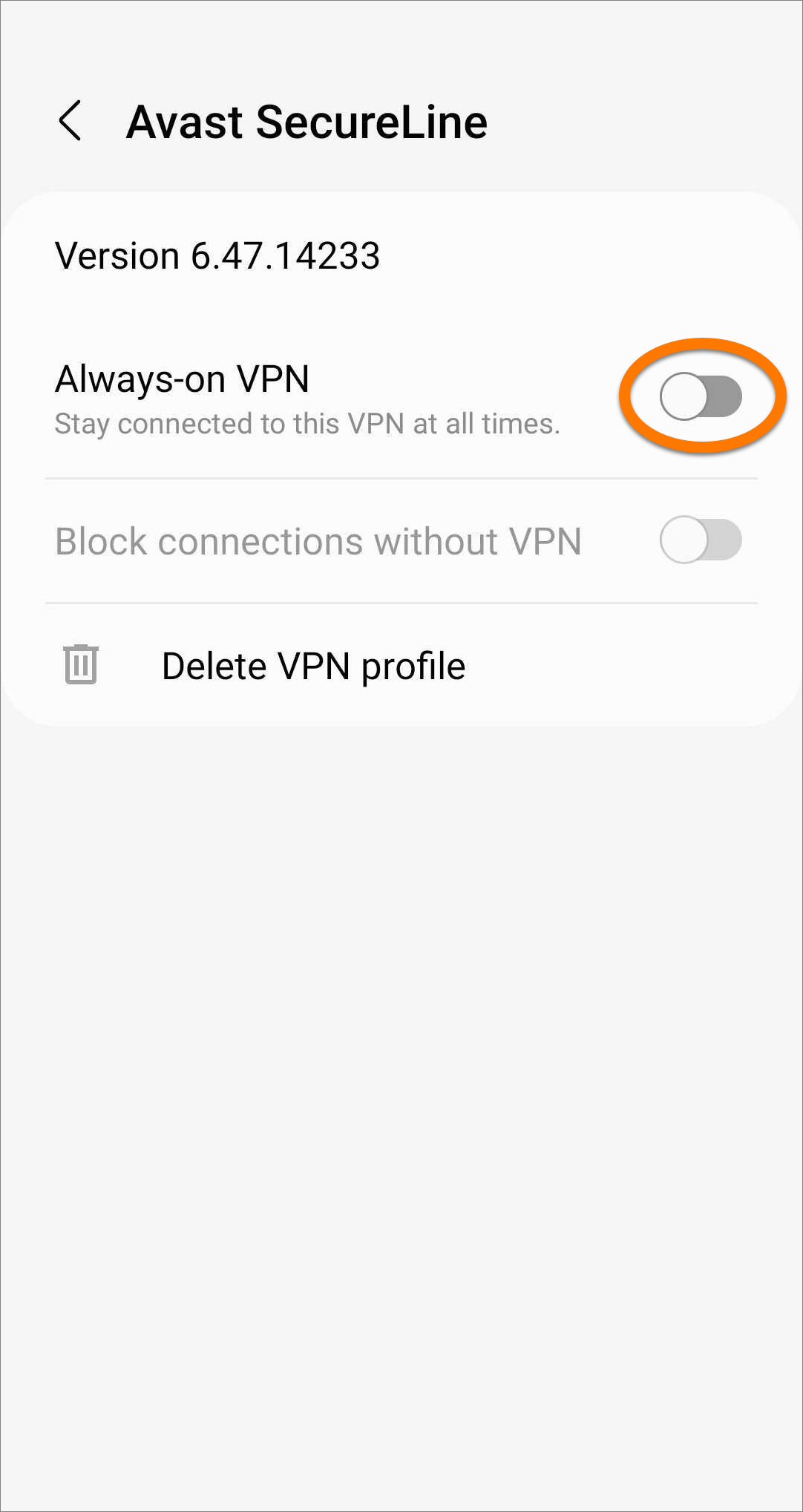
- Tap the white (OFF) slider next to Block connections without VPN so that it changes to blue (ON). Then select Turn on.
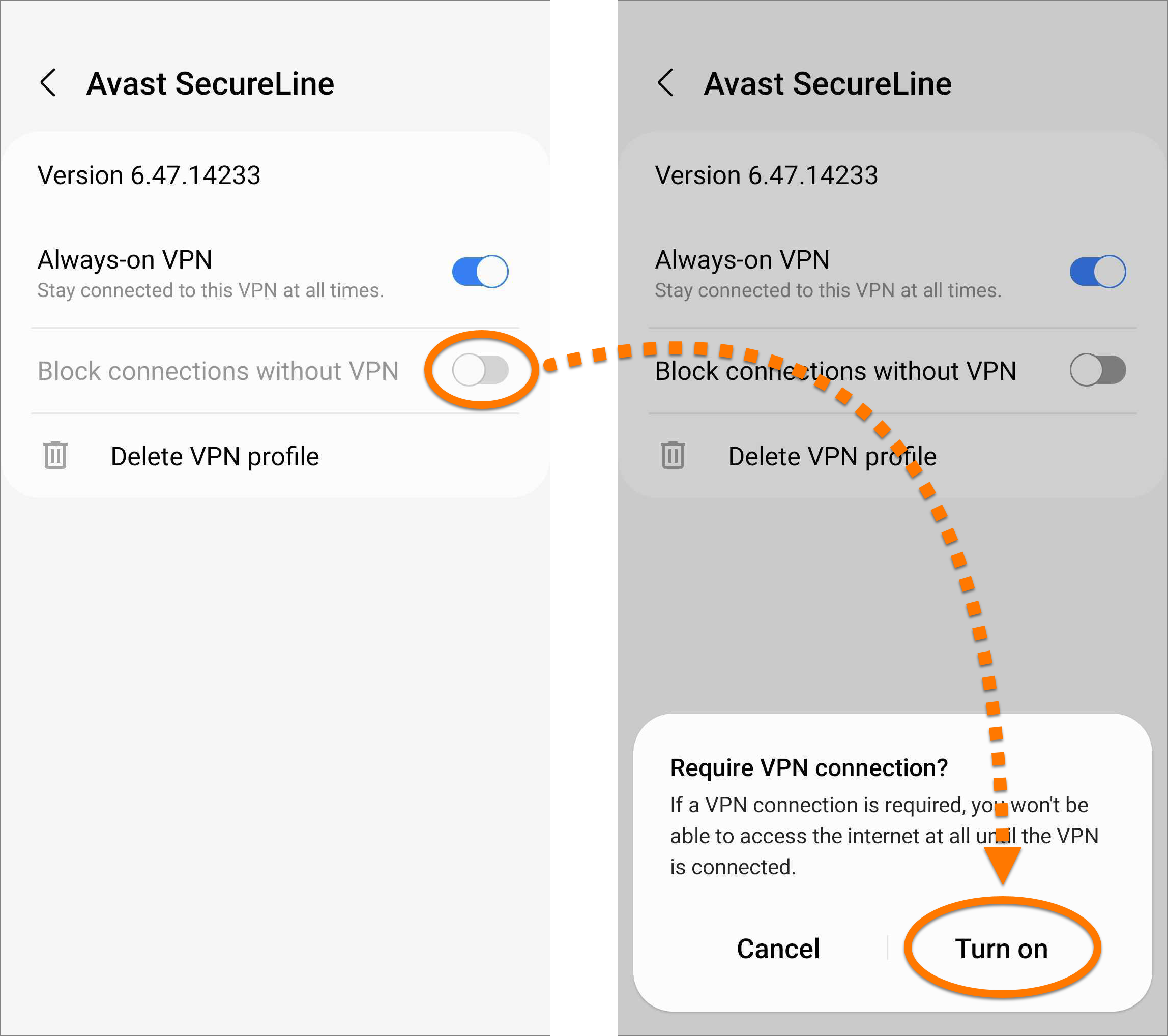
Kill Switch is now enabled. Tap the back arrow to return to Avast SecureLine VPN.
To disable Kill Switch, follow steps 1-4 above, then tap the blue (ON) slider next to Always-on VPN so that it changes to white (OFF). Kill Switch is now disabled. Tap the back arrow to return to Avast SecureLine VPN.
Wi-Fi Threat Shield
When your VPN is off, Avast SecureLine VPN runs a quick scan to check if the Wi-Fi network you are connected to is safe. If a threat is detected and Wi-Fi Threat Shield is enabled, we automatically turn on your VPN to protect your privacy.
To enable Wi-Fi Threat Shield:
- Tap Settings (the gear icon) in the top-right corner of the main app screen.
- Select Wi-Fi Threat Shield, then tap the white (Off) slider so that it changes to green (On).
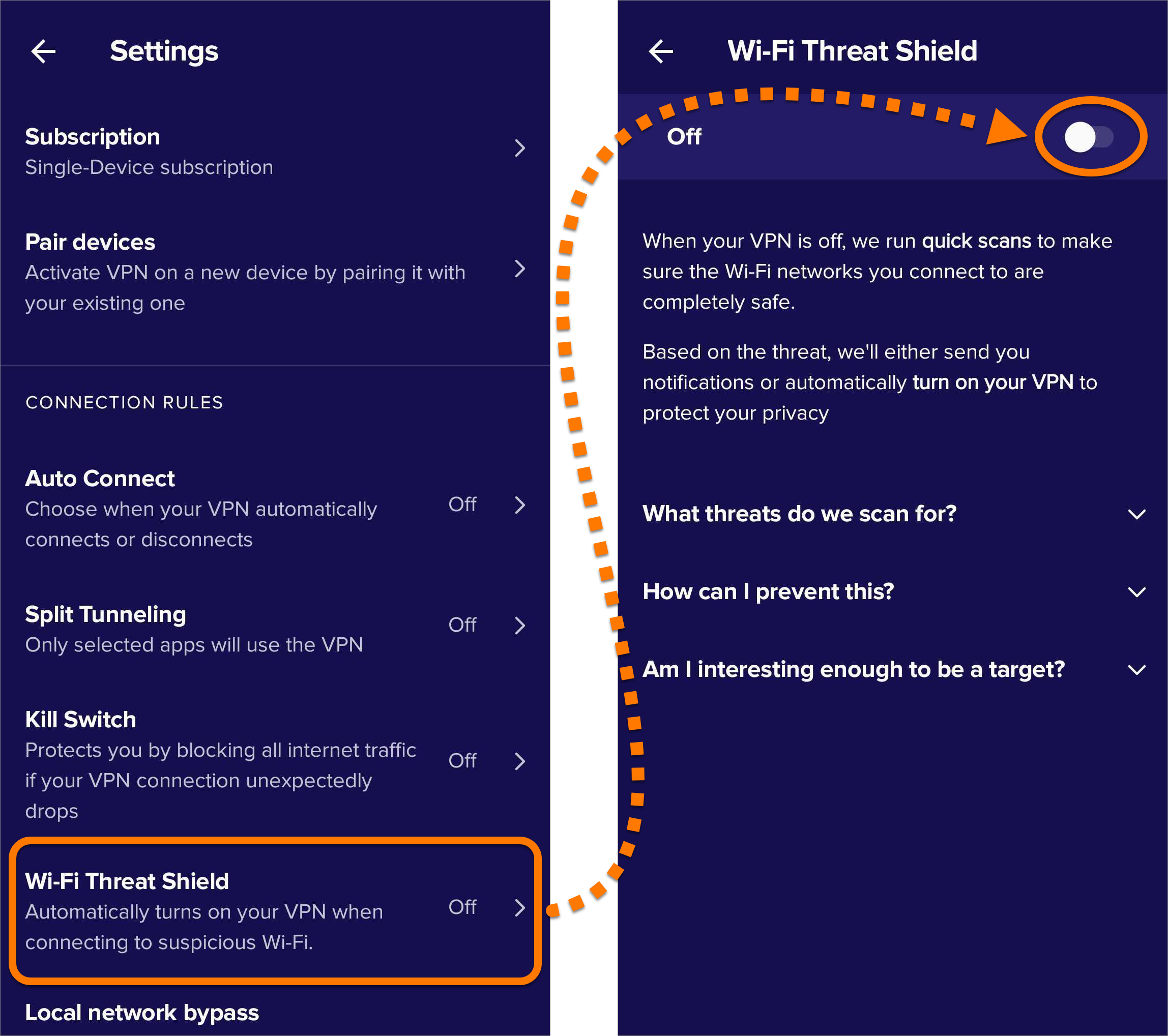
Your VPN will now turn on automatically when you connect to a suspicious Wi-Fi network.
You also have the option to enable auto-connect so that your VPN automatically turns on each time you connect to unsecured Wi-Fi (such as a cafe or airport), or any Wi-Fi, or any Wi-Fi or cellular data. For more information about auto-connect settings, refer to the following article:
Local Network Bypass
While using the VPN, your real IP address is hidden and you are unable to connect to other devices that share your network (such as printers, Chromecast, etc). Enabling Local Network Bypass allows you to access these devices even while connected to the VPN.
To enable Local Network Bypass:
- Tap Settings (the gear icon) in the top-right corner of the main app screen.
- Select Local network bypass, then tap the white (Off) slider so that it changes to green (On).
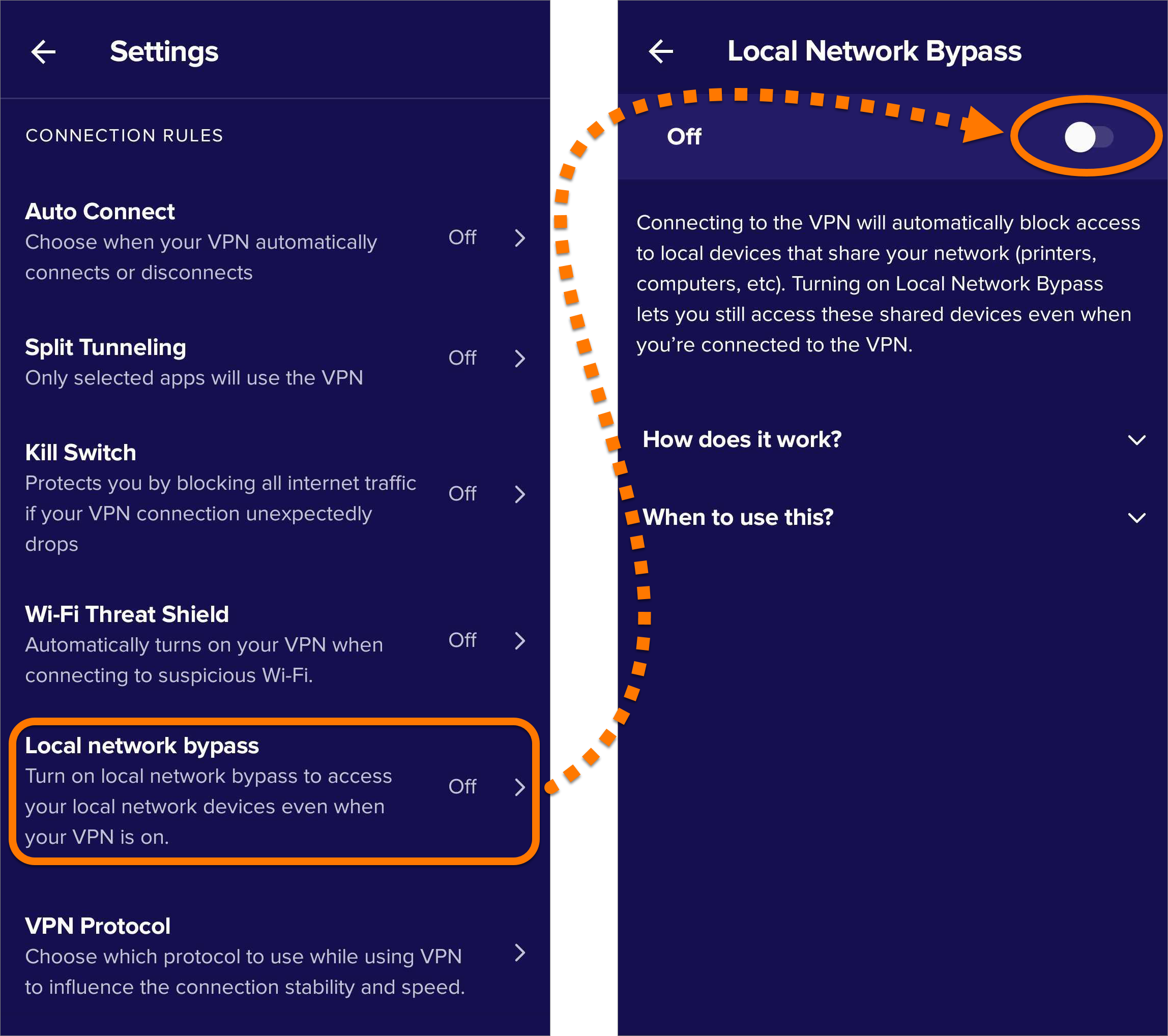
Your connection with local devices is not encrypted.
VPN Protocol
A VPN protocol determines how your device communicates with our secure VPN servers to set up a connection. If you experience any connection issues, we recommend switching to a different VPN protocol.
To select a different VPN protocol:
- Tap Settings (the gear icon) in the top-right corner of the main app screen.
- Select VPN Protocol.
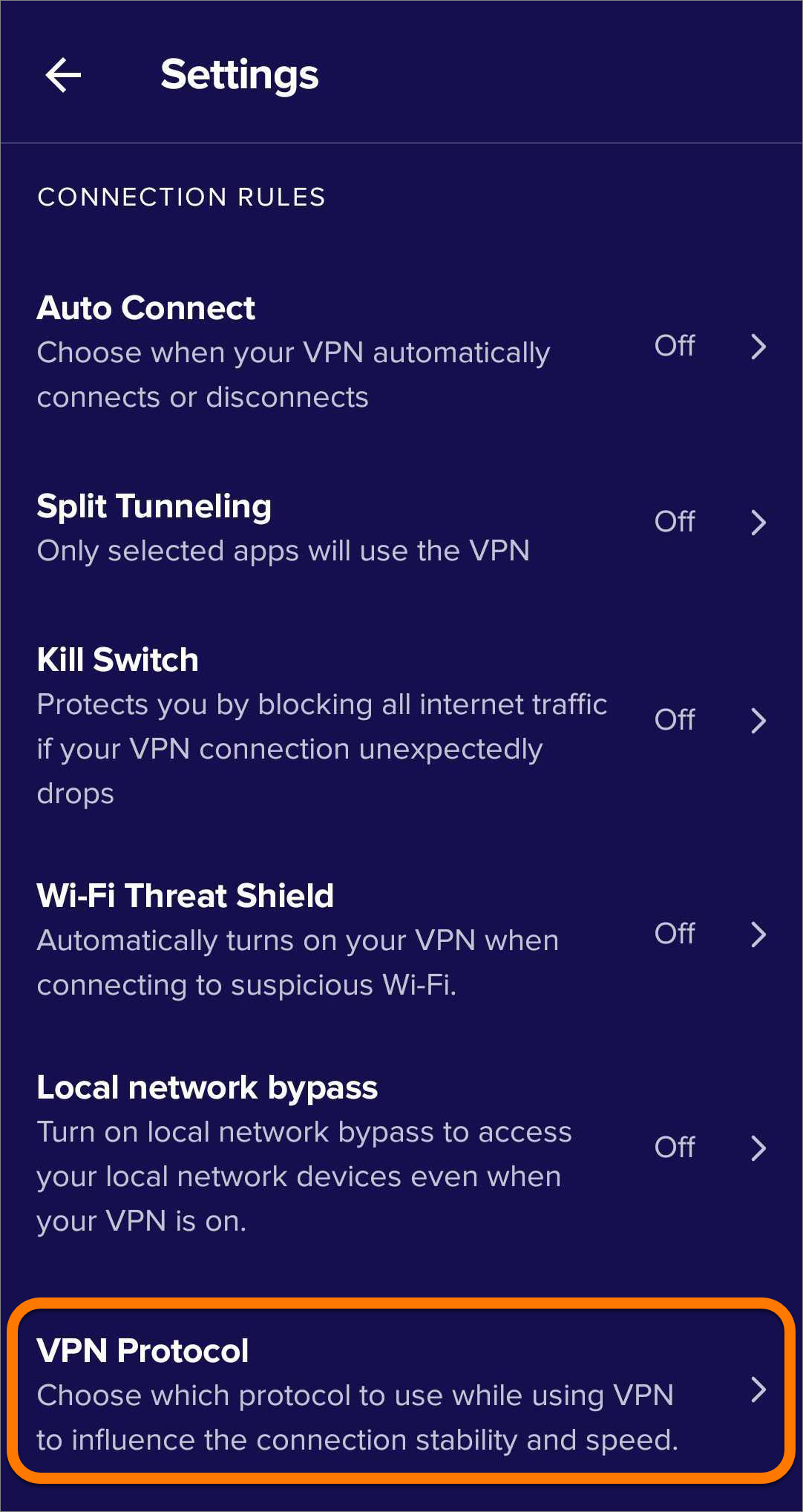
- Choose one of the following options:

- Automatic (recommended): Where possible, Avast SecureLine VPN connects using OpenVPN protocol. If OpenVPN connection fails, the application automatically switches to Mimic protocol.
- WireGuard: Connects with a fast, secure, and trusted open-source protocol.
- Mimic: Disguises the connection so that it cannot be identified that you are using a VPN, which is useful in countries with VPN restrictions that may block OpenVPN.
- OpenVPN: Connects with a secure and trusted open-source protocol that uses strong encryption.
Further recommendations
To learn more about Avast SecureLine VPN, refer to the following articles:
Was this article helpful?

Keep your online identity private!
Browse like no one’s watching with Avast anti-tracking software.