
IS YOUR COMPUTER SLOW? RUN LIKE NEW
If they are not maintained, computers lose performance over time. Avast Cleanup Premium can help significantly improve the performance of your computer.
Avast Premium Security Browser Shield - Getting Started
Windows
This article is about the Browser Shield feature included in Avast Premium Security. For information about the Avast One version of the Browser Shield, refer to the following article: Avast One Browser Shield - Getting Started.
Browser Shield is a paid feature available in Avast Premium Securitythat helps secure the passwords stored in your web browsers. If left unprotected, passwords stored in web browsers may be vulnerable to malware and theft by unwanted applications. Browser Shield allows you to choose which apps have access to your saved passwords. Browser Shield also blocks access to browser cookies to protect your personal and sensitive data.
Browser Shield helps protect your passwords that are saved in the following browsers: Google Chrome, Mozilla Firefox, Microsoft Edge, and Avast Secure Browser.
Refer to the sections in this article to learn how to use Browser Shield.
Enable or Disable Browser Shield
Browser Shield is enabled by default. To improve your security, we recommend keeping Browser Shield enabled and only disabling it for temporary troubleshooting purposes.
To disable Browser Shield:
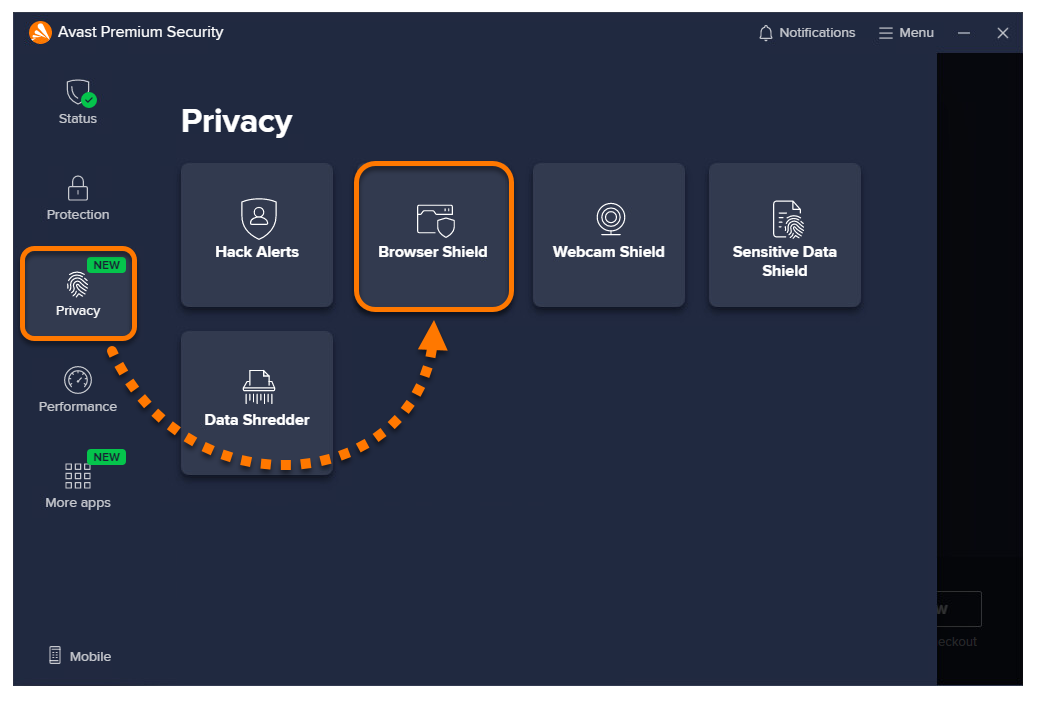
- Open Avast Premium Security, then go to Privacy ▸ Browser Shield.
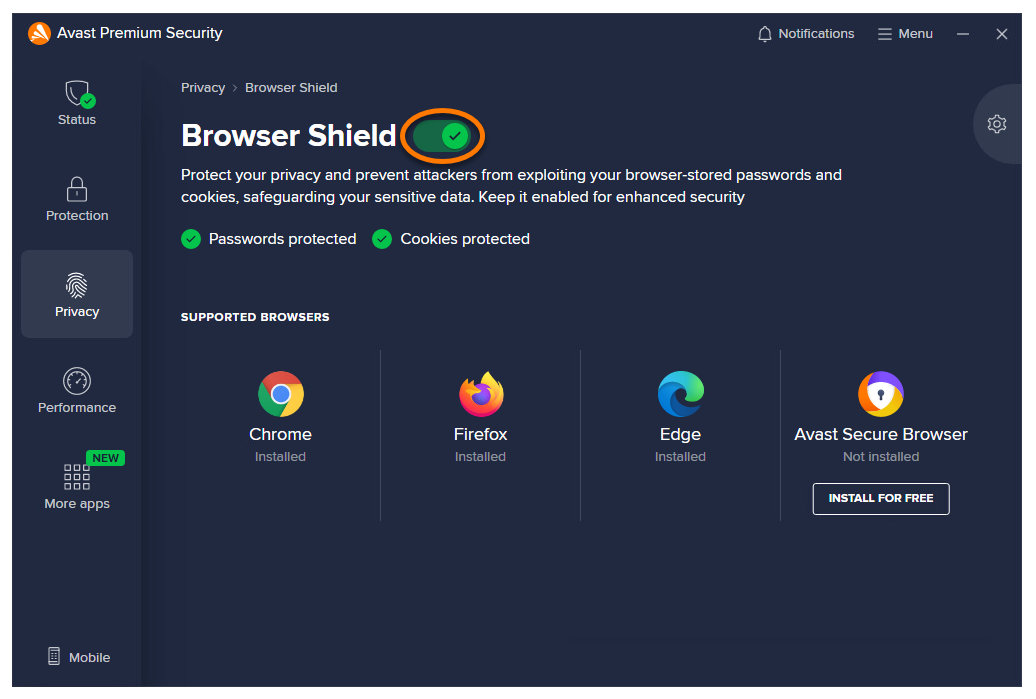
- Click the green (ON) Browser Shield slider.
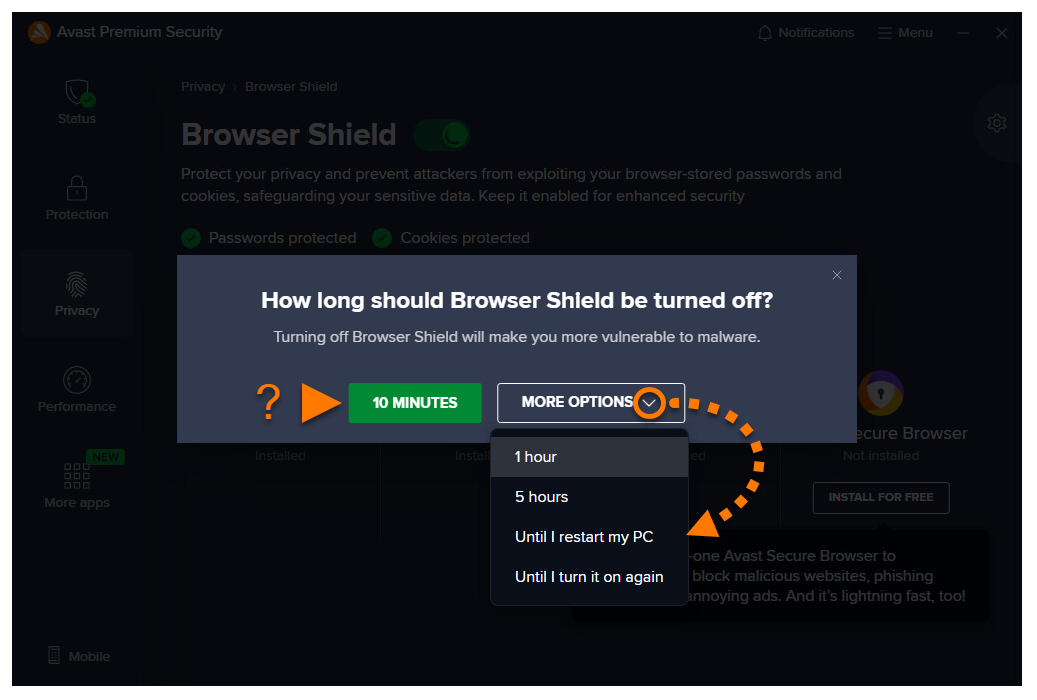
- Choose how long Browser Shield should be turned off.
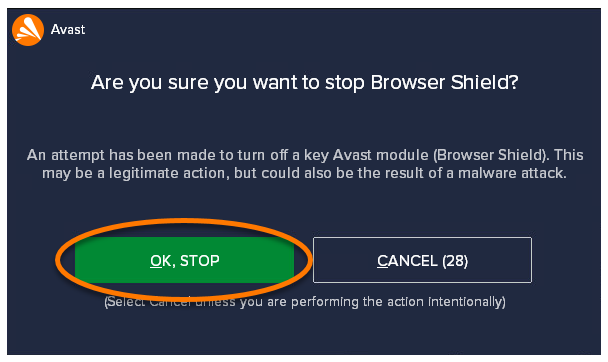
- Click OK, stop to confirm.
Browser Shield is now disabled. To enable it, follow step 1 above, then click the red (OFF) slider so that it changes to green (ON).
Modify Settings
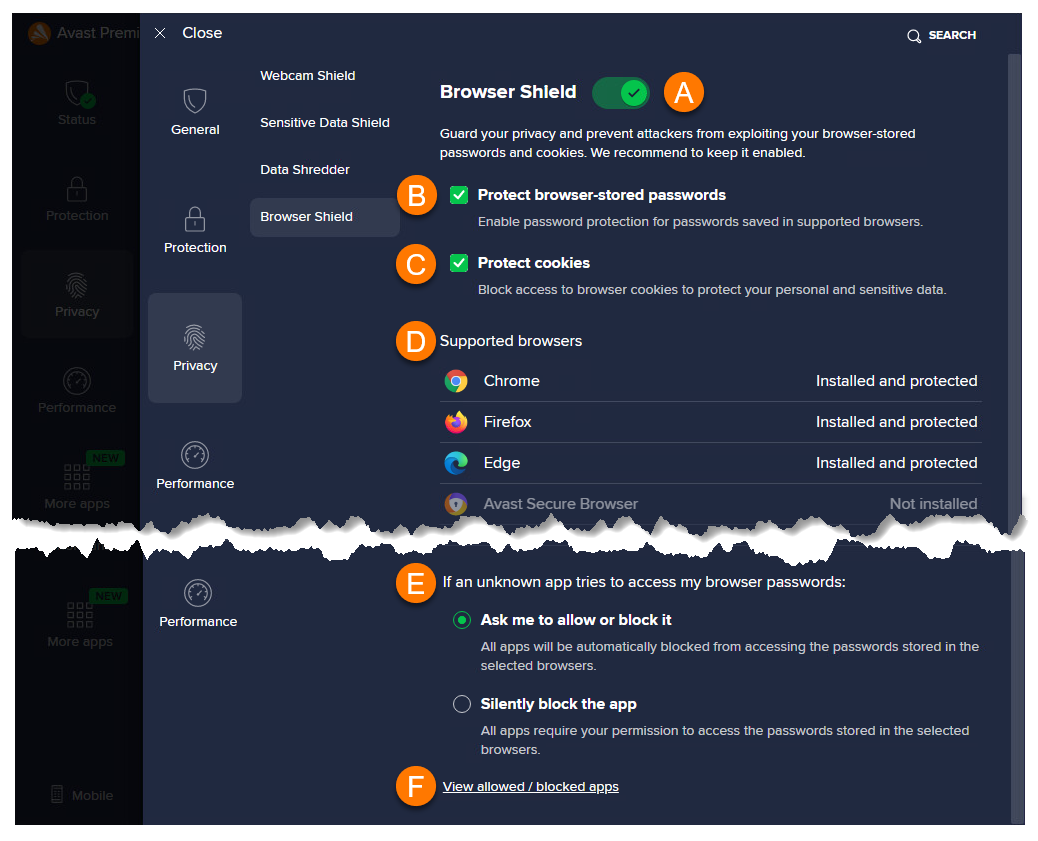
When an unknown application tries to access your browser passwords, you are prompted to allow or block access. You can modify these settings by following the steps below:
- Open Avast Premium Security, then go to Privacy ▸ Browser Shield.
- Click
 Settings (the gear icon) in the top right corner.
- The following settings are available:
- Disable or enable Browser Shield using the slider.
- Enable or disable password protection for passwords saved in supported browsers.
- Allow or block access to browser cookies to protect your personal and sensitive data.
- View supported browsers that are password protected.
- Select an action for when unknown applications attempt to access your saved passwords:
- Ask me to allow or block it (selected by default): You are asked to grant permission when an application tries to access your passwords.
- Silently block the app: Applications are automatically blocked without any notification. Blocked applications are added to the list of blocked apps.
- Click View allowed / blocked apps to go directly to the Blocked & Allowed apps settings screen.
Manage Blocked & Allowed apps
After you allow or deny an application access to your passwords, it is automatically added to the relevant list on the Blocked & Allowed apps settings screen. For information about accessing and managing the Blocked & Allowed apps, refer to the following article:
Troubleshooting
If you find that a trusted application cannot access your stored passwords, check the following:
- Ensure that the app is not included on your List of blocked apps:
- Open Avast Premium Security, then go to Privacy ▸ Browser Shield.
- Click Settings (the gear icon) in the top right corner.
- Select View allowed/blocked apps.
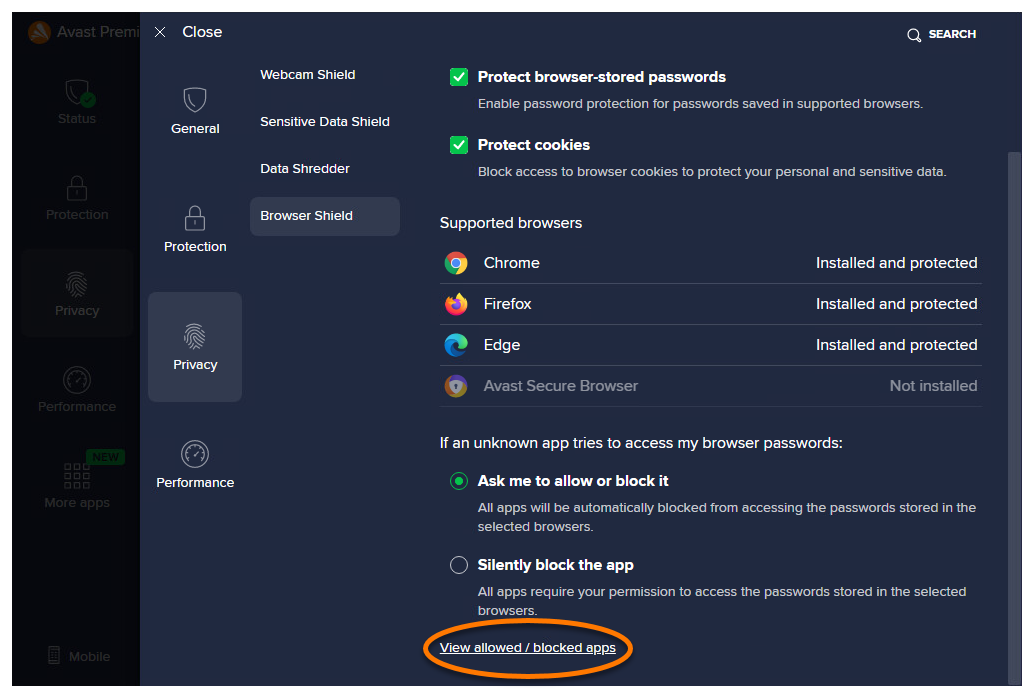
- Click
…More options (three dots) next to the relevant application, and select Remove. Alternatively, click + Allow app and add the application to the List of allowed apps.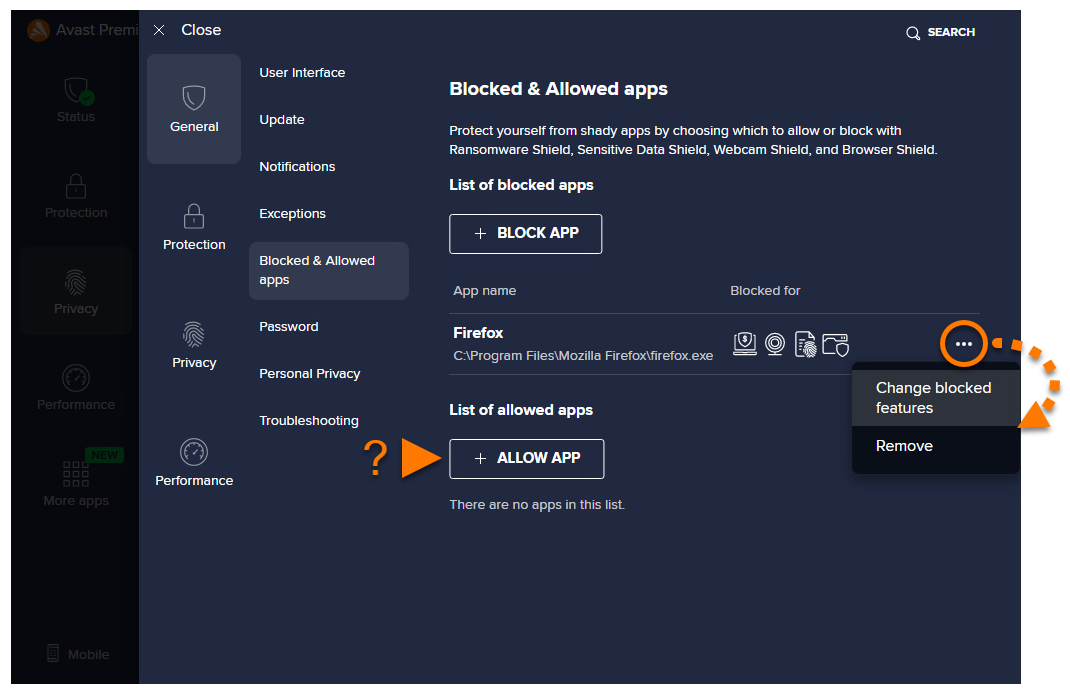
- Open Avast Premium Security, then go to Privacy ▸ Browser Shield.
- If Browser Shield is set to Silently block the app, Avast Premium Security automatically prevents all unknown applications from accessing your stored passwords. Check your Browser Shield Settings to manage this action.
Further recommendations
For more information about Browser Shield, refer to the following article:
Was this article helpful?

Keep your online identity private!
Browse like no one’s watching with Avast anti-tracking software.