Using the Blocked & Allowed apps settings screen in Avast Antivirus
The Blocked & Allowed apps settings screen allows you to easily manage applications on your PC that are always blocked or always allowed by at least one of the following Avast Antivirus features:
The features you can manage via the Blocked & Allowed apps settings screen depend on which Avast Antivirus product you have. Avast Free Antivirus only includes free features, while Avast Premium Security includes all free and paid features in the app.
Refer to the relevant sections in this article to manage your blocked or allowed apps.
Open the Blocked & Allowed apps settings screen
- Open Avast Antivirus and go to
☰ Menu ▸ Settings. 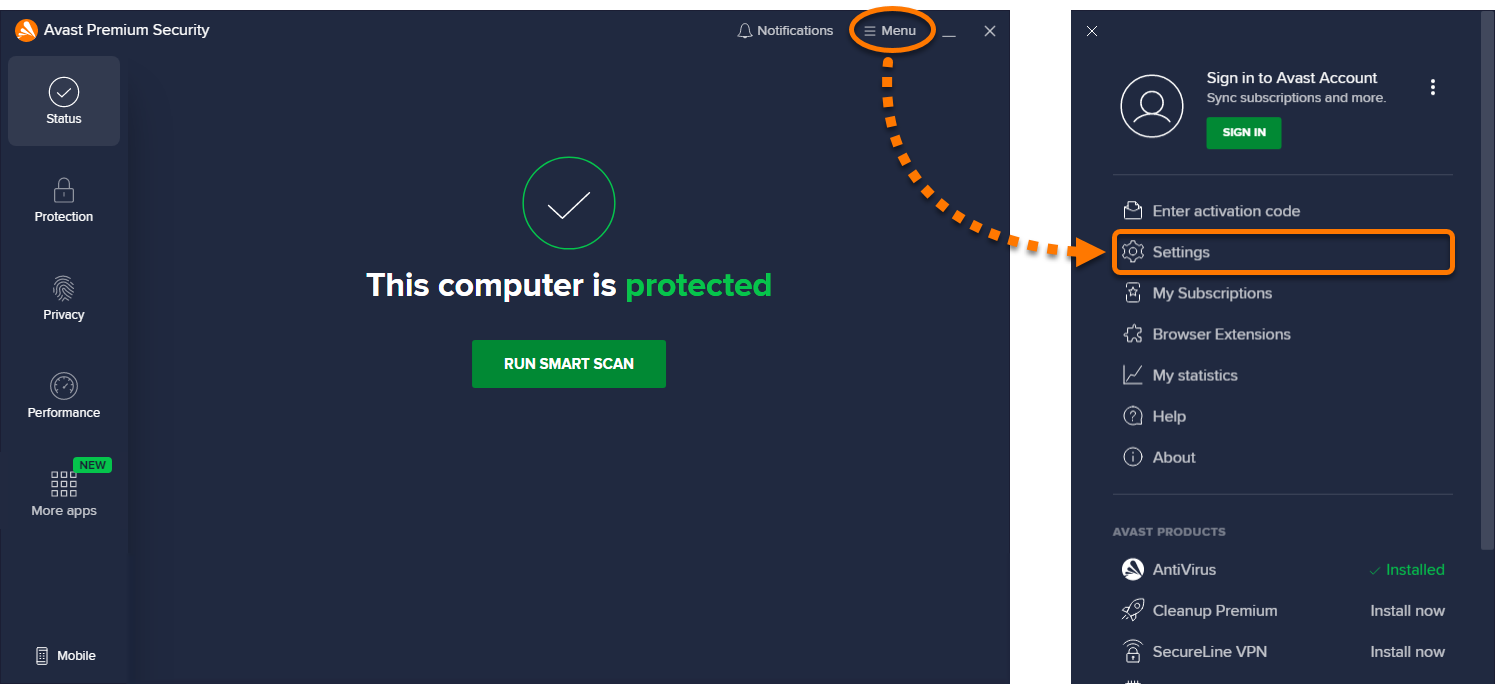
- Select General ▸ Blocked & Allowed apps.
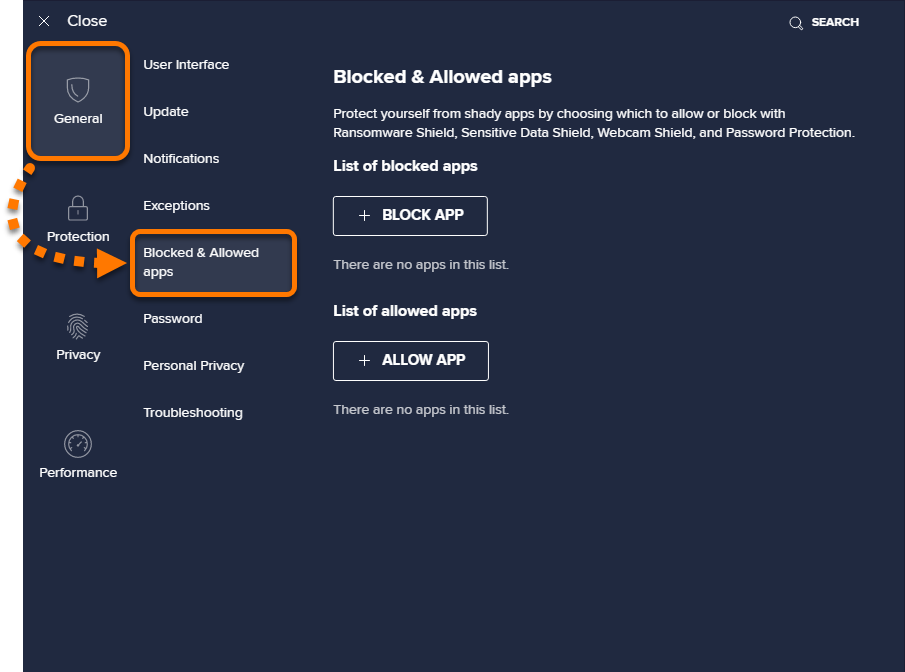
The Blocked & Allowed apps settings screen shows your List of blocked apps and your List of allowed apps:
- Blocked apps: Blocked applications are always prevented from accessing your system. You are not notified when a blocked application attempts to access your system.
- Allowed apps: Allowed applications are always able to access your system. You are not notified when an allowed application accesses your system.
Add a blocked or allowed application to your list
If an untrusted application attempts to access your protected folders, webcam, sensitive documents, or browsers, you may receive a notification from Avast asking to block or allow the interaction.
- Selecting Block automatically adds the application to your List of blocked apps.
- Selecting Allow automatically adds the application to your List of allowed apps.
You can also manually add applications to either list by following the relevant steps below.
Your preferred action:
Specify which features block or allow a listed application
You can view which Avast features currently block or allow a listed application by checking which icons appear in the List of blocked apps / List of allowed apps sections:
- Ransomware Shield: Blocks or allows access to your protected folders.
- Sensitive Data Shield: Blocks or allows access to your sensitive documents.
- Webcam Shield: Blocks or allows access to your webcam.
- Browser Shield: Blocks or allows access to your web browsers.
Your preferred action:
To change which Avast features block an application:
- Click
… Options (three dots) and select Change blocked features. 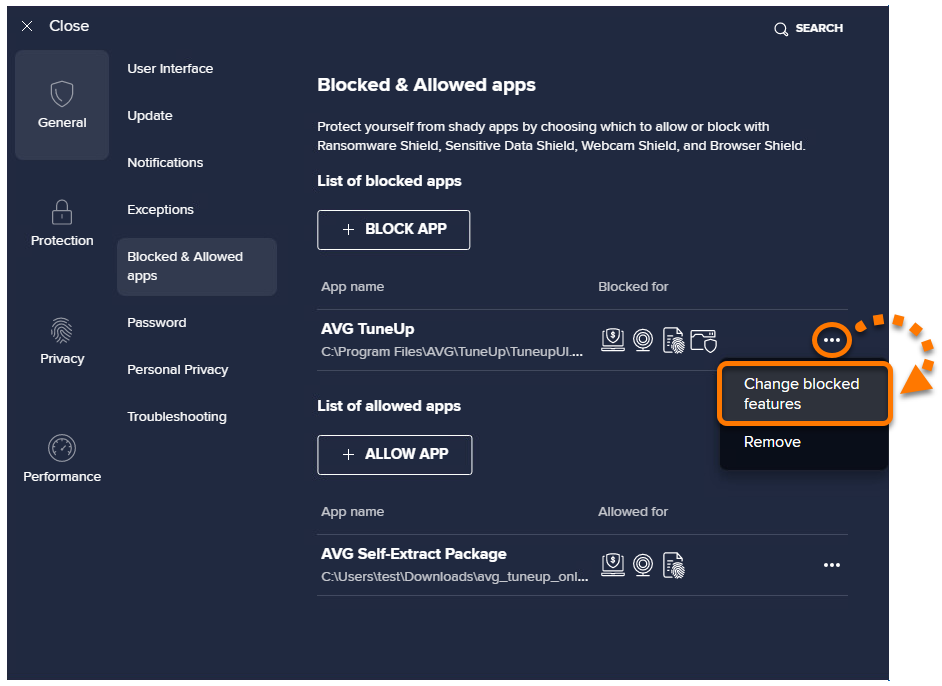
- Tick or untick the Avast features that you want to always block access for, then click Change.
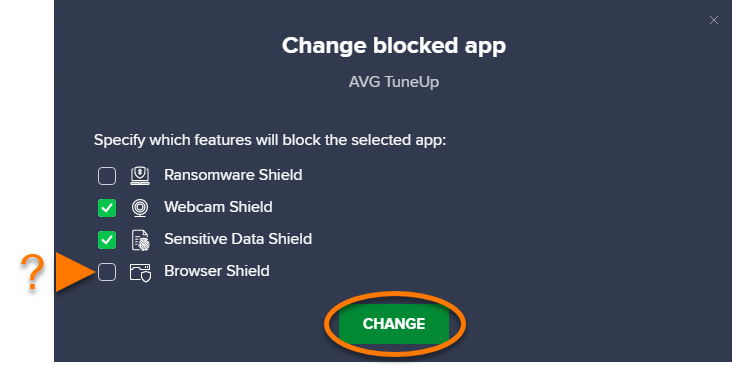
Your changes are saved and now visible on the Blocked & Allowed apps settings screen under the List of blocked apps section.
To change which Avast features allow an application:
- Click
… Options (three dots) and select Change allowed features. 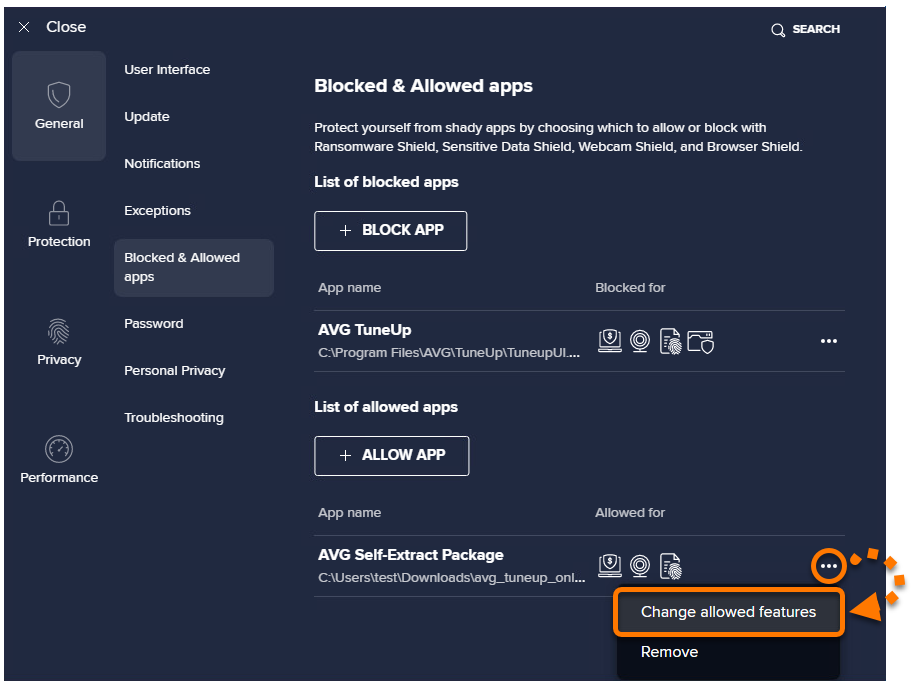
- Tick or untick the Avast features that you want to always allow access for, then click Change.
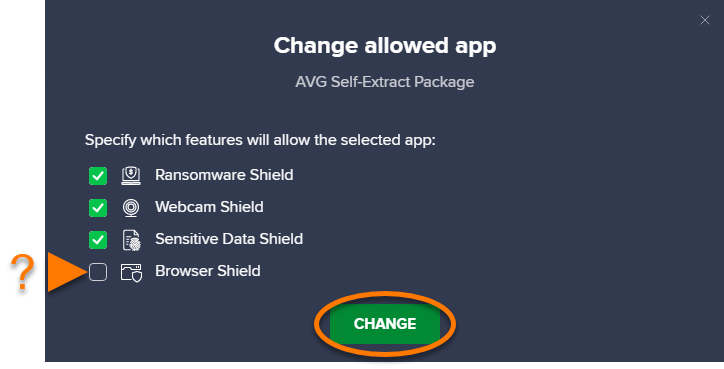
Your changes are saved and now visible on the Blocked & Allowed apps settings screen under the List of allowed apps section.
Remove an application from your list
To remove an application from your List of blocked apps or List of allowed apps:
- Click
… Options (three dots) and select Remove. 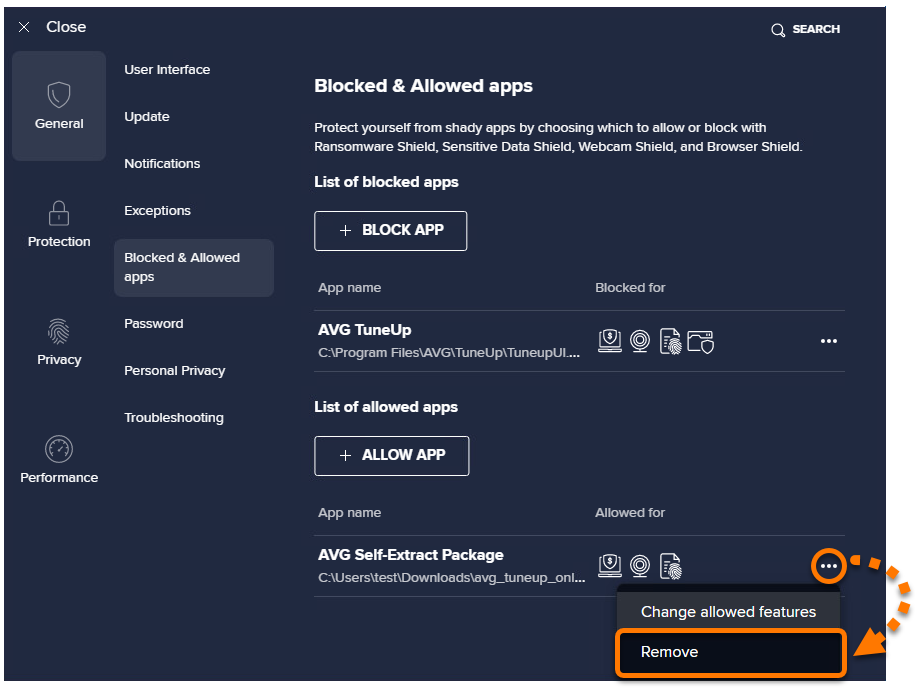
The application no longer appears in your List of blocked apps / List of allowed apps. The next time the removed application attempts to access your protected folders, webcam, sensitive documents, or browsers, you will receive a notification asking you to block or allow the interaction.


