Promotional banner image

IS YOUR COMPUTER SLOW? RUN LIKE NEW

If they are not maintained, computers lose performance over time. Avast Cleanup Premium can help significantly improve the performance of your computer.

Opening Avast applications

Windows

After installing an Avast application, you need to open the user interface to access the features and settings. This article provides instructions for different methods of opening Avast applications on Windows and Mac.

When you install an Avast application on Microsoft Windows, a desktop shortcut icon and a taskbar icon are automatically created for quick access to open the application. You can also open Avast applications via the Windows Start menu. Refer to the GIF or the sections below for instructions to open your Avast app.

Desktop shortcut

Double-click the Avast app icon on your Windows desktop.

Taskbar icon

Double-click the Avast app icon in the notification area of your Windows taskbar.

Avast Secure Browser does not automatically create an app icon on the taskbar.

Windows Start menu

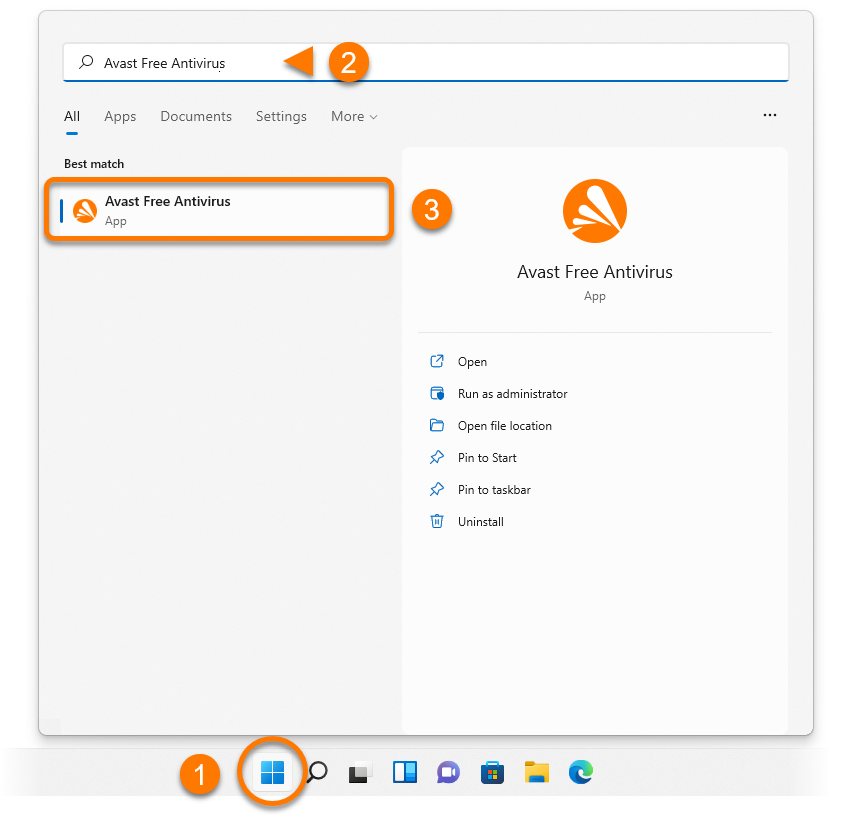
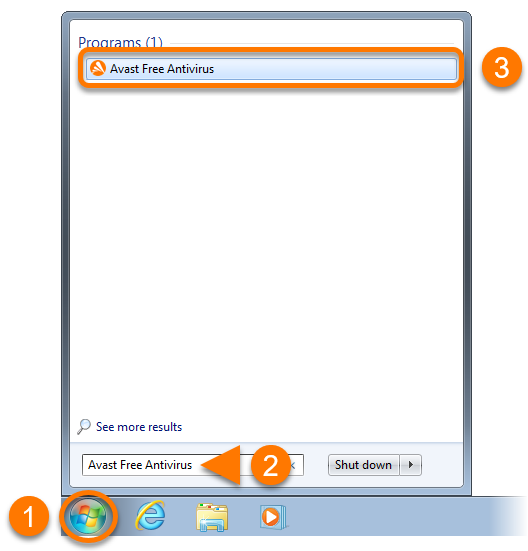
  1. Click the Windows Start button.
  2. Type the name of your Avast app. For example, Avast Free Antivirus.
  3. Select your Avast app from the search results.
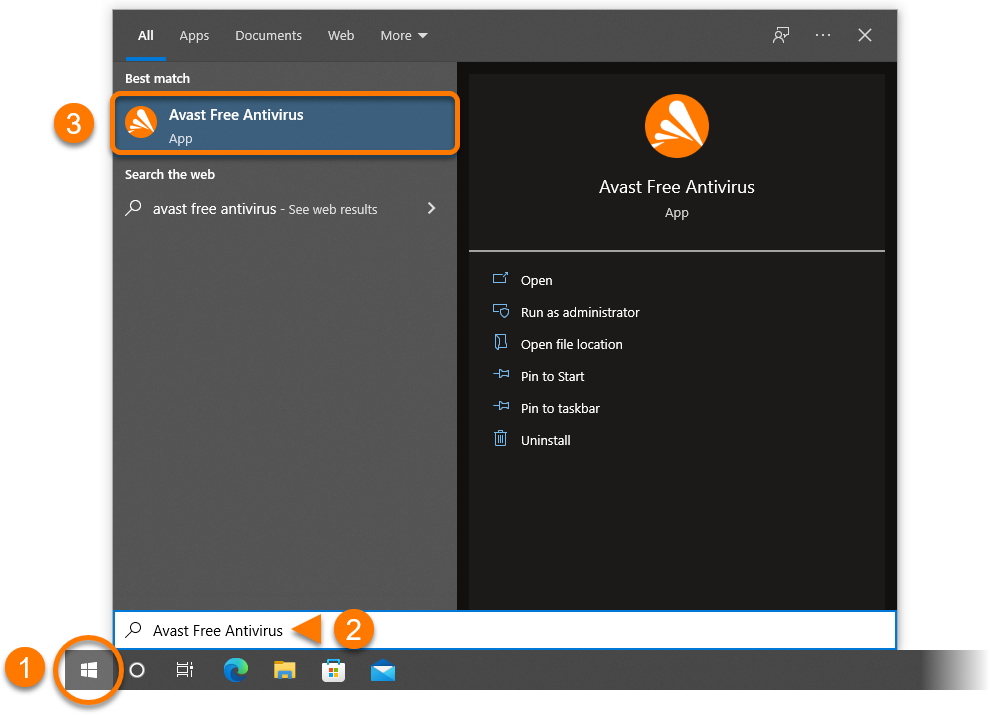
  1. Click the Windows Start button.
  2. Type the name of your Avast app. For example, Avast Free Antivirus.
  3. Select your Avast app from the search results.
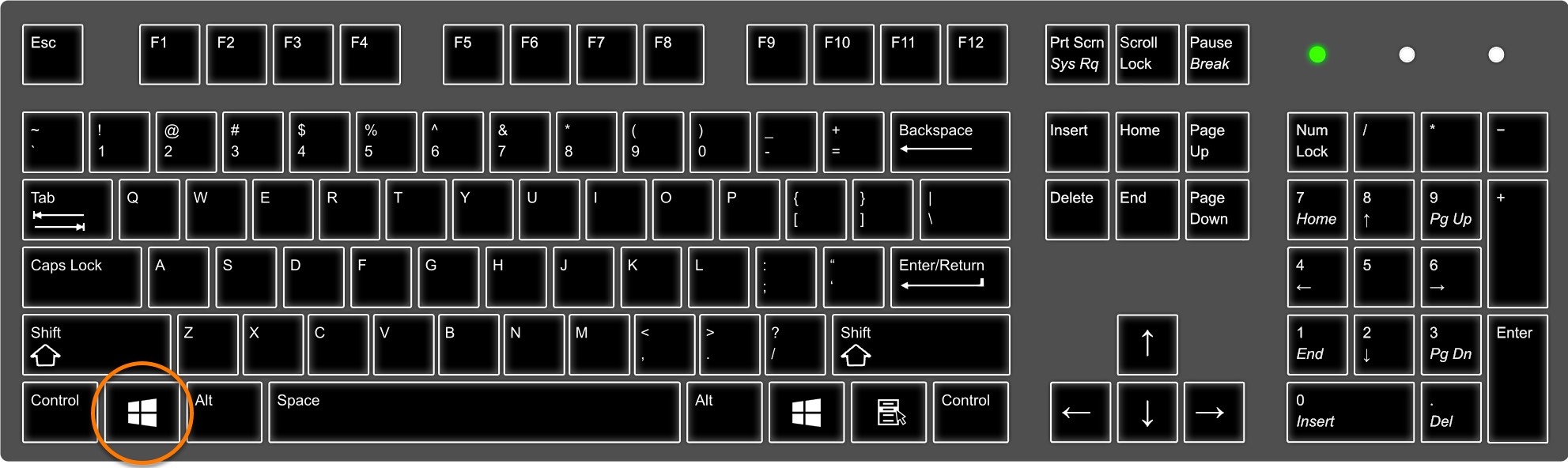
  1. On your keyboard, press the Windows logo key.
  2. Type the name of your Avast app. For example, Avast Free Antivirus.
  3. Select your Avast app from the search results.
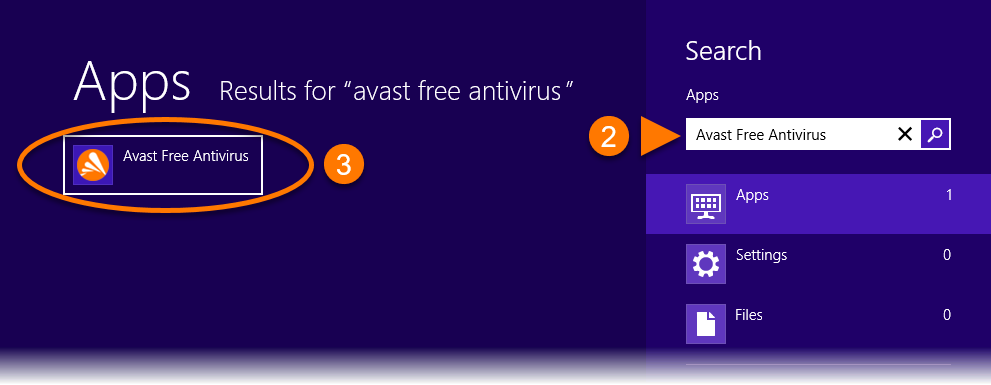
  1. Click the Windows Start button.
  2. Type the name of your Avast app. For example, Avast Free Antivirus.
  3. Select your Avast app from the search results.

System requirements

For information on the system requirements for Avast apps, refer to the following article:

When you install an Avast application on Mac, a menu bar icon is automatically created for quick access to open the application. You can also open Avast applications via the Applications folder or the Dock. Refer to the GIF or the sections below for instructions to open your Avast app.

Menu bar icon

Click the Avast app icon on the right side of the Apple Menu bar, then select either 'Show... app name' or 'Open... app name'.

Applications folder

Click Go ▸ Applications on the left side of the Apple Menu bar, then double-click the Avast app icon in the Applications folder.

Dock icon

Click the Avast app icon in the Dock.

System requirements

For information on the system requirements for Avast apps, refer to the following article:

DocID: open-appLast modified: 09/03/2026

Was this article helpful?

Promotional banner image

Keep your online identity private!

Browse like no one’s watching with Avast anti-tracking software.

Need more help?

Contact us
Avast account
Visit our forums
Visit academy