These activation instructions are for the new version of Avast One. For information about activating the old Avast One, refer to the Activate the old version of Avast One section of this article. 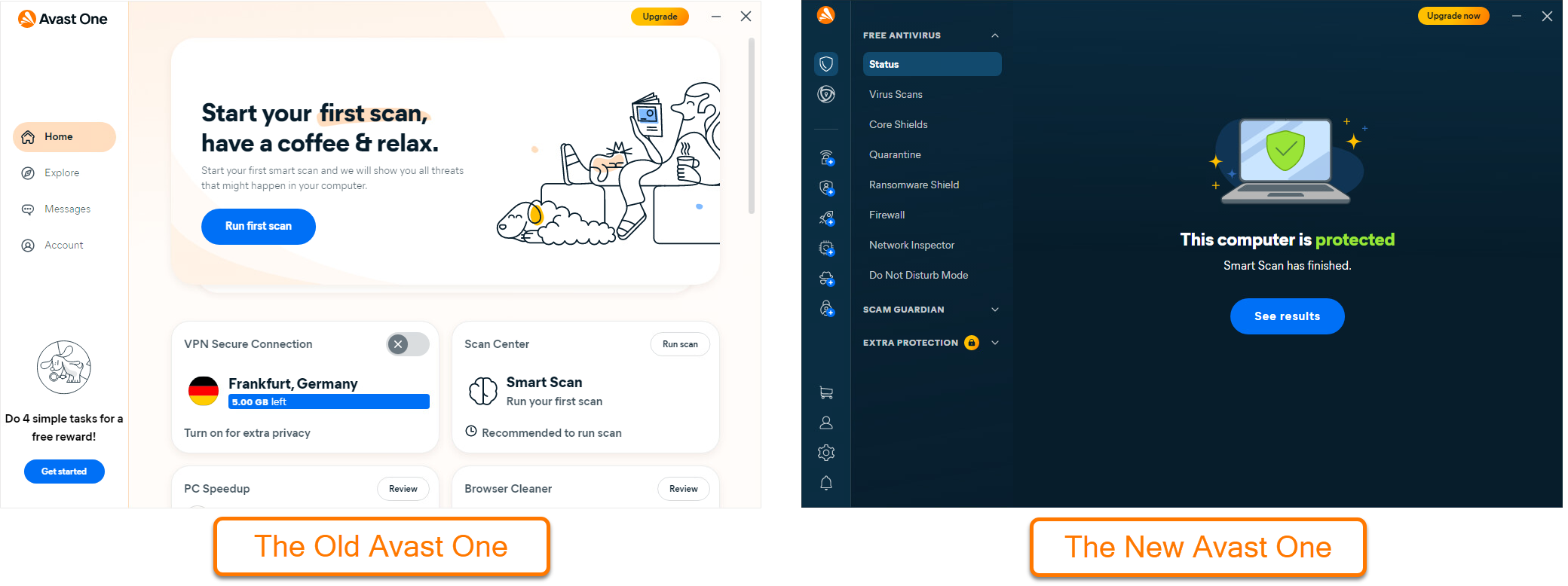
To activate premium features in Avast One, you can choose from three available methods: signing in with an Avast Account linked to a valid subscription, using a one-time passcode, or entering an activation code. This article provides instructions for each activation method.
Avast account
Activate via Avast Account
An Avast Account was created using the email address that you provided during the subscription purchase. To sign into your Avast Account for the first time, refer to the following article: Activating your Avast Account.
To activate premium features in Avast One using an Avast Account:
- Open Avast One, then go to
… Menu ▸ Sign in. 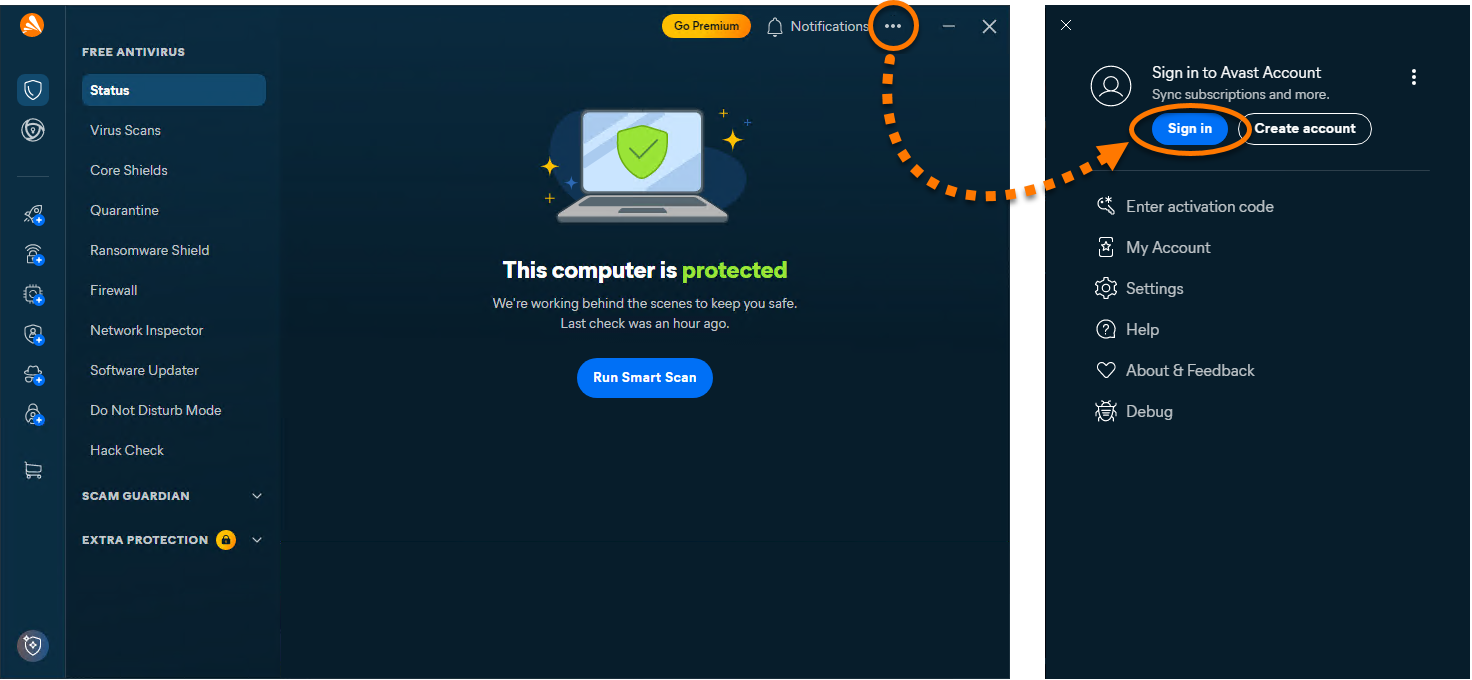
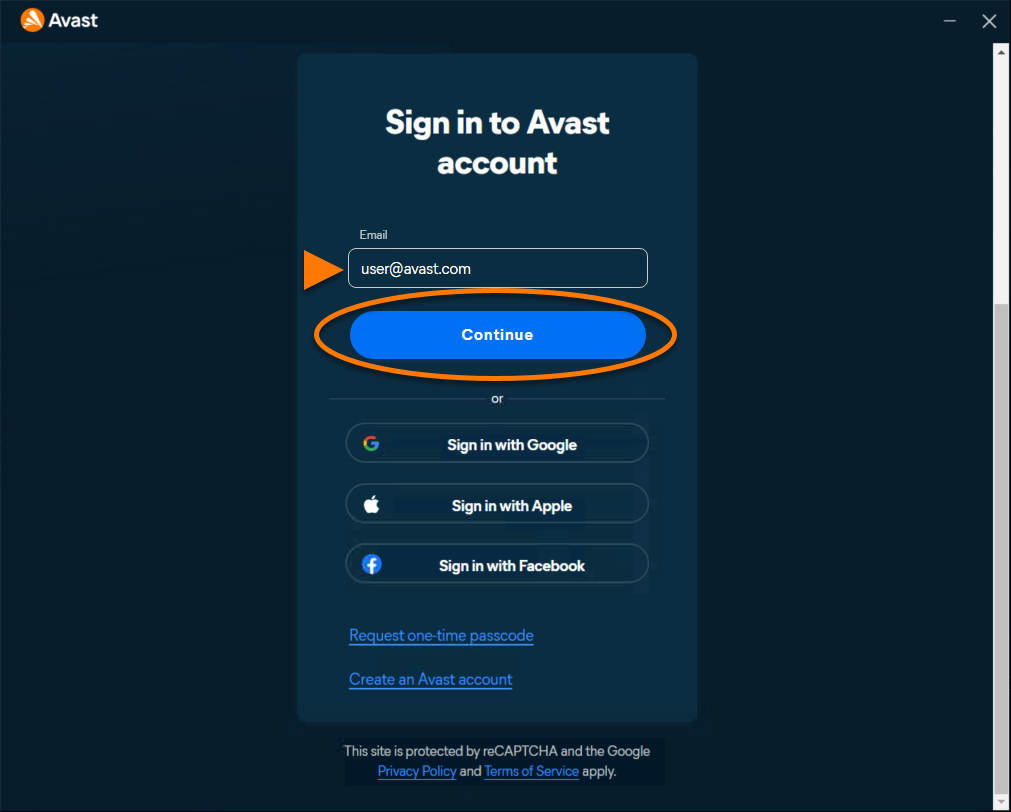
- Enter the email address associated with your Avast Account, then click Continue.
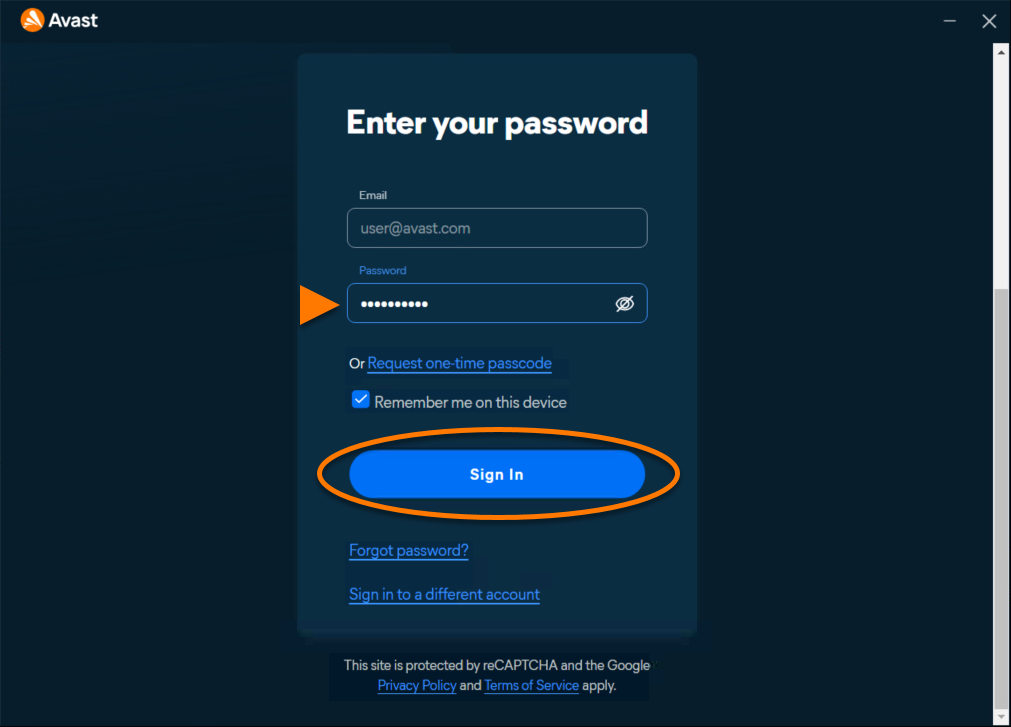
- Enter the password associated with your Avast Account, then click Sign In.
- All apps associated with your Avast Account are installed and activated automatically.
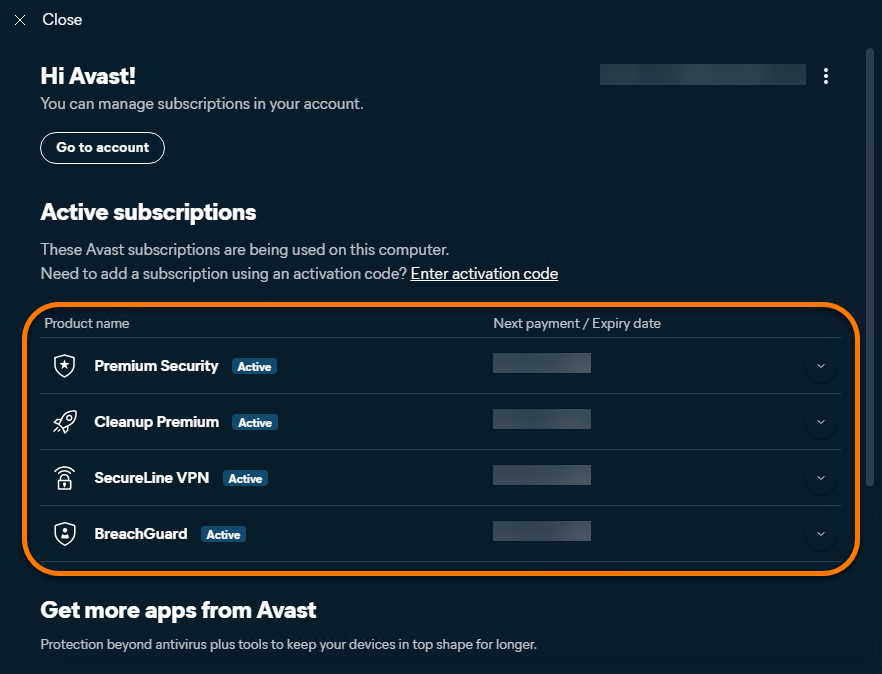
Avast One is now active. To view your subscription details, go to … Menu ▸ My Account. The renewal date or the expiration date of your subscription appear under Active subscriptions. You can activate your app on the number of devices you specified when making the purchase.
If activation is unsuccessful, refer to the Troubleshoot activation issues section below.
One-time passcode
Activate via one-time passcode
An Avast Account is required to use a one-time passcode. This account was automatically created using the email address you provided during your subscription purchase. To sign into your Avast Account for the first time, refer to the following article: Activating your Avast Account.
To activate premium features in Avast One using a one-time passcode:
- Open Avast One, then go to
… Menu ▸ Sign in.
- Click Request one-time passcode.
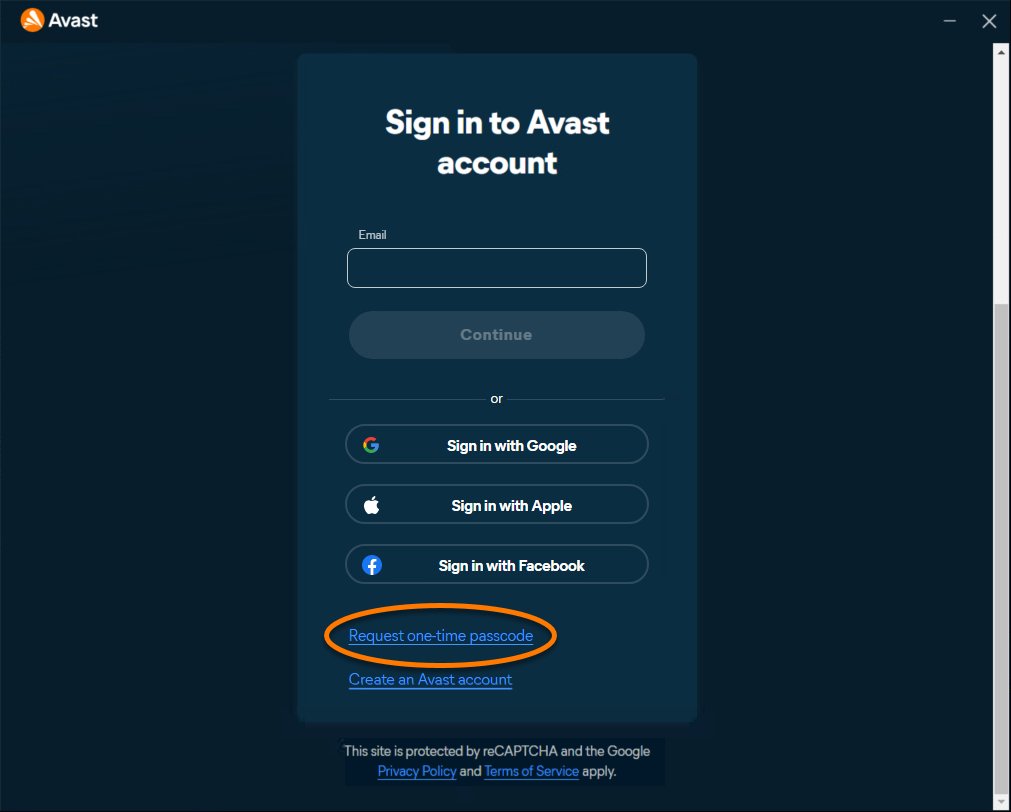
- Enter the email address associated with your Avast Account, then click Continue. An email containing a temporary passcode is sent to the email address you provided.
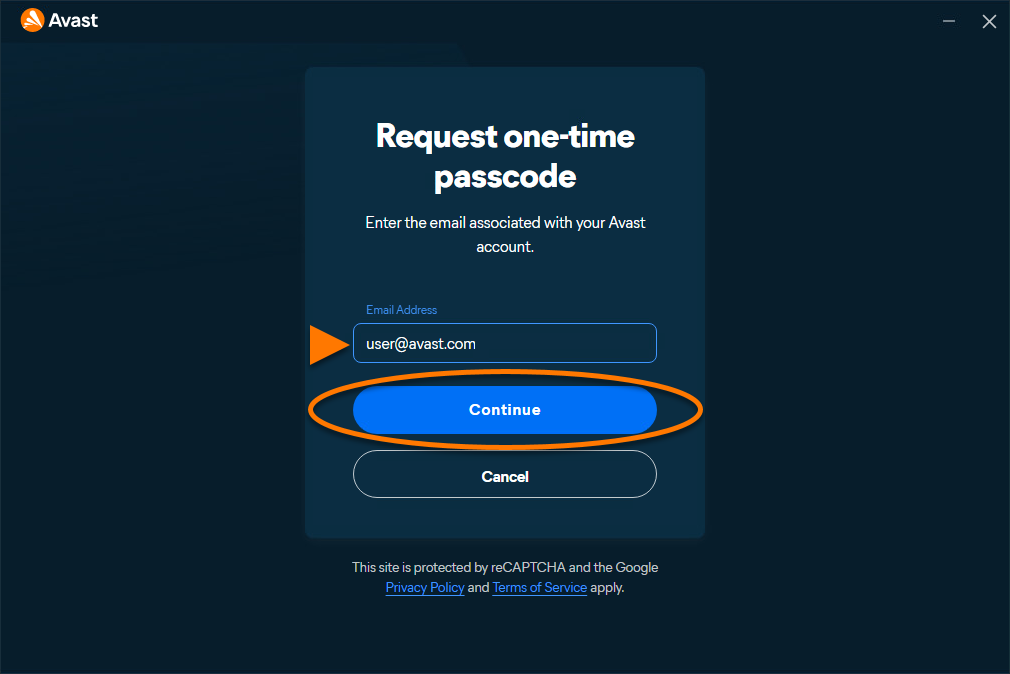
- Enter the passcode you received in your email inbox, then click Verify.
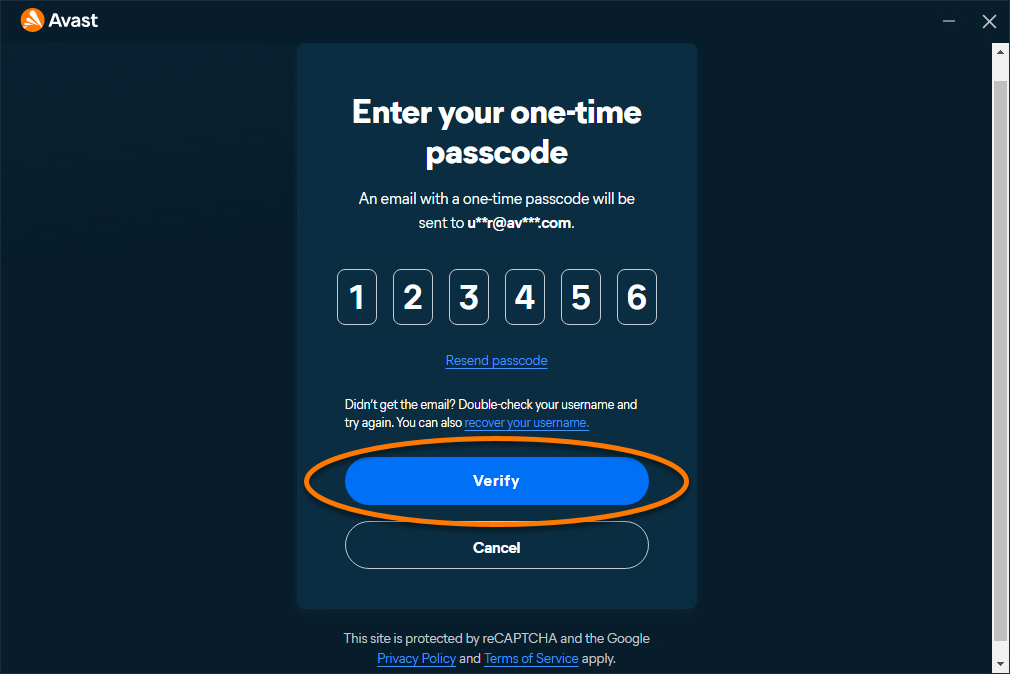
- All apps associated with your Avast Account are installed and activated automatically.
Avast One is now active. To view your subscription details, go to … Menu ▸ My Account. The renewal date or the expiration date of your subscription appear under Active subscriptions. You can activate your app on the number of devices you specified when making the purchase.
If activation is unsuccessful, refer to the Troubleshoot activation issues section below.
Activation code
Activate via activation code
Your activation code is most commonly found in the order confirmation email you receive after purchasing an Avast subscription. For detailed instructions on how to locate your activation code, refer to the following article: Locating your Avast activation code.
To activate premium features in Avast One using an activation code:
- Open Avast One, then go to
… Menu ▸ Enter activation code. 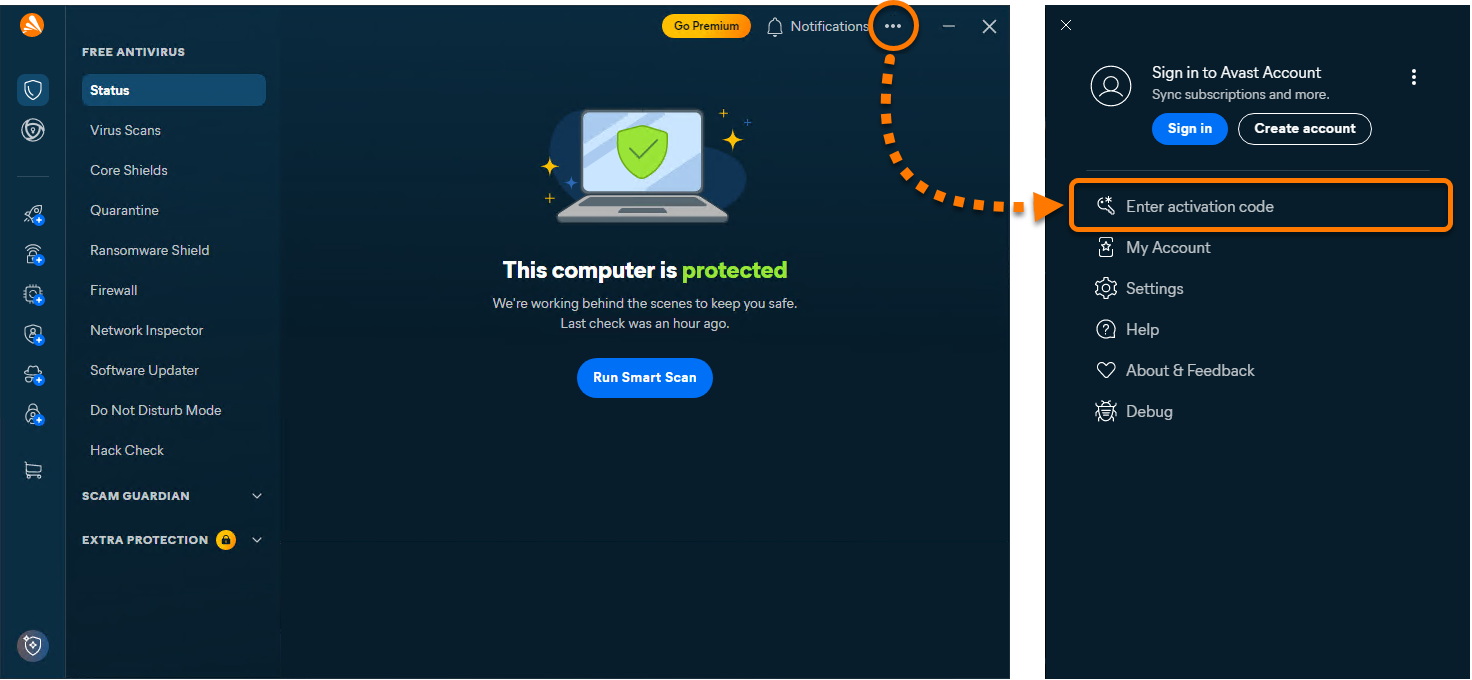
- Type or paste your activation code (including hyphens) into the text box, then click Next twice.
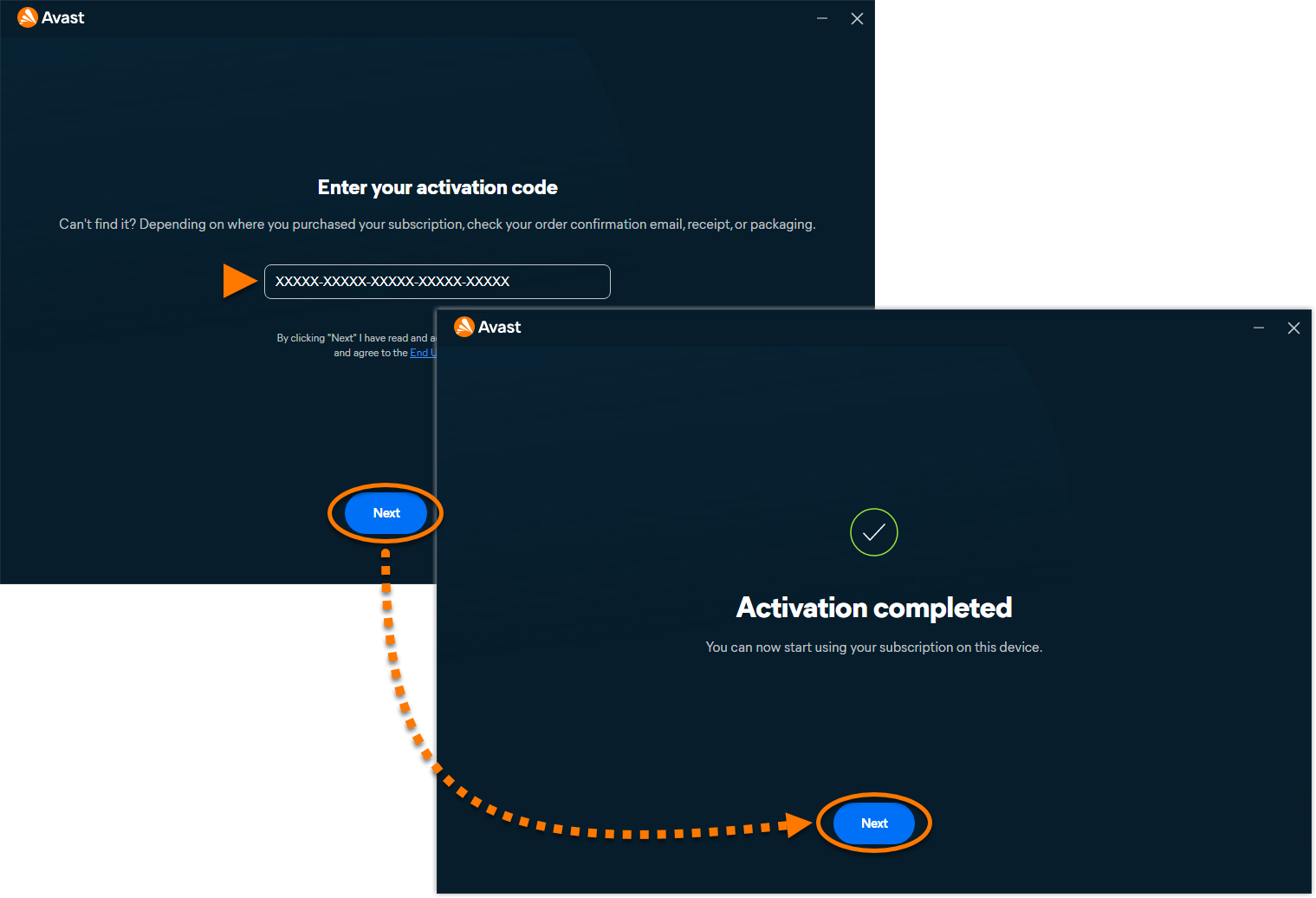
- All apps associated with your activation code are installed and activated automatically.
Avast One is now active. To view your subscription details, go to … Menu ▸ My Account. The renewal date or the expiration date of your subscription appear under Active subscriptions. You can activate your app on the number of devices you specified when making the purchase.
If activation is unsuccessful, refer to the Troubleshoot activation issues section below.
Activate the old version of Avast One
For information on installing the old version of Avast one, refer to the following article: Installing Avast One.
To activate the old version of Avast One follow the steps below:
- Open Avast One and click
 Account in the left panel on the main Avast One screen.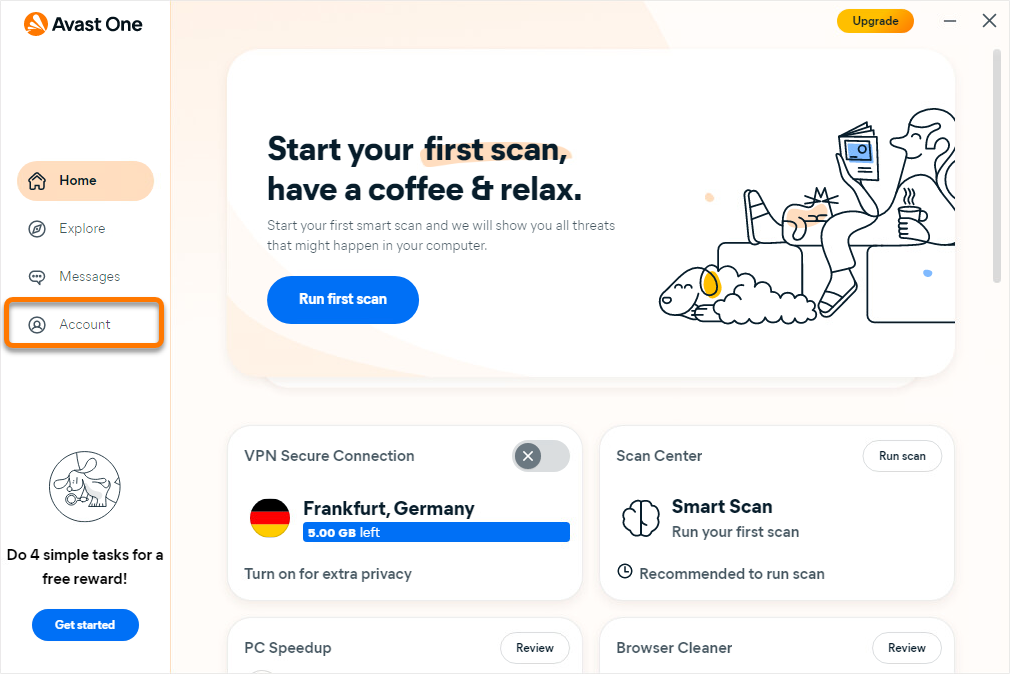
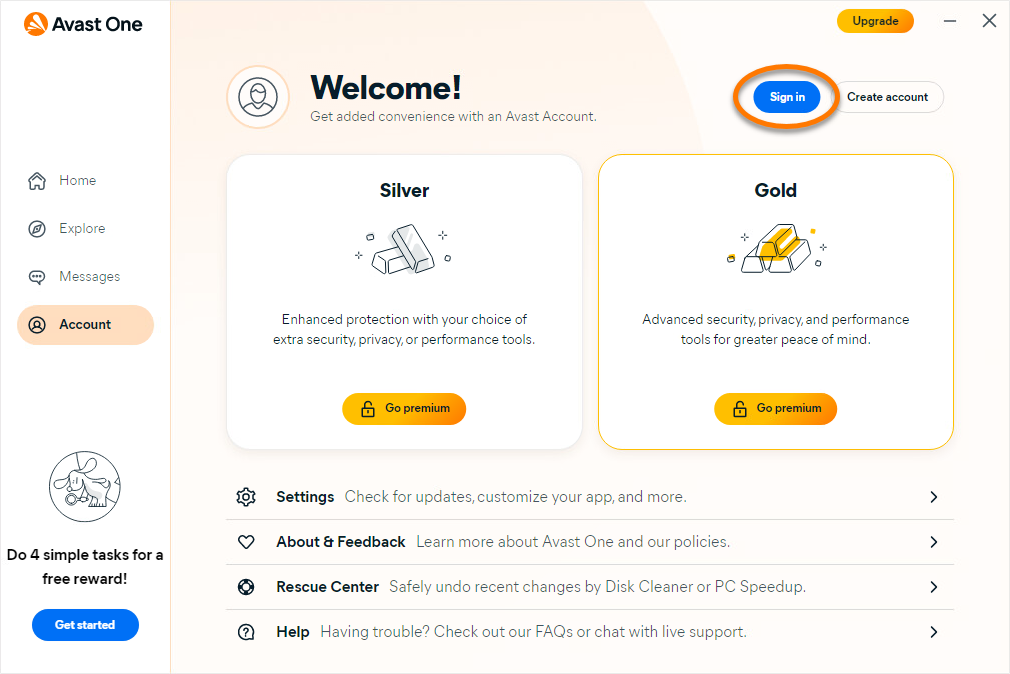
- Select Sign in and follow the on-screen instructions to sign in to your Avast Account.
The new Avast One for Android is replacing both the previous Avast One app and Avast One. As part of this change, the older apps are being removed from the Google Play Store. All new installations on Android install the new Avast One app.
Troubleshoot activation issues
The information below explains how to resolve some of the most common activation issues:
- Ensure that the subscriptions you wish to use through Avast One are available in your Avast Account. To verify this, sign in to your Avast Account in your web browser and click the Subscriptions tile to see a list of the linked subscriptions.
- If a subscription does not appear in your Avast Account, you can add it manually. For instructions, refer to the following article:
- Completely uninstall Avast One from your device, then reinstall it again. This can resolve issues that are caused by incorrect configuration or corrupted files. We recommend following the exact steps in the following articles:
After reinstallation, try activating Avast One again.
If the issue persists, contact Avast Support.
The information below explains how to resolve some of the most common activation issues:
- Ensure that your Avast One subscription appears in your Avast Account. To verify this, sign in to your Avast Account in your web browser and click the Subscriptions tile to see a list of the linked subscriptions.
- If your Avast One subscription does not appear in your Avast Account, you can manually add the subscription. For instructions, refer to the following article:
- Completely uninstall Avast One from your device, then reinstall it again. This can resolve issues that are caused by incorrect configuration or corrupted files. We recommend following the exact steps in the following articles:
If the issue persists, contact Avast Support.
Further recommendations
To learn more about Avast One, refer to the following article:
These activation instructions are for the new version of Avast One. For information about activating the old Avast One, refer to the Activate the old version of Avast One section of this article. 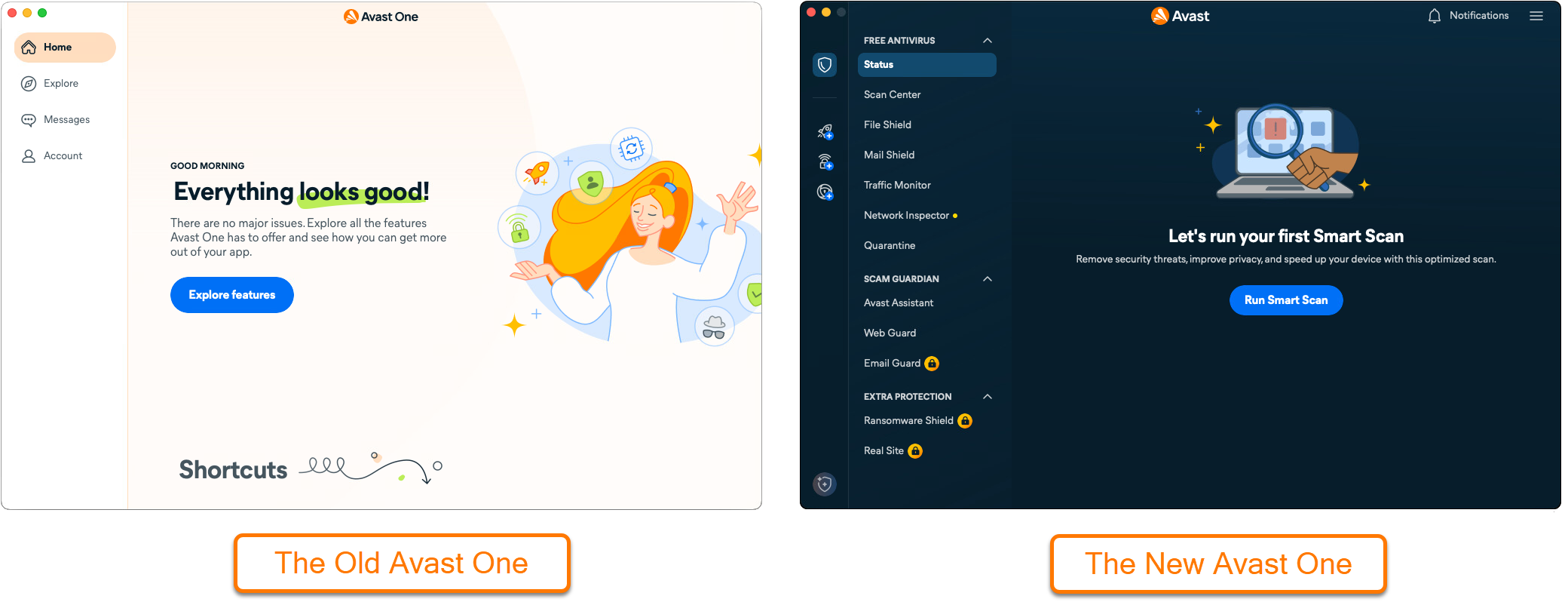
To activate premium features in Avast One, you can choose from three available methods: signing in with an Avast Account linked to a valid subscription, using a one-time passcode, or entering an activation code. This article provides instructions for each activation method.
Avast account
Activate via Avast Account
An Avast Account was created using the email address that you provided during the subscription purchase. To sign into your Avast Account for the first time, refer to the following article: Activating your Avast Account.
To activate premium features in Avast One using an Avast Account:
- Open Avast One, then go to
☰ Menu ▸ Sign in. 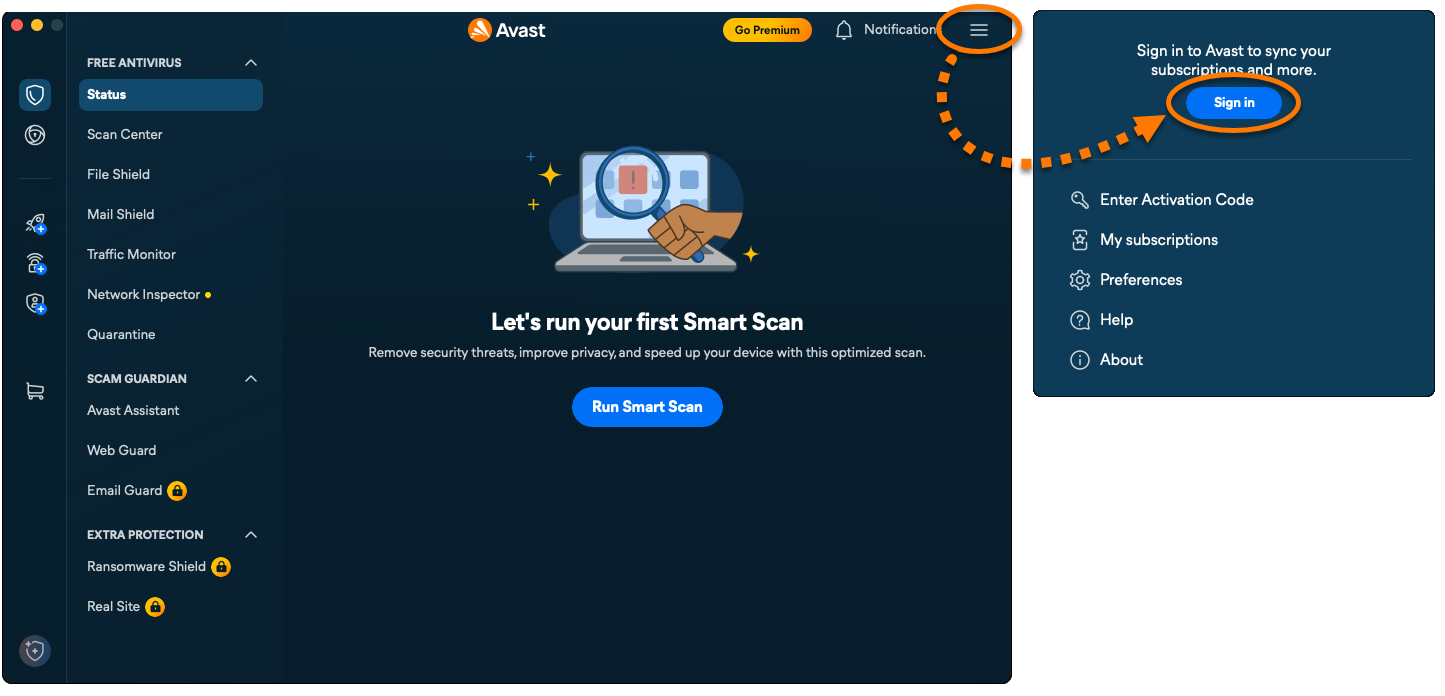
- Enter the email address associated with your Avast Account, then click Continue.
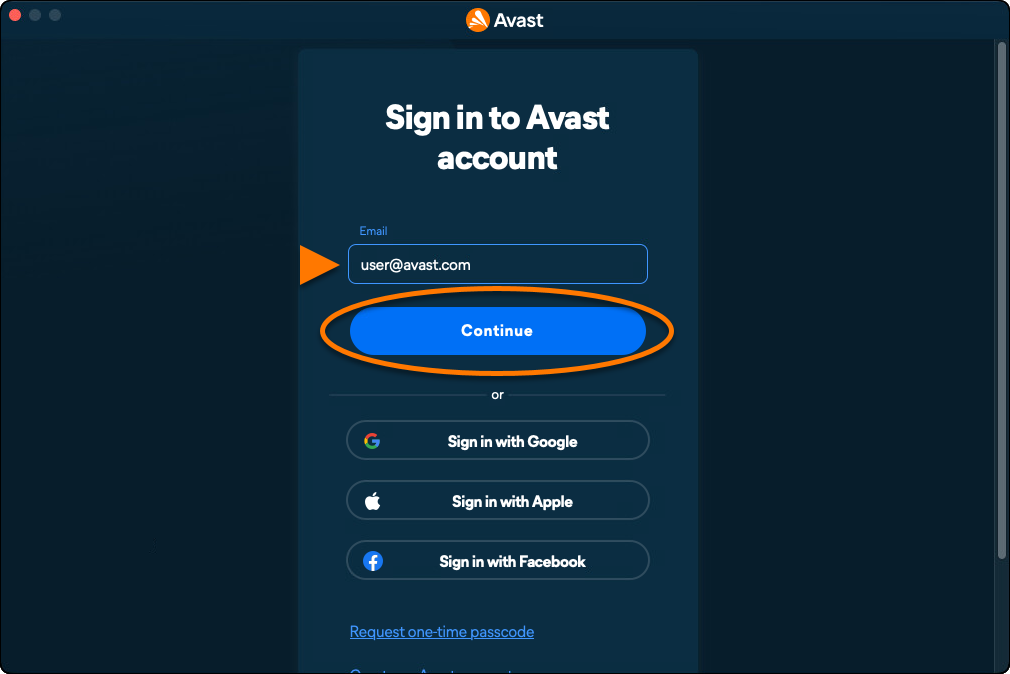
- Enter the password associated with your Avast Account, then click Sign In.
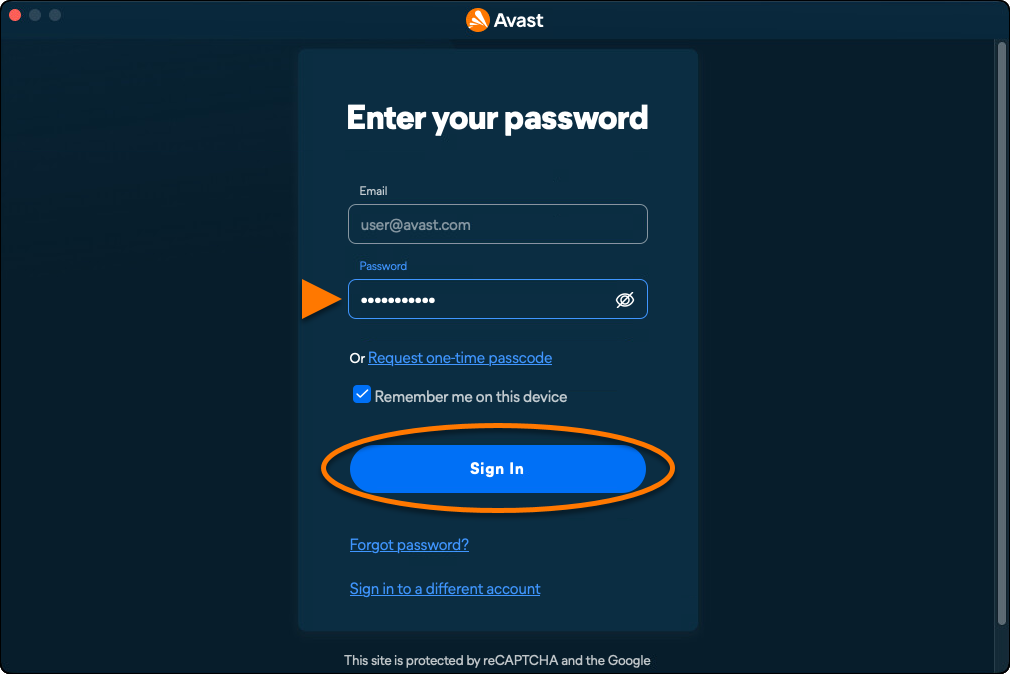
- All apps associated with your Avast Account are installed and activated automatically.
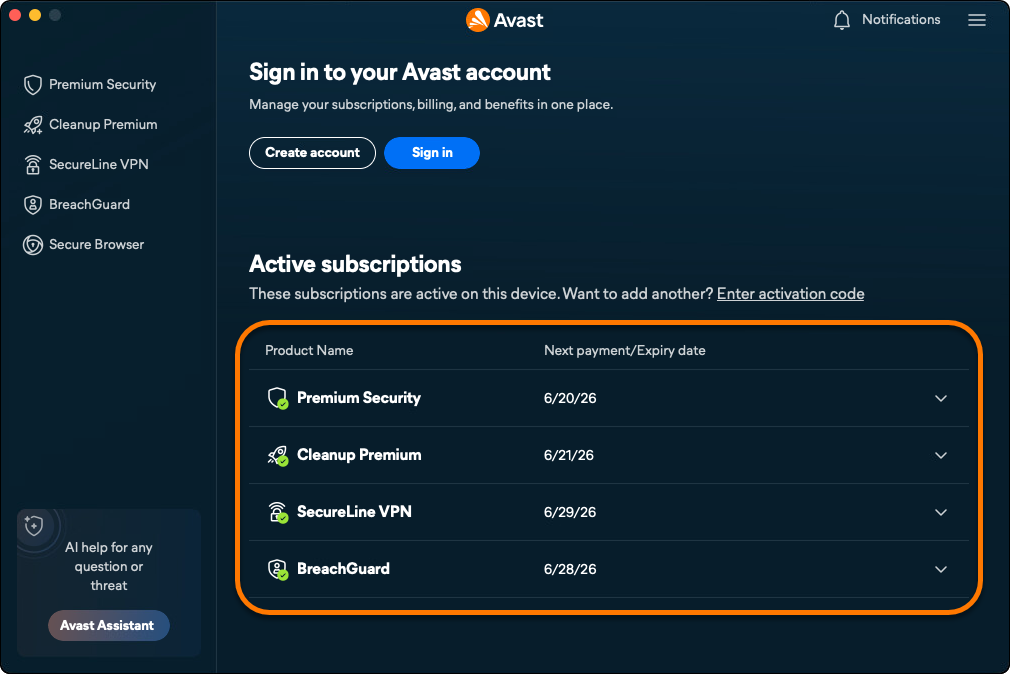
Avast One is now active. To view your subscription details, go to ☰ Menu ▸ My subscriptions. The renewal date or the expiration date of your subscription appear under Active subscriptions. You can activate your app on the number of devices you specified when making the purchase.
If activation is unsuccessful, refer to the Troubleshoot activation issues section below.
One-time passcode
Activate via one-time passcode
An Avast Account is required to use a one-time passcode. This account was automatically created using the email address you provided during your subscription purchase. To sign into your Avast Account for the first time, refer to the following article: Activating your Avast Account.
To activate premium features in Avast One using a one-time passcode:
- Open Avast One, then go to
☰ Menu ▸ Sign in.
- Click Request one-time passcode.
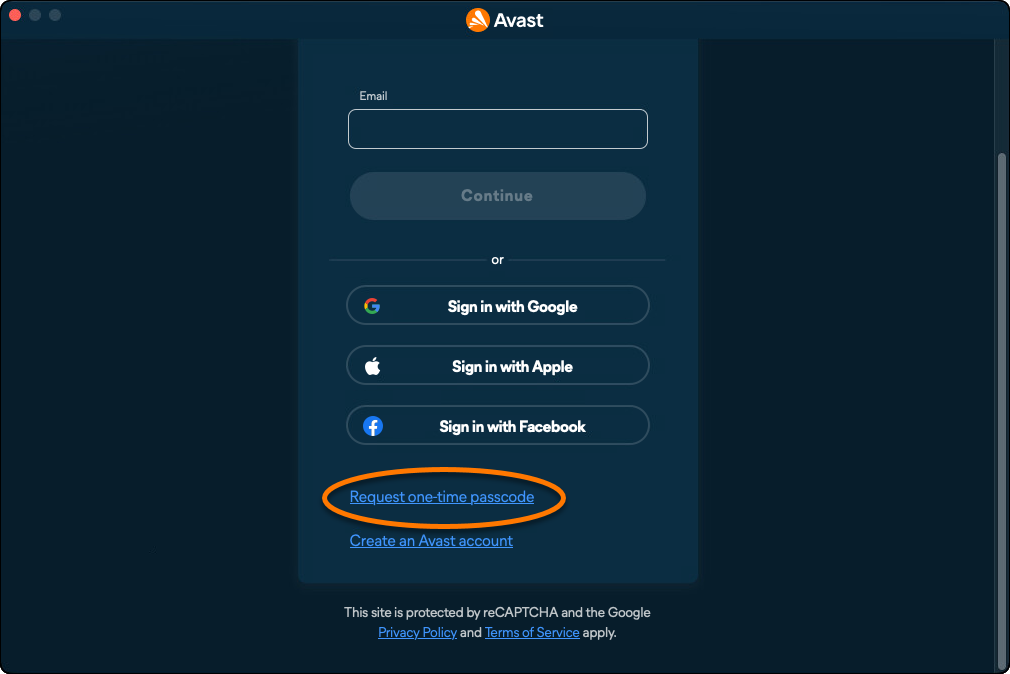
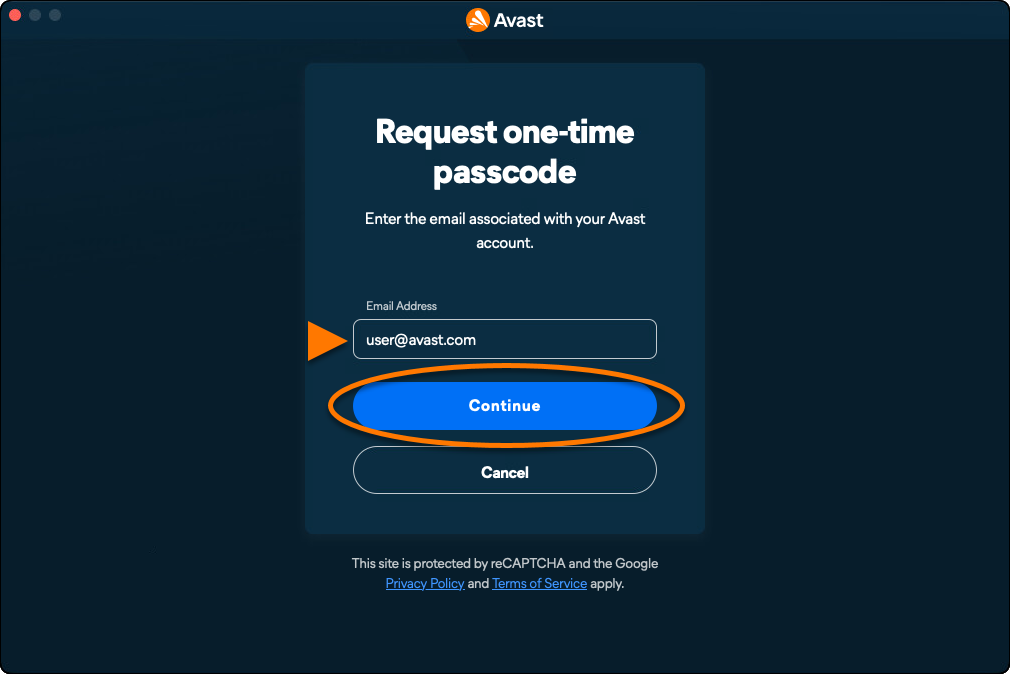
- Enter the email address associated with your Avast Account, then click Continue. An email containing a temporary passcode is sent to the email address you provided.
- Enter the passcode you received in your email inbox, then click Verify.
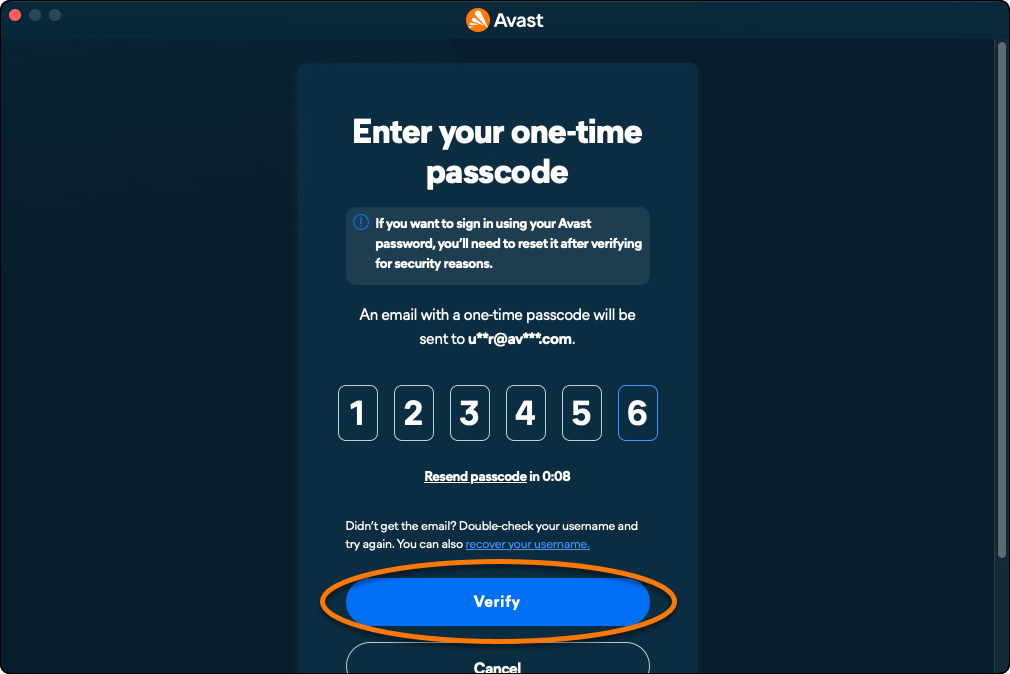
- All apps associated with your Avast Account are installed and activated automatically.
Avast One is now active. To view your subscription details, go to ☰ Menu ▸ My subscriptions. The renewal date or the expiration date of your subscription appear under Active subscriptions. You can activate your app on the number of devices you specified when making the purchase.
If activation is unsuccessful, refer to the Troubleshoot activation issues section below.
Activation code
Activate via activation code
Your activation code is most commonly found in the order confirmation email you receive after purchasing an Avast subscription. For detailed instructions on how to locate your activation code, refer to the following article: Locating your Avast activation code.
To activate premium features in Avast One using an activation code:
- Open Avast One, then go to
☰ Menu ▸ My subscriptions. 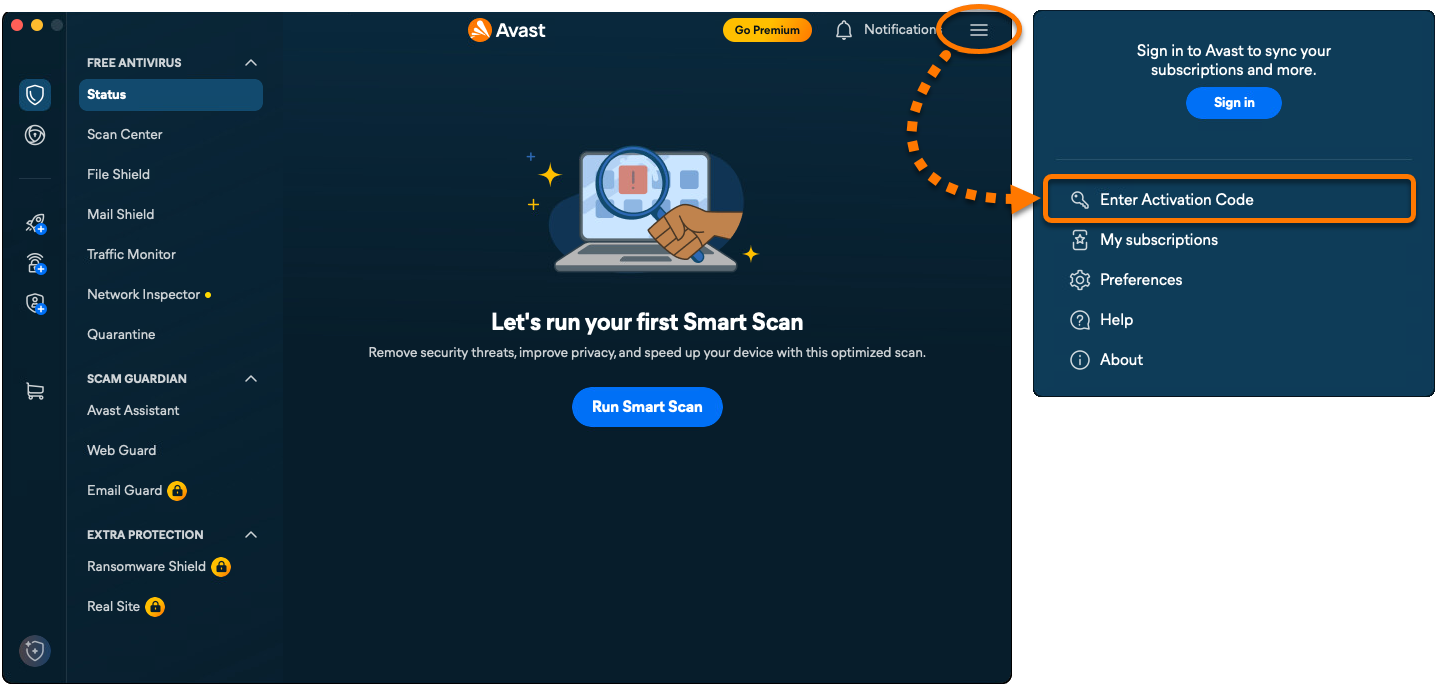
- Click Enter activation code.

- Type or paste your activation code (including hyphens) into the text box, then click Next twice.
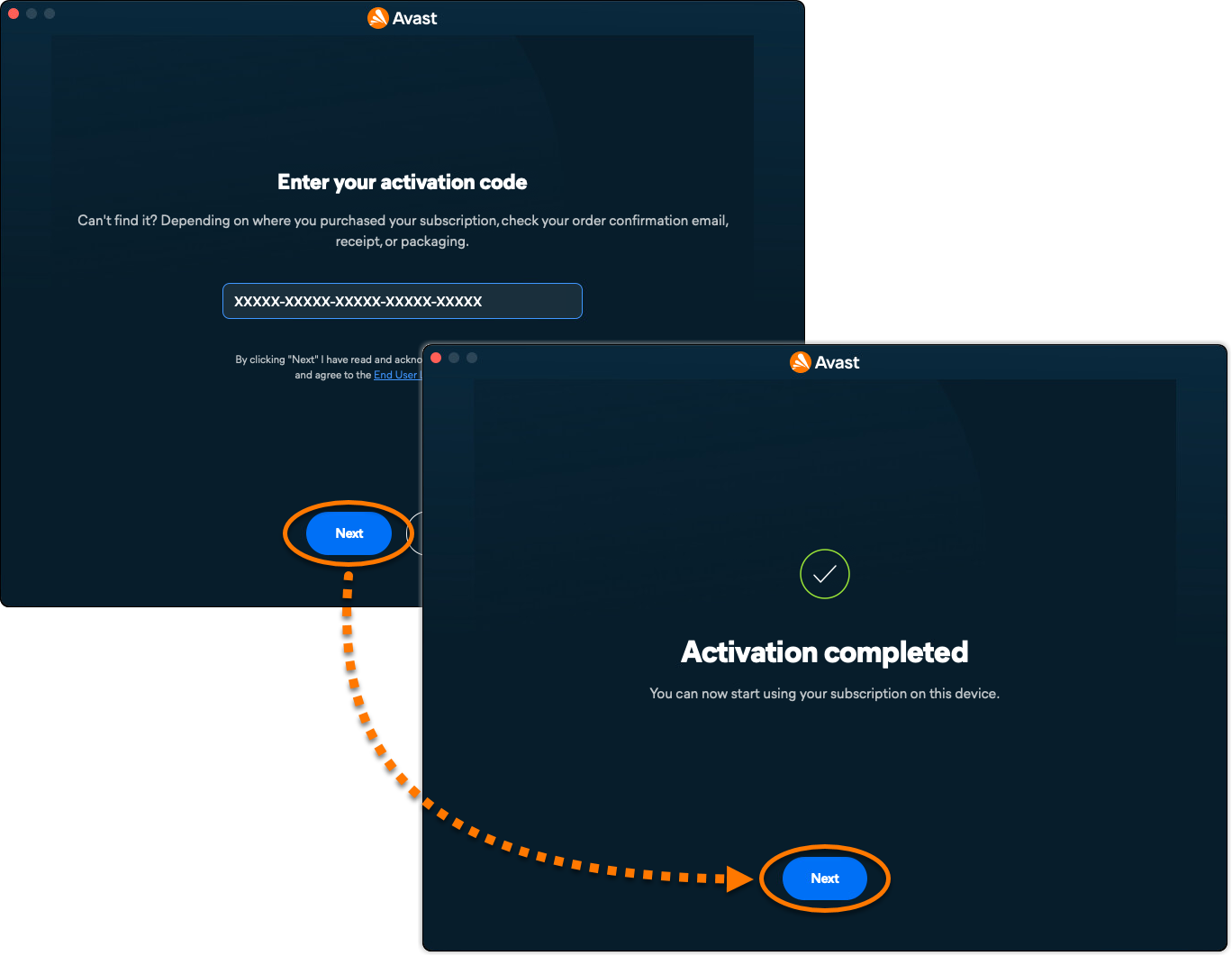
- All apps associated with your activation code are installed and activated automatically.
Avast One is now active. To view your subscription details, go to ☰ Menu ▸ My subscriptions. The renewal date or the expiration date of your subscription appear under Active subscriptions. You can activate your app on the number of devices you specified when making the purchase.
If activation is unsuccessful, refer to the Troubleshoot activation issues section below.
Activate the old version of Avast One
For information on installing the old version of Avast One, refer to the following article: Installing Avast One.
To activate the old version of Avast One follow the steps below:
- Open Avast One and click
 Account in the left panel on the main Avast One screen.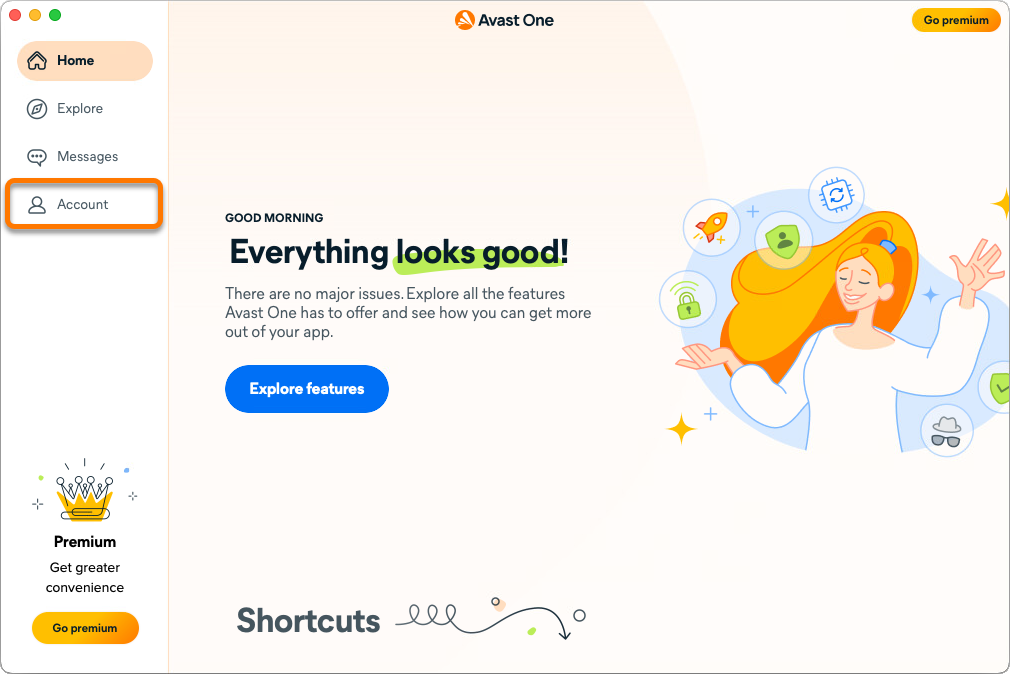
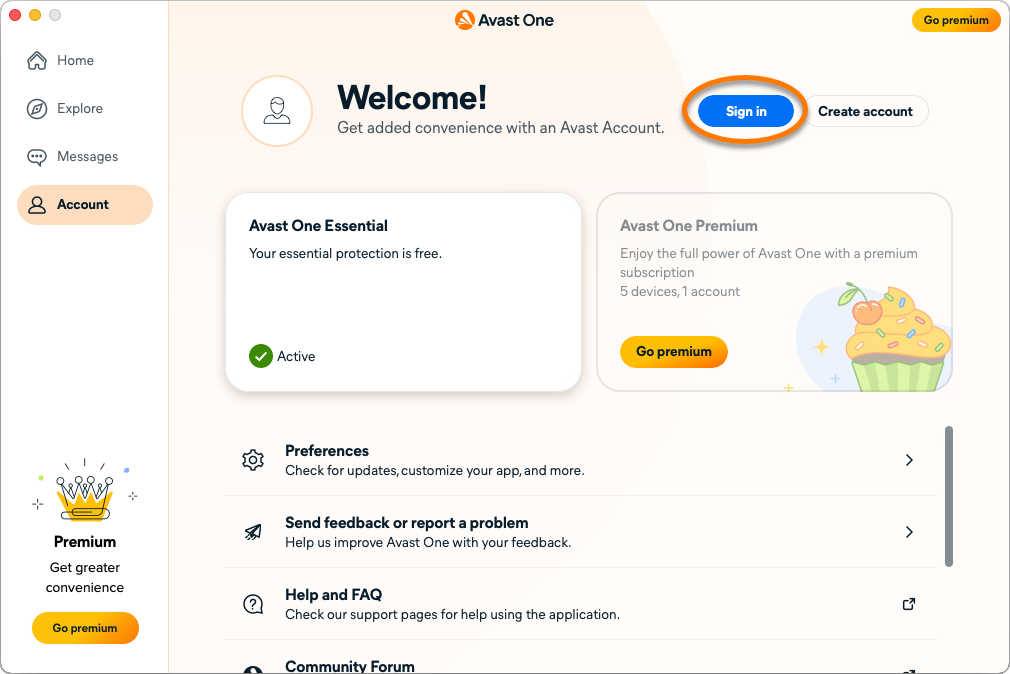
- Select Sign in and follow the on-screen instructions to sign in to your Avast Account.
The new Avast One for Android is replacing both the previous Avast One app and Avast One. As part of this change, the older apps are being removed from the Google Play Store. All new installations on Android install the new Avast One app.
Troubleshoot activation issues
The information below explains how to resolve some of the most common activation issues:
- Ensure that the subscriptions you wish to use through Avast One are available in your Avast Account. To verify this, sign in to your Avast Account in your web browser and click the Subscriptions tile to see a list of the linked subscriptions.
- If a subscription does not appear in your Avast Account, you can add it manually. For instructions, refer to the following article:
- Completely uninstall Avast One from your device, then reinstall it again. This can resolve issues that are caused by incorrect configuration or corrupted files. We recommend following the exact steps in the following articles:
After reinstallation, try activating Avast One again.
If the issue persists, contact Avast Support.
The information below explains how to resolve some of the most common activation issues:
- Ensure that your Avast One subscription appears in your Avast Account. To verify this, sign in to your Avast Account in your web browser and click the Subscriptions tile to see a list of the linked subscriptions.
- If your Avast One subscription does not appear in your Avast Account, you can manually add the subscription. For instructions, refer to the following article:
- Completely uninstall Avast One from your device, then reinstall it again. This can resolve issues that are caused by incorrect configuration or corrupted files. We recommend following the exact steps in the following articles:
If the issue persists, contact Avast Support.
Further recommendations
To learn more about Avast One, refer to the following article:
The new Avast One for Android is replacing both the previous Avast One app and Avast One. As part of this change, the older apps are being removed from the Google Play Store. All new installations on Android install the new Avast One app.
Your activation options:
Avast Account
Sign in to Avast Account
An Avast Account was created using the email address that you provided during the subscription purchase. To sign into your Avast Account for the first time, refer to the following article: Activating your Avast Account.
To activate Avast One using your Avast Account:
- Tap the Avast One icon on the Home screen of your device. The app opens.

- Tap
 Account, then select Sign in.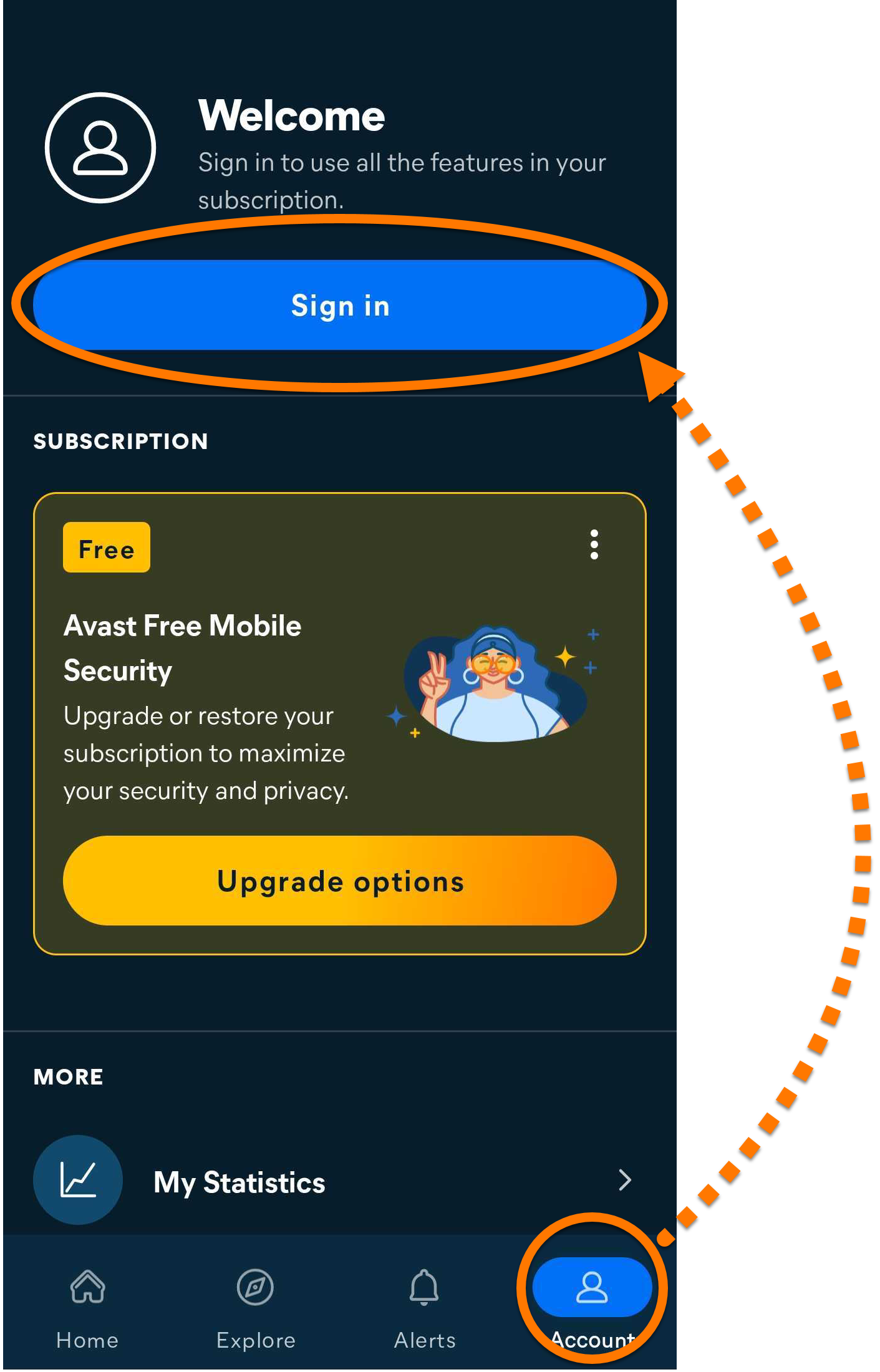
- Enter the email address associated with your Avast Account, then tap Continue.
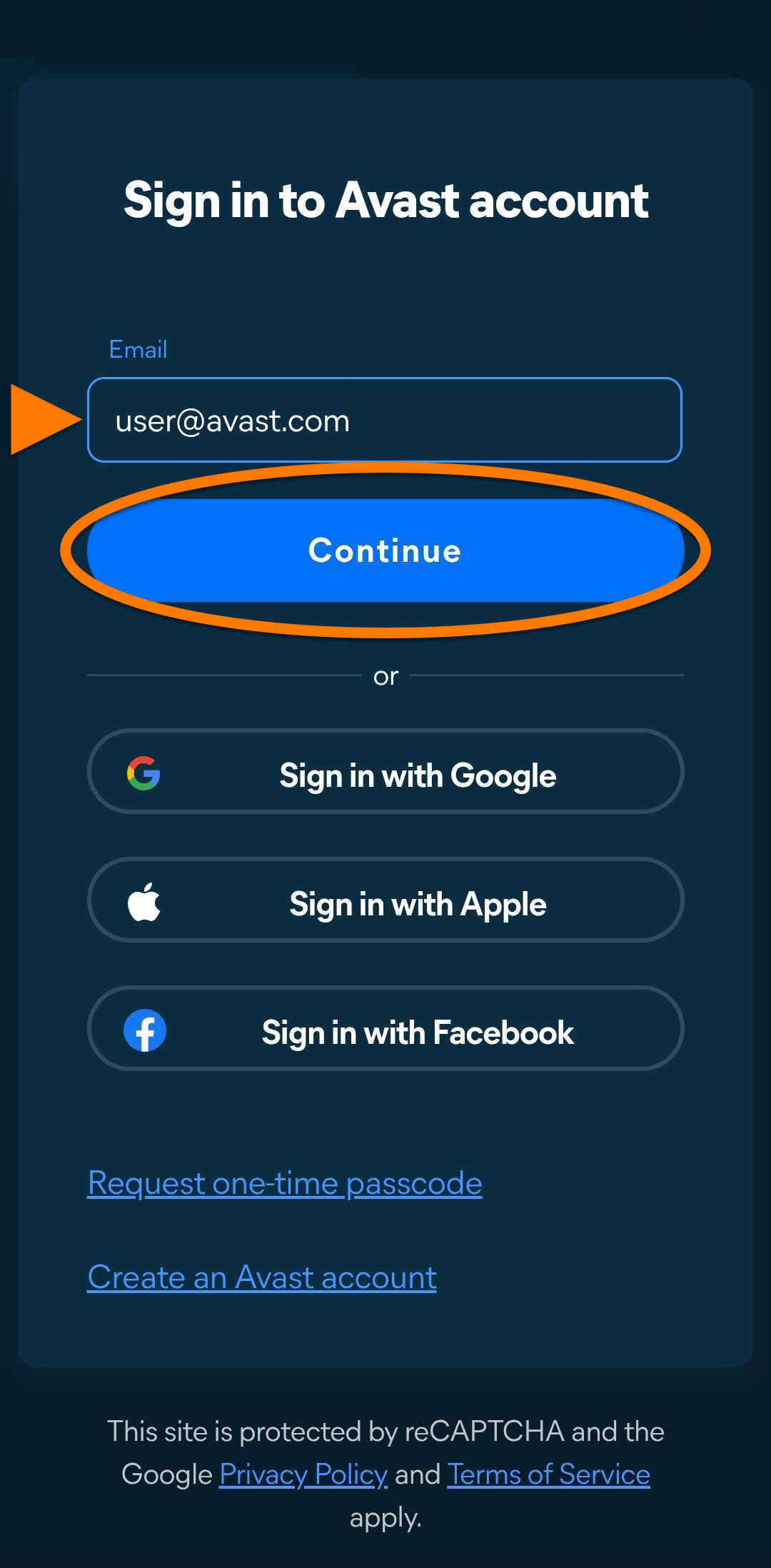
- Enter the password associated with your Avast Account, then tap Sign In.
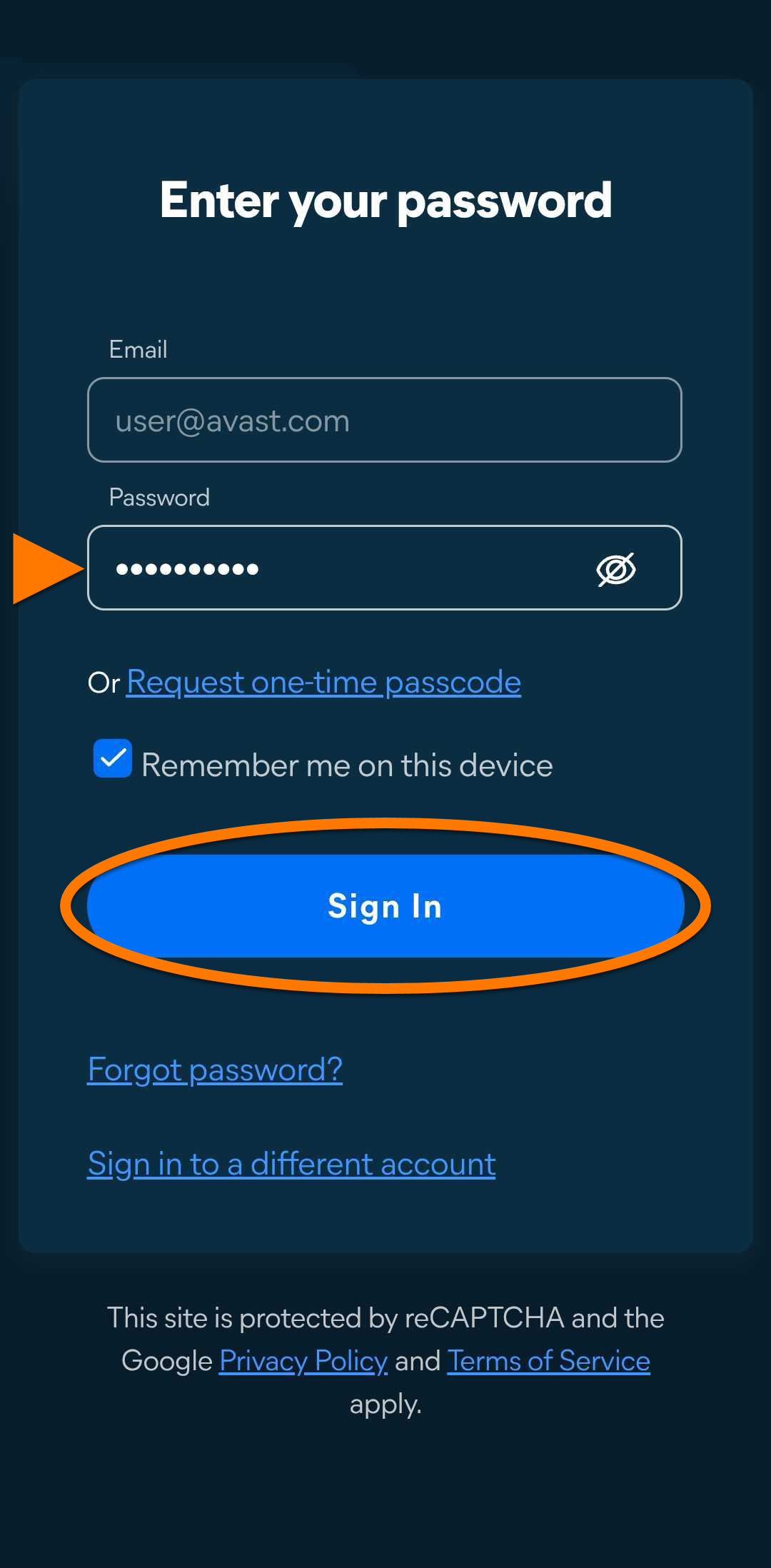
Avast One is now activated. If activation is unsuccessful, refer to the Still need help? section below.
Still need help?
If you experience any activation issues, check that your Avast Account is registered to the email address that you used to purchase Avast One. If you used a different email address for purchase, you can add this email address to your Avast Account. For detailed instructions, refer to the following article:
If your issues persist, refer to the following articles:
If you are still unable to activate your application, contact Avast Support.
Activation Code
Enter activation code
To activate Avast One using an activation code:
- Locate your activation code. This is included in your order confirmation email. For detailed instructions, refer to the following article: Locating your Avast activation code.
- Tap the Avast One icon on the Home screen of your device. The app opens.
- In the top-right corner, tap Upgrade.
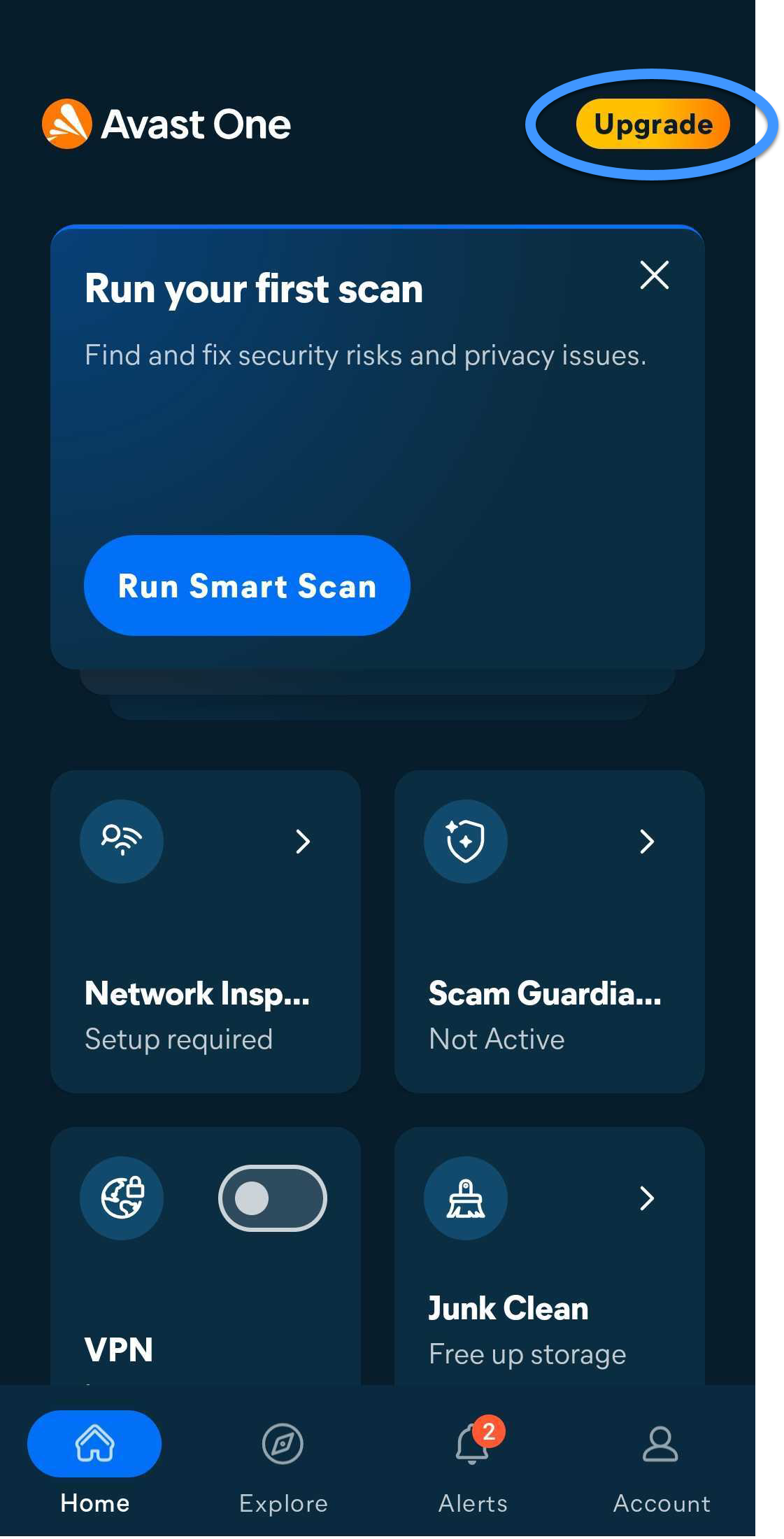
- Scroll down, then tap Already purchased?.
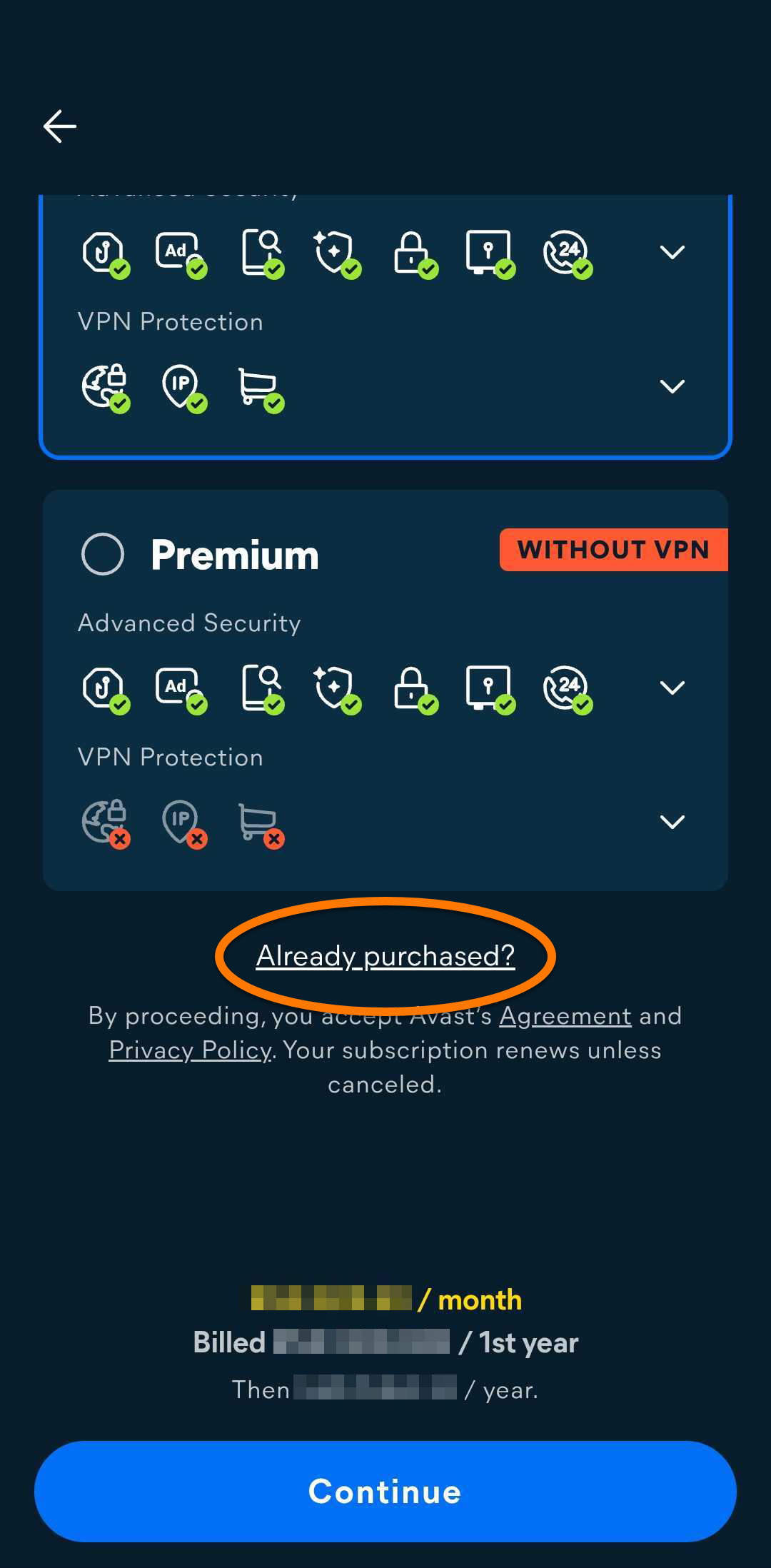
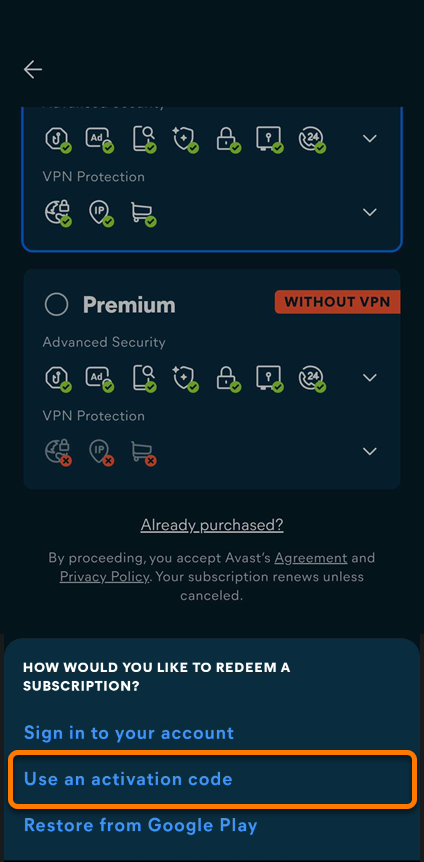
- Select Use an activation code.
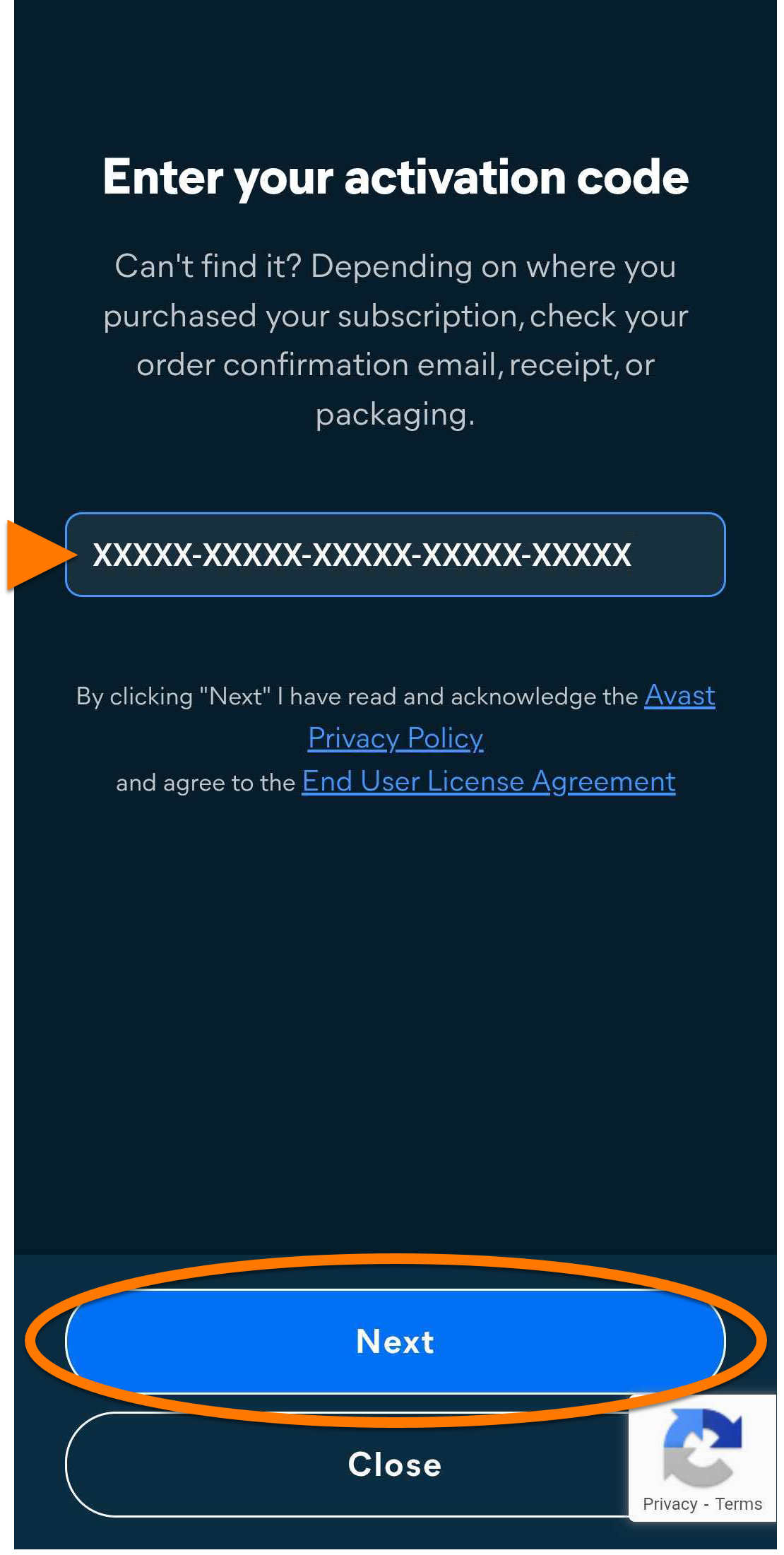
- Type or paste your activation code (including hyphens) into the text box, then tap Next.
Avast One is now activated. If activation is unsuccessful, refer to the Still need help? section below.
Still need help?
If you experience any activation issues:
- Ensure you have correctly entered your activation code correctly, including hyphens.
- If activation using your activation code still doesn't work, try following the instructions to activate using your Avast Account.
If your issues persist, refer to the following articles:
If you are still unable to activate your application, contact Avast Support.
Google Play
Restore via Google Play
This option only applies if you purchased your Avast One subscription through Google Play Store.
If you want to start using your subscription on a new device, or if you reset your existing device, you can restore your Avast One subscription via Google Play Store:
- Ensure you are signed in to Google Play Store with the same Google Account that you used to purchase your subscription. For instructions on how to verify this, refer to the following Google Play Help article: Google Play Help ▸ How to add & use accounts in the Google Play Store on your device.
- Tap the Avast One icon on the Home screen of your device. The app opens.
- In the top-right corner, tap Upgrade.
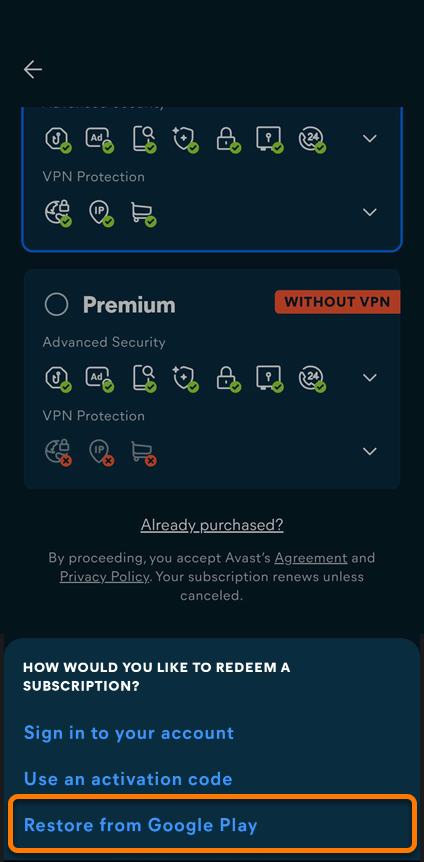
- Scroll down, then tap Already purchased?.
- Select Restore from Google Play.
Avast One is now activated. If activation is unsuccessful, refer to the Still need help? section below.
Still need help?
If you experience any activation issues, refer to the following articles:
If you are still unable to activate your application, contact Avast Support.
Troubleshoot activation issues
The information below explains how to resolve some of the most common activation issues:
- Ensure that the subscriptions you wish to use through Avast One are available in your Avast Account. To verify this, sign in to your Avast Account in your web browser and click the Subscriptions tile to see a list of the linked subscriptions.
- If a subscription does not appear in your Avast Account, you can add it manually. For instructions, refer to the following article:
- Completely uninstall Avast One from your device, then reinstall it again. This can resolve issues that are caused by incorrect configuration or corrupted files. We recommend following the exact steps in the following articles:
If the issue persists, contact Avast Support.
The information below explains how to resolve some of the most common activation issues:
- Ensure that your Avast One subscription appears in your Avast Account. To verify this, sign in to your Avast Account in your web browser and click the Subscriptions tile to see a list of the linked subscriptions.
- If your Avast One subscription does not appear in your Avast Account, you can manually add the subscription. For instructions, refer to the following article:
- Completely uninstall Avast One from your device, then reinstall it again. This can resolve issues that are caused by incorrect configuration or corrupted files. We recommend following the exact steps in the following articles:
After reinstallation, try activating Avast One again.
If the issue persists, contact Avast Support.
Further recommendations
To learn more about Avast One, refer to the following article:
For instructions on how to use Avast One, refer to the following article:
The new Avast One for Android is replacing both the previous Avast One app and Avast One. As part of this change, the older apps are being removed from the Google Play Store. All new installations on Android install the new Avast One app.
The new Avast One for iOS is replacing both the previous Avast One app and Avast Mobile Security. As part of this change, the older apps are being removed from the Apple App Store. All new installations on iOS install the new Avast One app.
If you purchased an Avast multi-device subscription from a retail store or a third-party reseller (such as Amazon), sign in to your Avast Account (or create one first) and exchange the reseller code for an activation code, which adds the subscription to your account. For step-by-step instructions, refer to: Activating an Avast application using a third-party reseller code.
Your activation options:
Avast Account
Sign in to Avast Account
An Avast Account was created using the email address that you provided during the subscription purchase. To sign into your Avast Account for the first time, refer to the following article: Activating your Avast Account.
To activate Avast One using your Avast Account:
- Tap the Avast One icon on your device. The app opens.

- Tap
 Account, then select
 ⋮ Menu (The three dots) under My Subscriptions. 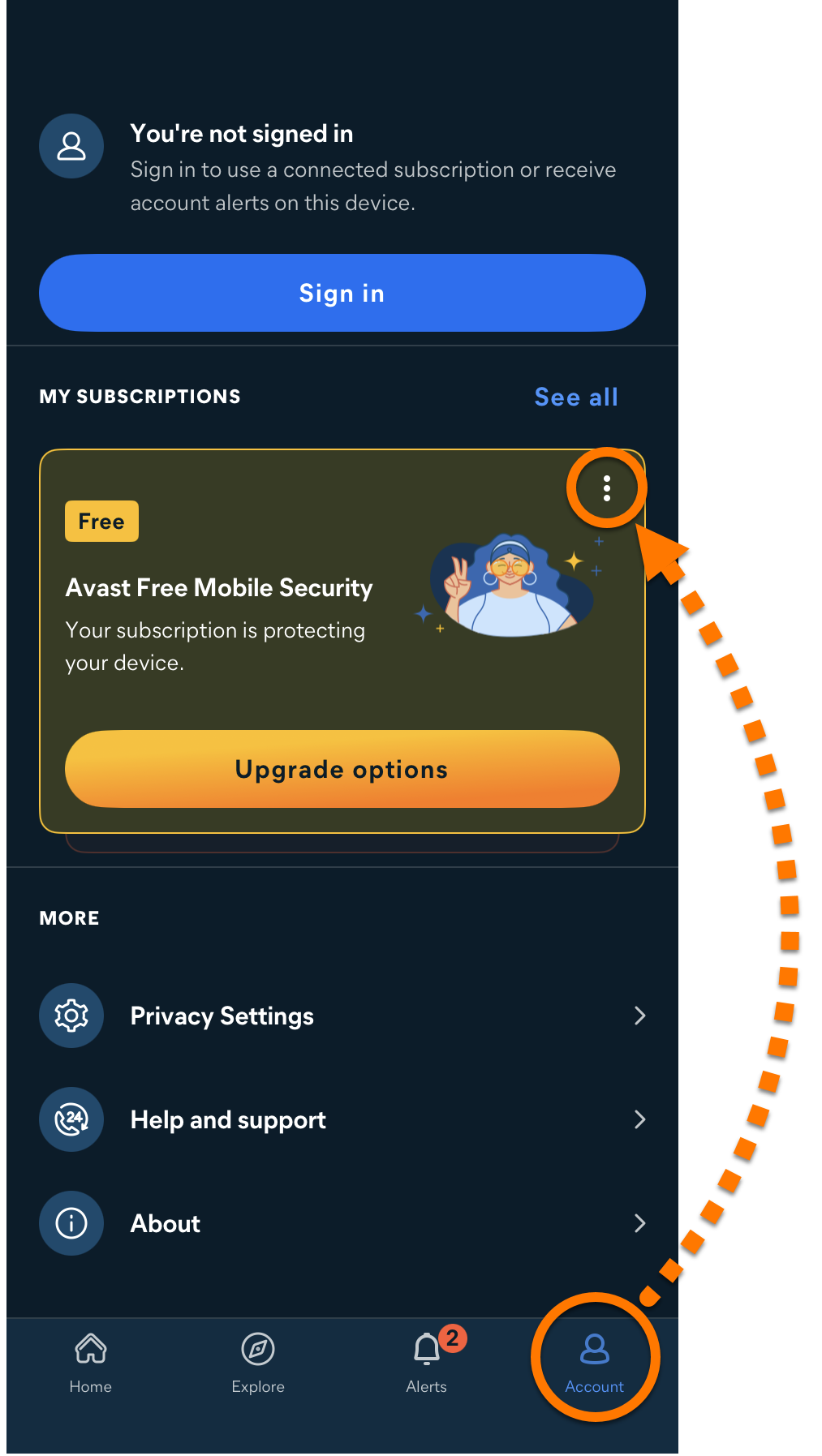
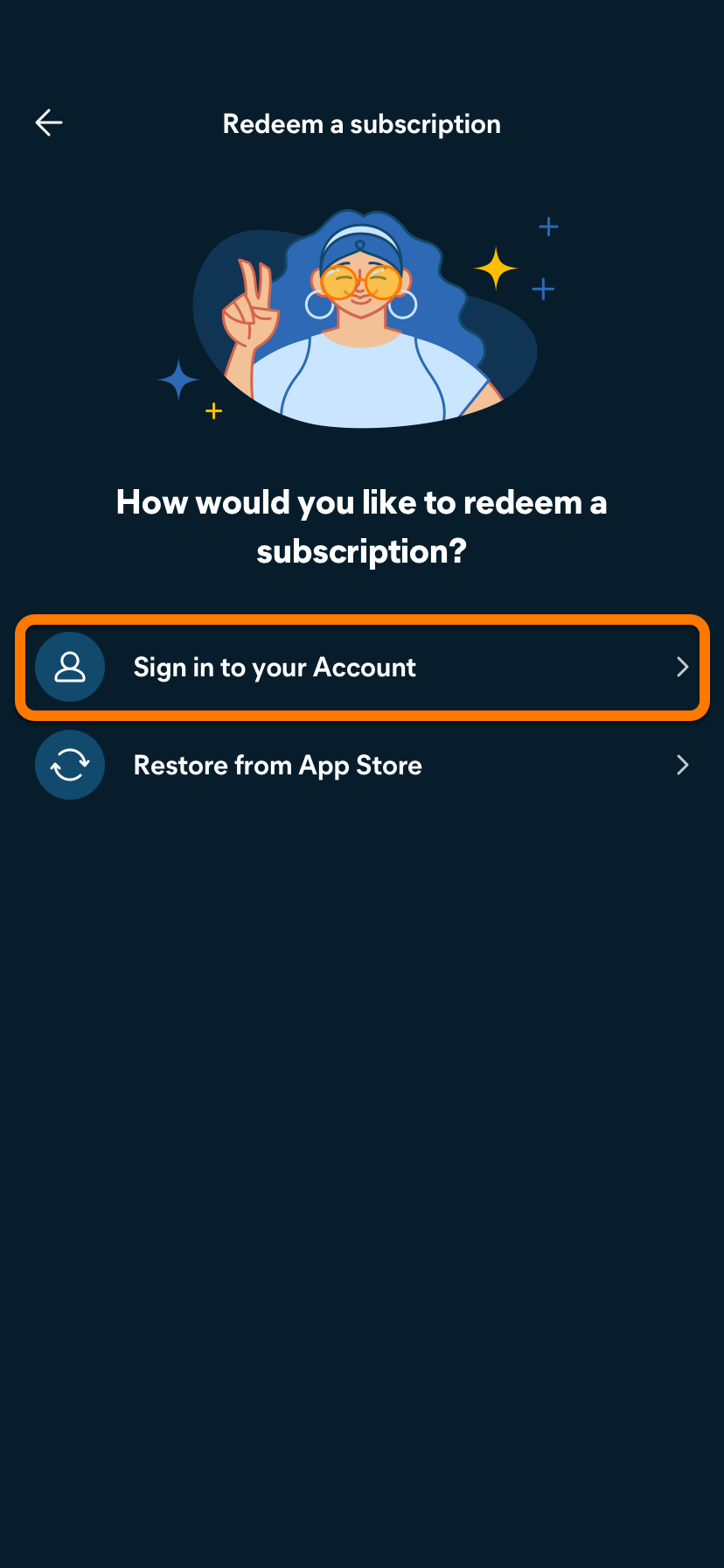
- Select Sign in to your Account.
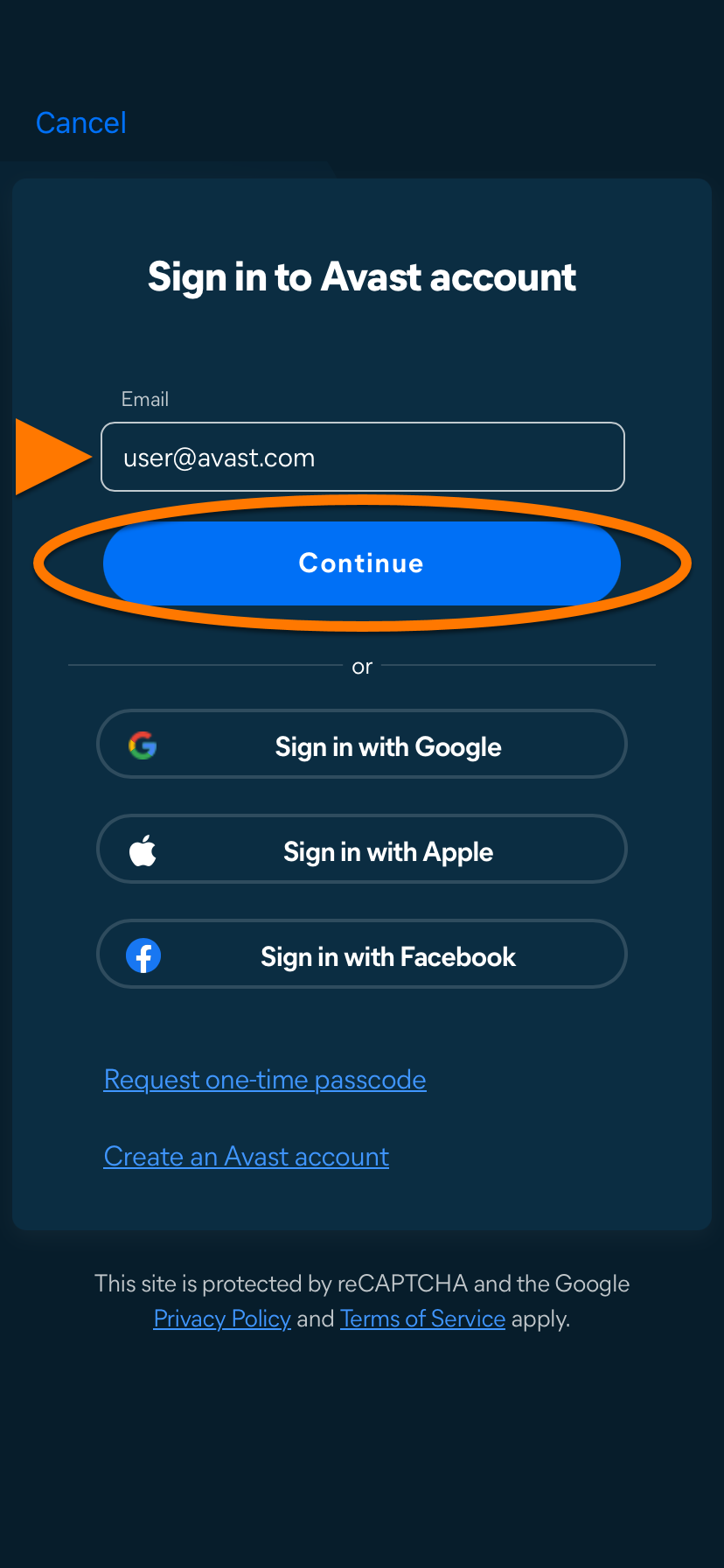
- Enter the email address associated with your Avast Account, then tap Continue.
- Enter the password associated with your Avast Account, then tap Sign In.
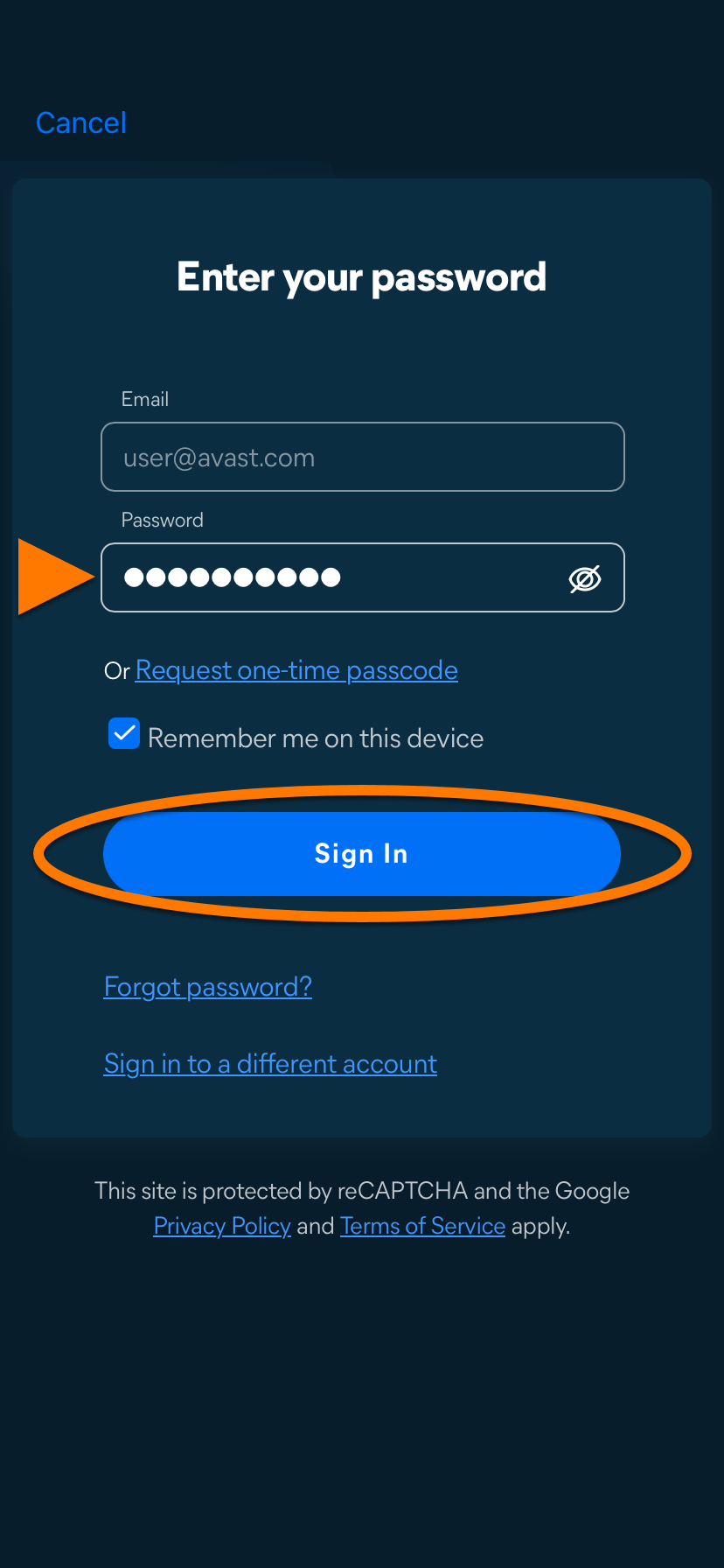
Avast One is now activated. If activation is unsuccessful, refer to the Still need help? section below.
Still need help?
If you experience any activation issues, check that your Avast Account is registered to the email address that you used to purchase Avast One. If you used a different email address for purchase, you can add this email address to your Avast Account. For detailed instructions, refer to the following article:
If your issues persist, refer to the following articles:
If you are still unable to activate your application, contact Avast Support.
App Store
Restore via App Store
This option only applies if you purchased your Avast One subscription through the App Store.
If you want to start using your subscription on a new device, or if you reset your existing device, you can restore your Avast One subscription via the App Store:
- Ensure you are signed in to the App Store with the same Apple ID that you used to purchase Avast One. For instructions on how to verify this, refer to the following article:
- Tap the Avast One icon on your device. The app opens.
- Tap Account, then select
⋮ Menu (The three dots) under My Subscriptions.
- Select Restore from App Store.
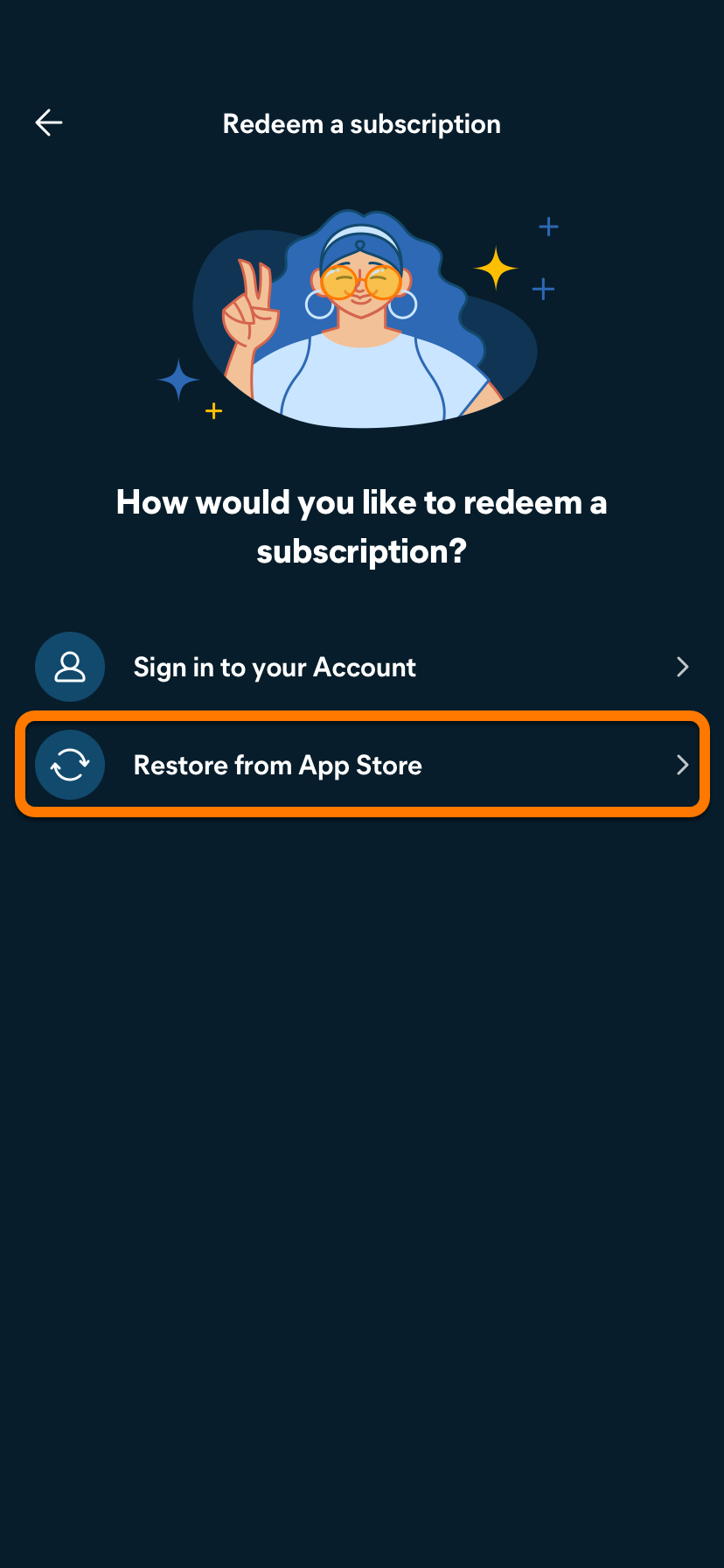
Avast One is now activated. If activation is unsuccessful, refer to the Still need help? section below.
Still need help?
If you experience any activation issues, refer to the following articles:
If you are still unable to activate your application, contact Avast Support.
Troubleshoot activation issues
The information below explains how to resolve some of the most common activation issues:
- Ensure that the subscriptions you wish to use through Avast One are available in your Avast Account. To verify this, sign in to your Avast Account in your web browser and click the Subscriptions tile to see a list of the linked subscriptions.
- If a subscription does not appear in your Avast Account, you can add it manually. For instructions, refer to the following article:
- Completely uninstall Avast One from your device, then reinstall it again. This can resolve issues that are caused by incorrect configuration or corrupted files. We recommend following the exact steps in the following articles:
If the issue persists, contact Avast Support.
The information below explains how to resolve some of the most common activation issues:
- Ensure that your Avast One subscription appears in your Avast Account. To verify this, sign in to your Avast Account in your web browser and click the Subscriptions tile to see a list of the linked subscriptions.
- If your Avast One subscription does not appear in your Avast Account, you can manually add the subscription. For instructions, refer to the following article:
- Completely uninstall Avast One from your device, then reinstall it again. This can resolve issues that are caused by incorrect configuration or corrupted files. We recommend following the exact steps in the following articles:
After reinstallation, try activating Avast One again.
If the issue persists, contact Avast Support.
Further recommendations
To learn more about Avast One, refer to the following article:
For instructions on how to use Avast One, refer to the following article:

