These uninstallation instructions are for the new version of Avast One. For information about uninstalling the legacy Avast One, refer to the Uninstall the legacy version of Avast One section of this article. 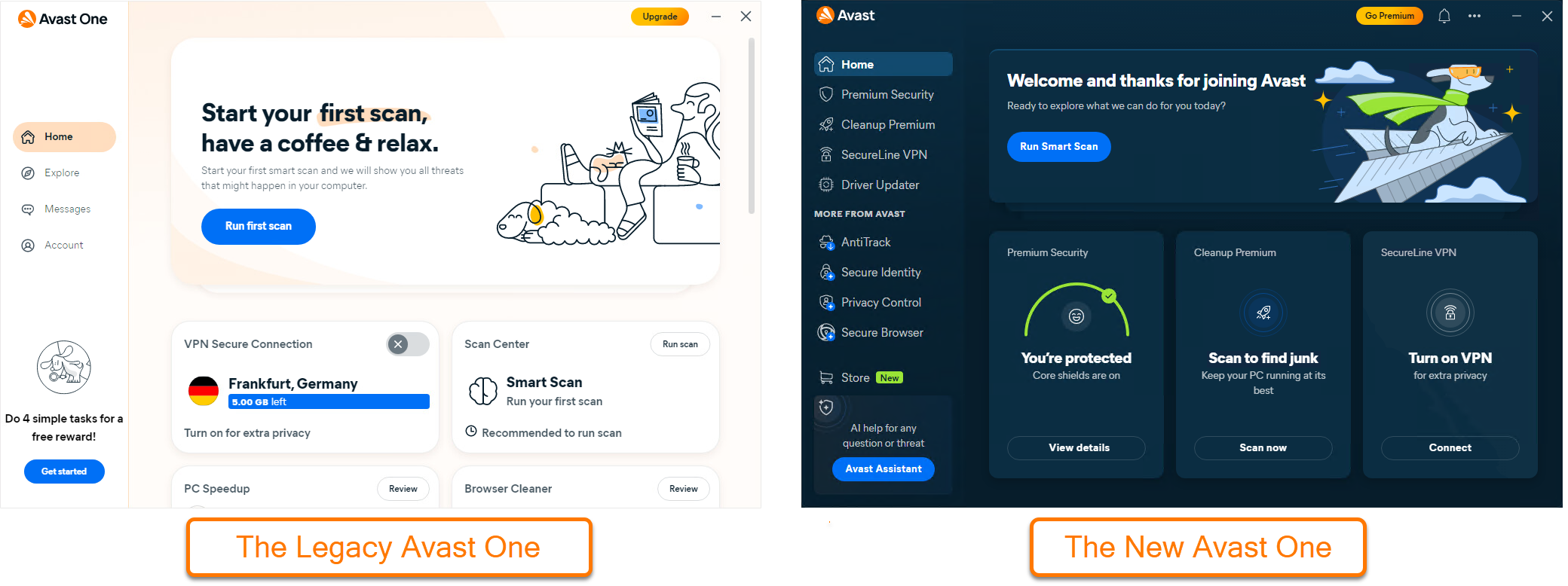
To uninstall Avast One from a Windows device, select the relevant tab below according to your Windows version.
After you complete the steps below, your PC will no longer be protected by Avast One against malware and other threats.
Uninstall via Start menu
Uninstall the legacy version of Avast One
To uninstall the legacy version of Avast One, follow steps 1-3 above, then refer to the instructions below:
To uninstall the legacy version of Avast One, follow steps 1-4 above, then refer to the instructions below:
- In the Avast One setup window, click Uninstall.
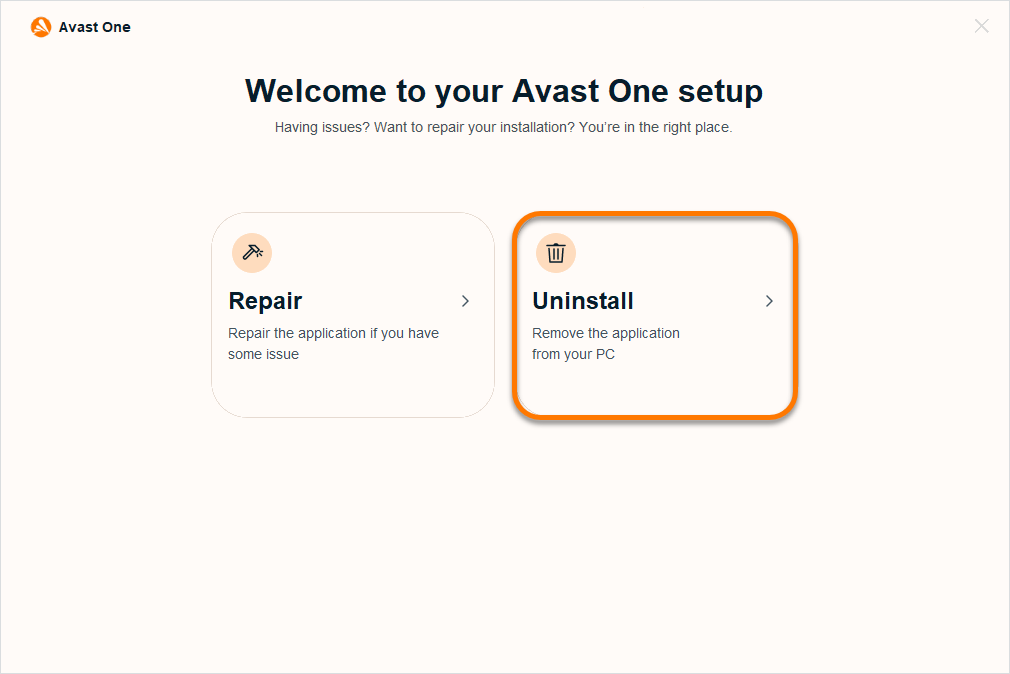
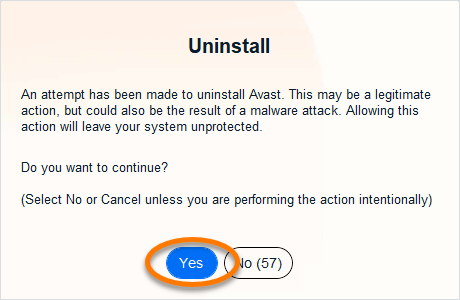
- Click Yes to confirm that you want to uninstall Avast One.
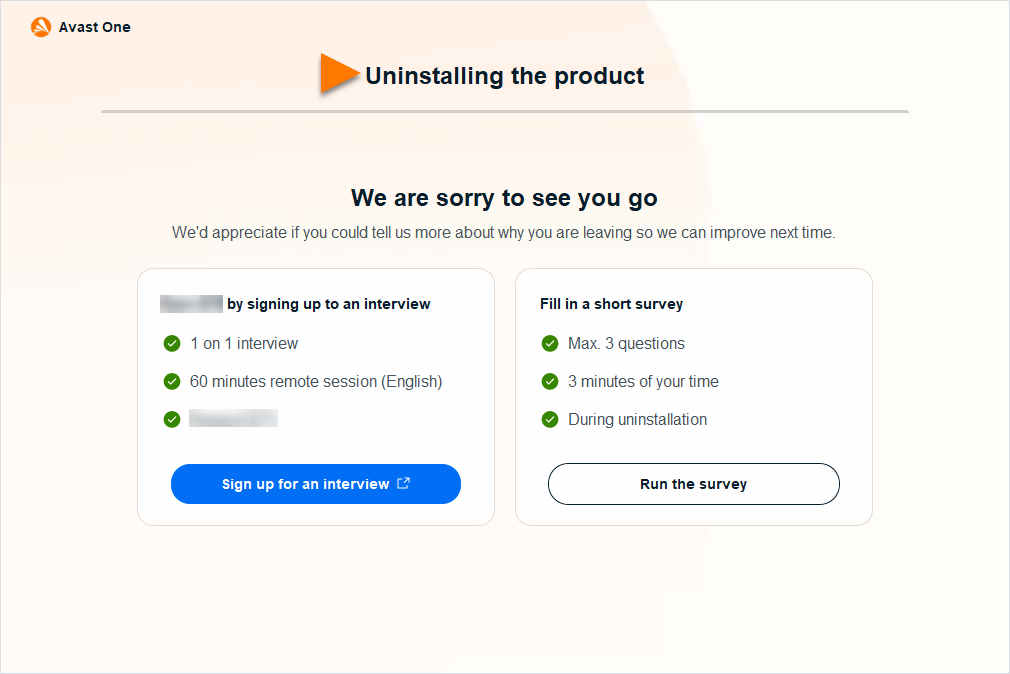
- Wait while the uninstaller removes Avast One from your PC.
- When the confirmation message appears, click Restart computer to immediately reboot your PC and complete uninstallation.
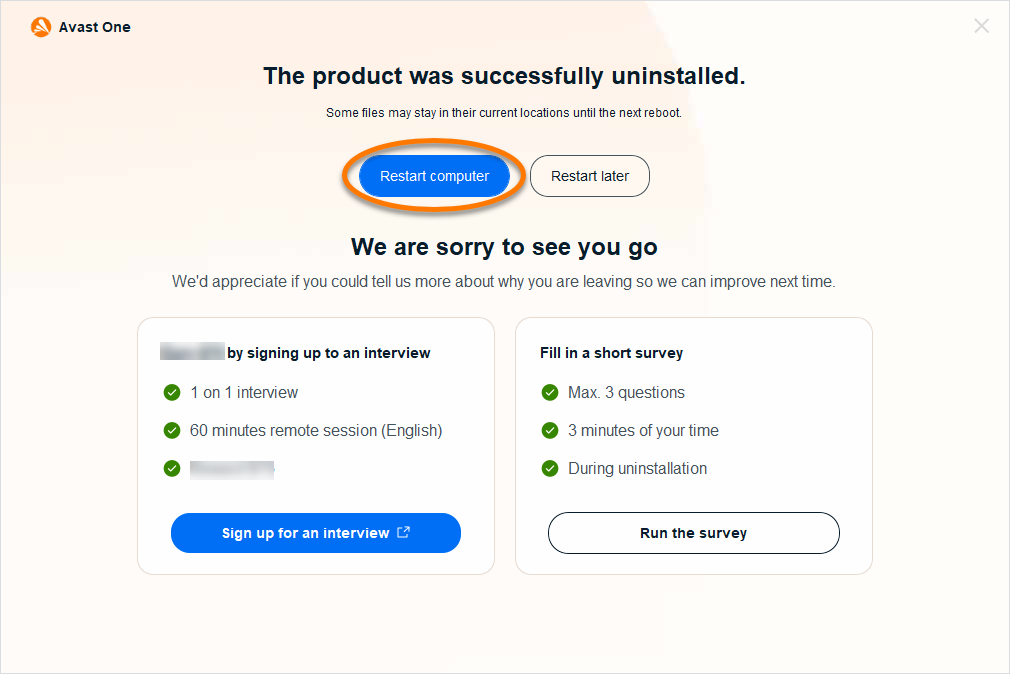
Uninstall via the Avast Uninstall Tool
If you experience issues trying to uninstall Avast One via the Start menu, we recommend using the Avast Uninstall Tool to completely delete all Avast One files from your PC while Windows runs in Safe Mode.
For instructions, refer to the following article:
Reinstall Avast One
If you need to reinstall Avast One, refer to the following article for installation instructions:
Moving Avast One to the Trash or using Clean My Mac does not fully uninstall the application. We recommend following the steps below using the Avast One Uninstaller.
These instructions apply to both the new version of Avast One and the legacy Avast One.
Reinstall Avast One
If you need to reinstall Avast One, refer to the following article for installation instructions:
If you uninstall Avast One on Android, photos stored in the Photo Vault are no longer accessible. They can be restored by reinstalling Avast One on the same device and setting up Photo Vault again using the same email address and PIN code. To avoid losing access, export your files from Photo Vault before uninstalling the app.
These instructions apply to both the new version of Avast One and the legacy version of Avast One. Since the legacy version of Avast One is no longer available on the Google Play Store, it cannot be reinstalled once it has been removed.
Uninstall via Google Play Store
- On the Home screen of your device, tap the Play Store icon to open Google Play Store.

- In the search bar, type
Avast One, then select Avast One from the search results. 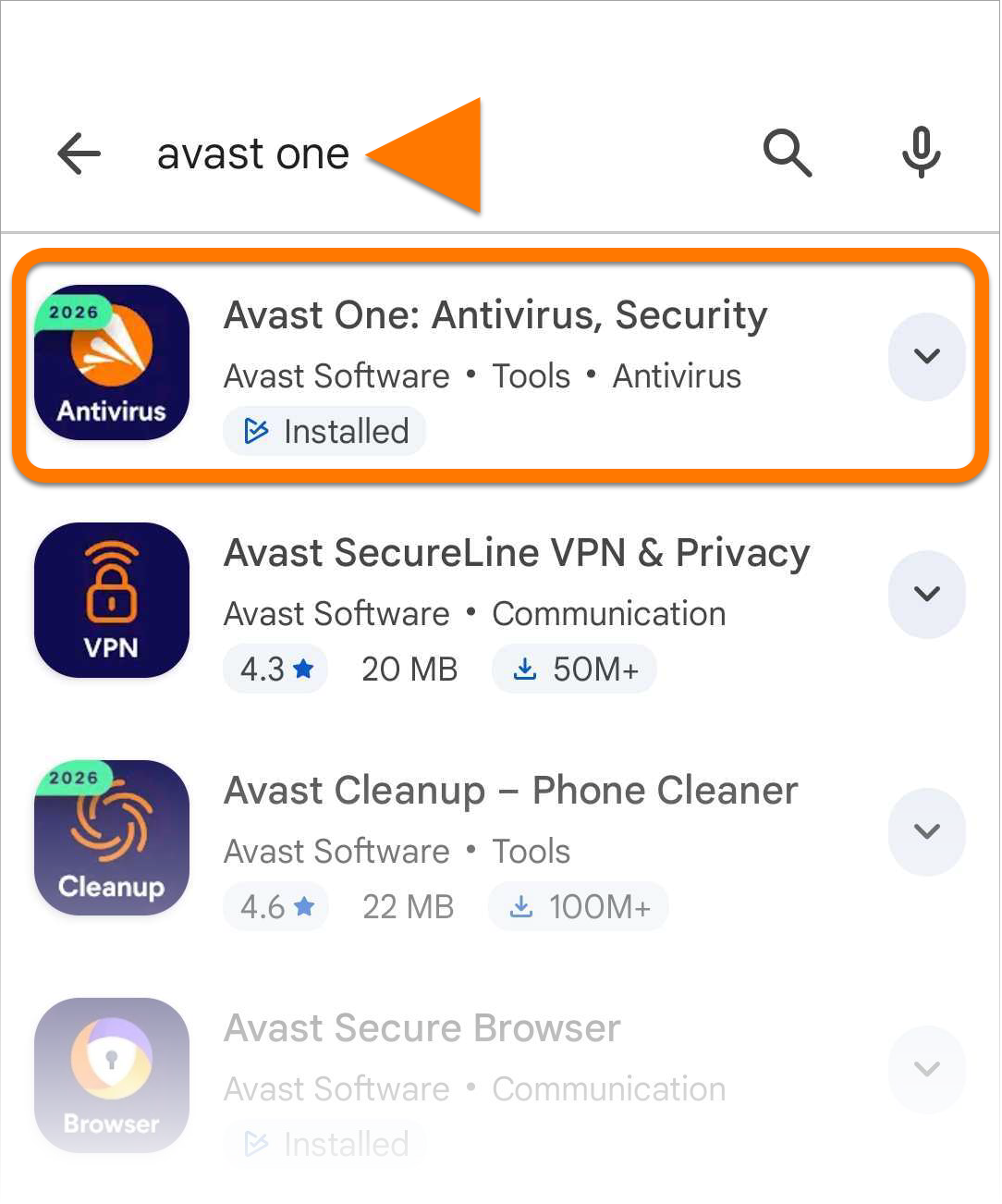
- Tap Uninstall, then Uninstall again to confirm uninstallation.
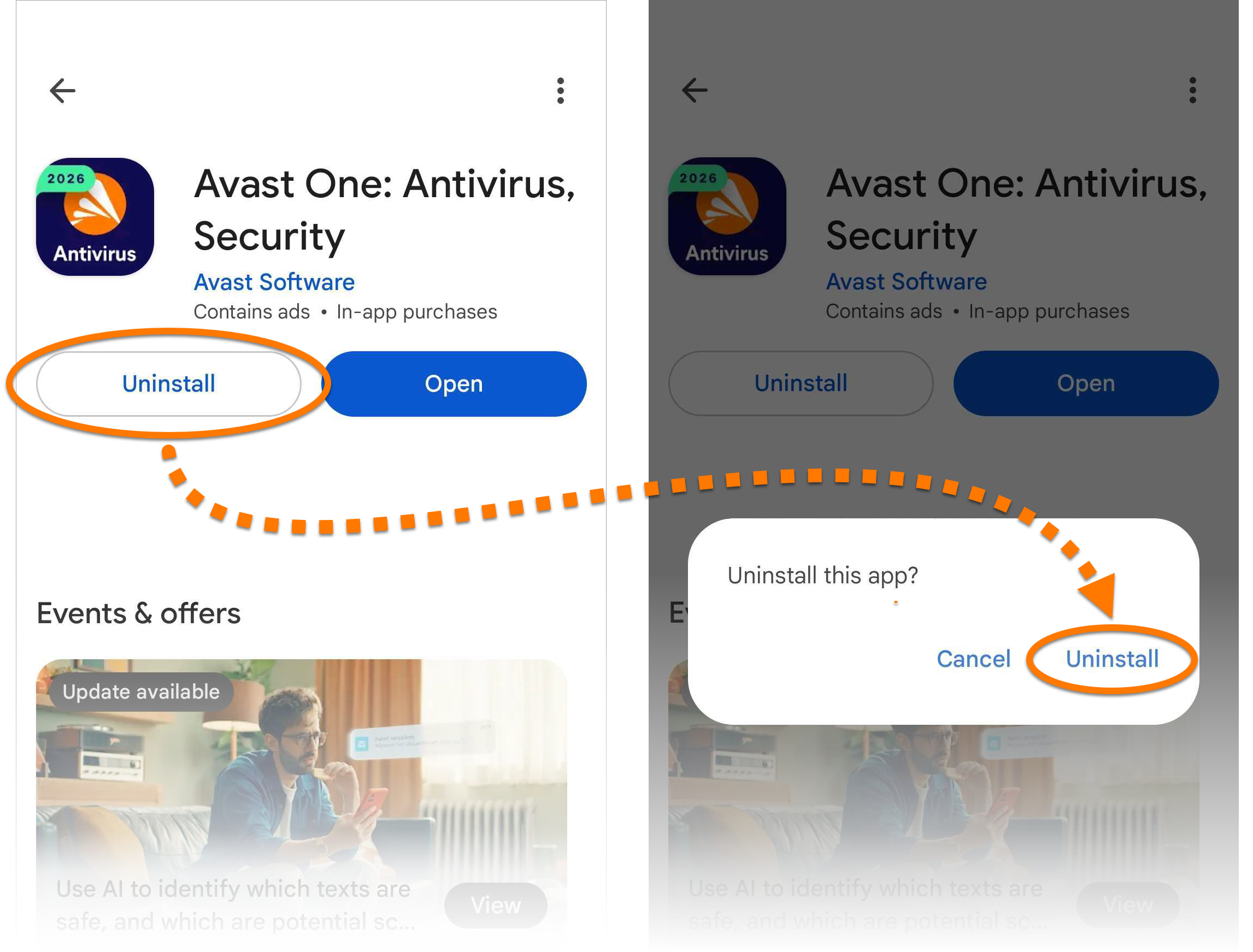
Avast One is now uninstalled from your Android device.
Uninstall via device settings
These steps may differ slightly depending on your device model, Android version, and vendor customizations.
- Open your device Settings and go to Apps.
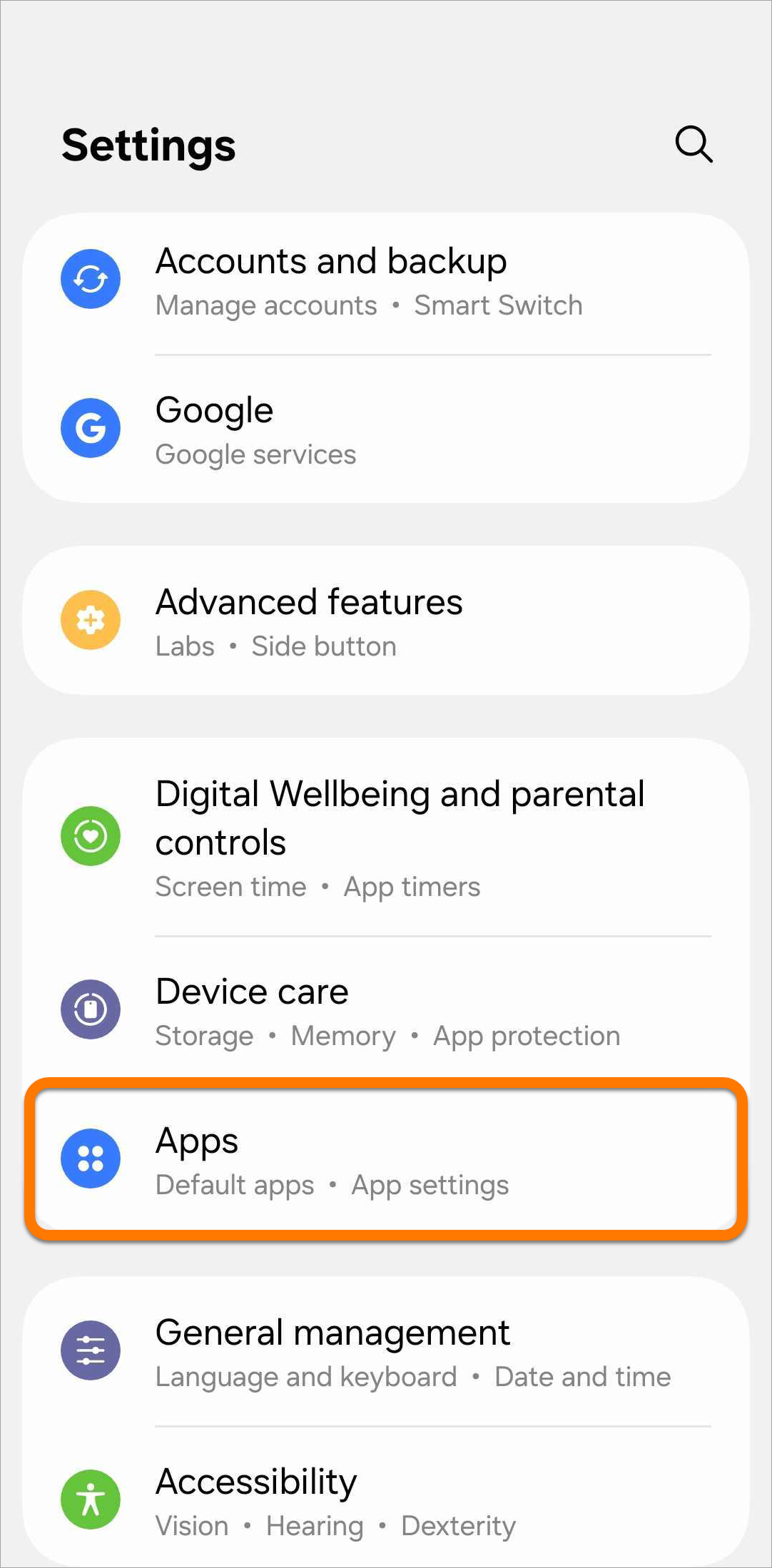
- Select Avast One.
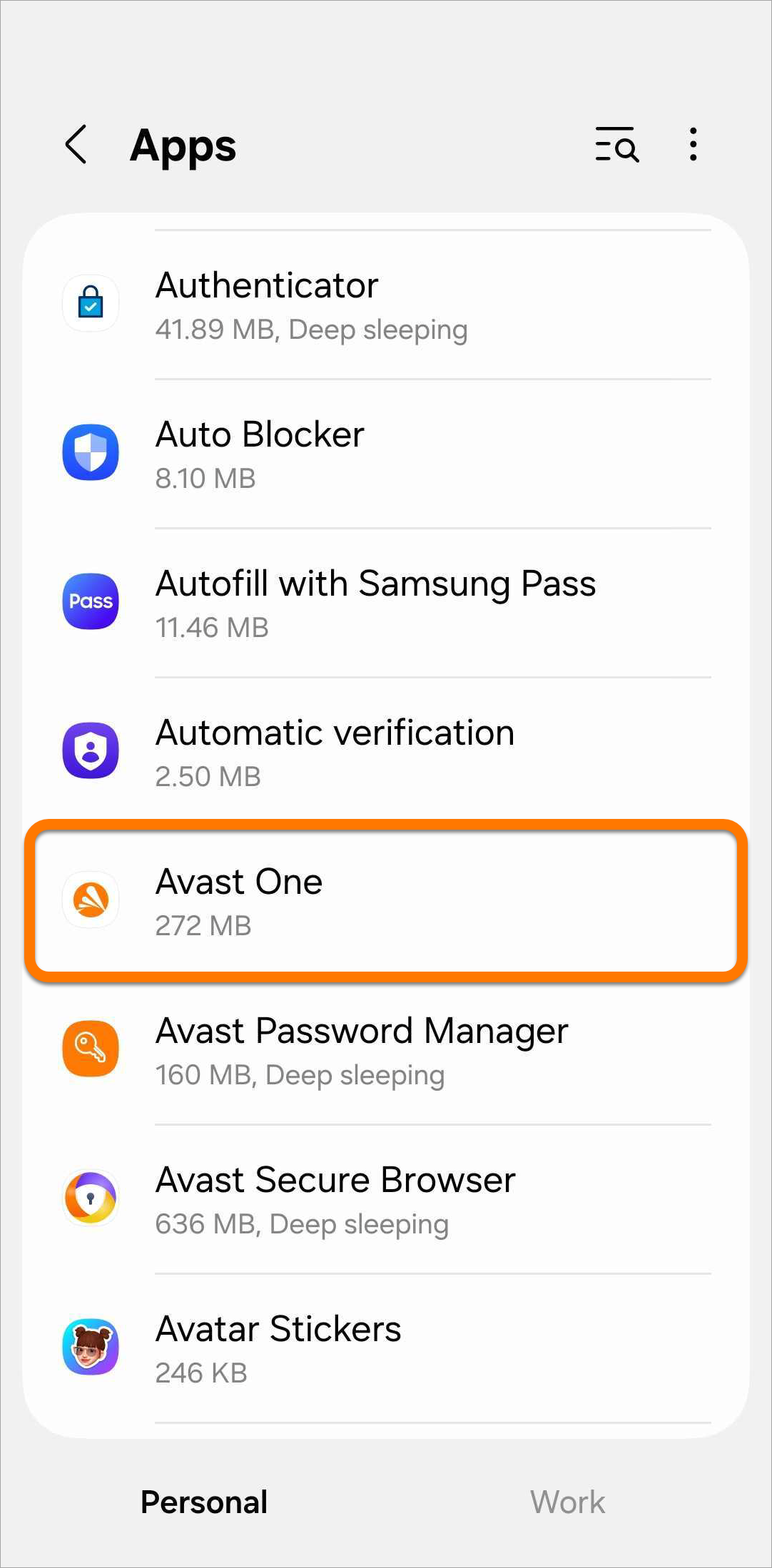
- Tap Uninstall, then tap OK to confirm uninstallation.
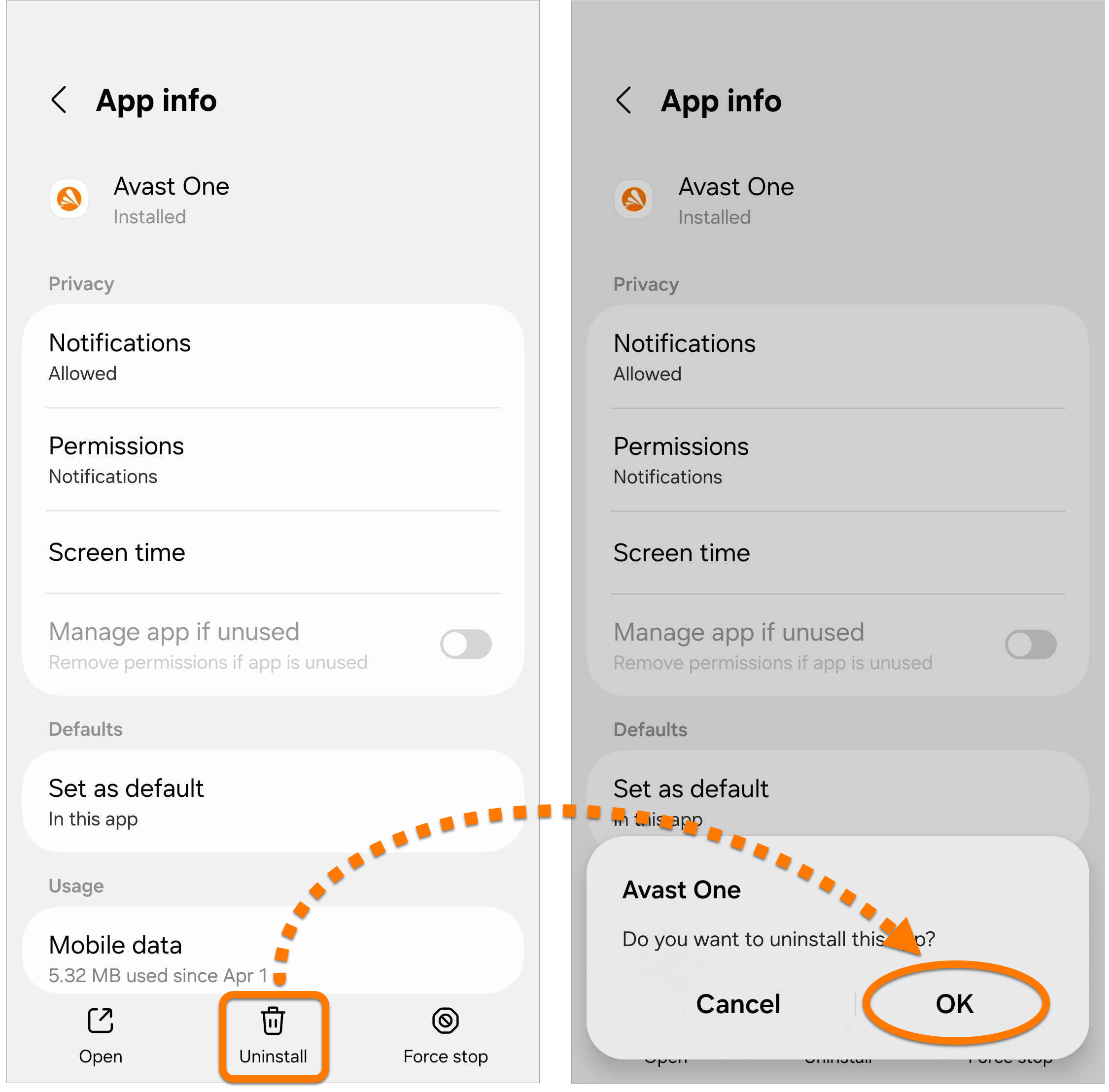
Avast One is now uninstalled from your Android device.
Reinstall Avast One
If you need to reinstall Avast One, refer to the following article for installation instructions:
If you uninstall Avast One on iOS, any photos you have stored in the Photo Vault will be deleted along with the app and there is no option to restore them. We recommend exporting your files from Photo Vault before uninstalling the app.
These instructions apply to both the new version of Avast One and the legacy version of Avast One. Since the legacy version of Avast One is no longer available on the Apple App Store, it cannot be reinstalled once it has been removed.
Uninstall via Home screen
- On the Home screen of your device, touch and hold the Avast One icon, then select Remove App from the menu that appears.
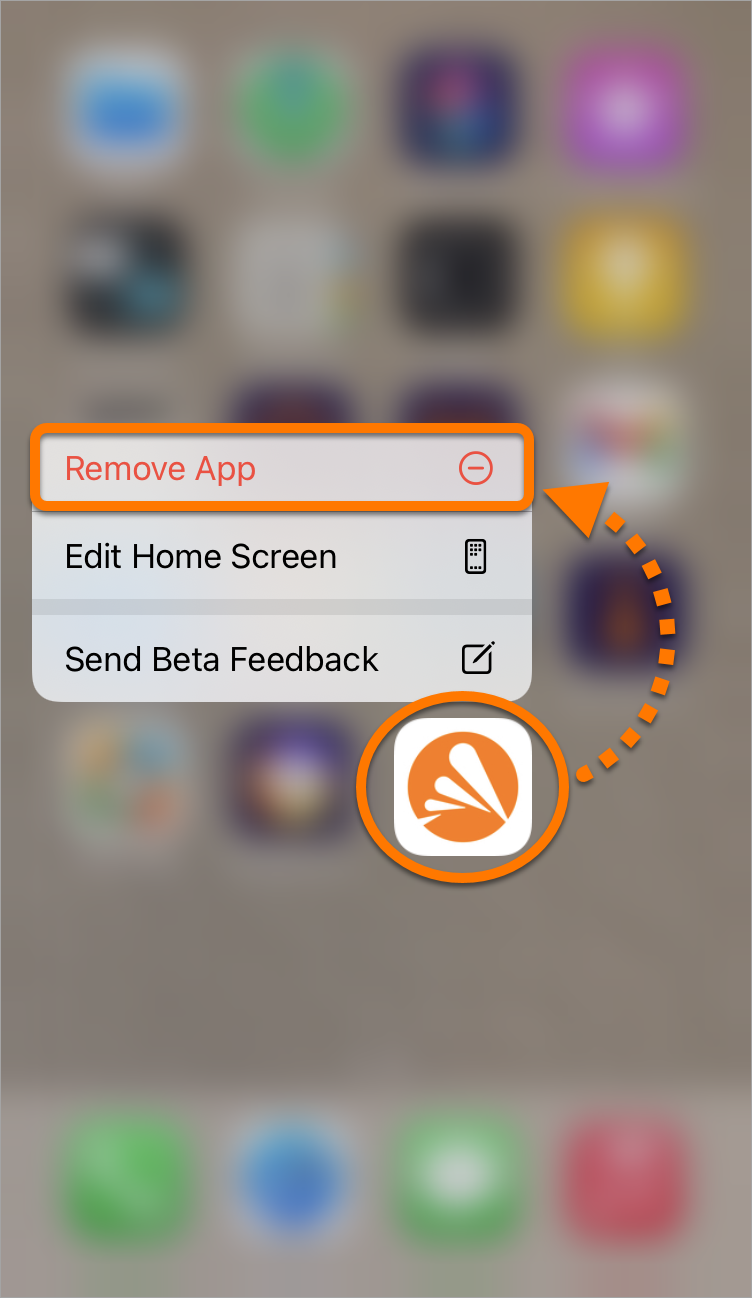
- Select Delete App to remove Avast One and all of your app data.
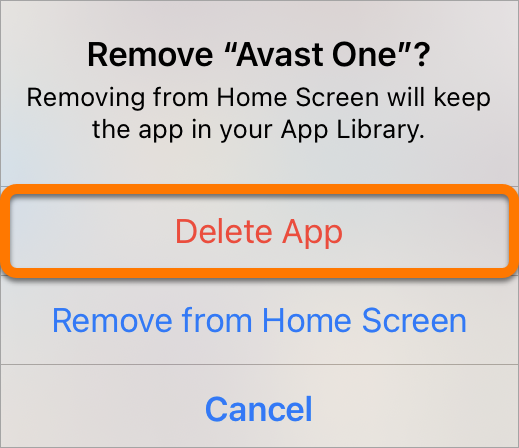
- Select Delete to confirm uninstallation.
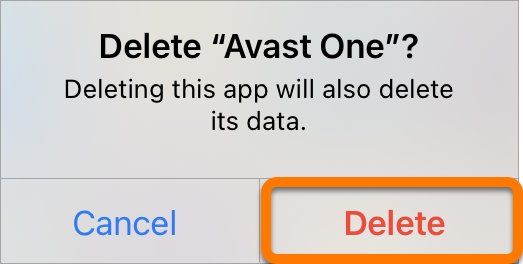
Avast One is now uninstalled from your iOS device.
Reinstall Avast One
If you need to reinstall Avast One, refer to the following article for installation instructions:

 Start icon, then select Apps and Features from the menu that appears.


 Start icon, then select Apps and Features from the menu that appears.


 logo key and


 Start icon, then select Control Panel from the menu that appears.


