
IS YOUR COMPUTER SLOW? RUN LIKE NEW
If they are not maintained, computers lose performance over time. Avast Cleanup Premium can help significantly improve the performance of your computer.
Managing subscriptions via your Avast Account
An Avast Account is a portal for managing your paid Avast subscriptions. This article contains information about the different subscription management options that are available in your Avast Account.
Your Avast Account login is the email address that you provided during the subscription purchase.
- To sign in to your Avast Account for the first time, refer to the following article: Activating your Avast Account.
- If you don't know your Avast Account password, you can reset it.
View my subscriptions
To open a list of your paid Avast subscriptions:
- Sign in to your Avast Account using the link: https://id.avast.com/sign-in/
- On the top-right corner of the page, click My account and then click My subscriptions.
The My subscriptions screen lists all of the Avast subscriptions that are currently linked to your Avast Account.
If one of your Avast subscriptions is not displayed on the My subscriptions screen, refer to the add a missing subscription section of this article.
You can check the following details for each of your Avast subscriptions:
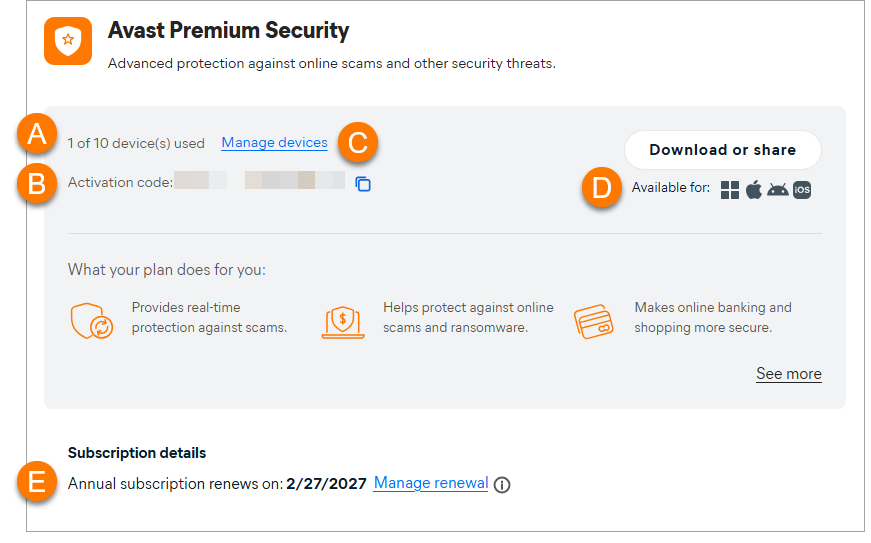
- Currently used on: The number of devices on which your subscription is currently used.
- Activation code: The valid activation code that is linked to your subscription. After you download and install on a device, you have to enter this activation code to get the service started and unlock the paid features.
- Manage devices: Shows all the devices where your Avast subscription is installed and lets you remove a device if you no longer use it.
The Manage devices feature is not currently available for Avast One subscriptions.
- Available for: The operating systems on which the subscription can be used.
- Subscription renewal date (only appears when the subscription is valid): The next billing date for your subscription.
Check my subscription status
You can verify the subscription status on the top of each of your Avast subscriptions. You may see one of the following statuses:
- Expiring: This subscription is currently valid, but expires at the end of the current subscription period because the automatic renewal is canceled. You can click Renew Now to renew the subscription.

- Expired: This subscription has expired and is no longer valid. You can click Renew Now to purchase a new subscription.

- Refunded: The subscription has been refunded.

- Payment Failed: The payment method on file couldn't be processed. Kindly update your payment method.

- Not Available: This subscription is currently valid, but we do not have information about its current status. This can happen when you manually add an Avast subscription that you purchased via a third-party vendor (for example, a subscription purchased via Google Play Store).
Cancel renewal
When you purchase an Avast subscription via the official Avast website, your subscription automatically renews and you are billed annually or monthly depending on your billing cycle, unless the renewal is canceled before the billing date.
The next billing date for each subscription is shown next to Subscription renews on.
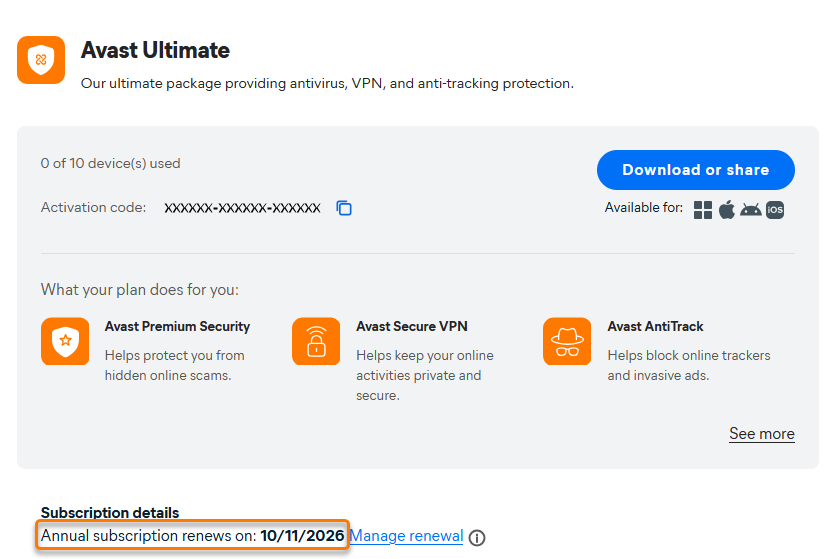
To cancel the renewal via your Avast Account follow the steps below:
- On the top-right corner of the page, click My account and then click My subscriptions.
- Click Manage renewal in the box for the relevant subscription.

- Next to Plan Renewal, click Unsubscribe.
- From the list reasons, select the reason you are unsubscribing.
- Depending on the scenario, follow the on screen instructions to continue the subscription or cancel it.
You have canceled the renewal for this subscription. You will receive confirmation by email.
If you want to cancel the renewal for multiple Avast subscriptions, you need to repeat the steps above for each subscription.
For detailed instructions on how to cancel the renewal via your Avast Account, refer to the following article:
Change my payment card details
You can update the payment card details for a single subscription or for all of your Avast subscriptions via your Avast Account:
- Click Manage renewal in the box for the relevant subscription.
- In the next window, next to Payment center, click Manage.

- To update the mode of payment, click Update.

- Enter the updated information and click Update.

Your new payment details are now saved.
For detailed instructions, or to learn about other methods for changing your payment details, refer to the following article:
Add a missing subscription
If one of your purchased Avast subscriptions is not displayed on the My subscriptions screen, the subscription is not linked to your Avast Account.
To manually link a subscription to your Avast Account:
- Check which email address you provided when you purchased the subscription. This is the email address where you received the order confirmation email.
- On the top-right corner of the page, click My account and then click Account settings.
- In the Account settings page, under Contact information and Password, click Restore subscription.
- Enter the email address that you provided when you purchased the missing subscription, then click Continue.
- Follow the on-screen instructions to verify the new email address.
When the new email address is verified, all the subscriptions you purchased with this email address are added to the My subscriptions screen in your Avast Account.
For more information, refer to the following article:
Further recommendations
To learn more about your Avast Account, refer to the following article:
For instructions on transferring your Avast subscription from one device to another, refer to the following article:
If you have additional questions or concerns about managing subscriptions via your Avast Account, contact Avast Support.
Was this article helpful?

Keep your online identity private!
Browse like no one’s watching with Avast anti-tracking software.