
IS YOUR COMPUTER SLOW? RUN LIKE NEW
If they are not maintained, computers lose performance over time. Avast Cleanup Premium can help significantly improve the performance of your computer.
Adding a missing subscription to your Avast Account
You can manually add a missing subscription to your Avast Account using one of the methods below:
- Using an activated Avast product: When a subscription is already active on at least one device, you can add the subscription to your Avast Account by signing in to the activated product with your Avast Account credentials.
We are introducing a new Avast account portal experience, designed to enhance usability and security. This phased rollout means you may see a different experience on the sign in screen. To support you during this transition, this article now includes tabs comparing the current and new sign-in screens.

- Using current Avast Account Sign in: You can add the email address that you used to purchase the missing subscription to your Avast Account. When you add a new email address to your Avast Account, all of the Avast subscriptions that you purchased using this email address appear in your Avast Account.
- Using new Avast Account Sign in: You can restore your subscription by adding the email address that you used to purchase the missing subscription to your Avast Account.
An Avast subscription cannot appear in more than one Avast Account simultaneously. If your subscription already appears in an Avast Account, it is not possible to add the subscription to an additional account using the instructions in this article.
Using an activated Avast product
If your subscription is valid for multiple products on multiple devices, you only need to perform these steps in one product on one device.
This option is not yet available for all products and platforms.
Windows PC
The option to sign in with your Avast Account credentials is available in the following Avast products for PC:
- Avast Premium Security
- Avast SecureLine VPN
- Avast Cleanup Premium
- Avast Driver Updater
- Avast Battery Saver
Follow the steps below in your chosen Avast product:
- Open your Avast product and click
☰Menu in the top-right corner of the main application screen. - Select My Subscriptions.
- Select Sign in to Avast Account.
- Enter your Avast Account credentials, then click Sign in.
Mac
The option to sign in with your Avast Account credentials is available in the following Avast products for Mac:
- Avast Premium Security
- Avast SecureLine VPN
Follow the steps below in your chosen Avast product:
- Open your Avast product and click
☰Menu in the top-right corner of the main application screen. - Perform the relevant step below according to your product:
- Avast Premium Security: Click Sign in to Avast Account.
- Avast SecureLine VPN: Click Subscription ▸ Sign in to Avast Account.
- Enter your Avast Account credentials and click Sign in.
The subscription now appears on the My Subscriptions screen when you sign in to your Avast Account.
Using current Avast Account Sign in
To add a new email address and all of the linked subscriptions to your Avast Account:
- Check which email address you provided when you purchased the missing subscription. This is the email address where you received your order confirmation email.
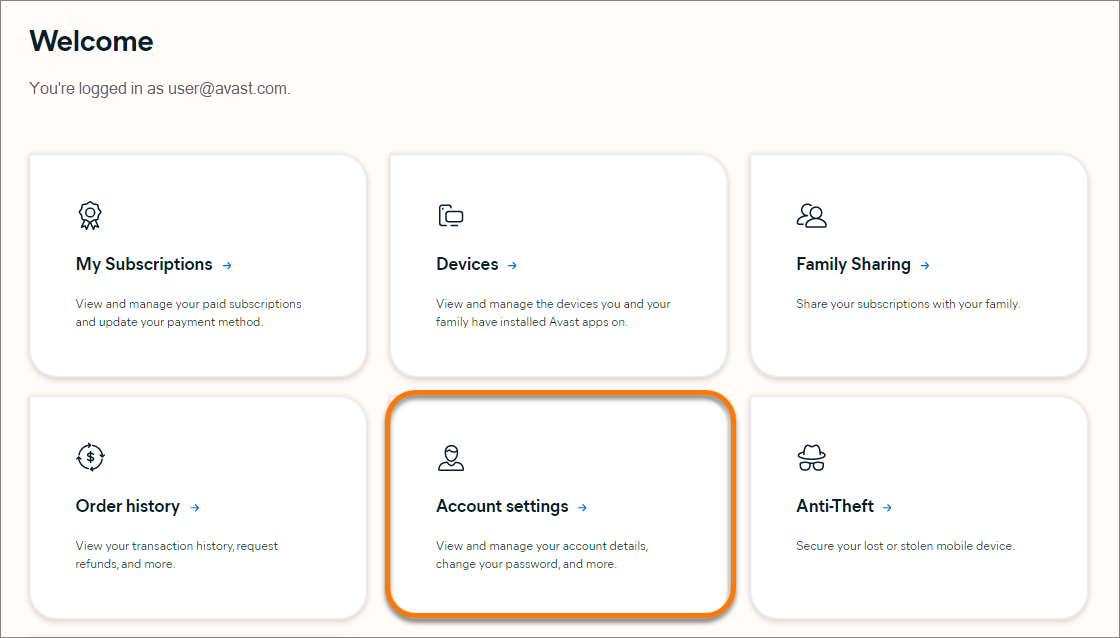
- Sign in to your Avast Account, and click the Account settings tile.
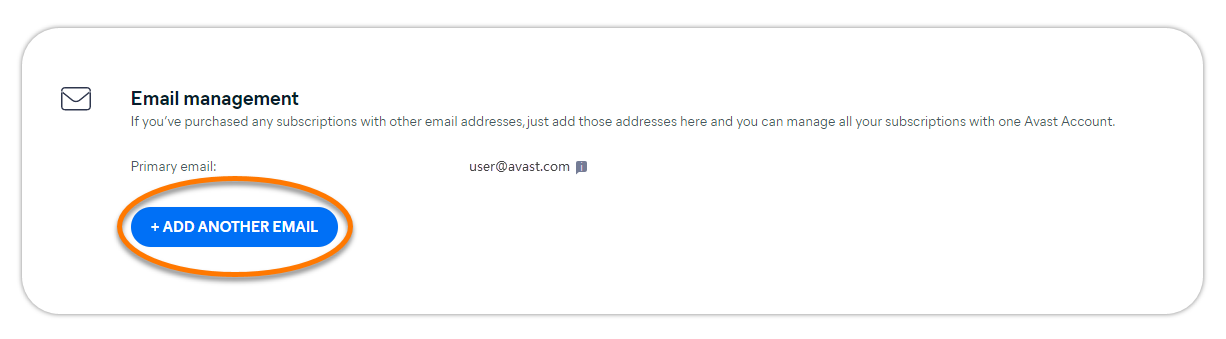
- Under Email management, click + Add another email.
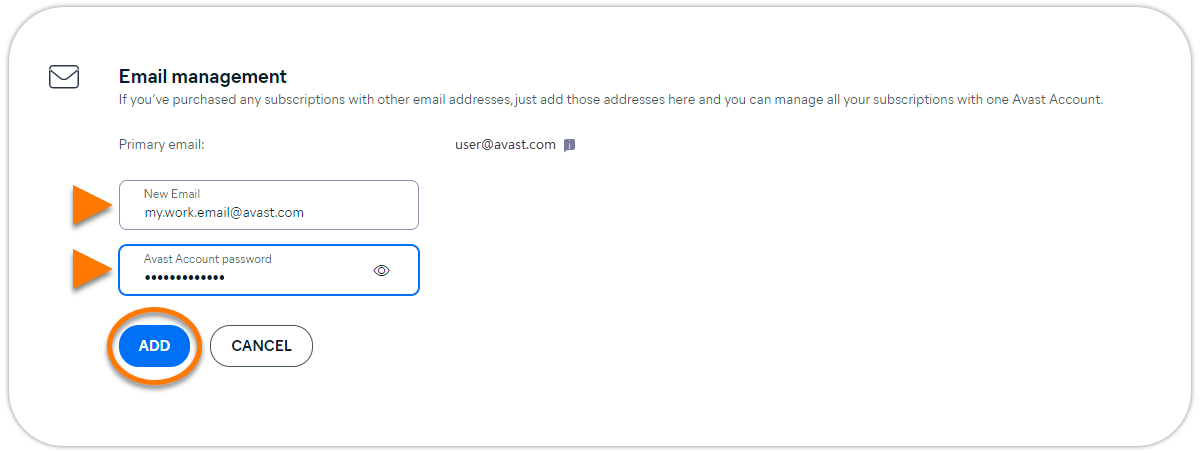
- Enter the email address that you provided when you purchased the missing subscription, type your Avast Account password, then click Add.
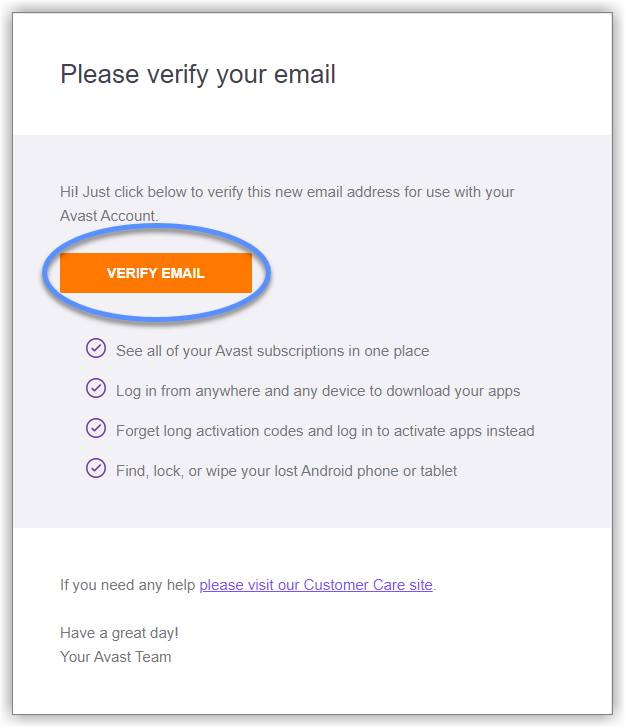
- Go to your email inbox and open the email from Avast with the subject Please verify your email address.

- Click the Verify email button.
- The email address is now added to your Avast Account. If the status is not updated, refresh your browser window, or sign in to your Avast Account again.
All of the subscriptions that you purchased using the newly added email address now appear on the My Subscriptions screen in your Avast Account.
Using new Avast Account Sign in
- Sign in to your new Avast Account.
- In the top-right corner of the page, click on the My Account and select Account Settings from the pull-down menu.
- Under Contact Information and Password, click Restore subscription.

- Enter the email address you used to buy your subscription and click Continue.
- Review the details and click Continue. You will receive an email with verification code to finish updating your email address.

- Check your email and enter the 6-digit verification code, then click Verify.
You have successfully restored your subscription(s).
Further recommendations
To learn more about managing subscriptions via your Avast Account, refer to the following article:
For more information about your Avast Account, refer to the following article:
Was this article helpful?

Keep your online identity private!
Browse like no one’s watching with Avast anti-tracking software.