
IS YOUR COMPUTER SLOW? RUN LIKE NEW
If they are not maintained, computers lose performance over time. Avast Cleanup Premium can help significantly improve the performance of your computer.
Avast One Sensitive Data Shield - Getting Started
Windows
This article is about the Sensitive Data Shield in Avast One. For information about the Avast Premium Security version of the Sensitive Data Shield, refer to the following article: Sensitive Data Shield - Getting Started.
Sensitive Data Shield provides an extra layer of protection for your sensitive documents against malware and unauthorized access. Refer to the sections in this article to learn how to use and manage all Sensitive Data Shield settings.
Scan for sensitive documents
Perform a scan of your Windows device to identify documents that contain personal information and are not already protected by Avast One.
- Open Avast One, then select
 Explore ▸ Sensitive Data Shield.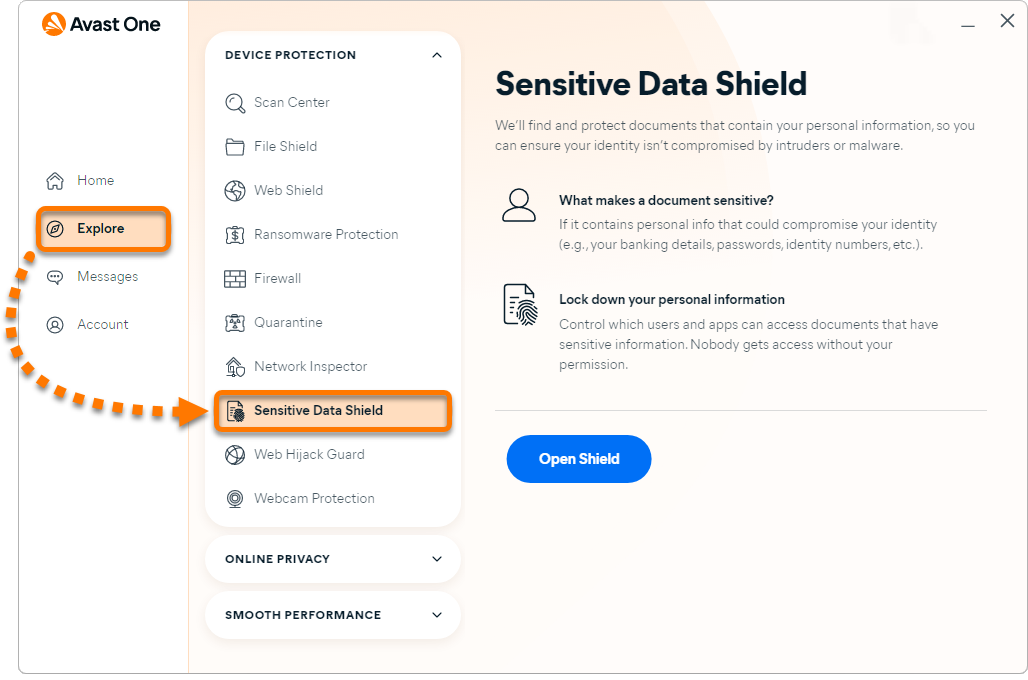
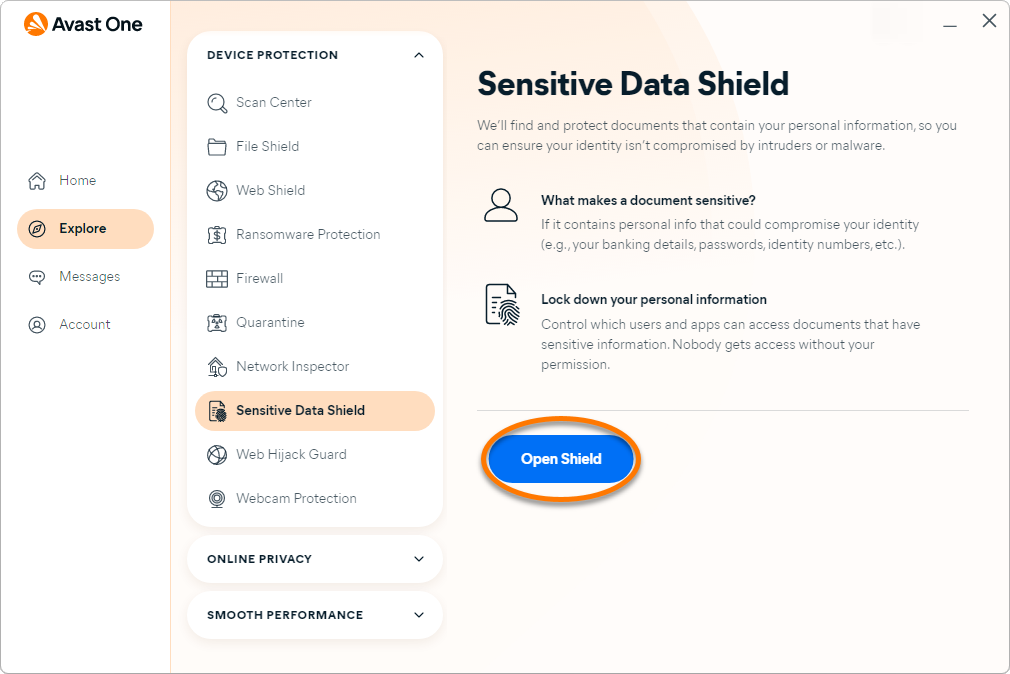
- Click Open Shield.
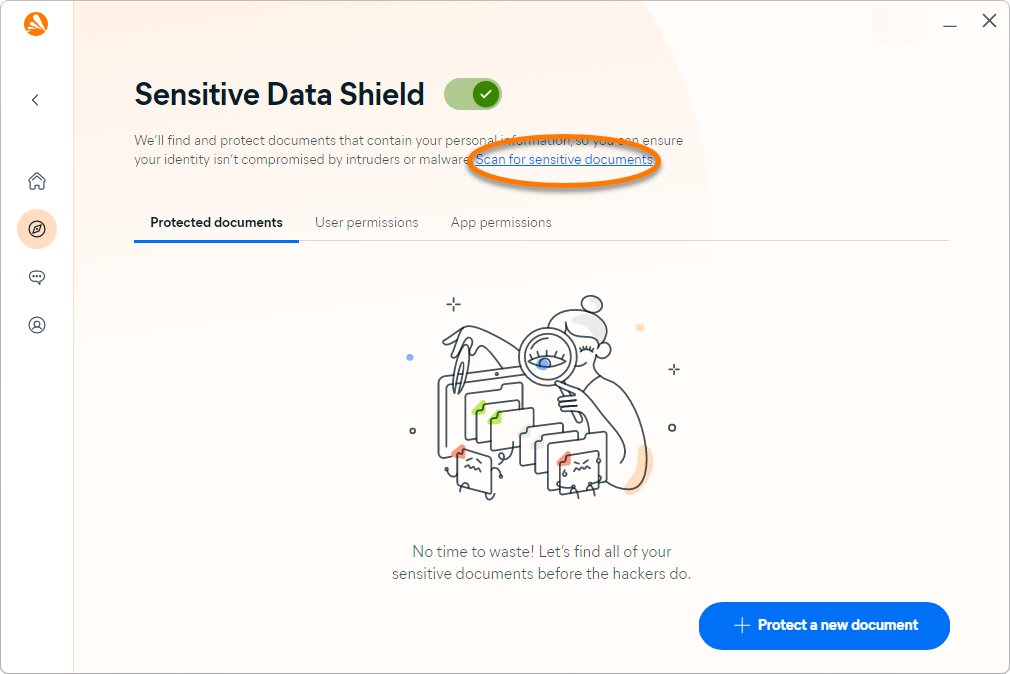
- Click Scan for sensitive documents.
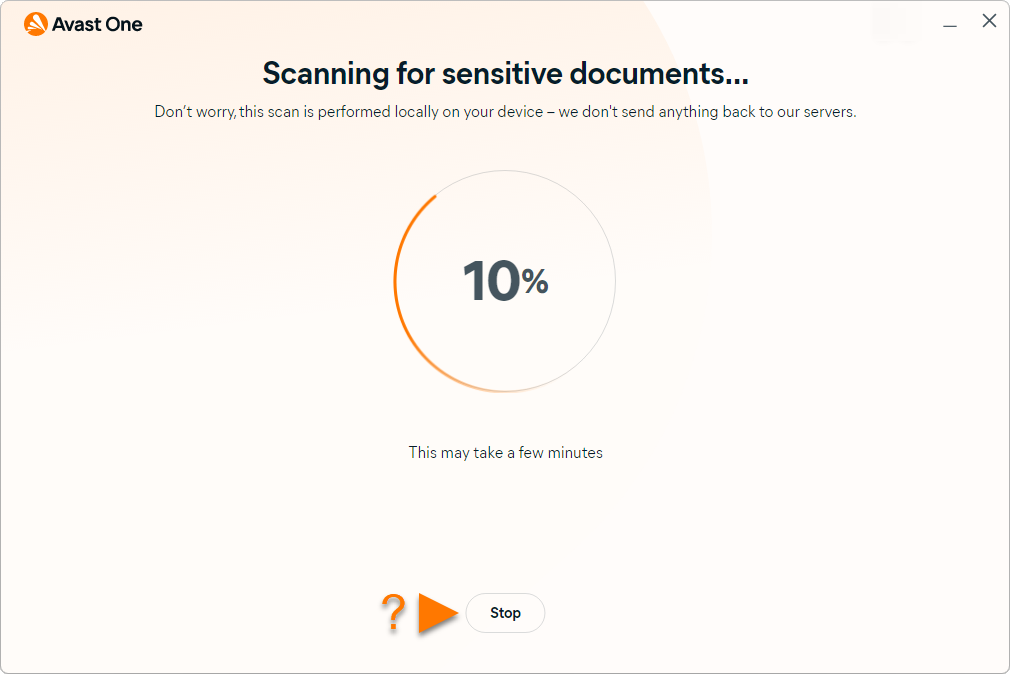
- Sensitive Data Shield starts scanning your Windows device for sensitive documents. If you want to cancel the scan, click Stop.
- When the scan completes, Sensitive Data Shield displays a list of unprotected files that may contain your personal data. This list includes the Document name, Location, and Type.
All found files are selected by default. Optionally, untick the box next to a file to deselect it. Click Protect all documents or Protect selected to start protecting all selected documents.
If no sensitive documents are found, this means your documents are already secured by other features in Avast One. Optionally, you can manually add files to Sensitive Data Shield.
- Click Done to return to the main Sensitive Data Shield screen.
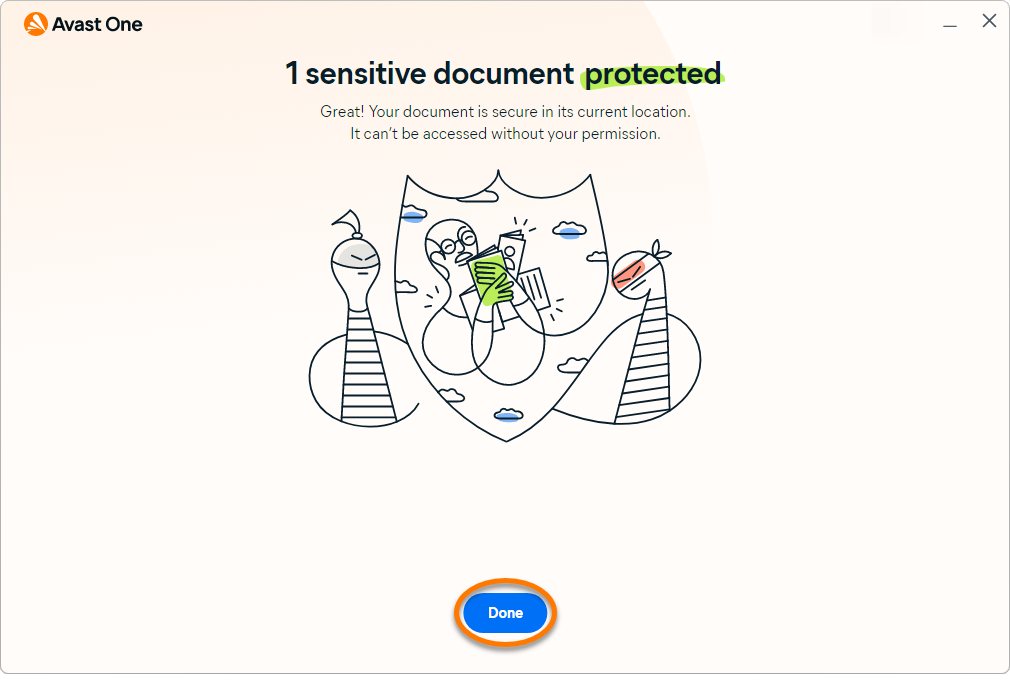
The selected documents are added to the Protected documents tab on the Sensitive Data Shield screen.
If any untrusted application, malware, or unauthorized user tries to access your protected files, Sensitive Data Shield blocks access or prompts you to confirm if the attempt should be blocked.
Protect new documents
To protect a new document, you can manually add it to the protected documents tab:
- Open Avast One, then select Explore ▸ Sensitive Data Shield.
- Click Open Shield.
- Click + Protect a new document, then select the document and click Open.
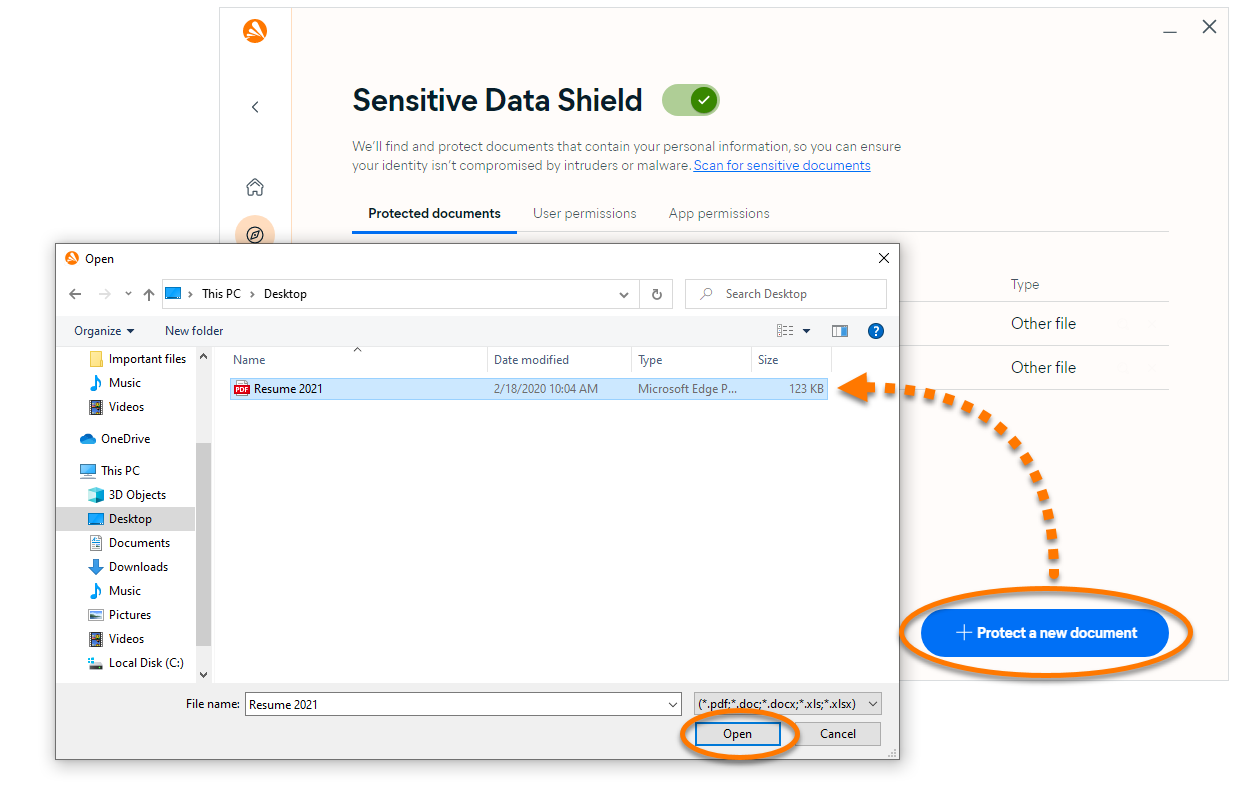
Your selected document is now protected by Sensitive Data Shield. If any untrusted application, malware, or unauthorized user tries to access the file, Sensitive Data Shield blocks access or prompts you to confirm if the attempt should be blocked.
To stop protecting a sensitive document, hover your cursor over the document in the Protected documents list, then click the X icon that appears on the right. Click Yes, stop protecting to confirm.

Manage user permissions
By default, Sensitive Data Shield is set to block other user accounts on your Windows device from accessing your protected documents. This is useful if you have sensitive documents stored on a shared Windows device. We recommend keeping this option ticked at all times to ensure only authorized users have access to your sensitive documents.
To change this setting, go to Explore ▸ Sensitive Data Shield ▸ Open Shield and select the User permissions tab. Untick the box next to Block other user accounts on this PC from accessing protected documents.

If you share your Windows user account login details with someone else then they will be able to view your protected files.
Manage app permissions
By default, known and trusted applications are allowed access to your protected documents. Unknown, untrusted, or blocked applications are not able to access these files. Optionally, you can add applications to the app permissions list and specify if they are always blocked or allowed access to your protected files.
Add an app
- Open Avast One, then select Explore ▸ Sensitive Data Shield.
- Click Open Shield.
- Select the App permissions tab.
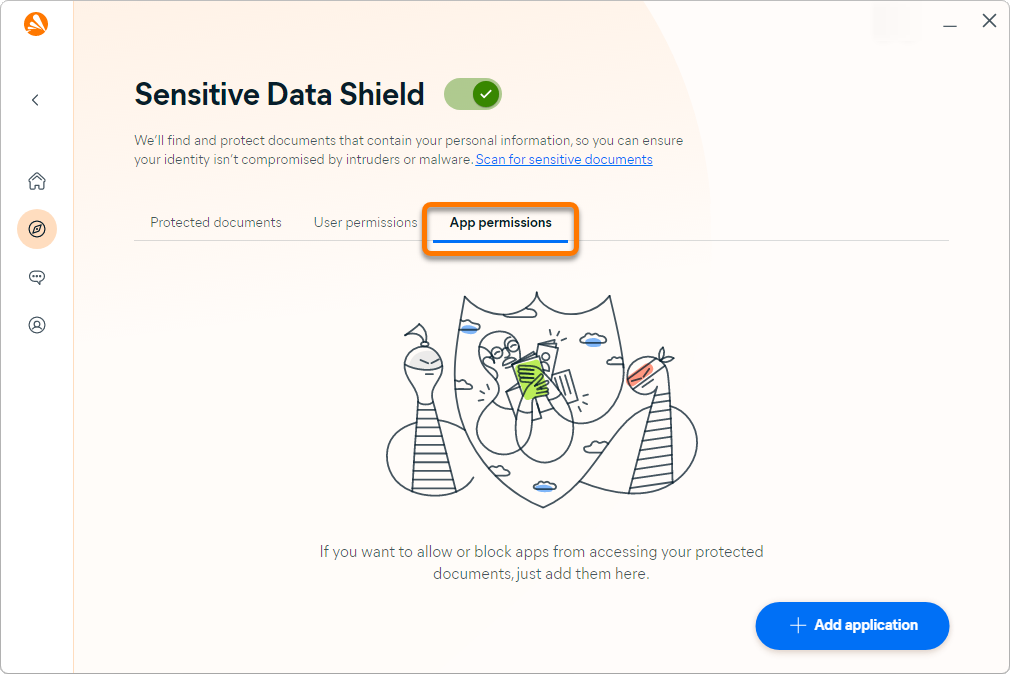
- Click + Add application.
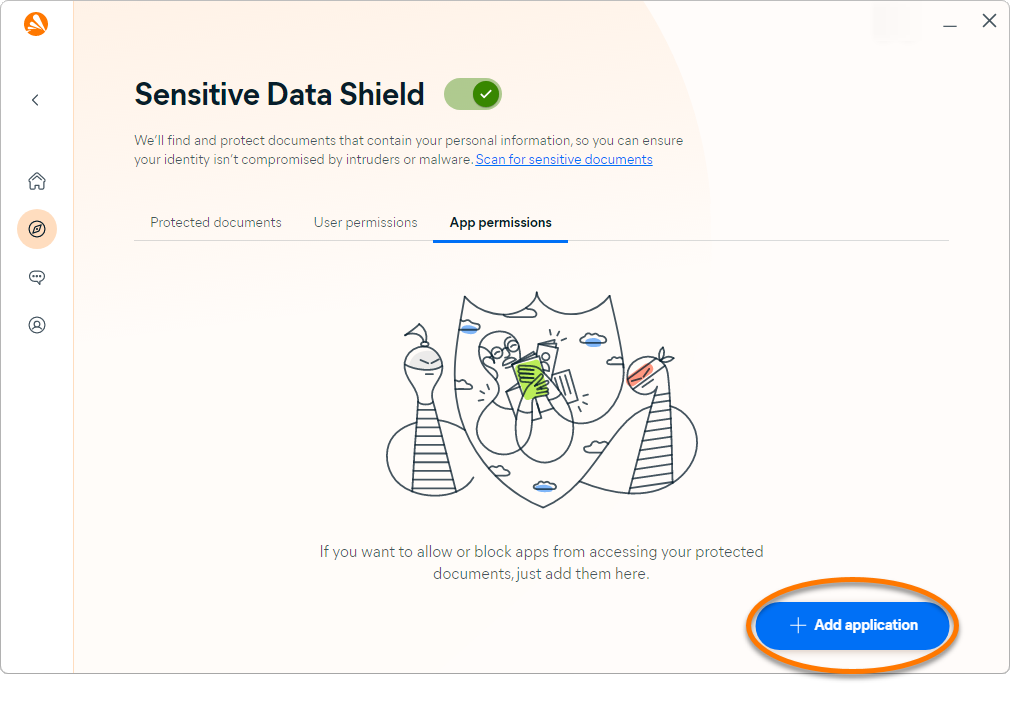
- Select an application using either method below:
- Select from list: Click Add next to the application you want to block or allow.
- Select by location: Click Select app manually, then locate the application on your Windows device and click Open.
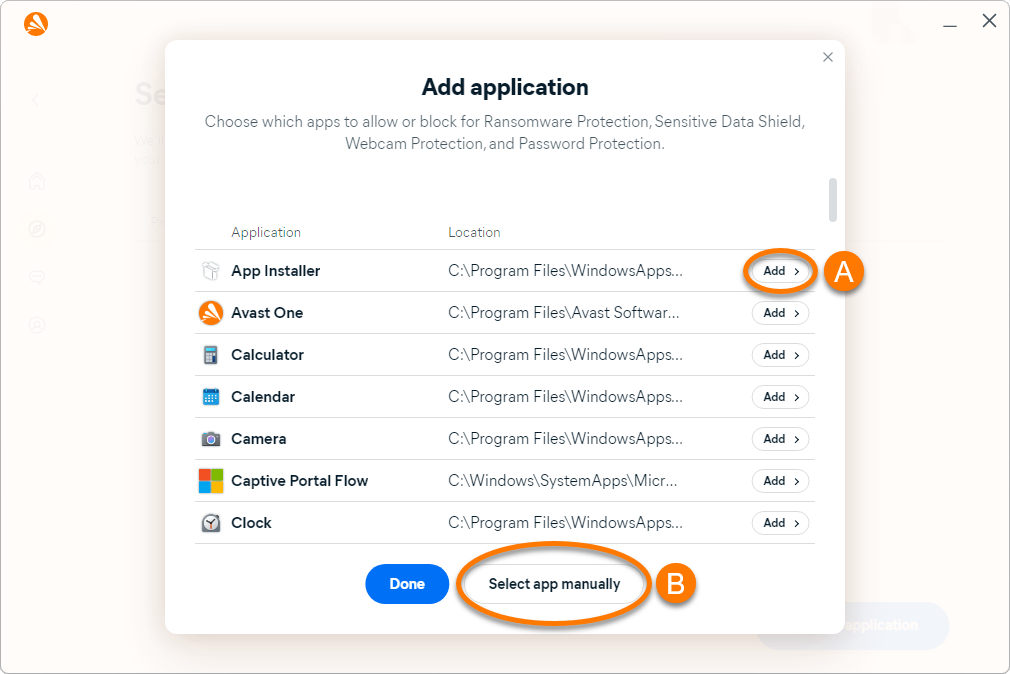
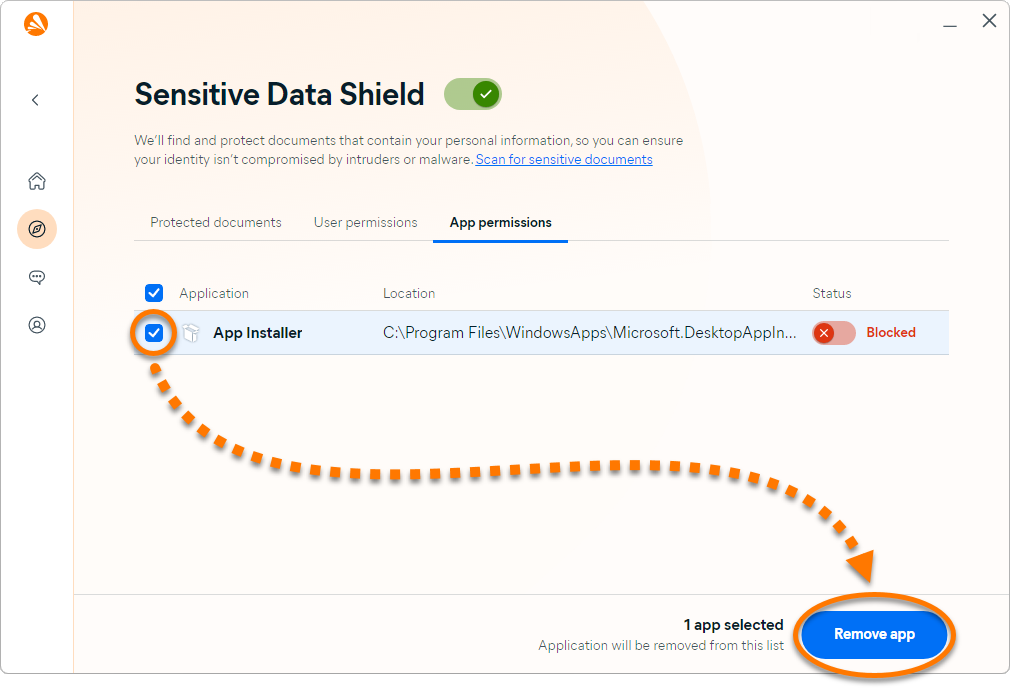
The application is added to the app permissions list and the status is set to Blocked. To change the status to Allowed, click the red (Blocked) slider next to an application in the list so that it changes to green (Allowed).
Remove an app
To remove an application from the app permissions list:
- Tick the box next to the relevant app, then click Remove app.
Disable Sensitive Data Shield
Sensitive Data Shield is enabled by default, but can be disabled for troubleshooting purposes by following the steps below:
- Open Avast One, then select Explore ▸ Sensitive Data Shield.
- Click Open Shield.
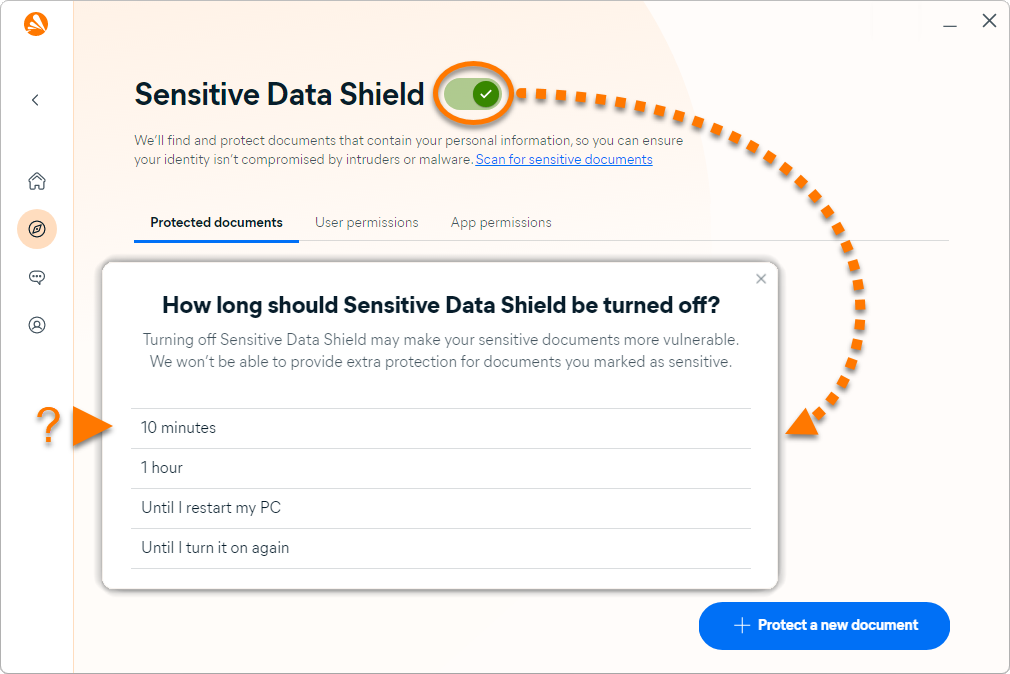
- Click the green (ON) slider, then specify for how long Sensitive Data Shield will remain disabled.
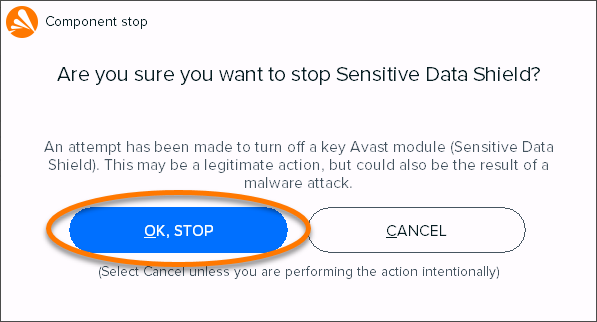
- Click OK, stop to confirm.
Sensitive Data Shield is now disabled. To enable it again, click the red (OFF) slider so that it changes to green (ON).
Further recommendations
For more information about Sensitive Data Shield, refer to the following article:
Was this article helpful?

Keep your online identity private!
Browse like no one’s watching with Avast anti-tracking software.