Promotional banner image

IS YOUR COMPUTER SLOW? RUN LIKE NEW

If they are not maintained, computers lose performance over time. Avast Cleanup Premium can help significantly improve the performance of your computer.

Bank Mode - Getting Started

Windows

Your Avast product:

This article is about using Avast Premium Security's Bank Mode feature with Google Chrome, Mozilla Firefox, or Microsoft Edge web browsers.

For information about using Bank Mode with Avast Secure Browser, refer to the following article: Avast Secure Browser Bank Mode - Getting Started.

Bank Mode is a paid feature available in Avast Premium Security that provides a virtual desktop that acts as a cleaner, safer PC within your real PC. The Bank Mode virtual desktop helps protect you against the injection of malicious scripts, keystroke logging, and screenshot attempts by third-party apps. We recommend using Bank Mode each time you want to access a banking website or pay online.

Open Bank Mode

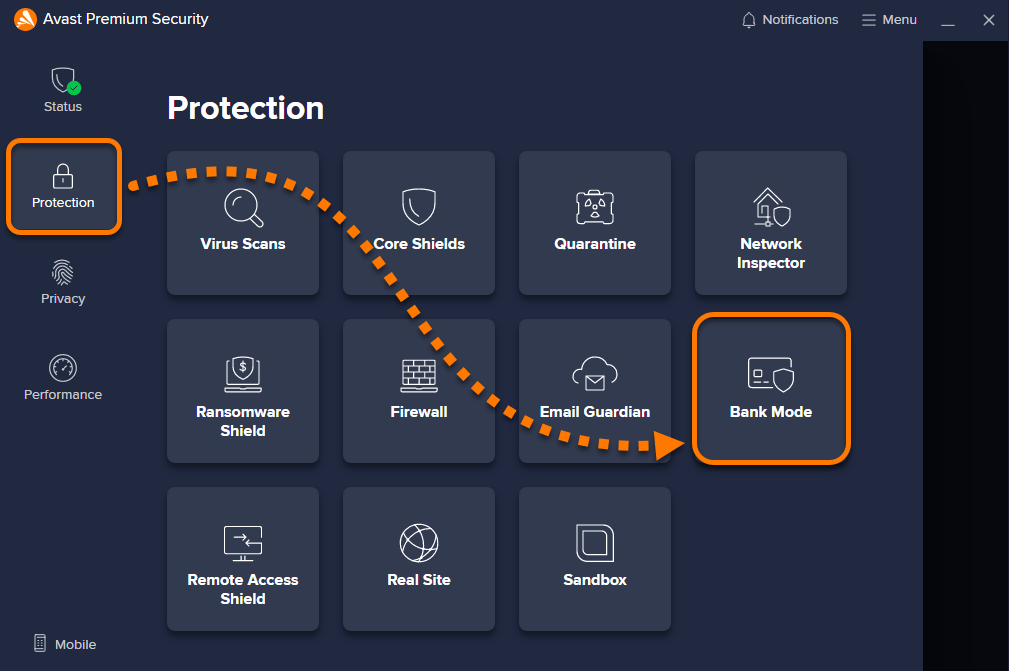
  1. Open Avast Premium Security and go to Protection ▸ Bank Mode.
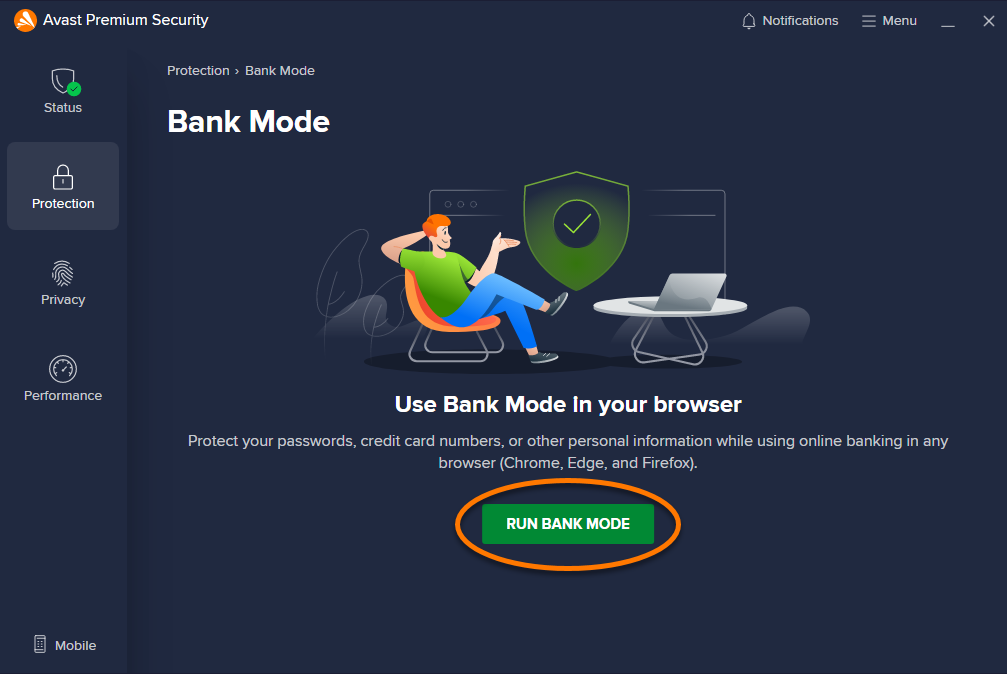
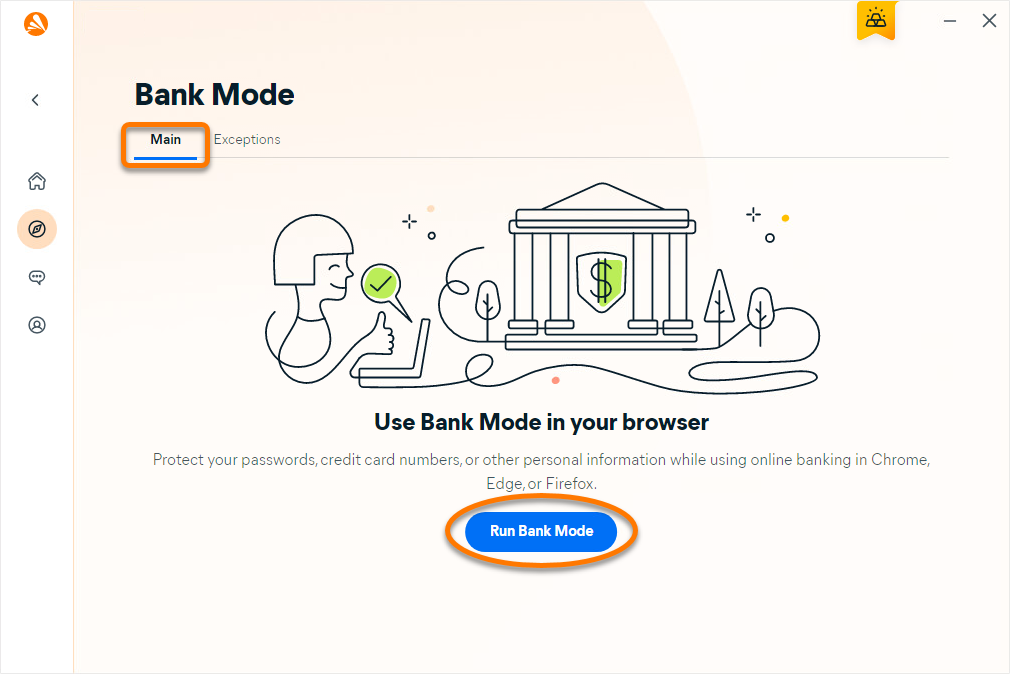
  2. Click Run Bank Mode to open the virtual desktop.
 

Manage Bank Mode

Once Bank Mode is open, you can easily switch back to your standard desktop, add applications to the taskbar, or exit Bank Mode completely.

Switch between Bank Mode and your standard desktop

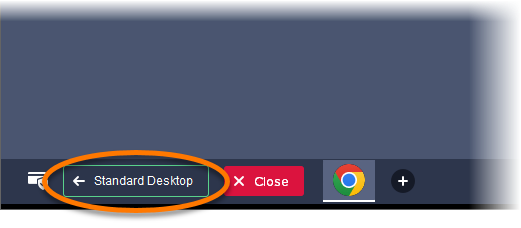
  1. To switch to your standard desktop and run Bank Mode in the background, click Standard Desktop in the taskbar of the Bank Mode virtual desktop.
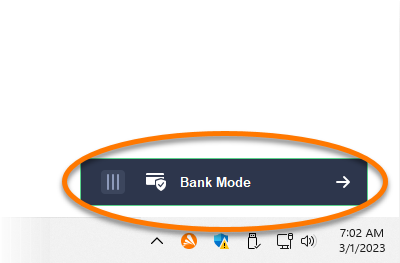
  2. To return to the Bank Mode virtual desktop, click the Bank Mode button in the bottom right of your standard desktop.
 

Pin an application to the Bank Mode taskbar

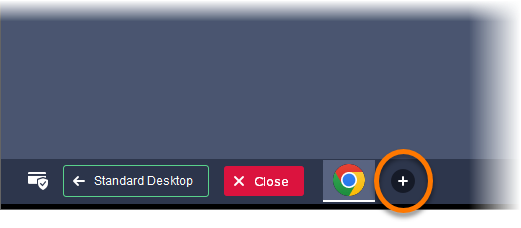
  1. Click the + plus icon in the taskbar of the Bank Mode virtual desktop.
  2. Select the application you want to add to the Bank Mode taskbar, then click Open.
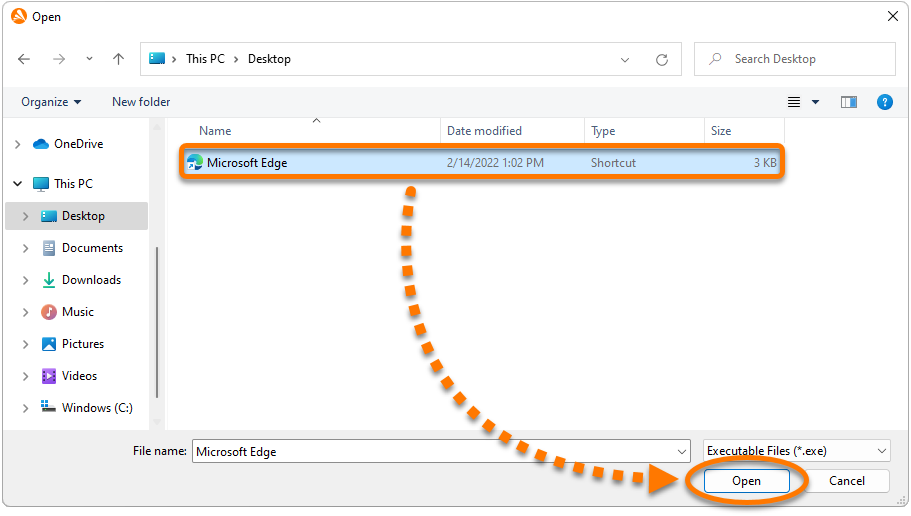
  3. Click OK in the confirmation dialog that appears.

    To remove an application from the Bank Mode taskbar, right-click the application icon on the taskbar, then click Unpin this program from the taskbar.
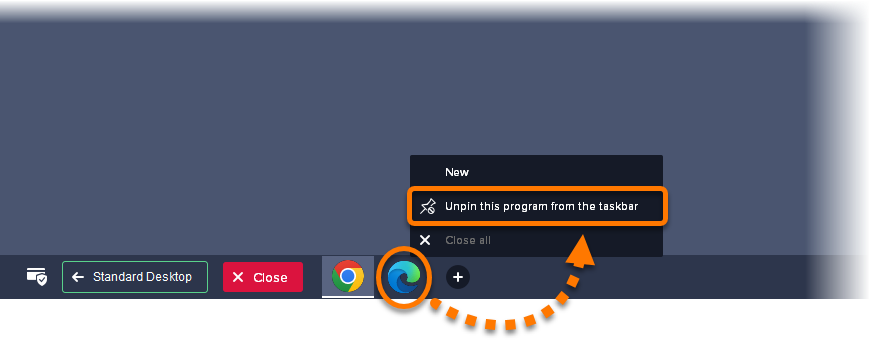
 

Exit Bank Mode

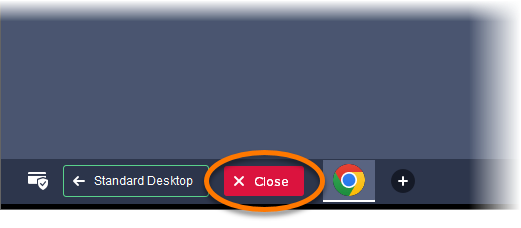
  1. Click Close in the taskbar of the Bank Mode virtual desktop.
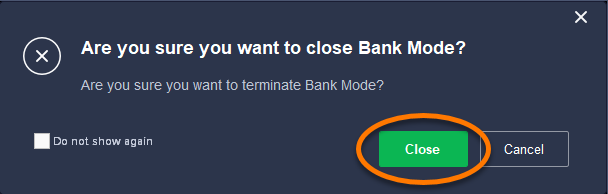
  2. Click Close in the confirmation dialog that appears.
Troubleshooting

If you have trouble opening Bank Mode, we recommend the following:

  • Ensure that your default browser is set to Google Chrome, Mozilla Firefox, or Microsoft Edge.
  • Ensure the latest version of your Avast Premium Security application is installed on your PC. For instructions, refer to the following article: Updating Avast Antivirus and Avast One.
  • Repair your Avast Premium Security application. For instructions, refer to the following article: Repairing Avast Antivirus.

This article is about using Avast One's Bank Mode feature with Google Chrome, Mozilla Firefox, or Microsoft Edge web browsers.

For information about using Bank Mode with Avast Secure Browser, refer to the following article: Avast Secure Browser Bank Mode - Getting Started.

Bank Mode is a paid feature available in Avast One that provides a virtual desktop that acts as a cleaner, safer PC within your real PC. The Bank Mode virtual desktop helps protect you against the injection of malicious scripts, keystroke logging, and screenshot attempts by third-party apps. We recommend using Bank Mode each time you want to access a banking website or pay online.

Open Bank Mode

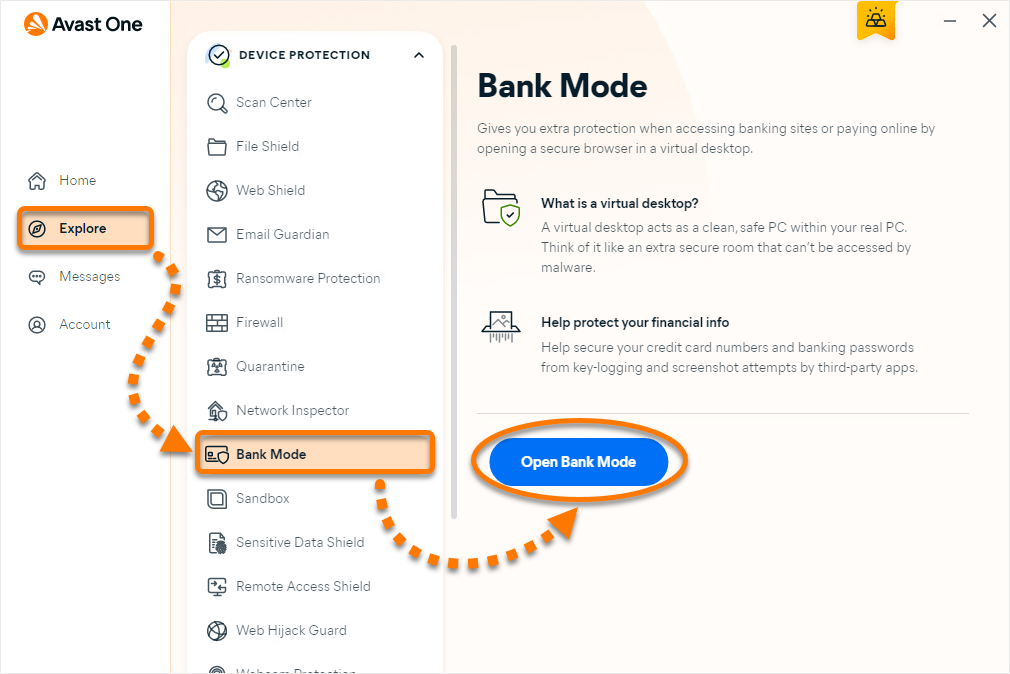
  1. Open Avast One and go to Explore ▸ Bank Mode ▸ Open Bank Mode.
  2. Ensure the Main tab is selected and click Run Bank Mode to open the virtual desktop.
 

Manage Bank Mode

Once Bank Mode is open, you can easily switch back to your standard desktop, add applications to the taskbar, or exit Bank Mode completely.

Switch between Bank Mode and your standard desktop

  1. To switch to your standard desktop and run Bank Mode in the background, click Standard Desktop in the taskbar of the Bank Mode virtual desktop.
  2. To return to the Bank Mode virtual desktop, click the Bank Mode button in the bottom right of your standard desktop.
 

Pin an application to the Bank Mode taskbar

  1. Click the + plus icon in the taskbar of the Bank Mode virtual desktop.
  2. Select the application you want to add to the Bank Mode taskbar, then click Open.
  3. Click OK in the confirmation dialog that appears.

    To remove an application from the Bank Mode taskbar, right-click the application icon on the taskbar, then click Unpin this program from the taskbar.


Exit Bank Mode

  1. Click Close in the taskbar of the Bank Mode virtual desktop.
  2. Click Close in the confirmation dialog that appears.

Add Bank Mode exceptions

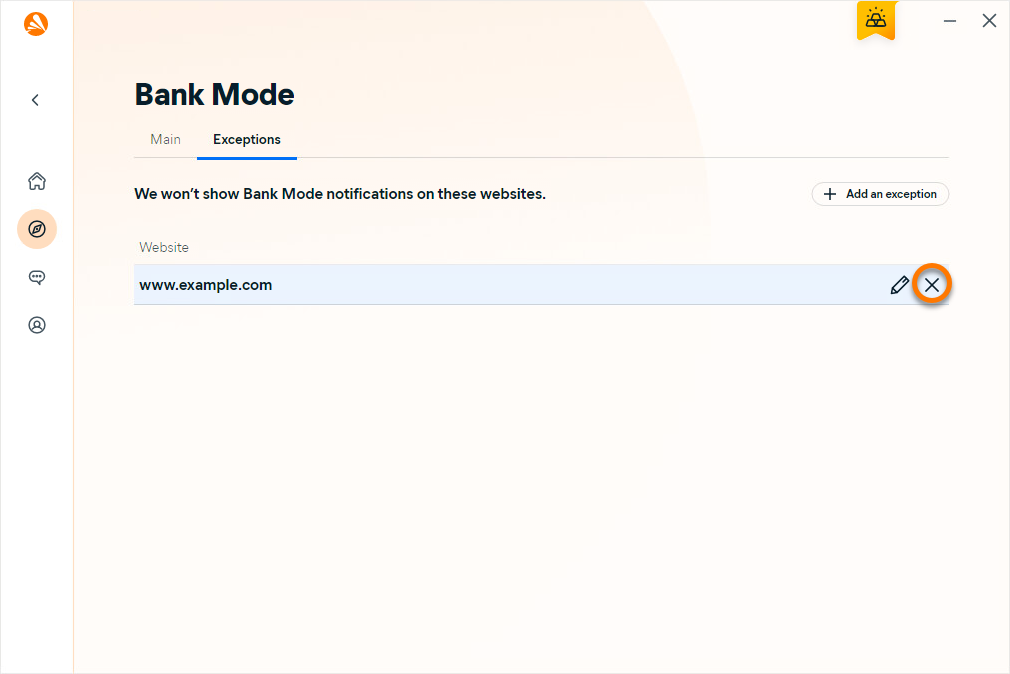
  1. Open Avast One and go to Explore ▸ Bank Mode ▸ Open Bank Mode.
  2. Select the Exceptions tab and click Add an exception.
  3. Type the website URL into the text box and click Add.
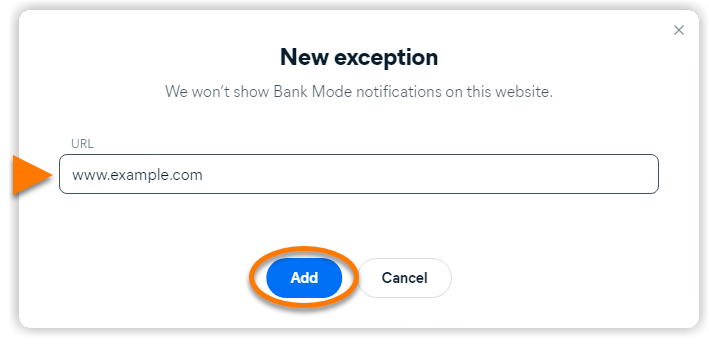
Avast One does not show Bank Mode notifications on websites added to the exception list.

To remove a website from the exception list, hover the cursor over the website's panel and click the X icon.

Troubleshooting

If you have trouble opening Bank Mode, we recommend the following:

  • Ensure that your default browser is set to Google Chrome, Mozilla Firefox, or Microsoft Edge.
  • Ensure the latest version of your Avast One application is installed on your PC. For instructions, refer to the following article: Updating Avast Antivirus and Avast One.

DocID: use-antivirus-bank-modeLast modified: 09/03/2026

Was this article helpful?

Promotional banner image

Keep your online identity private!

Browse like no one’s watching with Avast anti-tracking software.

Need more help?

Contact us
Avast account
Visit our forums
Visit academy