The instructions below apply to Windows 11 only. To see the detailed instructions for older versions of Windows, refer to the article: Repairing Avast Antivirus.
-
Right-click the Windows  Start icon and select Apps and Features from the menu that appears.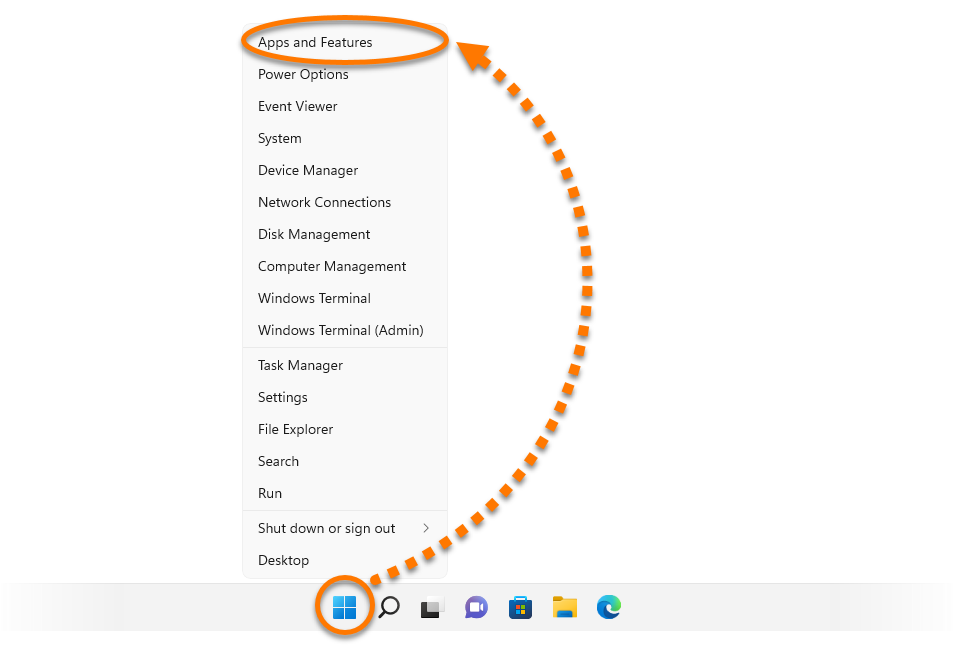
-
Click ⋮ Options (the three dots) and select Uninstall twice. 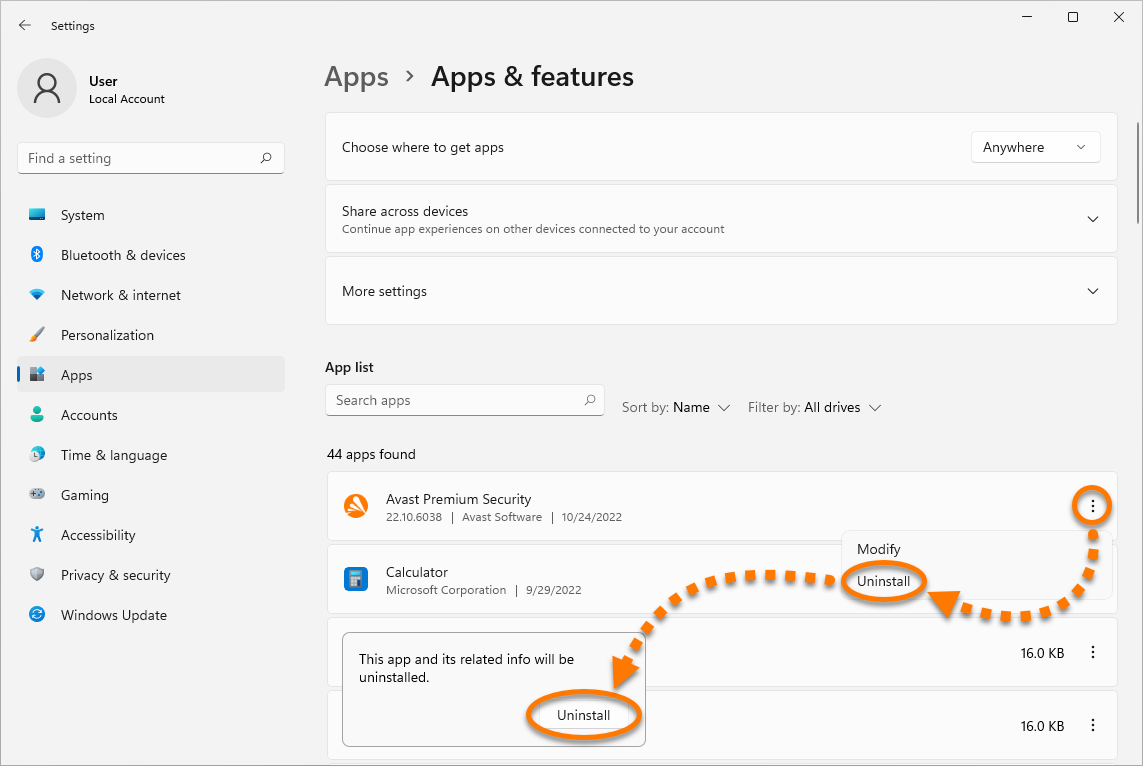
-
If prompted for permission by the User Account Control dialog, click Yes. 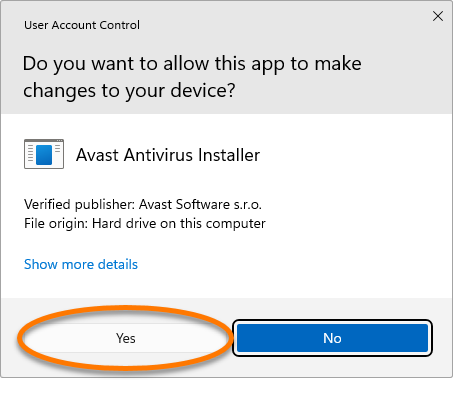
-
When the Avast Setup window appears, click Repair. 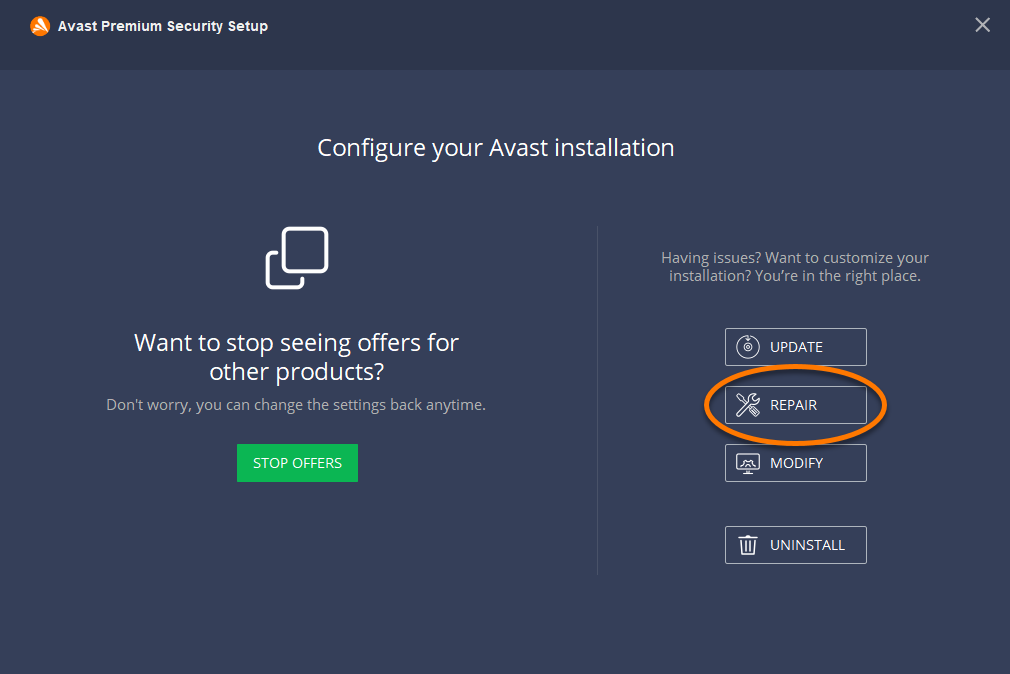
-
Wait while setup repairs your Avast application. 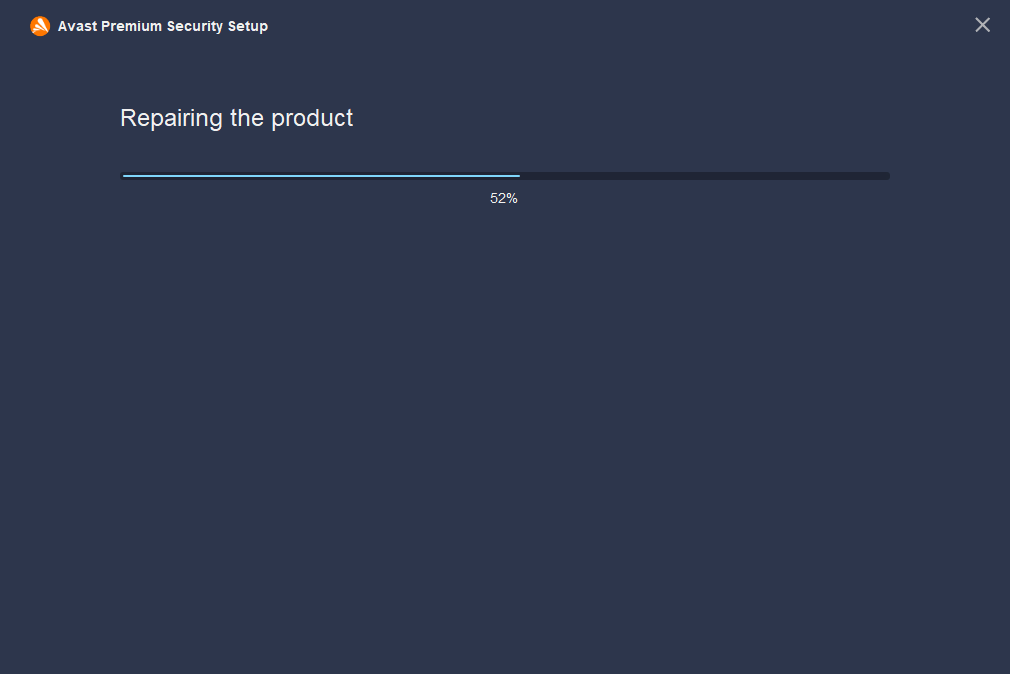
-
If prompted, click Restart computer to immediately reboot your PC and complete the repair. If a restart is not necessary, click Done. 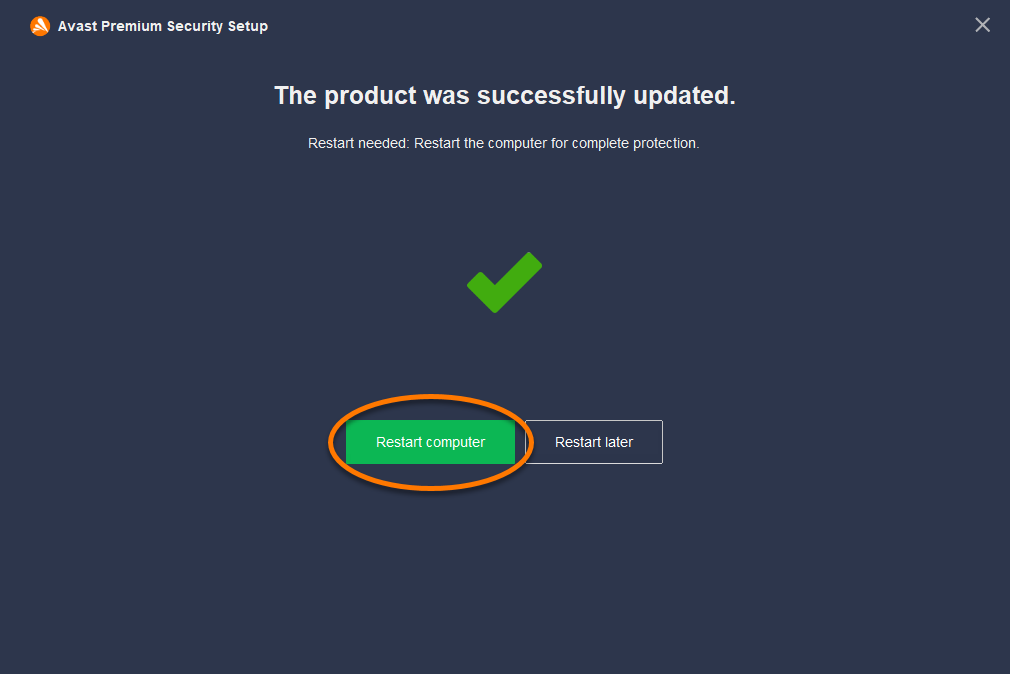
If you still see the error message, refer to Further recommendations for additional troubleshooting steps.
Further recommendations
If the issue persists after following the instructions above, we recommend you reinstall Avast Antivirus. Follow the steps below:
-
Uninstall your version of Avast Antivirus. For detailed instructions, refer to the relevant article below:
-
Restart your PC.
-
After your version of Avast Antivirus is completely removed from your PC, reinstall the application. For detailed instructions, refer to the relevant article below:
The application should open normally now.
Ensure you are logged in to Windows as a user with administrator permissions.
-
On your keyboard, press the 
R key simultaneously to open the Run dialog box. 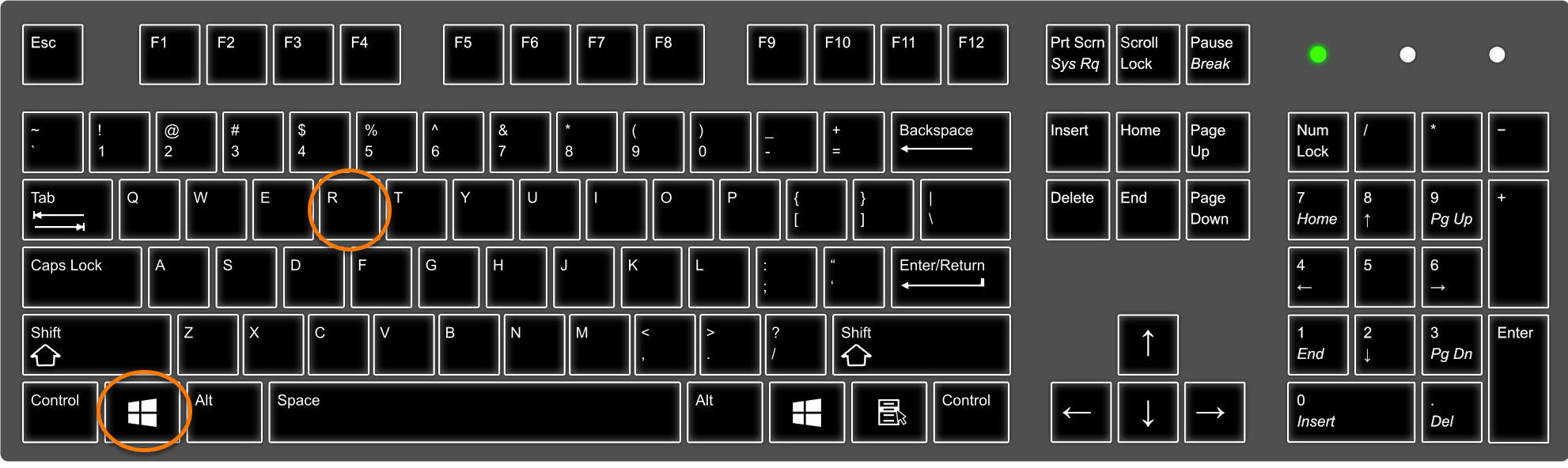
-
Type services.msc in the Open field and click OK. 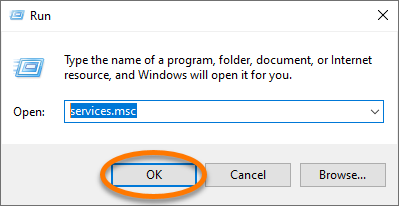
-
In the Services console, locate and right-click Avast SecureLine VPN, and select Properties. 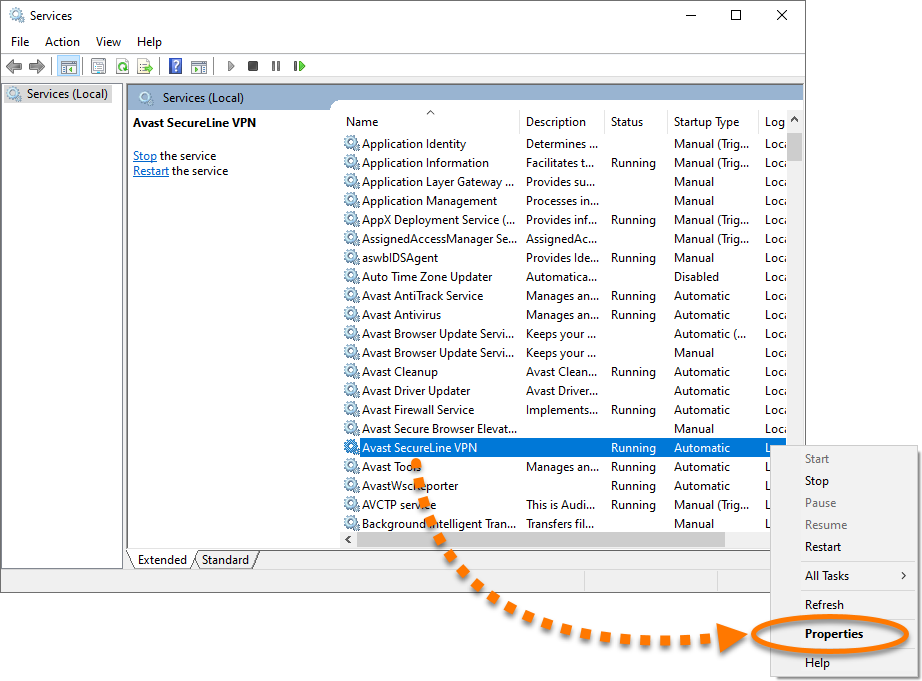
-
Ensure the General tab is selected, then click the drop-down menu next to Startup type and select Automatic. Click Apply to confirm changes. 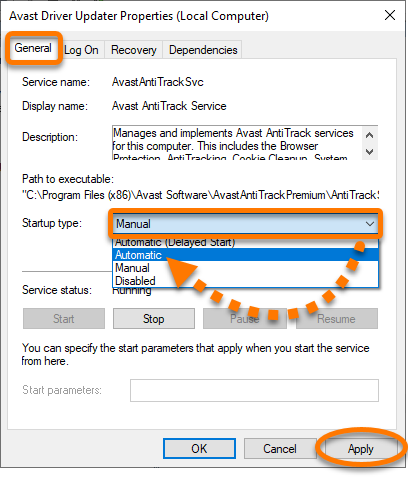
-
If the service stops running, click Start in the Service status section. 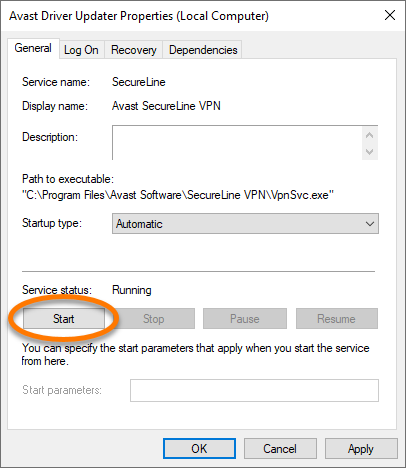
-
Restart your PC and try to open Avast SecureLine VPN again.
If you still see the error message, refer to Further recommendations for additional troubleshooting steps.
Further recommendations
If the issue persists after following the instructions in this article, we recommend you reinstall Avast SecureLine VPN. Follow the steps below:
-
Uninstall Avast SecureLine VPN. For detailed instructions, refer to the following article:
-
Restart your PC.
-
After Avast SecureLine VPN is completely removed from your PC, reinstall the application. For detailed instructions, refer to the following article:
The application should open normally now.
Ensure you are logged in to Windows as a user with administrator permissions.
-
On your keyboard, press the R key simultaneously to open the Run dialog box.
-
Type services.msc in the Open field and click OK.
-
In the Services console, locate and right-click Avast Cleanup, and select Properties. 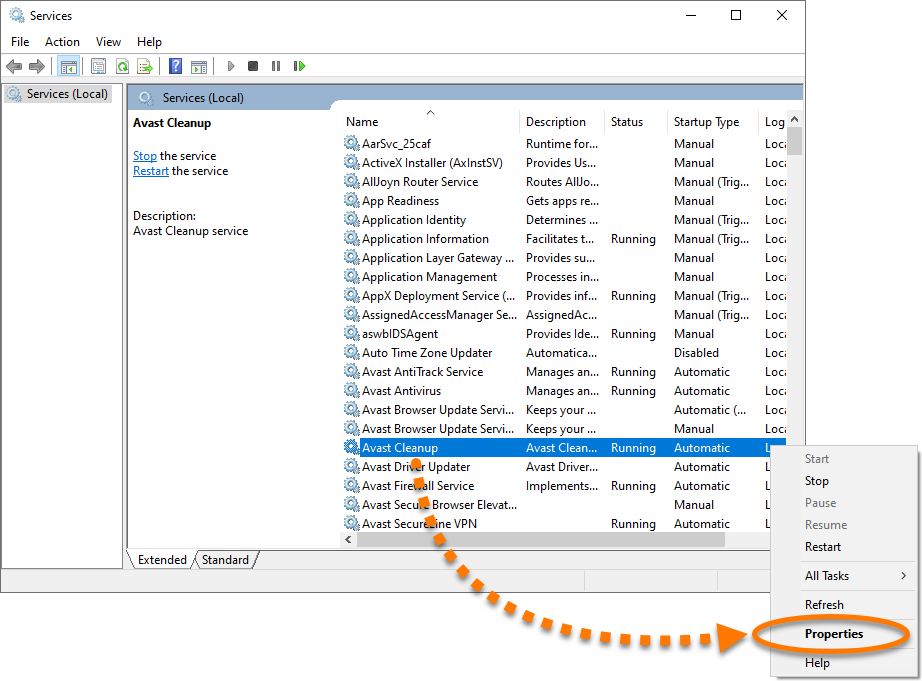
-
Ensure the General tab is selected, then click the drop-down menu next to Startup type and select Automatic. Click Apply to confirm changes. 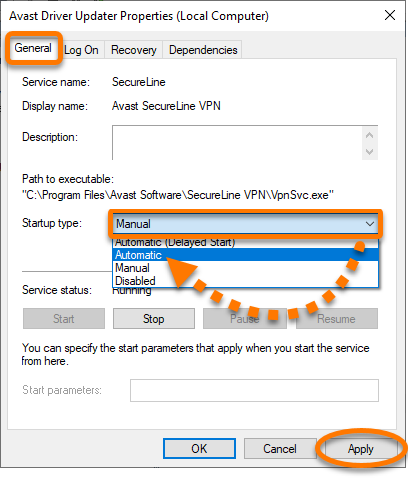
-
If the service stops running, click Start in the Service status section. 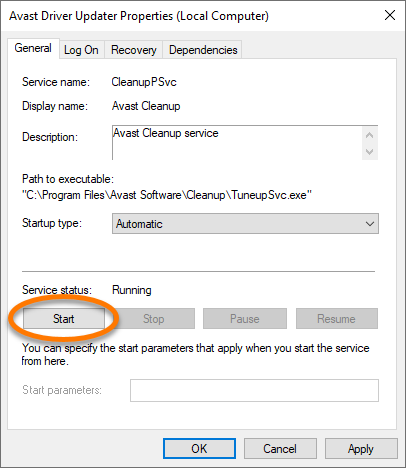
-
Restart your PC and try to open Avast Cleanup Premium again.
If you still see the error message, refer to Further recommendations for additional troubleshooting steps.
Further recommendations
If the issue persists after following the instructions in this article, we recommend you reinstall Avast Cleanup Premium. Follow the steps below:
-
Uninstall Avast Cleanup Premium. For detailed instructions, refer to the following article:
-
Restart your PC.
-
After Avast Cleanup Premium is completely removed from your PC, reinstall the application. For detailed instructions, refer to the following article:
The application should open normally now.
Ensure you are logged in to Windows as a user with administrator permissions.
-
On your keyboard, press the R key simultaneously to open the Run dialog box.
-
Type services.msc in the Open field and click OK.
-
In the Services console, locate and right-click Avast AntiTrack Service, and select Properties. 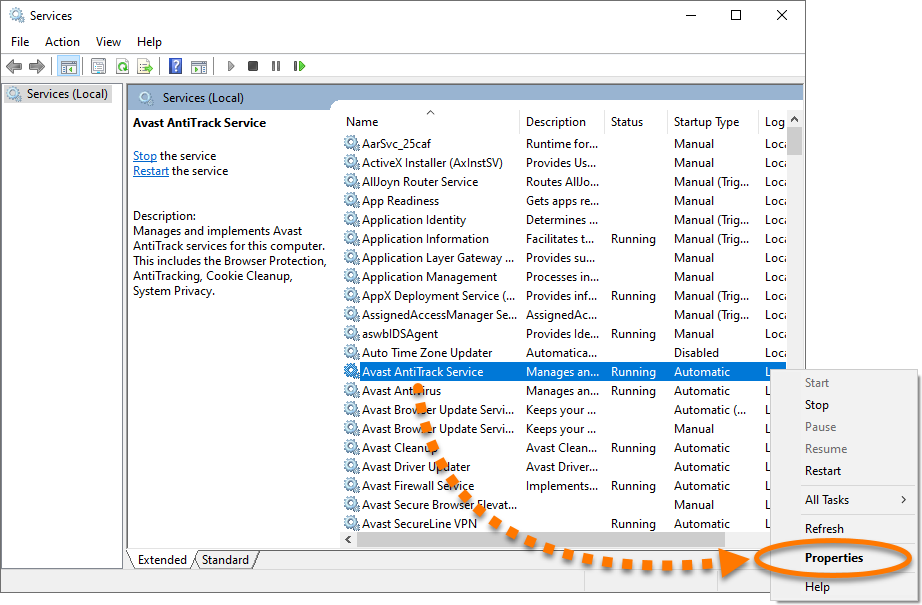
-
Ensure the General tab is selected, then click the drop-down menu next to Startup type and select Automatic. Click Apply to confirm changes. 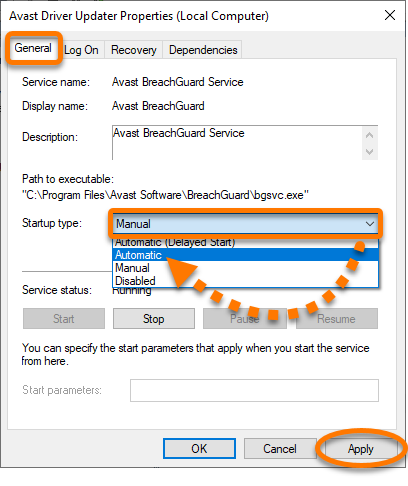
-
If the service stops running, click Start in the Service status section. 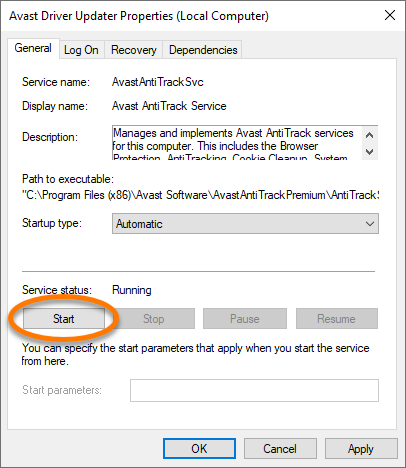
-
Restart your PC and try to open Avast AntiTrack again.
If you still see the error message, refer to Further recommendations for additional troubleshooting steps.
Further recommendations
If the issue persists after following the instructions in this article, we recommend you reinstall Avast AntiTrack. Follow the steps below:
-
Uninstall Avast AntiTrack. For detailed instructions, refer to the following article:
-
Restart your PC.
-
After Avast AntiTrack is completely removed from your PC, reinstall the application. For detailed instructions, refer to the following article:
The application should open normally now.
Ensure you are logged in to Windows as a user with administrator permissions.
-
On your keyboard, press the R key simultaneously to open the Run dialog box.
-
Type services.msc in the Open field and click OK.
-
In the Services console, locate and right-click Avast Driver Updater, and select Properties. 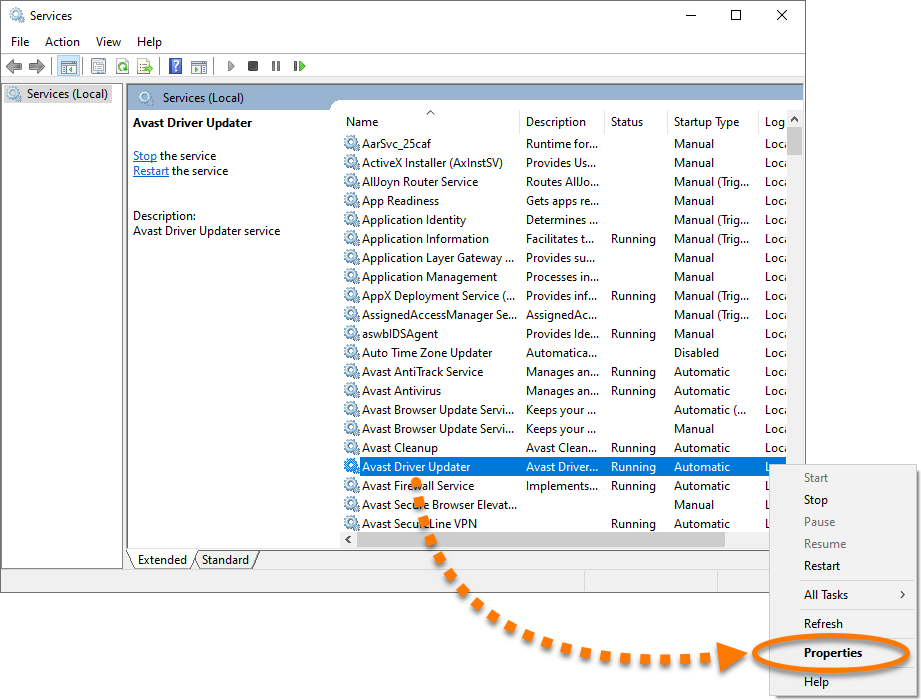
-
Ensure the General tab is selected, then click the drop-down menu next to Startup type and select Automatic. Click Apply to confirm changes. 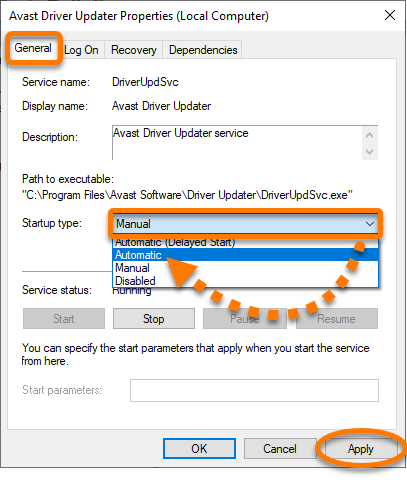
-
If the service stops running, click Start in the Service status section. 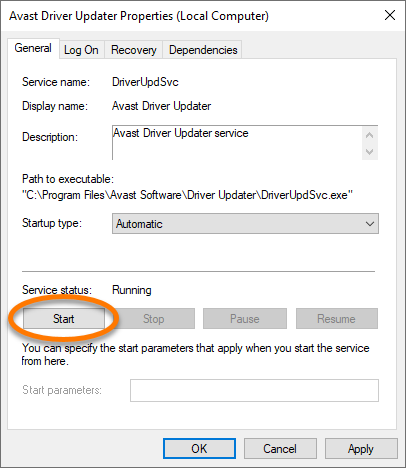
-
Restart your PC and try to open Avast Driver Updater again.
If you still see the error message, refer to Further recommendations for additional troubleshooting steps.
Further recommendations
If the issue persists after following the instructions in this article, we recommend you reinstall Avast Driver Updater. Follow the steps below:
-
Uninstall Avast Driver Updater. For detailed instructions, refer to the following article:
-
Restart your PC.
-
After Avast Driver Updater is completely removed from your PC, reinstall the application. For detailed instructions, refer to the following article:
The application should open normally now.
Ensure you are logged in to Windows as a user with administrator permissions.
-
On your keyboard, press the R key simultaneously to open the Run dialog box.
-
Type services.msc in the Open field and click OK.
-
In the Services console, locate and right-click Avast BreachGuard, and select Properties. 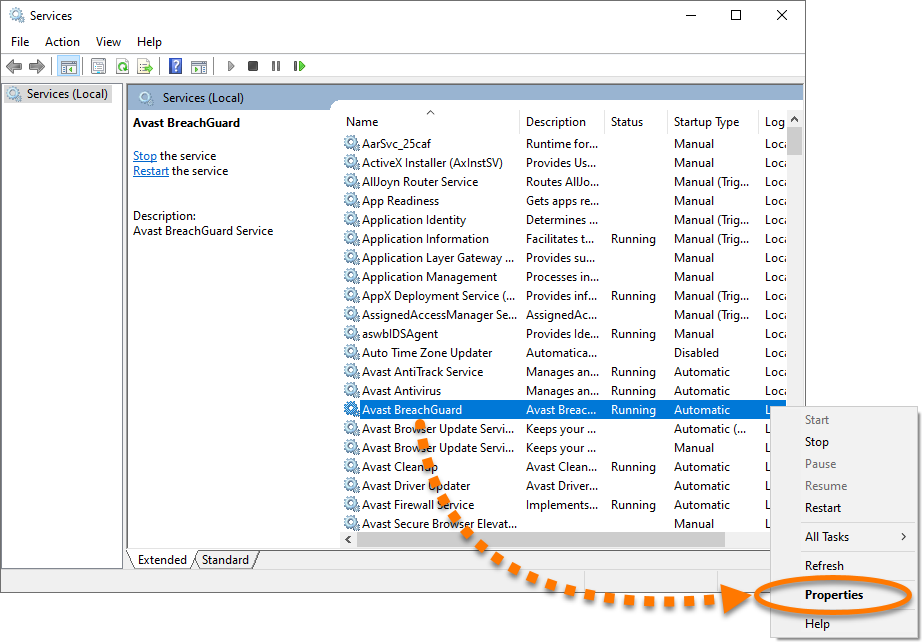
-
Ensure the General tab is selected, then click the drop-down menu next to Startup type and select Automatic. Click Apply to confirm changes. 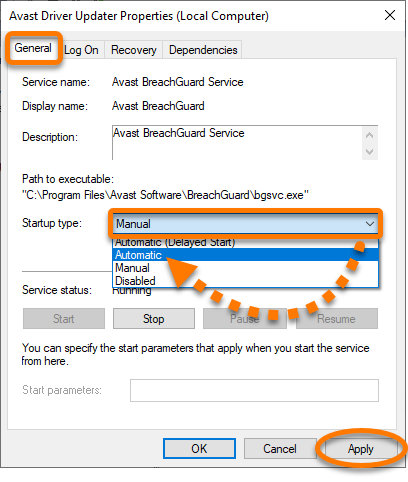
-
If the service stops running, click Start in the Service status section. 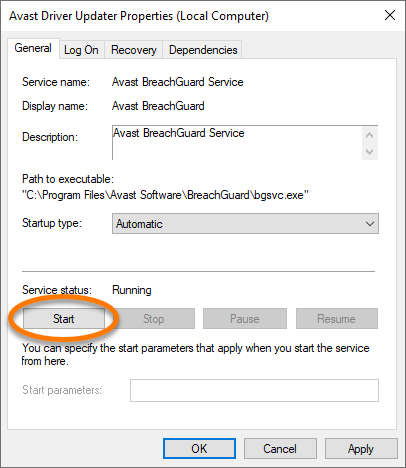
-
Restart your PC and try to open Avast BreachGuard again.
If you still see the error message, refer to Further recommendations for additional troubleshooting steps.
Further recommendations
If the issue persists after following the instructions in this article, we recommend you reinstall Avast BreachGuard. Follow the steps below:
-
Uninstall Avast BreachGuard. For detailed instructions, refer to the following article:
-
Restart your PC.
-
After Avast BreachGuard is completely removed from your PC, reinstall the application. For detailed instructions, refer to the following article:
The application should open normally now.

