Promotional banner image

IS YOUR COMPUTER SLOW? RUN LIKE NEW

If they are not maintained, computers lose performance over time. Avast Cleanup Premium can help significantly improve the performance of your computer.

Uninstalling Avast BreachGuard

Windows, Mac

If you have a paid Avast BreachGuard subscription, uninstalling the application does not automatically cancel your subscription. For information about canceling your subscription, refer to the following article: Canceling an Avast subscription - Frequently Asked Questions.

Uninstall Avast BreachGuard

To uninstall Avast BreachGuard from a Windows device, select the relevant tab below according to your Windows version.

Uninstall via Start menu

Windows 11

To uninstall BreachGuard, follow the GIF or the steps below:

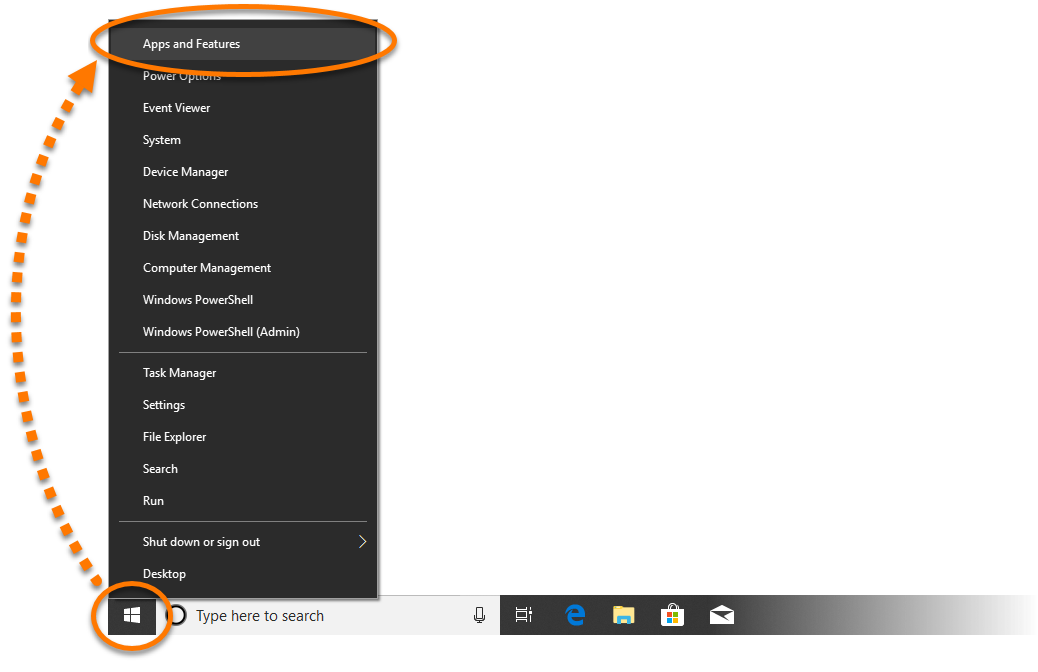
  1. Right-click the Windows Start icon, then select Apps and Features from the menu that appears.
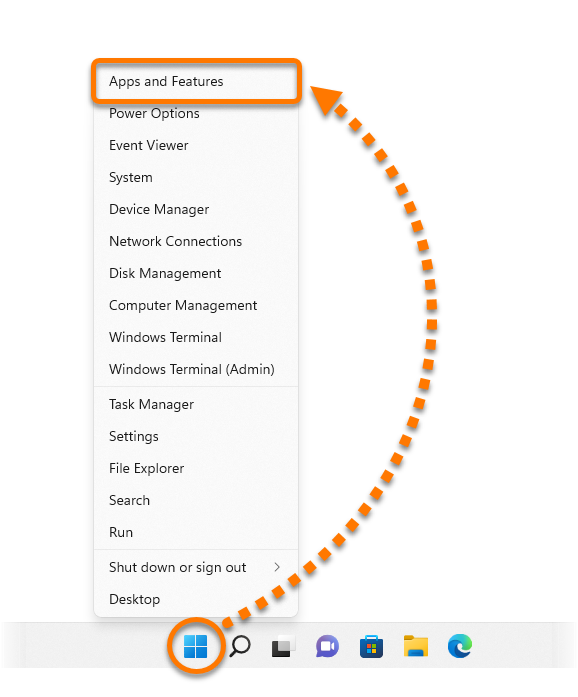
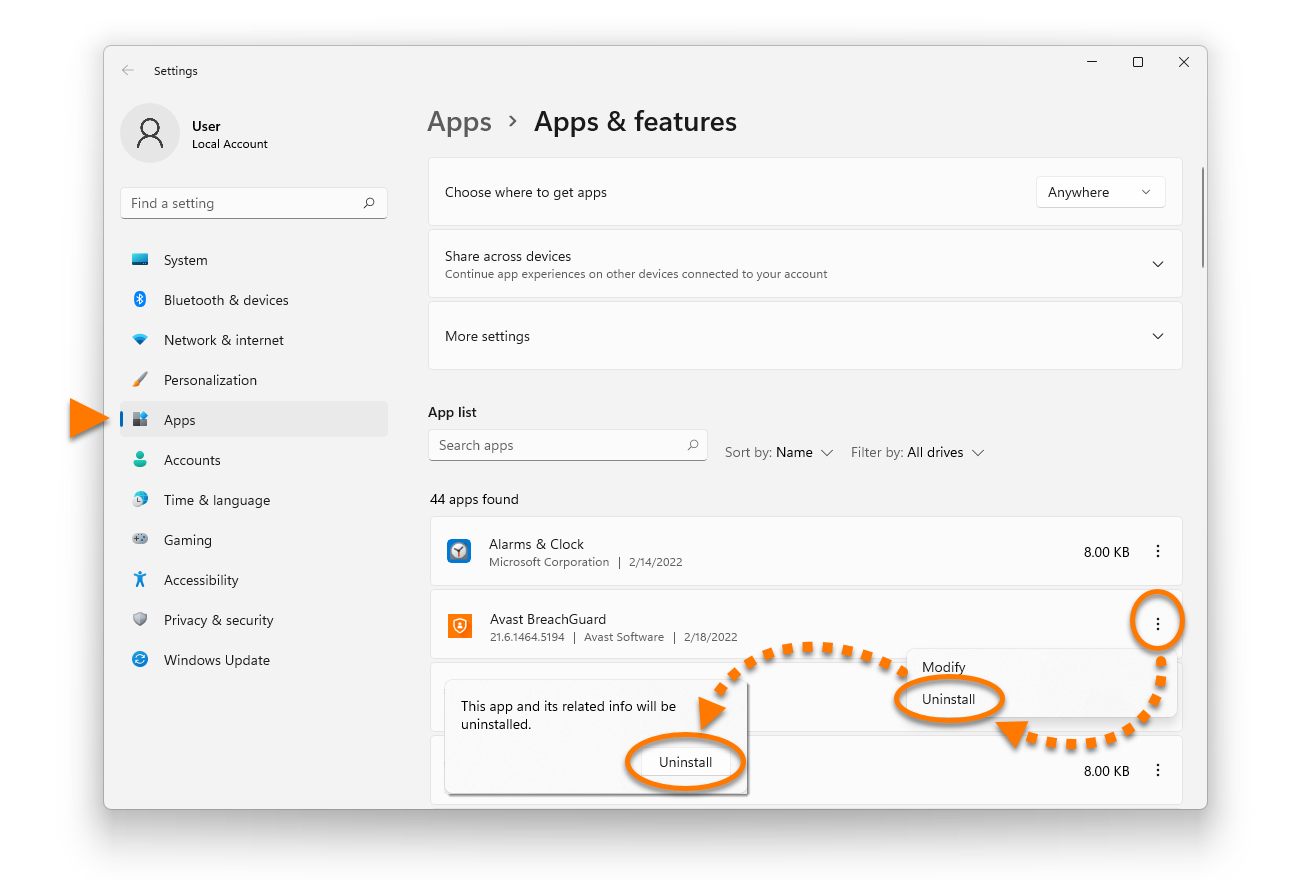
  2. Ensure that Apps is selected in the left panel, then select ⋮ Options (three dots) next to Avast BreachGuard and click Uninstall twice.
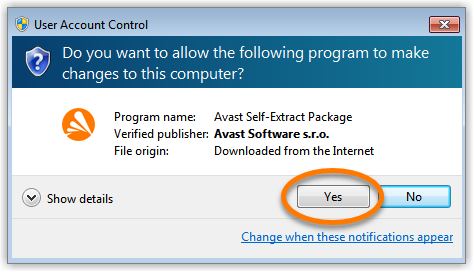
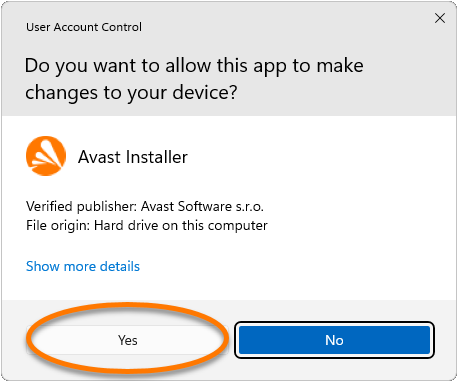
  3. If prompted for permission by the User Account Control dialog, click Yes.
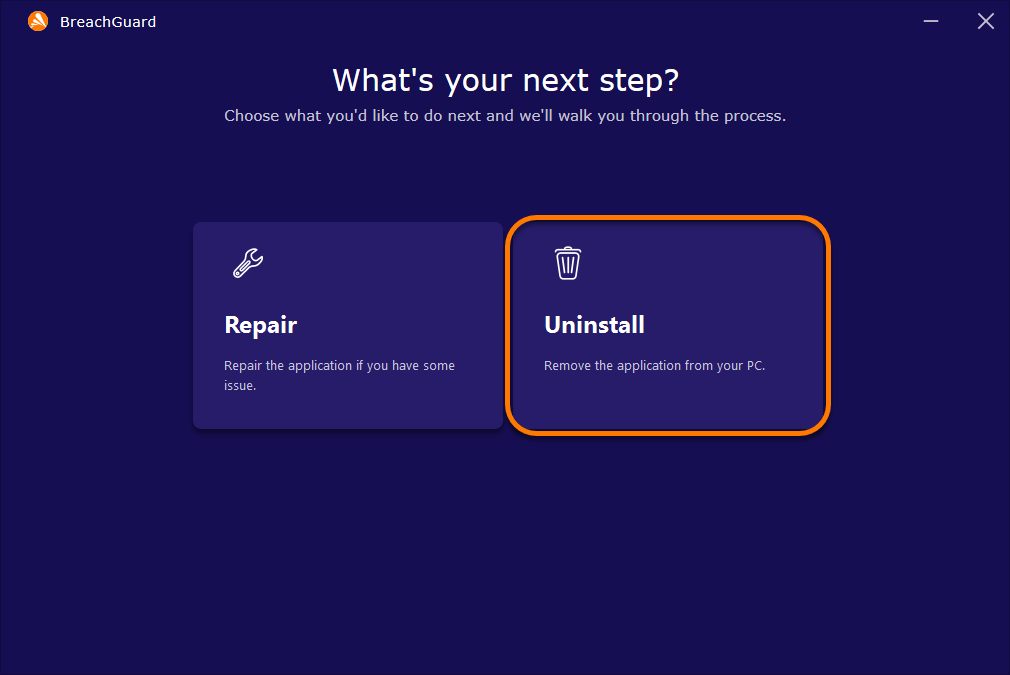
  4. When the Avast BreachGuard setup window appears, click Uninstall.
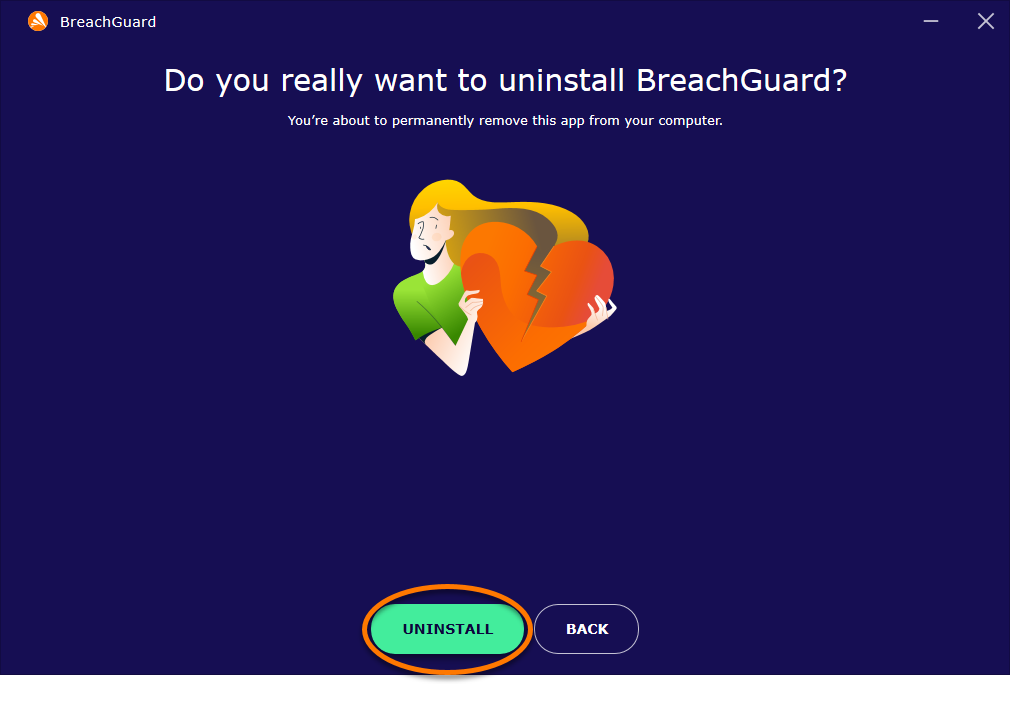
  5. Click Uninstall to confirm you want to uninstall BreachGuard.
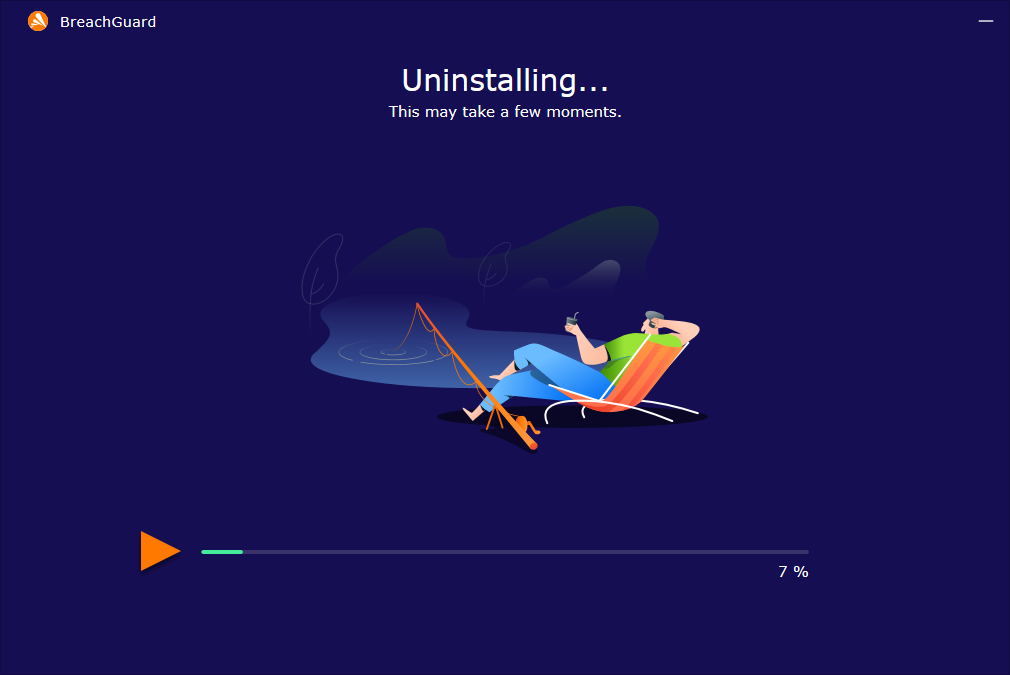
  6. Wait while the uninstaller removes BreachGuard from your PC.
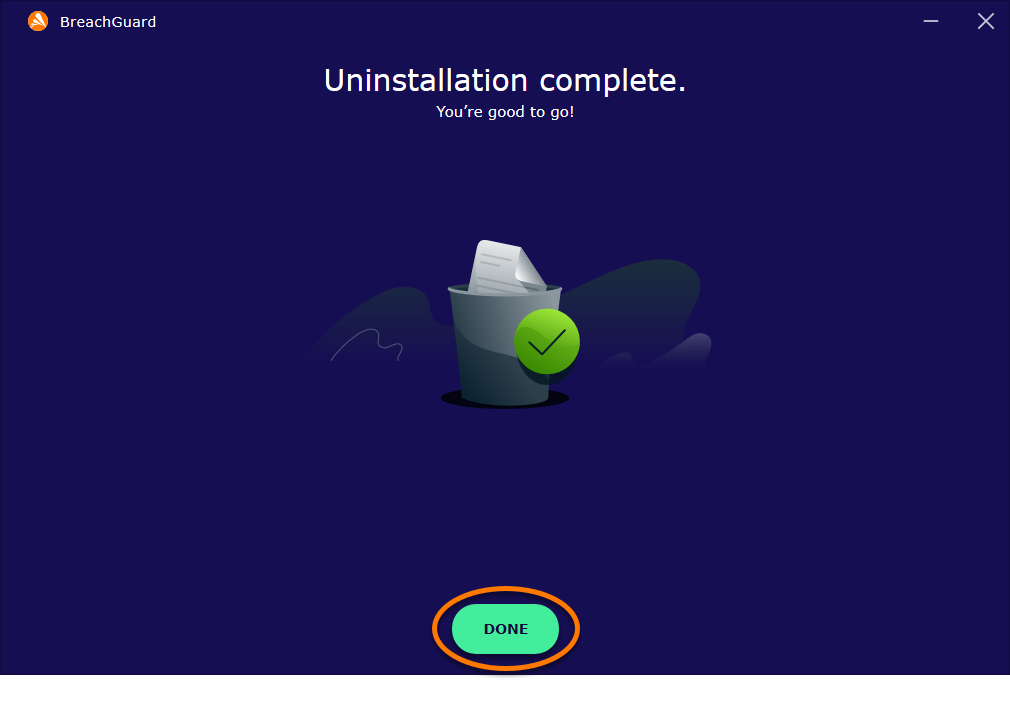
  7. When the confirmation message appears, click Done.

Windows 10

To uninstall BreachGuard, follow the GIF or the steps below:

  1. Right-click the Windows Start icon, then select Apps and Features from the menu that appears.
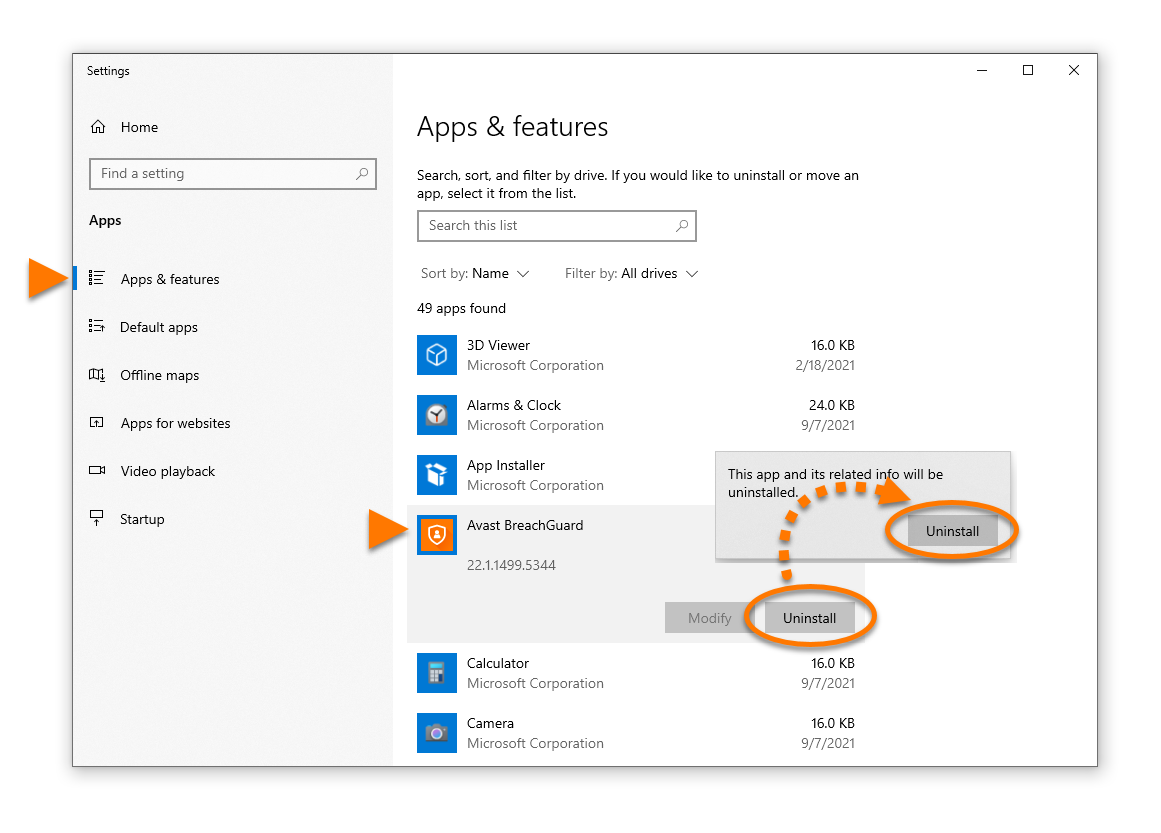
  2. Ensure that Apps & features is selected in the left panel, then select BreachGuard, and click Uninstall twice.
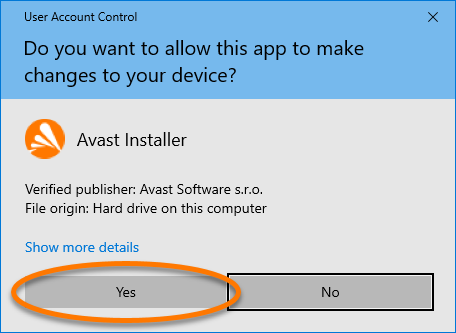
  3. If prompted for permission by the User Account Control dialog, click Yes.
  4. When the Avast BreachGuard setup window appears, click Uninstall.
  5. Click Uninstall to confirm you want to uninstall BreachGuard.
  6. Wait while the uninstaller removes BreachGuard from your PC.
  7. When the confirmation message appears, click Done.

Windows 8

To uninstall BreachGuard, follow the GIF or the steps below:

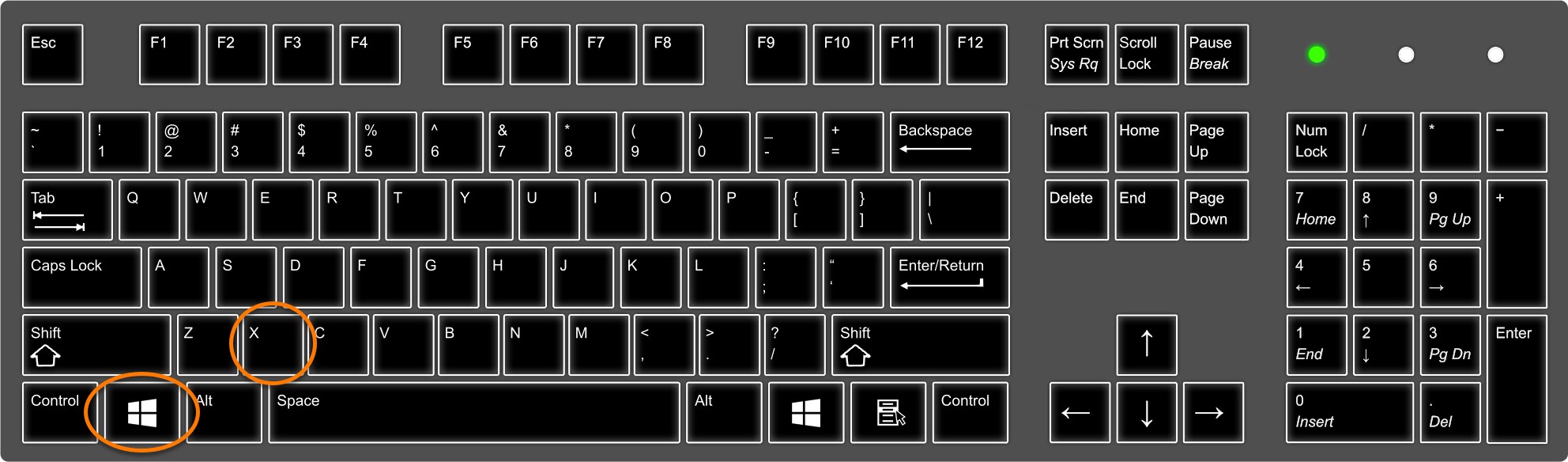
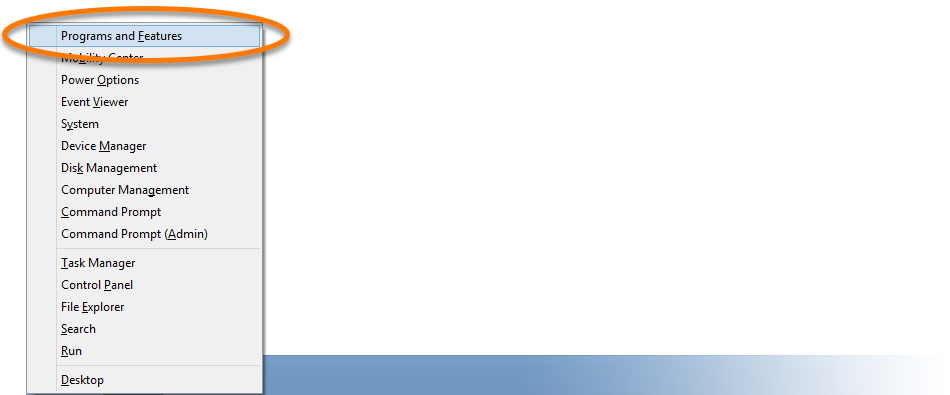
  1. On your keyboard, press the Windows logo key and X key simultaneously.
  2. Select Programs and Features from the menu that appears.
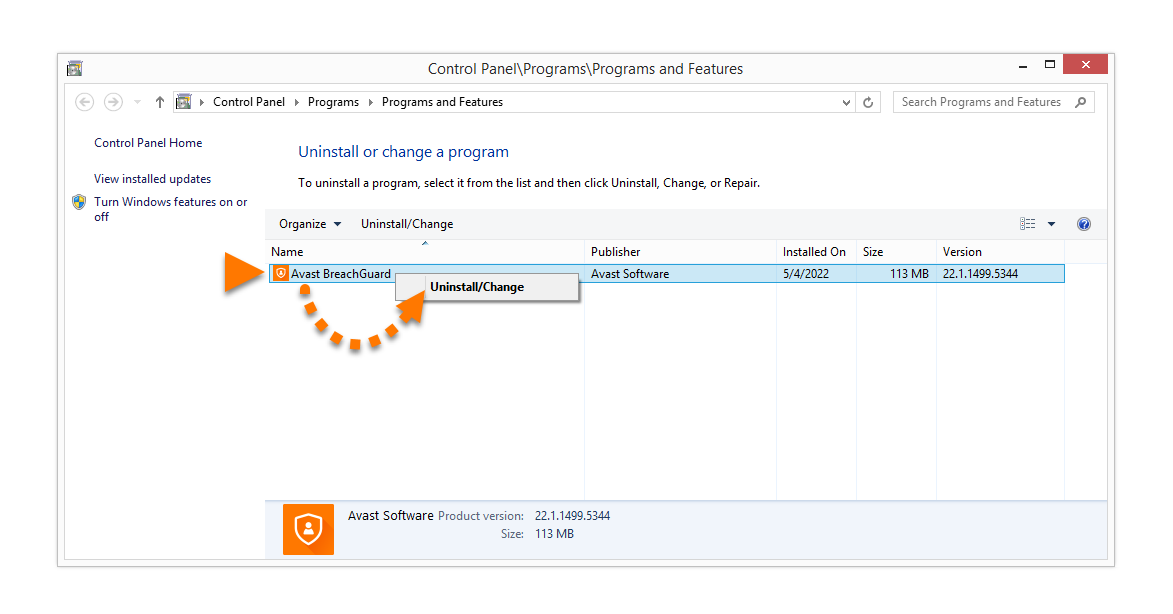
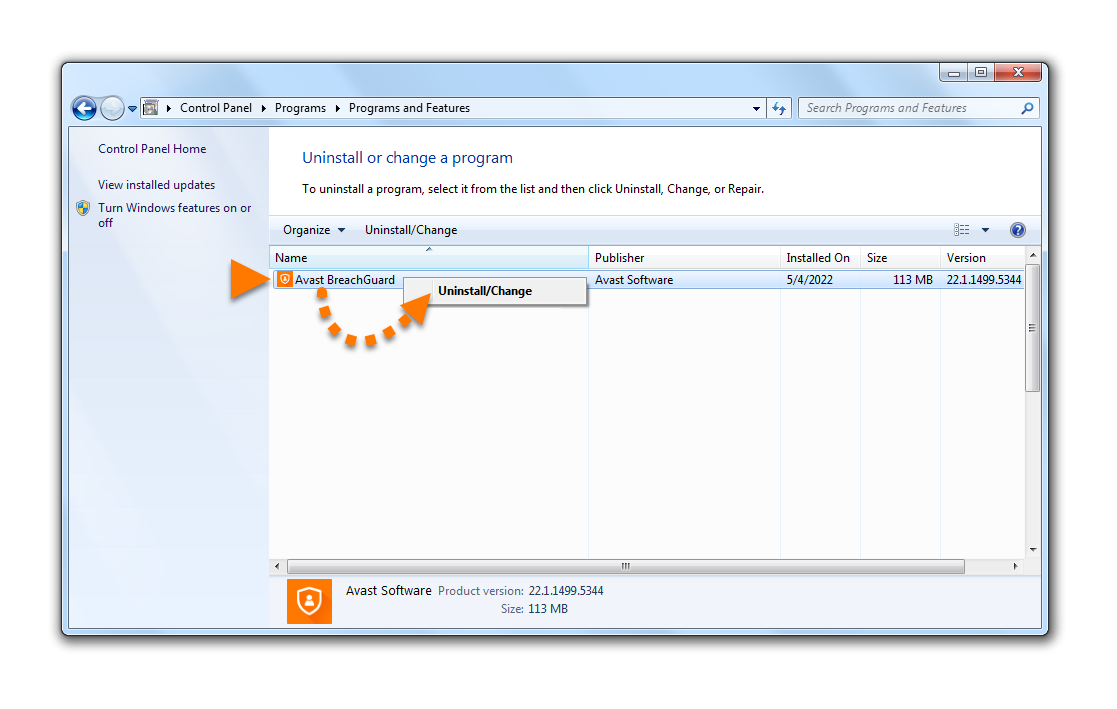
  3. Right-click BreachGuard, then select Uninstall/Change from the drop-down menu.
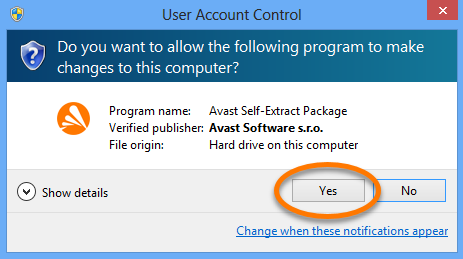
  4. If prompted for permission by the User Account Control dialog, click Yes.
  5. When the Avast BreachGuard setup window appears, click Uninstall.
  6. Click Uninstall to confirm you want to uninstall BreachGuard.
  7. Wait while the uninstaller removes BreachGuard from your PC.
  8. When the confirmation message appears, click Done.

Windows 7

To uninstall BreachGuard, follow the GIF or the steps below:

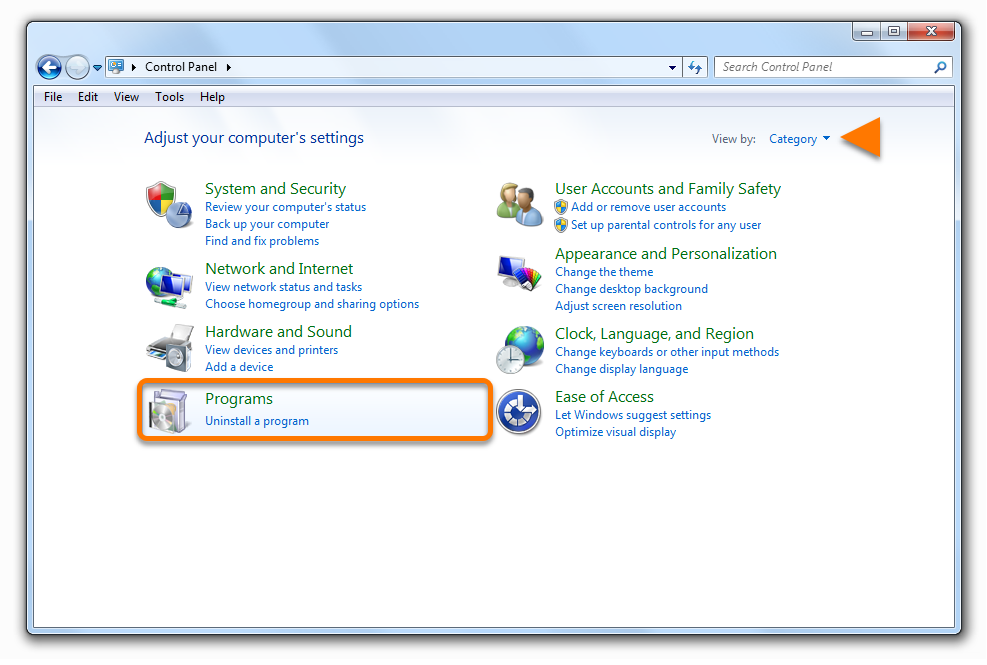
  1. Click the Windows Start icon, then select Control Panel.
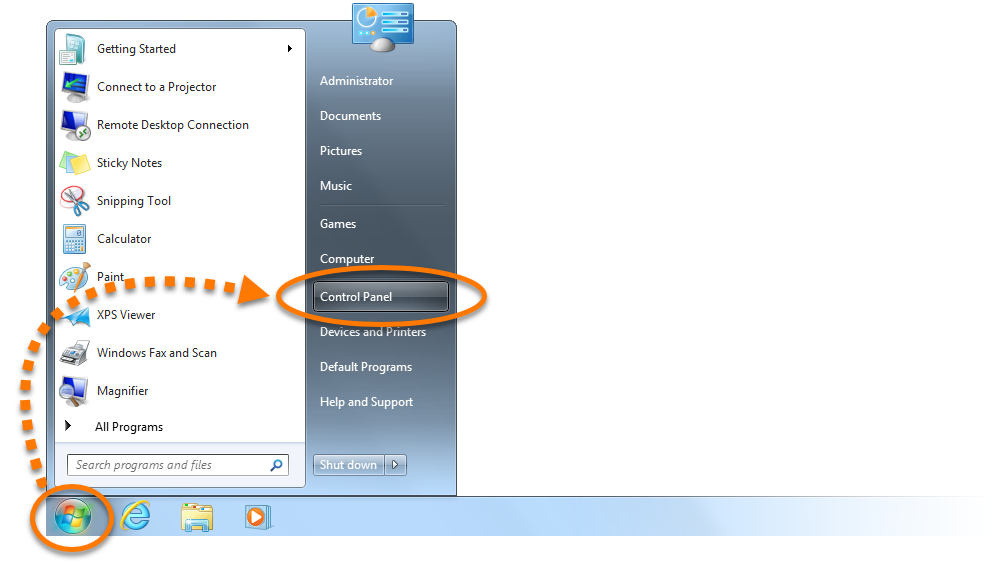
  2. Follow option A or option B below according to your view:
    • Option A (Default category view): Under Programs, click Uninstall a program.
    • Option B (Large/small icons view): Click Programs and Features.
  3. Right-click BreachGuard, then select Uninstall/Change from the drop-down menu.
  4. If prompted for permission by the User Account Control dialog, click Yes.
  5. When the BreachGuard setup window appears, click Uninstall.
  6. Click Uninstall to confirm you want to uninstall BreachGuard.
  7. Wait while the uninstaller removes BreachGuard from your PC.
  8. When the confirmation message appears, click Done.

BreachGuard is now uninstalled from your PC.

Reinstall Avast BreachGuard

If you need to reinstall BreachGuard, refer to the following article for installation instructions:

Moving Avast BreachGuard to the Trash or using Clean My Mac does not fully uninstall the application. We recommend following the steps below using the Avast BreachGuard uninstaller.

Uninstall via Apple menu

To uninstall BreachGuard, follow the GIF or the steps below:

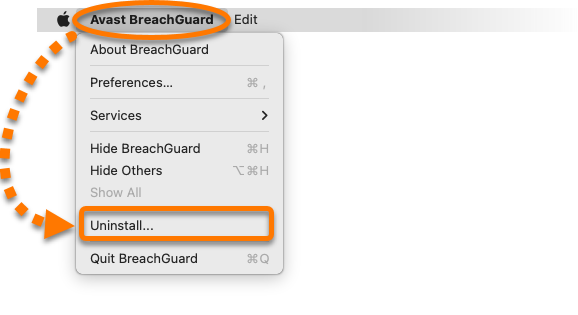
  1. Open Avast BreachGuard, then click Avast BreachGuard in the Apple menu bar and select Uninstall....
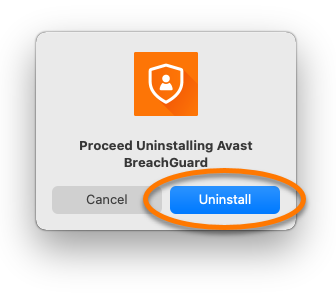
  2. When the BreachGuard uninstaller window appears, click Uninstall.
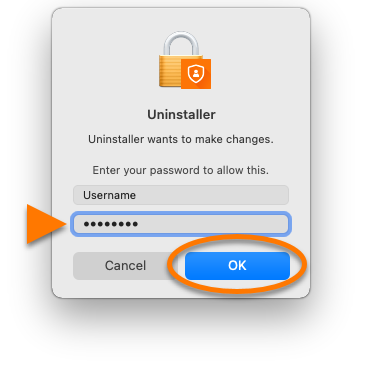
  3. If prompted, enter the password that you use when you start your Mac, then click OK.
  4. When the confirmation message appears, click OK.
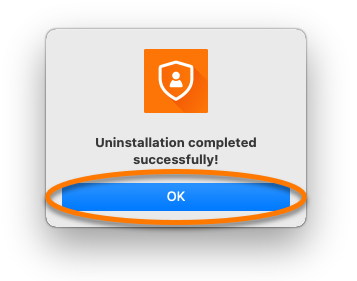
BreachGuard is now uninstalled from your Mac.

Reinstall Avast BreachGuard

If you need to reinstall BreachGuard, refer to the following article for installation instructions:

DocID: uninstall-breachguardLast modified: 09/03/2026

Was this article helpful?

Promotional banner image

Keep your online identity private!

Browse like no one’s watching with Avast anti-tracking software.

Need more help?

Contact us
Avast account
Visit our forums
Visit academy