Promotional banner image

IS YOUR COMPUTER SLOW? RUN LIKE NEW

If they are not maintained, computers lose performance over time. Avast Cleanup Premium can help significantly improve the performance of your computer.

Exclude certain files or websites from scanning in Avast Antivirus

Windows, Mac

This article is about exclusions in Avast Antivirus. For information about exclusions in Avast One, refer to the following article: Excluding certain files or websites from scanning in Avast One.

Although it is generally not recommended, you may want to exclude certain files, folders, or websites from being scanned by Avast Antivirus. This can speed up your scans and prevent false-positive detections.

Set exceptions only if you know that the files and websites you want to exclude are safe. If you are unsure about a file, you can scan it in Virus Total, or add the file to Quarantine and submit it to Avast Threat Labs.

Refer to the sections below to manage exceptions in Avast Antivirus:

Add an exception

Setting an exception will exclude individual files, folders, or websites from all scans and shields.

To set an exception:

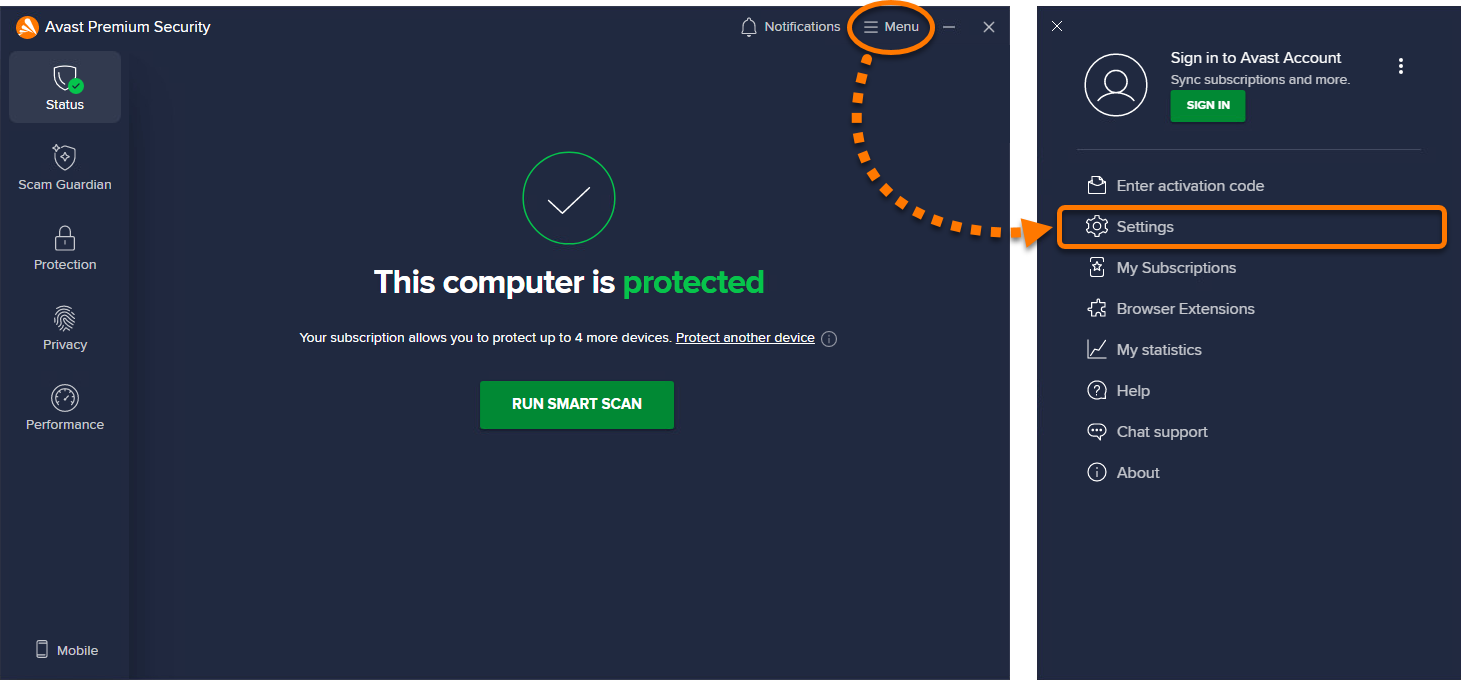
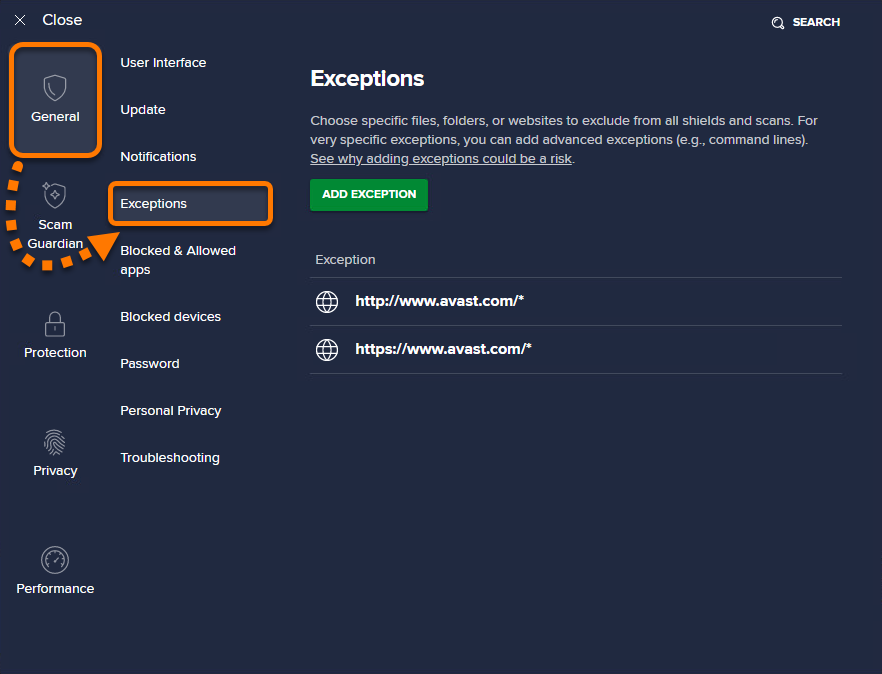
  1. Open Avast Antivirus and go to ☰ Menu ▸ Settings.
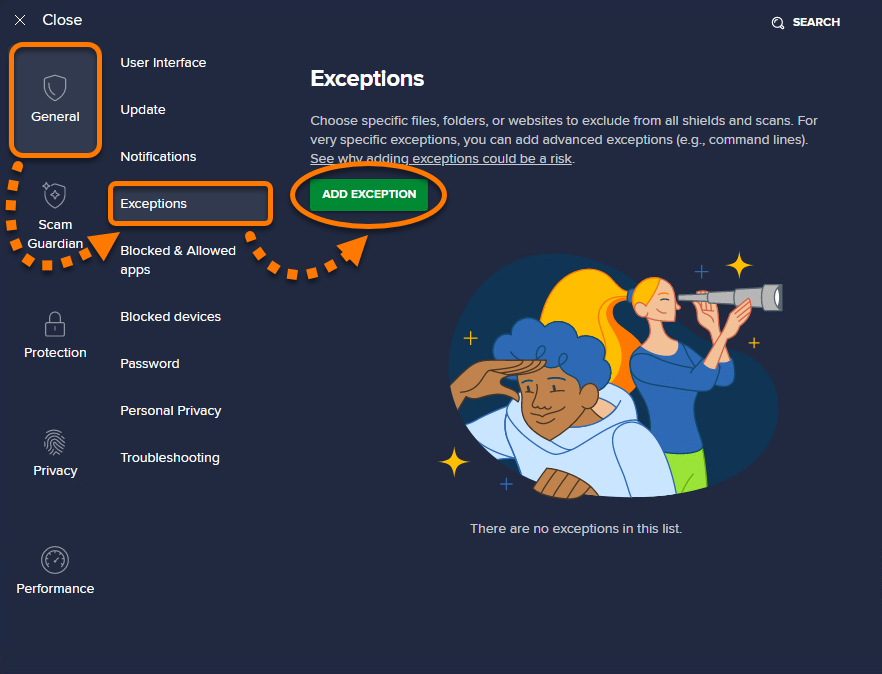
  2. Select General ▸ Exceptions, then click Add exception.
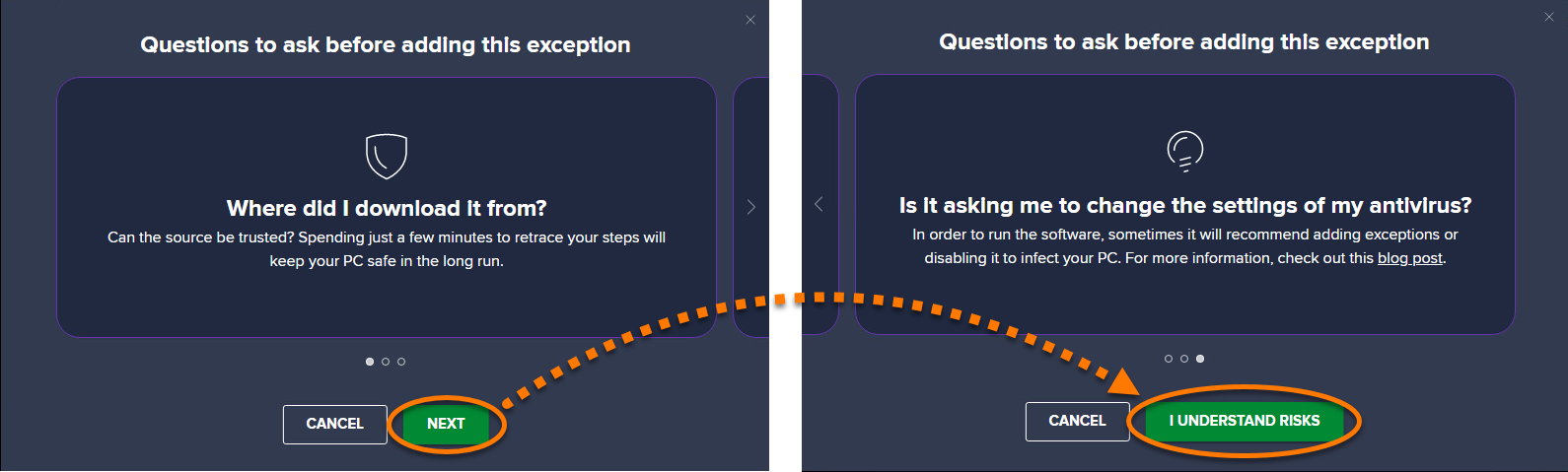
  3. Read through the questions to ask and click Next ▸ I understand risks.

The following exceptions are available:

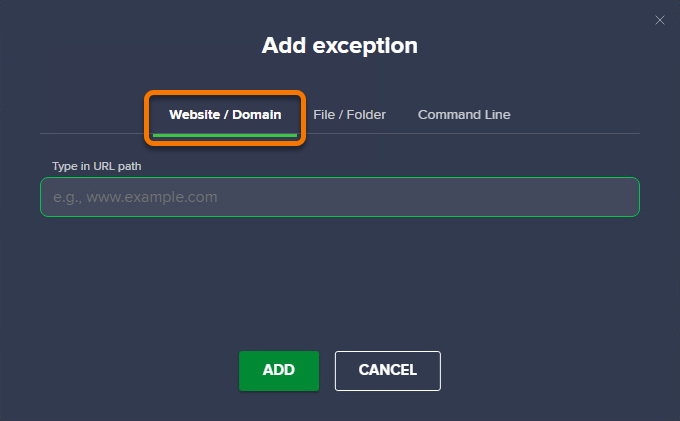
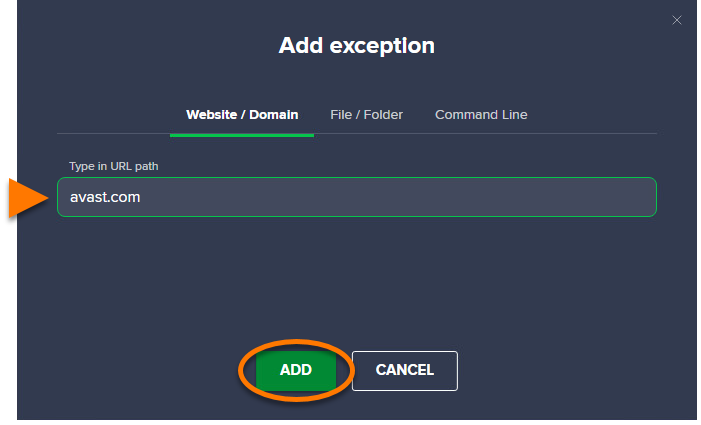
  • Website / Domain: Excludes all websites that contain the same domain name.
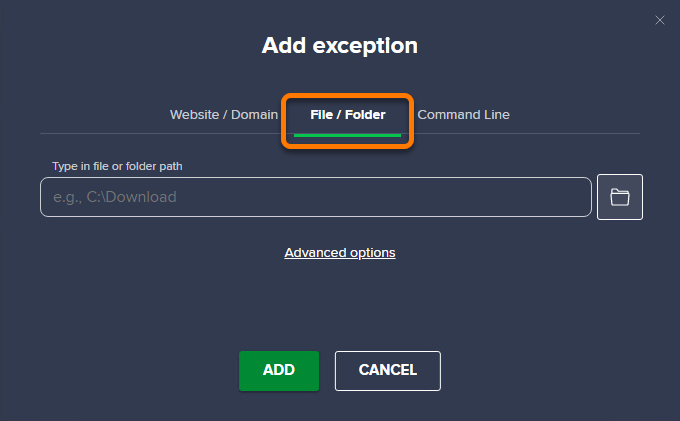
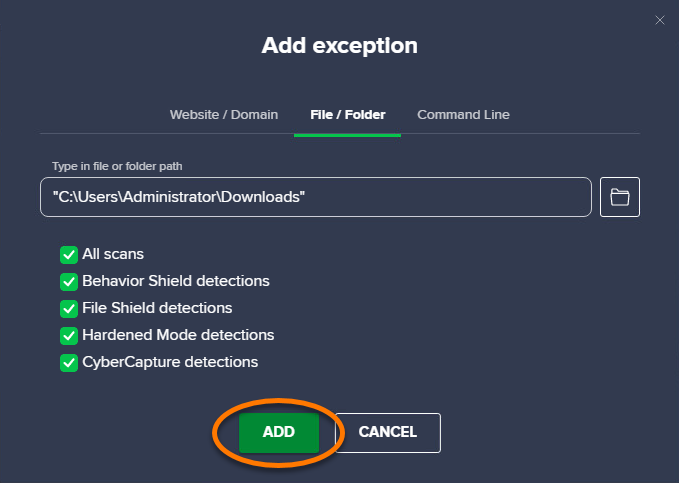
  • File / Folder: Excludes files / folders with the option to specify your exclusions.
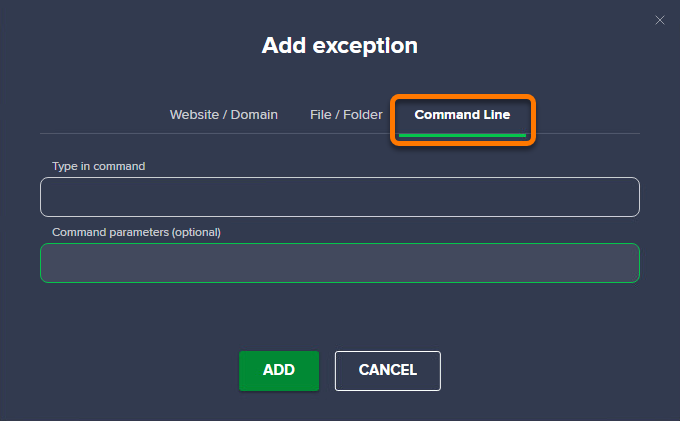
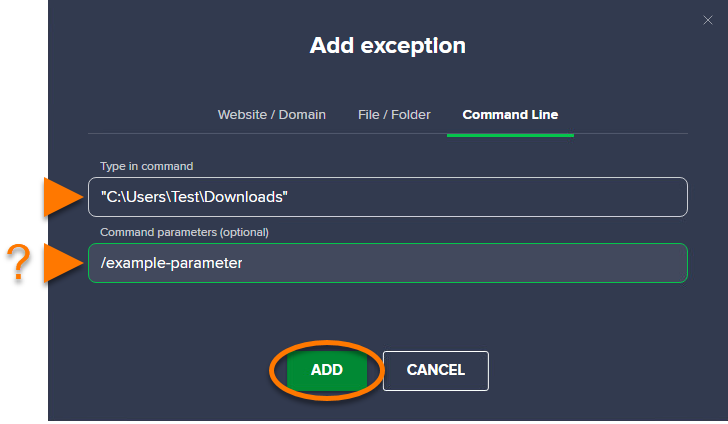
  • Command Line: Excludes scripts presented on the command line.

Website / Domain

  1. Select the Website / Domain tab.
  2. Enter a URL domain to exclude all pages with this domain name, then click Add.

File / Folder

  1. Select the File/Folder tab.
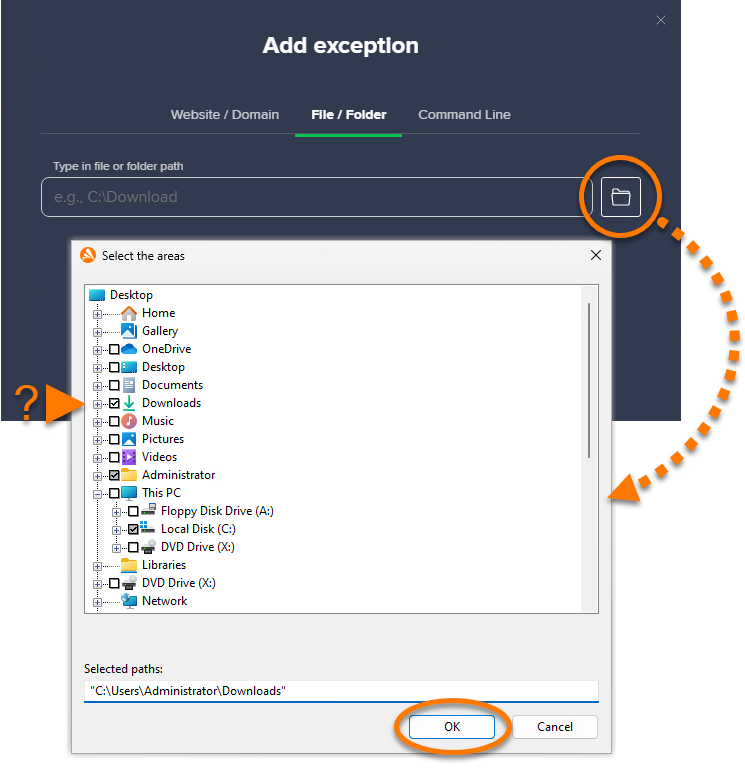
  2. Click the folder icon, then navigate to the specific file/folder path and click OK.
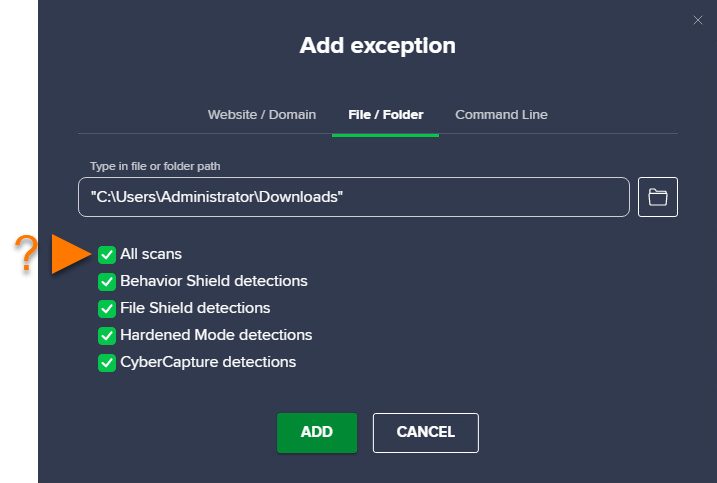
  3. Optionally, click Advanced options, untick a feature you do not want the exception to apply for:
    • All scans: Enables all scans.
    • Behavior Shield detections: Warns you if any application behaves suspiciously.
    • File Shield detections: Scans any file added to or opened on your PC.
    • Hardened Mode detections: Determines which executable files are safe to open.
    • CyberCapture detections: Analyzes unrecognized files and warns you about new threats.
  4. Click Add.

Command Line

  1. Select the Command Line tab.
  2. Enter the Command and optionally provide Command parameters, then click Add.

Manage exceptions

You can manage your current exceptions via the application settings:

  1. Open Avast Antivirus and go to ☰ Menu ▸ Settings.
  2. Select General ▸ Exceptions.
  3. Hover the cursor over the relevant exception, then select an option:
    • Pencil icon: Edit the exception.
    • X icon: Remove the exception from your list.
    The list updates automatically.

Further recommendations

For other related topics, refer to the following articles:

This article is about exclusions in Avast Security. For information about exclusions in Avast One, refer to the following article: Excluding certain files or websites from scanning in Avast One.

Although it is generally not recommended, you may want to exclude certain files, folders, or websites from being scanned by Avast Security. This can speed up your scans and prevent false-positive detections.

Set exceptions only if you know that the files and websites you want to exclude are safe. If you are unsure about a file, you can scan it in Virus Total, or add the file to Quarantine and submit it to Avast Threat Labs.

Refer to the sections below to manage exceptions in Avast Security:

Add an exception

all scans

To exclude files, folders, or applications from being scanned by Avast Security:

  1. Open Avast Security and click ☰ Menu ▸ Preferences.
  2. Select the Scans tab.
  3. Choose the relevant scan type.
  4. Click Add exceptions.
  5. Select the file, folder, or application you want to exclude from being scanned, then click Open.
  6. If prompted, enter the password that you use when you start your Mac, then click OK to authorize the change.

The file path is added to the exceptions list.

To remove an excluded item, hover your cursor over the file path panel in the exceptions list, then click the X icon.

file shield

To exclude files, folders, or applications from being scanned by File Shield:

  1. Open Avast Security and click ☰ Menu ▸ Preferences.
  2. Select the Core Shields tab.
  3. Choose File Shield.
  4. Click Add exceptions.
  5. Select the file, folder, or application you want to exclude from being scanned, then click Open.
  6. If prompted, enter the password that you use when you start your Mac, then click OK to authorize the change.

The file path is added to the exceptions list.

To remove an excluded item, hover your cursor over the file path panel in the exceptions list, then click the Trash icon.

Web Guard

To exclude websites or domains from being scanned by Web Guard:

  1. Open Avast Security and click ☰ Menu ▸ Preferences.
  2. Select the Core Shields tab.
  3. Choose Web Guard.
  4. Click Add exceptions.
  5. Enter the URL of the website you want to exclude from being scanned and select the Web server services type, then click Add.
  6. If prompted, enter the password that you use when you start your Mac, then click OK to authorize the change.

The website is added to the exceptions list.

To remove an excluded item, hover your cursor over the server panel in the exceptions list, then click the Trash icon.


DocID: antivirus-scan-exclusionsLast modified: 09/03/2026

Was this article helpful?

Promotional banner image

Keep your online identity private!

Browse like no one’s watching with Avast anti-tracking software.

Need more help?

Contact us
Avast account
Visit our forums
Visit academy