Avast VPN for Windows is a virtual private network that secures your internet connection using an encrypted tunnel to disguise your real location, and prevent others from eavesdropping on your online activity over public Wi-Fi and unsecured networks.
Avast VPN is a paid product that requires a subscription to use. This article contains instructions to install the application and either activate an existing subscription, start a free-trial period, or purchase Avast VPN.
Install Avast VPN
You do not need to follow these installation instructions if you use Avast Antivirus on your PC because Avast VPN is already installed as a program component.
- Click the button below to download the Avast VPN setup file, and save it to a familiar location on your PC (by default, downloaded files are saved to your Downloads folder).
Download Avast VPN for Windows
- Right-click the downloaded setup file
avast_vpn_online_setup.exe, and select Run as administrator from the context menu. 
If you are unable to authorize the installation of Avast VPN, refer to the following article for advice: Managing administrative accounts on your Windows PC.
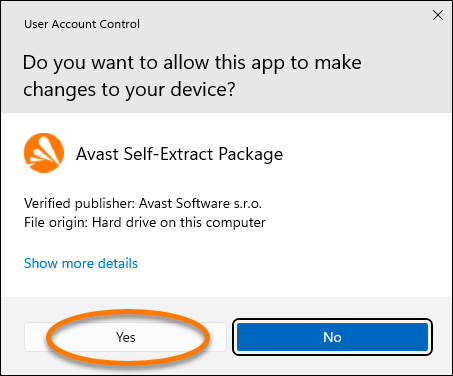
- If prompted for permission by the User Account Control dialog, click Yes.
- To change the default setup language, click the current language in the top-right corner of the screen and select your preferred language. Then click Install.
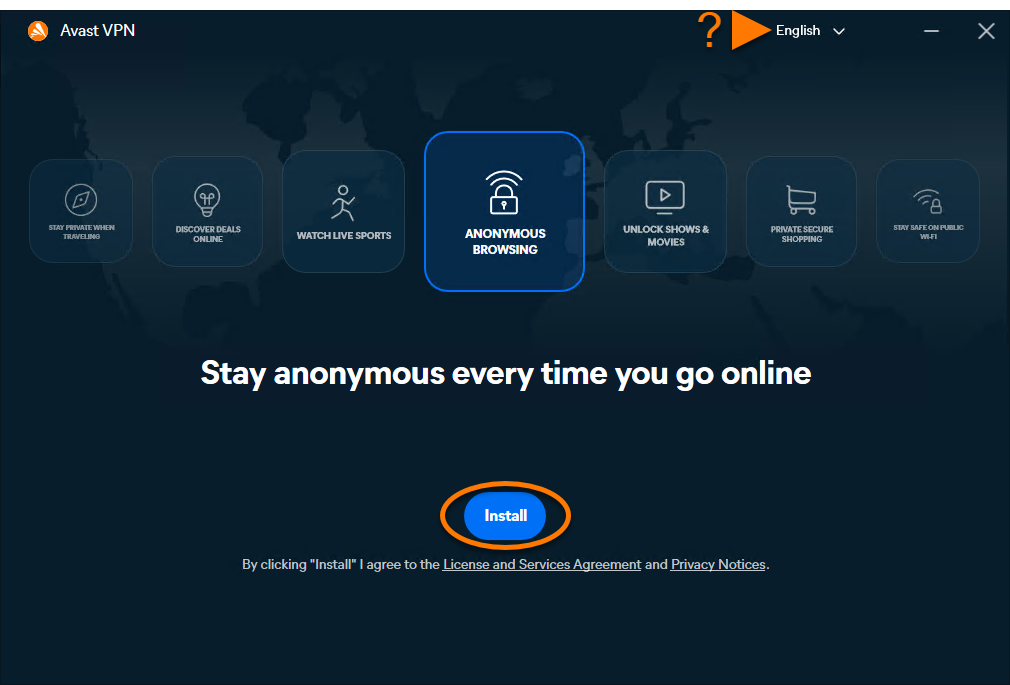
- Wait while setup installs Avast VPN on your PC.
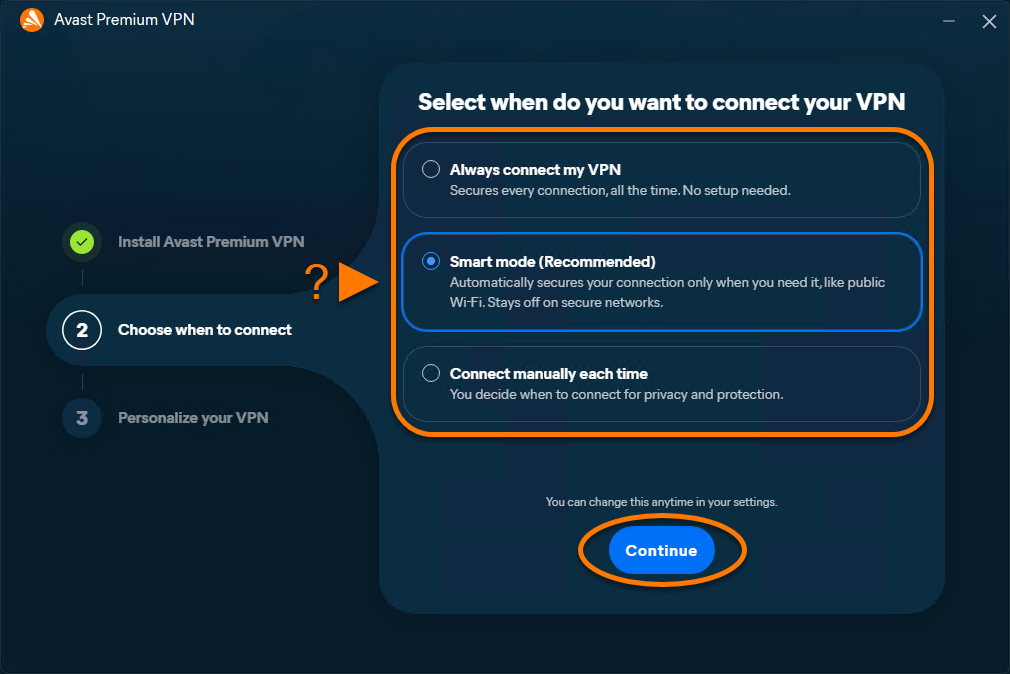
- Choose when you want Avast VPN to connect, then click Continue.
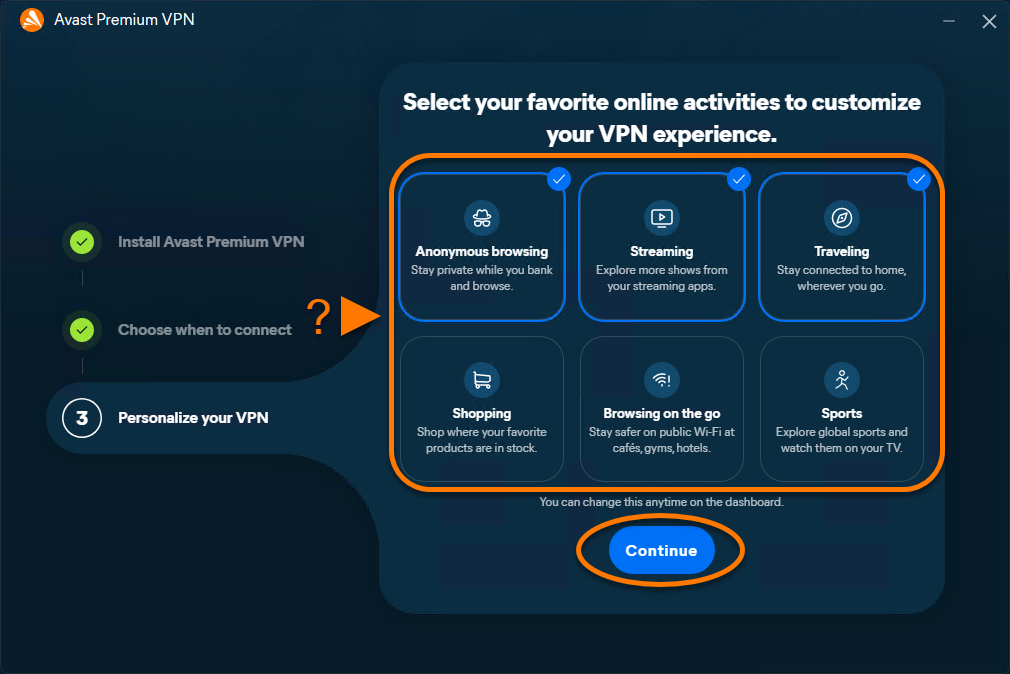
- Optionally, choose between offered online activities to customize your VPN, then click Continue.
Avast VPN is now installed on your Windows device. If you already have a paid subscription, refer to the following article for activation instructions: Activating Avast VPN. Alternatively, click Connect and follow the on-screen instructions to purchase a subscription or activate a free trial.
Troubleshooting
Further recommendations
To learn more about Avast VPN, refer to the following articles:
For information on installing Avast VPN on Android TV, Google TV, Apple TV, or Amazon Fire TV devices, refer to the following article:
Avast VPN for Mac is a virtual private network that secures your internet connection using an encrypted tunnel to disguise your real location, and prevent others from eavesdropping on your online activity over public Wi-Fi and unsecured networks.
Avast VPN is a paid product that requires a subscription to use. This article contains instructions to install the application and either activate an existing subscription, start a free-trial period, or purchase Avast VPN.
Install Avast VPN
- Click the button below to download the Avast VPN setup file, and save it to a familiar location on your Mac (by default, downloaded files are saved to your Downloads folder).
Download Avast VPN for Mac
- Double-click the downloaded setup file.
- Double-click the Avast VPN icon.
- Click Allow.
- Click Continue.
- If prompted, select the users who should have access to Avast VPN, then click Continue.
- Click Install to use the default location, or click Change install location... to choose a different one.
- Enter the password that you use when you start your Mac, then click Install Software.
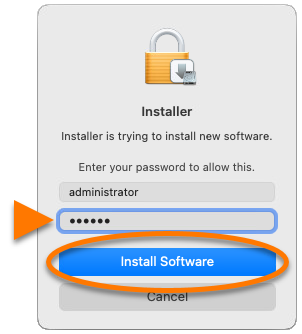
- Wait while setup installs Avast VPN on your Mac. Avast VPN opens automatically after installation. Click Continue to go through the introductory screens.
Avast VPN is now installed on your Mac. If you already have a paid subscription, refer to the following article for activation instructions: Activating Avast VPN. Alternatively, click Connect and follow the on-screen instructions to purchase a subscription or activate a free trial.
Troubleshooting
If you experience any installation issues:
- Ensure your Mac meets the minimum system requirements specified in the following article:
- Restart your Mac, then try to install Avast VPN again by following the exact steps in this article.
If the issue persists, contact Avast Support.
Further recommendations
To learn more about Avast VPN, refer to the following articles:
For information on installing Avast VPN on Android TV, Google TV, Apple TV, or Amazon Fire TV devices, refer to the following article:
Avast VPN for Android is a virtual private network that secures your internet connection using an encrypted tunnel to disguise your real location, and prevent others from eavesdropping on your online activity over public Wi-Fi and unsecured networks.
Avast VPN is a paid product that requires a subscription to use. This article contains instructions to install the application and either activate an existing subscription or purchase Avast VPN.
Install Avast VPN
- On your Android device, tap the button below to open the Avast VPN product page in Google Play Store.
Go to Google Play Store
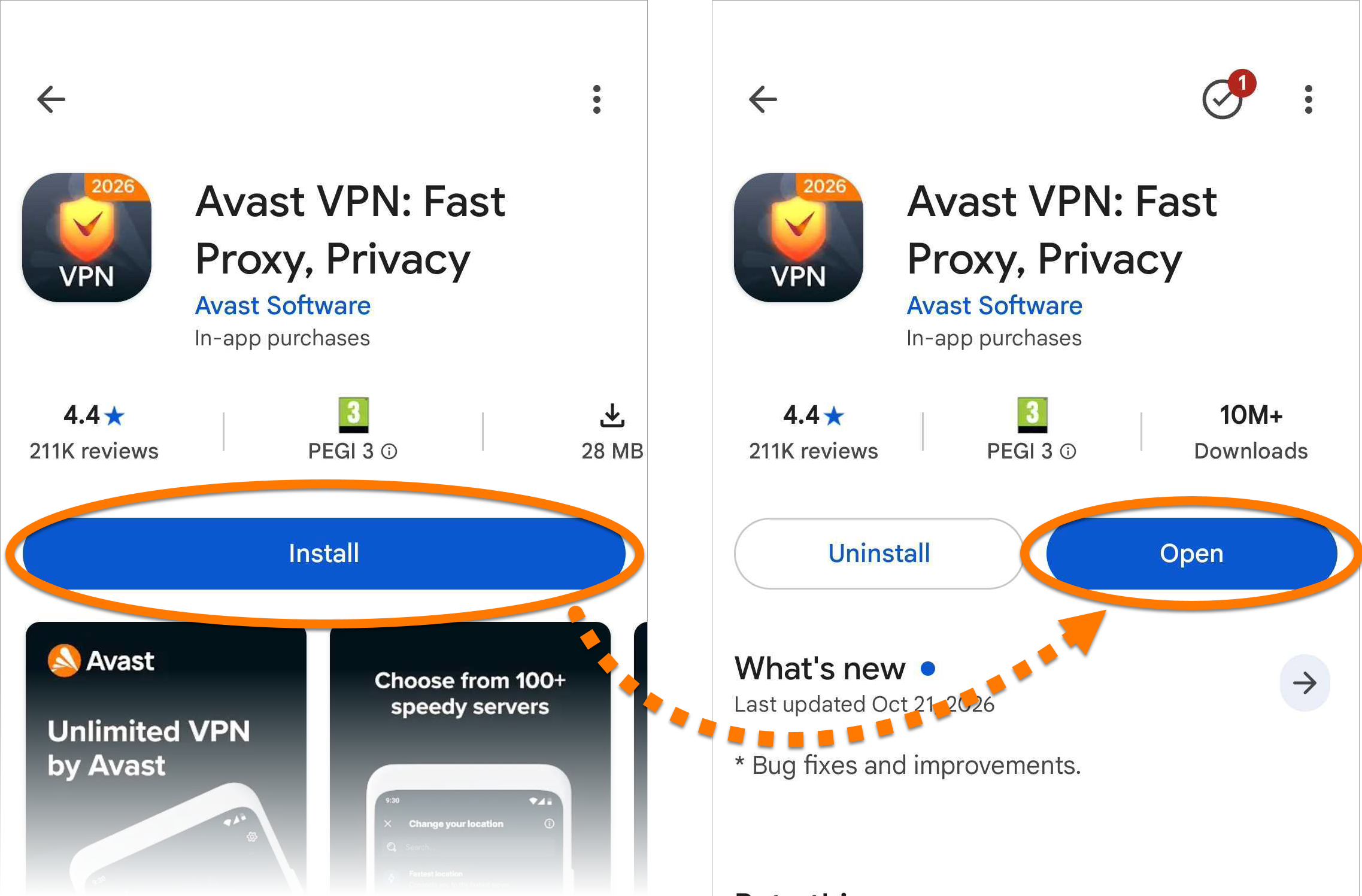
- Tap Install to download and install the app. When installation is complete, tap Open.
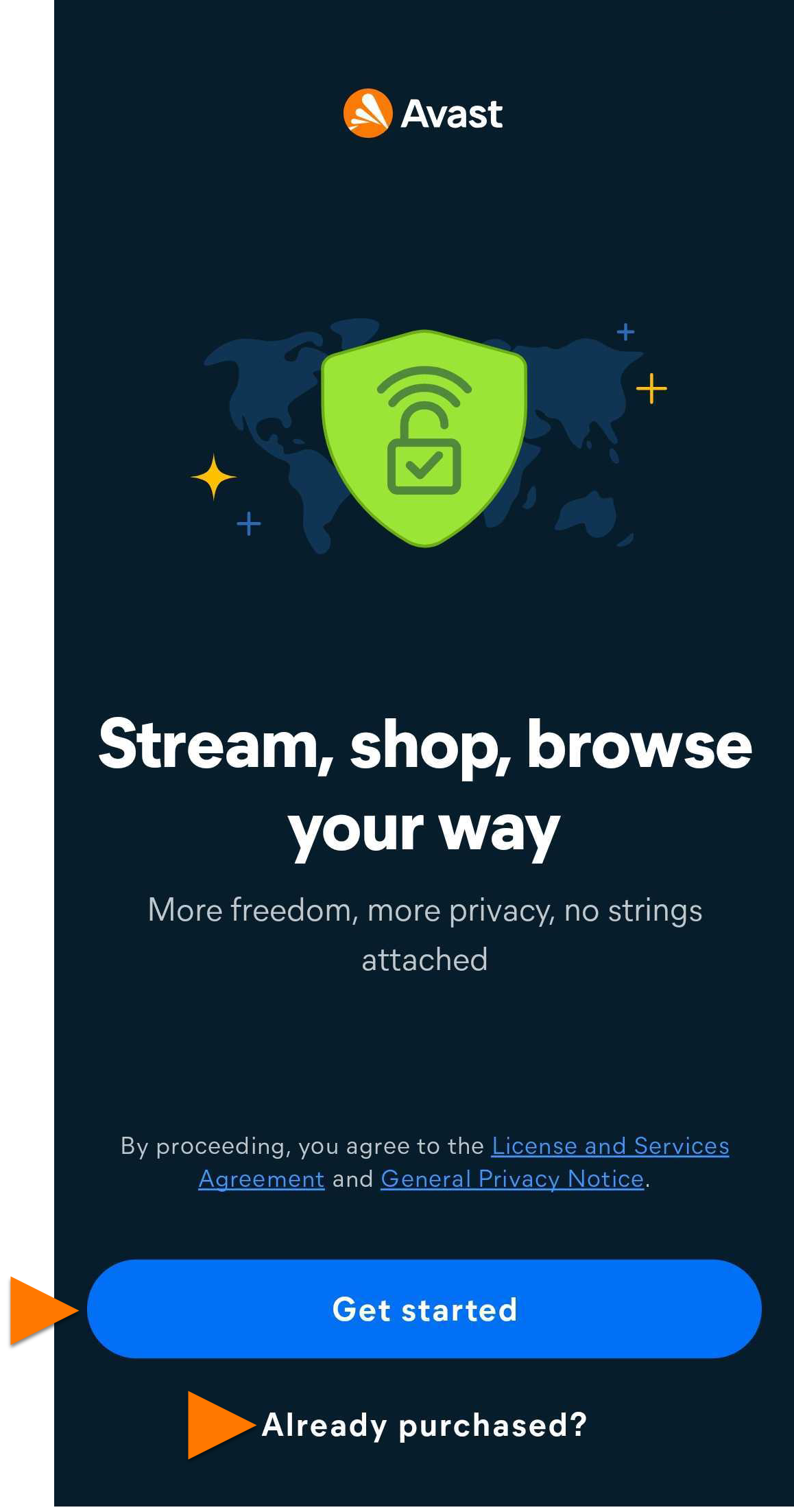
- Select one of the following options:
- If you do not already have an active subscription, tap Get started and choose a plan to purchase.
- If you already have an active subscription, tap Already purchased?. Refer to the following article for activation instructions: Activating Avast VPN.
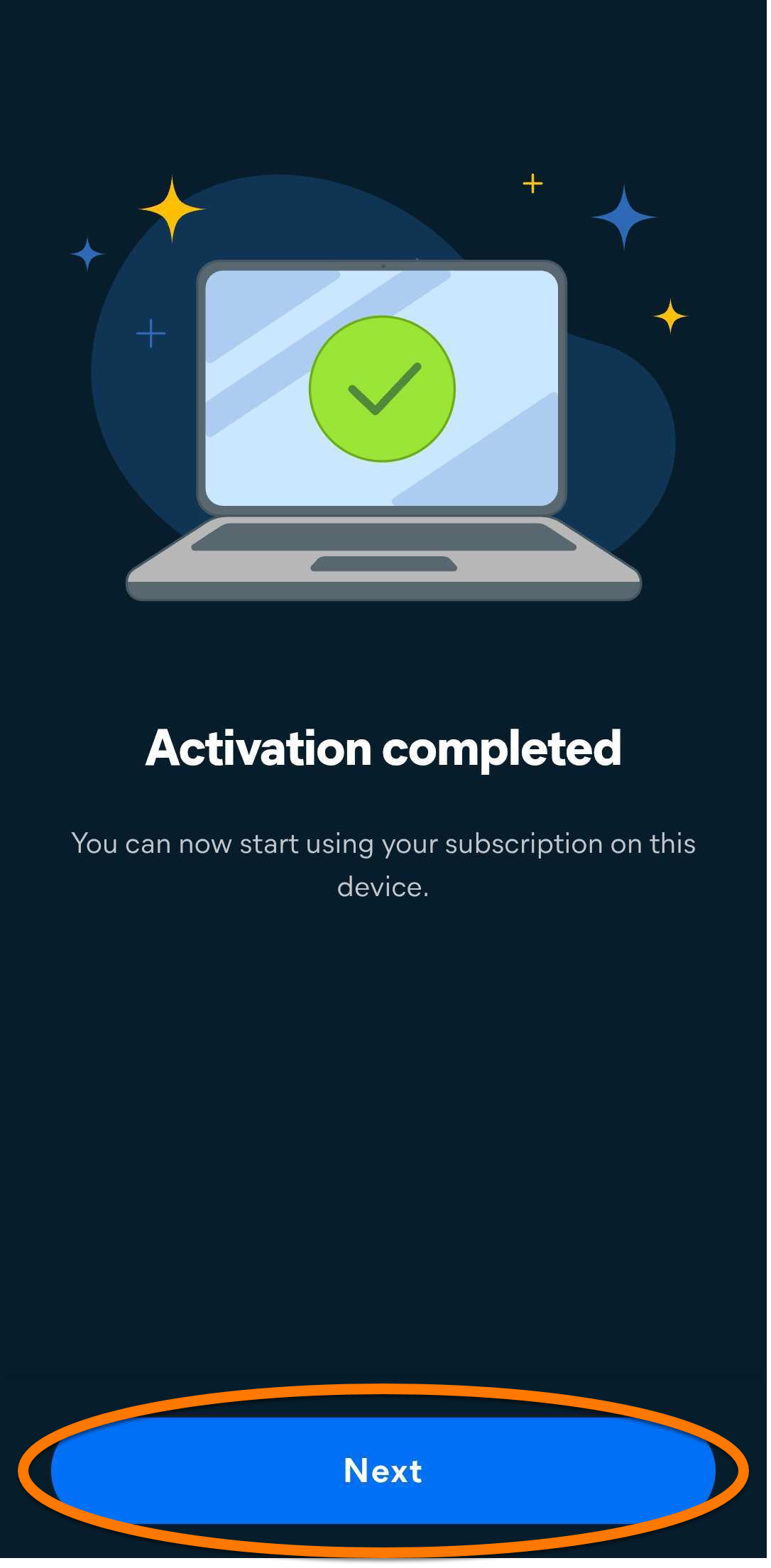
- Once your Avast VPN is active, tap Next, to continue the setup.
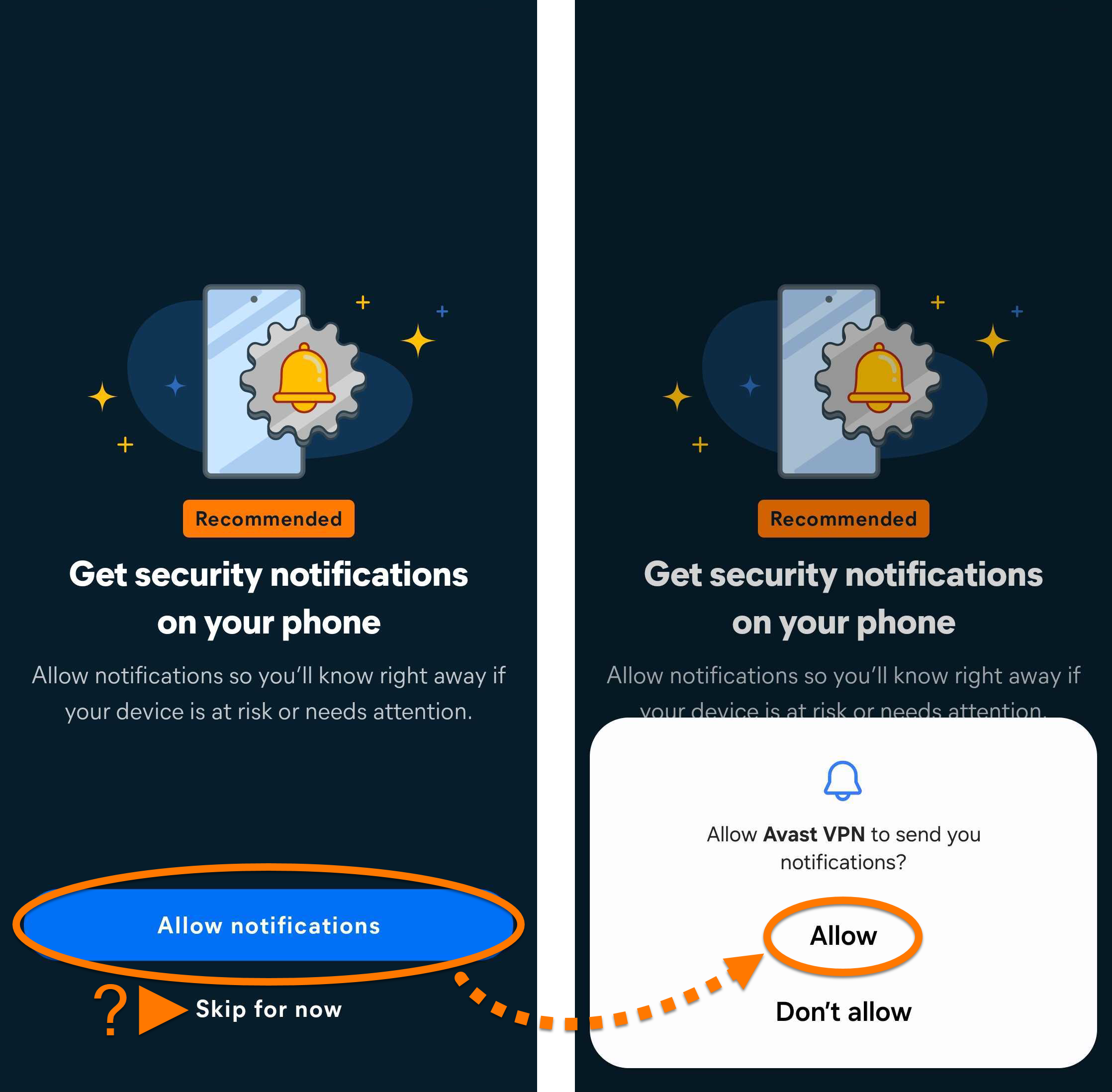
- Tap Allow notifications ▸ Allow to give Avast VPN the permission to send you notifications. Alternatively, tap Skip for now.
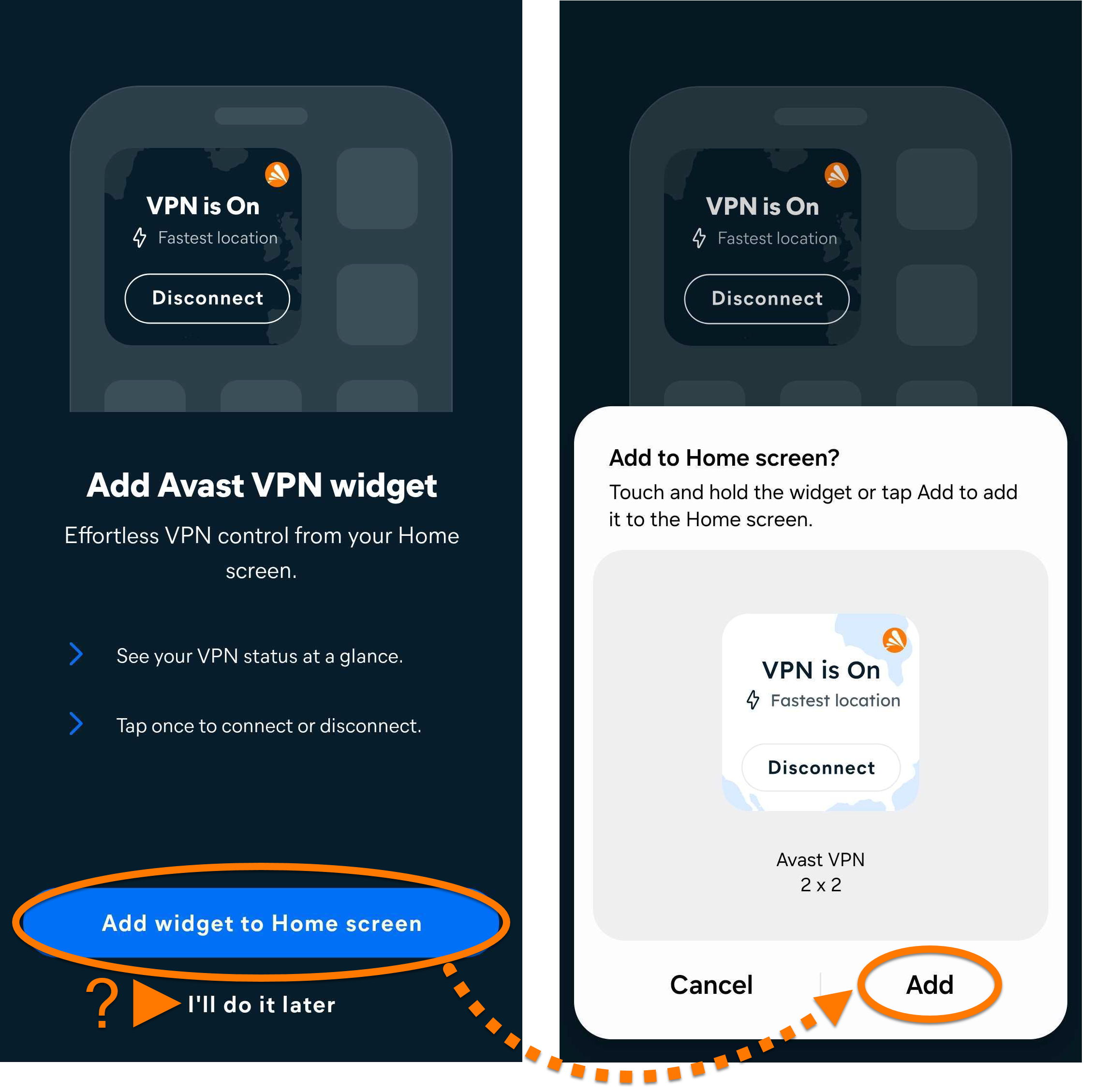
- Optionally, tap Add widget to Home screen ▸ Add to add Avast VPN widget to your phone screen. Alternatively, tap I'll do it later to skip this step.
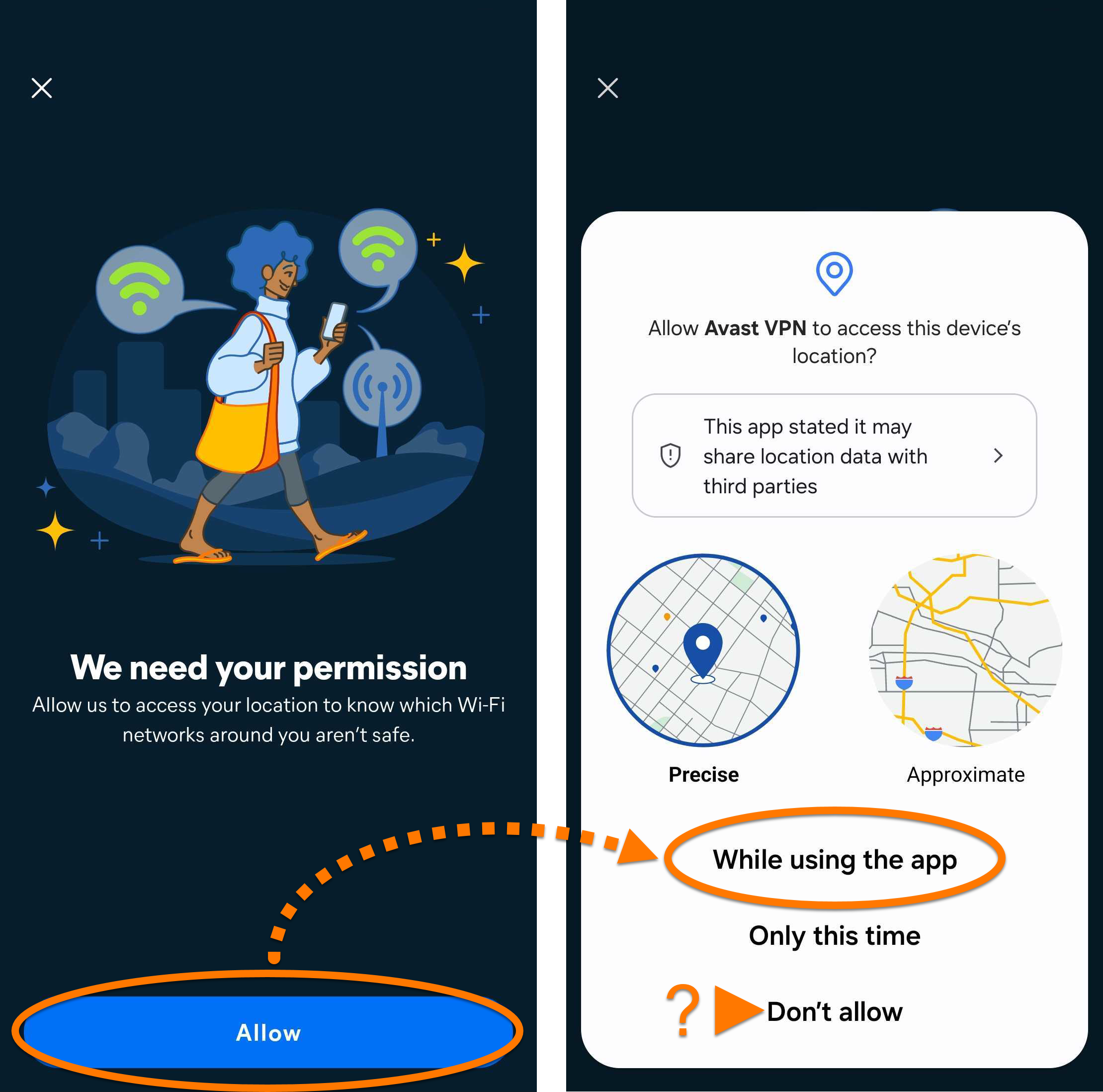
- Tap Allow ▸ While using the app to give Avast VPN permission to access your location and check which Wi-Fi networks around you are not safe. Alternatively, tap Don't allow.
Avast VPN is now installed on your Android device.
Troubleshooting
If you experience any installation issues, ensure your Android device meets the minimum system requirements specified in the following article:
If the issue persists, contact Avast Support.
Further recommendations
To learn more about Avast VPN, refer to the following articles:
For information on installing Avast VPN on Android TV, Google TV, Apple TV, or Amazon Fire TV devices, refer to the following article:
Avast VPN for iOS is a virtual private network that secures your internet connection using an encrypted tunnel to disguise your real location, and prevent others from eavesdropping on your online activity over public Wi-Fi and unsecured networks.
Avast VPN is a paid product that requires a subscription to use. This article contains instructions to install the application and either activate an existing subscription or purchase Avast VPN.
Install Avast VPN
Troubleshooting
If you experience any installation issues, ensure your iOS device meets the minimum system requirements specified in the following article:
If the issue persists, contact Avast Support.
Further recommendations
To learn more about Avast VPN, refer to the following articles:
For information on installing Avast VPN on Android TV, Google TV, Apple TV, or Amazon Fire TV devices, refer to the following article:


