

Avast AntiTrack is a privacy application designed to help protect your identity from online tracking techniques. This article applies to the version of Avast AntiTrack included in Avast One. For information about the standalone Avast AntiTrack application, refer to the following article: Avast AntiTrack - Getting Started.
Clear trackers
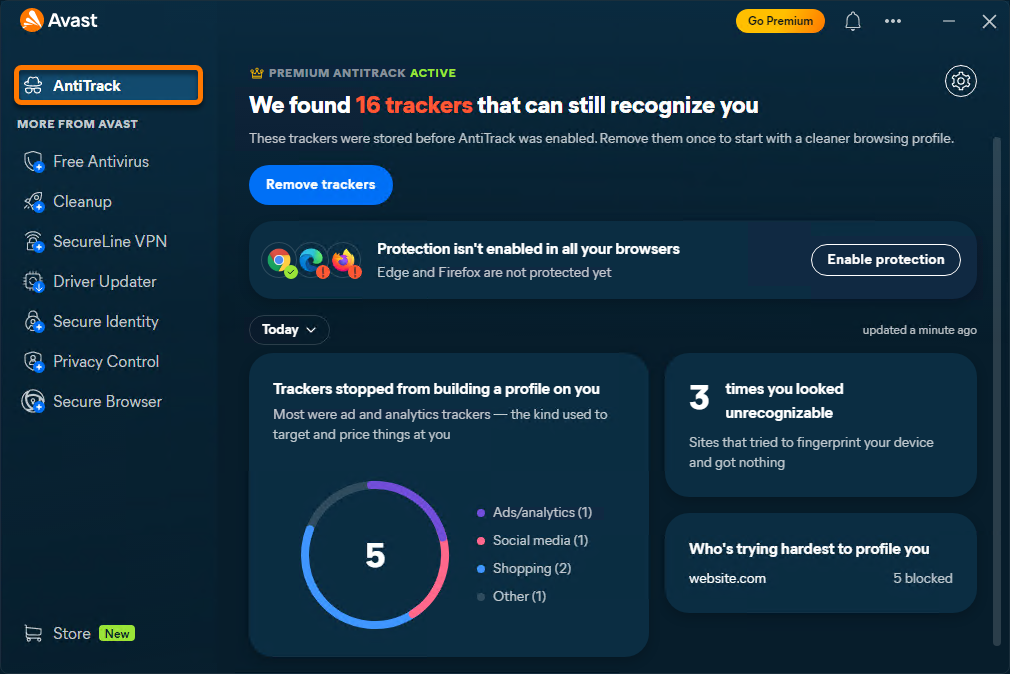
After installing the Avast AntiTrack browser extension and opening Avast One, hover your cursor over the side menu and select AntiTrack. Avast AntiTrack automatically scans your device for trackers. If trackers are detected, Avast AntiTrack prompts you to remove them:
- In the prompt that appears, click Remove trackers.

- If any browsers are open, click Close browsers to allow Avast AntiTrack to close them automatically.
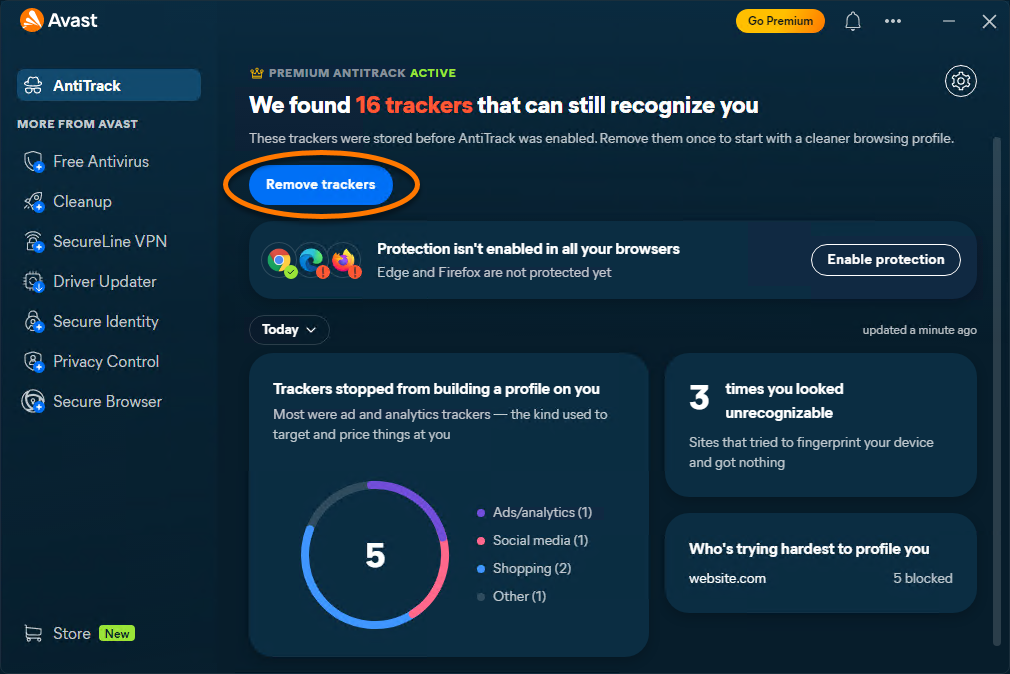
The detected trackers are removed.
Navigate the dashboard
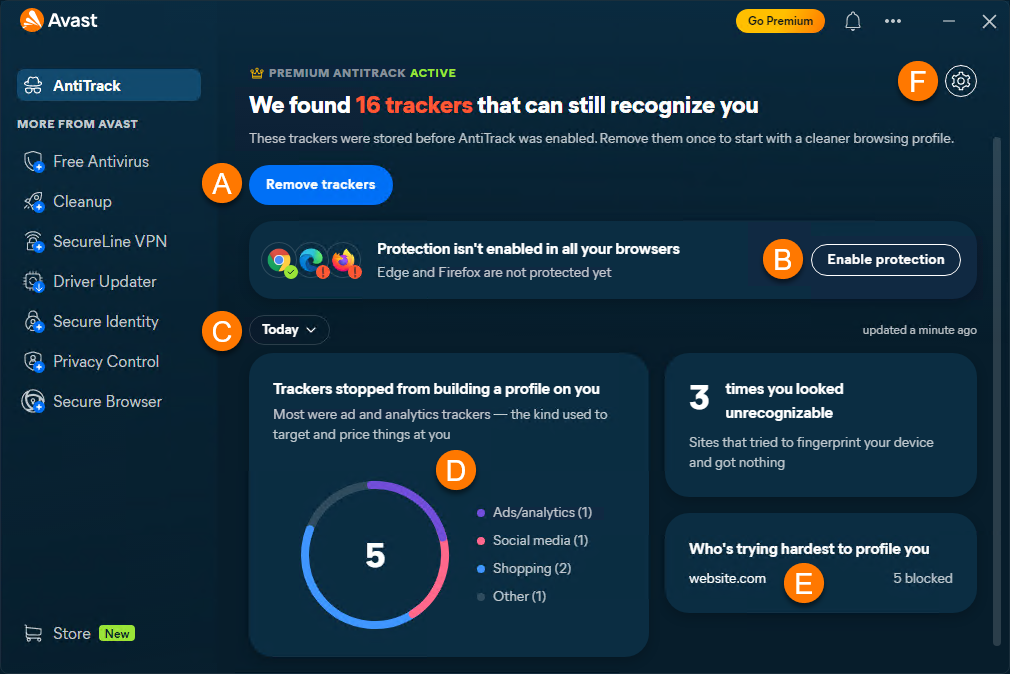
When you open Avast AntiTrack, the dashboard provides an overview of detected tracking activity and protection options.
- Remove trackers: Removes trackers detected during the latest scan. After the trackers are removed the extensions continue to protect you so this option may not appear.
- Enable protection: If a supported browser does not yet have the Avast AntiTrack extension installed, click this option to add it.
- Click the down arrow to view statistics for today or for the last 7, 30, 60, or 90 days.
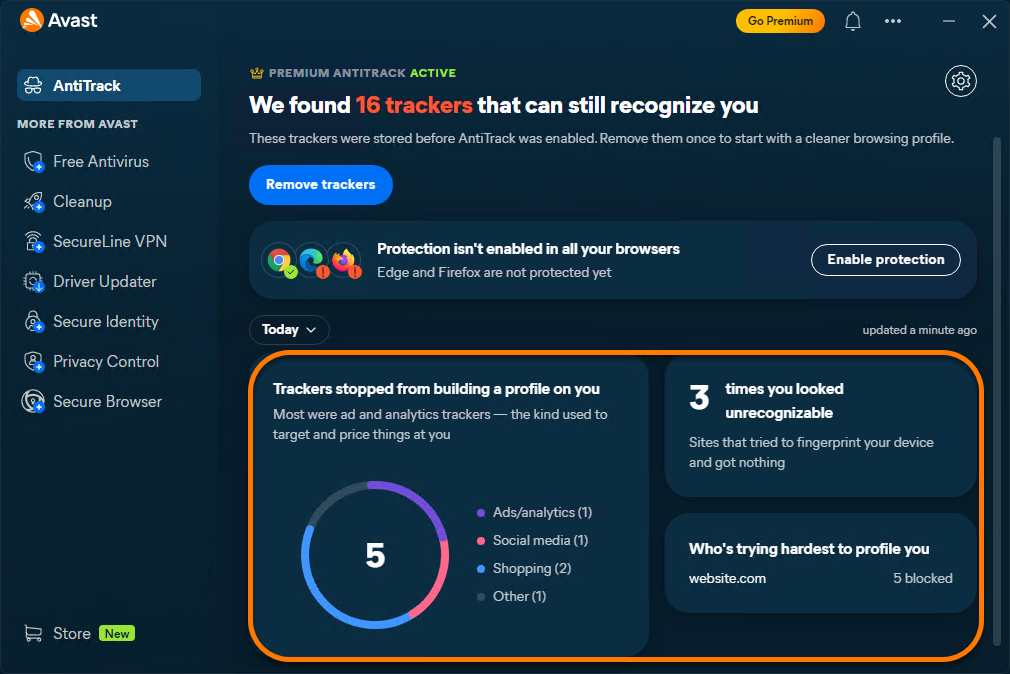
- Trackers stopped from building a profile on you: Displays the total number of fingerprinting attempts and removed trackers during the selected period.
- Who's trying hardest to profile you: Displays information about blocked fingerprinting attempts and tracking activity for individual websites.
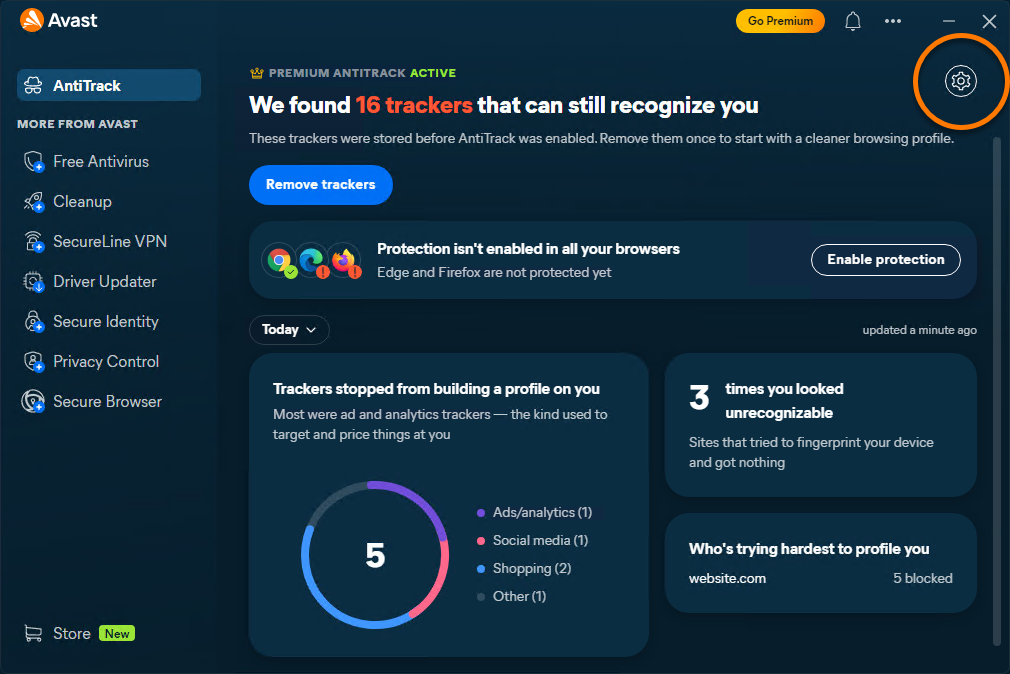
- Click Settings (the gear icon) to manage browser extension options, OS Tracker Blocking, and clearing Avast AntiTrack data.
Monitor tracking attempts
The Avast AntiTrack dashboard provides detailed information about blocked fingerprinting attempts and trackers. Click the available tabs on the dashboard to view additional details.
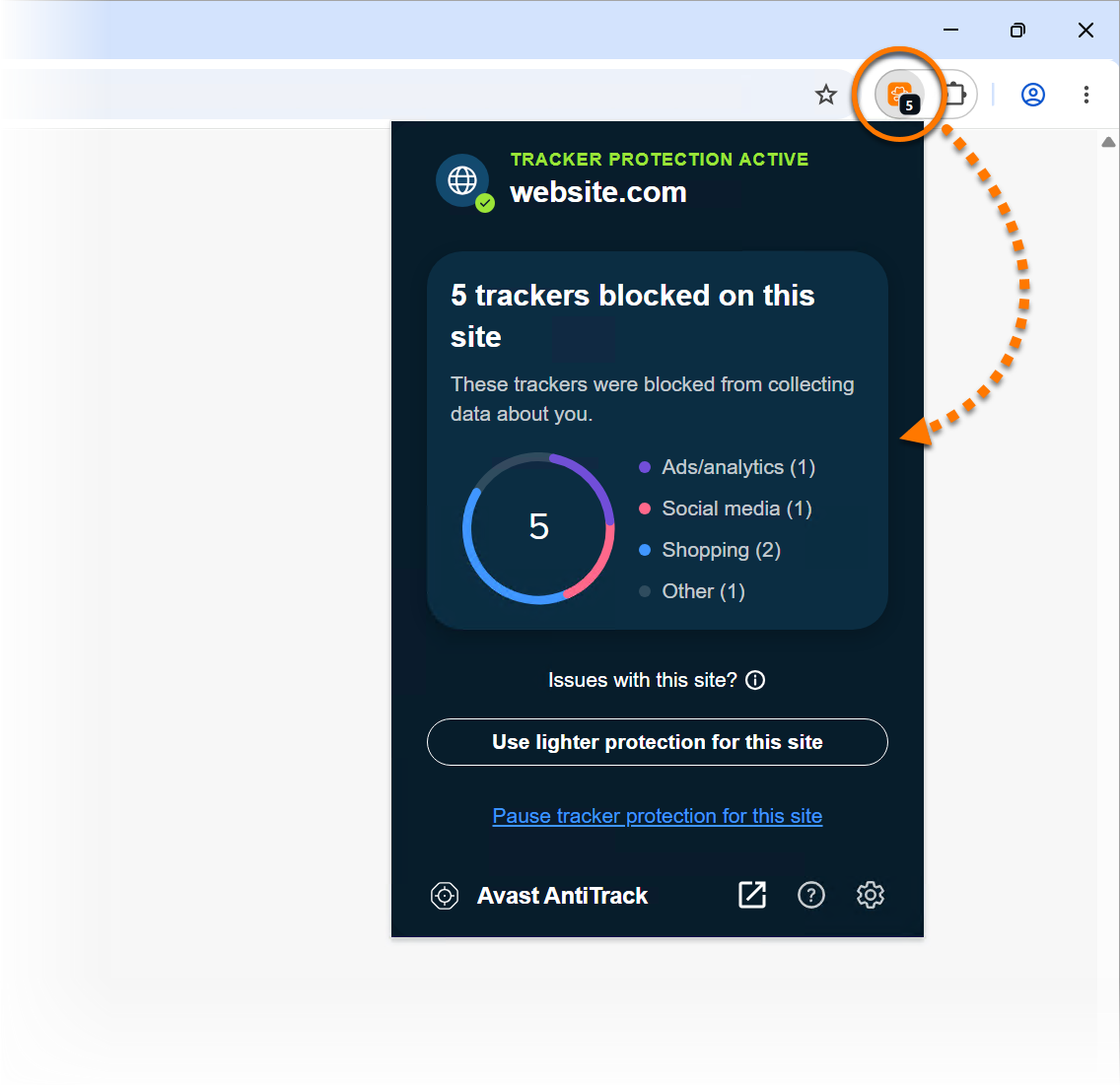
You can also view tracking information through the Avast AntiTrack browser extension. Open your browser, navigate to the website you want to inspect, then click the Avast AntiTrack extension in the top-right corner of the browser.
Create an exception
You can prevent Avast AntiTrack from clearing cookies on specific websites by adding them to the Exceptions List.
For detailed instructions, refer to the following article:
Manage Windows tracker blocking
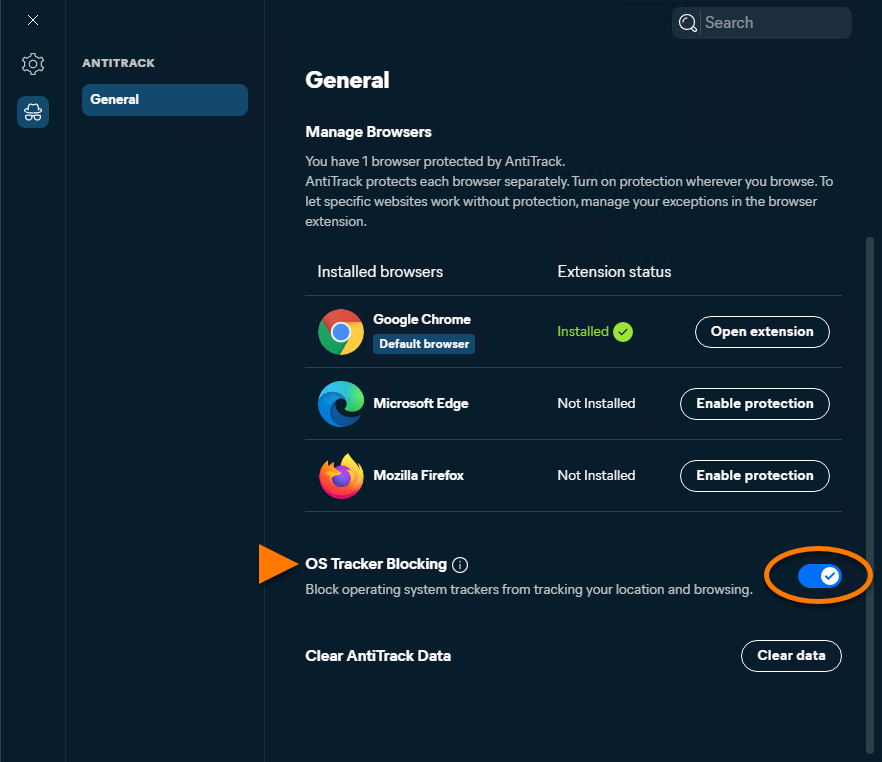
Avast AntiTrack can block tracking activities and targeted advertising performed by Windows.
- Open Avast One, hover your cursor over the side menu, and select AntiTrack.
- Click Settings (the gear icon).
- Use the OS Tracker Blocking slider to enable or disable Windows tracker blocking.
Clear Avast AntiTrack data
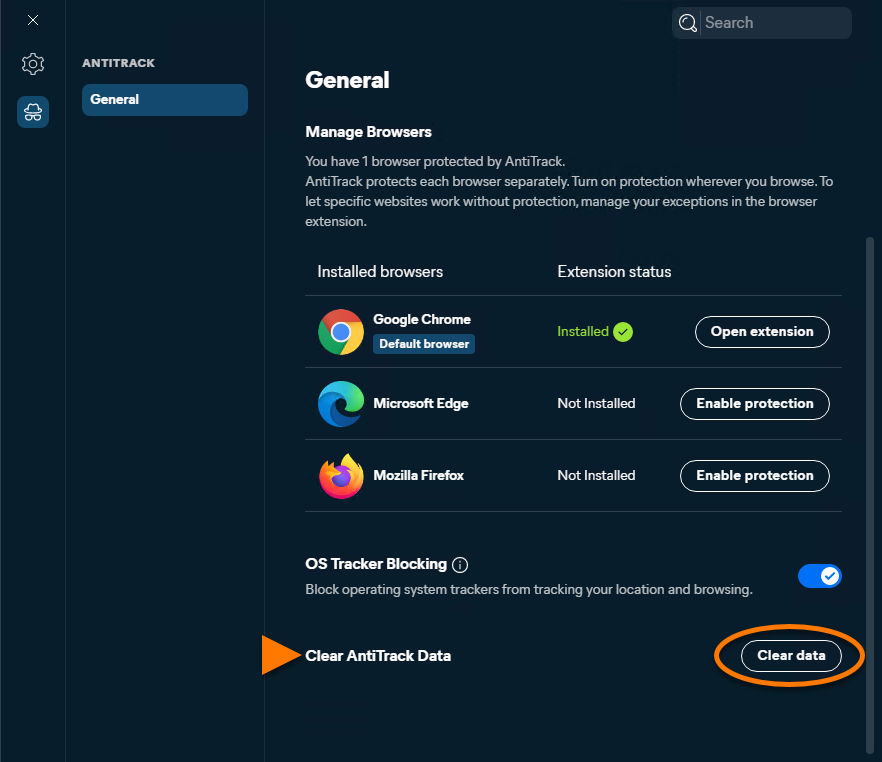
Follow the steps below to delete all information about tracking attempts collected by Avast AntiTrack:
- Open Avast One, hover your cursor over the side menu, and select AntiTrack.
- Click Settings (the gear icon).
- Click Clear data.
Further recommendations
For more information about Avast AntiTrack in Avast One, refer to the following article:
- Avast One
- Avast AntiTrack
- Windows
Updated on: 9/15/26


 © 2025 Gen Digital Inc.