

Avast Premium Cleanup is an optimization tool within Avast One that includes a range of scans designed to detect unnecessary items and performance issues. These scans help free up disk space and improve system performance.
Scan your Windows device
Avast Premium Cleanup scans your Windows device for unnecessary files and performance issues. To scan your Windows device for the first time:
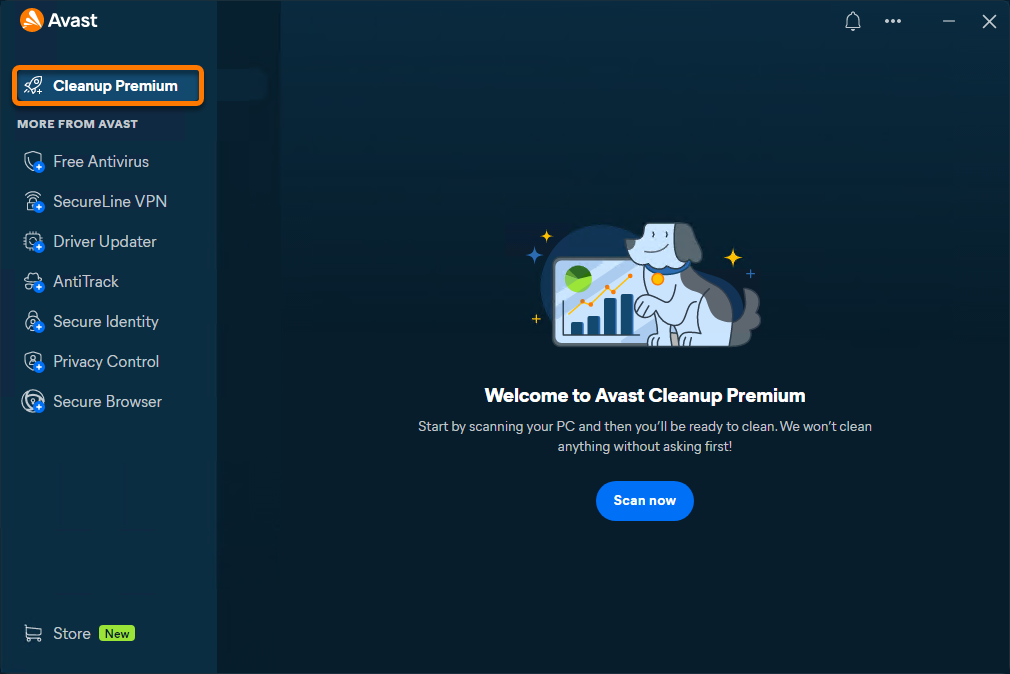
- Open Avast One, hover your cursor over the side menu, and select Premium Cleanup.

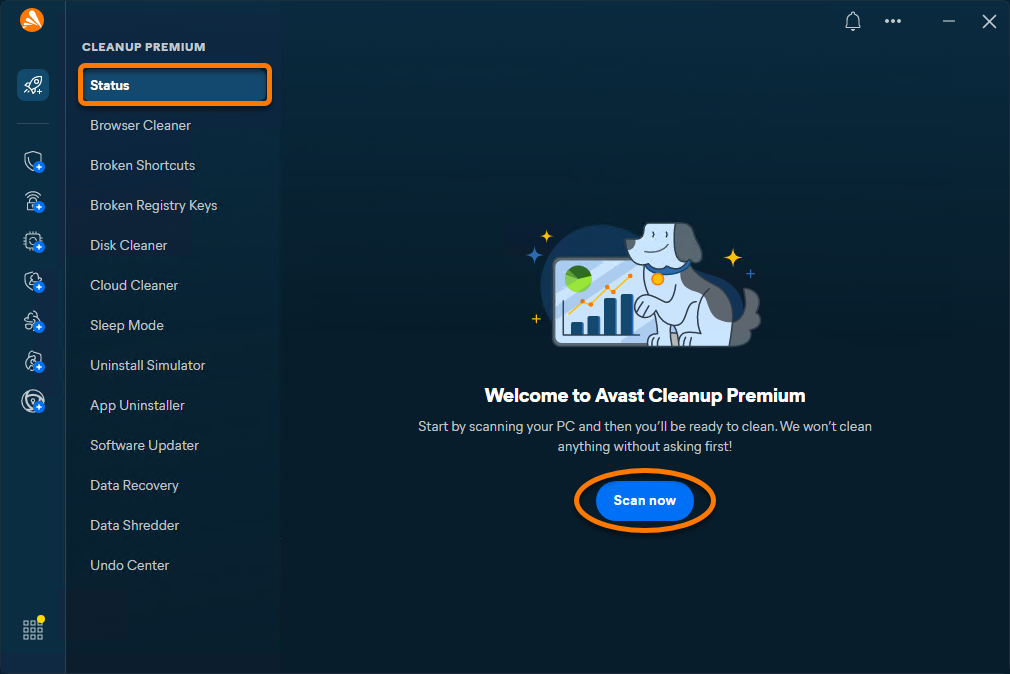
- Ensure that Status is selected, then click Scan now to perform a general scan.
- The scan results appear on the main dashboard. Ensure the items you want to remove are selected. Optionally, click See details for more information about each category. Click Clean to remove the selected items.
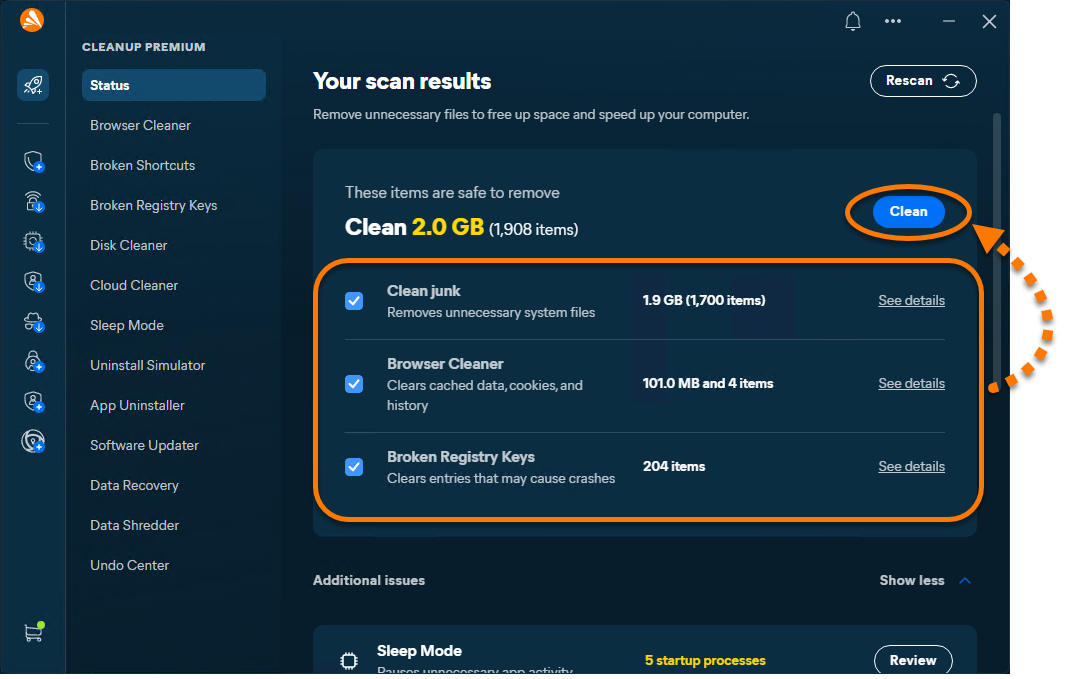
The selected items are cleaned. For detailed instructions for each category, refer to the section below.
Free up disk space
Avast One - Premium Cleanup scans your Windows device for unnecessary data, such as browser data and system junk, and safely deletes it to free up disk space. Use the tools below to clean different types of data and optimize your device.
Browser Cleaner
To clean your browsers:
- Open Avast One, hover your cursor over the side menu, and select Premium Cleanup ▸ Browser Cleaner.
- Choose a cleaning mode (Basic, Full, or Custom) or manually select the browsers you want to clean.
Full mode deletes autofill data saved in your selected browsers.
- Optionally, hover your cursor over a listed browser, click
•••(three dots) ▸ Ignore to move it to the Ignored list. - Optionally, click the down arrow next to a browser to choose which items to clean (browsing history, cache, cookies, and so on).
- Click Clean to remove the selected data.
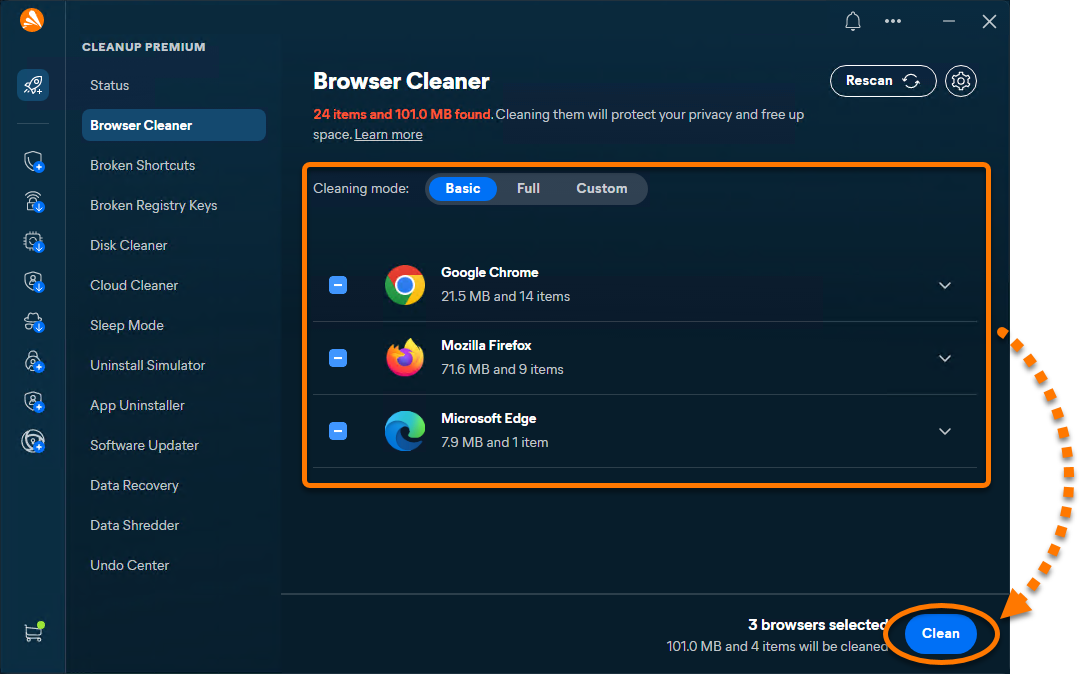
Selected browser data is removed, helping free up space and improve privacy.
Broken Shortcuts
To remove broken shortcuts:
- Open Avast One, hover your cursor over the side menu, and select Premium Cleanup ▸ Broken Shortcuts.
- Choose a cleaning mode (Basic, Full, or Custom) or manually select the shortcuts you want to remove.
- Optionally, hover your cursor over a listed shortcut and click the arrow that appears to view its full path.
- Click Clean to remove the selected shortcuts.
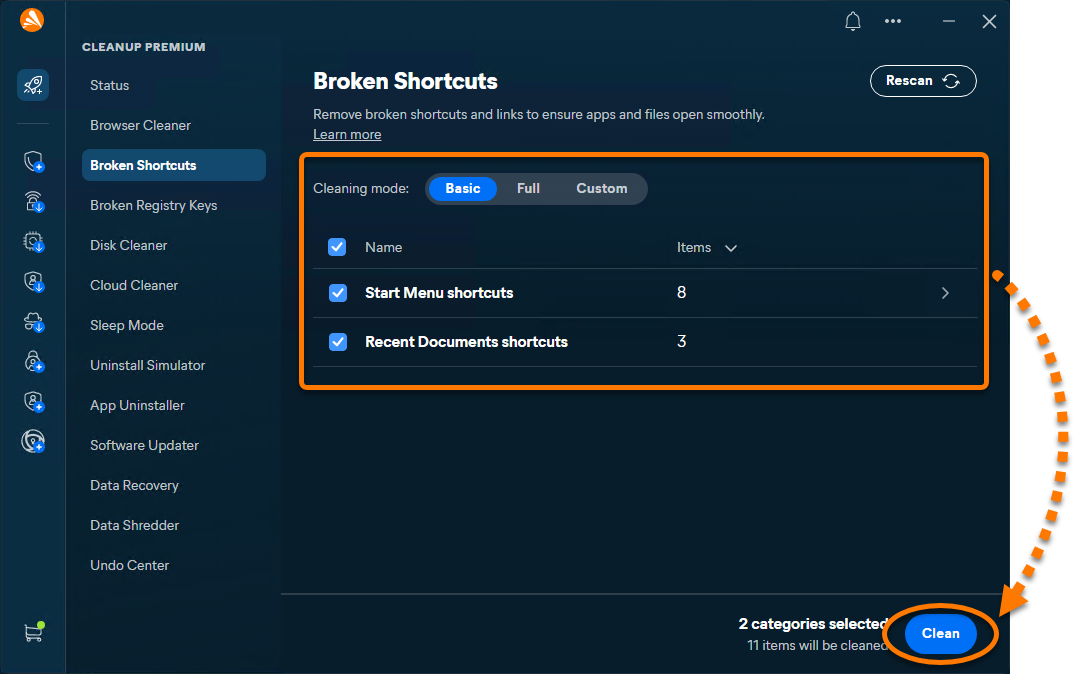
The selected broken shortcuts are removed from your system.
Broken Registry Keys
To clean the Windows registry:
- Open Avast One, hover your cursor over the side menu, and select Premium Cleanup ▸ Broken Registry Keys.
- Choose a cleaning mode (Basic, Full, or Custom) or manually select the entries you want to fix.
- Optionally, hover your cursor over an item and click
•••(three dots) ▸ Ignore to move it to the Ignored list or click the arrow to view more details. - Click Clean to remove the selected registry entries.
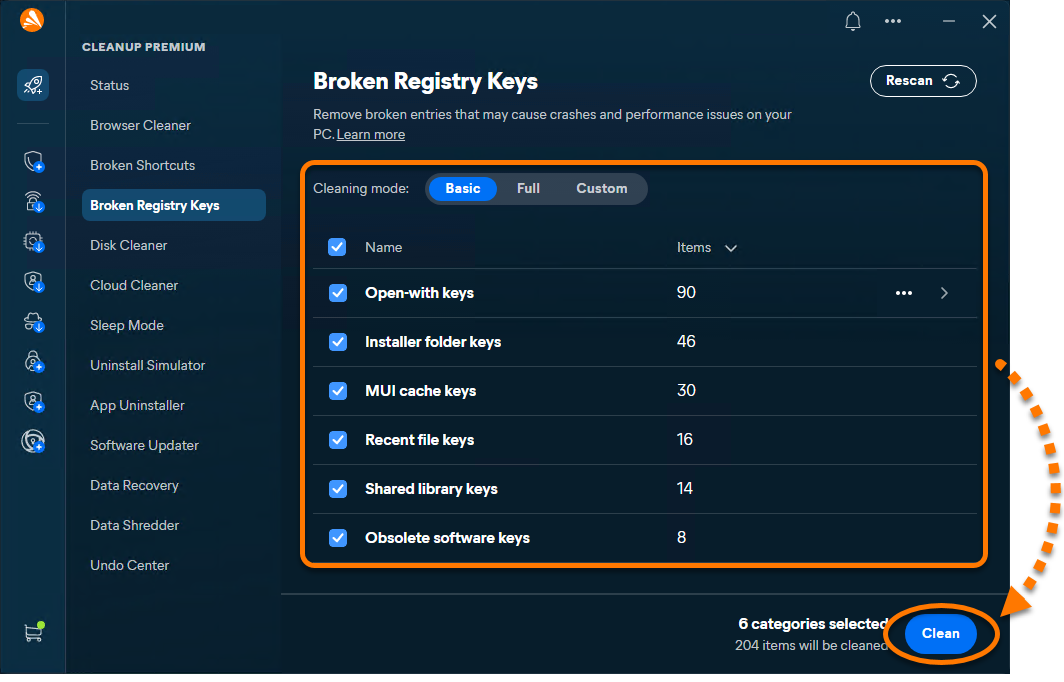
The selected registry issues are removed, which may help improve system stability.
Disk Cleaner
To remove unnecessary files:
- Open Avast One, hover your cursor over the side menu, and select Premium Cleanup ▸ Disk Cleaner.
- Choose a cleaning mode (Basic, Full, or Custom), or manually select the items you want to remove.
Full mode deletes the contents of your Downloads folder, as well as logs, caches, backups, and recycle bin contents. You should always review the contents before using full mode.
- Optionally, hover your cursor over a file category, click
•••(three dots) ▸ Ignore to move it to the Ignored list or click the arrow to view more details. - Click Clean to remove the selected files.
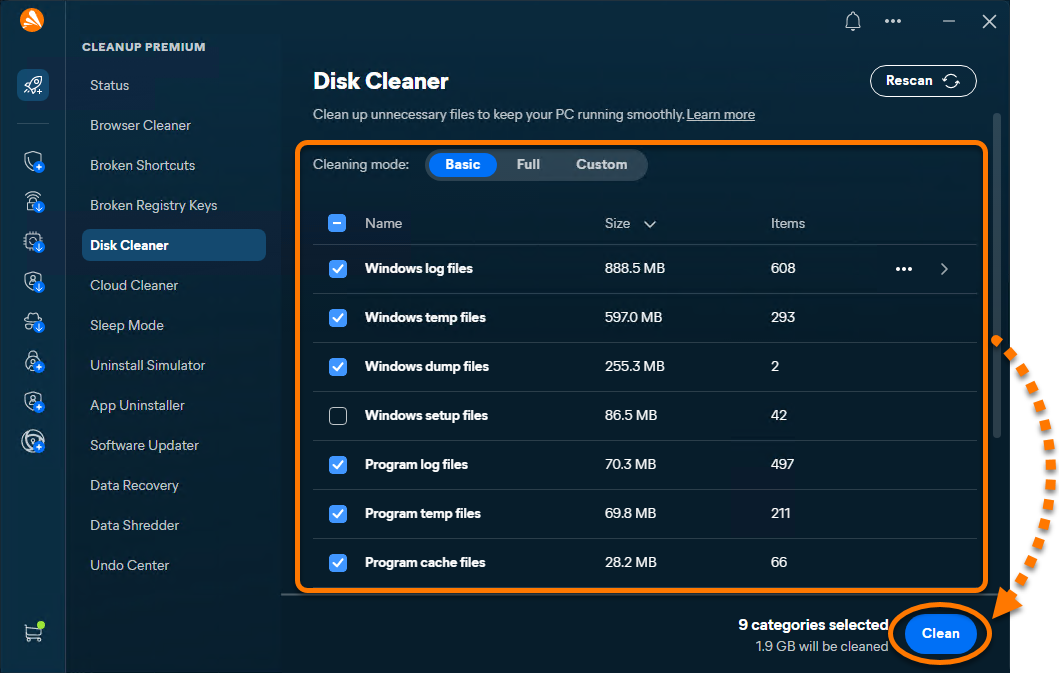
The selected files are removed, freeing up disk space on your device.
Enable Auto-Clean
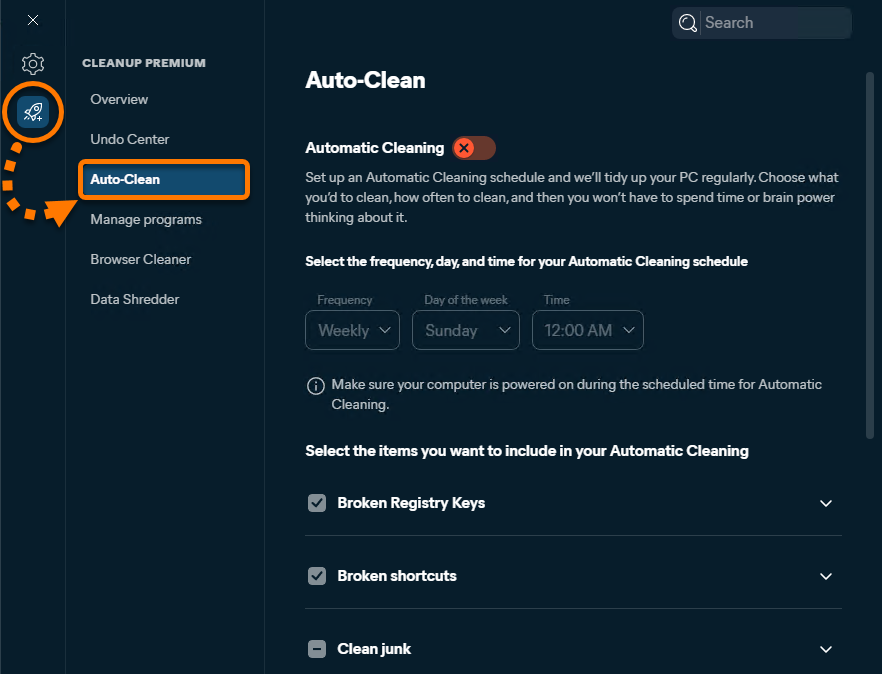
Auto-Clean runs silently in the background with no actions required from you and frees up space on your Windows device by removing dispensable items, such as broken shortcuts and registry items.
To enable Auto-Clean:
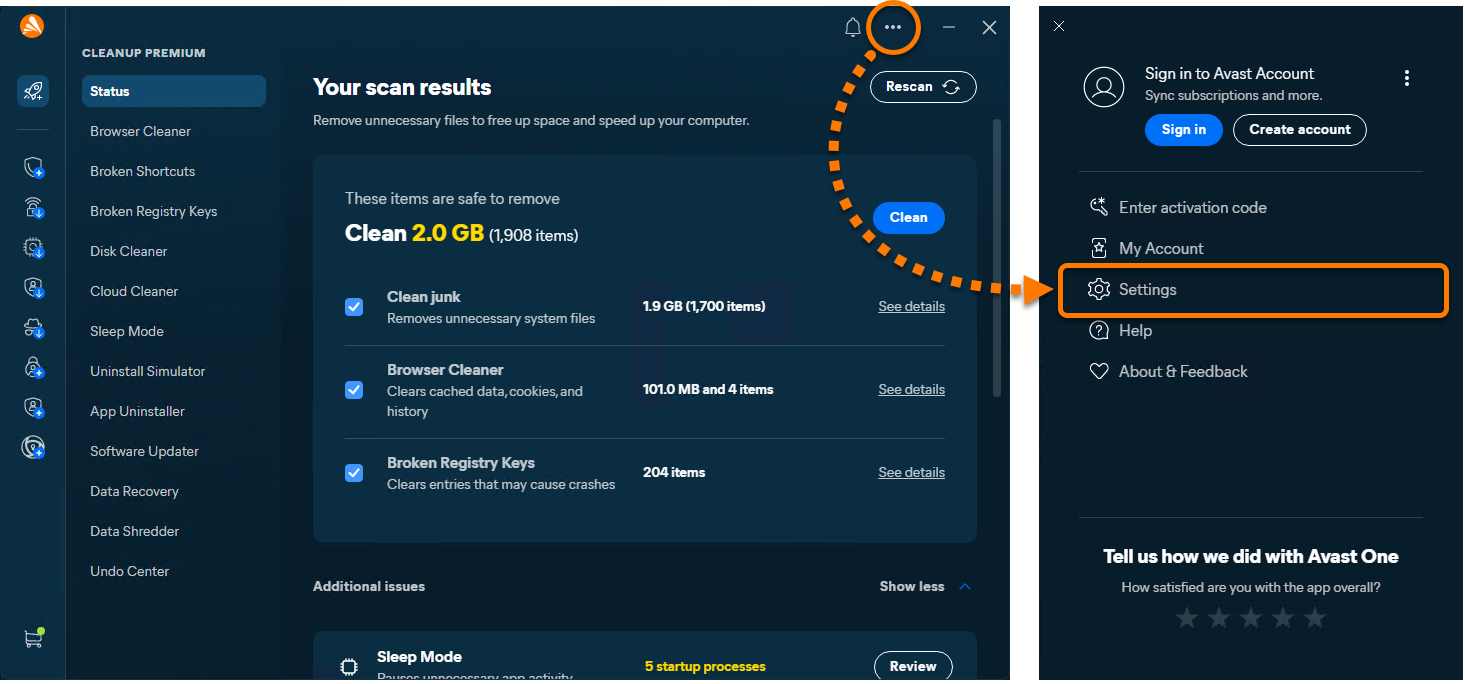
- Open Avast One, then go to
•••Menu ▸ Settings.
- Select Premium Cleanup ▸ Auto-Clean.
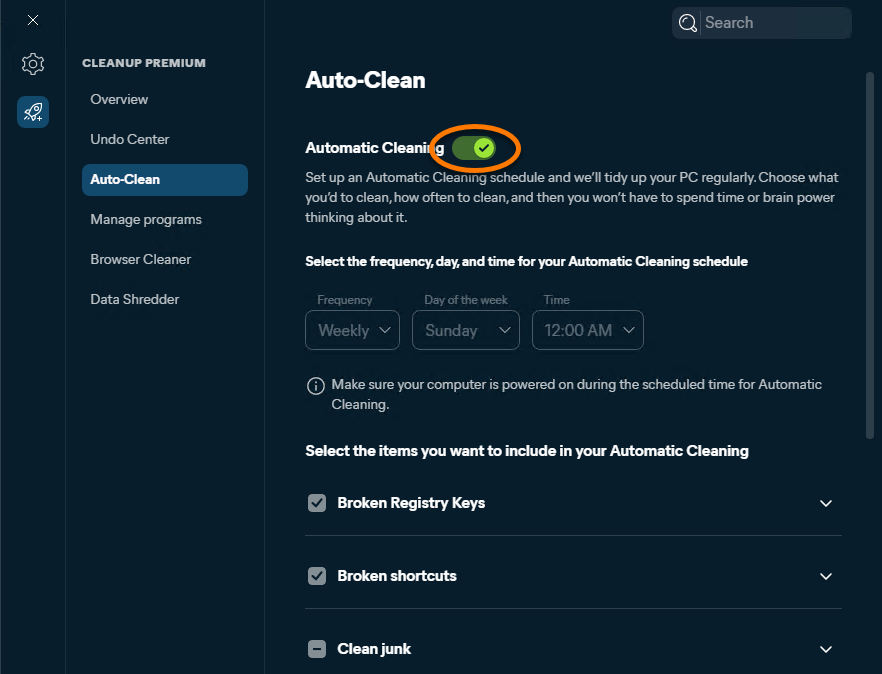
- Click the red (OFF) slider so that it changes to green (ON).
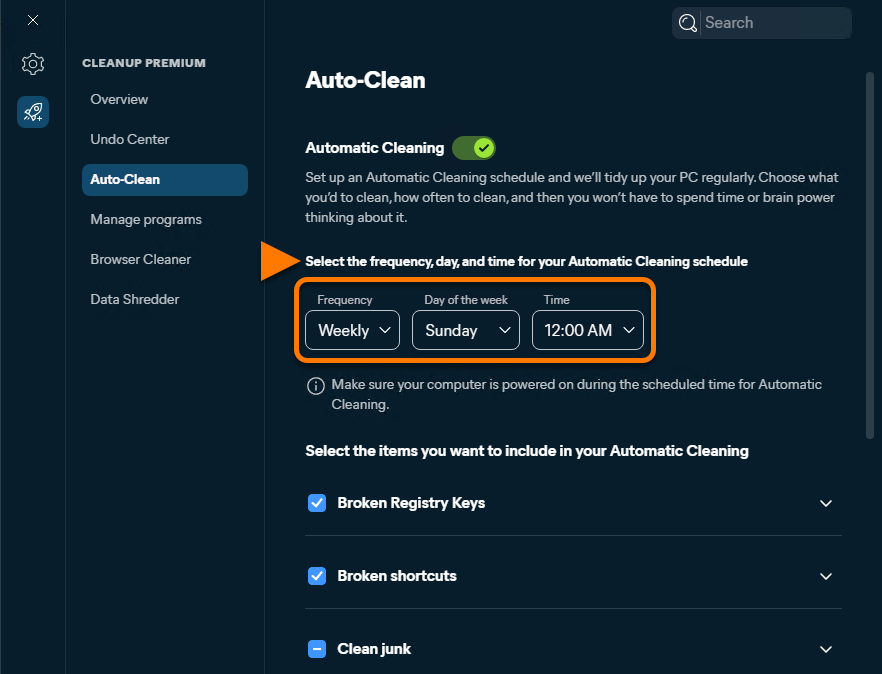
- Use the menu to specify the frequency of scans.
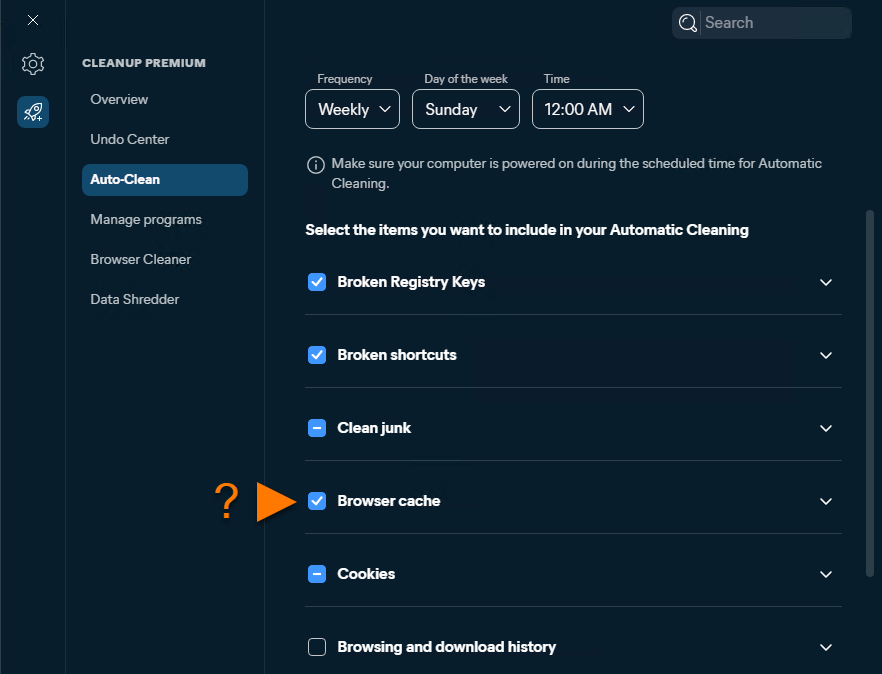
- Select the file types you want Avast Premium Cleanup to remove during automatic cleaning.
Optionally, click the down arrow next to a selected file type to view more specific file categories.
 Optionally, click the down arrow next to a selected file type to view more specific file categories.
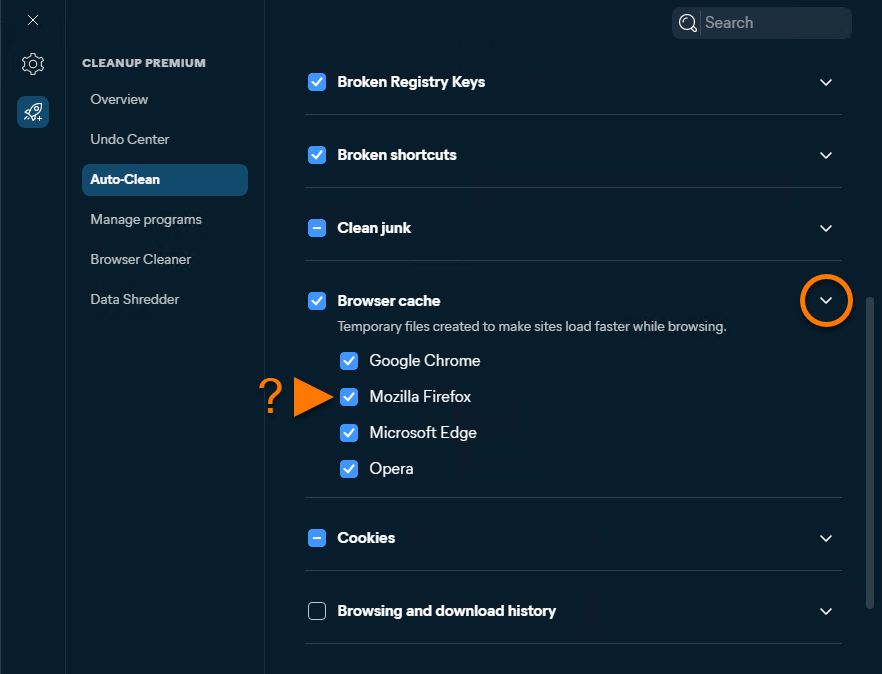
Auto-Clean is now enabled.
Free up space in Cloud Storage
Cloud Cleaner helps free up space in your online storage by identifying and removing duplicate, large, and old files.
- Open Avast One, hover your cursor over the side menu, and select Premium Cleanup.
- Select Cloud Cleaner.
- Click Connect next to the relevant cloud storage service, then follow the on-screen instructions to sign in to the selected account.
- Once you are signed in, click Start scan to analyze your cloud storage.
- Click Review under the chosen category.
- Select the items you wish to delete, then click Remove.
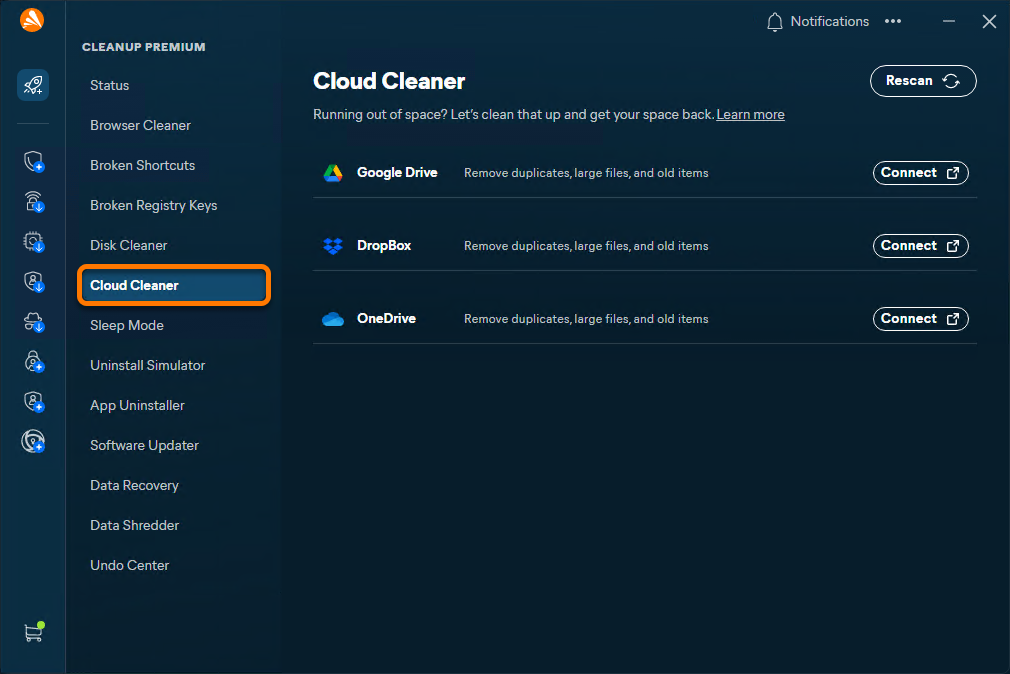
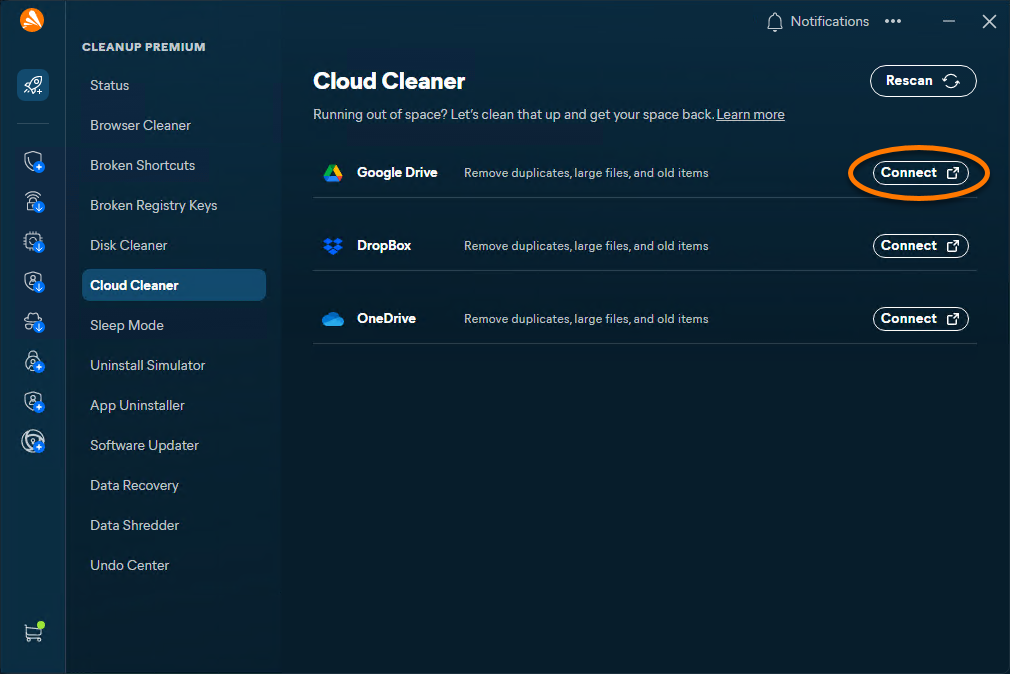
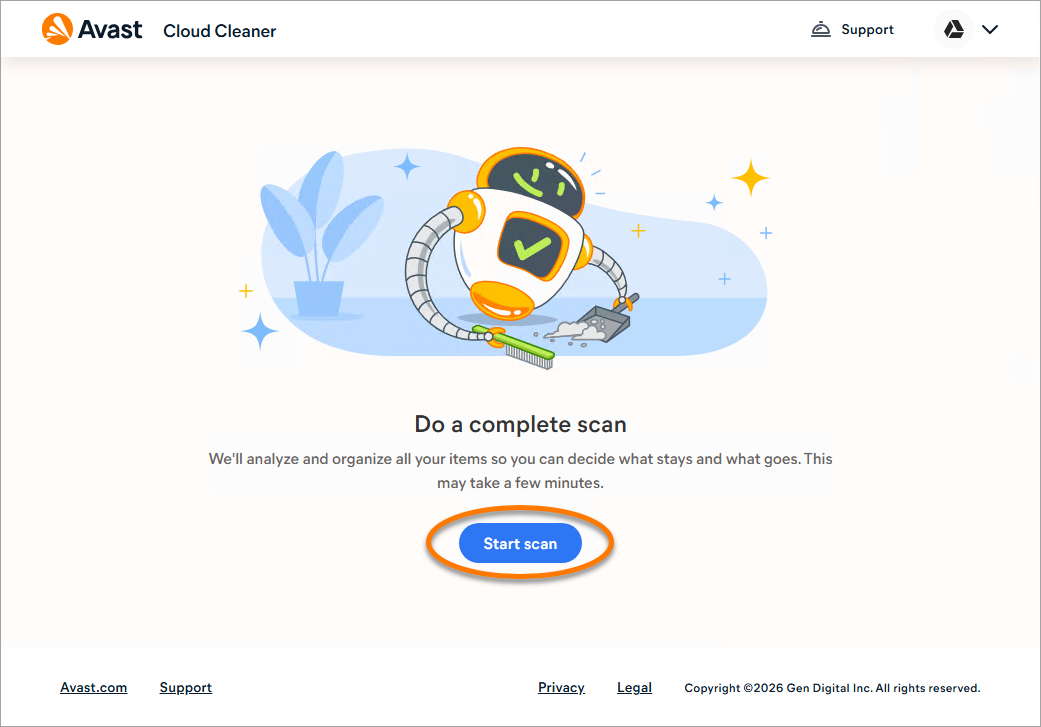
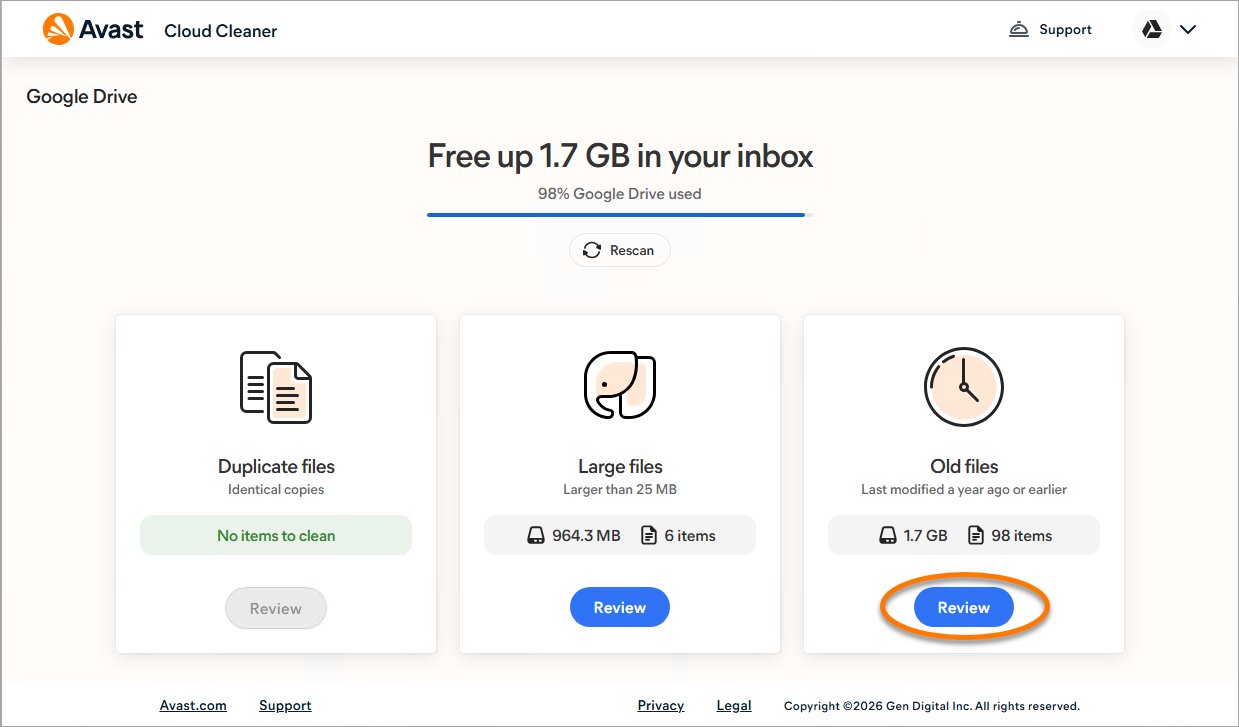
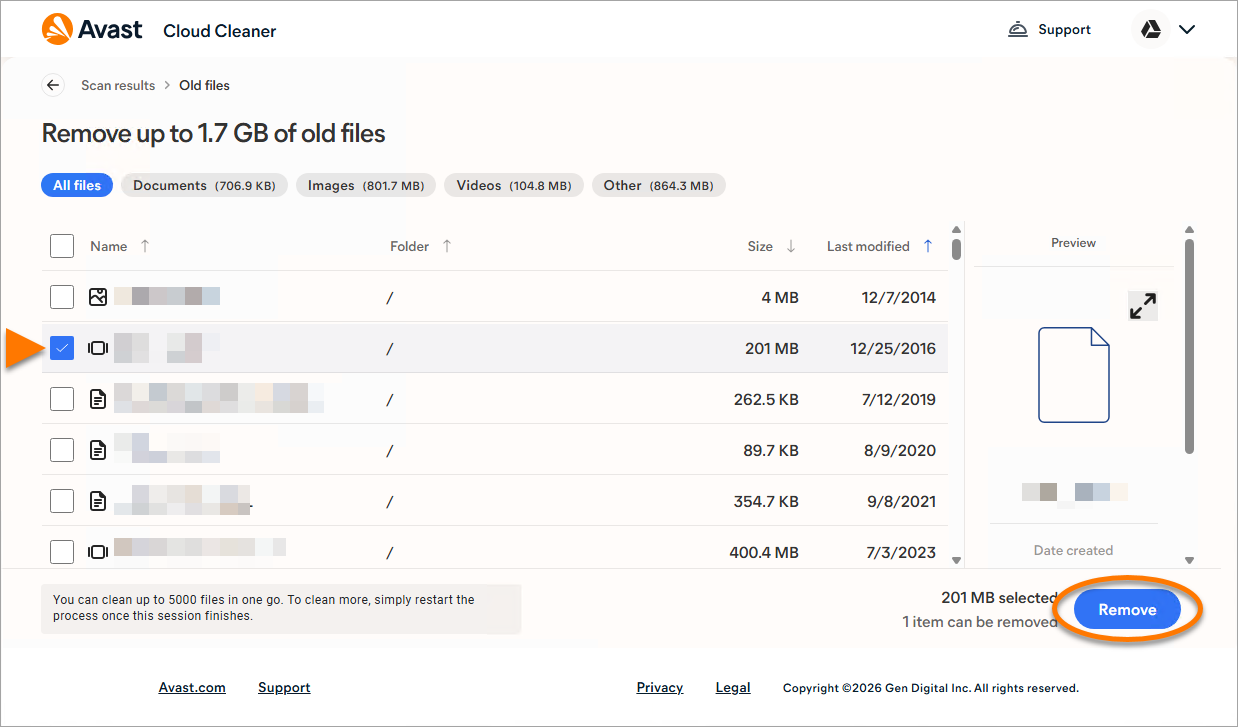
The selected files are removed from your cloud storage.
Manage applications
Avast One - Premium Cleanup scans your Windows device for outdated or unused applications and helps you easily update them, put them to sleep, uninstall them, or preview how removing them would affect your device. This helps ensure that your applications run optimally and frees up system resources.
Put applications to sleep
Certain applications slow down your system by running silently in the background. Avast One - Premium Cleanup scans for these applications, then allows you to safely put them to sleep and boost performance.
- Open Avast One, hover your cursor over the side menu and select Premium Cleanup ▸ Sleep Mode.
- The Sleep Mode screen shows applications that are running unnecessarily in the background and slowing down your Windows device.
- Optionally, hover your cursor over an application, click
•••(three dots) ▸ Ignore to move it to the Ignored list or click the arrow to view more details. - To put an application to sleep, click the green (ON) slider next to an application, so that it changes to red (OFF).
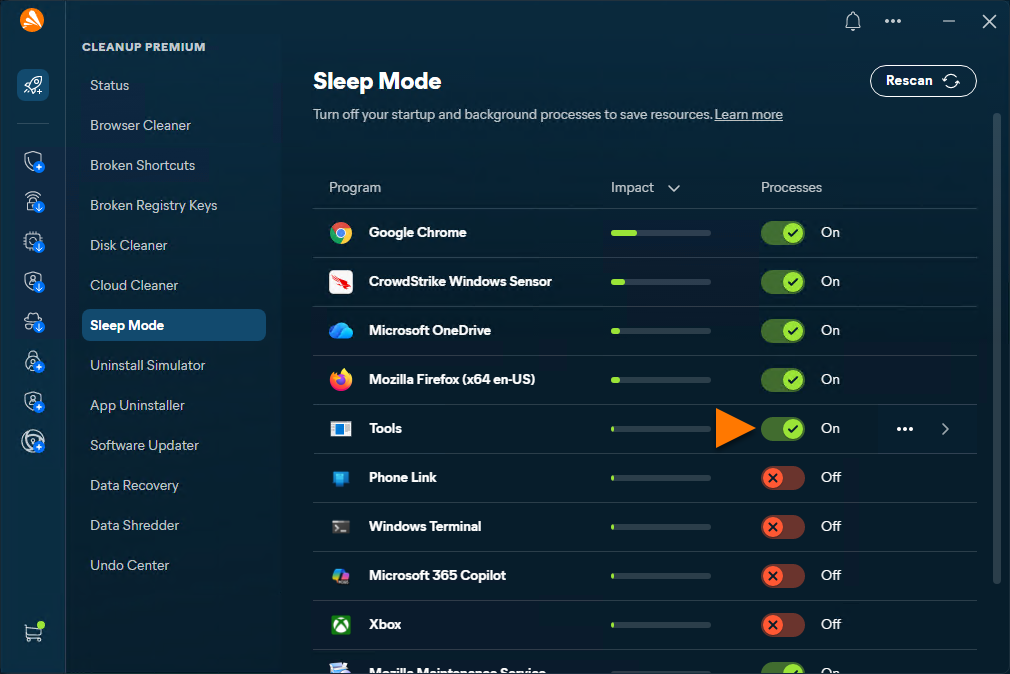
The selected applications are now sleeping. You can open and use sleeping applications as normal. After you close the application, Avast Premium Cleanup automatically returns its status to sleeping. To wake up a sleeping application, click the red (OFF) slider next to an application so that it changes to green (ON).
- If you use an application on a daily basis, we do not recommend putting it to sleep. Additionally, certain applications need to run in the background to offer full functionality. For example, if you put WhatsApp to sleep, you may miss incoming calls or messages.
- On devices with Windows 10 and higher, the Sleep Mode feature supports applications installed through the Microsoft Store. The relevant applications are installed in a Sleep state by default.
Preview app removal
Avast One - Premium Cleanup can provide a secure simulated environment to practice removing software, without the risk of losing essential programs. To simulate uninstalling an app, refer to the steps below:
- Open Avast One, hover your cursor over the side menu and select Premium Cleanup ▸ Uninstall Simulator.
- Optionally, hover your cursor over an application, click
•••(three dots) ▸ Ignore to move it to the Ignored list or click the arrow to view more details. - Choose an application you want to preview uninstalling, and click Simulate.
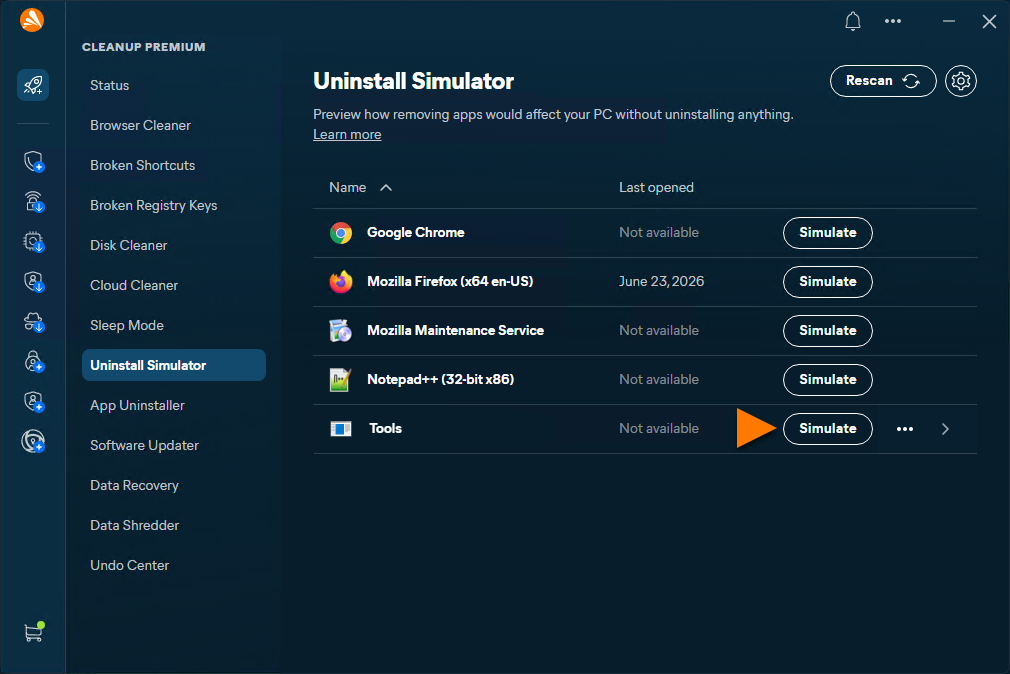
A secure simulated environment is created to help you check the effect of removing the app from your Windows device.
Uninstall unused applications
- Open Avast One, hover your cursor over the side menu and select Premium Cleanup ▸ App Uninstaller.
- Optionally, hover your cursor over an application, click
•••(three dots) ▸ Ignore to move it to the Ignored list or click the arrow to view more details. - Choose an application you want to uninstall and click Uninstall then click Uninstall again to confirm the unistallation of the application.
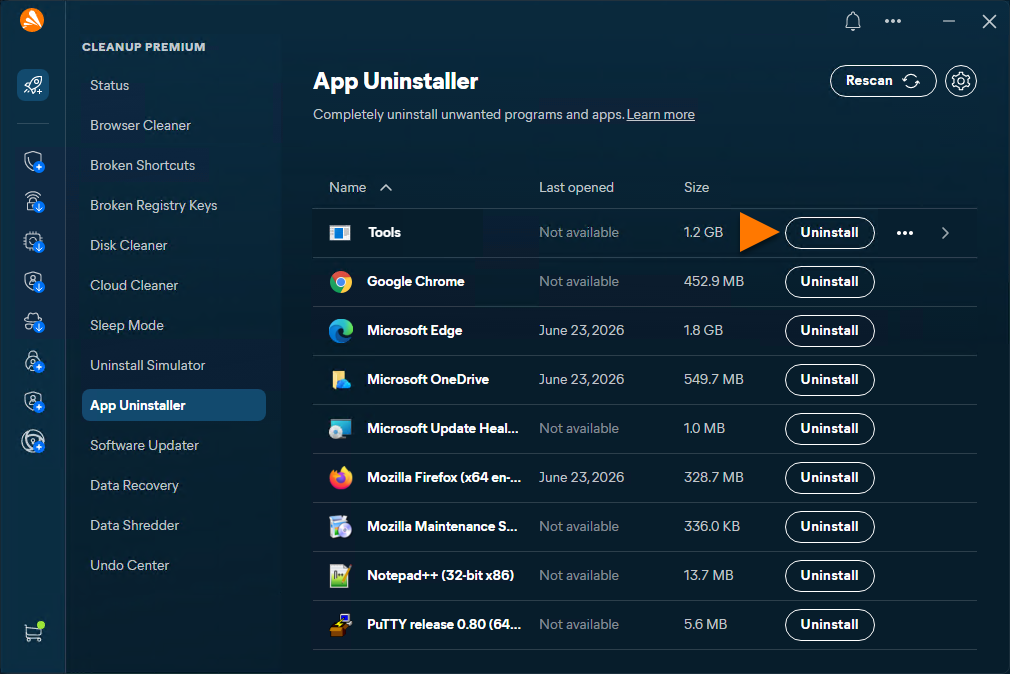
The application is now uninstalled.
Update applications
- Open Avast One, hover your cursor over the side menu and select Premium Cleanup ▸ Software Updater.
- Optionally, hover your cursor over an application, click
•••(three dots) ▸ Ignore to move it to the Ignored list or click the arrow to view more details. - Choose an application you want to update, and click Update.
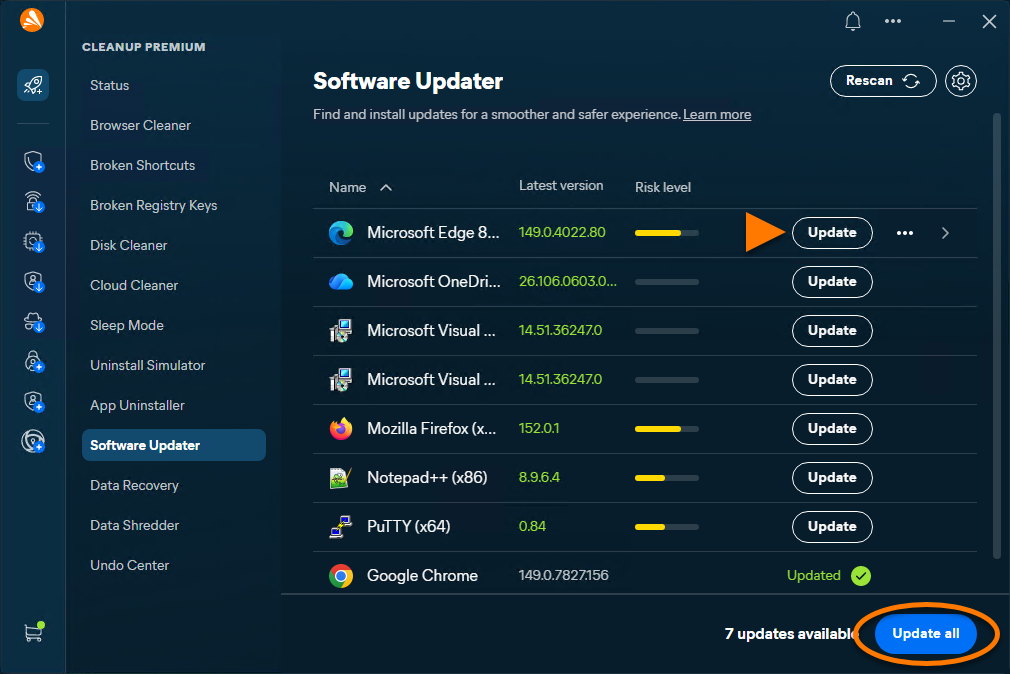
The application is now updated.
Manage your data
Avast One - Premium Cleanup can help you recover data that is lost. In addition, it helps to easily shred sensitive data, ensuring your data is secure.
Recover your data
Data Recovery helps you recover files (such as documents and photos) that were lost due to accidental deletion, system crashes, or other issues on hard drives and other storage devices. To recover files:
- Open Avast One, hover your cursor over the side menu, and select Premium Cleanup.
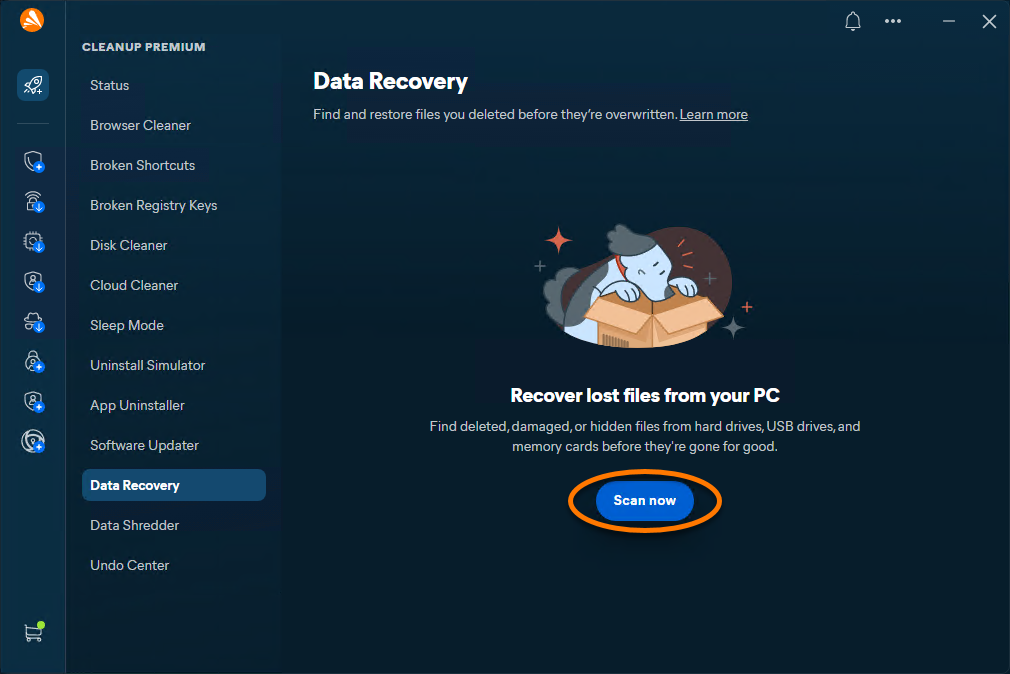
- Select Data Recovery, then click Scan now.
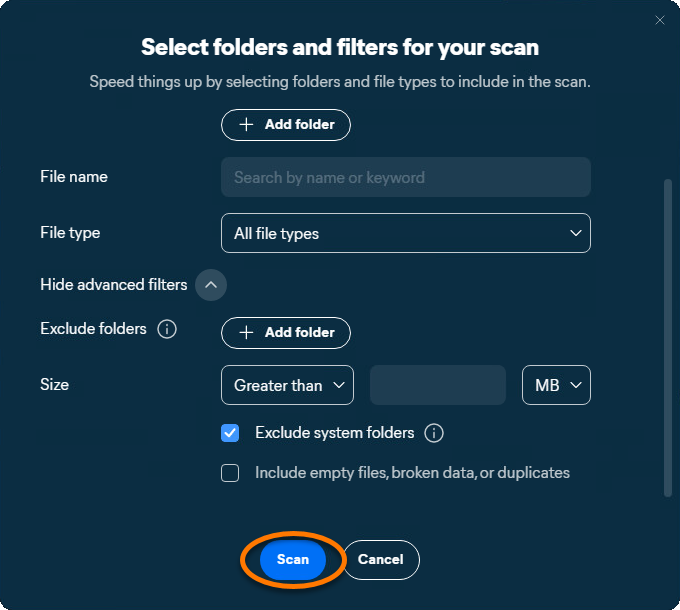
- Select the relevant options in each category to narrow down your search. Optionally, click the drop-down arrow beside Show advanced filters to add extra filters on your search.
Adding detailed filters can help you to find the desired items that you are looking for and help reduce the scan time.
- Click Scan.
The scan may take several minutes to complete.
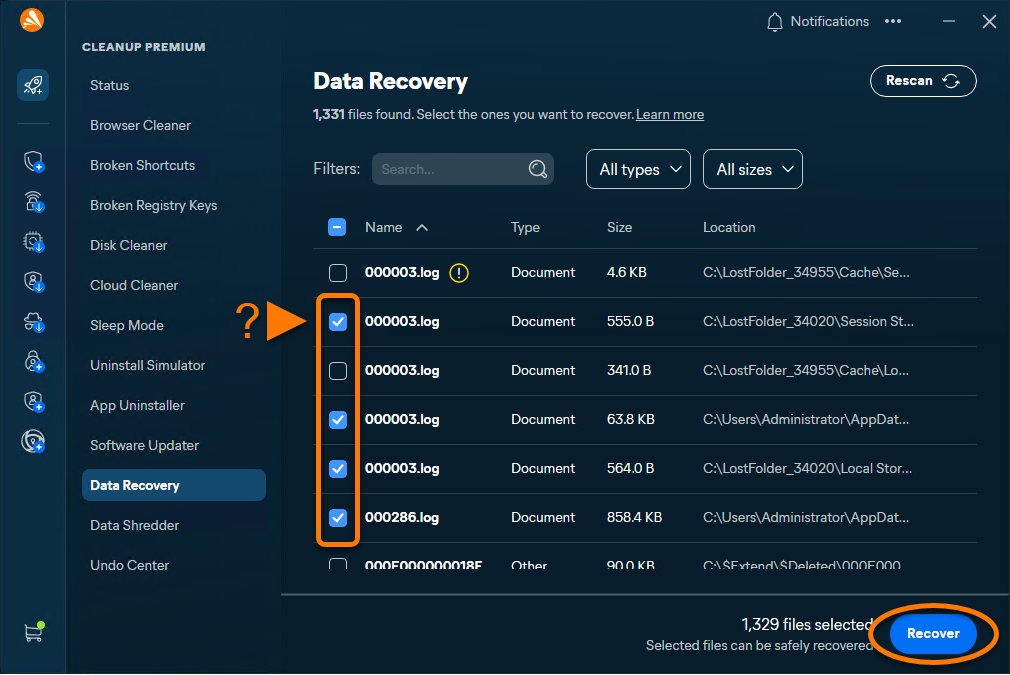
- Tick the boxes beside the files you want to recover, then click Recover.
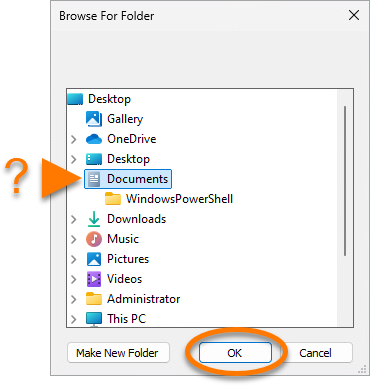
- Select a folder you want the files to be recovered to, and click OK.
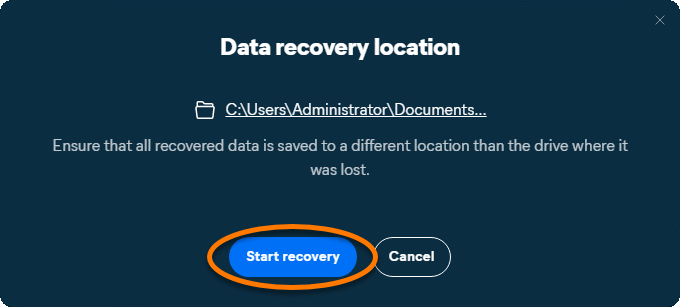
We recommend choosing a different drive to increase your chances of successful data recovery. Data recovery to the same drive may end in the overwriting of recovered files and lead to the failure of the operation.
- Click Start recovery.

When the files are recovered, click Back to Dashboard or View recovered files.
Shred your data
Data Shredder permanently deletes your files to free up space and increase security on your device. To shred your data:
- Open Avast One, hover your cursor over the side menu, and select Premium Cleanup.
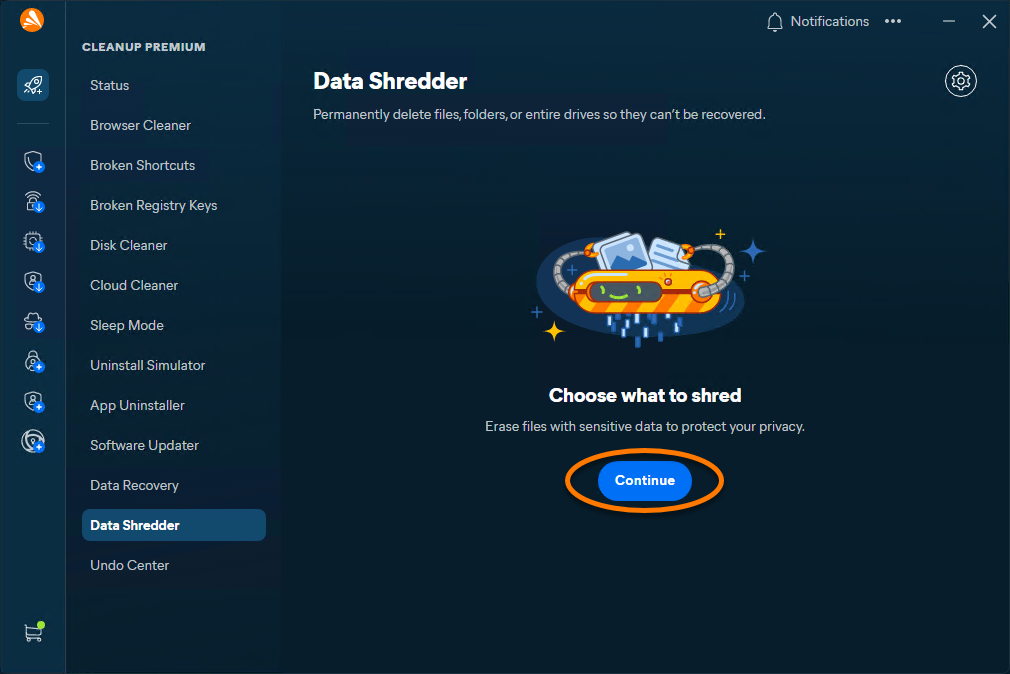
- Select Data Shredder, then click Continue.
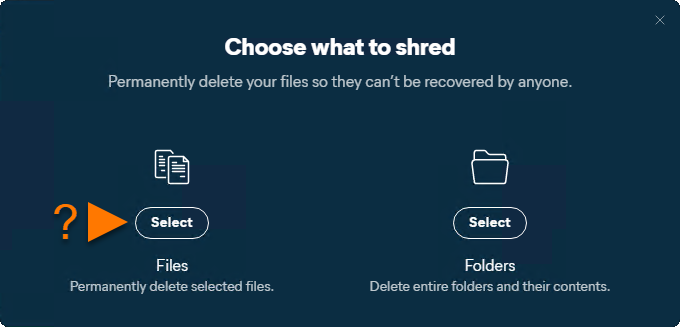
- Click Select files or Select folders, depending on what you want to shred.
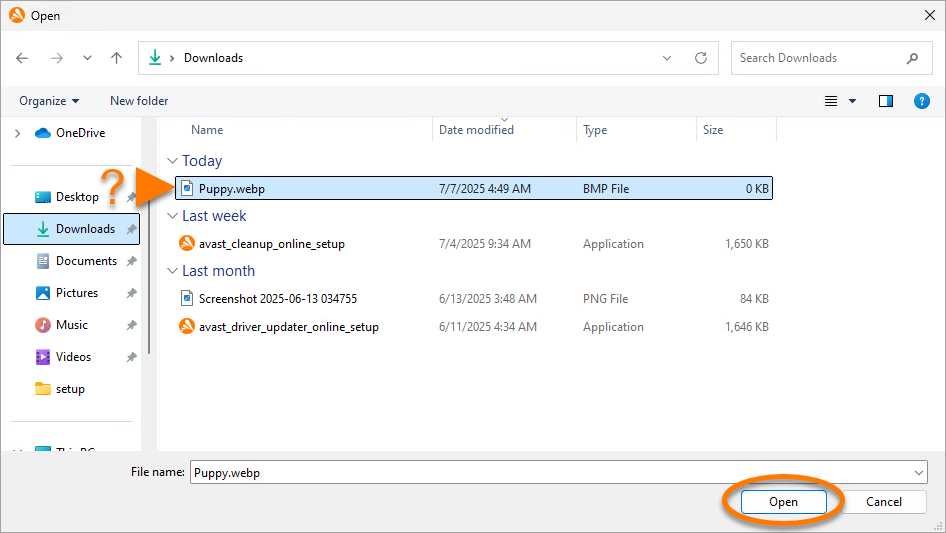
- Navigate to the file or folder you want to shred, select it, then click Open.
- Click Shred then click Shred again to confirm start shredding the file or folder.
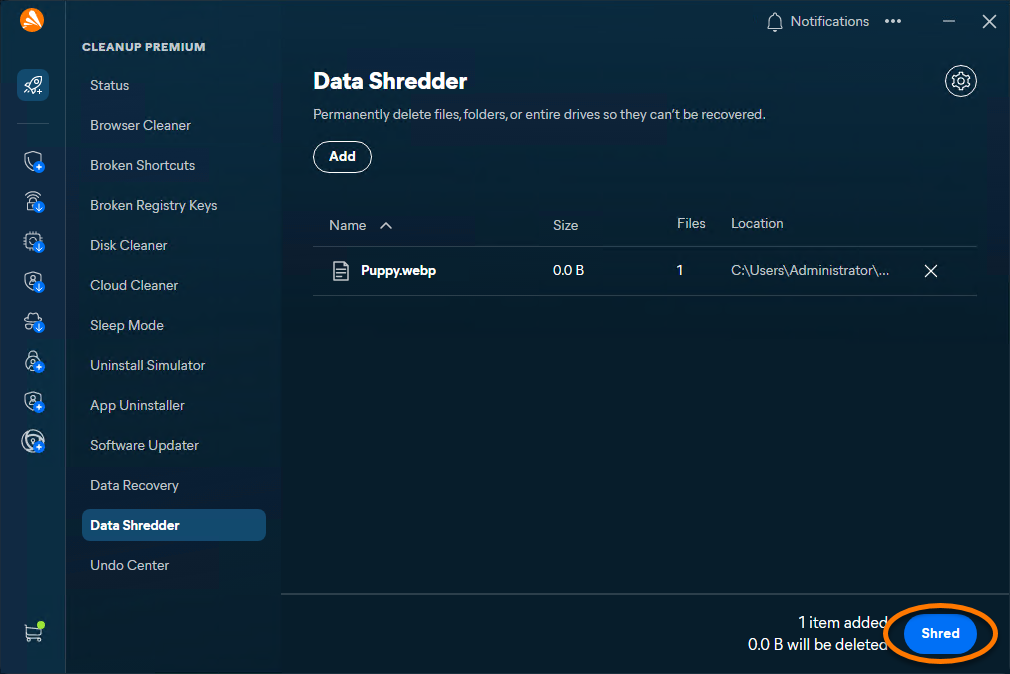
The data is now permanently deleted.
Undo changes
Undo Center helps you to review and undo recent changes made by Avast One - Premium Cleanup:
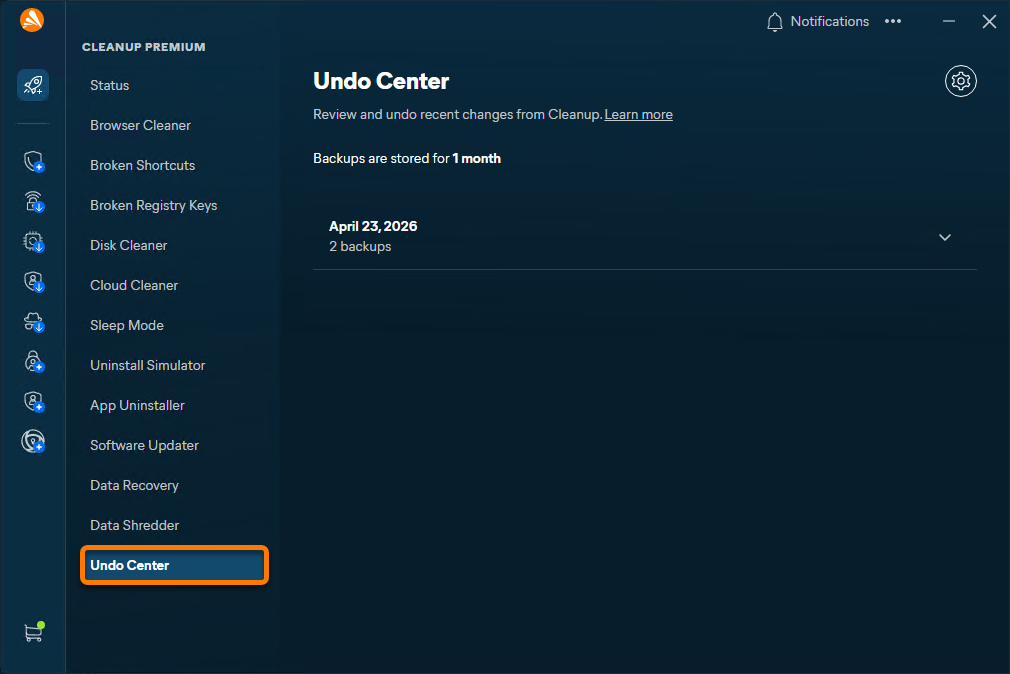
- Open Avast One, hover your cursor over the side menu and select Premium Cleanup ▸ Undo Center.
- Click the drop-down arrow beside the date a backup was made.
- Click Undo next to changes you wish to reverse.
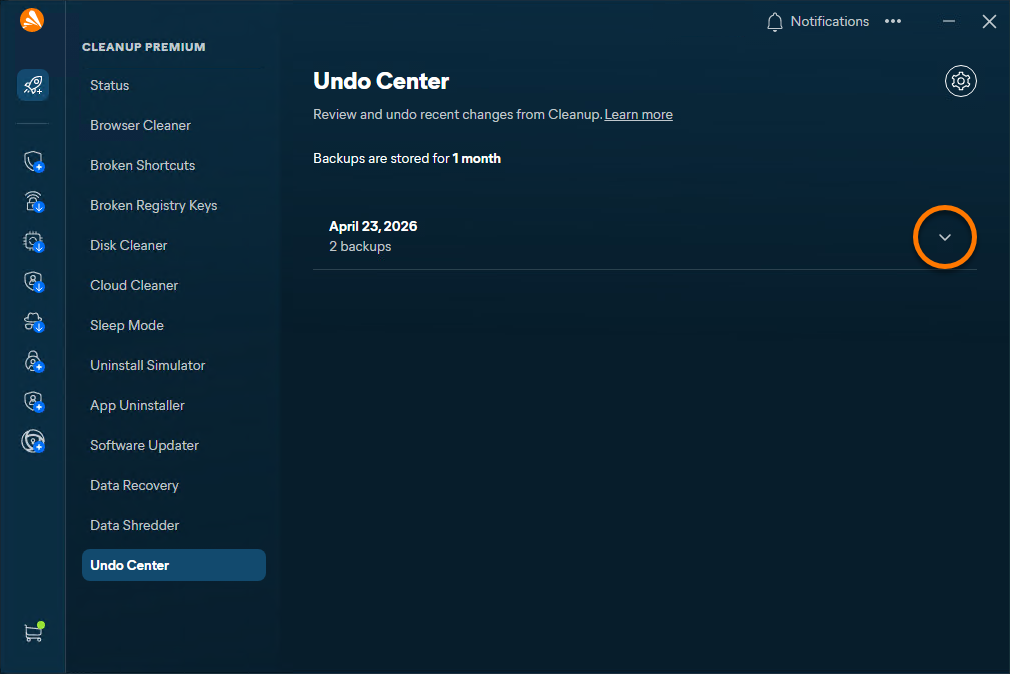
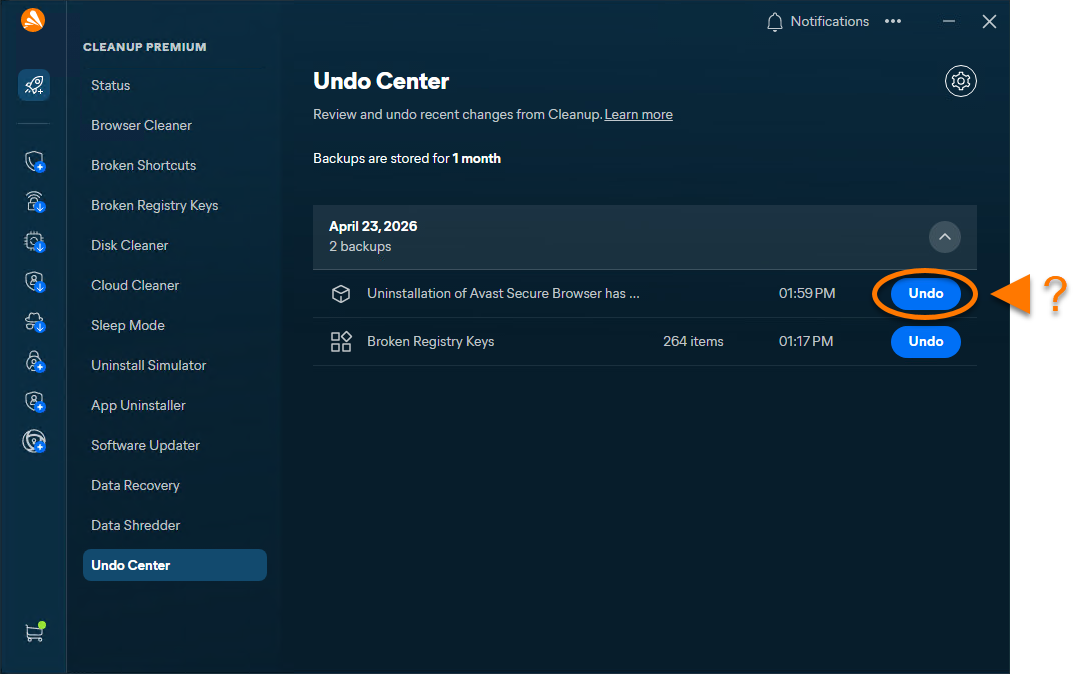
The changes are now reversed.
Scan your Mac
To scan your Mac for the first time using Avast One - Premium Cleanup:
- Open Avast One and select the Avast Premium Cleanup icon in the side menu.
- Ensure that Status is selected, then click Start scan to perform a general scan.
- The scan results are shown on the main dashboard. To perform subsequent general scans, click Rescan.
- When the scan is complete, follow the instructions for each found issue.
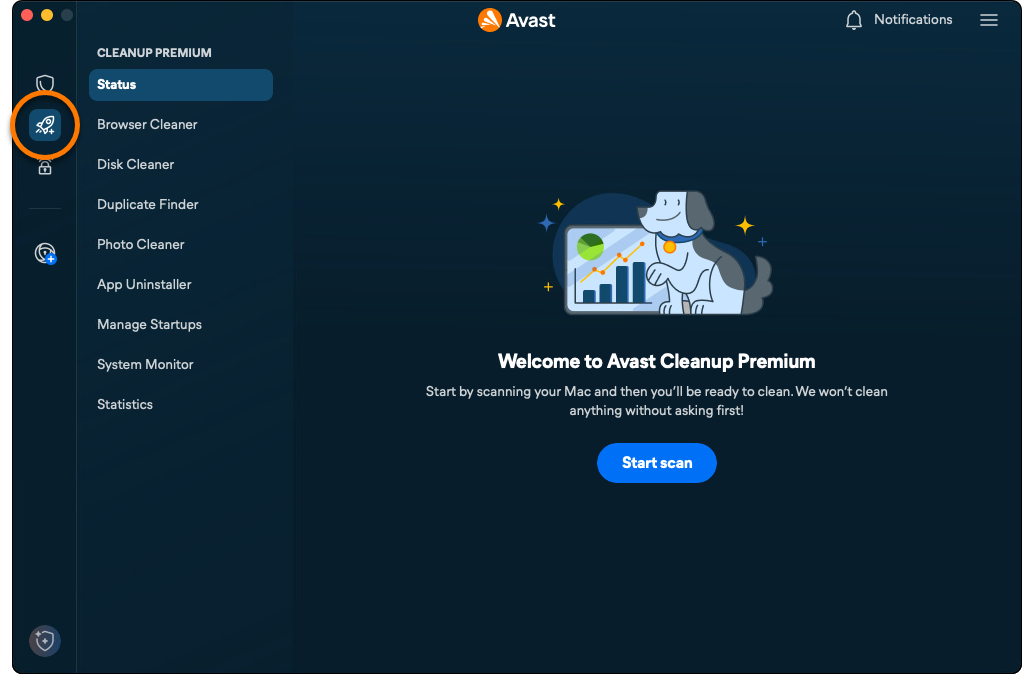
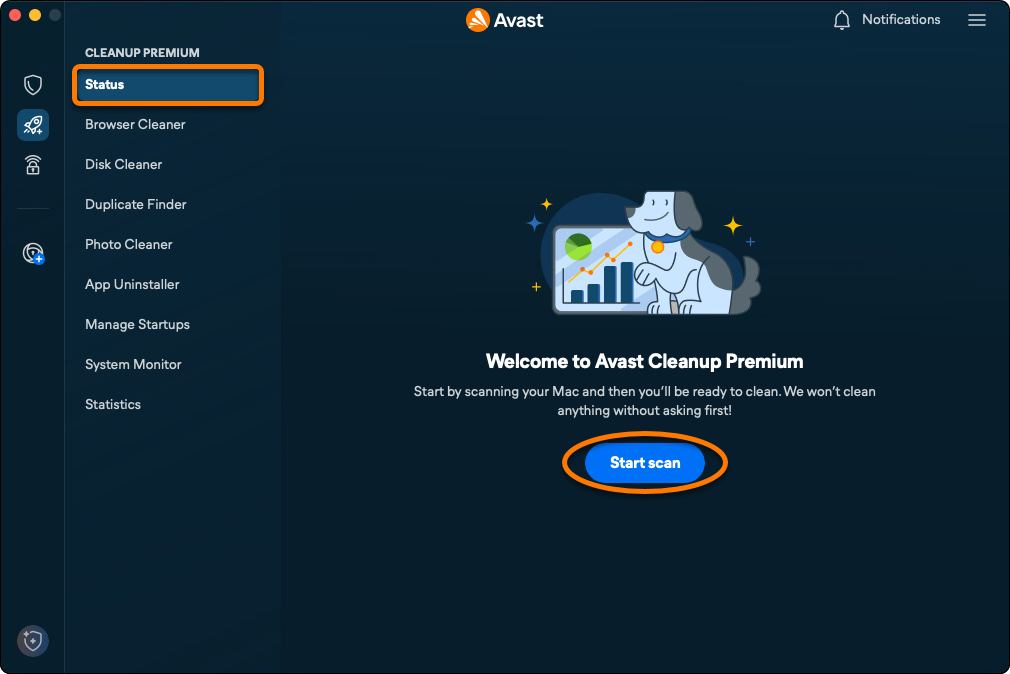
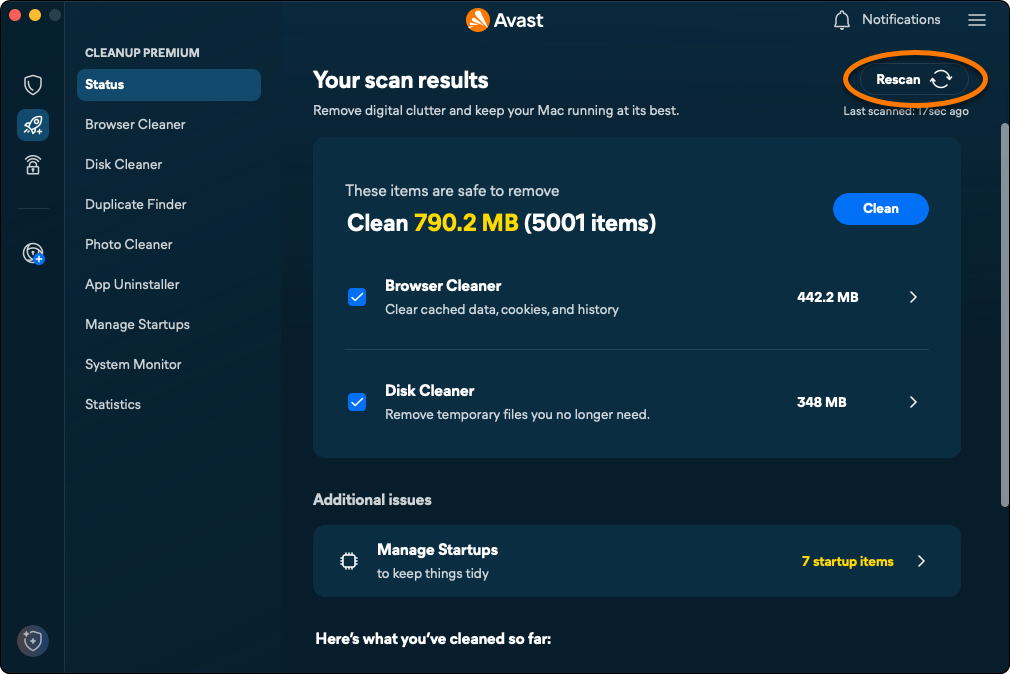
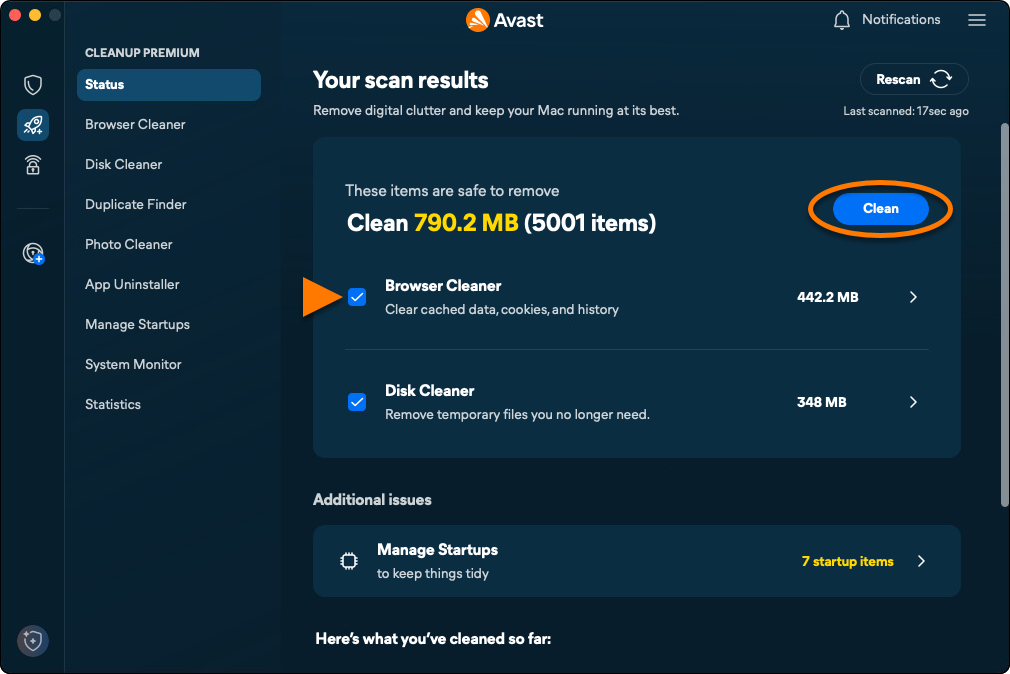
The general scan looks for junk items that can be cleaned and ways to improve system performance. For detailed instructions about each category, refer to the sections below.
Clean your browsers
The Browser Cleaner option allows you to easily remove cookies and other browsing data from your web browsers. The following options are available:
- Run a manual scan and specify which data you want to remove.
- Configure Avast Premium Cleanup to run automatic scans.
- Add allowed websites that are always exempt when Avast Premium Cleanup clears cookies and other browsing data.
- Import bookmarks to stay signed in to your saved websites, even after Avast Premium Cleanup deletes cookies.
Run a manual scan
- Open Avast One and select the Avast Premium Cleanup icon in the side menu.
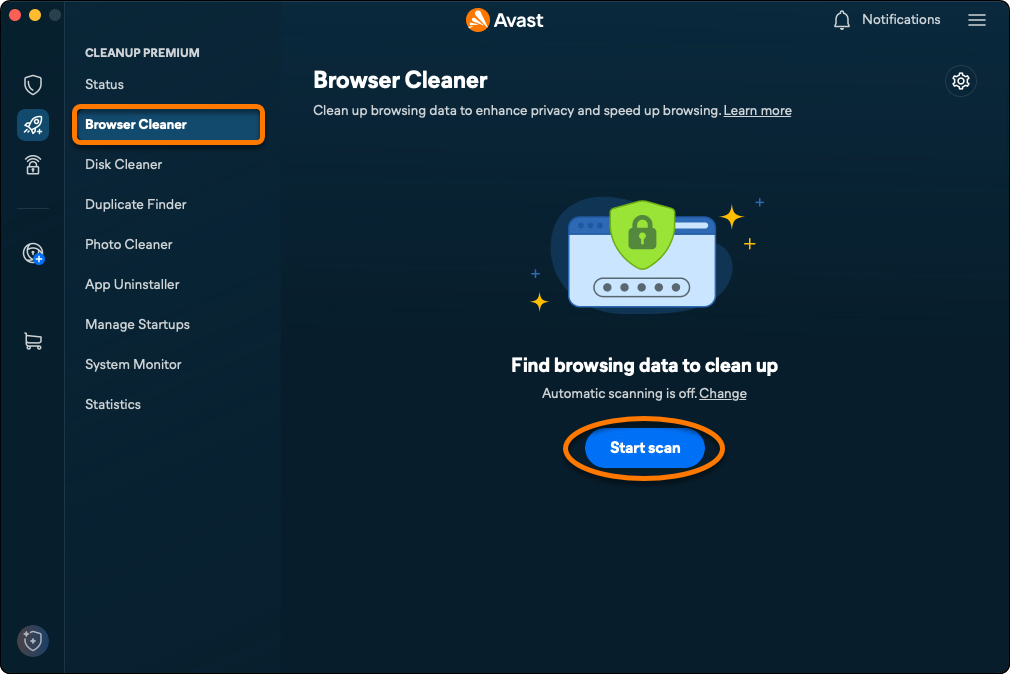
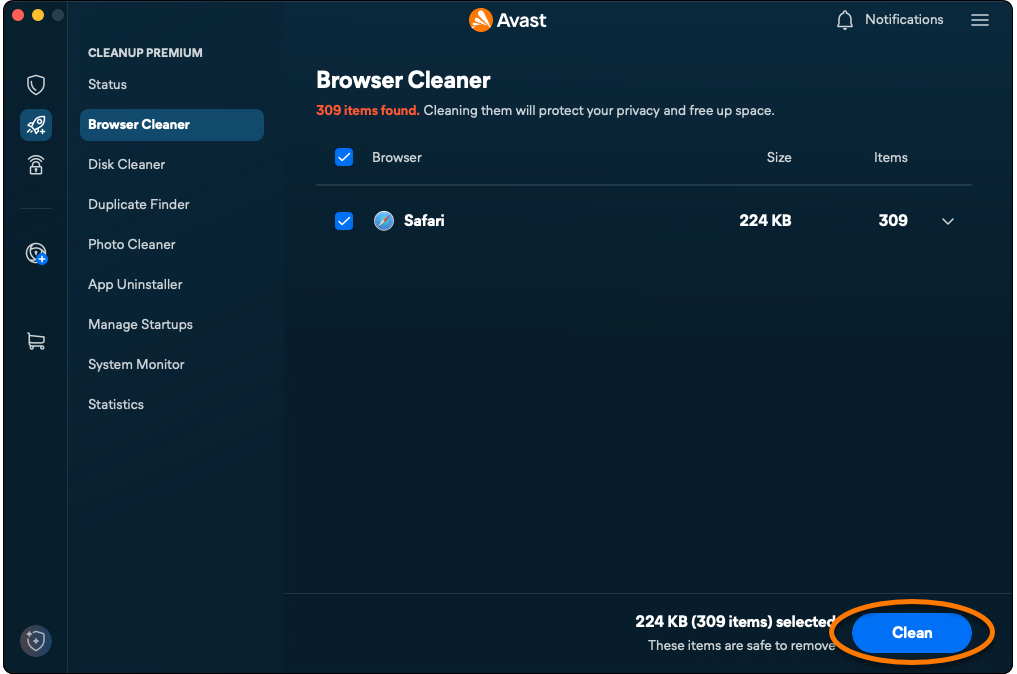
- Select Browser Cleaner ▸ Start scan.
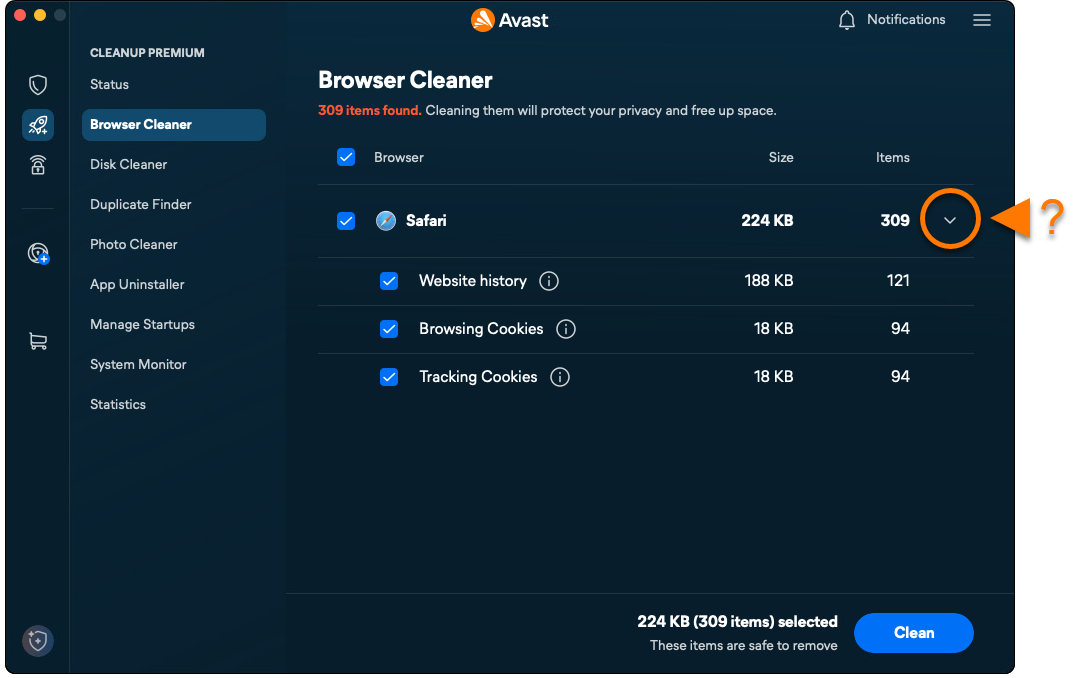
- For each browser, use the drop-down menu to select the items you want to remove.
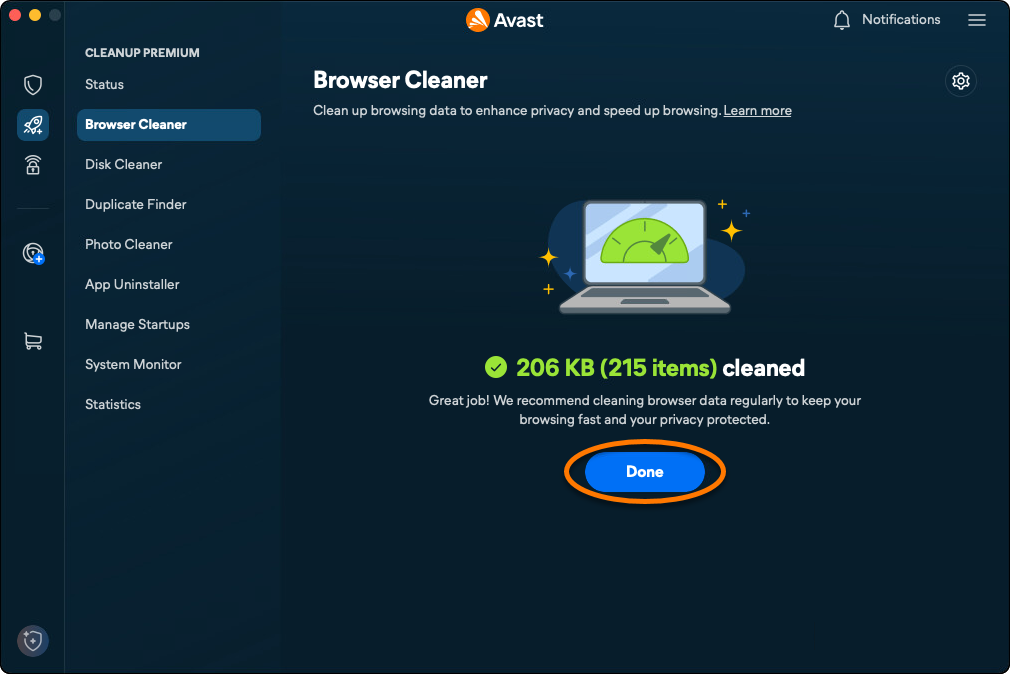
- Click Clean to remove the selected data.
- Click Done to return to the main Avast Premium Cleanup screen.
Schedule automatic scans
- Open Avast One and select the Avast Premium Cleanup icon in the side menu.
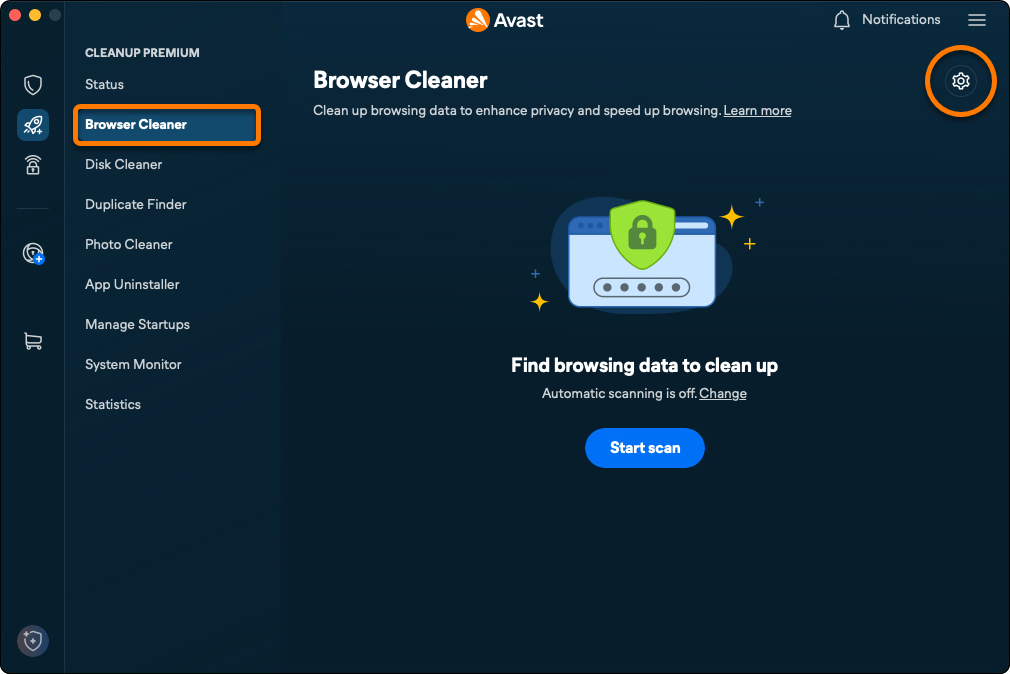
- Select Browser Cleaner, then click Settings (the gear icon).
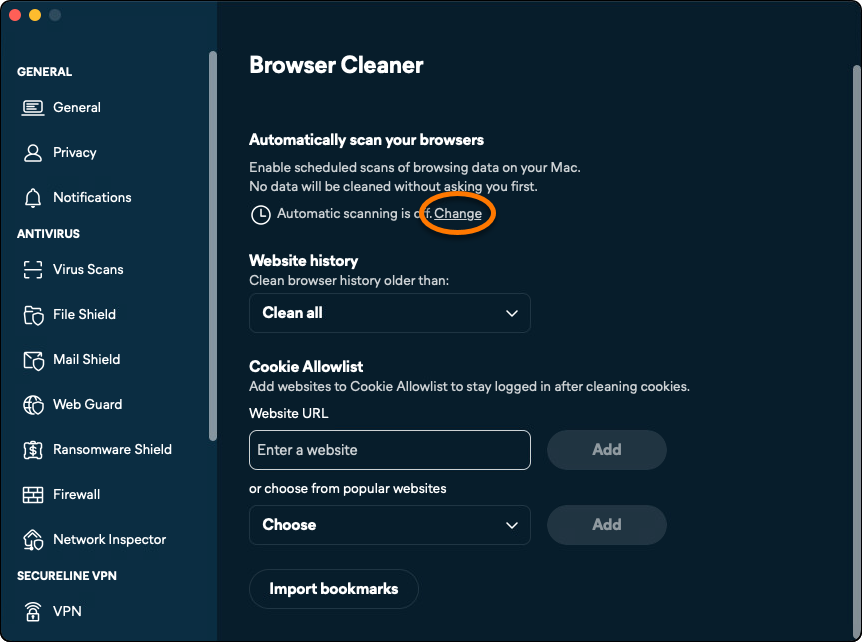
- Click Change under Automatically scan your browsers.
- Use the drop-down menus to specify how regularly you want Avast Premium Cleanup to scan the browser for cookies and browsing data.
- Select the relevant browsers, then click Save.
- Under Website History, choose the frequency of the automatic scan.
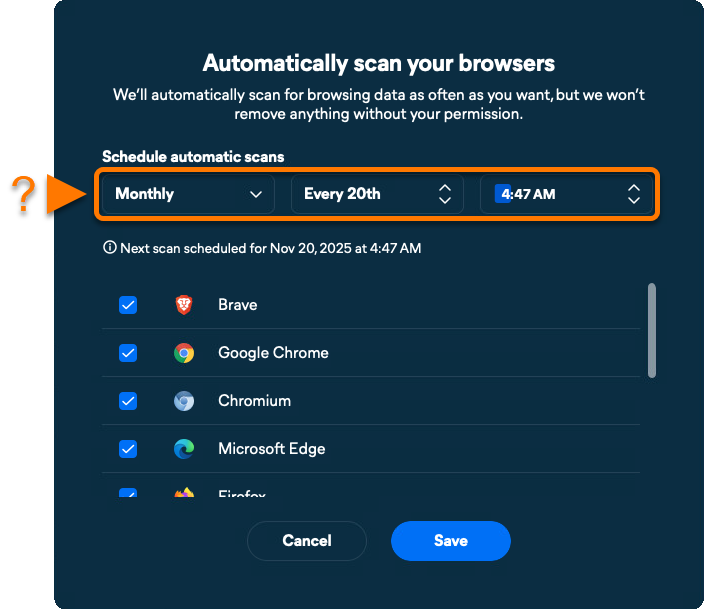
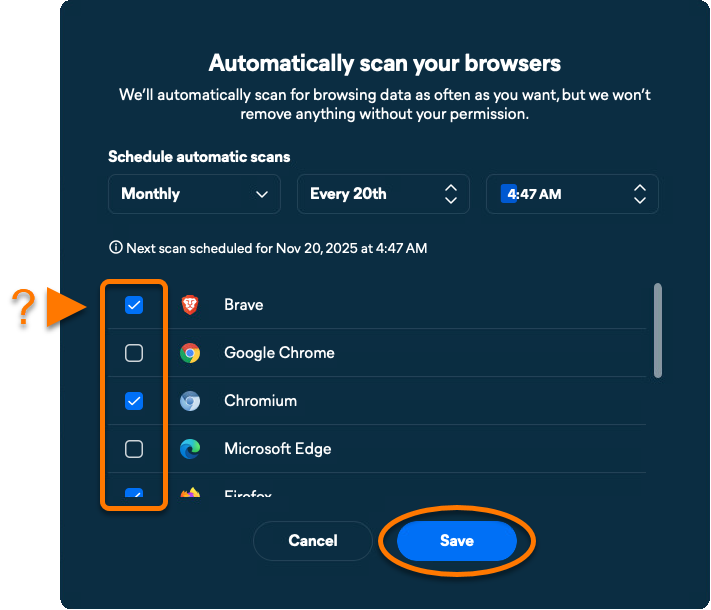
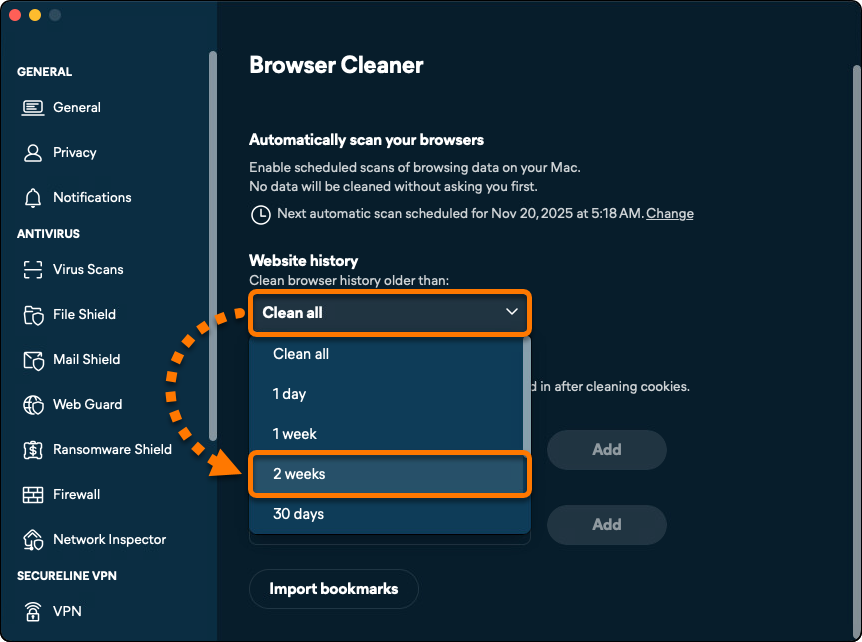
Automatic scanning is enabled for the selected browser.
Add allowed websites
- Open Avast One and select the Avast Premium Cleanup icon in the side menu.
- Select Browser Cleaner, then click Settings (the gear icon).
- Add a website using either Option A or Option B below:
- Option A: Enter a website (for example, example.com) into the text box, then click Add.
- Option B: Select a website from the Choose from popular websites drop-down menu, then click Add.
- Option A: Enter a website (for example, example.com) into the text box, then click Add.
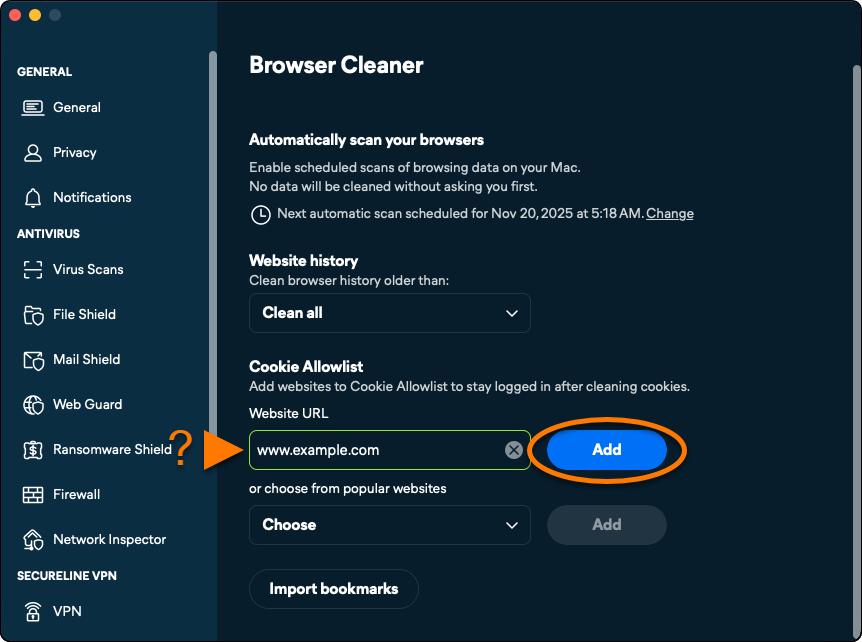
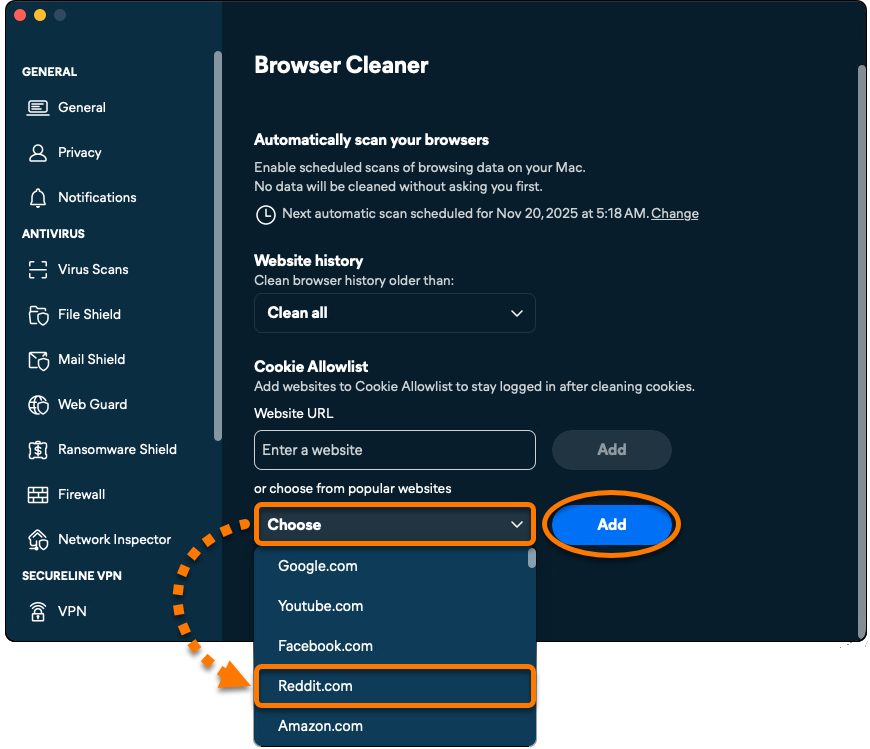
The selected website is now excluded from cookie clearing.
Import bookmarks
To import your browser bookmarks and stay logged in even after cleaning cookies:
- Open Avast One and select the Avast Premium Cleanup icon in the side menu.
- Select Browser Cleaner, then click Settings (the gear icon).
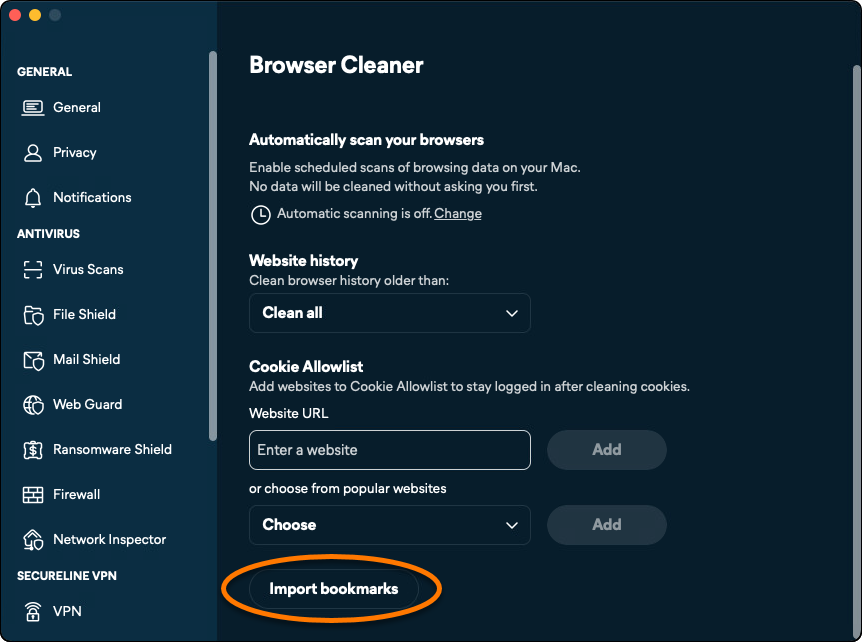
- Click Import bookmarks.
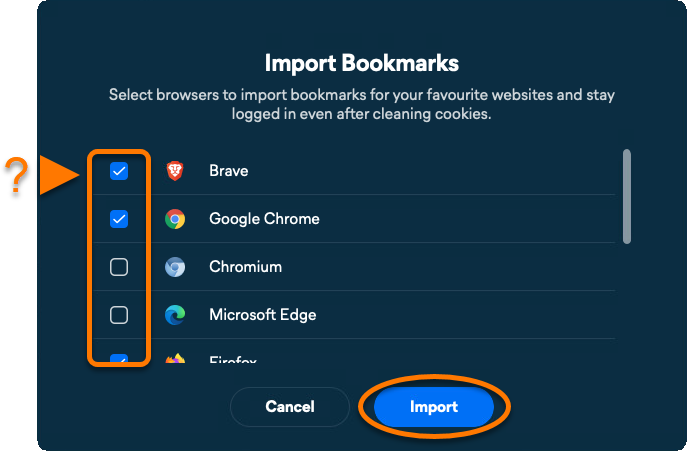
- Select the relevant browsers, then click Import.
Clear disk space
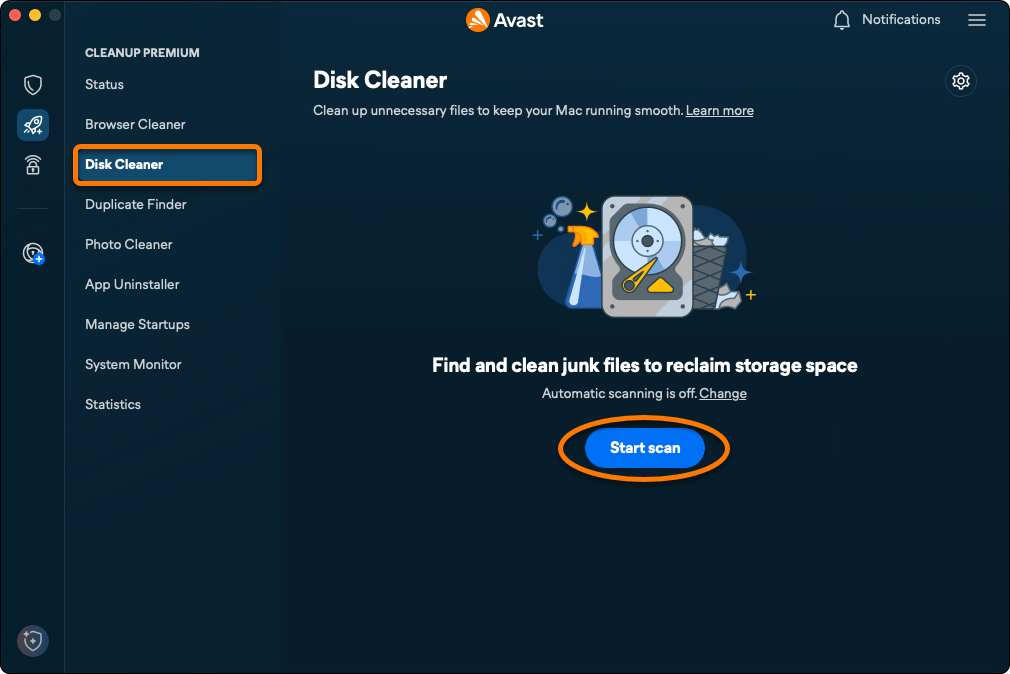
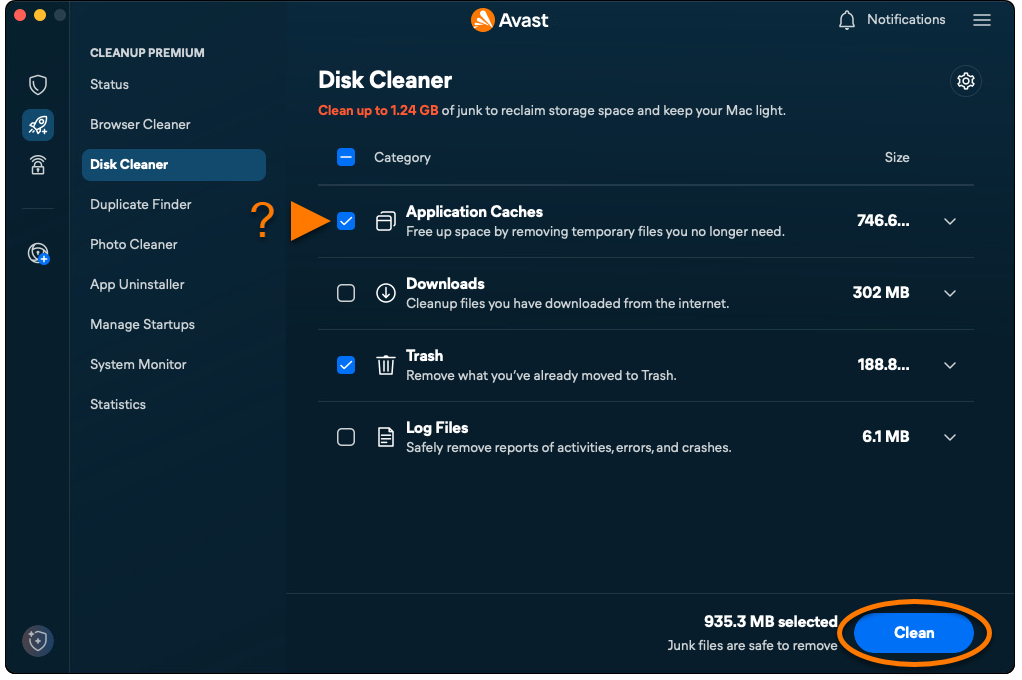
The Disk Cleaner option scans your Mac for unnecessary files and allows you to select which files are deleted to clear disk space. To run a scan and remove files:
- Open Avast One and select the Avast Premium Cleanup icon in the side menu.
- Select Disk Cleaner ▸ Start scan.
- Select the files you want to remove, and click Clean.
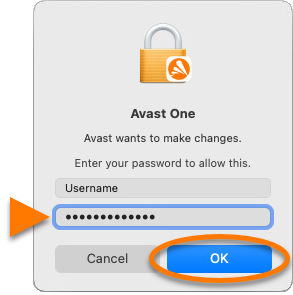
- If prompted, enter the password that you use when you start your Mac, and click OK.
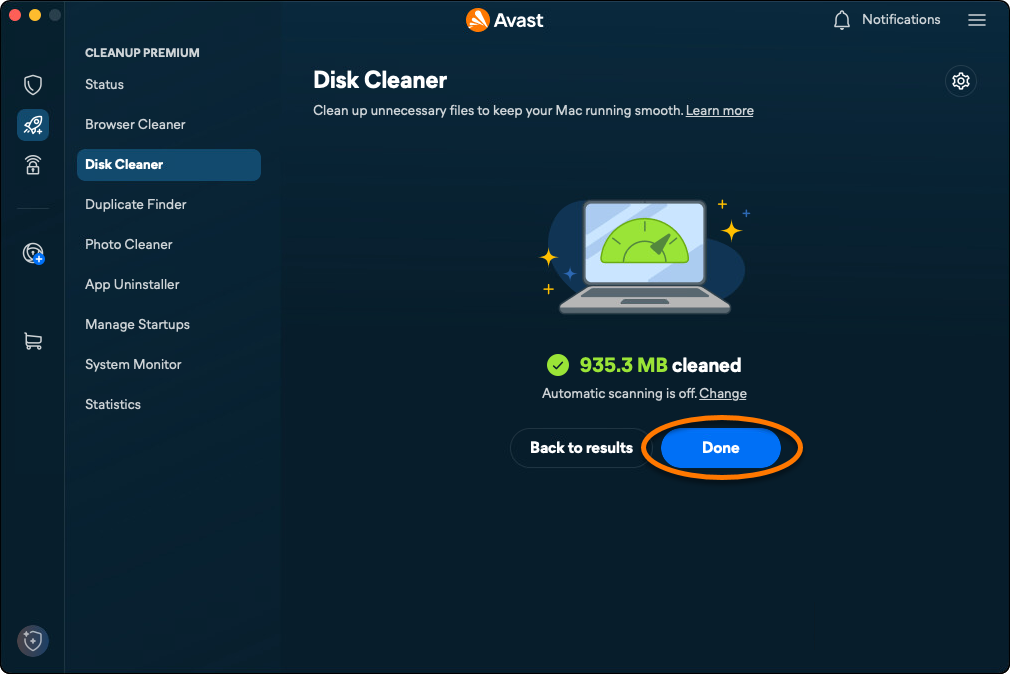
- Click Done to return to the main Avast Premium Cleanup screen.
Remove duplicate files
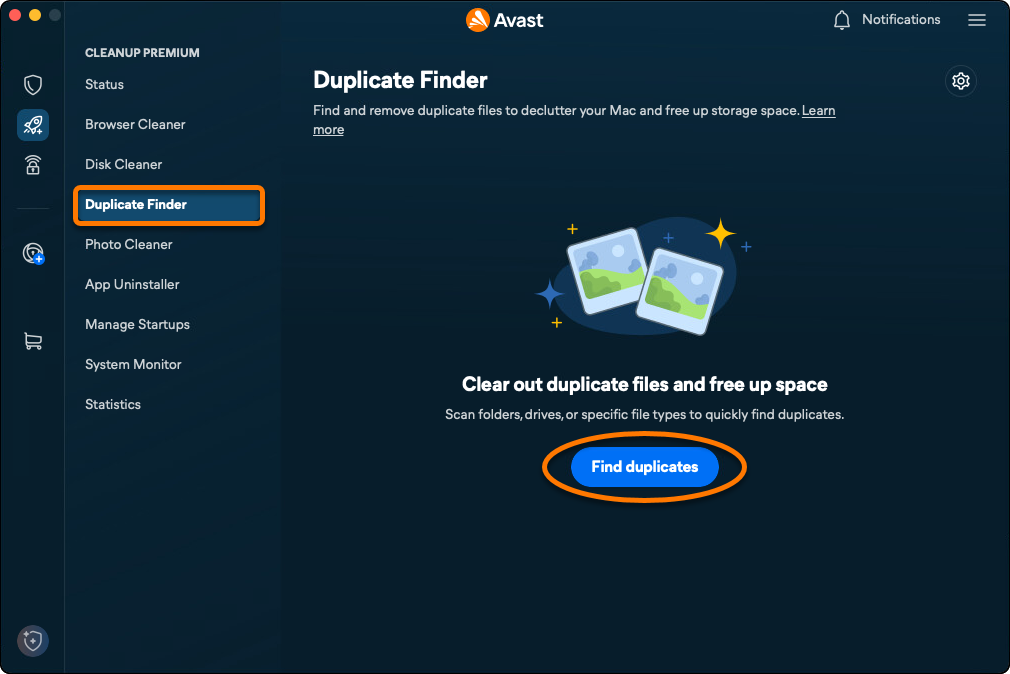
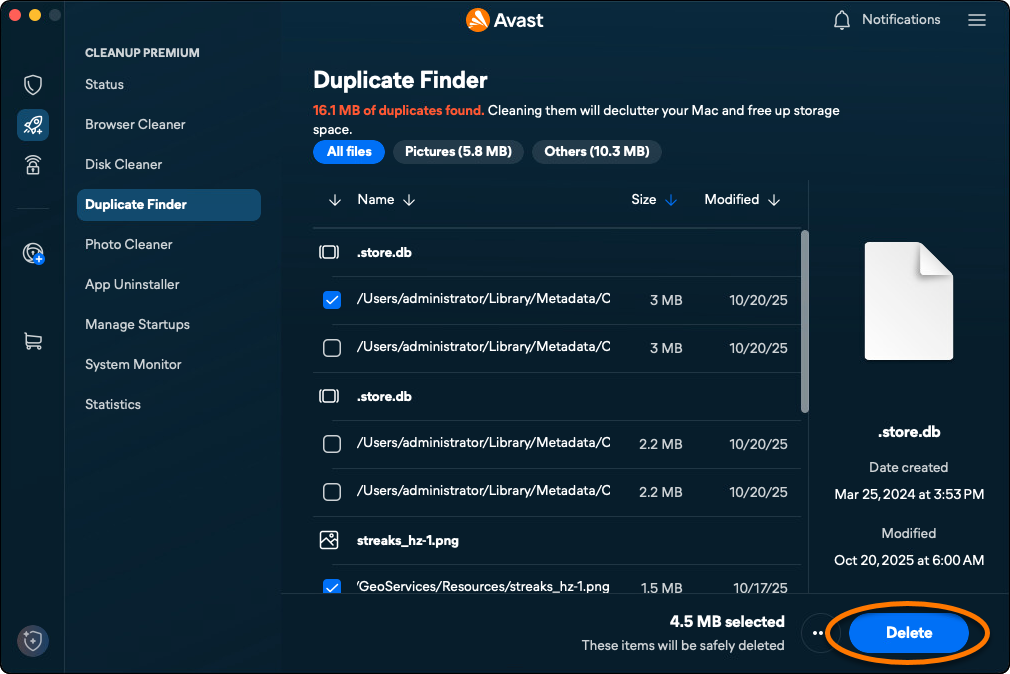
The Duplicate Finder option scans your Mac for duplicate files. To run a scan and remove duplicate files:
- Open Avast One and select the Avast Premium Cleanup icon in the side menu.
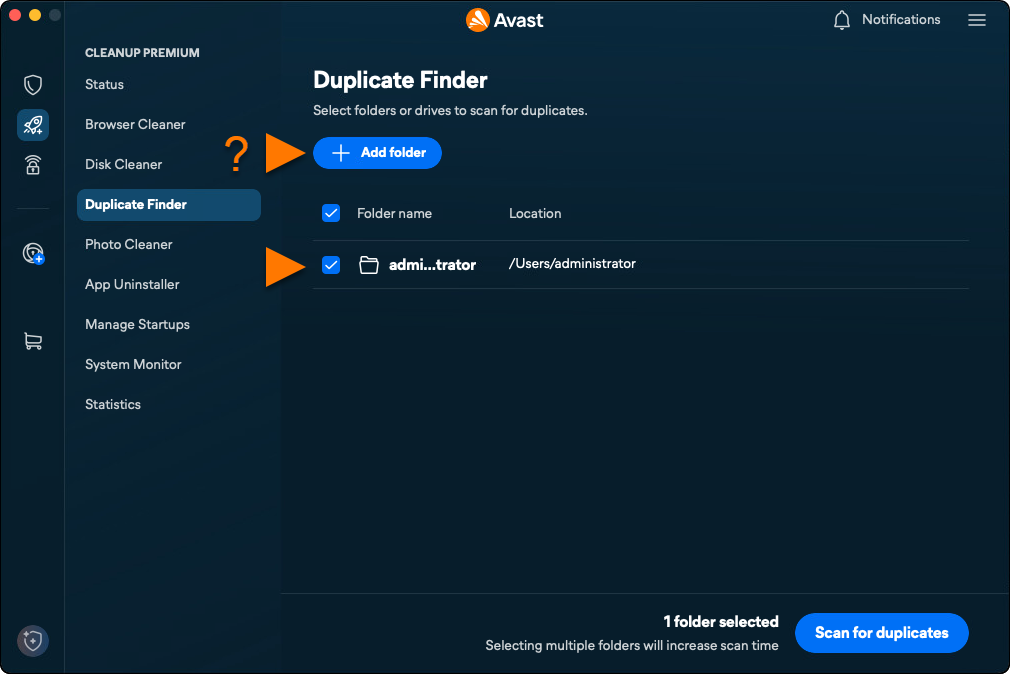
- Select Duplicate Finder ▸ Find duplicates.
- Tick the location(s) you want to scan for duplicate files. To add additional folders or external drives, click Add folder, and select a folder or drive.
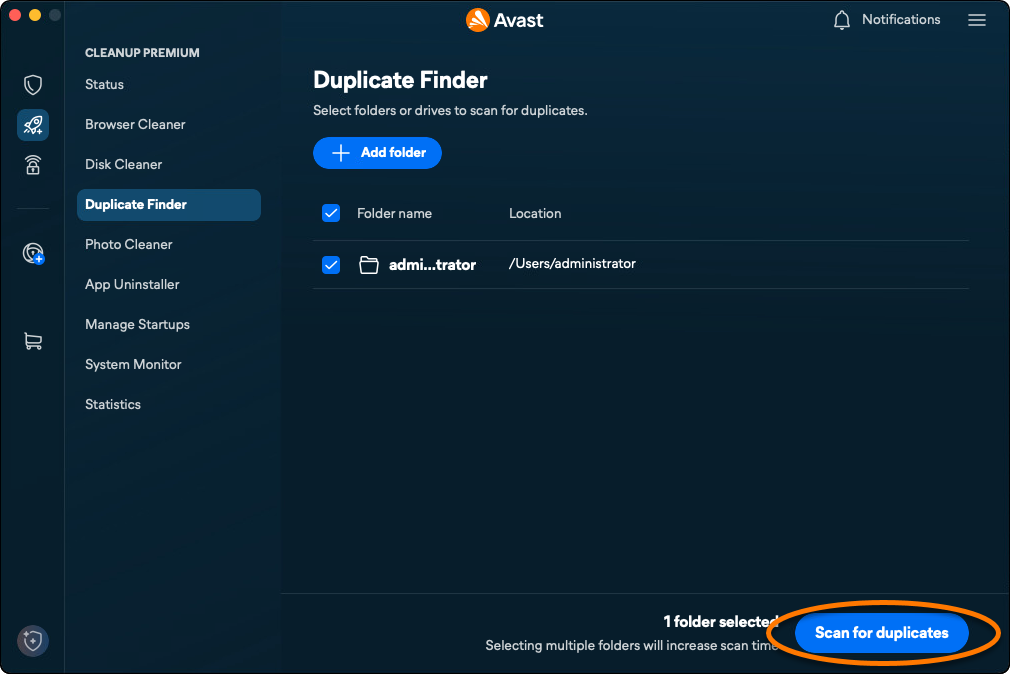
- Click Scan for duplicates.
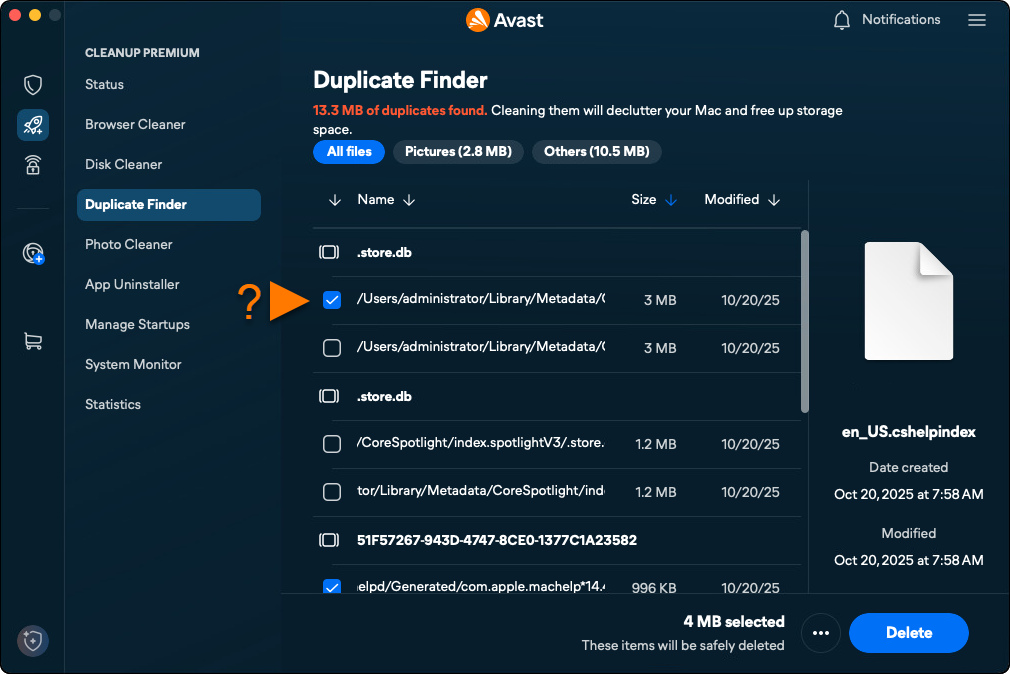
- After the scan completes, select the files you want to remove.
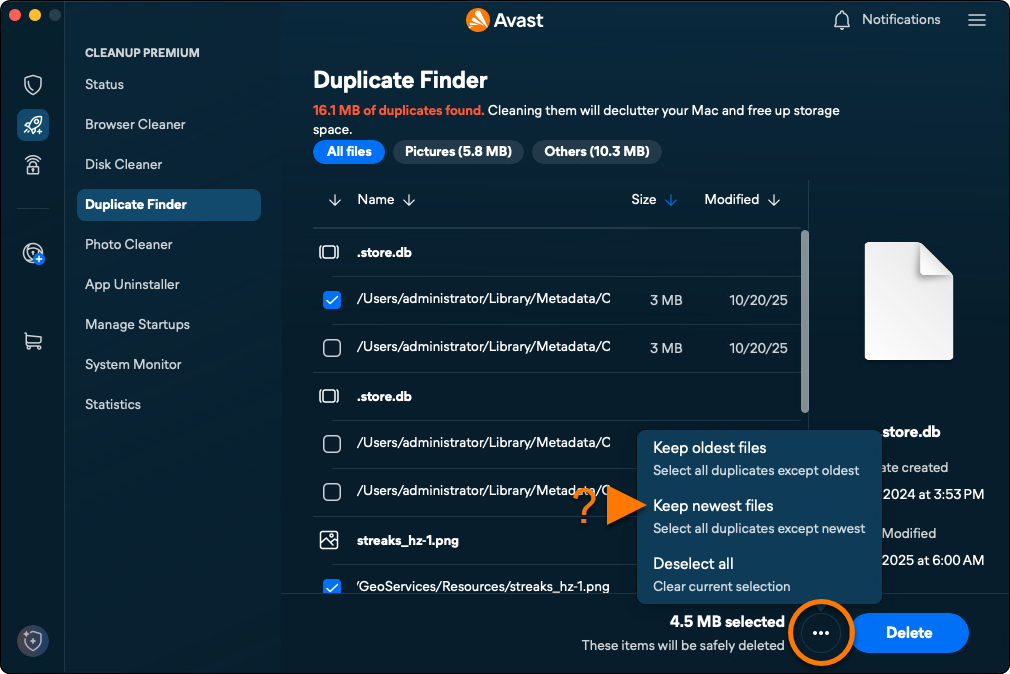
- Optionally, click
…. The following options are available:- Keep oldest files: Automatically selects the newest version of each file for removal.
- Keep newest files: Automatically selects the oldest version of each file for removal.
- Diselect all: Deselects all files and allows you to manually select files for removal. Tick each file that you want to remove. After you tick a file, Select none becomes Custom selection.
- After selecting the files you want to remove, click Delete.
- If prompted, enter the password that you use when you start your Mac, then click OK.
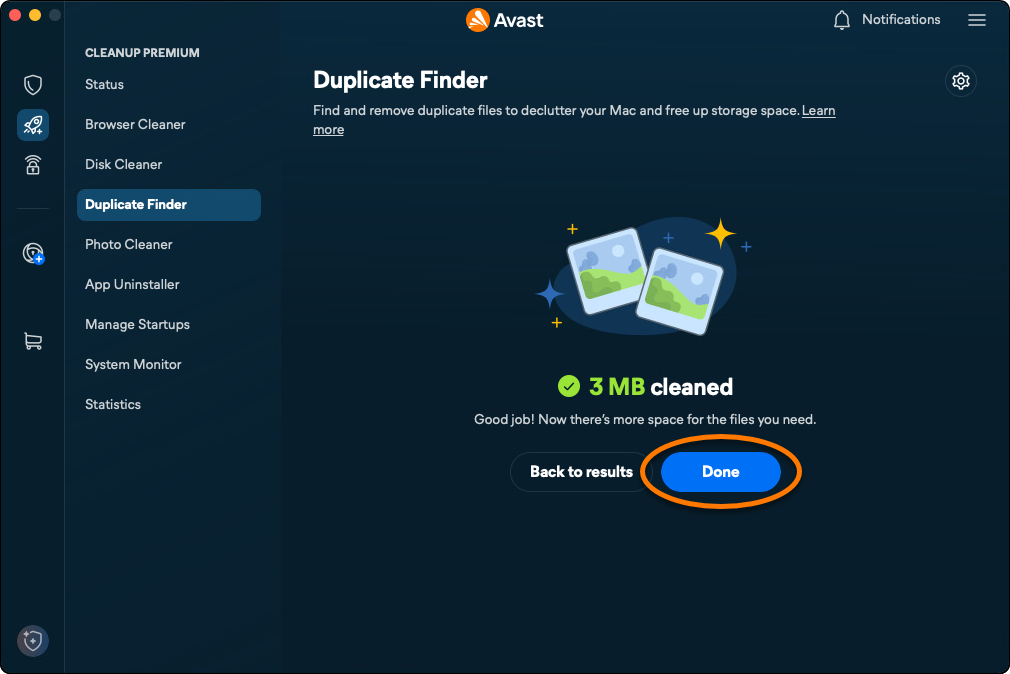
- Click Done to return to the main Avast Premium Cleanup screen.
Identify bad or similar photos
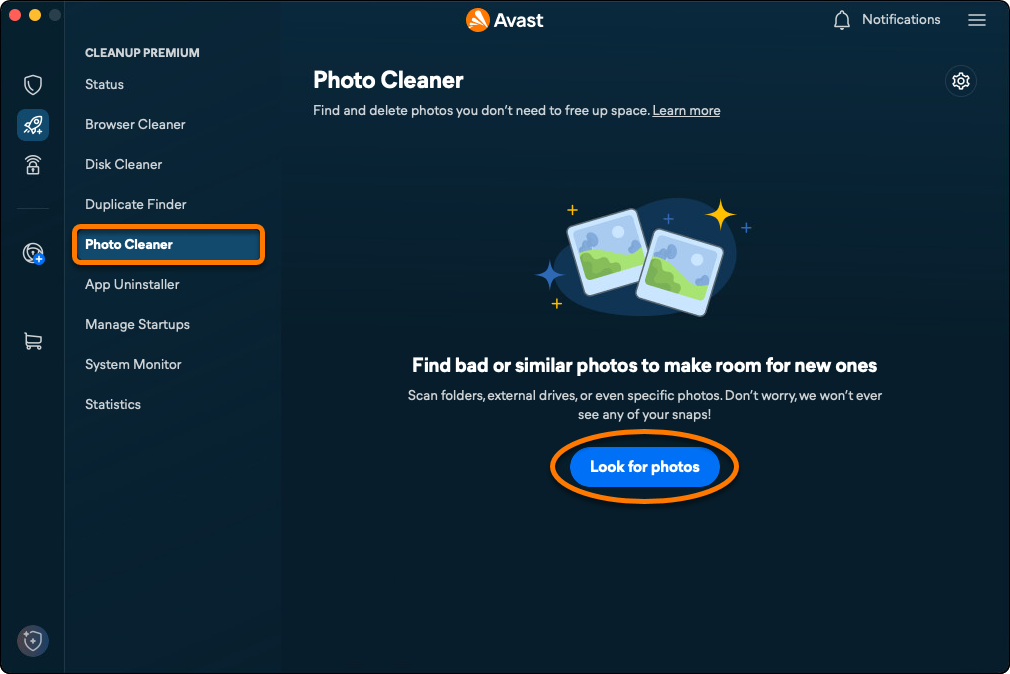
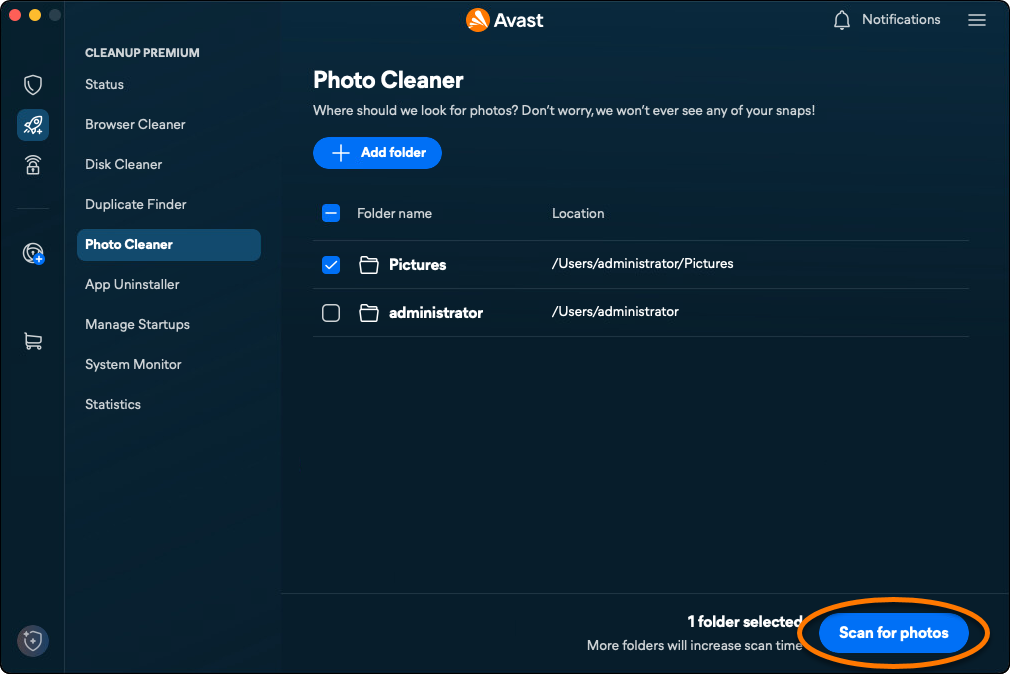
The Photo Cleaner option scans your Mac for photos that are blurry, badly lit, or similar. To run a scan and review bad or similar photos:
- Open Avast One and select the Avast Premium Cleanup icon in the side menu.
- Click Photo Cleaner ▸ Look for photos.
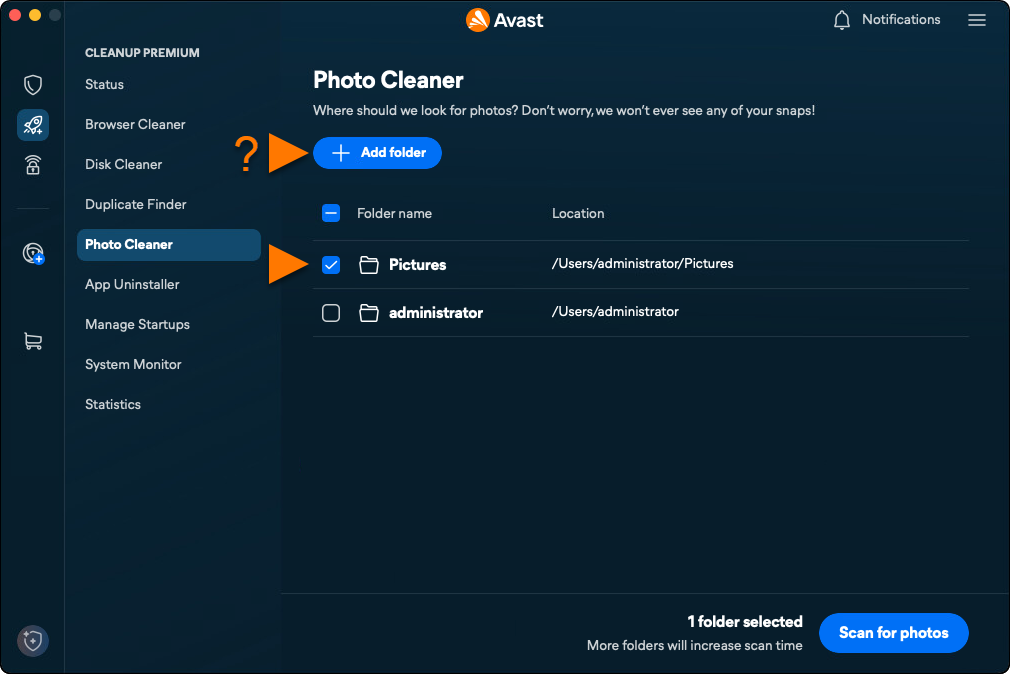
- Tick the location(s) you want to scan for photos. To add additional folders, external drives, or specific photos, click Add folder, then select the folder, drive, or photo.
- Click Scan.
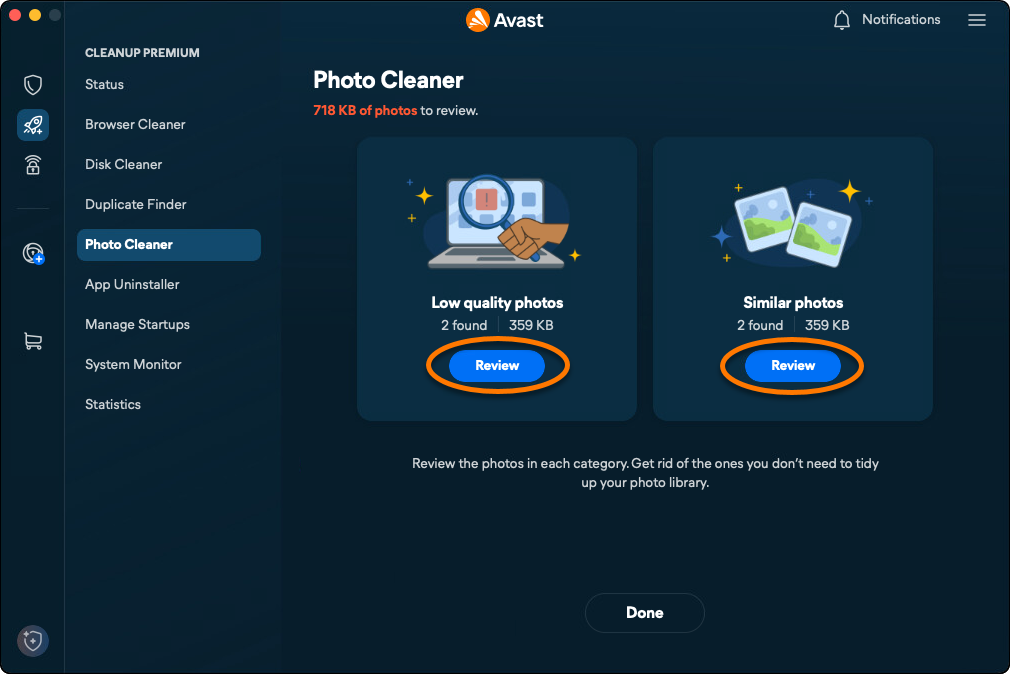
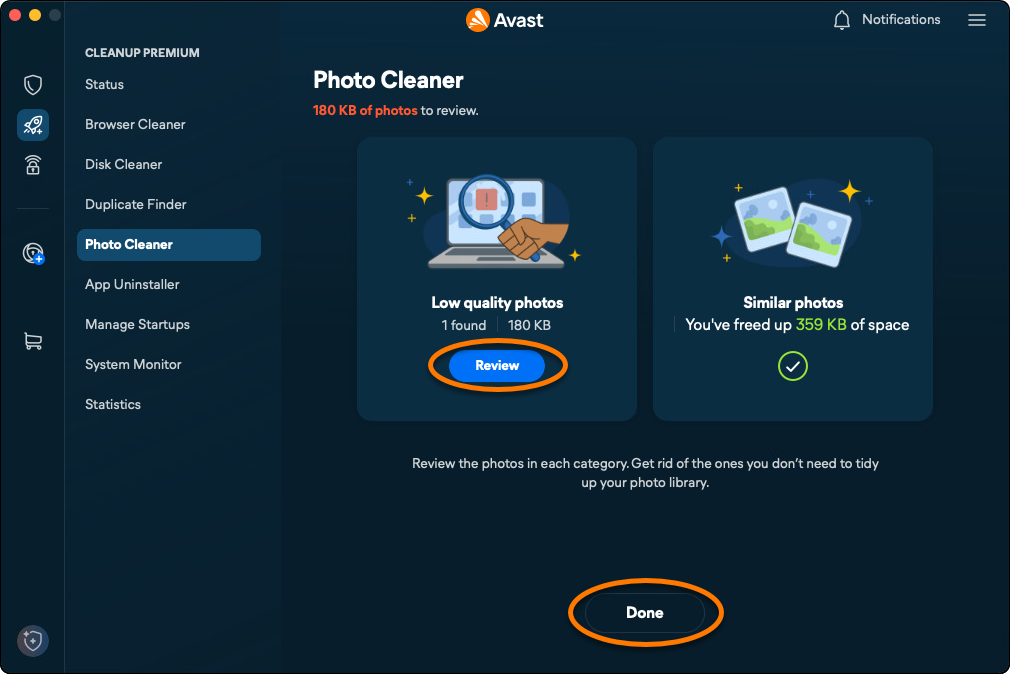
- After the scan completes, click Review under either Bad photos or Similar photos to see the photos that Avast Premium Cleanup has identified.
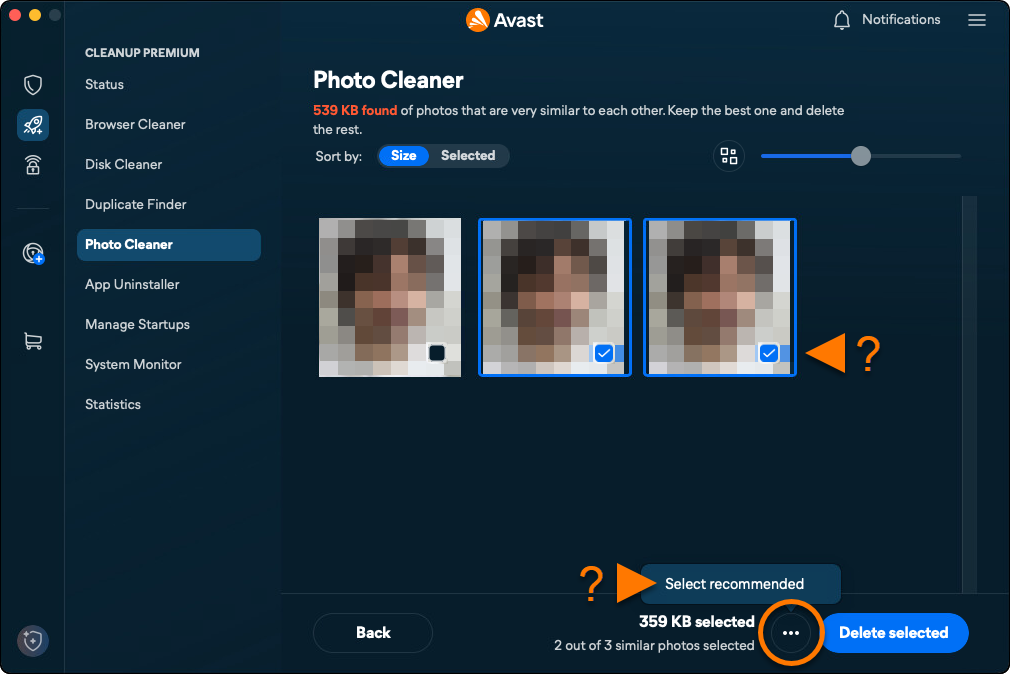
- Select the files you want to remove. Optionally, click
…and choose Select recommended.
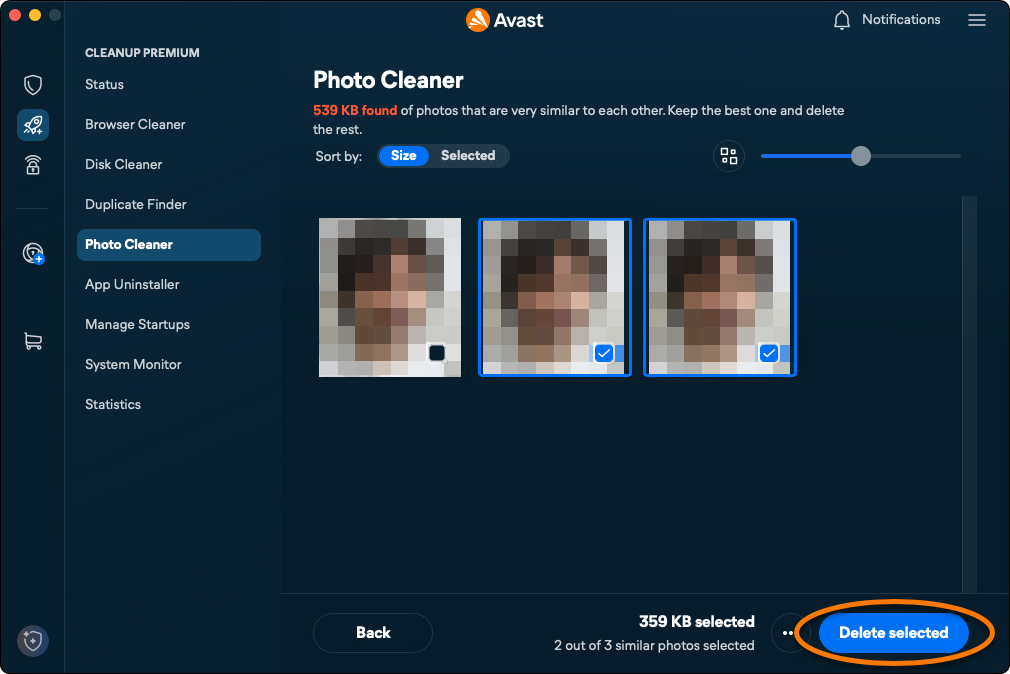
- After selecting the photos you want to delete, click Delete selected.
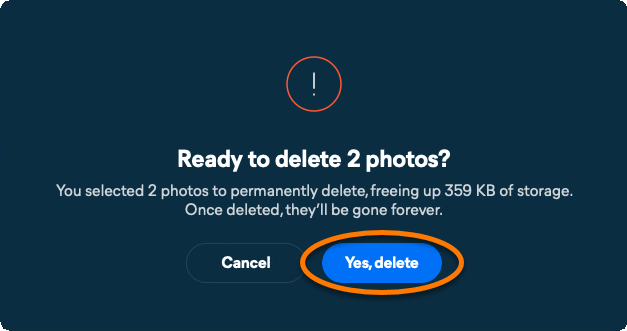
- Click Yes, delete to confirm deletion of your selected photos.
- Click Done or Review and repeat steps 4-7 above to continue reviewing and deleting photos.
Uninstall apps you no longer use
The App Uninstaller option allows you to easily find and remove applications you no longer use, to keep your Mac tidy and free up space. To uninstall apps you no longer use:
- Open Avast One and select the Avast Premium Cleanup icon in the side menu.
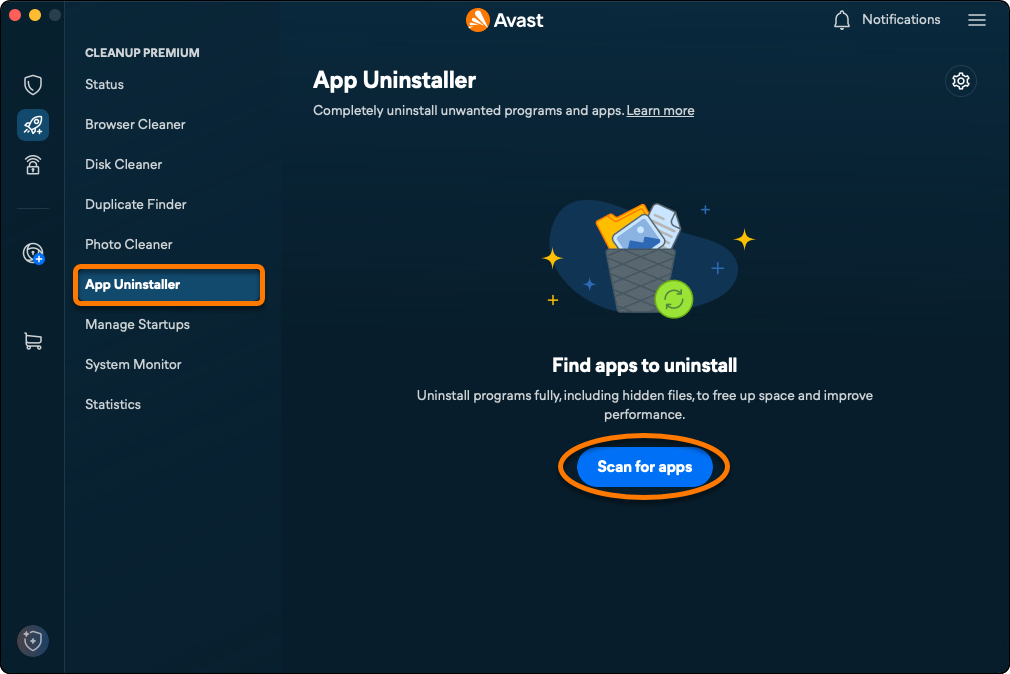
- Click App Uninstaller ▸ Scan for apps.
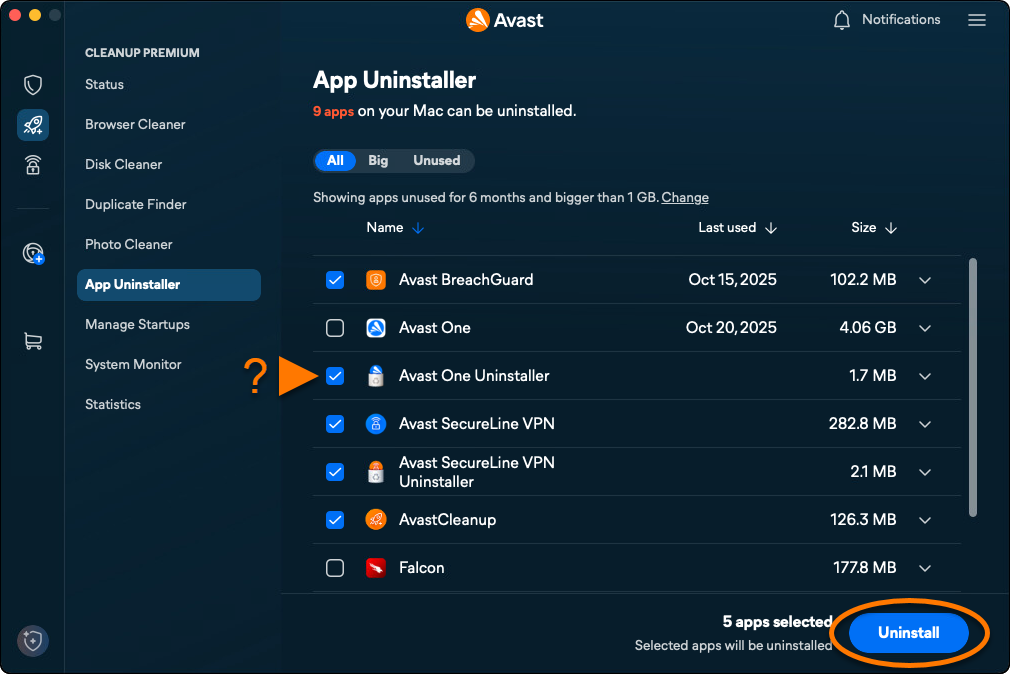
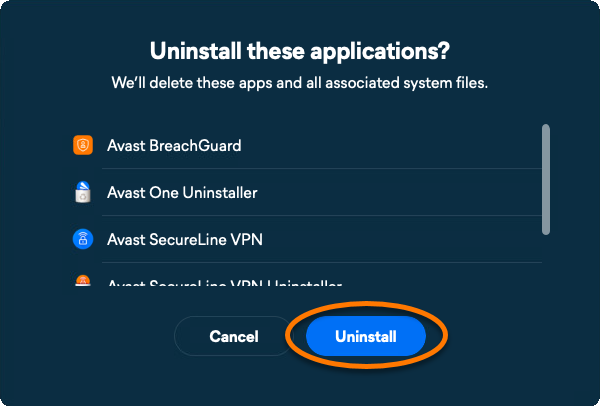
- Tick the box next to an app to select it, then click Uninstall
- Click Uninstall to confirm removal of the selected apps from your Mac.
- If prompted, enter the password that you use when you start your Mac, then click OK.
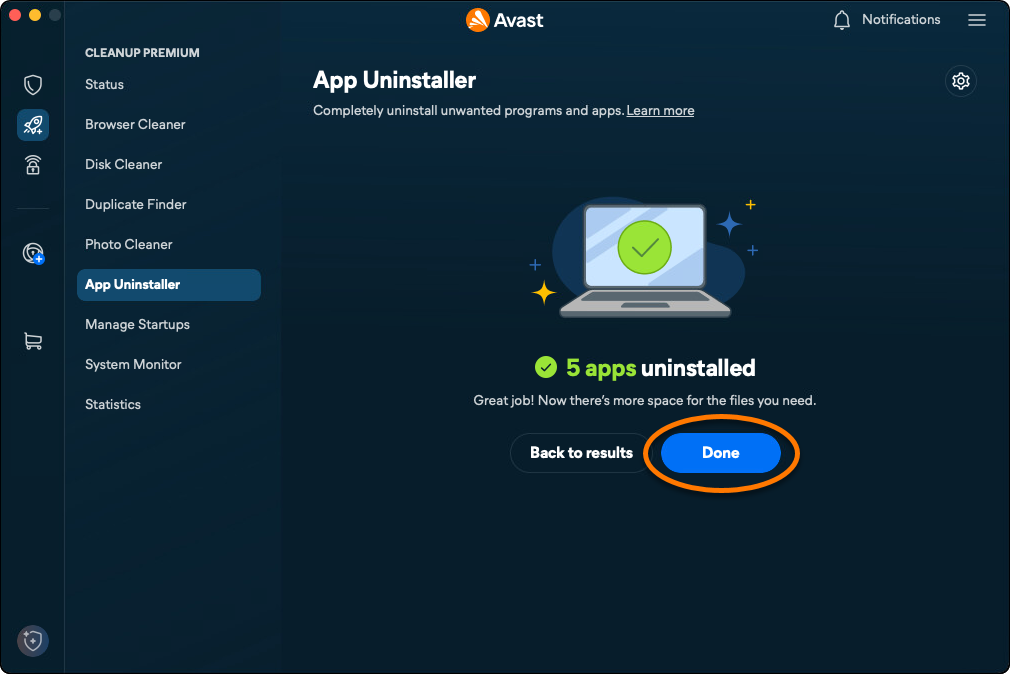
- Click Done to return to the main Avast Premium Cleanup screen.
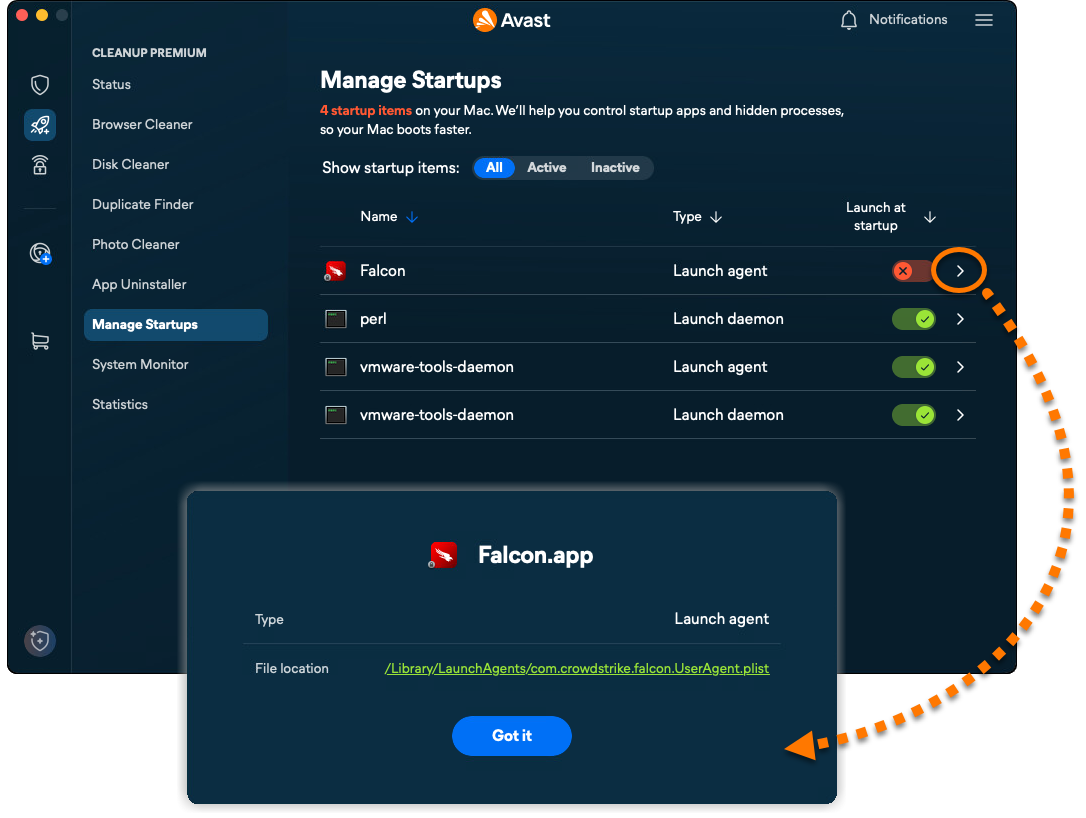
Manage startup items
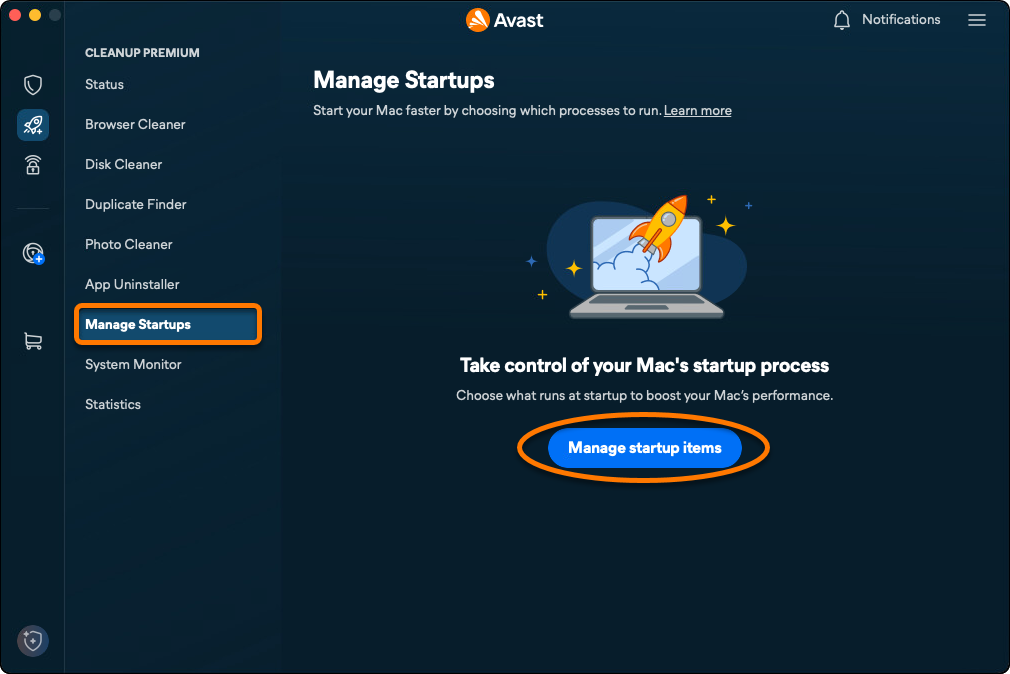
The Manage Startups option allows you to turn off unnecessary processes that launch automatically when you start up your Mac, preventing issues like slowness or long loading screens. To manage your startup items:
- Open Avast One and select the Avast Premium Cleanup icon in the side menu.
- Click Manage Startups ▸ Manage startup items.
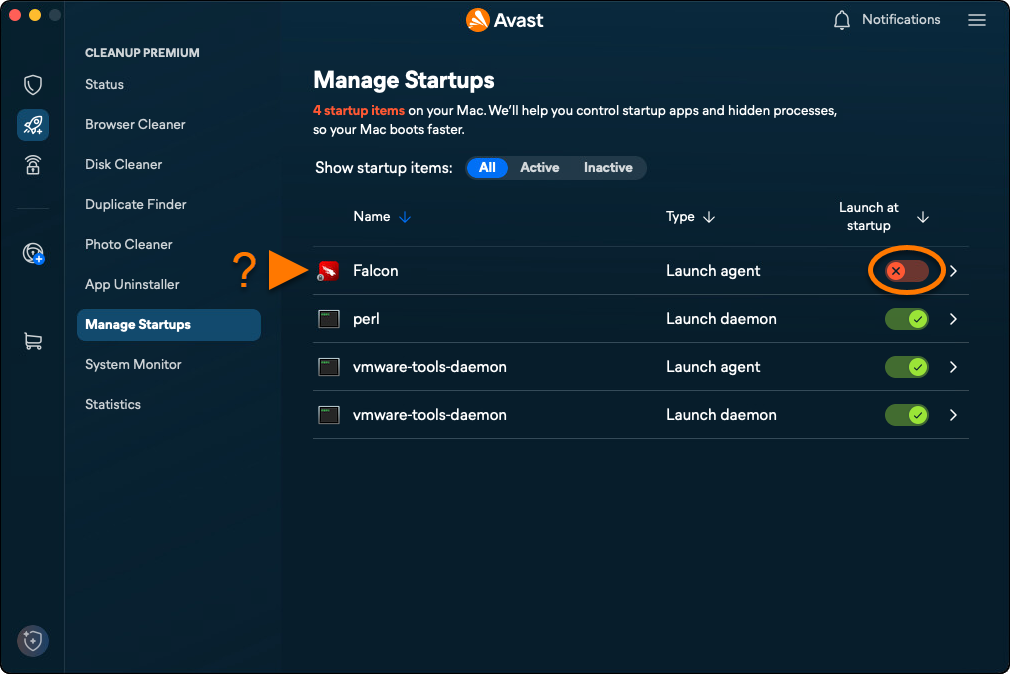
- Click the green (ON) slider next to a startup item, so that it changes to red (OFF).
- To view additional details and options, click the arrow next to the relevant startup item.
- Avast One
- Avast Premium Cleanup
- Windows and macOS
Updated on: 22/09/2026

 © 2025 Gen Digital Inc.