

In other regions, this application is replaced by Avast BreachGuard. For more information about Avast BreachGuard, refer to the following article: Avast One BreachGuard - Getting Started.
Avast Privacy Control is an advanced privacy solution that prevents your personal information from being exploited online for profit. This article explains how to start using Avast Privacy Control integrated in Avast One on Windows or Mac.
Data Broker Removal
To scan data broker websites for your personal information and manage removal requests:
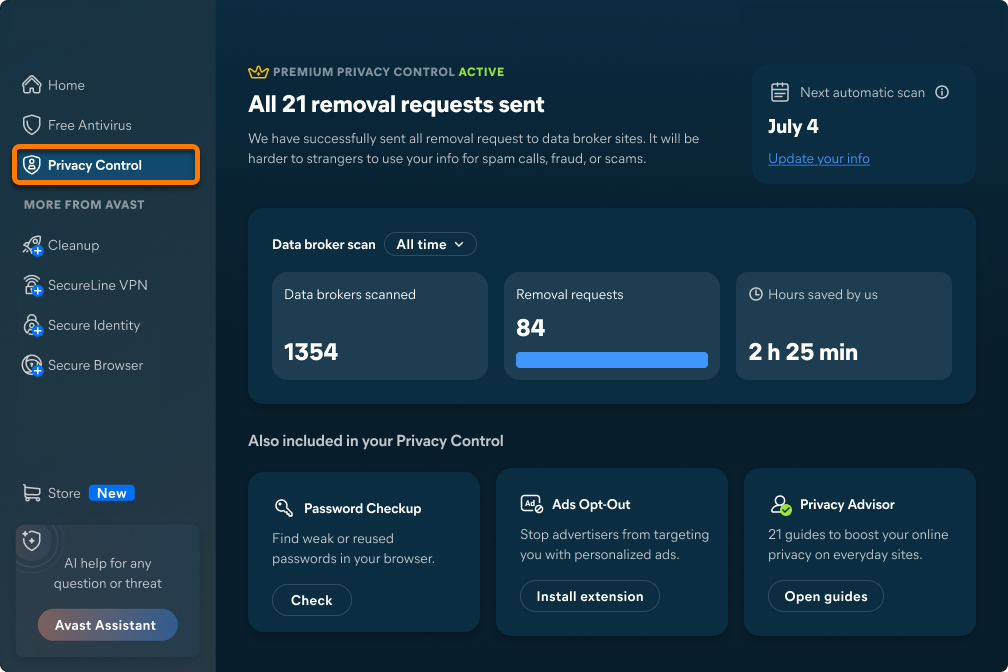
- Open Avast One, then hover your cursor over the side menu and select Privacy Control.

- Sign in to your Avast Account if prompted, or click Get started if you are already signed in.
- Enter the required details. Optionally, click the down arrow to add more information (such as your address, ZIP code, email address, and phone number) to improve scan accuracy.
- Click Continue.
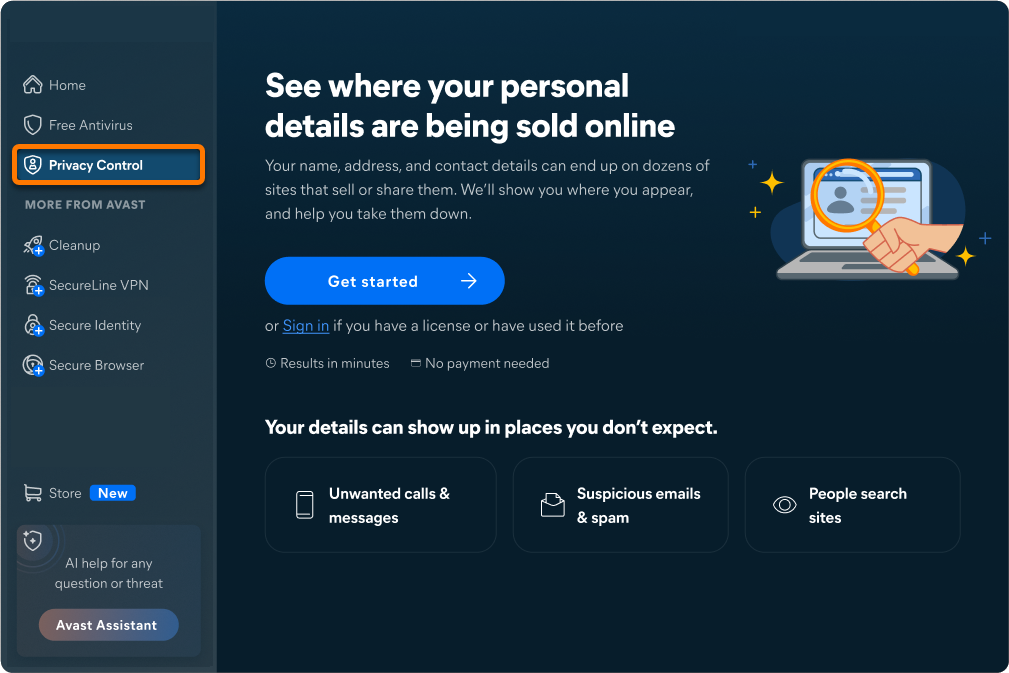
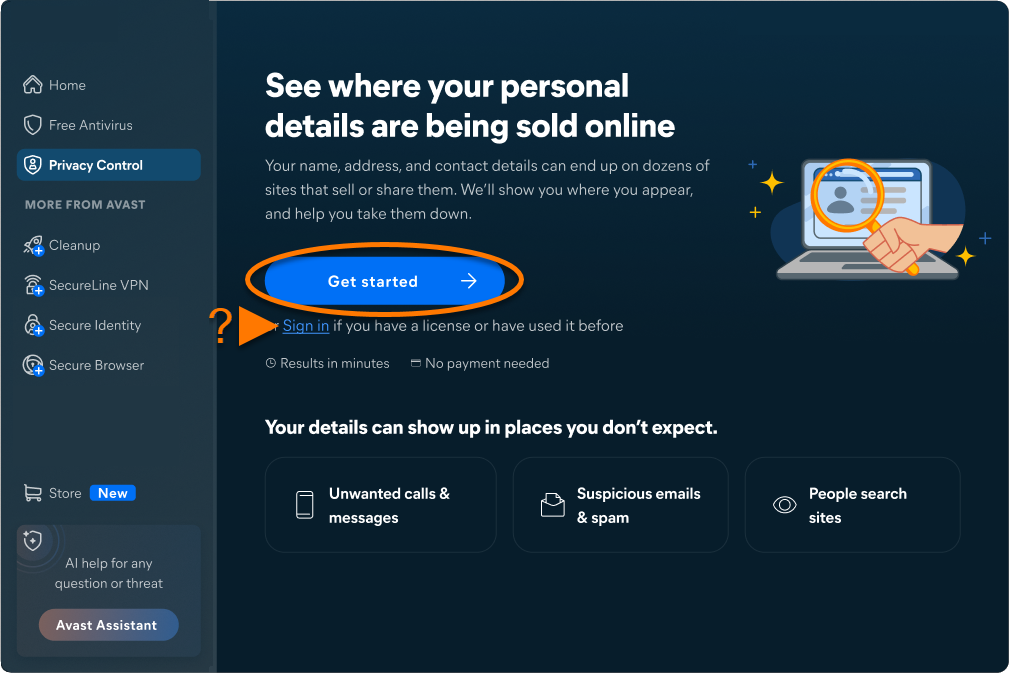
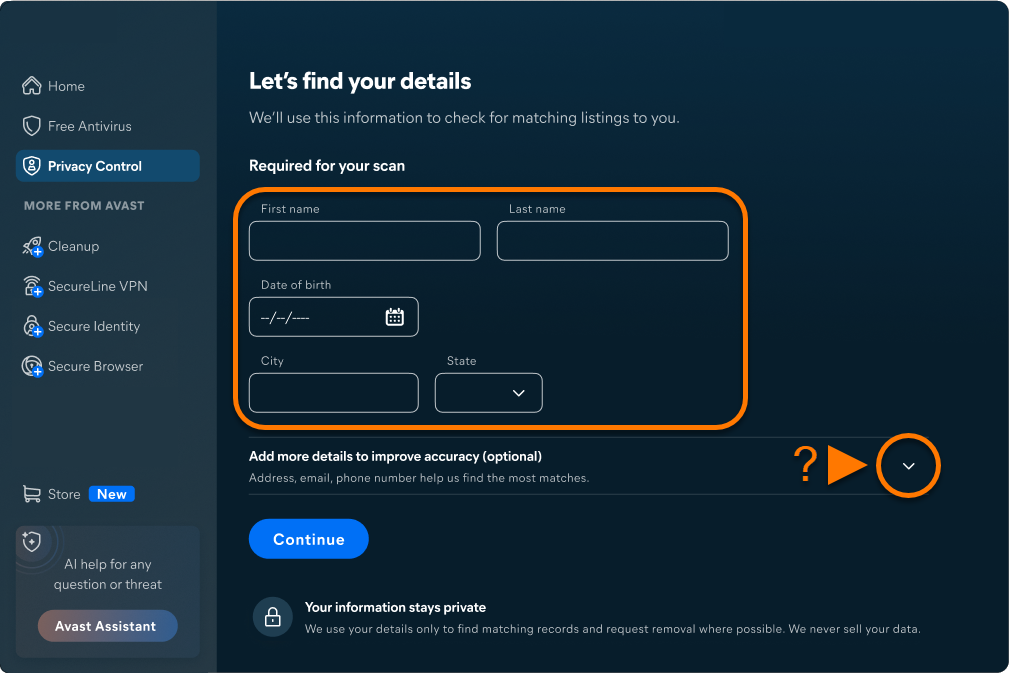
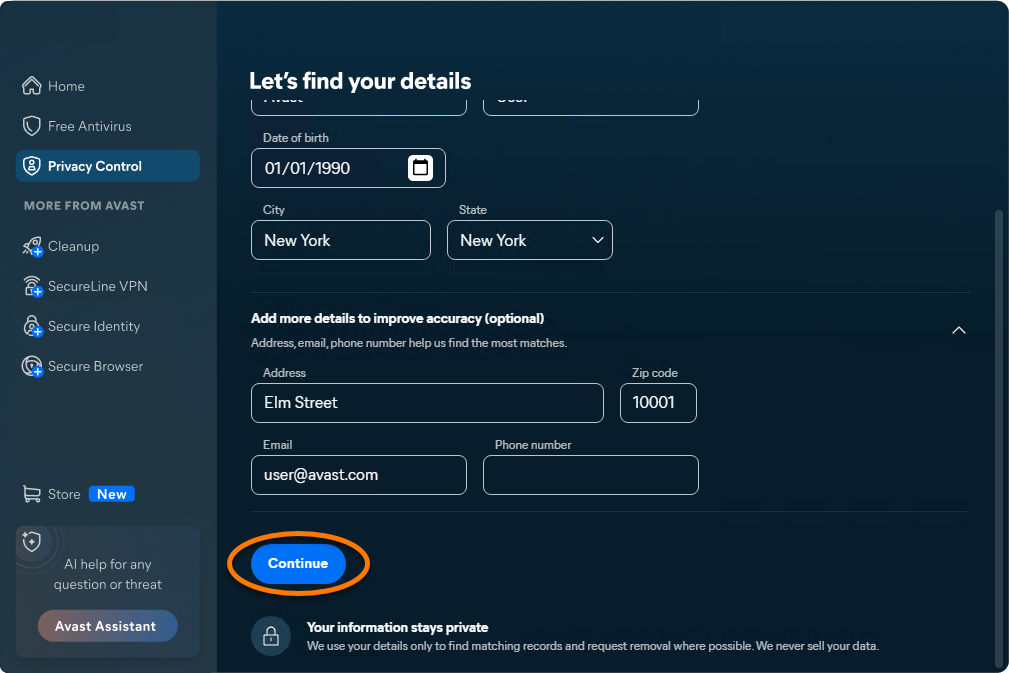
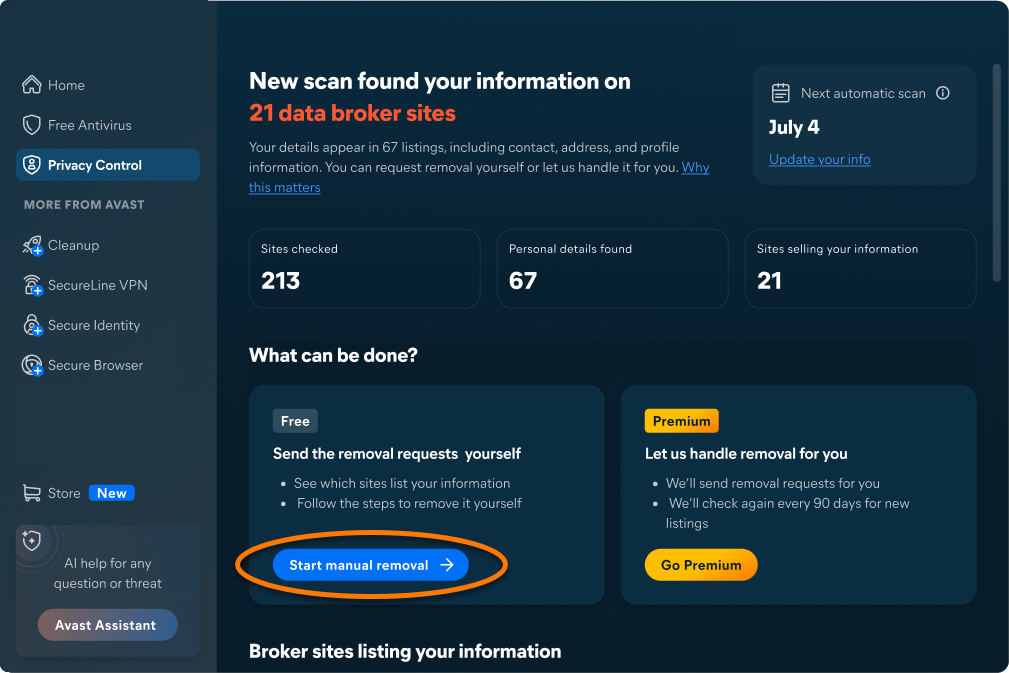
Avast immediately starts scanning data broker websites for your information. When the scan is complete, the results appear on the main dashboard.
The next steps depend on your version of Avast Privacy Control:
Free version
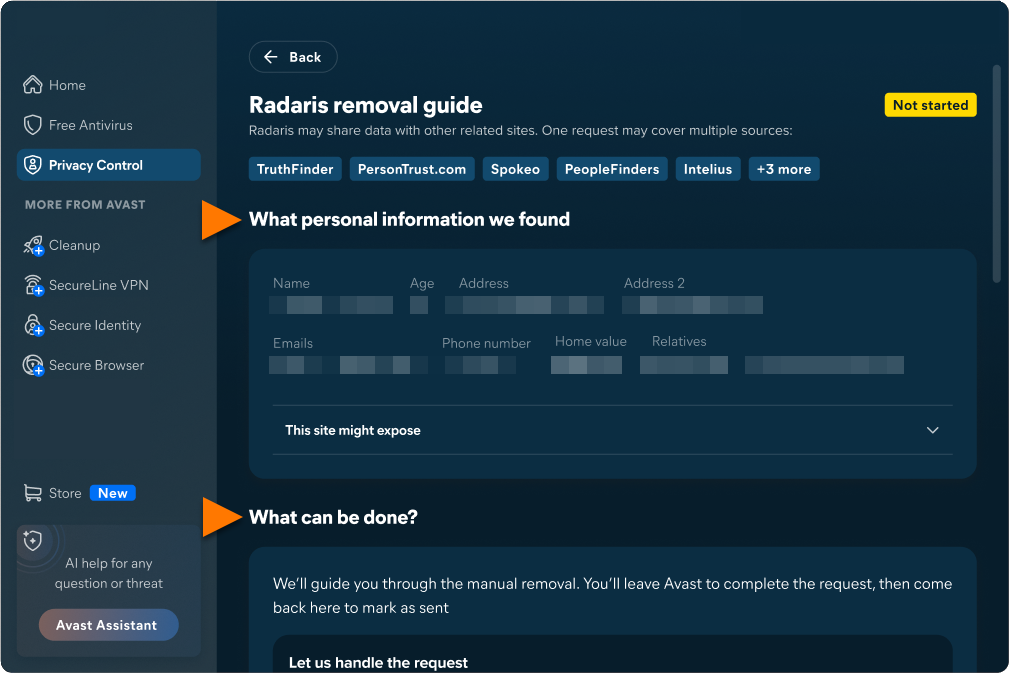
You are guided through manual removal requests:
- Click Start manual removal.
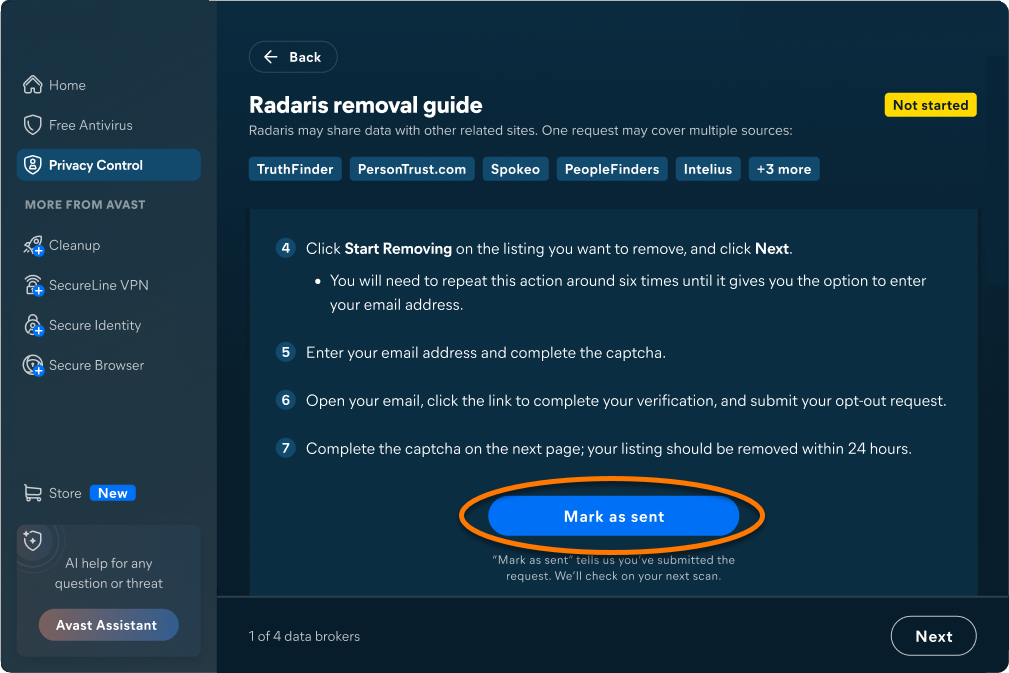
- Follow the instructions to complete the manual removal process for each data broker.
- When the request is sent, click Mark as sent and continue with the next available guide.
Premium version
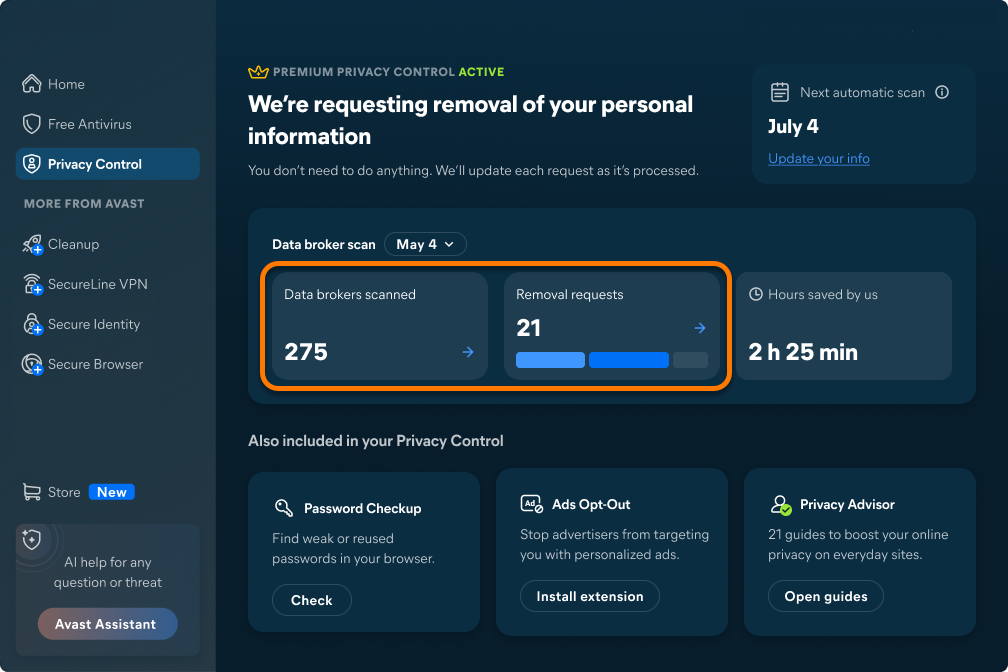
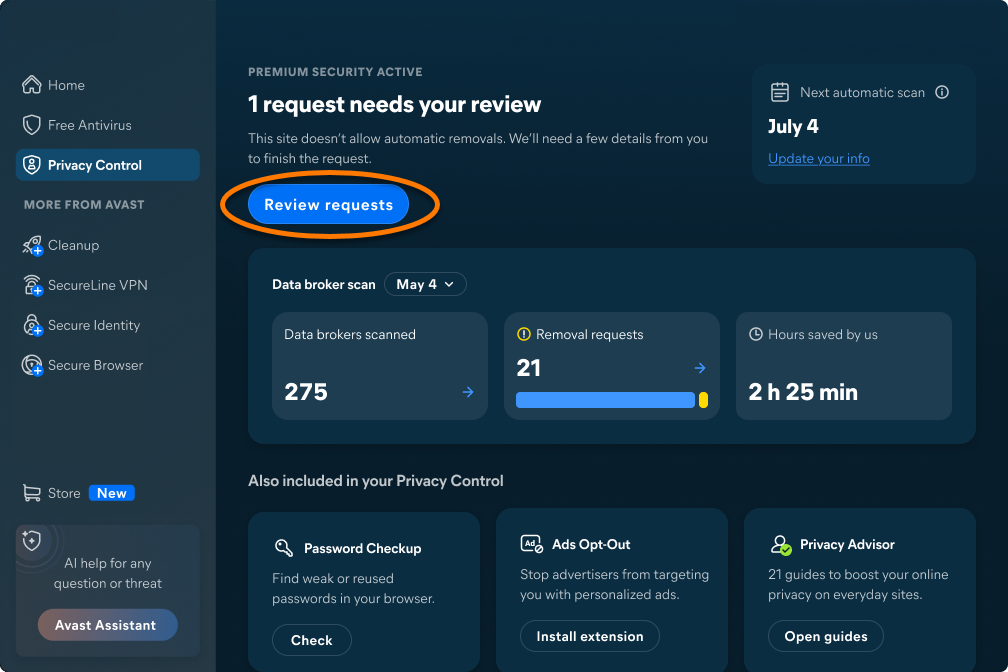
Avast sends removal requests automatically where possible.
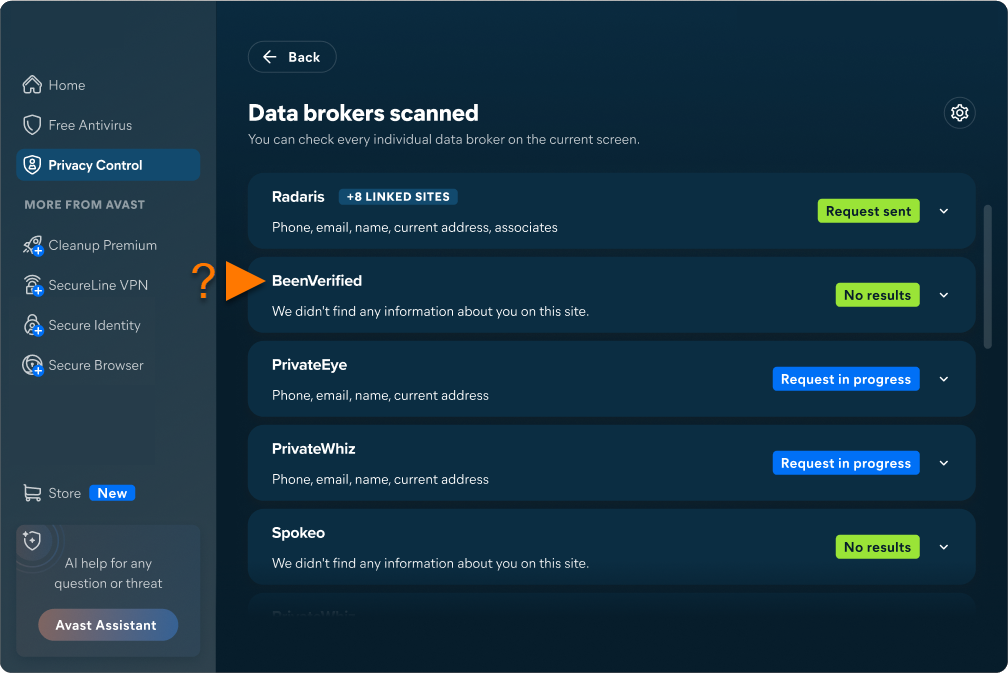
- To track progress, click Data brokers scanned or Removal requests on the dashboard.
- For more details, click any individual data broker.
Password Checkup
Password Checkup helps you identify weak or compromised passwords saved in your browser and improve the security of your online accounts:
- Open Avast One, then hover your cursor over the side menu and select Privacy Control.
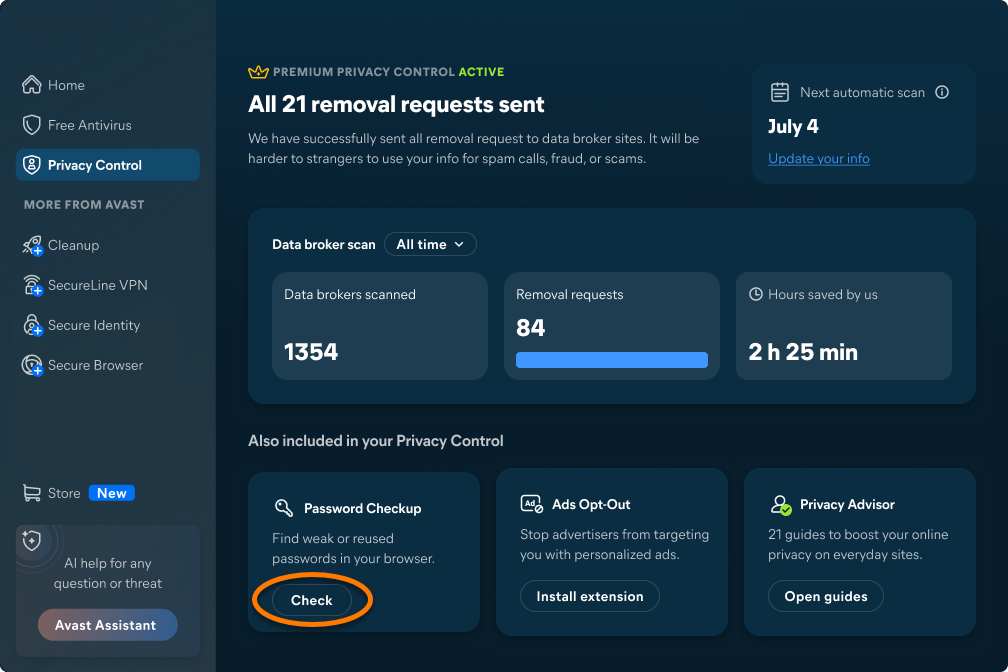
- Click Check in the Password Checkup tile.
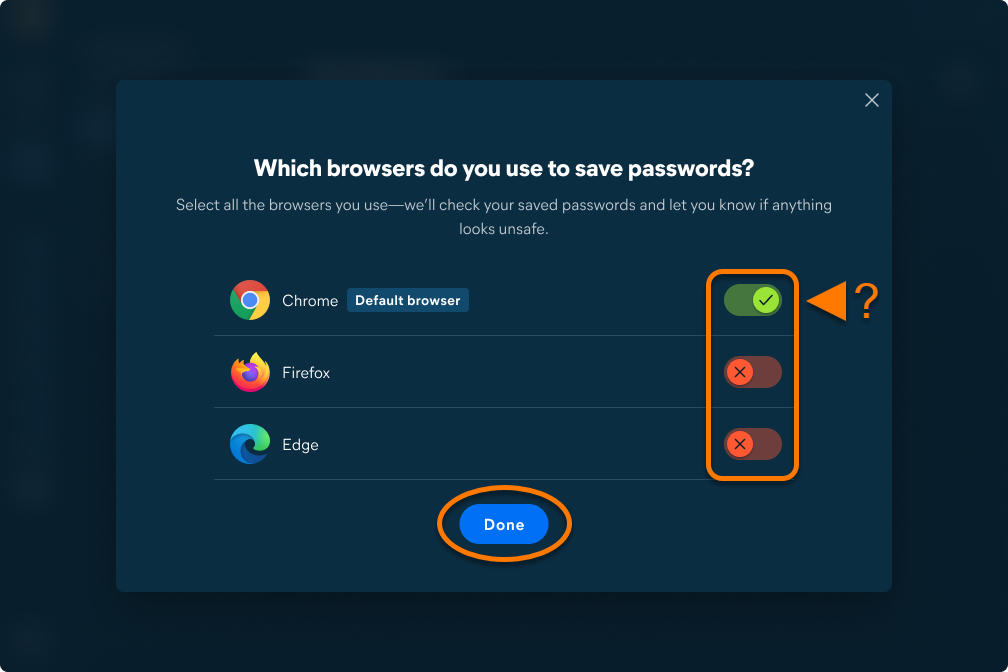
- On the menu that appears, select the browser you use, then click Done.
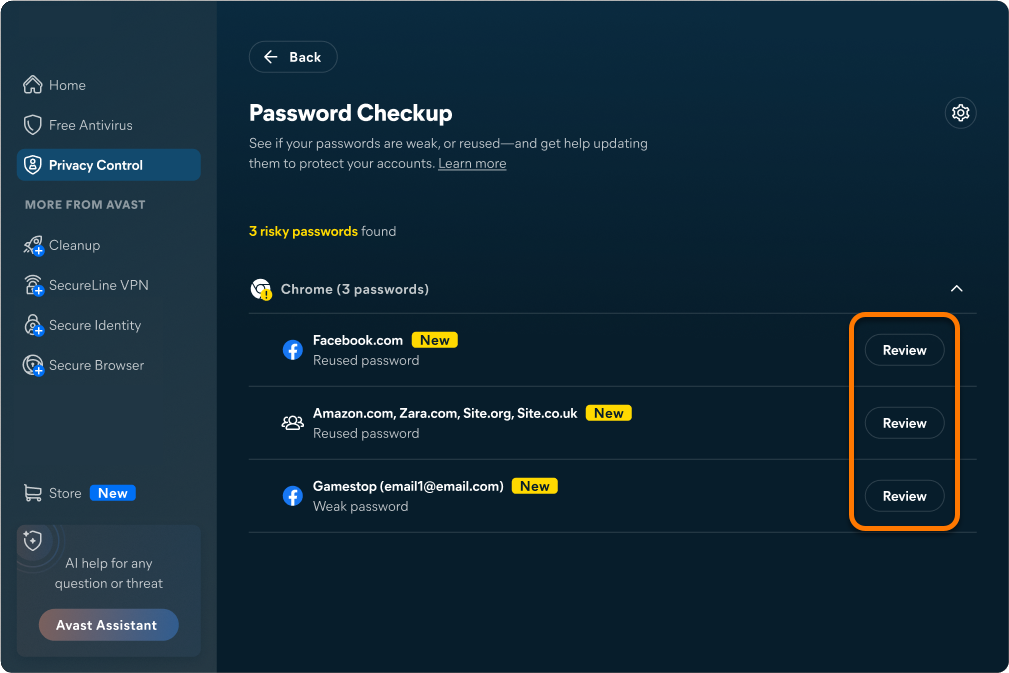
- Avast Privacy Control immediately checks for risky passwords. Click Review next to a detected password.
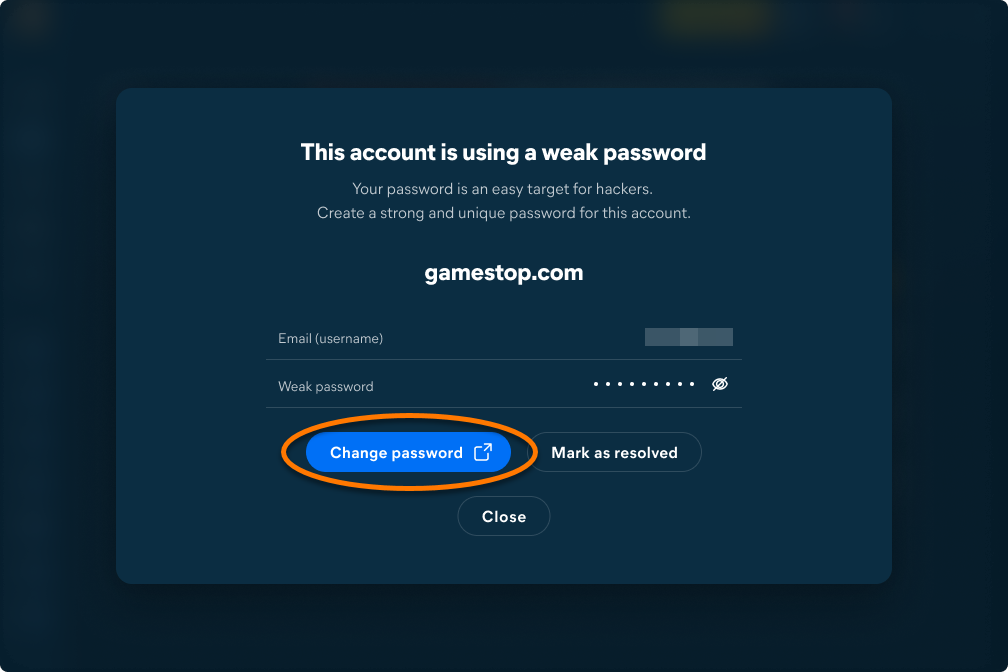
- Review the risk details, then click Change password to open the relevant website in a new browser window. Sign in and create a new, strong password.
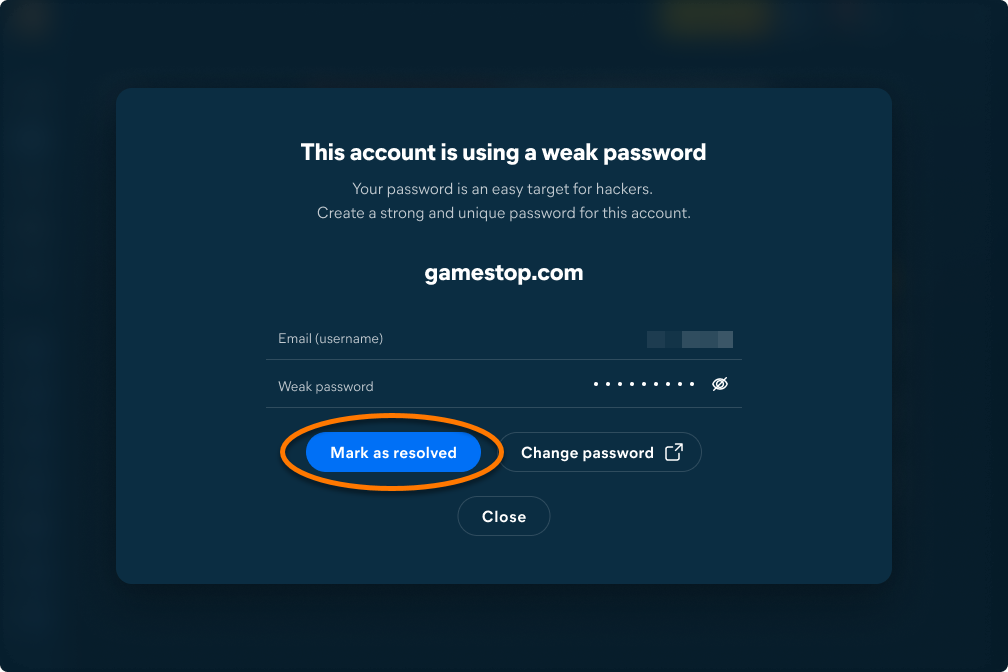
- After updating your password, return to Avast Privacy Control and click Mark as resolved.
- Repeat these steps for each detected issue.
Regularly checking and updating your passwords helps reduce the risk of unauthorized access to your accounts.
- The password should contain at least 10 characters, but ideally 12 or more. The more characters you use, the more secure your password is.
- The password should include a variety of letters, numbers, and symbols.
- The same password should not be used to access any other accounts or services.
- The safest passwords are phrases rather than single words. Select a phrase that is memorable for you, but not easily predictable.
Ads Opt-Out
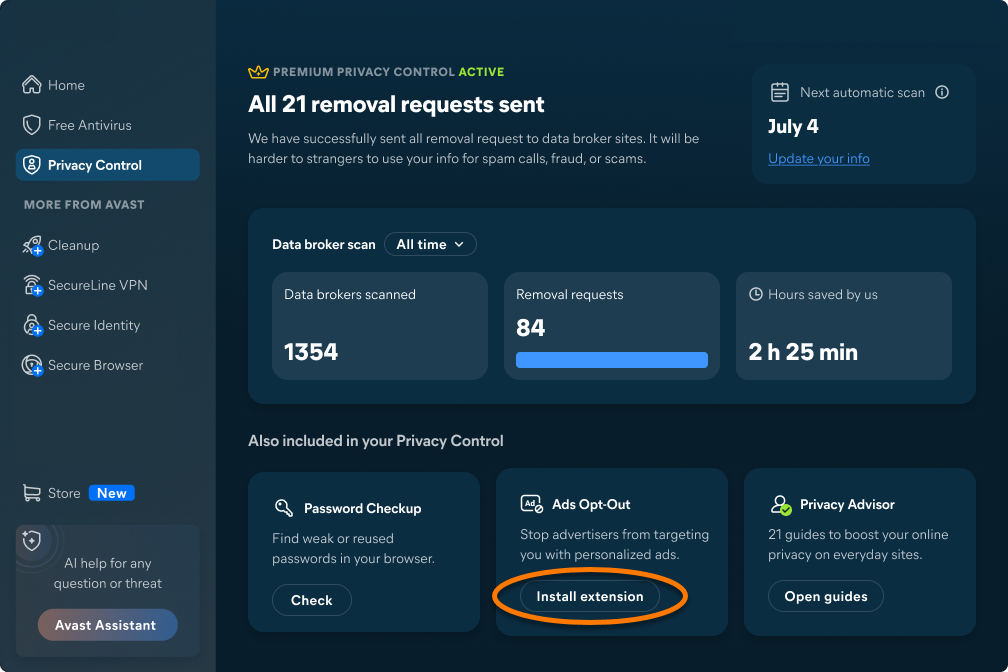
Ads Opt-Out uses the Avast Online Security & Privacy browser extension to send requests to participating advertisers to stop using your data for tracking and personalized advertising. To install the extension:
- Open Avast One, then hover your cursor over the side menu and select Privacy Control.
- Click Install extension in the Ads Opt-Out tile.
- Next to the browser you use, click Install extension, then follow the on-screen instructions.
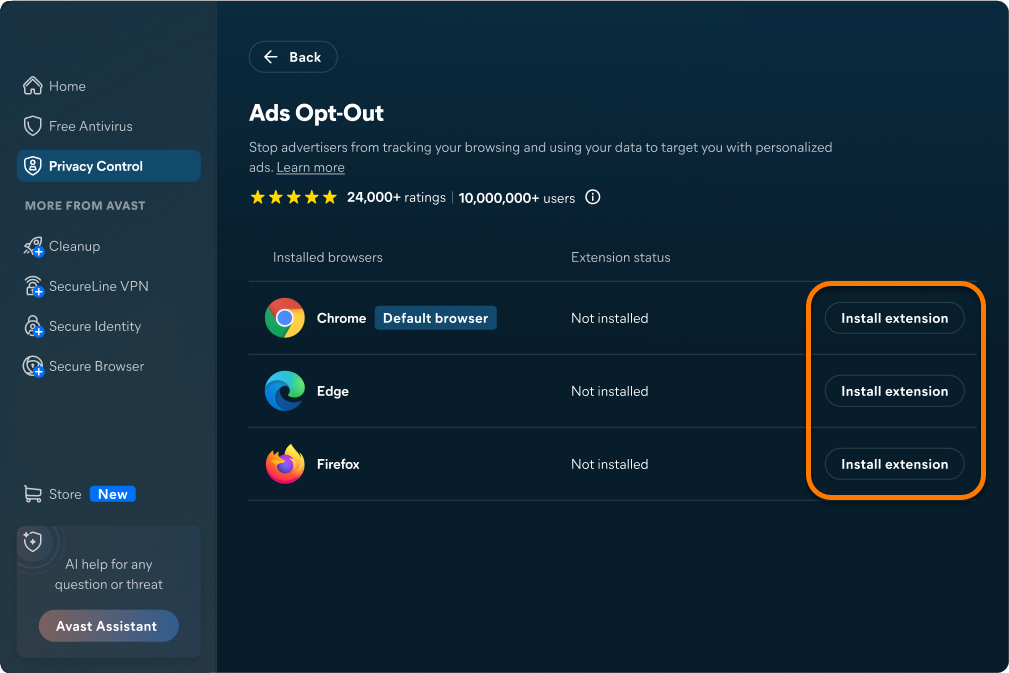
For detailed instructions, refer to the following article: Installing Avast Online Security & Privacy.
We recommend installing the extension in each browser on your device. For more information, refer to the following articles:
Privacy Advisor
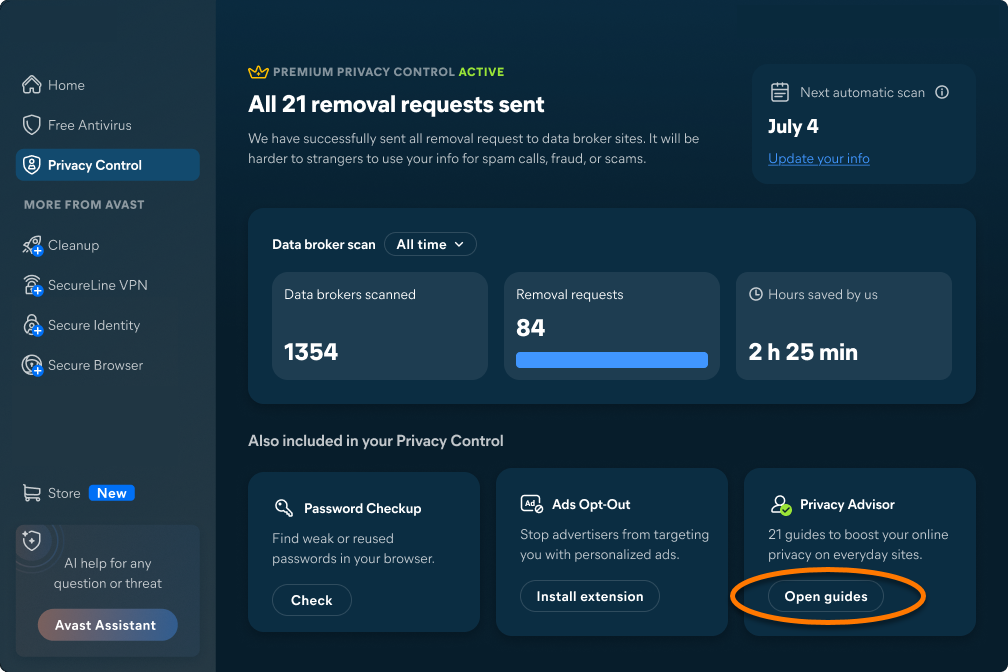
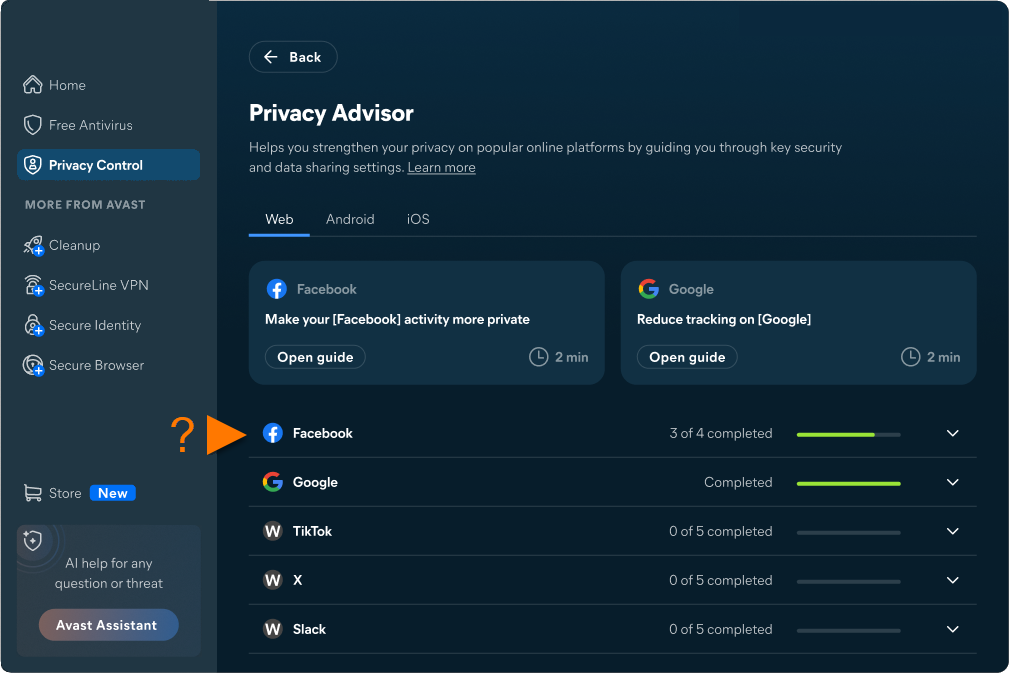
Privacy Advisor provides step-by-step guidance to help you review and adjust privacy settings in your online accounts, reducing the amount of personal information you share. To use Privacy Advisor:
- Open Avast One, then hover your cursor over the side menu and select Privacy Control.
- Click Open guides in the Privacy Advisor tile.
- Select a guide from the list, then follow the steps to update your privacy settings.
Further recommendation
For more information on Avast One and Avast Privacy Control, refer to the following articles:
- Avast One
- Avast Privacy Control
- Windows and macOS
Updated on: 10/08/2026


 © 2025 Gen Digital Inc.