Avast AntiTrack is a privacy application designed to keep your identity safe from the latest online tracking techniques.
This article assumes that Avast AntiTrack is already installed and activated on your device, and that you have added the browser extensions. For instructions, refer to the following articles:
This article assumes that Avast AntiTrack is already installed and activated on your device. For instructions, refer to the following articles:
Avast AntiTrack is no longer listed in Google Play Store. If you previously had the app installed on your Android device, you can reinstall Avast AntiTrack by following the steps in this article: Installing Avast AntiTrack.
Add browser extensions
After you install Avast AntiTrack, you are prompted to add the Avast AntiTrack browser extension to your default browser. For detailed instructions, visit the following article: Installing the Avast AntiTrack browser extensions.
To use Avast AntiTrack, you need to install the extension first, as it is necessary for scanning your browser for trackers and tracking websites.

Clear trackers
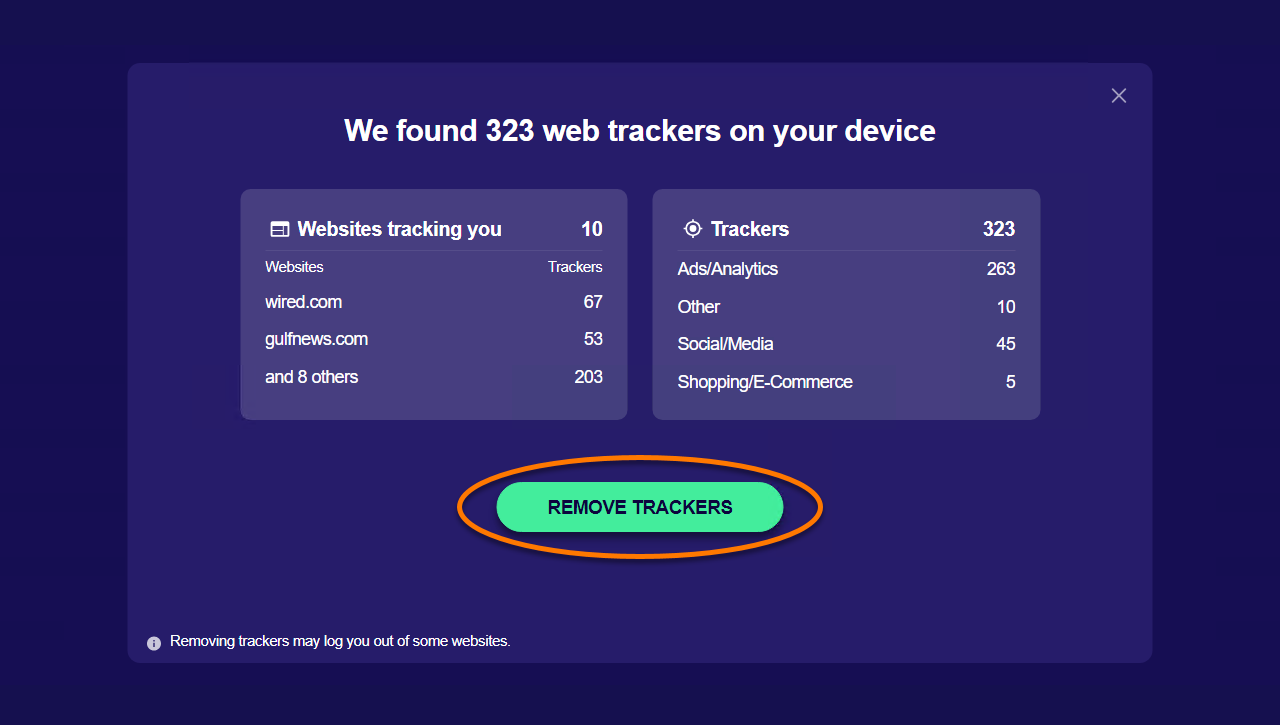
After you install the Avast AntiTrack browser extension and open Avast Antitrack, it automatically scans your device for trackers. If any trackers are found, Avast AntiTrack prompts you to remove them:
Before you clear the data, remember to save any work in browsers as you may lose unsaved changes.
- On the prompt that appears, click Remove trackers.
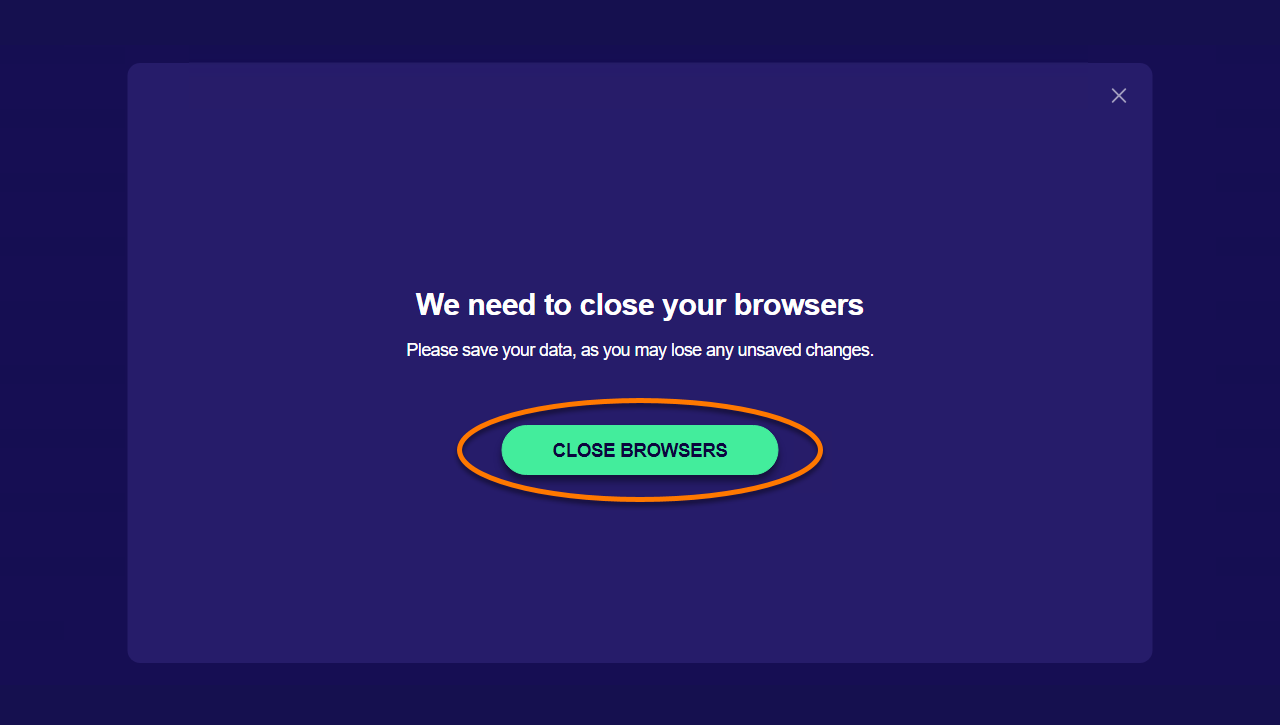
- If any of your browsers are open, click Close browsers to allow Avast Antitrack to close them automatically.
The trackers are now cleared.
Navigate the dashboard
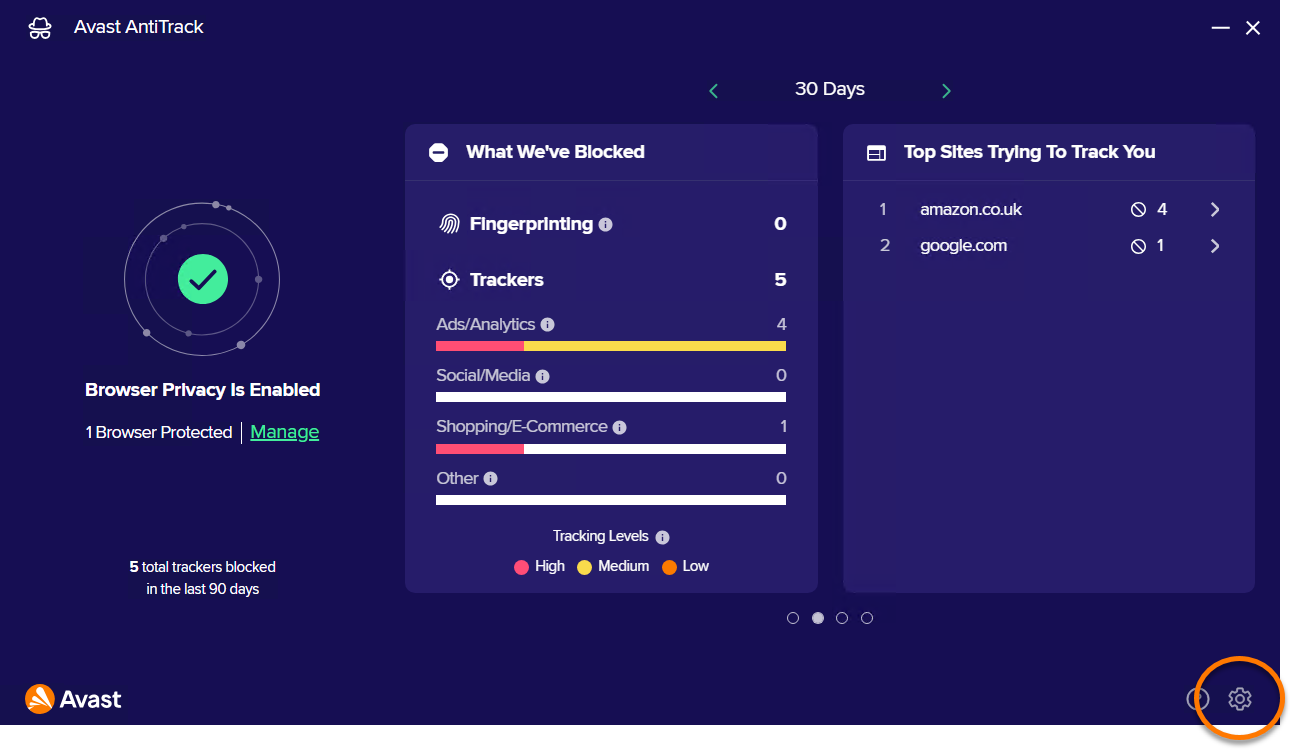
When you open Avast AntiTrack, you see the application dashboard. The following options are available:
- Browser Privacy: Information about the Avast AntiTrack browser extensions added to your browser.
- What We've Blocked: View the total number of fingerprinting attempts and removed trackers for the selected period.
- Use the left and right arrows to view data for today or for the last 30, 60, or 90 days.
- Top Sites Trying to Track You: Information about blocked fingerprinting and tracking for each website.
- Click Settings (the gear icon) for information about your subscription and options related to OS Tracker Blocking, Notifications, and clearing Avast Antitrack data.

Monitor tracking attempts
The main Avast AntiTrack dashboard allows you to see detailed information about blocked fingerprinting and trackers. Click on any listed website for detailed information about blocked fingerprinting and trackers.

For even more in-depth data on any website, you can use the Avast AntiTrack extension. Open your browser and go to the website you want to investigate. Then, click the Avast AntiTrack extension in the top-right corner, and select the Tracking & Fingerprinting tab to access detailed information.

Create an exception
You can stop Avast AntiTrack from clearing cookies on certain websites by adding them to the Exceptions List.
For information about adding an allowed website, refer to the following article:
Manage Windows tracker blocking
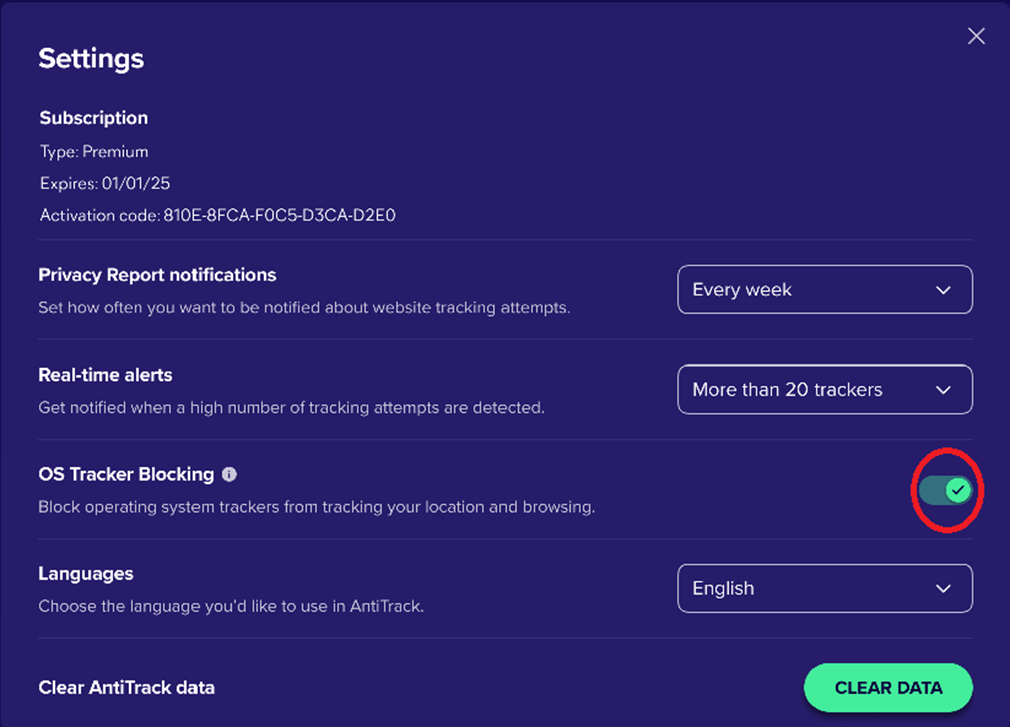
Avast AntiTrack allows you to block tracking activities and targeted advertisements by the Windows operating system:
- Open Avast Antitrack and go to Settings (the gear icon).
- Switch the OS Tracker Blocking slider ON or OFF, to enable or disable Windows tracker blocking.
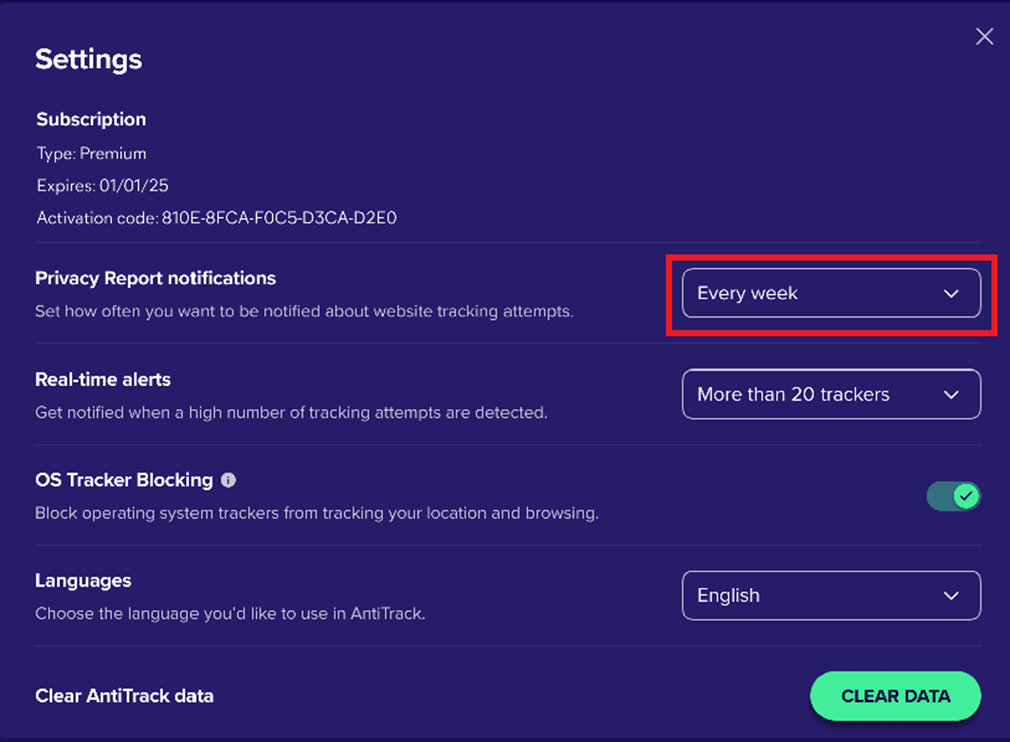
Manage Privacy Report notifications
Follow the steps below to manage Privacy Report notifications in Avast AntiTrack:
- Open Avast Antitrack and go to Settings (the gear icon).
- Next to Privacy Report notifications select the required option from the drop-down list.
Clear Avast AntiTrack data
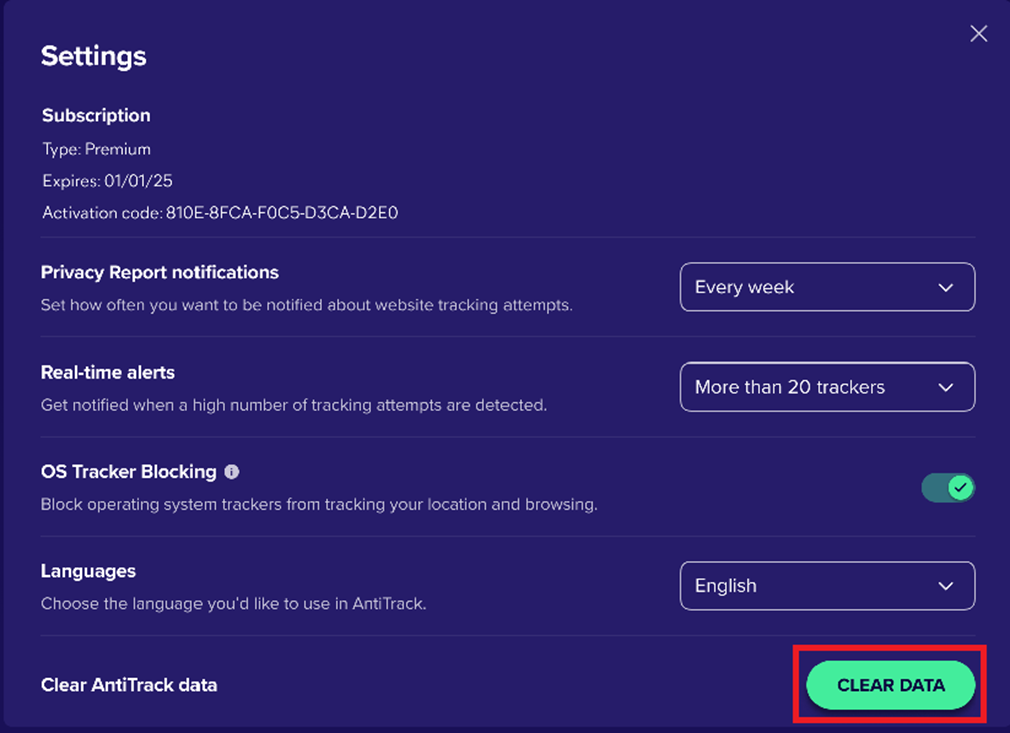
Follow the steps below to delete all information about the tracking attempts from Avast AntiTrack:
- Open Avast Antitrack and go to Settings (the gear icon).
- Click Clear data, then click Clear data again.
Further recommendations
For more information about Avast AntiTrack, refer to the following article:
Avast AntiTrack is a privacy application designed to keep your identity safe from the latest online tracking techniques.
This article assumes that Avast AntiTrack is already installed and activated on your device, and that you have added the browser extensions. For instructions, refer to the following articles:
This article assumes that Avast AntiTrack is already installed and activated on your device. For instructions, refer to the following articles:
Avast AntiTrack is no longer listed in Google Play Store. If you previously had the app installed on your Android device, you can reinstall Avast AntiTrack by following the steps in this article: Installing Avast AntiTrack.
Open Avast AntiTrack
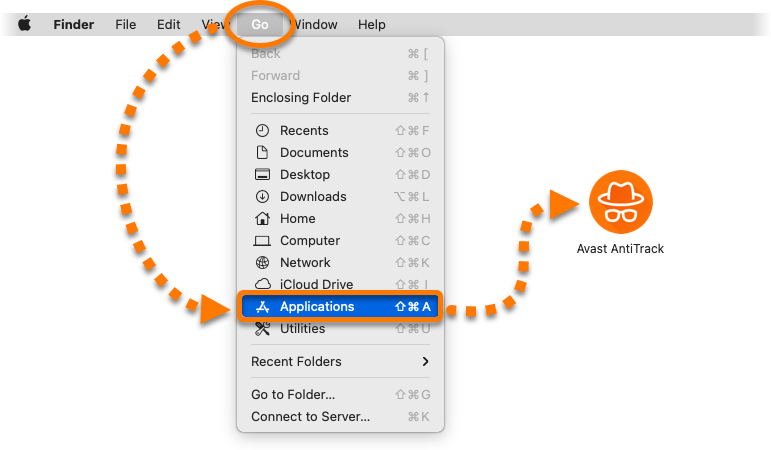
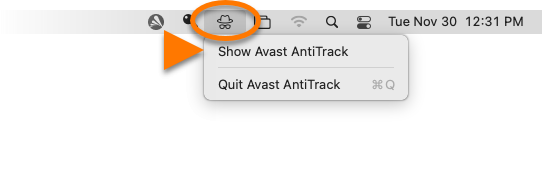
You can open Avast AntiTrack using one of the following methods:
- In the Apple menu bar, click Go ▸ Applications, then double-click the Avast AntiTrack icon.
- In the Apple menu bar, click the Avast AntiTrack icon and select Show Avast AntiTrack.
Navigate the dashboard
When you open Avast AntiTrack, you see the application dashboard. The following options are available:
- Menu options: Access the application features and settings using the options below:
- Dashboard: Click this option to go to the main app screen.
- Browsers: Enable or disable browser protection for individual browsers.
- My Tracks: Clear cookies and browser data from your web browsers, and add allowed websites that are exempt from cookie clearing.
- Reports: View reports showing when tracking attempts are blocked and which websites are attempting to track you.
- Settings: Configure notification and startup preferences, specify the data you want to share with with Avast and third parties, and view your subscription details.
- My privacy score: Check how effectively the application is configured to protect your privacy. Click Improve my privacy condition to learn how to improve your privacy score.
- Tracking attempts overview: Check recent tracking attempts, learn which websites have attempted to track you most frequently, and see the total number of blocked tracking attempts since you started using Avast AntiTrack.

Check your privacy score
The Avast AntiTrack dashboard shows your privacy score, which indicates how effectively the application is configured to protect your privacy.
To improve your privacy score:
- Click Improve my privacy condition.

- Review the status of the main application components. Components with a red status are not fully enabled and are preventing Avast AntiTrack from fully protecting your privacy.
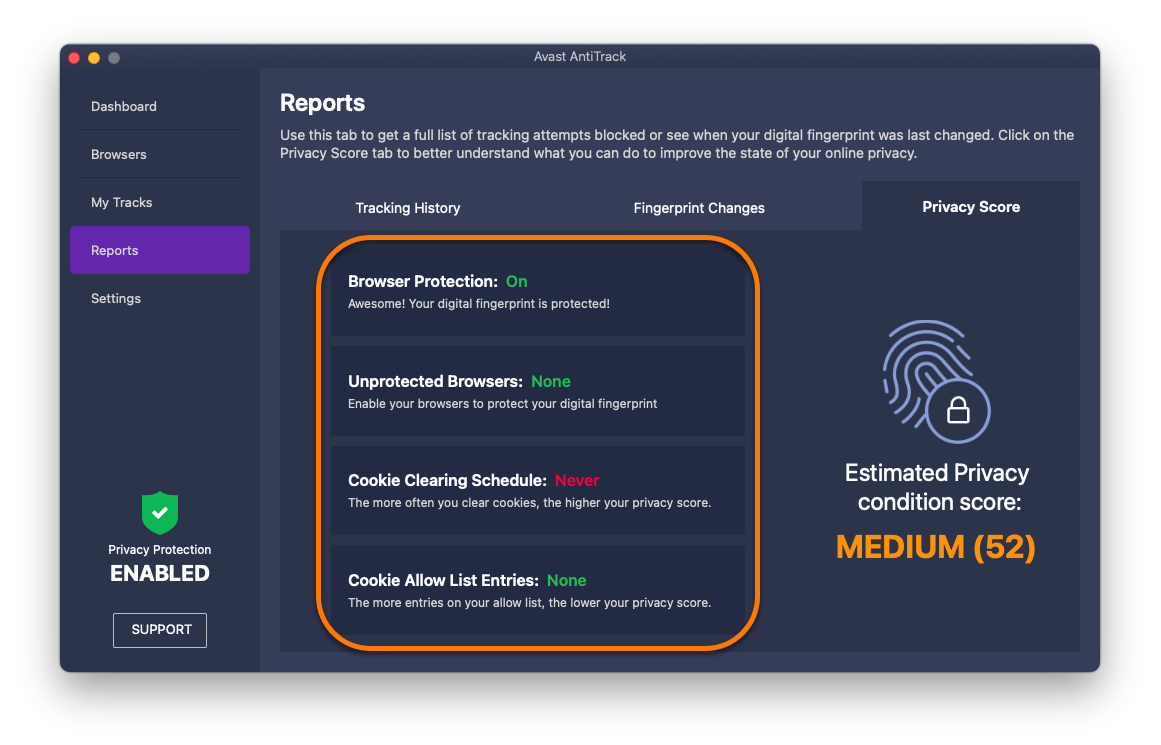
- Click a component to configure its settings. For example, ensure browser protection or a regular cookie clearing schedule is enabled for each of your installed web browsers.
Monitor tracking attempts
The Reports screen allows you to see when tracking attempts are blocked and which websites are attempting to track you.
To open the Reports screen:
- In the left panel, click Reports.
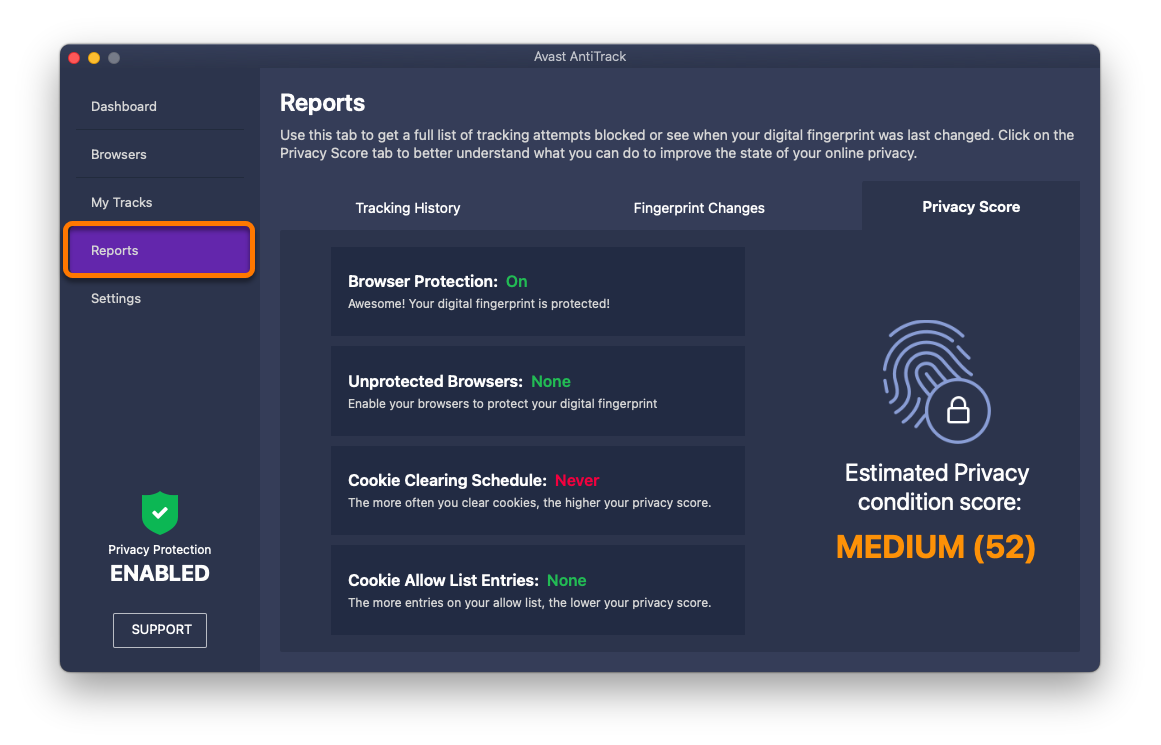
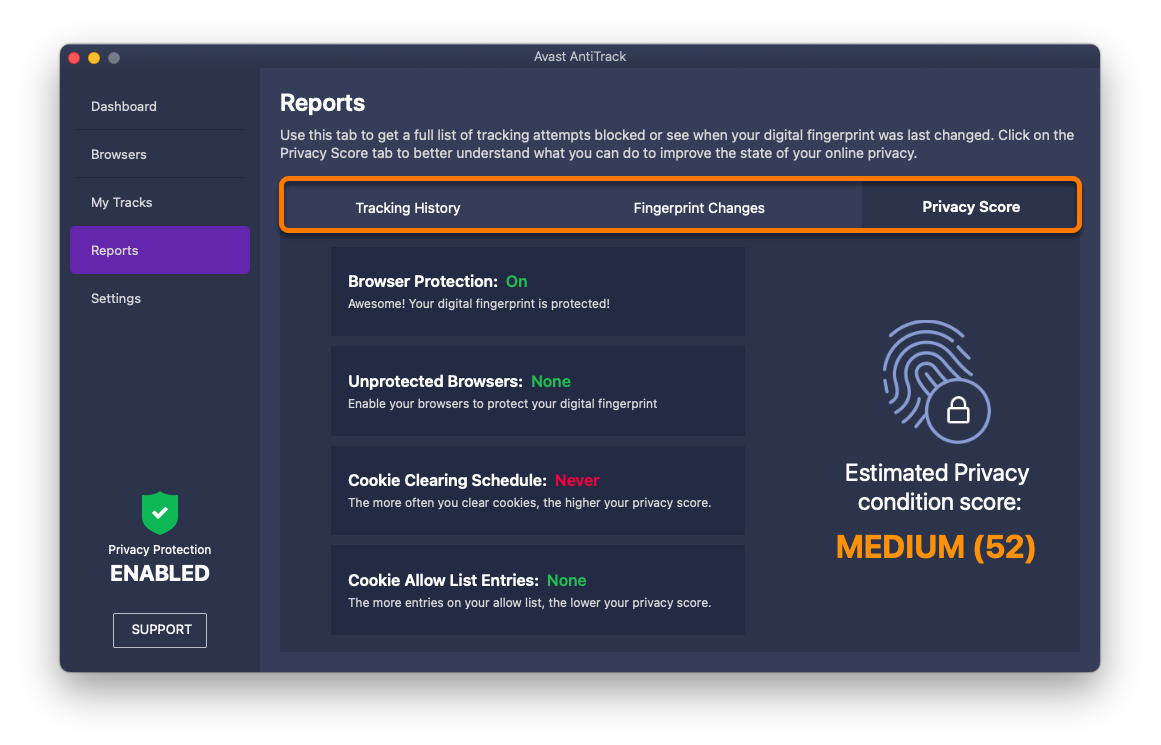
- Select the relevant tab to view the details below:
- Tracking History: Detailed information about each blocked tracking attempt.
- Fingerprint Changes: The most recent changes to your digital fingerprint.
- Privacy Score: An overview of how effectively Avast AntiTrack components are configured to protect your privacy.
Protect your browsers
The Browsers screen allows you to enable or disable browser protection for individual web browsers.
After you install and activate Avast AntiTrack, we recommend ensuring that browser protection is enabled for all the compatible browsers installed on your Mac.
To enable or disable browser protection for an individual browser:
- In the left panel, select Browsers.
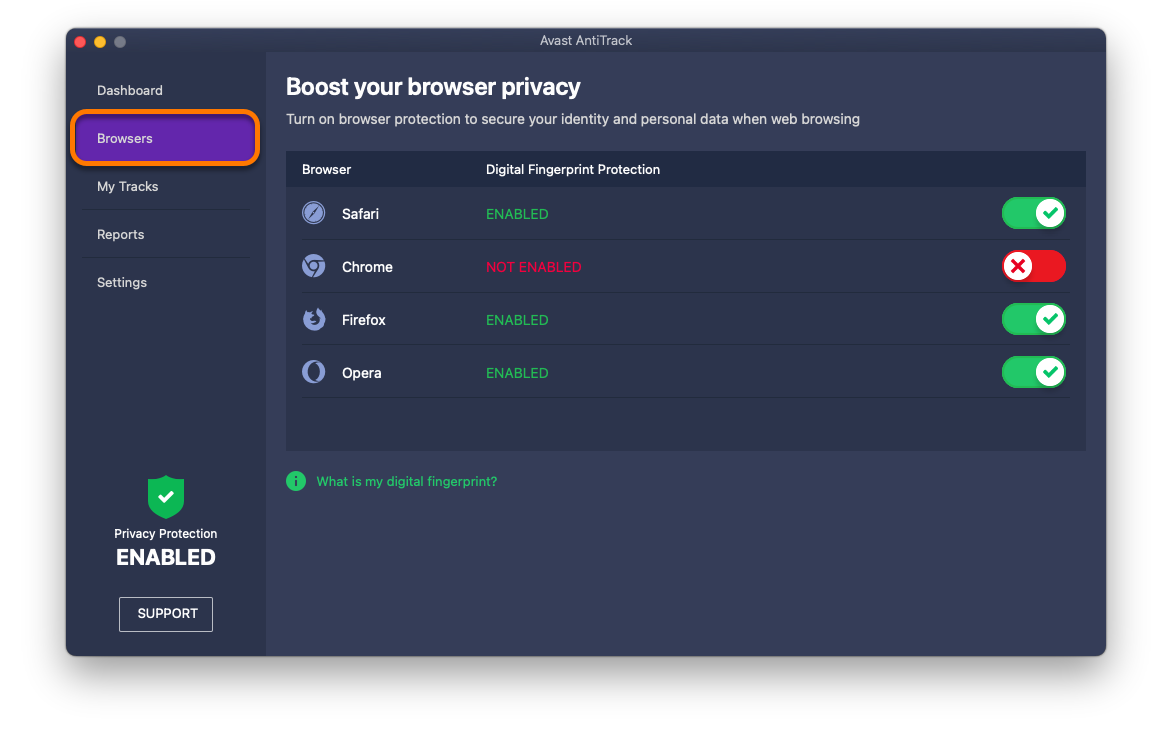
- Click the slider next to your chosen browser:
- Enable: Click the red (OFF) slider so that it changes to green (ON).
- Disable: Click the green (ON) slider so that it changes to red (OFF).
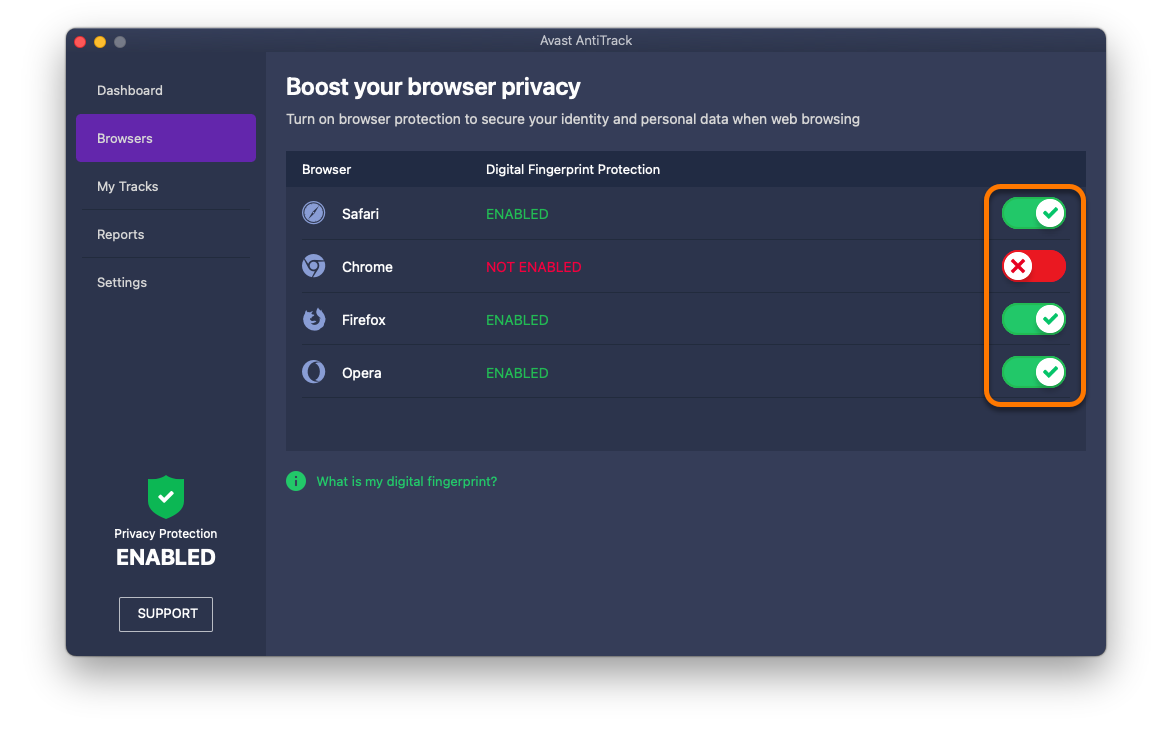
If you disable browser protection for a browser, Avast AntiTrack no longer detects and blocks tracking attempts when you use this browser.
Avast AntiTrack is compatible with the following browsers:
- Google Chrome
- Mozilla Firefox
- Safari
Clear cookies and browser data
The My Tracks screen allows you to schedule automatic cookie clearing on your browsers, and instantly clear stored browser data.
Schedule cookie clearing
Cookies are files that websites, trackers, and third parties leave on your browser that allow them to view your online activity.
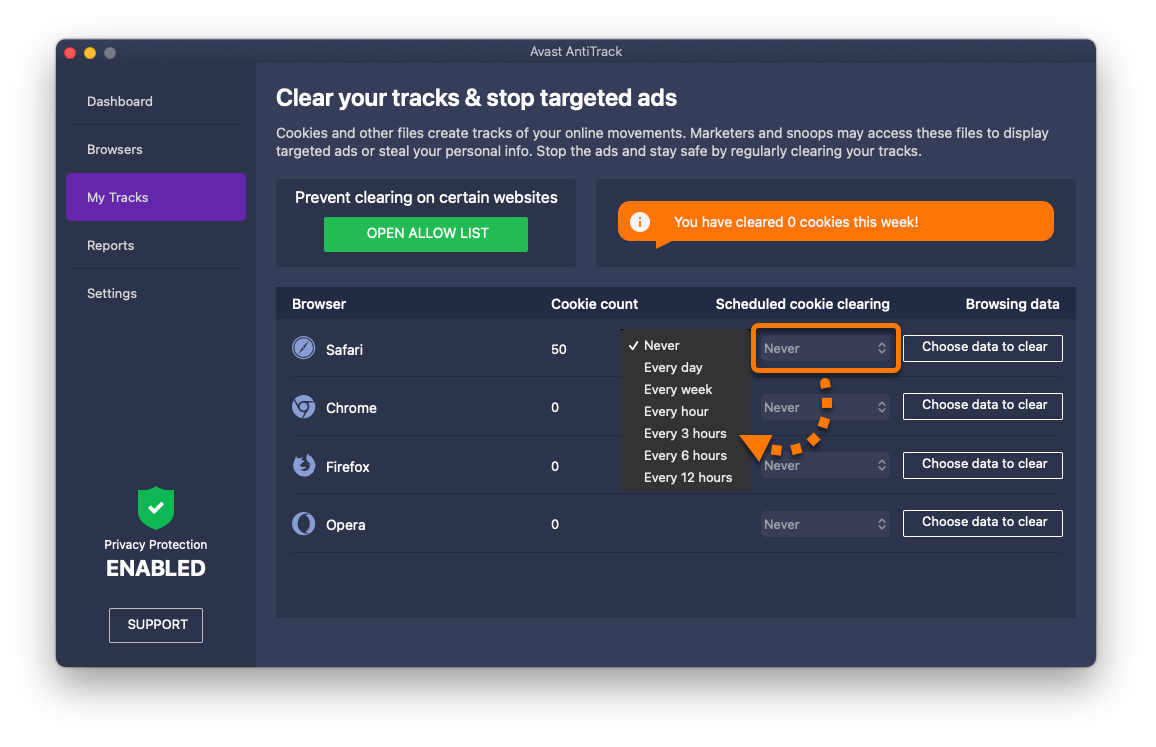
To schedule regular cookie clearing for each of your browsers:
- In the left panel, click My Tracks.
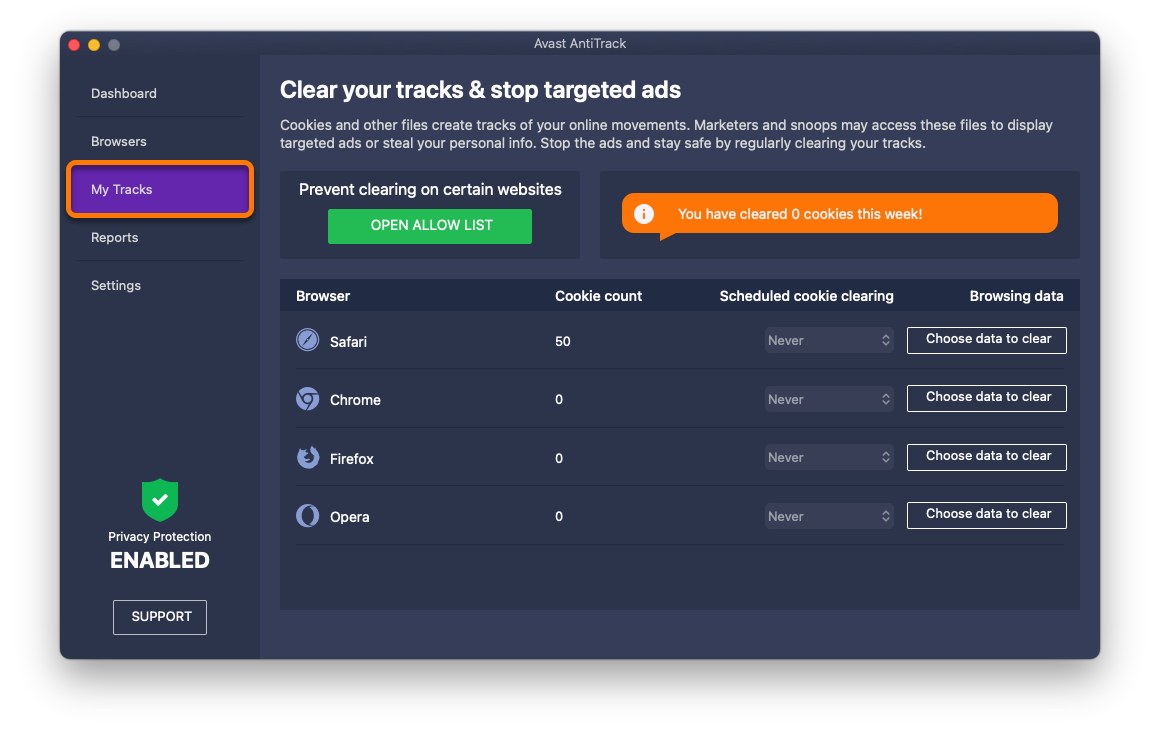
- Click the drop-down menu next to a browser to select how regularly cookies are cleared.
Avast AntiTrack needs Full Disk Access to remove cookies from Safari. If prompted, click Click here to allow full disk access and follow the on-screen instructions to enable Full Disk Access.
For detailed instructions, refer to the following article:
Cookies are now automatically cleared from the selected browser according to your defined schedule. You can add allowed websites to prevent cookie clearing on specified websites.
Clear browser data
Browser data is information that is often stored in your browser when you visit websites.
To clear browser data from your browsers:
- For optimal results, ensure that each browser you want to clear data for is closed.
- Click Choose data to clear next to your chosen browser.
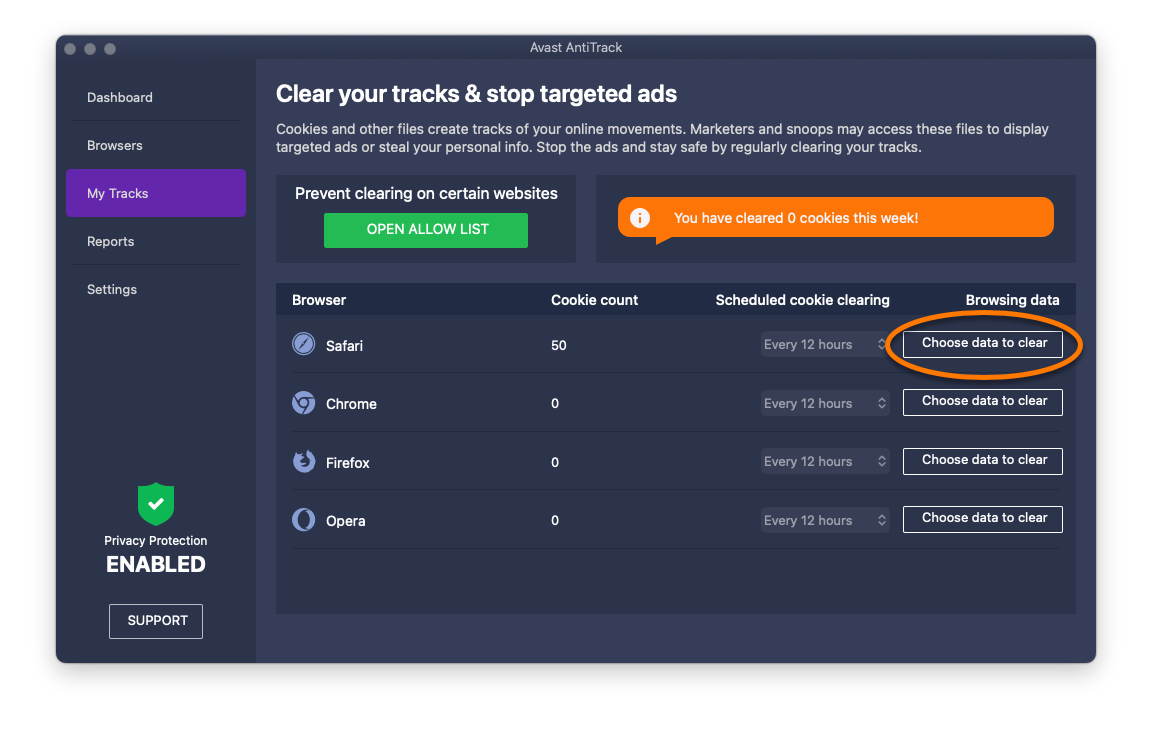
- Tick the boxes next to the types of data you want to remove, then click Clear selected data.
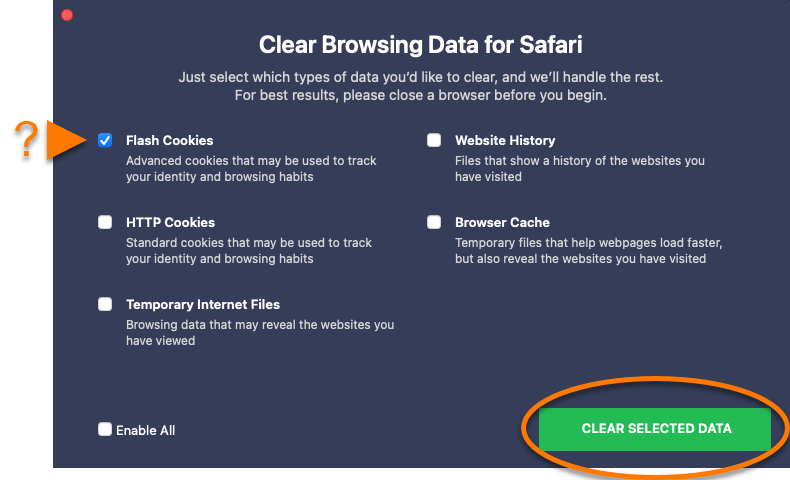
The selected browser data is now cleared.
Create an exception
You can put websites on your Cookie Allow List, which stops Avast AntiTrack from clearing cookies on that website.
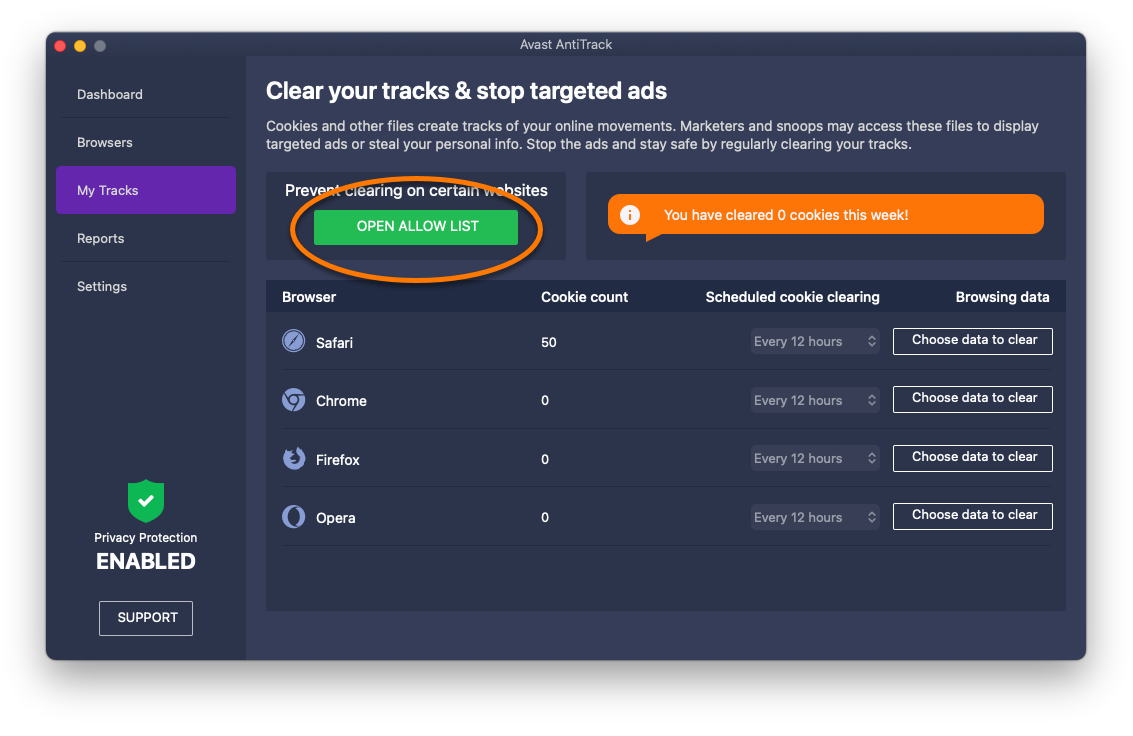
- In the left panel, click My Tracks.
- Click Open allow list.
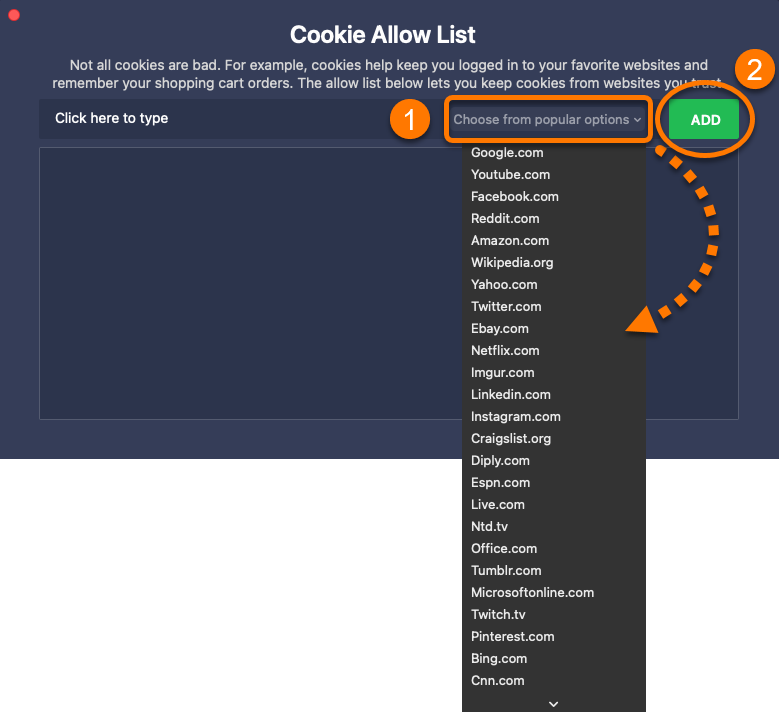
- Add a website using either method below:
- Select a website from the Choose from popular options drop-down menu, then click Add.
- Enter a website (for example, example.com) into the left text box, then click Add.
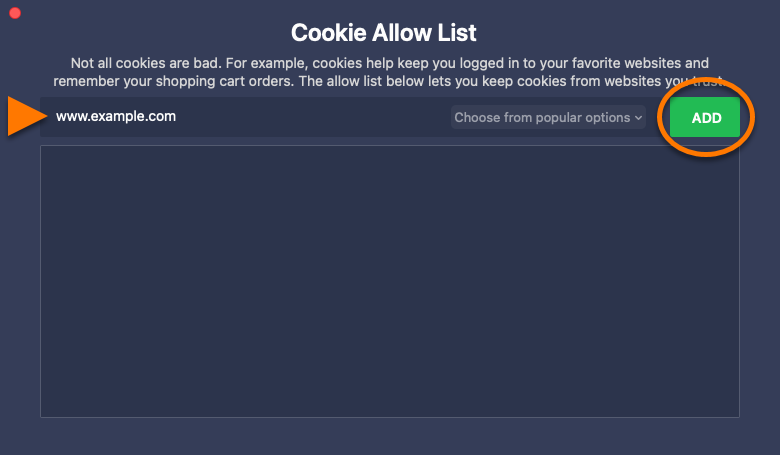
The selected website is now excluded from cookie clearing. To remove a website from the list, click the trash icon in the relevant website's panel.
Further recommendations
For more information about Avast AntiTrack, refer to the following article:
Avast AntiTrack is a privacy application designed to keep your identity safe from the latest online tracking techniques.
This article assumes that Avast AntiTrack is already installed and activated on your device, and that you have added the browser extensions. For instructions, refer to the following articles:
This article assumes that Avast AntiTrack is already installed and activated on your device. For instructions, refer to the following articles:
Avast AntiTrack is no longer listed in Google Play Store. If you previously had the app installed on your Android device, you can reinstall Avast AntiTrack by following the steps in this article: Installing Avast AntiTrack.
Check your privacy score
On the main screen of your device, tap the Avast AntiTrack icon to open the application.

The app displays the Privacy status screen. You may see one of the statuses below:
- Secured from trackers: Privacy protection is enabled.
- Protection paused: Privacy protection is currently disabled because you are connected to another VPN service. Disconnect from your VPN to restart privacy protection.
- You can be tracked online: Privacy protection is currently disabled. To enable browser tracking protection, go to Settings (the gear icon) and tap the gray (OFF) slider next to Secure your privacy so that it changes to green (ON).
The following information is also available via the Privacy status screen:
- Blocked tracking attempts: The total number of tracking attempts Avast AntiTrack has blocked.
- Fingerprint changed: The date and time that Avast AntiTrack last changed your digital fingerprint, and the number of trackers that have been blocked since the last fingerprint change.
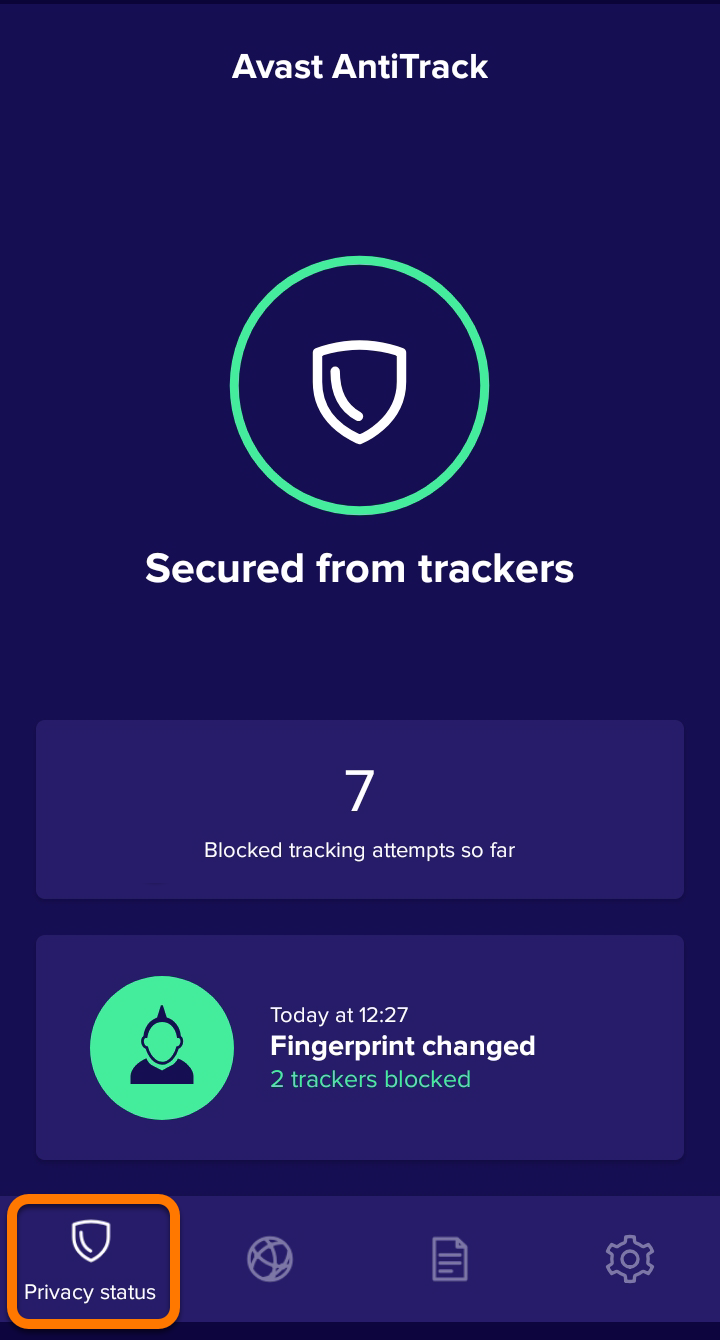
Monitor tracking attempts
You can enable or disable privacy protection for each of the browsers on your device:
- Select Browsers in the bottom panel.
- Tap the slider next to your chosen browser:
- Enable: Click the white (OFF) slider so that it changes to green (ON).
- Disable: Click the green (ON) slider so that it changes to white (OFF).
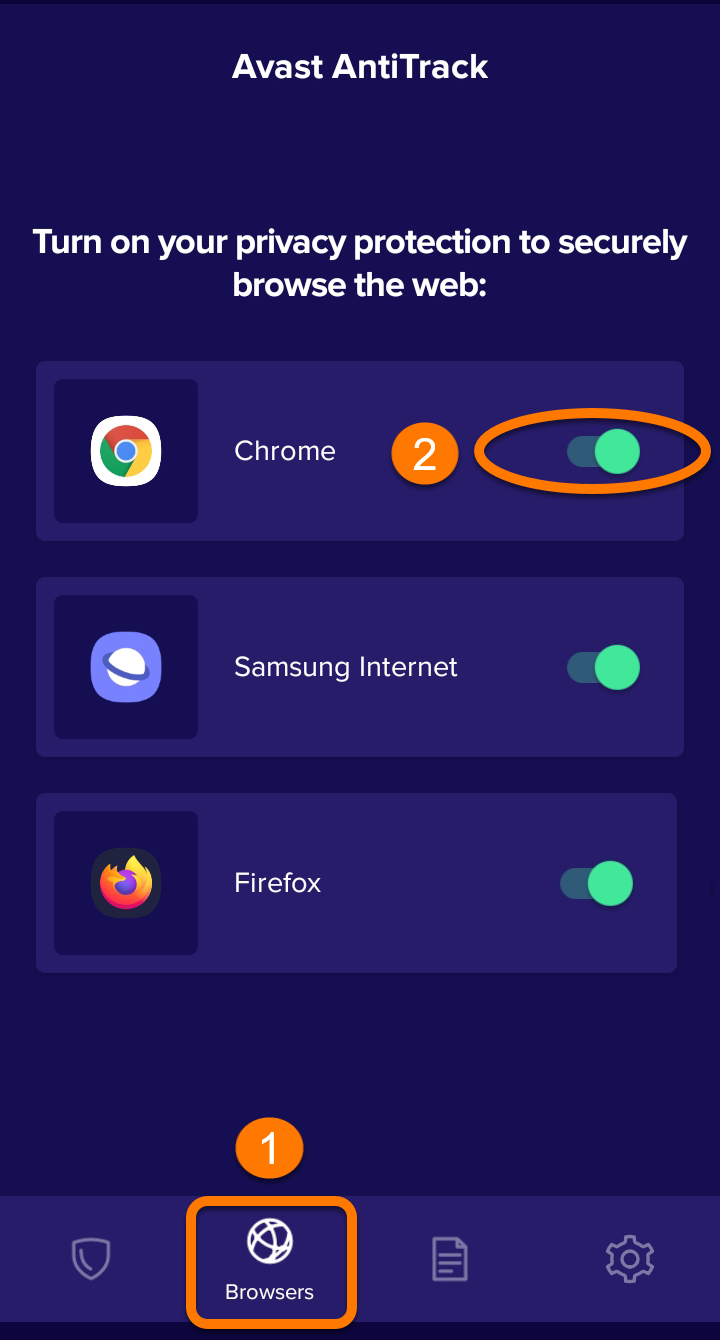
The first time you enable privacy protection for a browser, you are prompted to allow permissions for Avast AntiTrack to access your browser. Follow the on-screen instructions to allow the relevant permission via your device settings.
Modify settings
Tap Settings (the gear icon) in the bottom panel to modify your Avast AntiTrack settings.

The following options are available:
- Secure your privacy: When Avast AntiTrack protection is enabled, the slider is green (ON). To disable Avast AntiTrack protection, tap the slider so that it changes to white (OFF).
- Notifications for tracking attempts (enabled by default): Manage the notifications you receive from Avast AntiTrack.
- Subscription: View information relating to your Avast AntiTrack subscription. This includes the subscription type and the end of the current subscription period.
Avast products are sold as continuous subscriptions. This means that your subscription renews at the end of each subscription period unless you manually cancel it before the next billing date. For more information, refer to the following article:
- Support: Send a message to Avast Support or to visit the Avast support website.
- Data reset: Tap Reset my tracking attempts if you want to delete all the tracking attempt data from Avast AntiTrack.
- End User License Agreement: View the Avast End User License Agreement.
- Privacy policy: View the Avast Privacy Policy.
- Personal Privacy (enabled by default): To stop sharing your usage data with third parties for analytics purposes, tap the green (ON) slider so that it changes to white (OFF).
- Version: Verify your app version number.
Further recommendations
For more information about Avast AntiTrack, refer to the following article:


