The steps in this article only apply if you use Avast SecureLine VPN in Manual VPN Mode. If you use Smart VPN Mode, refer to the following article for information about managing your auto-connect settings: Avast SecureLine VPN for Windows and Mac - Getting Started.
Enable auto-connect
- Open Avast SecureLine VPN and go to
☰ Menu ▸ Settings. 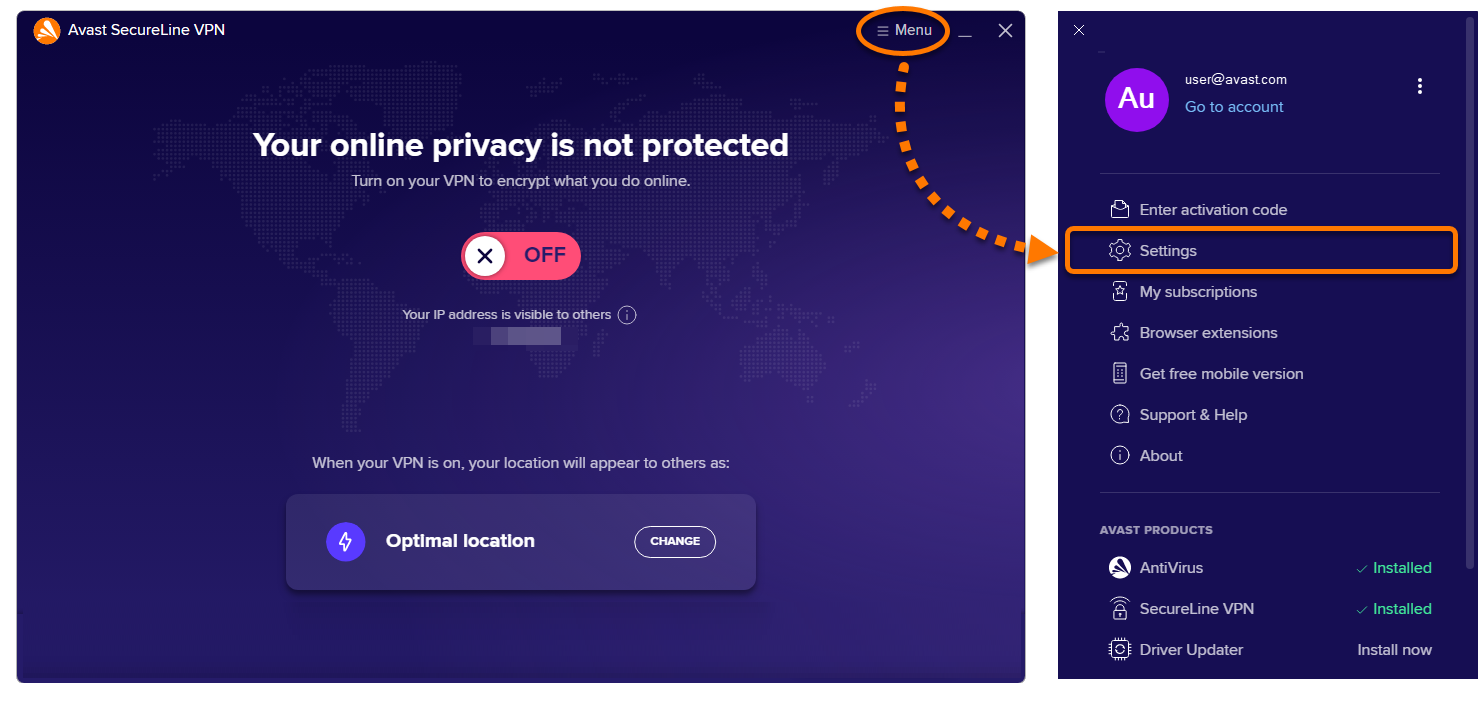
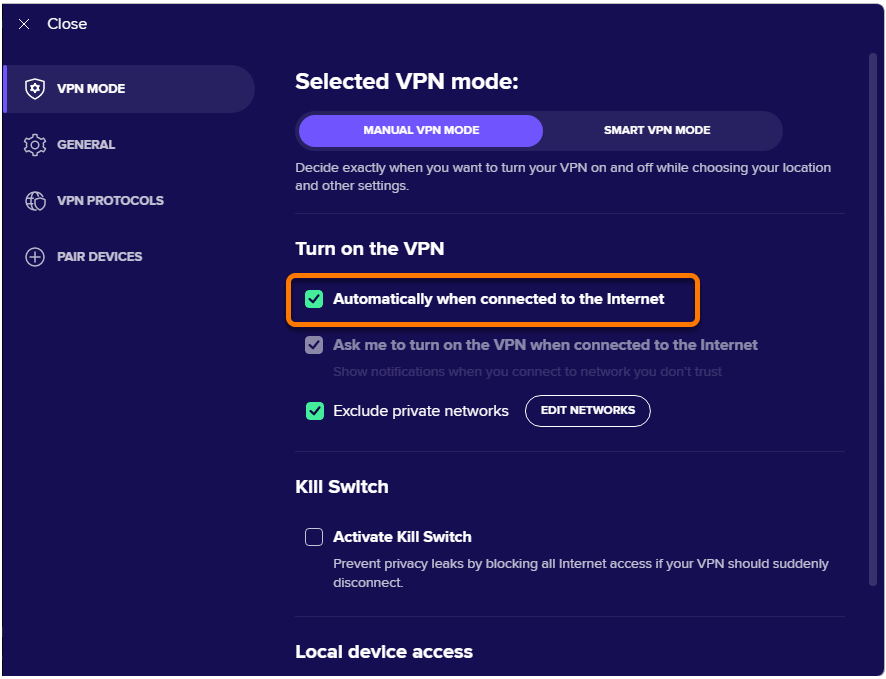
- Tick the box next to Automatically when connected to the Internet.
- If you do not want Avast SecureLine VPN to automatically turn on when you connect to a private network (such as your home or work network), ensure the box next to Exclude private networks is ticked.
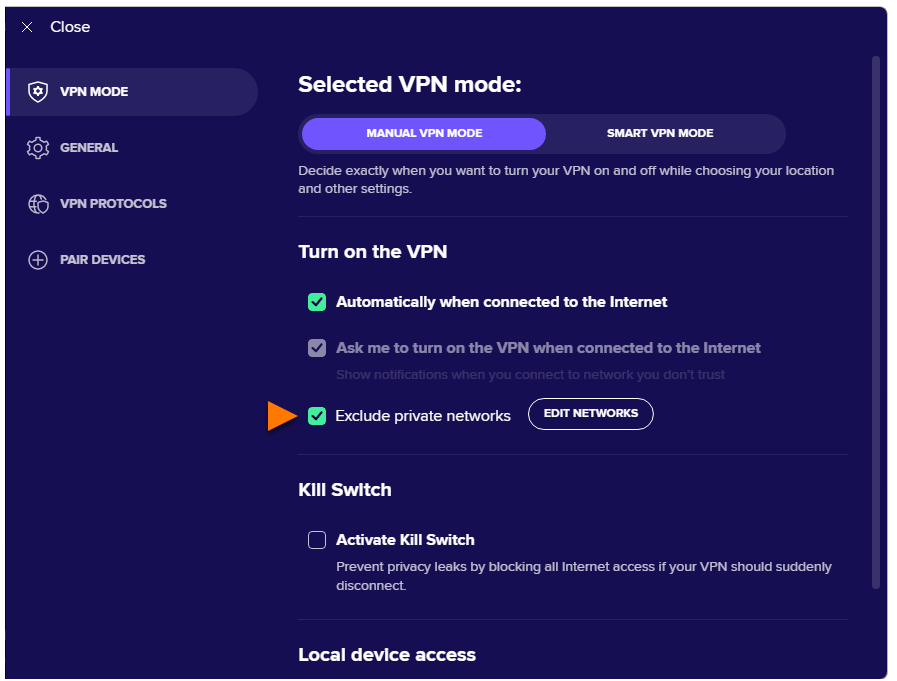
Avast SecureLine VPN now turns on automatically when your PC connects to a public Wi-Fi network. In most cases, Avast SecureLine VPN can detect if a network is private or public and apply the appropriate settings.
If Avast SecureLine VPN incorrectly classifies a network, you can manually specify that your current network is public or private by clicking the Edit networks button next to Exclude private networks.
For more information, refer to the Manage public and private networks section of this article.
Add a trusted network
You can add private networks, such as your home or work Wi-Fi, to your list of trusted networks. These trusted networks are excluded from your VPN auto-connect settings. To add a private network to the trusted networks list:
- Open Avast SecureLine VPN and go to
☰ Menu ▸ Settings.
- In the Selected VPN mode screen, under Smart VPN mode tab, choose the following options under Smart Rules.
- I connect to public networks
- I use torrent apps and websites
Manage public and private networks
Disable auto-connect
The steps in this article only apply if you use Avast SecureLine VPN in Manual VPN Mode. If you use Smart VPN Mode, refer to the following article for information about managing your auto-connect settings: Avast SecureLine VPN for Windows and Mac - Getting Started.
Add a trusted network
The steps in this article only apply if you use Avast SecureLine VPN in Manual VPN Mode. If you use Smart VPN Mode, refer to the following article for information about managing your auto-connect settings: Avast SecureLine VPN for Windows and Mac - Getting Started.
Enable auto-connect
Add a trusted network
Disable auto-connect
The steps in this article only apply if you use Avast SecureLine VPN in Manual VPN Mode. If you use Smart VPN Mode, refer to the following article for information about managing your auto-connect settings: Avast SecureLine VPN for Windows and Mac - Getting Started.
Enable auto-connect
- Tap the SecureLine icon on the Home screen of your device. The app opens.

- Go to
 Settings (the gear icon) ▸ Auto Connect.
If the Auto Connect option is unavailable, Avast SecureLine VPN may not have permission to connect automatically. To grant the necessary permissions, tap Connect on the main app screen and follow the on-screen instructions.
- Select your preferred option:
- When I connect to Wi-Fi: The VPN turns on automatically when your iOS device connects to any Wi-Fi network.
- When I connect to Wi-Fi or cellular data: The VPN turns on automatically when your iOS device connects to any Wi-Fi or cellular data network.

Avast SecureLine VPN now turns on automatically according to the preference you selected.
If you do not want Avast SecureLine VPN to automatically turn on when you connect to a private network (such as your home or work network), you can add the private network to your list of trusted networks. For instructions, refer to the Add a trusted network section of this article.
Disable auto-connect

 Or click Network security in the left panel on systems running Windows 8 or Windows 7.


