Promotional banner image

IS YOUR COMPUTER SLOW? RUN LIKE NEW

If they are not maintained, computers lose performance over time. Avast Cleanup Premium can help significantly improve the performance of your computer.

Using Avast Secure Browser Screen Sharing Mode

Windows

Screen Sharing Mode is a feature designed to protect your privacy and security when you are sharing your browser screen with others. This mode ensures that your personal information, including bookmarks, search history, search suggestions, and browser extensions, remains hidden from the audience you are sharing your screen with.

Enable Screen Sharing Mode

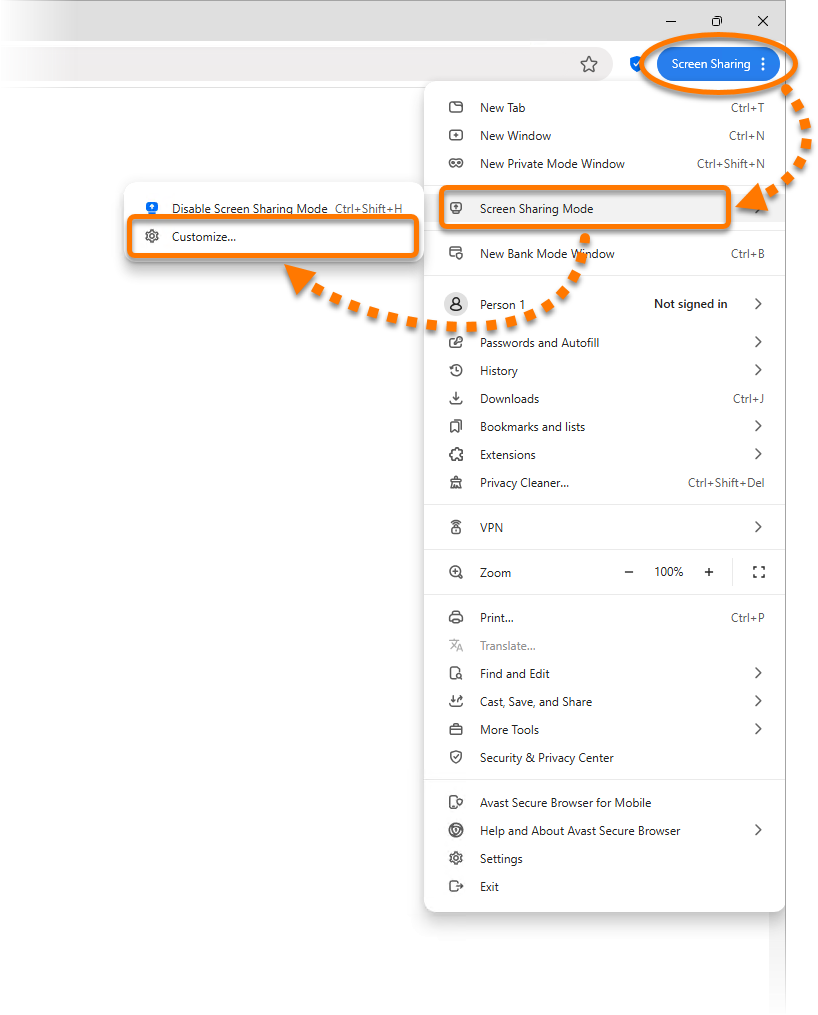
To enable Screen Sharing Mode, open Avast Secure Browser, in the top-right corner click ⋮ Menu (the three dots), and select Screen Sharing Mode ▸ Enable Screen Sharing Mode.

When Screen Sharing Mode is active, there is a blue Screen Sharing status in the top-right corner of Avast Secure Browser.

Manage Screen Sharing Mode settings

To choose what to hide while Screen Sharing Mode is enabled follow the steps below:

  1. In the top-right corner of Avast Secure Browser, click ⋮ Menu (the three dots) and select Screen Sharing Mode ▸ Customize....
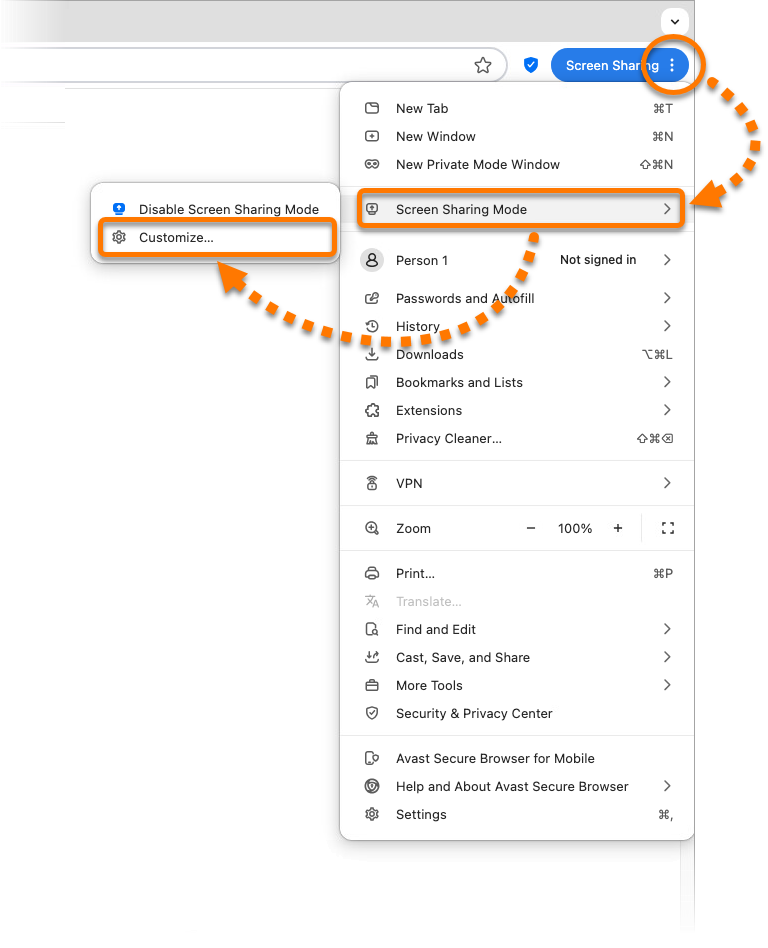
  2. The following options are available:
    • Click the Enable / Disable button to turn Screen Sharing Mode ON or OFF.
    • Switch the sliders to choose whether to hide the Bookmarks bar, Extensions, Search history, Profile icon, or Tab preview.

Disable Screen Sharing Mode

To turn off Screen Sharing Mode, in the top-right corner of Avast Secure Browser click ⋮ Menu (the three dots), and select Screen Sharing Mode ▸ Disable Screen Sharing Mode.


Enable Screen Sharing Mode

To enable Screen Sharing Mode, open Avast Secure Browser, in the top-right corner click ⋮ Menu (the three dots), and select Screen Sharing Mode ▸ Enable Screen Sharing Mode.

When Screen Sharing Mode is active, there is a blue Screen Sharing status in the top-right corner of Avast Secure Browser.

Manage Screen Sharing Mode settings

To choose what to hide while Screen Sharing Mode is enabled follow the steps below:

  1. In the top-right corner of Avast Secure Browser, click ⋮ Menu (the three dots) and select Screen Sharing Mode ▸ Customize....
  2. The following options are available:
    • Click the Enable / Disable button to turn Screen Sharing Mode ON or OFF.
    • Switch the sliders to choose whether to hide the Bookmarks bar, Extensions, Search history, Profile icon, or Tab preview.

Disable Screen Sharing Mode

To turn off Screen Sharing Mode, in the top-right corner of Avast Secure Browser click ⋮ Menu (the three dots), and select Screen Sharing Mode ▸ Disable Screen Sharing Mode.

DocID: secure-browser-screen-sharingLast modified: 07/28/2026

Was this article helpful?

Promotional banner image

Keep your online identity private!

Browse like no one’s watching with Avast anti-tracking software.

Need more help?

Contact us
Avast account
Visit our forums
Visit academy