

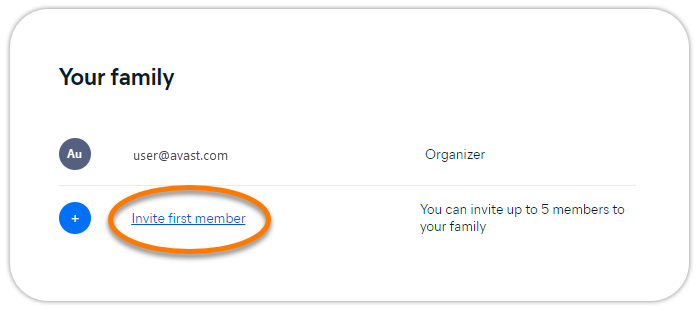


 trash icon in the relevant panel.
Join an Avast Family
After you click the invitation link that you received from the Family Organizer, you need to follow the steps in the relevant section below:
- Create a new Avast Account: Applies if you do not yet have an Avast Account.
- Sign in to an existing Avast Account: Applies if you already have an Avast Account.
Create a new Avast Account
- Click the invitation link that you received from the Family Organizer.
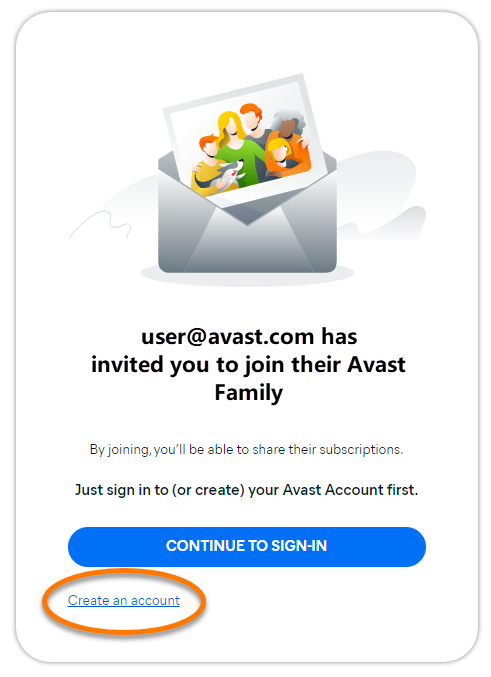
- Click Create an account.
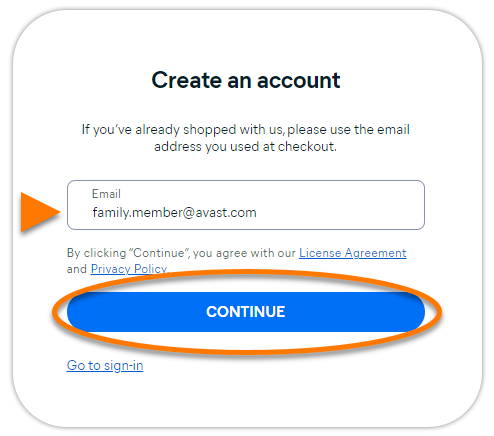
- Enter your email address, then click Continue. A confirmation email is sent to the email address you provided.
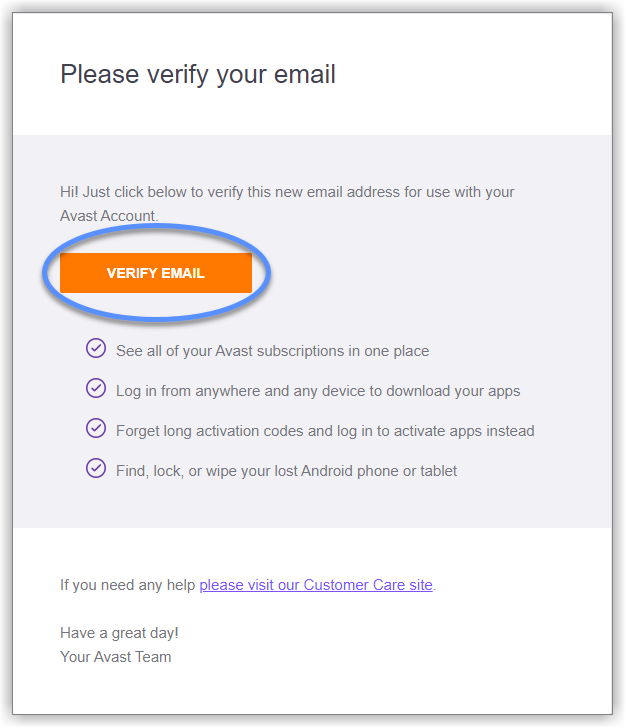
- Open your email inbox and locate the email from notification@emails.avast.com with the subject: Please verify your email address.

- Click the Verify email button included in the email.
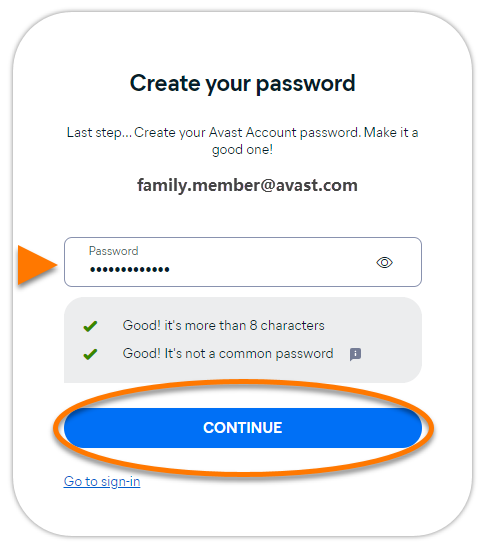
- Enter a new password for your Avast Account, then click Continue.
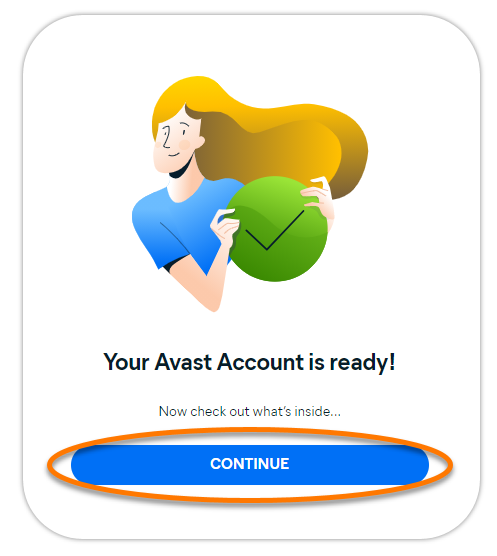
- Click Continue to access the Avast Account portal.
- Click Join Avast Family.
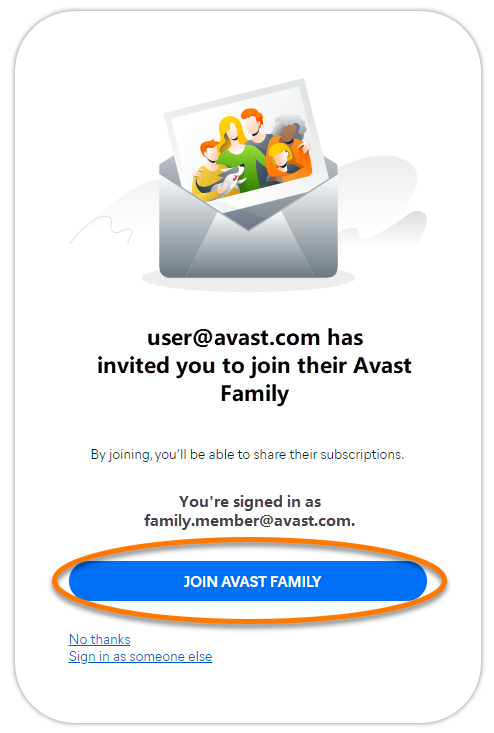
You have created an Avast Account and joined your Avast Family. You can now install and activate the products that are included in the shared subscriptions.
Sign in to an existing Avast Account
- Click the invitation link that you received from the Family Organizer.
- Follow the relevant step below:
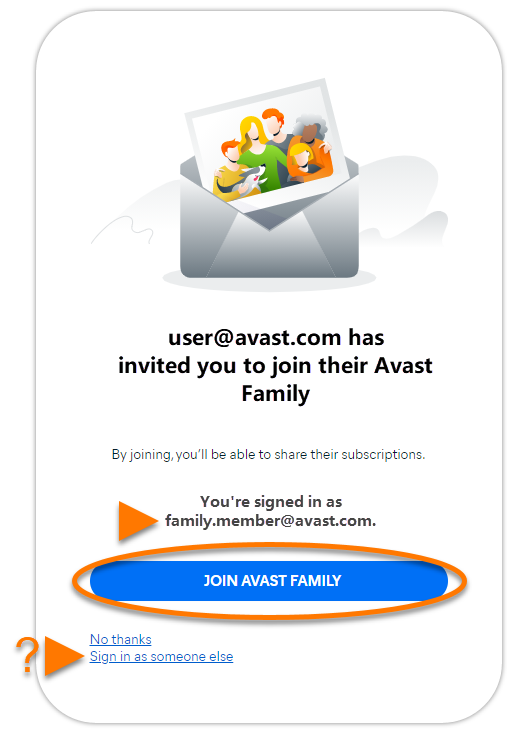
- Check that the Avast Account under You're signed in as is the one you want to use for Family Sharing, then click Join Avast Family. Otherwise, click Sign in as someone else.
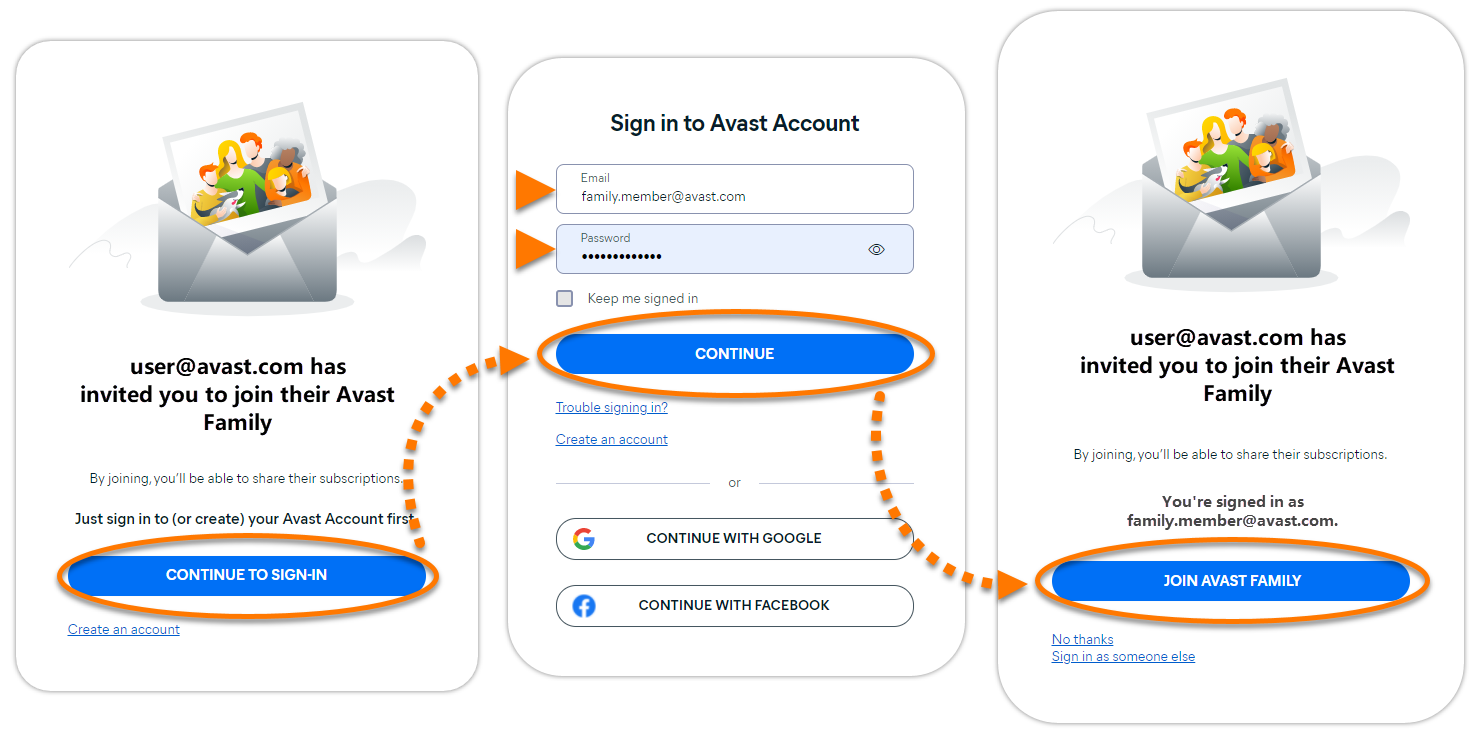
- Click Continue to sign-in. Enter the credentials for the Avast Account that you want to use for Family Sharing, then click Continue. Click Join Avast Family to confirm.
- Check that the Avast Account under You're signed in as is the one you want to use for Family Sharing, then click Join Avast Family. Otherwise, click Sign in as someone else.
You have signed in to your Avast Account and joined your Avast Family. You can now install and activate the products that are included in the shared subscriptions.
Install and activate products
After you have successfully joined your Avast Family, follow the steps below:
- Install the product that you want to start using. For instructions, refer to the relevant article below according to device and product:
- Windows: Avast One | Avast Premium Security | Avast Cleanup Premium
- Android: Avast One | Avast Mobile Security Premium
- Mac: Avast One
- iOS: Avast One
- Activate the shared subscription by signing in to the newly installed Avast application with your Avast Account credentials. For instructions, refer to the relevant article below according to device and product:
- Windows: Avast One | Avast Premium Security | Avast Cleanup Premium
- Android: Avast One | Avast Mobile Security Premium
- Mac: Avast One
- iOS: Avast One
The shared subscription is now active and your Avast product is ready to use.
Subscriptions that are shared using Family Sharing can be activated on a maximum of 30 devices simultaneously. This applies regardless of the number of Family Members in your Avast Family.
Manage Family Sharing
After you have successfully joined an Avast Family, you can manage Family Sharing preferences via your Avast Account:
- Sign in to your Avast Account using the link below:
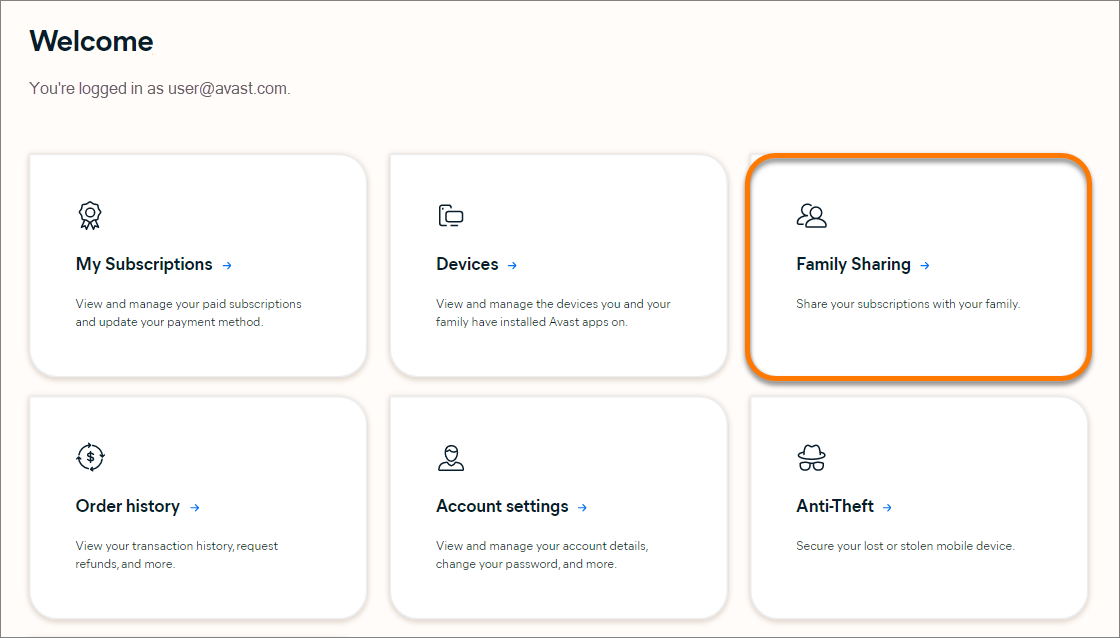
- Click the Family Sharing tile.
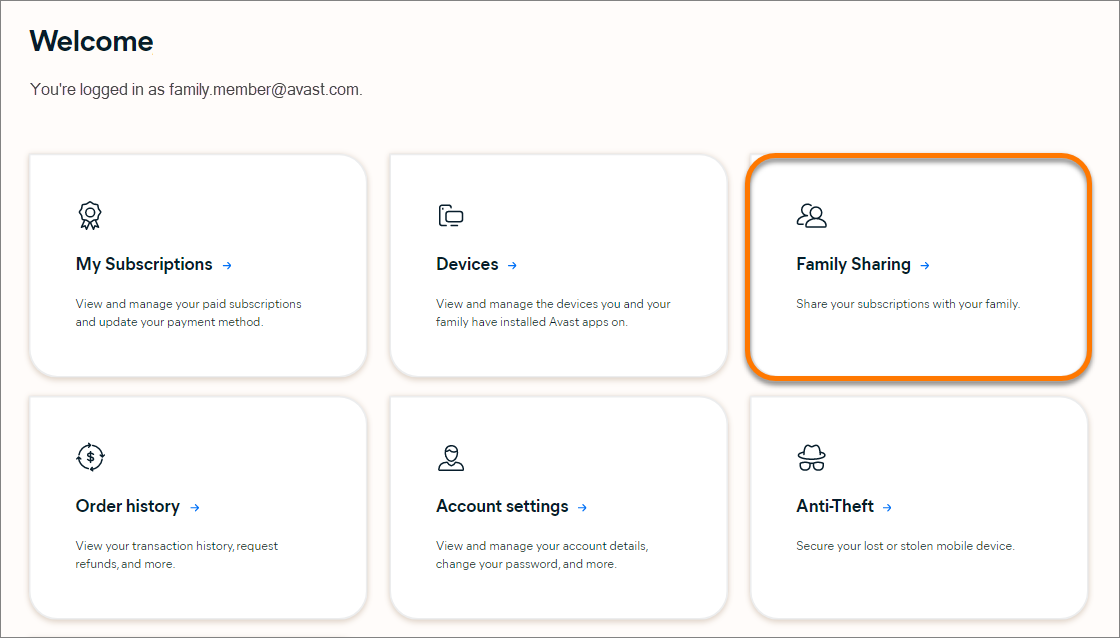
The following options are available via the Family Sharing screen:

- View shared subscriptions: View all of the subscriptions that your Family Organizer is currently sharing with you.
- Leave family: Leave this Avast Family if you need to join a different Avast Family, or start your own Avast Family.
It is not possible to be a member of multiple Avast Families simultaneously. If you want to join a new Avast Family, you first need to leave your current Avast Family.
