





Connect to the VPN
Avast SecureLine VPN can be used any time you want to connect to the internet with extra security and privacy, and is especially recommended when you are connected to a public or unsecured Wi-Fi network. To connect to Avast SecureLine VPN:
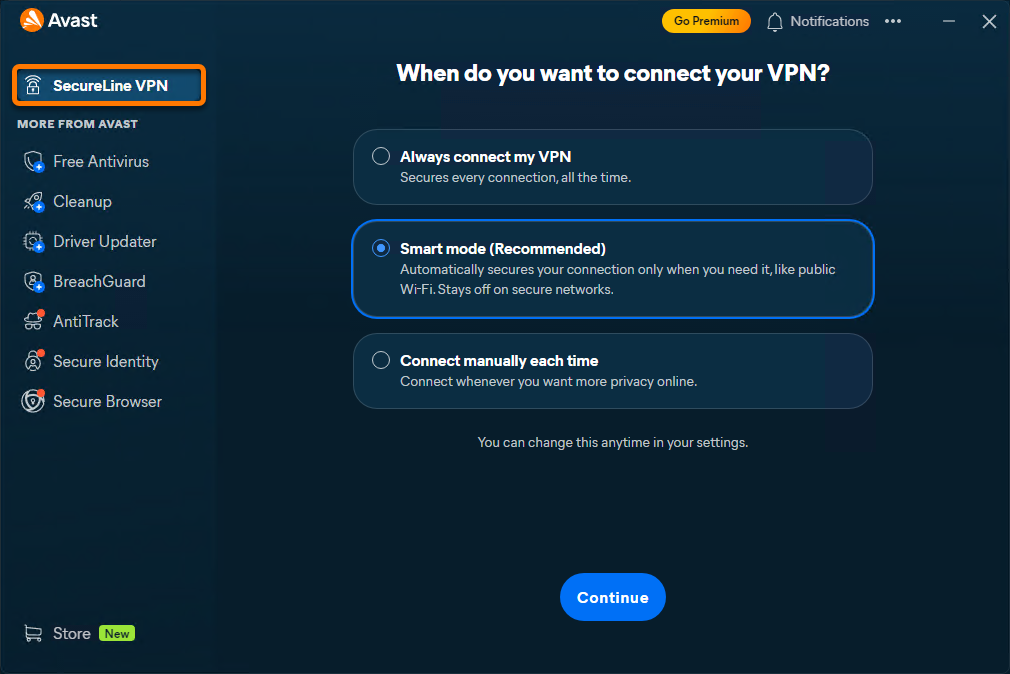
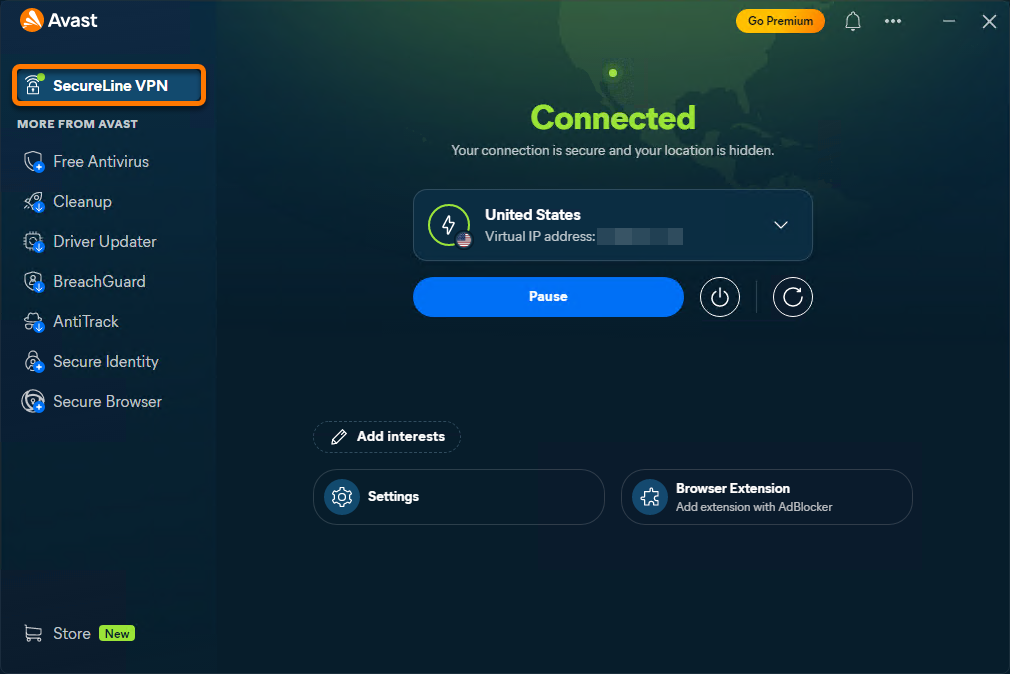
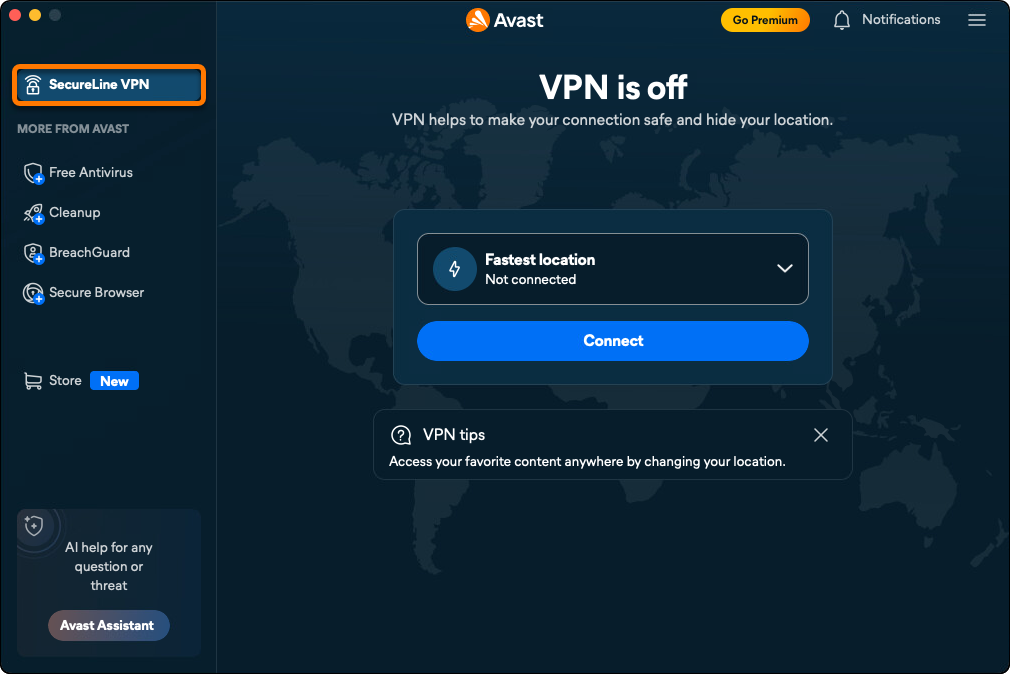
- Open Avast One, hover your cursor over the side menu and select SecureLine VPN.
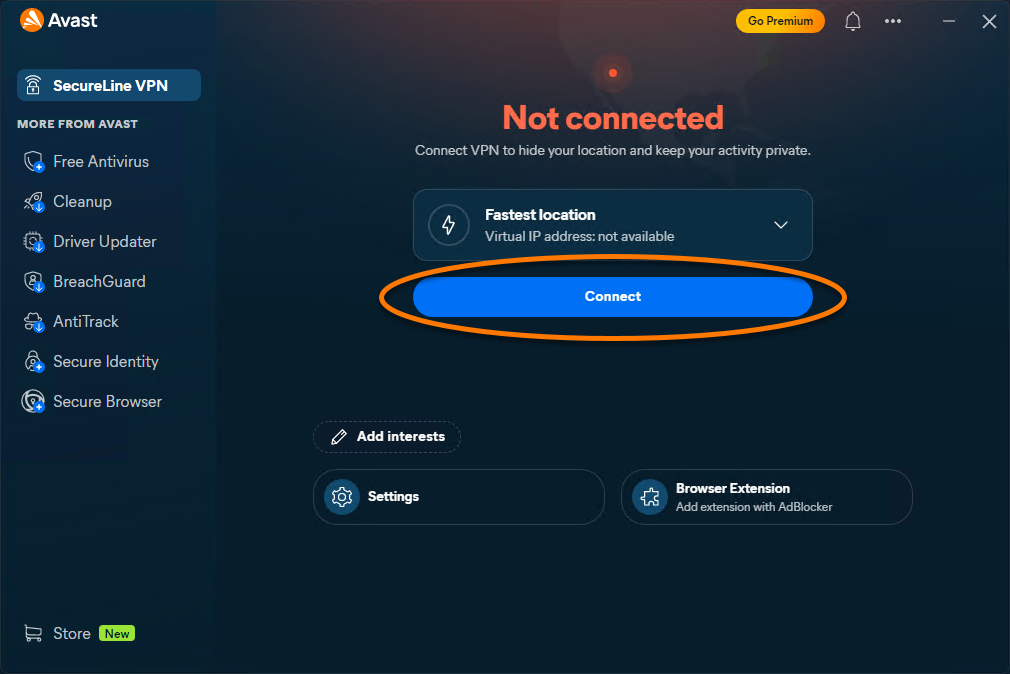
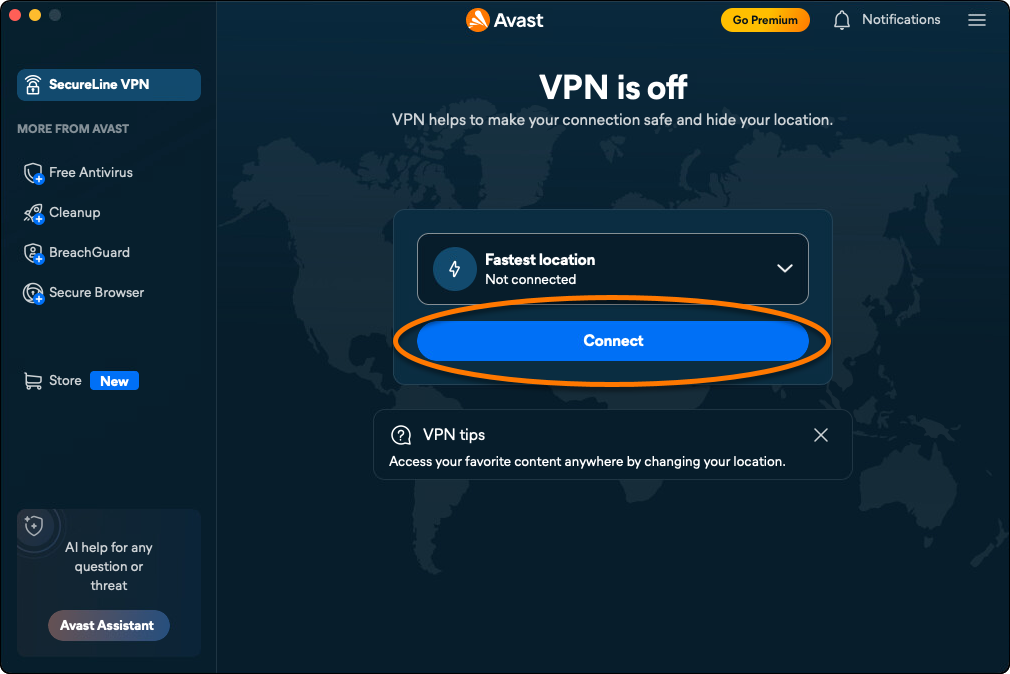
- Click Connect.
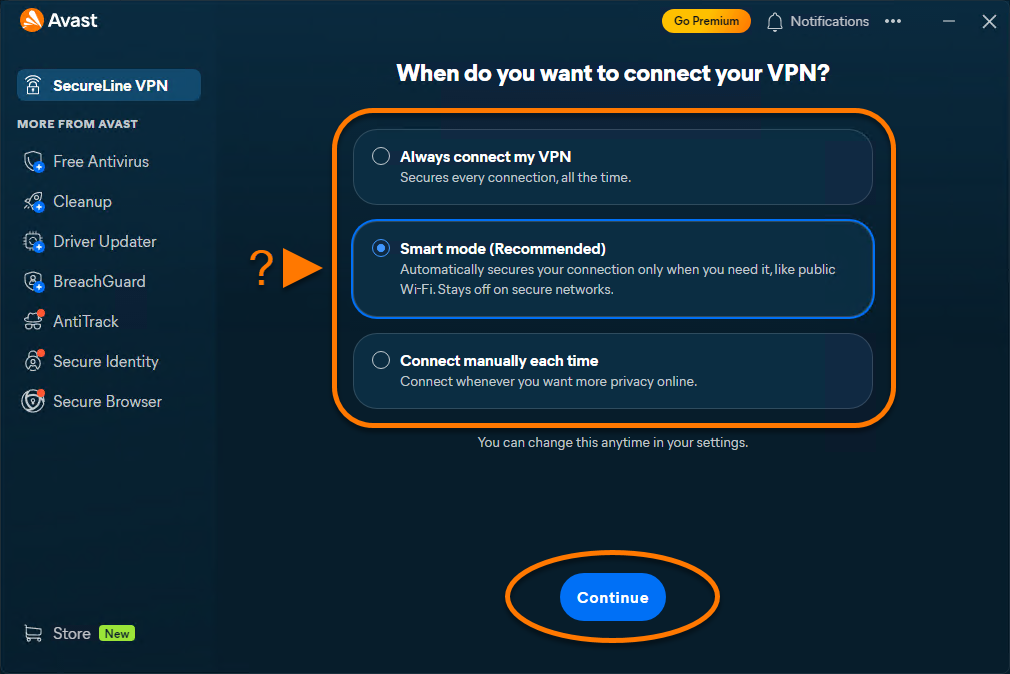
- The first time you connect to the VPN, you are prompted to add VPN configurations. In the permissions dialog, click Allow.
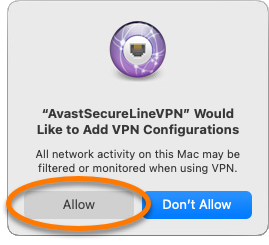
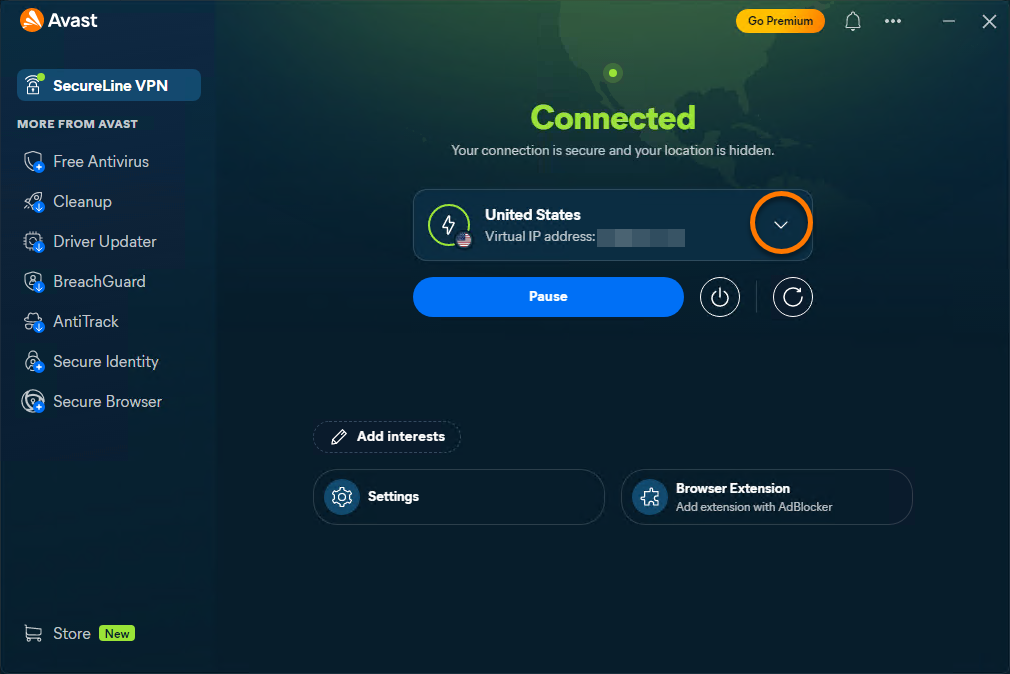
You are now connected to the Avast SecureLine VPN default server.
If Avast SecureLine VPN is unable to establish a connection, refer to the troubleshooting section of this article.
Connect to a different location
Avast SecureLine VPN has servers in several locations, meaning you can bypass geolocation restrictions and access your favorite content while traveling.
To connect to a different location:
- Click the drop-down arrow beside the currently selected VPN location.
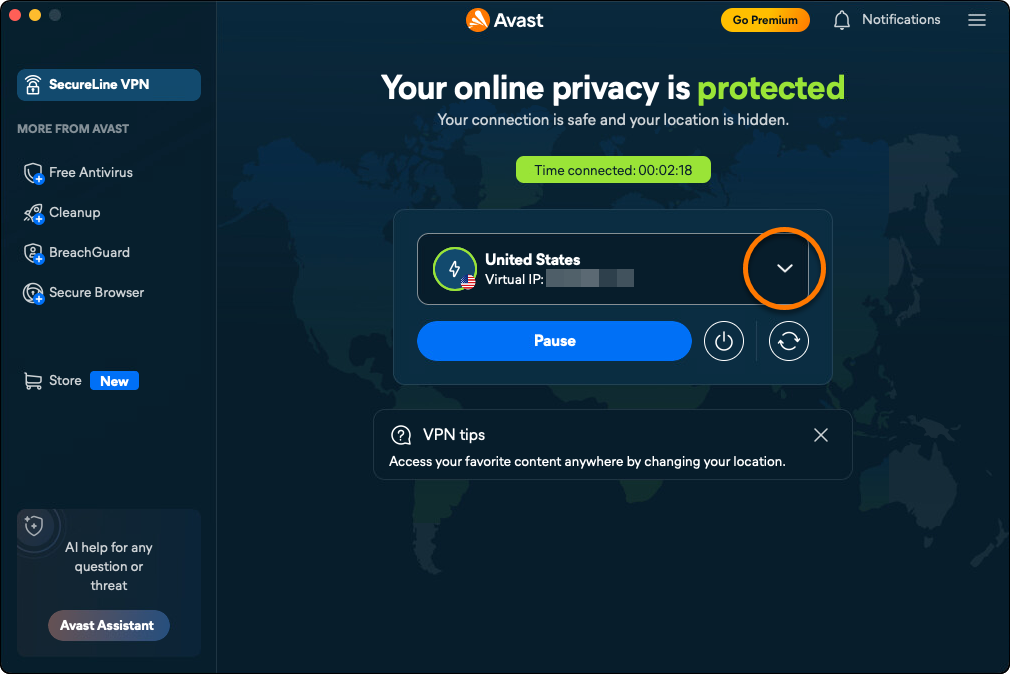
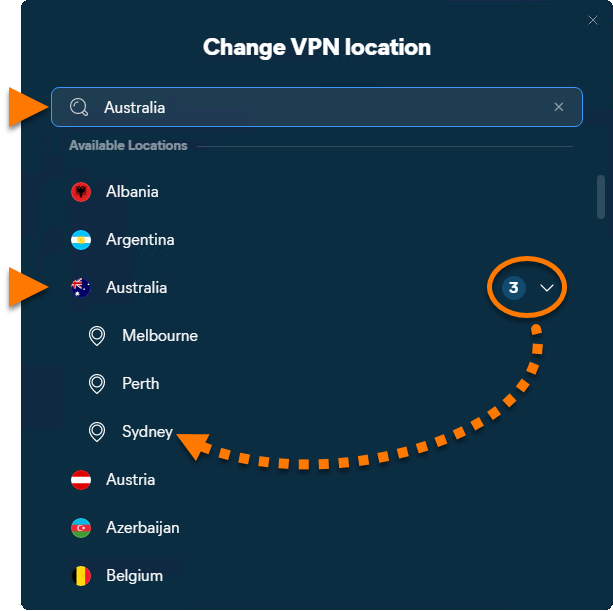
- Optionally, use the menu to search for a specific server, or select one from the list. For countries that offer multiple cities, click the down arrow and select your preferred city.
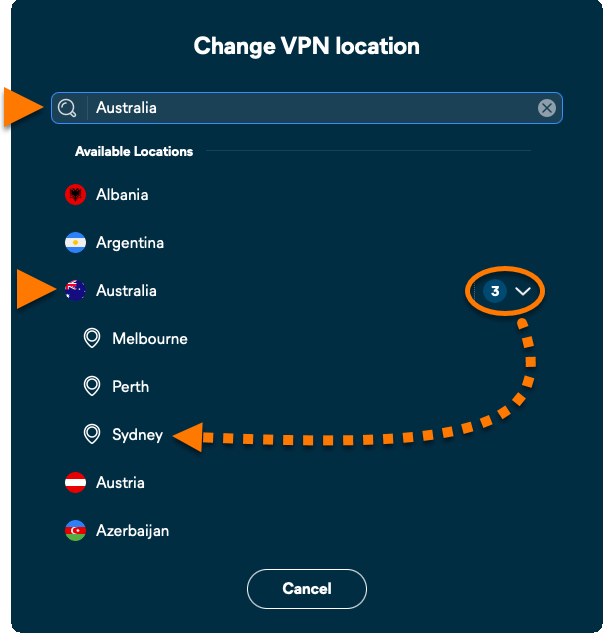
Your location now shows as the country and city that you selected.
If certain websites claim that you are connected to a different city than the city you selected as your VPN location, refer to the article: Checking your real location is hidden.
Pause VPN connection
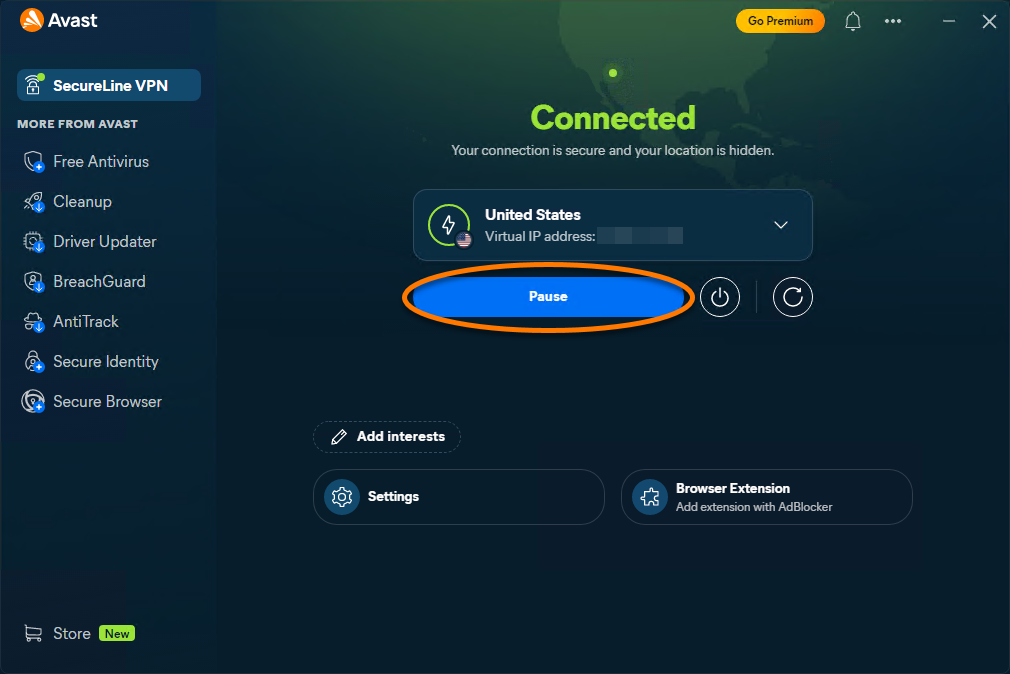
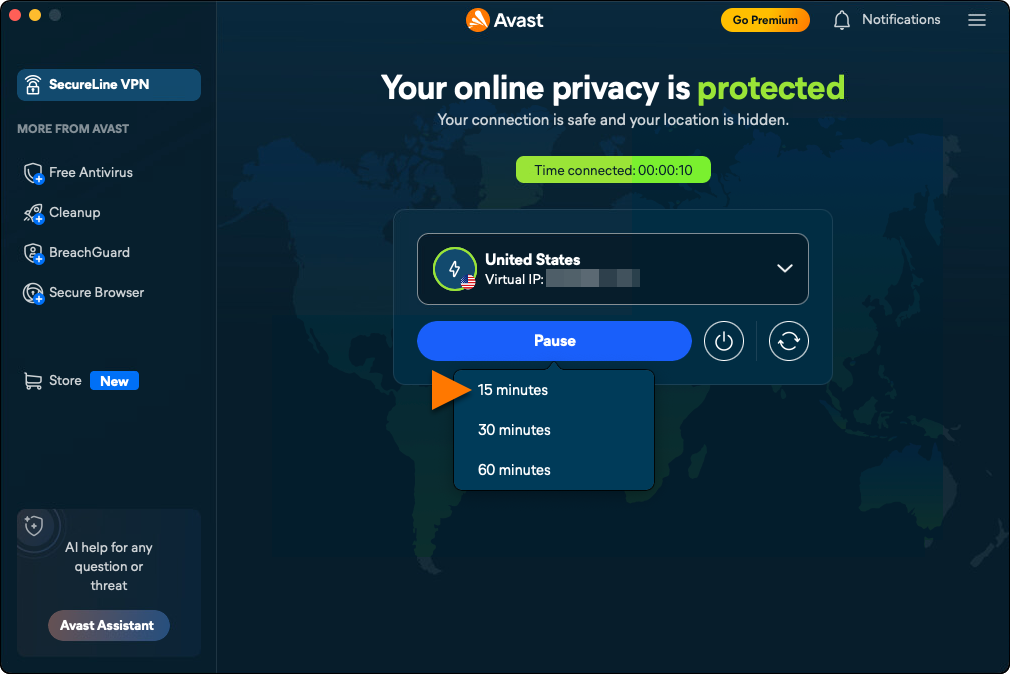
- While connected to the VPN, click Pause.
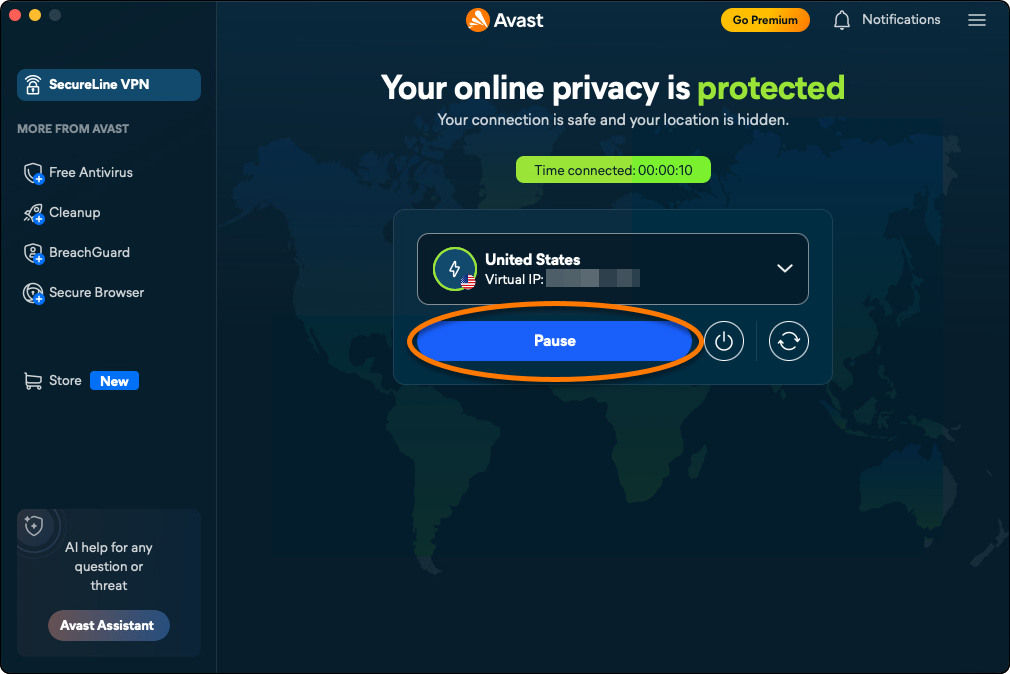
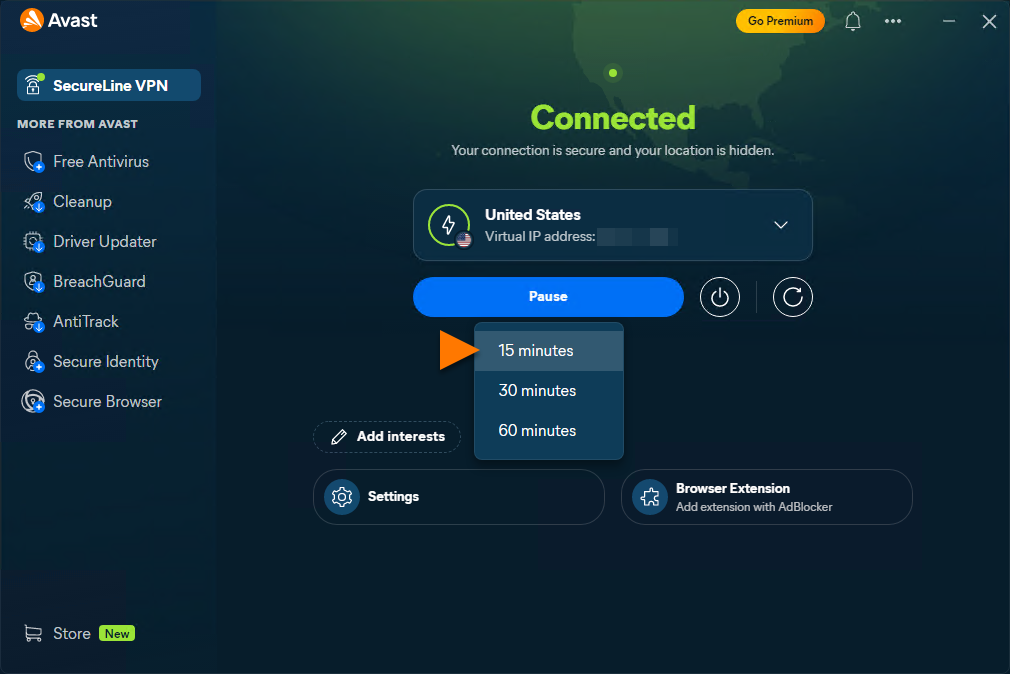
- Select how long you want to pause the VPN.
Refresh your IP address
If you experience connection issues while using the VPN, you can refresh your IP address. Click the refresh button while connected to the VPN.

IP refresh is not available when connected to Double VPN or IP Rotation servers.
Disconnect VPN connection
While connected to the VPN, click the disconnect button to end your connection.

Use advanced servers
Advanced servers support specific use cases, such as peer-to-peer sharing, enhanced privacy, and automatic IP address rotation.
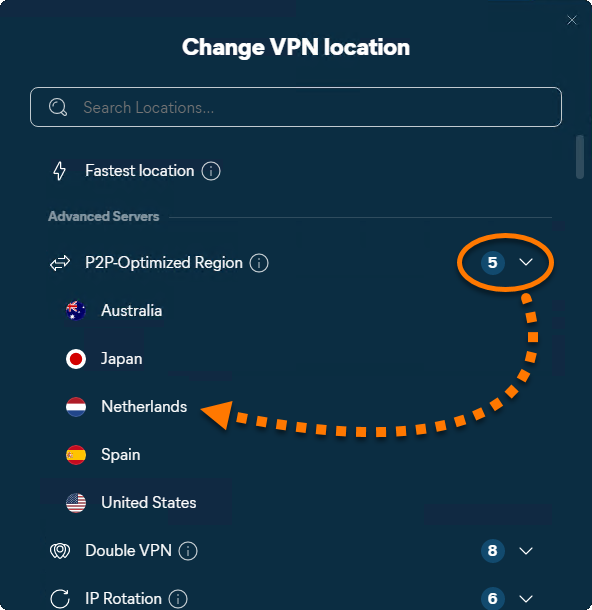
Connect to a P2P-Optimized server
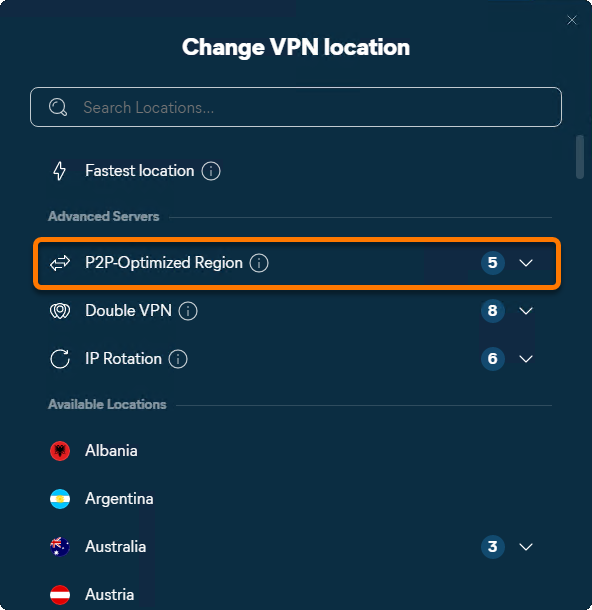
P2P-Optimized Region servers are designed for peer-to-peer (P2P) sharing.
- Click the drop-down arrow beside the currently selected VPN location.
- Select Best for peer to peer to connect to the fastest VPN location optimized for peer-to-peer and data sharing.
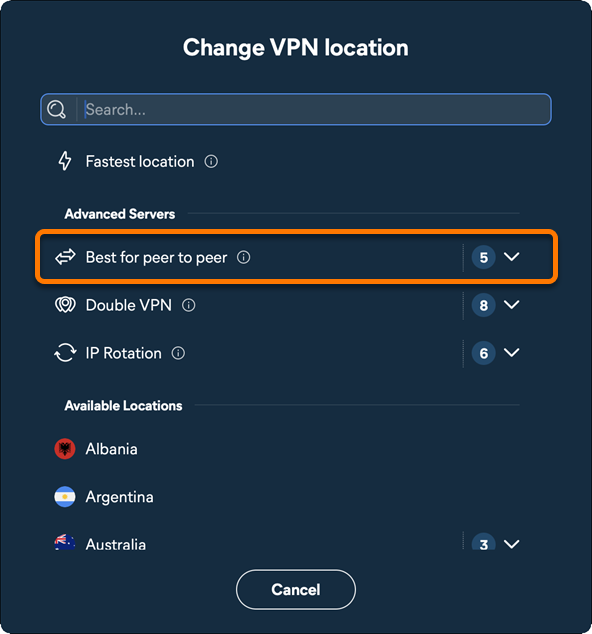
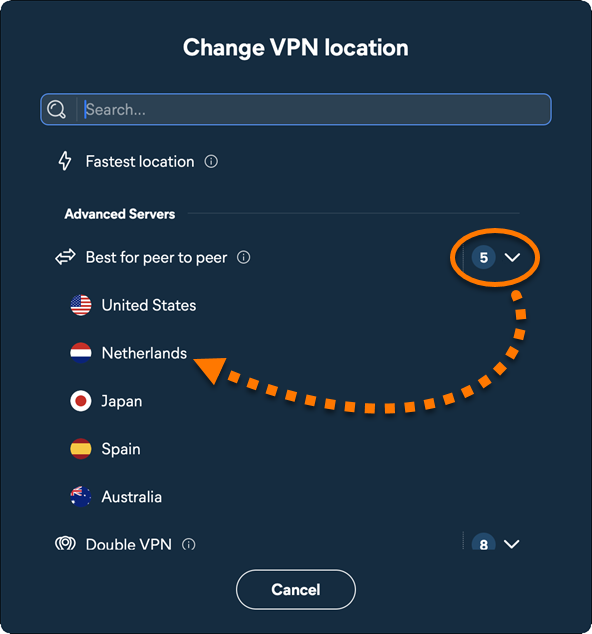
- Optionally, click the down arrow next to the selected server type and choose a preferred server.
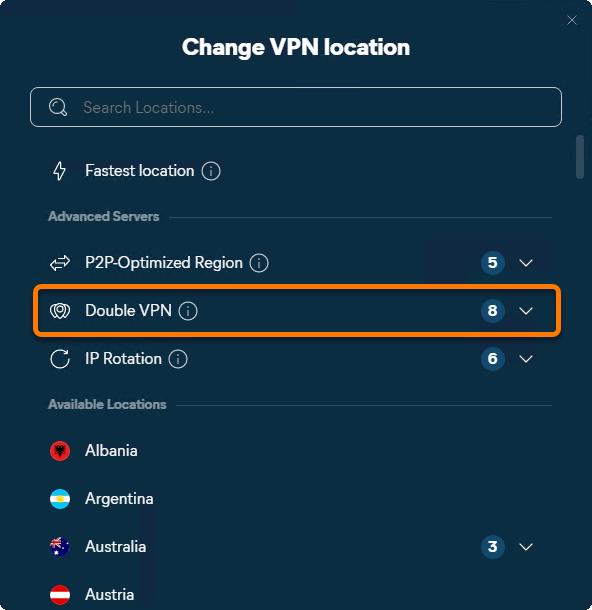
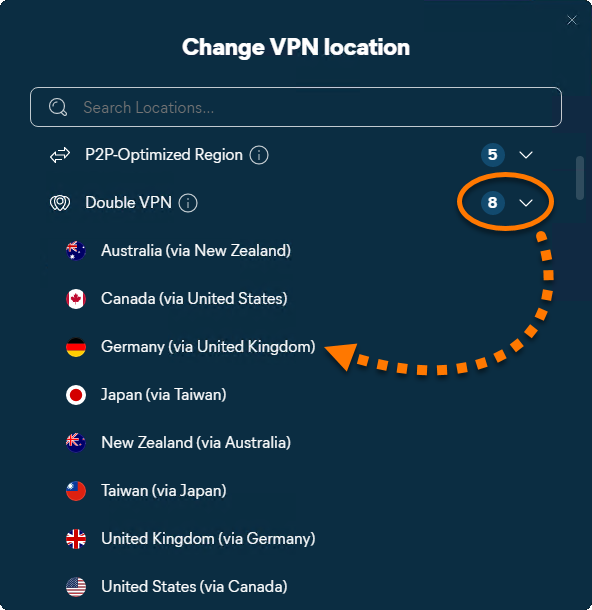
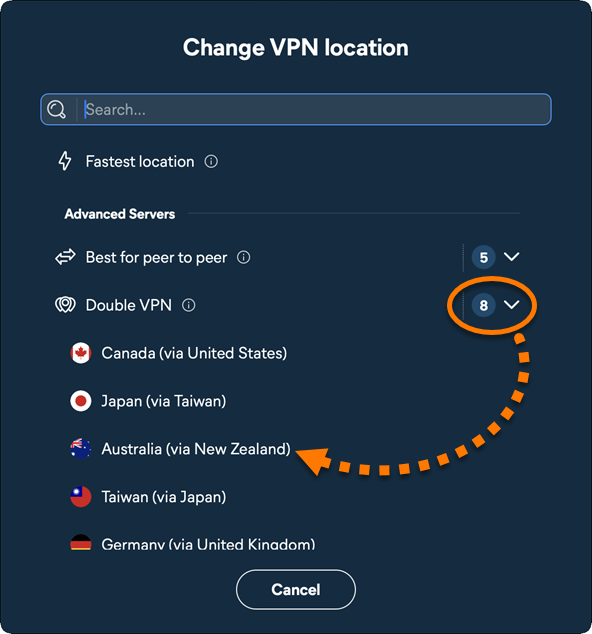
Connect to a Double VPN server
Double VPN servers route your connection through two VPN locations to help enhance privacy and security. Double VPN uses the WireGuard protocol.
- Click the drop-down arrow beside the currently selected VPN location.
- Select Double VPN to connect to the fastest Double VPN server.
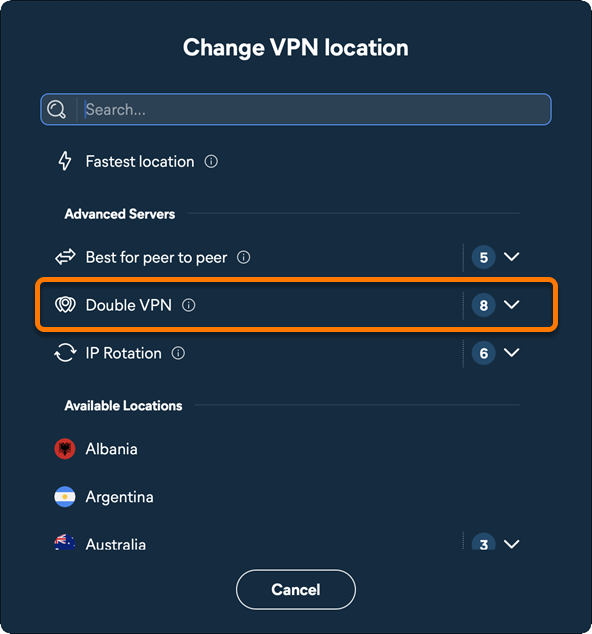
- Optionally, click the down arrow next to the selected server type and choose a preferred server.
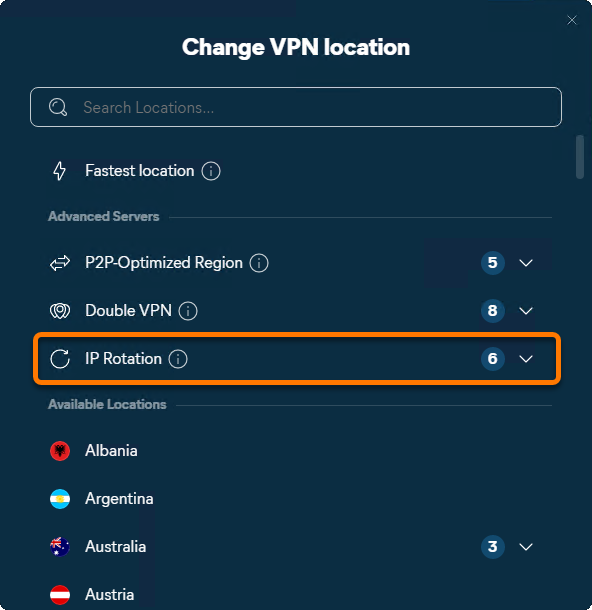
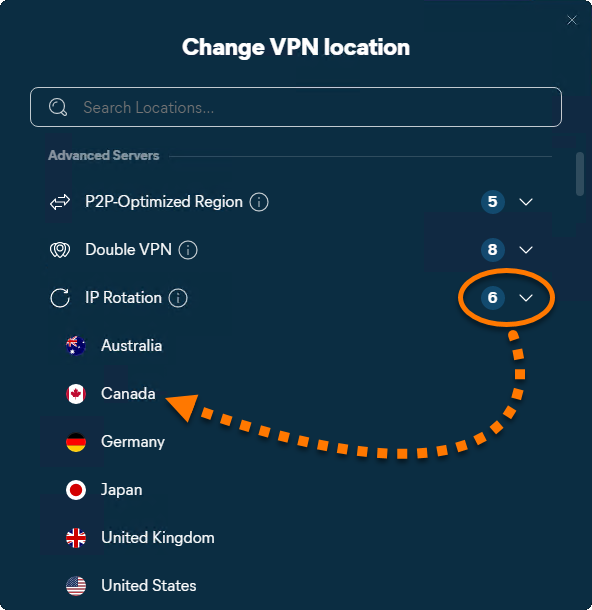
Connect to an IP Rotation server
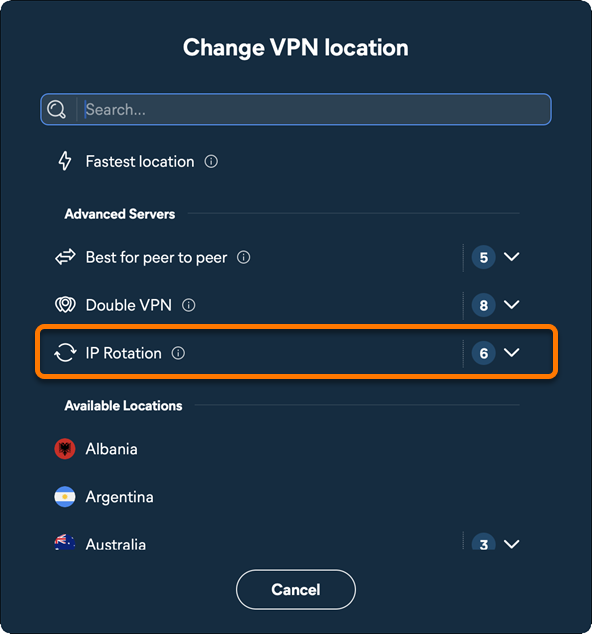
IP Rotation servers regularly change the assigned IP address to help prevent tracking, avoid certain website restrictions, and reduce the impact of dynamic pricing. IP Rotation uses the WireGuard protocol.
- Click the drop-down arrow beside the currently selected VPN location.
- Select IP Rotation to connect to the fastest server that supports IP Rotation.
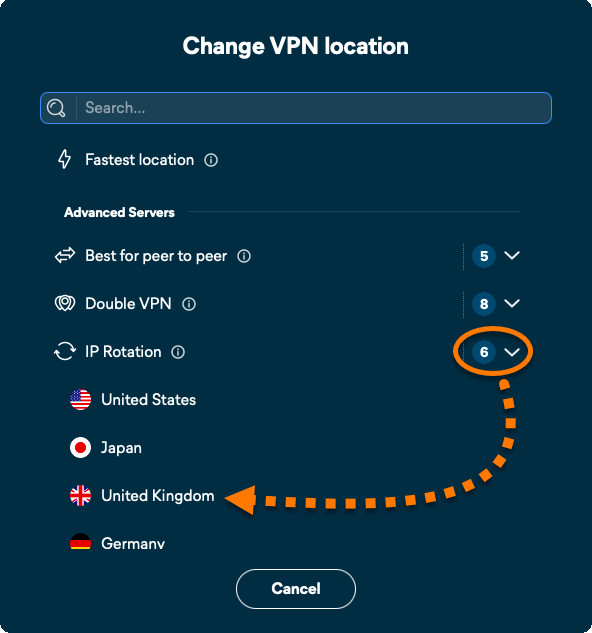
- Optionally, click the down arrow next to the selected server type and choose a preferred server.
Manage VPN Mode
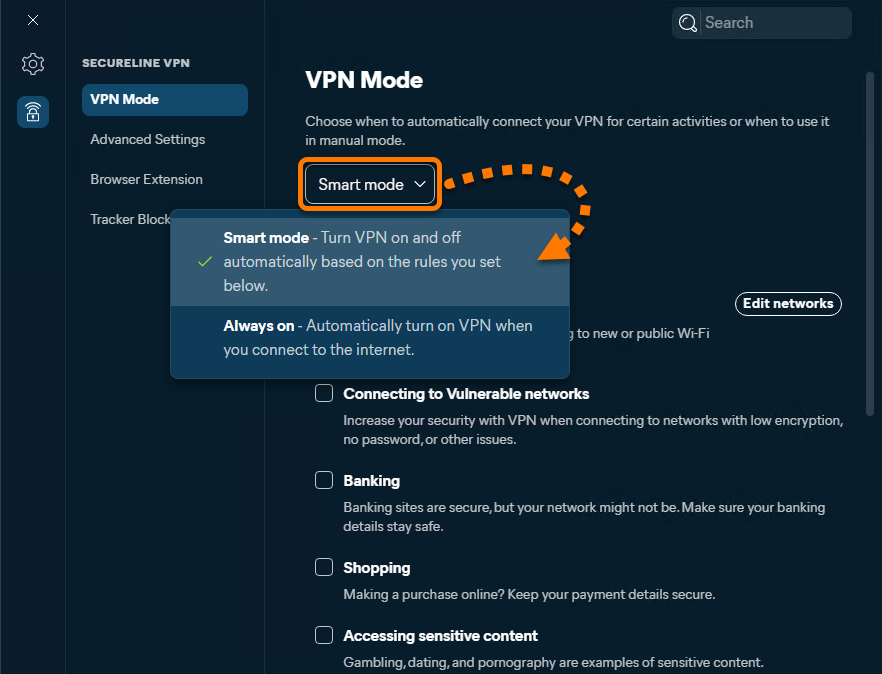
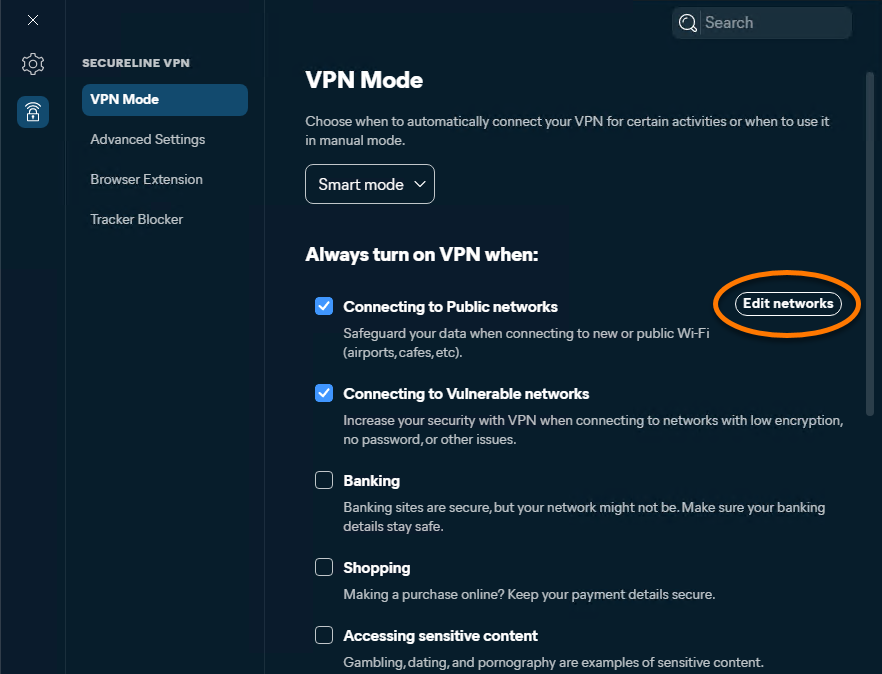
To specify how Avast SecureLine VPN behaves when you connect to an untrusted Wi-Fi network or visit vulnerable websites, follow the steps below:
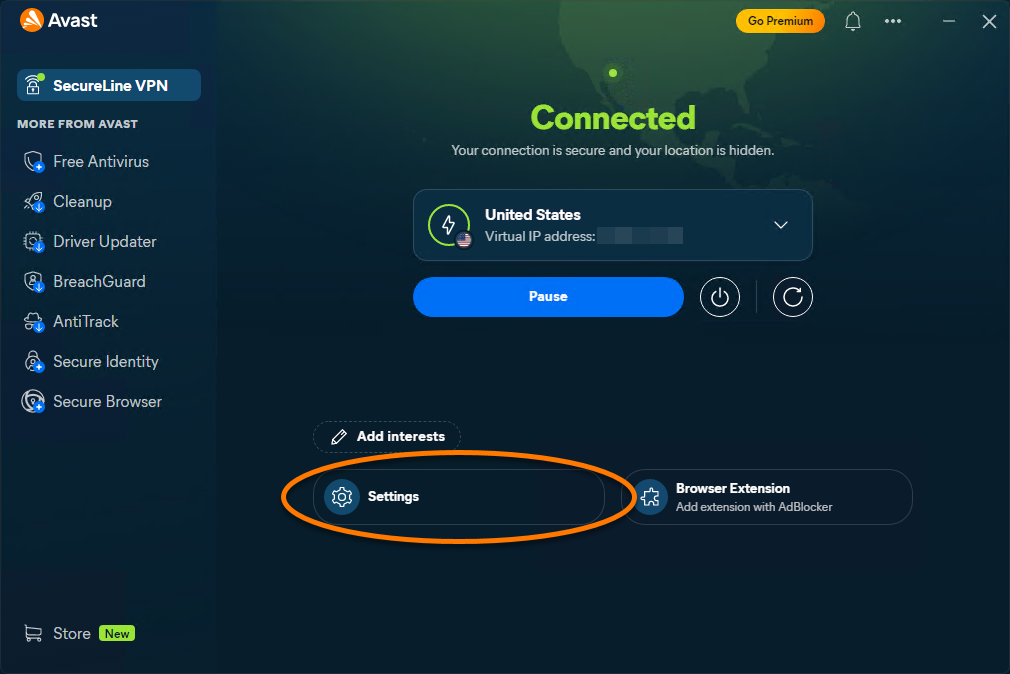
- Open Avast One, then go to
☰Menu ▸ Preferences.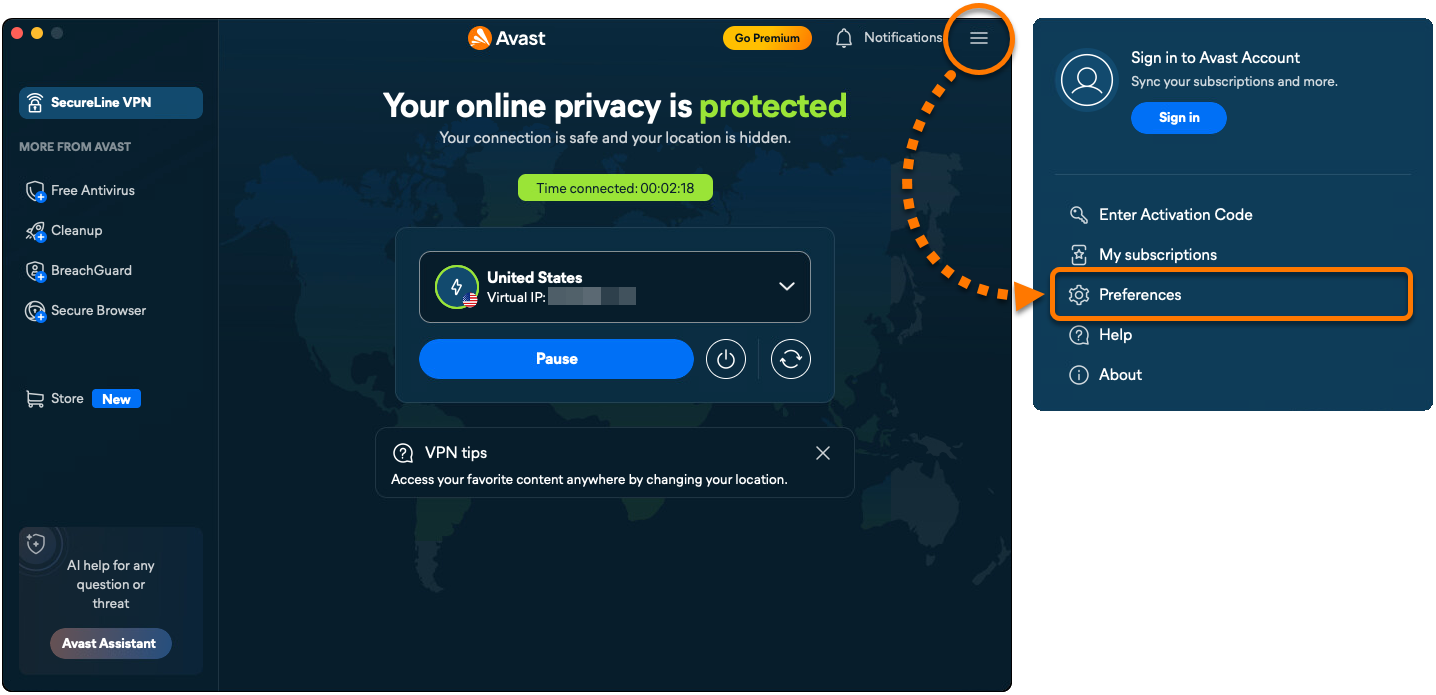
- Select VPN in the left panel.
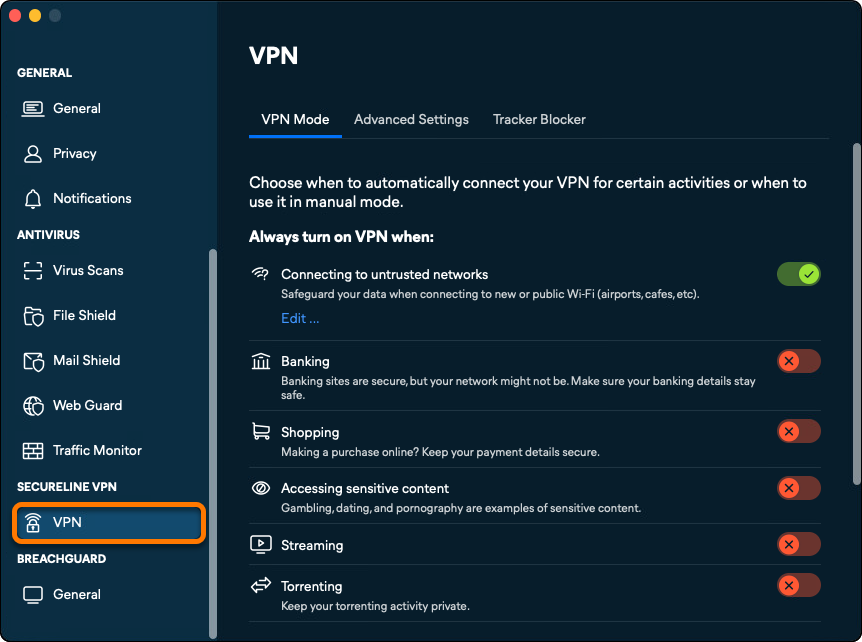
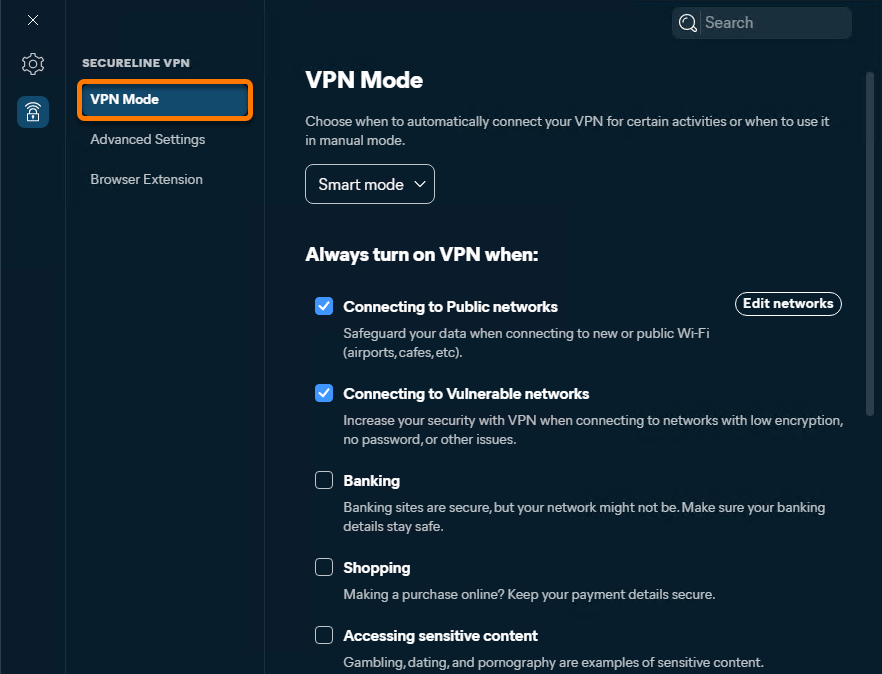
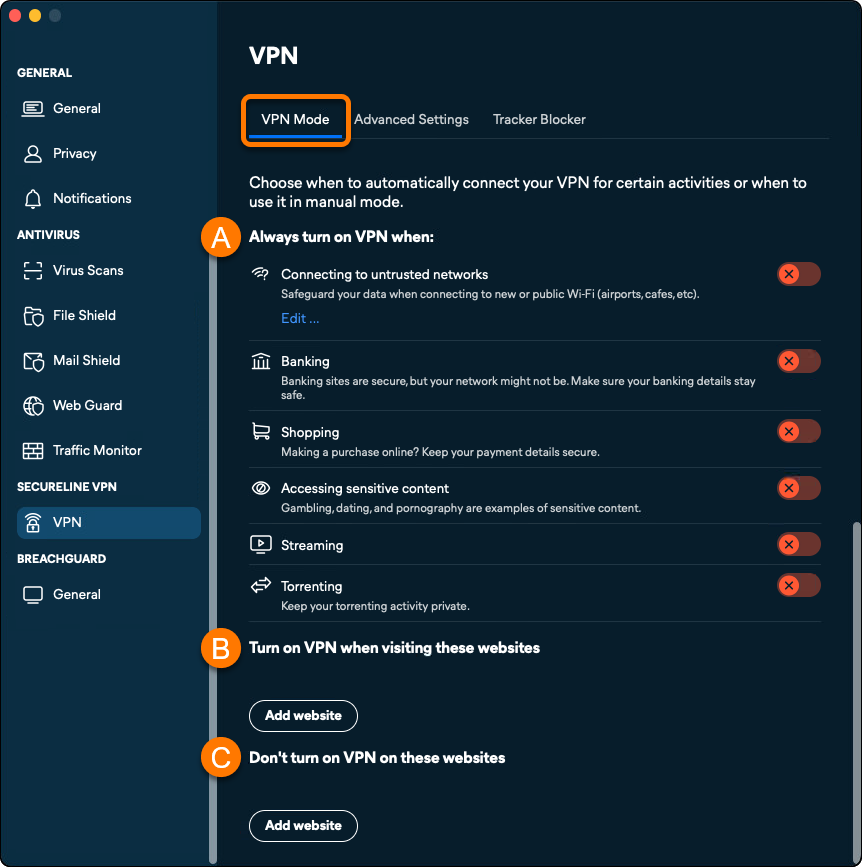
- Ensure that the VPN Mode tab is selected, then use the following settings to customize VPN behavior:
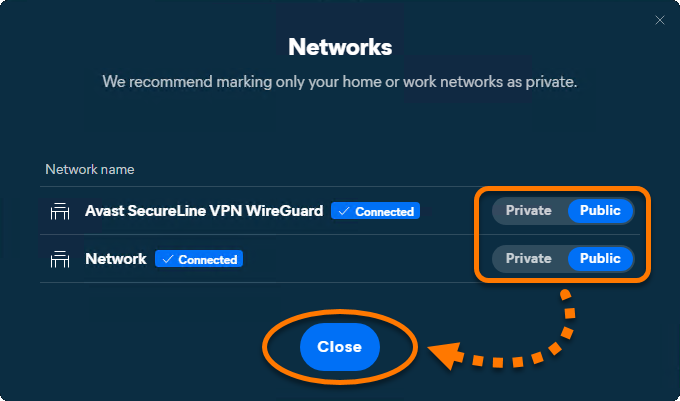
- Always turn on VPN when: Switch the slider next to an option to ON if you want Avast SecureLine VPN to automatically connect each time you perform this action. For information about adding the trusted networks which are excepted from your connection rules, refer to the Add trusted networks section.
- Turn on VPN when visiting these websites: Click Add website to add websites that always trigger VPN connection. Enter the website domain (such as example.com) and optionally select a specific server location that VPN will always connect to for this domain. Click Add to confirm your custom rule.
- Don't turn on VPN on these websites: Click Add website to exclude specific websites from VPN connection. Enter the website domain (such as example.com) and click Add. Avast SecureLine VPN never connects when you visit a trusted website, regardless of your other VPN Mode settings.
Add trusted networks
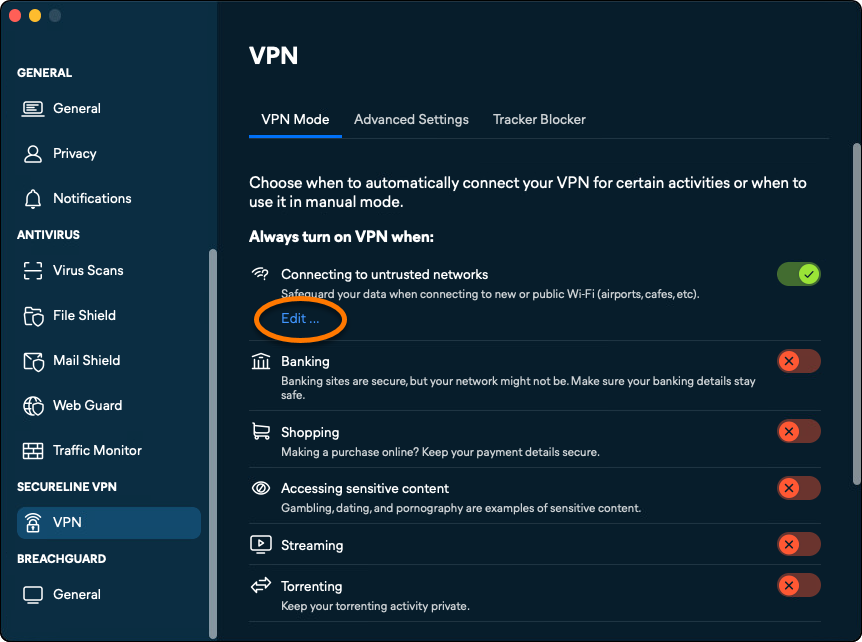
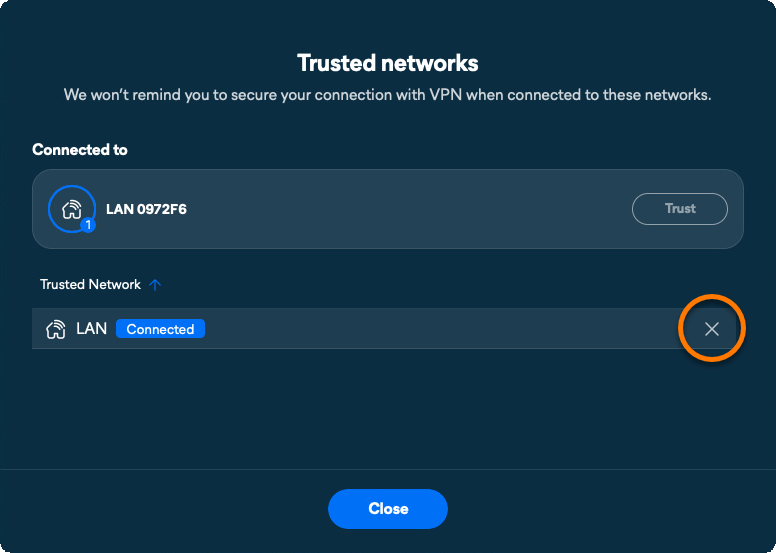
When you connect to a trusted network Avast SecureLine VPN will not prompt you to secure your connection. To add your network to the list of Trusted networks:
- Click Edit... under Connecting to untrusted networks.
- Click Trust while connected to the trusted network you want to add.
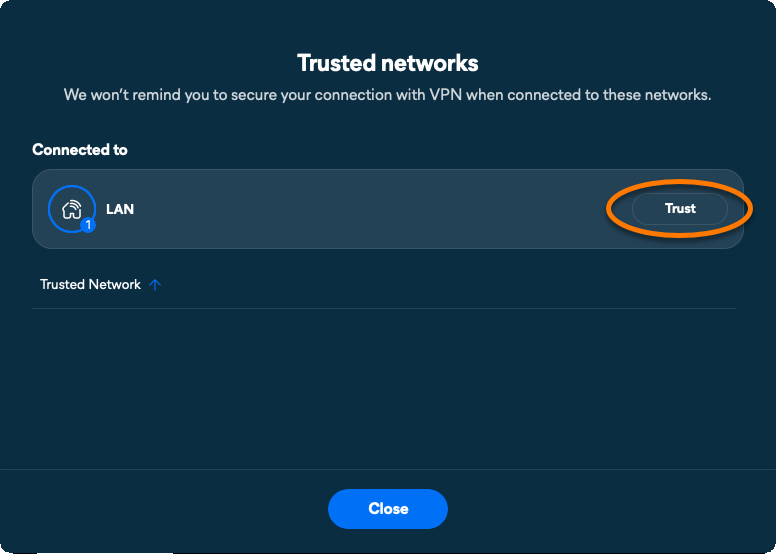
Your current network is added to the list of trusted networks.
To remove a network from the trusted networks list, hover the cursor over the network's panel and click the X icon.
Manage Advanced Settings
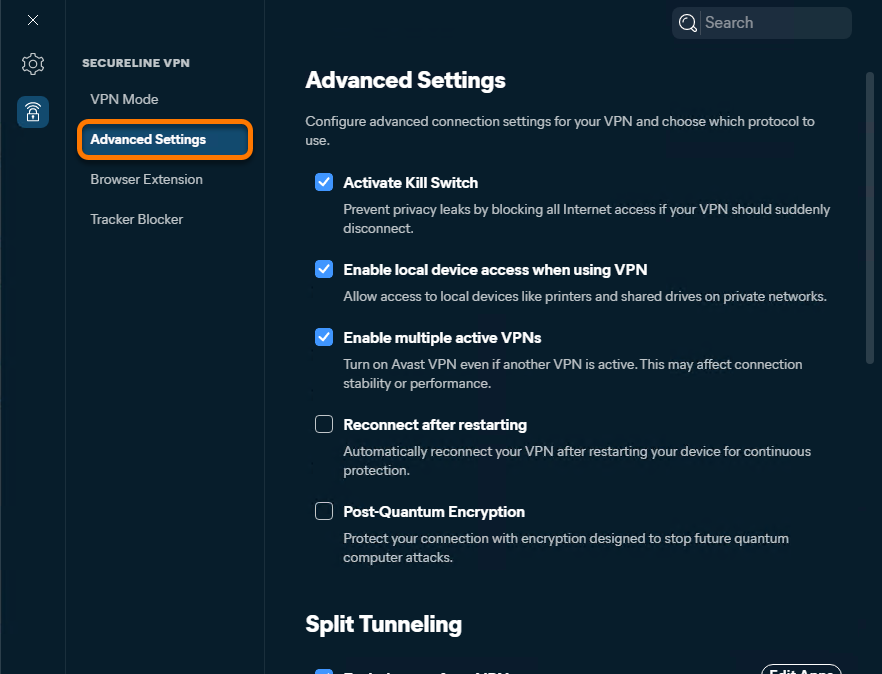
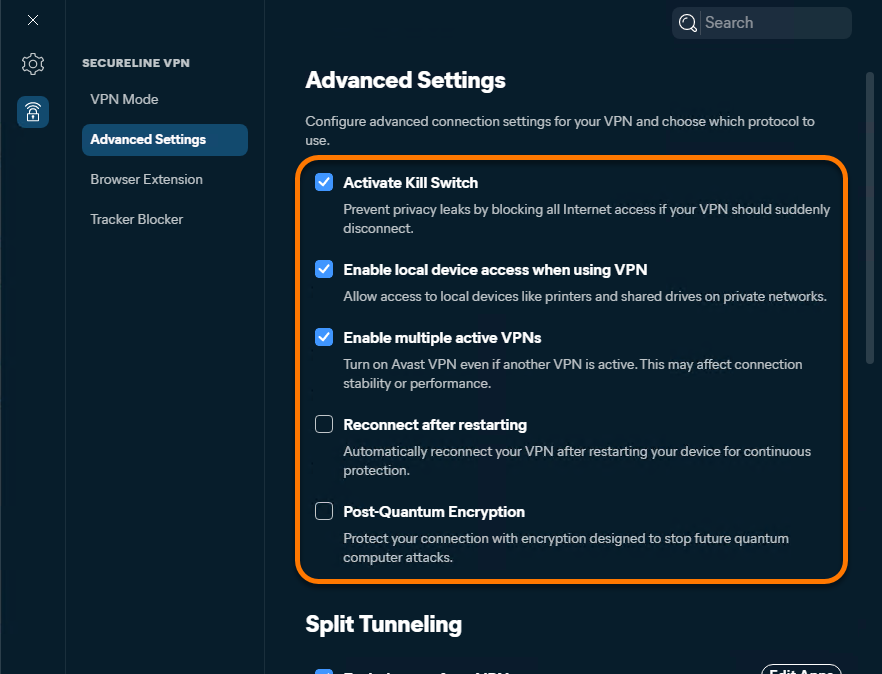
To manage advanced VPN settings:
- Open Avast One, then go to
☰Menu ▸ Preferences. - Select VPN in the left panel.
- Select Advanced Settings.
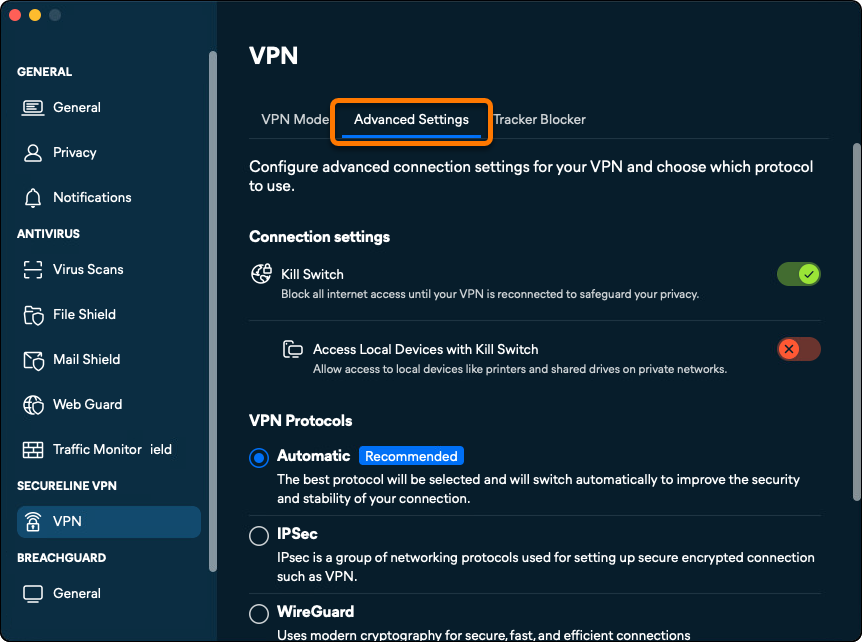
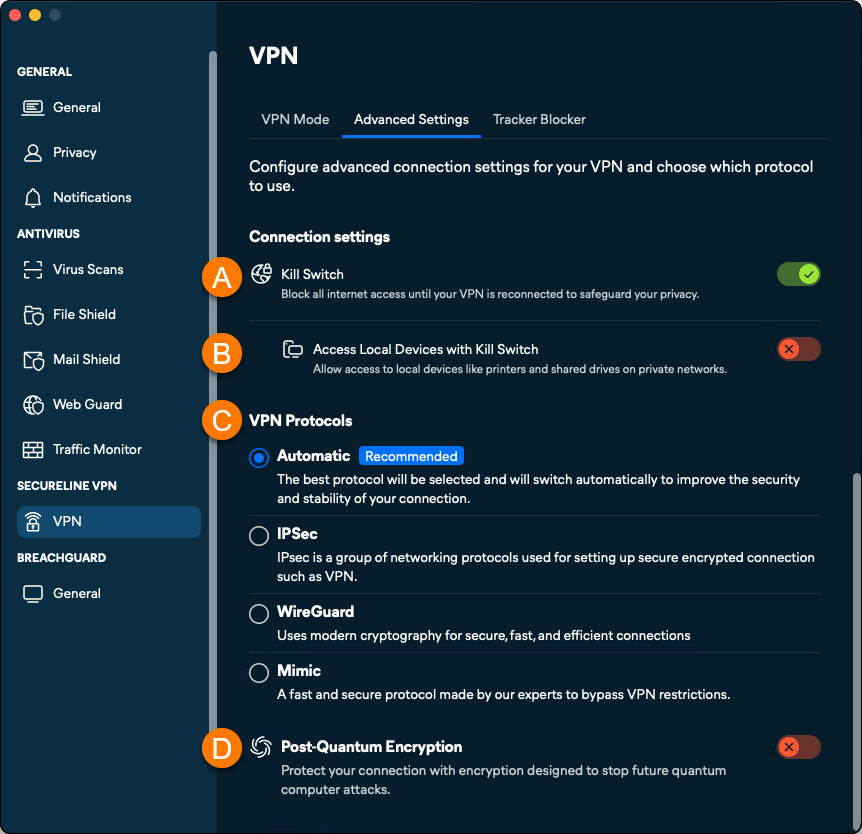
- Use the following settings to customize Avast SecureLine VPN behavior when Manual VPN mode is enabled:
- Kill Switch: Block your internet connection if Avast VPN servers unexpectedly disconnect. This ensures that your online activity always remains private.
- Access Local Devices with Kill Switch: Specify if you want access to local devices and shared drives while you are connected to a Trusted (private) network.
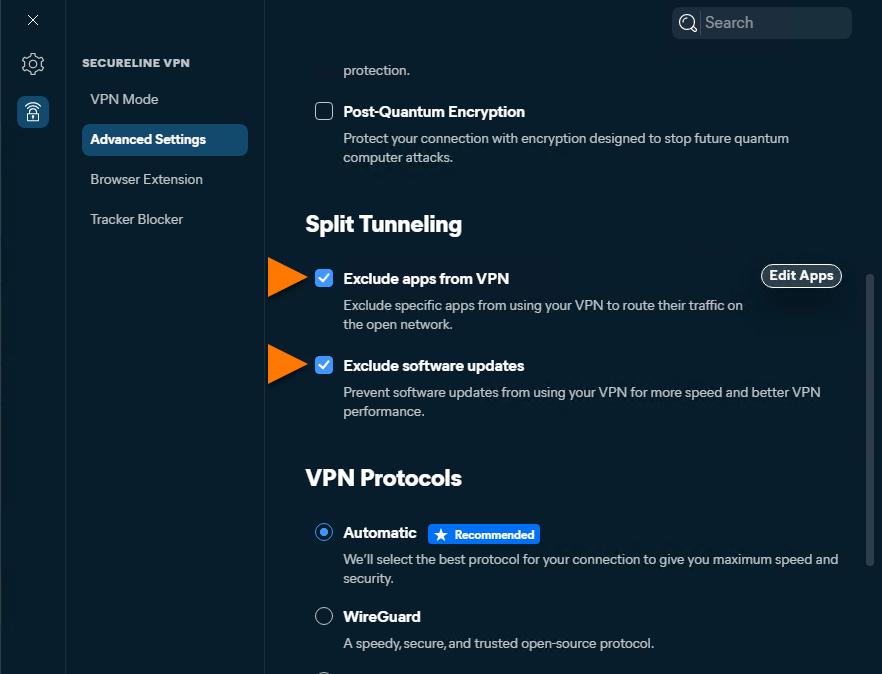
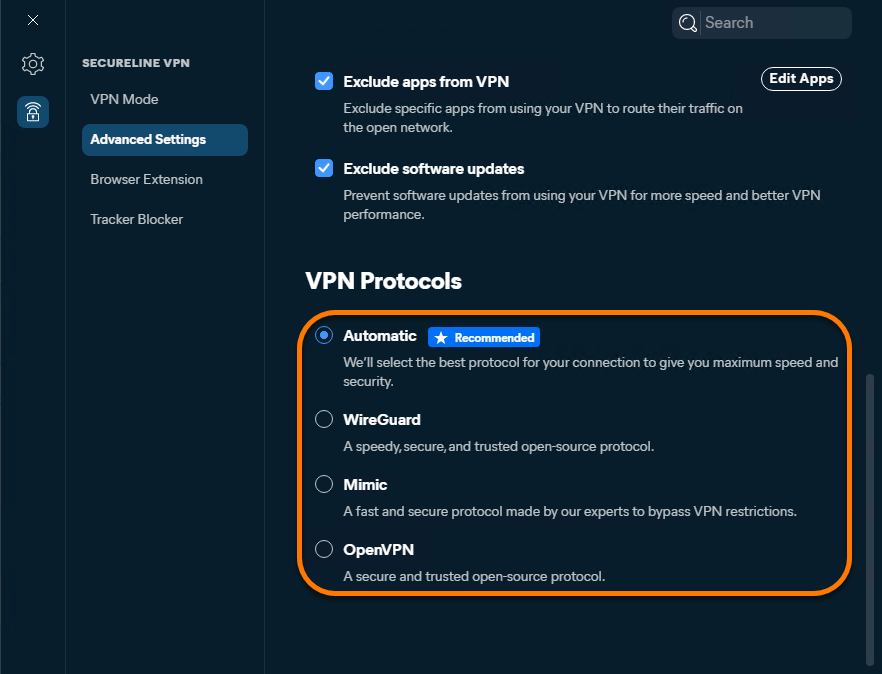
- VPN Protocols: Customize the VPN protocols:
- Automatic (Recommended): Avast SecureLine VPN automatically selects the best protocol for maximum speed and security.
- IPSec: Avast SecureLine VPN always connects using IPSec.
- WireGuard: A speedy, secure, and trusted open-source protocol.
- Mimic: A fast and secure protocol made by Avast. Useful in countries with restrictions on VPN use.
- Post-Quantum Encryption: Helps protect your connection with encryption designed to stop future quantum computer attacks.
Enable Tracker Blocker
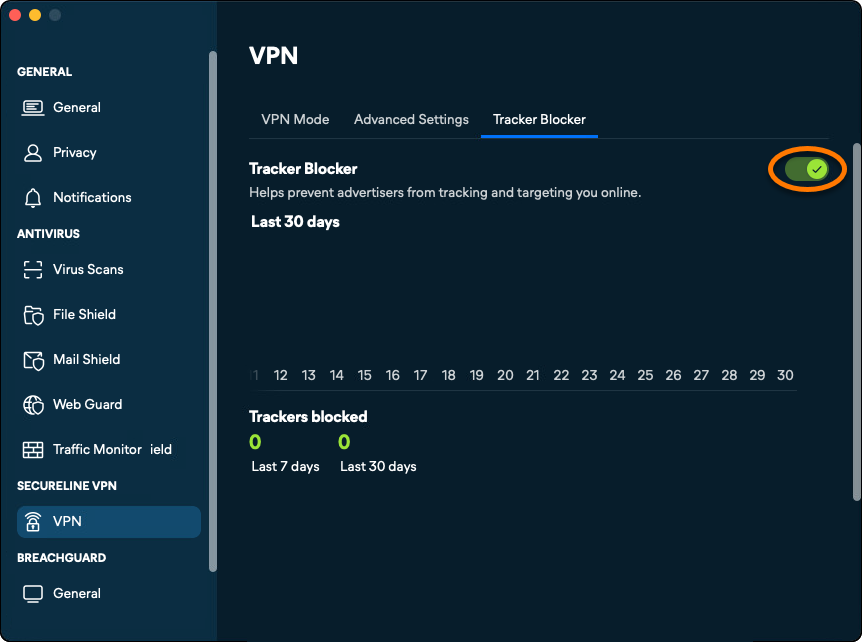
Tracker Blocker helps prevent advertisers from tracking and targeting you online. To ensure Tracker Blocker is enabled:
- Open Avast One, then go to
☰Menu ▸ Preferences. - Select VPN in the left panel.
- Select Tracker Blocker.
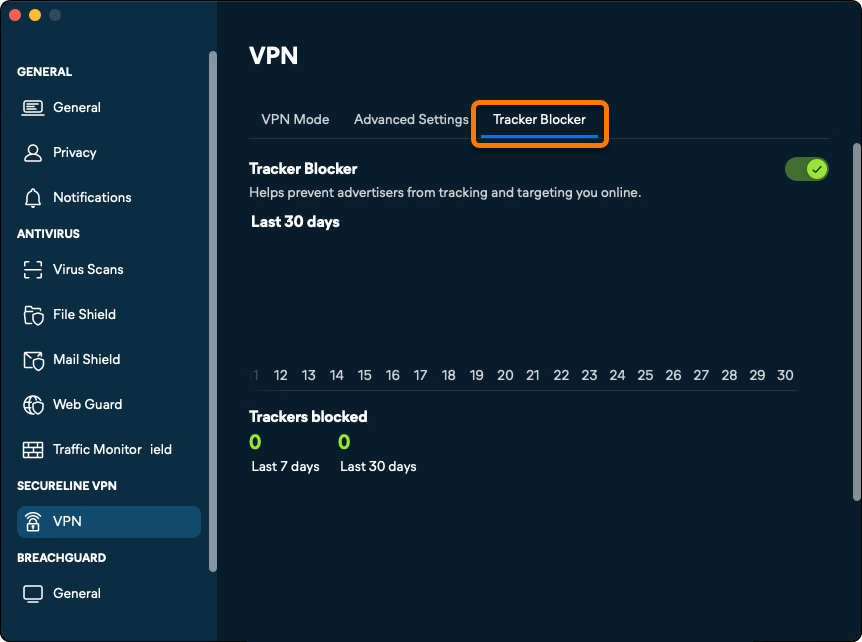
- Ensure that the Tracker Blocker slider is ON.
Troubleshooting
If Avast SecureLine VPN is unable to establish a connection, try the following troubleshooting steps:
- Check that your internet connection works when Avast SecureLine VPN is disconnected. If your internet connection is not working, check your network configuration.
- Select a different VPN Protocol.
- Refresh your IP address.
- Select a different Avast server location.
- Disconnect other VPN services that may be running on your device.
- Restart your device and try connecting to Avast SecureLine VPN again.
- Confirm that your subscription is active. Open Avast One, hover your cursor over the side menu and select Account. Ensure Active appears next to Avast SecureLine VPN.
- Refer to the following article for more troubleshooting steps: Troubleshooting common issues with Avast SecureLine VPN.
If Avast SecureLine VPN is still unable to establish a connection, try to uninstall and reinstall the Avast One application. For detailed instructions, refer to the following articles:
