To uninstall Avast Premium Security from Windows, select the relevant tab below according to your Windows version.
Uninstall via Start menu
After you complete the steps below, your PC will no longer be protected by Avast Premium Security against malware and other threats.
Windows 11
- Right-click the Windows
 Start icon, then select Apps and Features from the menu that appears.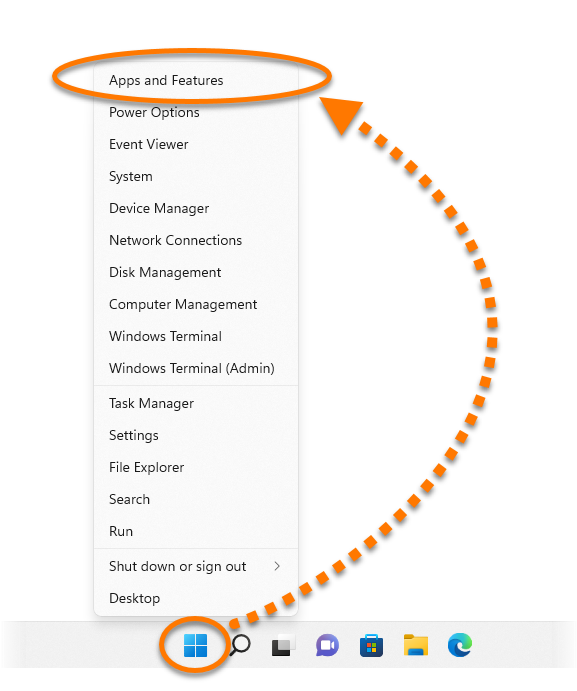
- Ensure that Apps is selected in the left panel, then click
⋮ (three dots) next to Avast Premium Security and select Uninstall twice. 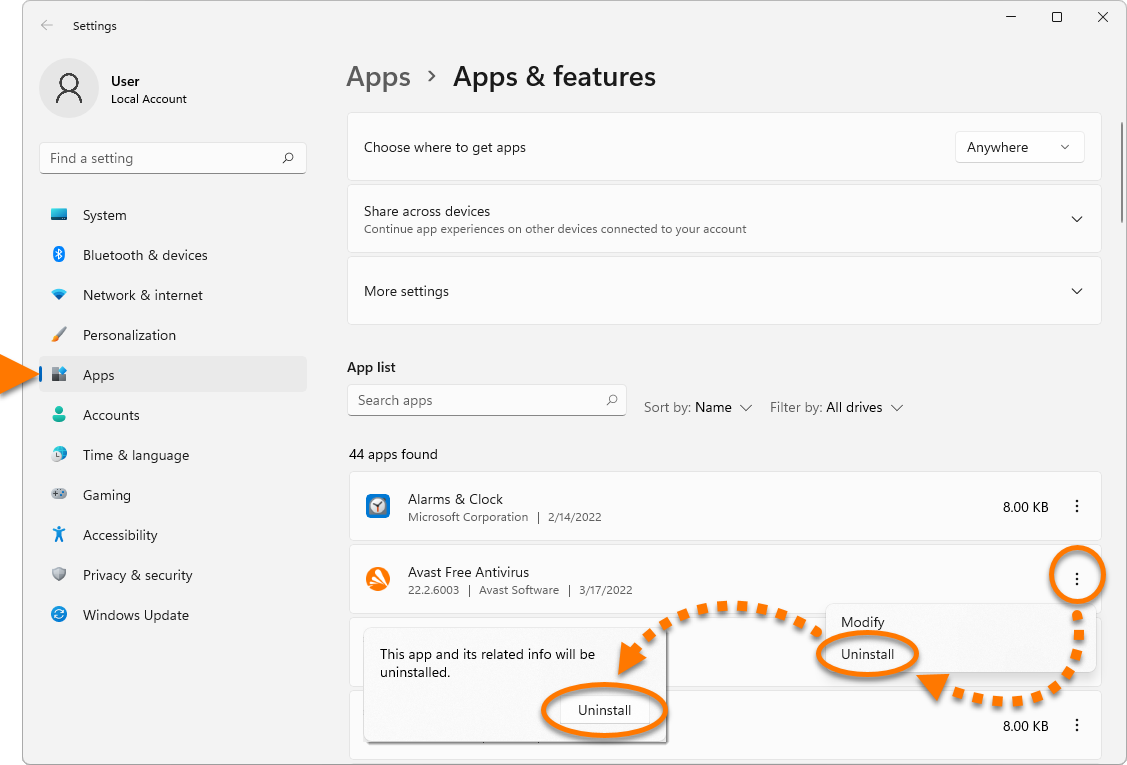
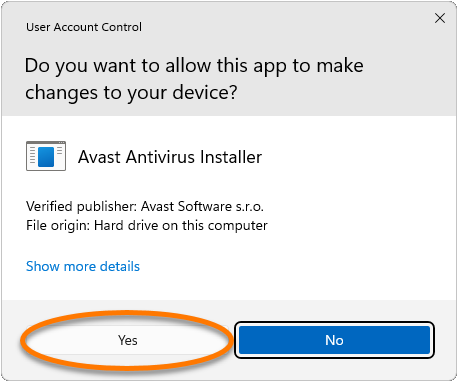
- If prompted for permission by the User Account Control dialog, click Yes.
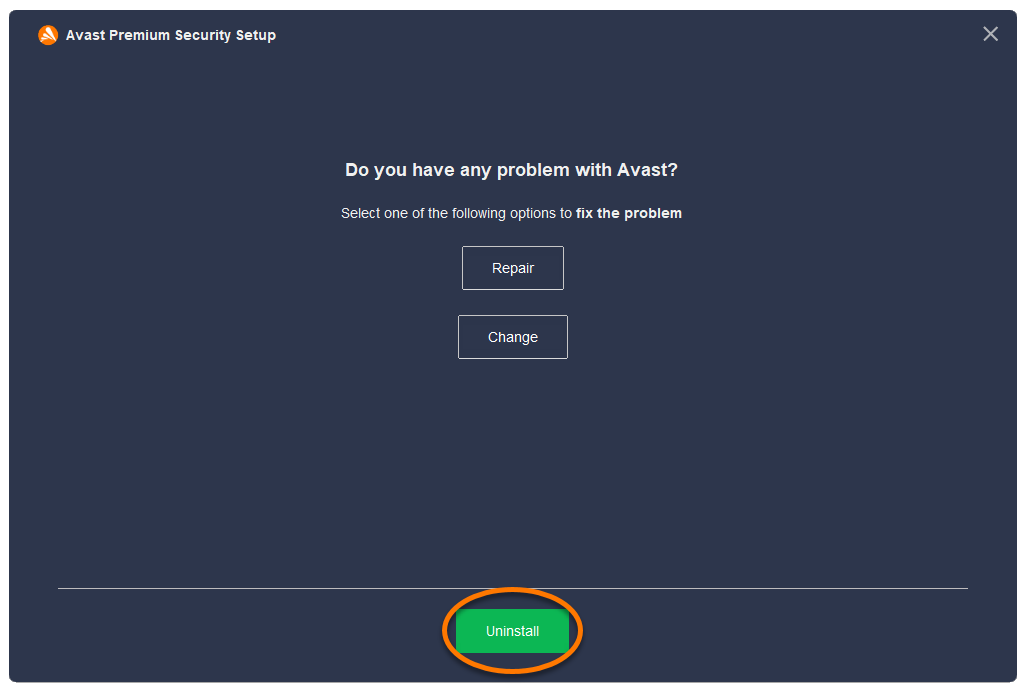
- When the Avast Premium Security Setup window appears, click Uninstall.
- Optionally, complete the customer survey, or select Skip and uninstall.
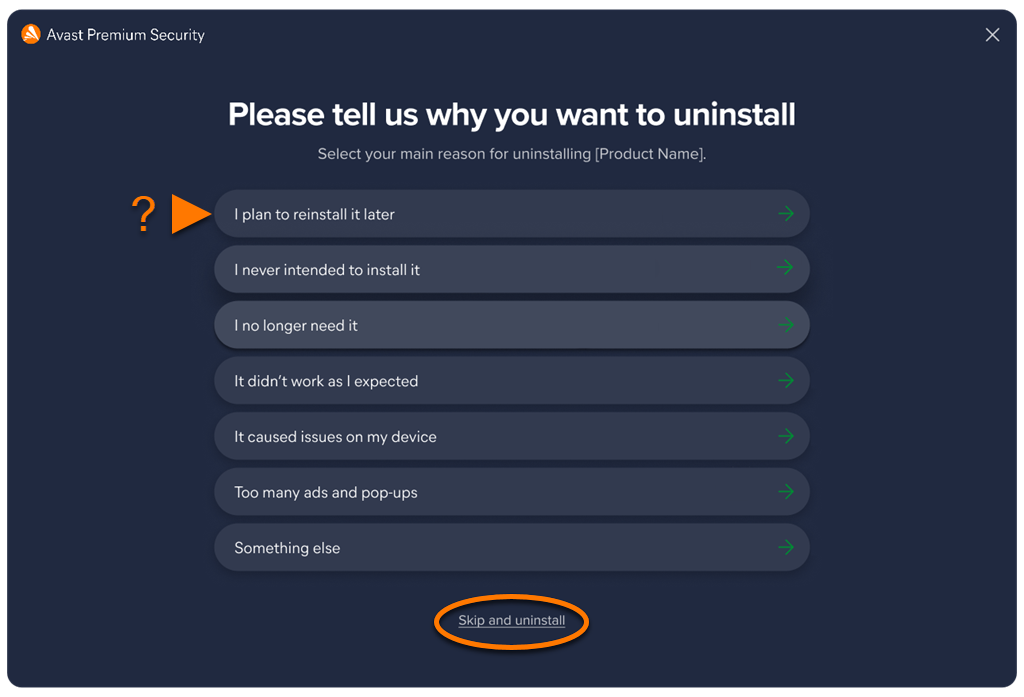
- Select Yes to confirm that you want to uninstall Avast Premium Security.
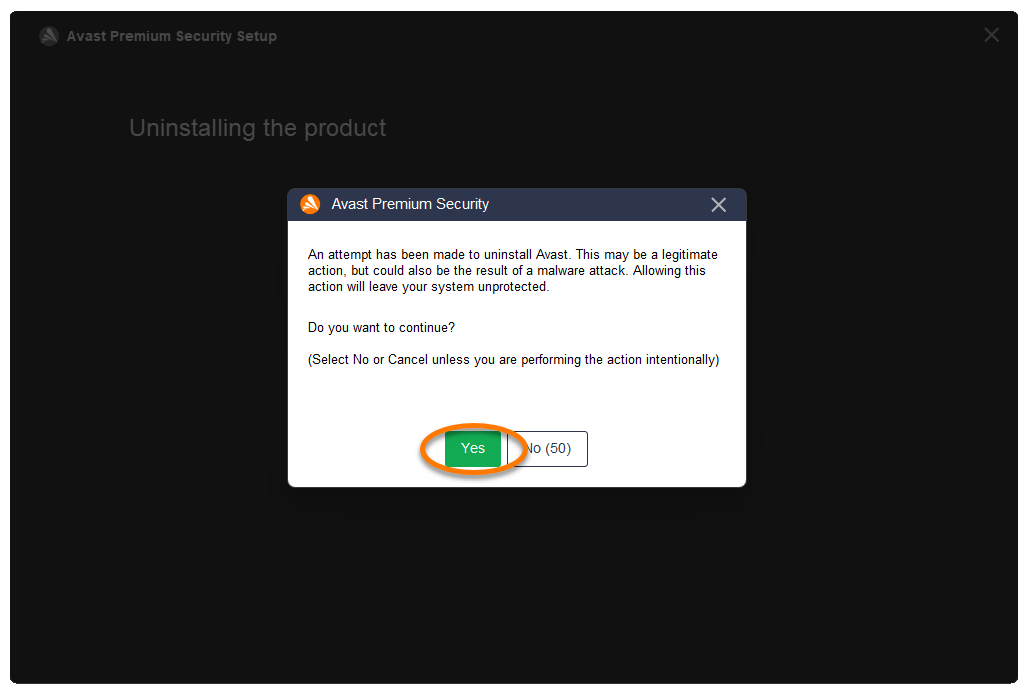
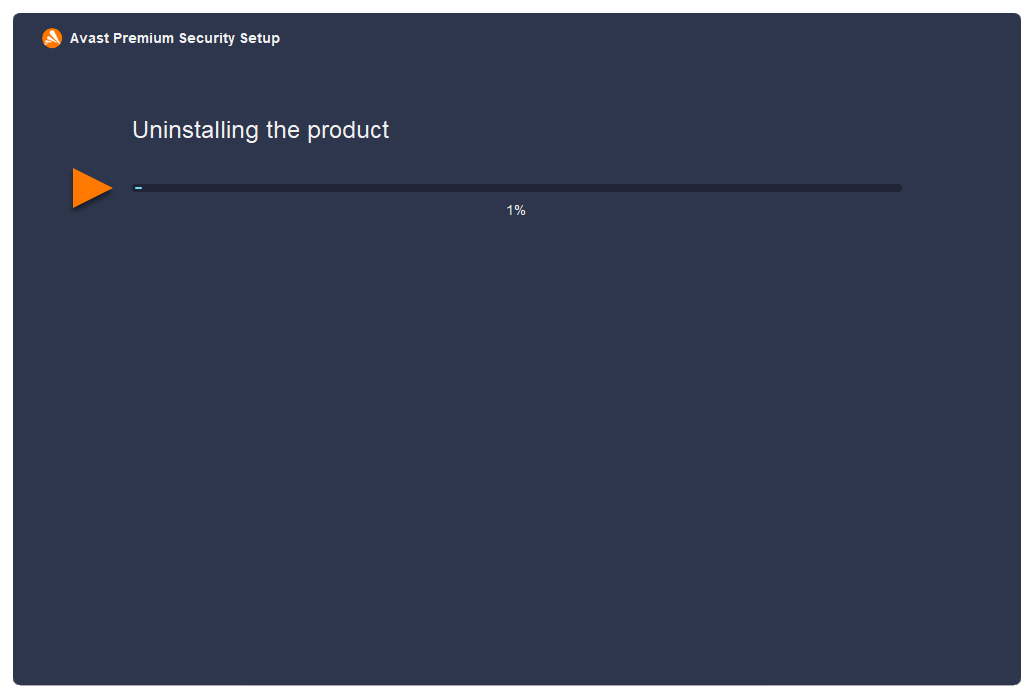
- Wait while the uninstaller removes Avast Premium Security from your PC.
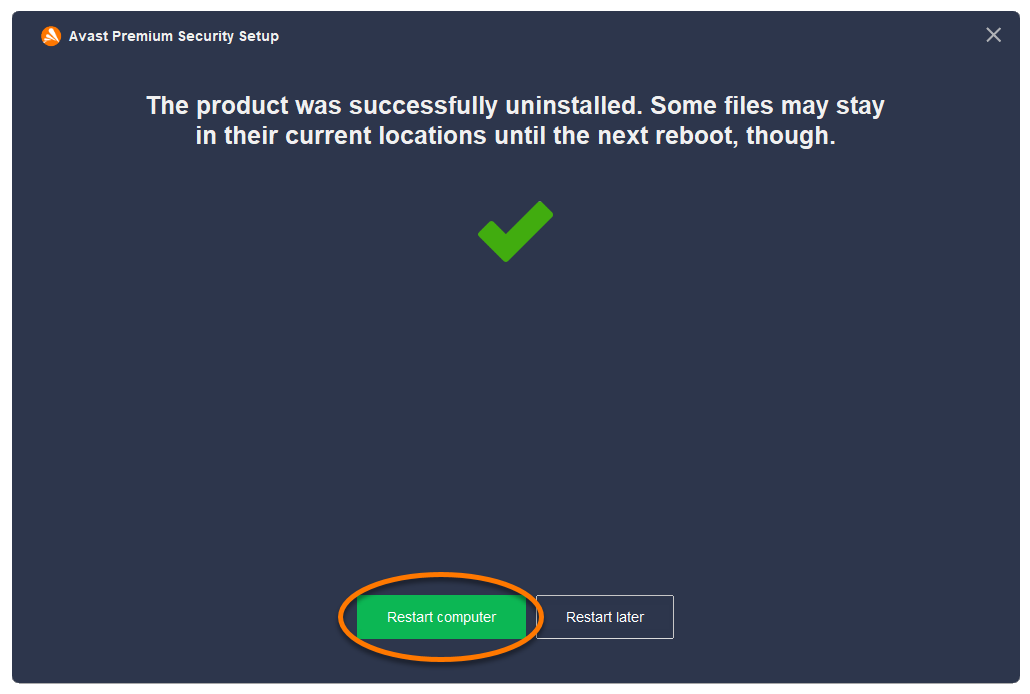
- When the confirmation message appears, click Restart computer to immediately reboot your PC and complete uninstallation..
Windows 10
- Right-click the Windows
 Start icon, then select Apps and Features from the menu that appears.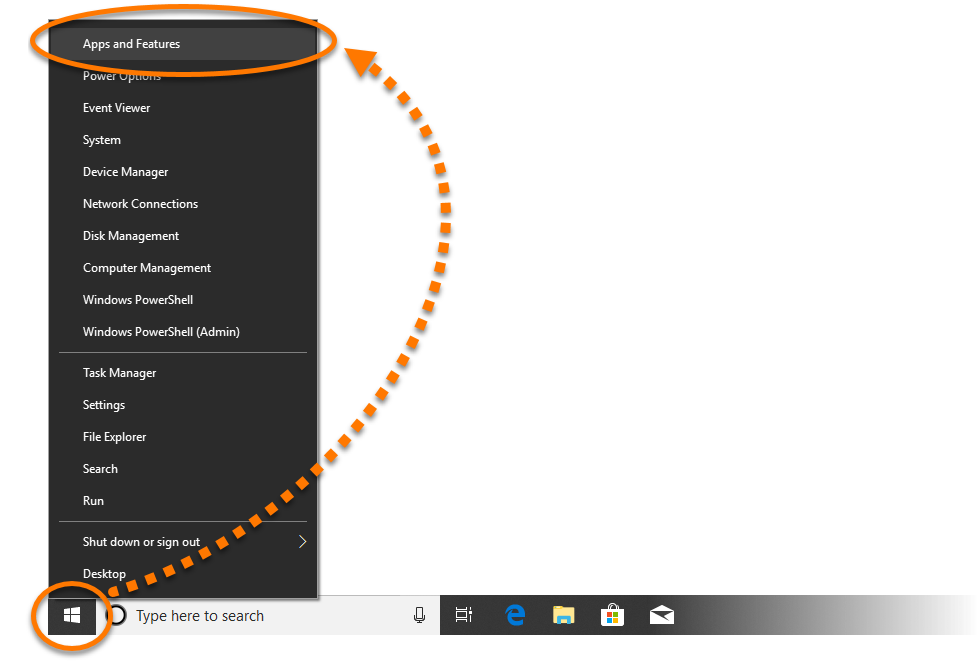
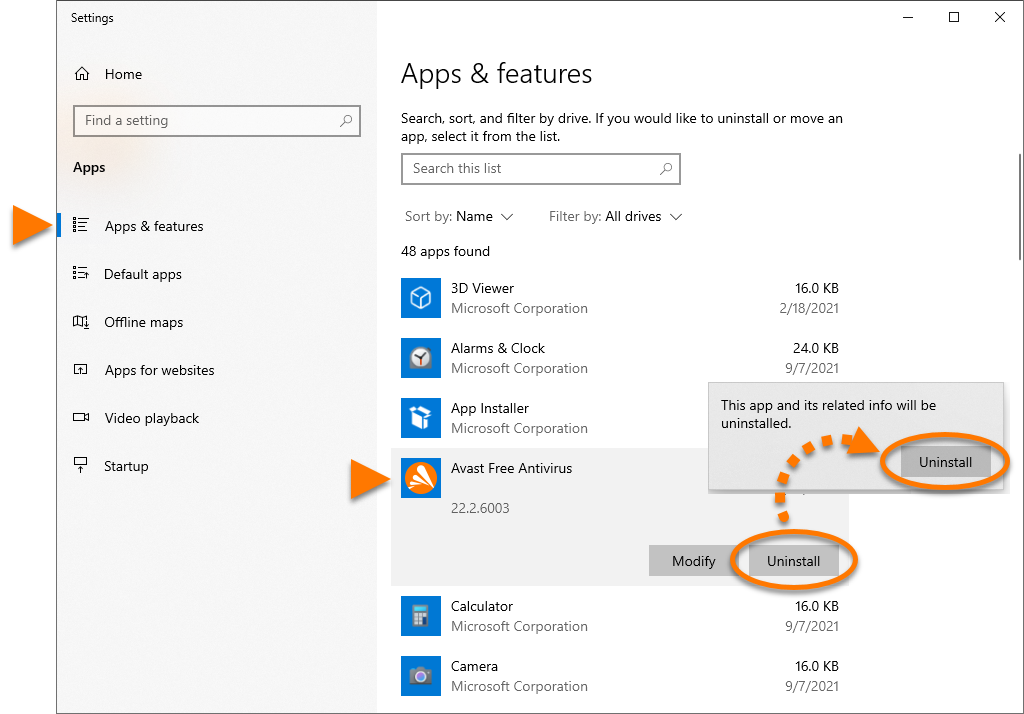
- Ensure that Apps & features is selected in the left panel, then click Avast Premium Security, and select Uninstall twice.
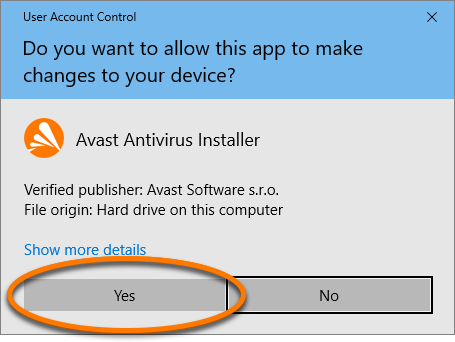
- If prompted for permission by the User Account Control dialog, click Yes.
- When the Avast Premium Security Setup window appears, click Uninstall.
- Optionally, complete the customer survey, or select Skip and uninstall.
- Select Yes to confirm that you want to uninstall Avast Premium Security.
- Wait while setup uninstalls Avast Premium Security from your PC.
- When the confirmation message appears, click Restart computer to immediately reboot your PC and complete uninstallation..
Windows 8
- On your keyboard, press the Windows
 logo key and
 X key simultaneously. 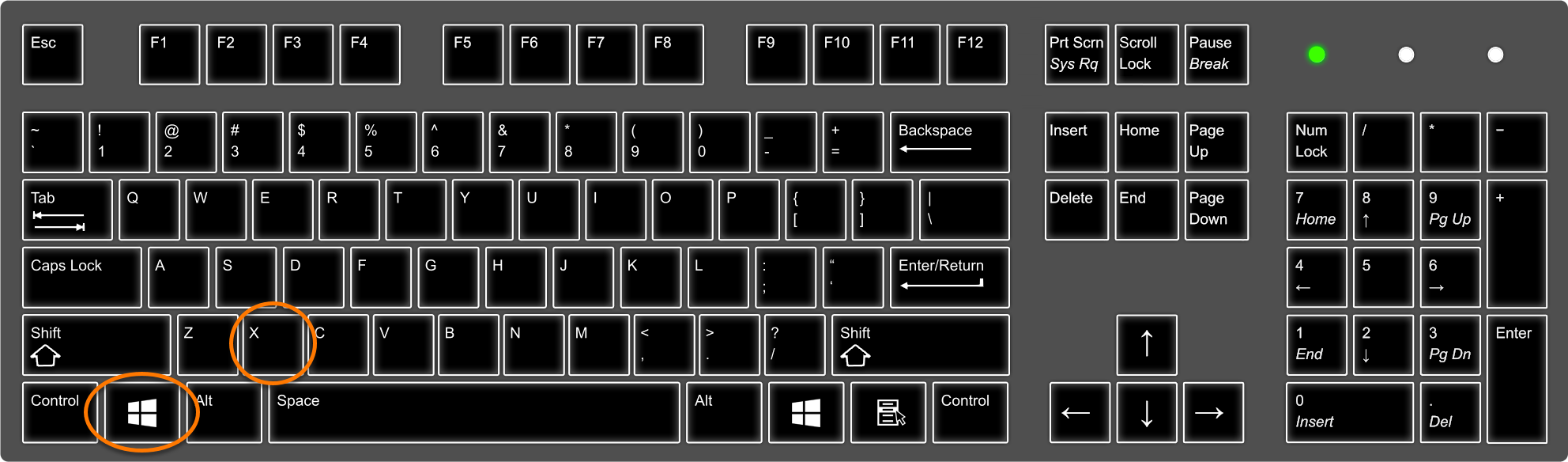
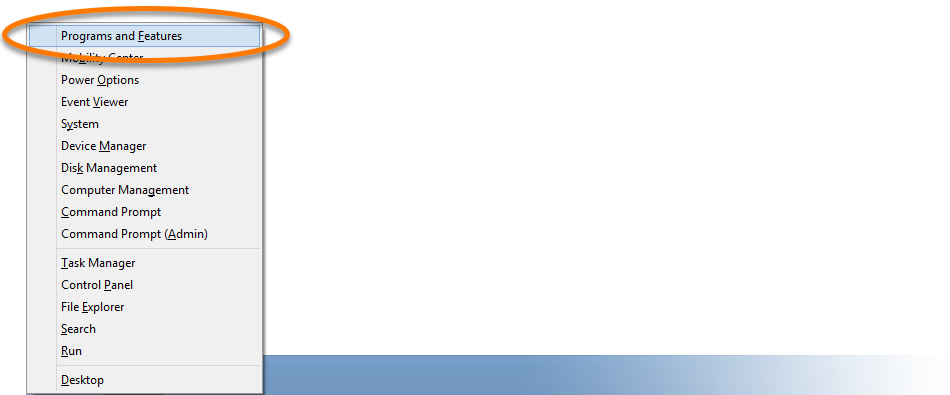
- Select Programs and Features from the menu that appears.
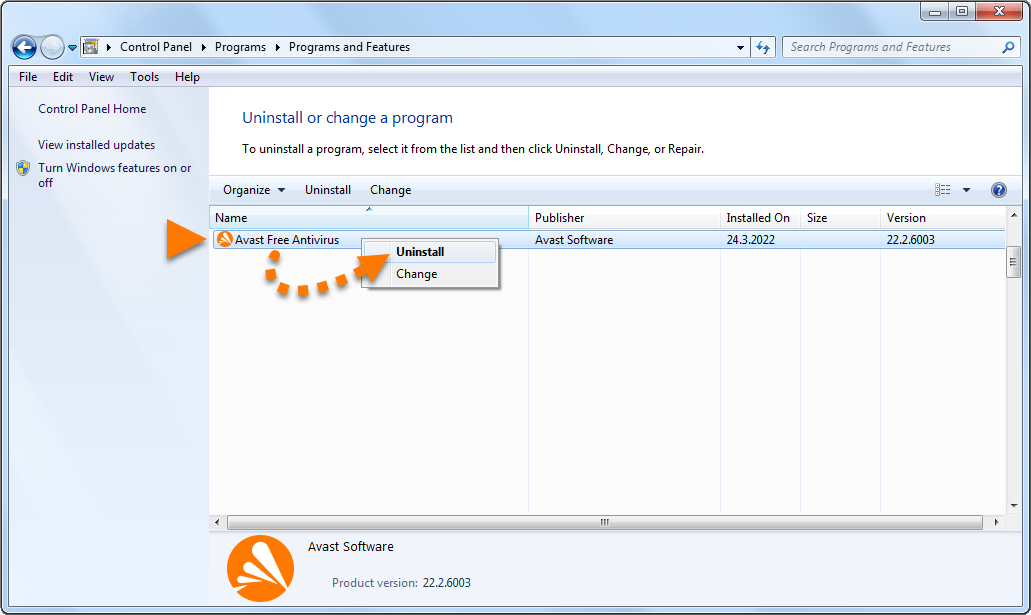
- Right-click Avast Premium Security, then select Uninstall from the drop-down menu.
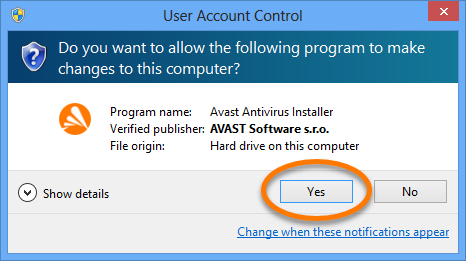
- If prompted for permission by the User Account Control dialog, click Yes.
- When the Avast Premium Security Setup window appears, click Uninstall.
- Optionally, complete the customer survey, or select Skip and uninstall.
- Select Yes to confirm that you want to uninstall Avast Premium Security.
- Wait while setup uninstalls Avast Premium Security from your PC.
- When the confirmation message appears, click Restart computer to immediately reboot your PC and complete uninstallation..
Windows 7
- Click the Windows
 Start icon, then select Control Panel.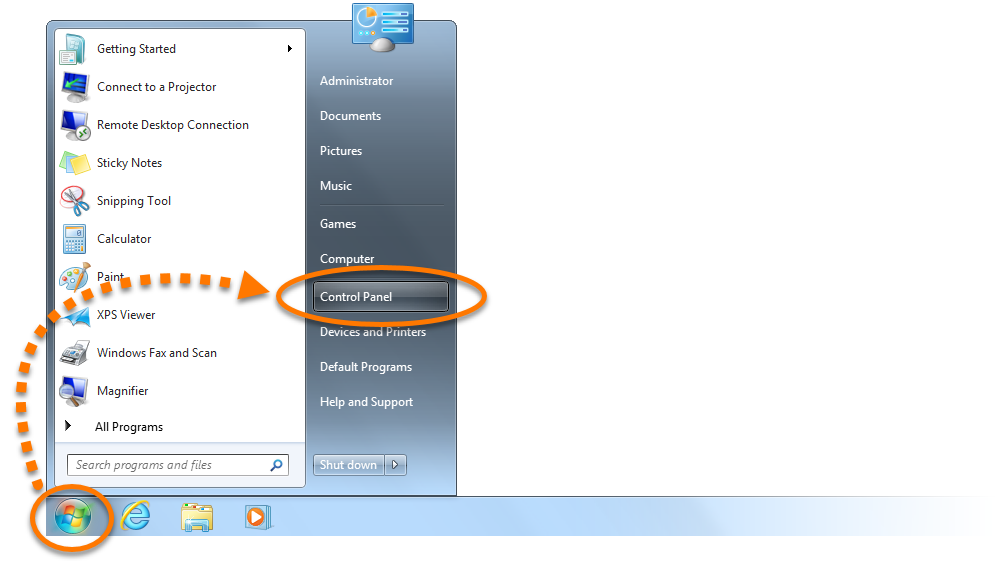
- Follow option A or option B below according to your view:
- Option A (Default category view): Under Programs, click Uninstall a program.
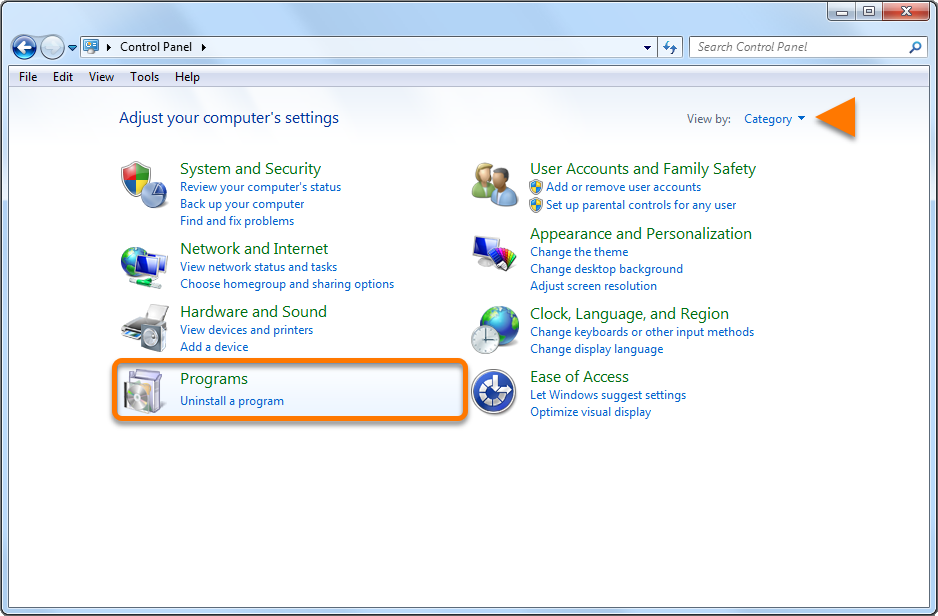
- Option B (Large/small icons view): Click Programs and Features.
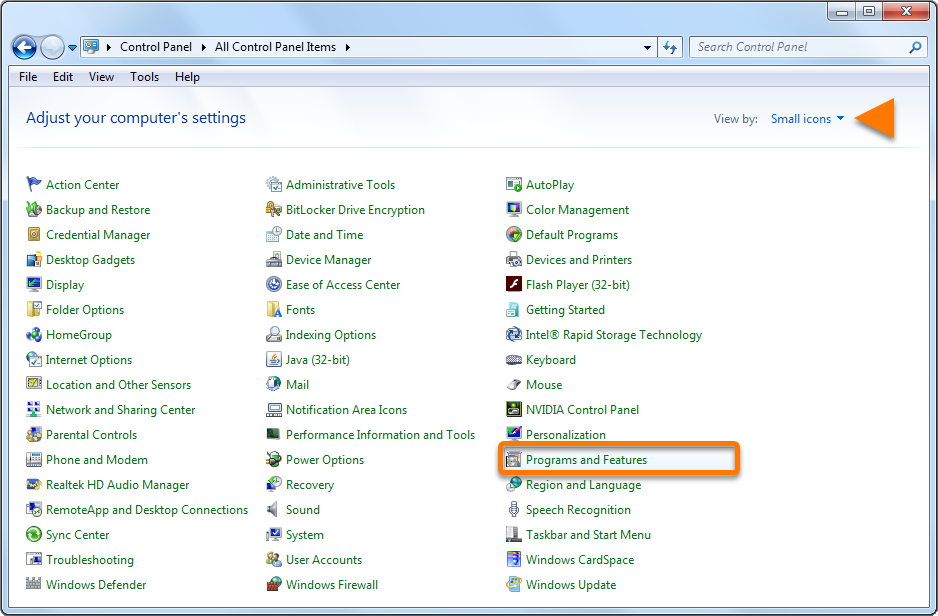
- Right-click Avast Premium Security, then select Uninstall from the drop-down menu.
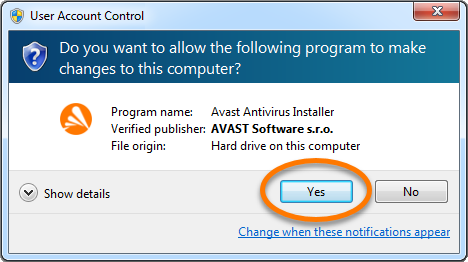
- If prompted for permission by the User Account Control dialog, click Yes.
- When the Avast Premium Security Setup window appears, click Uninstall.
- Optionally, complete the customer survey, or select Skip and uninstall.
- Select Yes to confirm that you want to uninstall Avast Premium Security.
- Wait while the uninstaller removes Avast Premium Security from your PC.
- When the confirmation message appears, click Restart computer to immediately reboot your PC and complete uninstallation..
Avast Premium Security is now uninstalled from your PC. If you were unable to uninstall Avast Premium Security by following the steps above, refer to the Uninstall Tool section below.
Uninstall via Uninstall Tool
If you experience issues trying to uninstall Avast Premium Security via the Start menu, we recommend using the Avast Uninstall Tool to completely delete all Avast Premium Security files from your PC while Windows runs in Safe Mode.
For instructions, refer to the following article: Using the Avast Uninstall Tool.
Troubleshoot without uninstalling
If you are experiencing problems with Avast Premium Security, we recommend trying the following options before uninstalling:
- Update: We regularly release updates to the application and virus definitions that include new features and bug fixes. Ensuring Avast Premium Security is up-to-date can resolve any issues you may be experiencing. For instructions to update Avast Premium Security, refer to the following article: Updating Avast Antivirus.
- Repair: If some features are not behaving correctly, or a scan gets stuck while in progress, we recommend trying to repair Avast Premium Security rather than uninstalling the application. Repairing Avast Premium Security is also recommended if an application update fails. For instructions to repair Avast Premium Security, refer to the following article: Repairing Avast Antivirus.
- Disable: Sometimes the protection features in Avast Premium Security may block a website you want to access, or incorrectly mark a file as malicious. You can adjust shield settings and scan behavior to stop these situations from occuring, or temporarily disable Firewall or Avast Premium Security. For more information, refer to the following articles:
Reinstall Avast Premium Security
If you need to reinstall Avast Premium Security, refer to the following article for installation instructions: Installing Avast Premium Security.
To uninstall Avast Premium Security, follow the steps below according to your preferred method:
Avast Premium Security is now uninstalled from your Mac.
Troubleshoot without uninstalling
If you are experiencing problems with Avast Premium Security, we recommend referring to the following information before uninstalling: Troubleshooting common issues with Avast Premium Security.
Reinstall Avast Premium Security
If you need to reinstall Avast Premium Security, refer to the following article for installation instructions: Installing Avast Premium Security.


