Avast Antivirus / Avast Premium Security
Follow the relevant steps to disable notifications or stop offers for other products:
Disable notifications
- Open Avast Antivirus and go to
☰ Menu ▸ Settings. 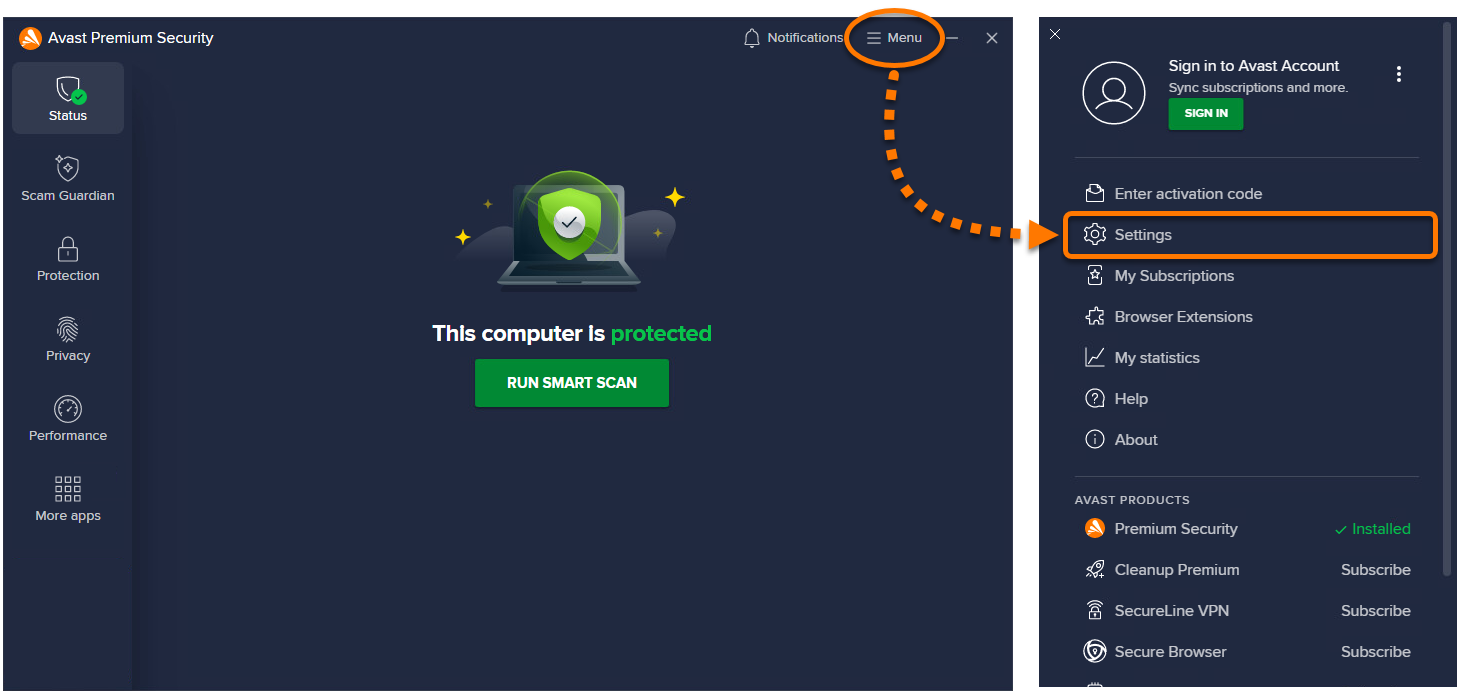
- Select General ▸ Notifications.
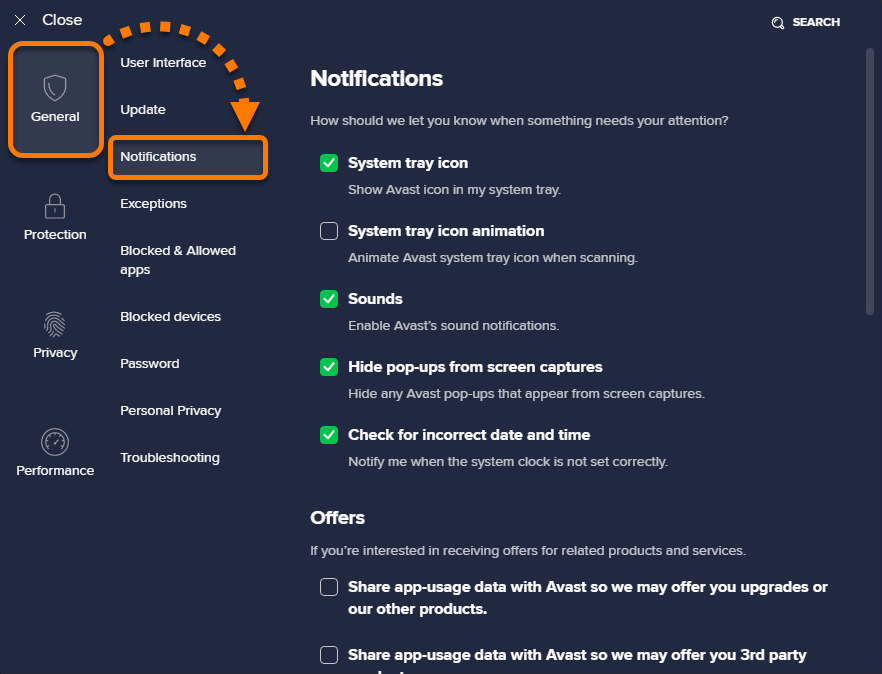
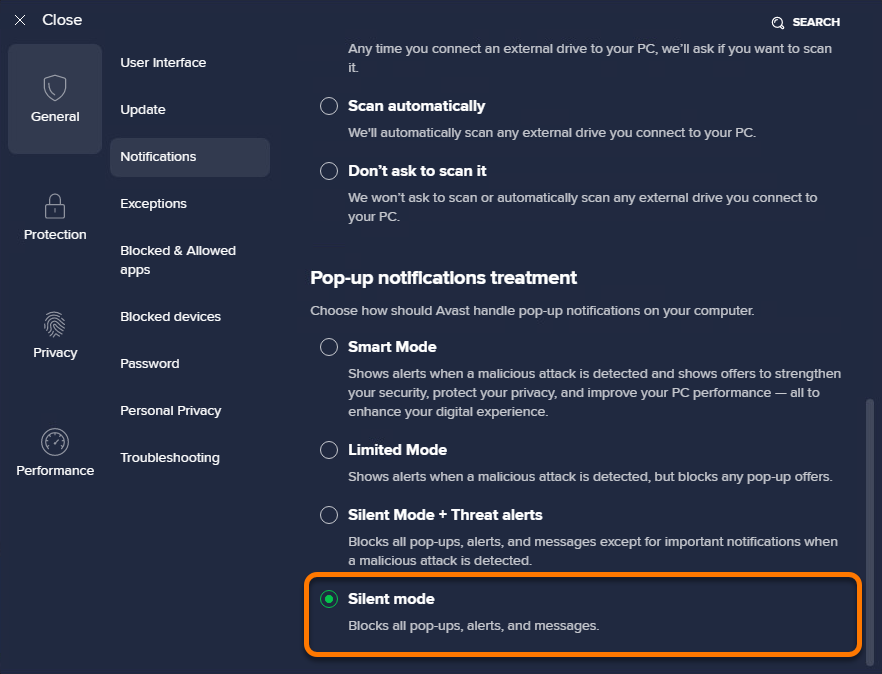
- Under Pop-up notifications treatment, select Silent mode to disable any pop-ups, alerts, or messages.
Stop offers for other products
- Open Avast Premium Security and go to
☰ Menu ▸ Settings.
- Select General ▸ Notifications.
- Under Offers, untick the boxes next to the following options:
Avast AntiTrack
To disable notifications:
- Open Avast AntiTrack and go to
☰ Menu ▸ Settings. 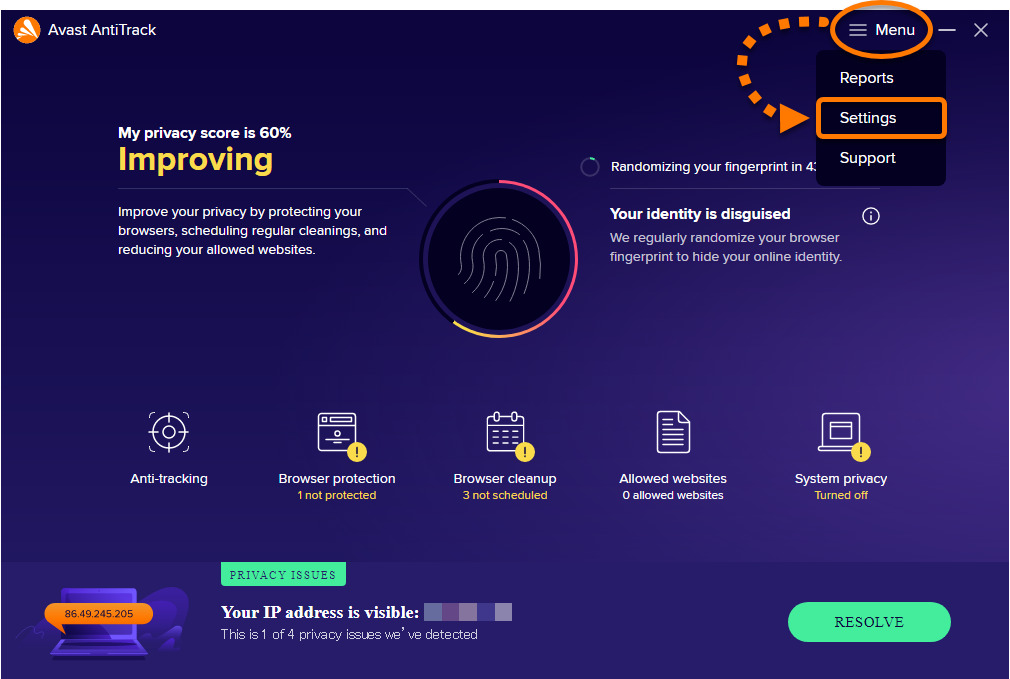
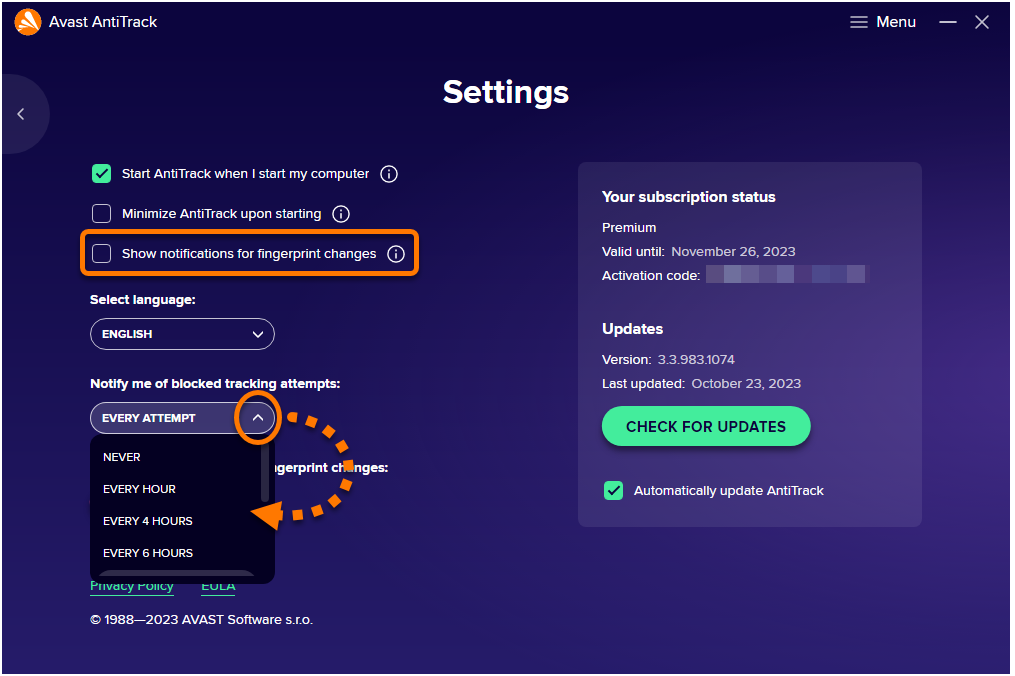
- Untick the box next to Show notifications for fingerprint changes, then select your preferred option for Notify me of blocked tracking attempts.
Avast Battery Saver
Follow the relevant steps to disable notifications or stop offers for other products:
Disable notifications
- Open Avast Battery Saver and go to
☰ Menu ▸ Settings. 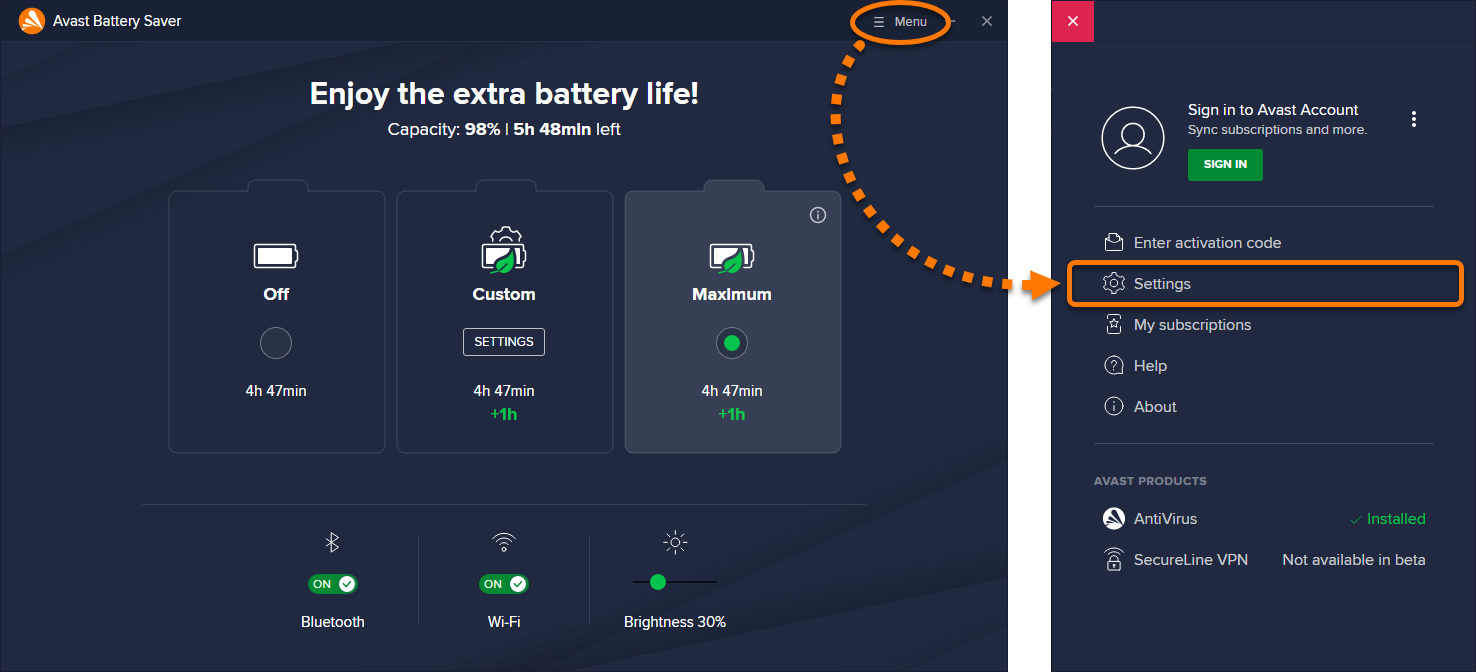
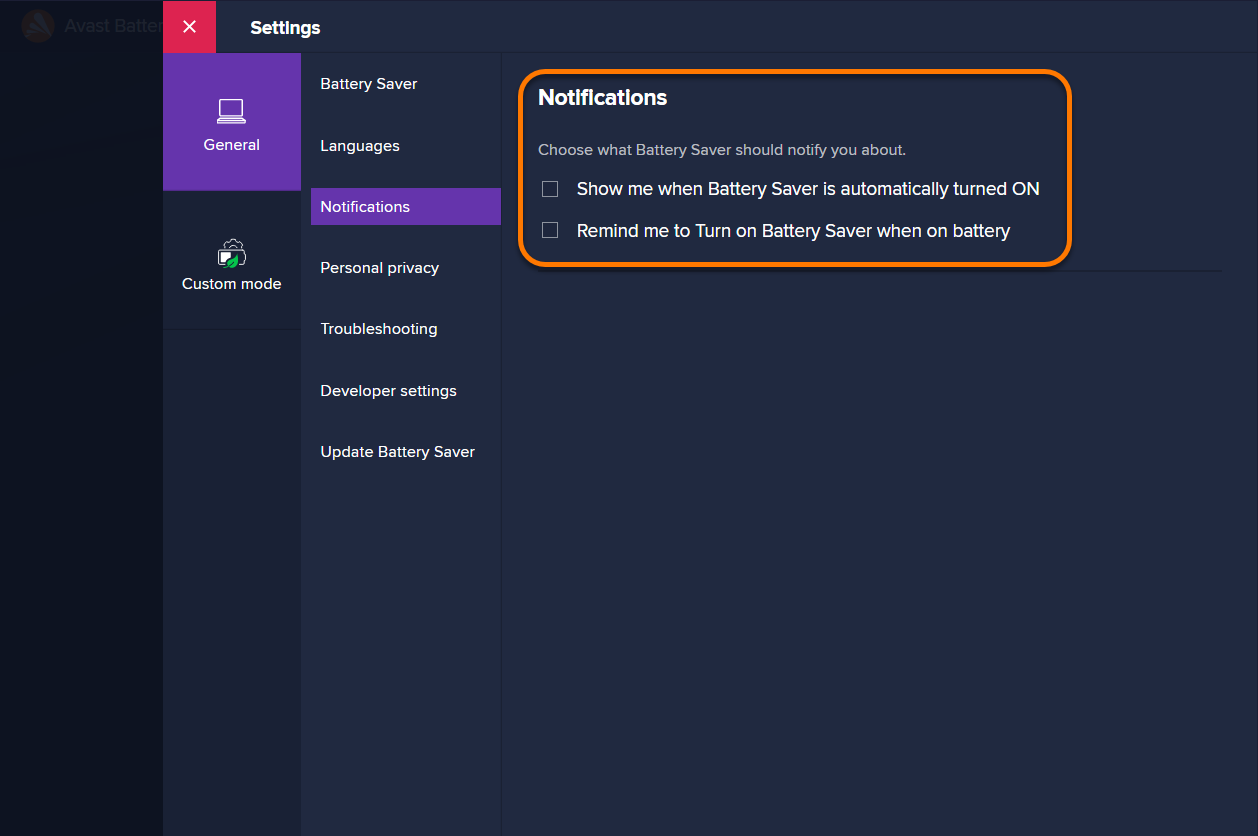
- Select General ▸ Notifications.
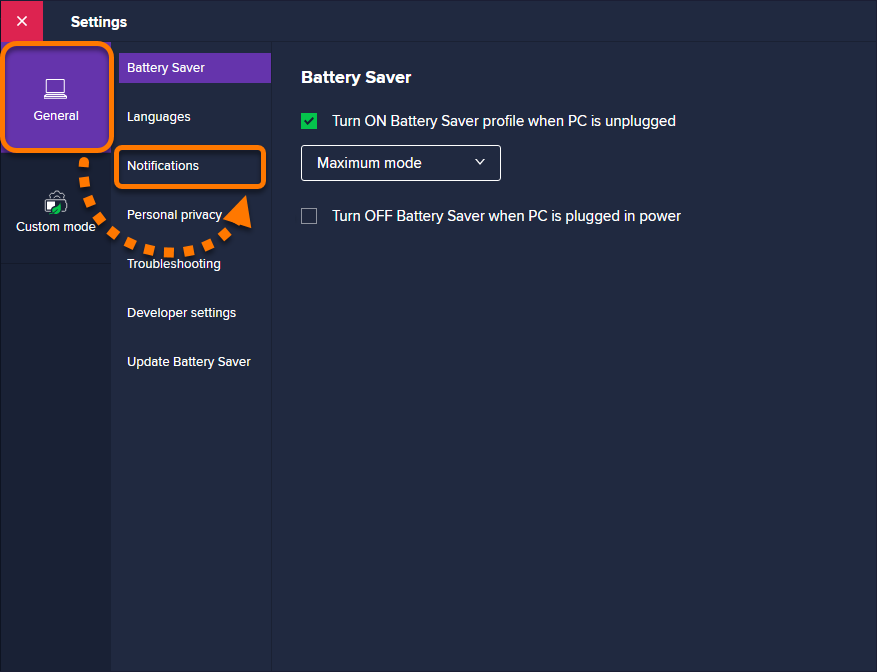
- Untick the boxes next to the following options:
- Show me when Battery Saver is automatically turned ON.
- Remind me to Turn on Battery Saver when on battery.
Stop offers for other products
- Open Avast Battery Saver and go to
☰ Menu ▸ Settings.
- Select General ▸ Personal privacy.
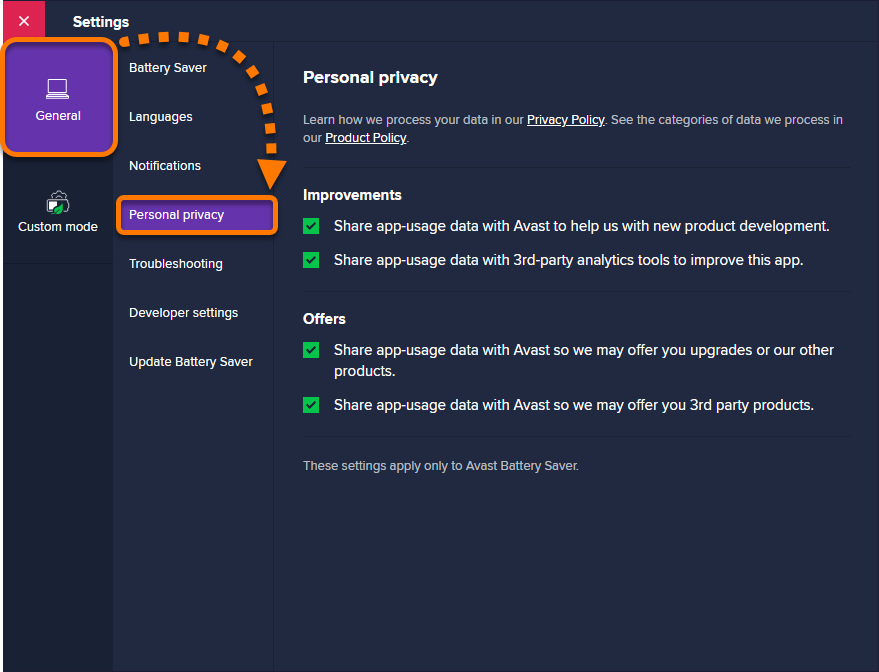
- Untick the boxes next to the following options:
Avast Cleanup Premium
To stop offers for other products:
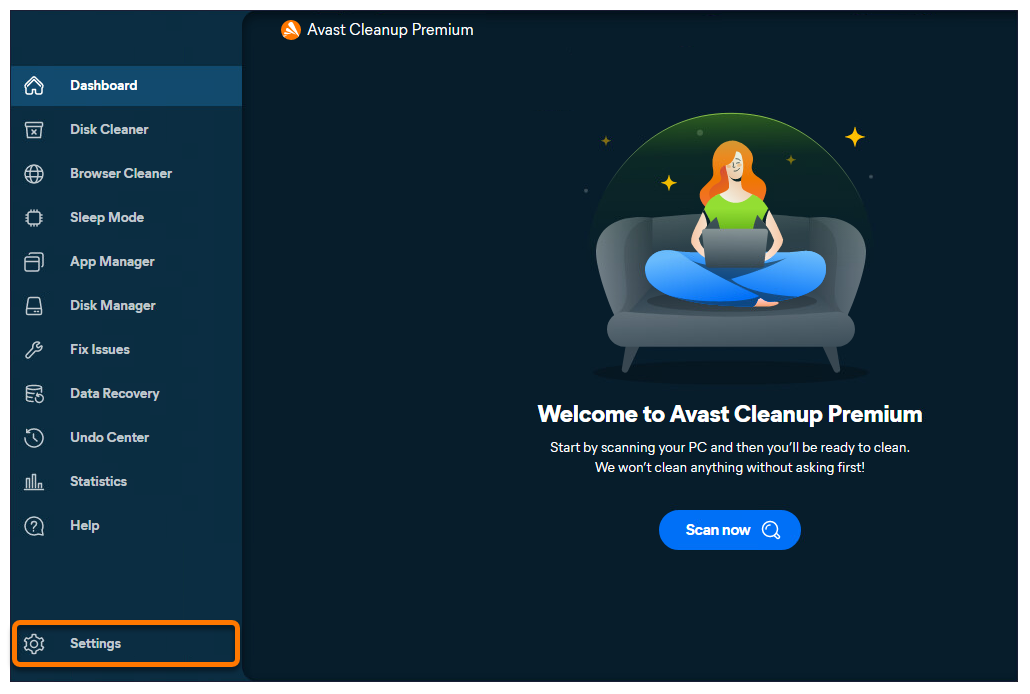
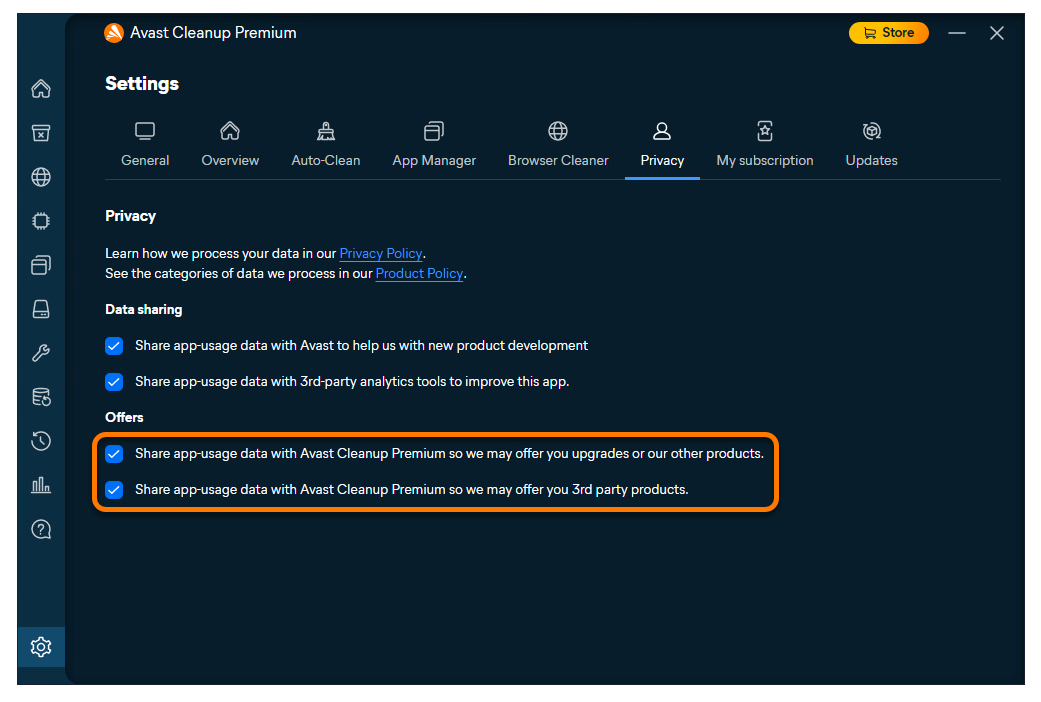
- Open Avast Cleanup Premium and hover your mouse over the side menu, then select Settings.
- Select the Privacy tab.
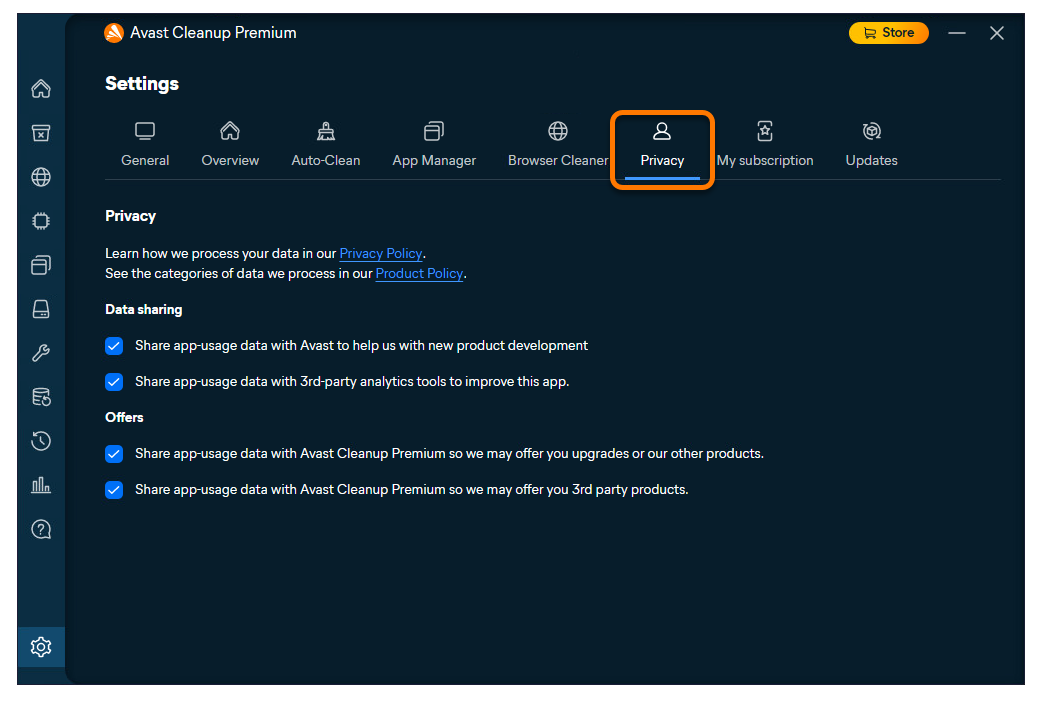
- Untick the boxes next to the following options:
- Share app-usage data with Avast Cleanup Premium so we may offer you upgrades or our other products.
- Share app-usage data with Avast Cleanup Premium so we may offer you 3rd party products.
For information about data collection, refer to the Avast Privacy Policy.
Avast Driver Updater
Follow the relevant steps to disable notifications or stop offers for other products:
Disable notifications
- Open Avast Driver Updater and go to Menu ▸ Settings.
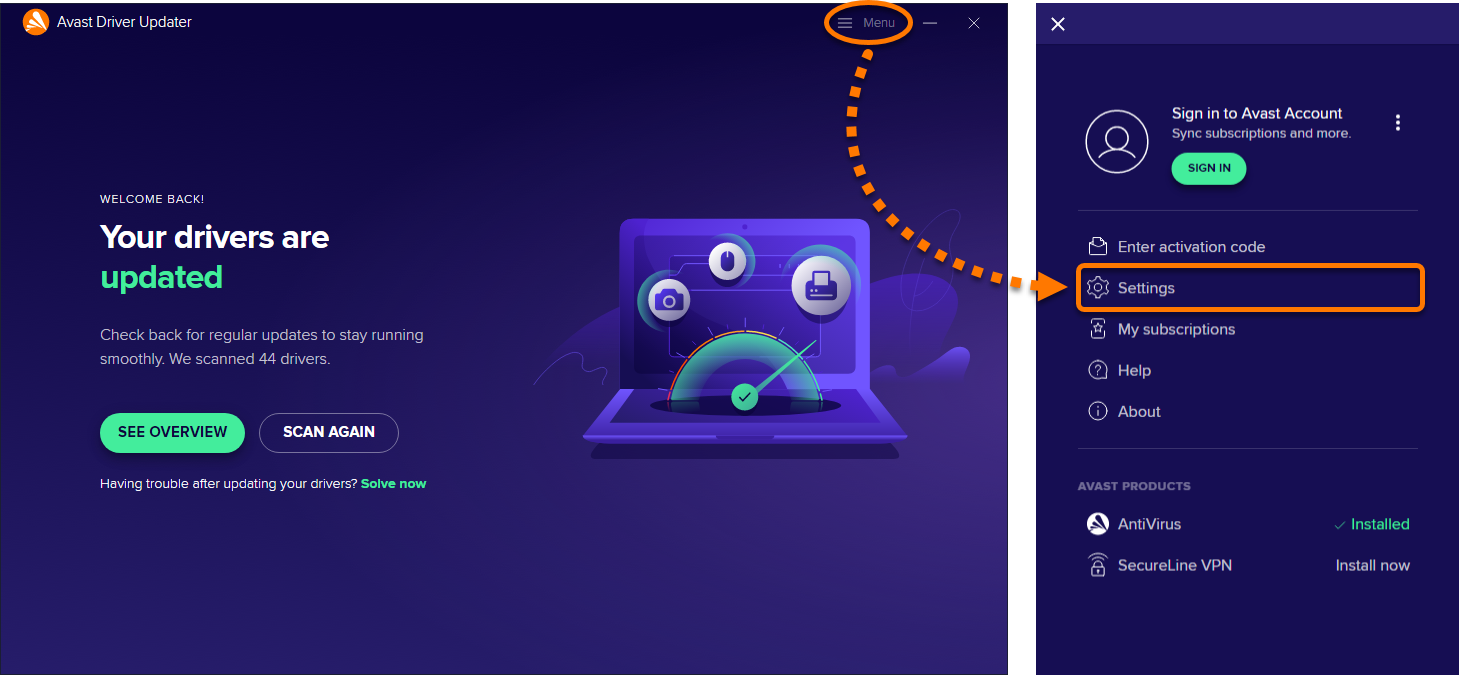
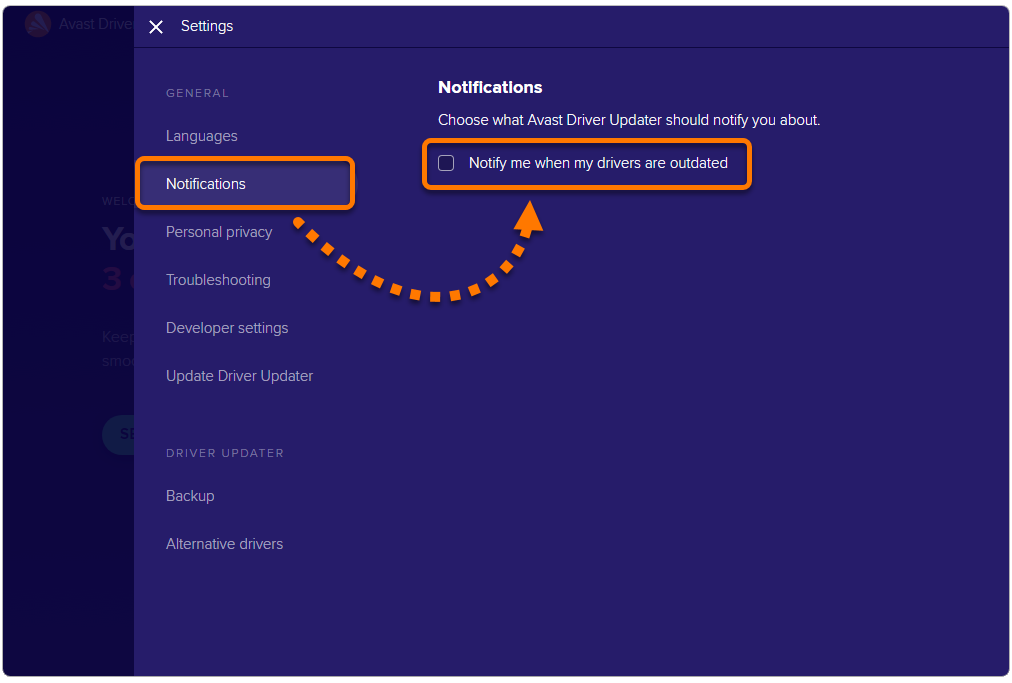
- Select Notifications, then untick the box next to Notify me when my drivers are outdated.
Stop offers for other products
- Open Avast Driver Updater and go to Menu ▸ Settings.
- Select Personal privacy, then untick the boxes next to the following options:
New Avast One
Follow the relevant steps to disable pop-up notifications or stop offers for other products:
Disable notifications
- Open Avast One, hover your cursor over the side menu and select Settings.
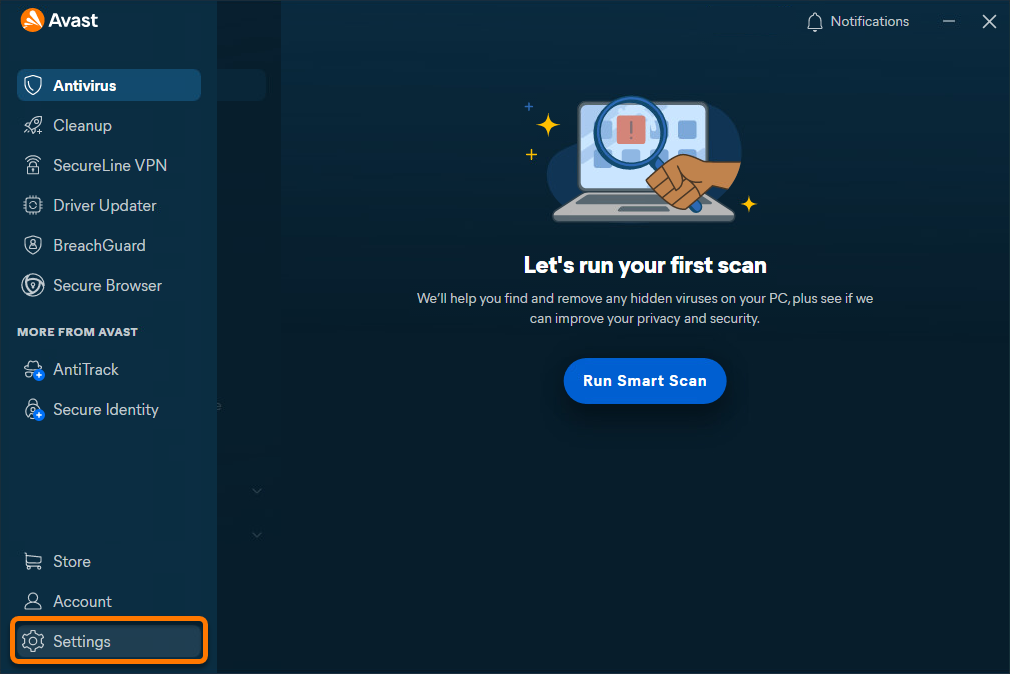
- Click Open in the General tab.
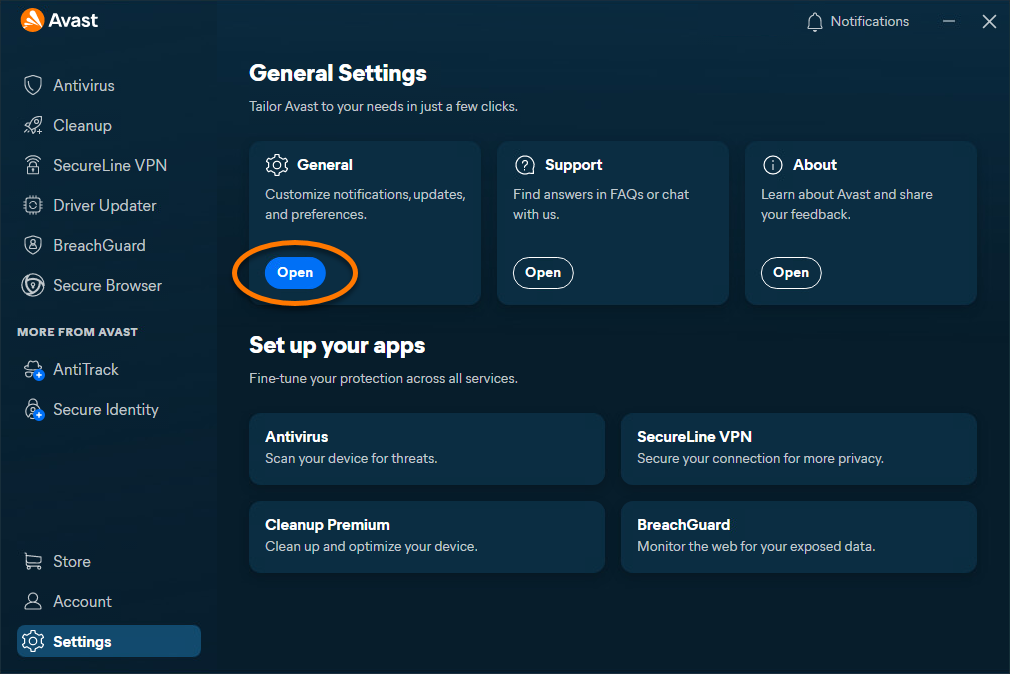
- Select Notifications.
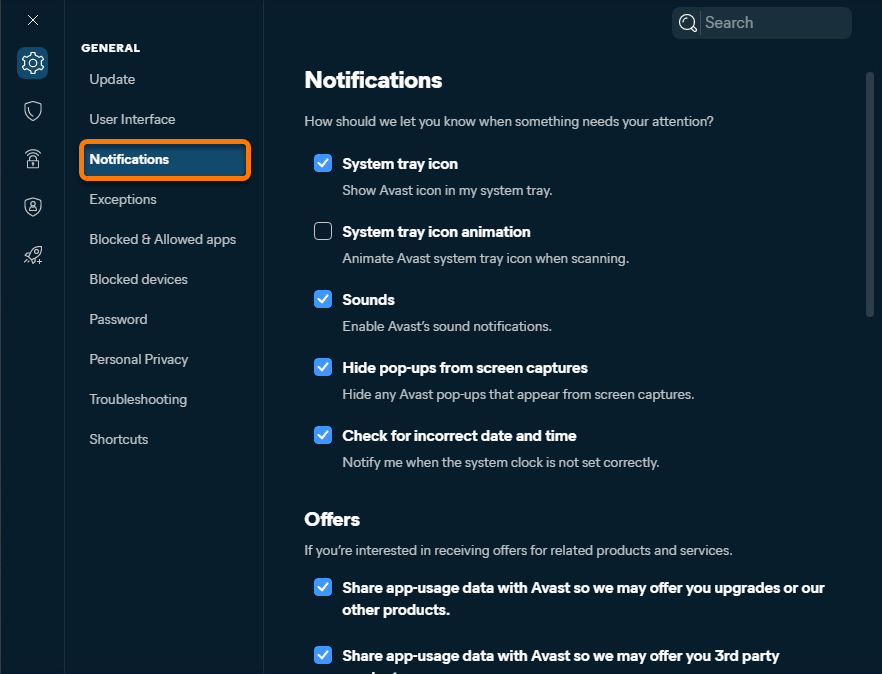
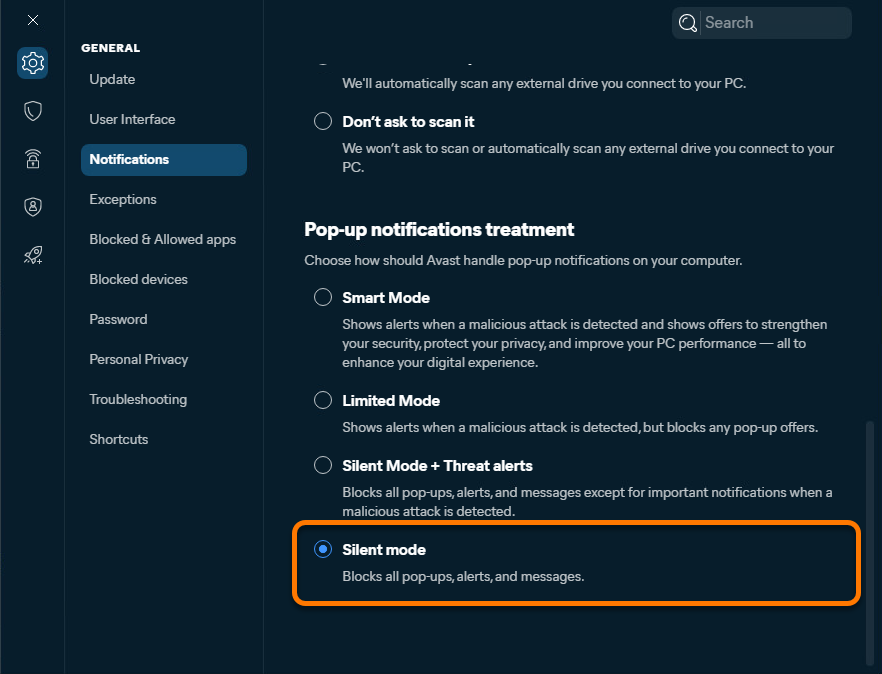
- Under Pop-up notifications treatment, select Silent mode to disable any pop-ups, alerts, or messages.
Stop offers for other products
- Open Avast One, hover your cursor over the side menu and select Settings.
- Click Open in the General tab.
- Select Notifications.
- Under Offers, untick the boxes next to the following options:
Old Avast One
Follow the relevant steps to disable pop-up notifications or stop offers for other products:
Disable notifications
- Open Avast One and go to Account ▸ Settings.
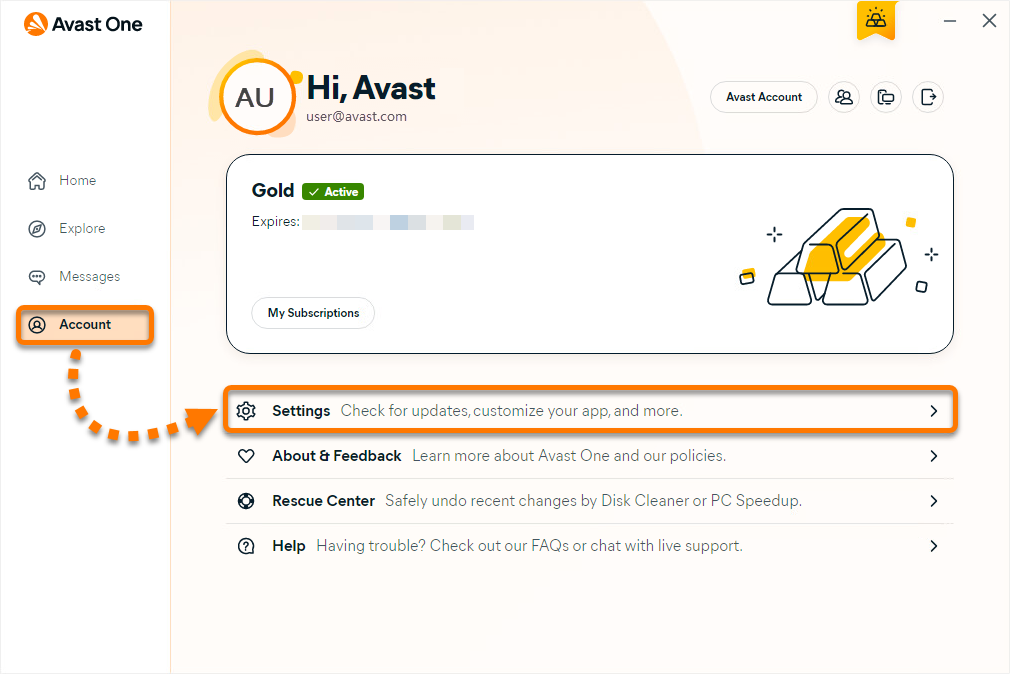
- Under Pop-up notifications treatment, select Silent mode to disable any pop-ups, alerts, or messages.
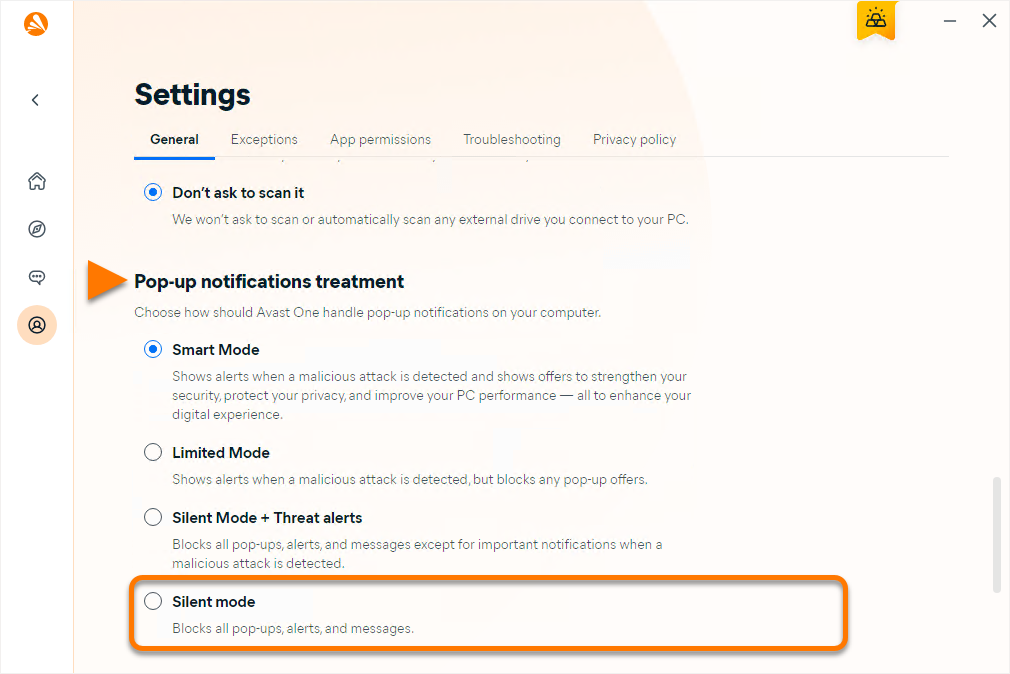
Stop offers for other products
- Open Avast One and go to Account ▸ Settings.
- Select the Privacy policy tab.
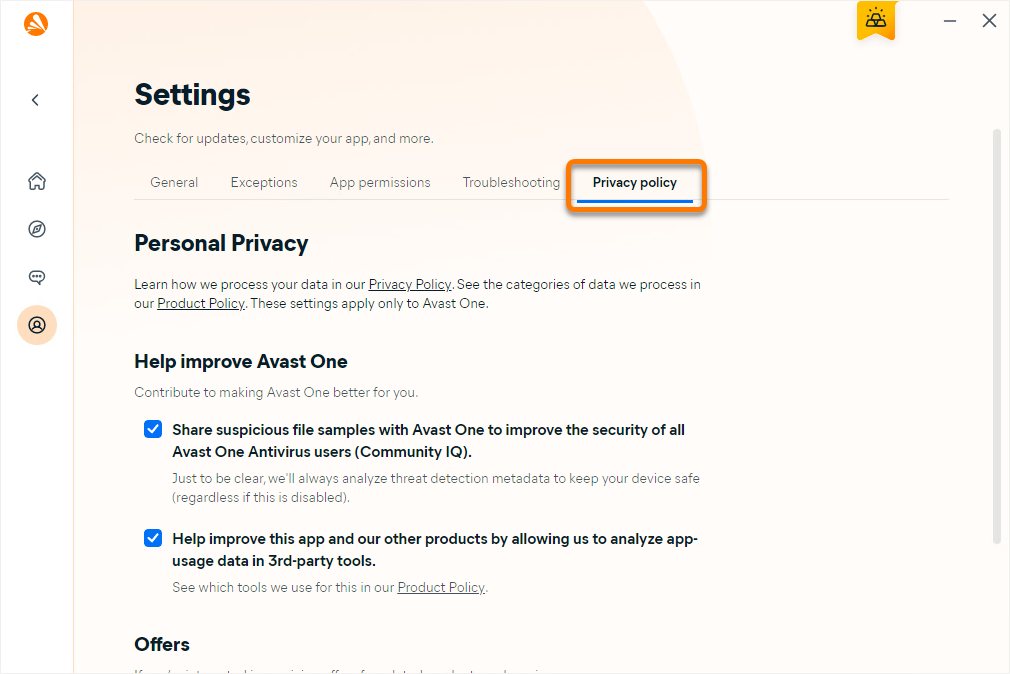
- Untick the boxes next to the following options:
Avast Secure Browser
To disable notifications:
- Open Avast Secure Browser and go to
⋮ Menu ▸ Settings. 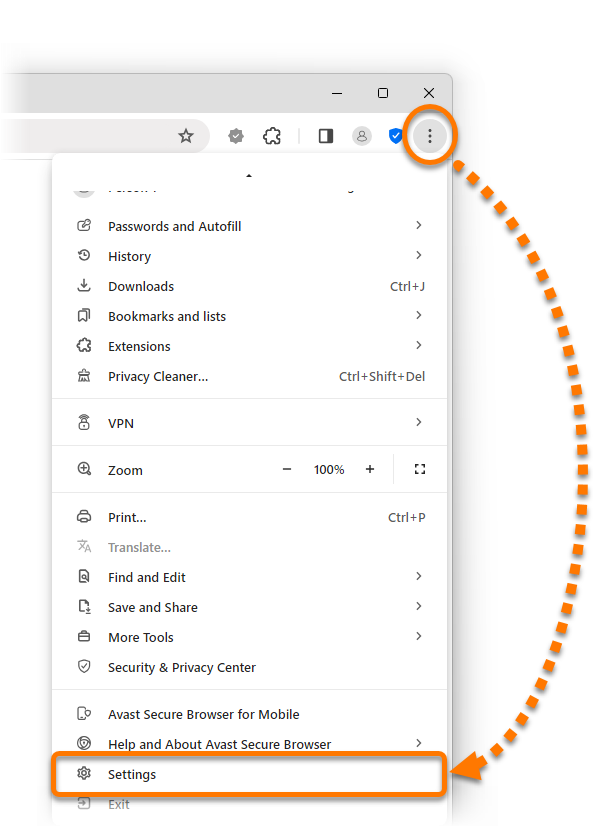
- In the left menu, select Privacy and security, then click Site settings.
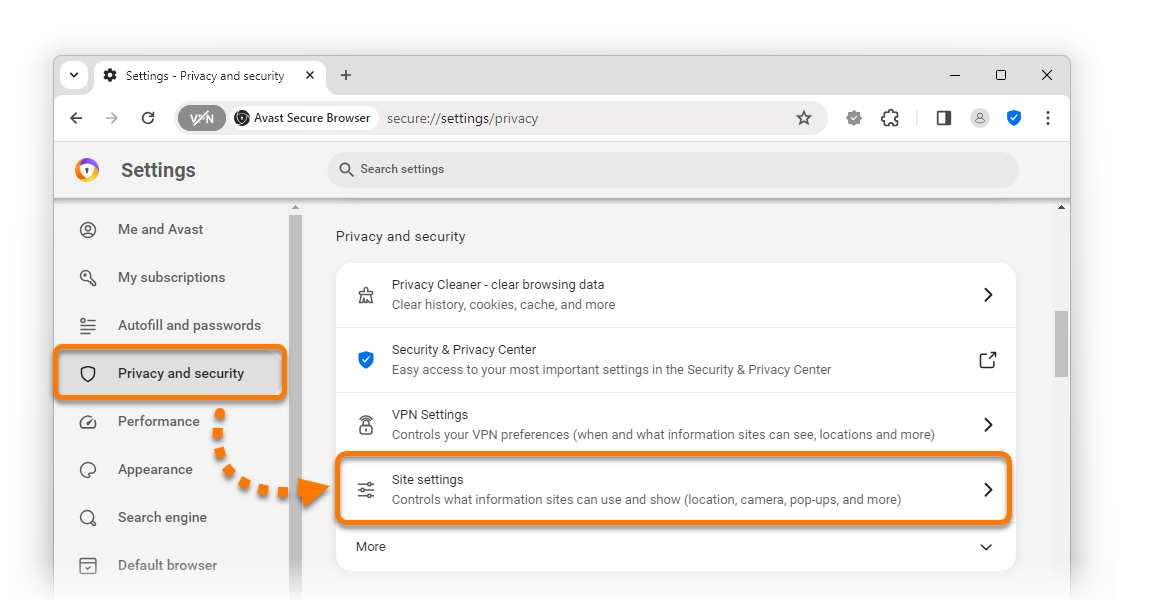
- Select the following options:
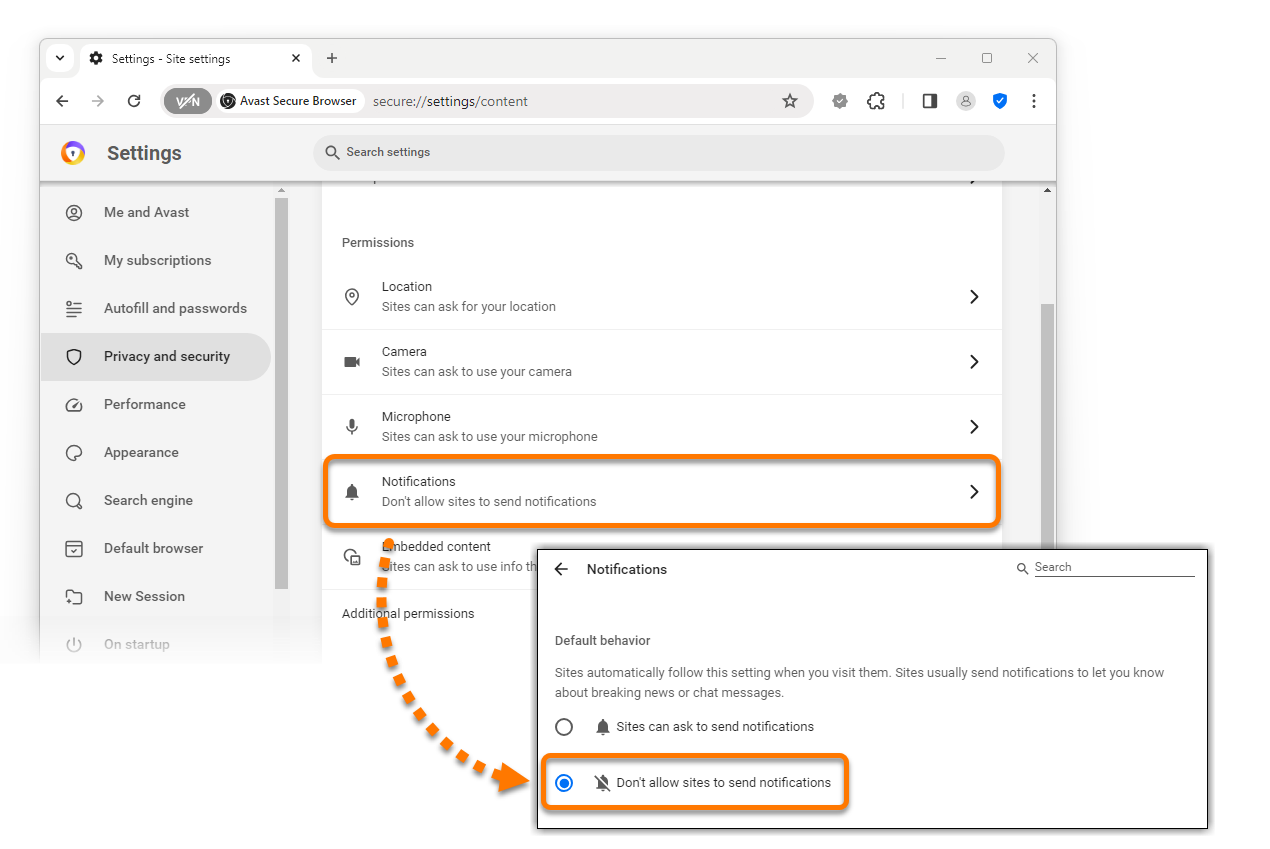
- Click Notifications, then select Don't allow sites to send notifications.
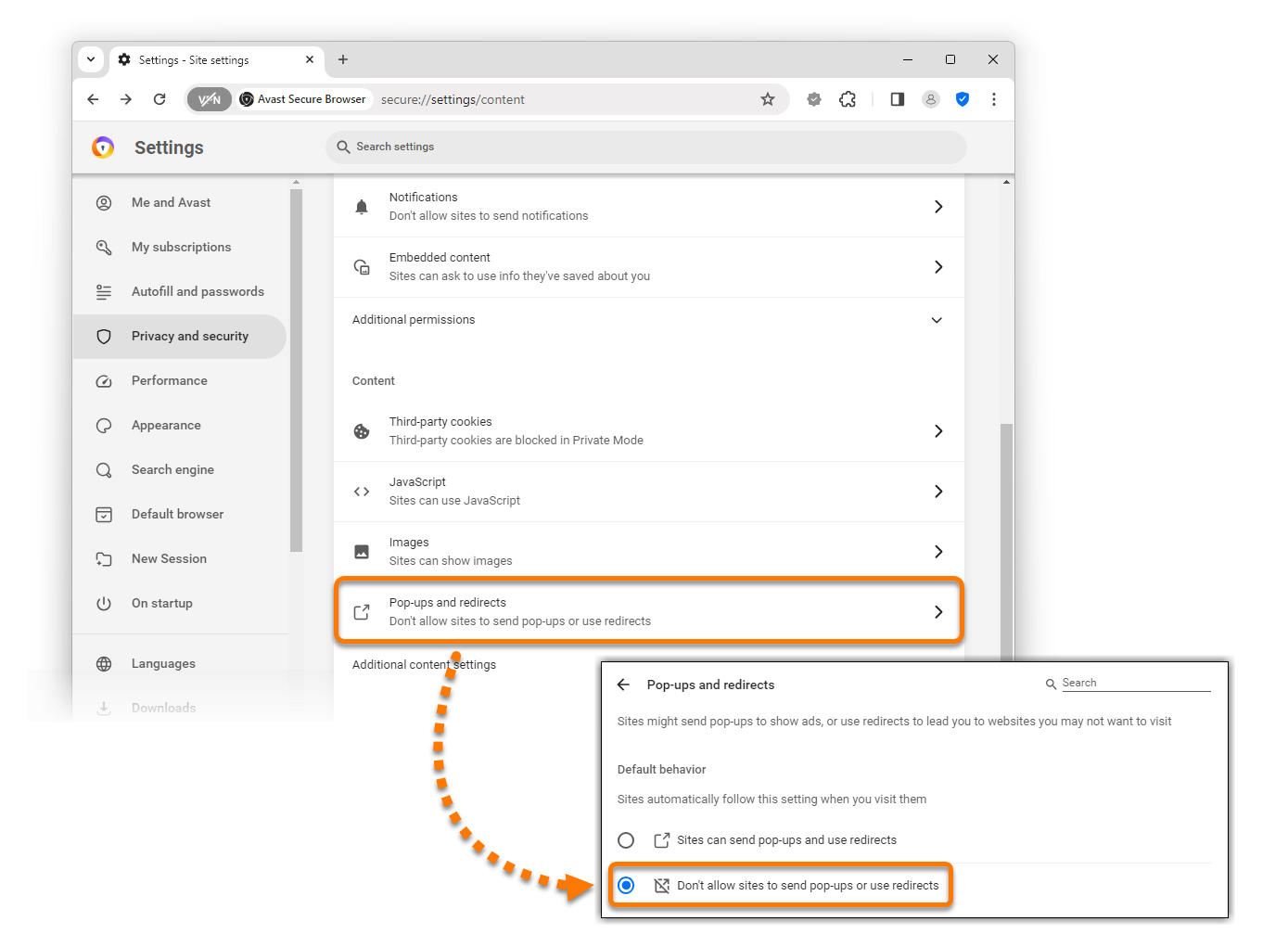
- Click Pop-ups and redirects, then select Don't allow sites to send pop-ups or redirects.
Avast SecureLine VPN
Follow the relevant steps to disable notifications or stop offers for other products:
To disable notifications:
- Open Avast SecureLine VPN and go to
☰ Menu ▸ Settings. 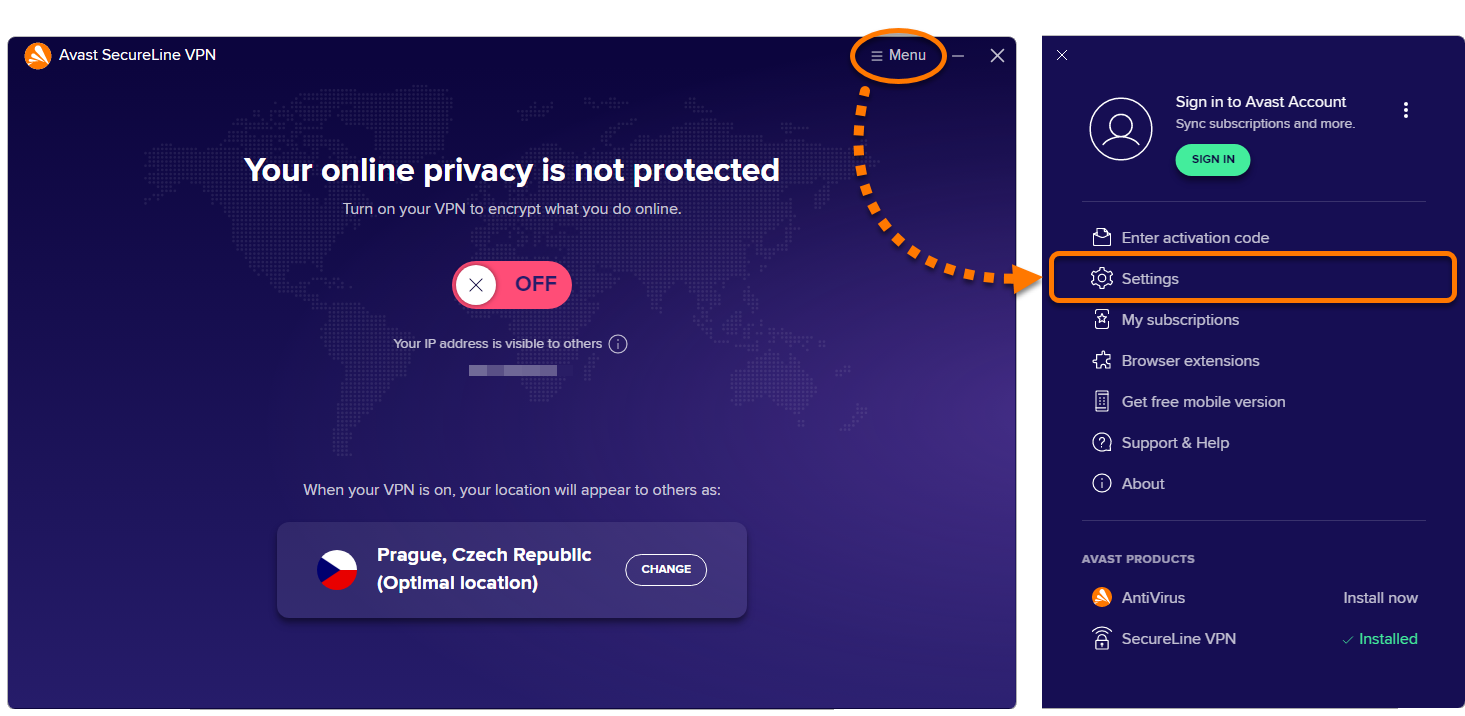
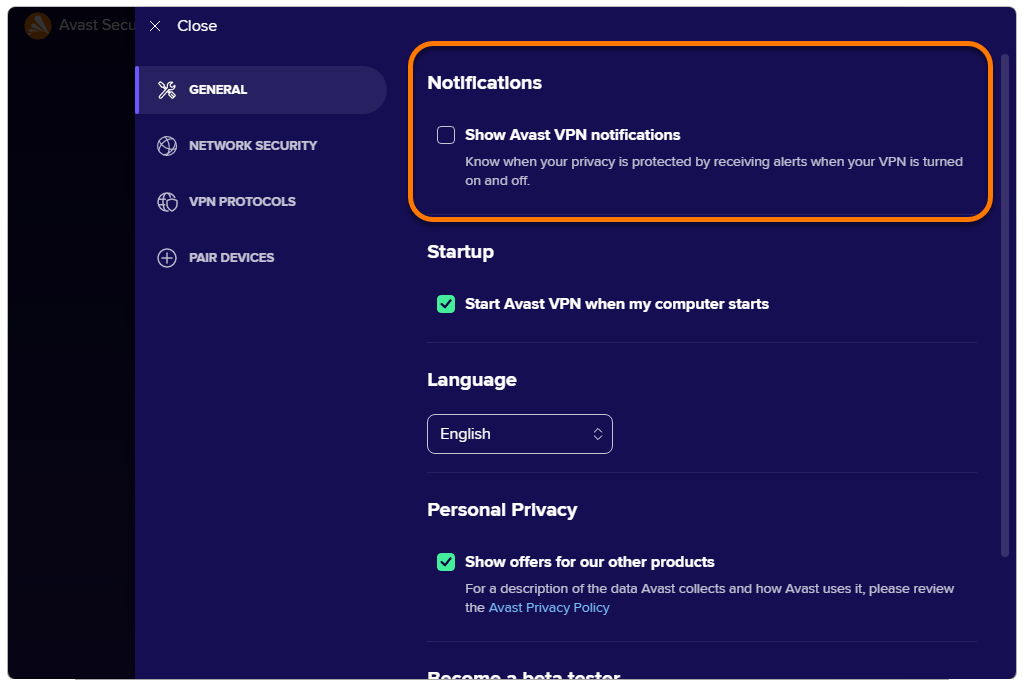
- Under Notifications, untick the box next to Show Avast VPN notifications.
Stop offers for other products:
- Open Avast SecureLine VPN and go to
☰ Menu ▸ Settings.
- Under Personal Privacy, untick the box next to Show offers for our other products.
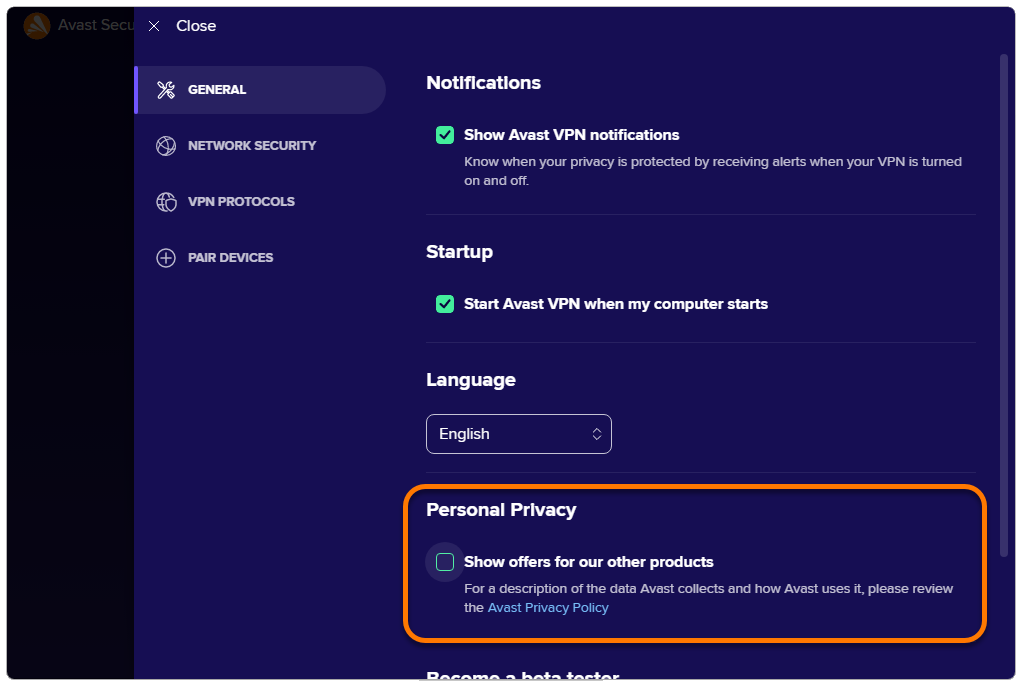
For information about data collection, refer to the Avast Privacy Policy.
Avast Security / Avast Premium Security
Follow the relevant steps to disable notifications or stop offers for other products:
Disable notifications
- Open Avast Security and go to
☰ Menu ▸ Preferences. 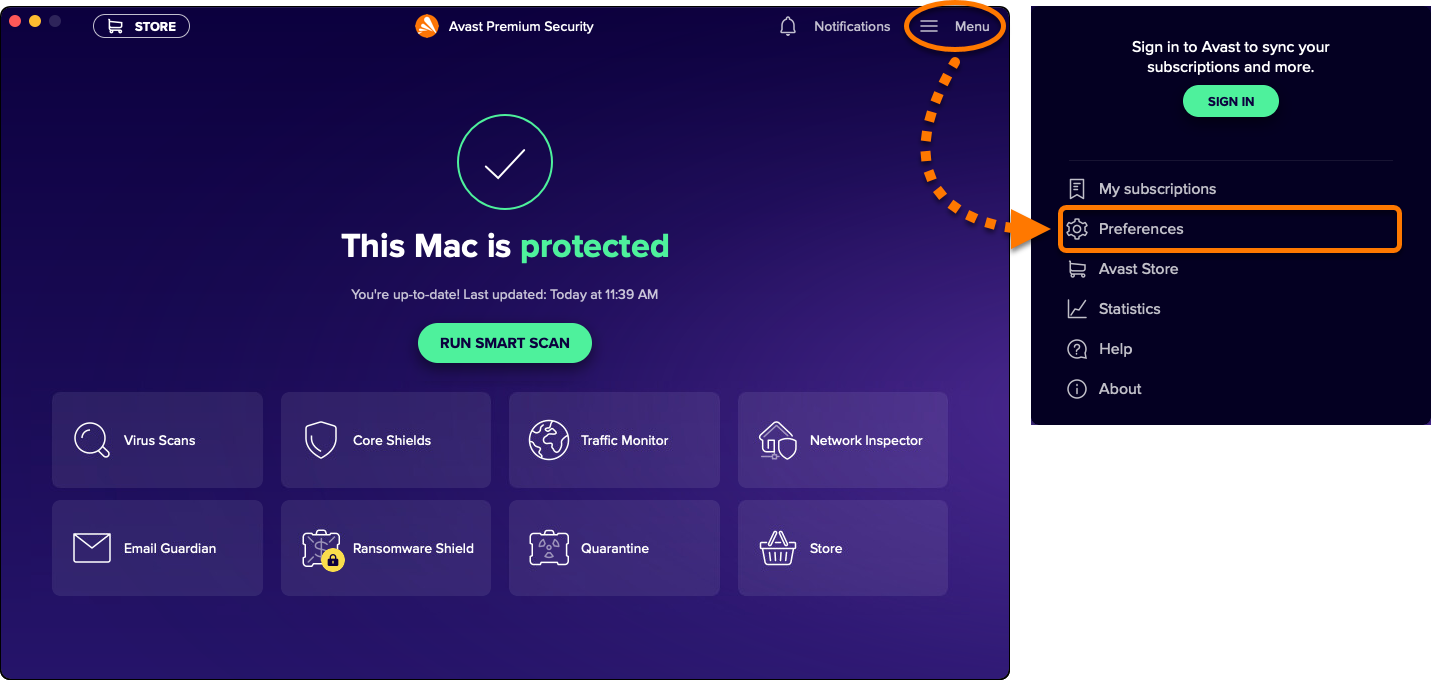
- Select the Notifications tab.
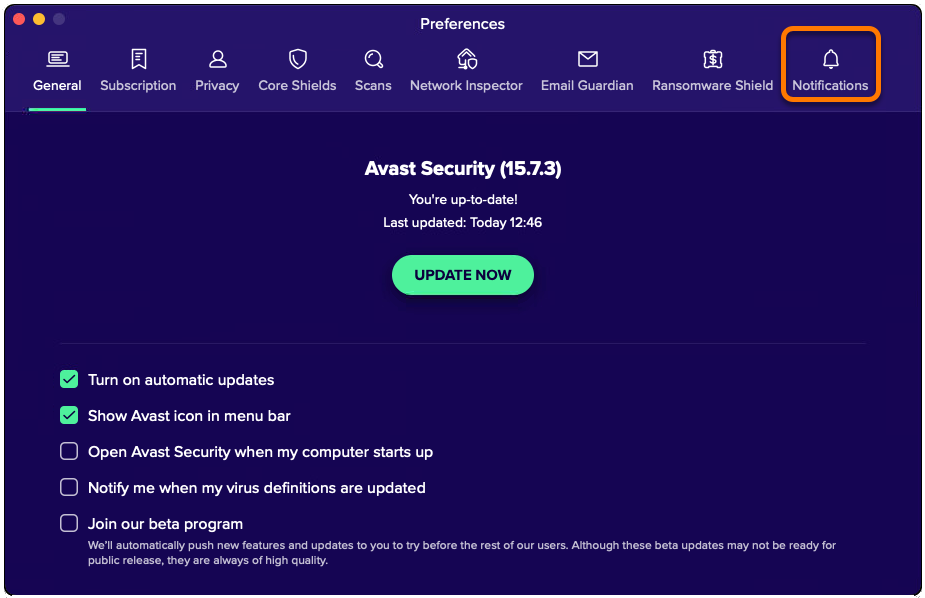
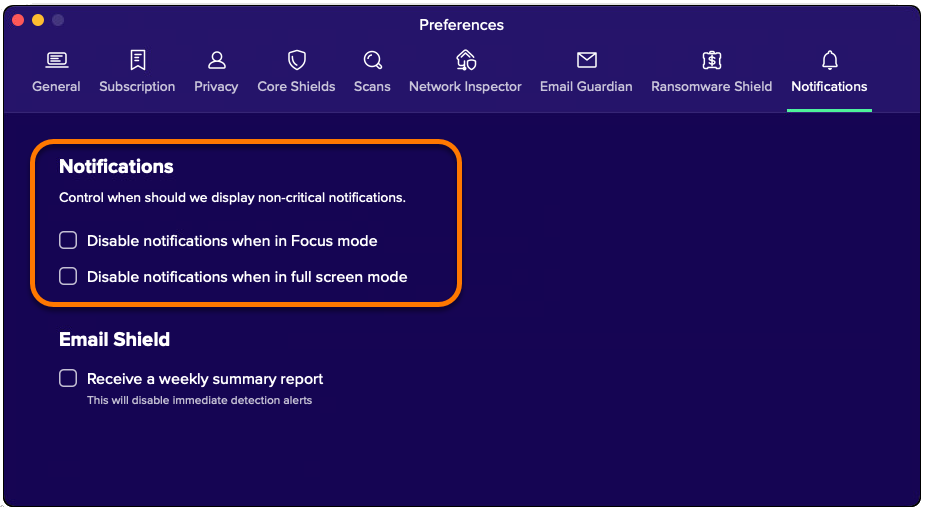
- Untick the boxes next to the following options:
- Disable notifications when in Focus mode.
- Disable notifications when in full screen mode.
Stop offers for other products
- Open Avast Security and go to
☰ Menu ▸ Preferences.
- Select the Privacy tab.
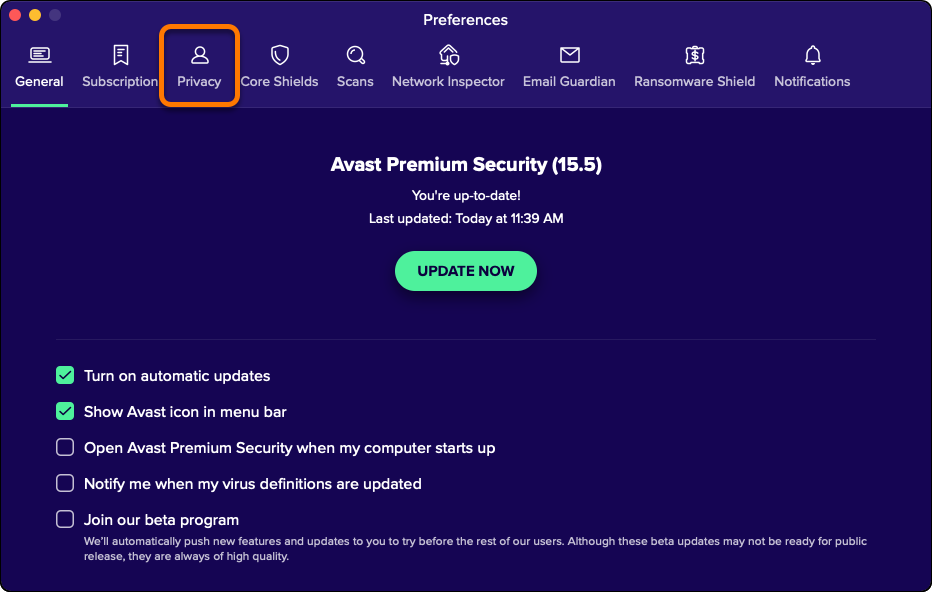
- Untick the box next to See possible upgrades and offers for our other products by sharing app-usage data with us.

For information about data collection, refer to the Avast Privacy Policy.
Avast AntiTrack
Follow the relevant steps to disable notifications or stop offers for other products:
Disable notifications
- Open Avast AntiTrack and go to Settings.
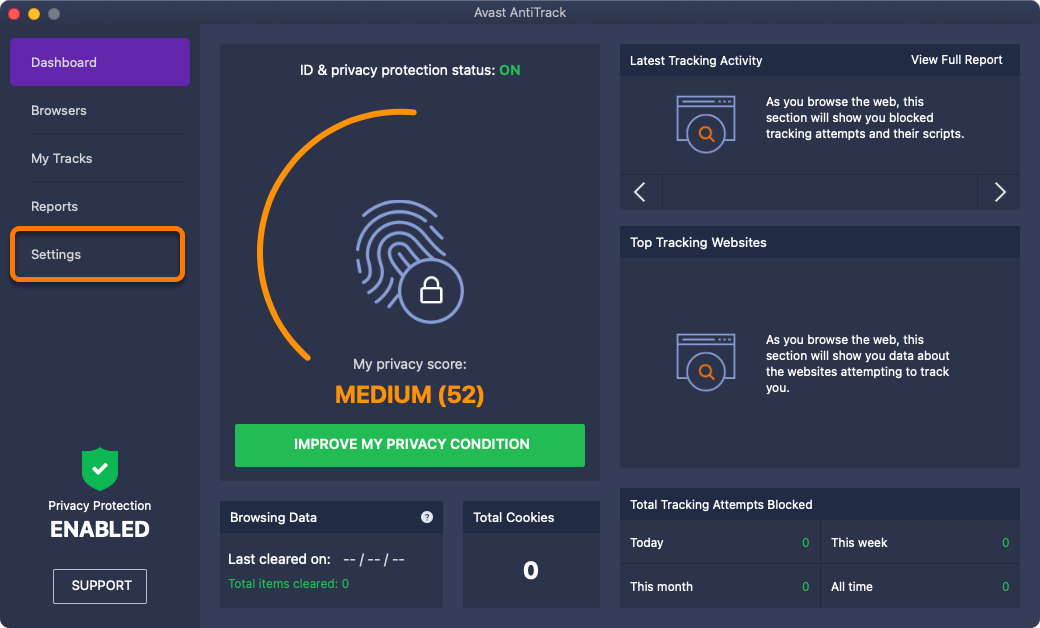
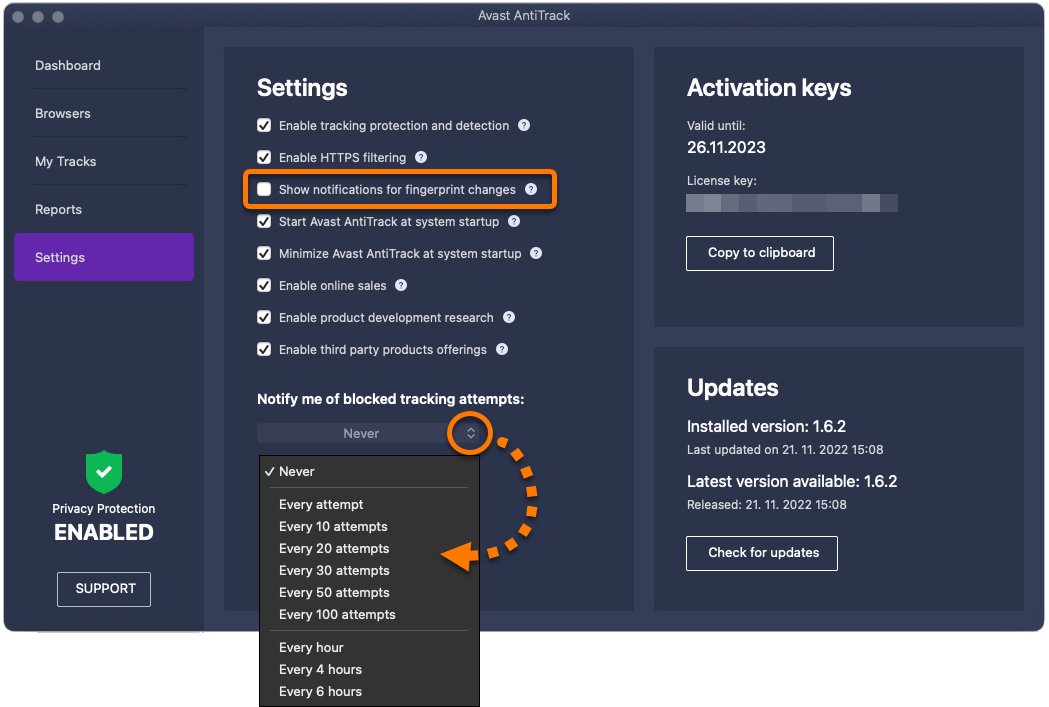
- Untick the box next to Show notifications for fingerprint changes, then select your preferred option for Notify me of blocked tracking attempts.
Stop offers for other products
- Open Avast AntiTrack and go to Settings.
- Untick the box next to Enable third party products offerings.

For information about data collection, refer to the Avast Privacy Policy.
Avast Cleanup
To stop offers for other products:
- Open Avast Cleanup and go to
 Settings (the gear icon).
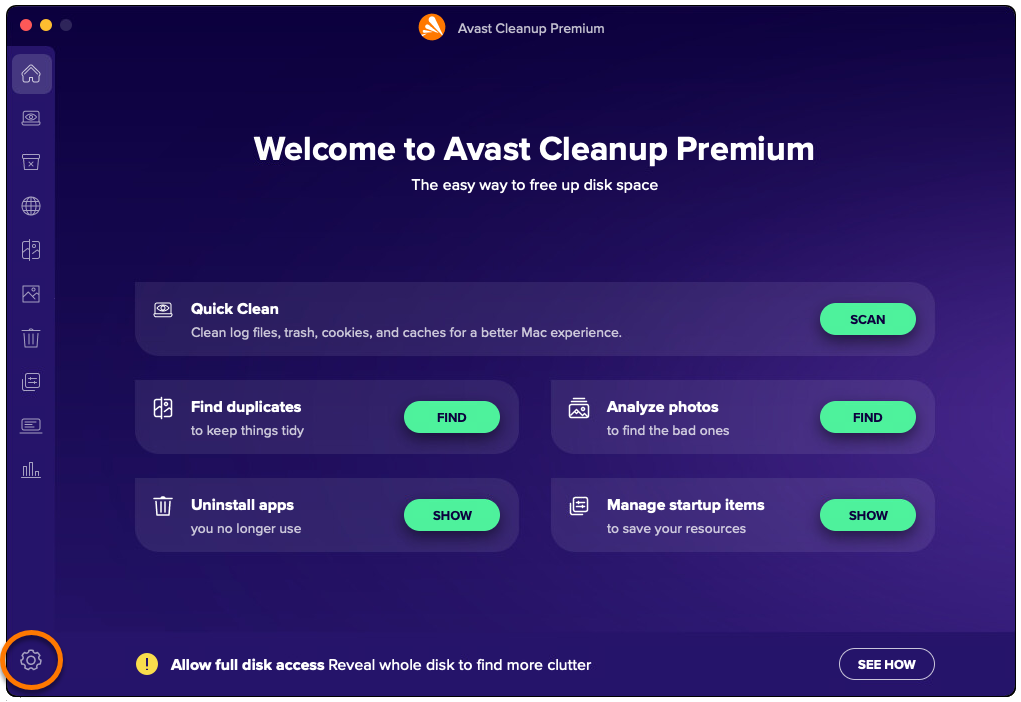
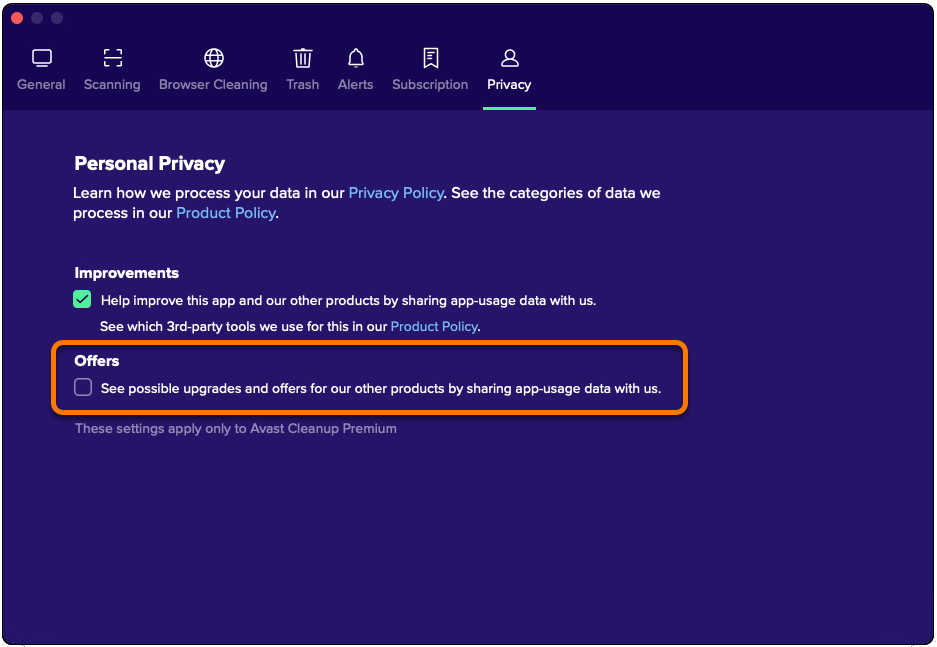
- Select the Privacy tab.
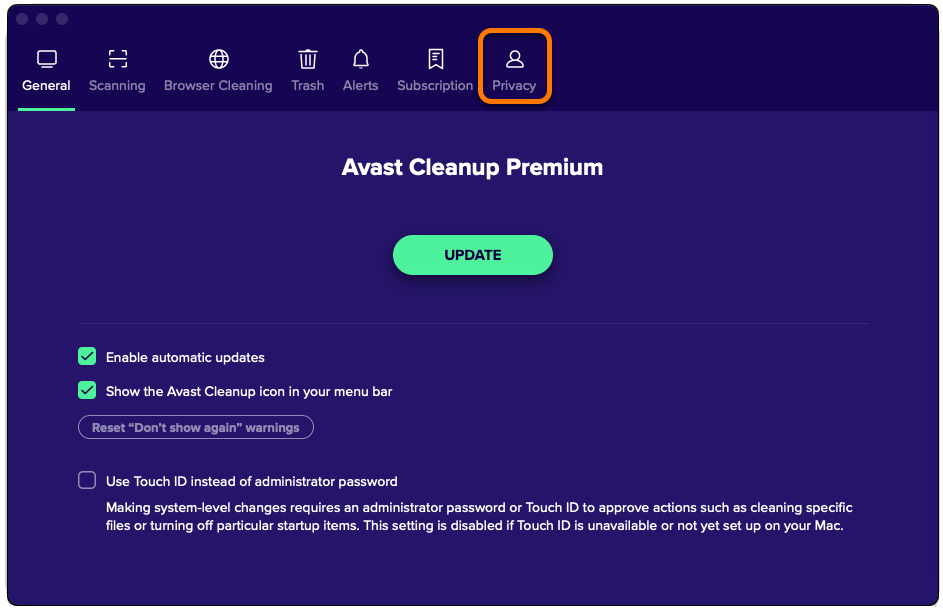
- Untick the box next to See possible upgrades and offers for our other products by sharing app-usage data with us.
Avast One
Follow the relevant steps to disable notifications or stop offers for other products:
Disable notifications
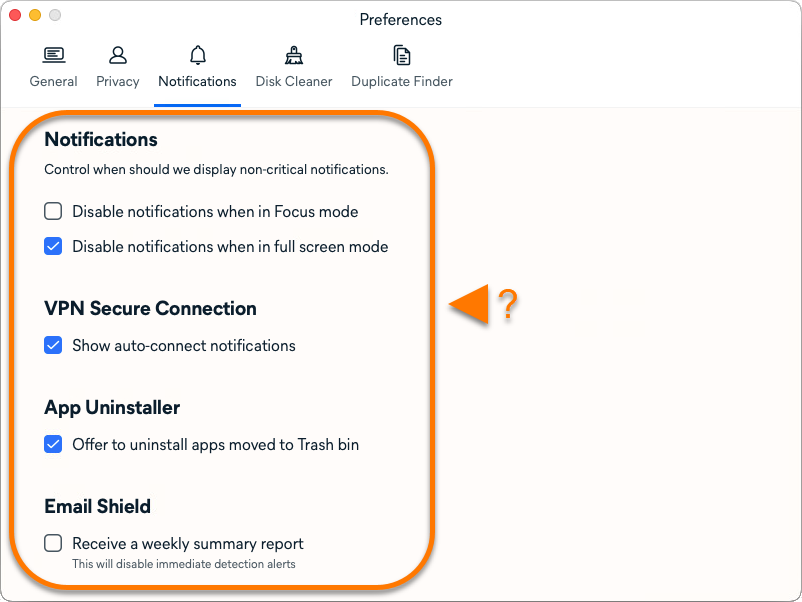
- Open Avast One and go to Account ▸ Preferences.
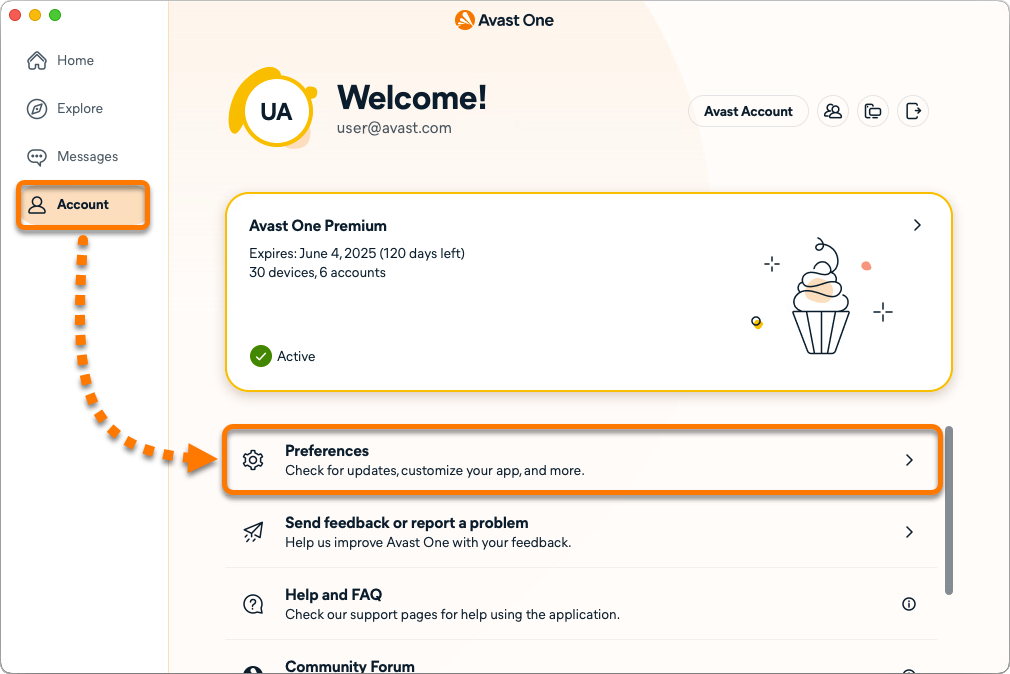
- Select the Notifications tab.
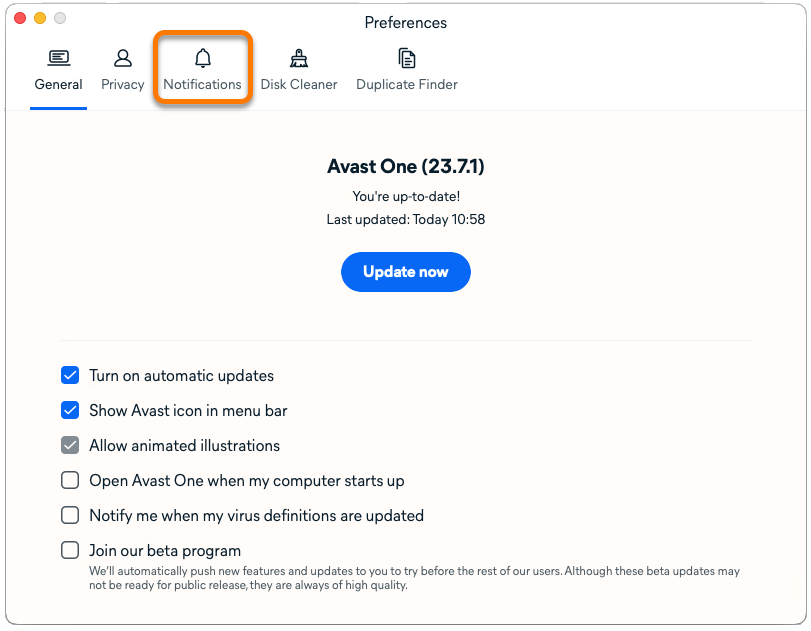
- Untick the boxes next to notifications that you do not want to receive.
Stop offers for other products
- Open Avast One and go to Account ▸ Preferences.
- Select the Privacy tab.
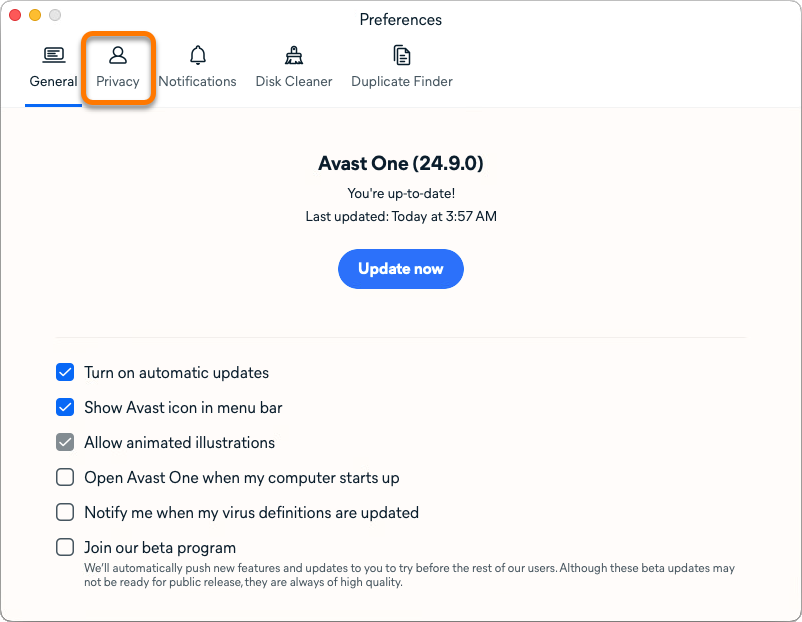
- Untick the box under Offers.

For information about data collection, refer to the Avast Privacy Policy.
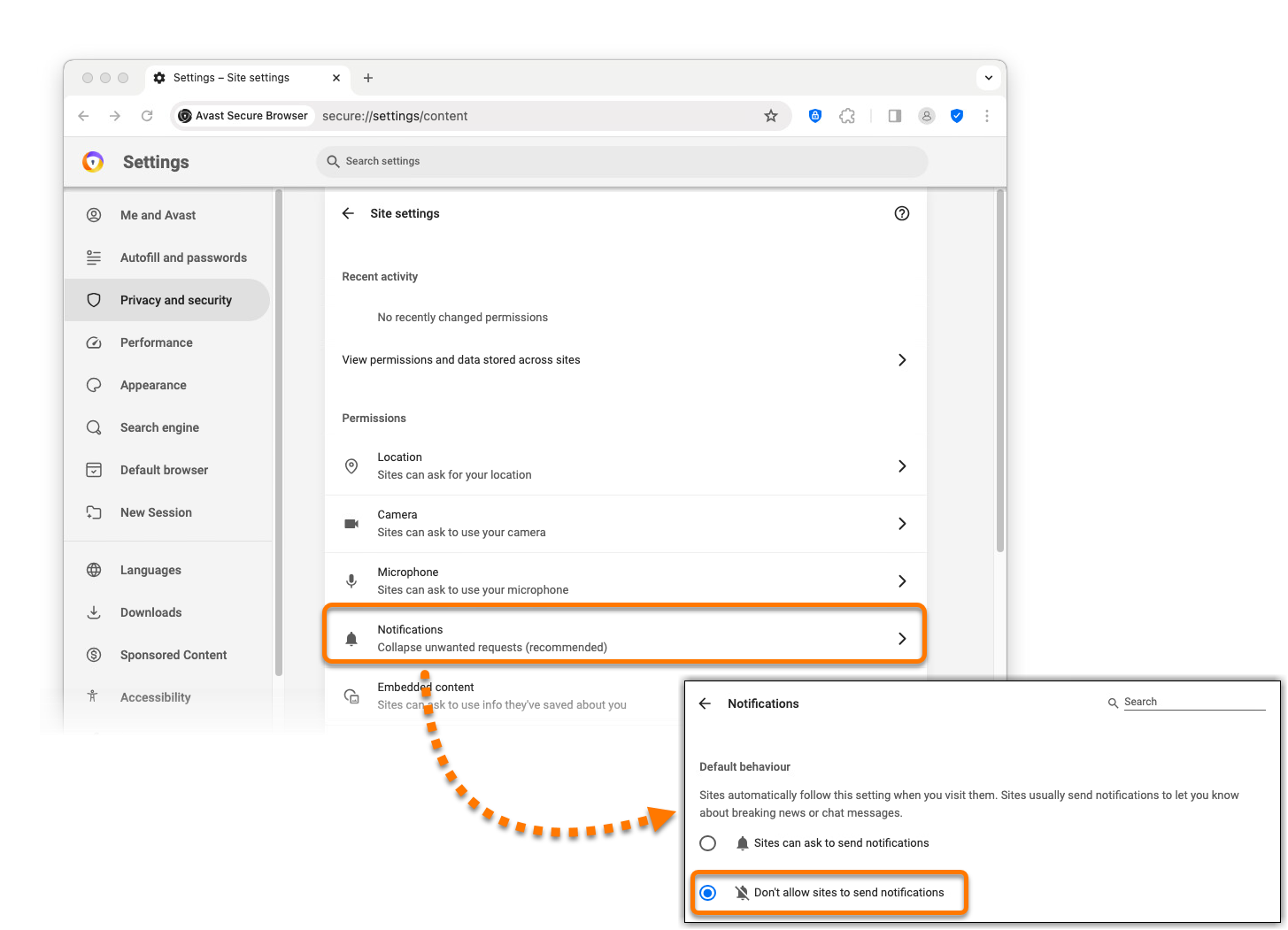
Avast Secure Browser
To disable notifications:
- Open Avast Secure Browser and go to
⋮ Menu ▸ Settings. 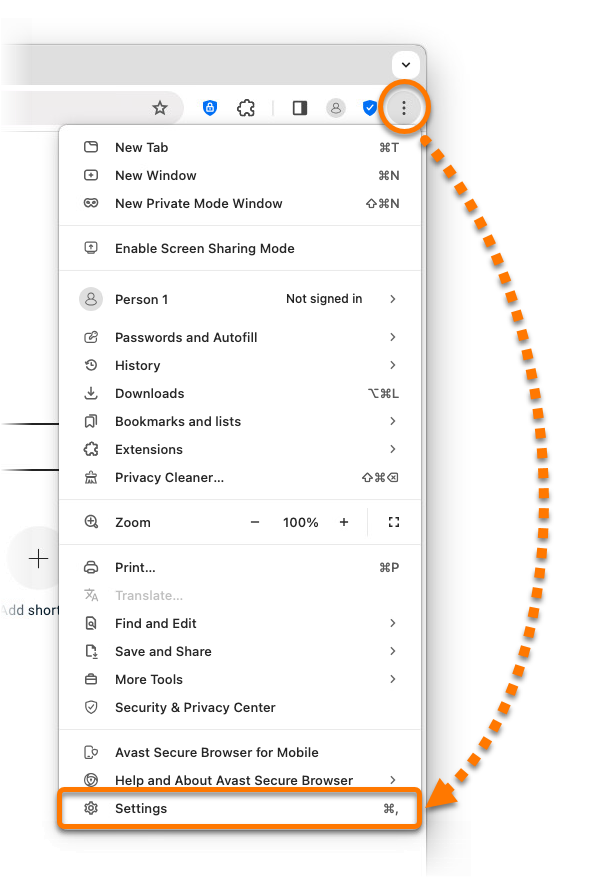
- In the left menu, select Privacy and security, then click Site settings.
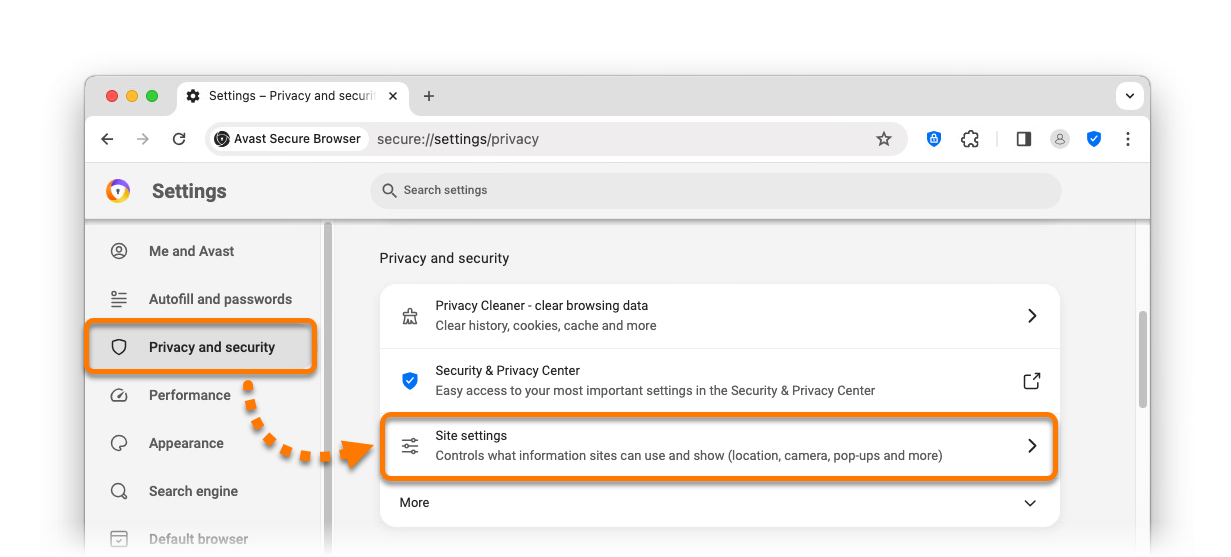
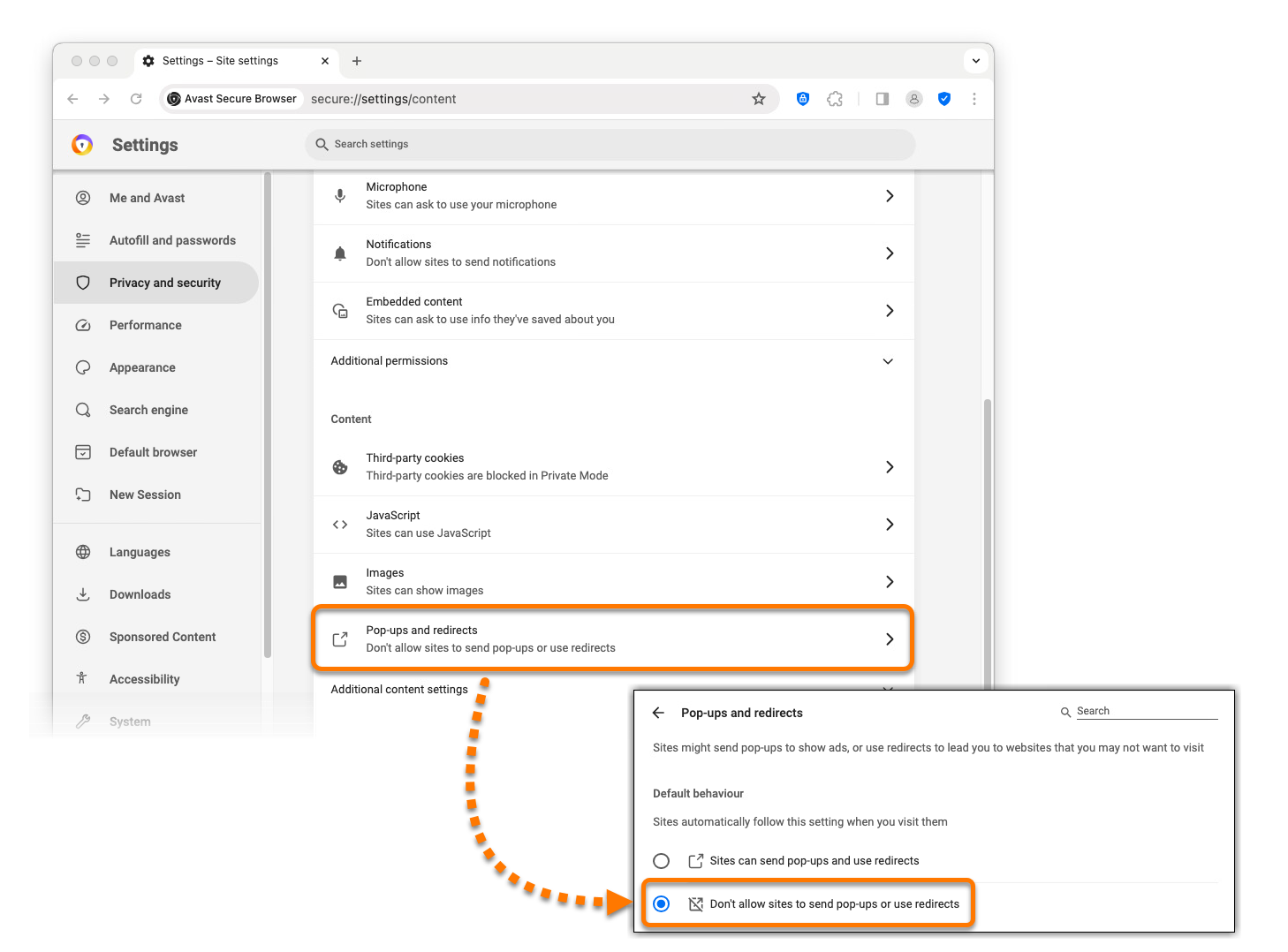
- Select the following options:
- Click Notifications, then select Don't allow sites to send notifications.
- Click Pop-ups and redirects, then select Don't allow sites to send pop-ups or redirects.
Avast SecureLine VPN
Follow the relevant steps to disable notifications or stop offers for other products:
Disable notifications
- Open Avast SecureLine VPN and go to
☰ Menu ▸ Preferences. 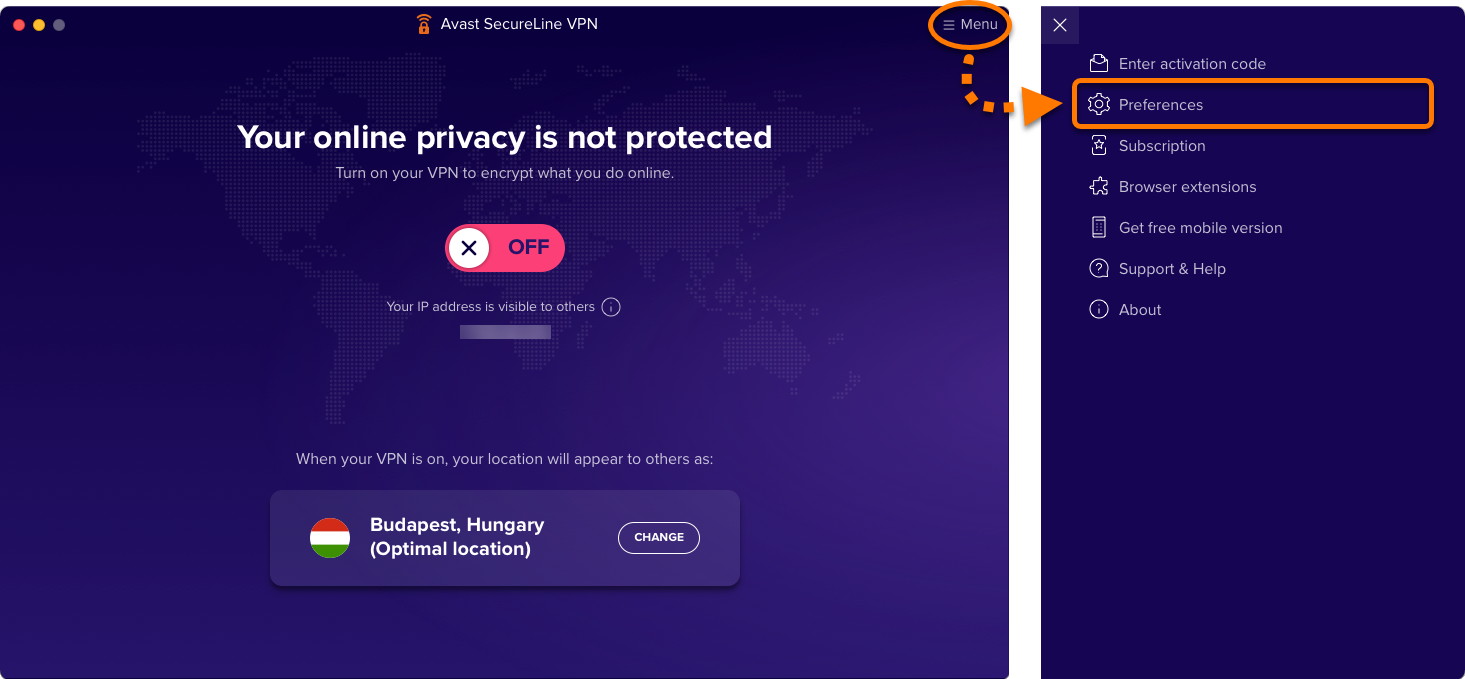
- Select General.
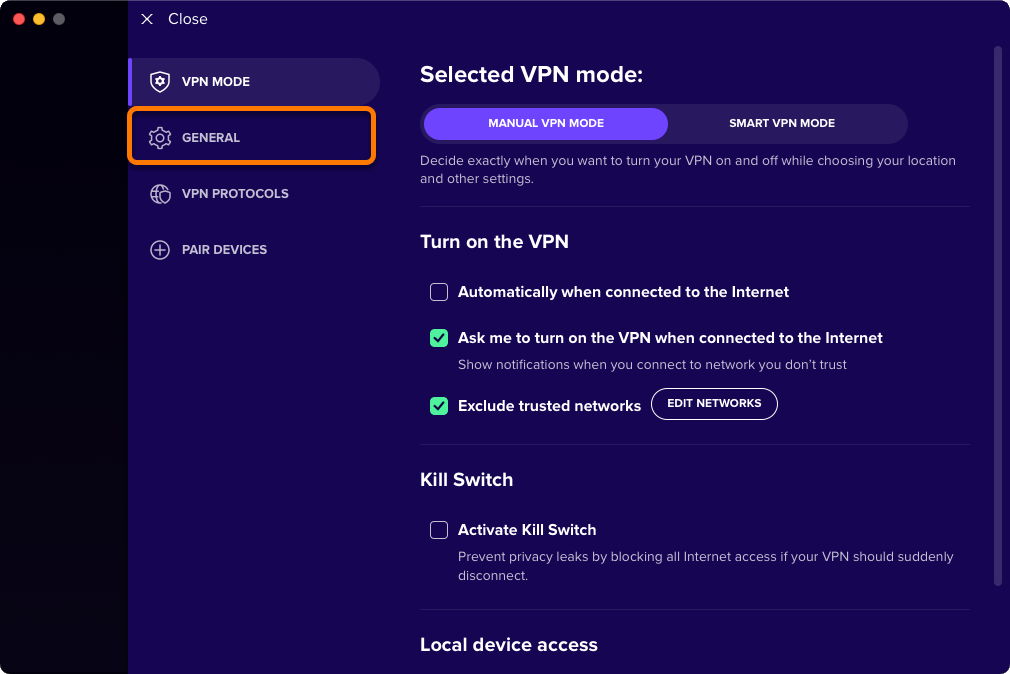
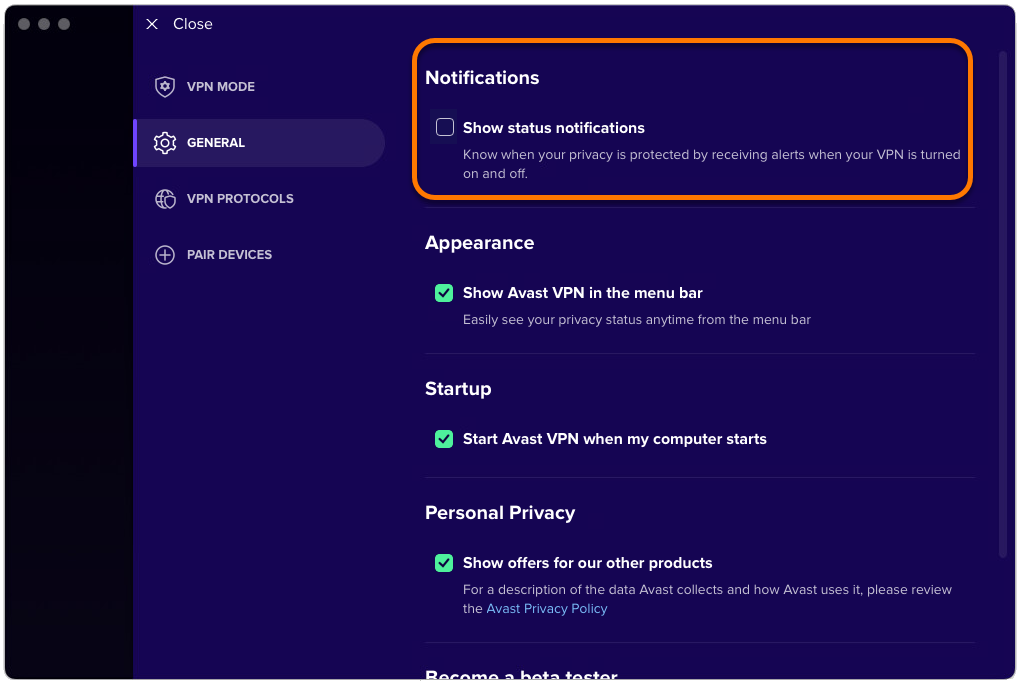
- Under Notifications, untick the box next to Show status notifications.
Stop offers for other products
- Open Avast SecureLine VPN and go to
☰ Menu ▸ Preferences.
- Select General.
- Under Personal Privacy, untick the box next to Show offers for our other products.

For information about data collection, refer to the Avast Privacy Policy.


 Settings (the gear icon).


 Settings (the gear icon).