To uninstall Avast Secure Browser from a Windows device, select the relevant tab below according to your Windows version.
Uninstall via Start menu
Windows 11
- Right-click the Windows
 Start icon, then select Apps and Features from the menu that appears.
- Ensure that Apps is selected in the left panel, then click
⋮ (three dots) next to Avast Secure Browser and select Uninstall. 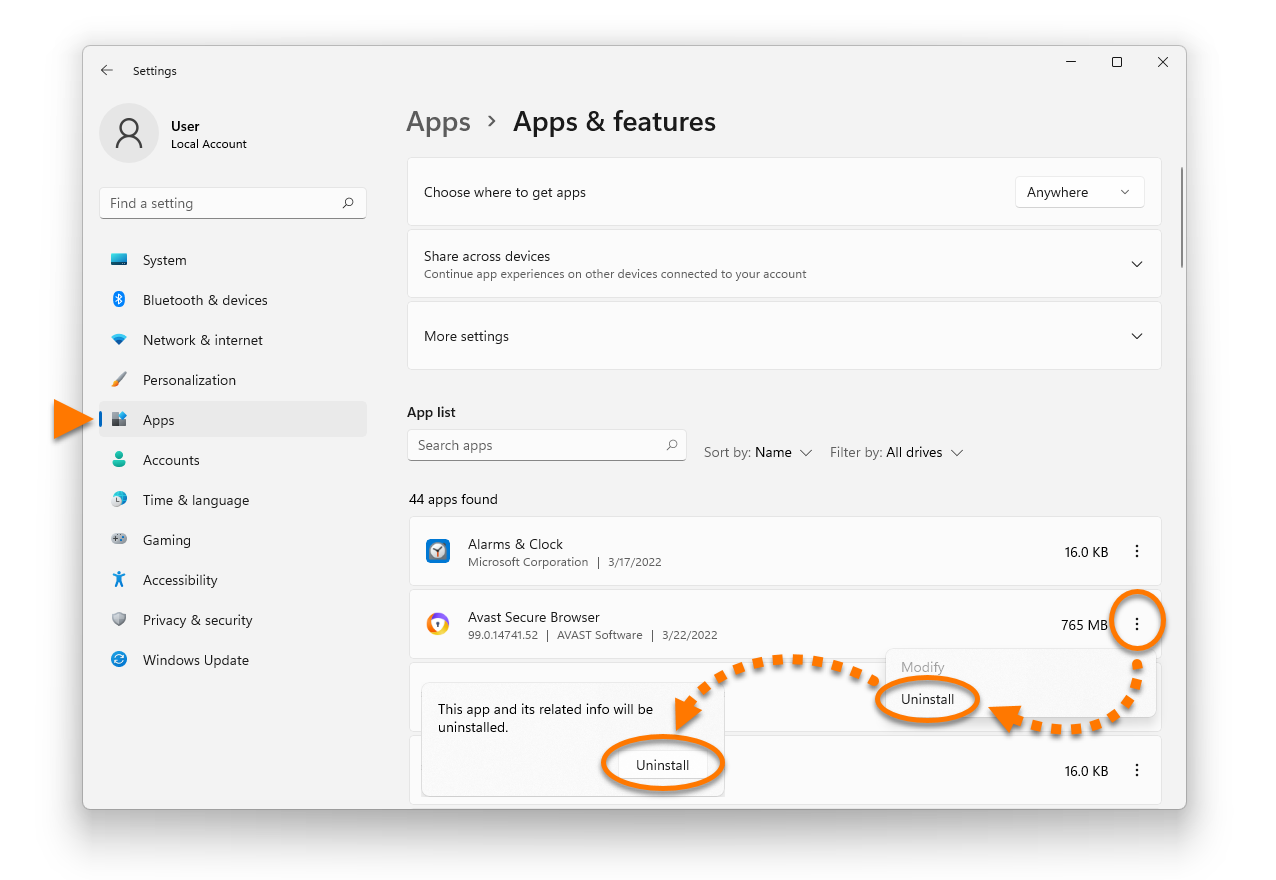
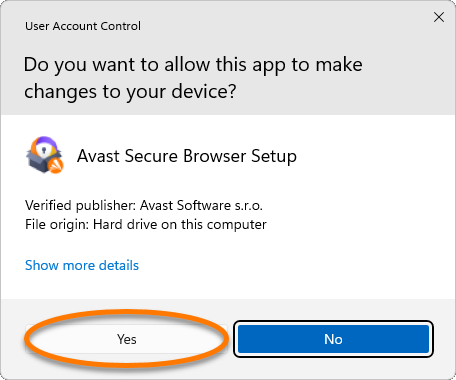
- If prompted for permission by the User Account Control dialog, click Yes.
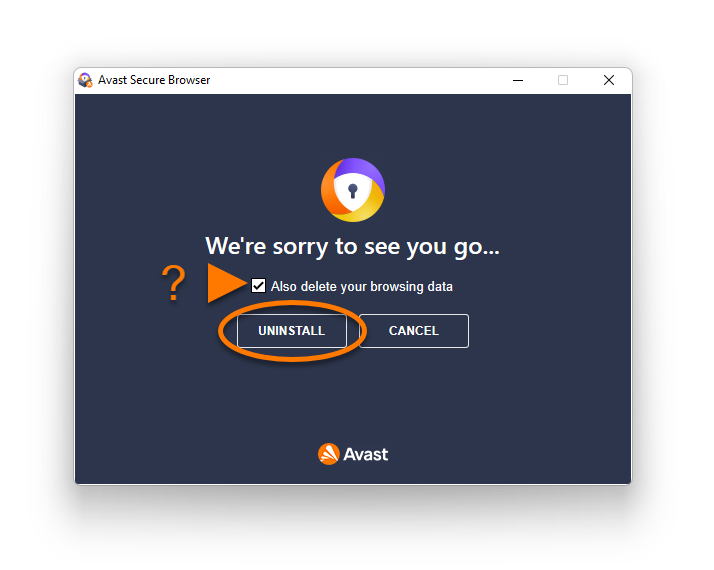
- Optionally, tick the box next to Also delete your browsing data to delete your profile information, such as bookmarks and history. Then click Uninstall to continue.
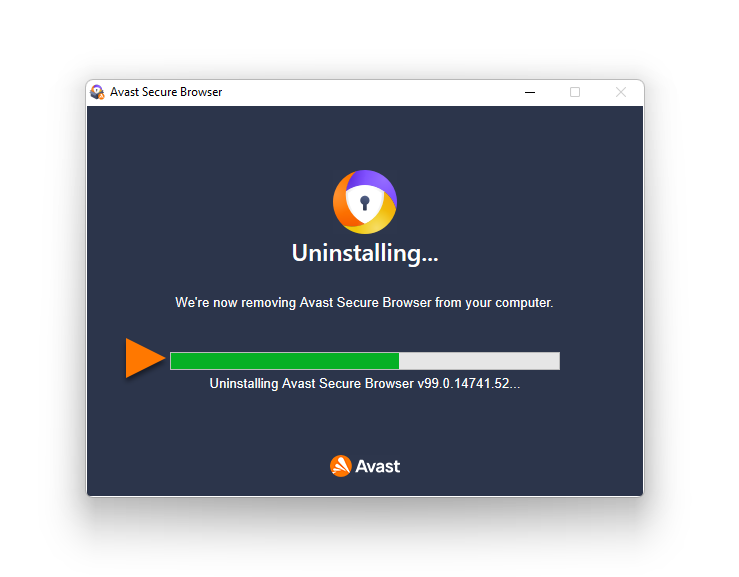
- Wait while the uninstaller removes Avast Secure Browser from your PC.
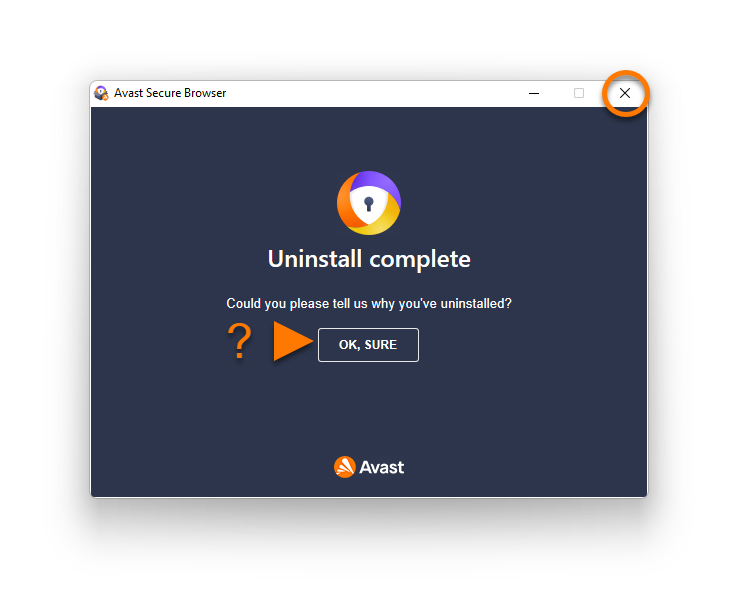
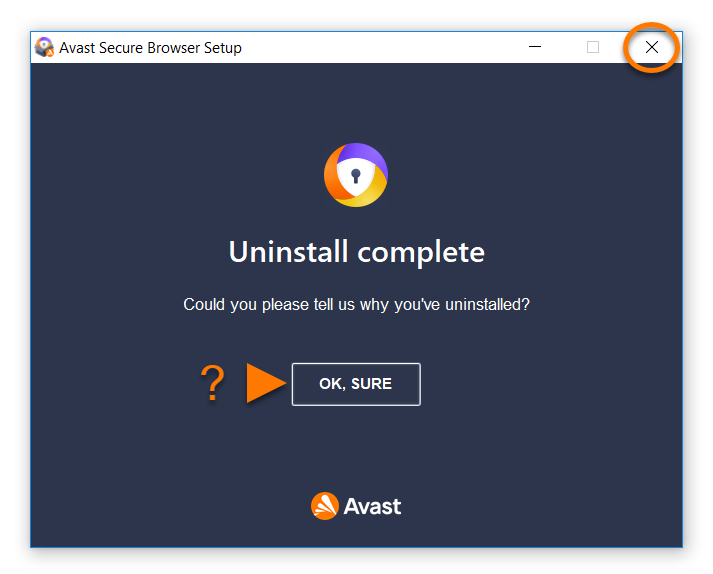
- When the confirmation message appears, optionally click OK, Sure to complete the uninstallation survey, or click the X in the top-right corner to close the window.
Windows 10
- Right-click the Windows
 Start icon, then select Apps and Features from the menu that appears.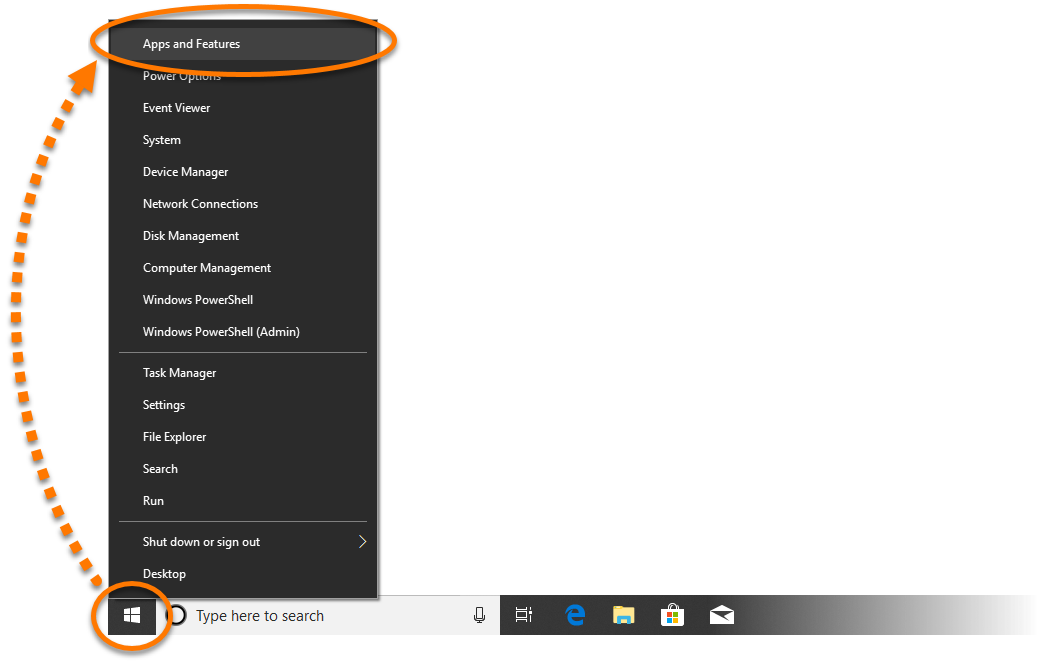
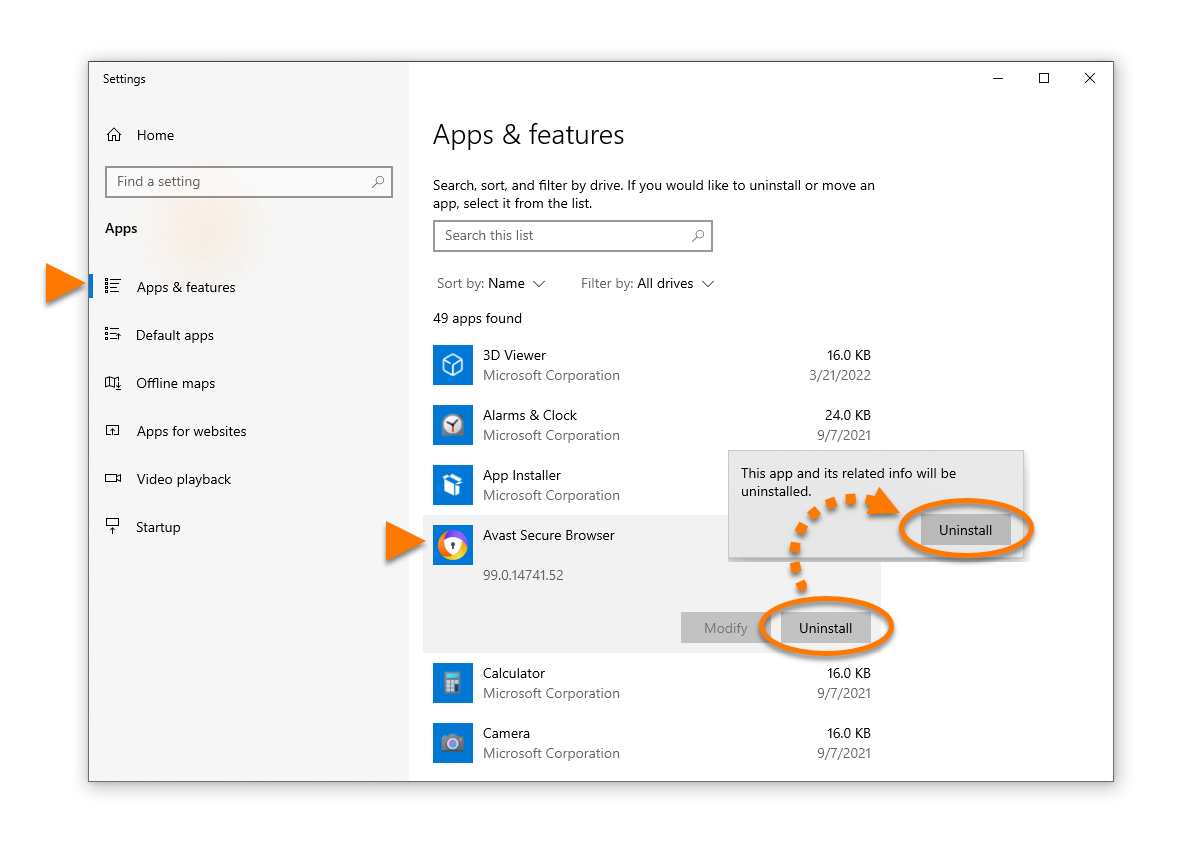
- Ensure that Apps & features is selected in the left panel, then click Avast Secure Browser, and select Uninstall.
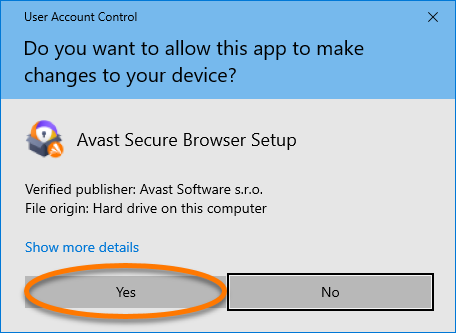
- If prompted for permission by the User Account Control dialog, click Yes.
- Optionally, tick the box next to Also delete your browsing data to delete your profile information, such as bookmarks and history. Then click Uninstall to continue.
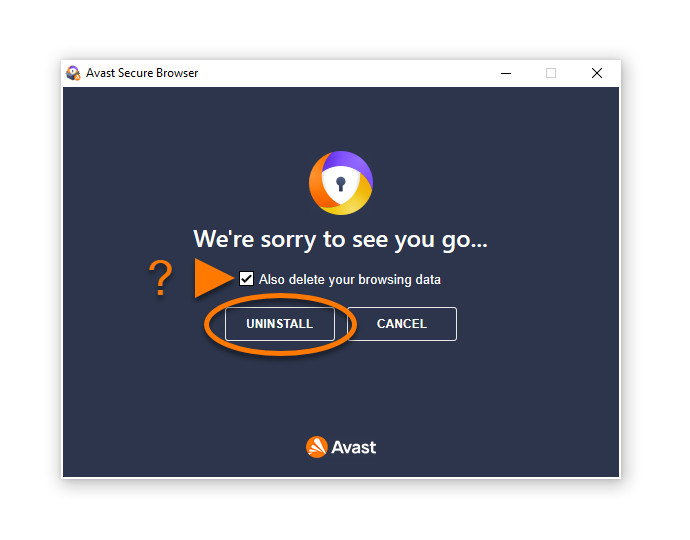
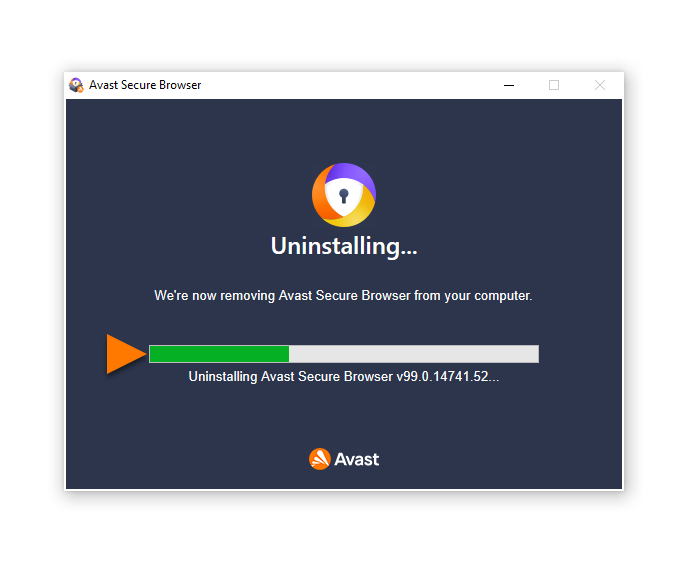
- Wait while the uninstaller removes Avast Secure Browser from your PC.
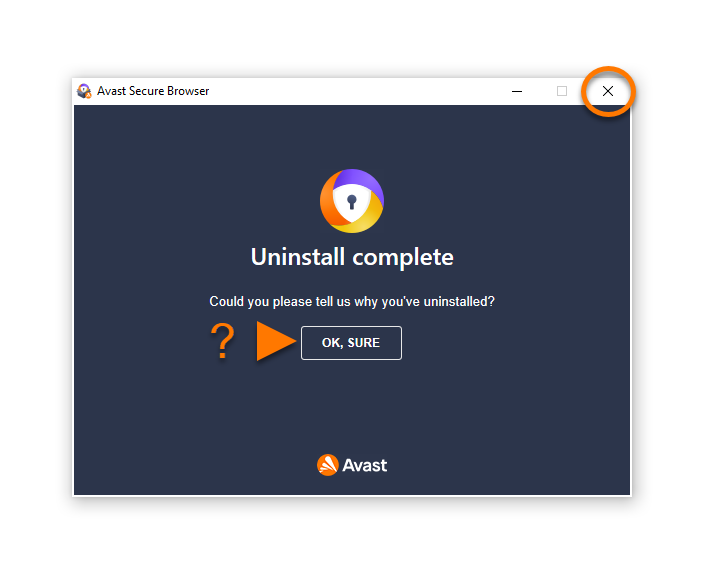
- When the confirmation message appears, optionally click OK, Sure to complete the uninstallation survey, or click the X in the top-right corner to close the window.
Windows 8
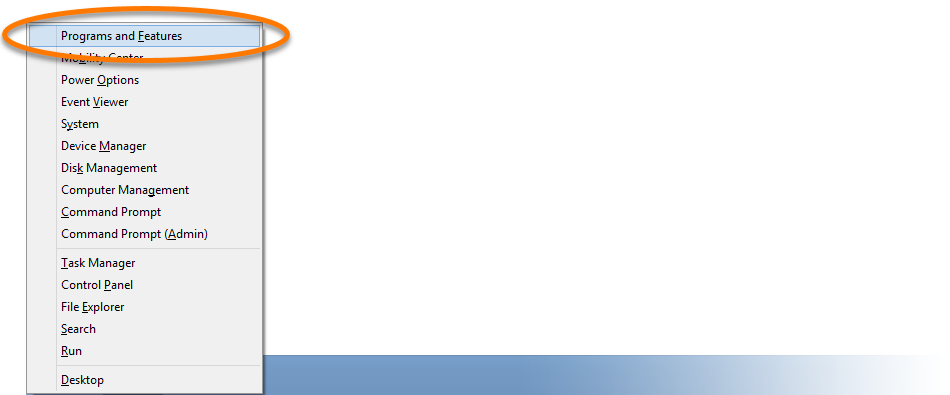
- On your keyboard, press the Windows
 logo key and
 X key simultaneously. 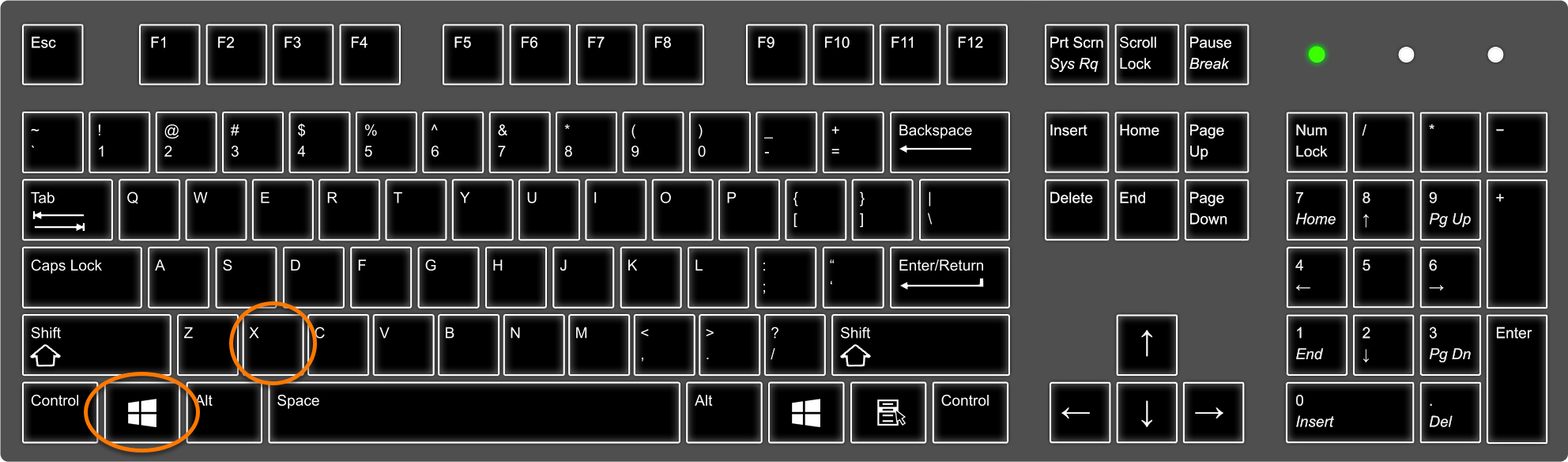
- Select Programs and Features from the menu that appears.
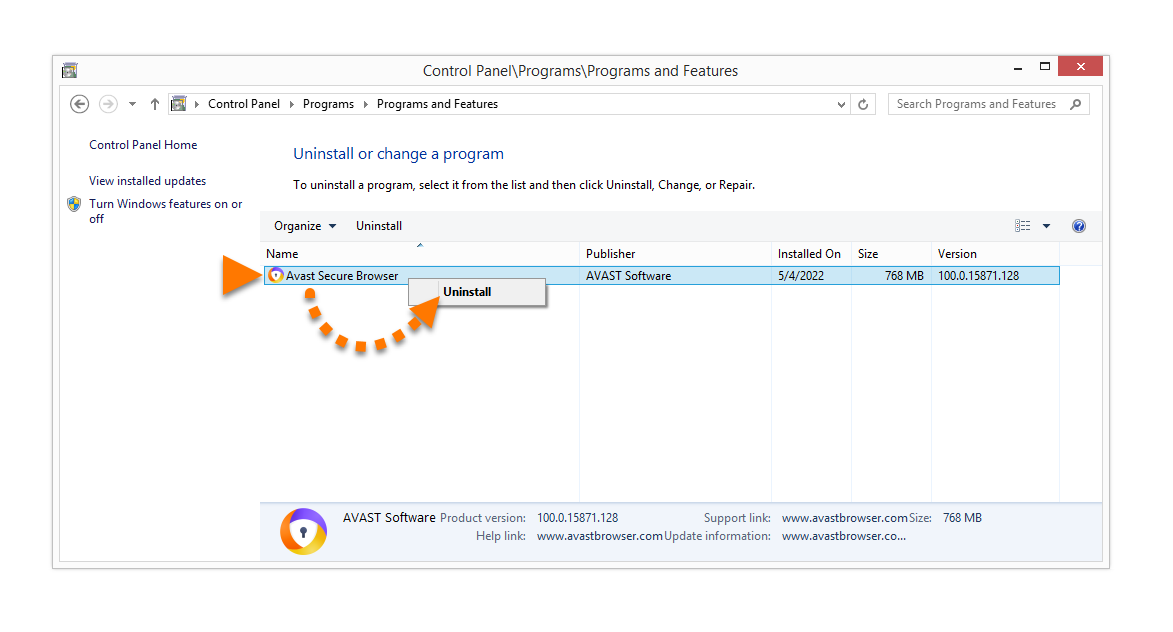
- Right-click Avast Secure Browser, then select Uninstall from the drop-down menu.
- If prompted for permission by the User Account Control dialog, click Yes.

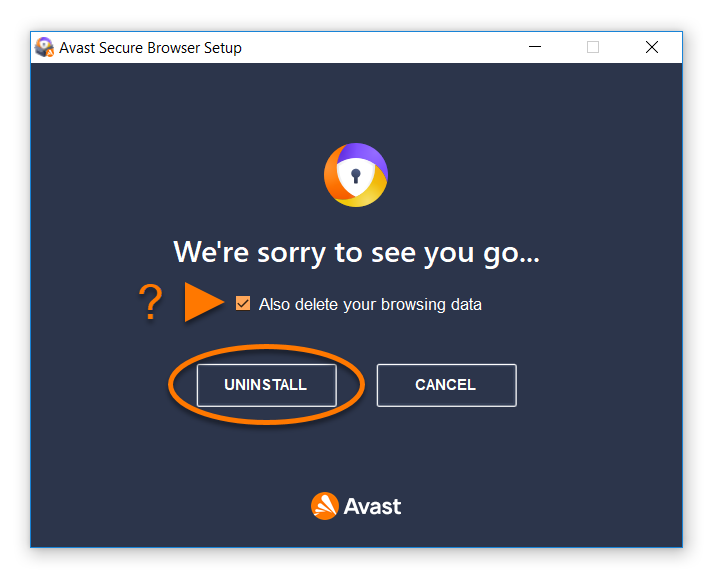
- Optionally, tick the box next to Also delete your browsing data to delete your profile information, such as bookmarks and history. Then click Uninstall to continue.
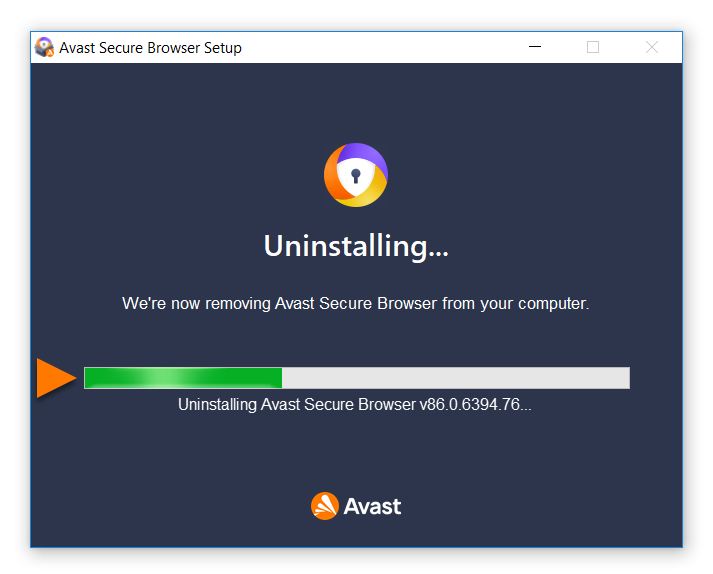
- Wait while the uninstaller removes Avast Secure Browser from your PC.
- When the confirmation message appears, optionally click OK, Sure to complete the uninstallation survey, or click the X in the top-right corner to close the window.
Windows 7
- Click the Windows
 Start icon, then select Control Panel.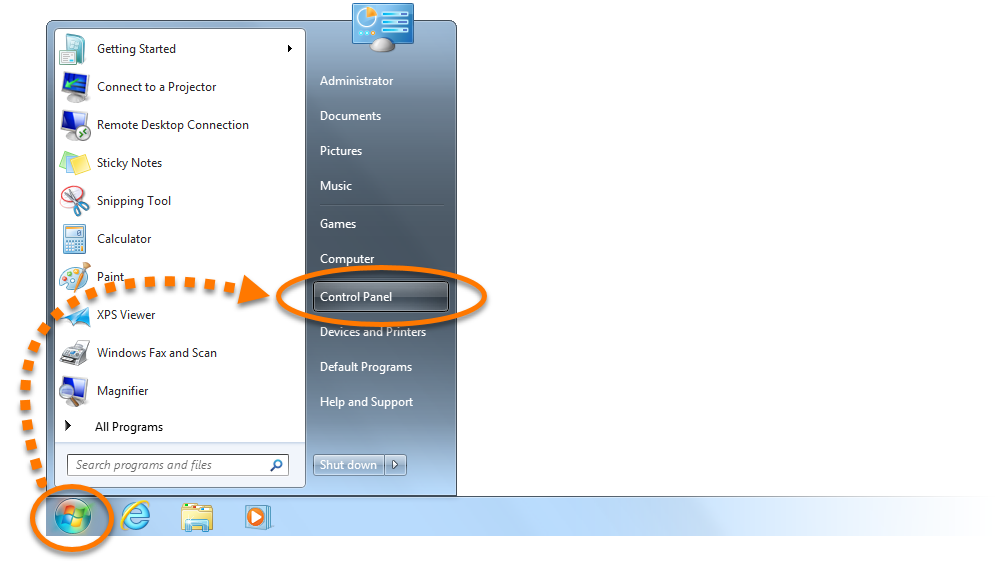
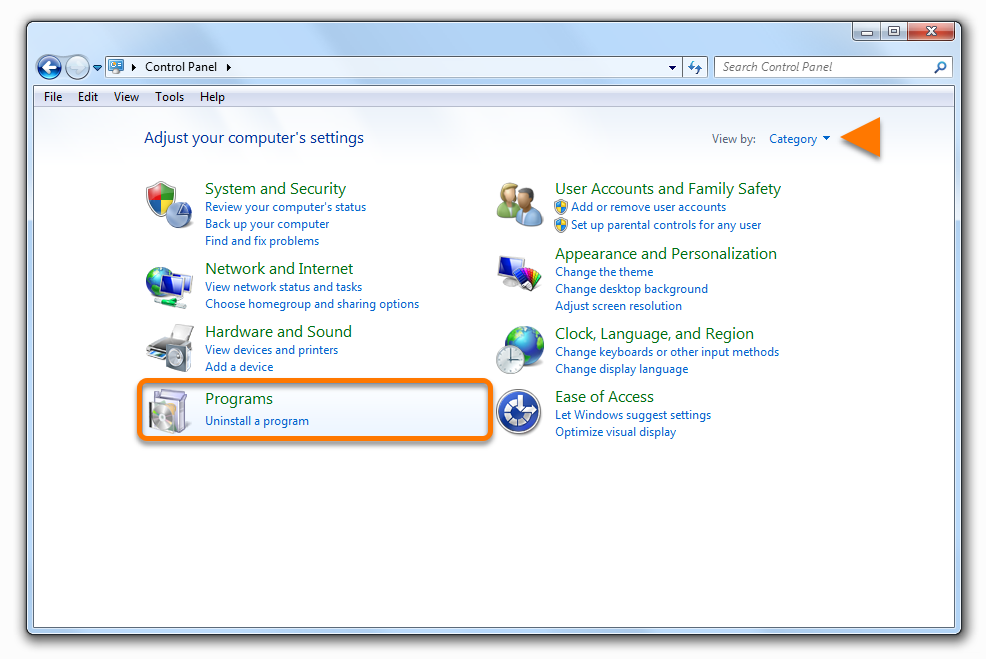
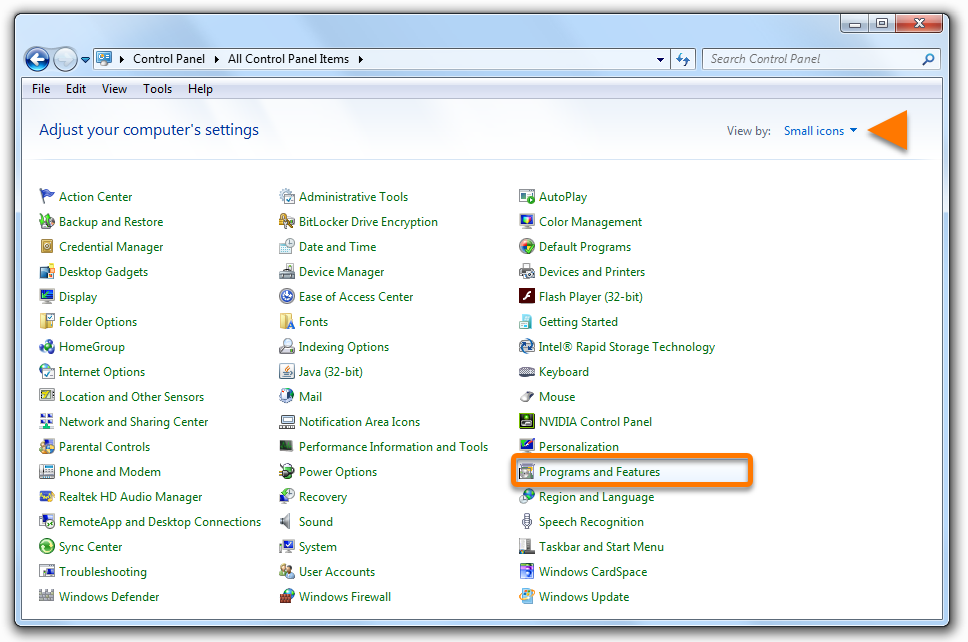
- Follow option A or option B below according to your view:
- Option A (Default category view): Under Programs, click Uninstall a program.
- Option B (Large/small icons view): Click Programs and Features.
- Right-click Avast Secure Browser, then select Uninstall from the drop-down menu.
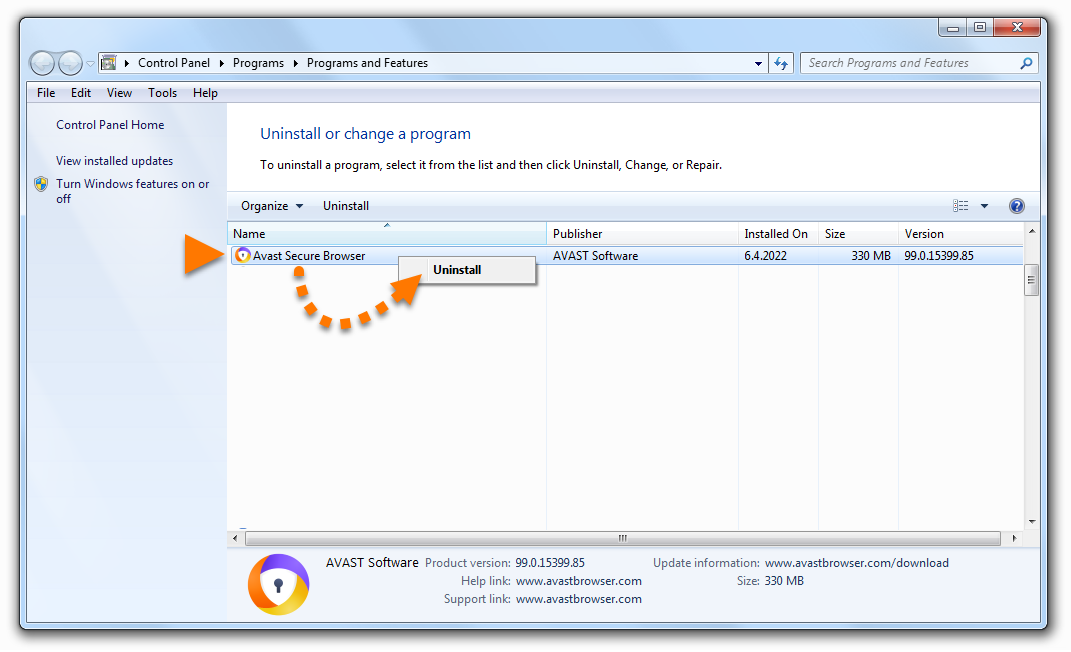
- If prompted for permission by the User Account Control dialog, click Yes.
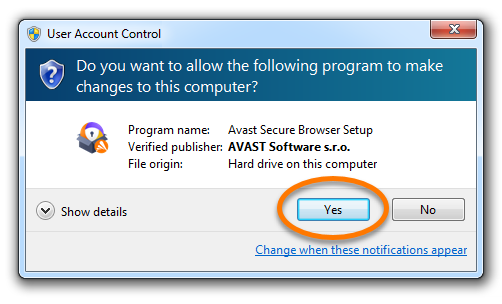
- Optionally, tick the box next to Also delete your browsing data to delete your profile information, such as bookmarks and history. Then click Uninstall to continue.
- Wait while the uninstaller removes Avast Secure Browser from your PC.
- When the confirmation message appears, optionally click OK, Sure to complete the uninstallation survey, or click the X in the top-right corner to close the window.
Avast Secure Browser is now uninstalled from your PC. If you were unable to uninstall Avast Secure Browser by following the steps above, refer to the Uninstall Tool section below.
Uninstall via Uninstall Tool
If you experience issues trying to uninstall Avast Secure Browser via the Start menu, we recommend using the Avast Uninstall Tool to completely delete all Avast Secure Browser files from your PC.
For instructions, refer to the following article:
Reinstall Avast Secure Browser
If you need to reinstall Avast Secure Browser, refer to the following article for installation instructions:
Troubleshoot without uninstalling
If you are experiencing problems with Avast Secure Browser, we recommend referring to the following information before uninstalling:
Reinstall Avast Secure Browser
If you need to reinstall Avast Secure Browser, refer to the following article for installation instructions:
Troubleshoot without uninstalling
If you are experiencing problems with Avast Secure Browser, we recommend referring to the following information before uninstalling:
To uninstall Avast Secure Browser from an Android device, follow the steps below according to your preferred method:
Uninstall via Google Play Store
- On the Home screen of your device, tap the Play Store icon to open Google Play Store.

- In the search bar, type
Avast Secure Browser, then select Avast Secure Browser from the search results. 
- Tap Uninstall, then tap Uninstall again to confirm uninstallation.
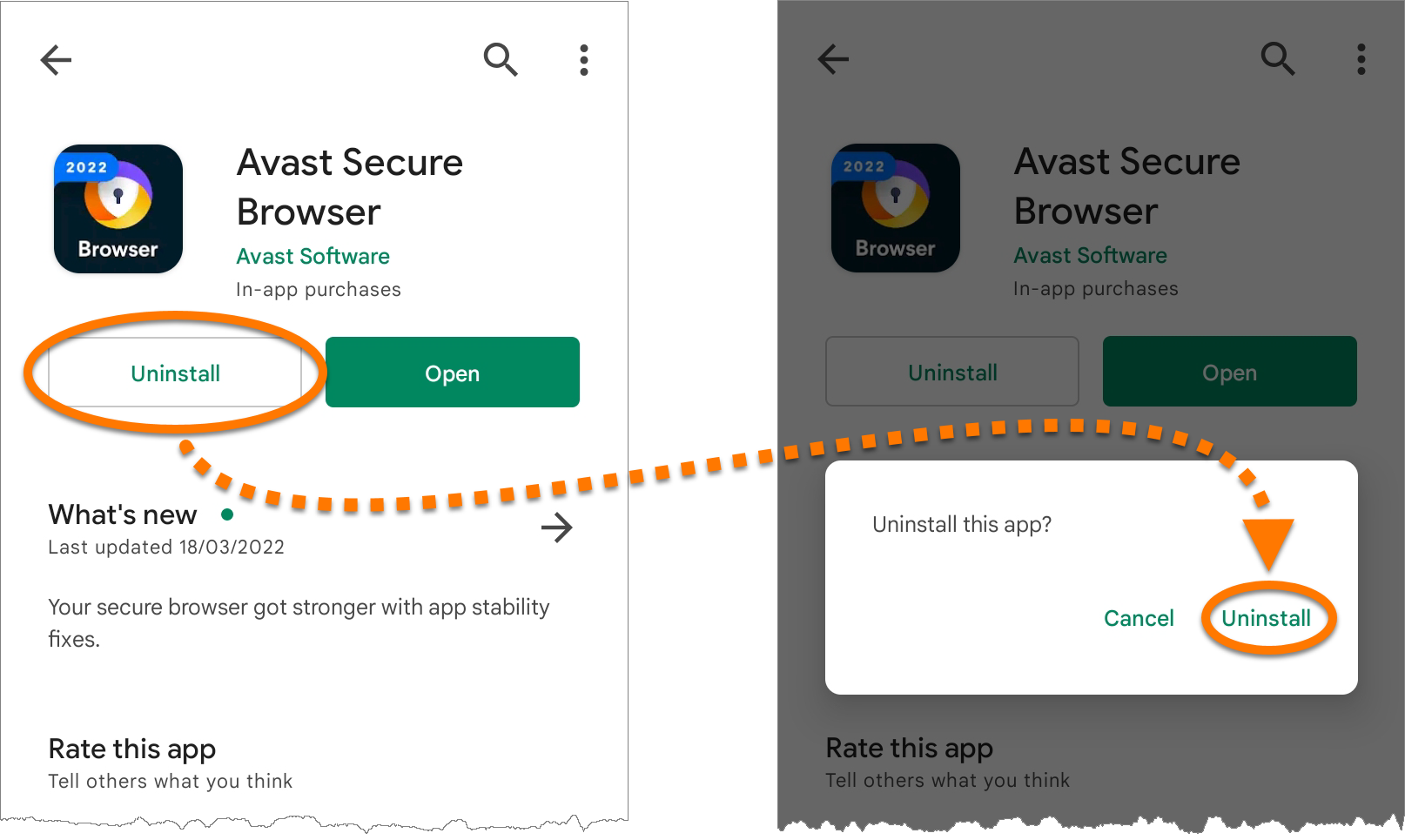
Avast Secure Browser is now uninstalled from your Android device.
Uninstall via device settings
These steps may differ slightly depending on your device model, Android version, and vendor customizations.
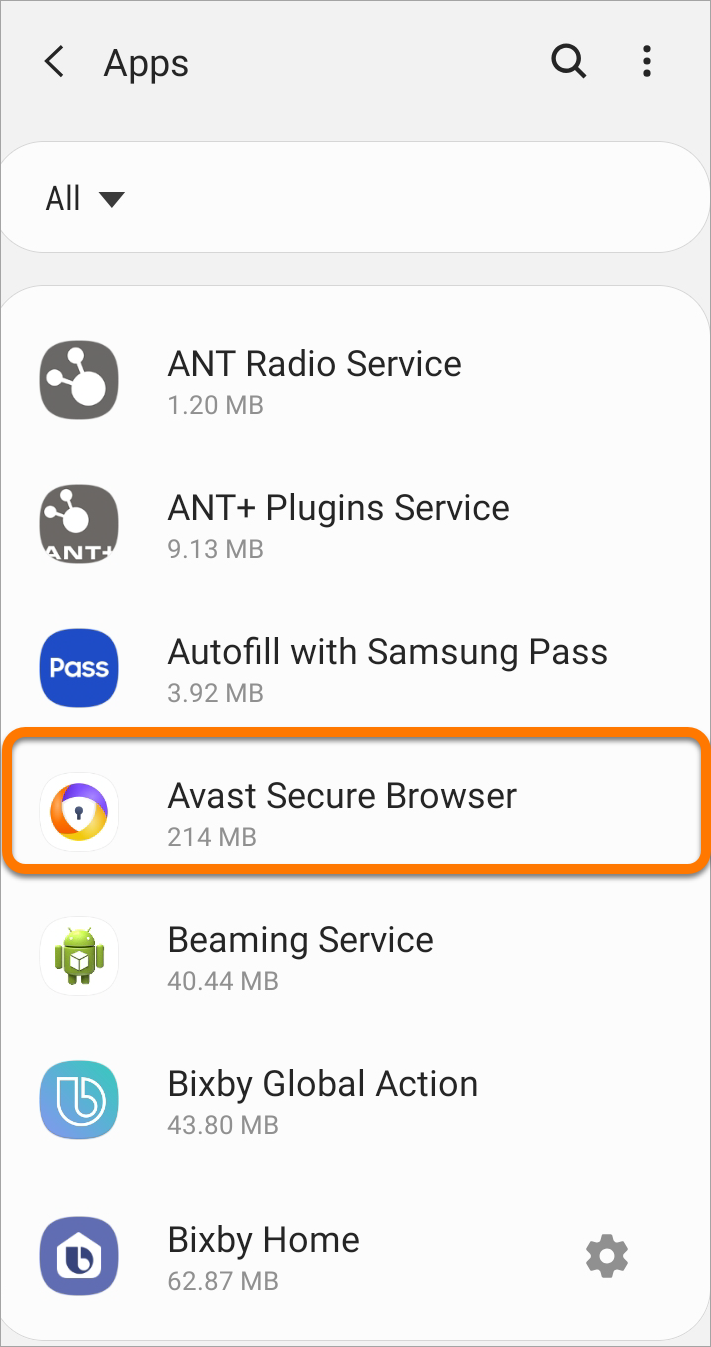
- Open your device Settings and select Apps.
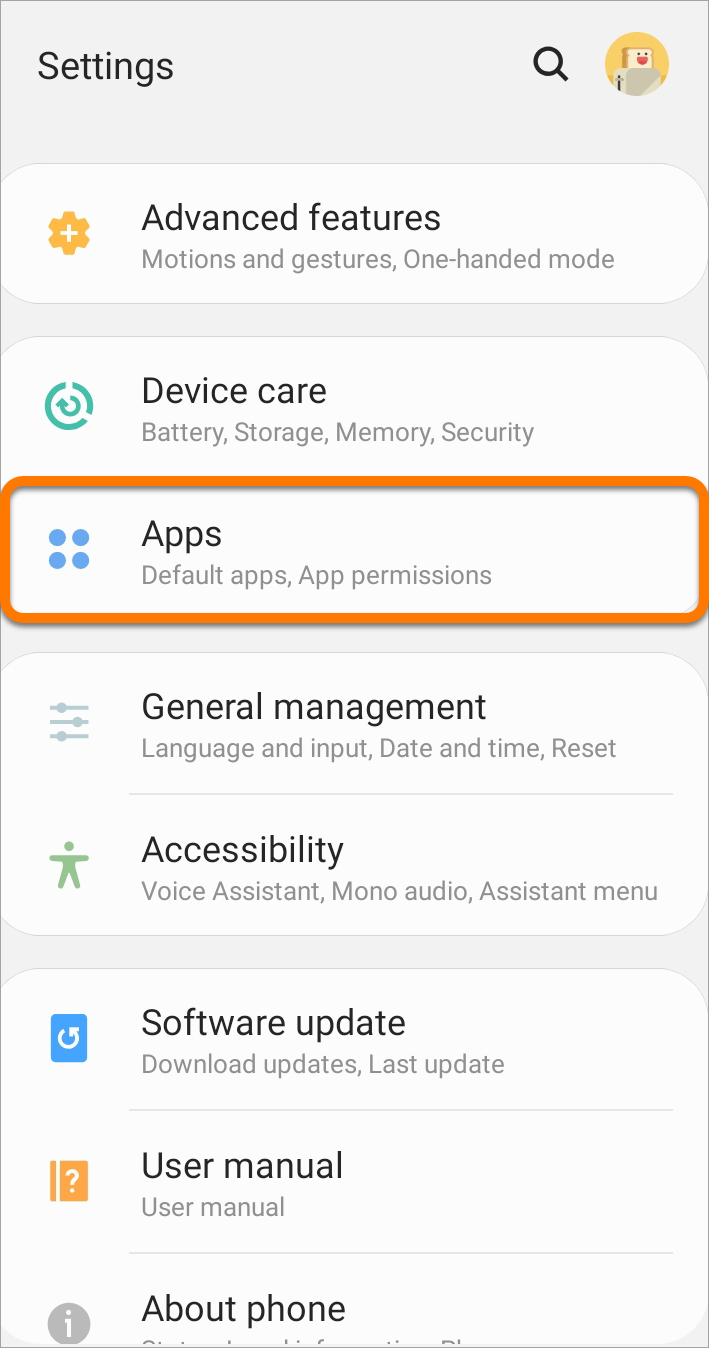
- Select Avast Secure Browser.
- Tap Uninstall, then tap OK to confirm uninstallation.
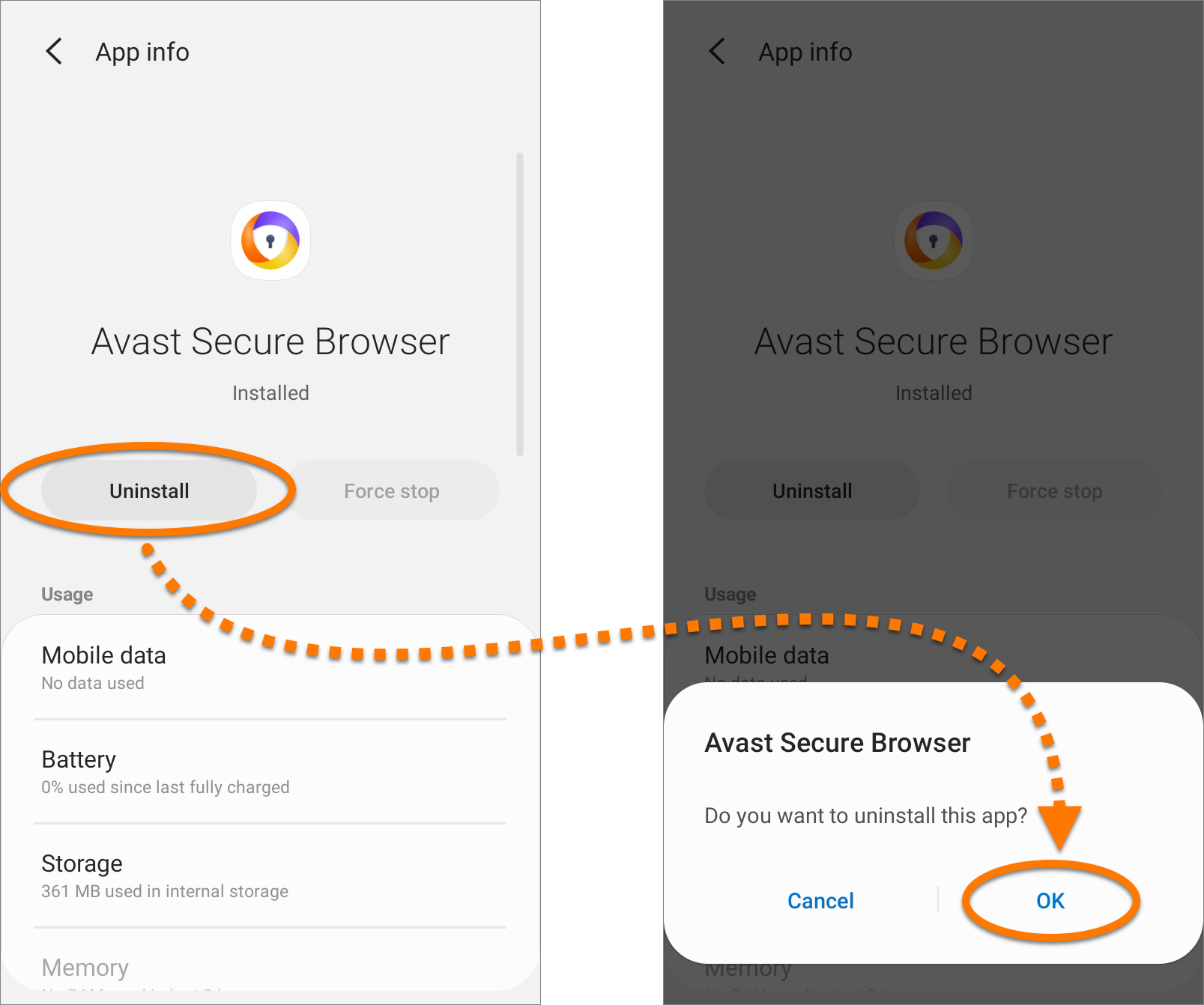
Avast Secure Browser is now uninstalled from your Android device.
Reinstall Avast Secure Browser
If you need to reinstall Avast Secure Browser, refer to the following article for installation instructions:
If you are experiencing problems with Avast Secure Browser, we recommend referring to the following information before uninstalling:
Reinstall Avast Secure Browser
If you need to reinstall Avast Secure Browser, refer to the following article for installation instructions:
If you are experiencing problems with Avast Secure Browser, we recommend referring to the following information before uninstalling:


