These installation instructions are for the new version of Avast One. For information about installing the old Avast One, refer to the Install the old version of Avast One section of this article. You can only install the old version of Avast One if you have a paid subscription. 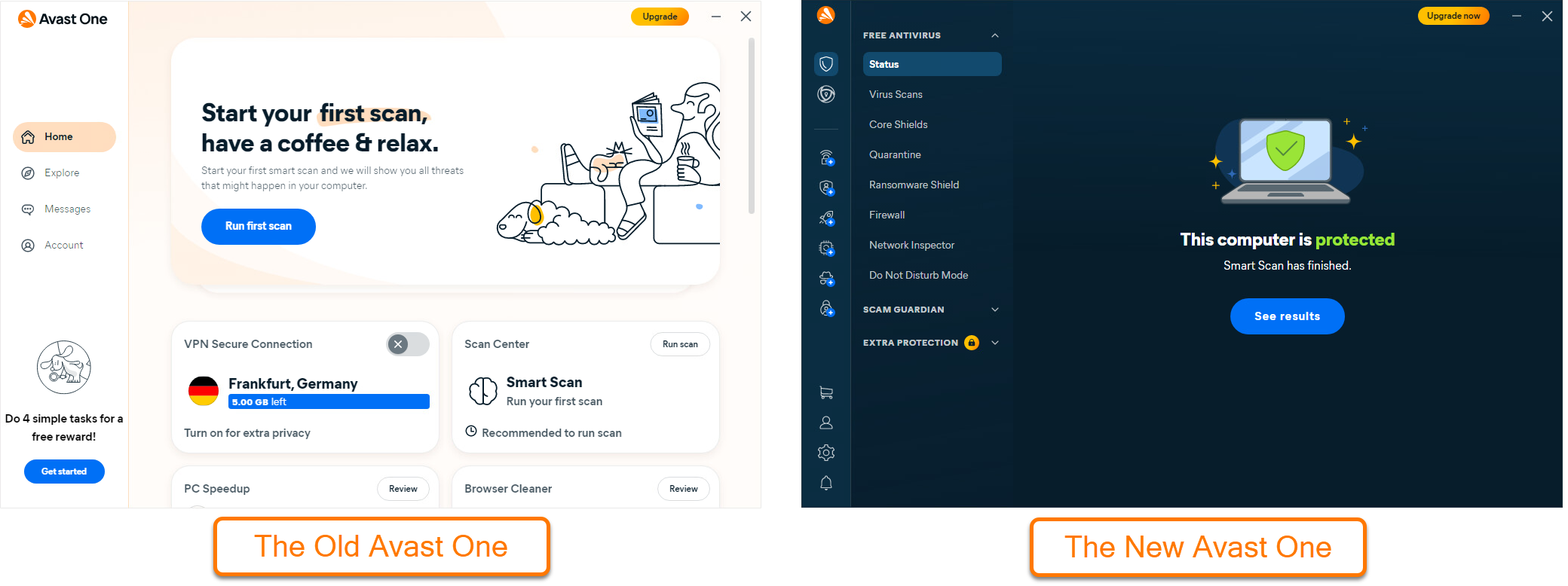
Avast One provides a unified interface for accessing and managing multiple Avast applications. It includes both free and premium features. By default, the free version grants access to Avast Free Antivirus and its core functionalities. This article explains how to install the free version of Avast One and, optionally, how to activate the paid features available within the application.
Install Avast One
- Click the button below to download the Avast One setup file, and save it to a familiar location on your Windows device (by default, downloaded files are saved to your Downloads folder).
Download Avast One for Windows
- Right-click the downloaded setup file
avast_one_free_antivirus.exe and select Run as administrator from the context menu. 
If you are unable to authorize the installation of Avast One, refer to the following article for advice: Managing administrative accounts on your Windows device.
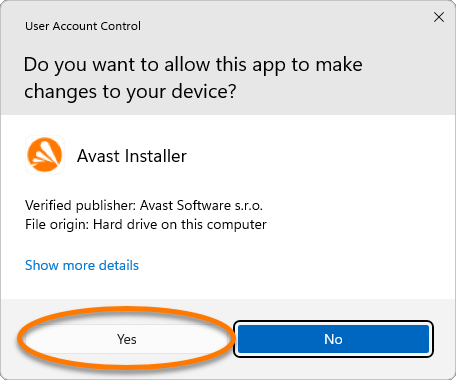
- If prompted for permission by the User Account Control dialog, click Yes.
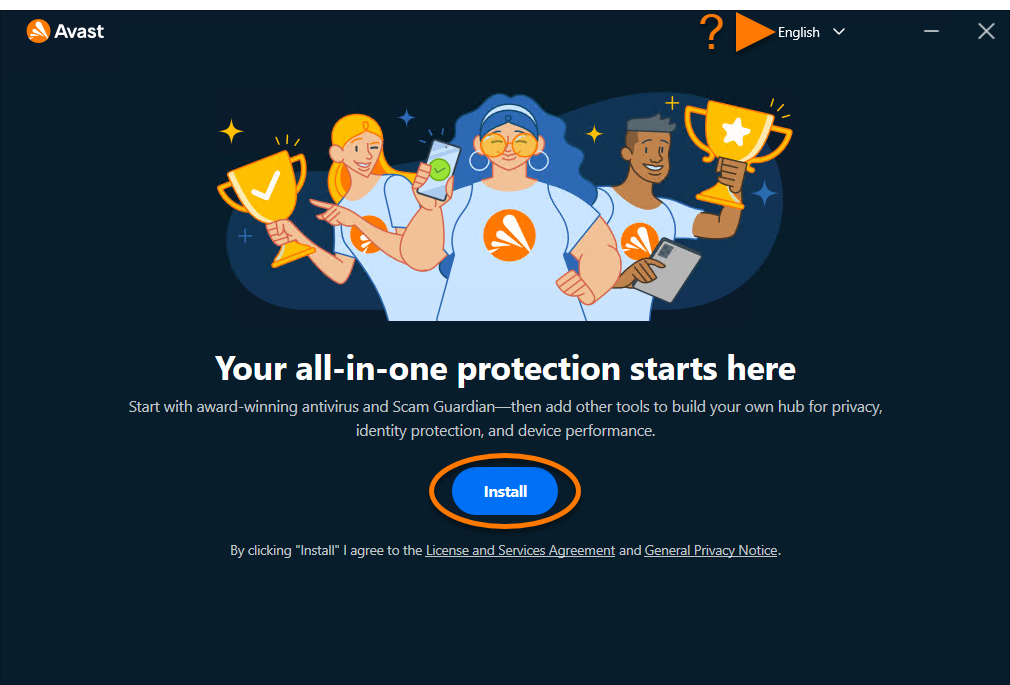
- To change the default setup language, click the current language in the top-right corner of the screen and select your preferred language. Then click Install.
- Wait while setup installs Avast One on your Windows device.
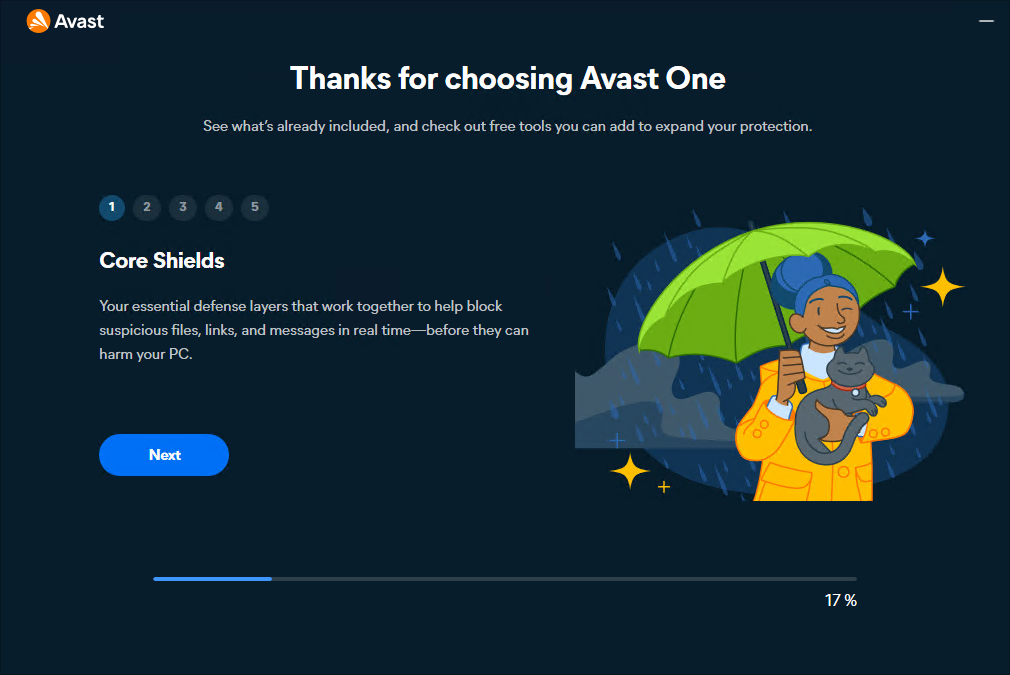
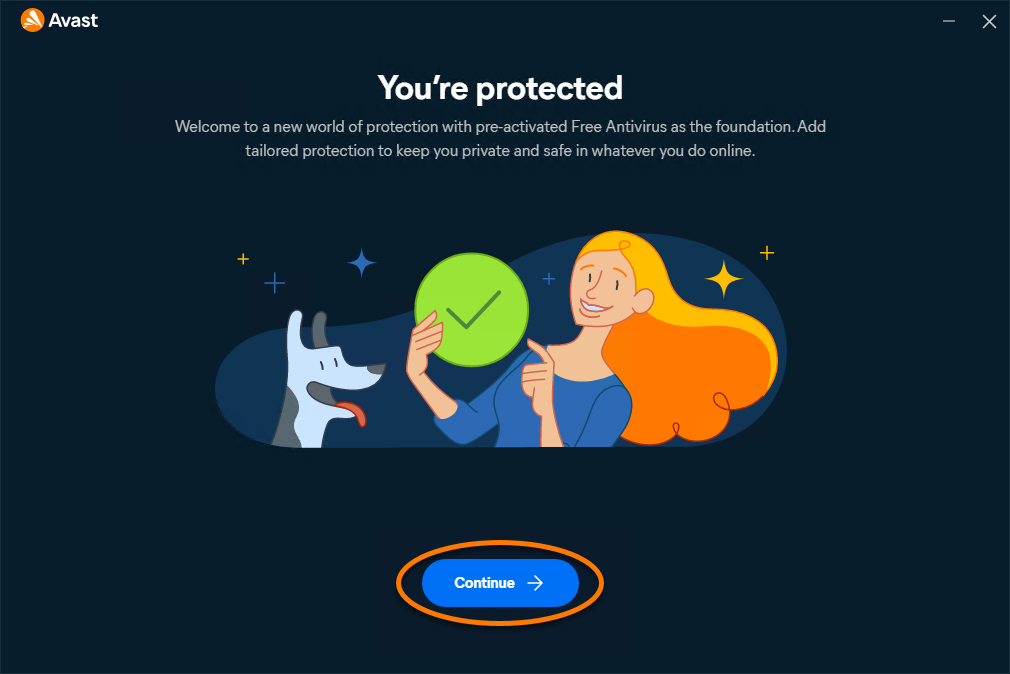
- Click Continue.
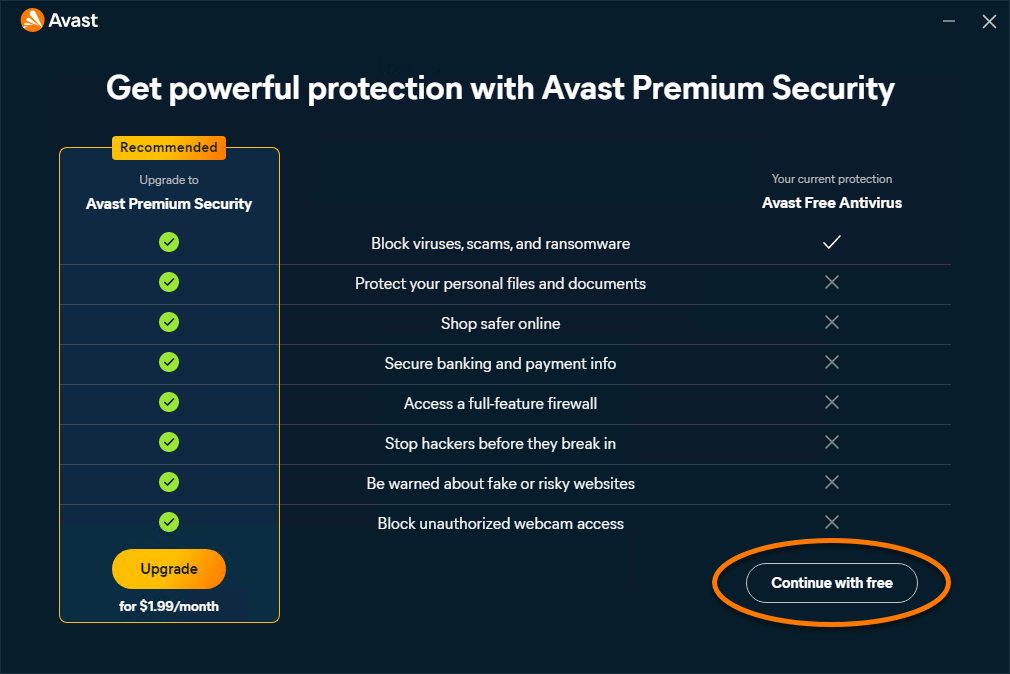
- Choose Continue with free.
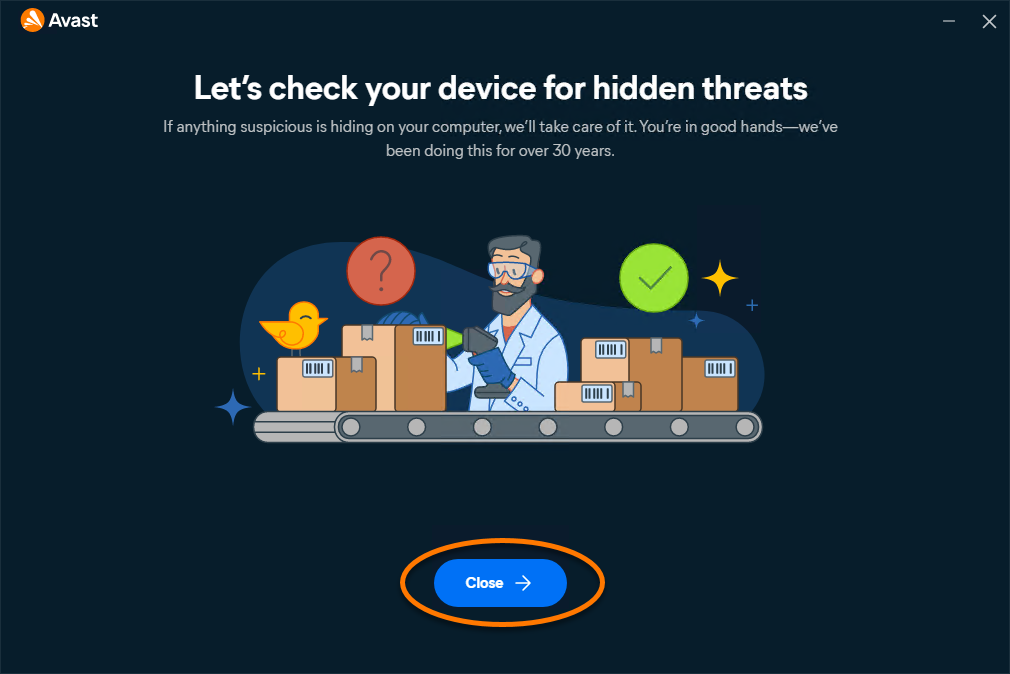
- Click Close to start using Avast One.
Avast One is now installed on your Windows device and the main application screen opens automatically.
Activate paid apps within Avast One
If you have a paid subscription to one of the apps available through Avast One, you need to manually activate it. For instructions, refer to the following article: Activating premium Avast One features apps.
Install the old version of Avast One
If you have a subscription to the old Avast One and need to re-install the app or install it on a new device, follow the steps below:
- Sign in to your Avast Account using the link below:
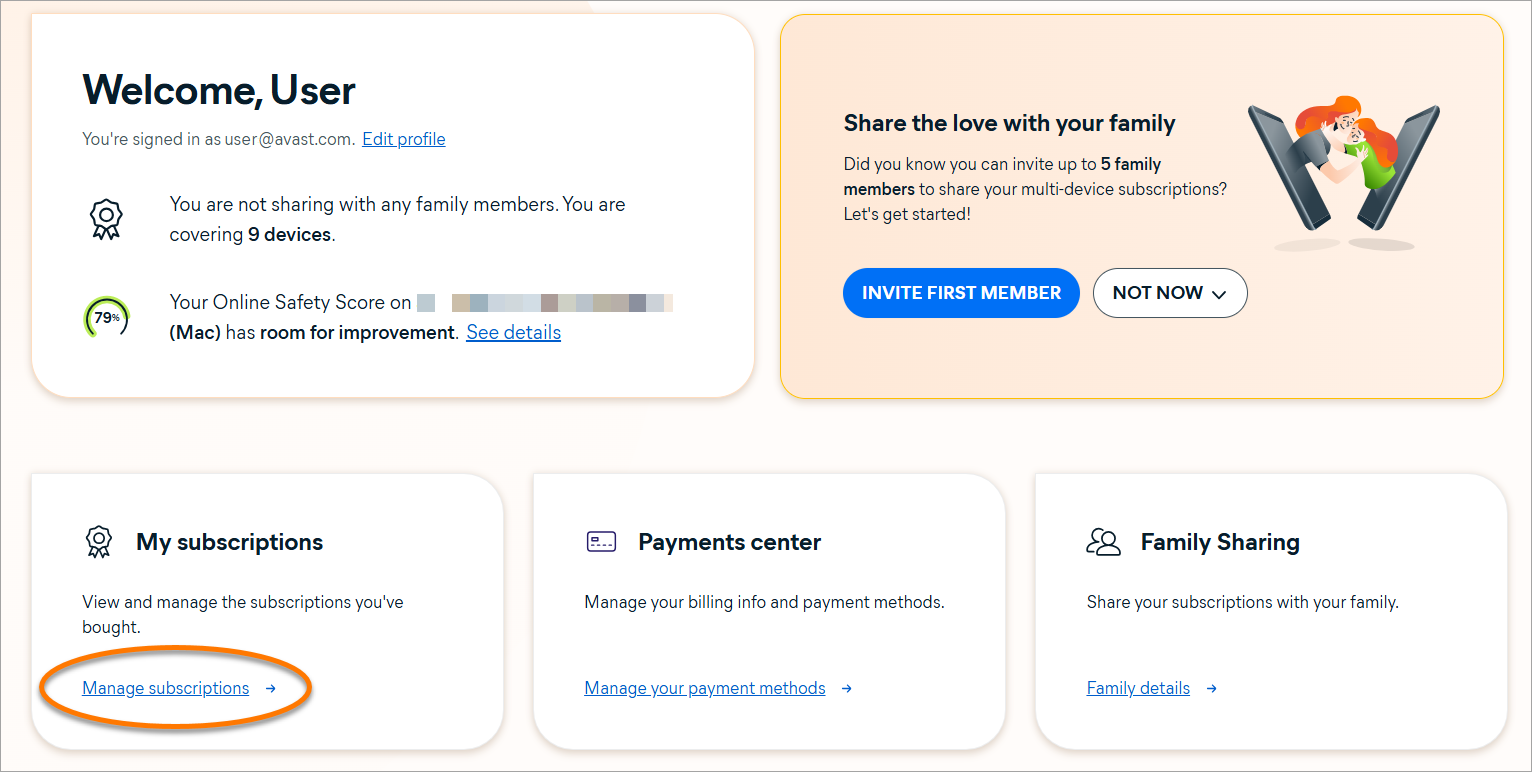
- Click Manage subscriptions on the My subscriptions tile.
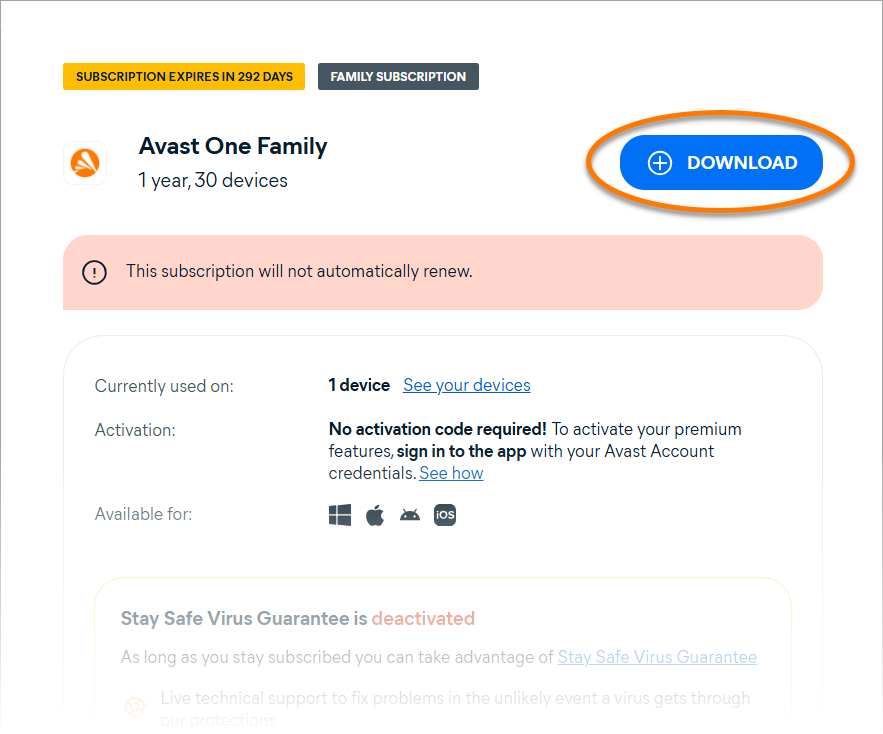
- Click the Download button next to your Avast One subscription, then follow the on-screen instructions to install Avast One.
Troubleshoot installation issues
If you experience any installation issues:
- Refer to the following article to ensure your Windows device meets the minimum system requirements:
- Uninstall any applications from your Windows device that are incompatible with Avast One. For more information, refer to the following article:
- Restart your Windows device, then try to install Avast One again by following the exact steps in this article.
If the issue persists, contact Avast Support.
Further recommendations
For more information about Avast One, refer to the following article:
These installation instructions are for the new version of Avast One. For information about installing the old Avast One, refer to the Install the old version of Avast One section of this article. You can only install the old version of Avast One if you have a paid subscription. 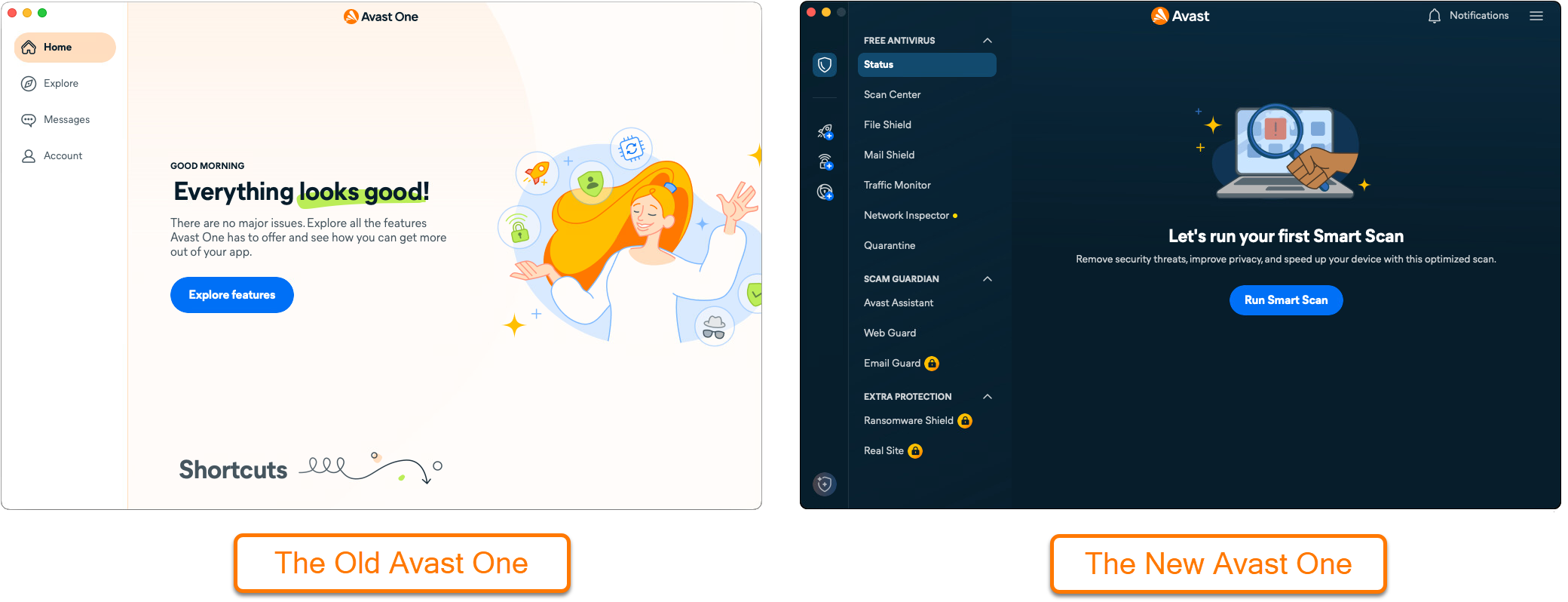
Avast One provides a unified interface for accessing and managing multiple Avast applications. It includes both free and premium features. By default, the free version grants access to Avast Free Antivirus and its core functionalities. This article explains how to install the free version of Avast One and, optionally, how to activate the paid features available within the application.
Install Avast One
- Click the button below to download the Avast One setup file, and save it to a familiar location on your Mac (by default, downloaded files are saved to your Downloads folder).
Download Avast One for Mac
- Double-click the downloaded setup file
avast_one_online.dmg. 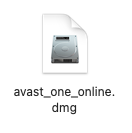
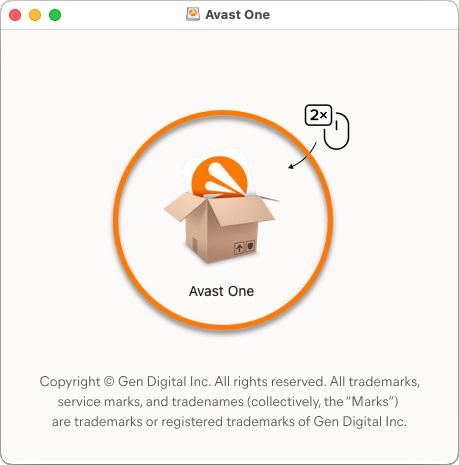
- Double-click the Avast One icon.
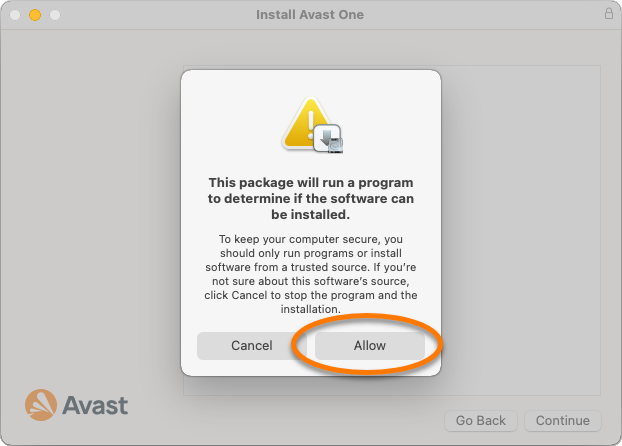
- In the new window, click Allow.
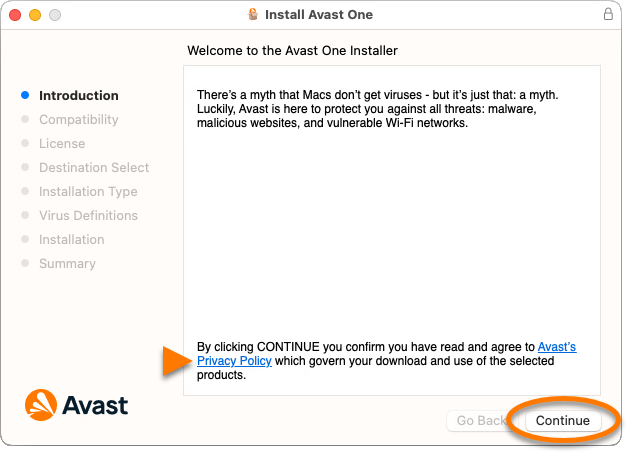
- Click Continue to confirm that you accept the Avast Privacy Policy.
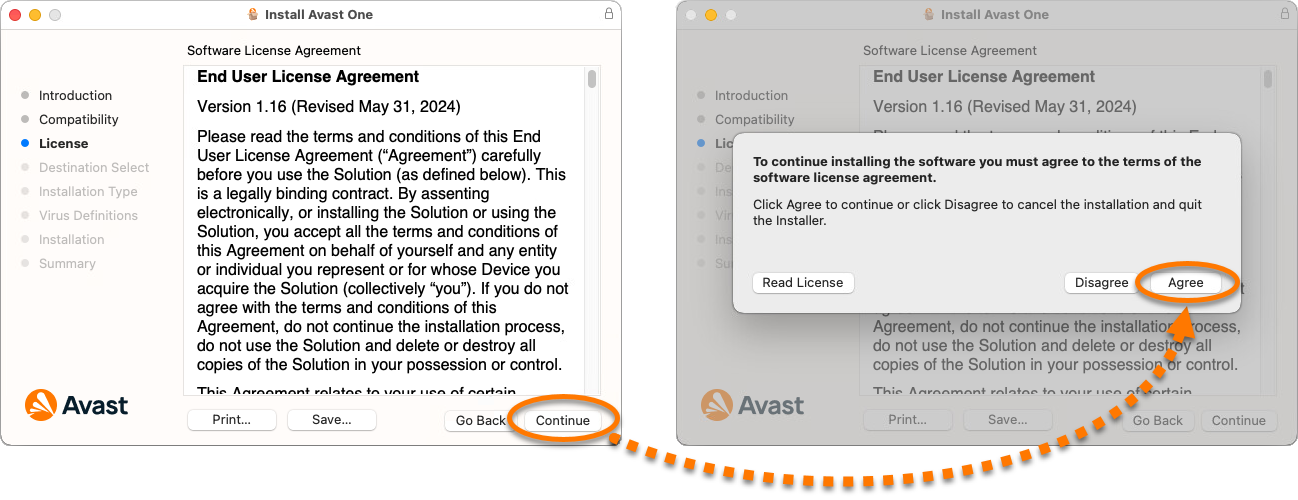
- Click Continue to confirm that you have read the End User License Agreement, then click Agree to confirm that you accept the terms.
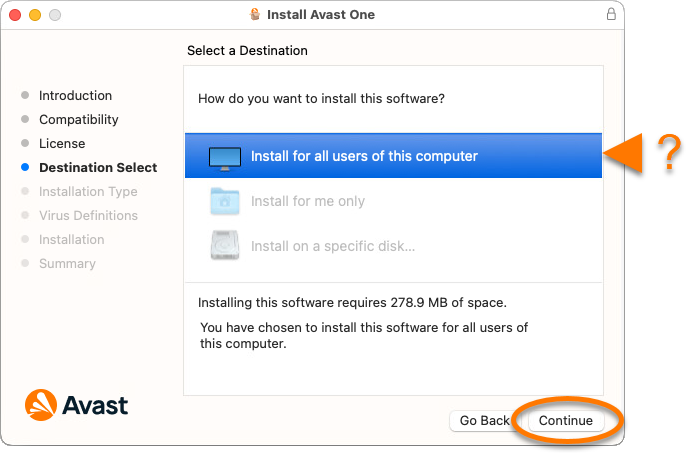
- Select the users who should have access to Avast One, then click Continue.
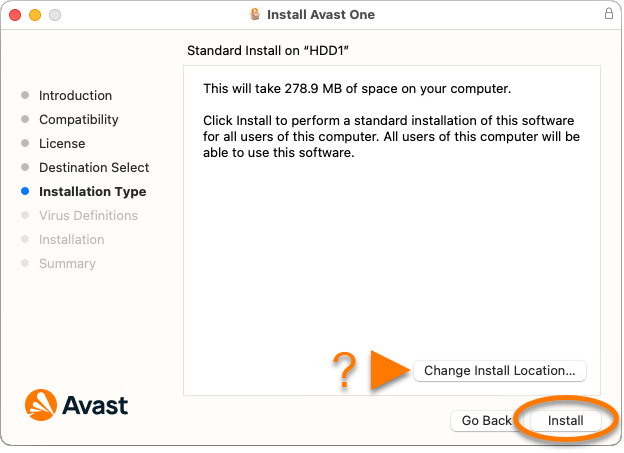
- Click Install to proceed with default installation. Alternatively, click Change Install Location... if you want to make changes to the default setup.
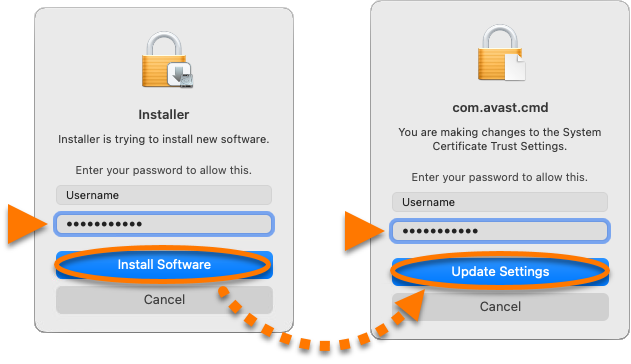
- Enter the password that you use when you start your Mac, then click Install Software. If prompted, enter this password again, and click Update Settings.
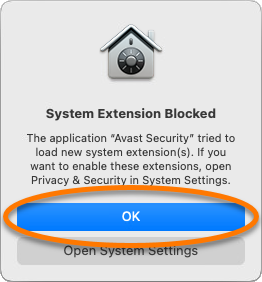
- When the System Extension Blocked notification appears, click OK.
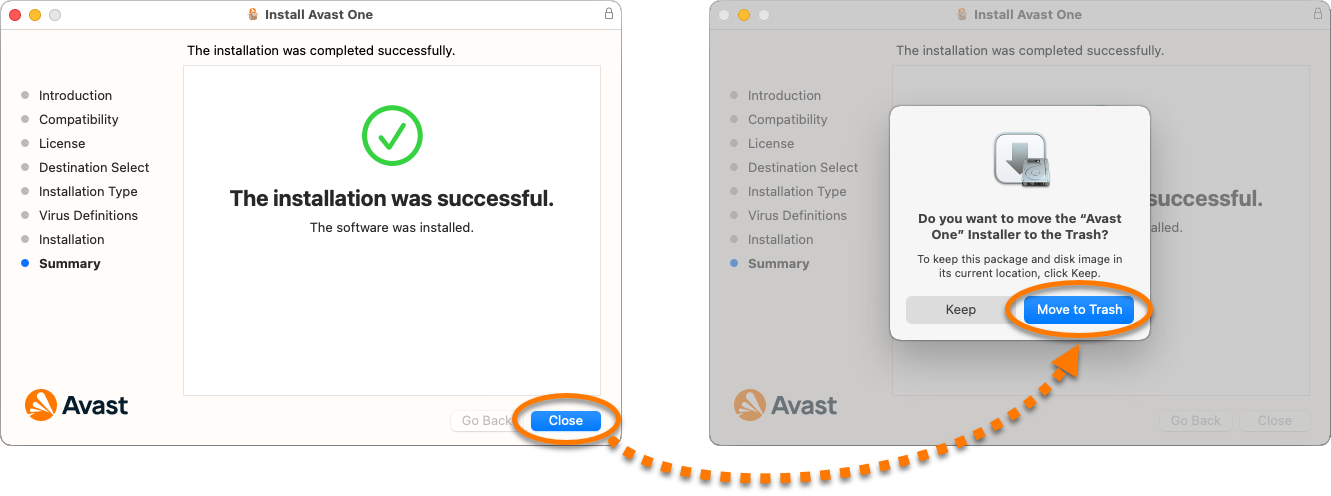
- Click Close ▸ Move to Trash.
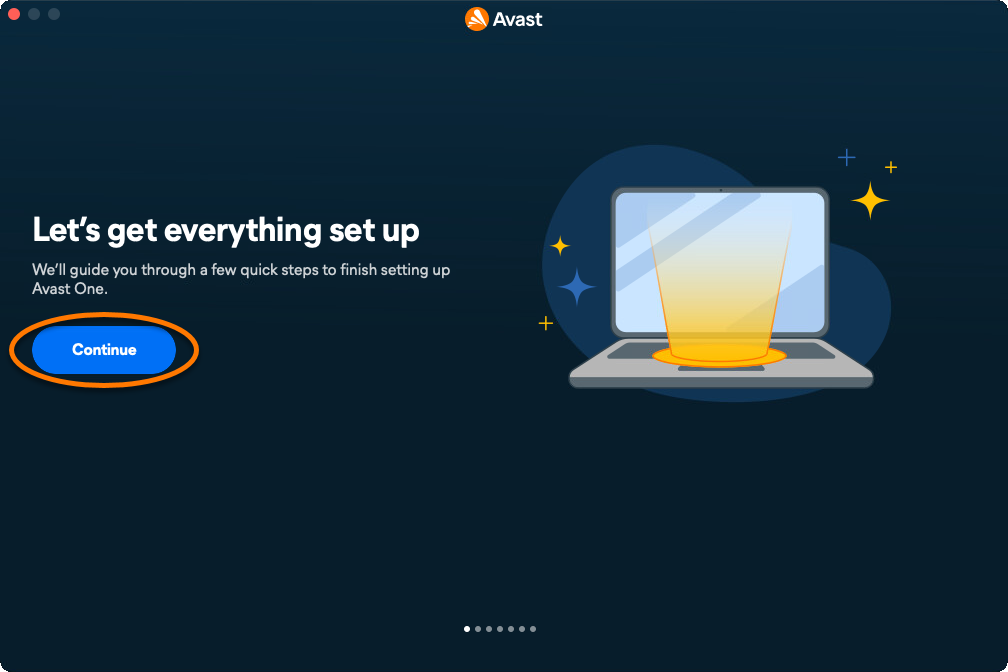
- Click Continue.
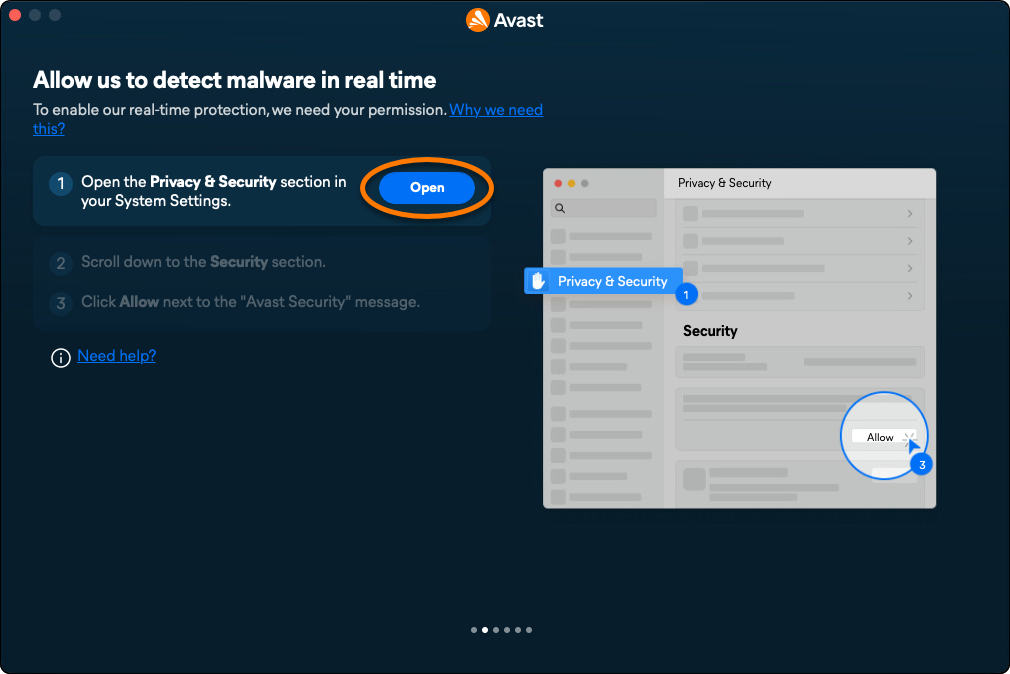
- Click Open, then follow the on-screen instructions to allow permissions for Avast One. For detailed instructions, refer to the following article:
- Click Got it.
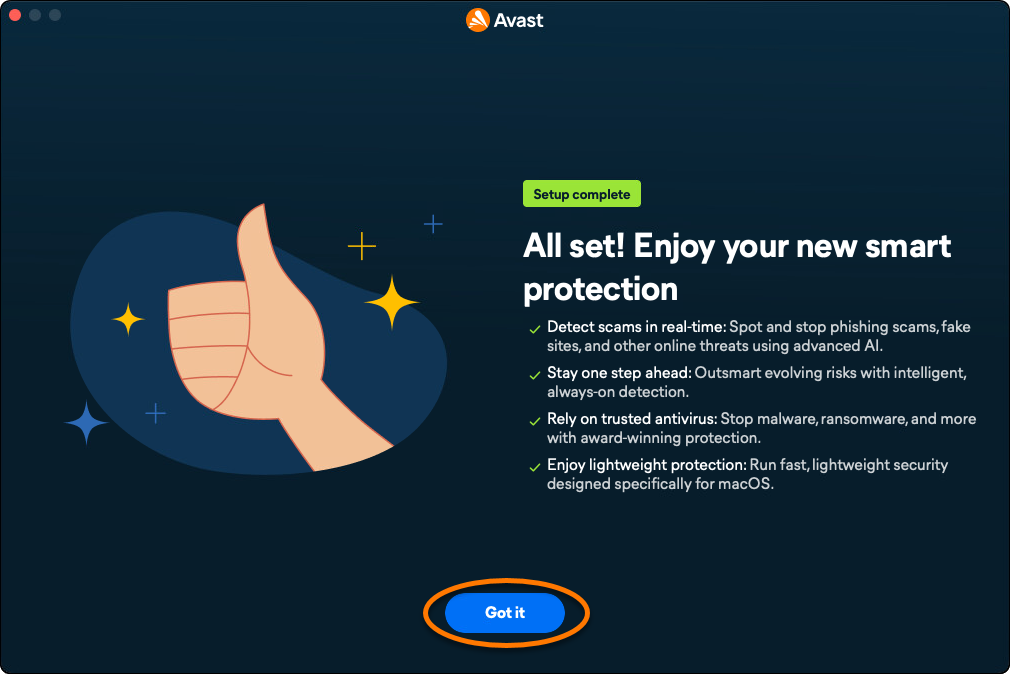
The free version of Avast One is now installed on your Mac and the main application screen opens automatically.
Activate paid apps within Avast One
If you have a paid subscription to one of the apps available through Avast One, you need to manually activate it. For instructions, refer to the following article: Activating premium Avast One features apps.
Install the old version of Avast One
If you have a subscription to the old Avast One and need to re-install the app or install it on a new device, follow the steps below:
- Sign in to your Avast Account using the link below:
- Click Manage subscriptions on the My subscriptions tile.
- Click the Download button next to your Avast One subscription, then follow the on-screen instructions to install Avast One.
Troubleshoot installation issues
If you experience any installation issues:
- Refer to the following article to ensure your Mac meets the minimum system requirements:
- Uninstall any applications from your Mac that are incompatible with Avast One. For more information, refer to the following article:
- Restart your Mac, then try to install Avast One again by following the exact steps in this article.
If the issue persists, contact Avast Support.
Further recommendations
For more information about Avast One, refer to the following article:
The new Avast One for Android is replacing both the previous Avast One app and Avast Mobile Security. As part of this change, the older apps are being removed from the Google Play Store. All new installations on Android install the new Avast One app.
Avast One for Android is a security app designed to protect your device against unwanted phishing, malware, spyware, and malicious viruses such as Trojans.
Avast One is available as both a free and paid app. To install Avast One, choose your version:
Free version
Install the free version
- On your Android device, tap the button below to open the Avast One app page in Google Play Store.
Go to Google Play Store
The new Avast One app may not yet be visible to all users in Google Play Store. Availability is being updated gradually as Avast Mobile Security is replaced.
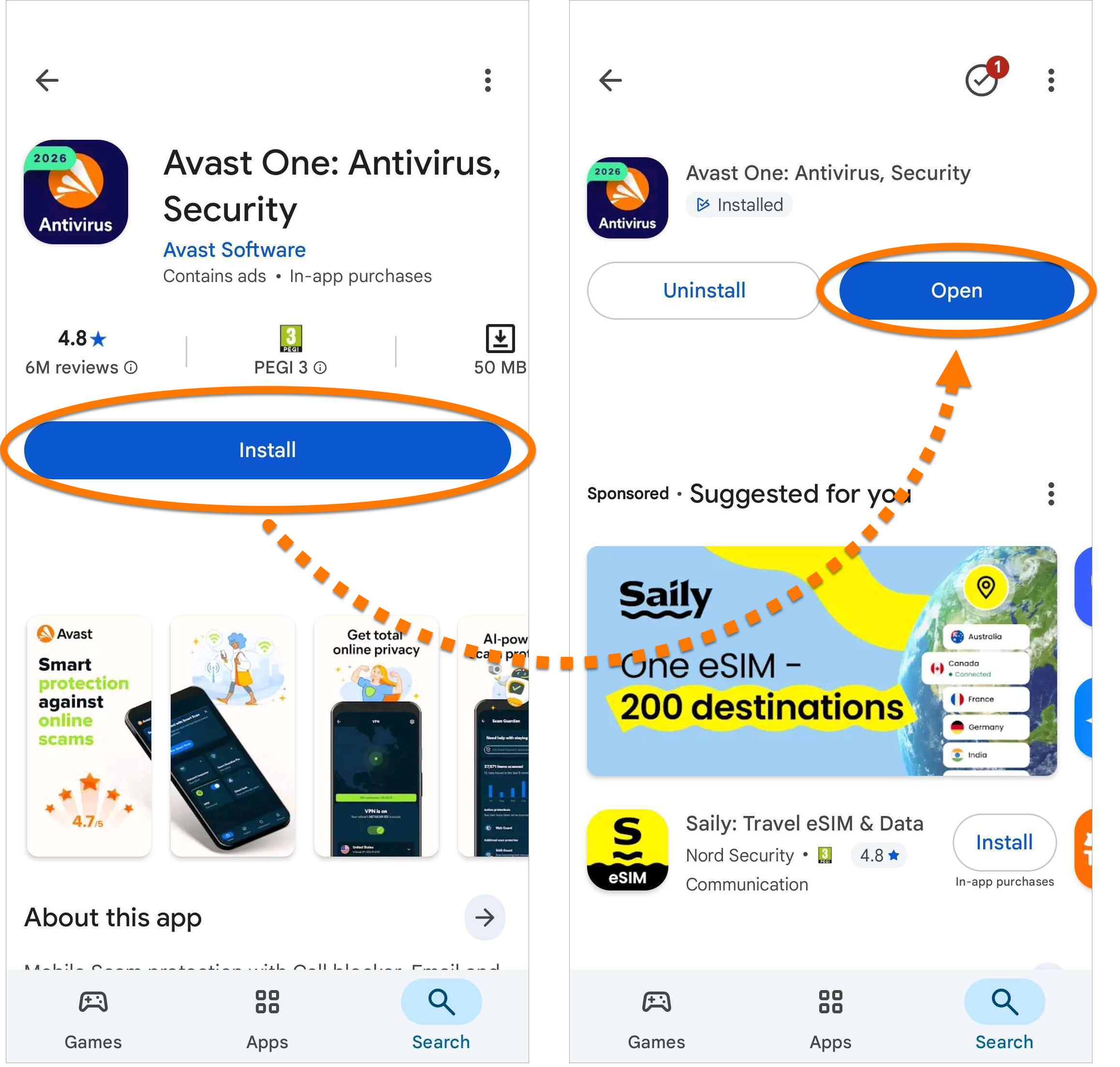
- Tap Install to download and install the app. When the installation is complete, tap Open.
- Tap Get started.
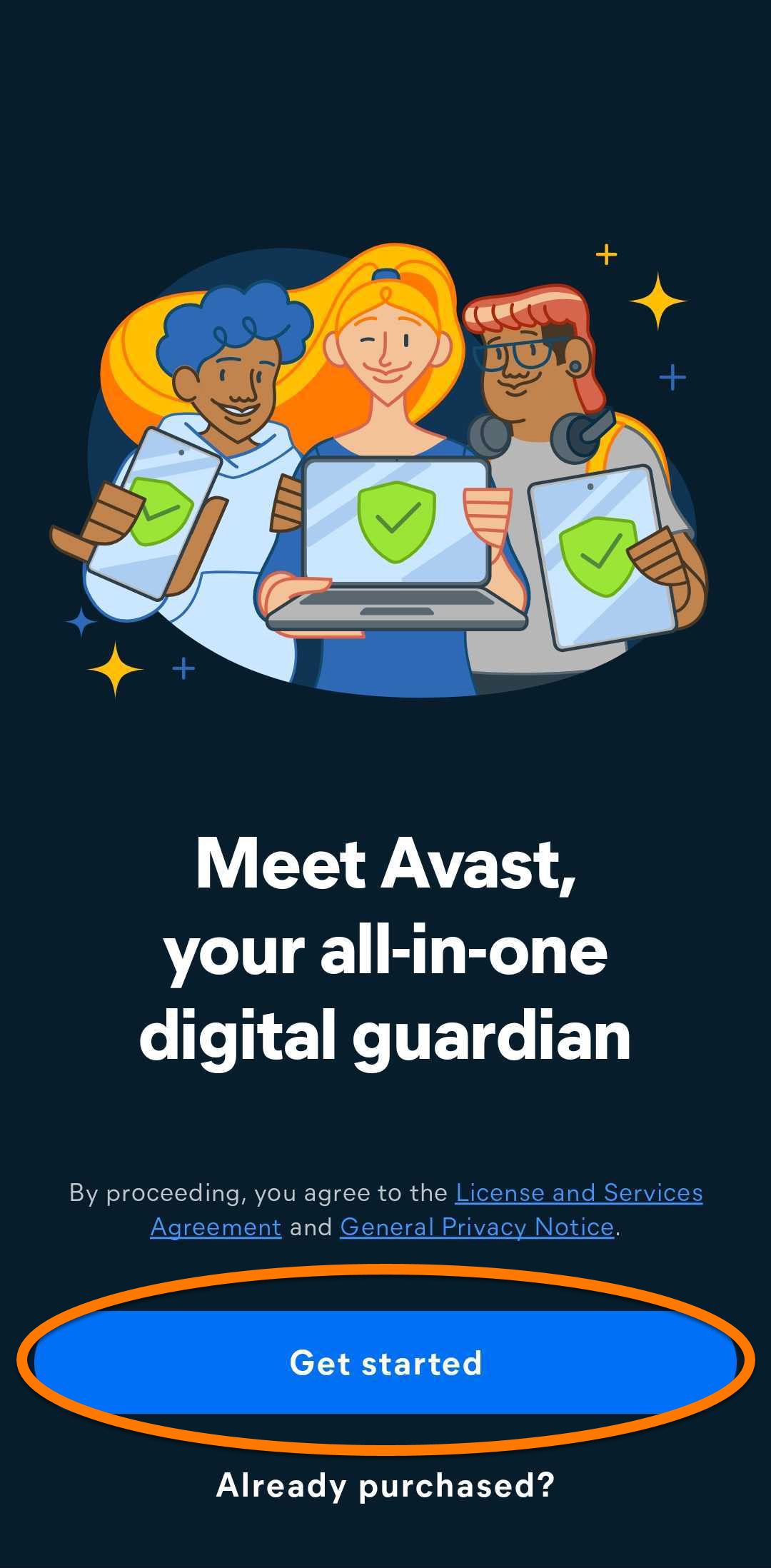
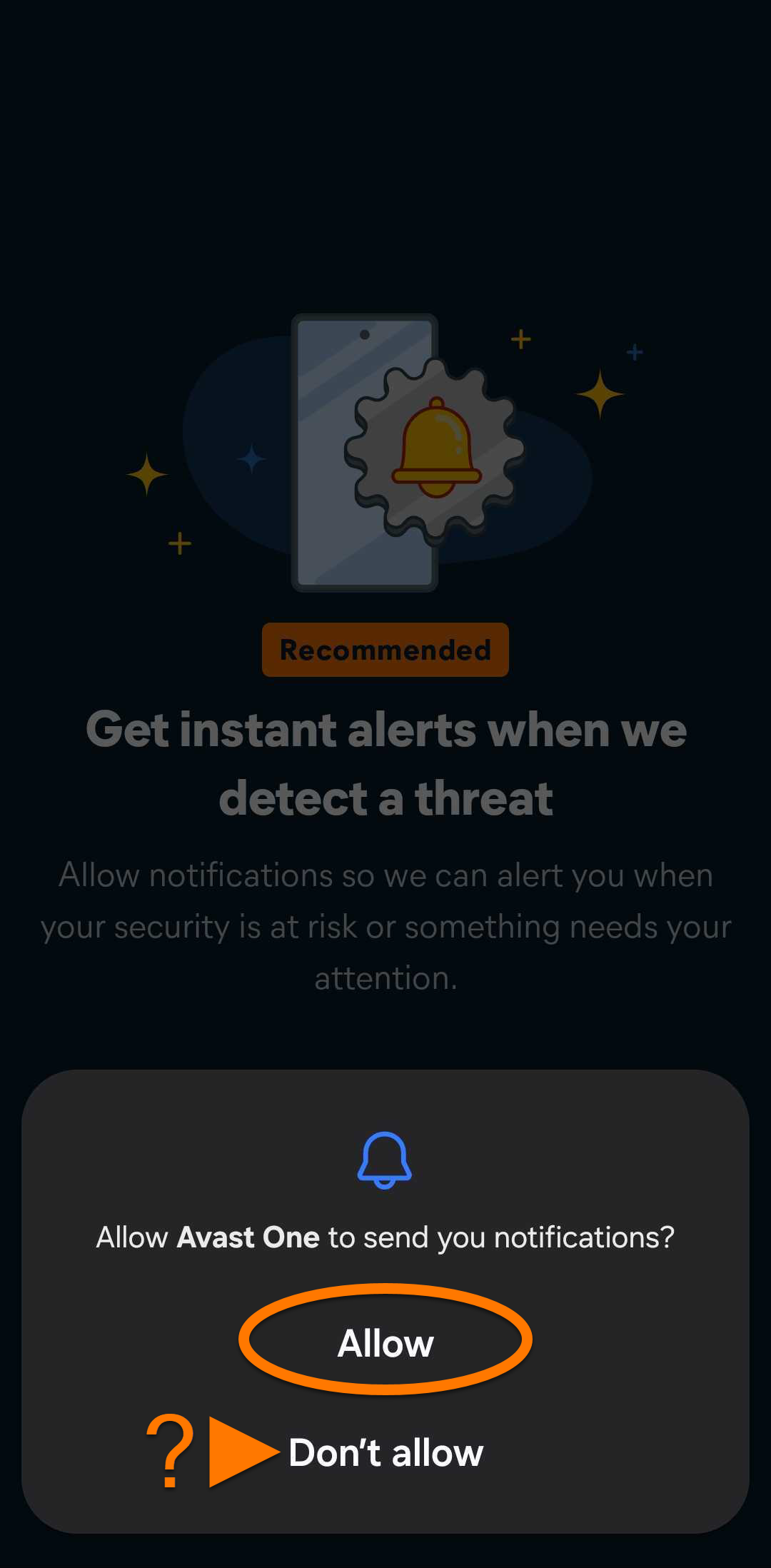
- Go through the welcome screens, then tap Allow to let Avast One to send you notifications. Alternatively, tap Don’t allow.
- On the purchase screen, tap
X to continue with the free version. 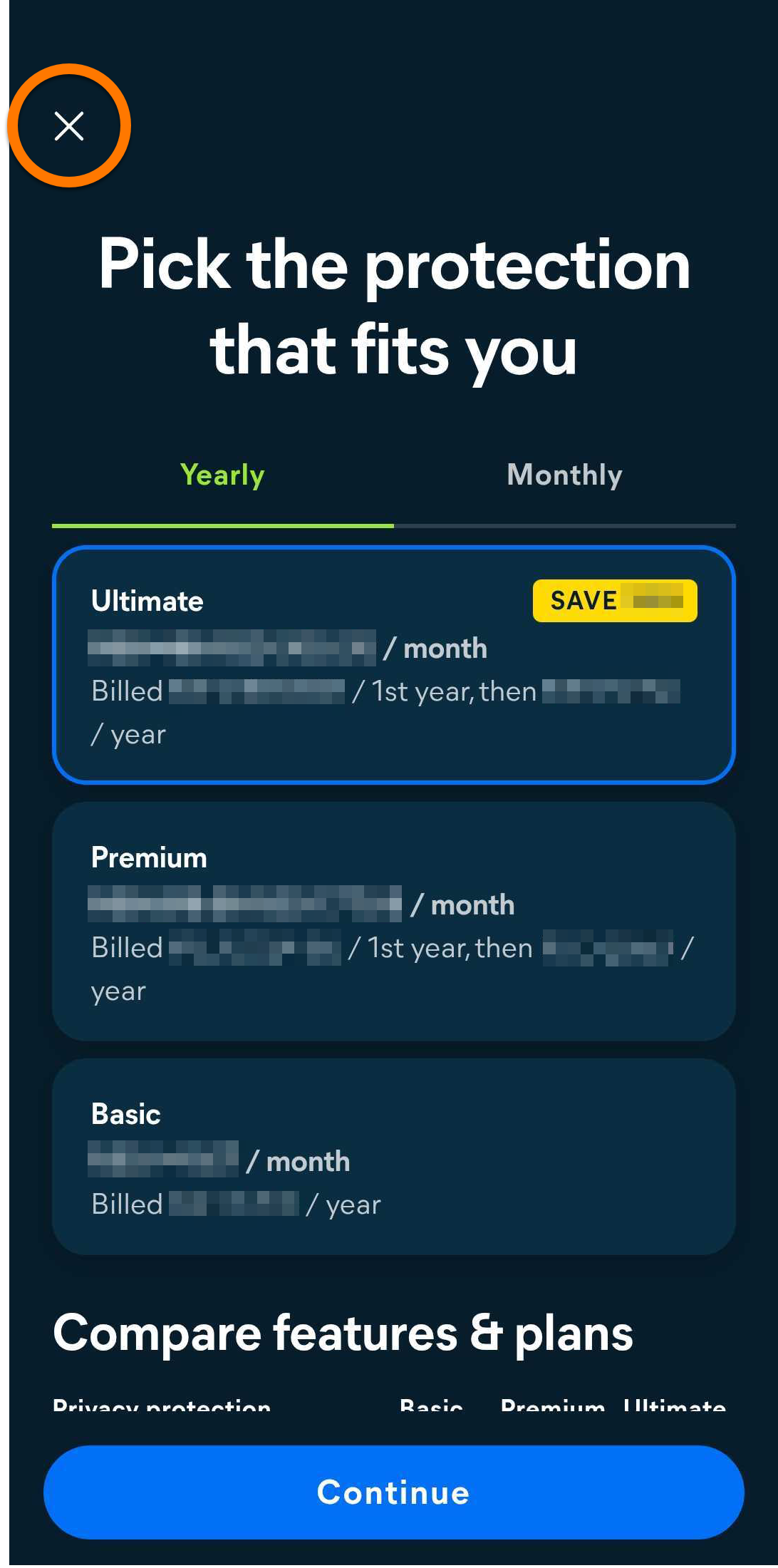
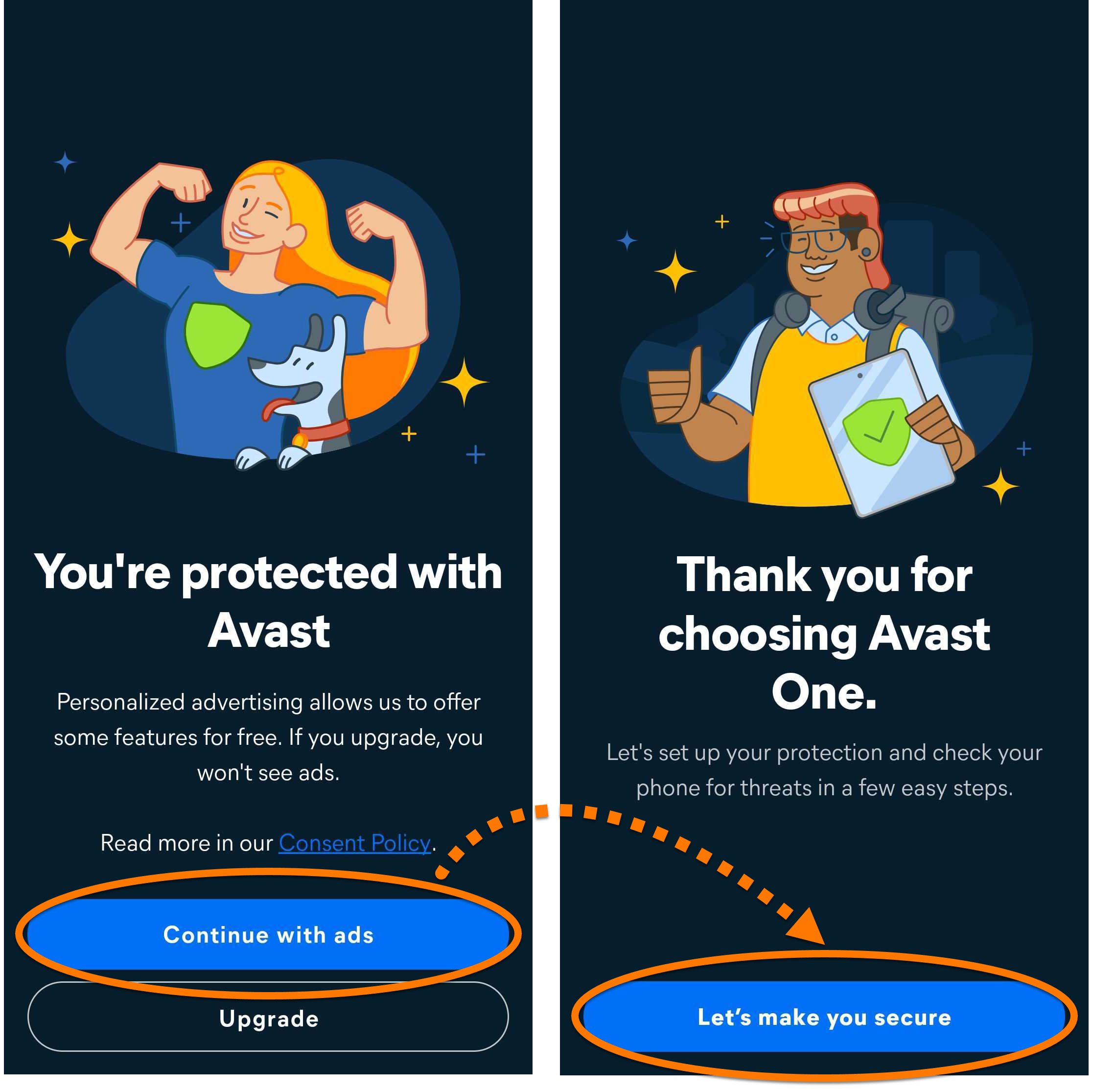
- Tap Continue with ads ▸ Let's make you secure.
- Tap Start Setup, then follow the on-screen instructions to grant Avast the required permissions. Alternatively, tap Skip for now.

The required permissions include Background access (battery optimization exemption), Appear on top (used for screen overlay alerts), and Accessibility (used for real-time detections).
Avast One is now installed and set up on your Android device.
Upgrade to the paid version
You can purchase an Avast One subscription by tapping Upgrade in the top-right corner of the main app screen. Follow the on-screen instructions to complete the purchase via Google Play Store.

Your paid subscription activates automatically. If you already purchased Avast One via another sales channel, you need to manually activate your subscription. For detailed activation instructions, refer to the following article:
Troubleshooting
If you experience any installation issues, refer to the following article to ensure your Android device meets the minimum system requirements:
Paid version
Install the paid version
- On your Android device, tap the button below to open the Avast One app page in Google Play Store.
Go to Google Play Store
The new Avast One app may not yet be visible to all users in Google Play Store. The rollout is gradual as Avast Mobile Security is being replaced.
- Tap Install to download and install the app. When the installation is complete, tap Open.
- Tap Already purchased?. Alternatively, if you have not purchased a subscription yet, tap Get started, then follow the on-screen instructions to choose a plan and complete the purchase. If you purchase a subscription this way, Avast One activates automatically.
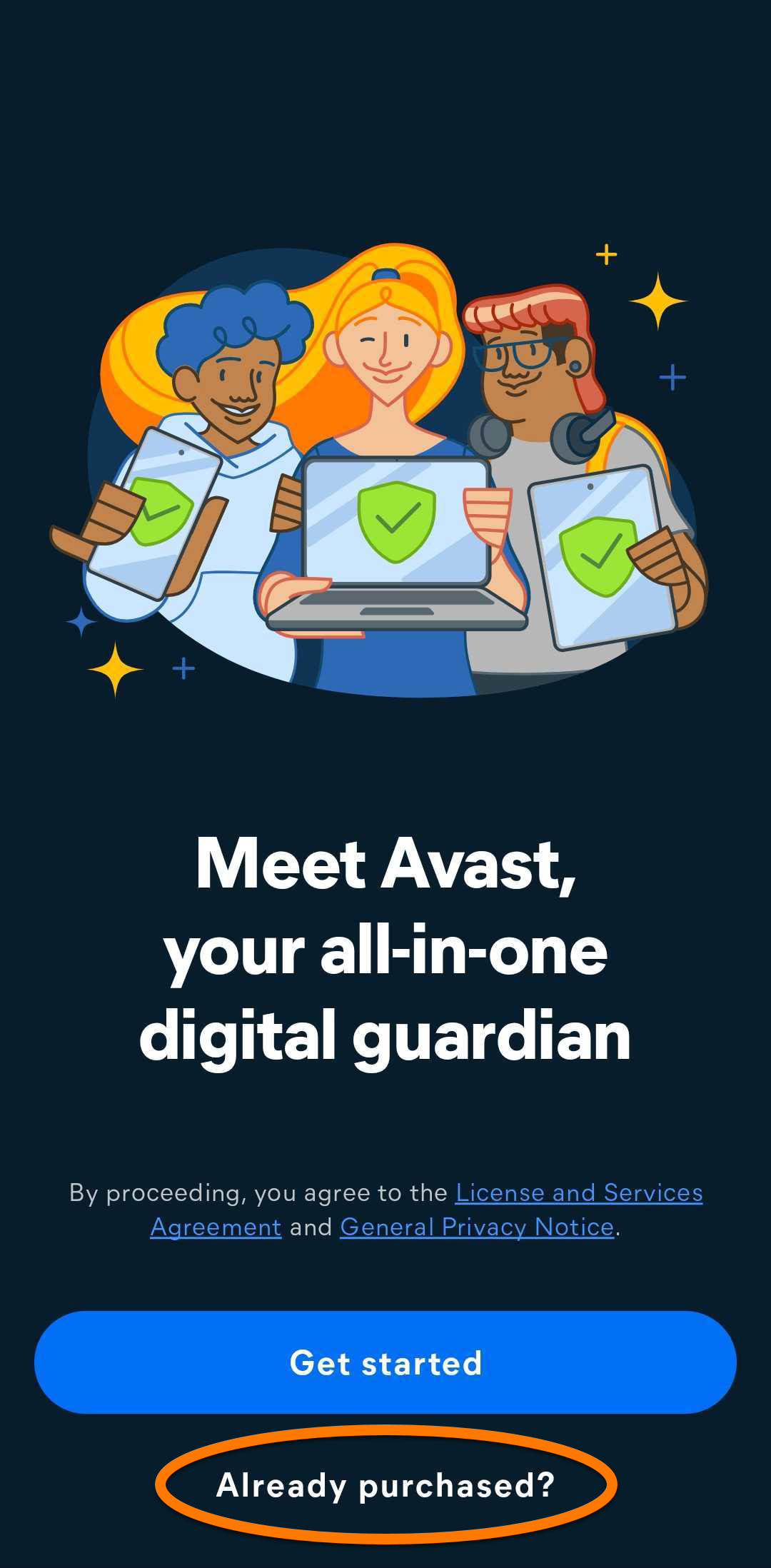
- Select the relevant option to activate your paid subscription:
- Sign in to your account: Connect your subscription using your Avast Account credentials.
- Use an activation code: Enter the activation code for your Avast One subscription.
- Restore from Google Play: If you purchased Avast One through Google Play, follow the on-screen instructions to restore your subscription. Ensure you are signed in to Google Play Store with the same Google Account that you used to make the purchase.

For detailed activation instructions, refer to the article: Activating premium Avast One features.
- Tap Let's make you secure.
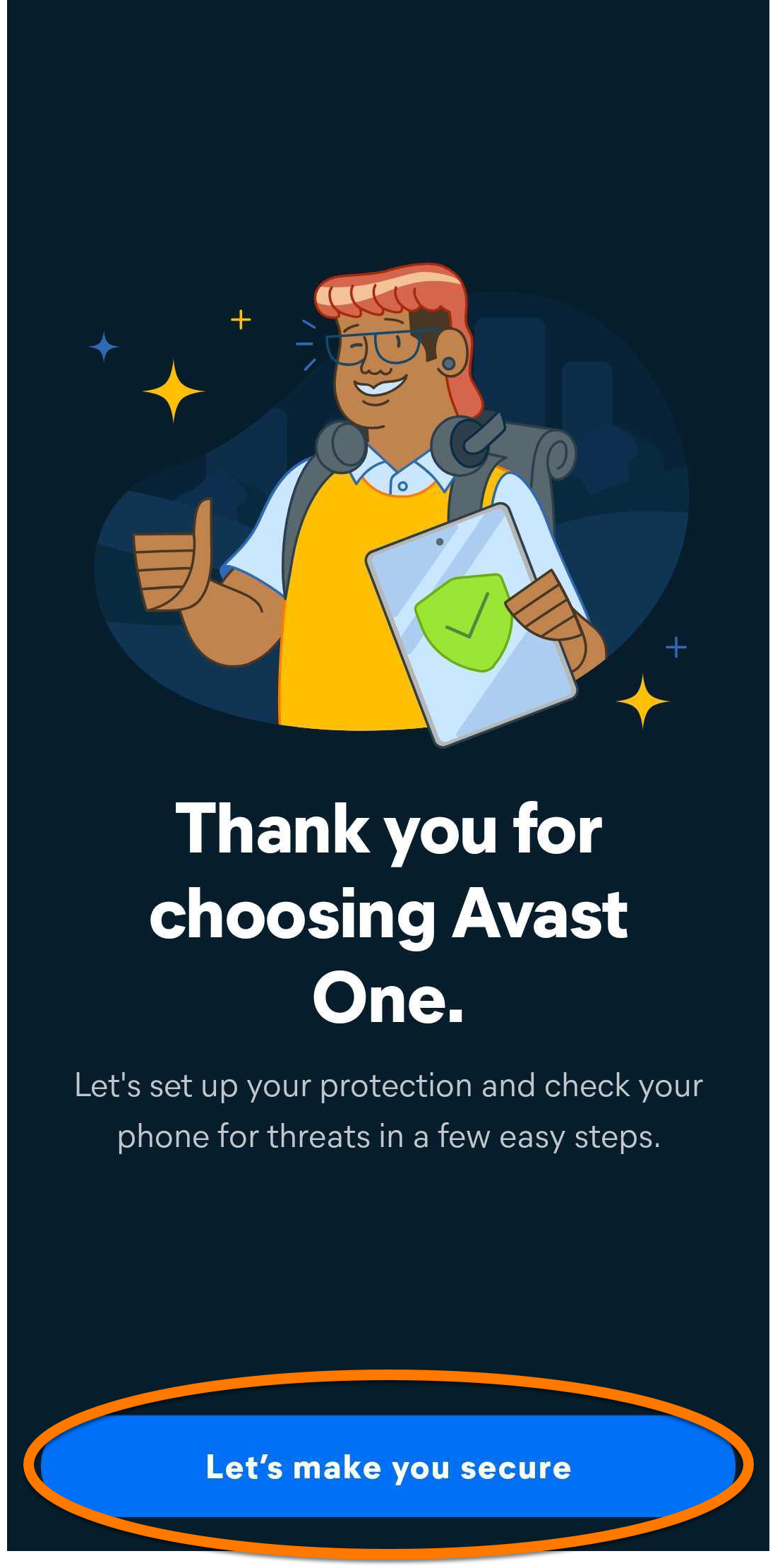
- Tap Start Setup, then follow the on-screen instructions to grant Avast the required permissions. Alternatively, tap Skip for now.
The required permissions include battery optimization exemption, Appear on top (for screen overlay alerts), and Accessibility (for real-time detections).
Avast One is now installed and set up on your Android device.
Troubleshooting
If you experience any installation issues, refer to the following article to ensure your Android device meets the minimum system requirements:
If you experience an issue with activation, refer to the following articles:
If you are unable to resolve your issue, contact Avast Support.
Further recommendations
To learn more about Avast One, refer to the following article:
For instructions on how to use Avast One, refer to the following article:
The new Avast One for iOS is replacing both the previous Avast One app and Avast Mobile Security. As part of this change, the older apps are being removed from the Apple App Store. All new installations on iOS install the new Avast One app.
Avast One is an all-in-one security and privacy tool that helps block viruses, spyware, and other malicious threats. Additionally, it helps protect you and your data from hackers while you are online.
Install Avast One
Avast One is available as both a free and paid app. To install Avast One, choose your version:
Your Avast One version:
Free version
- On your iOS device, tap the button below to open the Avast One app page in the App Store.
Go to the App Store
- Tap the Download button to download and install the app. When installation is complete, tap Open.
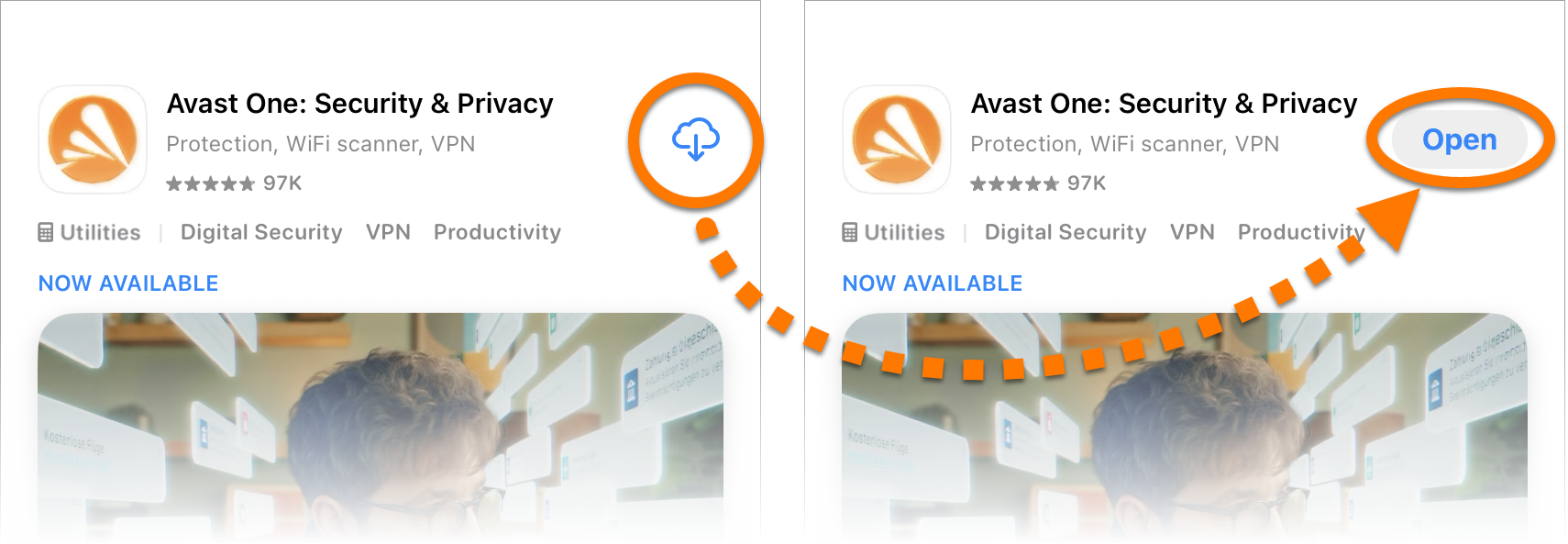
- Tap Get started.
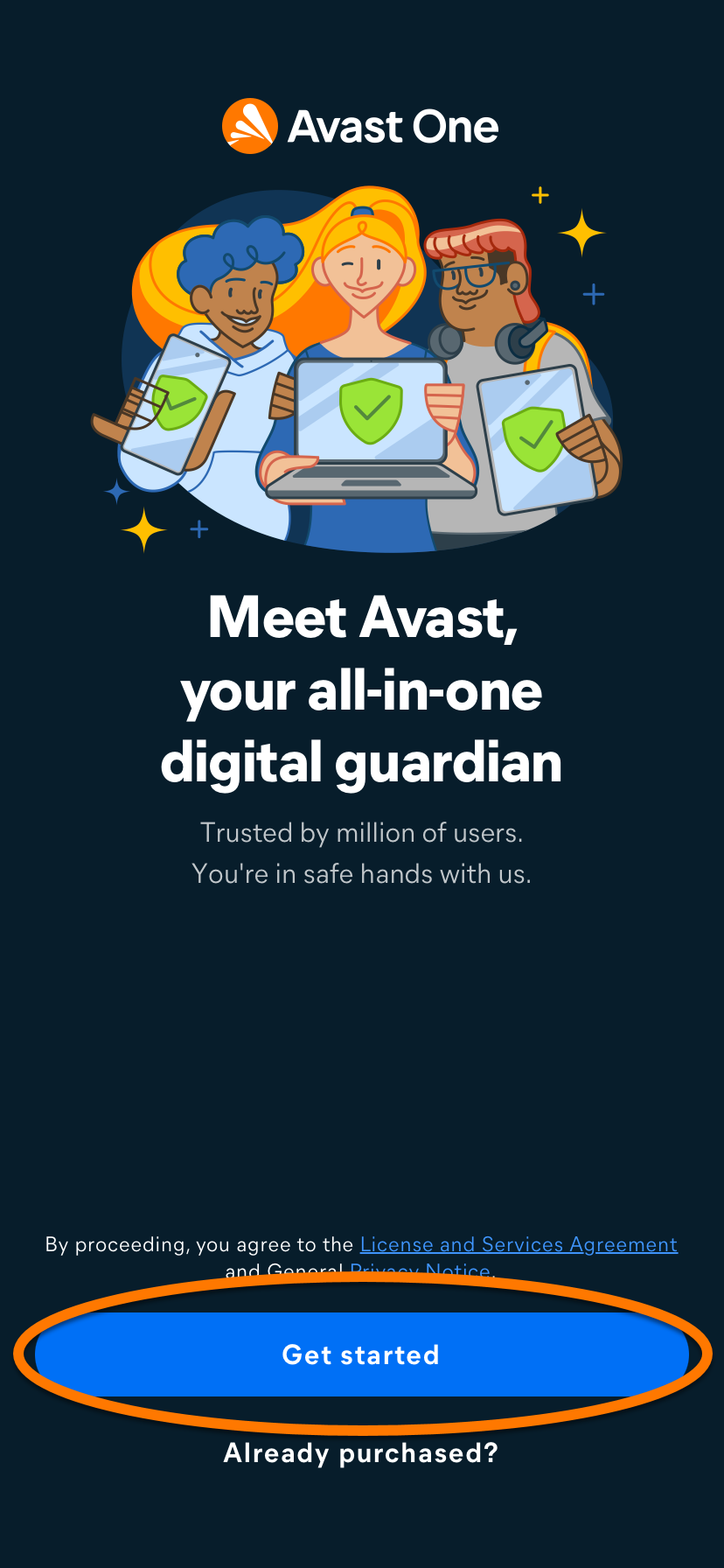
- Go through the welcome screens, then tap Continue ▸ Allow to let Avast One to send you notifications. Alternatively, tap Don’t Allow.
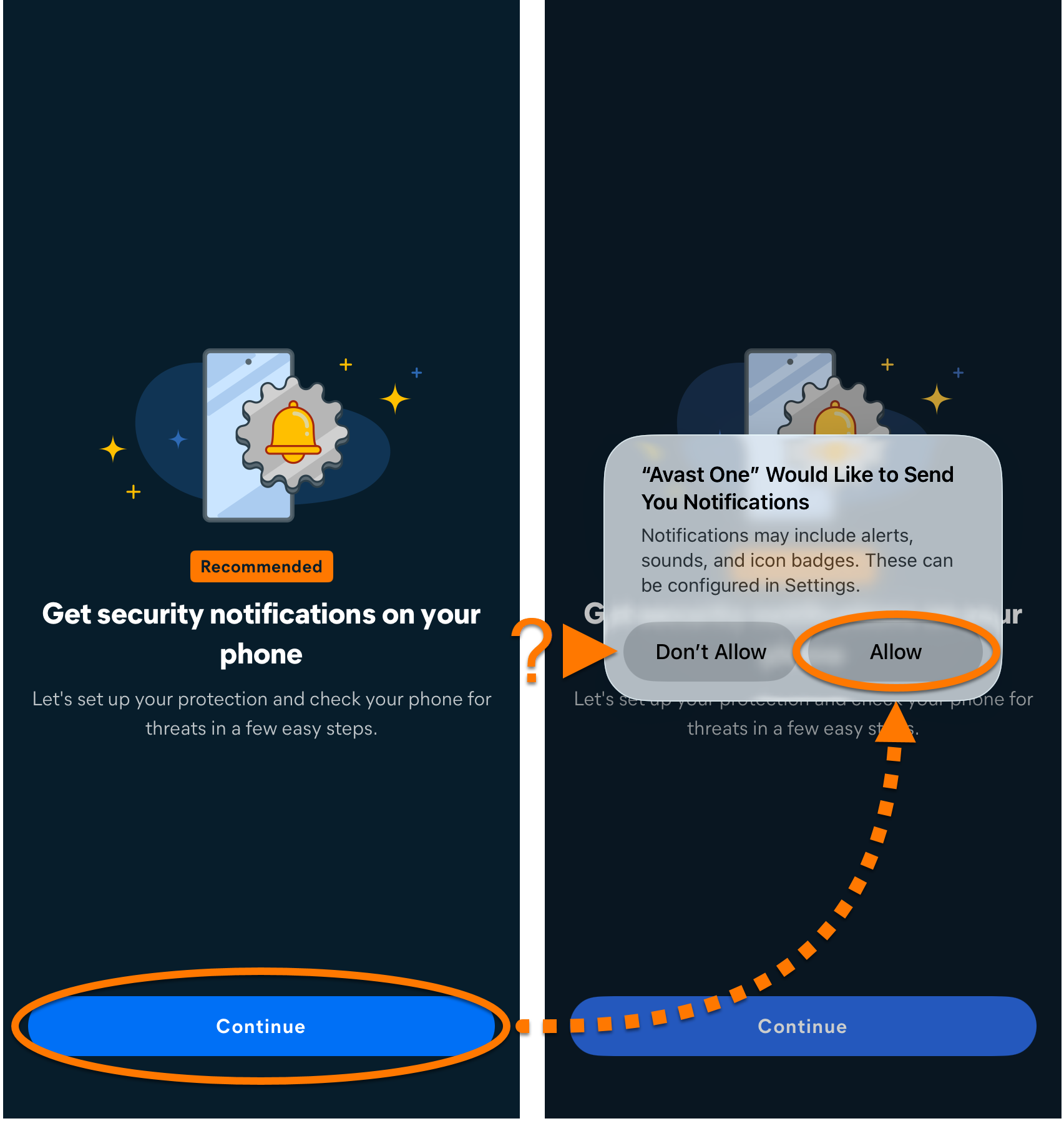
- On the purchase screen, tap
X to continue with the free version. 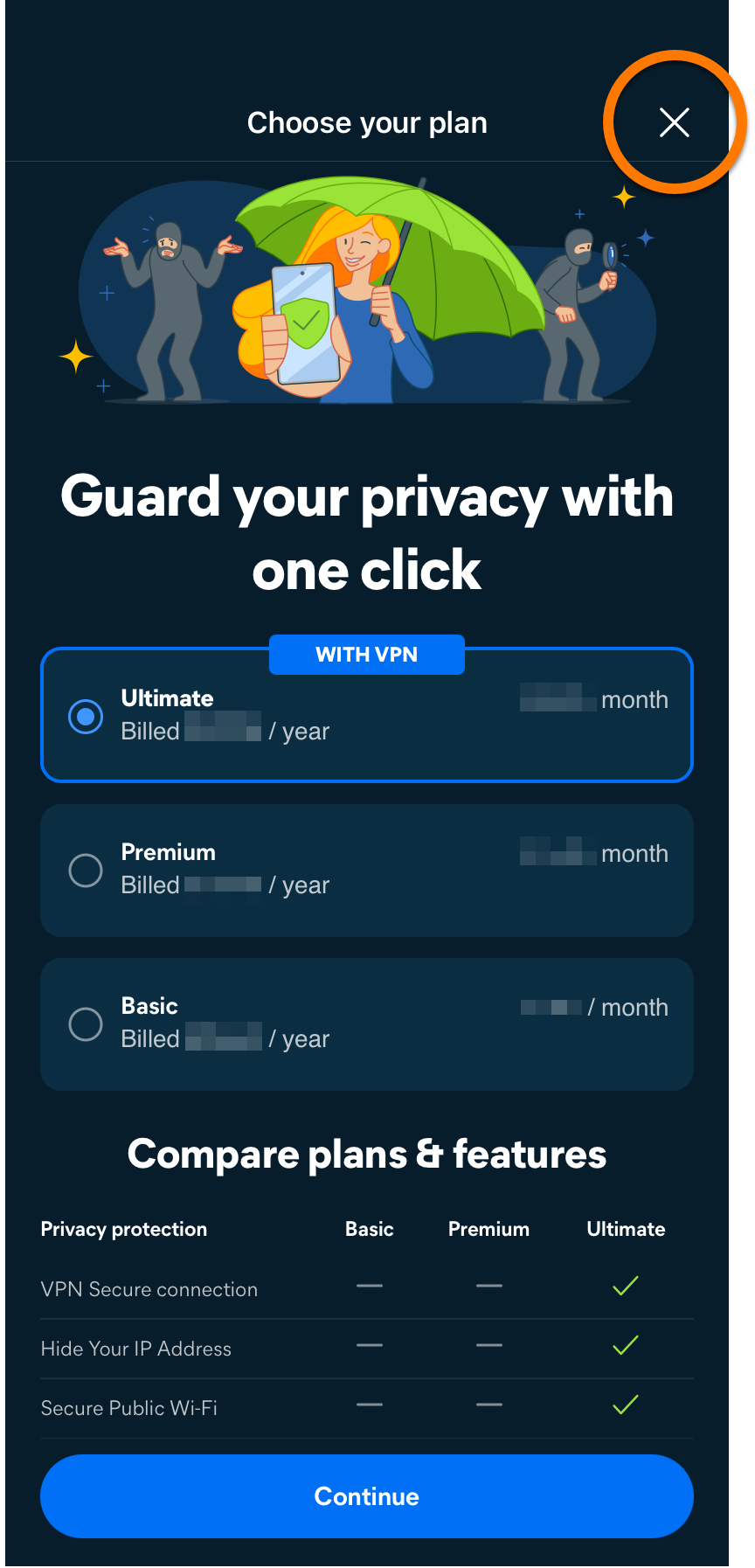
- Tap Get Started, then follow the on-screen instructions to grant Avast the required permissions.

Avast requests permission to collect limited data and to add VPN configurations. To grant these permissions, tap Allow in the data usage dialog. If you prefer not to grant them, tap Ask App Not to Track or Don't Allow.
The free version of Avast One is now installed on your iOS device.
Upgrade to the paid version of Avast One
You can subscribe to the paid version of Avast One by tapping Upgrade in the top-right corner of the app screen. Follow the on-screen instructions to complete the transaction via the App Store.

Your application activates automatically. If you already subscribed to the paid version of Avast One before installation, you need to manually activate the app. For instructions, refer to the following article:
Paid version
- On your iOS device, tap the button below to open the Avast One app page in the App Store.
Go to the App Store
- Tap the Download button to download and install the app. When installation is complete, tap Open.
- Tap Already purchased?. Alternatively, if you have not purchased a subscription yet, tap Get started, then follow the on-screen instructions to choose a plan and complete the purchase. If you purchase a subscription this way, Avast One activates automatically.
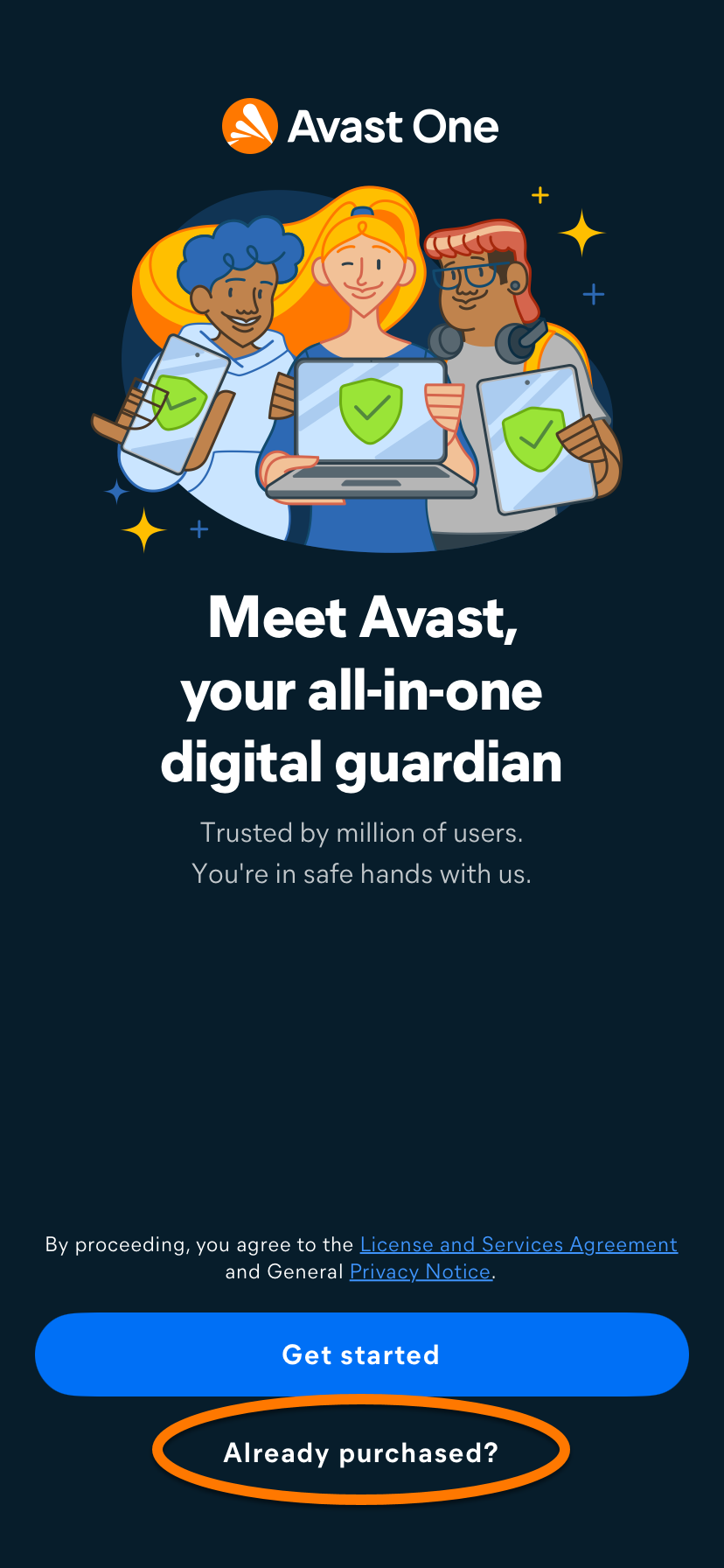
- Select the relevant option to activate your paid subscription:
- Sign in to your Account: Connect your subscription using your Avast Account credentials.
- Restore from App Store: If you purchased a paid version of Avast One through the App Store, you can follow the on screen instructions to restore your subscription. Ensure you are signed in to the App Store with the same account that you used to purchase a paid version of Avast One.

For detailed activation instructions, refer to the article: Activating premium Avast One features.
- Tap Get Started, then follow the on-screen instructions to grant Avast the required permissions.
Avast requests permission to collect limited data and to add VPN configurations. To grant these permissions, tap Allow in the data usage dialog. If you prefer not to grant them, tap Ask App Not to Track or Don't Allow.
Avast One is now installed on your iOS device.
Troubleshoot installation issues
Refer to the following article to ensure your iOS device meets the minimum system requirements:
If the issue persists, contact Avast Support.
Further recommendations
To learn more about Avast One, refer to the following article:
For instructions on how to use Avast One, refer to the following article:

