This article explains how to resolve activation issues with Avast Android apps purchased via Google Play Store.
To troubleshoot activation issues with subscriptions purchased via the official Avast website, refer to the following article instead: Troubleshooting activation issues in Avast products.
To troubleshoot an activation issue in Google Play Store, follow the steps in the sections below in order:
Clear Google Play Store data
These steps can differ slightly depending on your device model, Android version, and vendor customizations.
We recommend clearing your Google Play Store data by following the steps below:
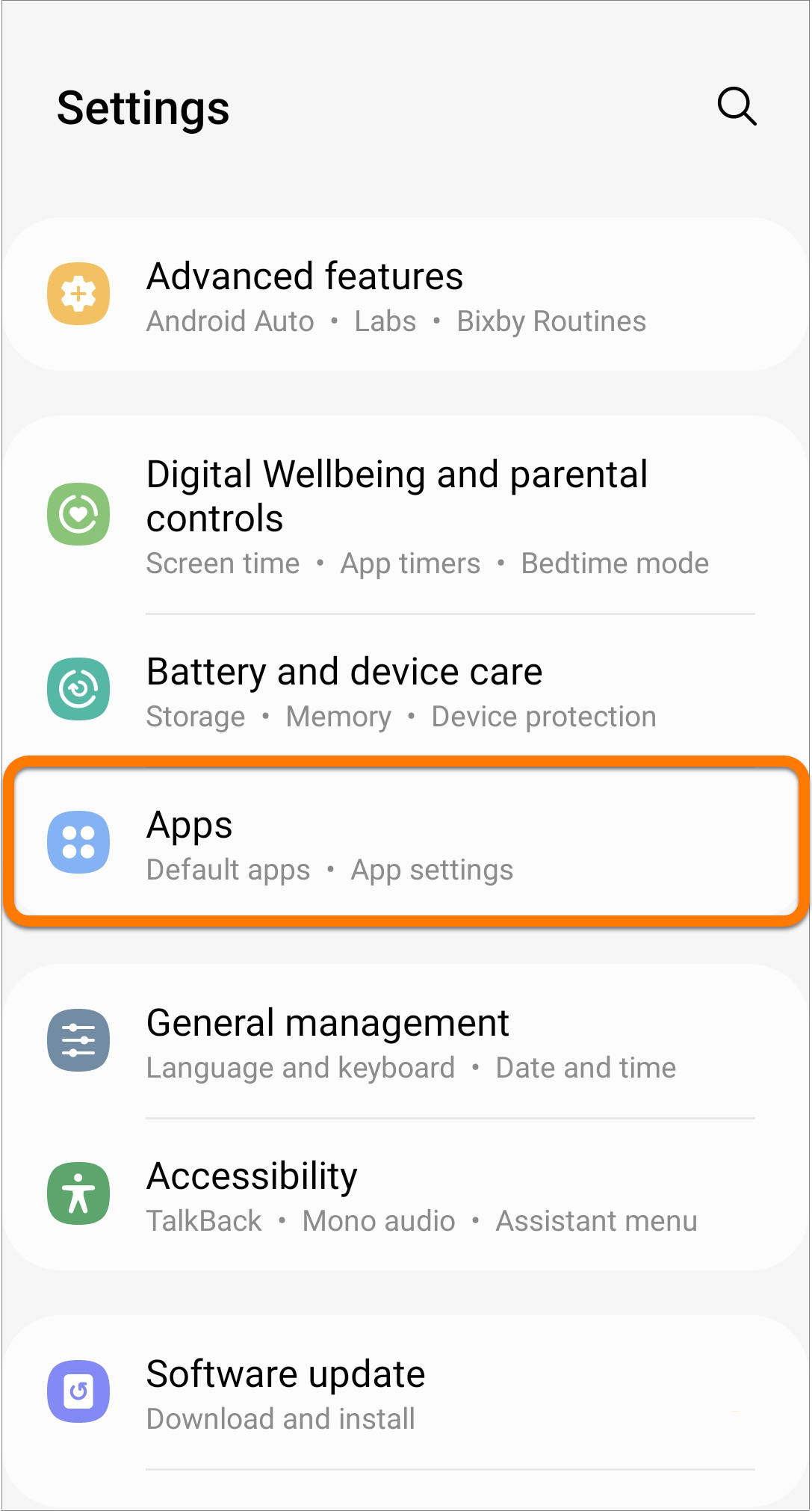
- Open your Android device Settings and select Apps.
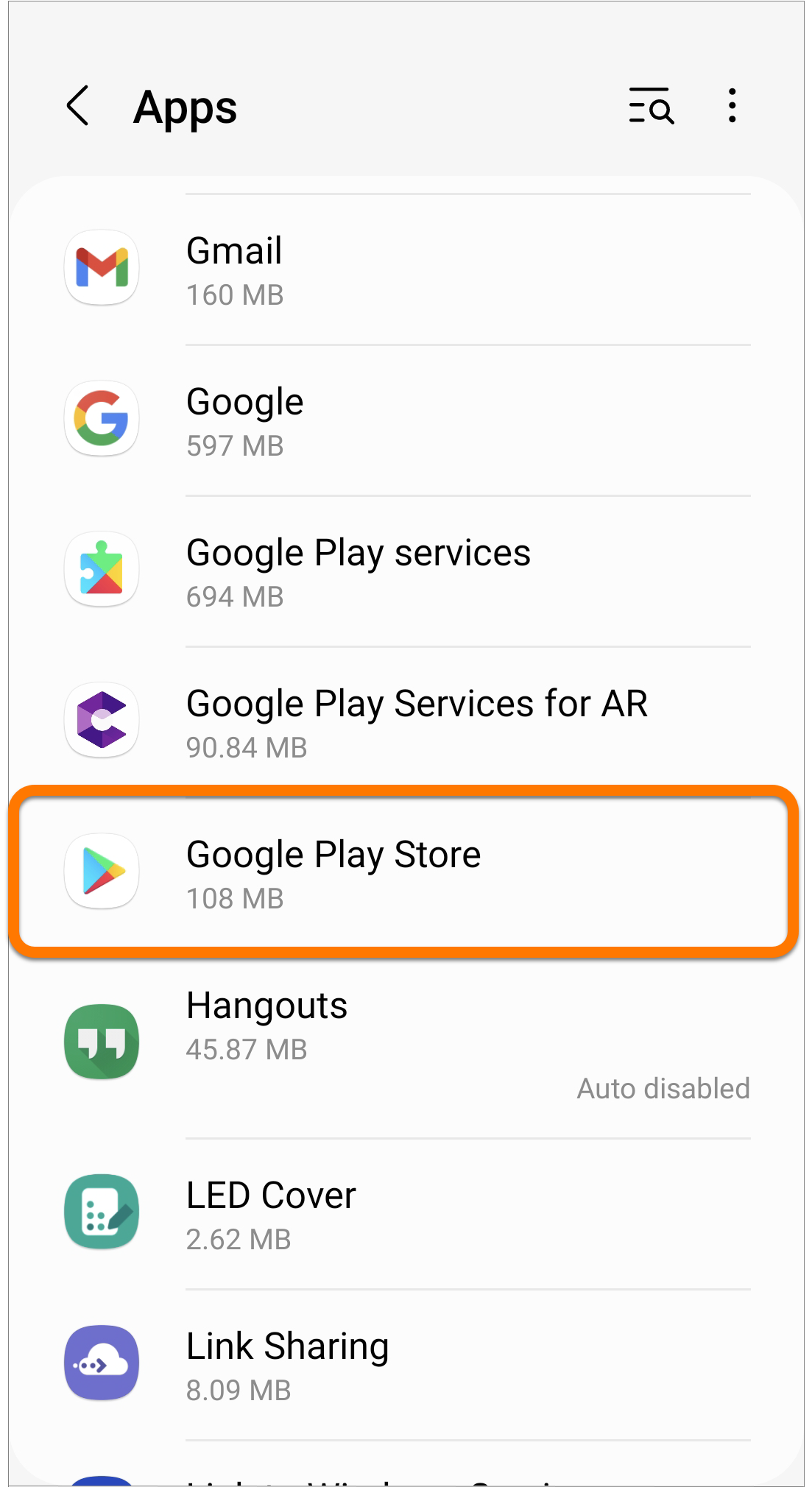
- Select Google Play Store.
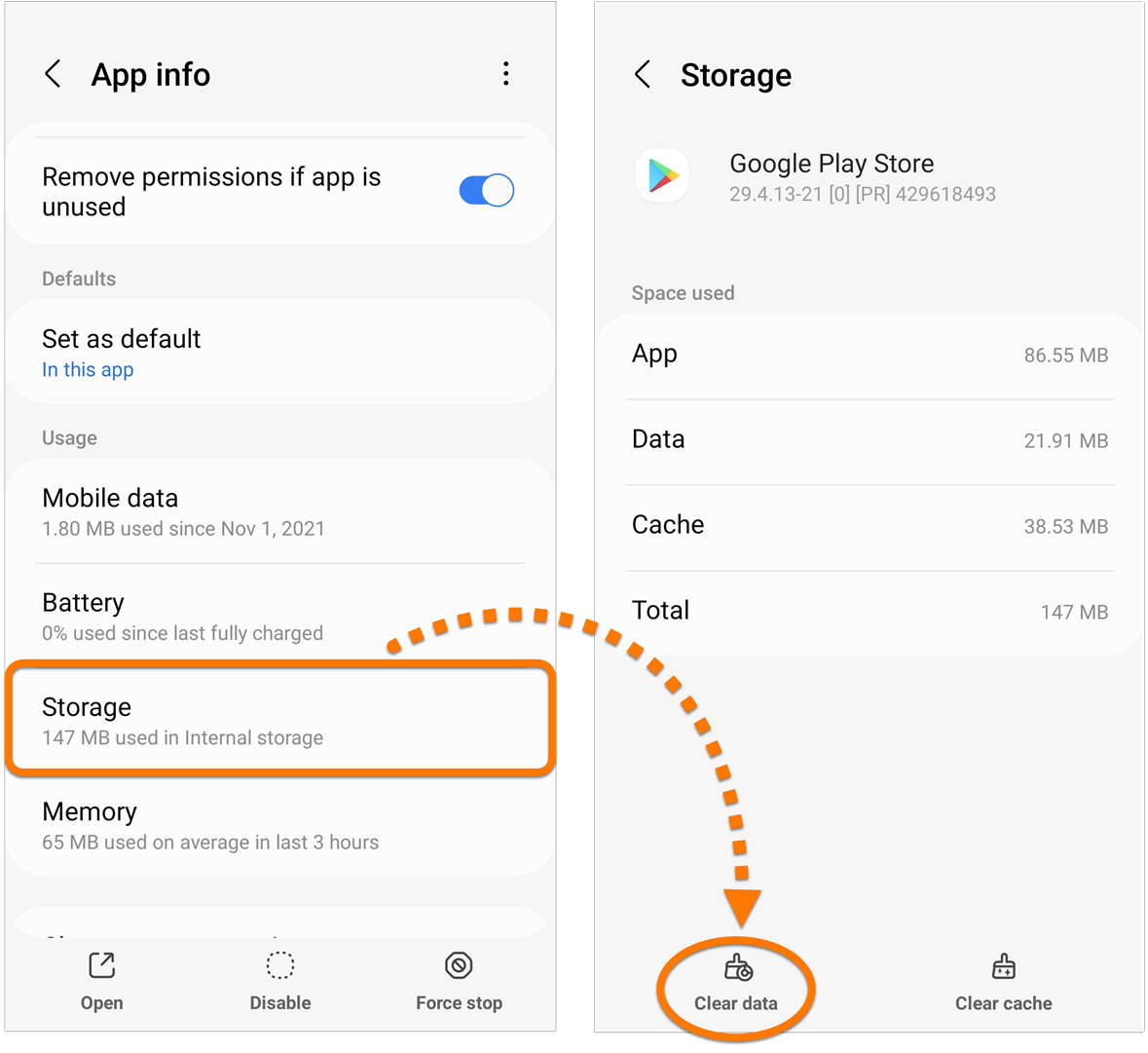
- Tap Storage ▸ Clear data. If prompted, tap OK to confirm.
When you clear Google Play Store app data, all your settings for this app are removed.
- Tap the Play Store icon on the Home screen of your device to open Google Play Store. If prompted, accept the Terms of service.

Google Play Store data is now cleared. Follow the steps in the section below to restore your subscription.
Restore your subscription
After clearing Google Play Store data, refer to the relevant section below for instructions to restore your subscription.
Your Avast Android app:
Avast SecureLine VPN
- Open Avast SecureLine VPN and tap
⋮ Options (the three dots) ▸ Already purchased?, 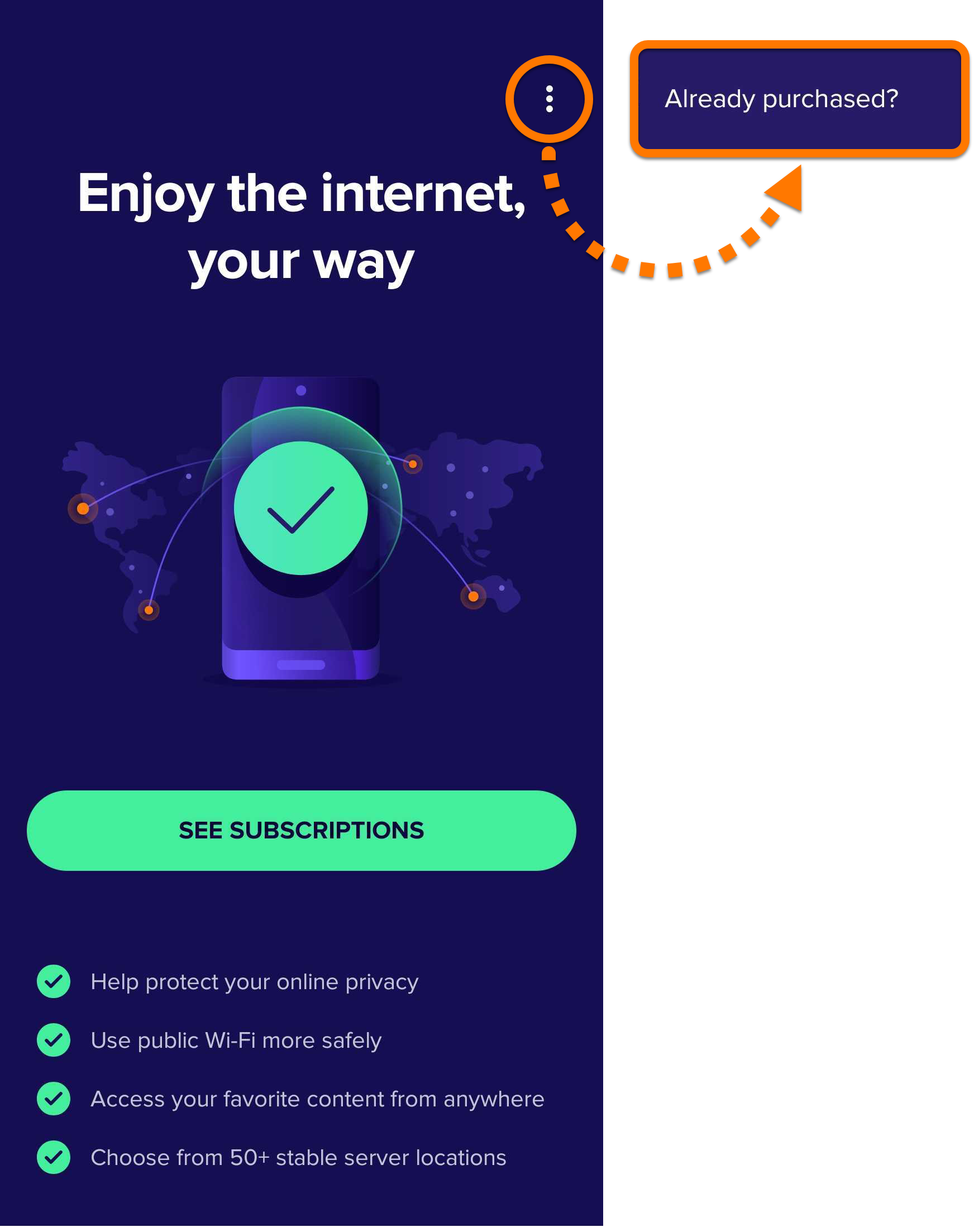
- Select Restore from Google Play.
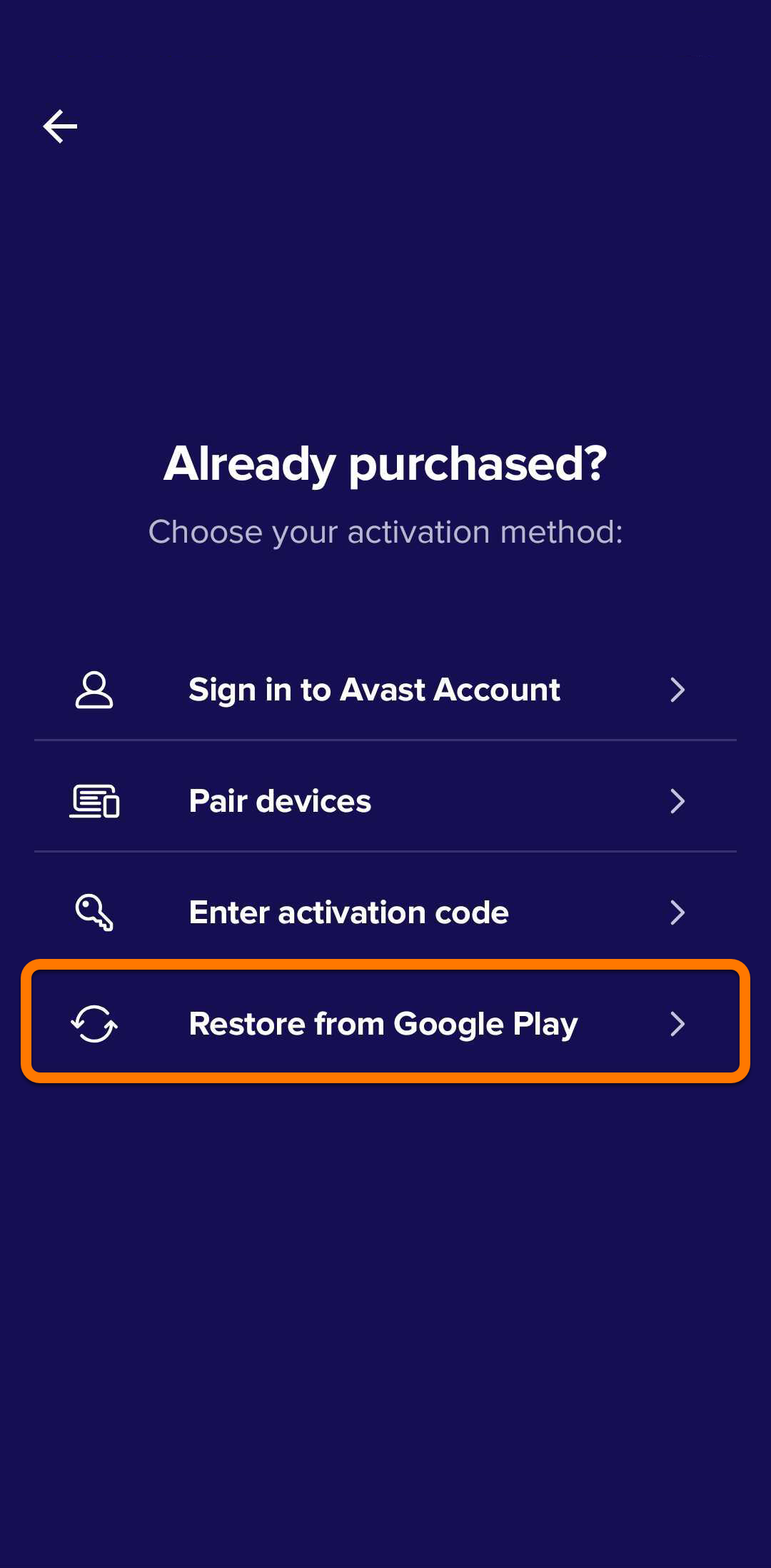
The app automatically retrieves and activates your Avast SecureLine VPN subscription from Google Play Store. If activation fails, follow the steps in this article to connect to the correct Google Account.
Connect to the correct Google Account
If clearing Google Play Store data did not resolve the issue, follow the steps below to sign in to the correct Google Account:
- Uninstall your Avast Android app. For instructions, refer to the relevant article below:
- Tap the Play Store icon on the Home screen of your device to open Google Play Store.
- Tap the profile icon that appears in the top-right corner of the screen.
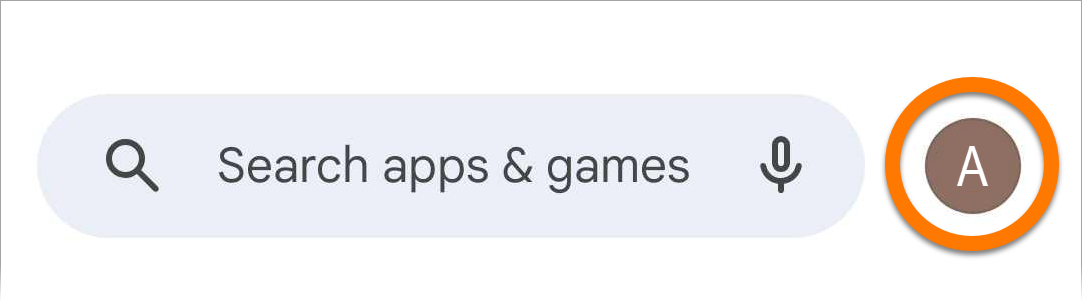
- Check the Google Account that appears at the top of the screen. If this is not the Google Account that you used during your purchase, follow the relevant step below:

- Switch account: Tap the down-arrow and select the Google Account that you used during purchase.
- Add an account: If you do not see the Google Account that you used during purchase, you can add the account. Refer to the instructions under Switch accounts in a Google Play app in the following article from Google Play Help:
If you are not sure which Google Account you used during purchase, you can check which subscriptions are linked to the current Google Account:
- Open Google Play Store on your Android device.
- Tap your profile icon in the top-right corner.
- Select Payments and subscriptions ▸ Subscriptions to open a list of the linked subscriptions.
You are now signed in to the correct Google Account. Follow the steps in the section below to reinstall the app and restore your subscription.
Reinstall the app
Refer to the relevant section below for instructions to reinstall the app and restore your subscription.
Your Avast Android app:
Avast One
Refer to the following articles for information on how to reinstall Avast One:
Avast Cleanup
Refer to the following articles for information on how to reinstall Avast Cleanup:
Avast SecureLine VPN
Refer to the following articles for information on how to reinstall Avast SecureLine VPN:
Still need help?
If this article did not help you to restore your subscription, contact Avast technical support for further assistance.
This article explains how to resolve activation issues with Avast iOS apps purchased via the App Store.
To troubleshoot activation issues with subscriptions purchased via the official Avast website, refer to the following article instead: Troubleshooting activation issues in Avast products.
To troubleshoot an activation issue via the App Store, follow the steps in the sections below in order:
Restore your subscription
Try to restore your subscription by following the exact steps in the relevant section below:
Your Avast iOS app:
Avast SecureLine VPN
- Open Avast SecureLine VPN and tap Already purchased?,
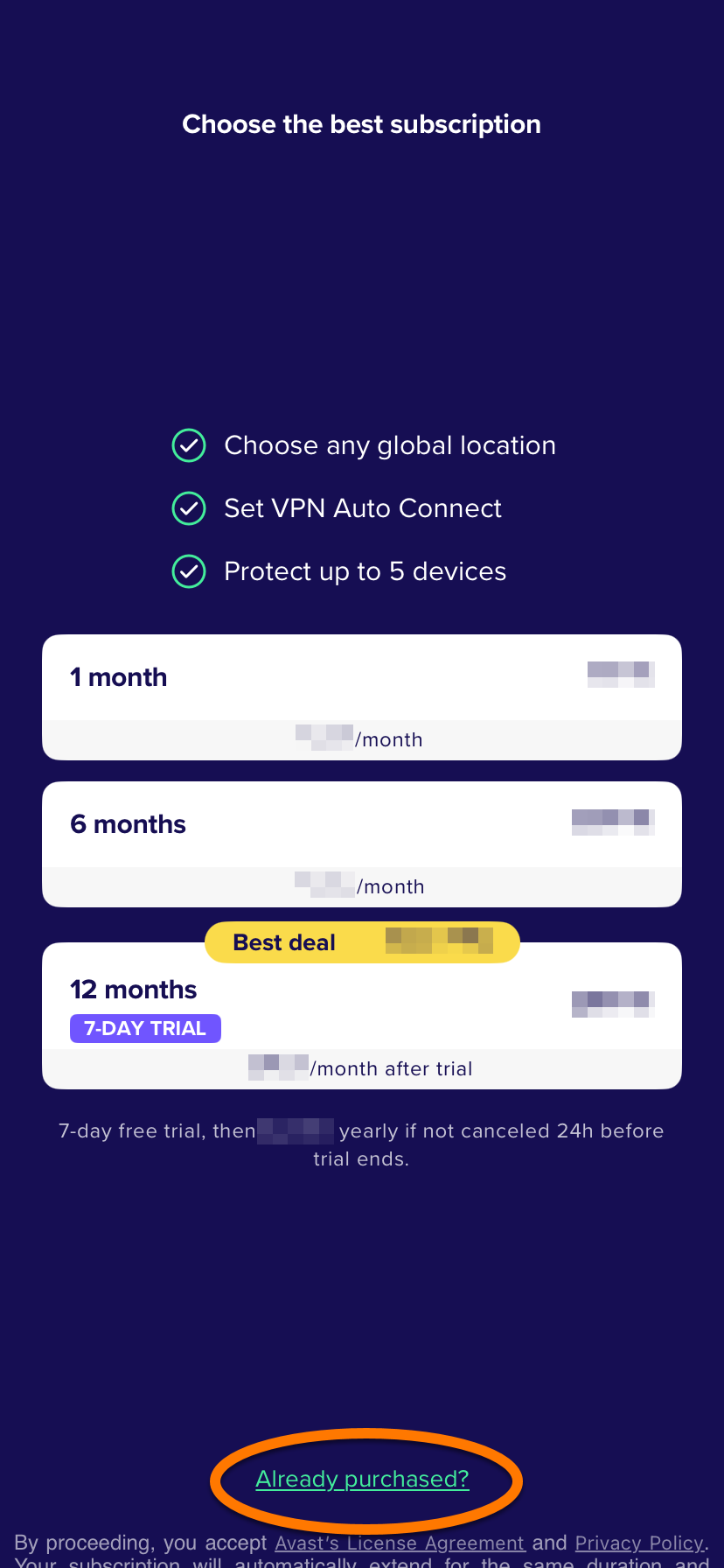
- Select Restore from App Store.
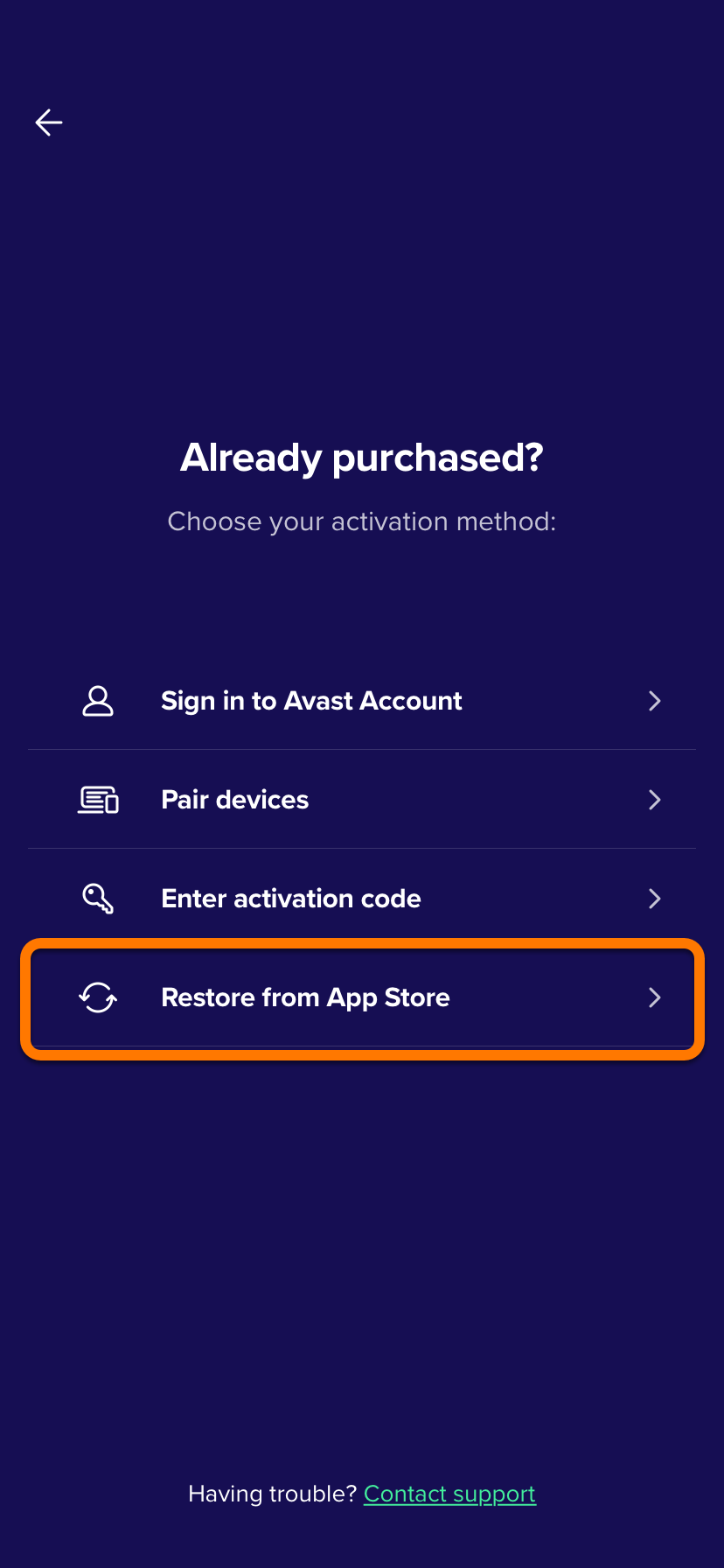
The app automatically retrieves and activates your Avast SecureLine VPN subscription from the App Store. If activation fails, follow the steps in this article to connect to the correct Apple ID.
Connect to the correct Apple ID
Follow the steps below to ensure you are signed in with the correct Apple ID:
- Uninstall your Avast iOS app. For instructions, refer to the relevant article below:
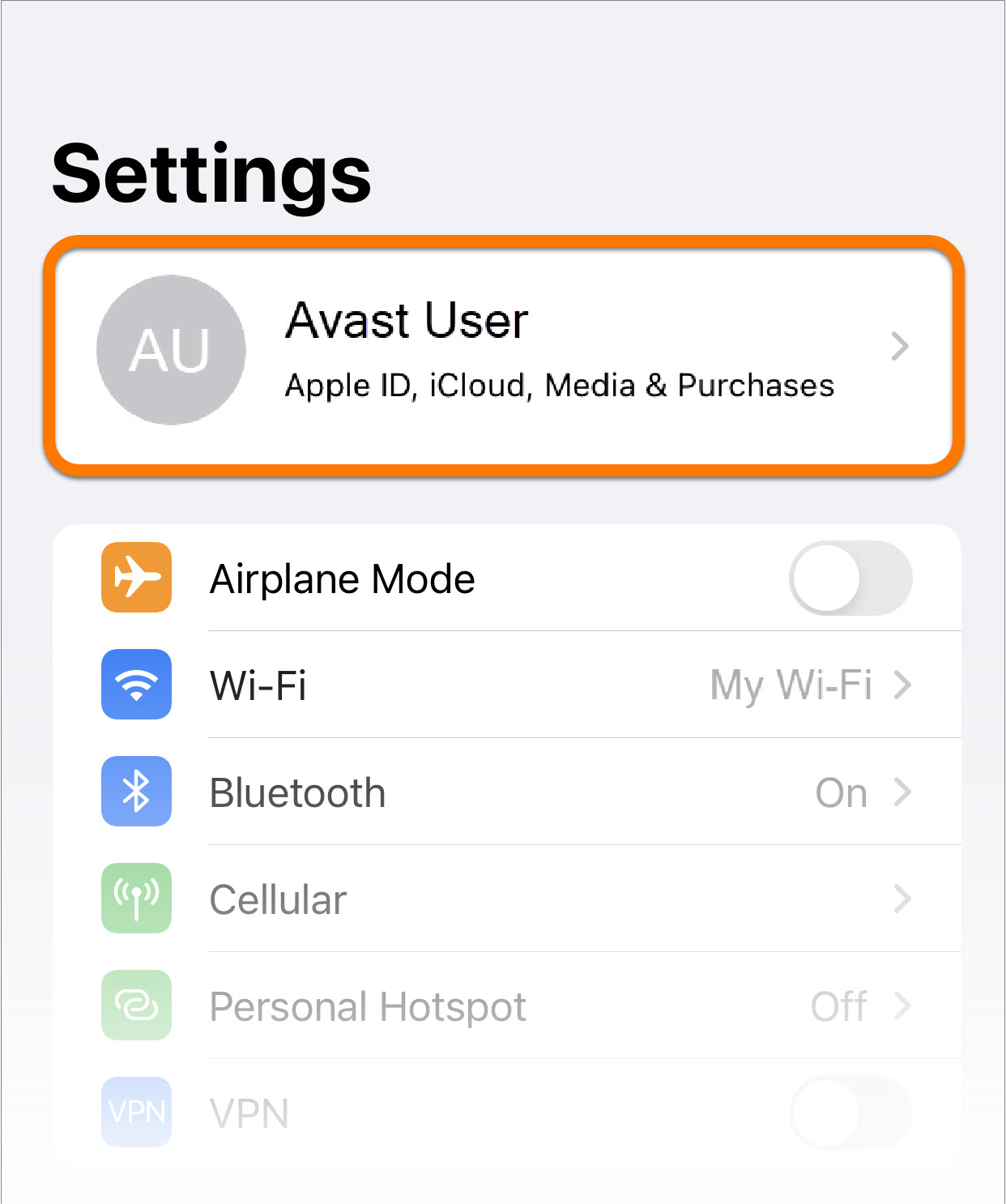
- Go to your device Settings. Check the Apple ID at the top of the screen.
If it is not the Apple ID that you used during your purchase, follow the steps below to sign in with a different Apple ID.
- Tap the current Apple ID at the top of the Settings screen.
- Scroll down and tap Sign Out.
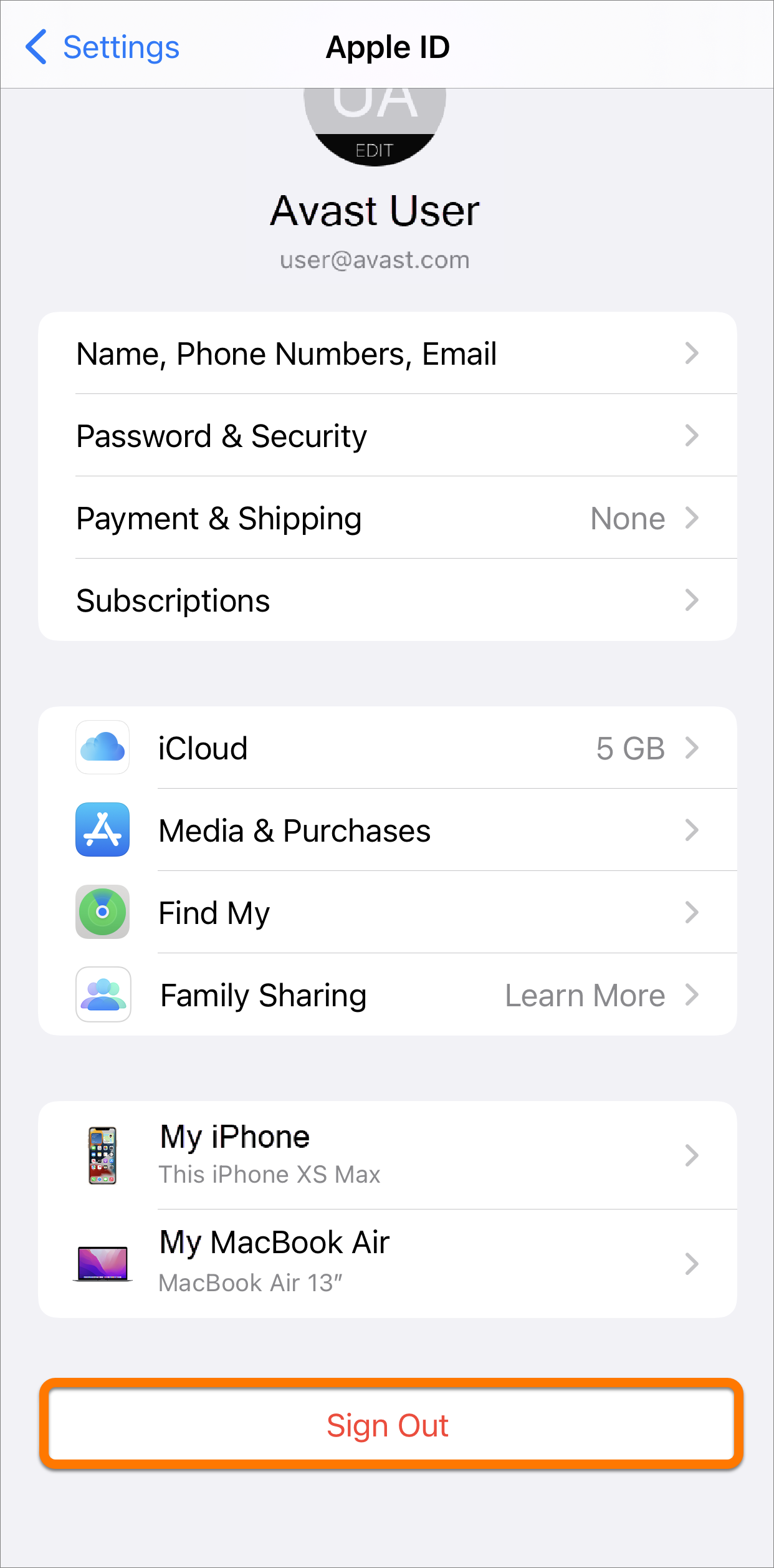
- After you are signed out, sign in with the Apple ID that you used during purchase.
If you are not sure which Apple ID you used during purchase, you can check which subscriptions are linked to the current Apple ID:
- Open the App Store on your iOS device.
- Tap your profile icon in the top-right corner.
- Select Purchased to open a list of the linked subscriptions.
You are now signed in with the correct Apple ID. Follow the steps in the section below to reinstall the app and restore your subscription.
Reinstall the app
Refer to the relevant section below for instructions to reinstall the app and restore your subscription.
Your Avast iOS app:
Avast One
Refer to the following articles for information on how to reinstall Avast One:
Avast Cleanup
Refer to the following article for information on how to reinstall Avast Cleanup:
Avast SecureLine VPN
Refer to the following articles for information on how to reinstall Avast SecureLine VPN:
Still need help?
If this article did not help you to restore your subscription, contact Avast technical support for further assistance.


 Settings.


