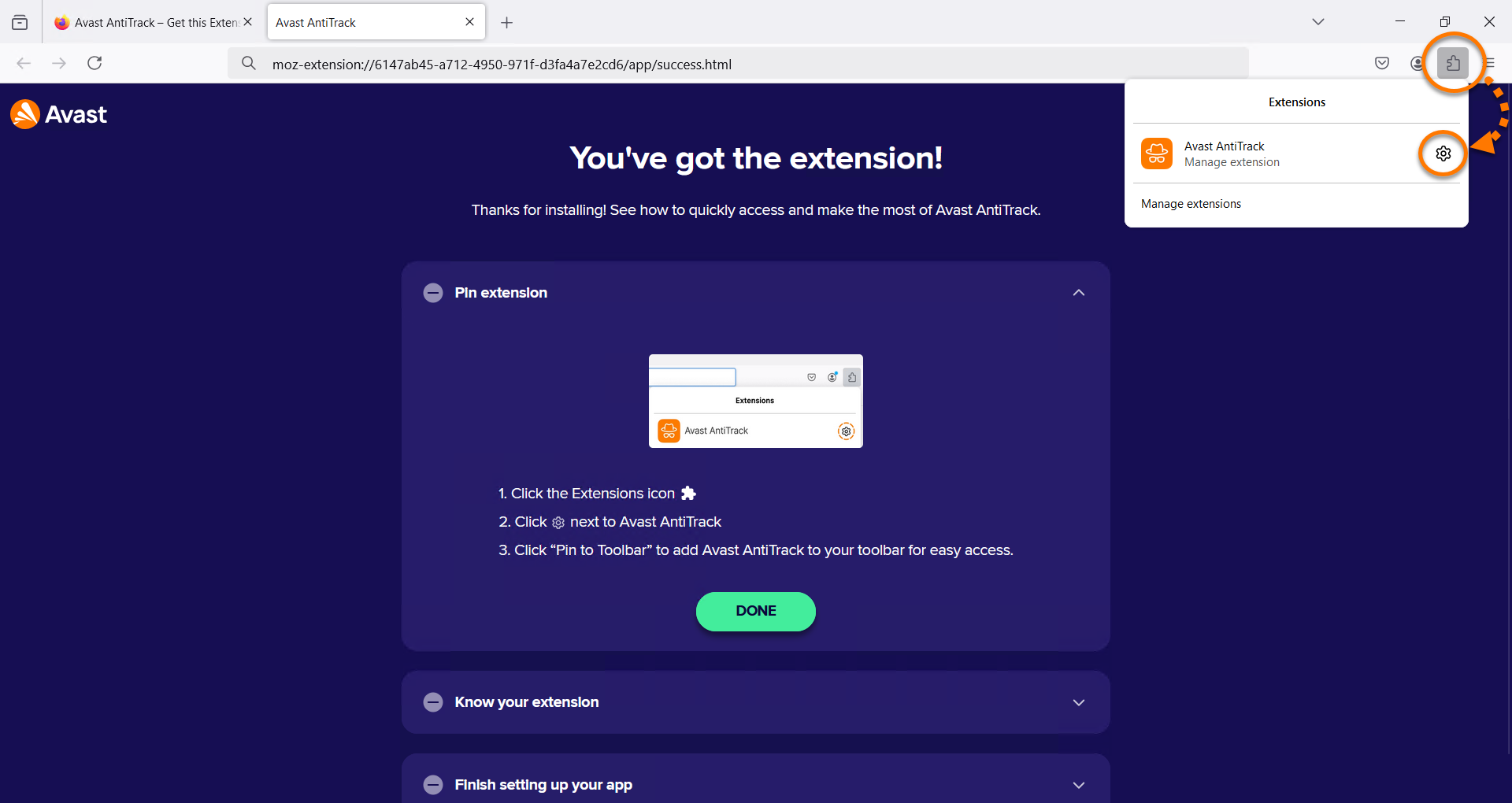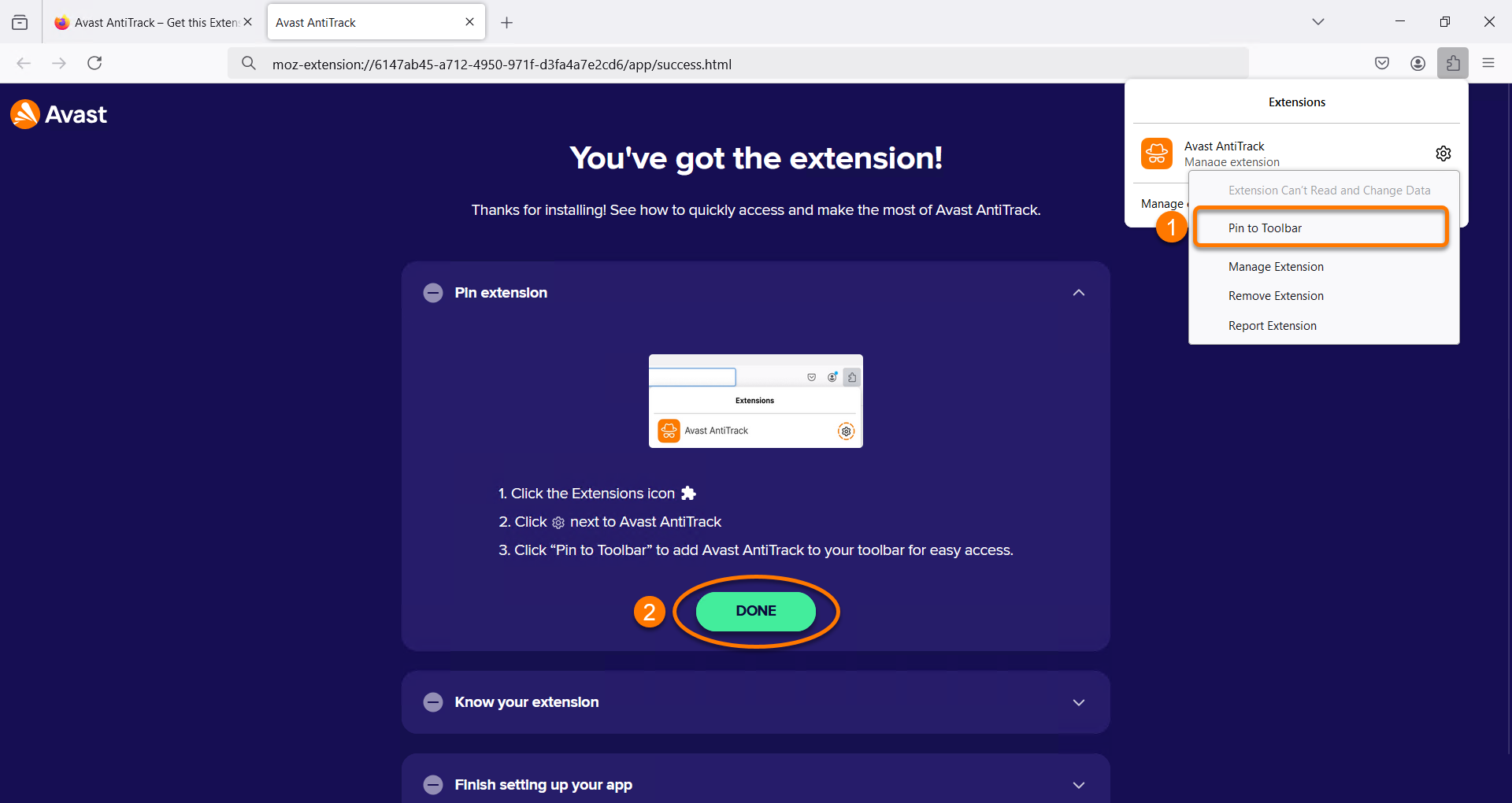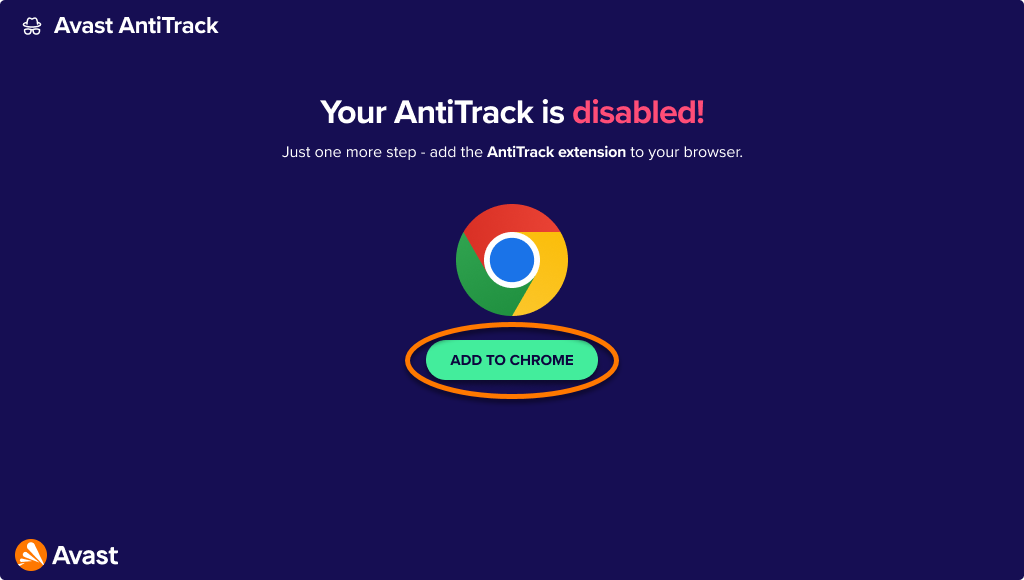
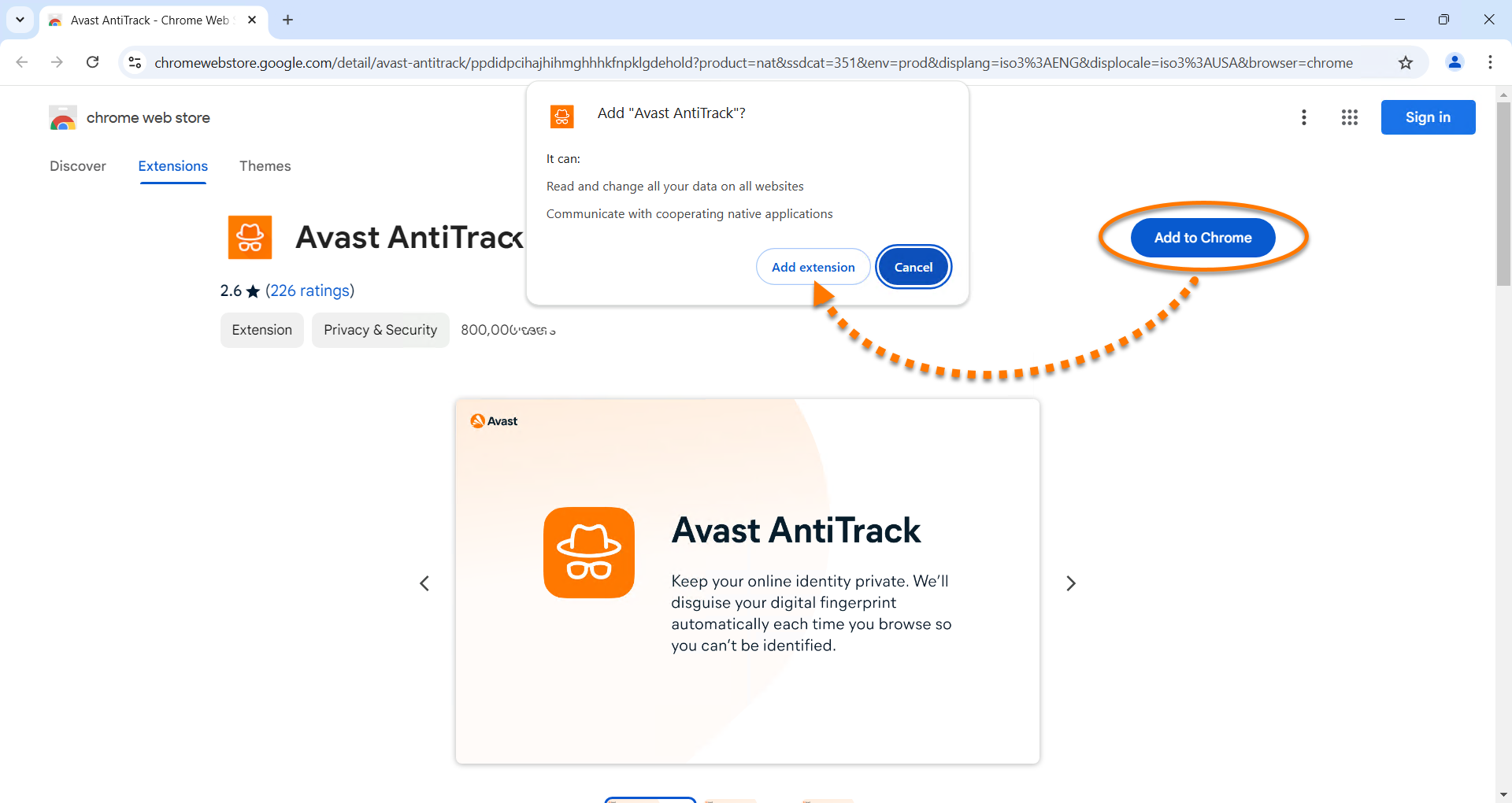
 Pin next to Avast AntiTrack to pin the extension to your browser toolbar, then click Done.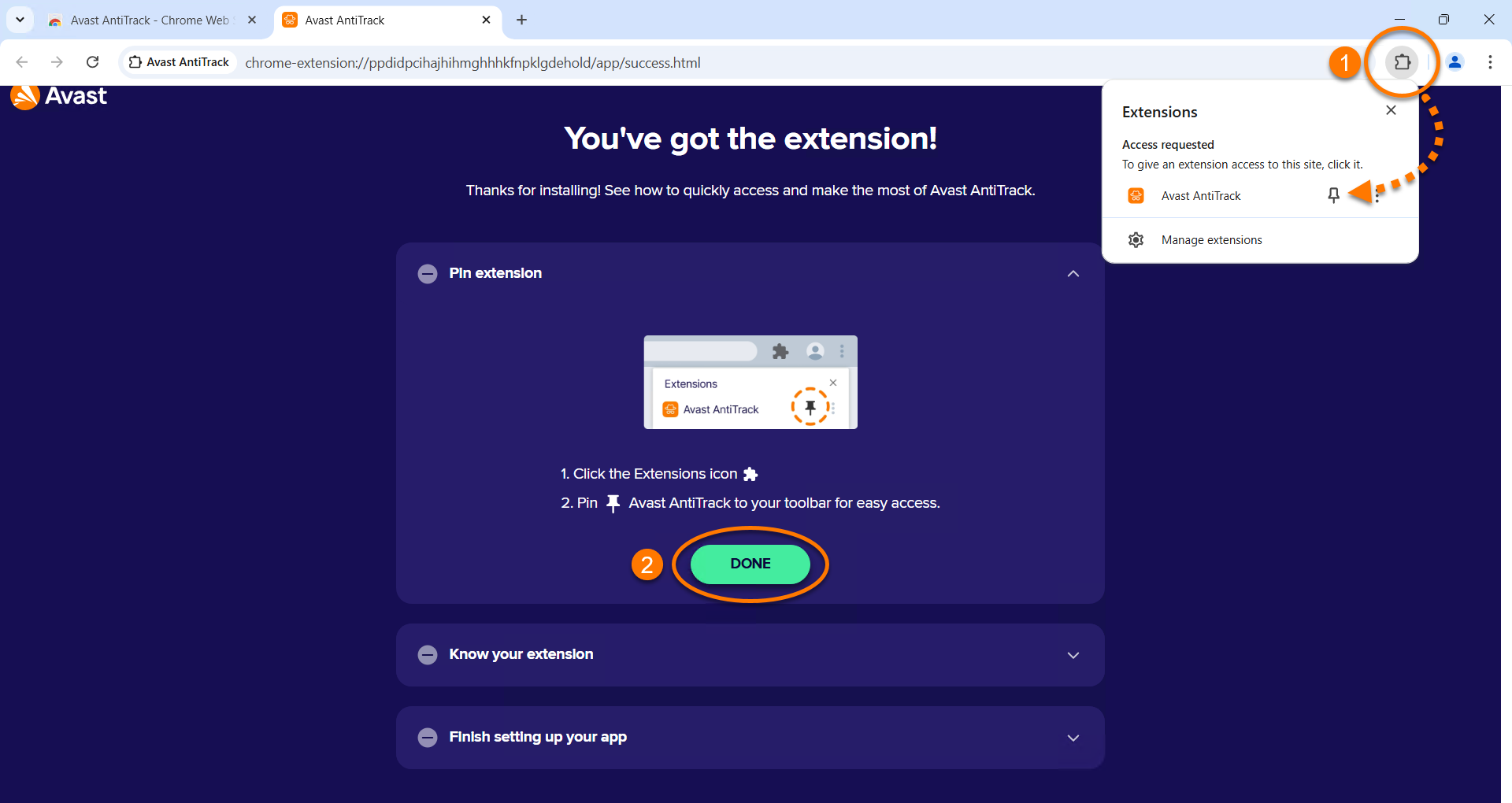
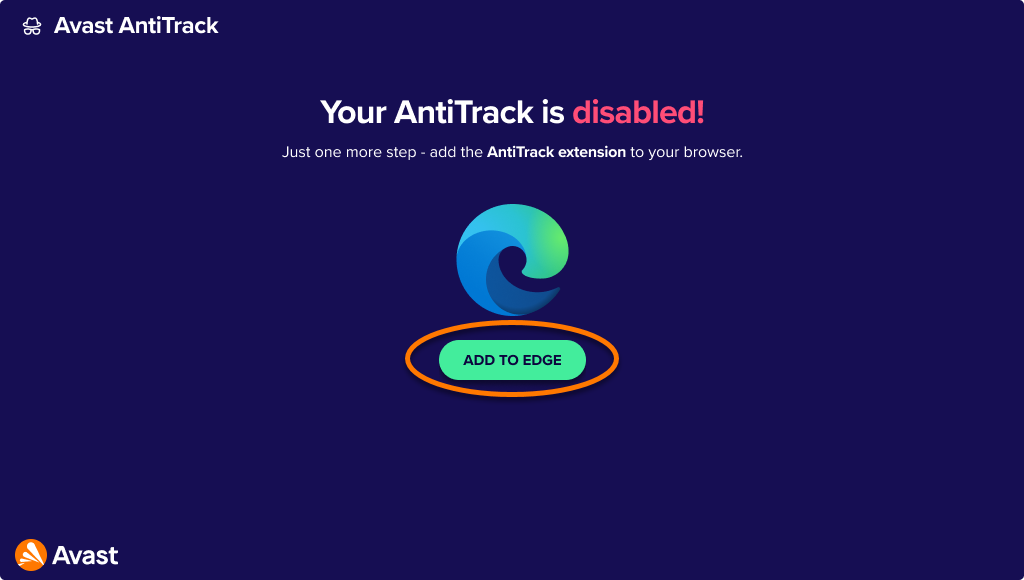
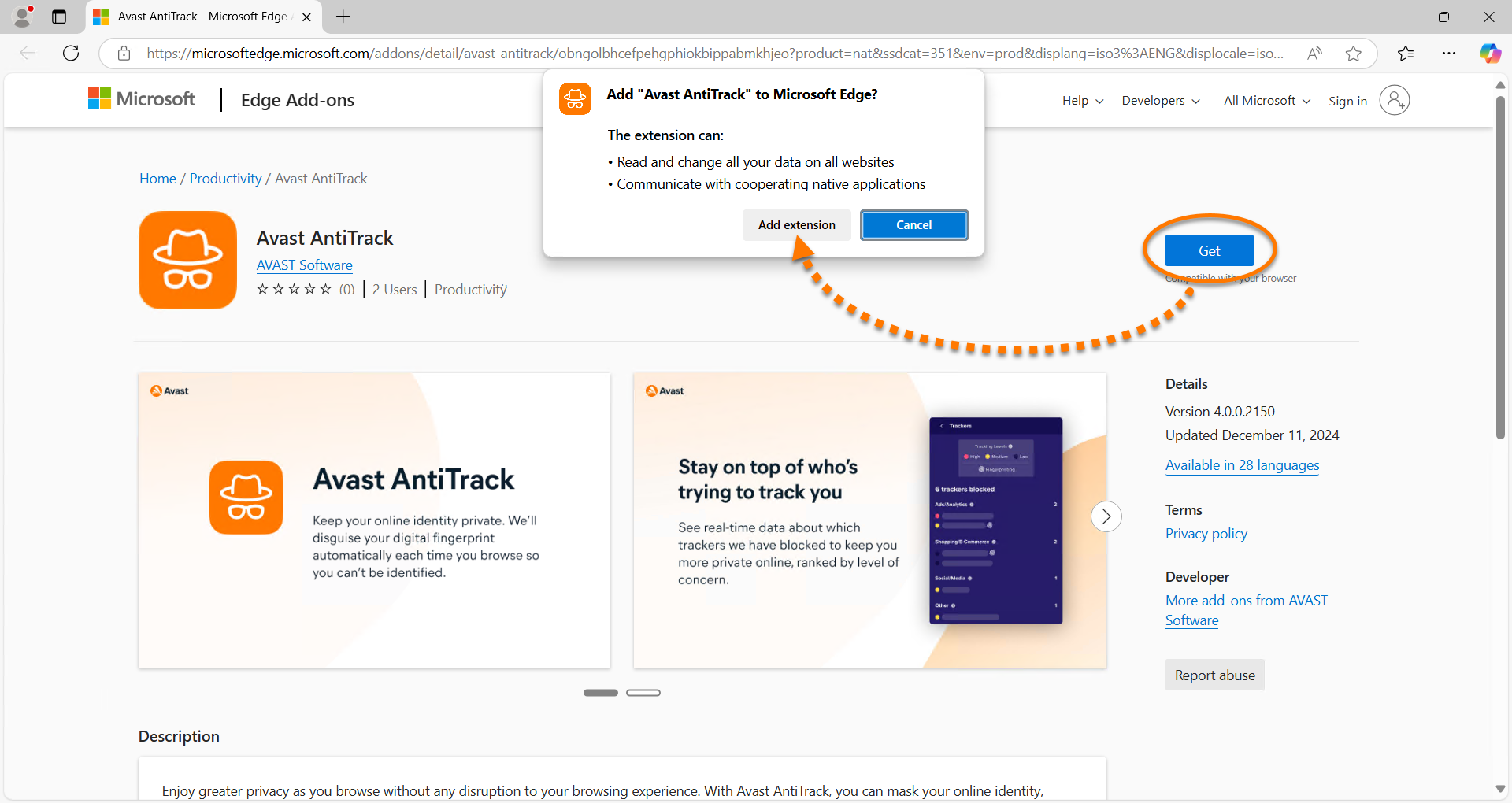
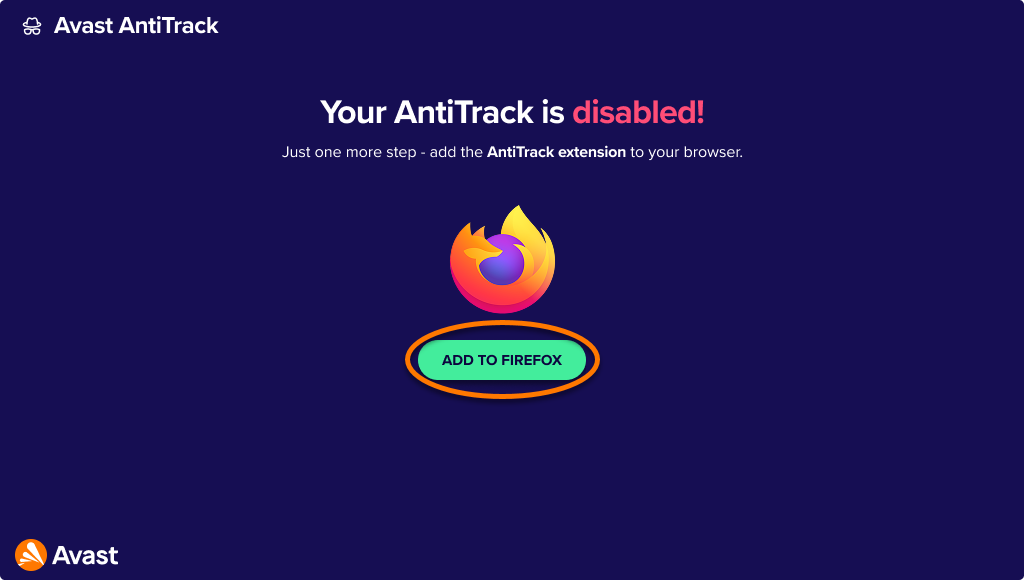
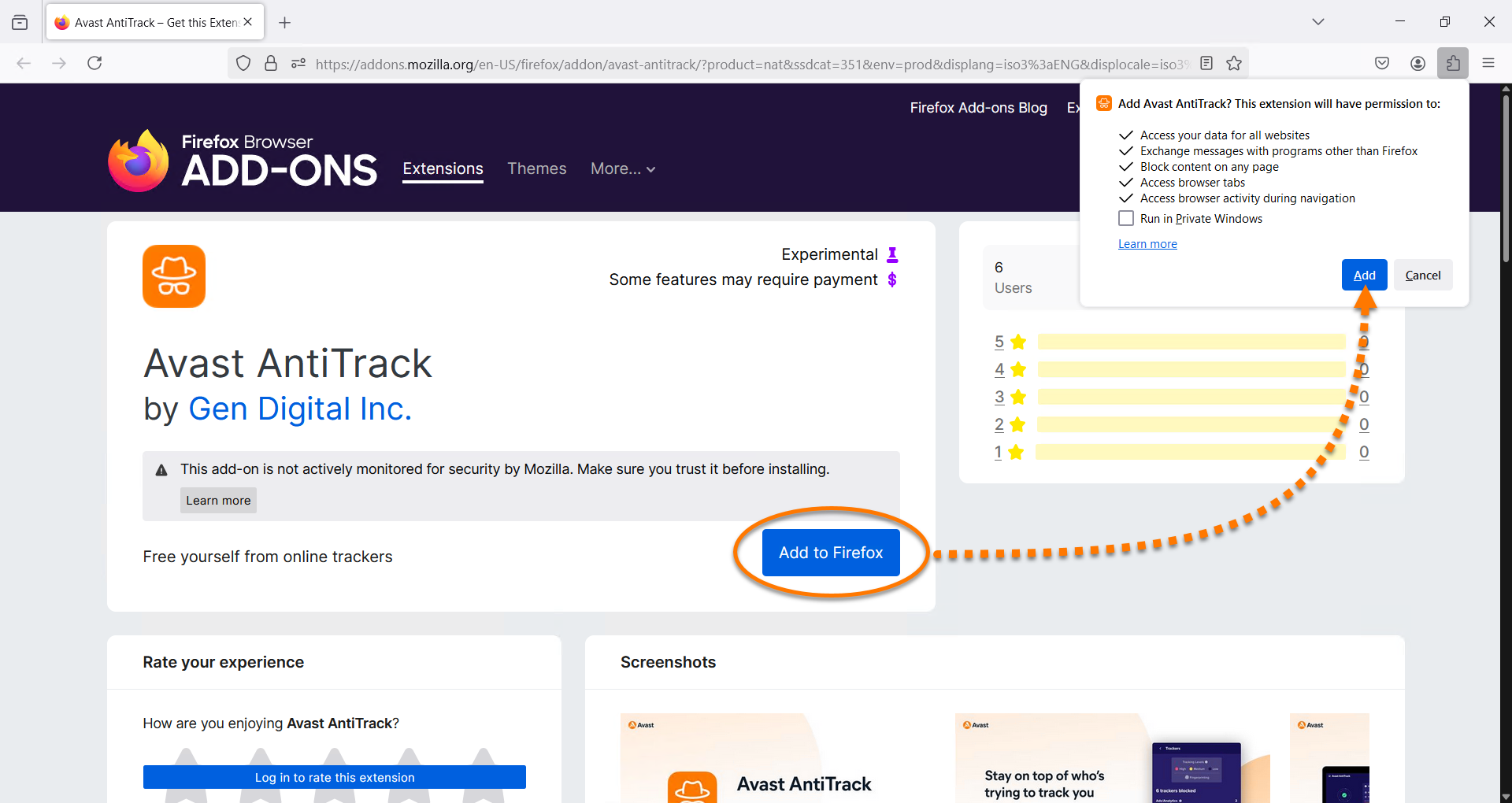
- Click Add to Edge to install the Avast AntiTrack extension on your Edge browser.
- On the Edge Add-ons page, select Get ▸ Add extension.
- Click
 Extensions ▸
  the eye icon next to Avast AntiTrack to pin the extension to your browser toolbar, then click Done.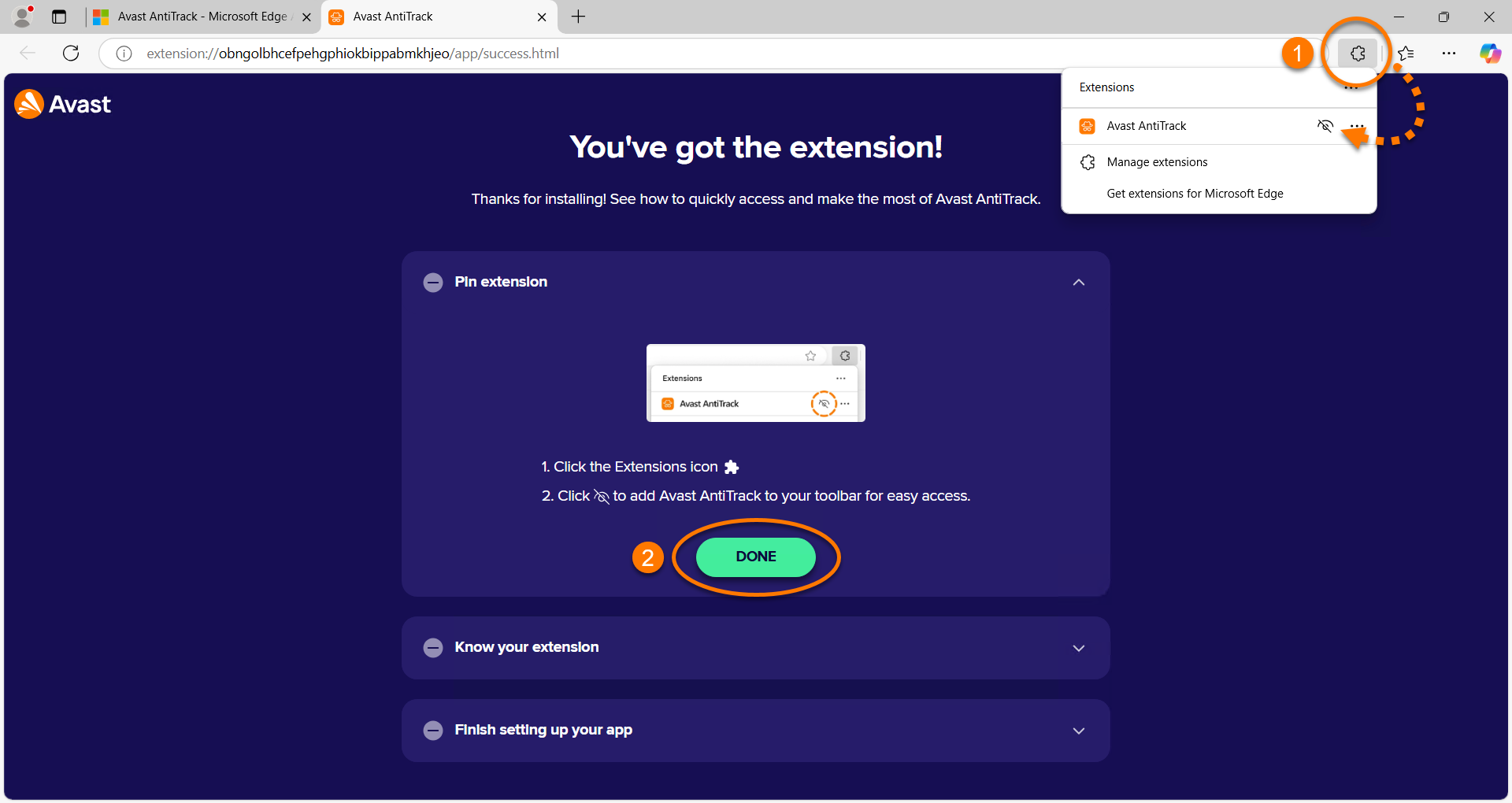
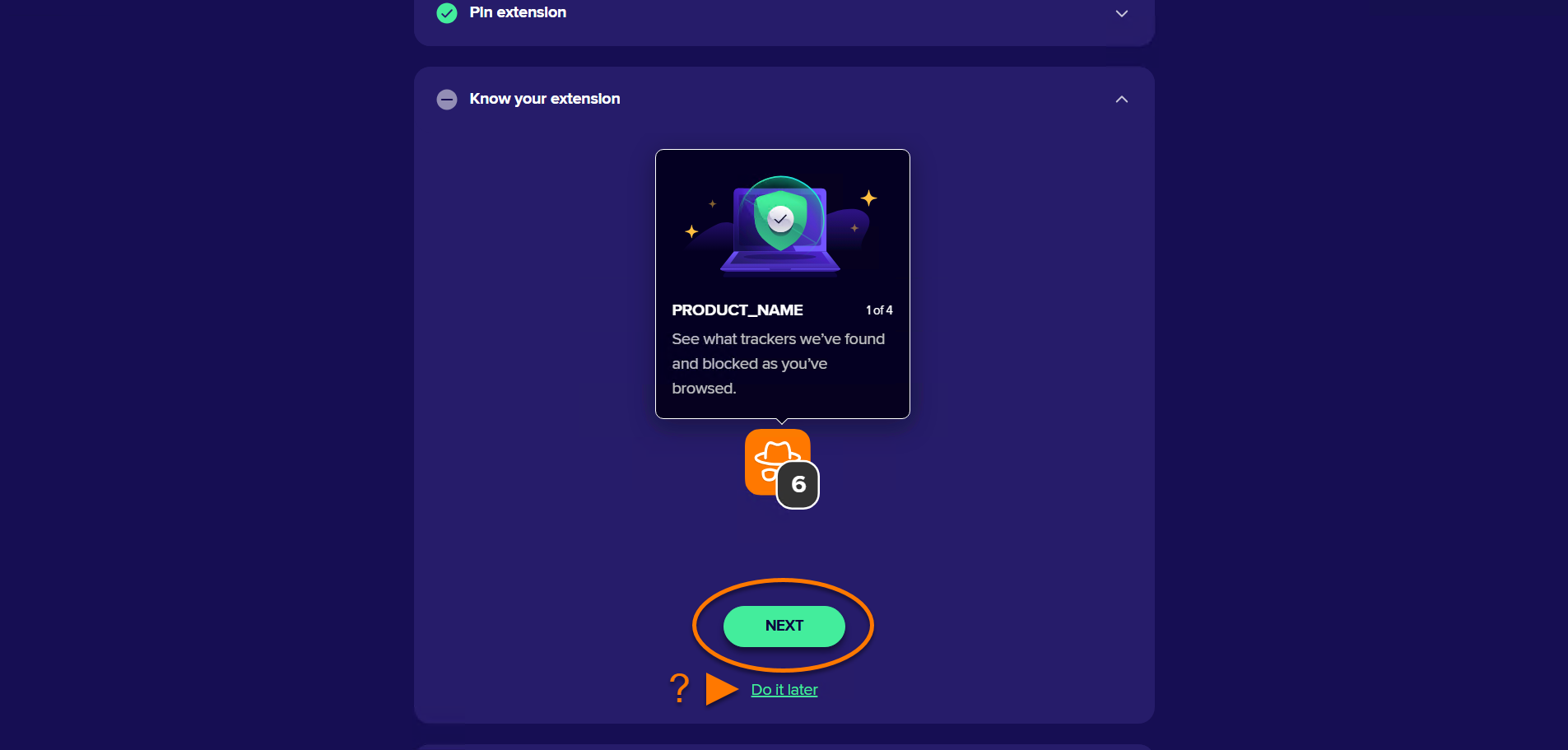
- Click Next to read through the welcome pages. Optionally, click Do it later to skip this step.
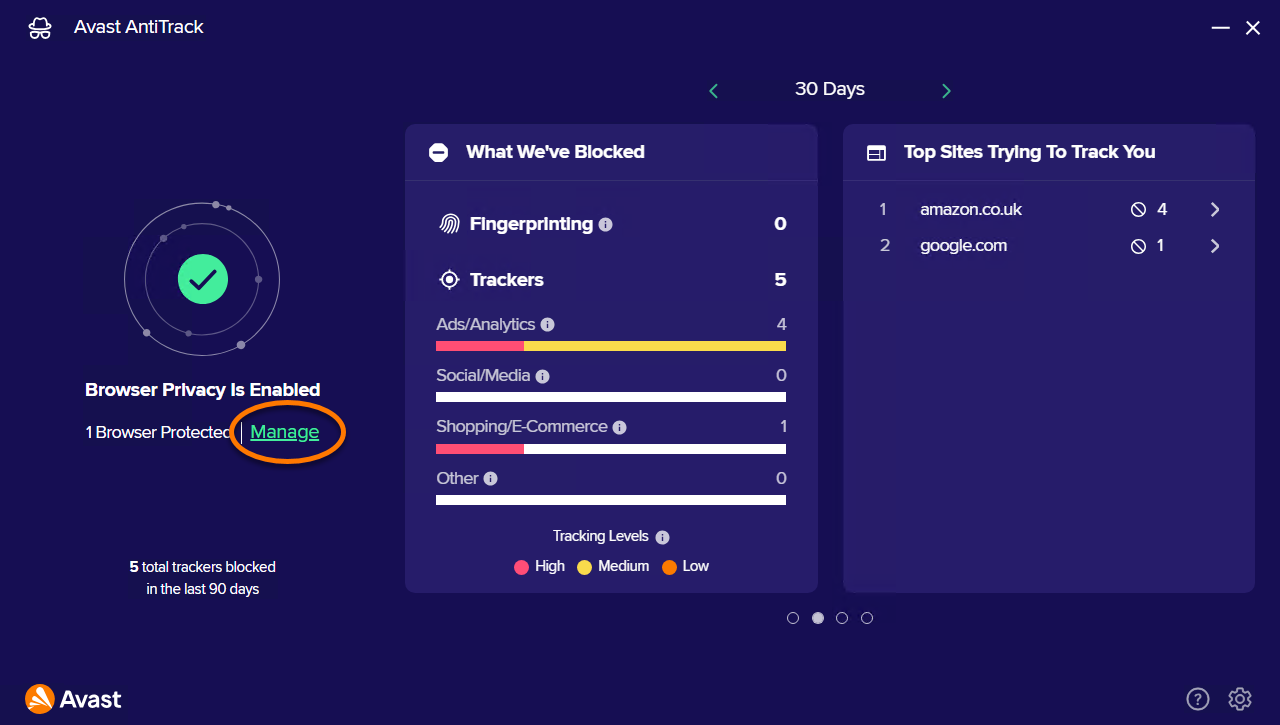
- Click Launch AntiTrack app.
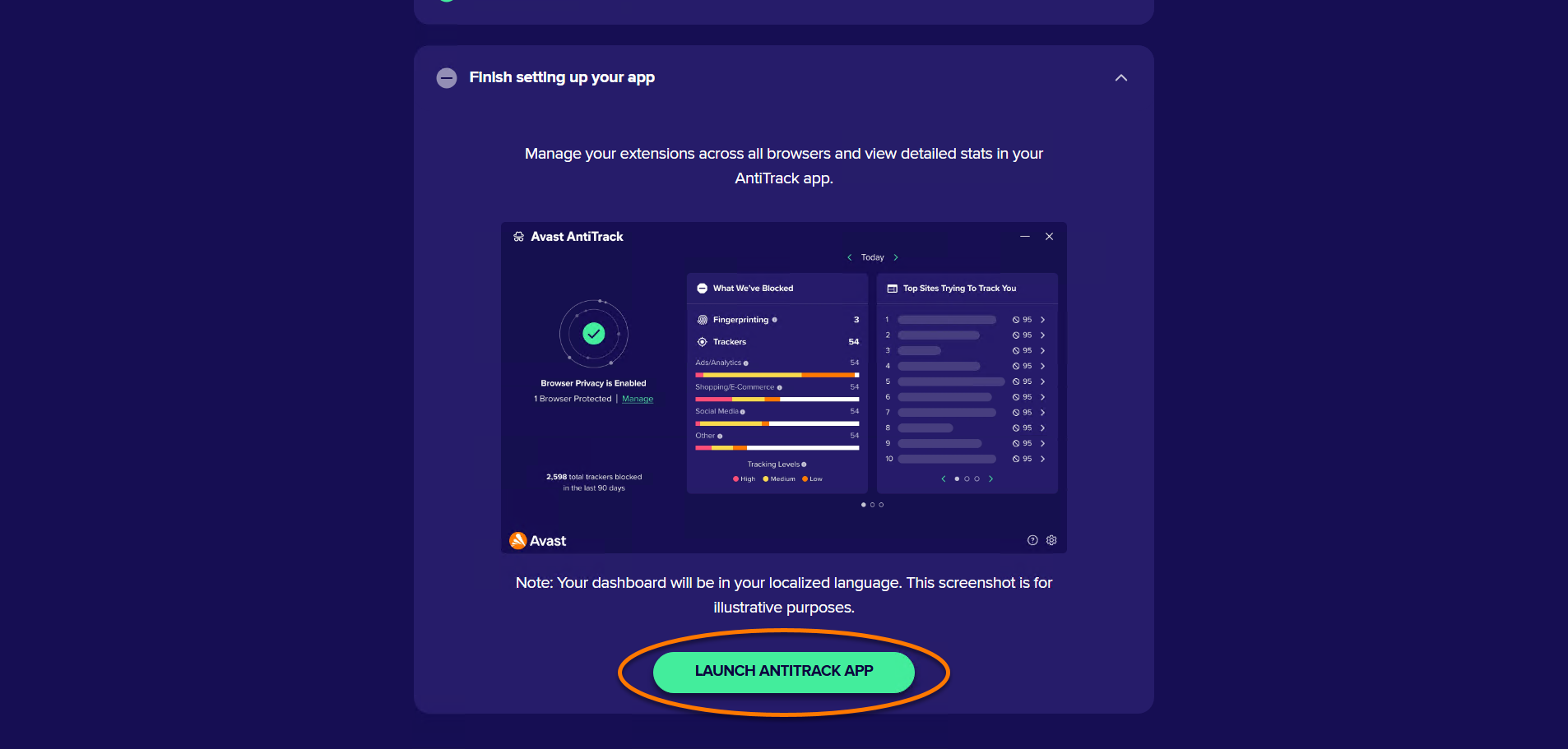
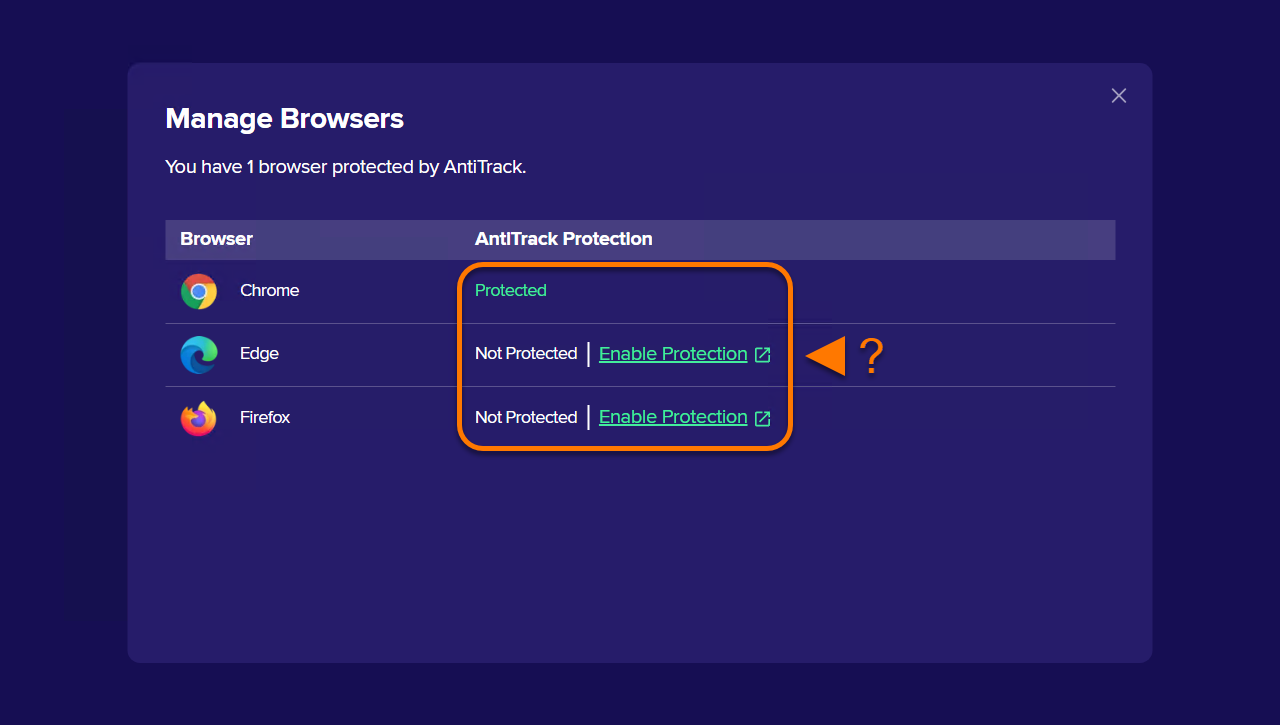
The Avast AntiTrack extension is now installed on your Microsoft Edge browser. Click Get started to proceed to the main Avast AntiTrack menu, or select a different browser to add the extension to.
 Settings (the gear icon) next to Avast AntiTrack to pin the extension to your browser toolbar.