
IS YOUR COMPUTER SLOW? RUN LIKE NEW
If they are not maintained, computers lose performance over time. Avast Cleanup Premium can help significantly improve the performance of your computer.
Webcam Protection - Getting Started
Windows
Webcam Protection prevents applications and malware from accessing your PC's webcam without your permission. With Webcam Protection enabled, untrusted applications cannot capture images or videos, or send these contents outside of your computer.
Modify settings
Webcam Protection offers three behavior modes that control how it responds when applications attempt to access your webcam. To select your preferred mode:
- Open Avast One, then select
 Explore ▸ Webcam Protection.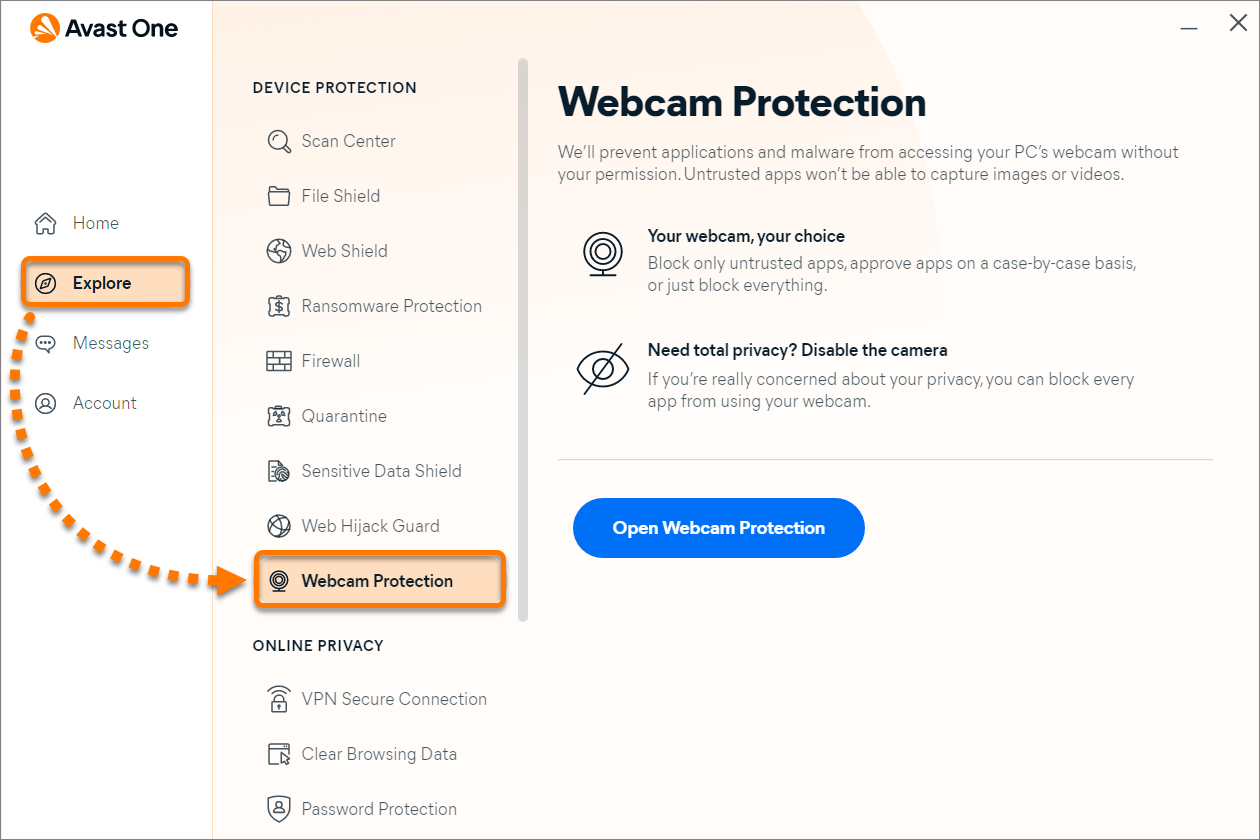
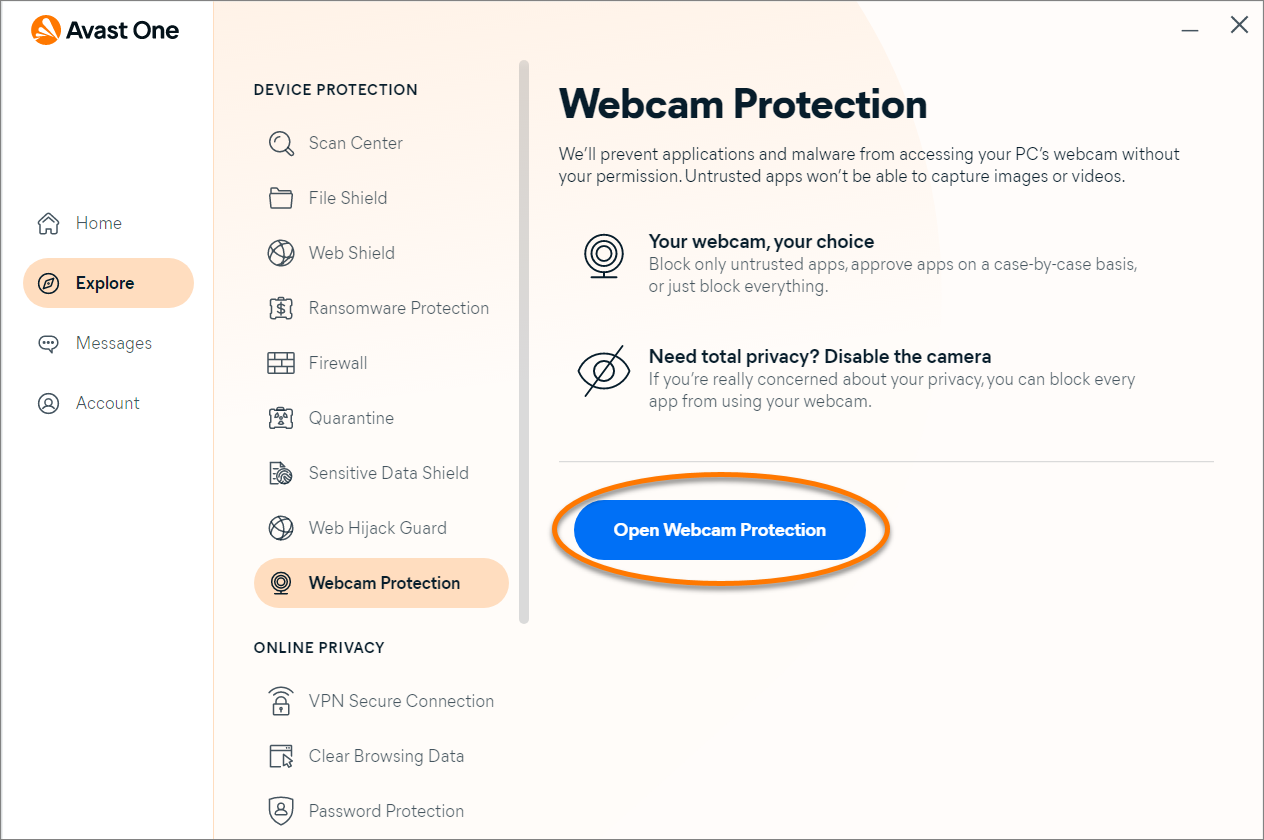
- Click Open Webcam Protection.
- Ensure the Settings tab is selected.
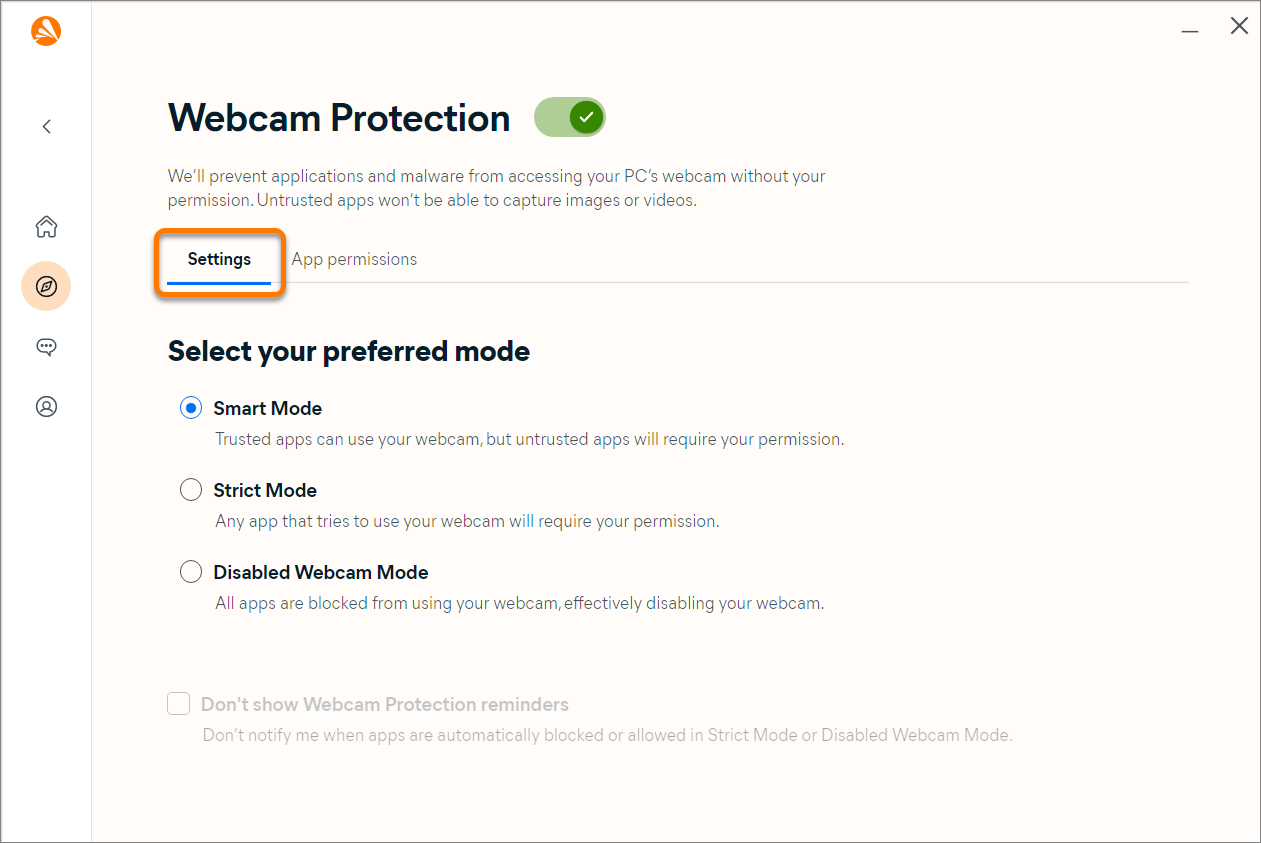
- Select your preferred mode:

- Smart Mode (selected by default): Automatically allows trusted applications to access your webcam. If an untrusted application attempts to access your webcam, a notification appears asking you to allow or block the application. After selecting an option, the application appears on the app permissions list where you can view or change its status.
- Strict Mode: Notifies you every time any application attempts to access your webcam and allows you to decide if the application is blocked or allowed access. After selecting an option, the application appears on the app permissions list where you can view or change its status.
- Disabled Webcam Mode: Automatically blocks all applications that attempt to access your webcam.
When Strict Mode or Disabled Webcam Mode is selected, you can tick Don't show Webcam Protection reminders to disable notifications about automatically blocked or allowed apps.
Manage app permissions
Specify which applications have permission to access your webcam:
- Open Avast One, then select Explore ▸ Webcam Protection.
- Click Open Webcam Protection.
- Select the App permissions tab.
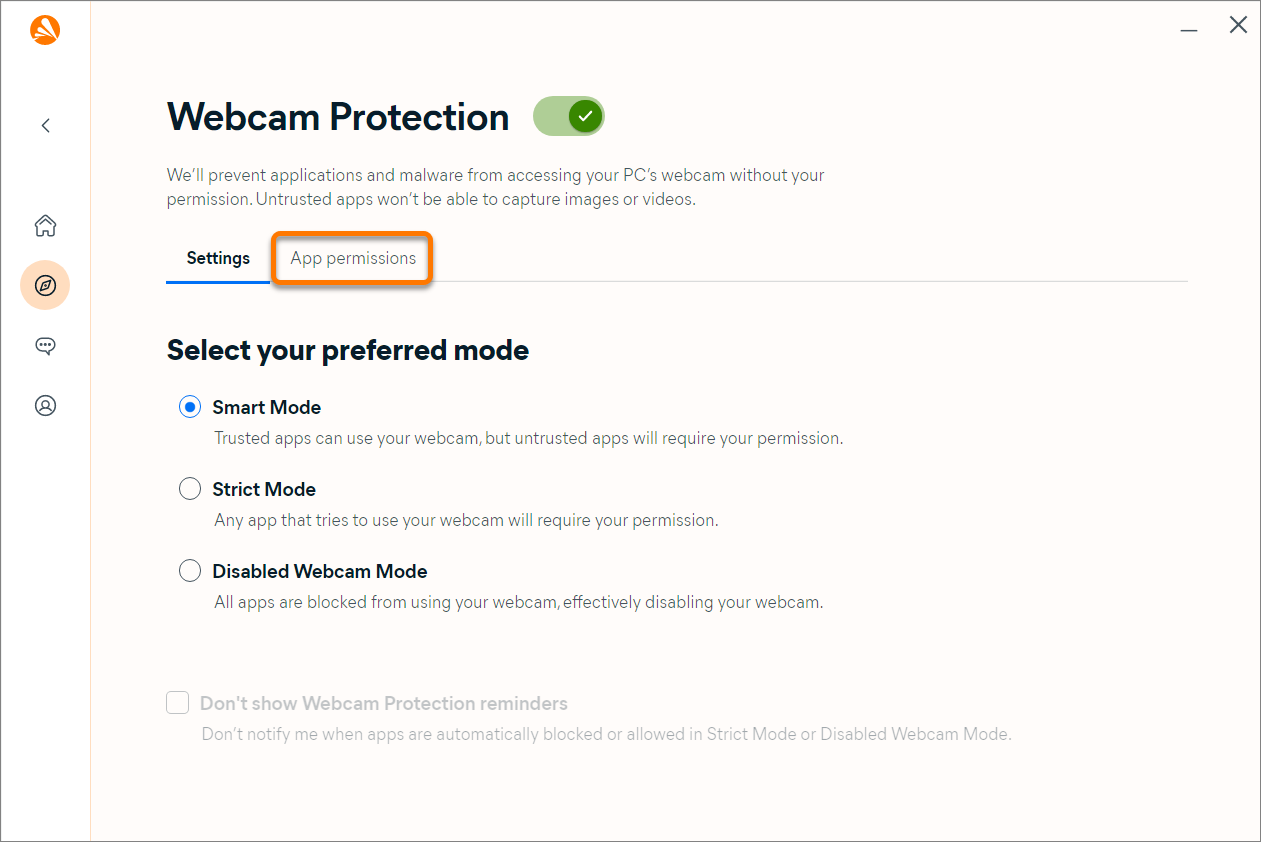
- Next to the relevant application, click the slider to change the status to Blocked or Allowed.
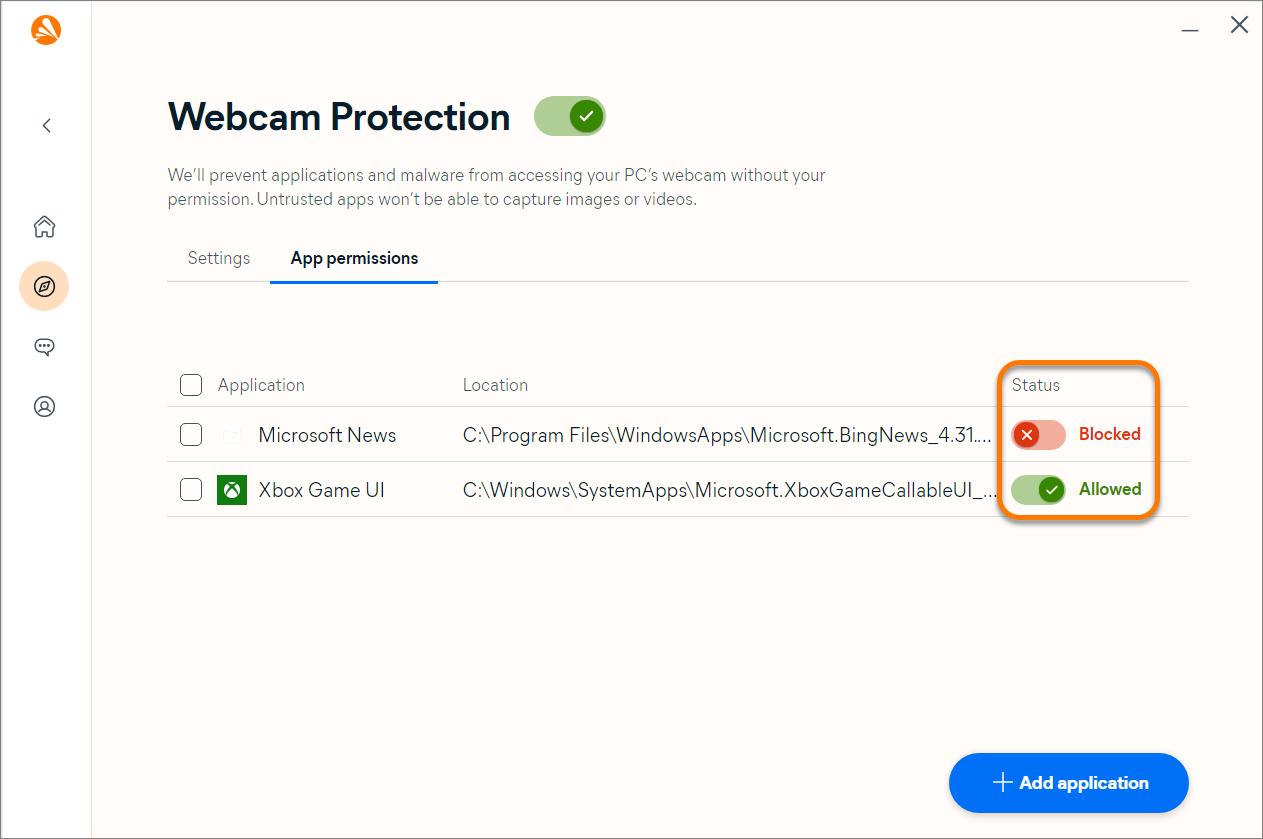
Blocked applications are always denied access to your webcam. Allowed applications are able to access your webcam.
Add an app
To add an appplication to the app permissions list:
- Click + Add application.
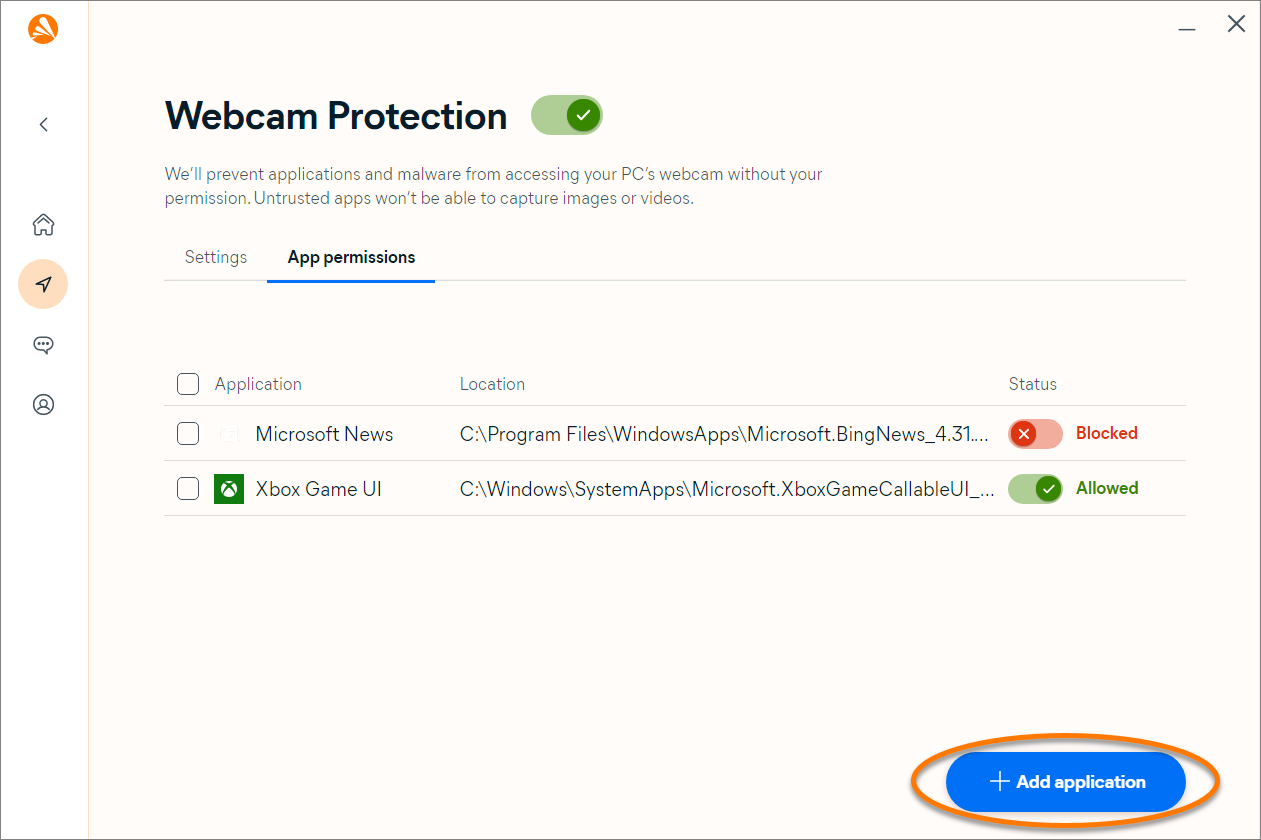
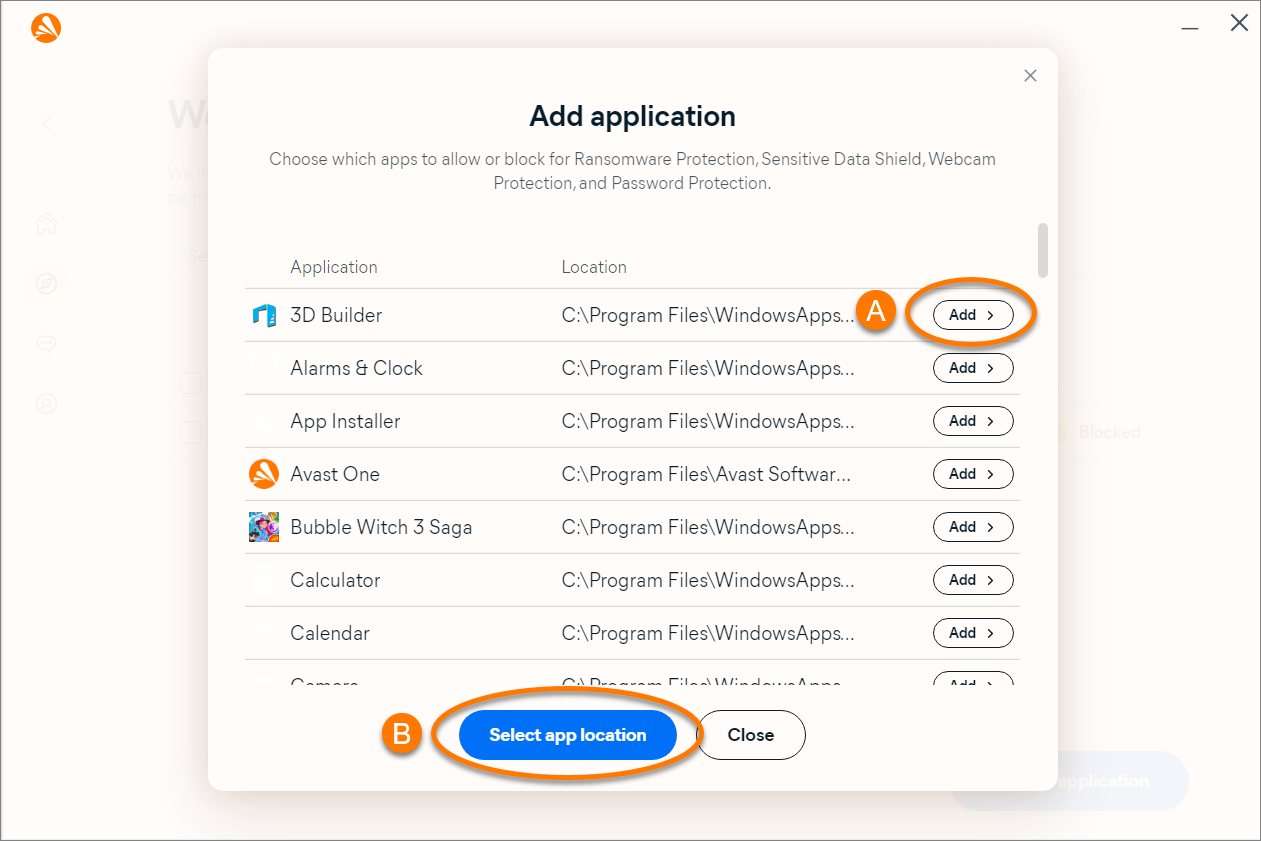
- Select an application using either method below:
- Select from list: Click Add next to the application you want to block or allow.
- Select by location: Click Select app location, then locate the application on your PC and click Open.
The application is added to the app permissions list and the status is set to Blocked. To change the status to Allowed, click the red (Blocked) slider next to the application in the list. The slider changes to green (Allowed).
Remove an app
To remove an application from the app permissions list:
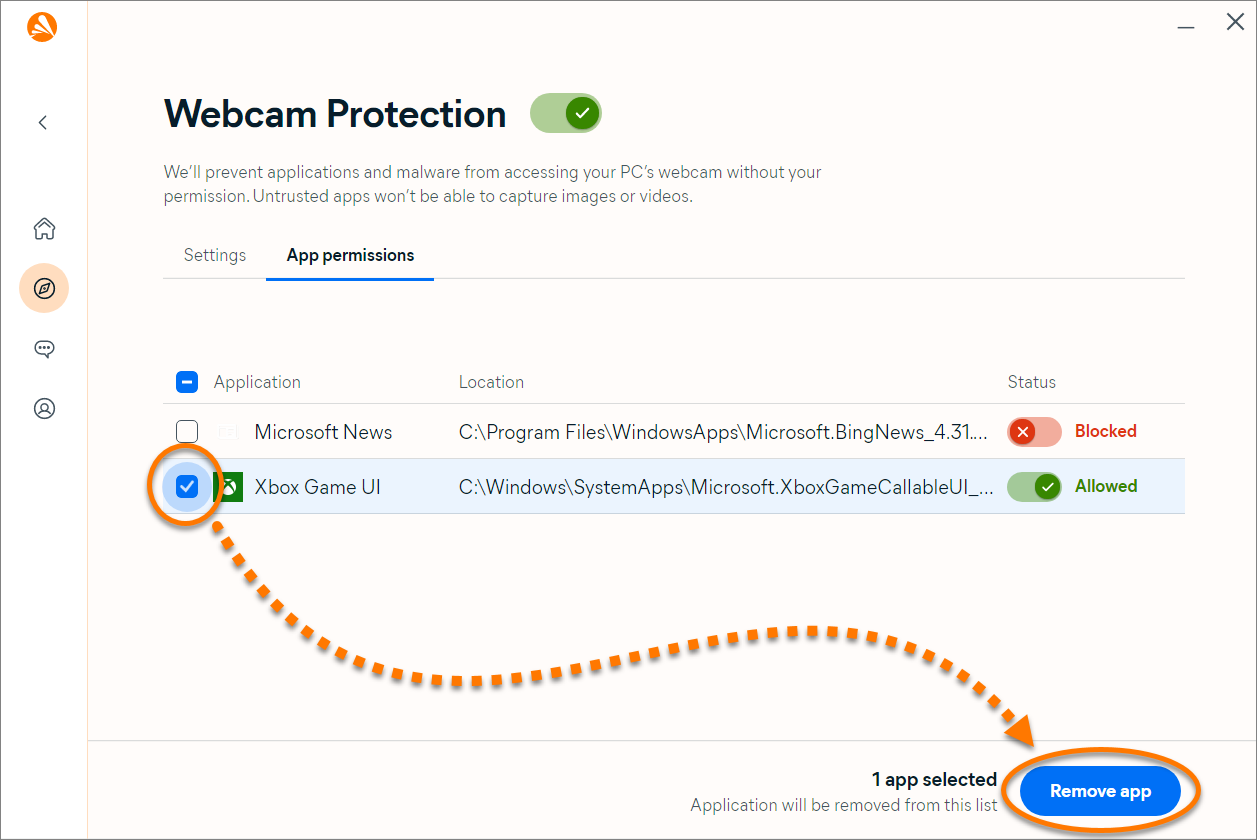
- Tick the box next to the relevant app, then click Remove app.
Disable Webcam Protection
Webcam Protection is enabled by default. We recommend always keeping Webcam Protection enabled and only disabling it for temporary troubleshooting purposes.
To disable Webcam Protection:
- Open Avast One, then select Explore ▸ Webcam Protection.
- Click Open Webcam Protection.
- Click the green (ON) slider, then specify for how long Webcam Protection will remain disabled.
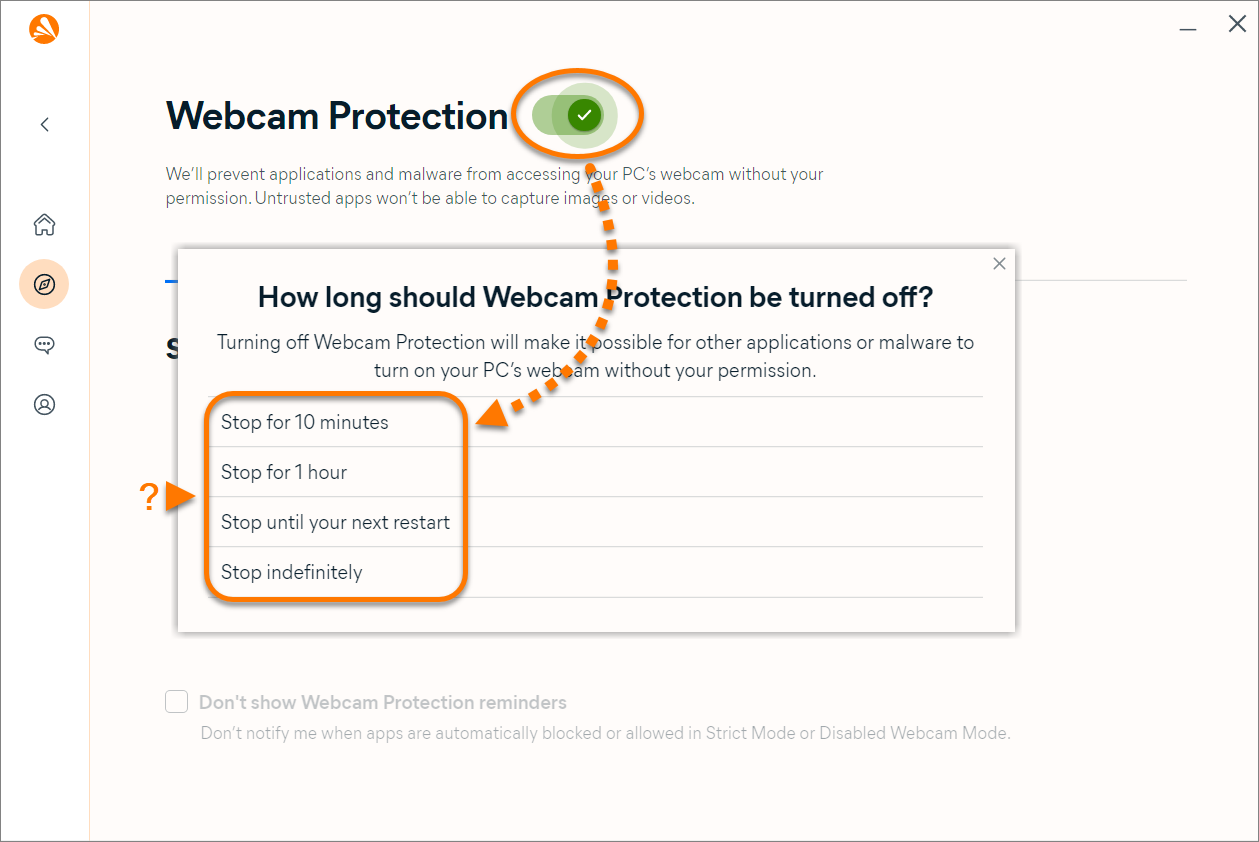
- Click OK, Stop to confirm.
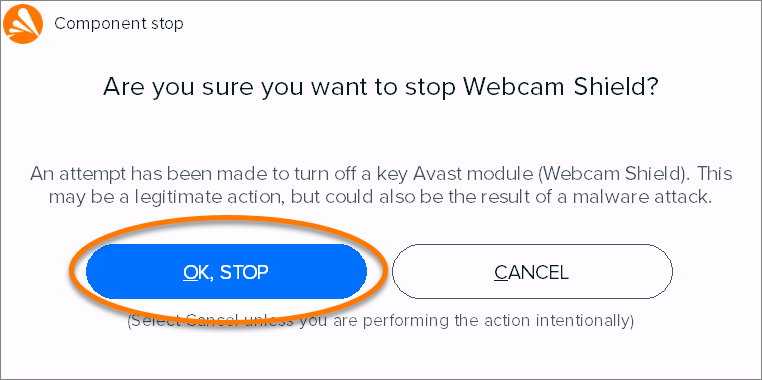
Webcam Protection is now disabled. To manually enable it, click the red (OFF) slider so that it changes to green (ON).
Troubleshoot issues
Refer to the information below to troubleshoot these common issues:
- Webcam Protection displays pop-ups too frequently: Ensure that Smart Mode is selected in Webcam Protection settings. If Webcam Protection is set to Strict Mode, Avast One notifies you every time any application attempts to access your PC's webcam.
- Your PC's webcam has stopped working: Ensure that Smart Mode or Strict Mode is selected in Webcam Protection settings. If Webcam Protection is set to Disabled Webcam Mode, Avast One prevents all applications from accessing your PC's webcam.
Was this article helpful?

Keep your online identity private!
Browse like no one’s watching with Avast anti-tracking software.