Connect to the VPN
VPN Secure Connection can be used any time you want to connect to the internet with extra security and privacy, and is especially recommended when you are connected to a public or unsecured Wi-Fi network.
To connect to the VPN:
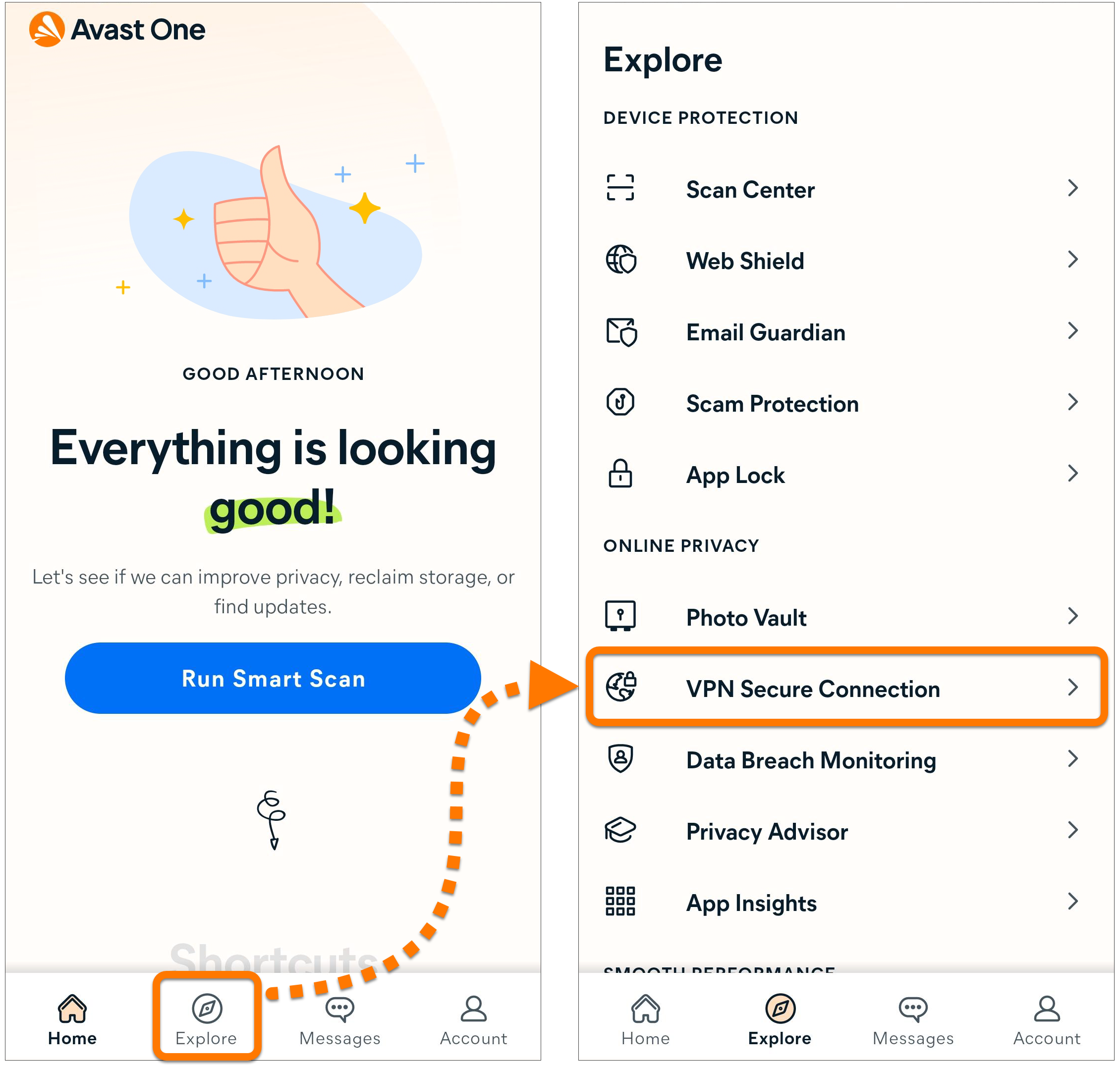
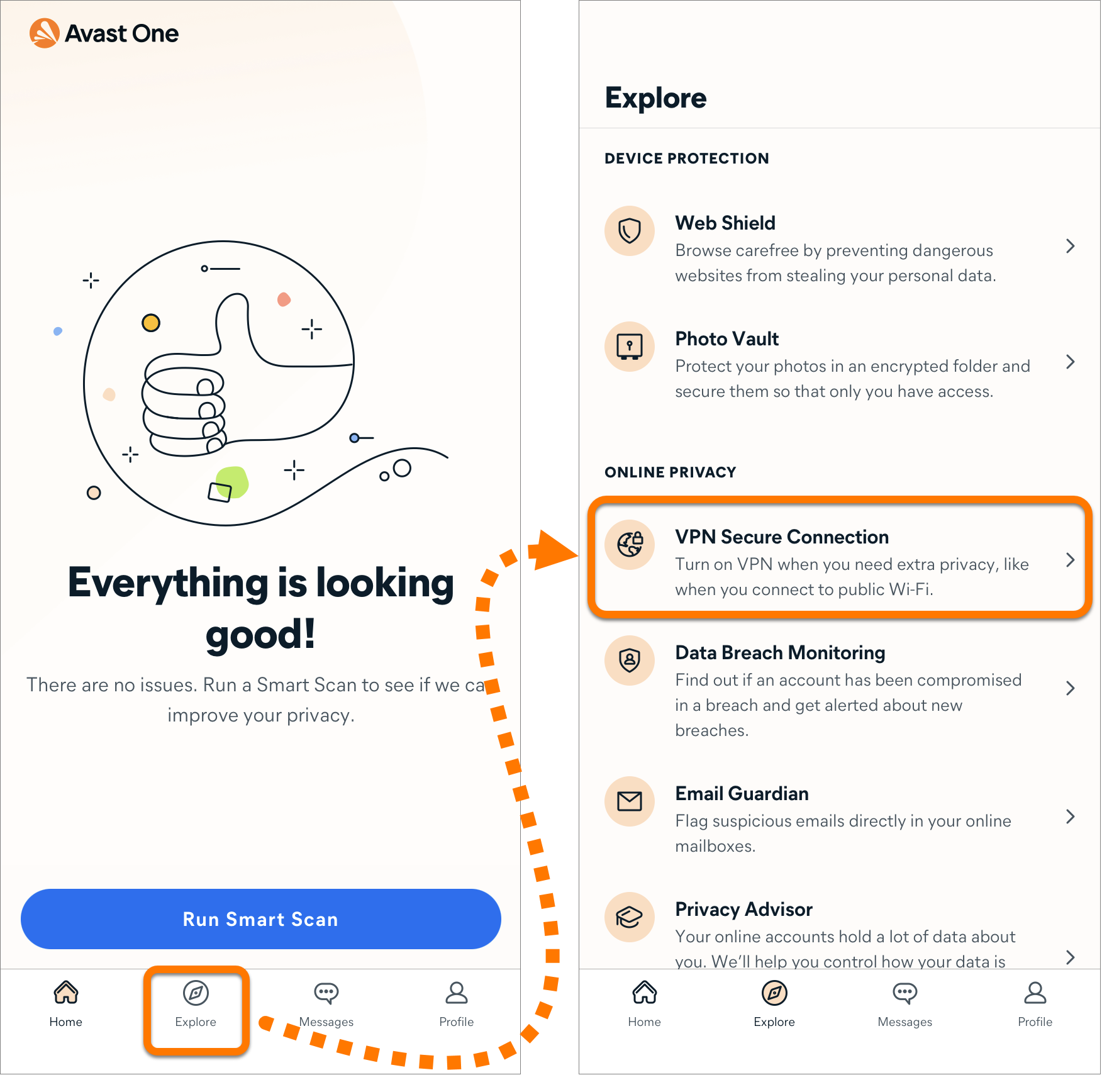
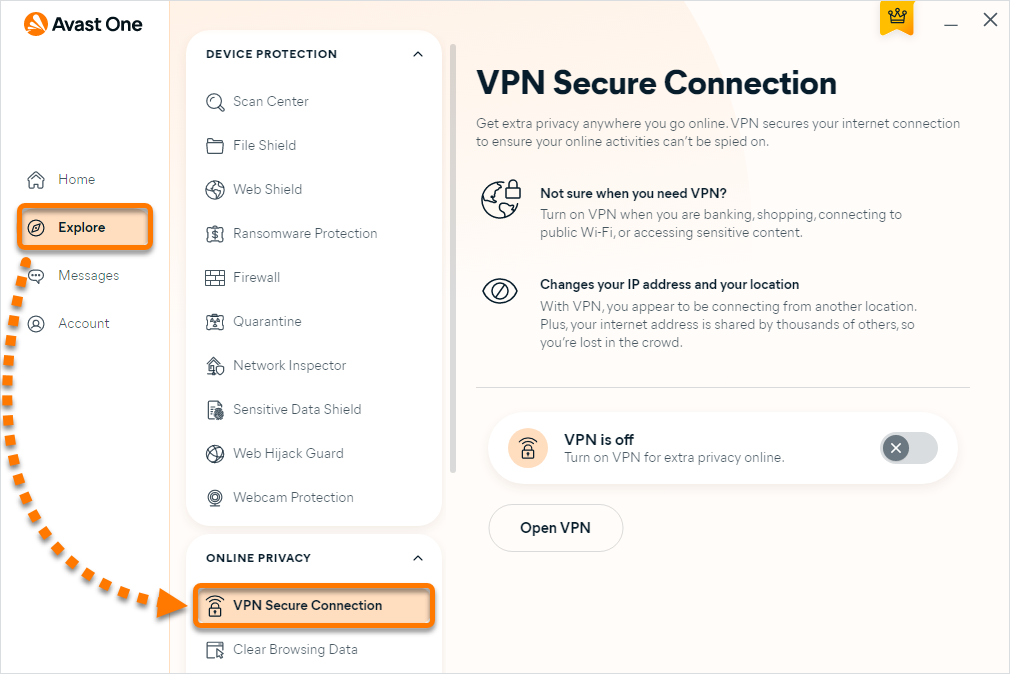
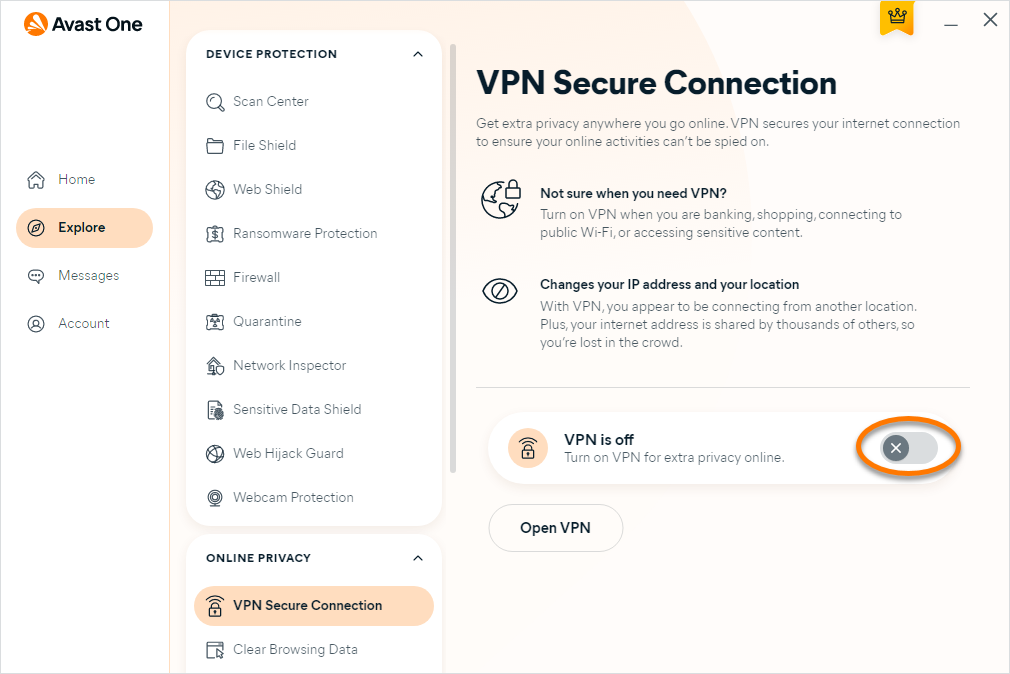
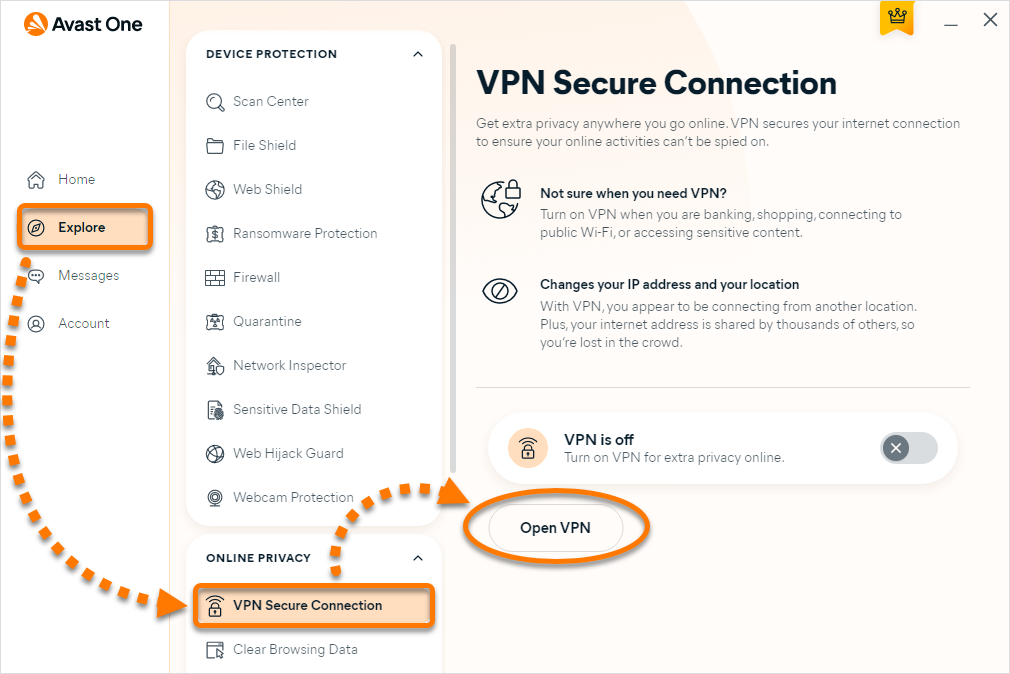
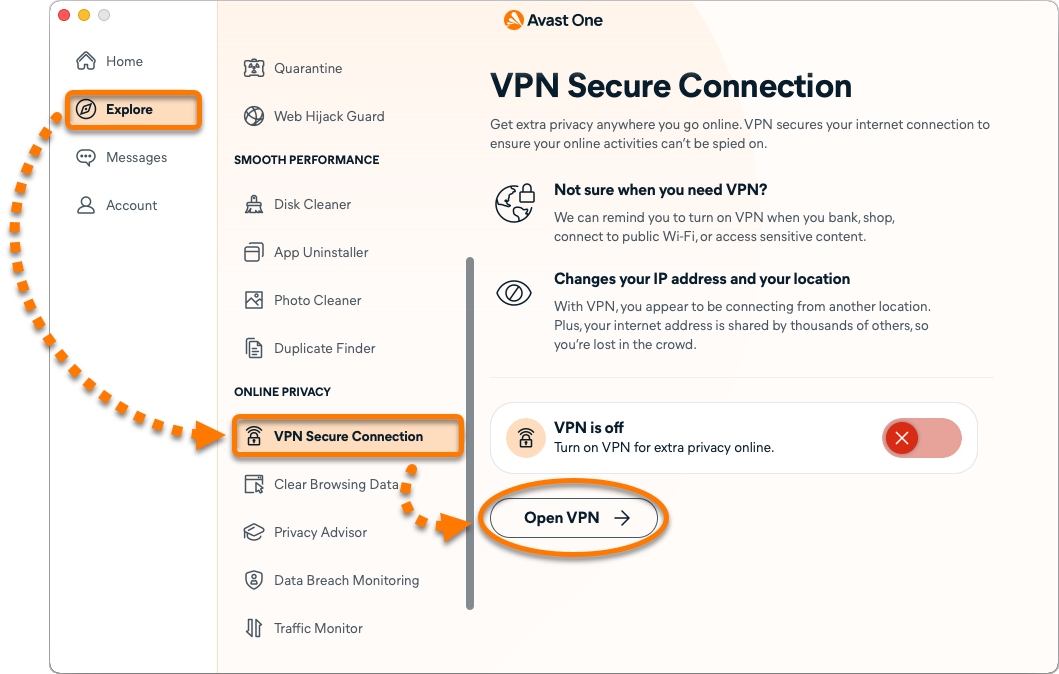
- Open Avast One and select Explore ▸ VPN Secure Connection.
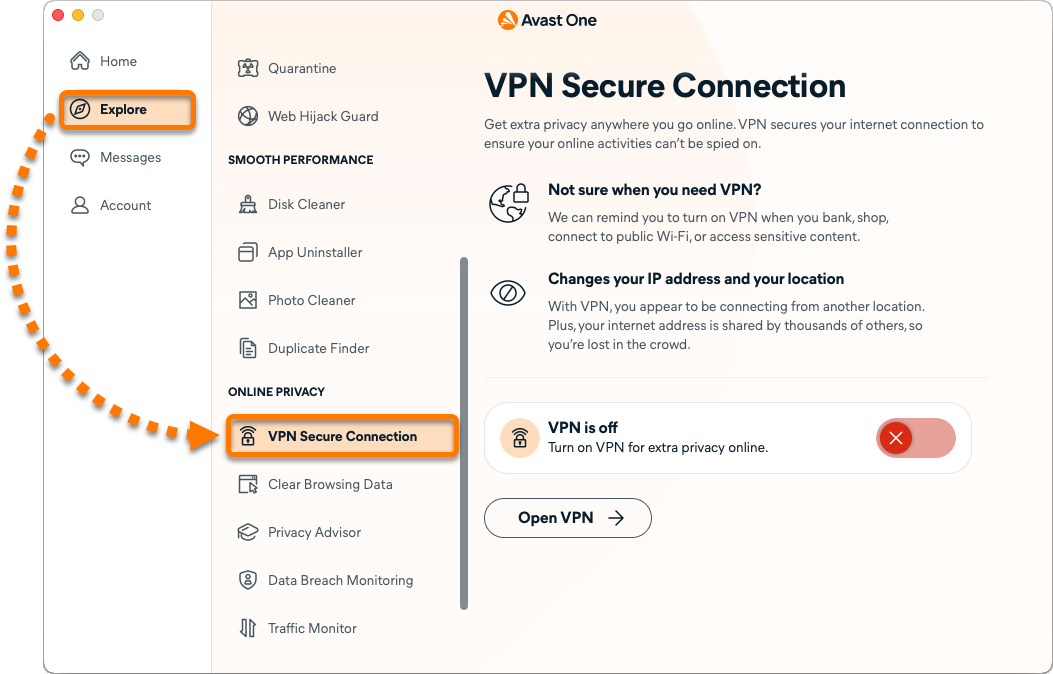
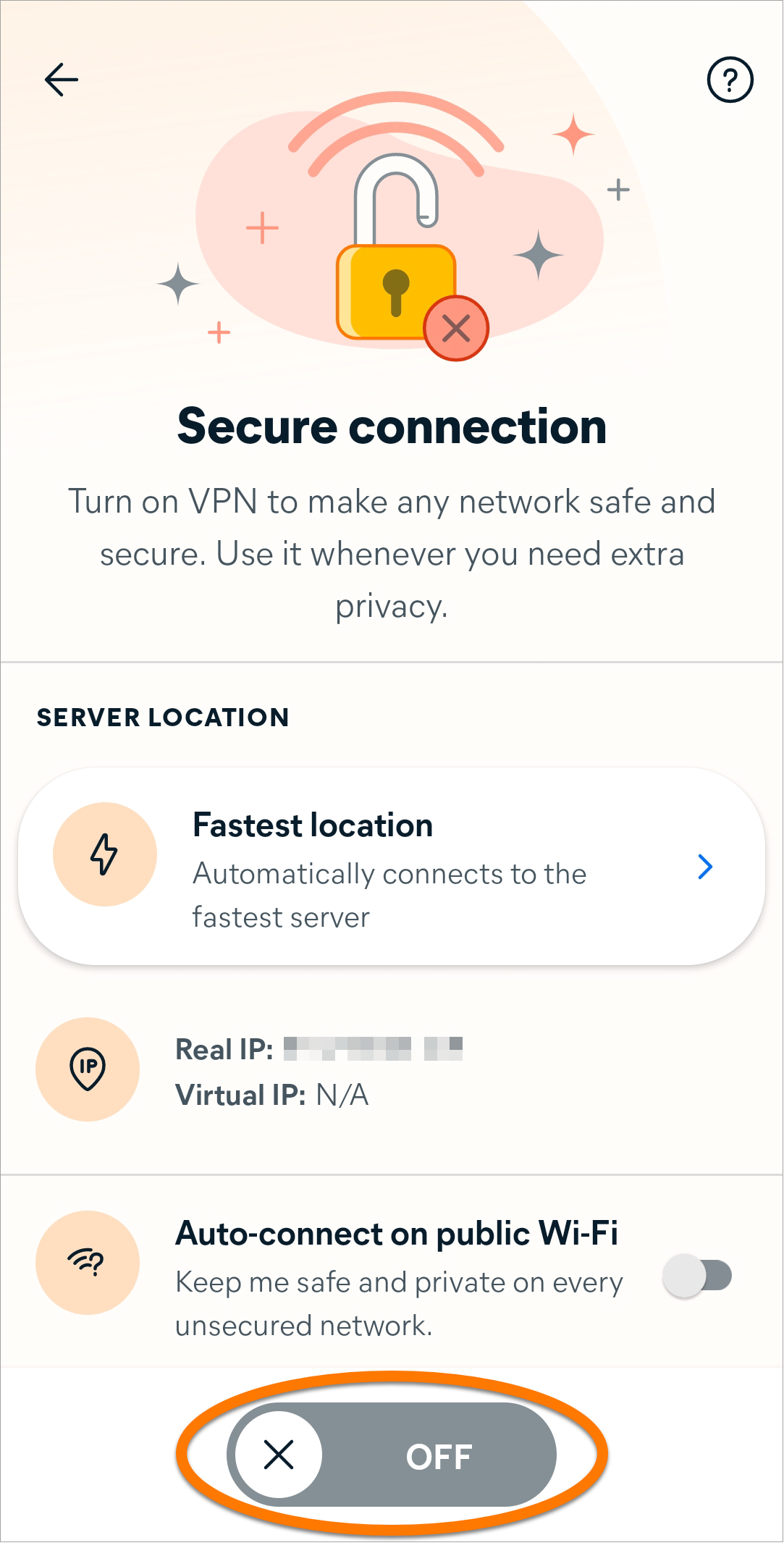
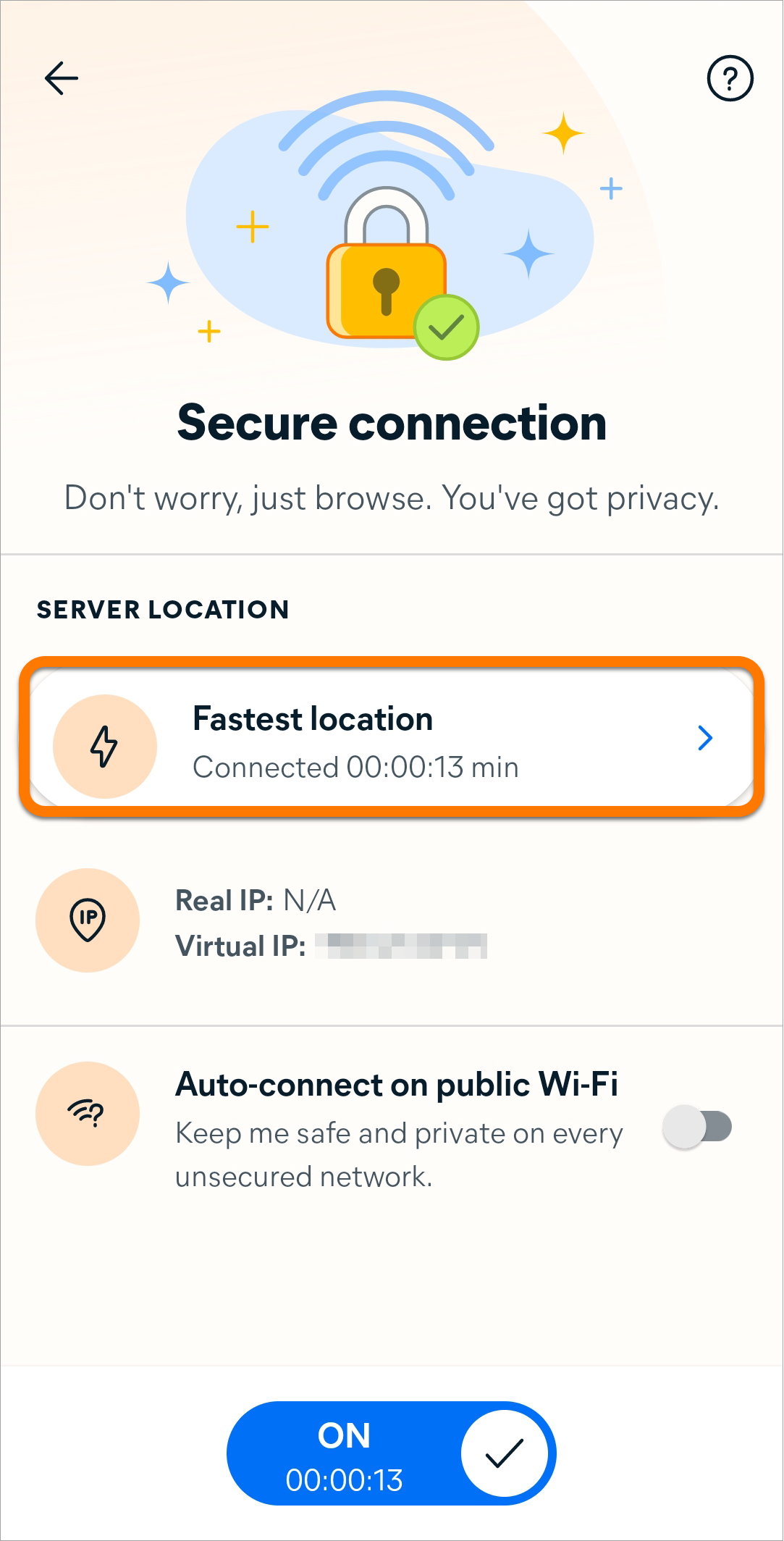
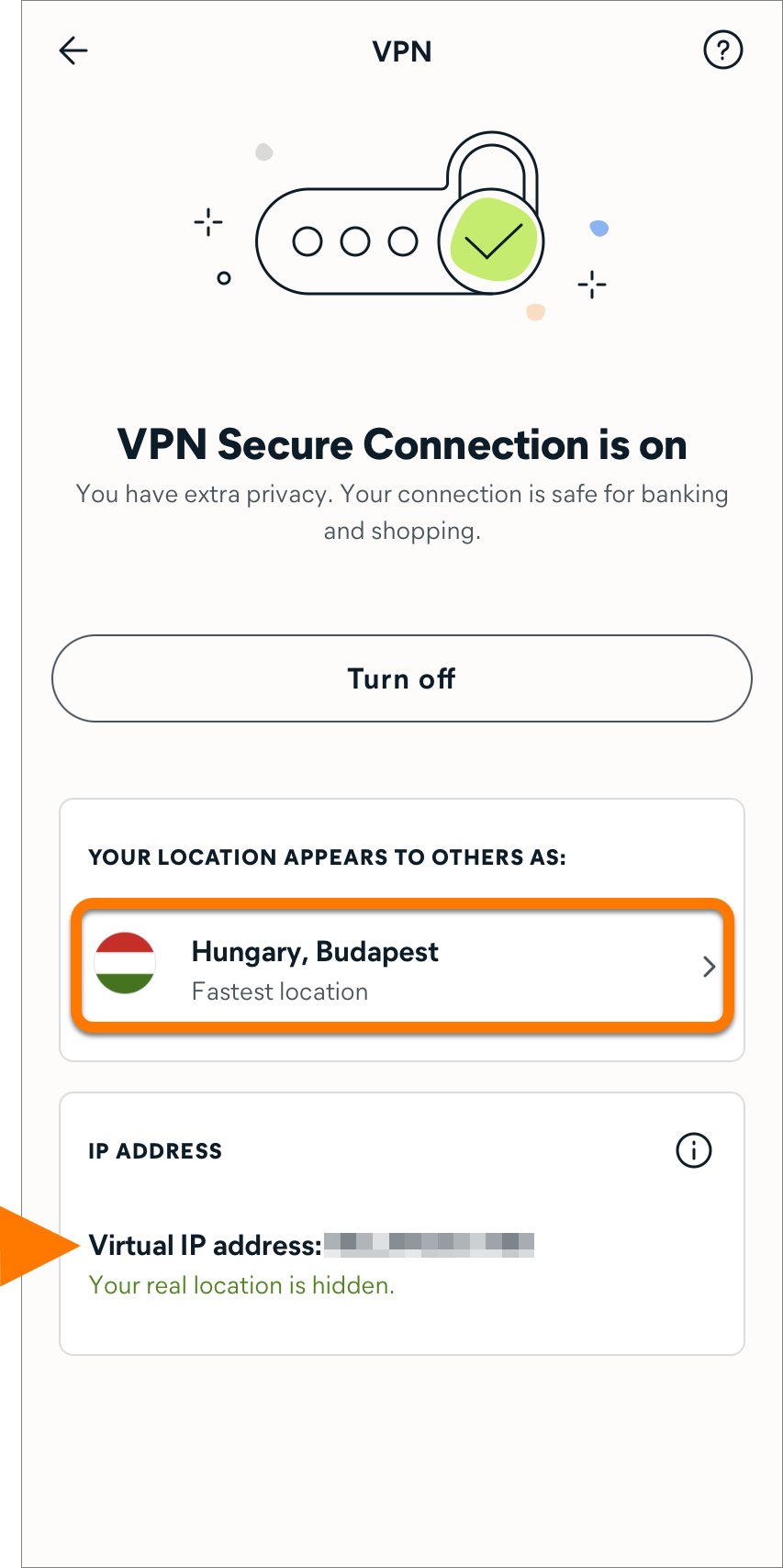
- Click the red (OFF) slider so that it changes to green (ON). By default, you are connected to the Fastest location.

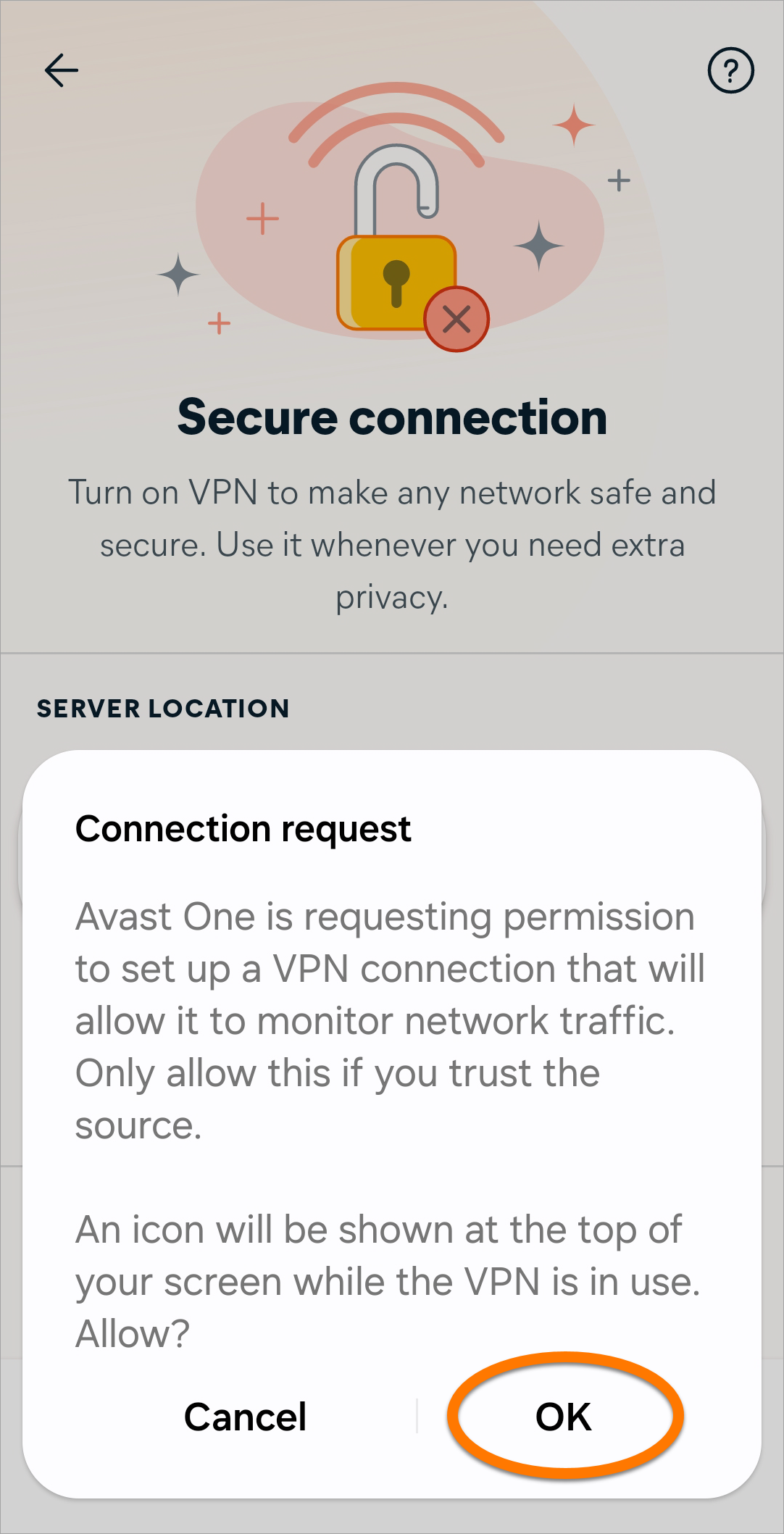
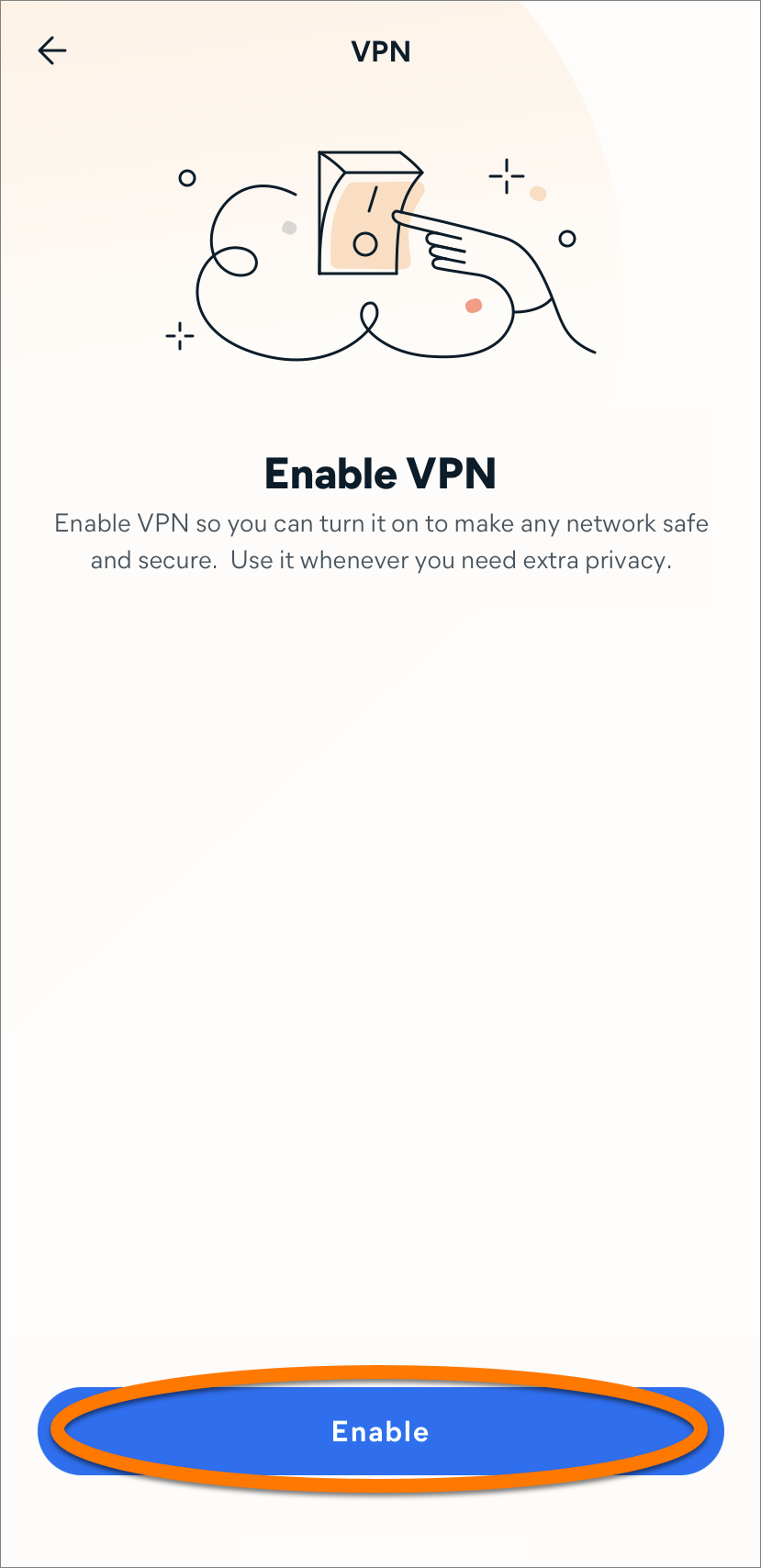
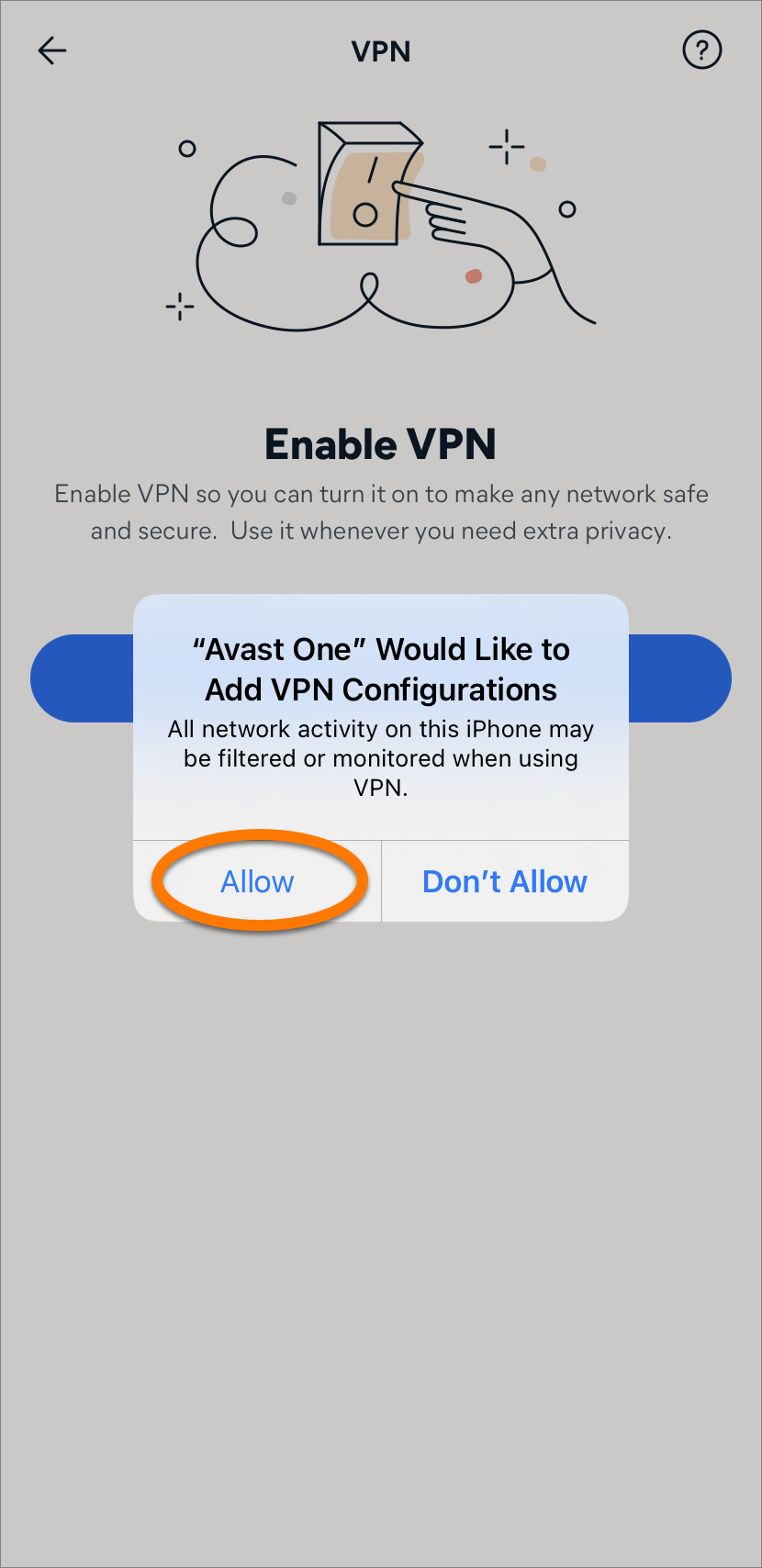
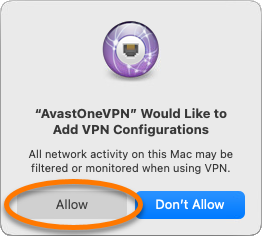
The first time you connect to the VPN, you are prompted to add VPN configurations. Click Allow on the permissions dialog that appears.
You are now connected to the internet via our secure Avast VPN servers.
Connect to a different location
To connect to a different location:
- Open Avast One and select Explore ▸ VPN Secure Connection, then click Open VPN.
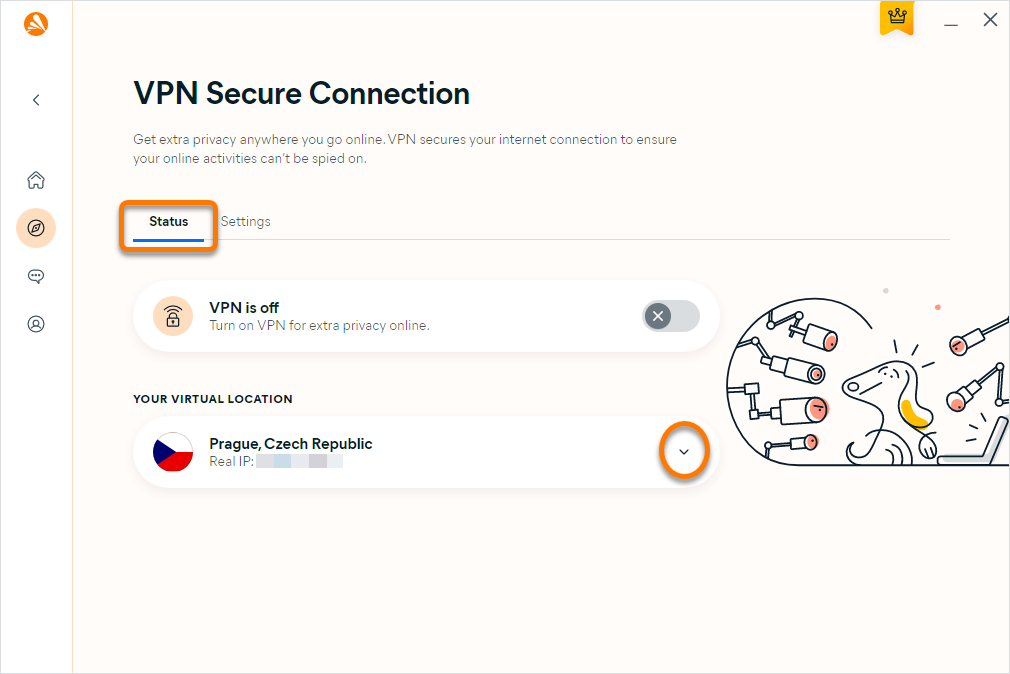
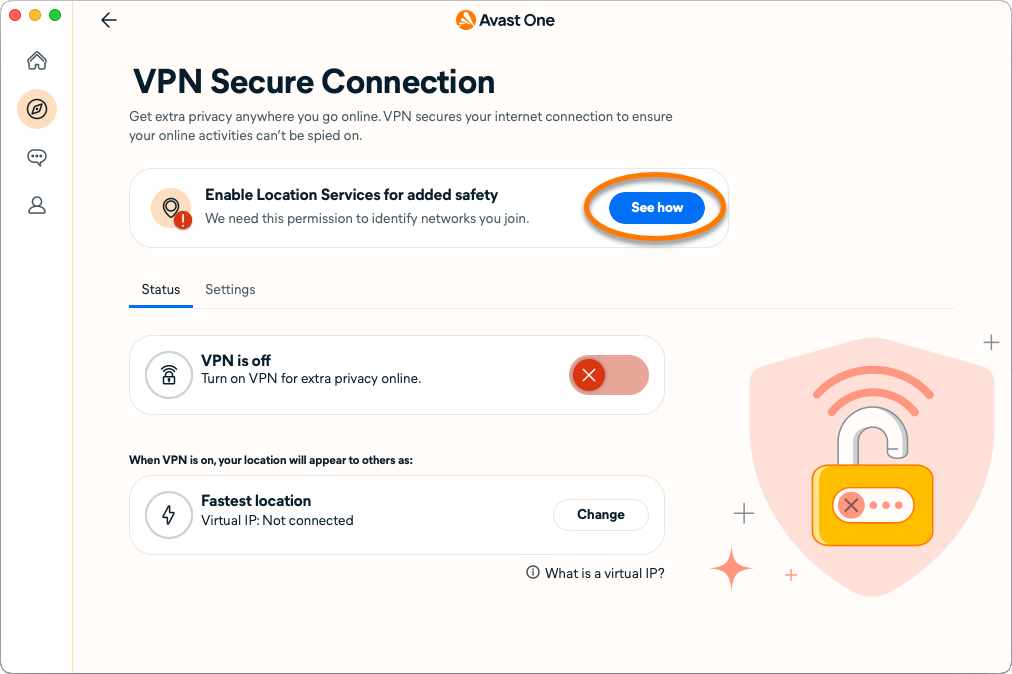
- Ensure that the Status tab is selected, then click Change in the Location tile.

If you are using macOS Sonoma or newer, click See how and follow the on-screen instructions to enable Location Services.
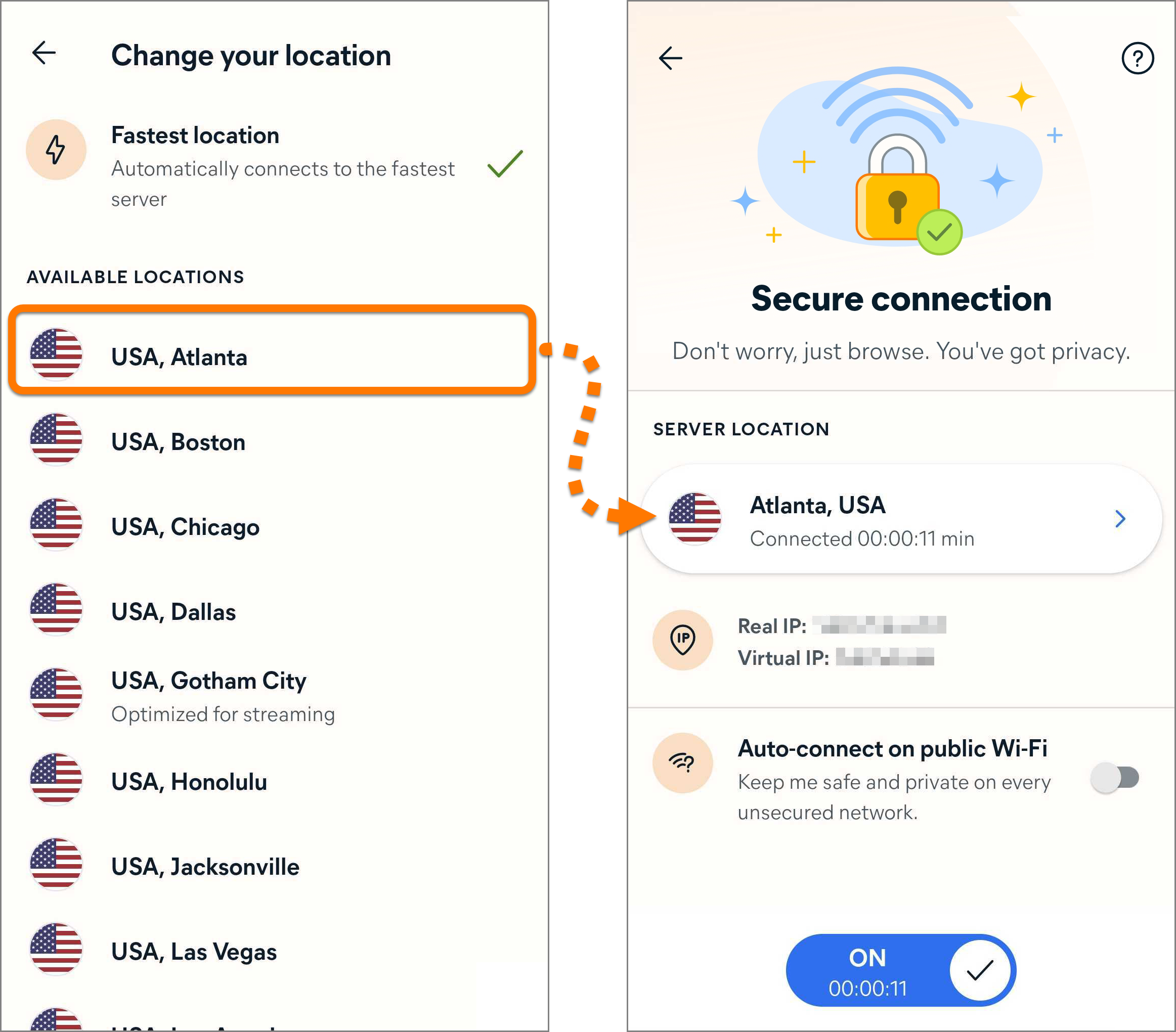
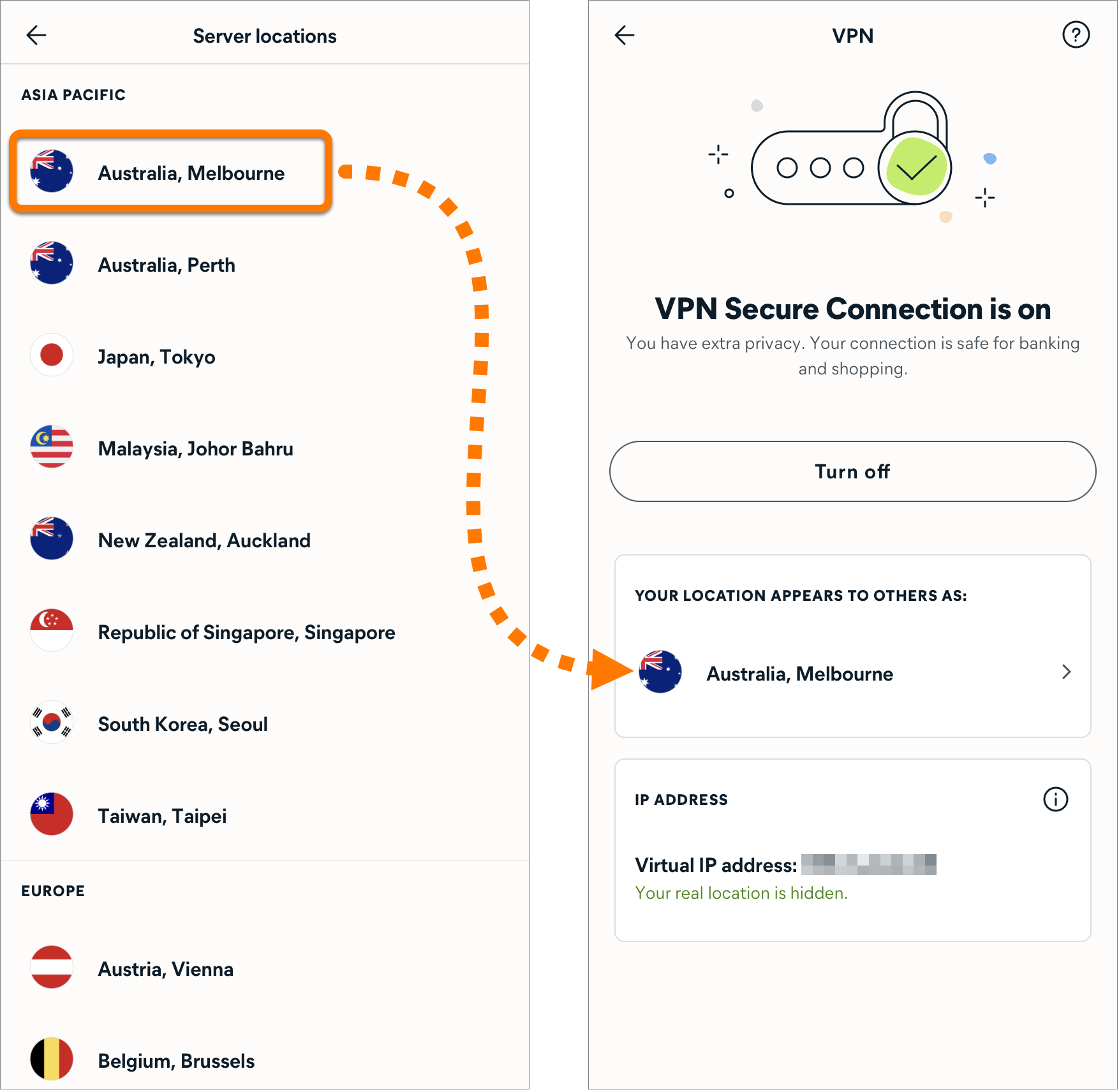
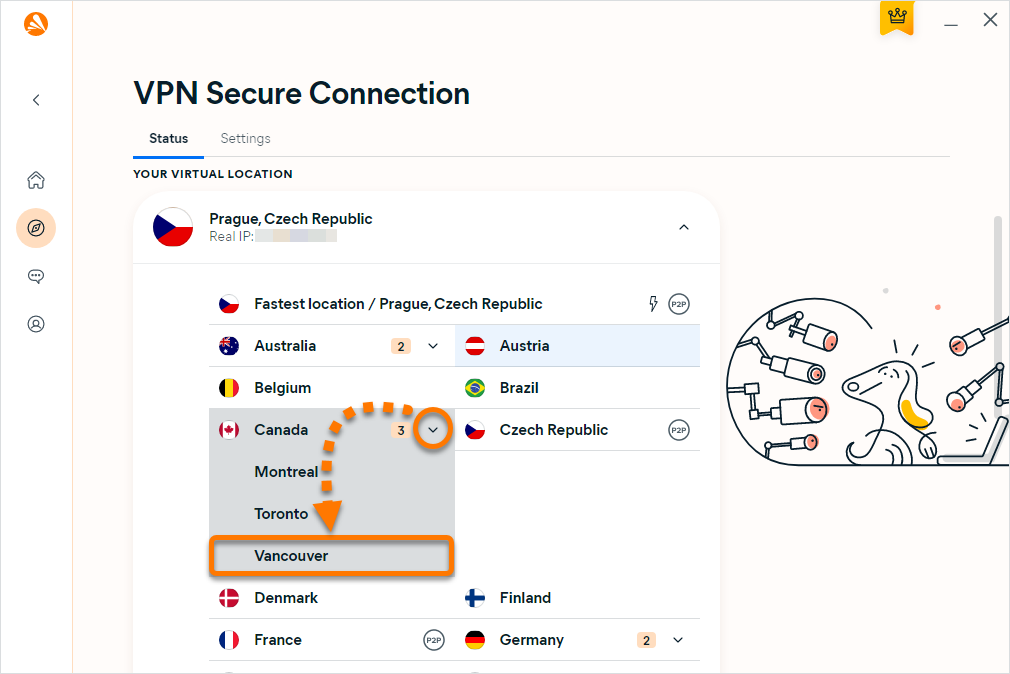
- Select a location.
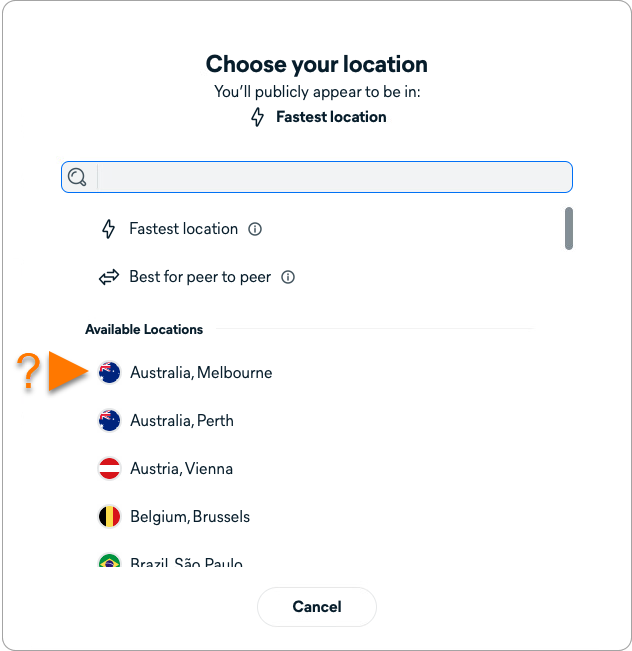
Your location now shows as the country and city that you selected.
Manage VPN settings
Specify how VPN Secure Connection behaves when you connect to an untrusted Wi-Fi network or visit vulnerable websites:
- Open Avast One and select Explore ▸ VPN Secure Connection, then click Open VPN.
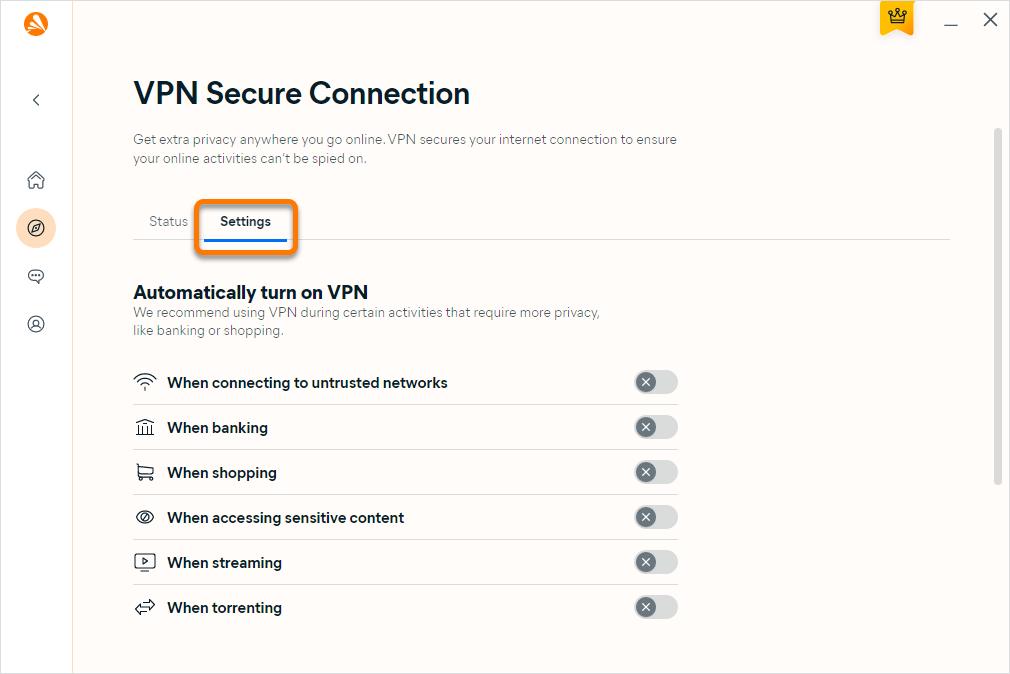
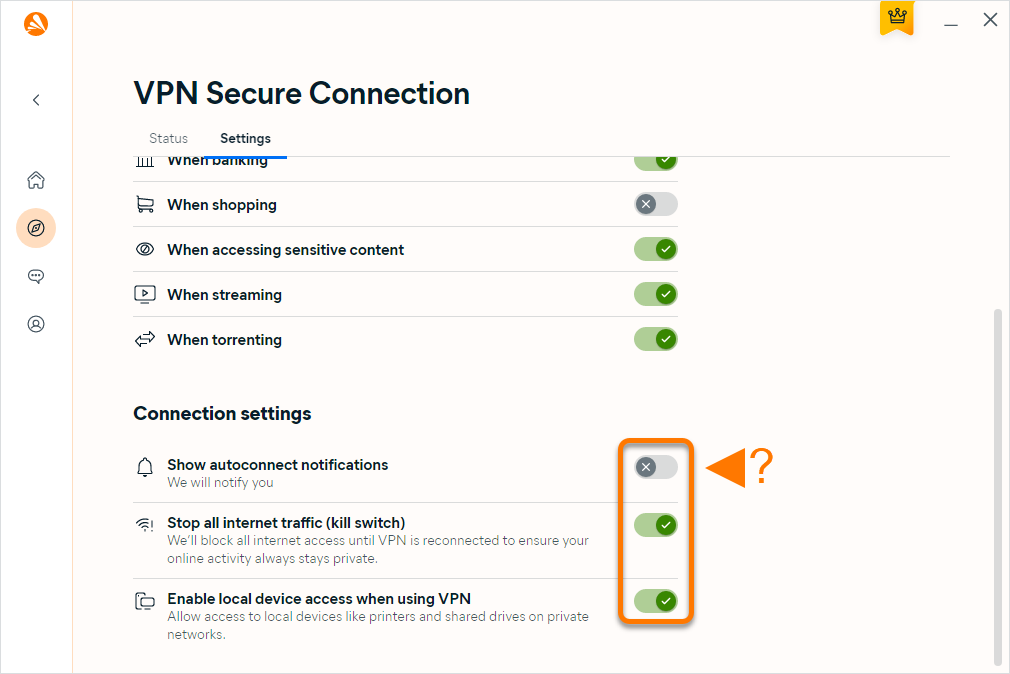
- Select the Settings tab, then choose from the following options:
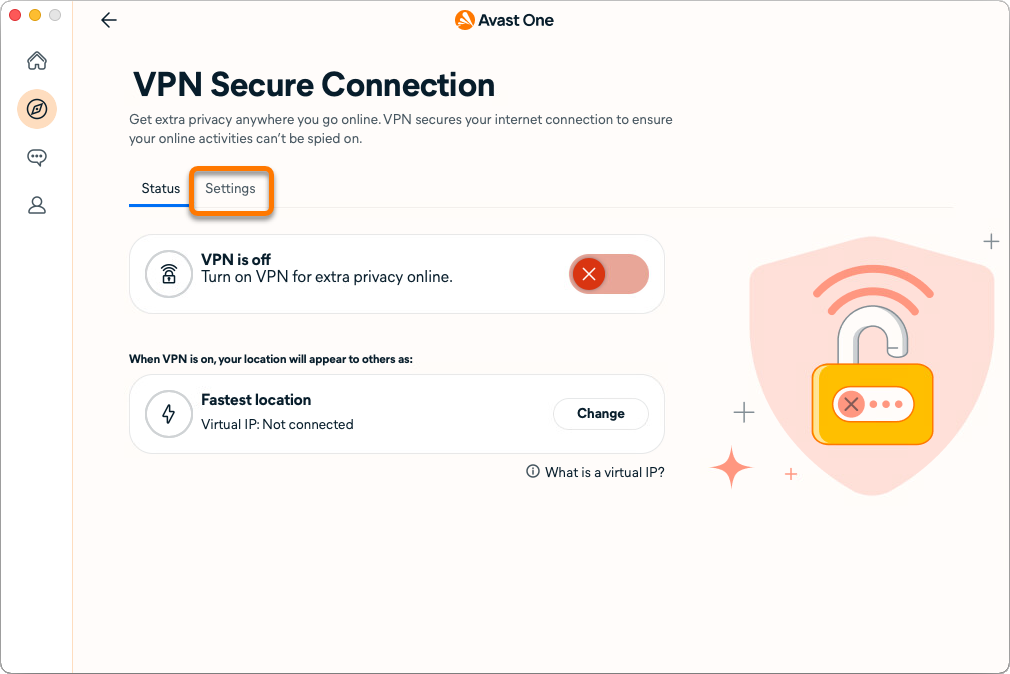
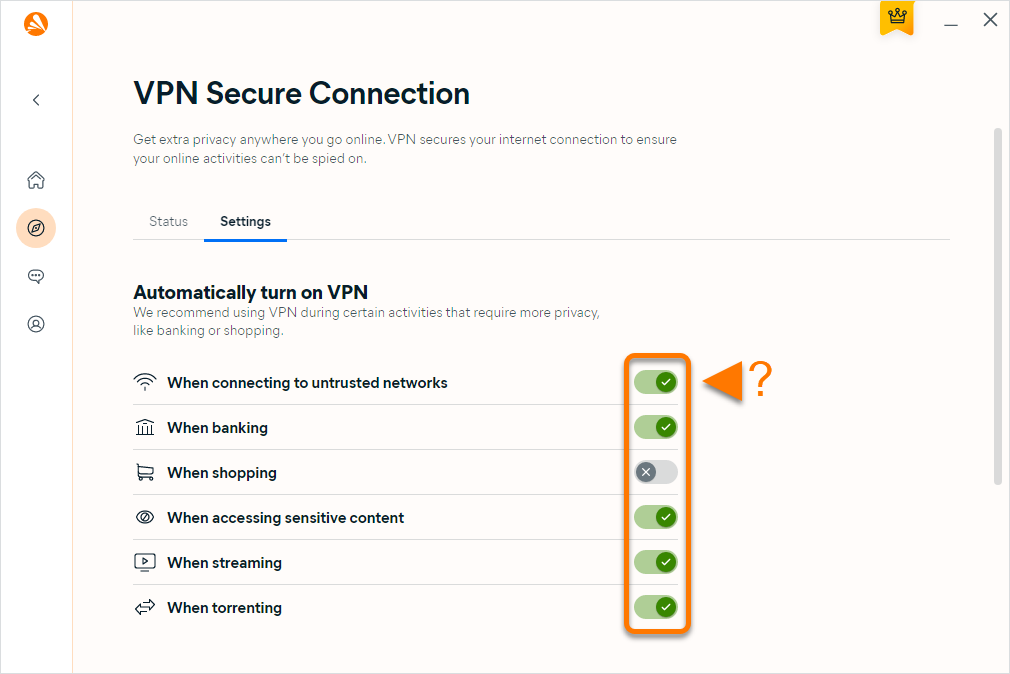
- Untrusted networks: Click the button next to When connecting to untrusted networks... and select your preferred action:
- Turn on VPN: Automatically connect to a secure Avast VPN server whenever you connect to an untrusted Wi-Fi network.
- Remind me: Asks you to turn on VPN Secure Connection when you connect to an untrusted Wi-Fi network.
- Do nothing: You are not reminded to use VPN Secure Connection and the VPN does not turn on automatically.

To specify trusted networks, refer to the section below to add trusted networks.
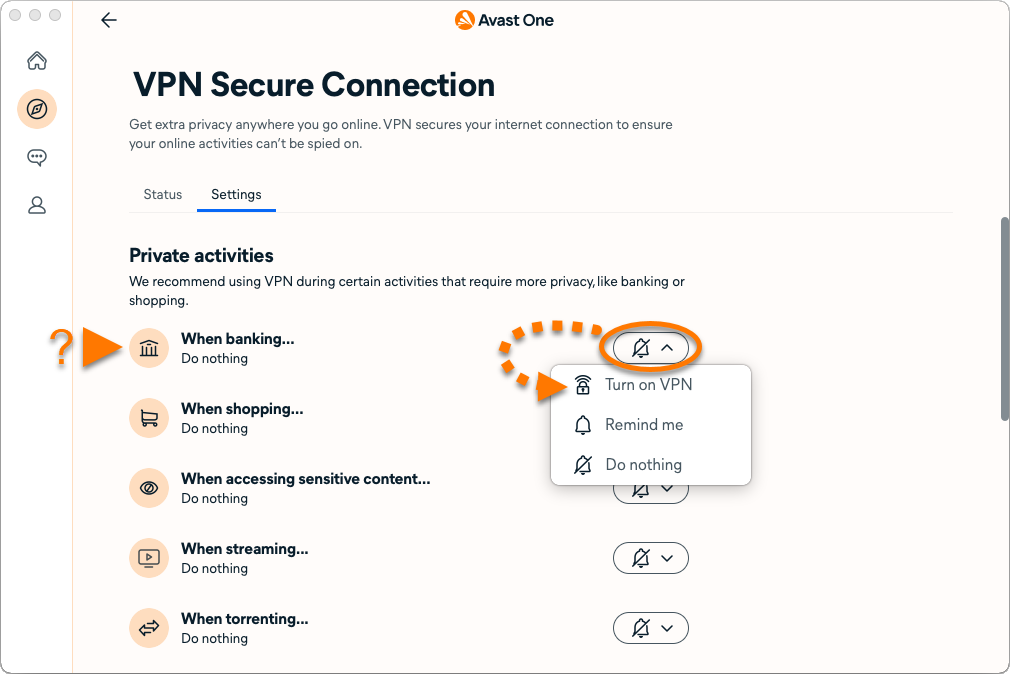
- Private activities: Click the button next to any listed activity, and select your preferred action:
- Turn on VPN: Automatically connect to a secure Avast VPN server whenever you perform the chosen activity.
- Remind me: Asks you to turn on VPN Secure Connection when you perform the chosen activity.
- Do nothing: You are not reminded to use VPN Secure Connection and the VPN does not turn on automatically. This is the default option for all activities.
Add trusted networks
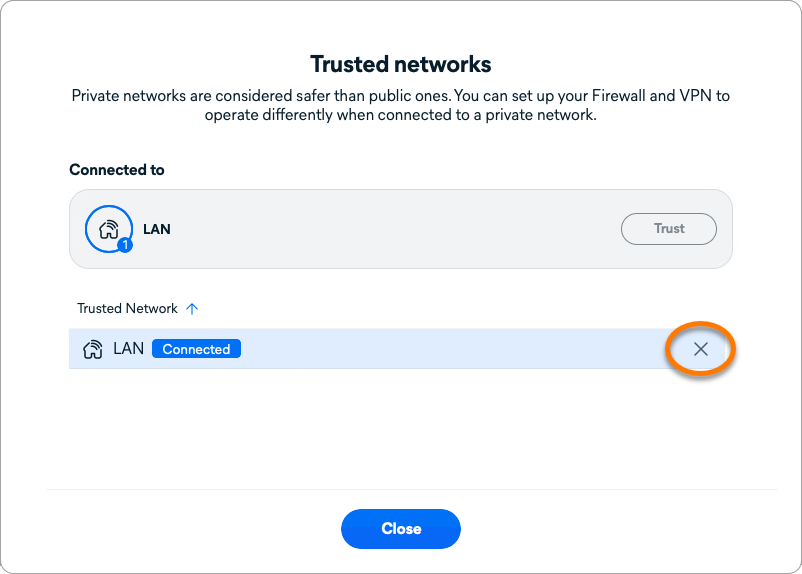
When you connect to a trusted network VPN Secure Connection will not prompt you to secure your connection. To add your network to the list of Trusted networks:
- Open Avast One and select Explore ▸ VPN Secure Connection, then click Open VPN.
- Select the Settings tab, then click View List.
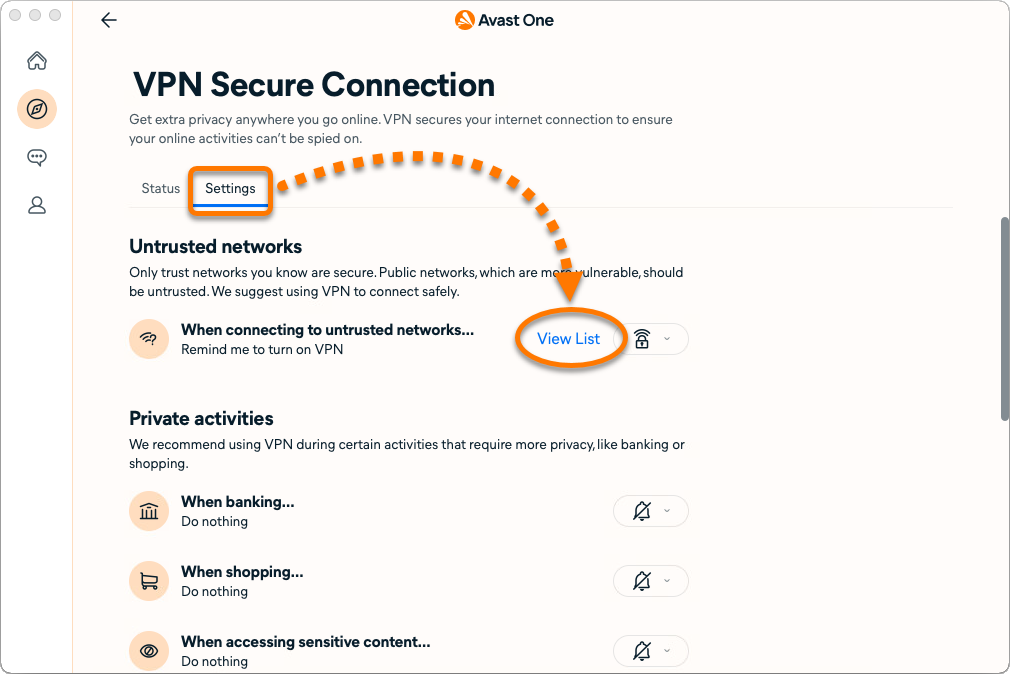
- Click Trust while connected to the trusted network you want to add.
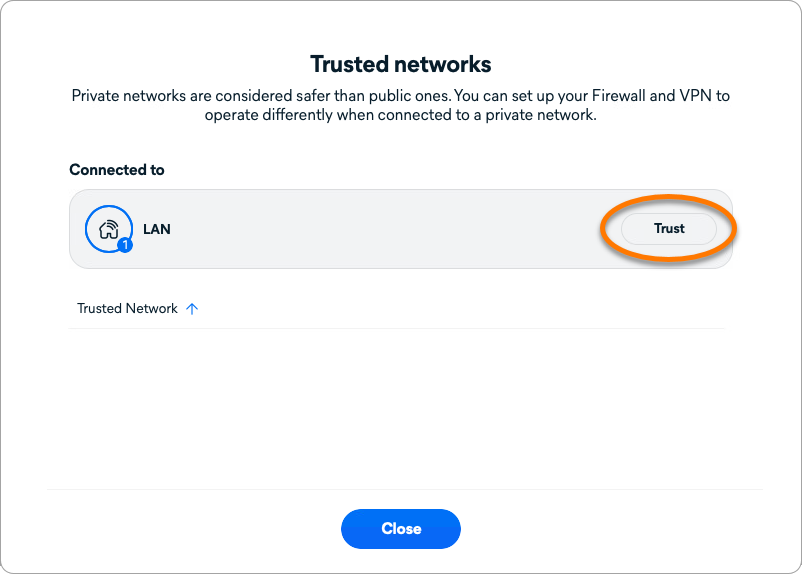
Your current network is added to the list of trusted networks.
To remove a network from the trusted networks list, hover the cursor over the network's panel and click the X icon.