 Settings.


This article is about the standalone version of Avast Cleanup. For information about using Avast Cleanup in the new version of Avast One, refer to the following article: Avast One Cleanup - Getting Started.
Avast Cleanup Premium is an optimization tool that includes a range of scans designed to detect unnecessary items and performance issues. These scans help free up disk space and improve your system's speed.
This article assumes that Avast Cleanup Premium is installed and activated on your Mac. For detailed instructions, refer to the following articles: Installing Avast Cleanup & Activating an Avast Cleanup Premium subscription.
Run Quick Clean
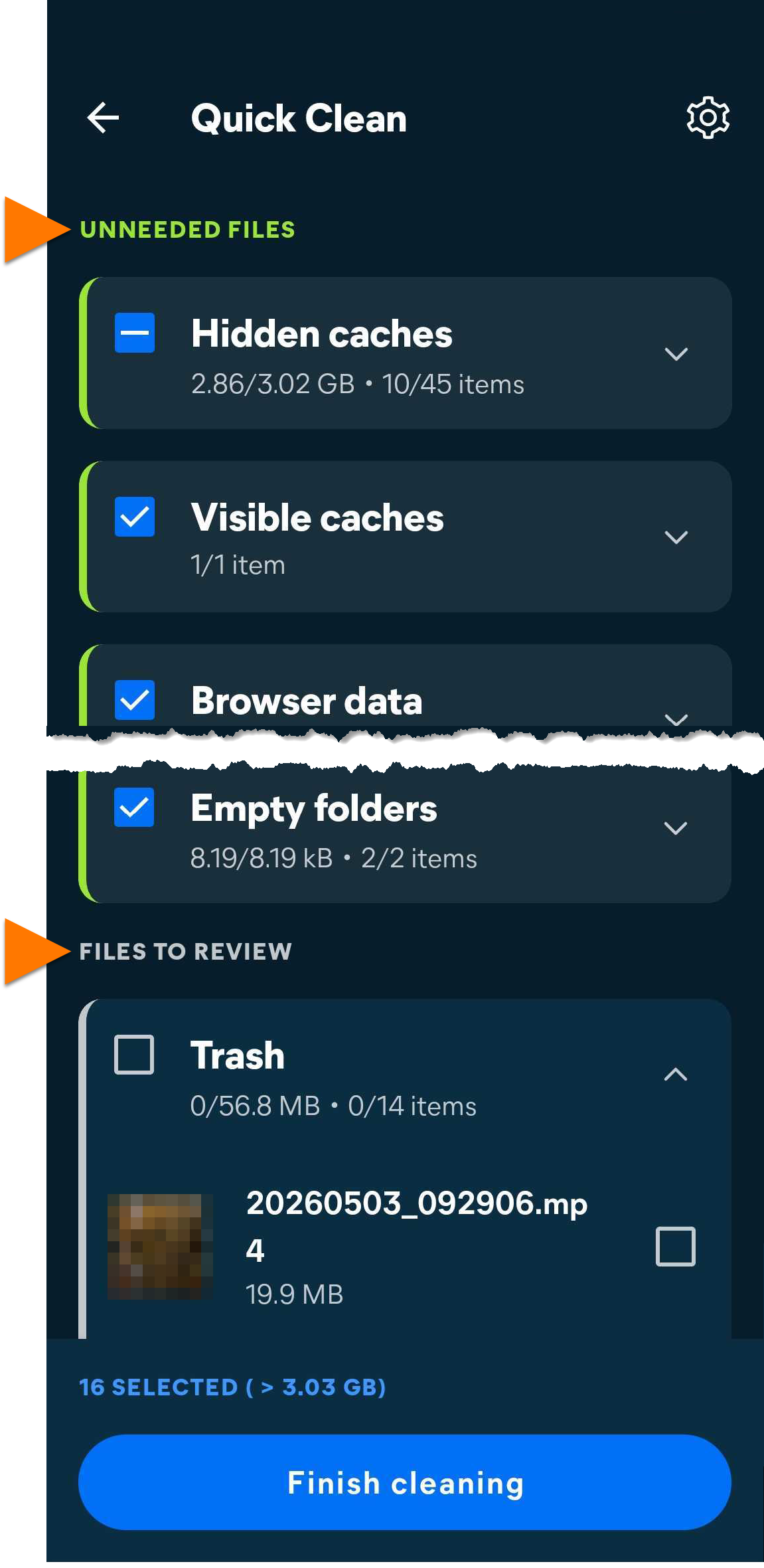
Quick Clean scans your Mac for unnecessary files and allows you to select which files are deleted to clear disk space. Quick Clean also allows you to easily remove cookies and other browsing data from your web browsers.
To run a scan:
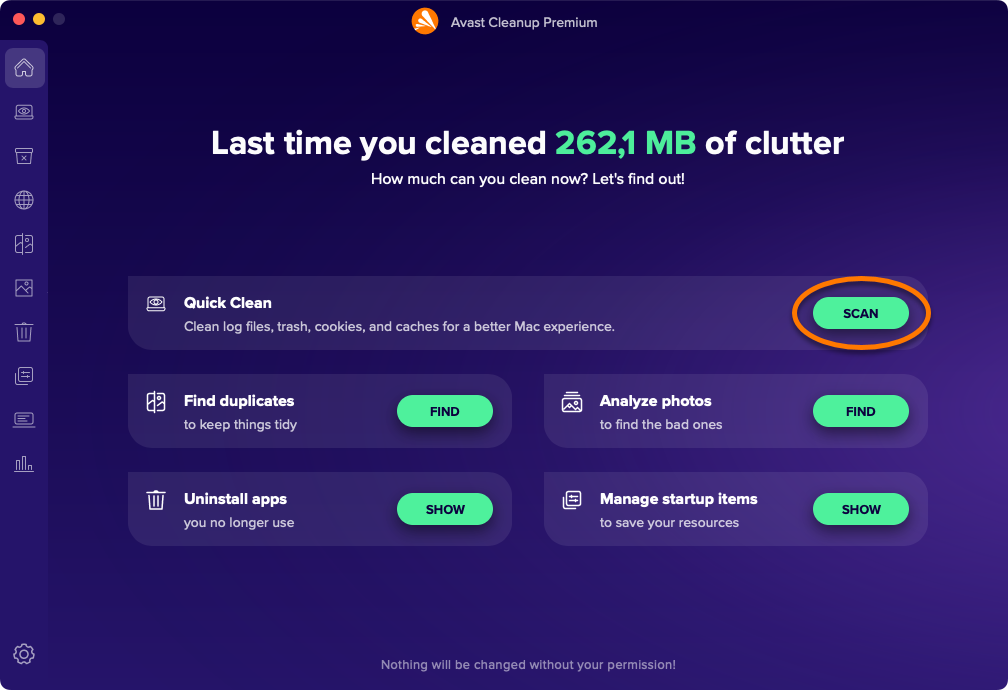
- Open Avast Cleanup Premium and click Scan in the Quick Clean panel.
- Tick the boxes next to the types of files you want to clean. Optionally, click the
varrow to expand a section and select the specific files you want to clean.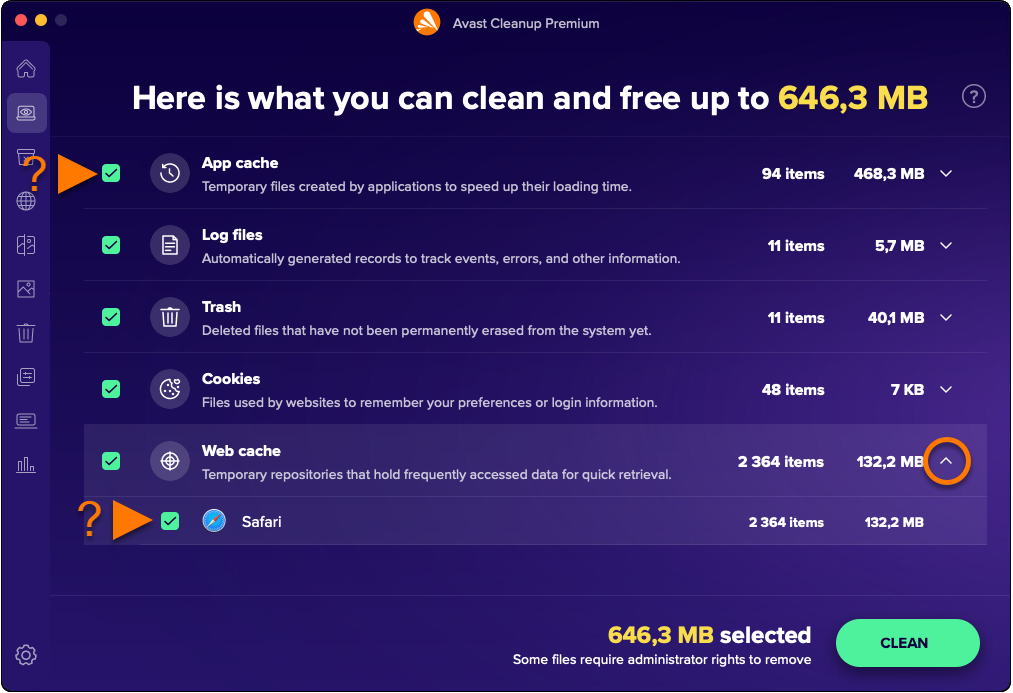
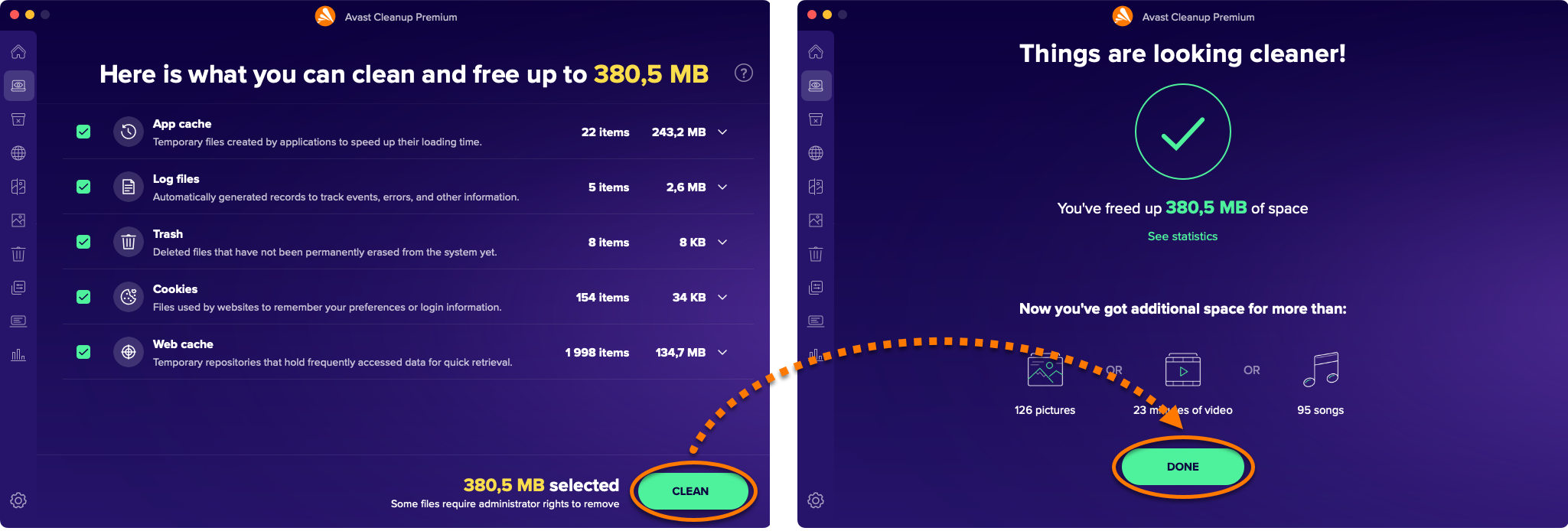
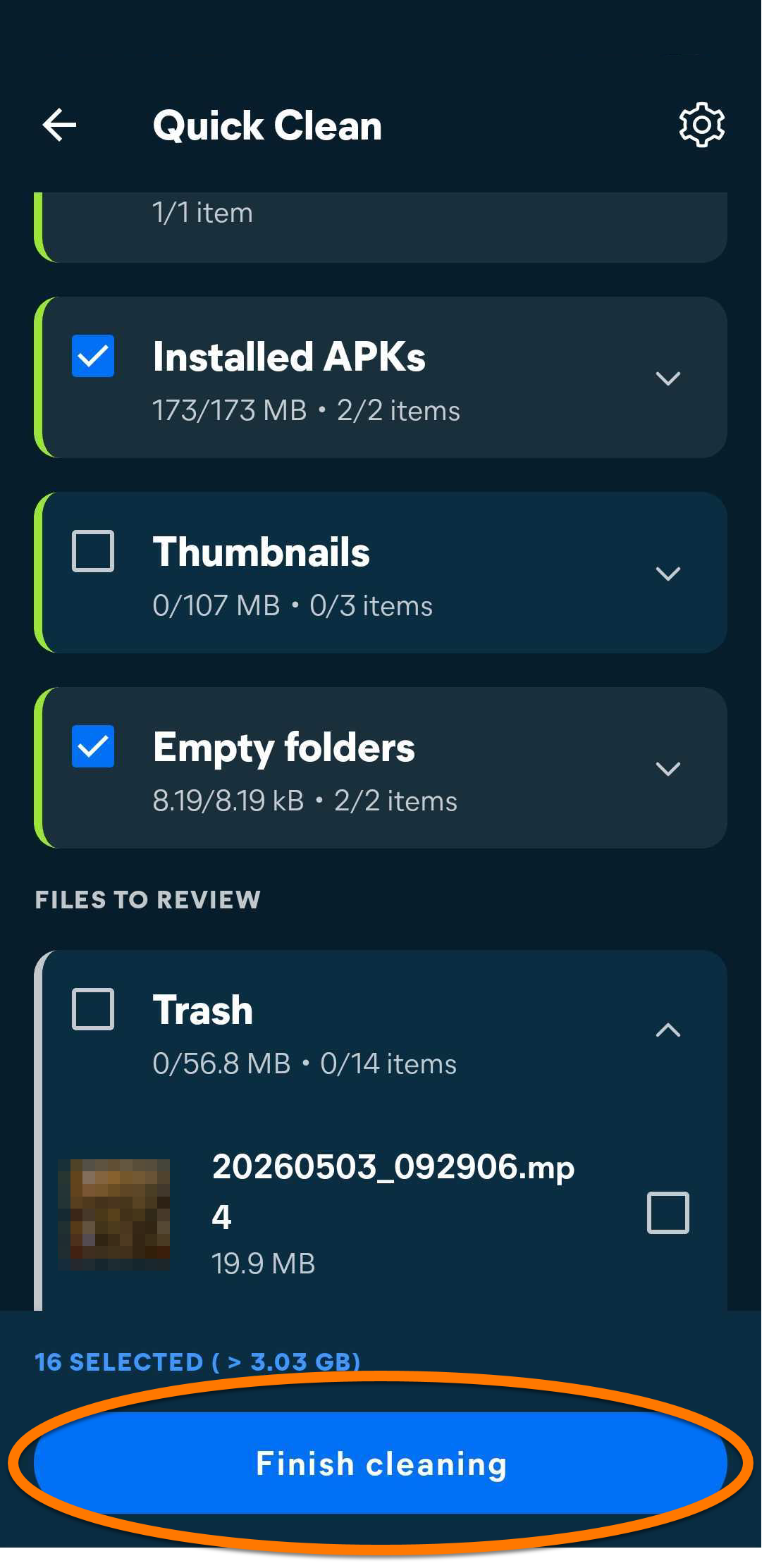
- Click Clean ▸ Done.
Clear disk space
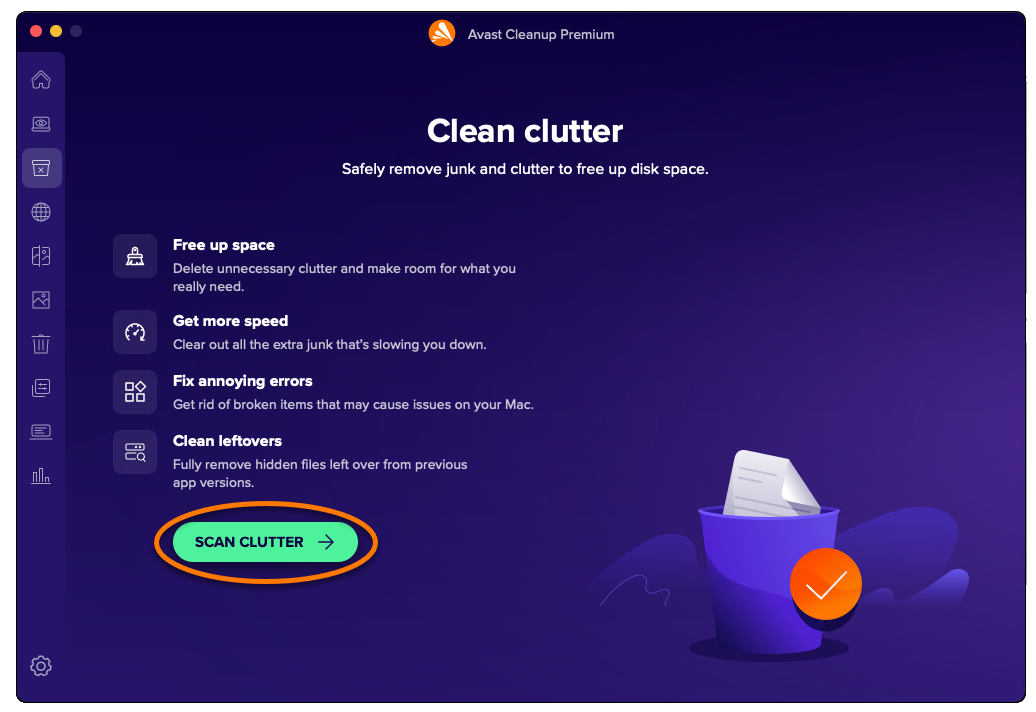
The Clean clutter option scans your Mac for unnecessary files and allows you to select which files are deleted to clear disk space. To run a scan and remove files:
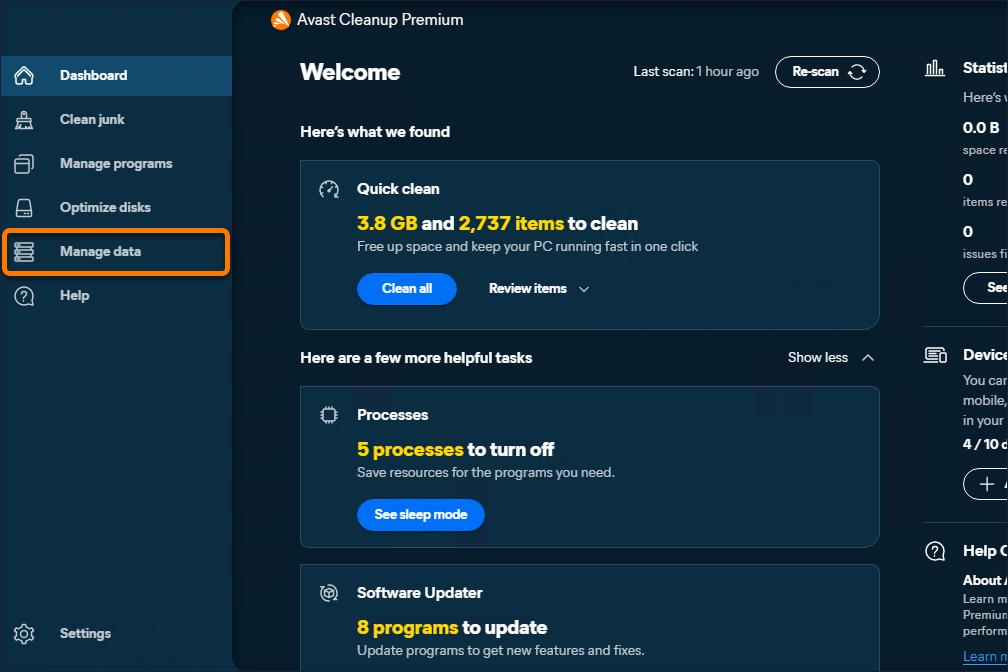
- Open Avast Cleanup Premium, hover your cursor over the side menu, and select Clean clutter.
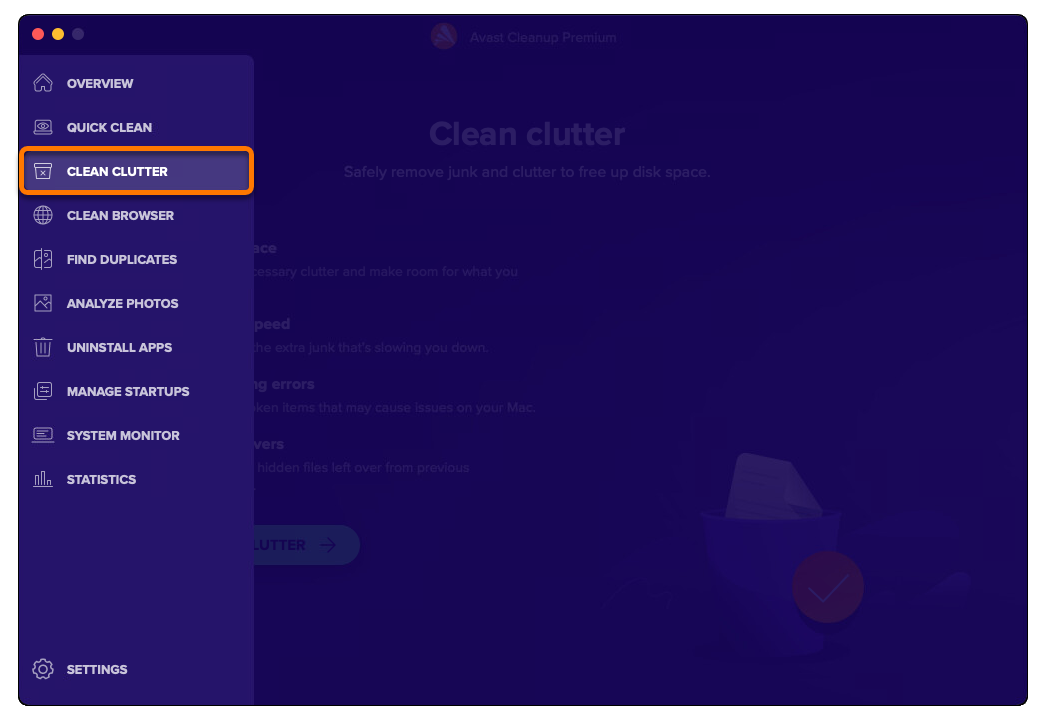
- Click Scan clutter.
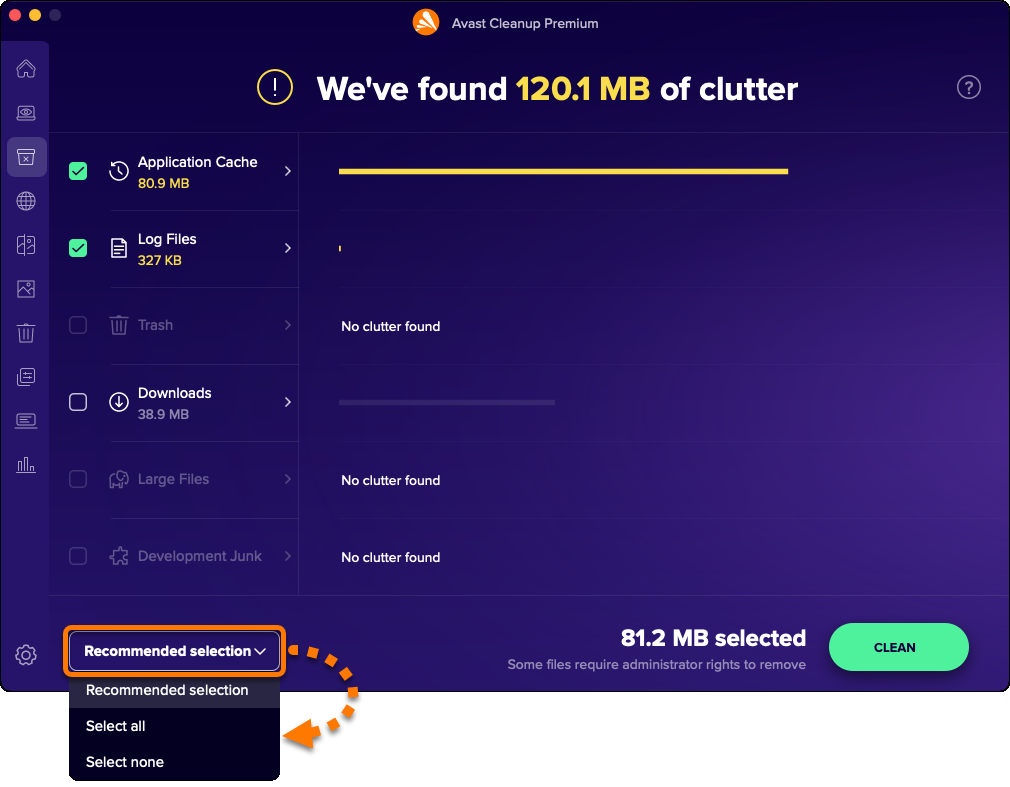
- Use the drop-down menu in the bottom-left corner to select file categories for removal. The following options are available:
- Recommended selection: Selects only file categories that you can safely clean without losing crucial data.
- Select all: Selects all listed file categories. You can then manually deselect any file categories you do not want to clean.
- Select none: Deselects all listed file categories. You can then manually select the file categories you want to clean.
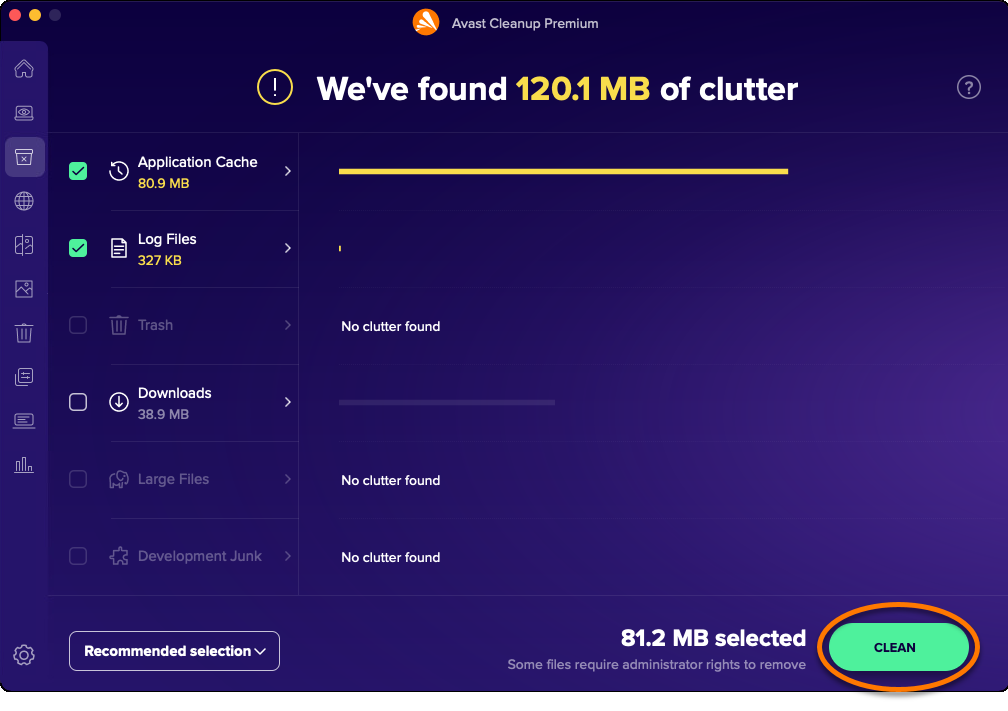
- After selecting the files you want to remove, click Clean.
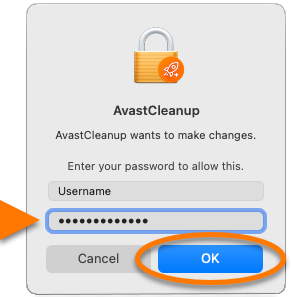
- If prompted, enter the password that you use when you start your Mac, and click OK.
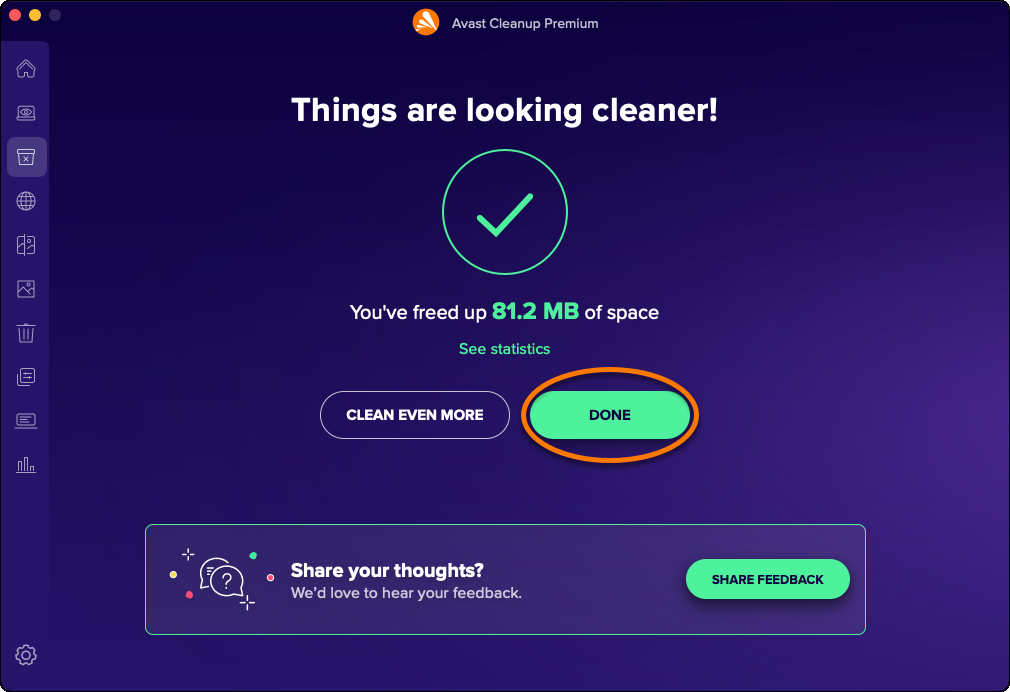
- Click Done to return to the main Avast Cleanup Premium screen.
Clean your browsers
The Clean browser option allows you to easily remove cookies and other browsing data from your web browsers. The following options are available:
- Run a manual scan and specify which data you want to remove.
- Choose the type of Browser History you want Avast Cleanup Premium to delete.
- Configure Avast Cleanup Premium to run automatic scans.
- Add allowed websites that are always exempt when Avast Cleanup Premium clears cookies and other browsing data.
Run a manual scan
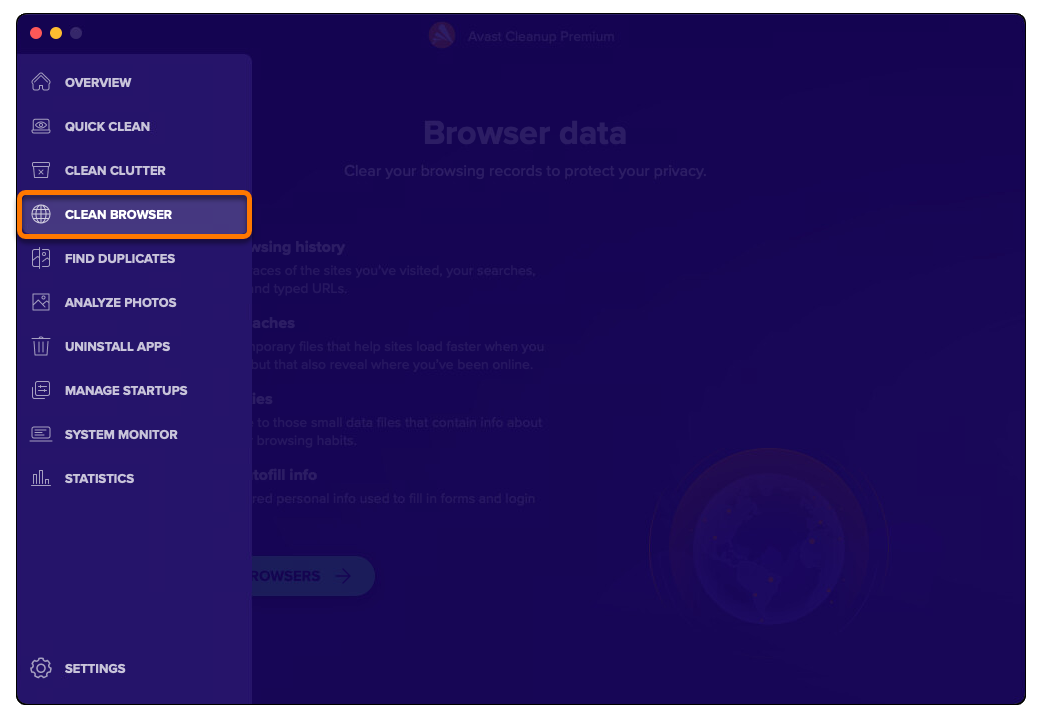
- Open Avast Cleanup Premium, hover your cursor over the side menu, and select Clean browser.
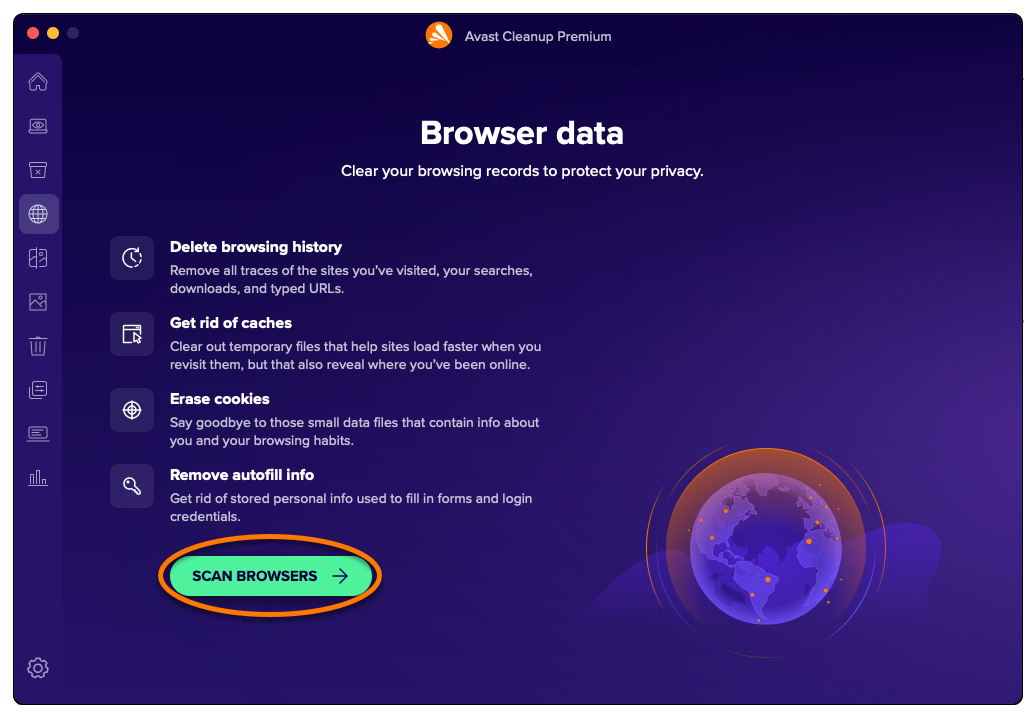
- Click Scan browsers.
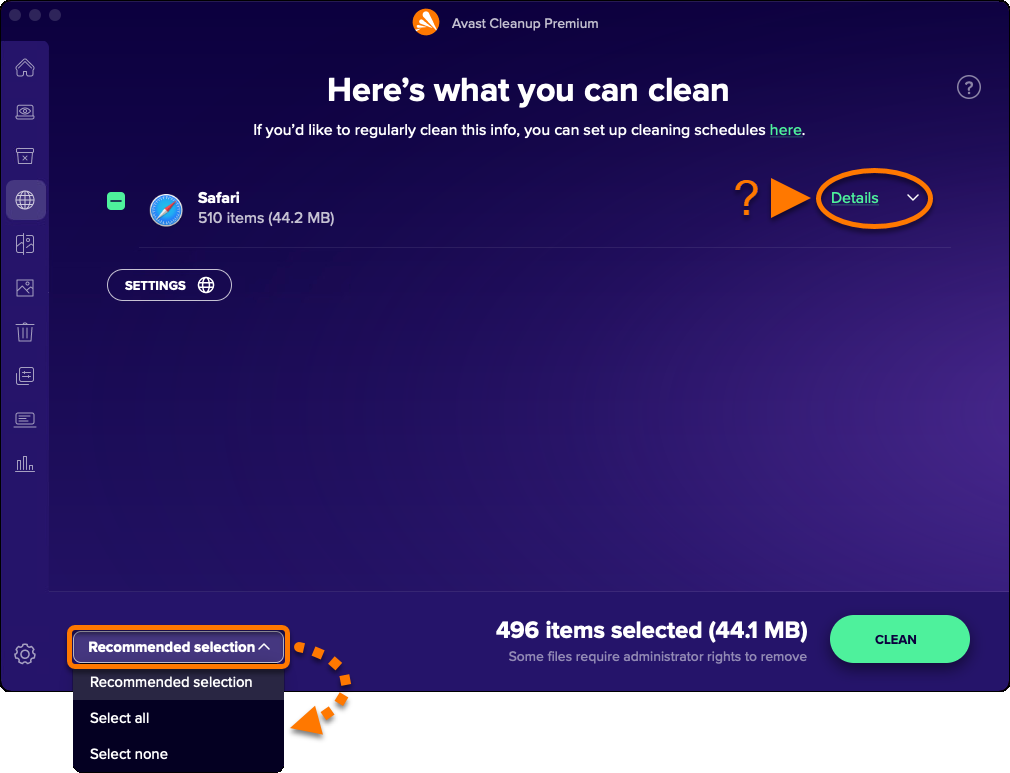
- Use the drop-down menu in the bottom-left corner to select the items you want to remove. The following options are available:
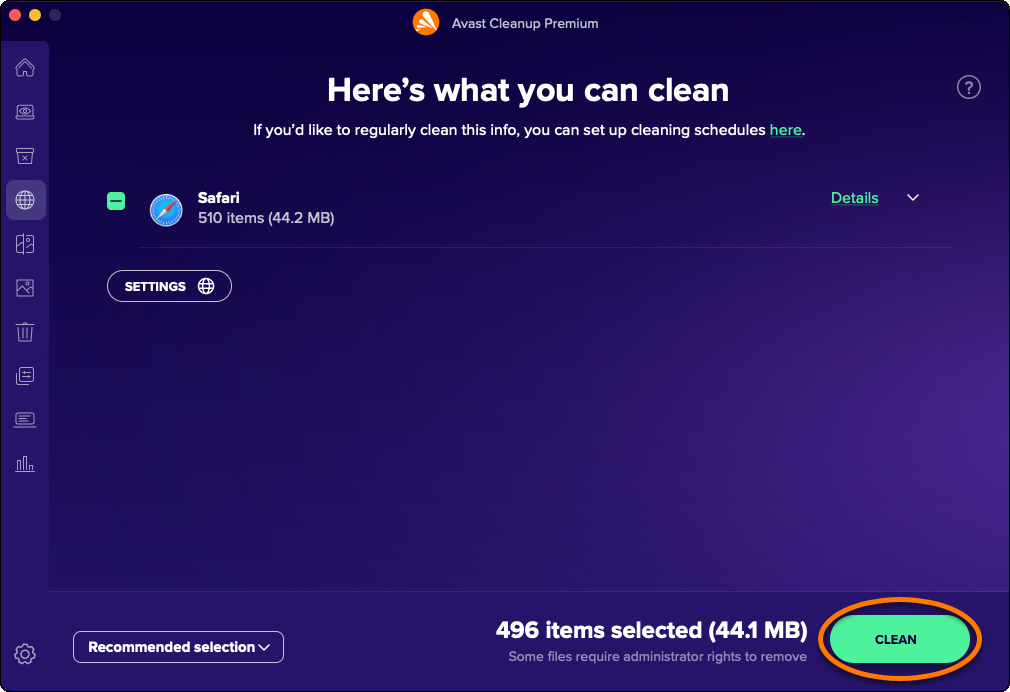
- Recommended selection: Selects only the items that you can safely clean without losing potentially valuable data. You can check the items that are selected for cleaning by clicking Details next to a browser.
- Select all: Selects all listed items. You can then click Details next to a browser to manually deselect any items you do not want to clean.
- Select none: Deselects all listed items. You can then click Details next to a browser to manually select the items you want to clean.
- Click Clean to remove the selected data.
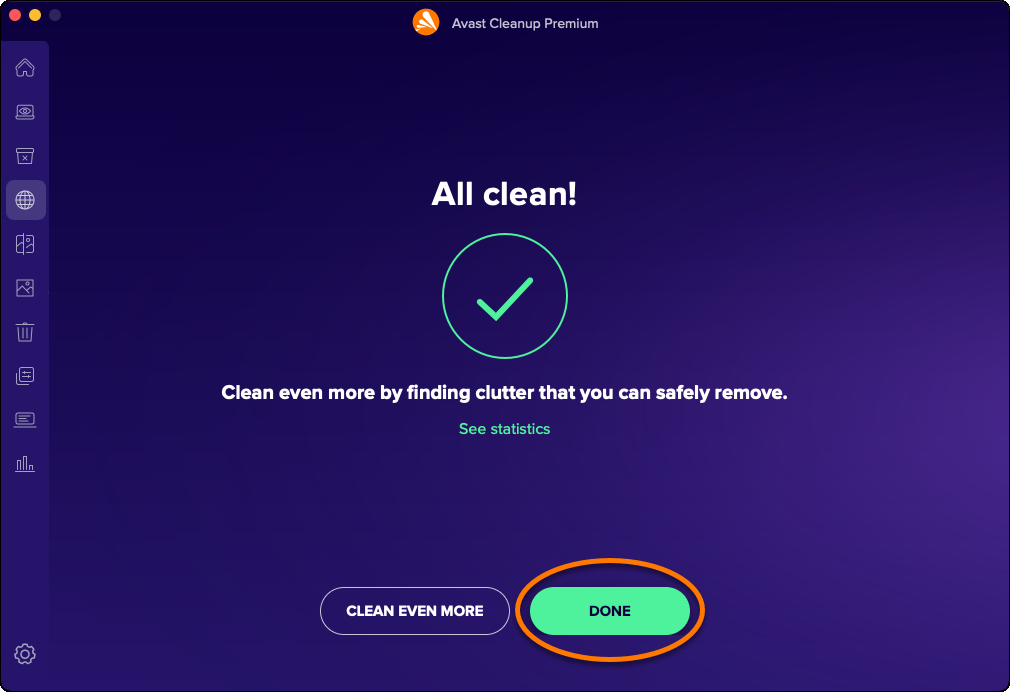
- Click Done to return to the main Avast Cleanup Premium screen.
Choose Browser History
- Open Avast Cleanup Premium, hover your cursor over the side menu, and select Clean browser.
- Click Scan browsers.
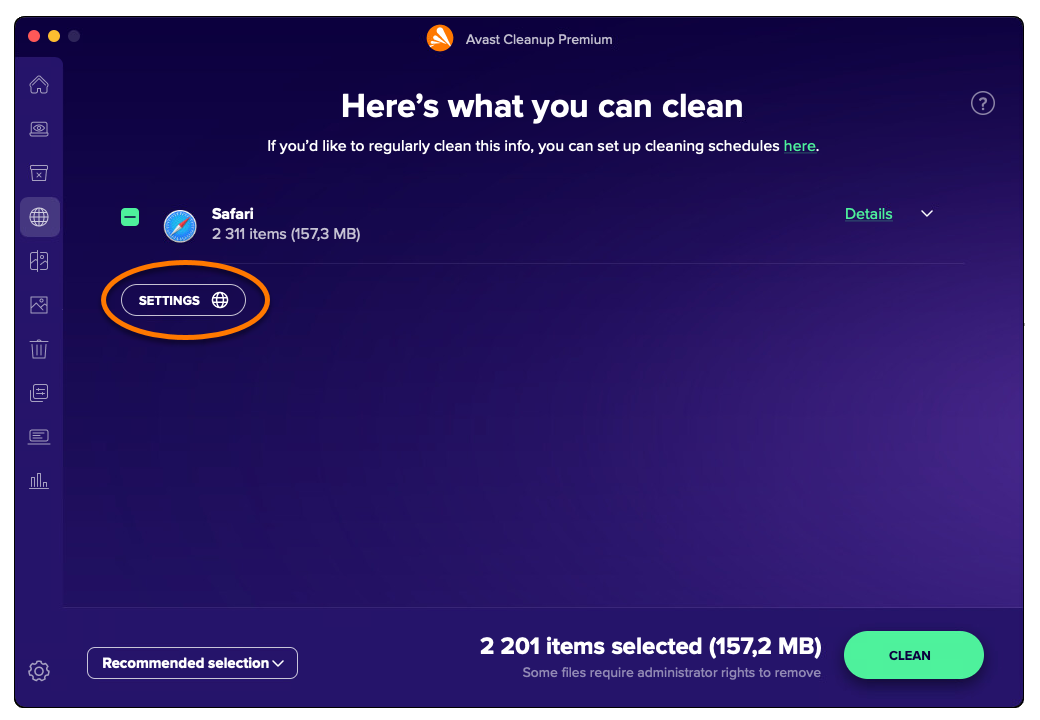
- Click Settings.
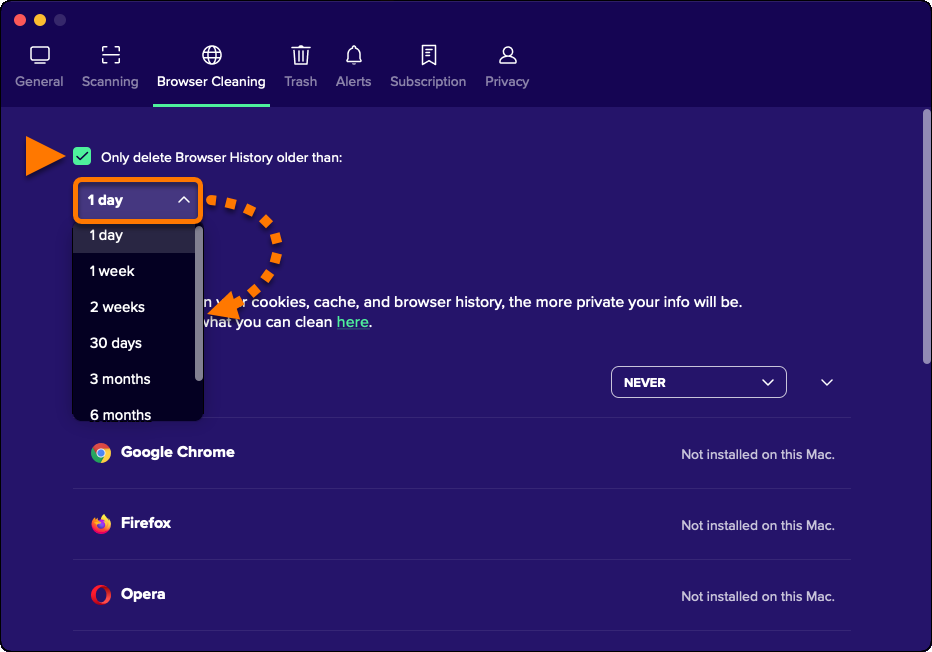
- Tick the box beside Only delete Browser History older than: and choose the frequency according to your preferences.
Schedule automatic scans
- Open Avast Cleanup Premium, hover your cursor over the side menu, and select Clean browser.
- Click Scan browsers.
- Click Settings.
- Use the drop-down menu next to a browser to specify how regularly you want Avast Cleanup Premium to scan the browser for cookies and browsing data.
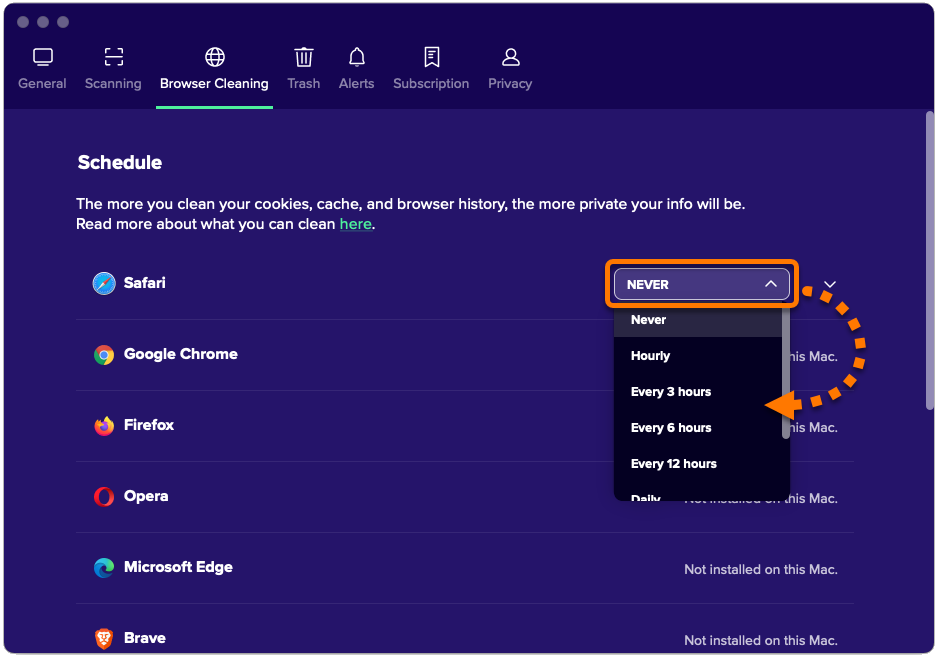
- Select the relevant internet browser panel, then tick or untick the boxes to specify the data you want Avast Cleanup Premium to delete from your browser.
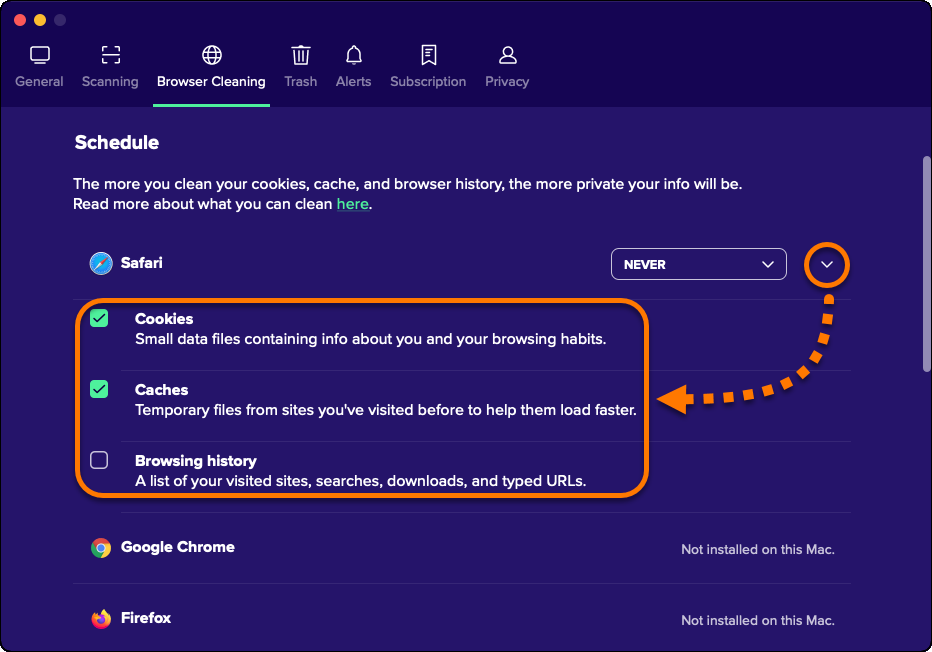
Automatic scanning is enabled for the selected browser.
Add allowed websites
- Open Avast Cleanup Premium, hover your cursor over the side menu, and select Clean browser.
- Click Scan browsers.
- Click Settings.
- Scroll to the Cookie Allowlist section and select Add manually.
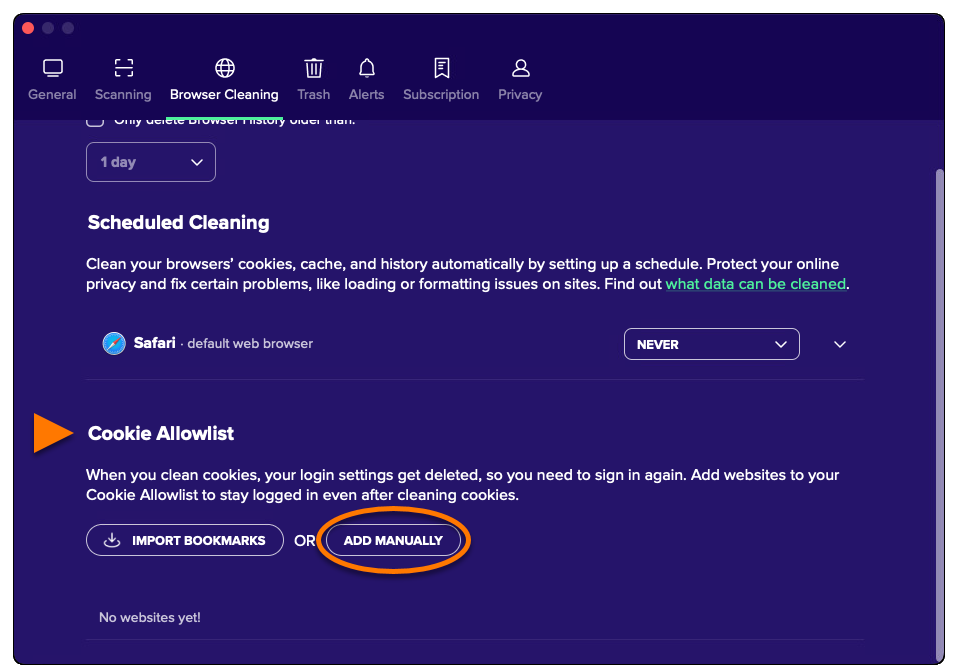
- Add a website using either Option A or Option B below:
- Option A: Enter a website (for example, example.com) into the text box, then click Add.
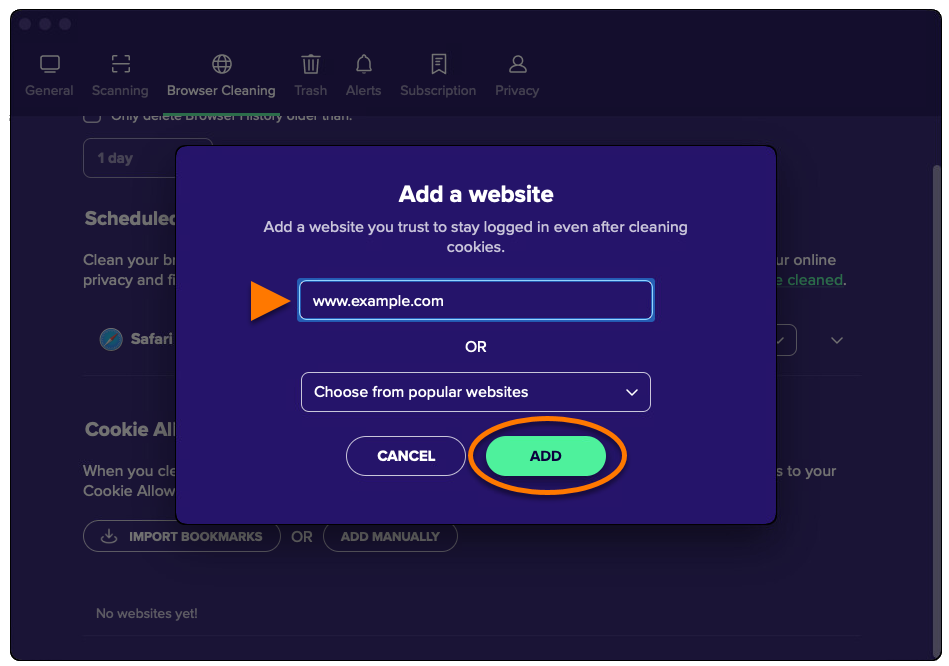
- Option B: Select a website from the Choose from popular websites drop-down menu, then click Add.
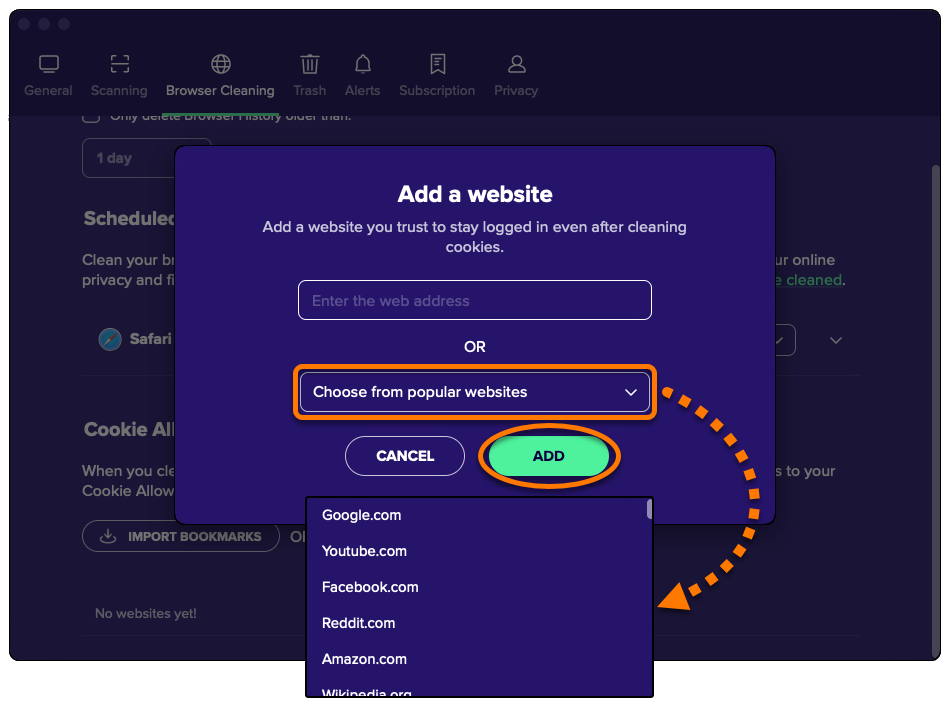
- Option A: Enter a website (for example, example.com) into the text box, then click Add.
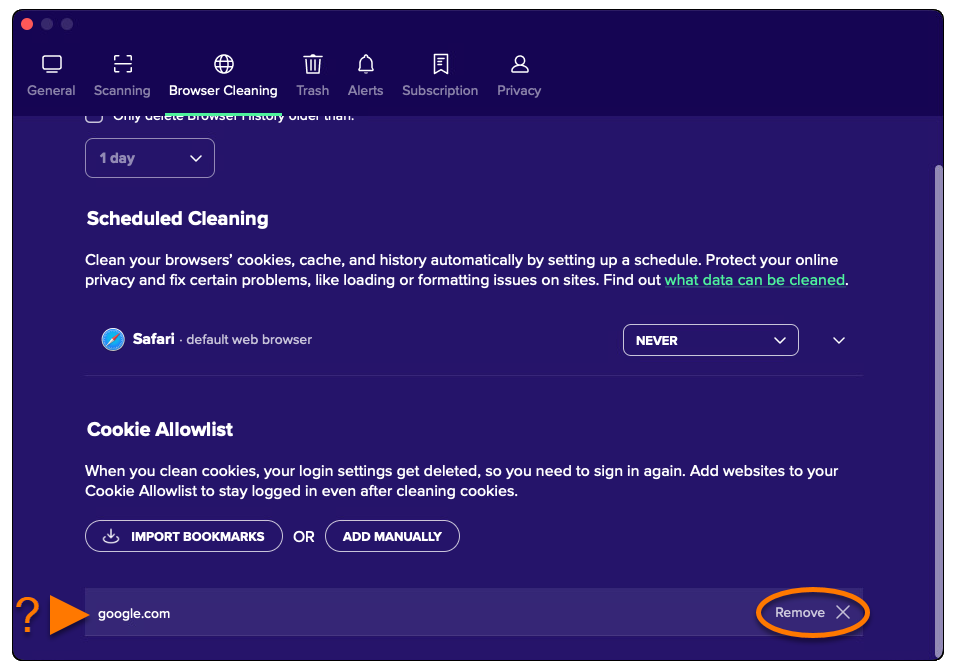
The selected website is now excluded from cookie clearing.
To remove a website from the list, click Remove (the
Xicon) in the relevant websites' panel.
Remove duplicate files
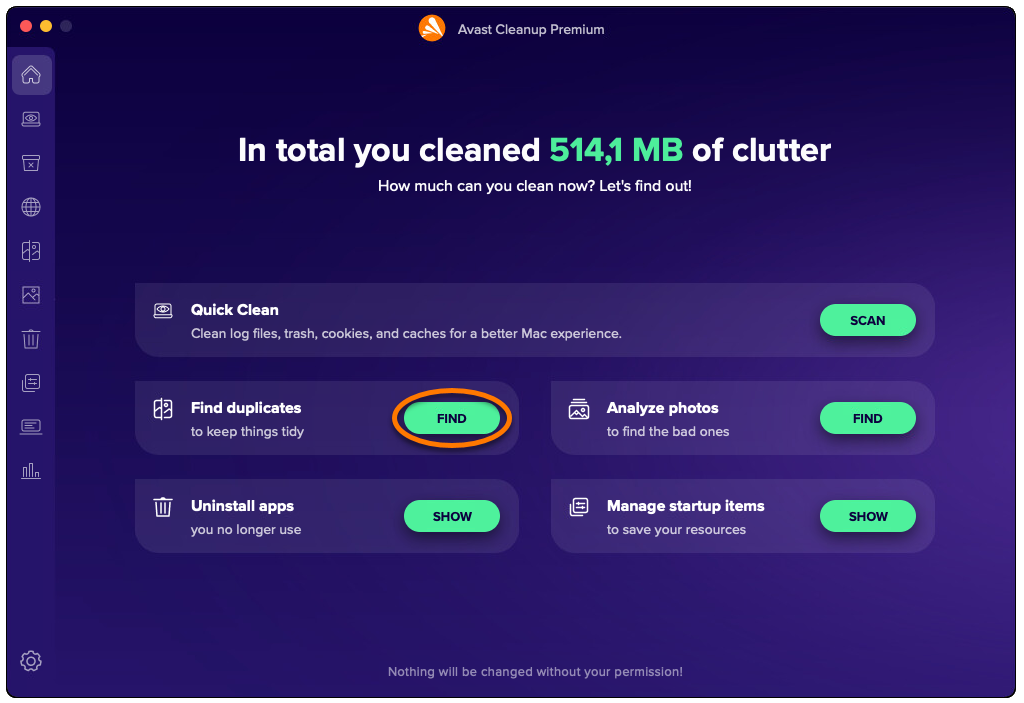
The Find duplicates option scans your Mac for duplicate files. To run a scan and remove duplicate files:
- Open Avast Cleanup Premium and click Find next to Find duplicates.
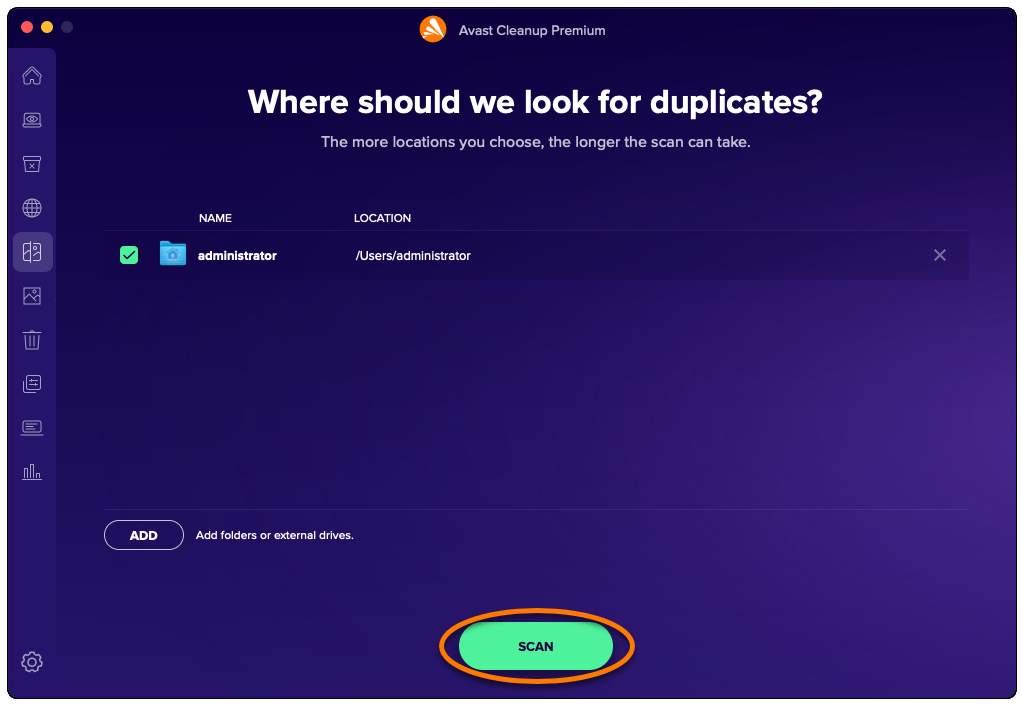
- Tick the location(s) you want to scan for duplicate files. To add additional folders or external drives, click Add, and select a folder or drive.
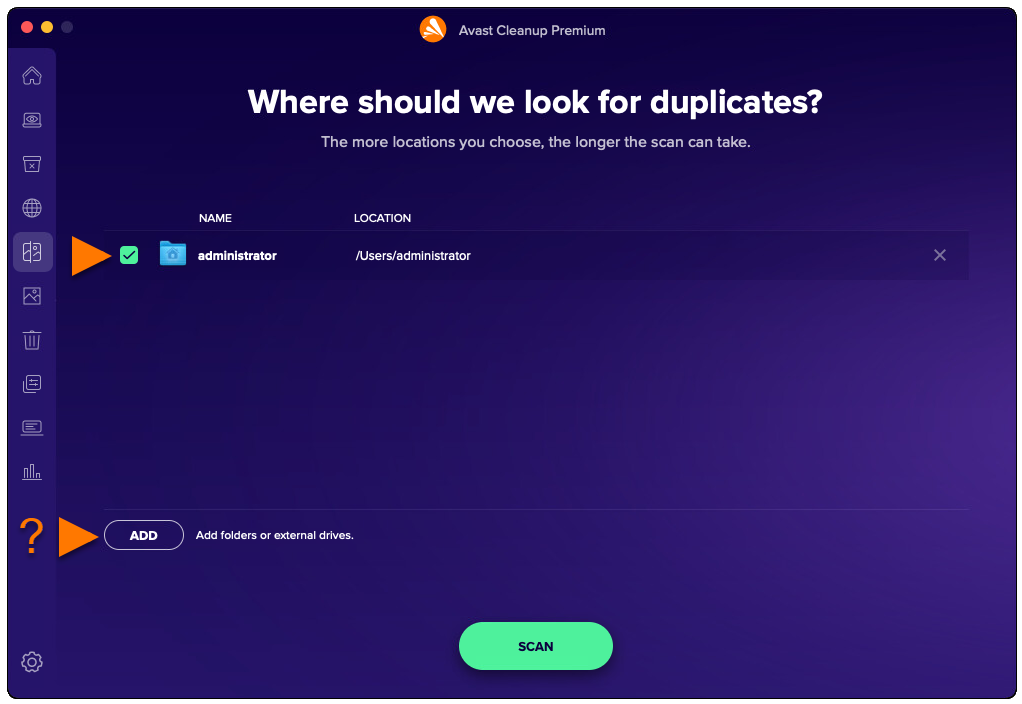
- Click Scan.
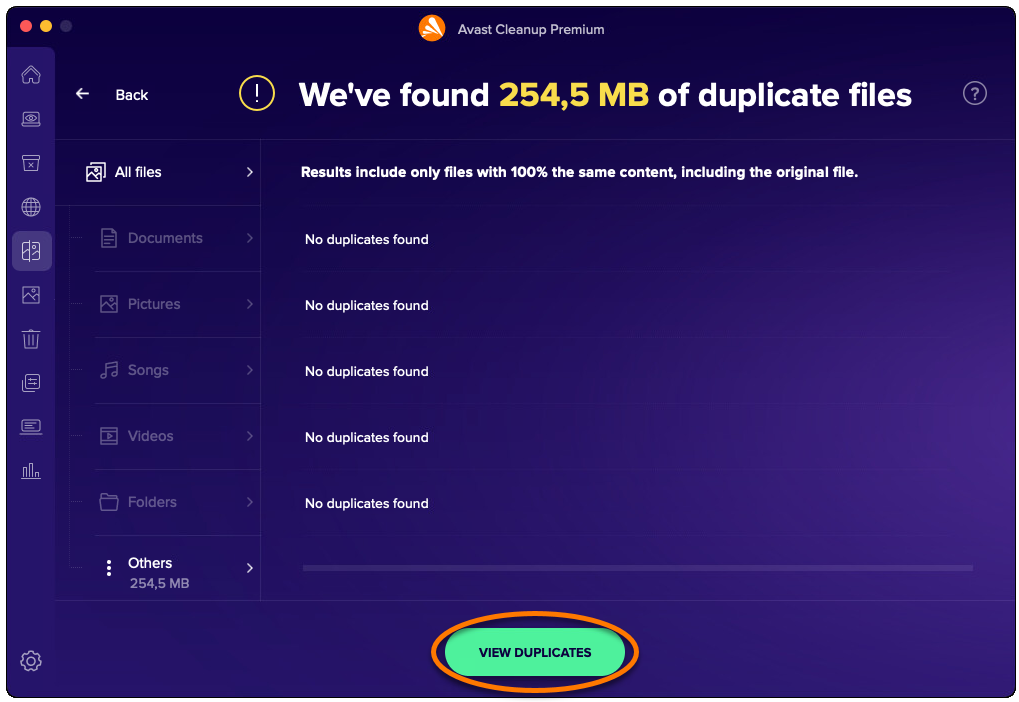
- After the scan completes, click View duplicates.
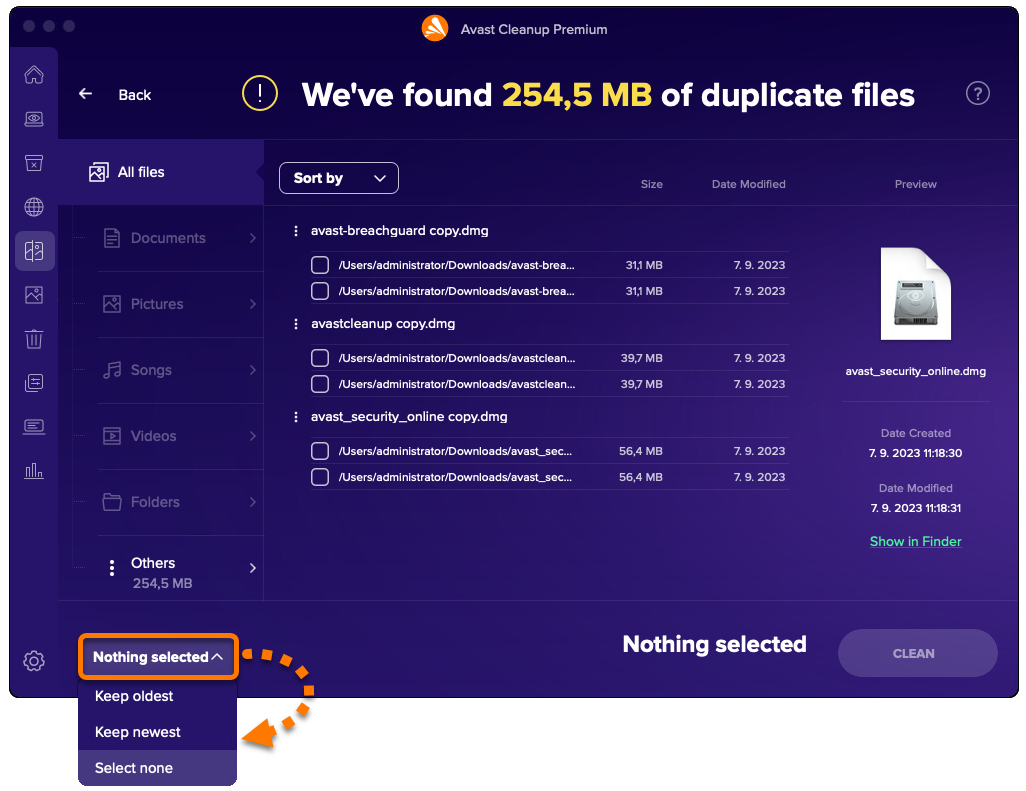
- Use the drop-down menu in the bottom-left corner to select the files you want to remove. The following options are available:
- Keep oldest: Automatically selects the newest version of each file for removal.
- Keep newest: Automatically selects the oldest version of each file for removal.
- Select none: Deselects all files and allows you to manually select files for removal. Tick each file that you want to remove. After you tick a file, Select none becomes Custom selection.
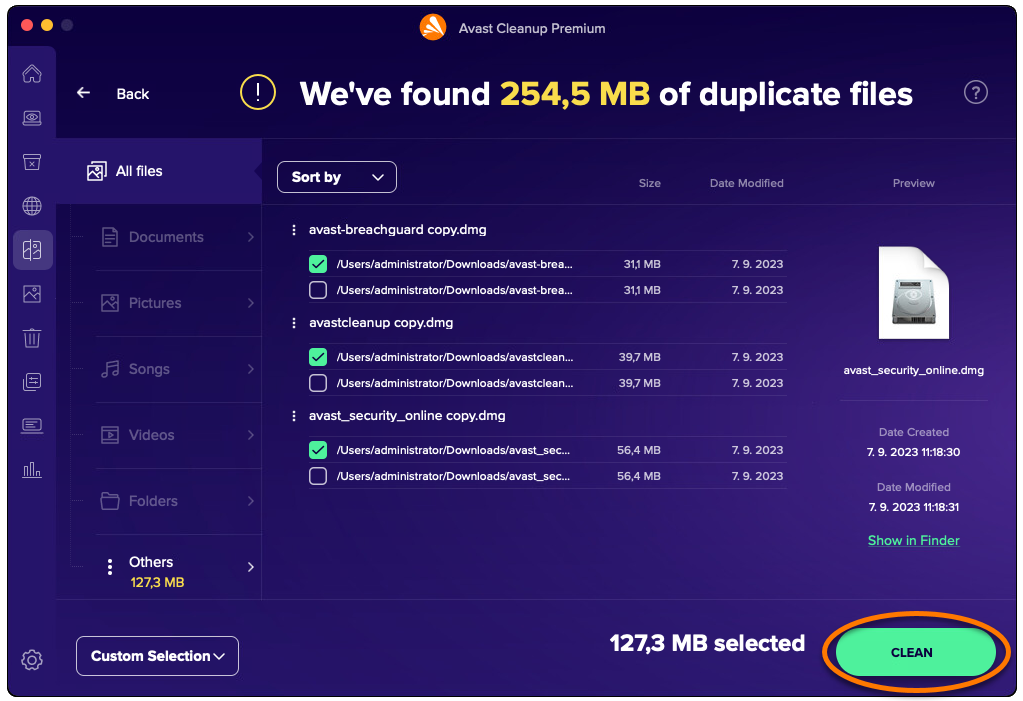
- After selecting the files you want to remove, click Clean.
- If prompted, enter the password that you use when you start your Mac, then click OK.
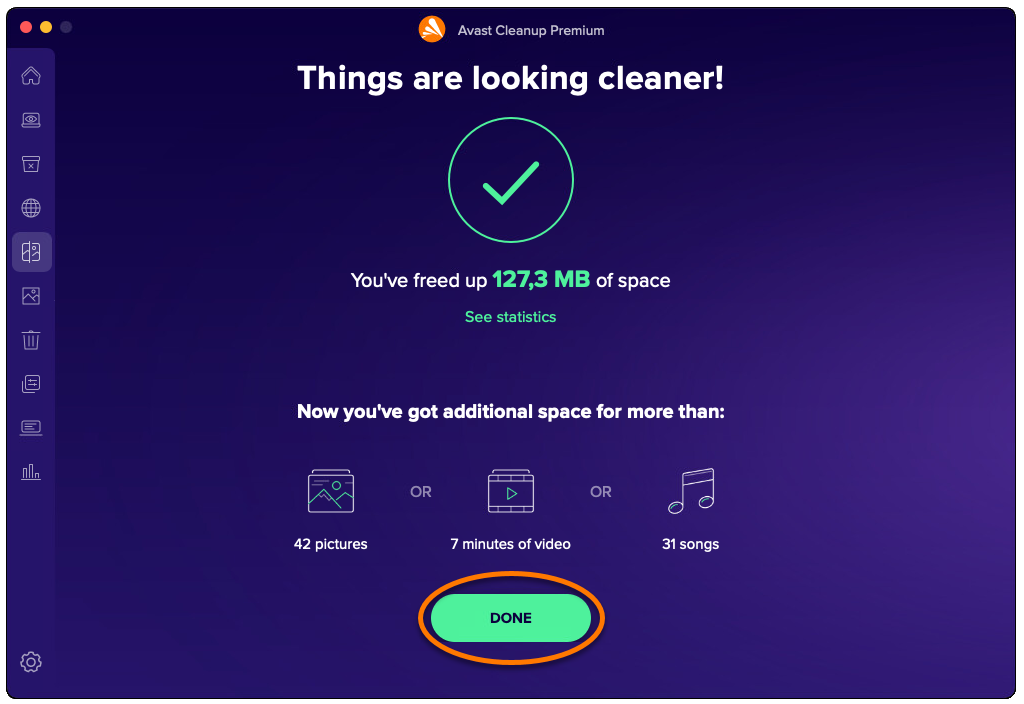
- Click Done to return to the main Avast Cleanup Premium screen.
Identify bad or similar photos
The Find photos option scans your Mac for photos that are blurry, badly lit, or similar. To run a scan and review bad or similar photos:
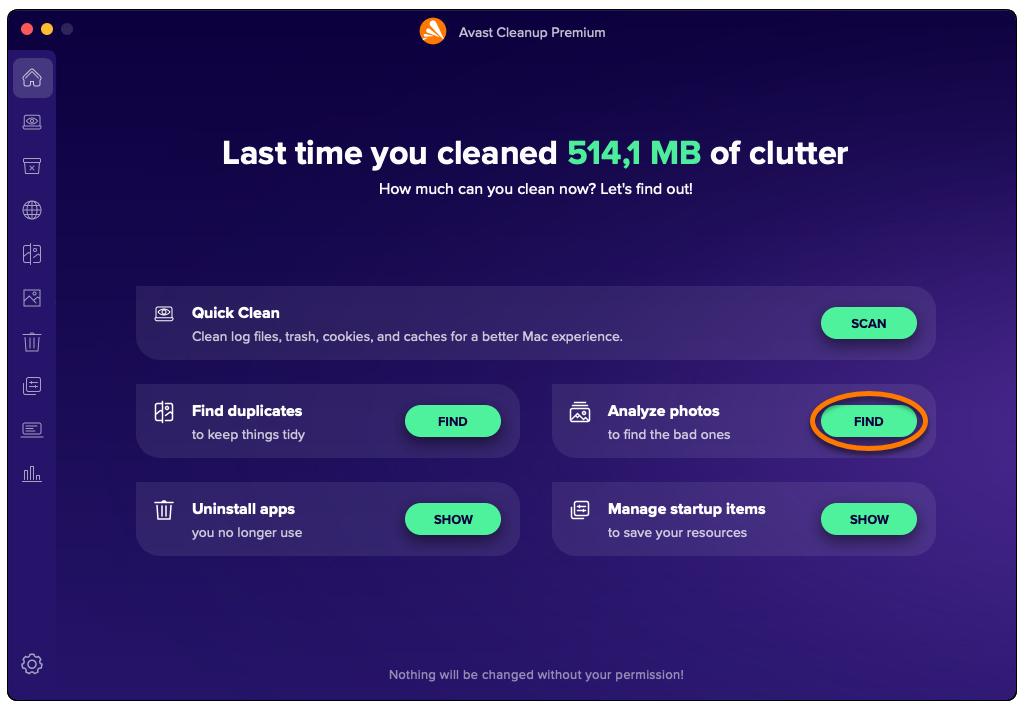
- Open Avast Cleanup Premium and click Find next to Analyze photos.
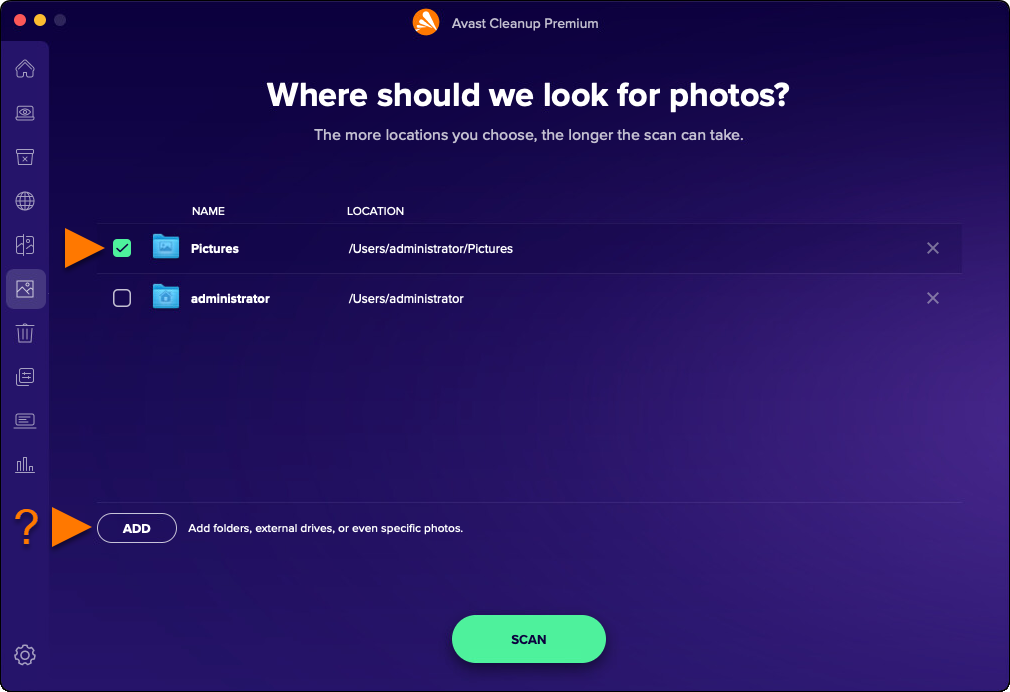
- Tick the location(s) you want to scan for photos. To add additional folders, external drives, or specific photos, click Add, then select the folder, drive, or photo.
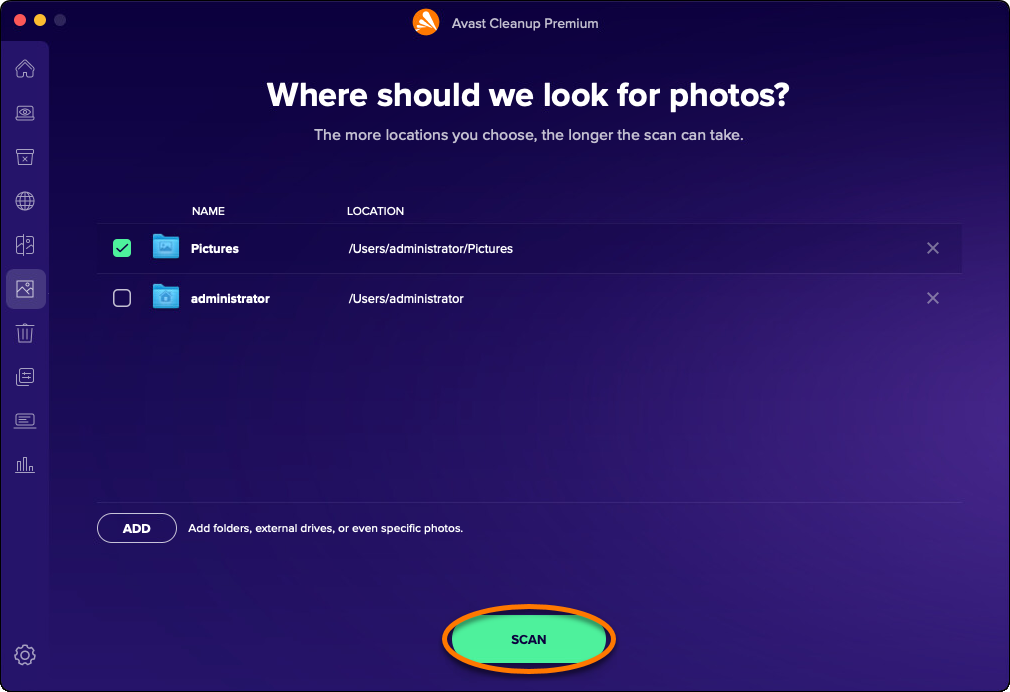
- Click Scan.
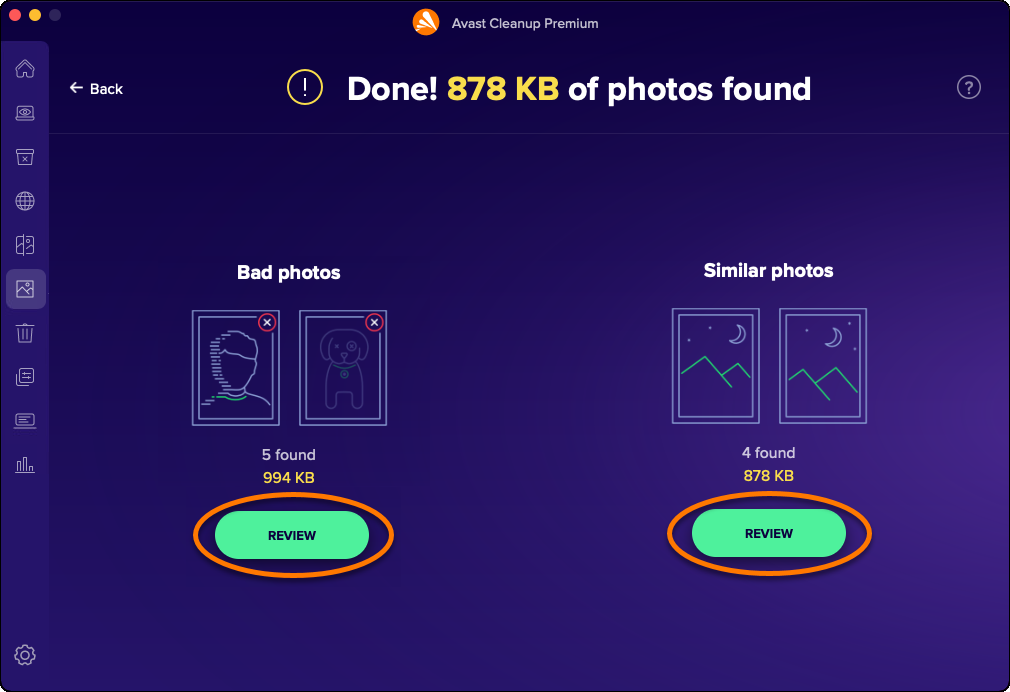
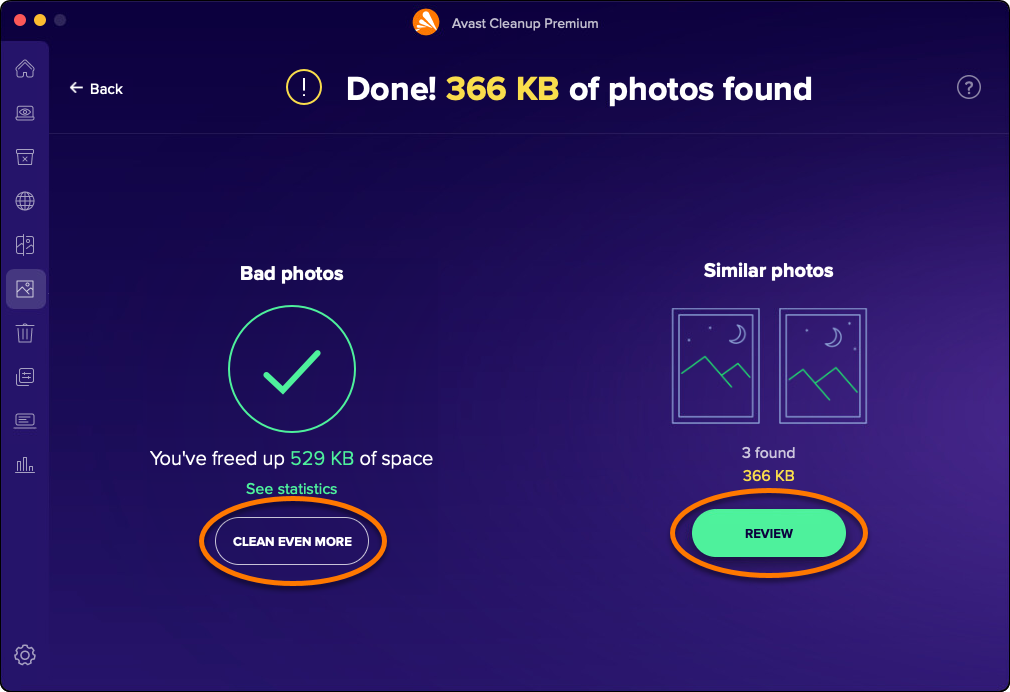
- After the scan completes, click Review under either Bad photos or Similar photos to see the photos that Avast Cleanup Premium has identified.
- Click Got it to remove the pop-up message.

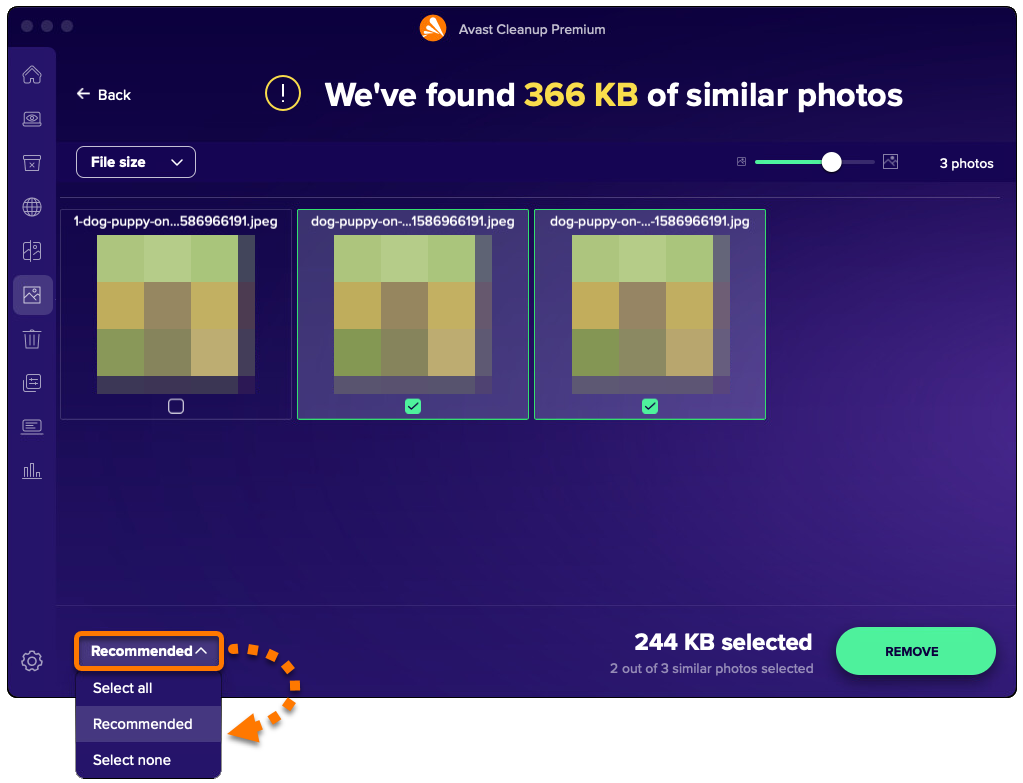
- Use the drop-down menu in the bottom-left corner to select the files you want to remove. The following options are available:
- Select all: Selects all photos that were found.
- Recommended: Selects the photos that Avast Cleanup Premium recommends for removal.
- Select none: Deselects all photos and allows you to manually select photos for removal. Tick each photo that you want to remove. After you tick a photo, Select none becomes Custom selection.
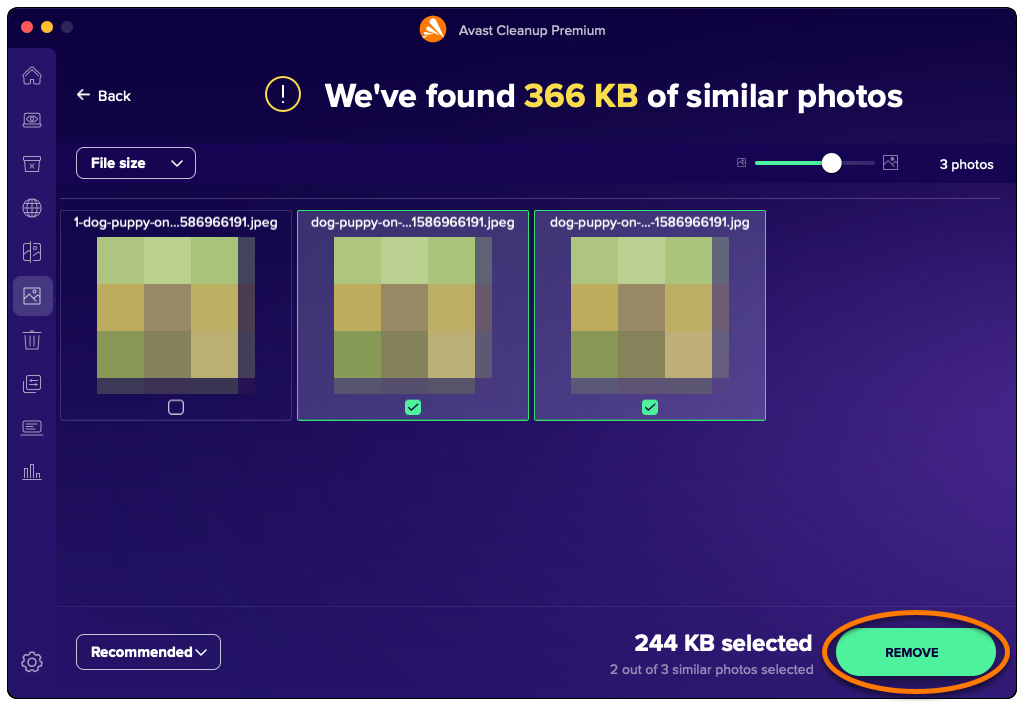
- After selecting the photos you want to delete, click Remove.
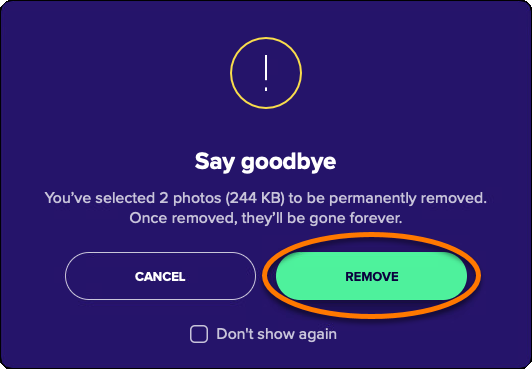
- Click Remove to confirm deletion of your selected photos.
- Click Clean even more or Review and repeat steps 5-8 above to continue reviewing and deleting photos.
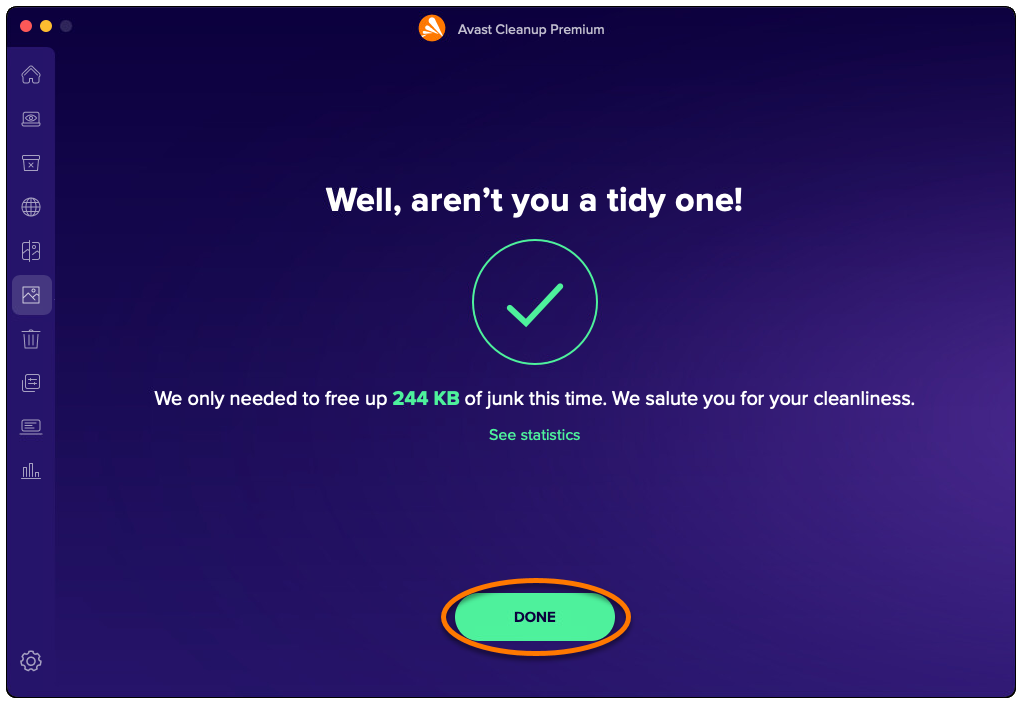
- Click Done to return to the main Avast Cleanup Premium screen.
Uninstall apps you no longer use
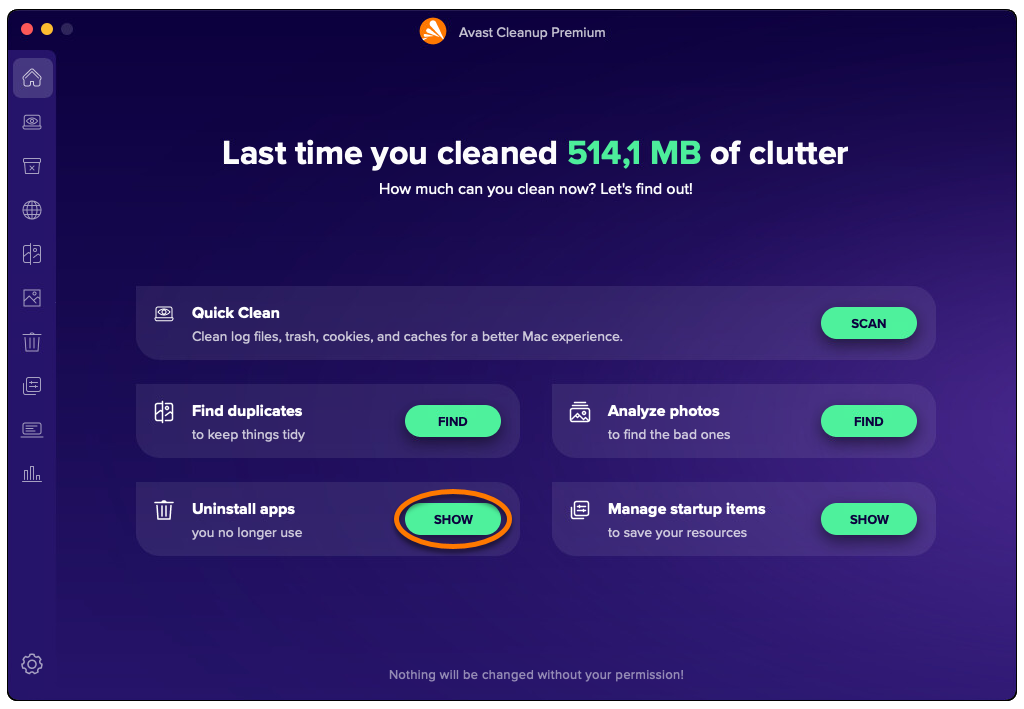
The Uninstall apps option allows you to easily find and remove applications you no longer use, to keep your Mac tidy and free up space. To uninstall apps you no longer use:
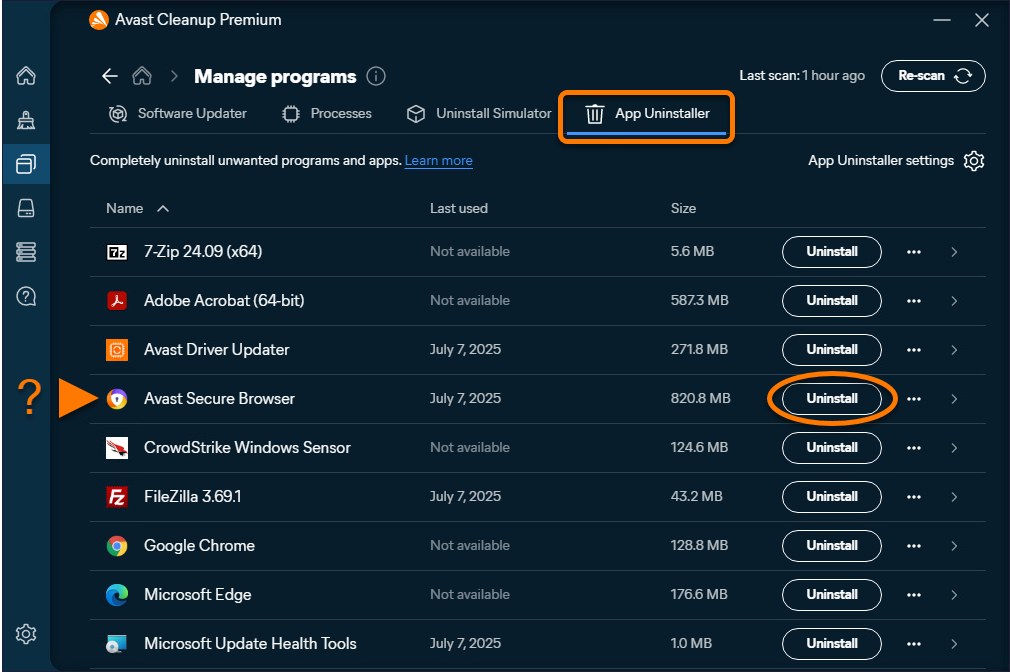
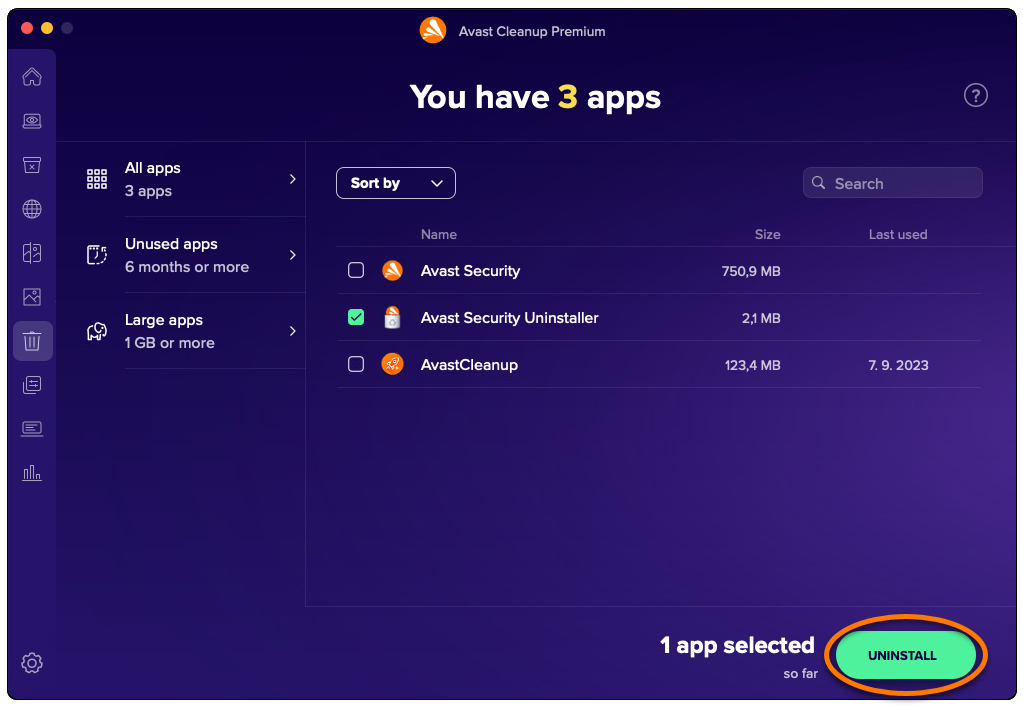
- Open Avast Cleanup Premium and click Show next to Uninstall apps.
- Tick the box next to an app to select it. You can also filter the list of apps using the Unused apps and Large apps categories in the left panel.
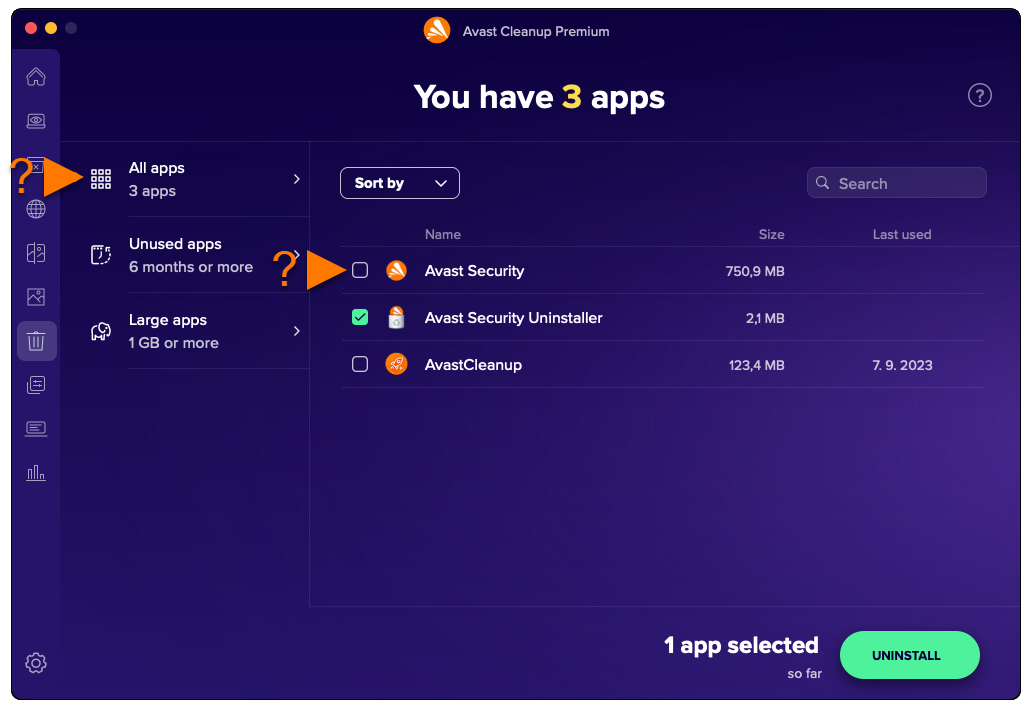
- After selecting the apps you want to remove, click Uninstall.
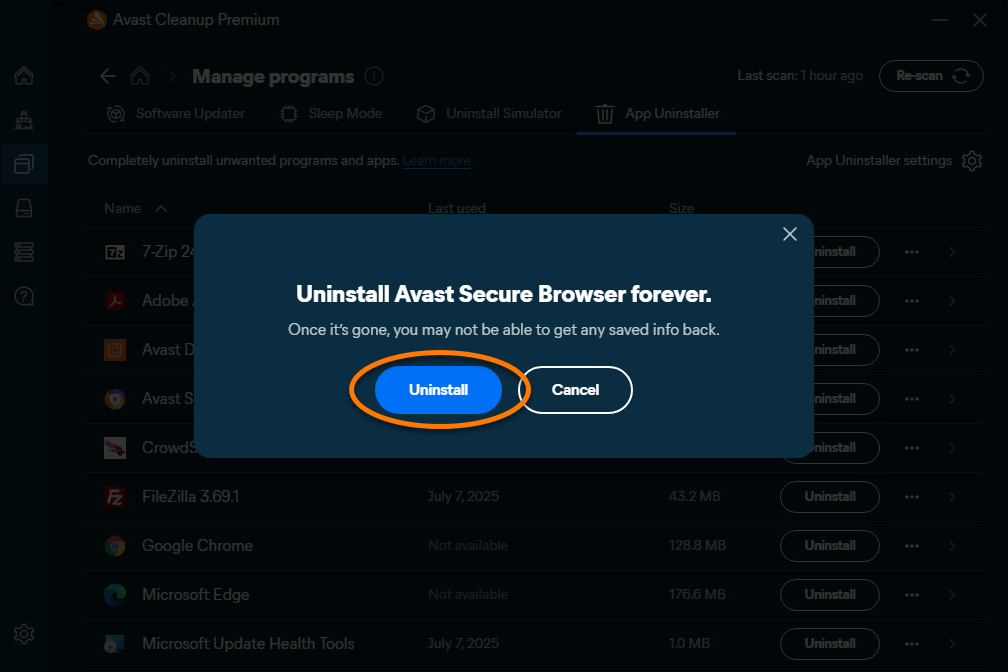
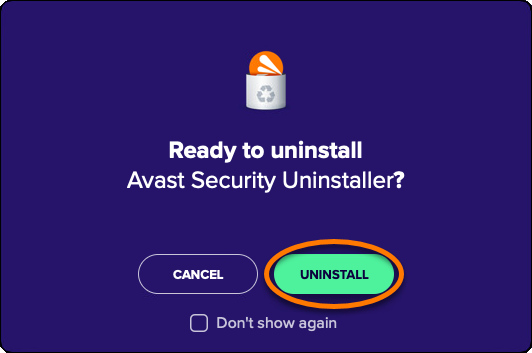
- Click Uninstall to confirm removal of the selected apps from your Mac.
- If prompted, enter the password that you use when you start your Mac, then click OK.
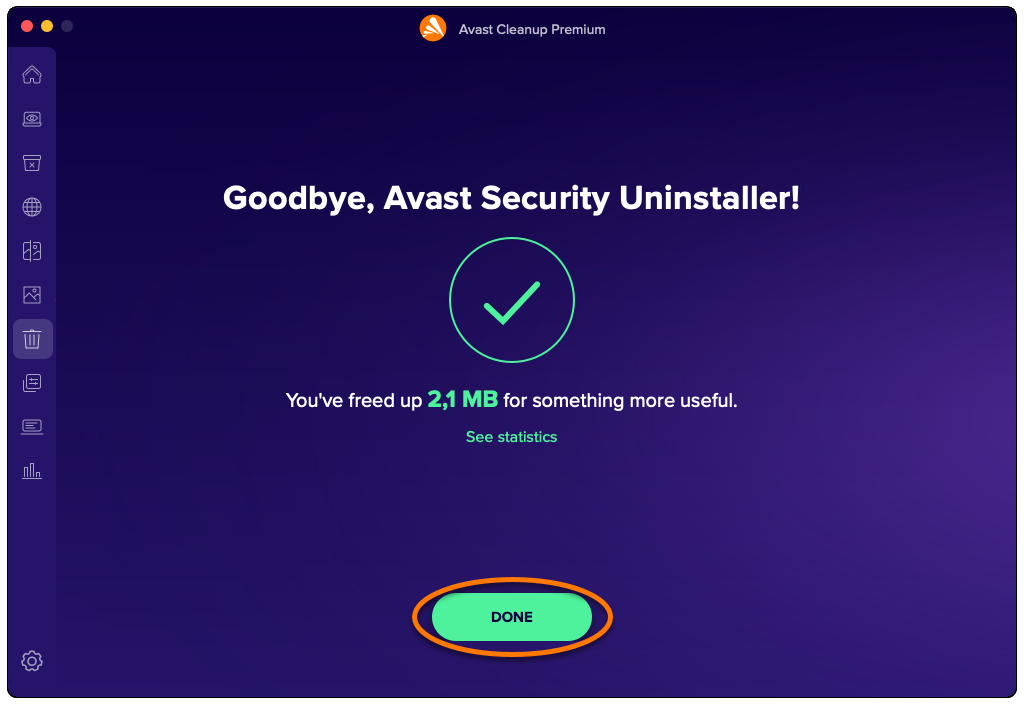
- Click Done to return to the main Avast Cleanup Premium screen.
Manage startup items
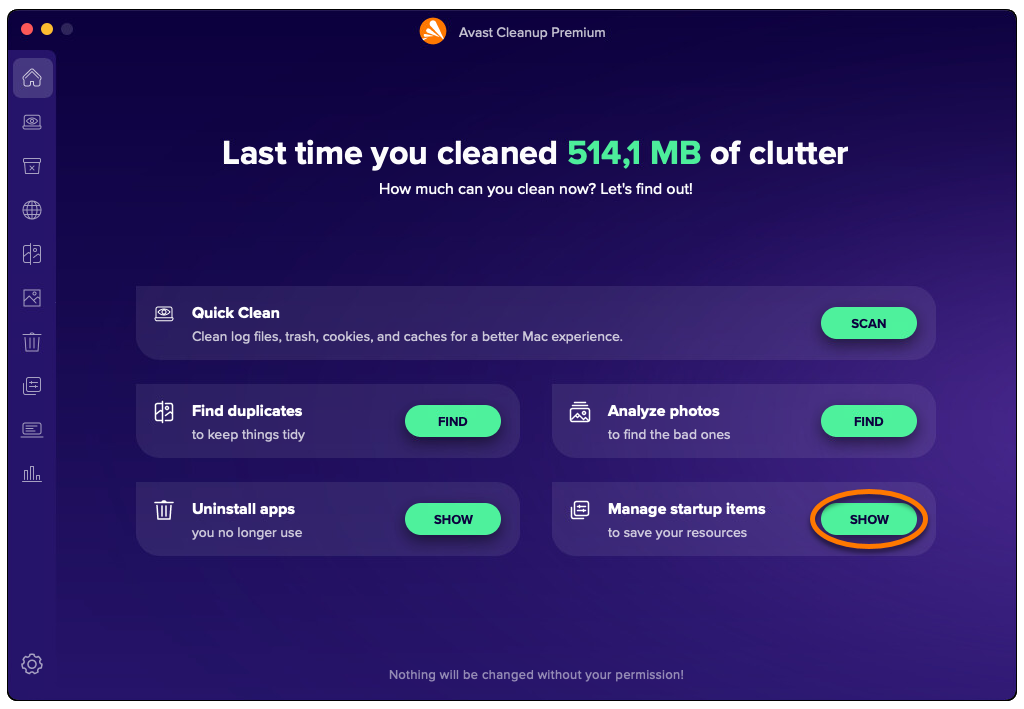
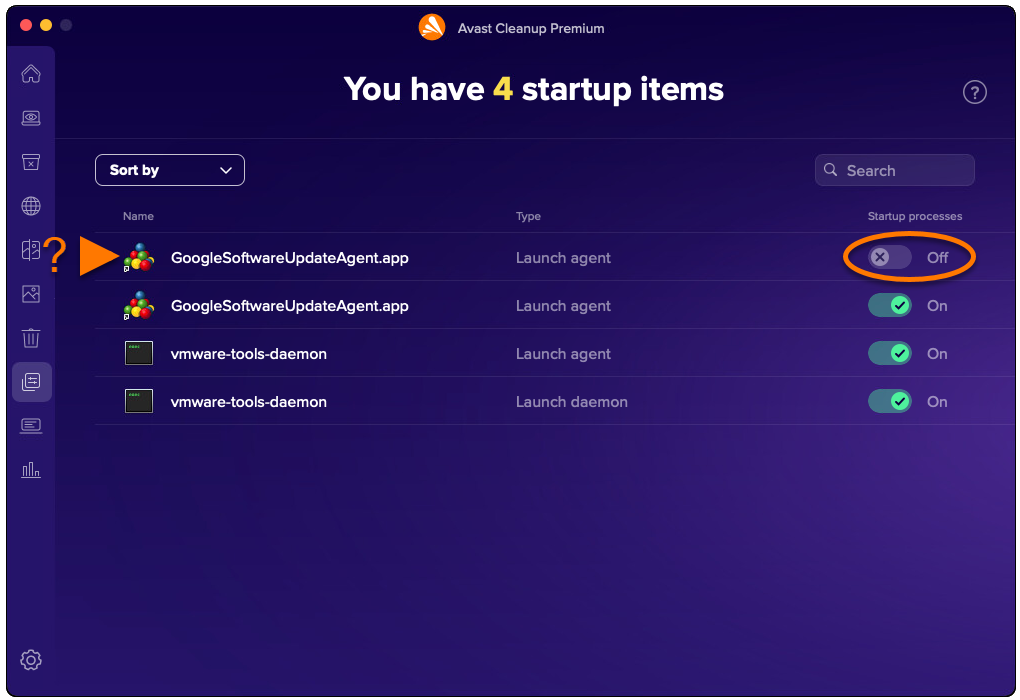
The Manage startup items option allows you to turn off unnecessary processes that launch automatically when you start up your Mac, preventing issues like slowness or long loading screens. To manage your startup items:
- Open Avast Cleanup Premium and click Show next to Manage startup items.
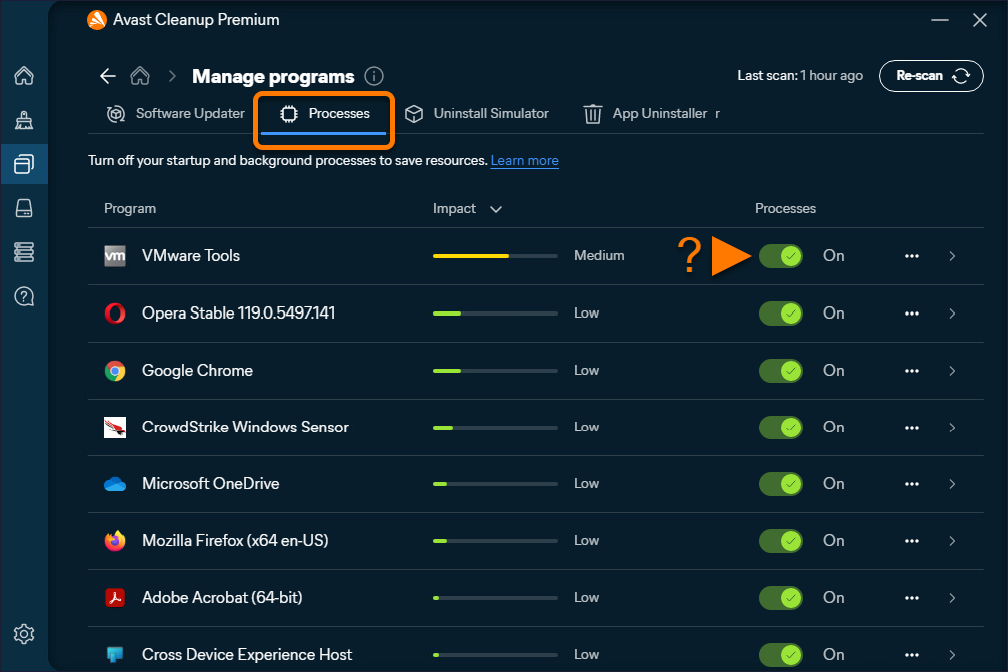
- Click the green (ON) slider next to a startup item, so that it changes to gray (OFF).
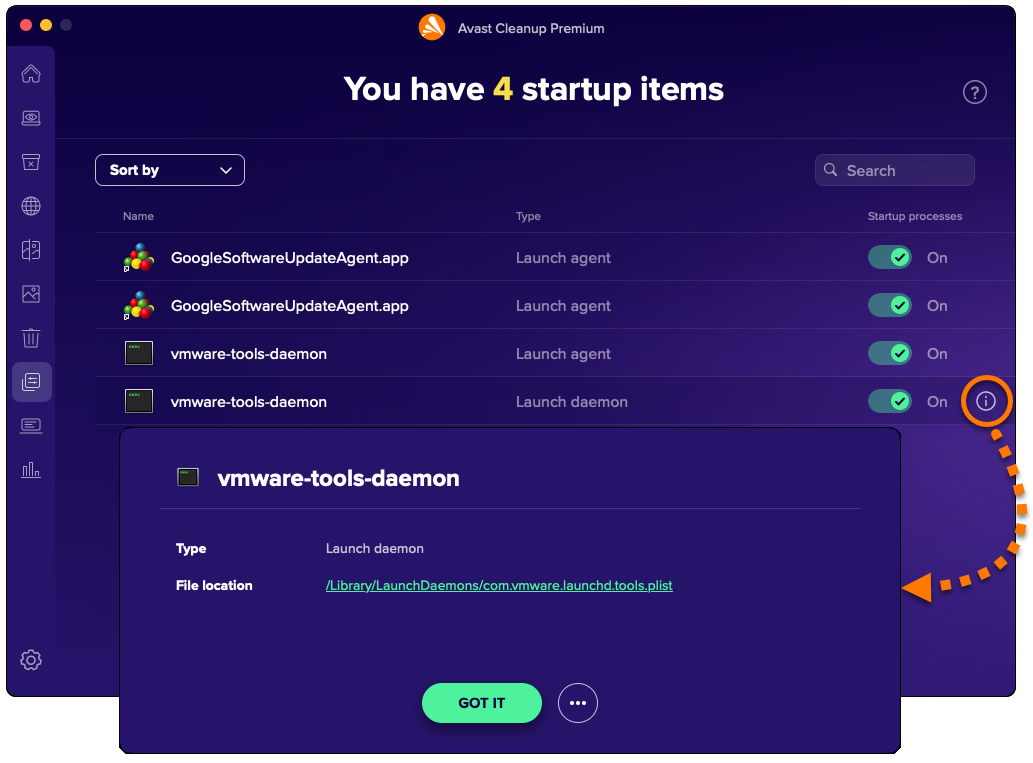
- To view additional details and options, hover your cursor over a startup item and click the Information icon that appears.
Further recommendations
To learn more about Avast Cleanup Premium, refer to the following article:




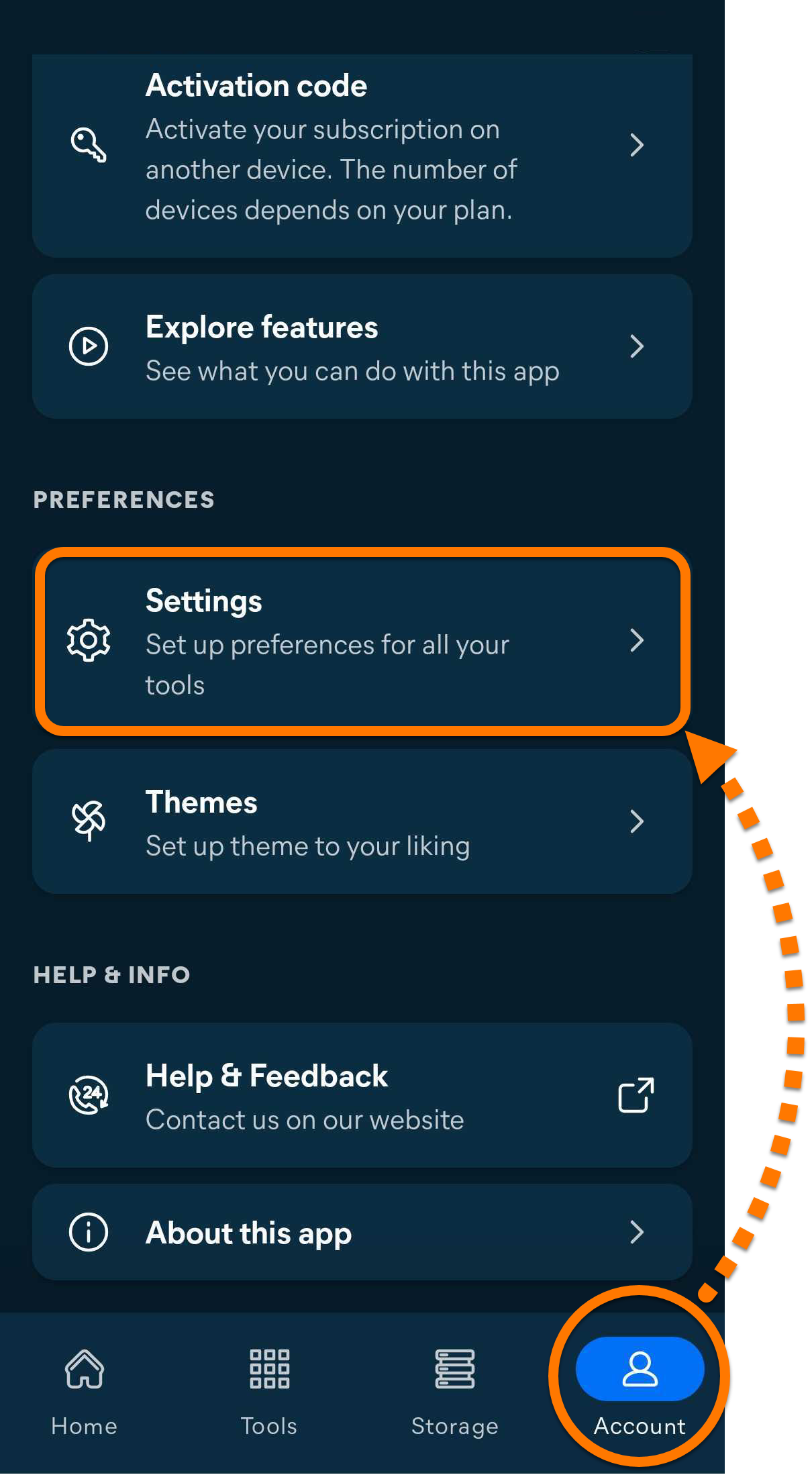
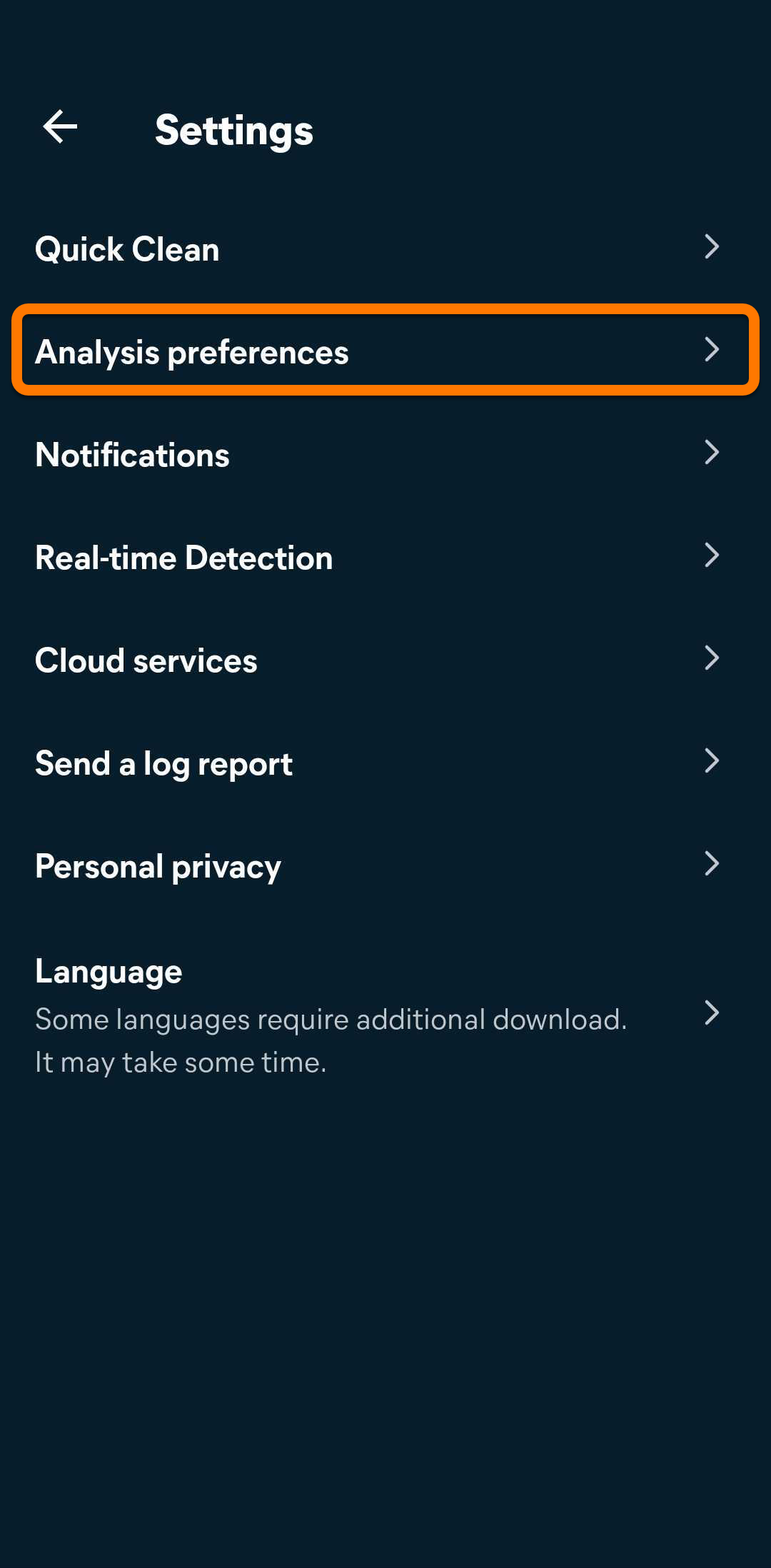
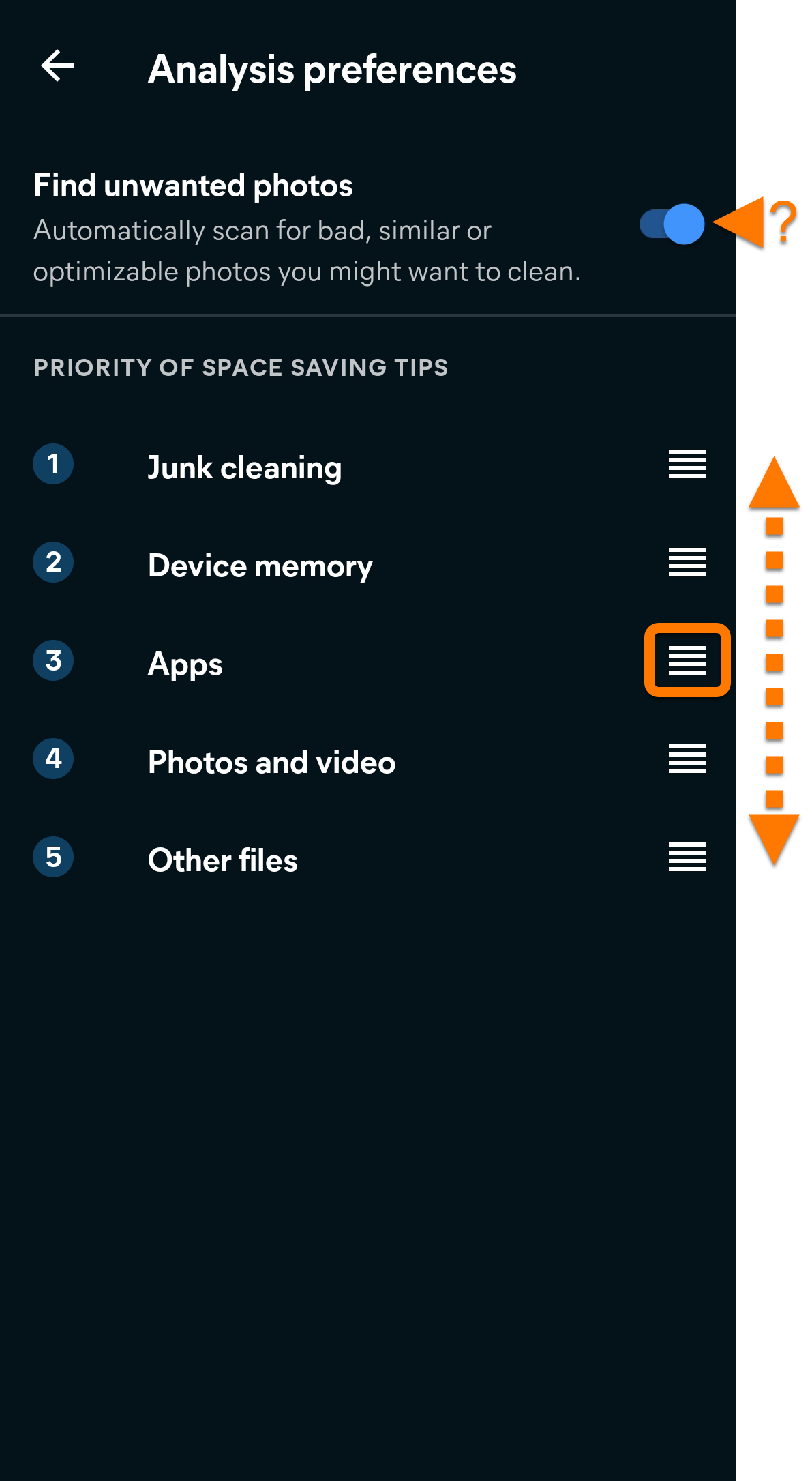
 icon (four lines) next to a tip category and drag the panel up or down to reorder your preferences. Optionally, tap the slider beside Find unwanted photos to turn the feature on (blue) or off (gray).