To uninstall Avast AntiTrack from a Windows device, select the relevant tab below according to your Windows version.
Uninstall via Start menu
Avast AntiTrackis now uninstalled from your PC.
Reinstall Avast AntiTrack
If you need to reinstall Avast AntiTrack, refer to the following article for installation instructions:
Troubleshoot without uninstalling
If you are experiencing problems with Avast AntiTrack, we recommend referring to the following information before uninstalling:
If Avast AntiTrack prevents a website from opening correctly, refer to the following article:
Reinstall Avast AntiTrack
If you need to reinstall Avast AntiTrack, refer to the following article for installation instructions:
Troubleshoot without uninstalling
If you are experiencing problems with Avast AntiTrack, we recommend referring to the following information before uninstalling:
To uninstall Avast AntiTrack from an Android device, follow the steps below according to your preferred method:
Uninstall via Google Play Store
- On the Home screen of your device, tap the Play Store icon to open Google Play Store.

- In the search bar, type
Avast AntiTrack, then select Avast AntiTrack from the search results. 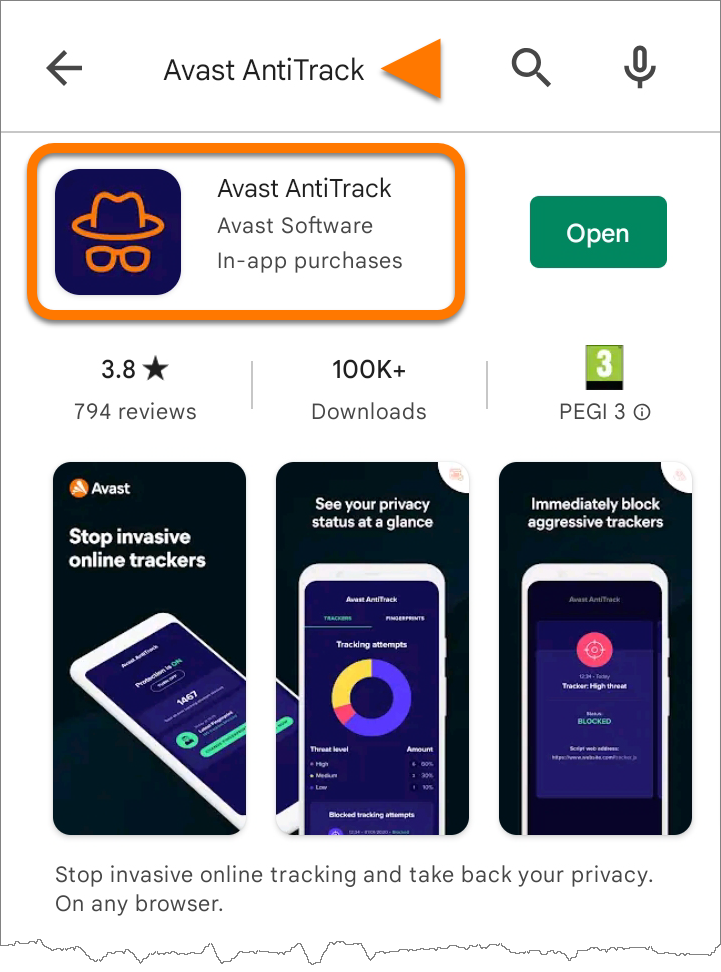
- Tap Uninstall, then Uninstall again to confirm uninstallation.
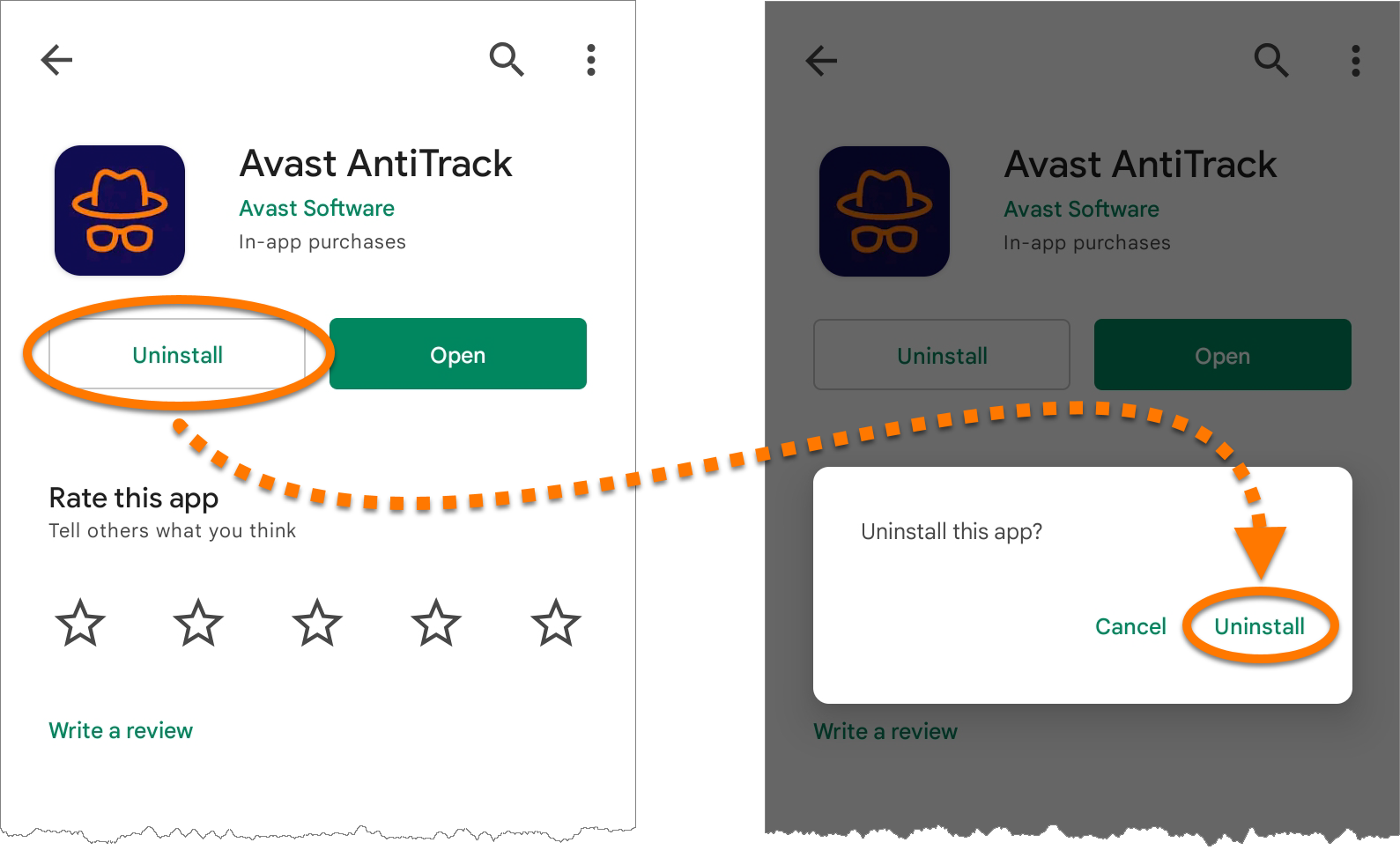
Avast AntiTrack is now uninstalled from your Android device.
Uninstall via device settings
These steps may differ slightly depending on your device model, Android version, and vendor customizations.
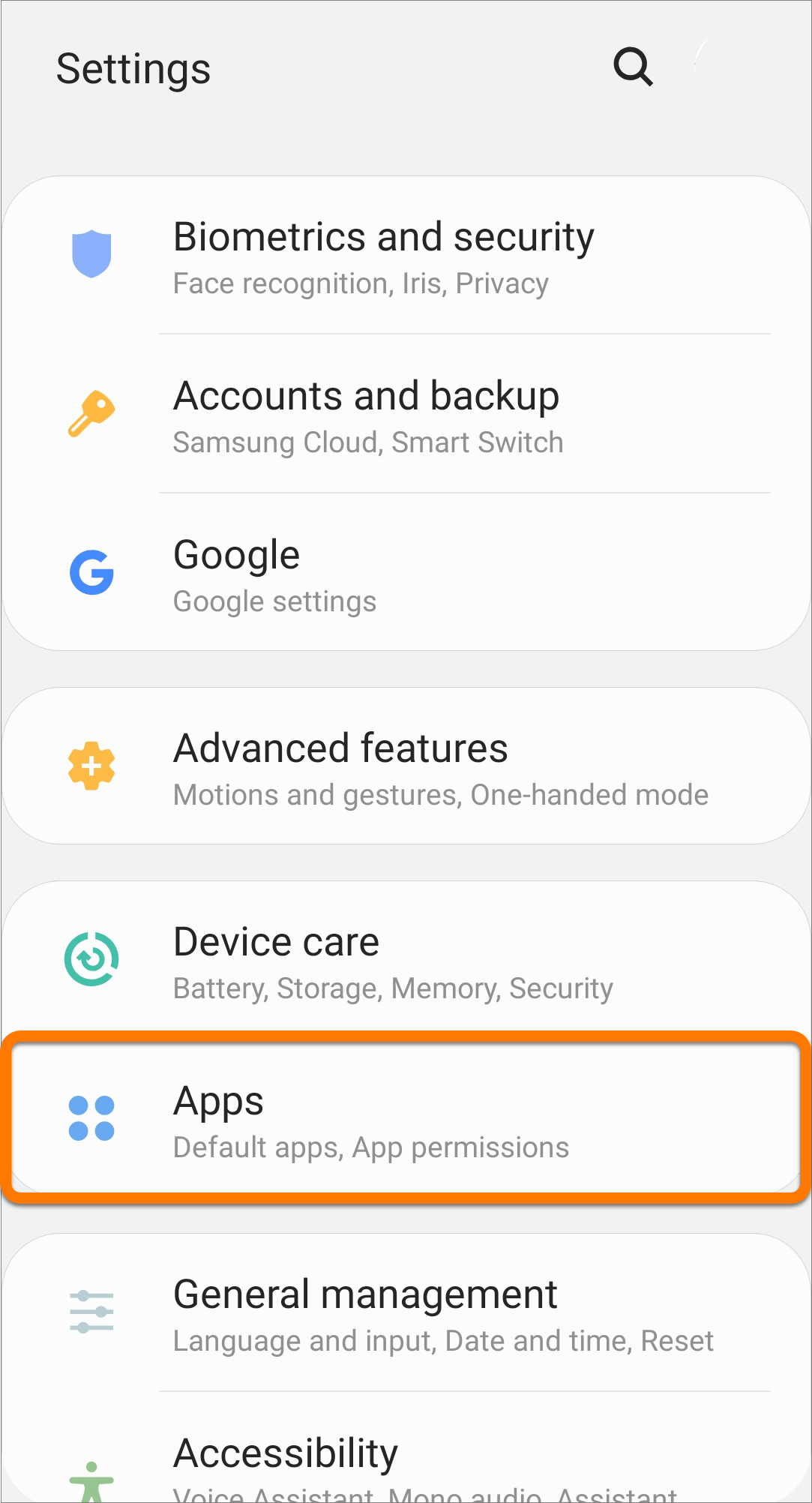
- Open your device Settings and go to Apps.
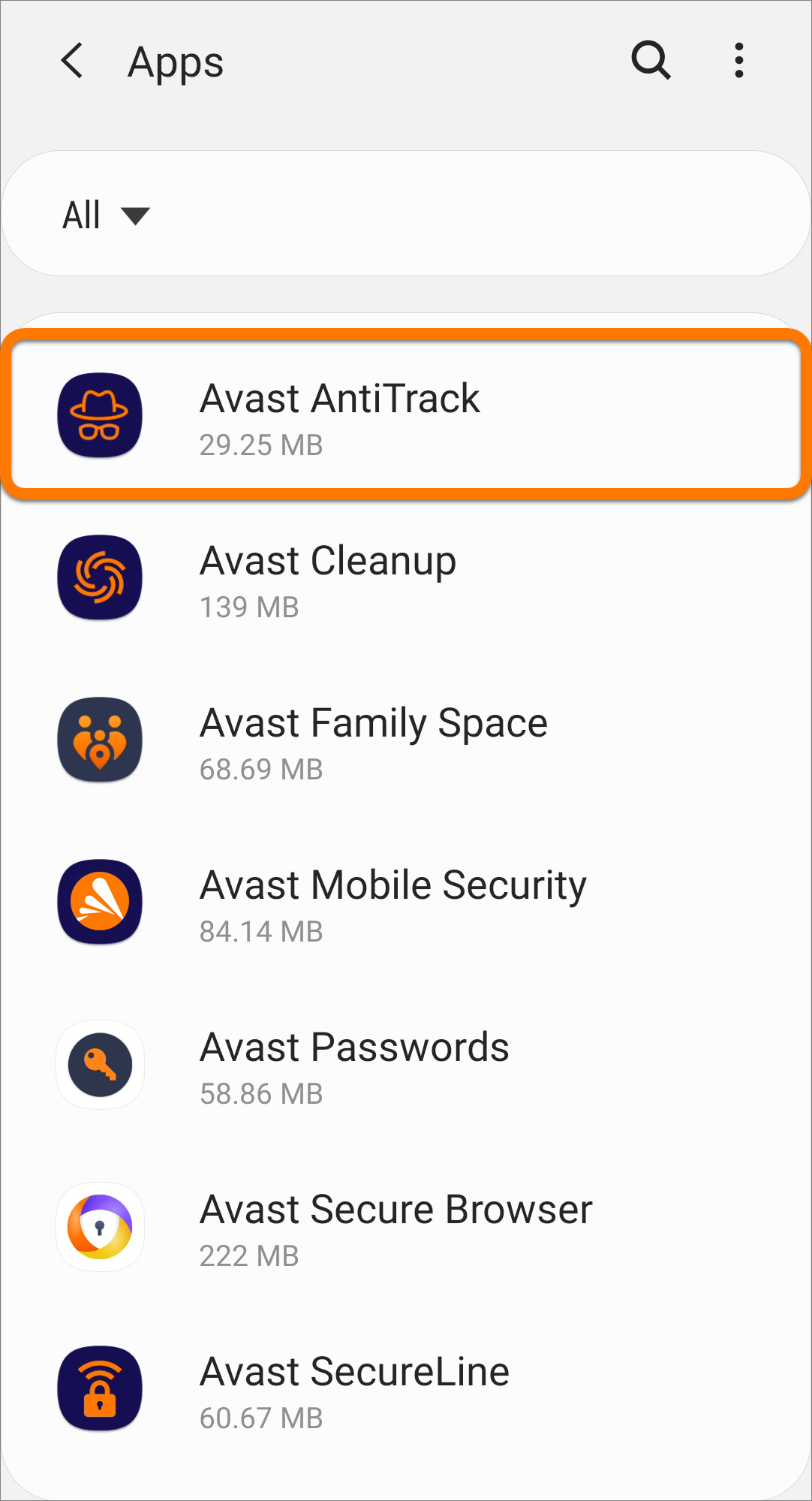
- Select Avast AntiTrack.
- Tap Uninstall, then tap OK to confirm uninstallation.
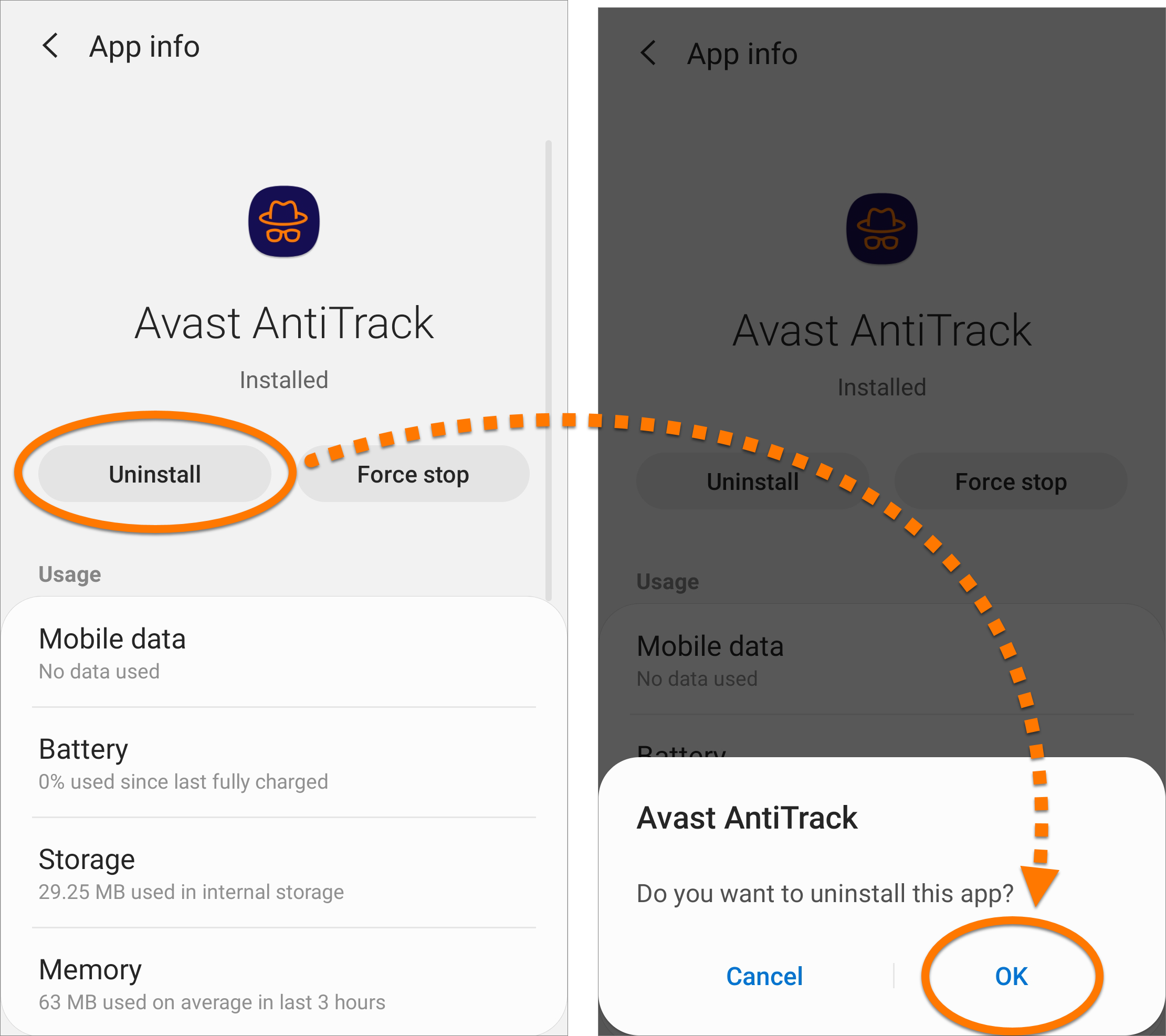
Avast AntiTrack is now uninstalled from your device.
Reinstall Avast AntiTrack
If you need to reinstall Avast AntiTrack, refer to the following article for installation instructions:
Troubleshoot without uninstalling
If you are experiencing problems with Avast AntiTrack, we recommend referring to the following information before uninstalling:

 Start icon, then select Apps and Features from the menu that appears.


 Start icon, then select Apps and Features from the menu that appears.


