Use lighter protection
If you encounter issues that may be caused by tracker blocking, such as slow loading times, web pages not displaying correctly, or difficulties downloading email attachments, follow the steps below:
- Open your browser and navigate to the website that is not working correctly.
- Click the Avast AntiTrack browser extension in the top-right corner of the browser, then click Use lighter protection for this site.
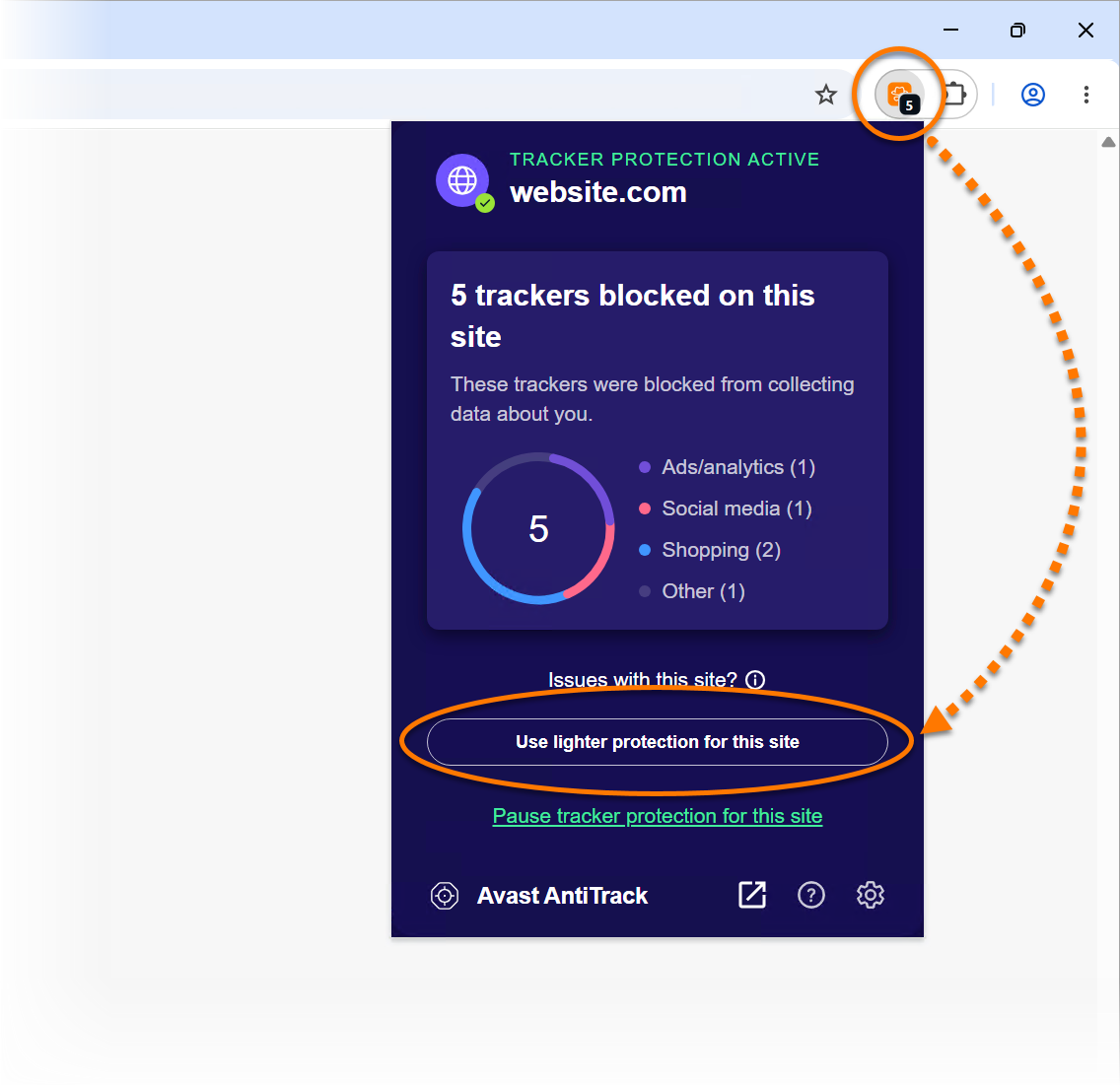
If the issue persists, you can pause tracker protection for that specific website. For detailed instructions, refer to the following article: Disabling Avast AntiTrack for a specific website.
If the issue still persists, refer to the section below for instructions on updating your browser and reinstalling the Avast AntiTrack extension.
Update your browser
Ensure your browser is up to date and reinstall the Avast AntiTrack extension, if needed. For instructions, refer to the following articles:
Chrome
- Refer to the linked instructions below to ensure your Google Chrome browser is up to date:
- Once the browser has been updated, click
⋮ Menu (the three dots) in the top-right corner of Google Chrome, then select Extensions ▸ Manage Extensions.
- Under Avast AntiTrack, click Remove, then click Remove again on the confirmation screen.
- Reinstall the Avast AntiTrack extension. For detailed instructions, refer to the following article:
Firefox
- Refer to the linked instructions below to ensure your Mozilla Firefox browser is up to date:
- Once the browser has been updated, click
☰ Menu (the three lines) in the top-right corner of Mozilla Firefox, then select Add-ons and themes.
- Under Avast AntiTrack, click
… Settings (the three dots) ▸ Remove, then click Remove again on the confirmation screen.
- Reinstall the Avast AntiTrack extension. For detailed instructions, refer to the following article:
Edge
- Refer to the linked instructions below to ensure your Microsoft Edge browser is up to date:
- Once the browser has been updated, click
… Settings (the three dots) in the top-right corner of Microsoft Edge, then select Extensions ▸ Manage Extensions.
- Under Avast AntiTrack, click Remove, then click Remove again on the confirmation screen.
- Reinstall the Avast AntiTrack extension. For detailed instructions, refer to the following article:
Reinstall Avast AntiTrack
If the issue persists after reinstalling the extension, refer to the following articles for information on how to reinstall Avast AntiTrack:
- Uninstalling Avast AntiTrack.
- Reboot your Windows device.
- Installing Avast AntiTrack.
Before following the instructions below, ensure that you have the latest version of your browser installed:
If the issue persists after updating your browser, add the affected website to Cookie Allow List list in Avast AntiTrack:
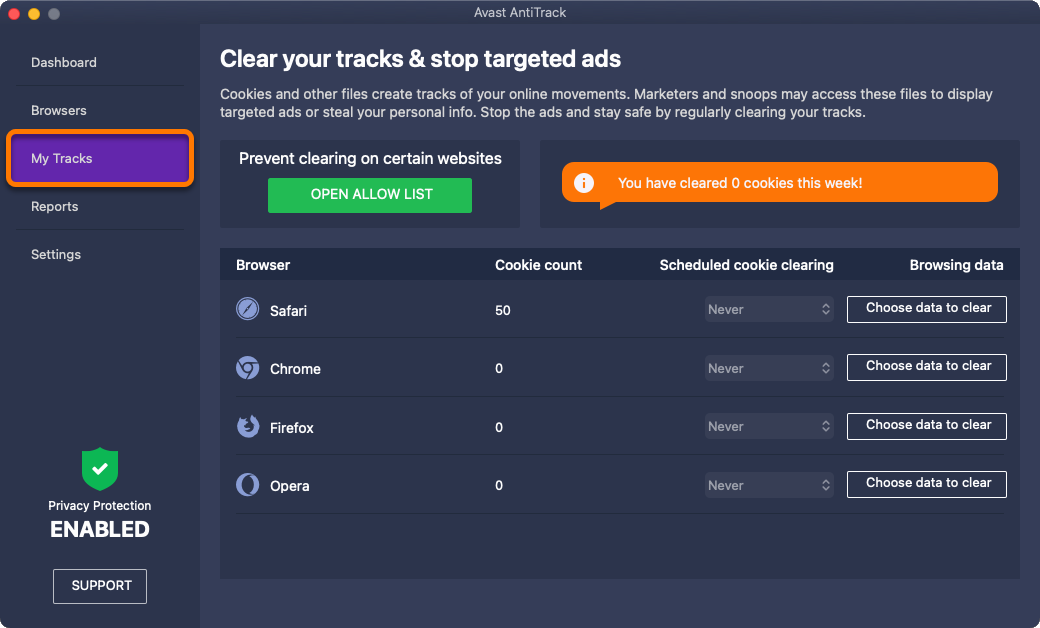
- Open Avast AntiTrack and click My Tracks tile on the main Avast AntiTrack dashboard.
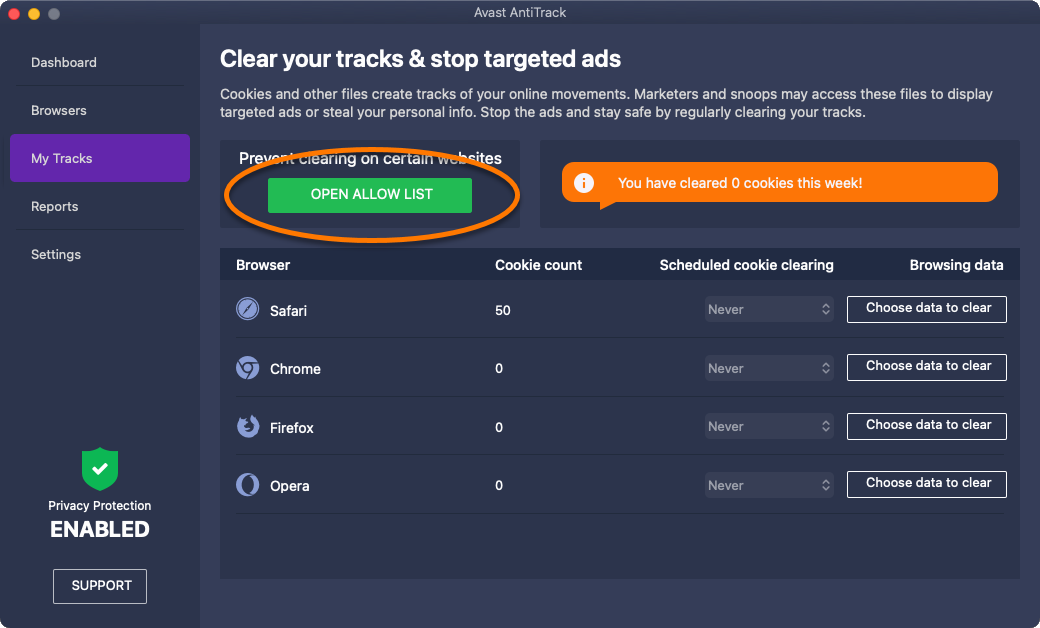
- Click Open allow list.
- Add a website using either method below:
- Enter a website URL (for example
www.example.com) into the left text box, and click Add. 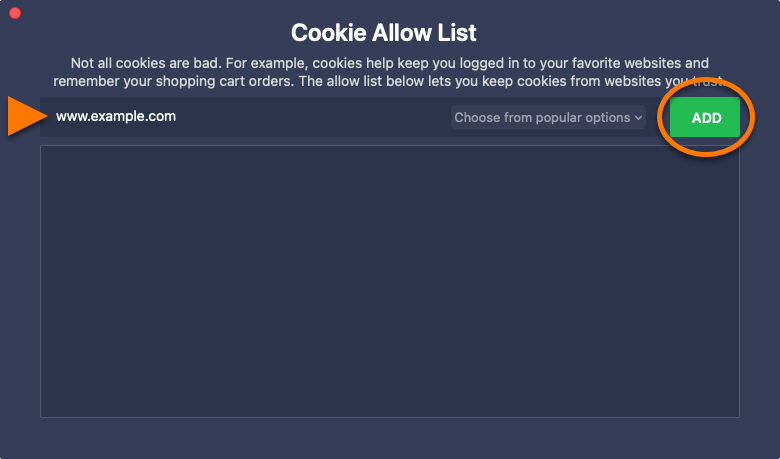
- Select a website from the Choose from popular options drop-down menu, then click Add.

If excluding the website does not resolve the issue, turn off Browser protection for the affected browser:
- Click the Browsers tile on the main Avast AntiTrack dashboard.
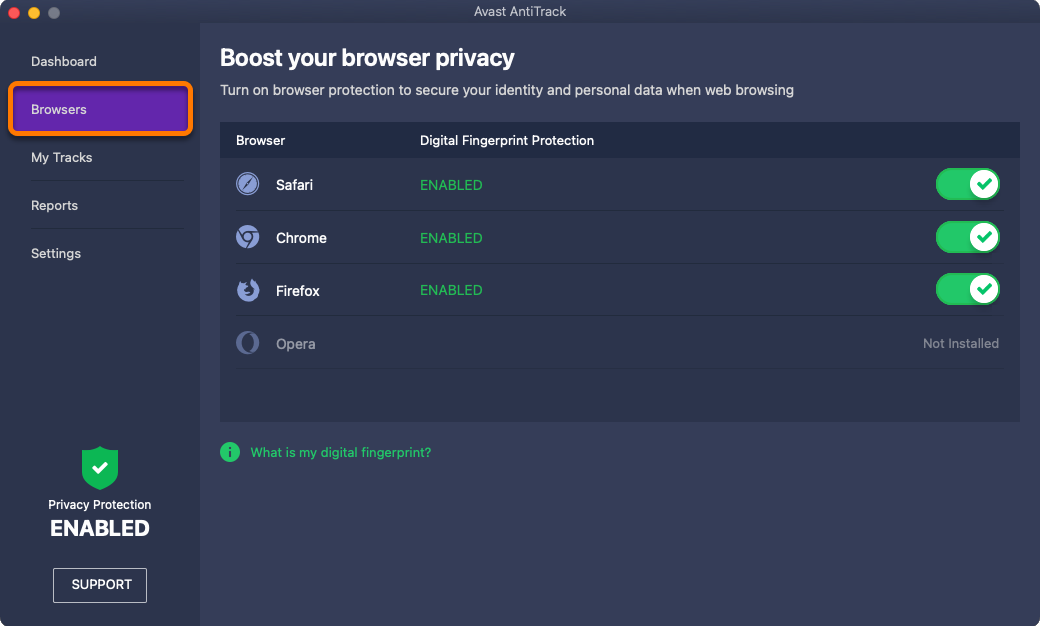
- Click the green (Enabled) slider next to the affected browser, so it changes to red (Not enabled).
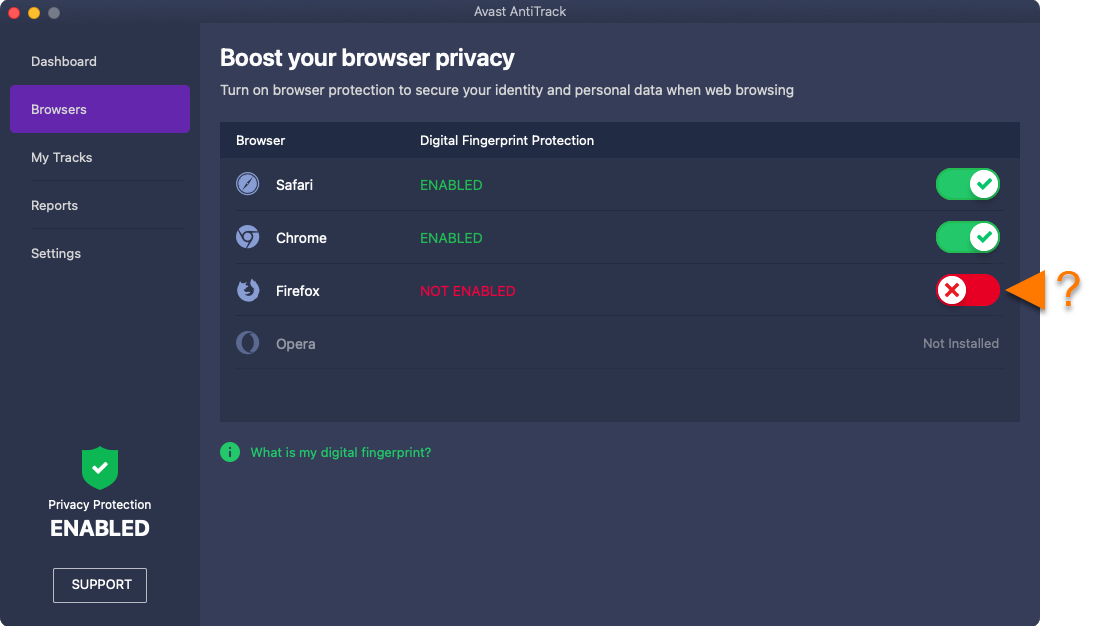
If turning off Browser protection does not resolve the issue, disable the tracking setting:
- Click the Settings tile on the main Avast AntiTrack dashboard.
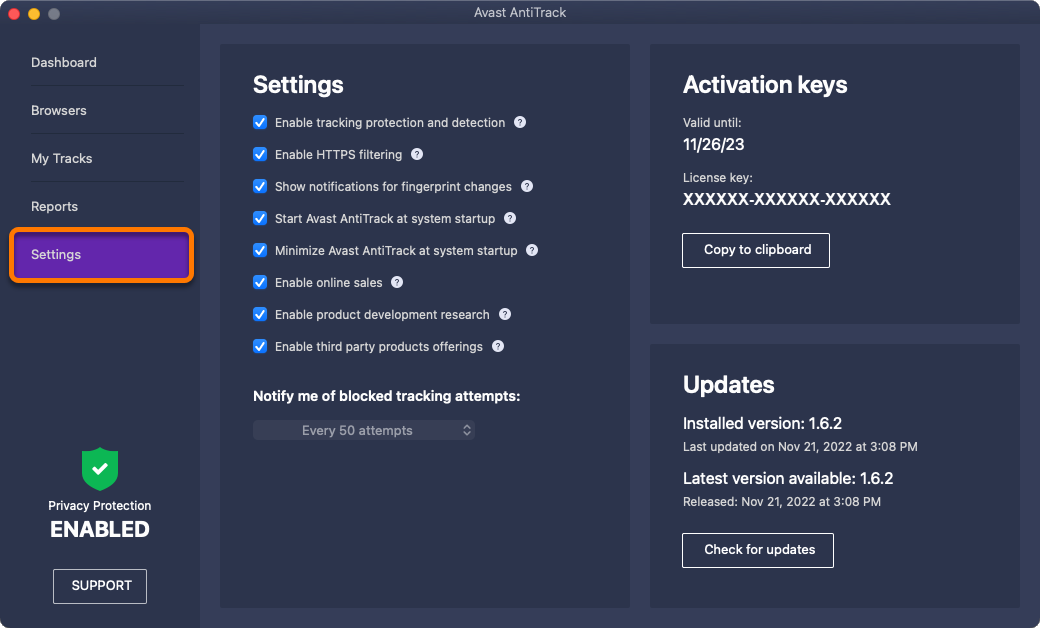
- Untick Enable tracking protection and detection.
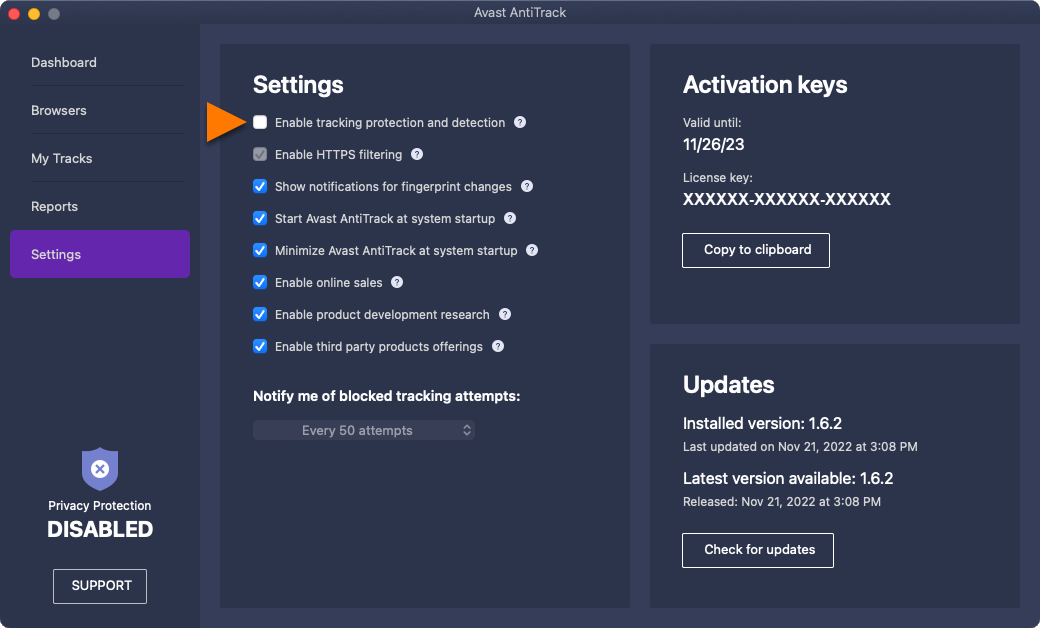
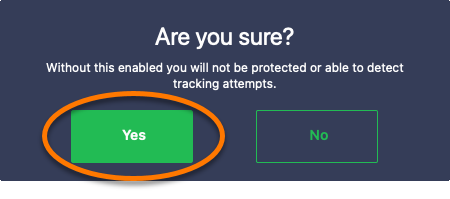
- If prompted, click Yes to confirm the change.
If disabling Anti-tracking does not resolve the issue, turn off Avast AntiTrack:
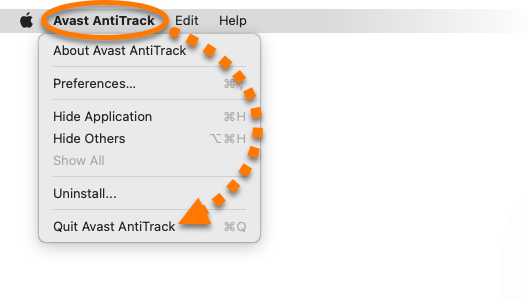
- Open Avast AntiTrack.
- In the Apple menu bar, click Avast AntiTrack and select Quit Avast AntiTrack.
If disabling the app does not fix the issue, the issue is likely not caused by Avast AntiTrack.

