Troubleshooting issues after running Avast Driver Updater
Avast Driver Updater is a Windows PC performance tool that scans your hardware for broken and outdated drivers, and lets you update them to prevent problems with your PC.
In some cases, updating a driver can cause problems on your PC, such as your audio or trackpad not working properly, or issues with screen resolution and graphics quality. If this occurs, follow the steps below to solve the issue.
Restore a driver
Avast Driver Updater may automatically identify which driver has caused the issue on your PC. If the problematic driver is identified, you can use the restore feature to revert the driver back to the previous version. If you are not sure which driver is causing the issue, we recommend following the Windows System Restore instructions.
Avast Driver Updater can only restore driver versions that were previously updated by Driver Updater. You cannot restore a driver version that was updated by your operating system or other third-party software using the steps below.
-
Open Avast Driver Updater and click Solve now. 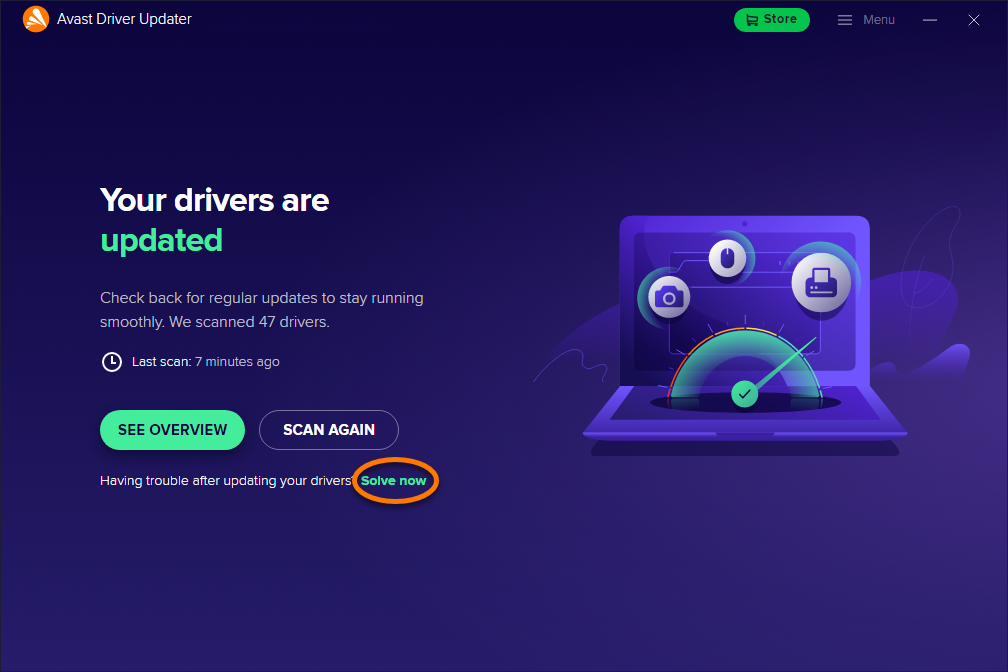
-
Select the component that is experiencing issues. For example, if the camera on your PC stopped working, select the Camera tile. 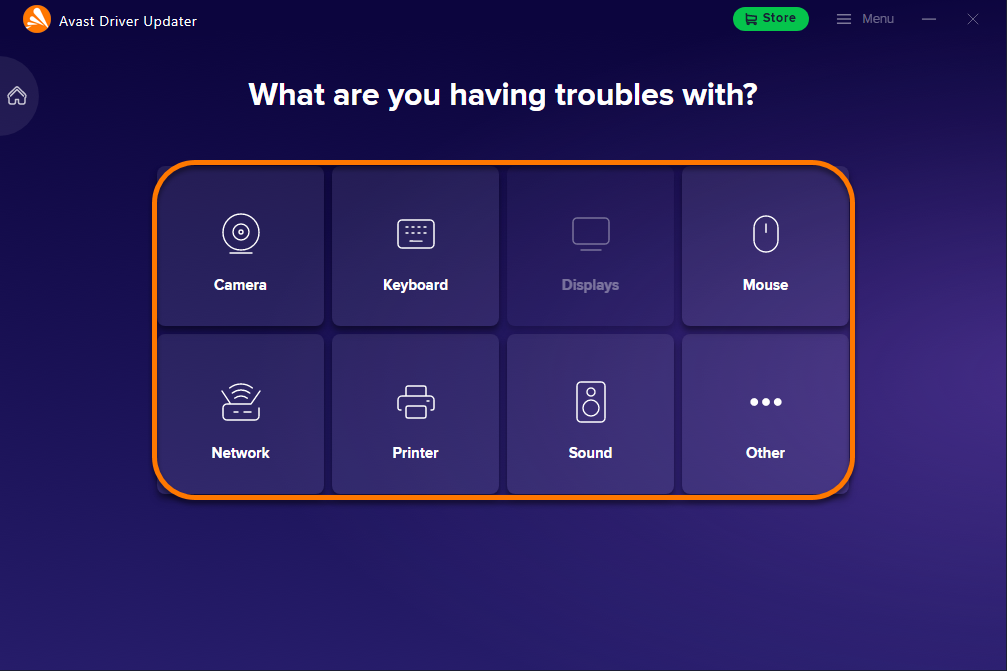
-
Click Show results. 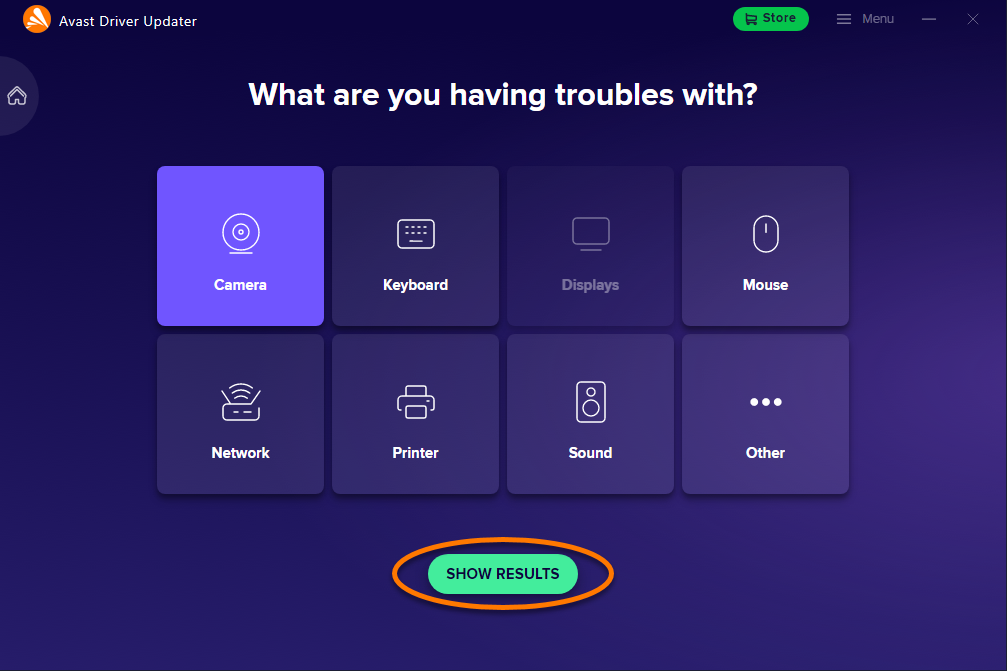
-
Click the > arrow on the panel of a driver marked with Issue detected,  ...or choose another driver on the list.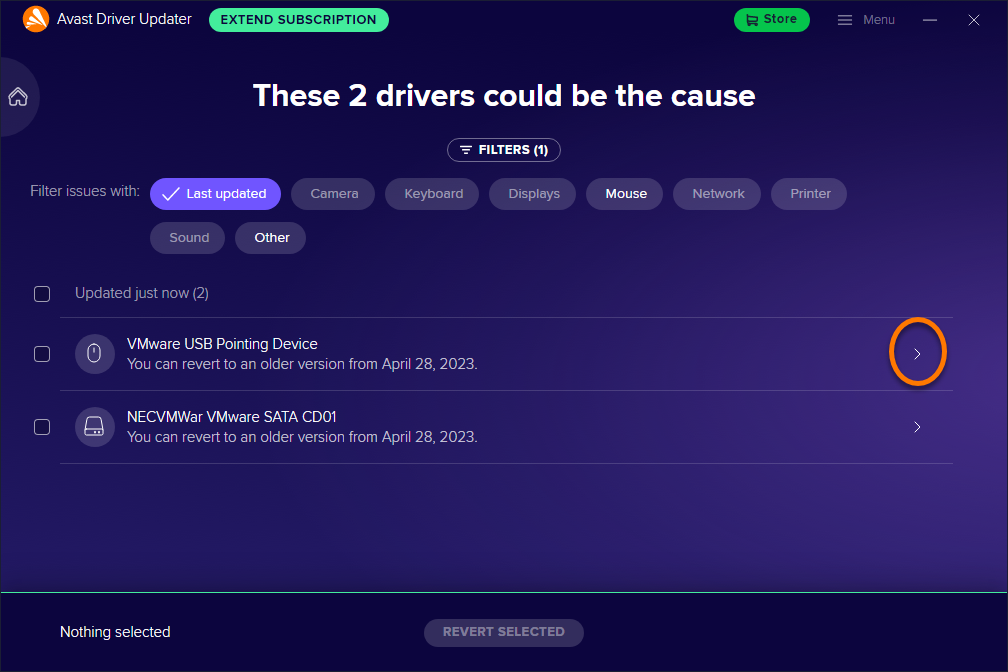
-
Click Revert on the driver details screen. 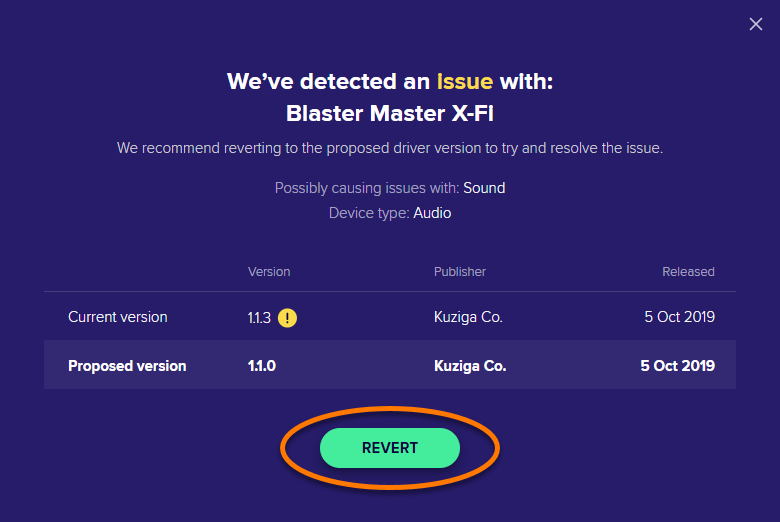
-
If prompted, click Restart to immediately restart your PC. 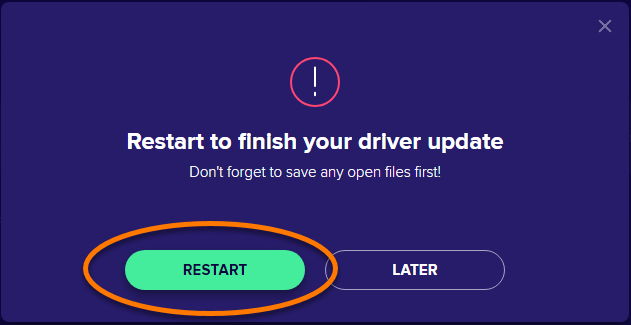
The selected driver reverts back to the previous version. To avoid the same issue happening again, move the driver to the Ignored and Skipped list.
Mark the driver as skipped
-
Open Avast Driver Updater and click See outdated. 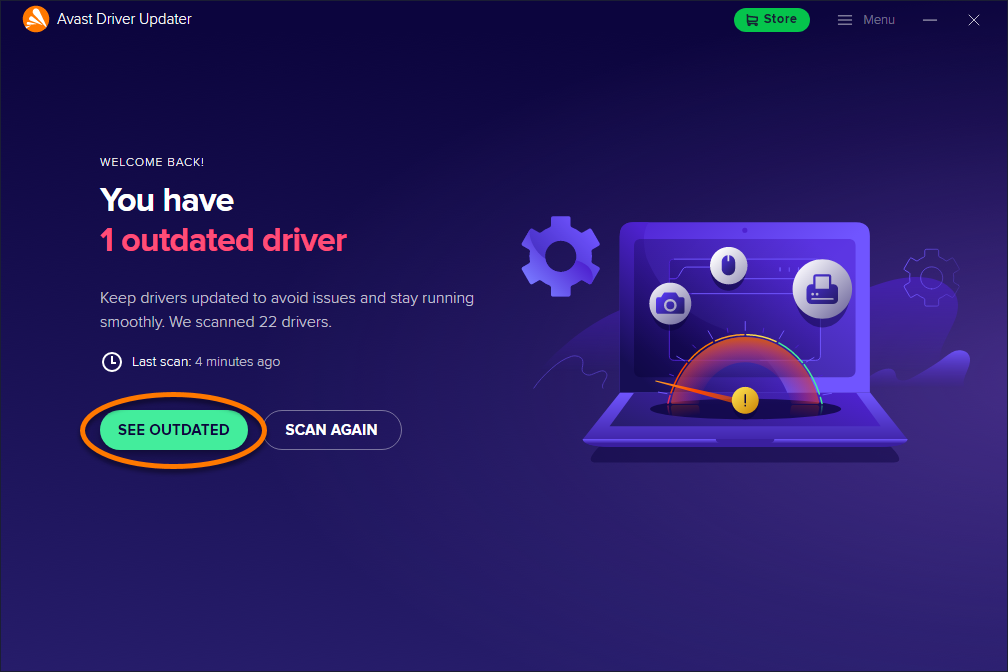
-
Click the > arrow on the panel of the outdated driver. 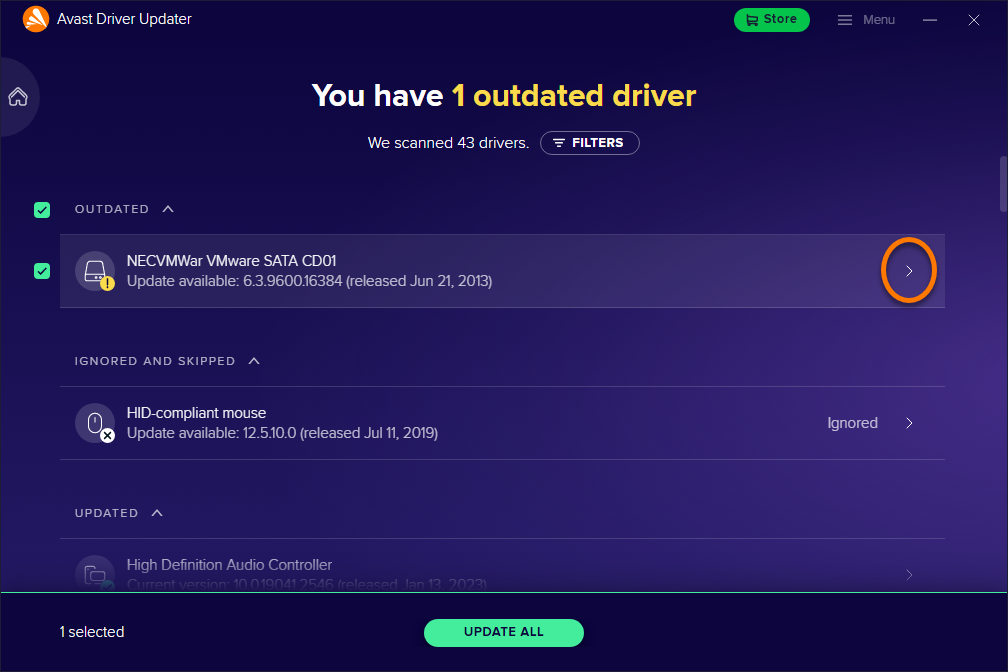
-
Click … More options (three dots), then select Skip update. 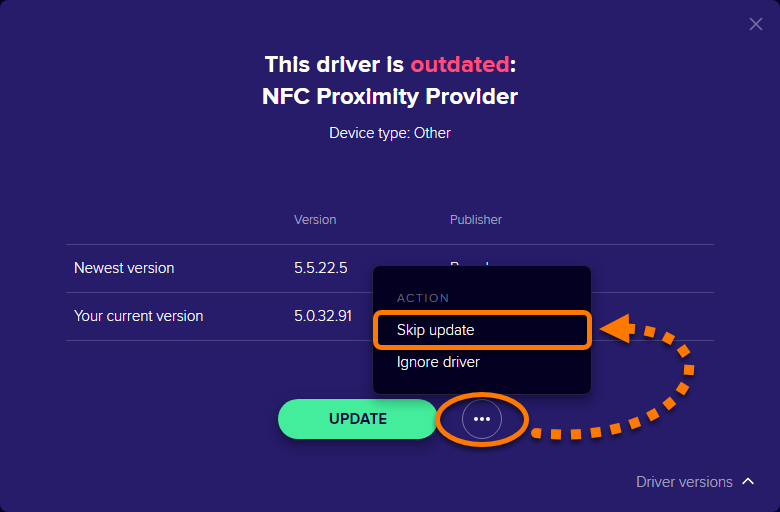
The selected driver is moved to the Ignored and Skipped list.
Avast Driver Updater automatically creates a Windows Restore Point before updating your drivers. This allows you to undo recent system changes and return your PC to its previous state. We recommend using the Windows System Restore option if you are not sure which driver is causing the issue.
-
Open Control Panel on your PC. For instructions, refer to the following Microsoft support article:
-
In the Control Panel search box, type recovery. 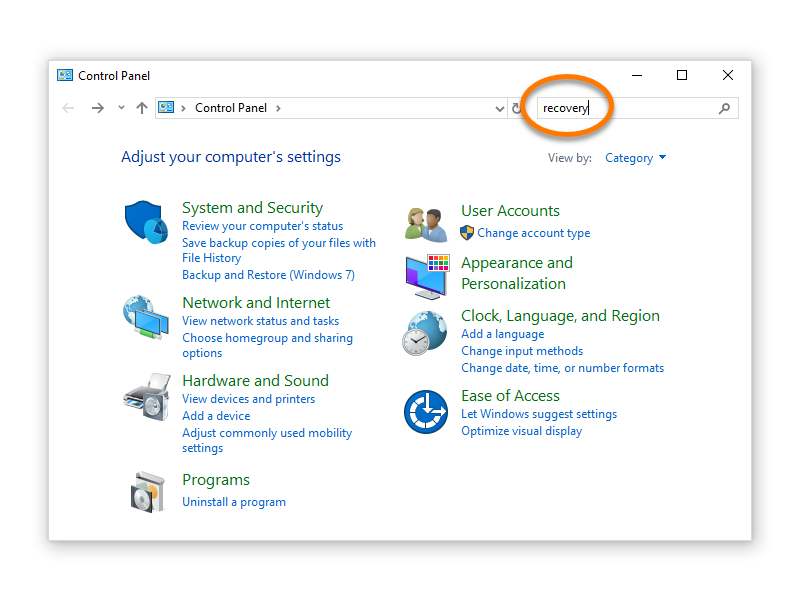
-
Select Recovery ▸ Open System Restore. 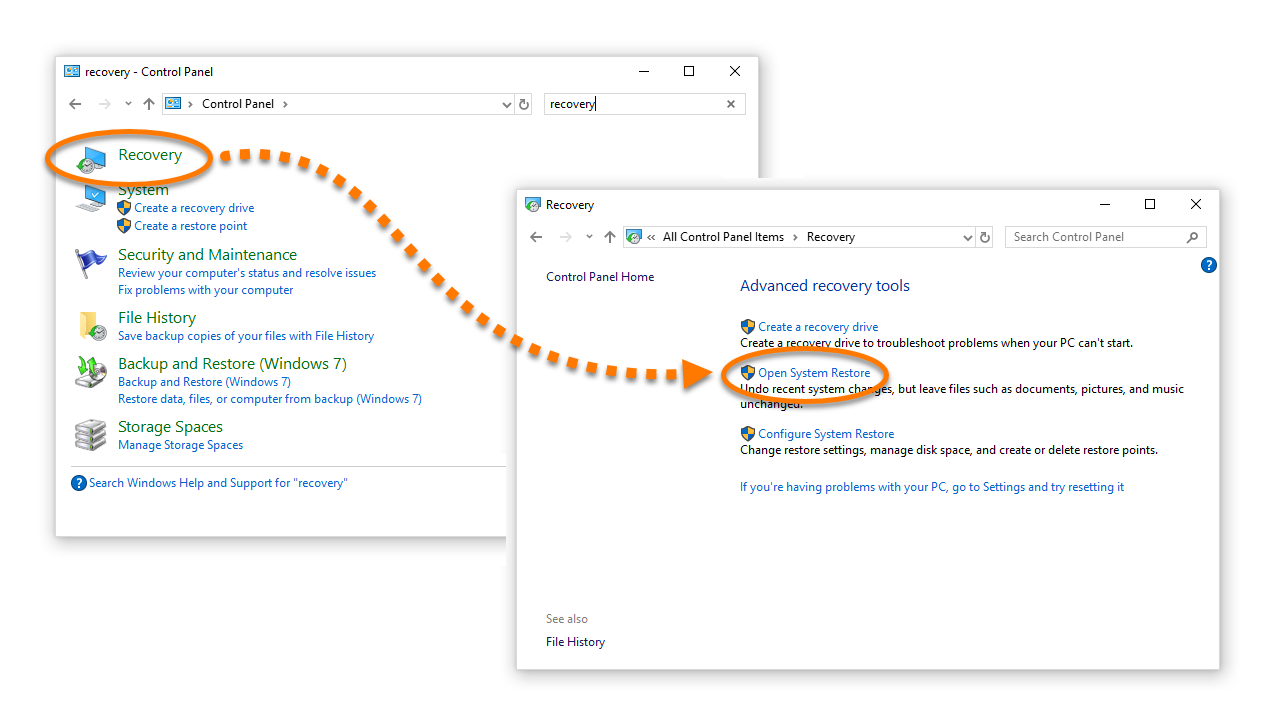
-
Select Choose a different restore point, then click Next. 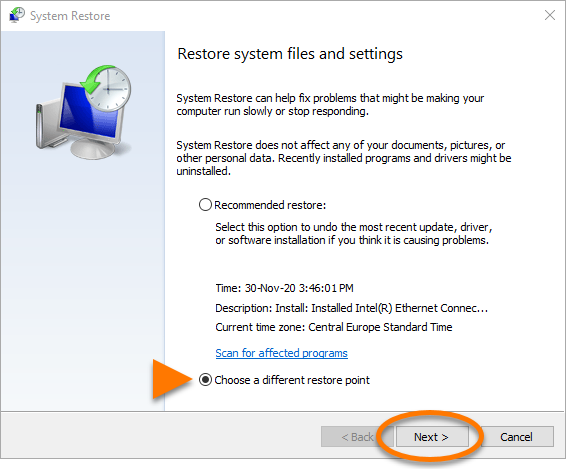
-
Select the restore point that is dated before the issue started, then click Next. 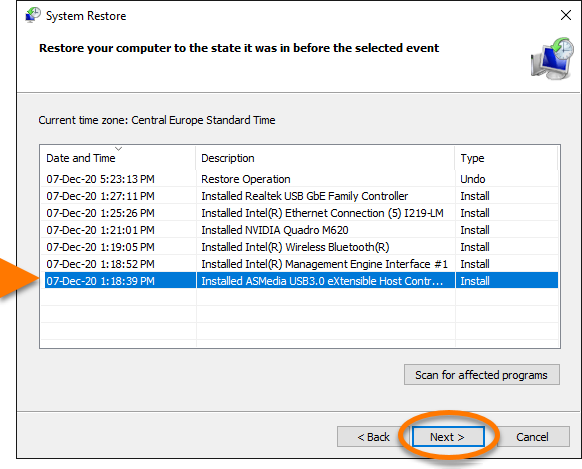
-
Click Finish. 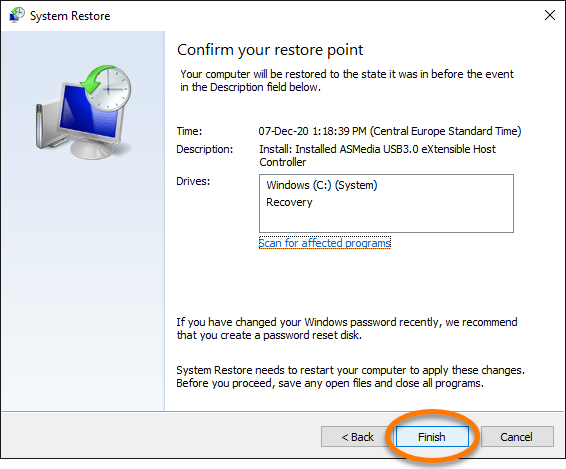
-
Click Yes to start the system restore. 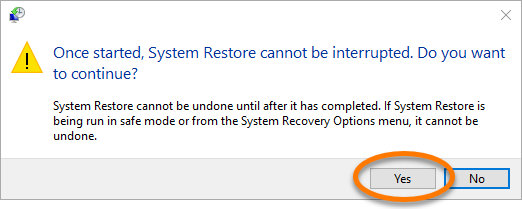
When your PC restart is complete, your system is returned to its previous state.

