Promotional banner image

IS YOUR COMPUTER SLOW? RUN LIKE NEW

If they are not maintained, computers lose performance over time. Avast Cleanup Premium can help significantly improve the performance of your computer.

Installing the Avast AntiTrack browser extensions

Windows

After you install Avast AntiTrack, you are prompted to set up the Avast AntiTrack browser extensions. Follow the steps in this article to add the extension through the Let's get started! intro screen:

Before you install the extension, ensure that your browsers are up-to-date.

Install Avast AntiTrack extensions

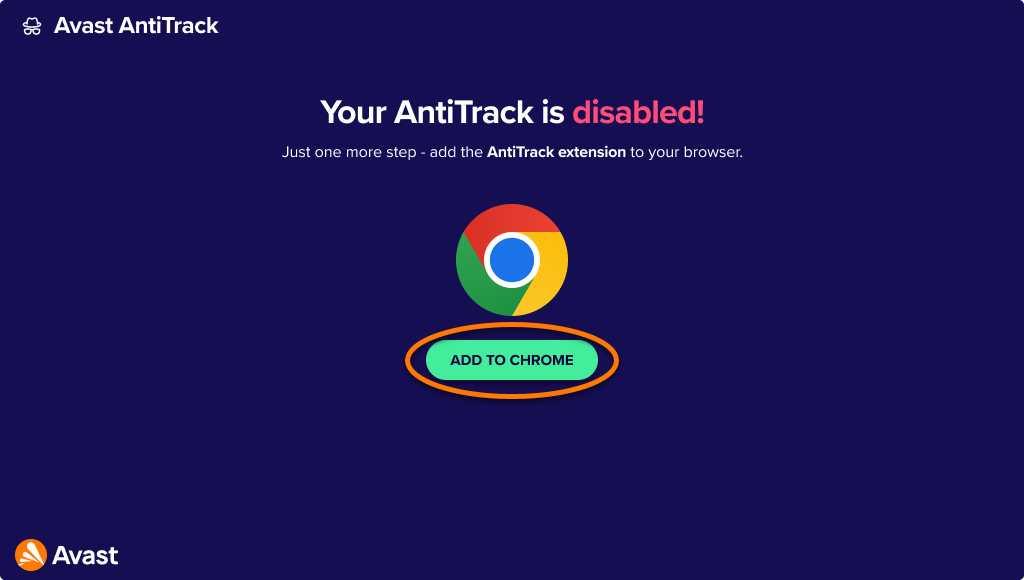
  1. Click Add to Chrome to install the Avast AntiTrack extension on your Chrome browser.
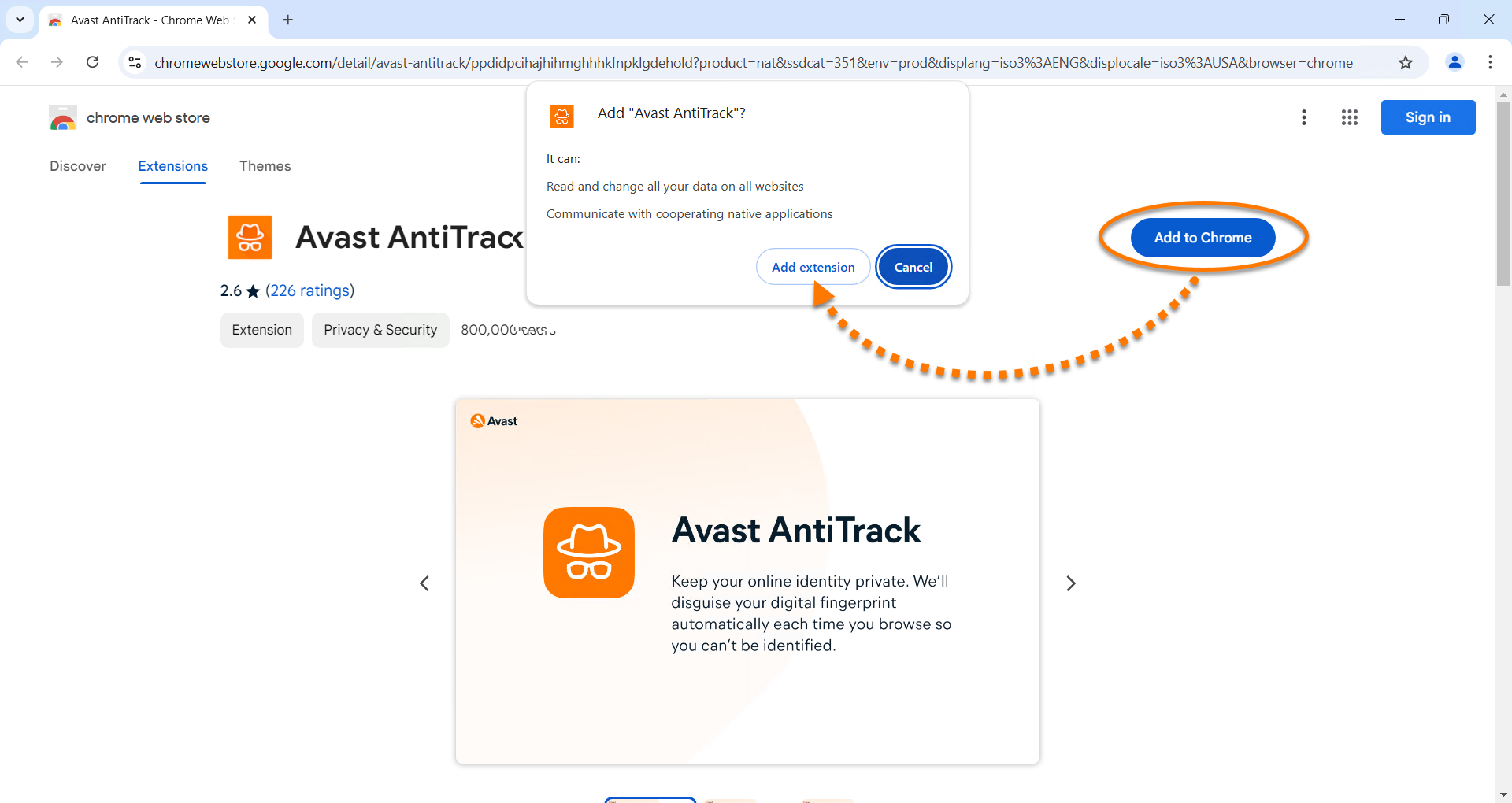
  2. On the Chrome web store page, select Add to Chrome ▸ Add extension.
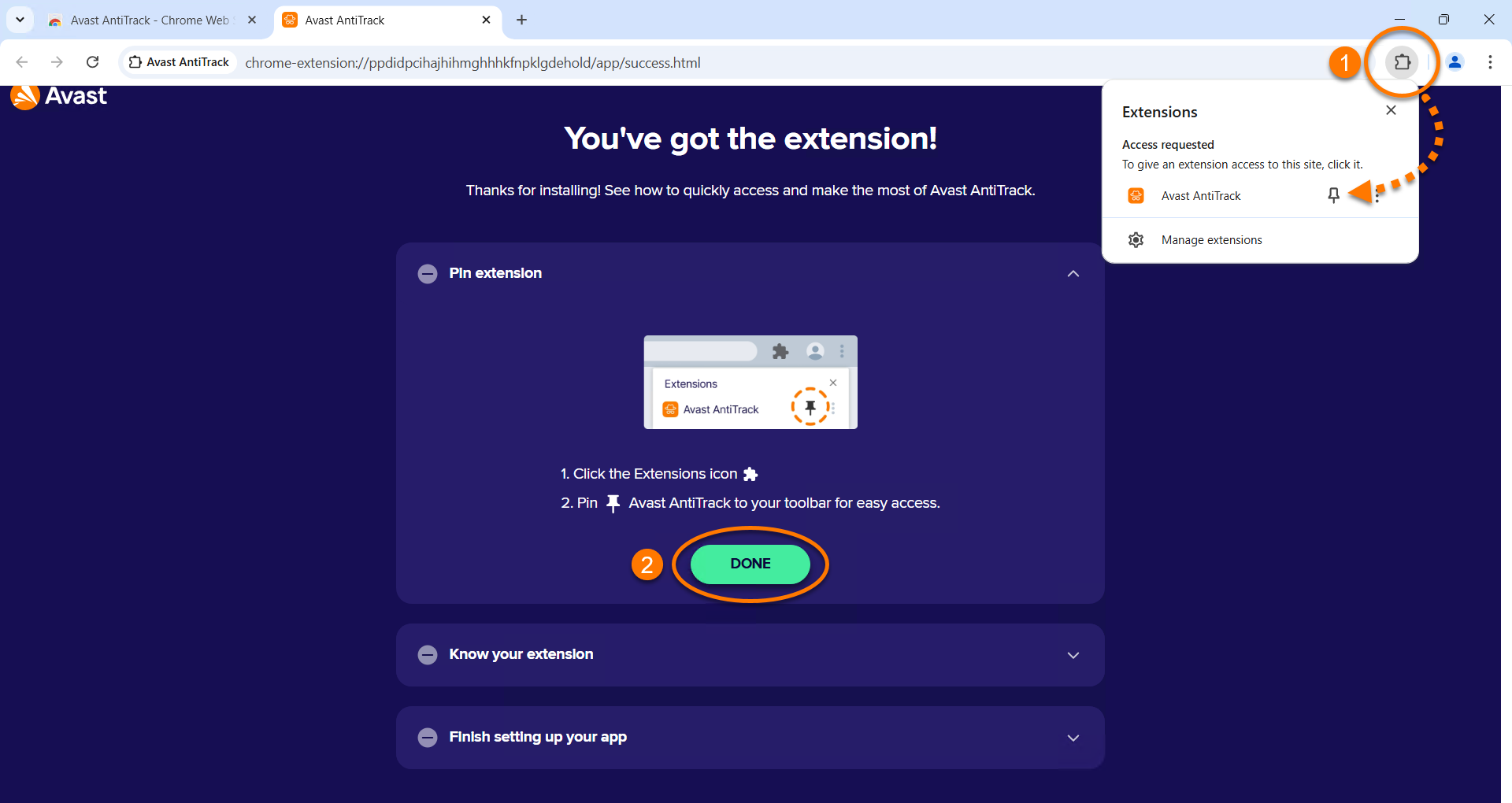
  3. Click Extensions ▸ Pin next to Avast AntiTrack to pin the extension to your browser toolbar, then click Done.
  4. Click Next to read through the welcome pages. Optionally, click Do it later to skip this step.
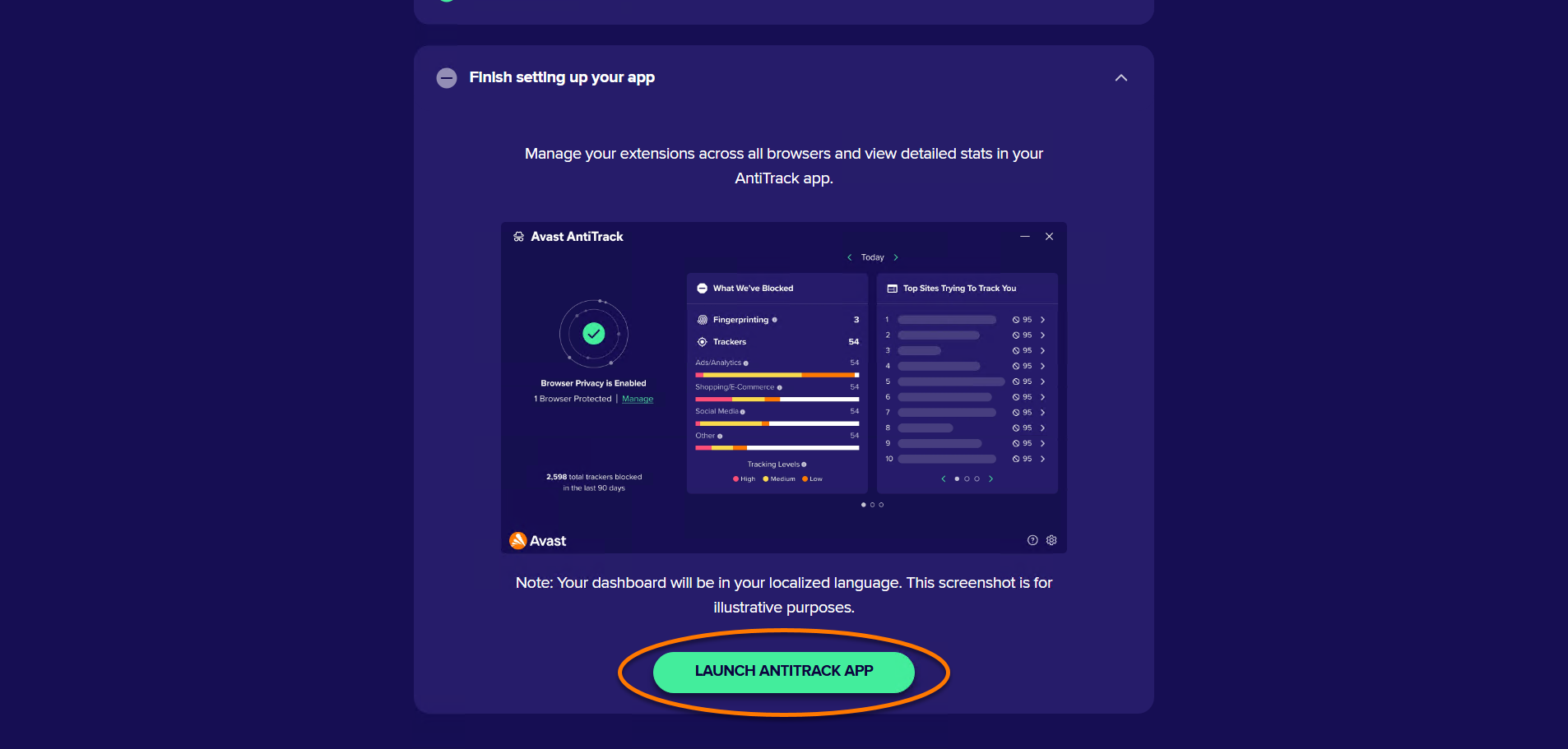
  5. Click Launch AntiTrack app.

The Avast AntiTrack extension is now installed on your Google Chrome browser. Click Get started to proceed to the main Avast AntiTrack menu, or select a different browser to add the extension to.

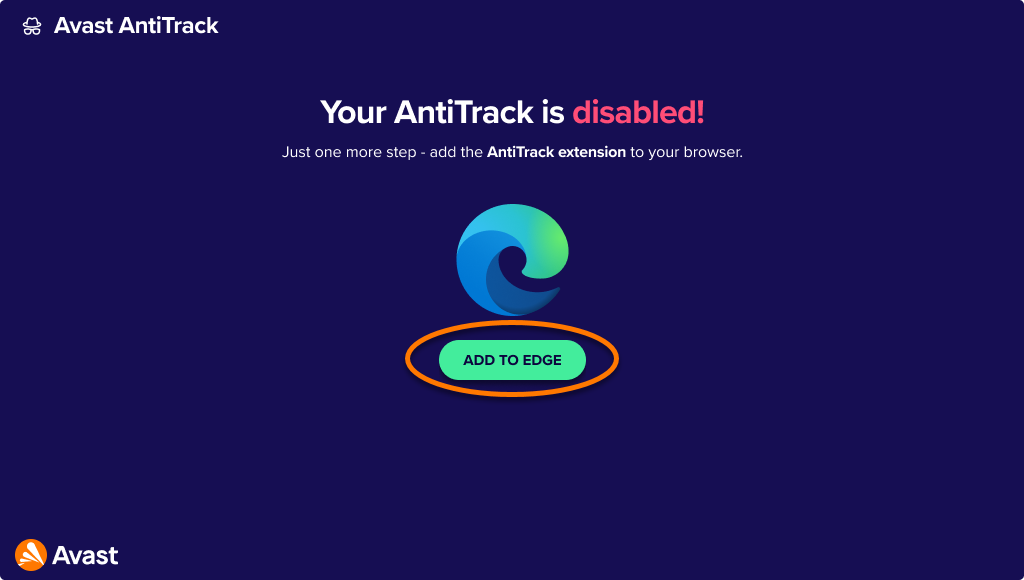
  1. Click Add to Edge to install the Avast AntiTrack extension on your Edge browser.
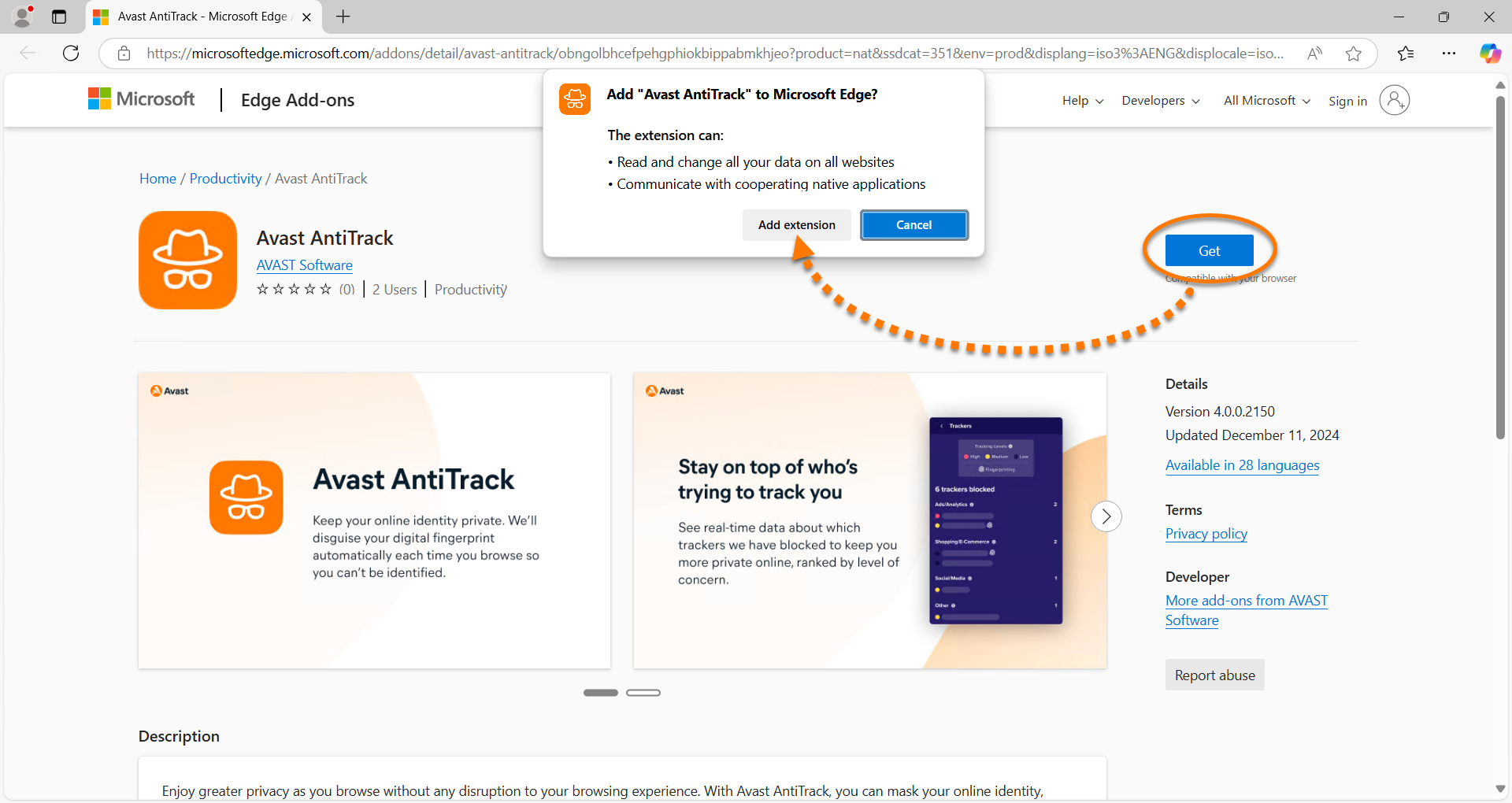
  2. On the Edge Add-ons page, select Get ▸ Add extension.
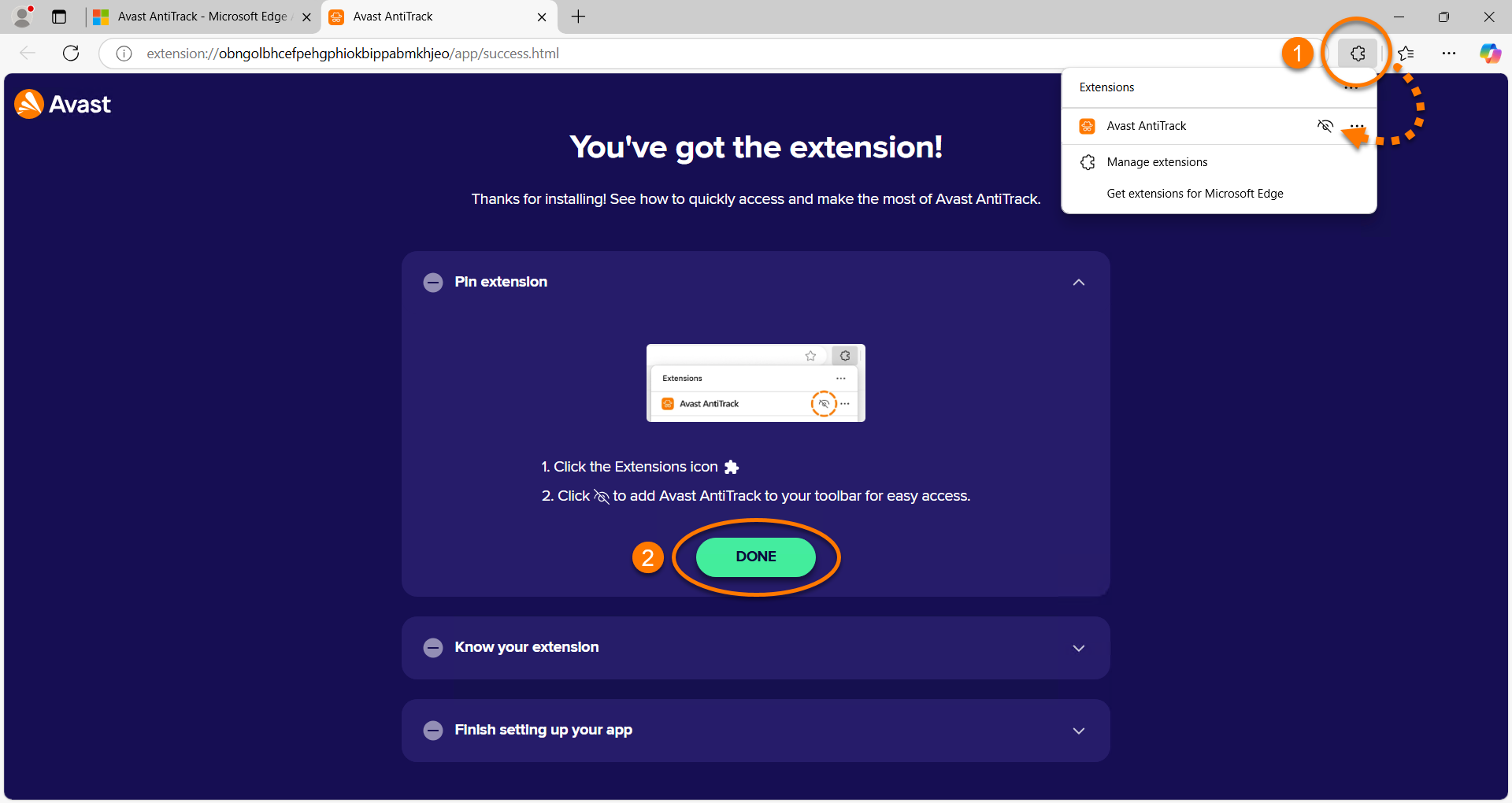
  3. Click Extensions ▸ the eye icon next to Avast AntiTrack to pin the extension to your browser toolbar, then click Done.
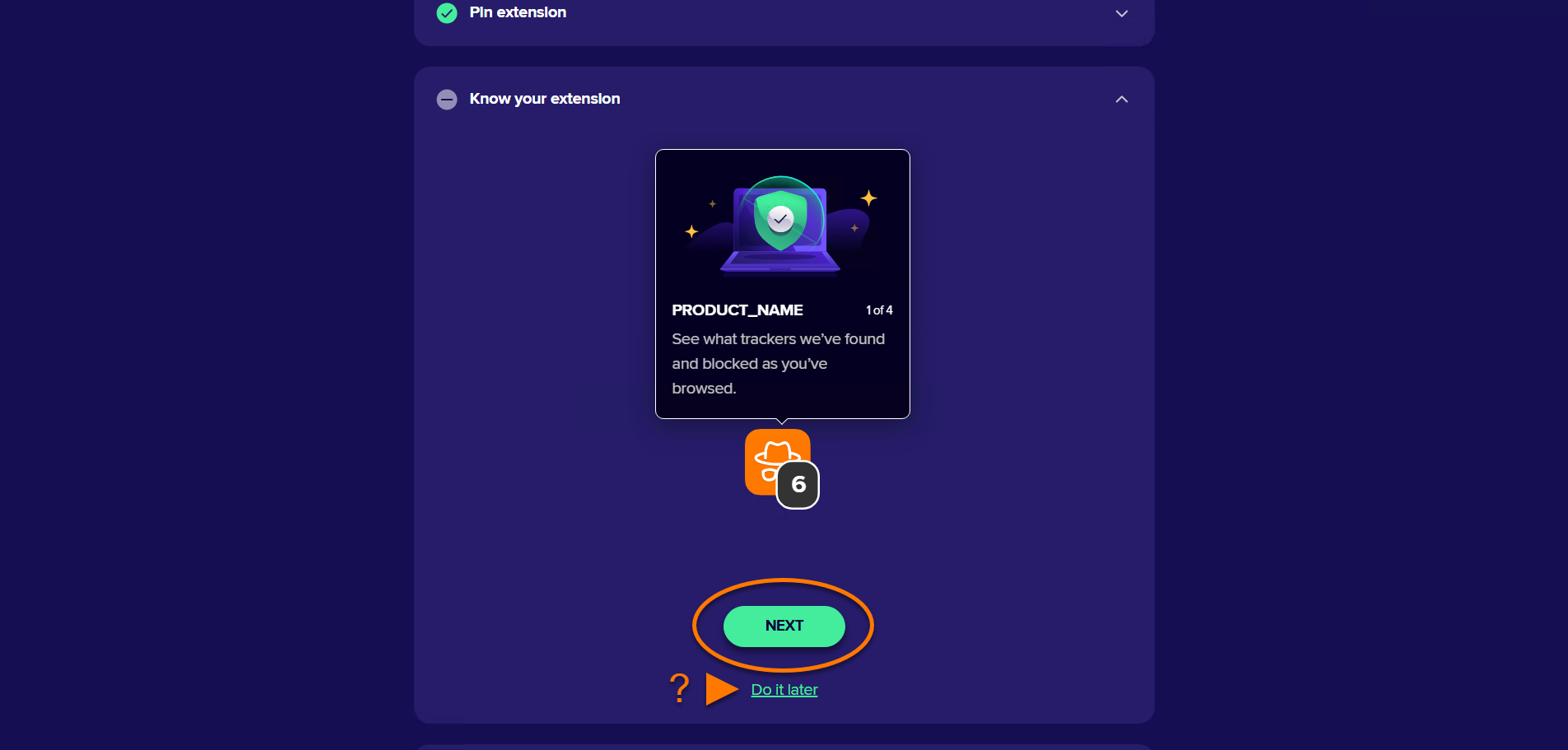
  4. Click Next to read through the welcome pages. Optionally, click Do it later to skip this step.
  5. Click Launch AntiTrack app.

The Avast AntiTrack extension is now installed on your Microsoft Edge browser. Click Get started to proceed to the main Avast AntiTrack menu, or select a different browser to add the extension to.
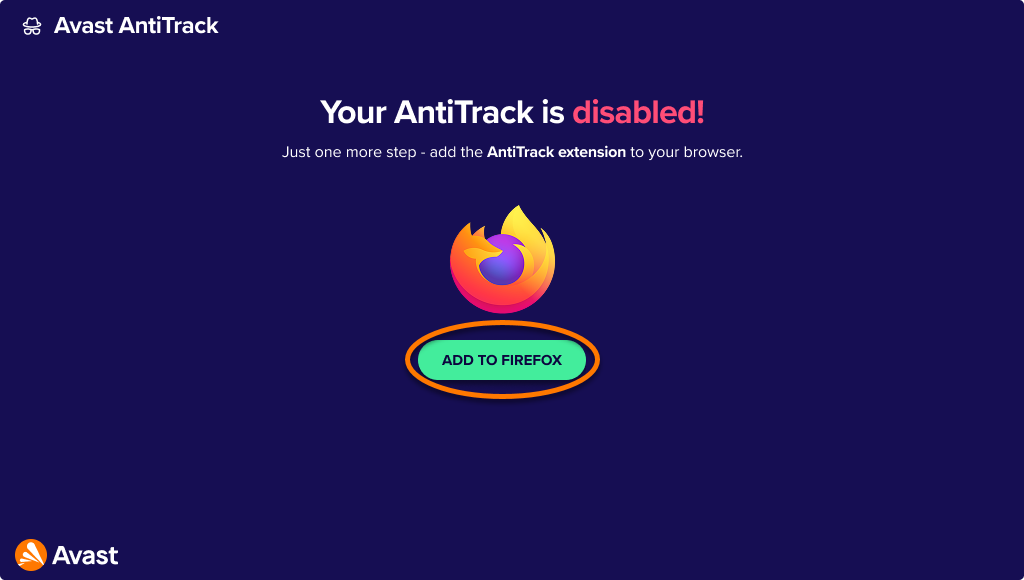
  1. Click Add to Firefox to install the Avast AntiTrack extension on your Mozilla Firefox browser.
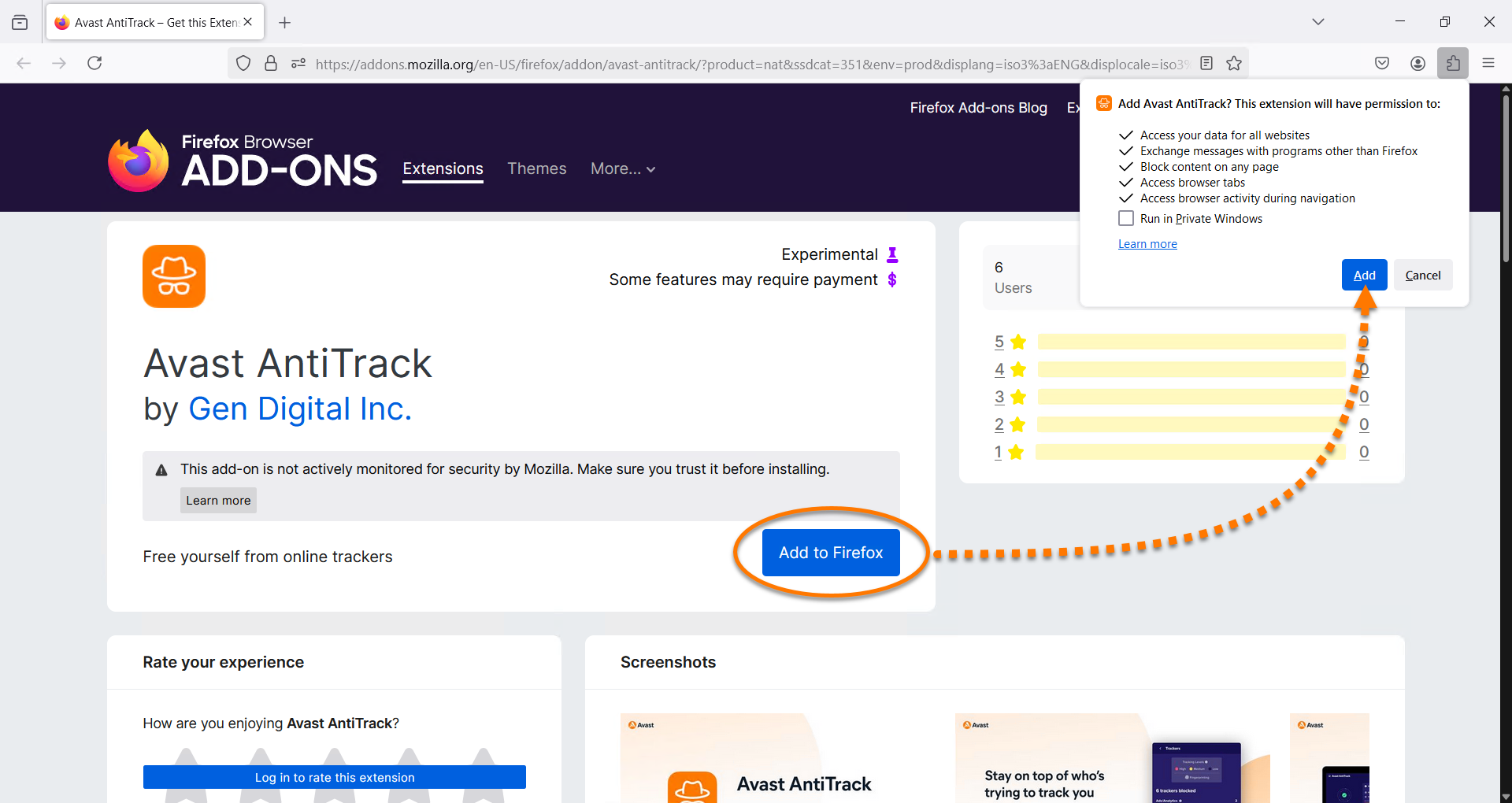
  2. On the Mozilla Firefox Add-ons page, select Add to Firefox ▸ Add.
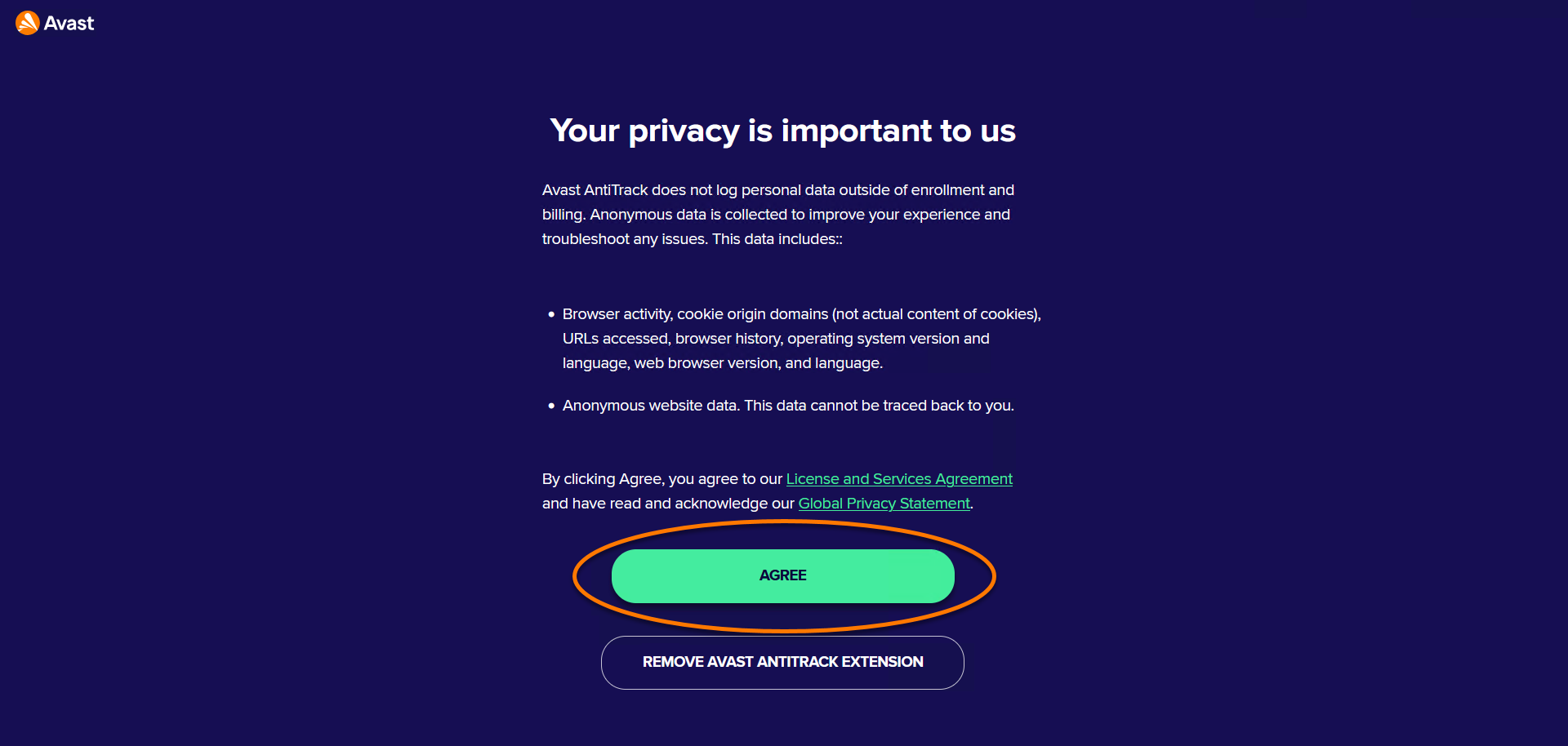
  3. Click Agree to allow the extension to run in private windows.
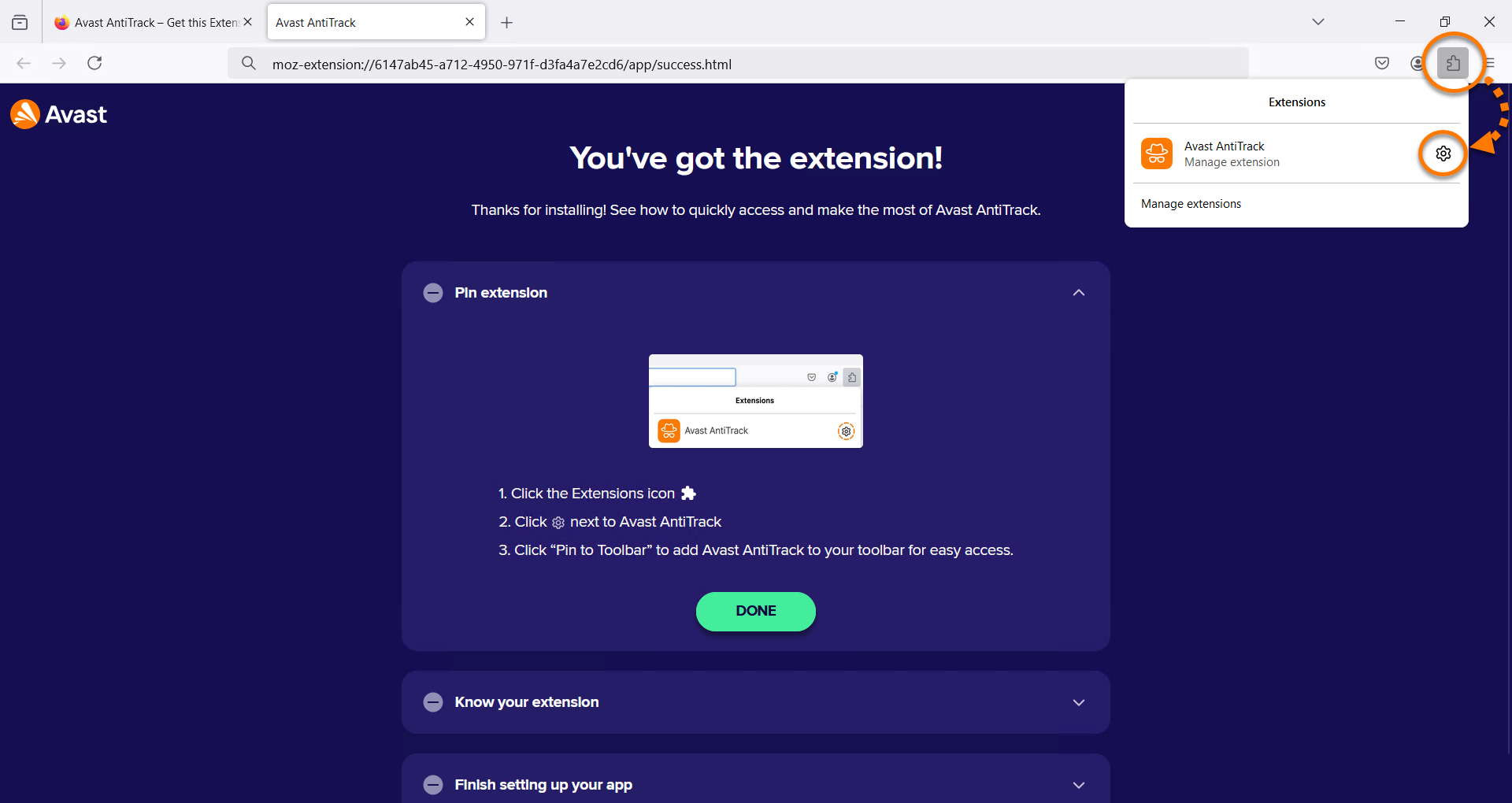
  4. Click Extensions, then click Settings (the gear icon) next to Avast AntiTrack to pin the extension to your browser toolbar.
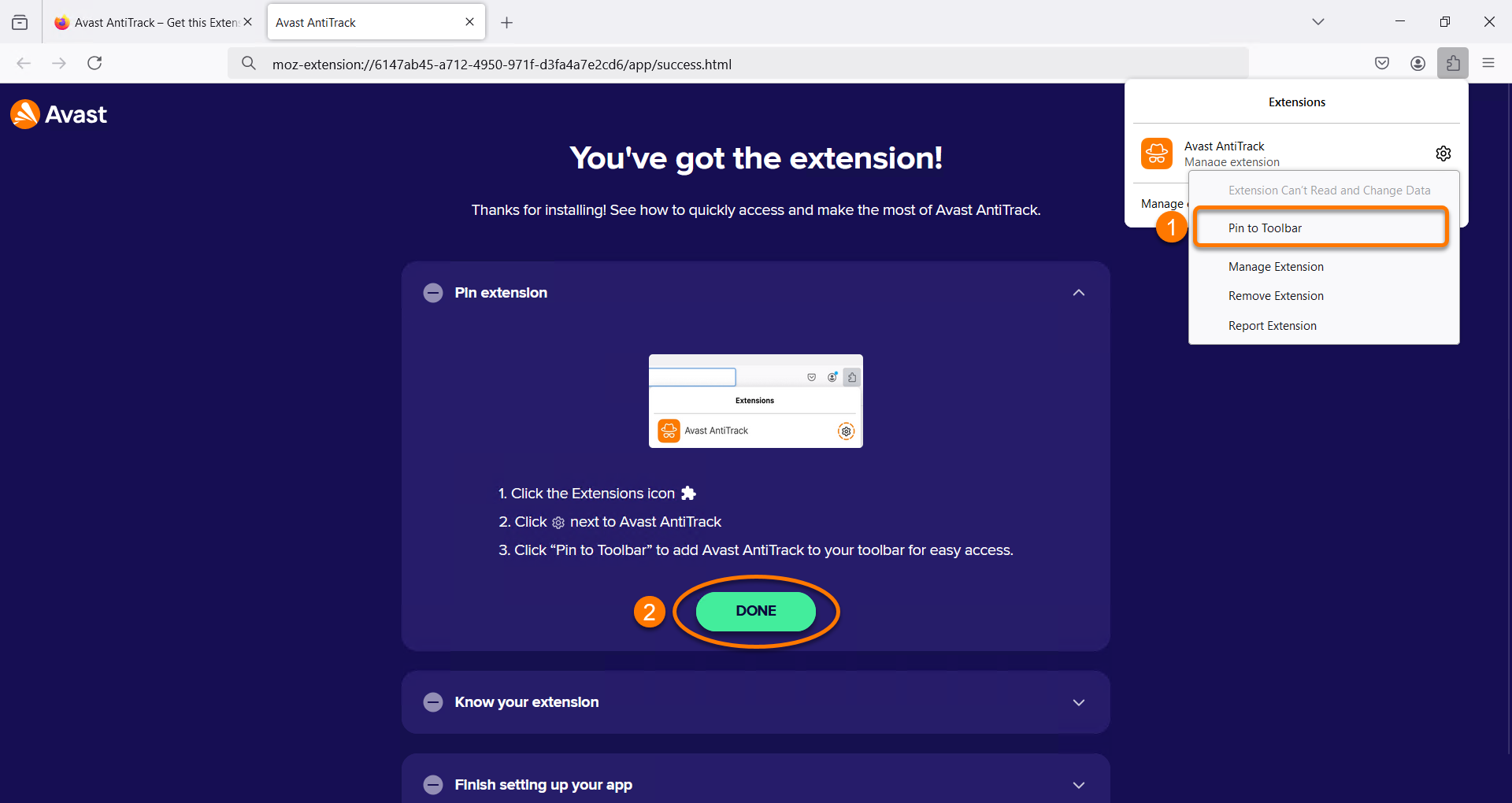
  5. Click Pin to Toolbar, then click Done.
  6. Click Next to read through the welcome pages. Optionally, click Do it later to skip this step.
  7. Click Launch AntiTrack app.

The Avast AntiTrack extension is now installed on your Mozilla Firefox browser. Click Get started to proceed to the main Avast AntiTrack menu, or select a different browser to add the extension to.
Install additional Avast AntiTrack extensions

You can install the Avast AntiTrack extension any time, even after the initial set-up. Follow the steps below to install the extension on your other browsers:

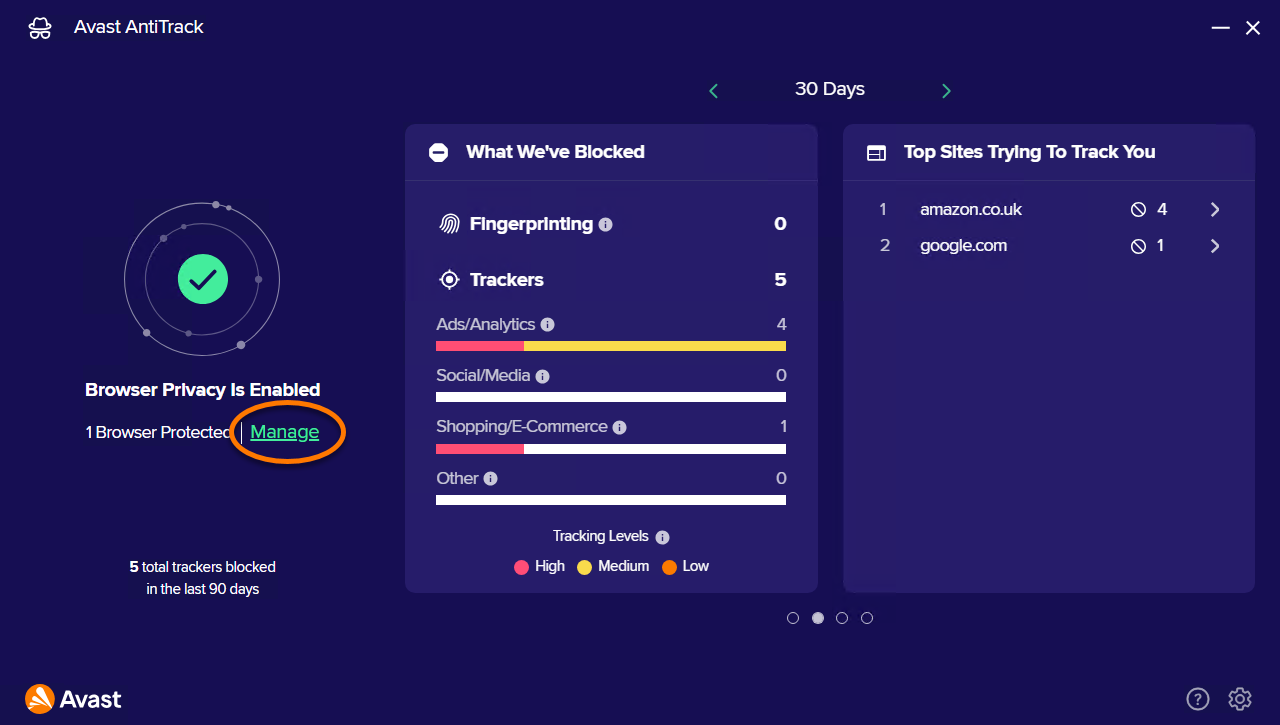
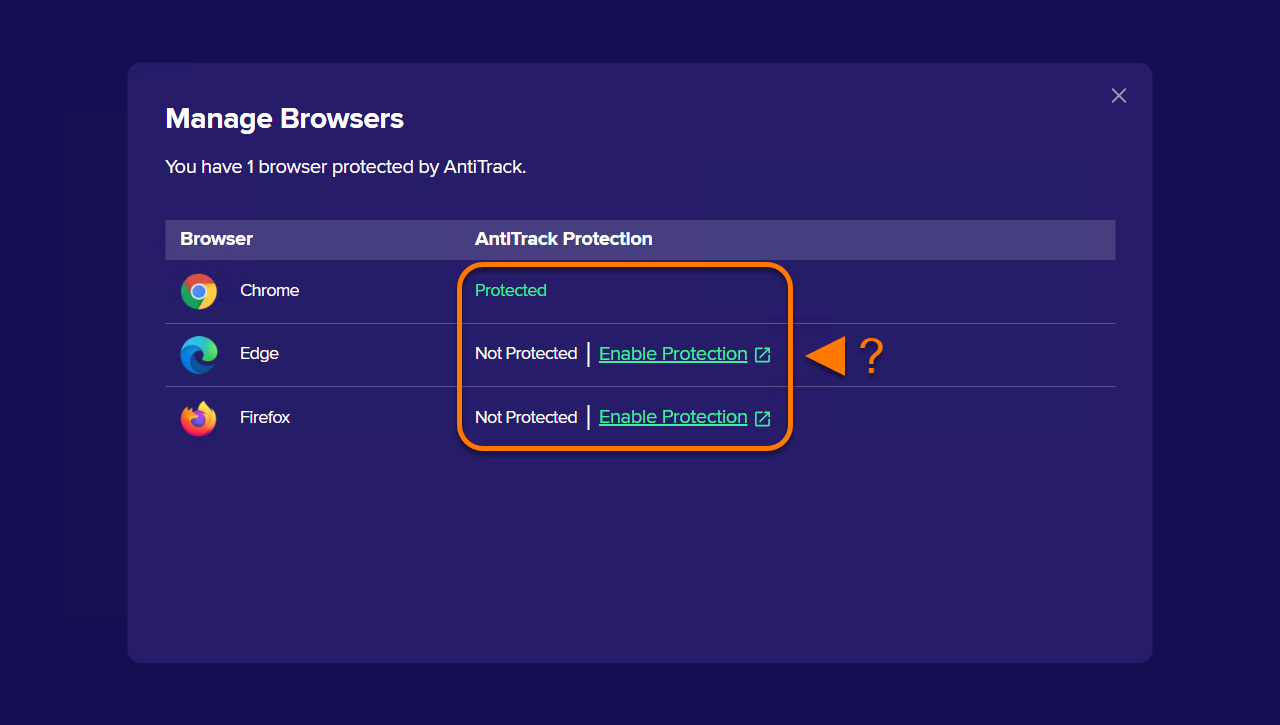
  1. Open Avast AntiTrack, and click Manage.
  2. On the Manage Browsers screen, click Enable Protection next to the browser of your choice. Then, refer to the steps above to install the Avast AntiTrack extension.

The Avast AntiTrack extension is now installed on your browser.

Troubleshooting

If Avast AntiTrack displays an incorrect extension status or if your extension shows that it is unable to communicate with the app, refer to the following article:

If you encounter issues with a website not working correctly due to tracker blockers, refer to the following article:

DocID: install-antitrack-browser-extensionsLast modified: 09/03/2026

Was this article helpful?

Promotional banner image

Keep your online identity private!

Browse like no one’s watching with Avast anti-tracking software.

Need more help?

Contact us
Avast account
Visit our forums
Visit academy