
IS YOUR COMPUTER SLOW? RUN LIKE NEW
If they are not maintained, computers lose performance over time. Avast Cleanup Premium can help significantly improve the performance of your computer.
Run a Boot-Time Scan in Old Avast One
Windows
This article is about the Boot-Time Scan feature in Avast One. For information about the Boot-Time Scan feature in Avast Antivirus, refer to the following article: Run a Boot-Time Scan in Avast Antivirus.
Boot-Time Scan is an advanced feature which scans for known types of malware and removes threats before the operating system and other services boot up. It does not run automatically or on a regular basis — if you suspect that your Windows device contains malware, you can manually schedule the scan to run the next time your computer starts.
Run Boot-Time Scan
To run a Boot-Time Scan the next time you restart your Windows device:
- Open Avast One and select
 Explore ▸ Scan Center, then click Open Scan Center.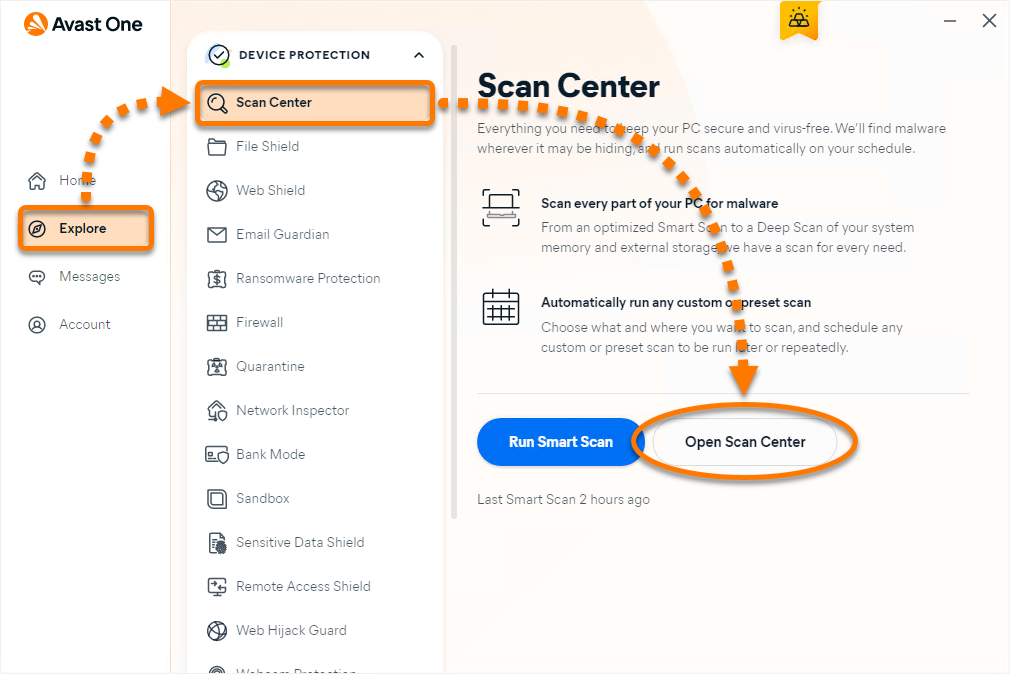
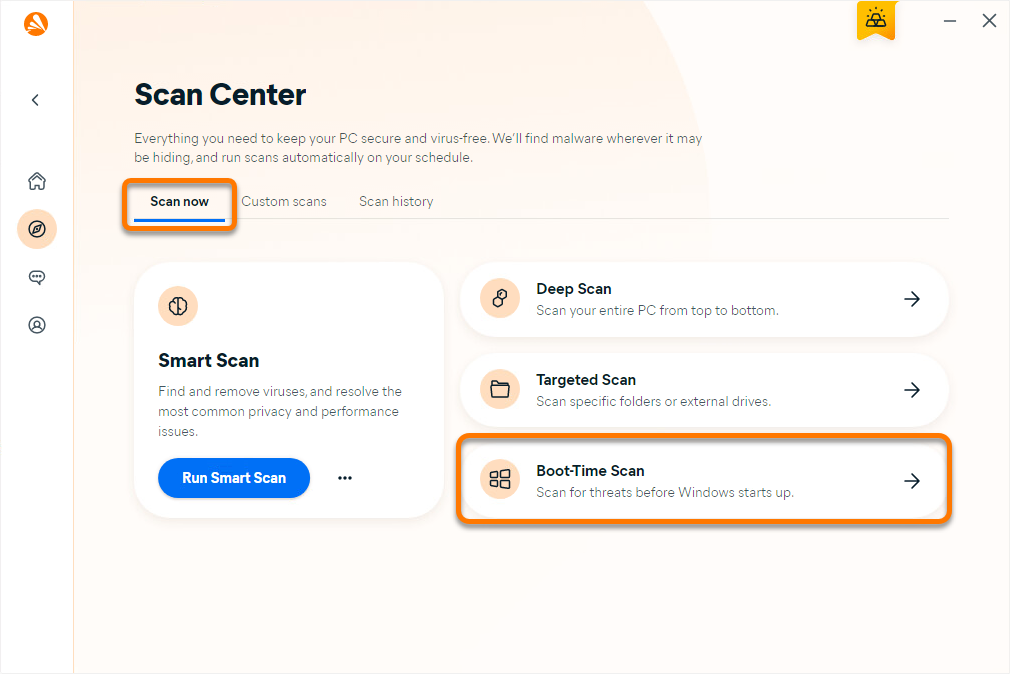
- Ensure that the Scan now tab is selected, then click Boot-Time Scan.
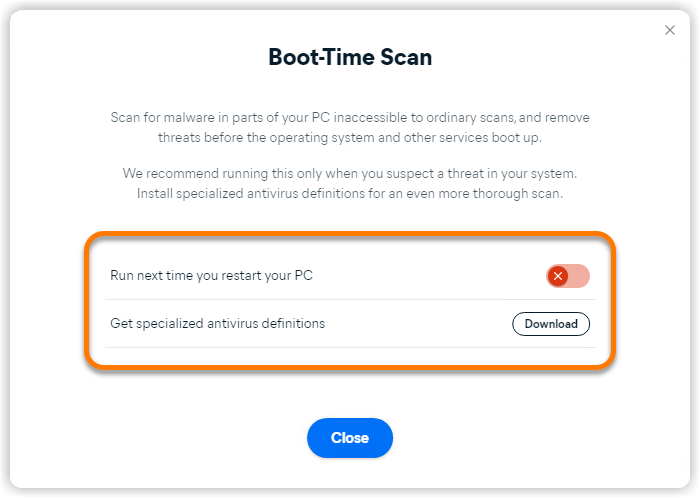
- Next to Run next time you restart your PC, click the red (OFF) slider so that it changes to green (ON). Then, click Download next to Get specialized antivirus definitions.
When you click Download on the Boot-Time Scan screen, Avast One downloads all virus definitions from a cloud database. If you skip installing specialized definitions, Boot-Time Scan scans your Windows device based only on the last virus definitions that were downloaded. If you see Installed instead of Download, your virus definitions are up to date.
- Restart your Windows device. When the system restarts, a Boot-Time Scan progress screen appears. The scan usually takes several minutes, but the duration varies depending on the speed of your system and the number of files being scanned.
 To skip the scan, press the
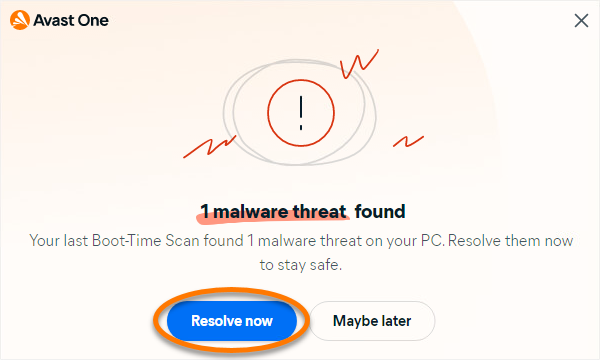
 Esckey on your keyboard. - If any threats are found, a notification window appears. Click See results.
- The Scan history screen shows the following scan results:
- Threat name: Specifies the type of detected threat.
- Location: Shows the file path where the threat was detected on your Windows device.
- Status: Explains the action taken to resolve the threat. When an infected file is detected, Avast One will try to fix it. If repair is not possible, the file is moved to Quarantine. If this fails, the file is deleted. To learn how to manage threats moved to Quarantine, refer to the following article: Quarantine - Getting Started.
Click Done to exit the screen.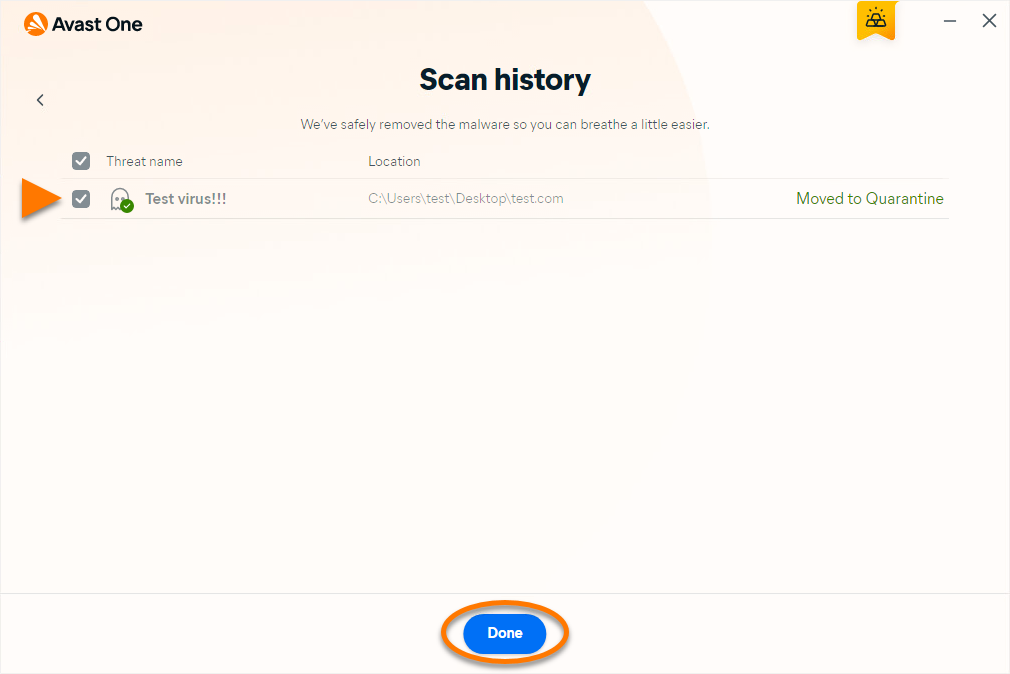
When the scan is complete, Windows continues booting up.
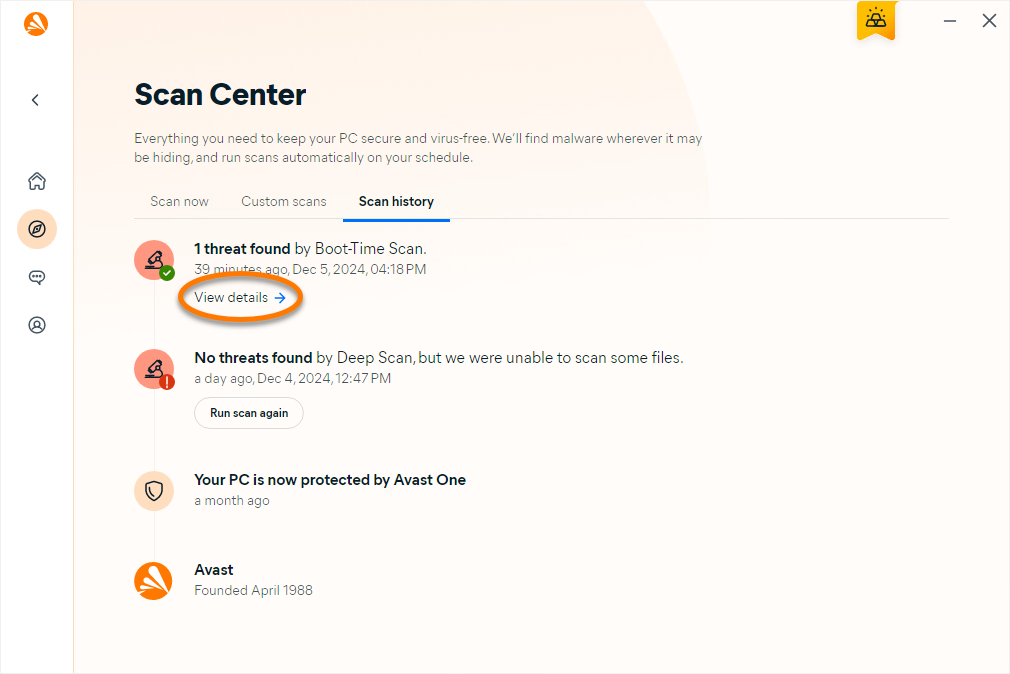
You can always check your Scan history by clicking Explore ▸ Scan Center, then click Open Scan Center and select the Scan history tab. If any threats were detected during a scan, click View details.
Further recommendations
For more information about scans in Avast One, refer to the following article:
Was this article helpful?

Keep your online identity private!
Browse like no one’s watching with Avast anti-tracking software.