Promotional banner image

IS YOUR COMPUTER SLOW? RUN LIKE NEW

If they are not maintained, computers lose performance over time. Avast Cleanup Premium can help significantly improve the performance of your computer.

Installing Avast Secure Browser

Windows, Mac, Android, iOS

Avast Secure Browser is a web browser with built-in security and privacy features to help keep you safe online. This article contains instructions to download and install Avast Secure Browser.

Install Avast Secure Browser

As of March 2026, Avast Secure Browser can no longer be installed on Windows Vista, Windows 7, or Windows 8/8.1.

  1. Click the button below to download the Avast Secure Browser setup file, and save it to a familiar location on your Windows device (by default, downloaded files are saved to your Downloads folder).
    Download Avast Secure Browser for Windows
  2. Right-click the downloaded setup file avast_secure_browser_setup.exe, and select Run as administrator from the context menu.

    If you are unable to authorize installation of Avast Secure Browser, refer to the following article for advice: Managing administrative accounts on your Windows PC.

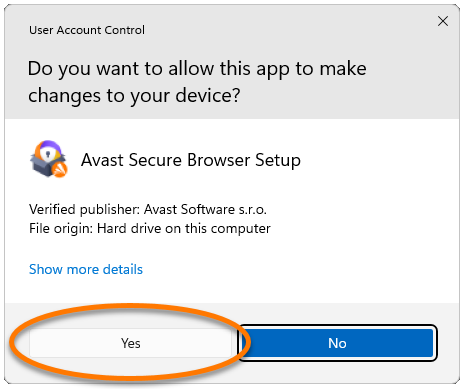
  3. If prompted for permission by the User Account Control dialog, click Yes.
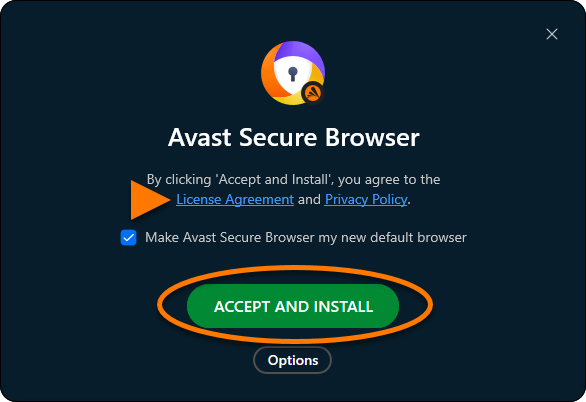
  4. Optionally review the License Agreement and Privacy Policy, then click Accept and install to proceed with the default installation.
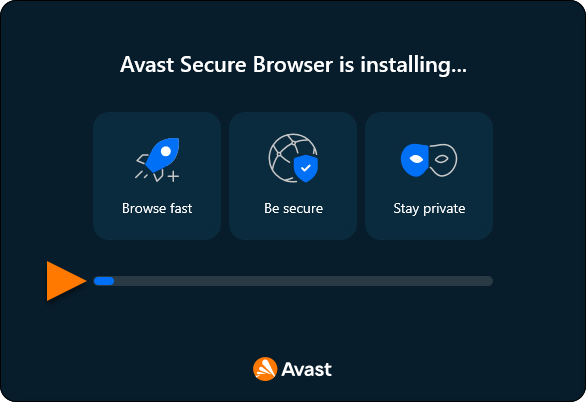
  5. Wait while setup installs Avast Secure Browser.

Avast Secure Browser is now installed on your Windows device and a new browser window opens automatically.

To activate Avast Secure Browser PRO, refer to the instructions in the following article: Activating Avast Secure Browser PRO.

Troubleshoot installation issues

If you experience any installation issues:

  1. Ensure your Windows device meets the minimum system requirements and your Windows is up-to-date. For information about system requirements for Avast Secure Browser, refer to the following article:
  2. Restart your Windows device, then try to install Avast Secure Browser again by following the exact steps in this article.

If the issue persists, contact Avast Support.

Further recommendations

For more information about the features available in Avast Secure Browser, refer to the following articles:

Install Avast Secure Browser

In late 2020, Apple began using Apple silicon instead of Intel processors on certain Mac computer models. To check if your device uses Apple silicon, refer to the following Apple Support article: Apple Support ▸ Mac computers with Apple silicon.

Follow the relevant instructions below according to your processor type:

Intel processor

  1. Click the button below to download the Avast Secure Browser setup file, and save it to a familiar location on your Mac (by default, downloaded files are saved to your Downloads folder).
    Download Avast Secure Browser for Mac with Intel processor
  2. Double-click the downloaded setup file AvastSecureBrowserSetup.pkg.

Apple silicon

  1. Click the button below to download the Avast Secure Browser setup file, and save it to a familiar location on your Mac (by default, downloaded files are saved to your Downloads folder).
    Download Avast Secure Browser for Mac with Apple silicon
  2. Double-click the downloaded setup file AvastSecureBrowserSetupARM.pkg.

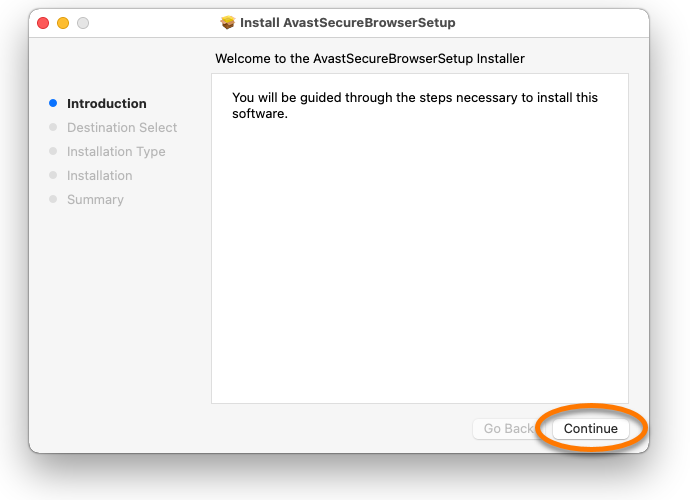
  1. Click Continue.
  2. Click Install to proceed with the default installation, or click Change Install Location... if you want to make changes to the default setup.
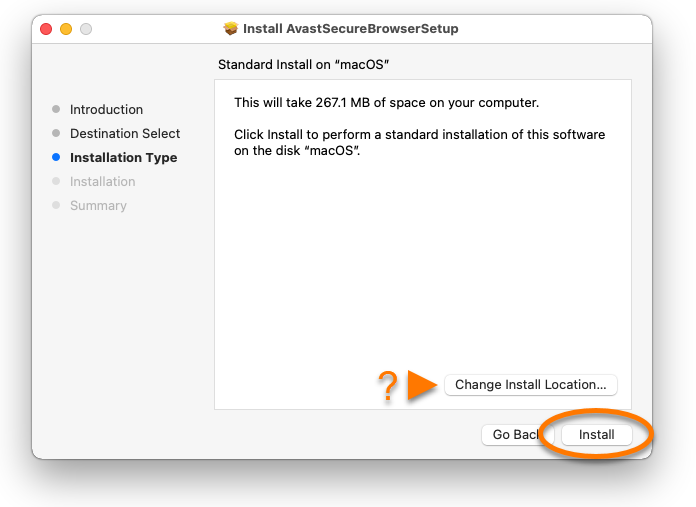
  3. Enter the password that you use when you start your Mac, and click Install Software.
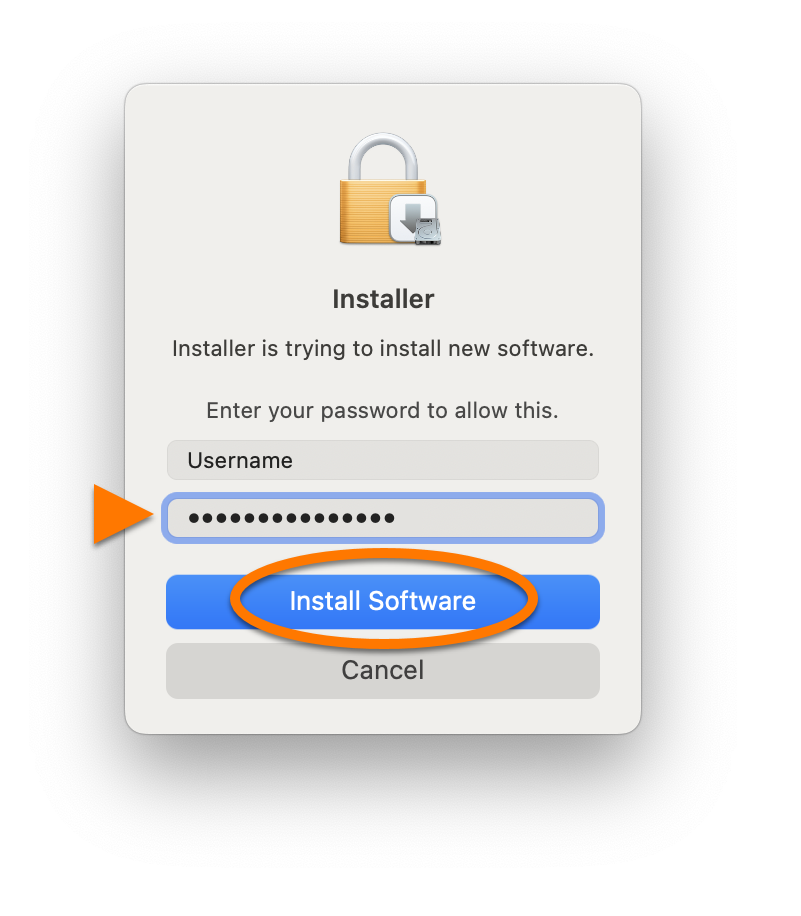
  4. Wait while setup installs Avast Secure Browser on your Mac, then click Close.
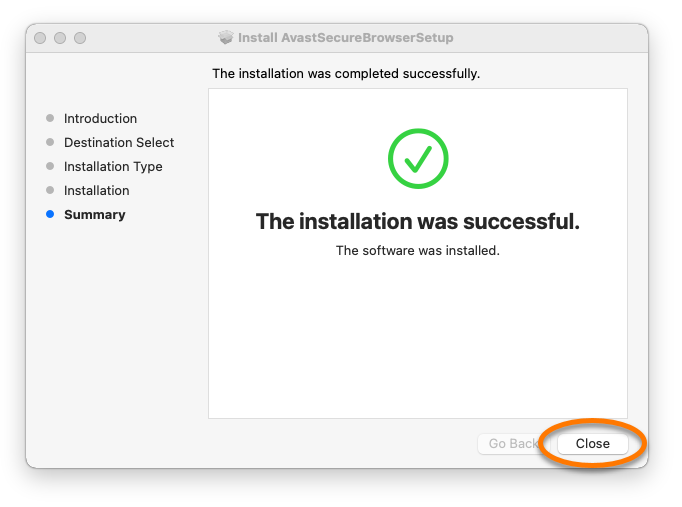
Avast Secure Browser is now installed on your Mac and a new browser window opens automatically.

To activate Avast Secure Browser PRO, refer to the instructions in the following article: Activating Avast Secure Browser PRO.

Troubleshoot installation issues

If you experience any installation issues:

  1. Ensure your Mac meets the minimum system requirements and your macOS is up-to-date. For information about system requirements for Avast Secure Browser, refer to the following article:

    Apple macOS 10.15.x (Catalina) is last supported on Avast Secure Browser version 116.

  2. Restart your Mac, then try to install Avast Secure Browser again by following the exact steps in this article.

If the issue persists, contact Avast Support.

Further recommendations

For more information about the features available in Avast Secure Browser, refer to the following articles:

Install Avast Secure Browser

  1. On your Android device, tap the button below to open the Avast Secure Browser product page in Google Play Store.
    Go to Google Play Store
  2. Tap Install to download and install the app. When installation is complete, tap Open.
  3. Review the User License Agreement and Privacy Policy, then tap Set up.
  4. Optionally, tap Allow twice to allow Avast Secure Browser to send you notifications.
  5. Optionally, tap Set as default, then tap the Avast Secure Browser panel, and tap Set as default again.

Avast Secure Browser is now installed and ready to use on your Android device.

To activate Avast Secure Browser PRO, refer to the instructions in the following article: Activating Avast Secure Browser PRO.

Troubleshoot installation issues

If you experience any installation issues, ensure your Android device meets the minimum system requirements:

If the issue persists, contact Avast Support.

Further recommendations

For more information about the features available in Avast Secure Browser, refer to the following articles:

Install Avast Secure Browser

  1. On your iOS device, tap the button below to open the Avast Secure Browser product page in the App Store.
    Go to the App Store
  2. Tap Get to download and install the app. When installation is complete, tap Open.
  3. Review the User License Agreement and Privacy Policy, then tap Set up.
  4. Optionally, tap Continue ▸ Allow to allow Avast Secure Browser to have tracking permissions.
  5. Optionally, tap Continue ▸ Allow to allow Avast Secure Browser to send you notifications.
  6. Optionally, tap Go to Settings ▸ Default Browser app ▸ Avast Browser to set Avast Secure Browser as your default browser.

Avast Secure Browser is now installed and ready to use on your iOS device.

To activate Avast Secure Browser PRO, refer to the instructions in the following article: Activating Avast Secure Browser PRO.

Troubleshoot installation issues

If you experience any installation issues, ensure your iOS device meets the minimum system requirements:

If the issue persists, contact Avast Support.

Further recommendations

For more information about the features available in Avast Secure Browser, refer to the following articles:

DocID: install-secure-browserLast modified: 09/03/2026

Was this article helpful?

Promotional banner image

Keep your online identity private!

Browse like no one’s watching with Avast anti-tracking software.

Need more help?

Contact us
Avast account
Visit our forums
Visit academy