Promotional banner image

IS YOUR COMPUTER SLOW? RUN LIKE NEW

If they are not maintained, computers lose performance over time. Avast Cleanup Premium can help significantly improve the performance of your computer.

Activating Avast Secure Browser PRO

Windows, Mac, Android, iOS

An Avast Secure Browser PRO subscription purchased directly in the Avast Secure Browser application is activated automatically on the device used to make the purchase and does not need to be manually activated.

Avast Secure Browser is available as both a free and paid app. The paid app, Avast Secure Browser PRO, requires a subscription to use. After installing Avast Secure Browser, you may need to manually activate your application.

Your chosen activation method:

Activation code

Enter activation code

To activate Avast Secure Browser PRO using an activation code:

  1. Locate your activation code. This is included in your order confirmation email. For detailed instructions, refer to the article: Locating your Avast activation code.
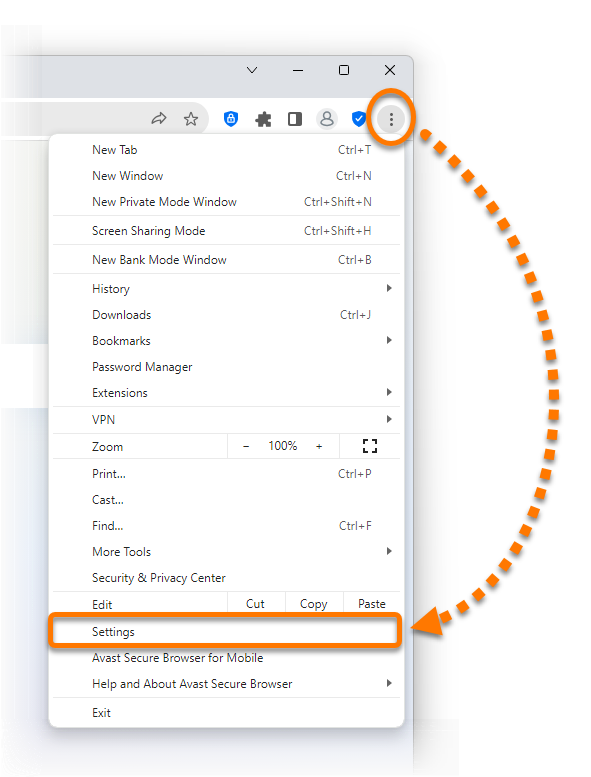
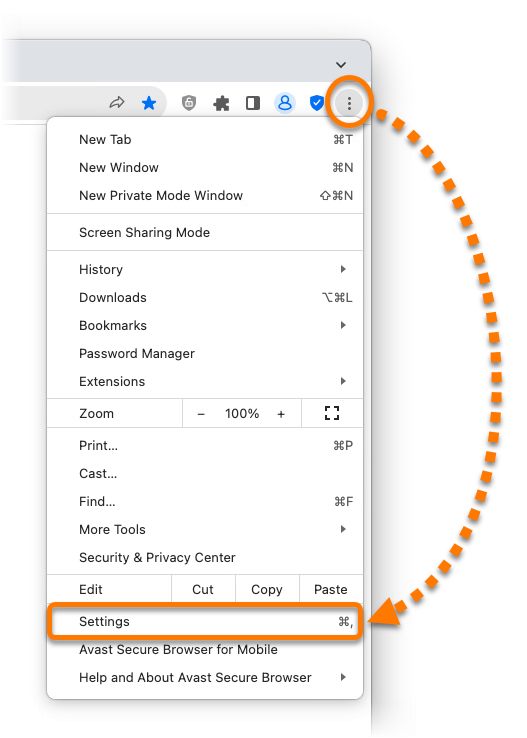
  2. Open Avast Secure Browser, then click ⋮ Menu (the three dots) in the top-right corner of the browser window and select Settings.
  3. In the left panel, select My subscriptions, then click Already have an activation code?.
  4. Type or paste your activation code (including hyphens) into the text box, then click Enter.

Avast account

Sign in to Avast Account

Your Avast Account login is the email address that you provided during the subscription purchase. To sign into your Avast Account for the first time, refer to the article: Activating your Avast Account.

To activate Avast Secure Browser PRO using an Avast Account:

  1. Open Avast Secure Browser, then click ⋮ Menu (the three dots) in the top-right corner of the browser window and select Settings.
  2. In the left panel, select My subscriptions, then click Sign in to your Avast Account.
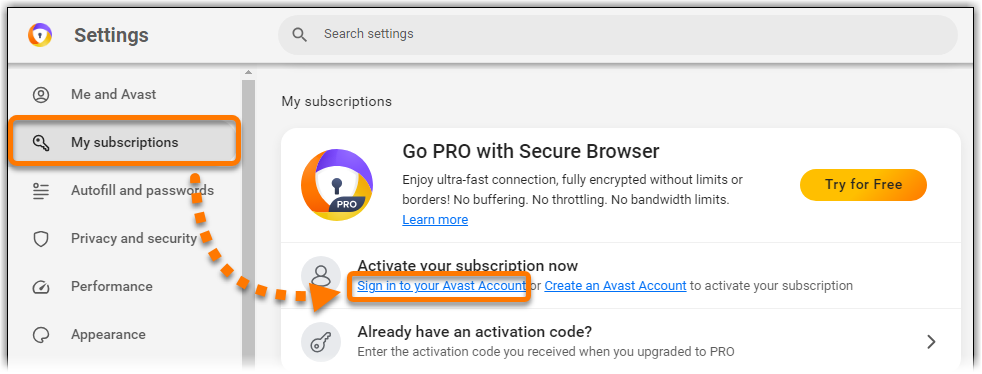
  3. Enter your Avast Account credentials, then click Continue.

    If you experience activation issues, check that your Avast Account is registered to the email address you used to purchase Avast Secure Browser PRO. If you used a different email address for purchase, you can add this email address to your Avast Account. For detailed instructions, refer to the article: Adding a missing subscription to your Avast Account.

Avast Secure Browser PRO is activated. If activation is unsuccessful, refer to the Troubleshoot activation issues section of this article.

Troubleshoot activation issues

To learn how to resolve some of the most common activation issues, refer to the following articles:

Further recommendations

To learn more about Avast Secure Browser, refer to the following articles:

Avast Secure Browser is available as both a free and paid app. The paid app, Avast Secure Browser PRO, requires a subscription to use. After installing Avast Secure Browser, you may need to manually activate your application.

Your chosen activation method:

Activation code

Enter activation code

To activate Avast Secure Browser PRO using an activation code:

  1. Locate your activation code. This is included in your order confirmation email. For detailed instructions, refer to the article: Locating your Avast activation code.
  2. Open Avast Secure Browser, then click ⋮ Menu (the three dots) in the top-right corner of the browser window and select Settings.
  3. In the left panel, select My subscriptions, then click Already have an activation code?.
  4. Type or paste your activation code (including hyphens) into the text box, then click Enter.

Avast account

Sign in to Avast Account

Your Avast Account login is the email address that you provided during the subscription purchase. To sign into your Avast Account for the first time, refer to the article: Activating your Avast Account.

To activate Avast Secure Browser PRO using an Avast Account:

  1. Open Avast Secure Browser, then click ⋮ Menu (the three dots) in the top-right corner of the browser window and select Settings.
  2. In the left panel, select My subscriptions, then click Sign in to your Avast Account.
  3. Enter your Avast Account credentials, then click Continue.

    If you experience activation issues, check that your Avast Account is registered to the email address you used to purchase Avast Secure Browser PRO. If you used a different email address for purchase, you can add this email address to your Avast Account. For detailed instructions, refer to the article: Adding a missing subscription to your Avast Account.

Avast Secure Browser PRO is activated. If activation is unsuccessful, refer to the Troubleshoot activation issues section of this article.

Troubleshoot activation issues

To learn how to resolve some of the most common activation issues, refer to the following articles:

Further recommendations

To learn more about Avast Secure Browser, refer to the following articles:

Avast Secure Browser is available as both a free and paid app. The paid app, Avast Secure Browser PRO, requires a subscription to use. After installing Avast Secure Browser, you may need to manually activate your application.

Sign in to Avast Account

To activate Avast Secure Browser PRO using an Avast Account:

  1. Tap the Avast Secure Browser icon on the Home screen of your device. The app opens.
  2. Tap the Account icon in the top-left corner of the screen.
  3. Select Login/Register.
  4. Enter your Avast Account credentials, then tap Sign in.

    If you experience activation issues, check that your Avast Account is registered to the email address you used to purchase Avast Secure Browser PRO. If you used a different email address for purchase, you can add this email address to your Avast Account. For detailed instructions, refer to the article: Adding a missing subscription to your Avast Account.

Avast Secure Browser PRO is activated. If activation is unsuccessful, refer to the Troubleshoot activation issues section of this article.

Troubleshoot activation issues

To learn how to resolve some of the most common activation issues, refer to the following article:

Further recommendations

To learn more about Avast Secure Browser, refer to the following articles:

Avast Secure Browser is available as both a free and paid app. The paid app, Avast Secure Browser PRO, requires a subscription to use. After installing Avast Secure Browser, you may need to manually activate your application.

Sign in to Avast Account

To activate Avast Secure Browser PRO using an Avast Account:

  1. Tap the Avast Secure Browser icon on the Home screen of your device. The app opens.
  2. Tap the Account icon in the top-left corner of the screen.
  3. Select Sign in to your Avast Account.
  4. Enter your Avast Account credentials, then tap Sign in.

    If you experience activation issues, check that your Avast Account is registered to the email address you used to purchase Avast Secure Browser PRO. If you used a different email address for purchase, you can add this email address to your Avast Account. For detailed instructions, refer to the article: Adding a missing subscription to your Avast Account.

Avast Secure Browser PRO is activated. If activation is unsuccessful, refer to the Troubleshoot activation issues section of this article.

Troubleshoot activation issues

To learn how to resolve some of the most common activation issues, refer to the following article:

Further recommendations

To learn more about Avast Secure Browser, refer to the following articles:

DocID: activate-secure-browser-proLast modified: 09/03/2026

Was this article helpful?

Promotional banner image

Keep your online identity private!

Browse like no one’s watching with Avast anti-tracking software.

Need more help?

Contact us
Avast account
Visit our forums
Visit academy
