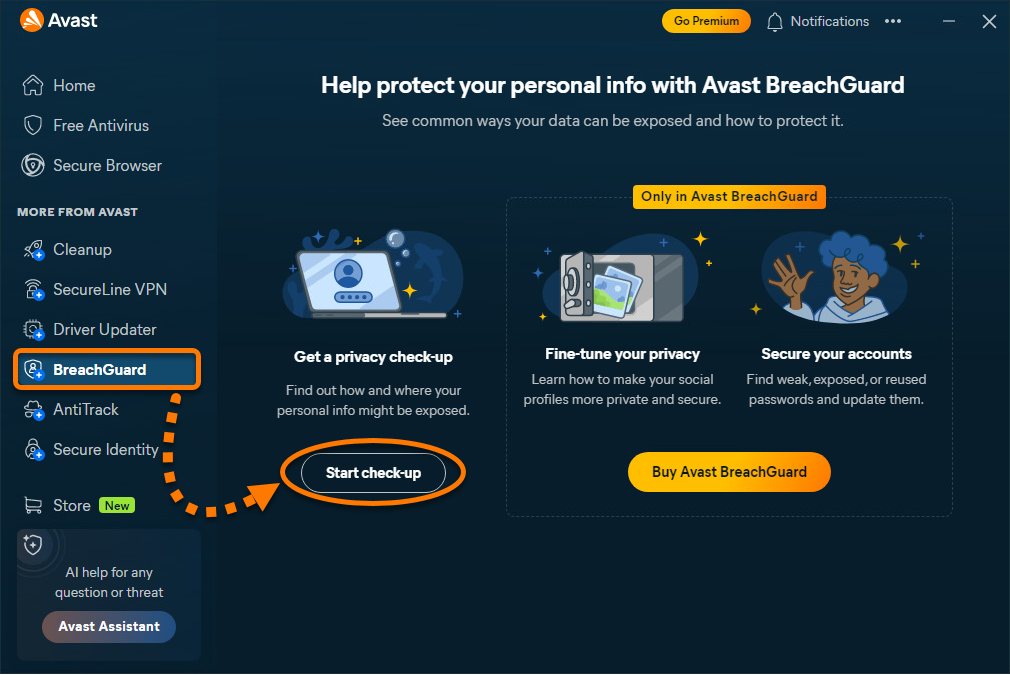
- Open Avast One, then go to BreachGuard ▸ Start check-up.
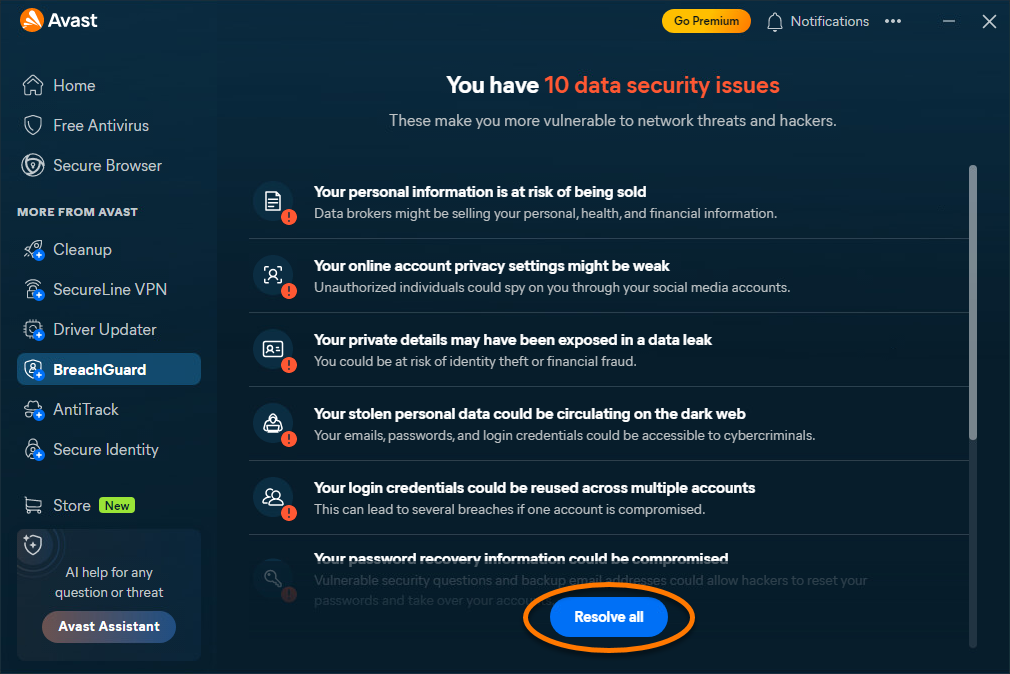
- Wait for the scan to finish, then click Resolve all.
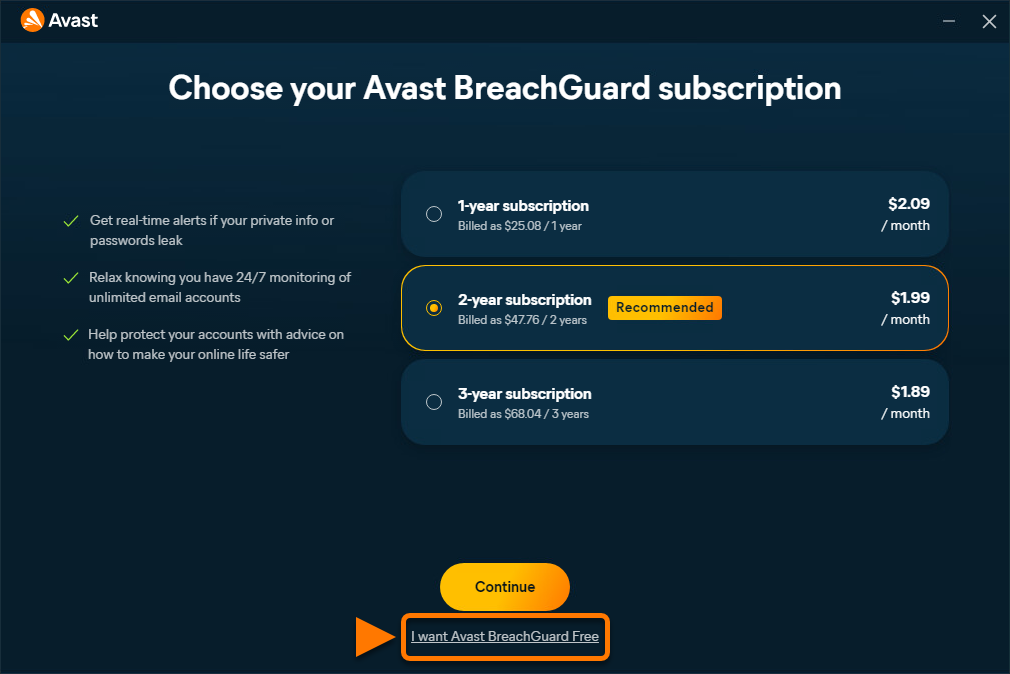
- Click I want Avast BreachGuard Free.
- Click Activate BreachGuard Free.
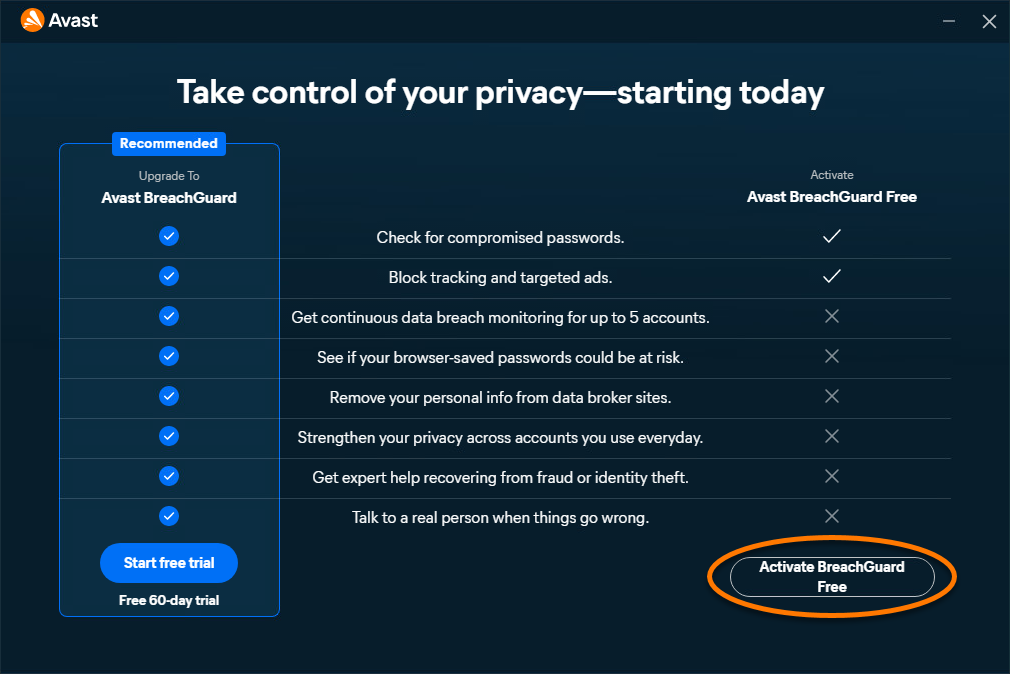
Avast BreachGuard Free is now installed.
Upgrade to the paid version
If you have purchased a paid version of Avast BreachGuard on our website, you need to manually activate the app. For instructions, refer to the following article: Installing and Activating Avast One apps.
Alternatively, you can subscribe to the paid version of Avast Breachguard by clicking Go Premium in the top-right corner of the application screen. Follow the on-screen instructions to complete the transaction. Avast Breachguard activates automatically after you complete the purchase.

Troubleshoot installation issues
If you experience any installation issues:
- Ensure your Windows device meets the minimum system requirements and your Windows is up to date. For information about the requirements for your device, refer to the following article:
- Restart your Windows device, and try again to install Avast BreachGuard Free by following the instructions in this article.
- Open Avast One, then go to BreachGuard ▸ Start check-up.
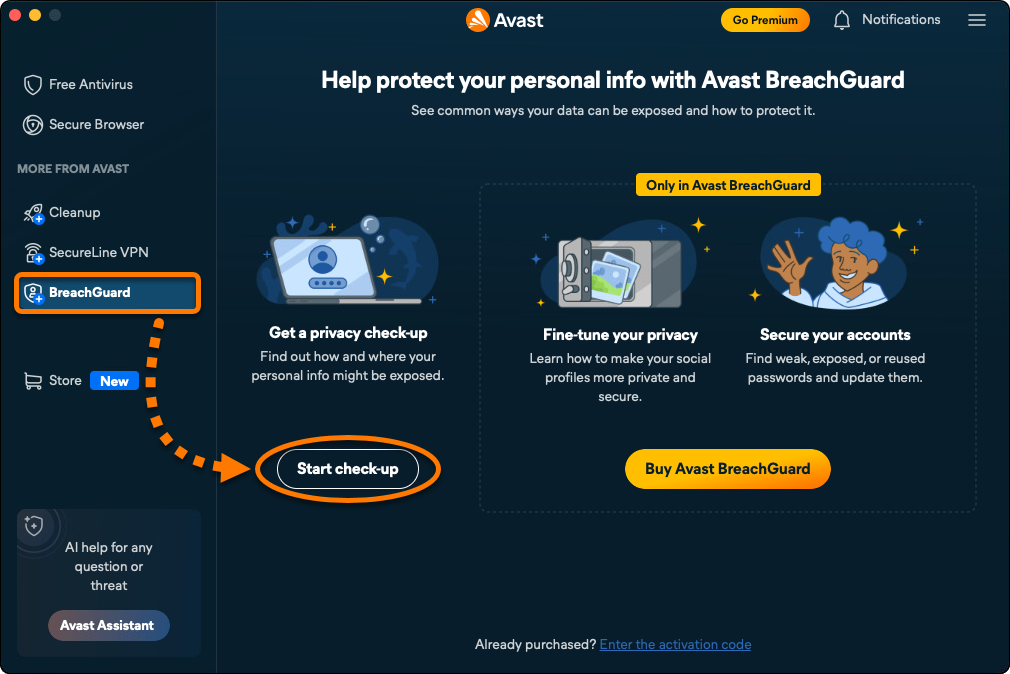
- Wait for the scan to finish, then click Resolve all.
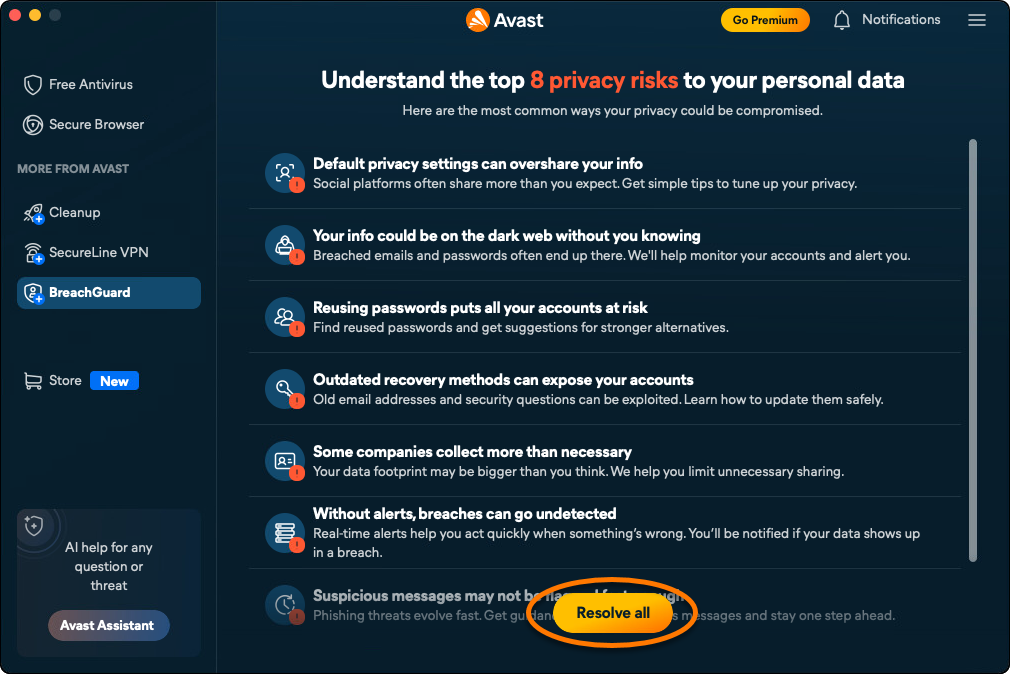
- Click I want Avast BreachGuard Free.
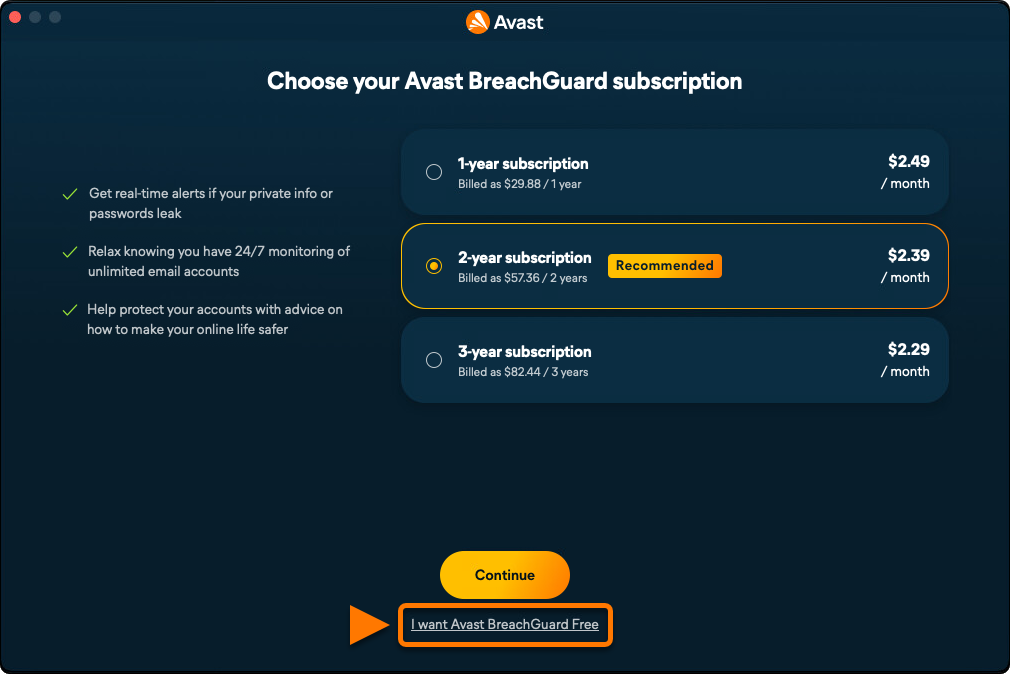
- Click Activate BreachGuard Free.
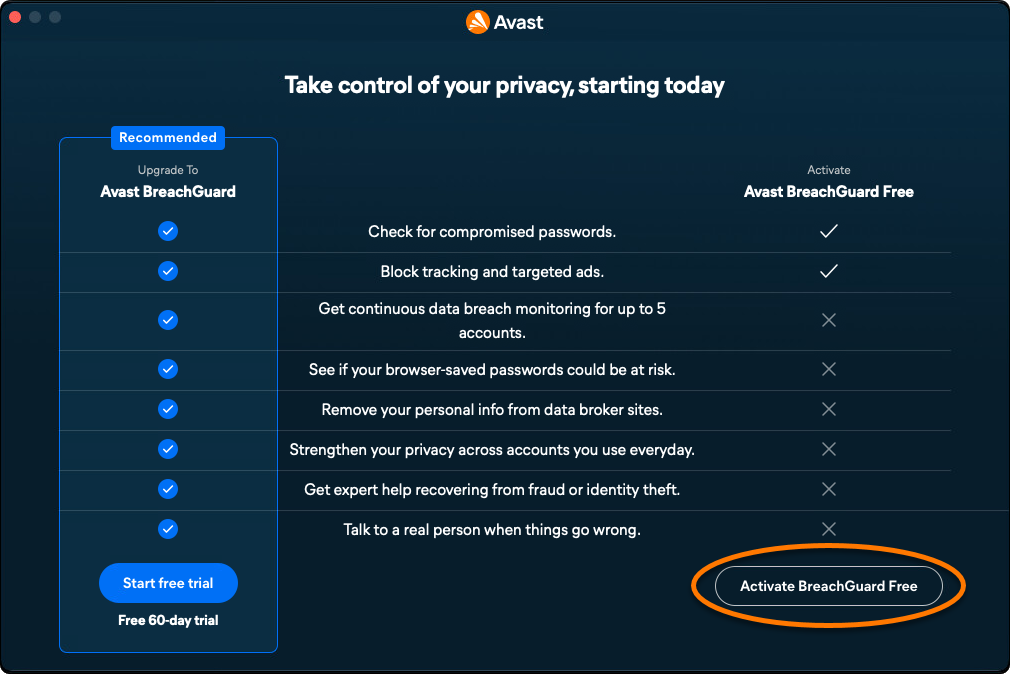
Avast BreachGuard Free is now installed.
Upgrade to the paid version
If you have purchased a paid version of Avast BreachGuard on our website, you need to manually activate the app. For instructions, refer to the following article: Installing and Activating Avast One apps.
Alternatively, you can subscribe to the paid version of Avast Breachguard by clicking Go Premium in the top-right corner of the application screen. Follow the on-screen instructions to complete the transaction. Avast Breachguard activates automatically after you complete the purchase.

Troubleshoot installation issues
If you experience any installation issues:
- Ensure your Mac meets the minimum system requirements and your Windows is up to date. For information about the requirements for your device, refer to the following article:
- Restart your Mac, and try again to install Avast BreachGuard Free by following the instructions in this article.

