This article is about the Email Guardian feature in the legacy version of Avast One. For information about Email Guard in the the new version of Avast One, refer to the following article: New Avast One Email Guard - Getting Started.
Protect emails online
Email Guardian scans incoming emails directly in up to 5 online email accounts, enhancing your safety when checking emails from any device or browser. To use this feature, you need a paid version of Avast One (Avast One Silver Device Protection or Avast One Gold).
To monitor your email accounts online:
- Open Avast One and select
 Explore ▸ Email Guardian, then click Open Email Guardian.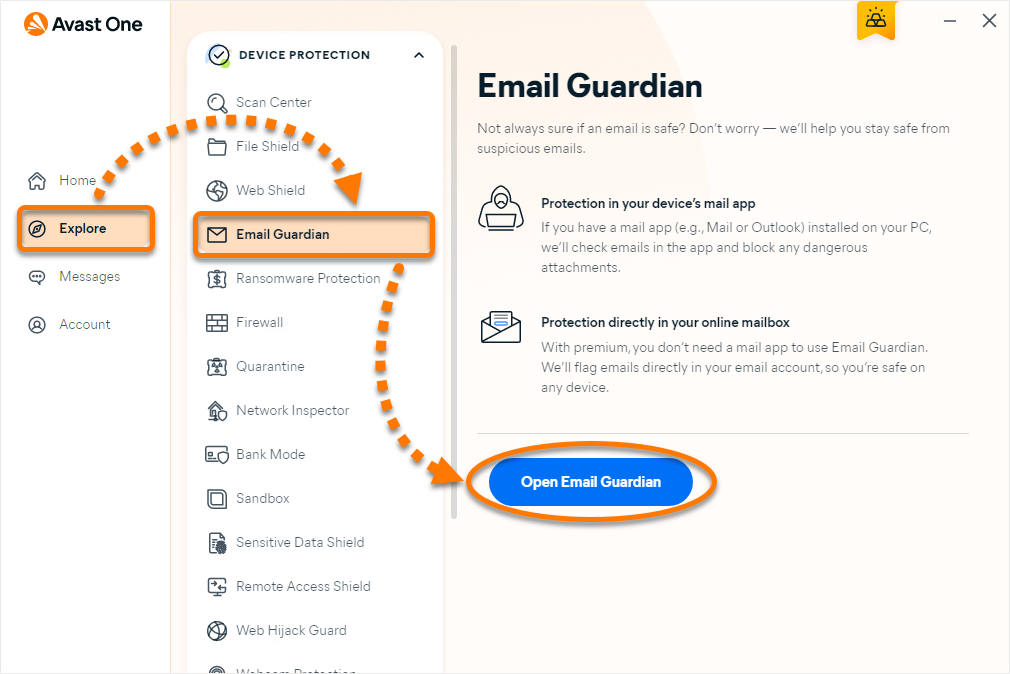
- Ensure that the On the web tab is selected and click Sign in to Avast One Account if you are not already signed in.
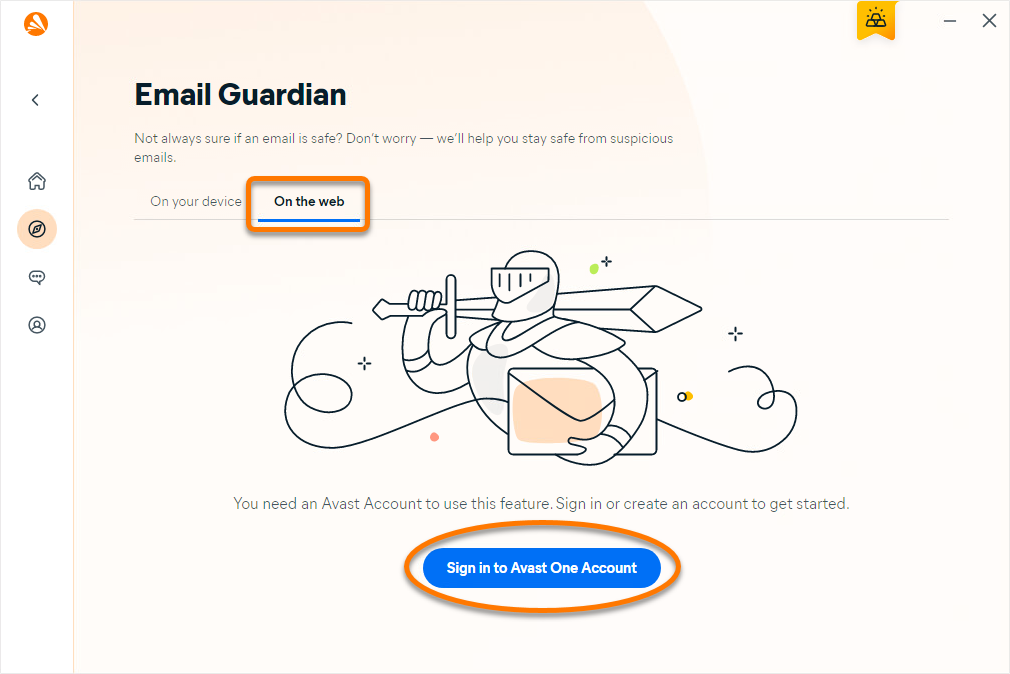
- Click + Add email account.
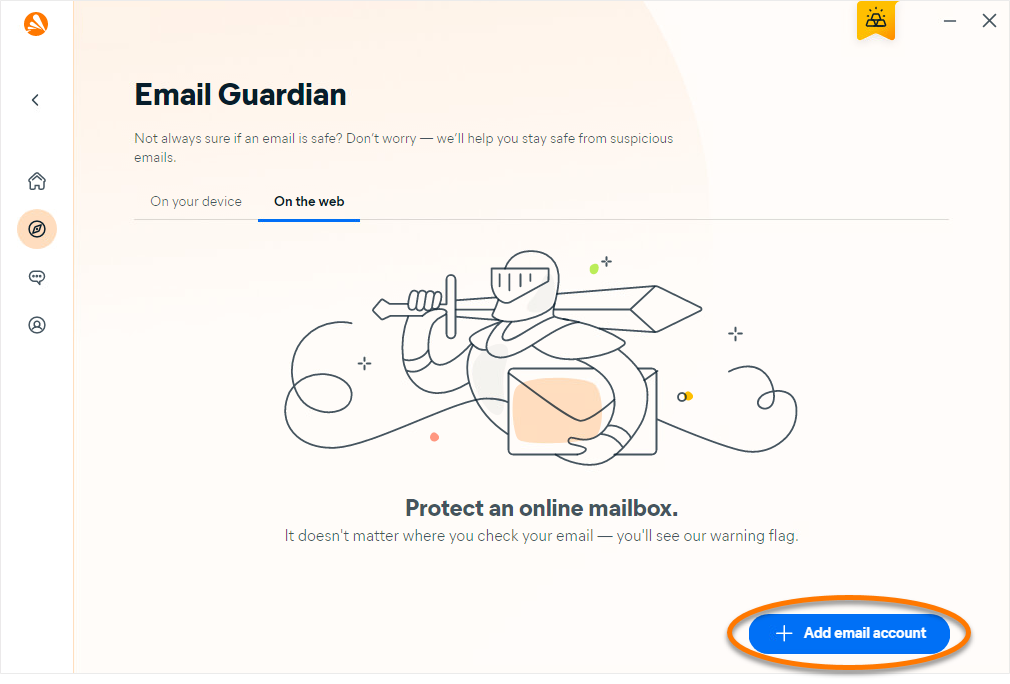
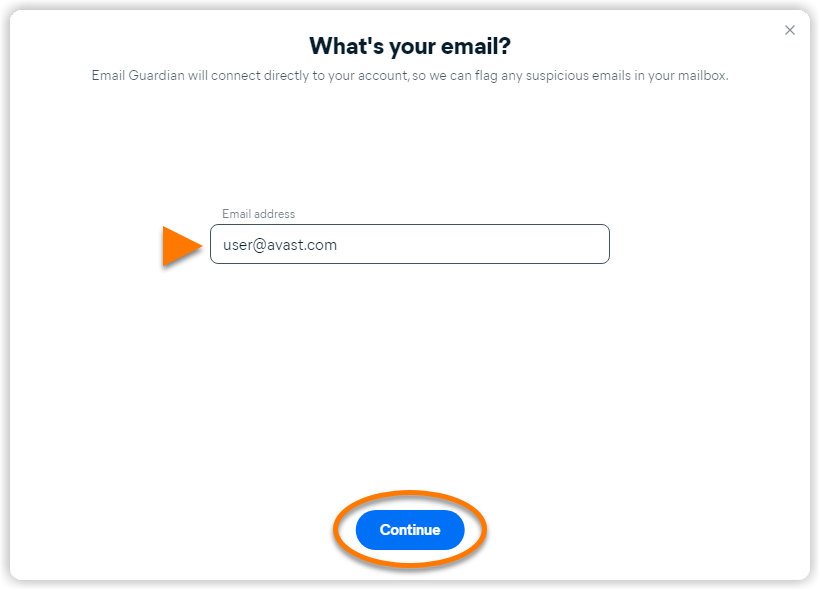
- Enter your email address, then click Continue.
If you see the error message Sorry, we can't connect to that account yet, your email account is currently not compatible with Email Guardian. However, we are working on adding supported email providers.
Select the relevant option below for instructions to connect your email account:
Gmail
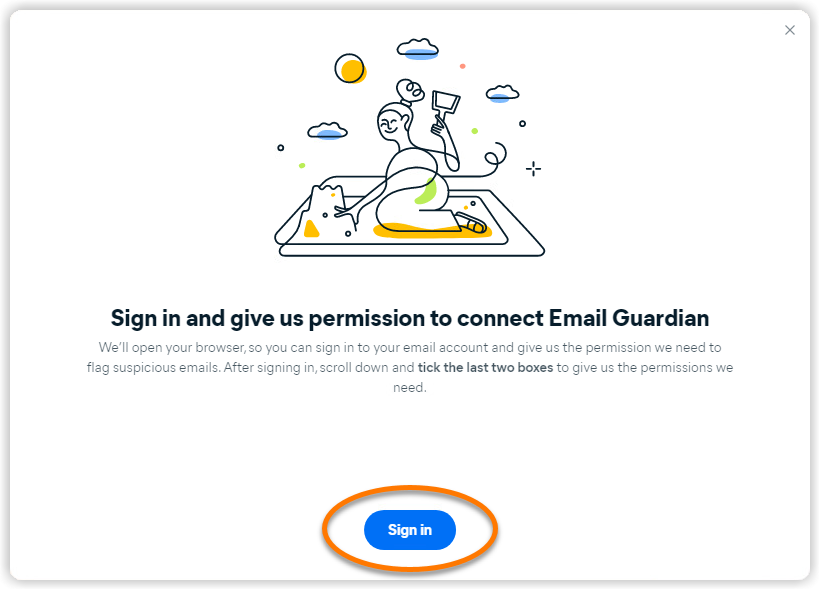
- Click Sign in to open Gmail, then sign in to your Gmail account.
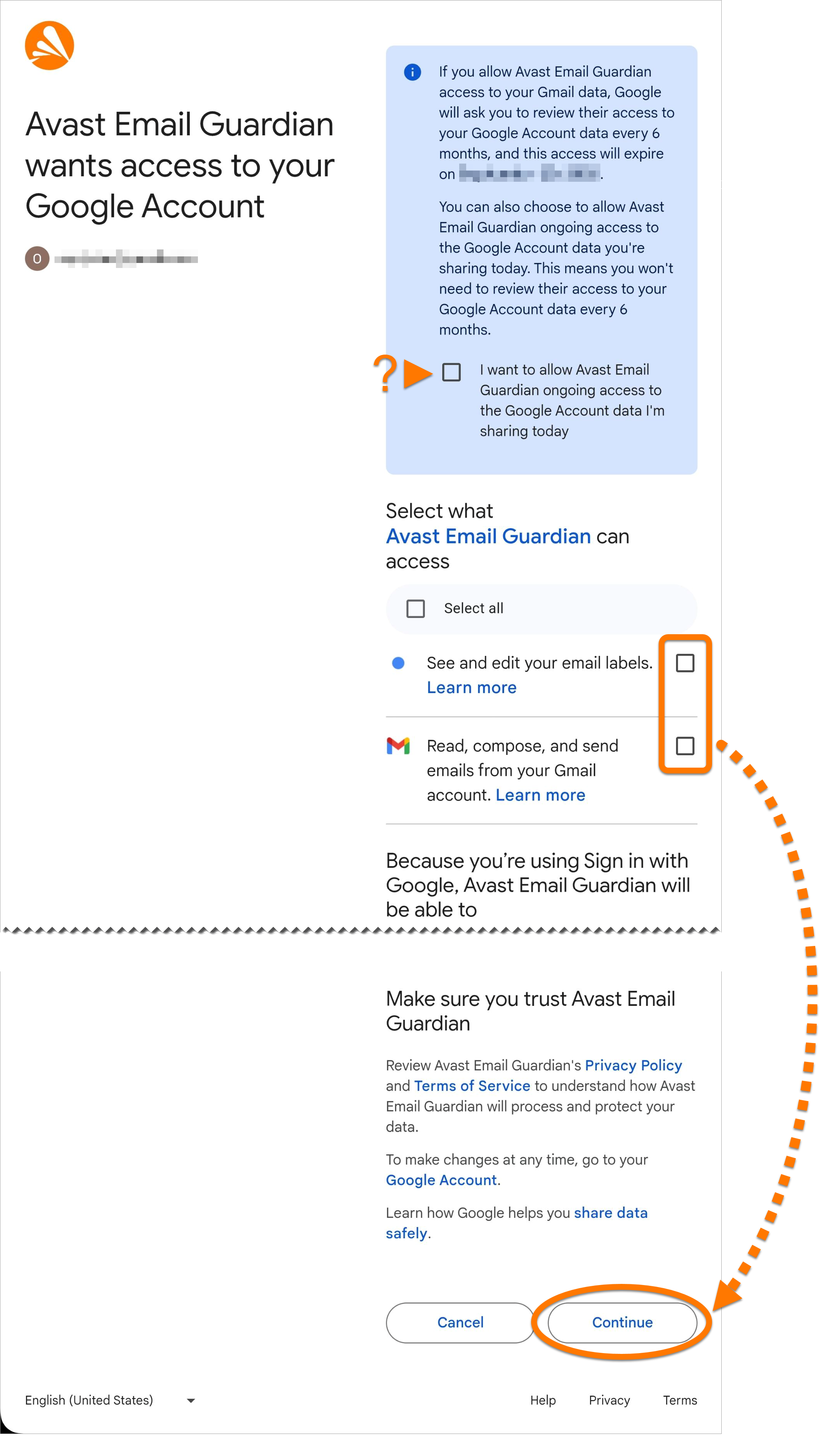
- To configure your mailbox to work with Email Guardian, tick the boxes next to See and edit your email labels and Read, compose, and send emails from your Gmail account, then click Continue.
The Read, compose, and send emails from your Gmail account permission is a requirement in Google API rules for third-party apps. To be able to check emails for suspicious content and assign a corresponding label, this permission needs to be granted.
- Click Got it.
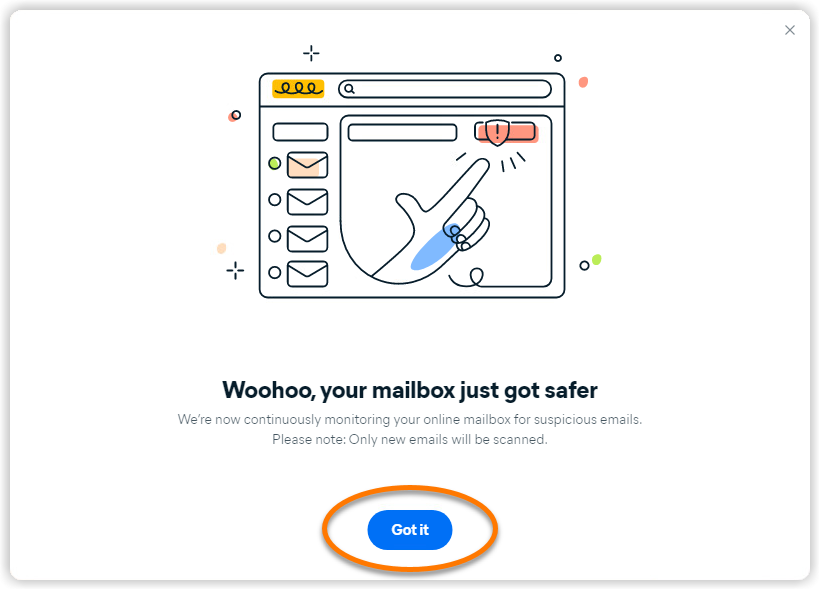
Email Guardian is now monitoring the email account.
Google has changed its policies for applications listed under the email reporting and monitoring categories. To protect your account, you need to renew Gmail access every six months.
When your Gmail access expires, you receive an email to the email address that was protected, as well as an alert in the Email Guardian section of your Avast Antivirus application. Follow the provided instructions to renew your Gmail access.
Other email providers
For some email providers, you need to set up your email account to work with Email Guardian. If your email provider is listed in the table below, click the relevant link to follow the instructions on your email provider's support website. After setting up your email account to work with Email Guardian, follow the steps below to complete the process in Avast One.
- If you already set up your email account to work with Email Guardian, then continue with the relevant screen below according to your email provider's requirements:
If you see an error message, click Try again. If the setup continues to fail, click Close, and try again from the beginning using the exact steps in this article. If set up continues to fail, ensure the email address you are trying to add is compatible with Email Guardian, then contact Avast Support for further assistance.
- App-specific password: Enter your app-specific password, then click Continue.
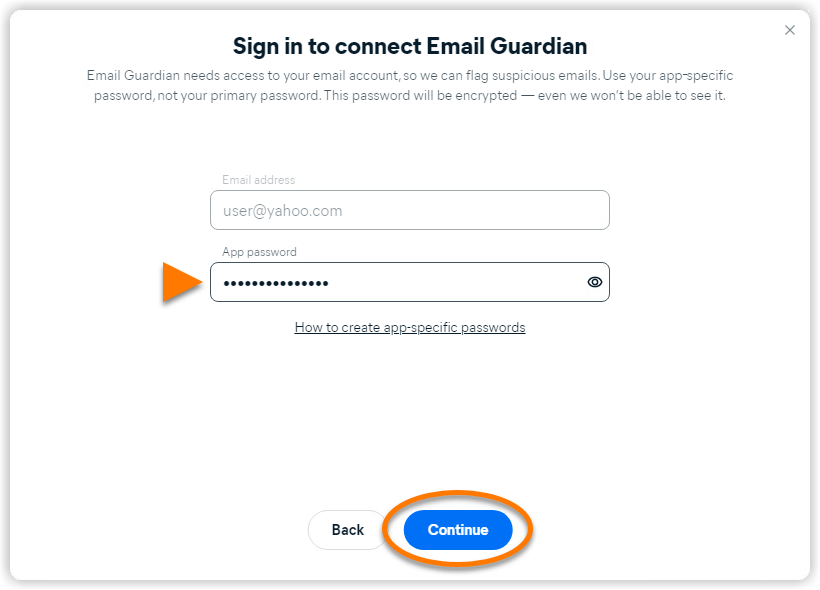
- Email password: Enter your email password, then click Continue.
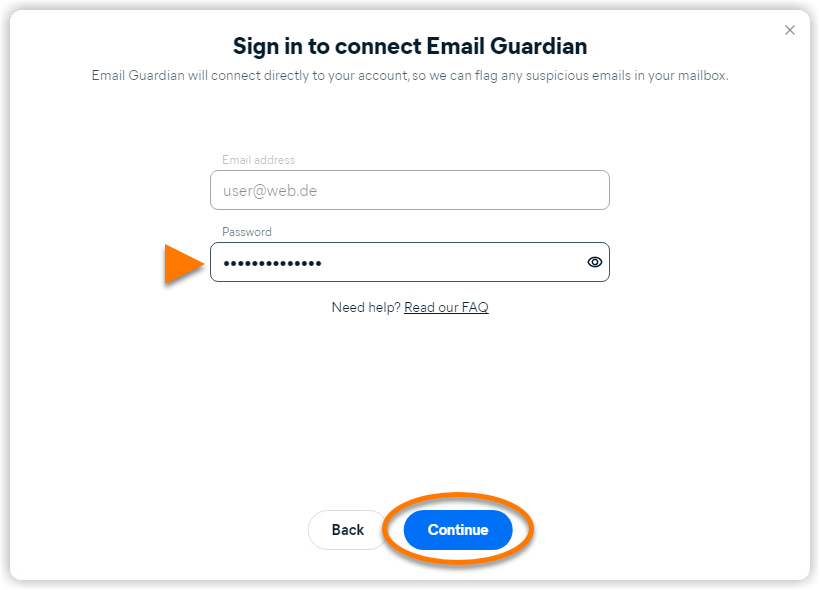
- Click Got it.
Email Guardian is now monitoring the email account.
To add additional email accounts, click + Add email account on the Email Guardian screen and follow the relevant steps in this article. You can add a maximum of 5 email accounts to Email Guardian.
Remove an email account
To stop Email Guardian from monitoring an email account:
- Open Avast One and select Explore ▸ Email Guardian, then click Open Email Guardian.
- Under Protected mailboxes, hover your cursor over the relevant email account and click the X icon.
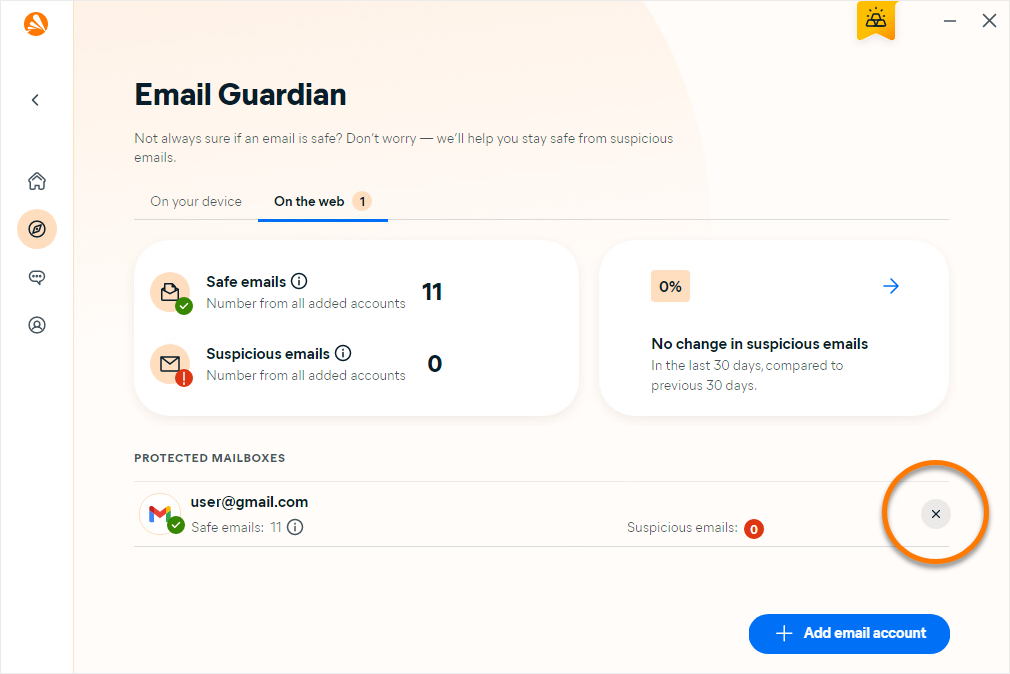
- Click Yes, remove.
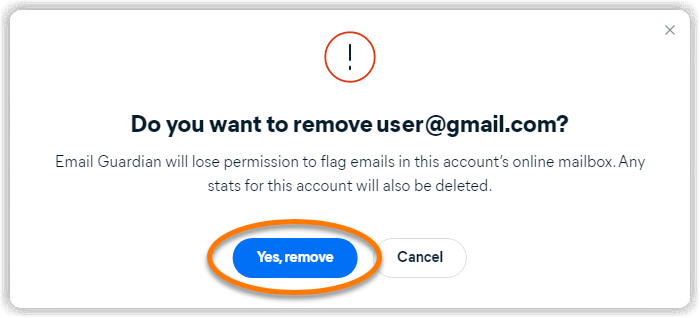
Your email account is now removed from Email Guardian and is no longer monitored for malicious or phishing emails.
Protect emails on your device
Email Guardian scans for malware in emails sent or received through any email client application installed on your Windows device, including Microsoft Outlook and Mozilla Thunderbird. This feature is enabled by default in all versions of Avast One, including the free version (Avast One Basic).
To ensure Email Guardian is monitoring your email client applications:
- Open Avast One and select Explore ▸ Email Guardian, then click Open Email Guardian.
- Select the On your device tab and ensure the slider is green (ON).
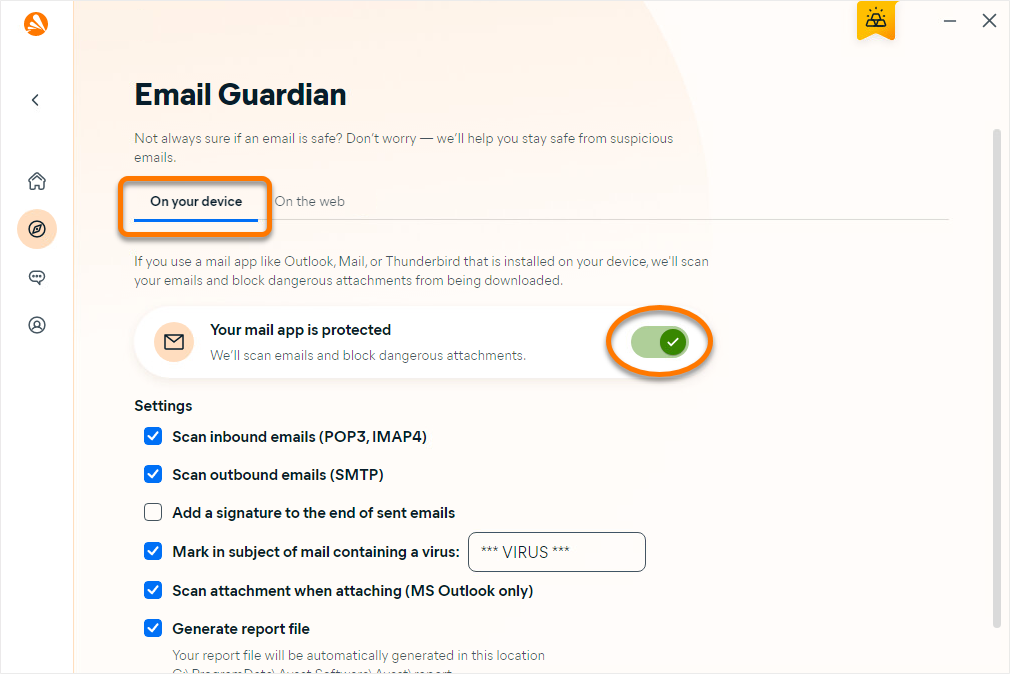
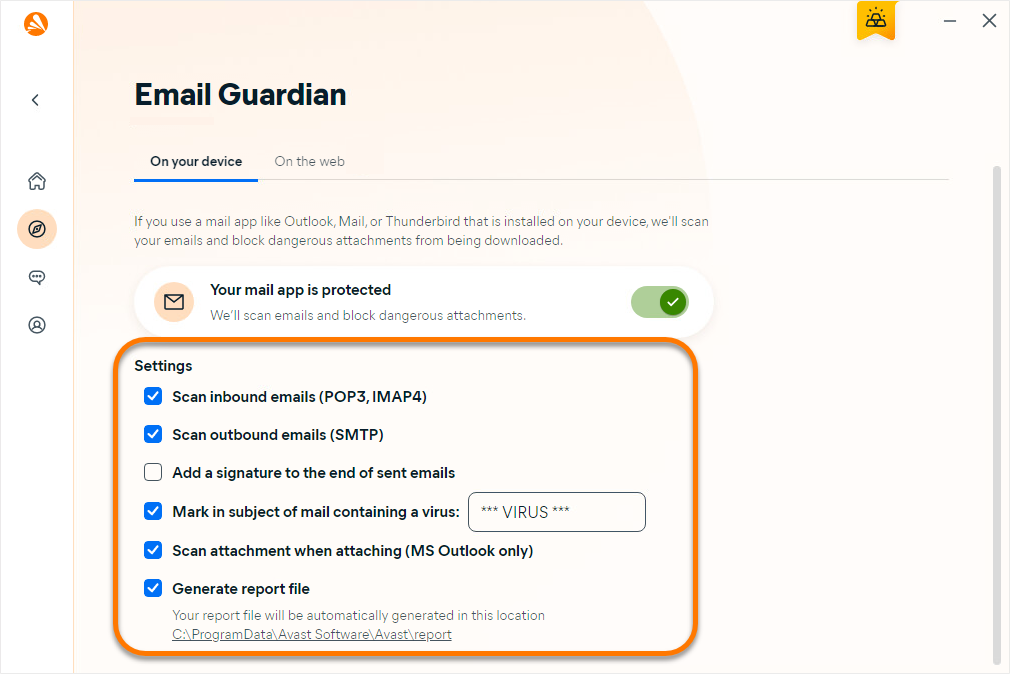
- Optionally, configure Email Guardian settings that help protect the email applications on your device.
This article is about the Email Guardian feature in the legacy version of Avast One. For information about Email Guard in the the new version of Avast One, refer to the following article: New Avast One Email Guard - Getting Started.
Protect emails online
Email Guardian scans incoming emails directly in up to 5 online email accounts, enhancing your safety when checking emails from any device or browser. To use this feature, you need a paid version of Avast One (Avast One Silver Device Protection or Avast One Gold).
To monitor your email accounts online:
- Open Avast One and select
 Explore ▸ Email Guardian, then click Open Email Guardian.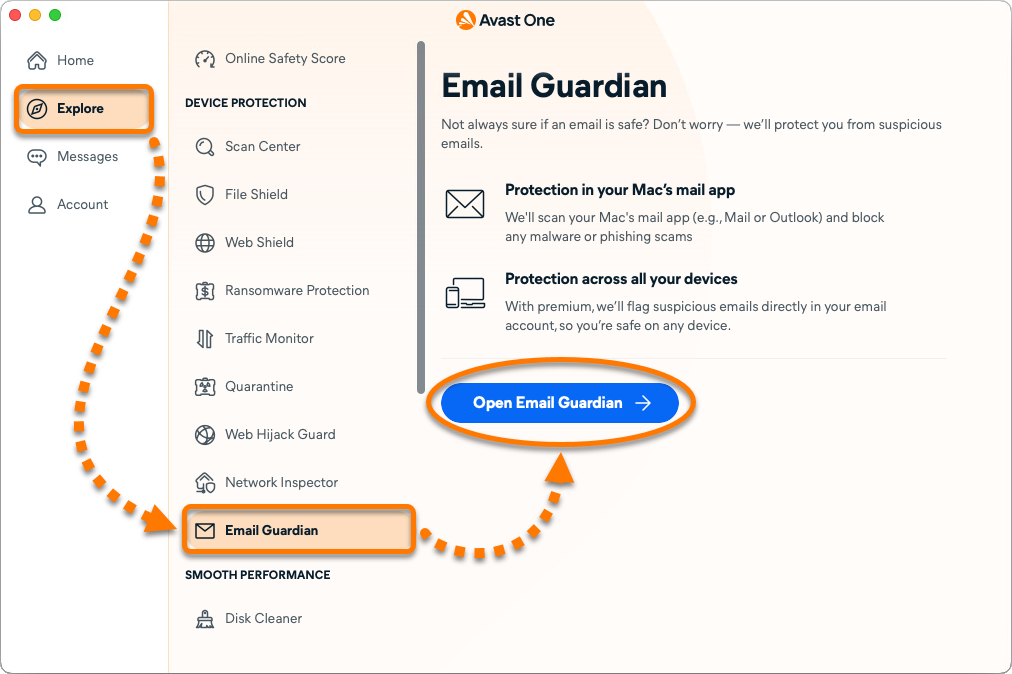
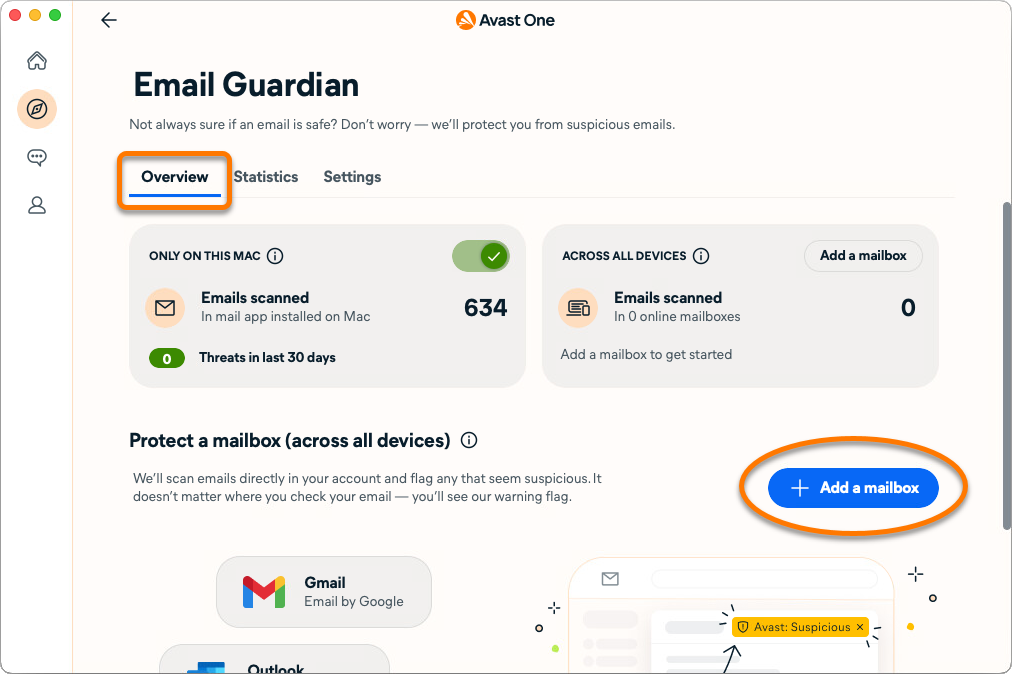
- Ensure the Overview tab is selected, then click + Add a mailbox.
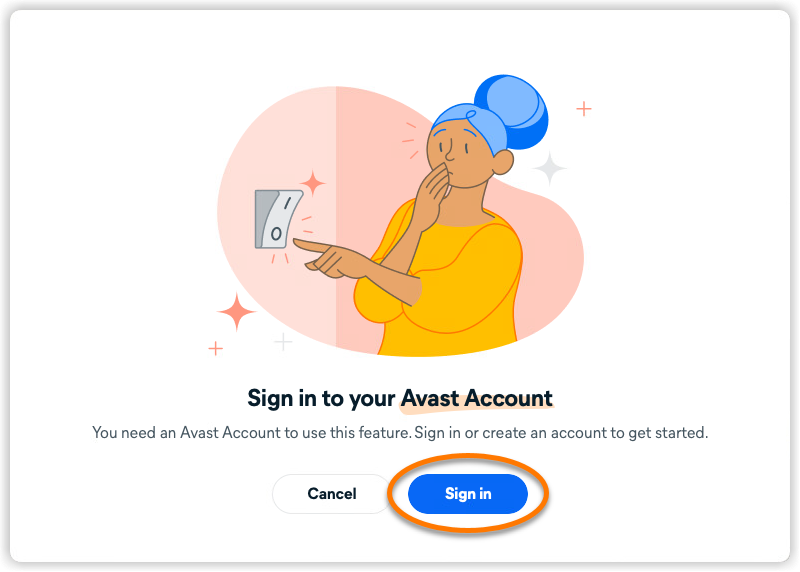
- Click Sign in if you are not already signed in to your Avast Account.
- Enter your email address, then click Sign in.
If you see the error message Sorry, we can't connect to that account yet, your email account is currently not compatible with Email Guardian. However, we are working on adding supported email providers.
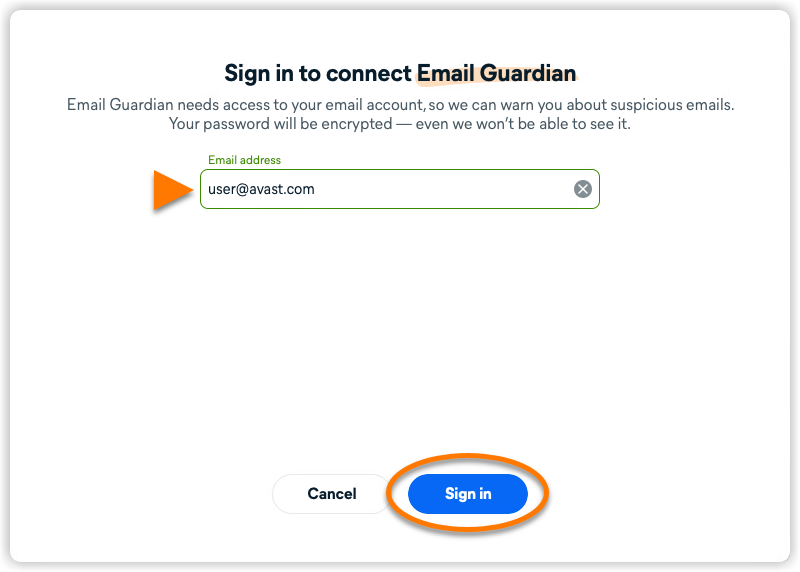
Select the relevant option below for instructions to connect your email account:
Gmail
- Sign in to your Gmail email account.
- To configure your mailbox to work with Email Guardian, tick the boxes next to See and edit your email labels and Read, compose, and send emails from your Gmail account, then click Continue.
The Read, compose, and send emails from your Gmail account permission is a requirement in Google API rules for third-party apps. To be able to check emails for suspicious content and assign a corresponding label, this permission needs to be granted.
- Click Got it.
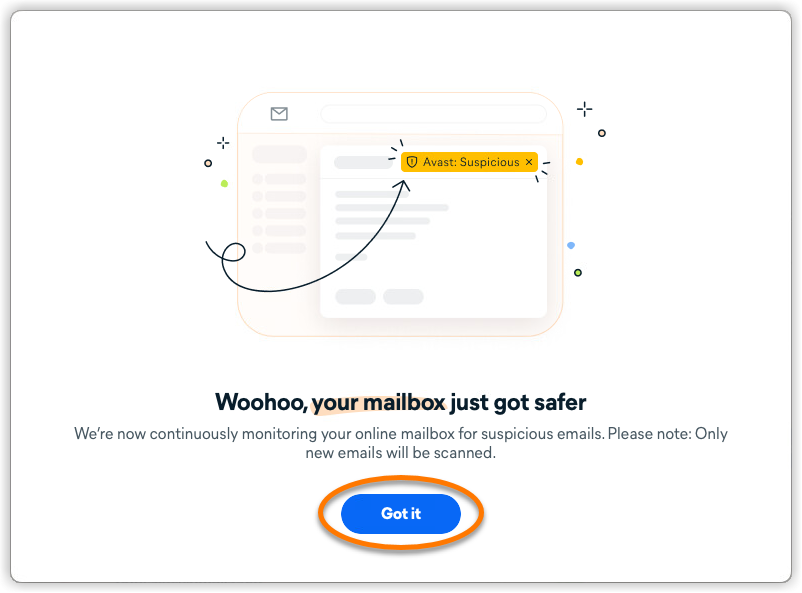
Email Guardian is now monitoring the email account.
Google has changed its policies for applications listed under the email reporting and monitoring categories. To protect your account, you need to renew Gmail access every six months.
When your Gmail access expires, you receive an email to the email address that was protected, as well as an alert in the Email Guardian section of your Avast Antivirus application. Follow the provided instructions to renew your Gmail access.
Outlook
- Sign in to your Outlook account.
- Click Accept to give Avast permission to Let this app access your info?.
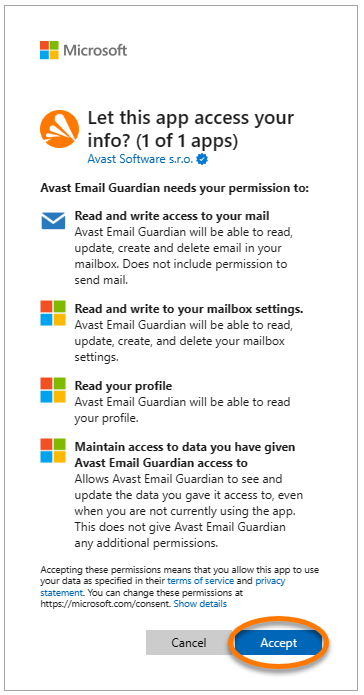
- Click Got it.
Email Guardian is now monitoring the email account.
Other email providers
For some email providers, you need to set up your email account to work with Email Guardian. If your email provider is listed in the table below, click the relevant link to follow the instructions on your email provider's support website. After setting up your email account to work with Email Guardian, follow the steps below to complete the process in Avast One.
- If you already set up your email account to work with Email Guardian, then continue with the relevant screen below according to your email provider's requirements:
If you see an error message, click Try again. If the setup continues to fail, click Close, and try again from the beginning using the exact steps in this article. If set up continues to fail, ensure the email address you are trying to add is compatible with Email Guardian, then contact Avast Support for further assistance.
- App-specific password: Enter your app-specific password, then click Sign in.
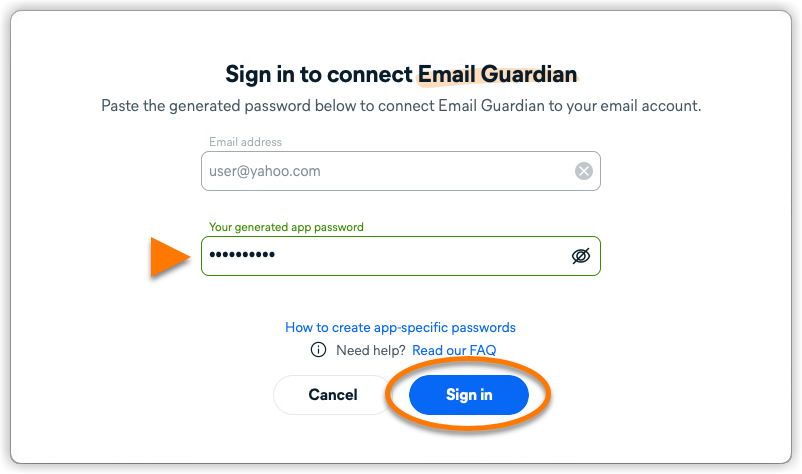
- Email password: Enter your email password, then click Sign in.
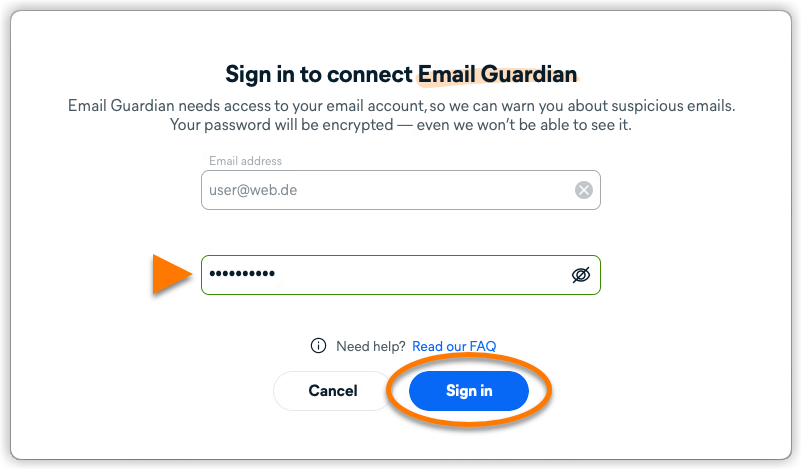
- Click Got it.
Email Guardian is now monitoring the email account.
To add additional email accounts, click + Add a mailbox on the Email Guardian screen and follow the relevant steps in this article. You can add a maximum of 5 email accounts to Email Guardian.
Remove an email account
To stop Email Guardian from monitoring an email account:
- Open Avast One and select Explore ▸ Email Guardian, then click Open Email Guardian.
- Under Protected mailboxes, hover your cursor over the relevant email account and click the X icon.
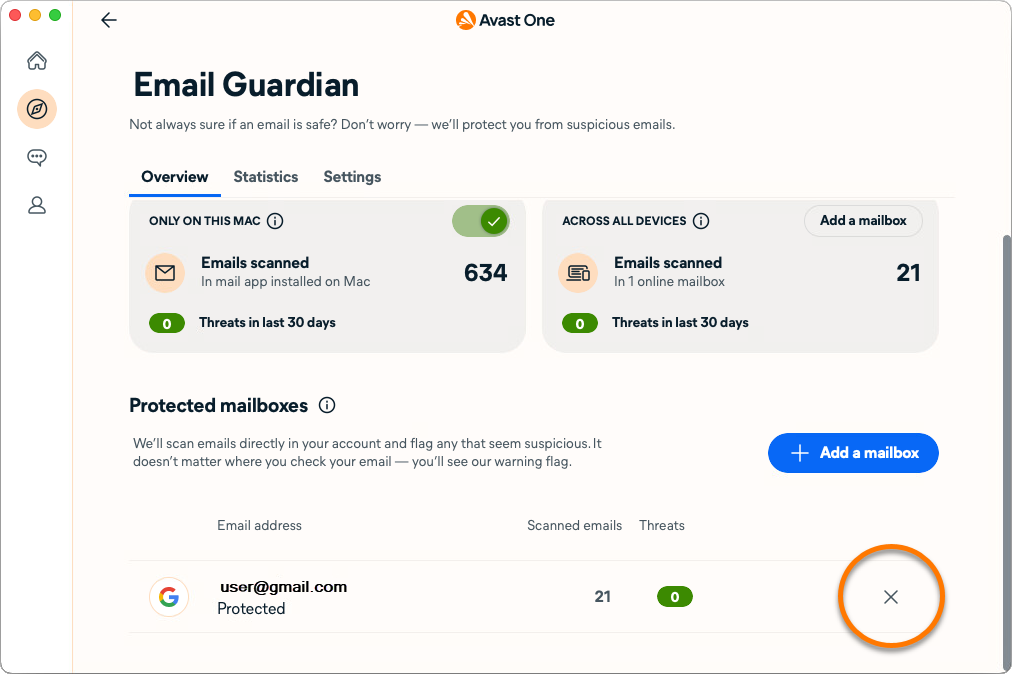
- Click Yes, stop monitoring.
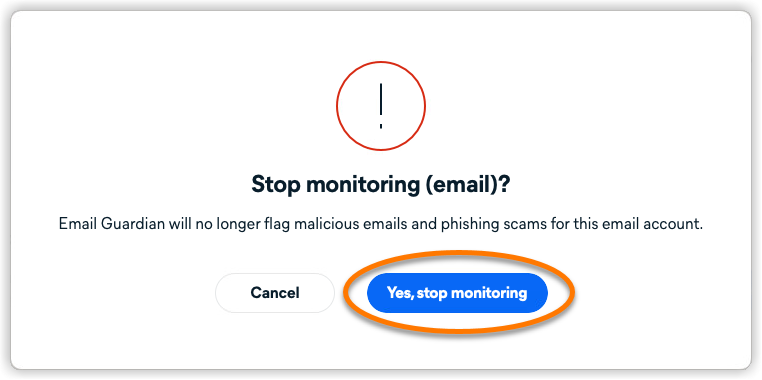
Your email account is now removed from Email Guardian and is no longer monitored for malicious or phishing emails.
Protect emails on your device
Email Guardian scans for malware in emails sent or received through any email client application installed on your Mac, including Apple Mail and Microsoft Outlook. This feature is enabled by default in all versions of Avast One, including the free version (Avast One Basic).
To ensure Email Guardian is monitoring your email client applications:
- Open Avast One and select Explore ▸ Email Guardian, then click Open Email Guardian.
- Select the Overview tab and ensure the slider is green (ON).
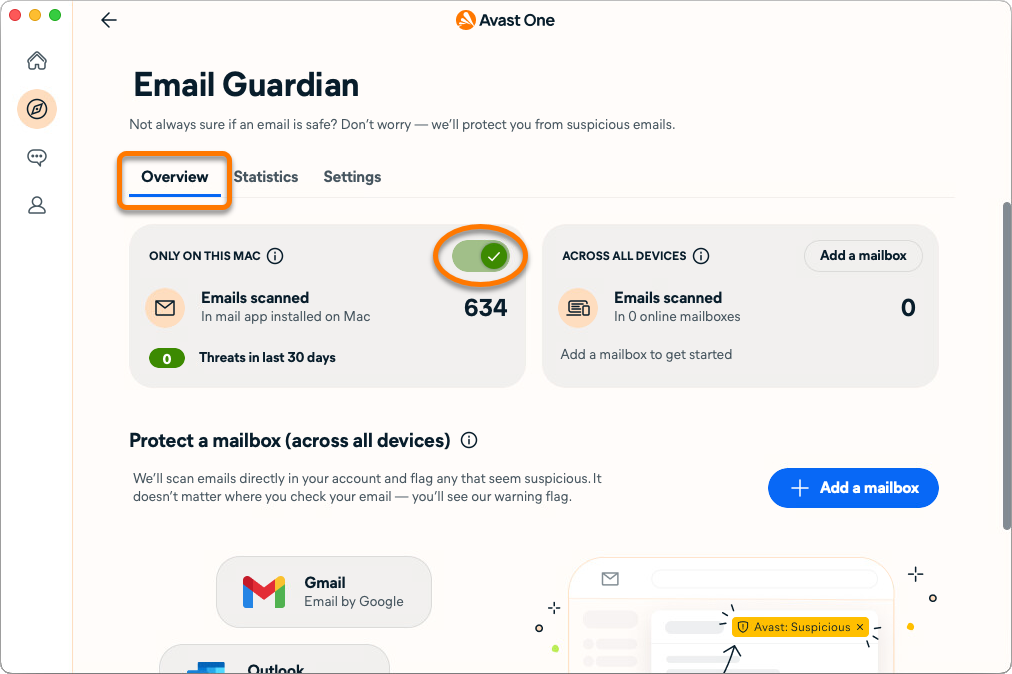
- Optionally, select the Settings tab to configure Email Guardian settings that help protect the email applications on your device.
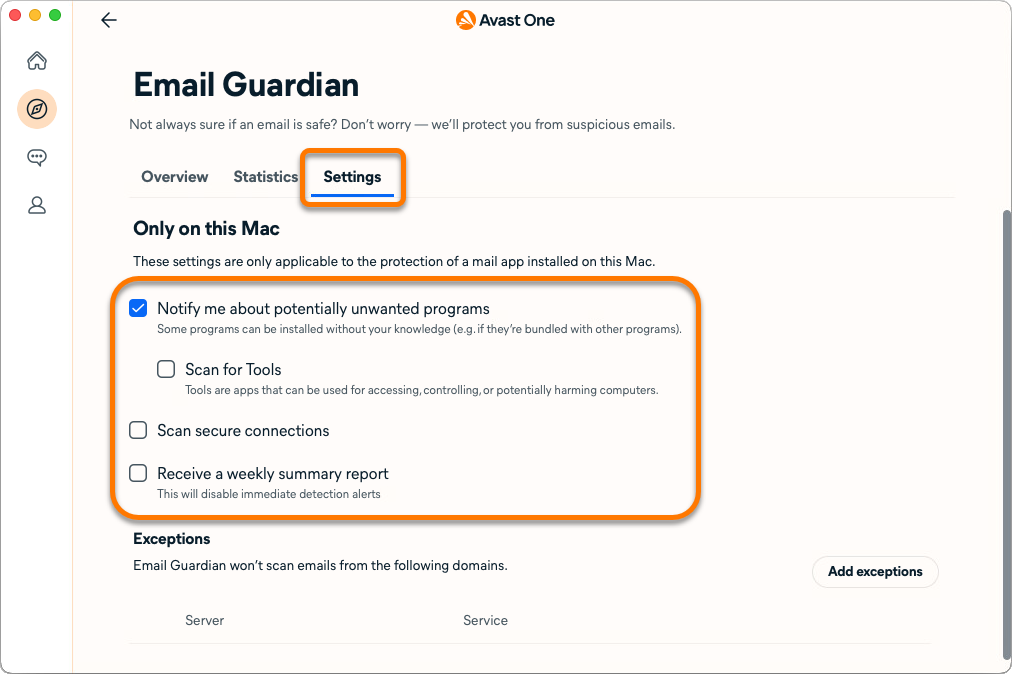
Add exceptions
You can add domains which will be excepted from Email Guardian scans. This applies only for protection of mail applications installed on this Mac.
- Open Avast One and select Explore ▸ Email Guardian, then click Open Email Guardian.
- Select the Settings tab and click Add exceptions.
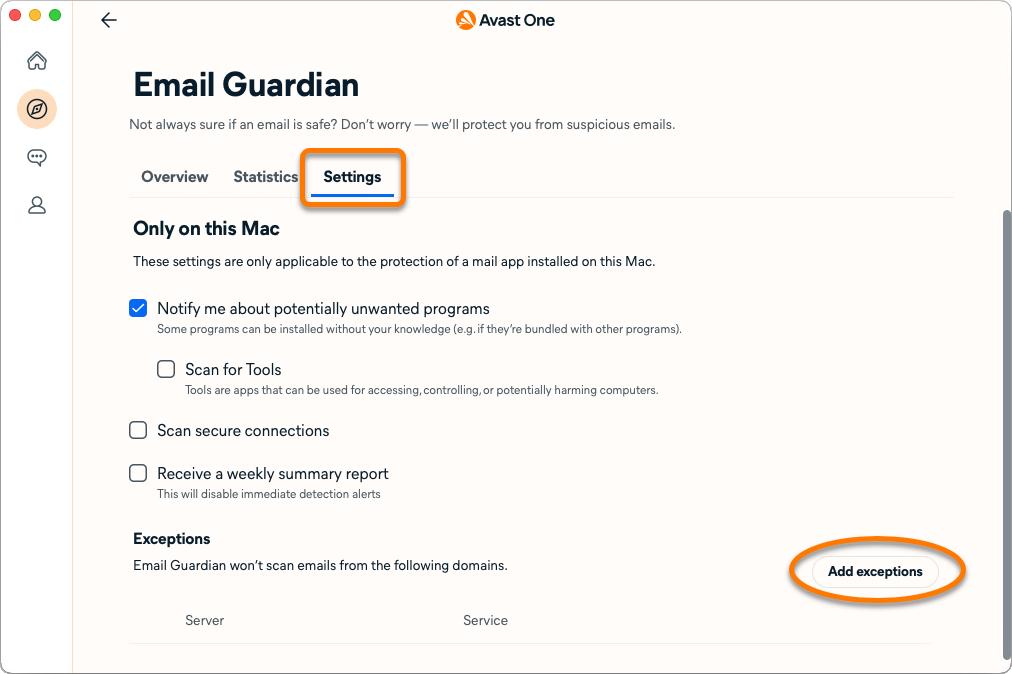
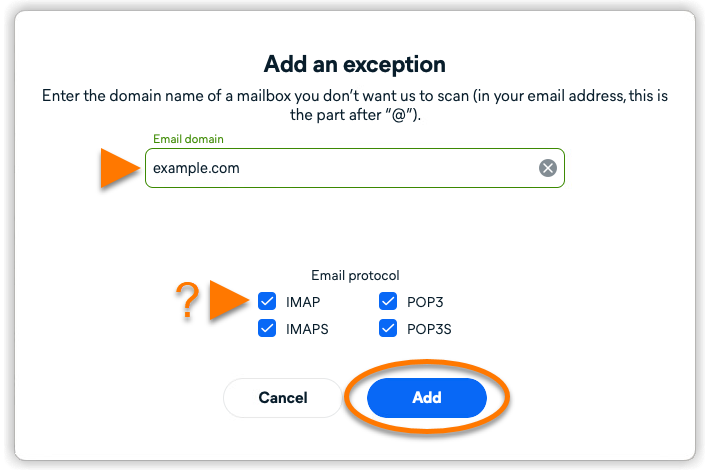
- Enter the domain name you do not want to scan and choose the relevant protocols. Click Add.
To remove a server from the exception list, hover your cursor over the relevant item and click the X icon. 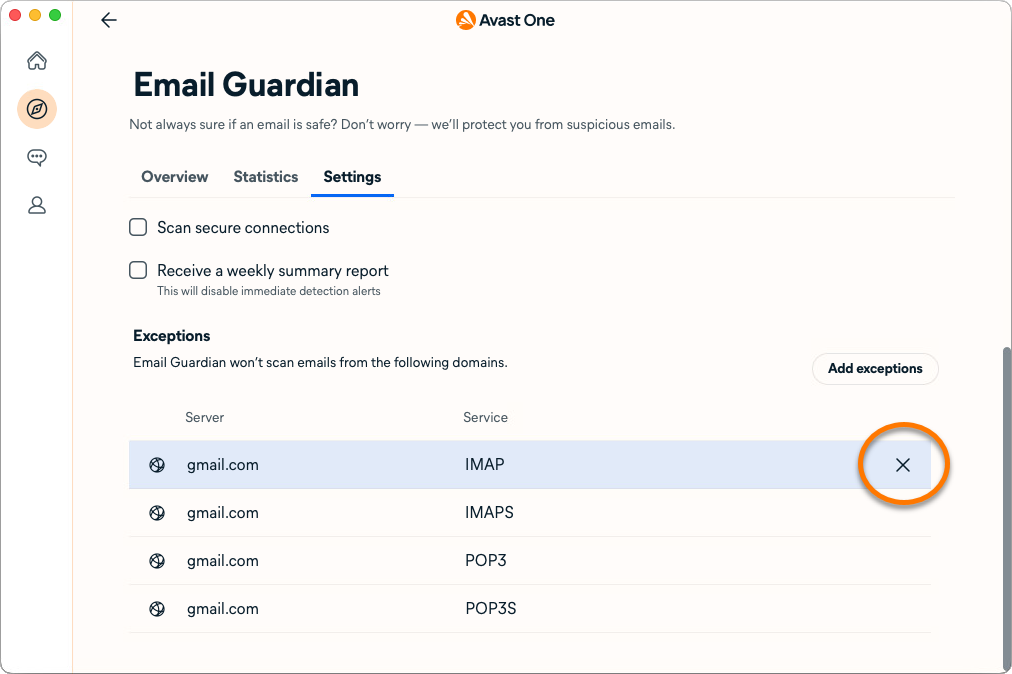
This article is about the Email Guardian feature in the legacy version of Avast One. For information about Email Guard in the the new version of Avast One, refer to the following article: New Avast One Email Guard - Getting Started.
Protect emails online
Email Guardian scans incoming emails directly in up to 5 online email accounts, enhancing your safety when checking emails from any device or browser. To use this feature, you need a paid version of Avast One (Avast One Silver Device Protection or Avast One Gold).
To monitor your email accounts online:
- Tap the Avast One icon on your device. The app opens.

- Tap
 Explore ▸ Email Guardian.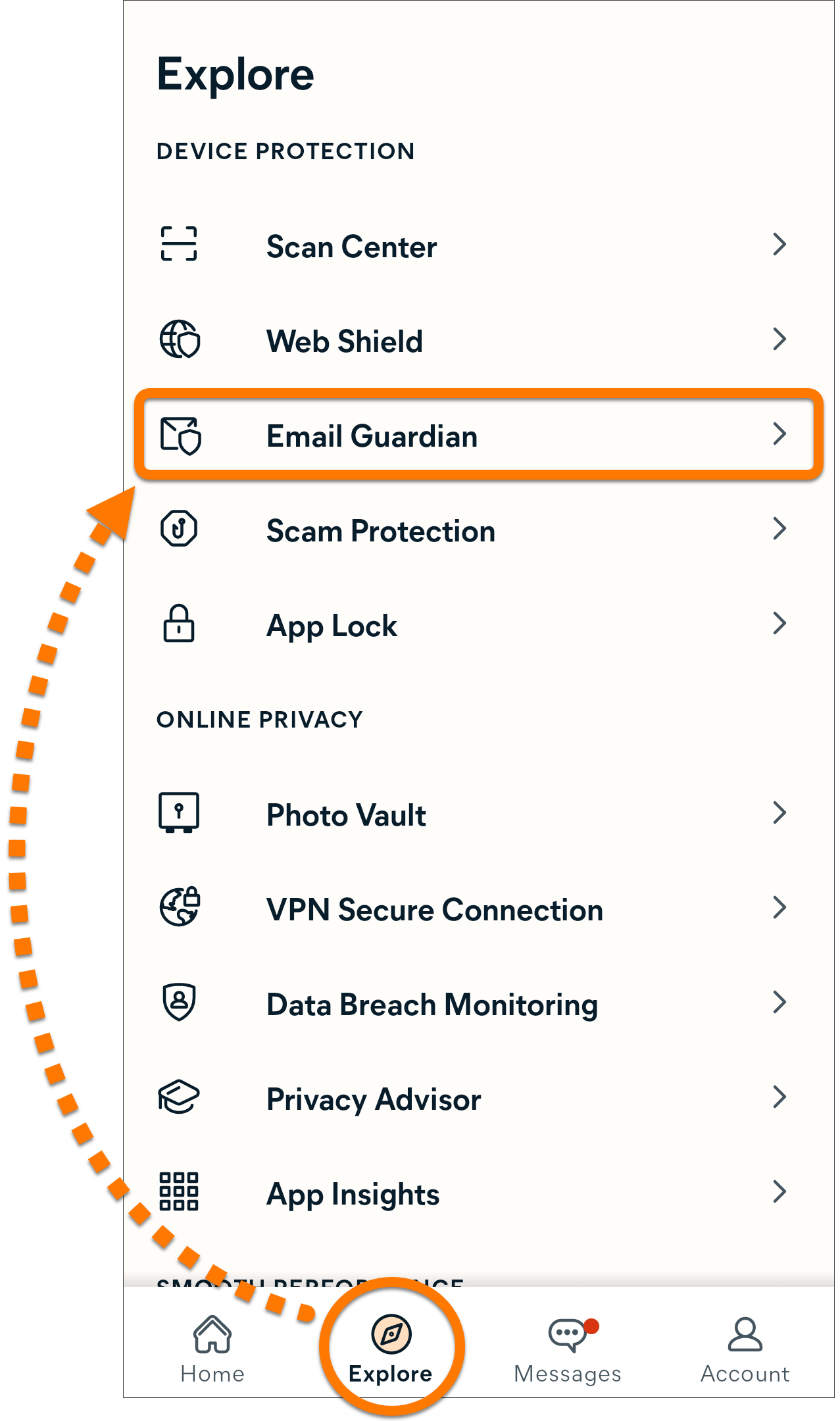
- Tap Next, then tap Add mailbox.
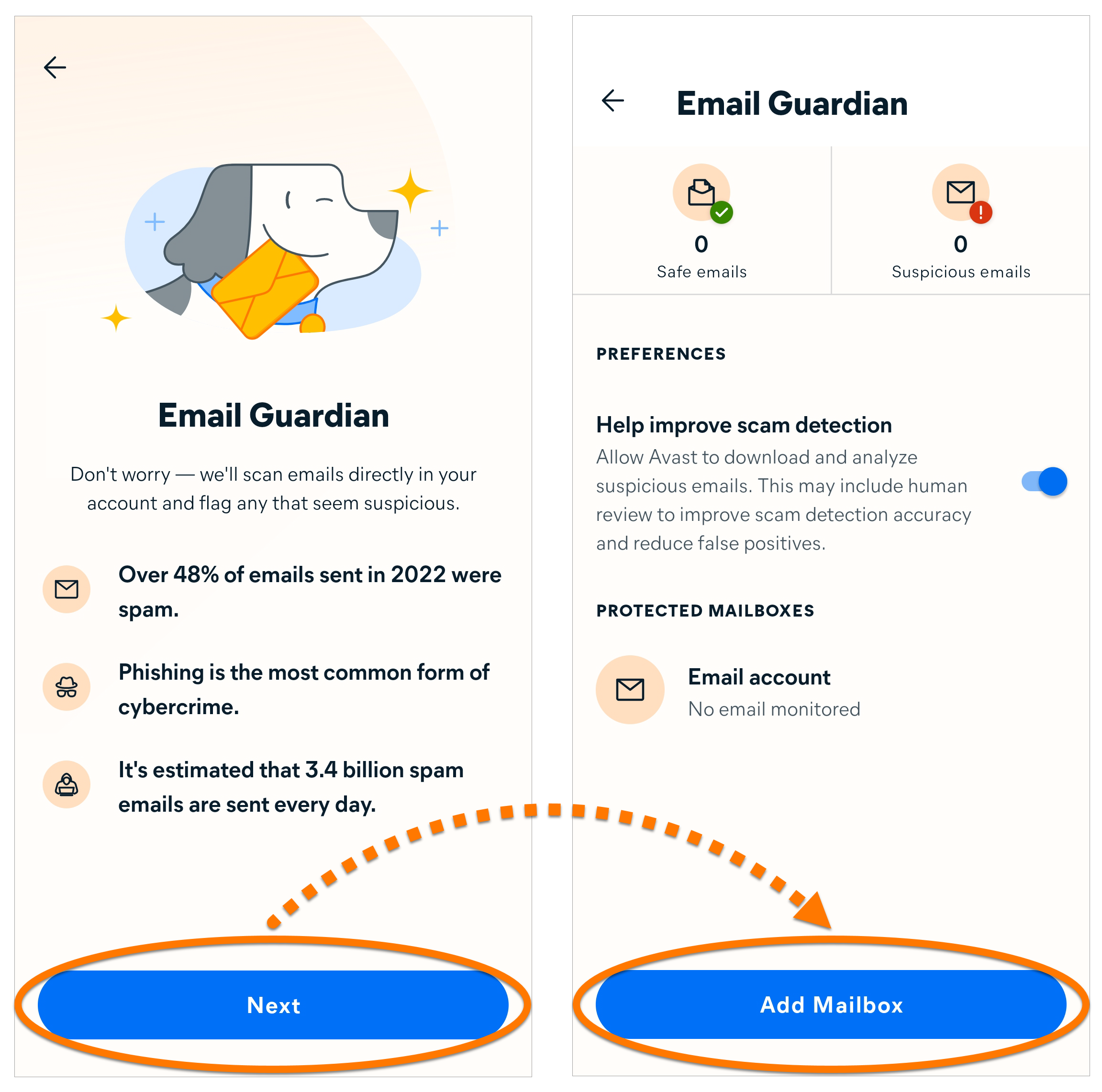
- Enter your email address and tap Continue.
If you see the error message Sorry, we can't connect to that account yet, your email account is currently not compatible with Email Guardian. However, we are working on adding supported email providers.
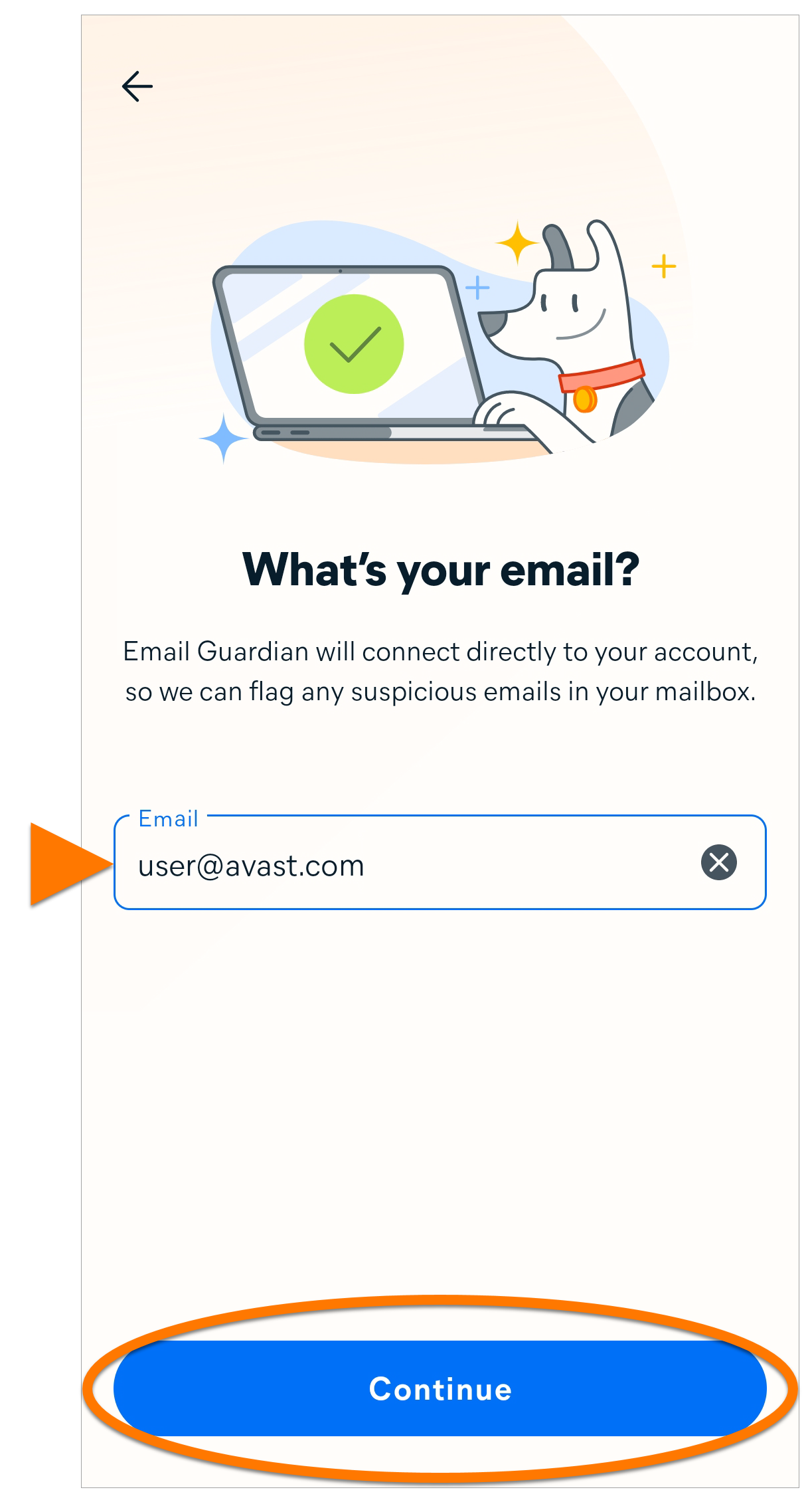
Select the relevant option below for instructions to connect your email account:
Gmail
- Tap Sign in and sign into your email account in the web browser window that appears.
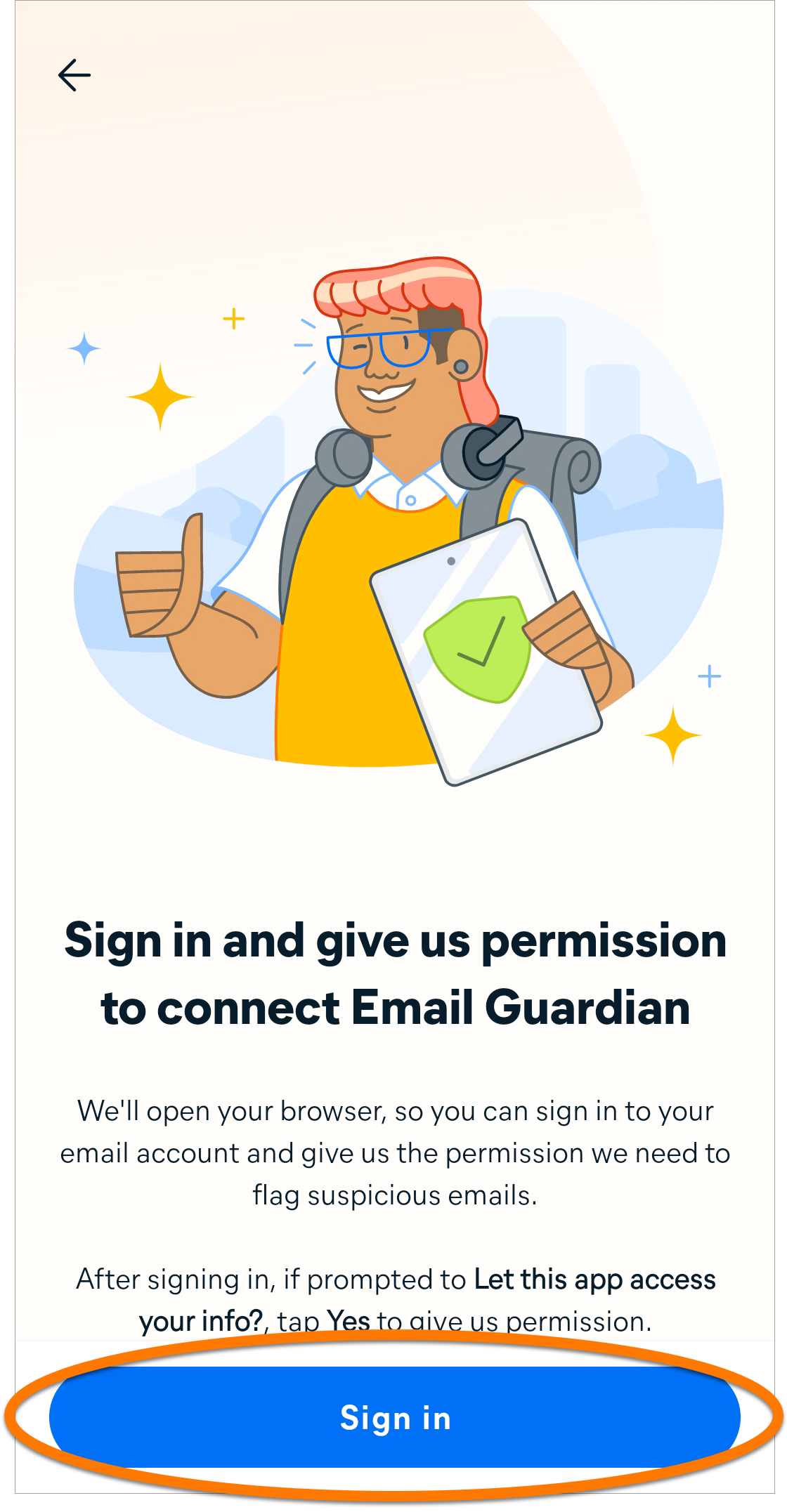
- To configure your mailbox to work with Email Guardian, tick the boxes next to See and edit your email labels and Read, compose, and send emails from your Gmail account, then tap Continue. Optionally, allow Avast Email Guardian ongoing access to Google Account data so that you do not need to review access every 6 months.
The Read, compose, and send emails from your Gmail account permission is a requirement in Google API rules for third-party apps. To be able to check emails for suspicious content and assign a corresponding label, this permission needs to be granted.
- Tap Got it to go back to the main Email Guardian page.
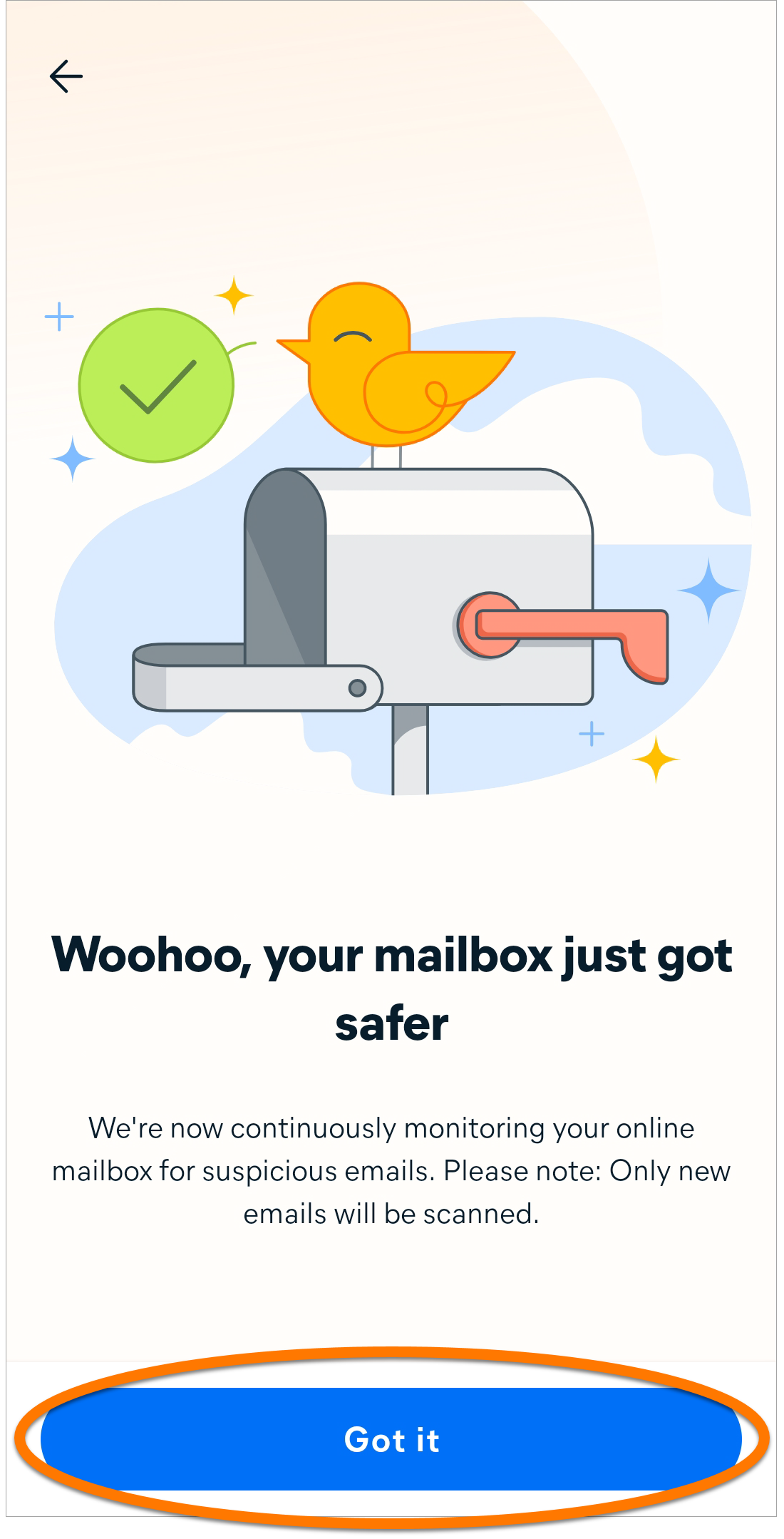
Google has changed its policies for applications listed under the email reporting and monitoring categories. To protect your account, you need to renew Gmail access every six months.
When your Gmail access expires, you receive an email to the email address that was protected, as well as an alert in the Email Guardian section of your Avast Antivirus application. Follow the provided instructions to renew your Gmail access.
Outlook
- Tap Sign in and sign into your email account in the web browser window that appears.
- Tap Accept to give Avast permission to Let this app access your info?.
- Tap Got it to go back to the main Email Guardian page.
Other email providers
For some email providers, you need to set up your email account to work with Email Guardian. If your email provider is listed in the table below, click the relevant link to follow the instructions on your email provider's support website. After setting up your email account to work with Email Guardian, follow the steps below to complete the process in Avast Mobile Security Premium.
- If you already set up your email account to work with Email Guardian, then continue with the relevant screen below according to your email provider's requirements:
If you see an error message, tap Try again. If the setup continues to fail, tap Close, and try again from the beginning using the exact steps in this article. If set up continues to fail, ensure the email address you are trying to add is compatible with Email Guardian, then contact Avast Support for further assistance.
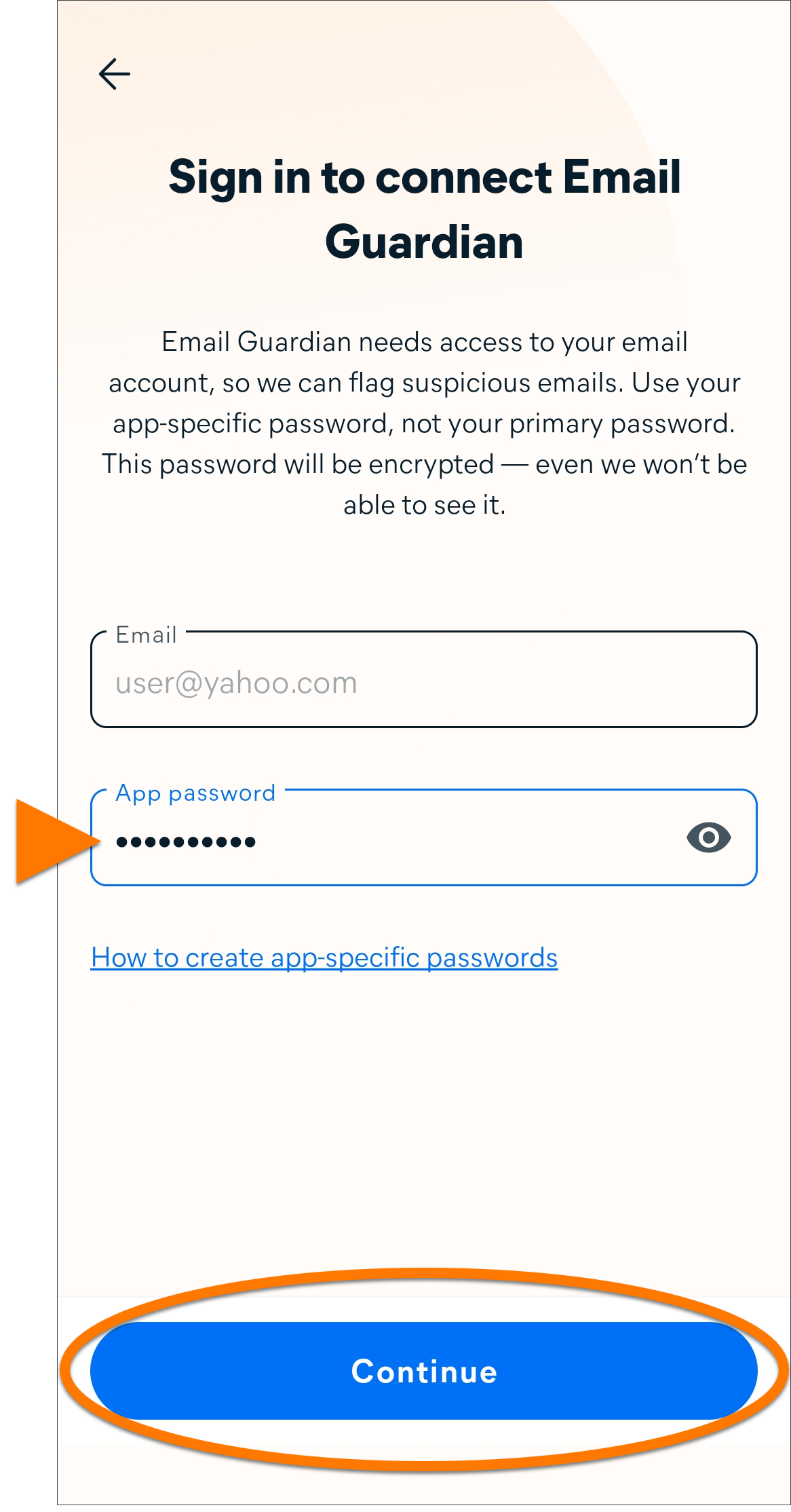
- App-specific password: Enter your app-specific password, then tap Continue.
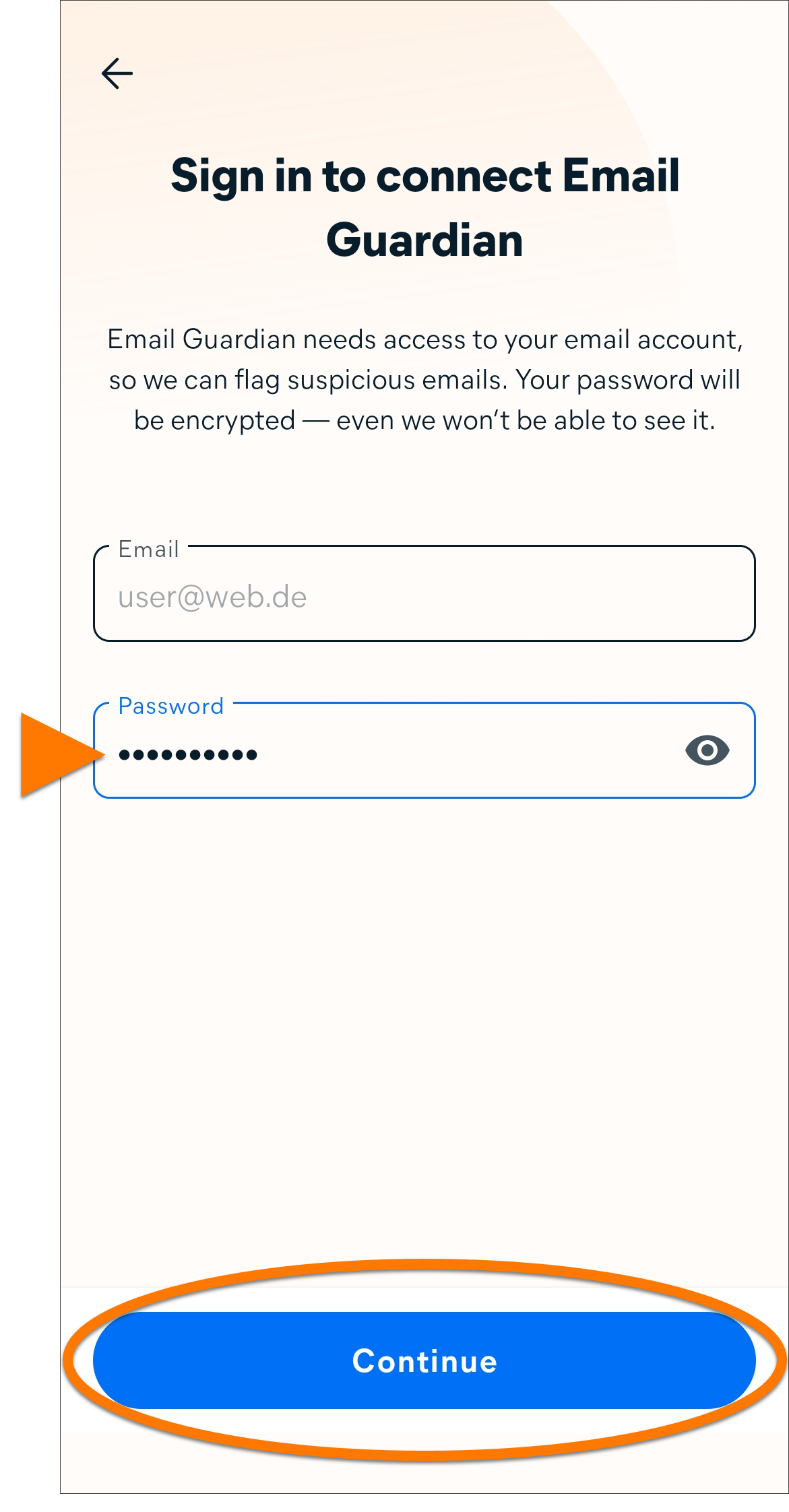
- Email password: Enter your email password, then tap Continue.
- Tap Got it to go back to the main Email Guardian page.
Email Guardian is now monitoring the email account.
To add additional email accounts, click Add Mailbox on the Email Guardian screen and follow the relevant steps in this article. You can add a maximum of 5 email accounts to Email Guardian.
Remove an email account
To stop Email Guardian from monitoring an email account:
- Tap the Avast One icon on your device. The app opens.
- Tap Explore ▸ Email Guardian.
- Tap
 (the trash icon) ▸ Remove.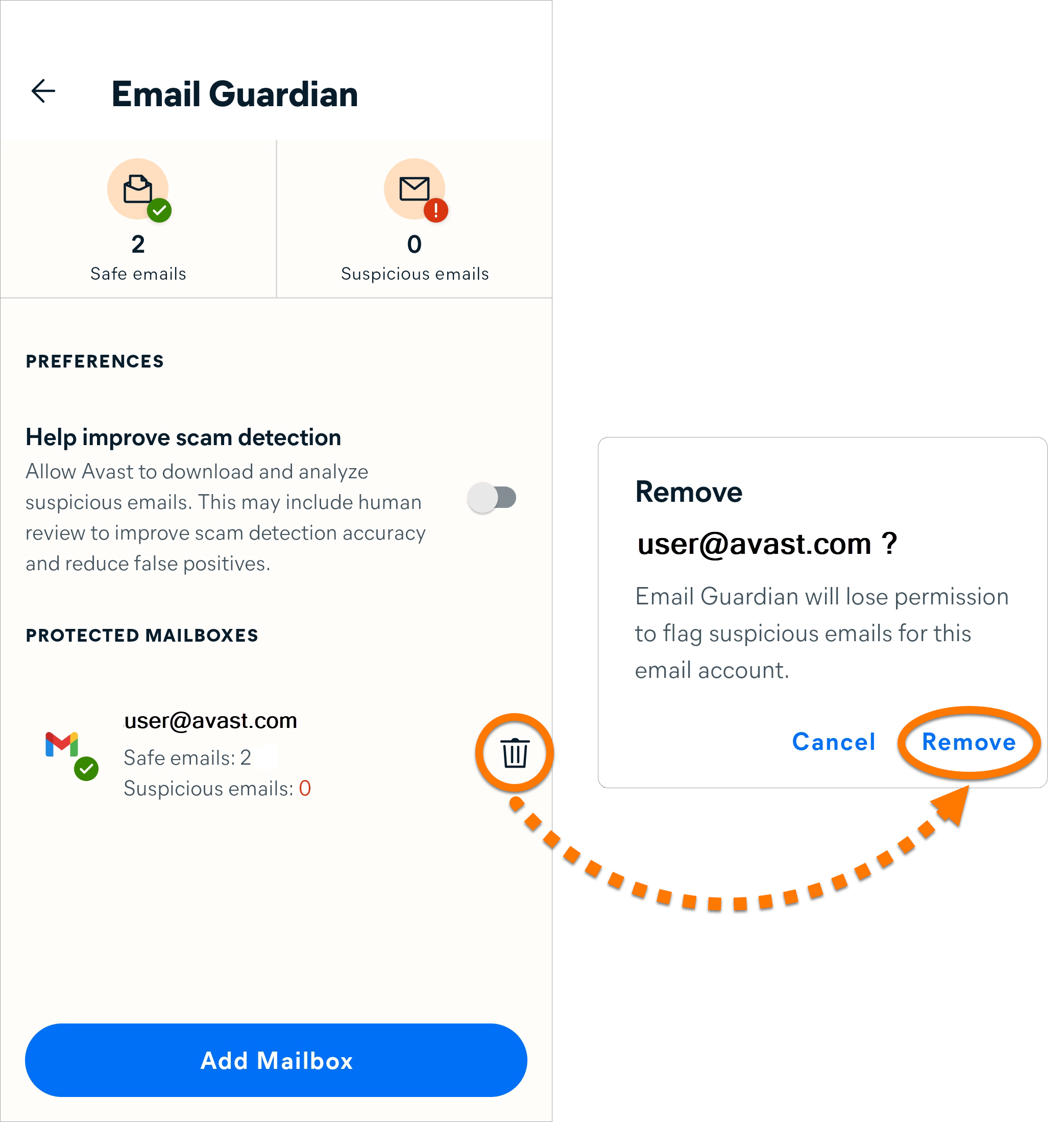
Your email account is now removed from Email Guardian and is no longer monitored for malicious or phishing emails.
This article is about the Email Guardian feature in the legacy version of Avast One. For information about Email Guard in the the new version of Avast One, refer to the following article: New Avast One Email Guard - Getting Started.
Protect emails online
Email Guardian scans incoming emails directly in up to 5 online email accounts, enhancing your safety when checking emails from any device or browser. To use this feature, you need a paid version of Avast One (Avast One Silver Device Protection or Avast One Gold).
To monitor your email accounts online:
- Tap the Avast One icon on your device. The app opens.
- Tap Explore ▸ Email Guardian.
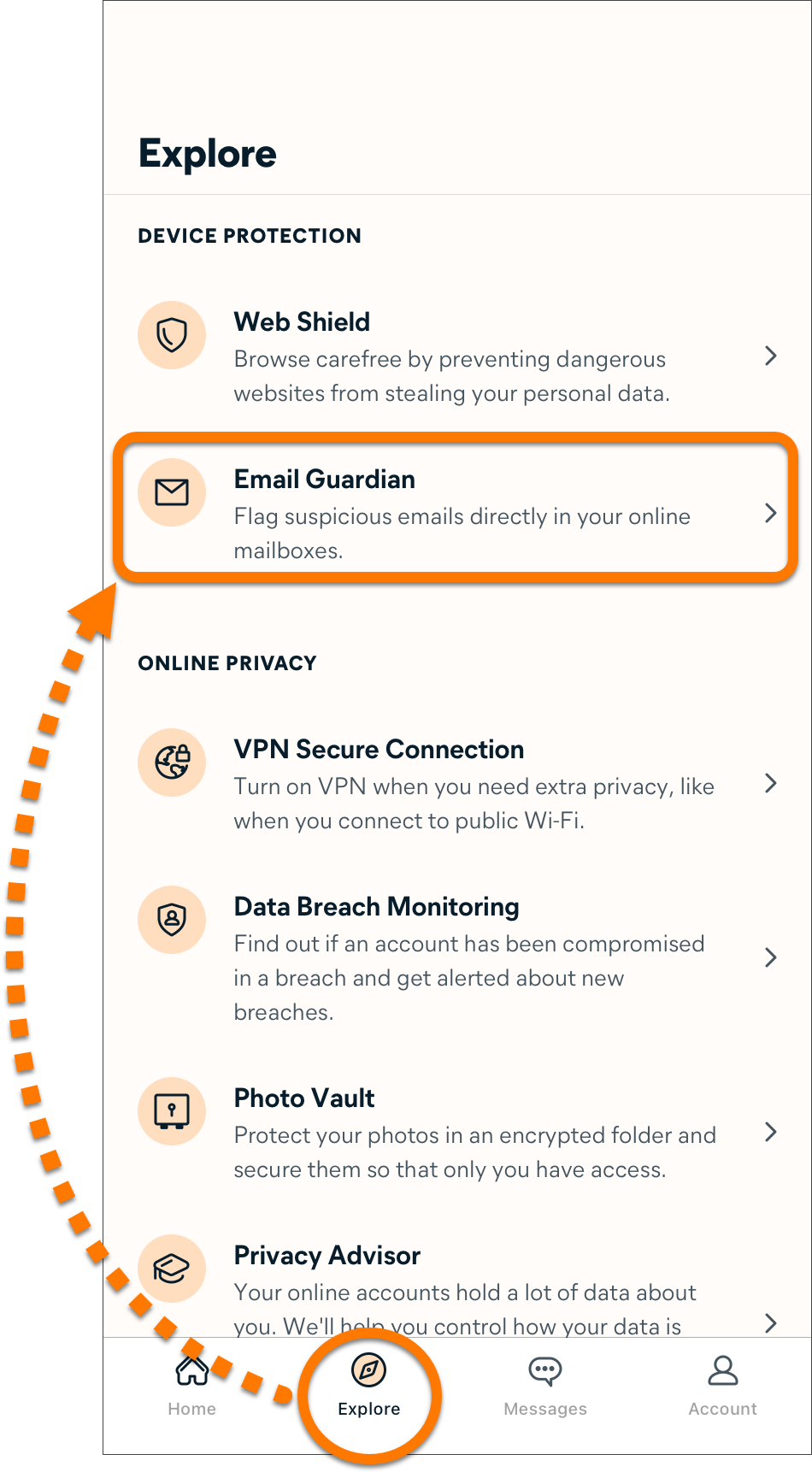
- Tap Next, then tap Add mailbox.
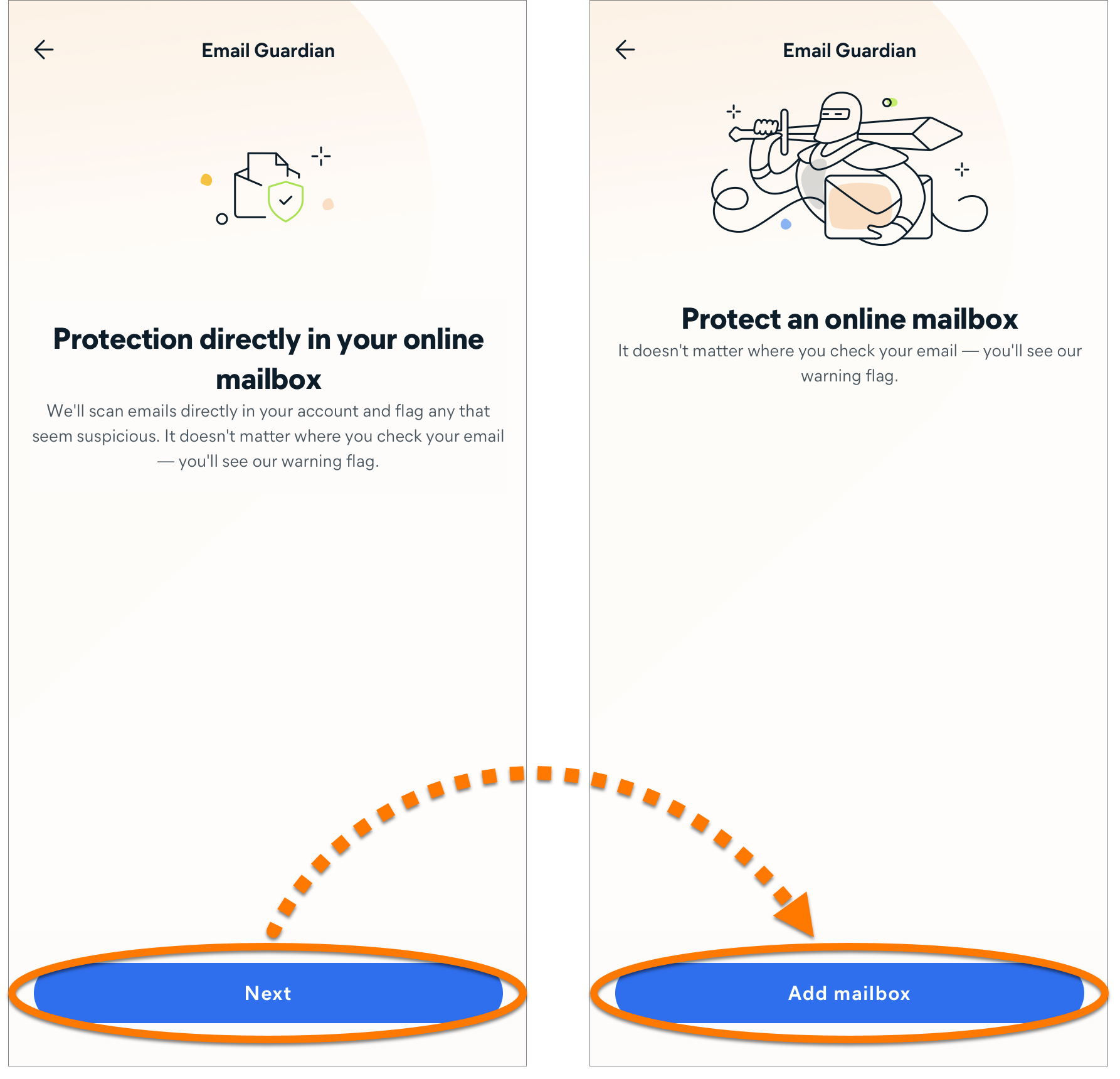
- Enter your email address and tap Continue.
If you see the error message Sorry, we can't connect to that account yet, your email account is currently not compatible with Email Guardian. However, we are working on adding supported email providers.
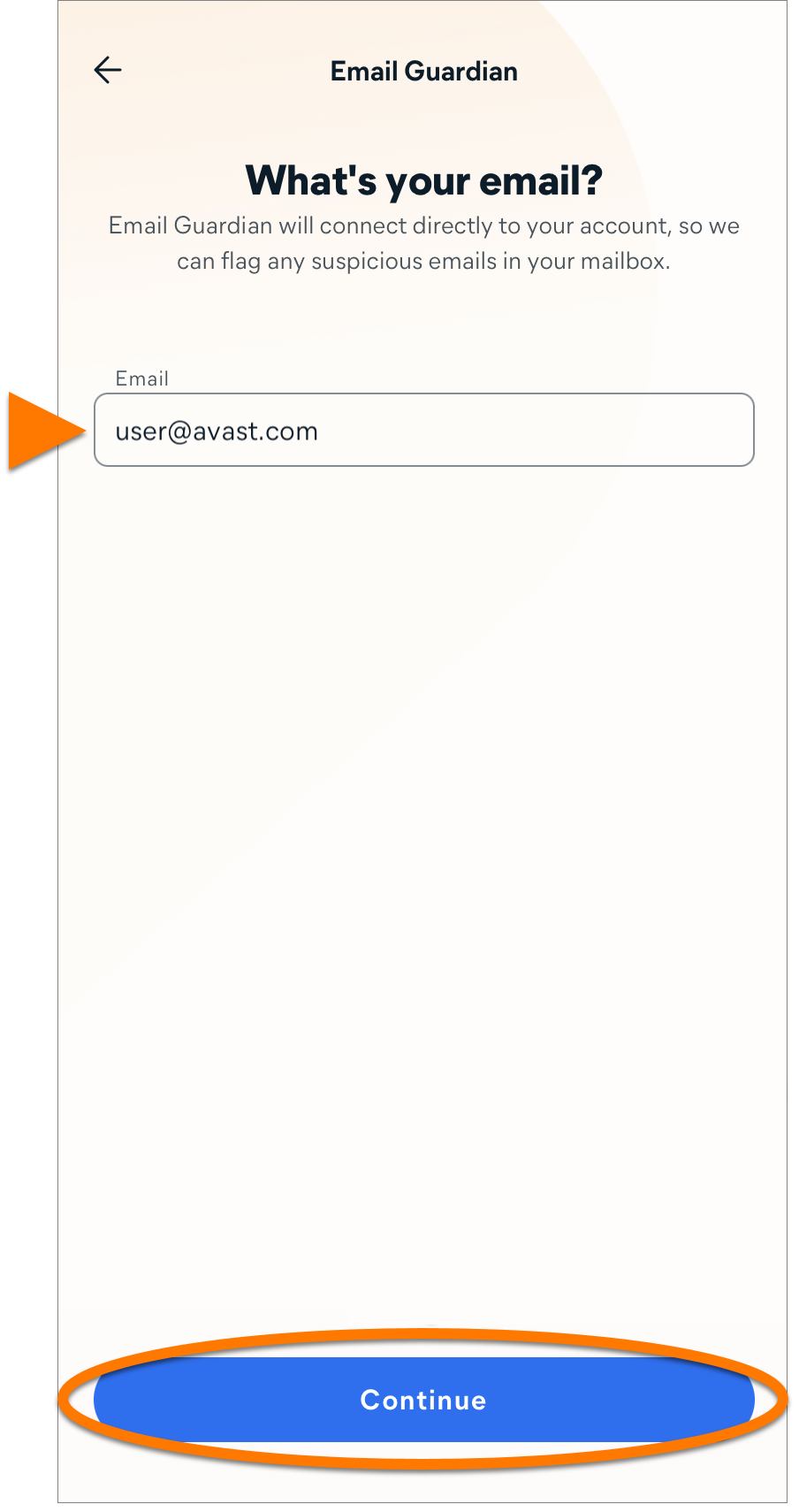
Select the relevant option below for instructions to connect your email account:
Gmail
- Tap Sign in and sign into your email account in the web browser window that appears.
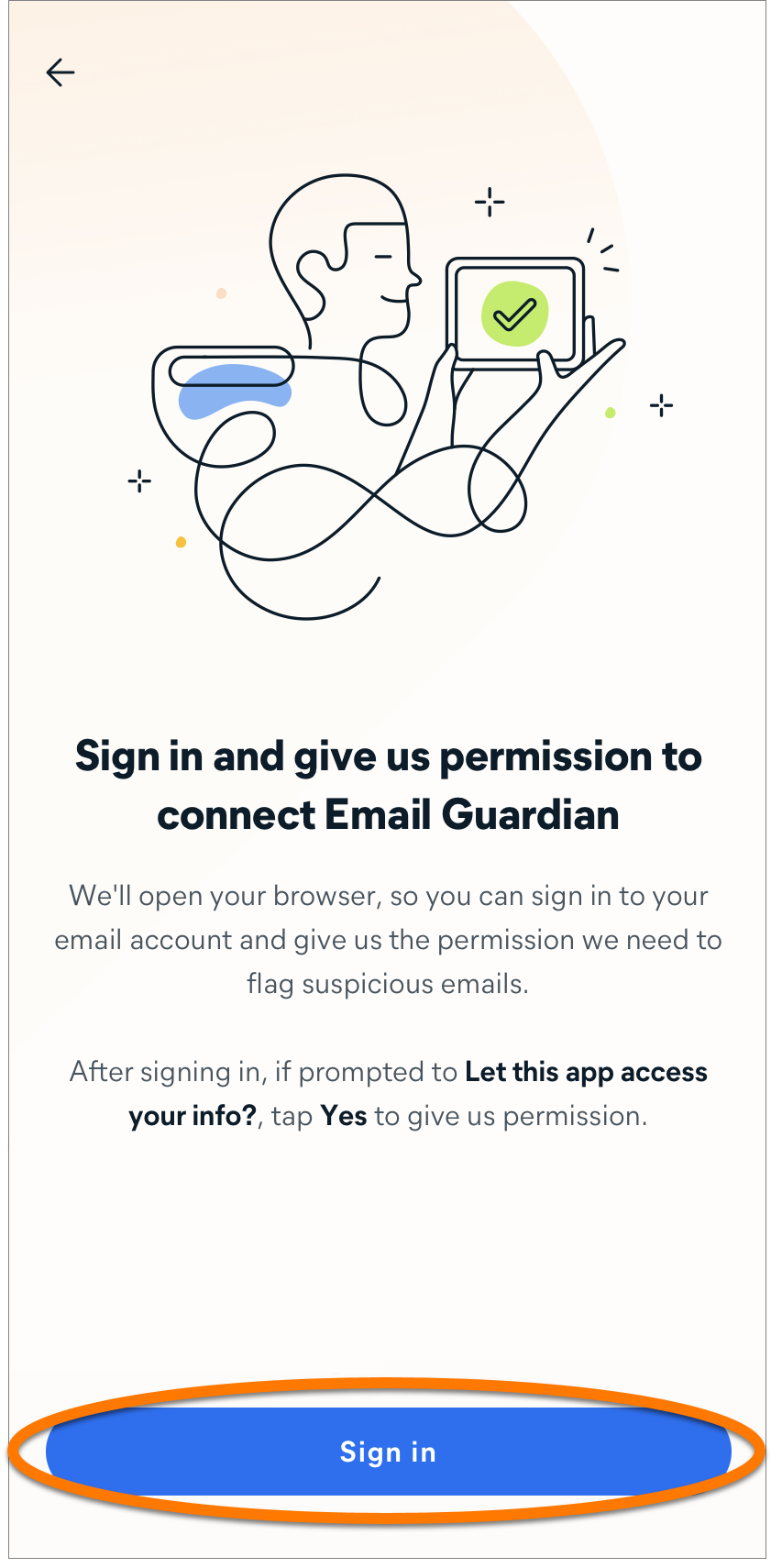
- To configure your mailbox to work with Email Guardian, tick the boxes next to See and edit your email labels and Read, compose, and send emails from your Gmail account, then tap Continue.
The Read, compose, and send emails from your Gmail account permission is a requirement in Google API rules for third-party apps. To be able to check emails for suspicious content and assign a corresponding label, this permission needs to be granted.
- Tap Got it to go back to the main Email Guardian page.
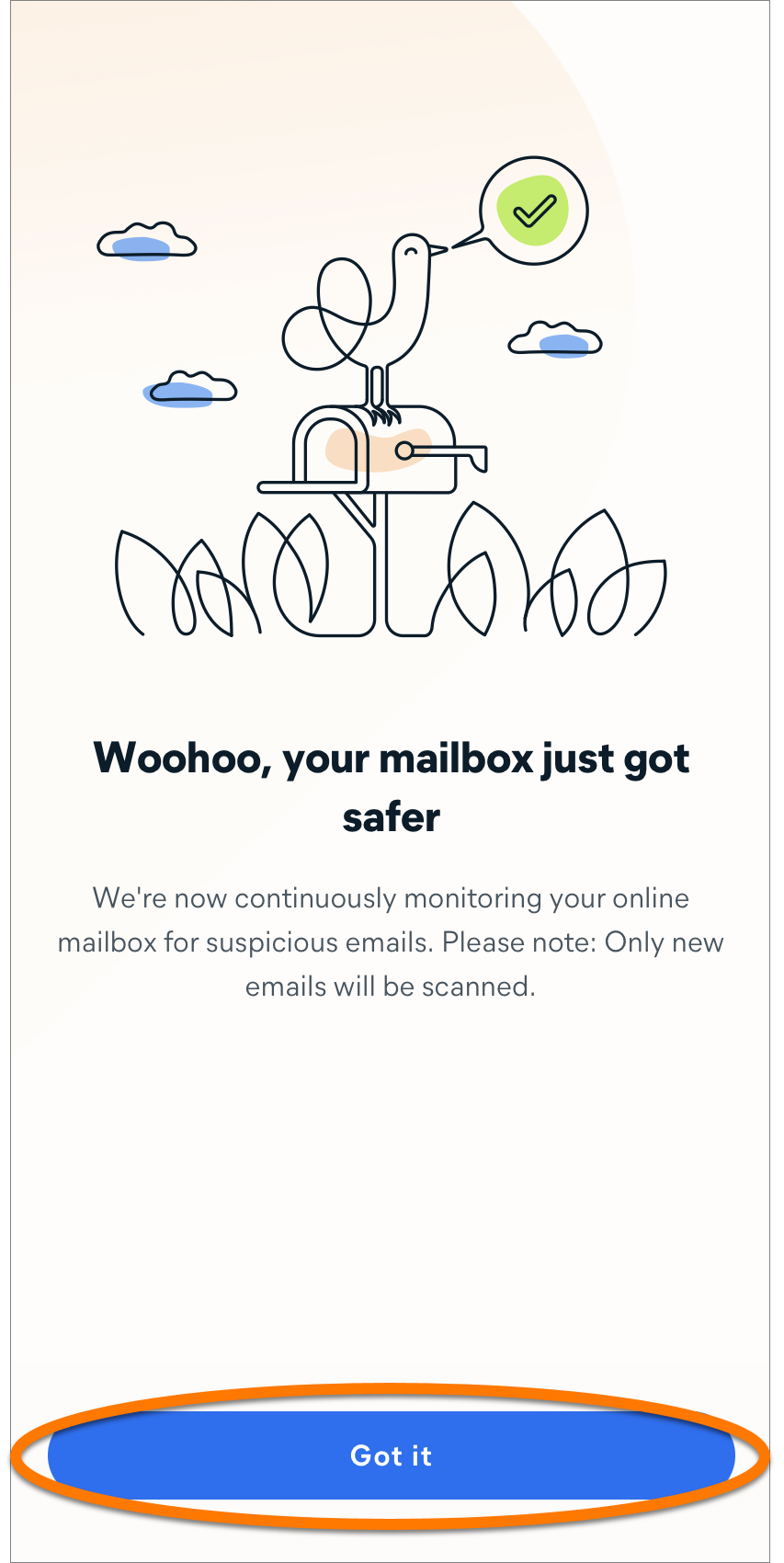
Google has changed its policies for applications listed under the email reporting and monitoring categories. To protect your account, you need to renew Gmail access every six months.
When your Gmail access expires, you receive an email to the email address that was protected, as well as an alert in the Email Guardian section of your Avast Antivirus application. Follow the provided instructions to renew your Gmail access.
Outlook
- Tap Sign in and sign into your email account in the web browser window that appears.
- Tap Accept to give Avast permission to Let this app access your info?.
- Tap Got it to go back to the main Email Guardian page.
Other email providers
For some email providers, you need to set up your email account to work with Email Guardian. If your email provider is listed in the table below, click the relevant link to follow the instructions on your email provider's support website. After setting up your email account to work with Email Guardian, follow the steps below to complete the process in Avast Mobile Security Premium.
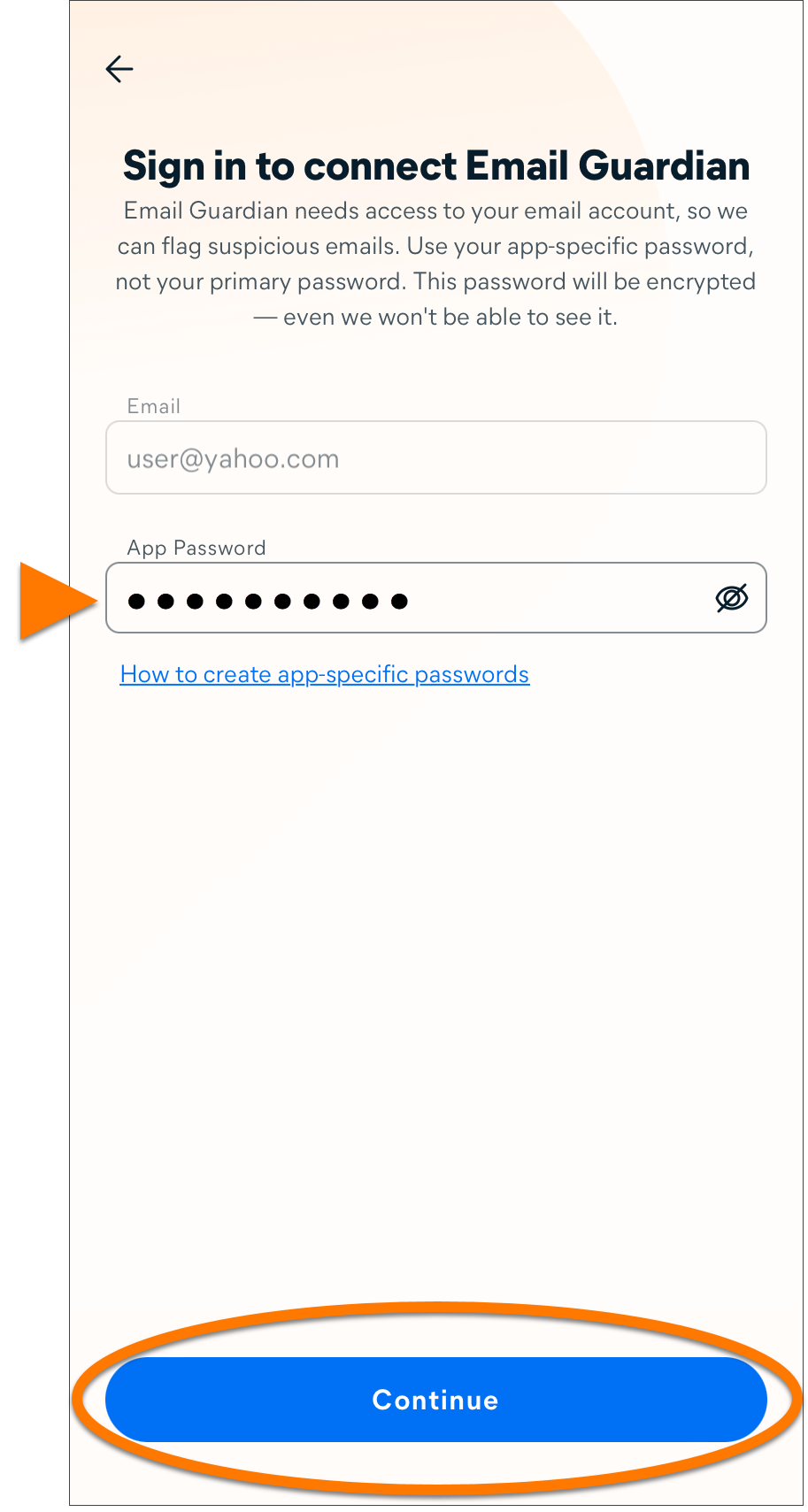
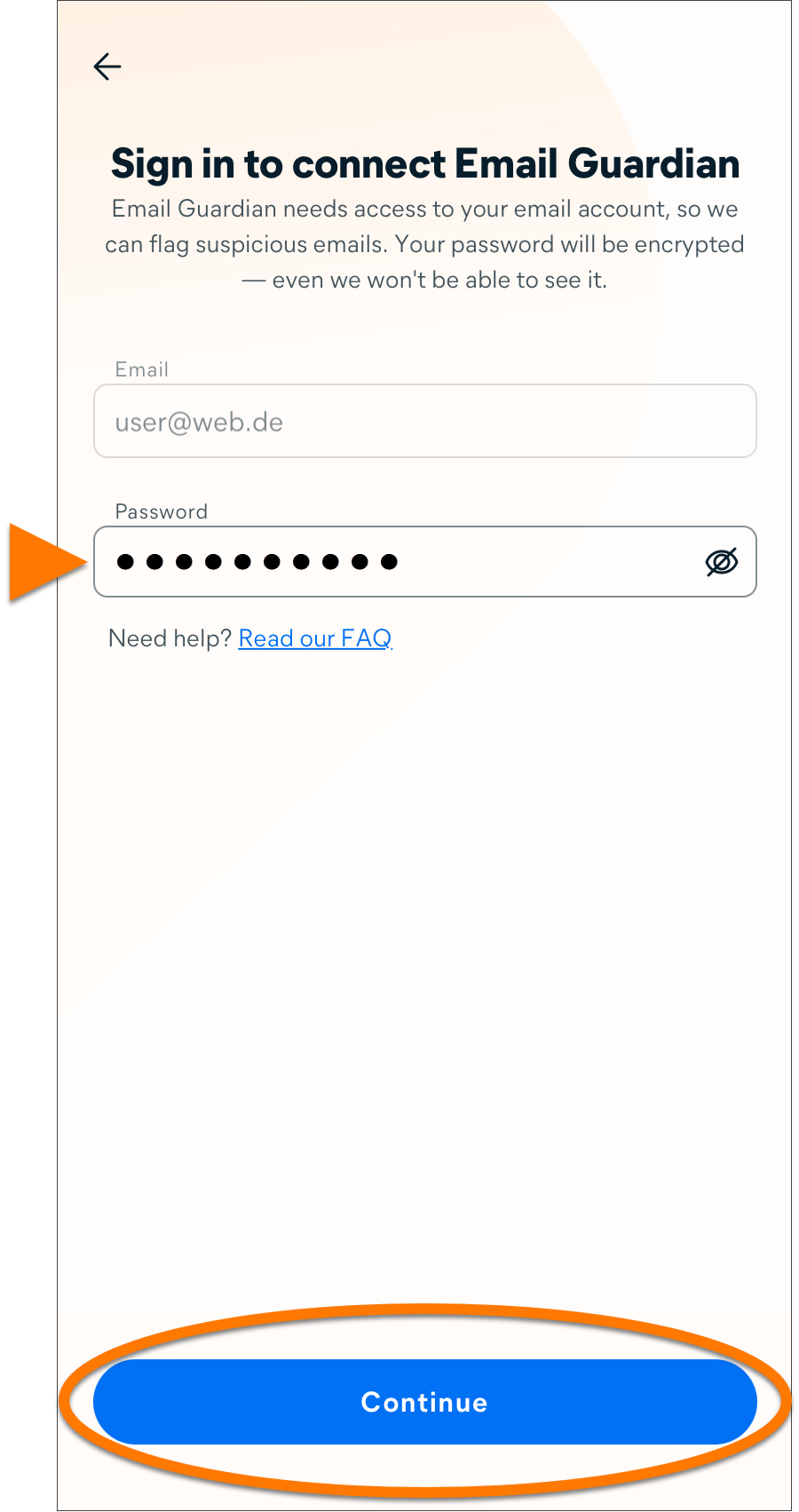
- If you already set up your email account to work with Email Guardian, then continue with the relevant screen below according to your email provider's requirements:
If you see an error message, tap Try again. If the setup continues to fail, tap Close, and try again from the beginning using the exact steps in this article. If set up continues to fail, ensure the email address you are trying to add is compatible with Email Guardian, then contact Avast Support for further assistance.
- App-specific password: Enter your app-specific password, then tap Continue.
- Email password: Enter your email password, then tap Continue.
- Tap Got it to go back to the main Email Guardian page.
Email Guardian is now monitoring the email account.
To add additional email accounts, click Add Mailbox on the Email Guardian screen and follow the relevant steps in this article. You can add a maximum of 5 email accounts to Email Guardian.
Remove an email account
To stop Email Guardian from monitoring an email account:
- Tap the Avast One icon on your device. The app opens.
- Tap Explore ▸ Email Guardian.
- Tap
⋮ More options (the three dots) ▸ Remove mailbox. 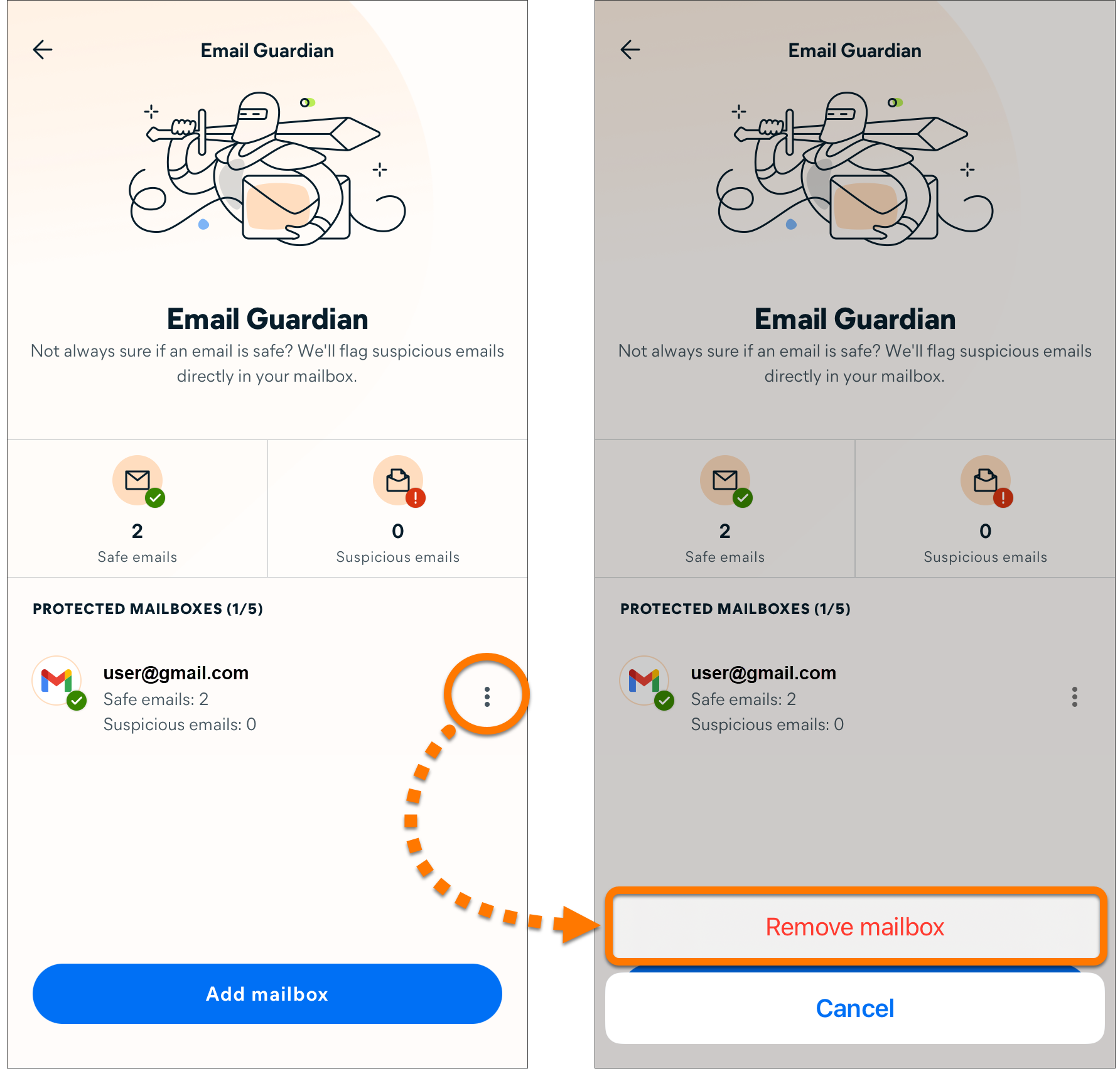
Your email account is now removed from Email Guardian and is no longer monitored for malicious or phishing emails.


