Check installation
- Right-click the Windows
 Start button and select Apps and Features from the menu that appears.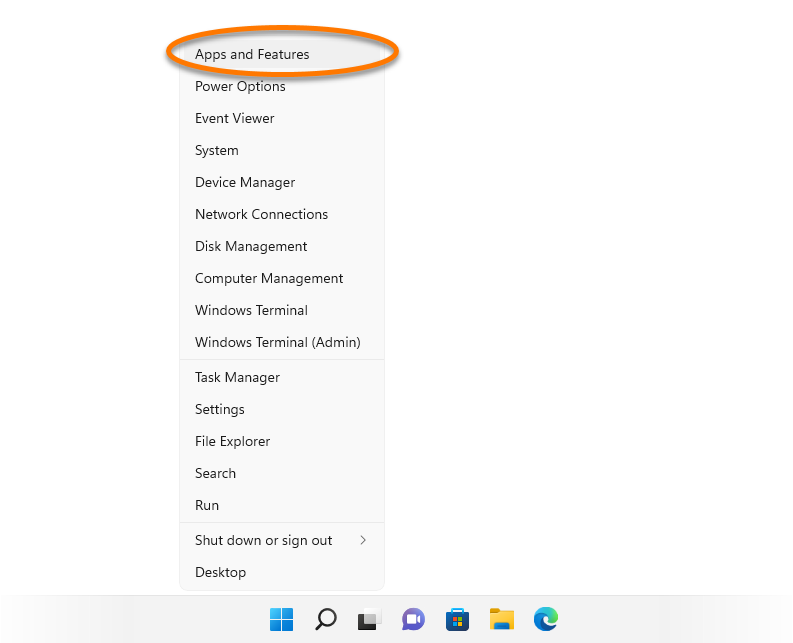
- Ensure that your version of Avast Antivirus is visible in Apps & Features.
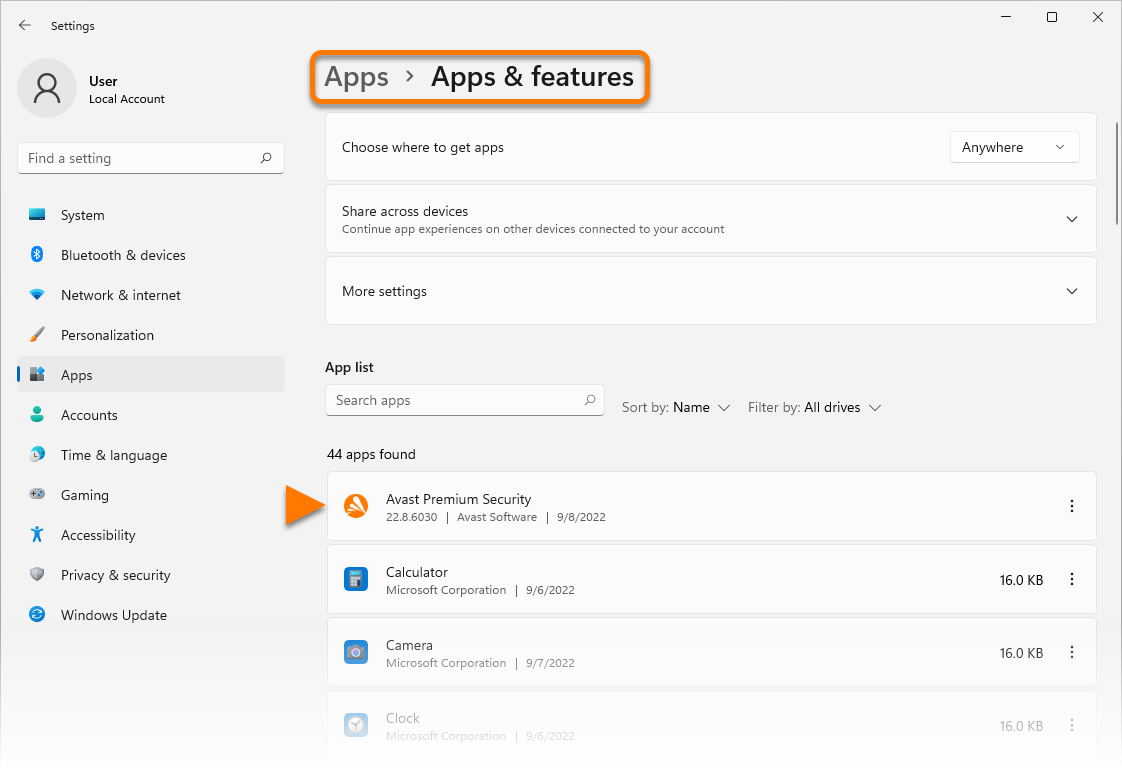
If your version of Avast Antivirus does not appear in the list of programs and features, the application is not installed on your PC.
To install your preferred version of Avast Antivirus, refer to the relevant article: Installing Avast Premium Security or Installing Avast Free Antivirus.
Check subscription status
- Right-click the Avast
 icon in the notification area of your Windows taskbar and select Subscription information from the menu that appears.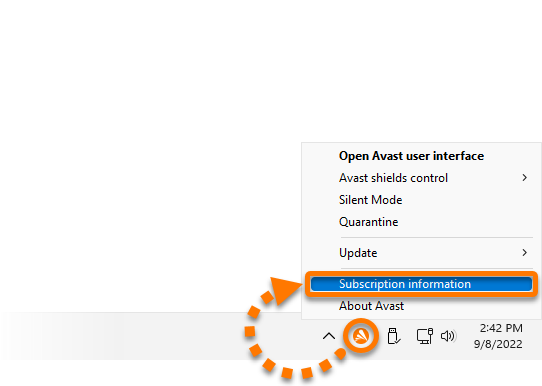
- Confirm that the text Active appears next to your version of Avast Antivirus listed under Subscriptions on this PC. You can also see the expiration date and number of days remaining for your active subscription.
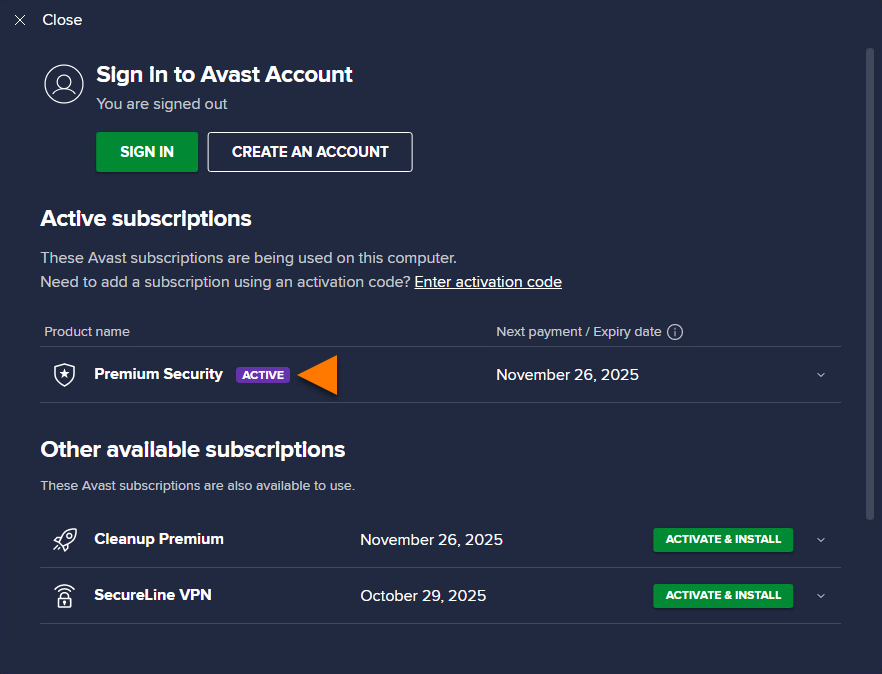
If your subscription is not active, you can activate it by following the instructions in the article below:
Avast Free Antivirus automatically activates after installation. However, after 12 months, the application may prompt you to renew the activation. To continue using Avast Free Antivirus, refer to the following article: Activating Avast Free Antivirus.
Check for updates
To ensure you are fully protected, keep Avast Antivirus up to date at all times. If you are unsure whether you are using the latest version of the application or whether your virus definitions are up to date, refer to the following article:
When troubleshooting issues with Avast Support, you may be asked to provide information about your Program and Virus definitions versions. To obtain the required information:
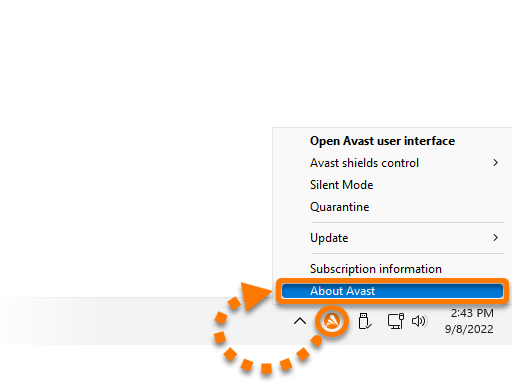
- Right-click the Avast icon in the notification area of your Windows taskbar and select About Avast.
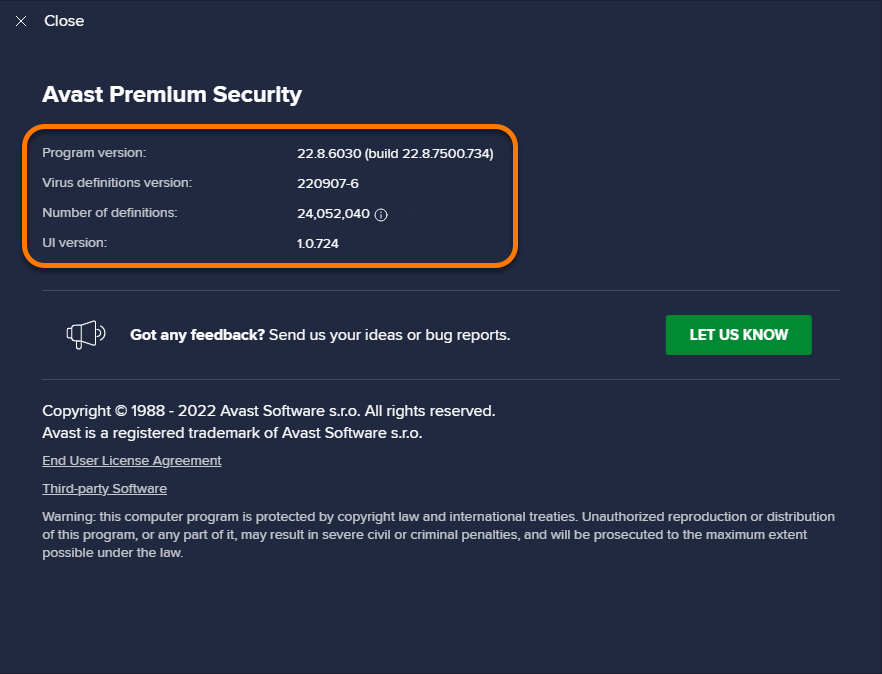
- Refer to the following information which is visible at the top of the screen:
- Program version
- Virus definitions version
- Number of definitions
- UI version
For more information about Avast Antivirus updates, refer to the Avast webpage below:
Check protection status
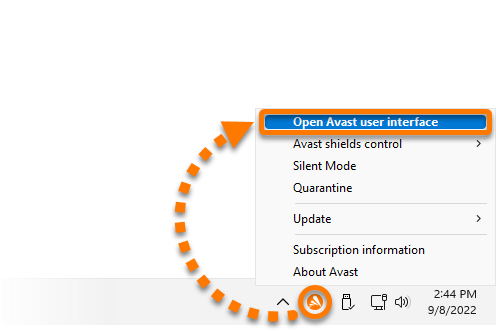
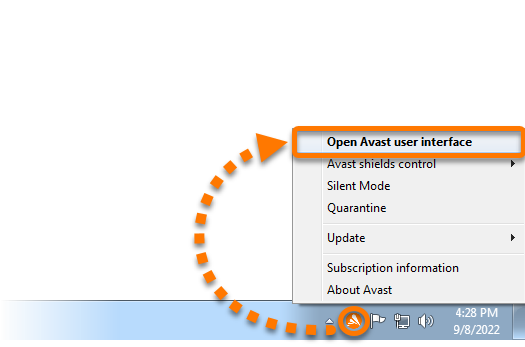
- Right-click the Avast icon in the notification area of your Windows taskbar, and select Open Avast user interface.
- Ensure the Status tab is selected in the left panel.
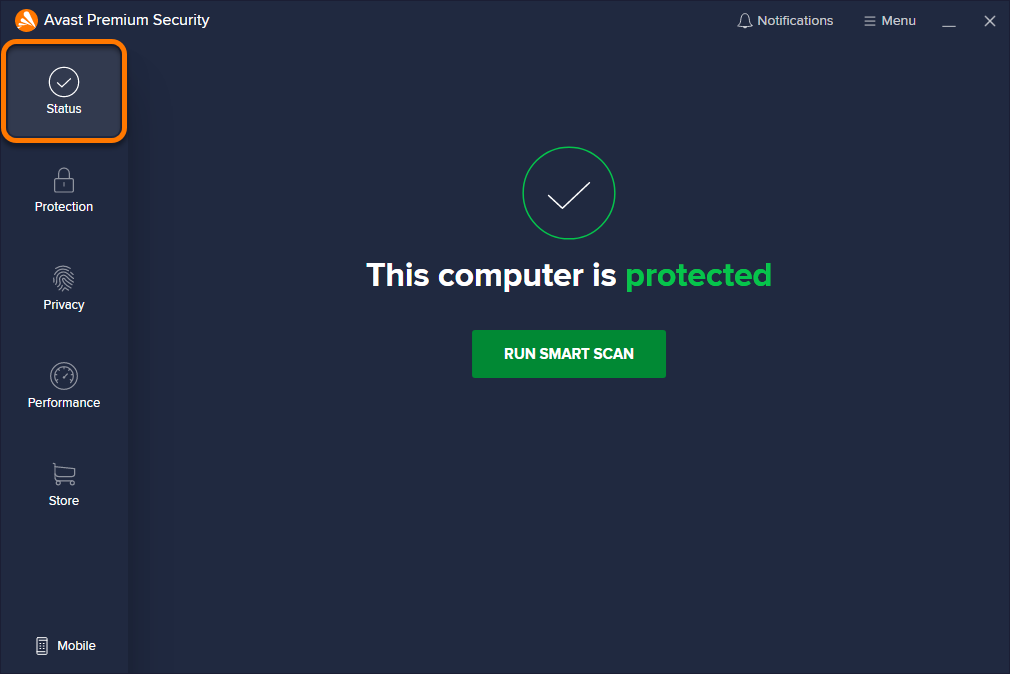
- The Green Status screen with the text This computer is protected indicates that all protection components are enabled, and Avast Antivirus is actively securing your PC. When this status appears, no actions are required.
- A Red Status screen indicates a critical issue with core antivirus components, which require your immediate attention, while a Yellow Status screen indicates an urgent issue. If a red or yellow status is displayed, click the relevant action displayed below the status to ensure your PC is fully protected:
- Resolve: resolves an issue with active protection components, such as Core Shields.
- Turn on: enables components which help to ensure maximum protection, such as Firewall or automatic updates.
- Update: updates your Avast Antivirus to the latest program version.
- Activate / Reactivate: prompts you to select a subscription plan to activate Avast Antivirus.
- Restart now: reboots your PC to complete an update of all Avast Antivirus components.
If more than one issue needs your attention, you can click … More options (three dots) ▸ View all issues. Then, select an action for each issue using the relevant drop-down menu.
To further verify that Avast Antivirus is protecting your PC against malware, refer to the following article:
Reinstall Avast Antivirus
If the steps in the sections above do not resolve your issue, we recommend fully uninstalling and then reinstalling the application.
Follow the steps below:
- Fully uninstall Avast Antivirus using the Avast Uninstall Tool. For detailed instructions, refer to the following article:
- Restart your computer.
- On your keyboard, press the
 Win
WinE key simultaneously to open File Explorer.
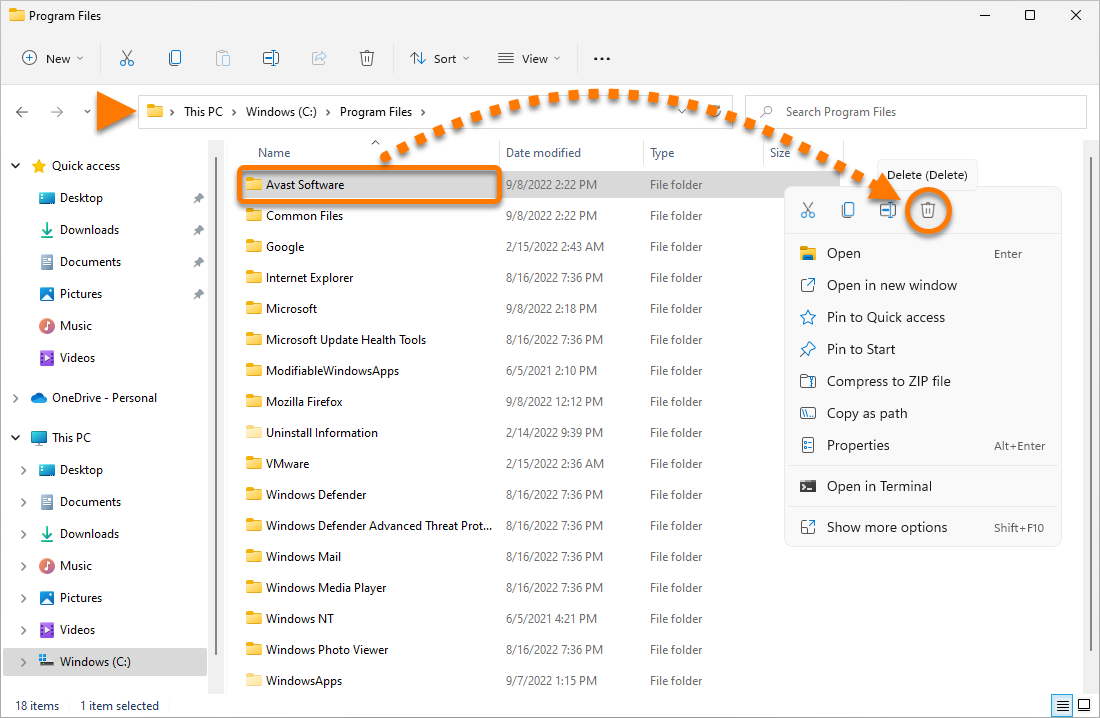
- Type or paste
C:\Program Files\ into the address bar.
- If you see the AVAST software folder in this location, right-click the folder and select Delete from the context menu.
- Reinstall your version of Avast Antivirus. For detailed instructions, refer to the following article:
If your issue persists after you have reinstalled Avast Antivirus, contact Avast Support.
Check installation
- Right-click the Windows
 Start button and select Apps and Features from the menu that appears.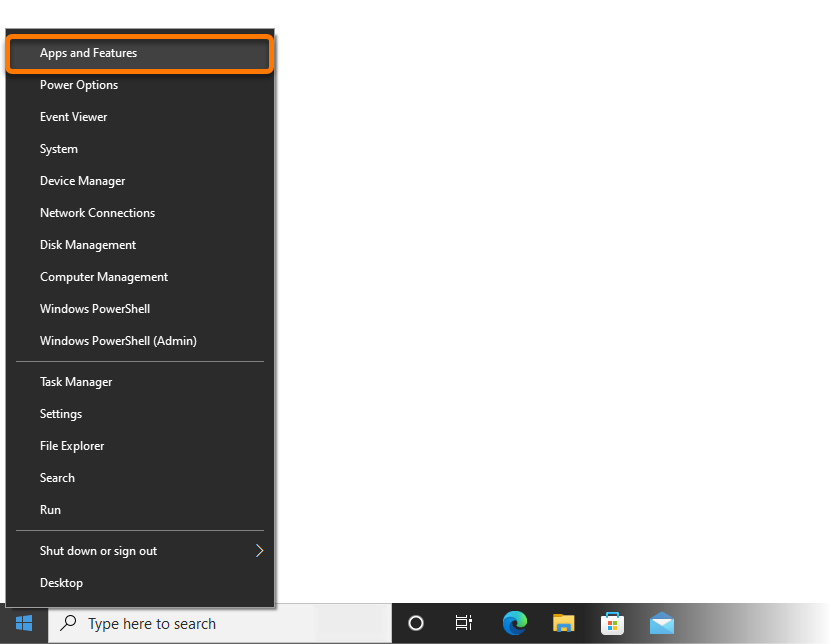
- Ensure that your version of Avast Antivirus is visible in Apps & features.
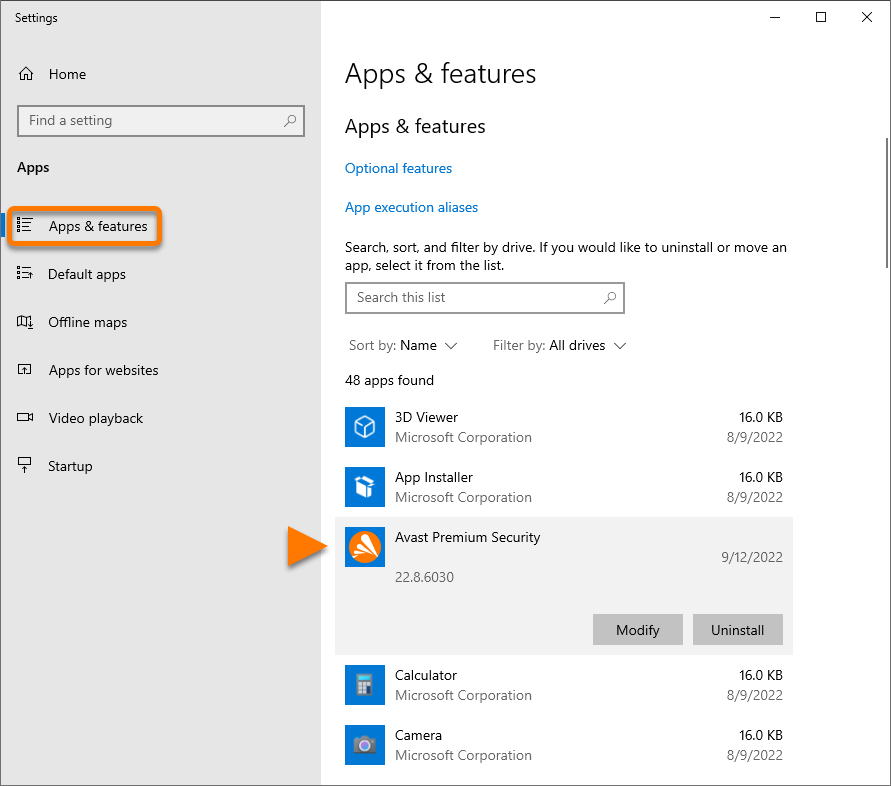
If your version of Avast Antivirus does not appear in the list of programs and features, the application is not installed on your PC.
To install your preferred version of Avast Antivirus, refer to the relevant article: Installing Avast Premium Security or Installing Avast Free Antivirus.
Check subscription status
- Right-click the Avast icon in the notification area of your Windows taskbar and select Subscription information from the menu that appears.
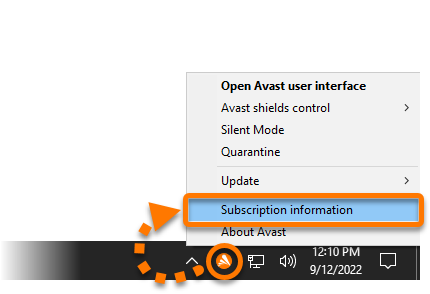
- Confirm that the text Active appears next to your version of Avast Antivirus listed under Subscriptions on this PC. You can also see the expiration date and number of days remaining for your active subscription.
If your subscription is not active, you can activate it by following the instructions in the article below:
Avast Free Antivirus automatically activates after installation. However, after 12 months, the application may prompt you to renew the activation. To continue using Avast Free Antivirus, refer to the following article: Activating Avast Free Antivirus.
Check for updates
To ensure you are fully protected, keep Avast Antivirus up to date at all times. If you are unsure whether you are using the latest version of the application or whether your virus definitions are up to date, refer to the following article:
When troubleshooting issues with Avast Support, you may be asked to provide information about your Program and Virus definitions versions. To obtain the required information:
- Right-click the Avast icon in the notification area of your Windows taskbar and select About Avast.
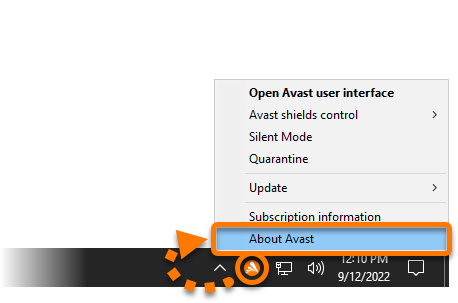
- Refer to the following information which is visible at the top of the screen:
- Program version
- Virus definitions version
- Number of definitions
- UI version
For more information about Avast Antivirus updates, refer to the Avast webpage below:
Check protection status
- Right-click the Avast icon in the notification area of your Windows taskbar, and select Open Avast user interface.
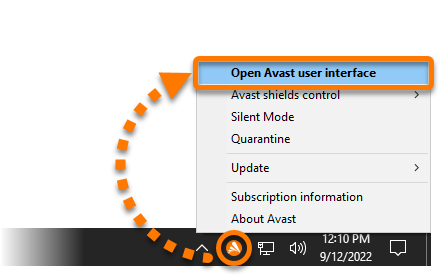
- Ensure the Status tab is selected in the left panel.
- The Green Status screen with the text This computer is protected indicates that all protection components are enabled, and Avast Antivirus is actively securing your PC. When this status appears, no actions are required.
- A Red Status screen indicates a critical issue with core antivirus components, which require your immediate attention, while a Yellow Status screen indicates an urgent issue. If a red or yellow status is displayed, click the relevant action displayed below the status to ensure your PC is fully protected:
- Resolve: resolves an issue with active protection components, such as Core Shields.
- Turn on: enables components which help to ensure maximum protection, such as Firewall or automatic updates.
- Update: updates your Avast Antivirus to the latest program version.
- Activate / Reactivate: prompts you to select a subscription plan to activate Avast Antivirus.
- Restart now: reboots your PC to complete an update of all Avast Antivirus components.
If more than one issue needs your attention, you can click … More options (three dots) ▸ View all issues. Then, select an action for each issue using the relevant drop-down menu.
To further verify that Avast Antivirus is protecting your PC against malware, refer to the following article:
Reinstall Avast Antivirus
If the steps in the sections above do not resolve your issue, we recommend fully uninstalling and then reinstalling the application.
Follow the steps below:
- Fully uninstall Avast Antivirus using the Avast Uninstall Tool. For detailed instructions, refer to the following article:
- Restart your computer.
- On your keyboard, press the
Win key and E key simultaneously to open File Explorer.
- Type or paste
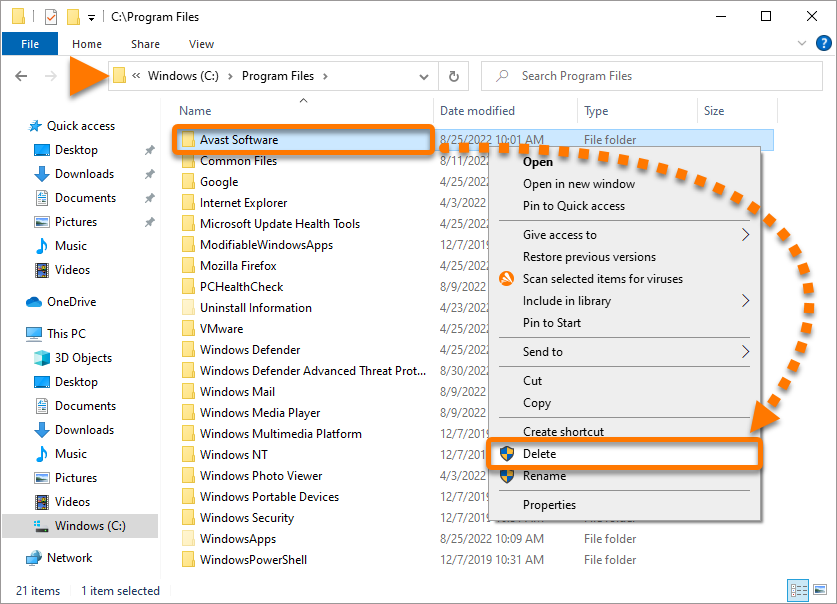
C:\Program Files\ into the address bar.
- If you see the AVAST software folder in this location, right-click the folder and select Delete from the context menu.
- Reinstall your version of Avast Antivirus. For detailed instructions, refer to the following article:
If your issue persists after you have reinstalled Avast Antivirus, contact Avast Support.
Check installation
- On your keyboard, press the
Win key and X key simultaneously, then select Programs and Features from the menu that appears. 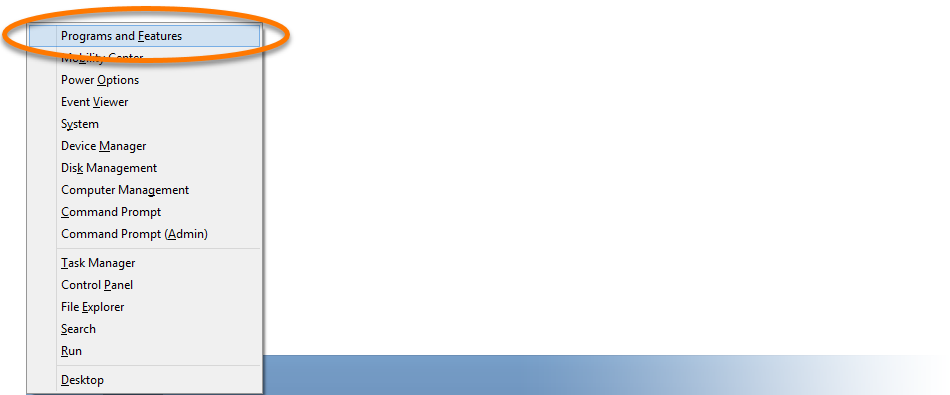
- Ensure that your version of Avast Antivirus is visible in Programs and Features.
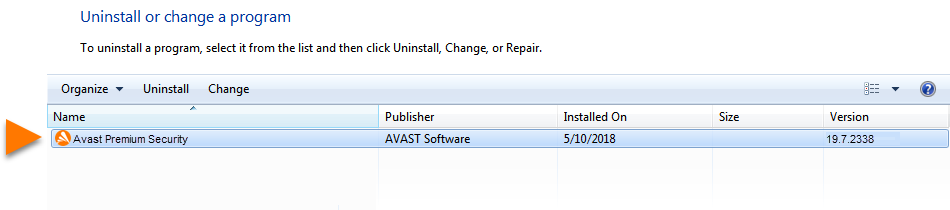
If your version of Avast Antivirus does not appear in the list of programs and features, the application is not installed on your PC.
To install your preferred version of Avast Antivirus, refer to the relevant article: Installing Avast Premium Security or Installing Avast Free Antivirus.
Check subscription status
- Right-click the Avast icon in the notification area of your Windows taskbar and select Subscription information from the menu that appears.
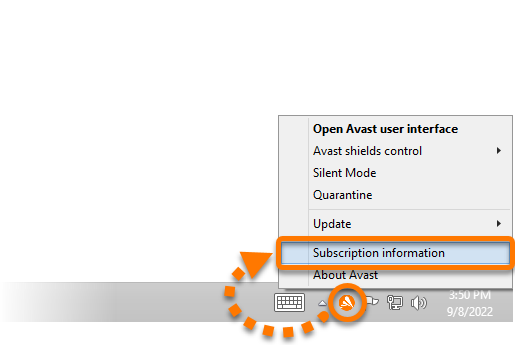
- Confirm that the text Active appears next to your version of Avast Antivirus listed under Subscriptions on this PC. You can also see the expiration date and number of days remaining for your active subscription.
If your subscription is not active, you can activate it by following the instructions in the article below:
Avast Free Antivirus automatically activates after installation. However, after 12 months, the application may prompt you to renew the activation. To continue using Avast Free Antivirus, refer to the following article: Activating Avast Free Antivirus.
Check for updates
To ensure you are fully protected, keep Avast Antivirus up to date at all times. If you are unsure whether you are using the latest version of the application or whether your virus definitions are up to date, refer to the following article:
When troubleshooting issues with Avast Support, you may be asked to provide information about your Program and Virus definitions versions. To obtain the required information:
- Right-click the Avast icon in the notification area of your Windows taskbar and select About Avast.
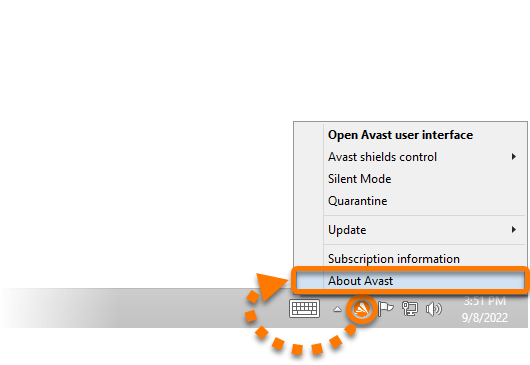
- Refer to the following information which is visible at the top of the screen:
- Program version
- Virus definitions version
- Number of definitions
- UI version
For more information about Avast Antivirus updates, refer to the Avast webpage below:
Check protection status
- Right-click the Avast icon in the notification area of your Windows taskbar, and select Open Avast user interface.
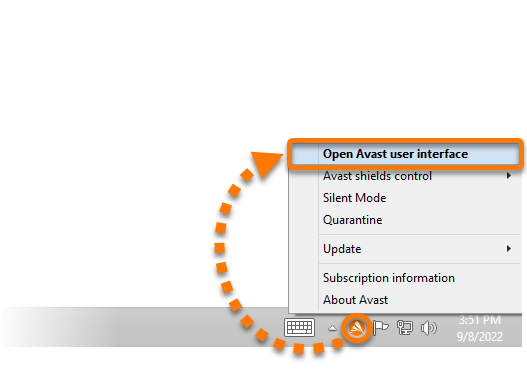
- Ensure the Status tab is selected in the left panel.
- The Green Status screen with the text This computer is protected indicates that all protection components are enabled, and Avast Antivirus is actively securing your PC. When this status appears, no actions are required.
- A Red Status screen indicates a critical issue with core antivirus components, which require your immediate attention, while a Yellow Status screen indicates an urgent issue. If a red or yellow status is displayed, click the relevant action displayed below the status to ensure your PC is fully protected:
- Resolve: resolves an issue with active protection components, such as Core Shields.
- Turn on: enables components which help to ensure maximum protection, such as Firewall or automatic updates.
- Update: updates your Avast Antivirus to the latest program version.
- Activate / Reactivate: prompts you to select a subscription plan to activate Avast Antivirus.
- Restart now: reboots your PC to complete an update of all Avast Antivirus components.
If more than one issue needs your attention, you can click … More options (three dots) ▸ View all issues. Then, select an action for each issue using the relevant drop-down menu.
To further verify that Avast Antivirus is protecting your PC against malware, refer to the following article:
Reinstall Avast Antivirus
If the steps in the sections above do not resolve your issue, we recommend fully uninstalling and then reinstalling the application.
Follow the steps below:
- Fully uninstall Avast Antivirus using the Avast Uninstall Tool. For detailed instructions, refer to the following article:
- Restart your computer.
- On your keyboard, press the
Win key and E key simultaneously to open File Explorer.
- Type or paste
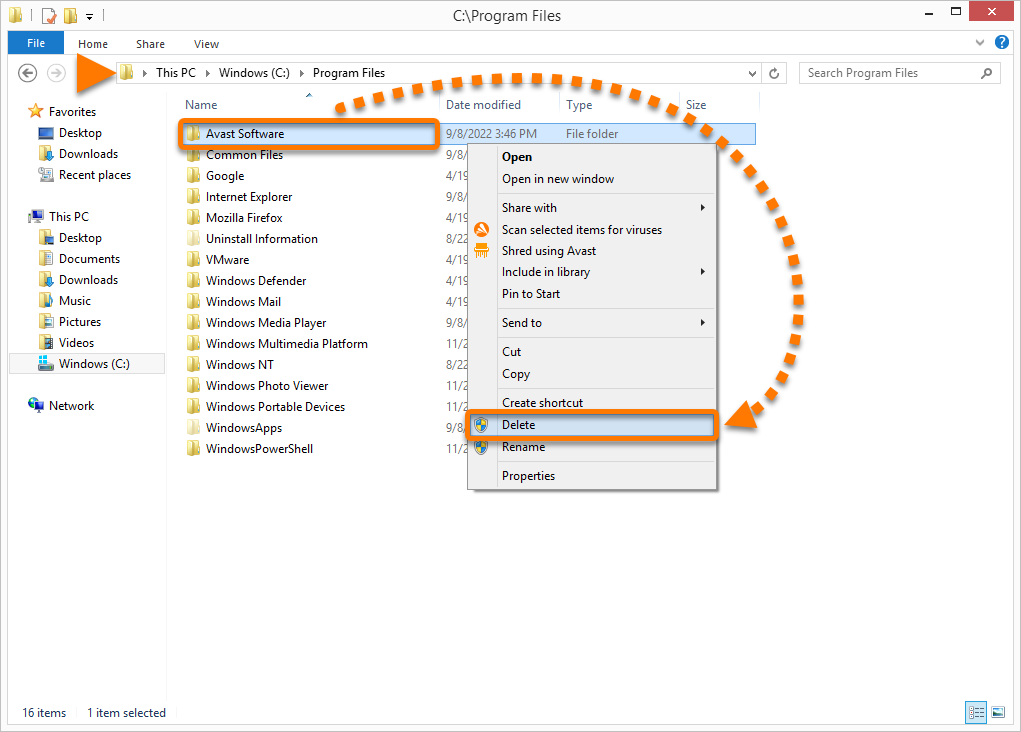
C:\Program Files\ into the address bar.
- If you see the AVAST software folder in this location, right-click the folder and select Delete from the context menu.
- Reinstall your version of Avast Antivirus. For detailed instructions, refer to the following article:
If your issue persists after you have reinstalled Avast Antivirus, contact Avast Support.
Check installation
- Click the Windows
 Start button and select Control Panel.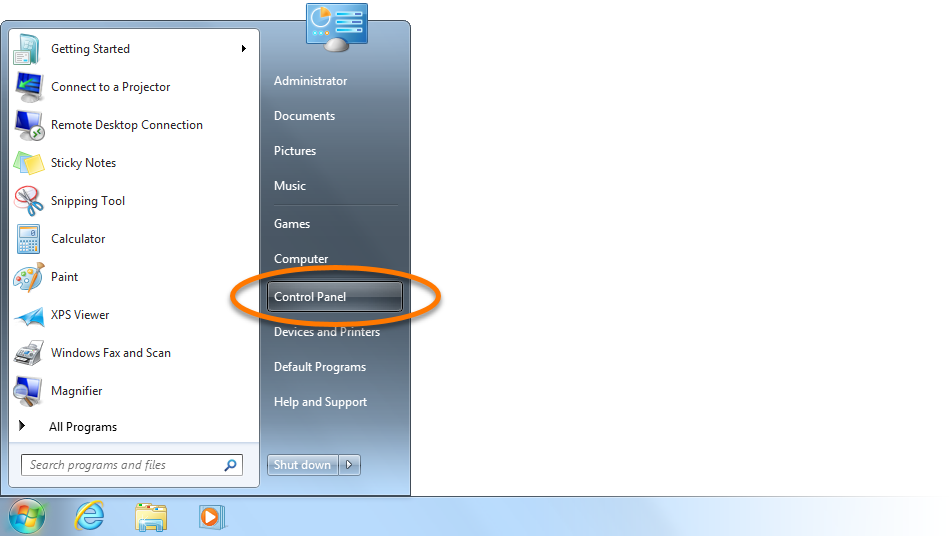
- Under Programs, click Uninstall a program if you are using the default category view,
 ...or click Programs and Features if you are using the large/small icons view.
- Ensure that your version of Avast Antivirus is visible in Programs and Features.
If your version of Avast Antivirus does not appear in the list of programs and features, the application is not installed on your PC.
To install your preferred version of Avast Antivirus, refer to the relevant article: Installing Avast Premium Security or Installing Avast Free Antivirus.
Check subscription status
- Right-click the Avast icon in the notification area of your Windows taskbar and select Subscription information from the menu that appears.
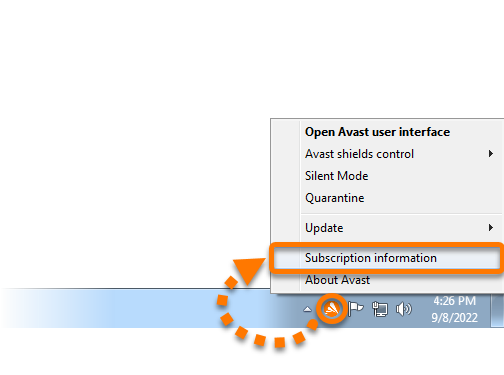
- Confirm that the text Active appears next to your version of Avast Antivirus listed under Subscriptions on this PC. You can also see the expiration date and number of days remaining for your active subscription.
If your subscription is not active, you can activate it by following the instructions in the article below:
Avast Free Antivirus automatically activates after installation. However, after 12 months, the application may prompt you to renew the activation. To continue using Avast Free Antivirus, refer to the following article: Activating Avast Free Antivirus.
Check for updates
To ensure you are fully protected, keep Avast Antivirus up to date at all times. If you are unsure whether you are using the latest version of the application or whether your virus definitions are up to date, refer to the following article:
When troubleshooting issues with Avast Support, you may be asked to provide information about your Program and Virus definitions versions. To obtain the required information:
- Right-click the Avast icon in the notification area of your Windows taskbar and select About Avast.
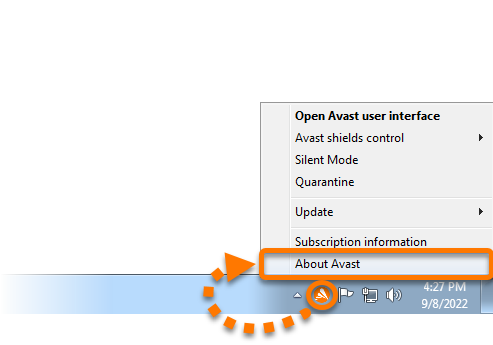
- Refer to the following information which is visible at the top of the screen:
- Program version
- Virus definitions version
- Number of definitions
- UI version
For more information about Avast Antivirus updates, refer to the Avast webpage below:
Check protection status
- Right-click the Avast icon in the notification area of your Windows taskbar, and select Open Avast user interface.
- Ensure the Status tab is selected in the left panel.
- The Green Status screen with the text This computer is protected indicates that all protection components are enabled, and Avast Antivirus is actively securing your PC. When this status appears, no actions are required.
- A Red Status screen indicates a critical issue with core antivirus components, which require your immediate attention, while a Yellow Status screen indicates an urgent issue. If a red or yellow status is displayed, click the relevant action displayed below the status to ensure your PC is fully protected:
- Resolve: resolves an issue with active protection components, such as Core Shields.
- Turn on: enables components which help to ensure maximum protection, such as Firewall or automatic updates.
- Update: updates your Avast Antivirus to the latest program version.
- Activate / Reactivate: prompts you to select a subscription plan to activate Avast Antivirus.
- Restart now: reboots your PC to complete an update of all Avast Antivirus components.
If more than one issue needs your attention, you can click … More options (three dots) ▸ View all issues. Then, select an action for each issue using the relevant drop-down menu.
To further verify that Avast Antivirus is protecting your PC against malware, refer to the following article:
Reinstall Avast Antivirus
If the steps in the sections above do not resolve your issue, we recommend fully uninstalling and then reinstalling the application.
Follow the steps below:
- Fully uninstall Avast Antivirus using the Avast Uninstall Tool. For detailed instructions, refer to the following article:
- Restart your computer.
- On your keyboard, press the
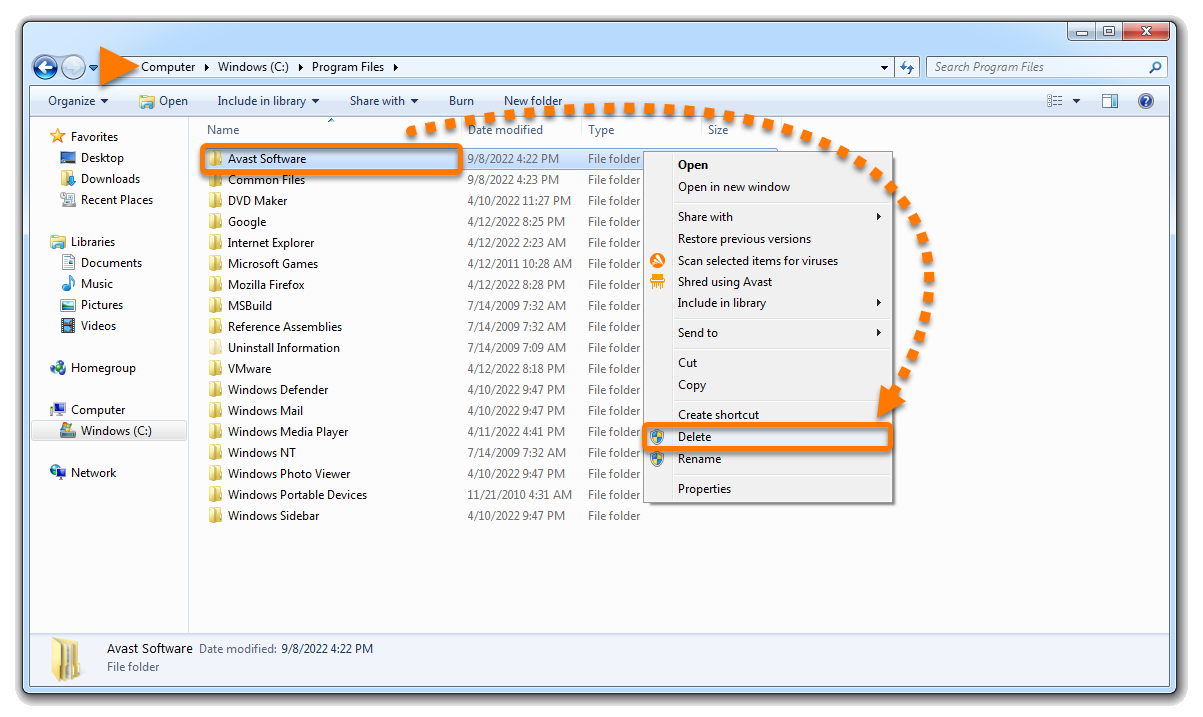
Win key and E key simultaneously to open File Explorer.
- Type or paste
C:\Program Files\ into the address bar.
- If you see the AVAST software folder in this location, right-click the folder and select Delete from the context menu.
- Reinstall your version of Avast Antivirus. For detailed instructions, refer to the following article:
If your issue persists after you have reinstalled Avast Antivirus, contact Avast Support.

