
Windows 11
- Ensure that no other applications are running on your PC.
- Right-click the Windows
 Start icon and select Apps and Features from the menu that appears.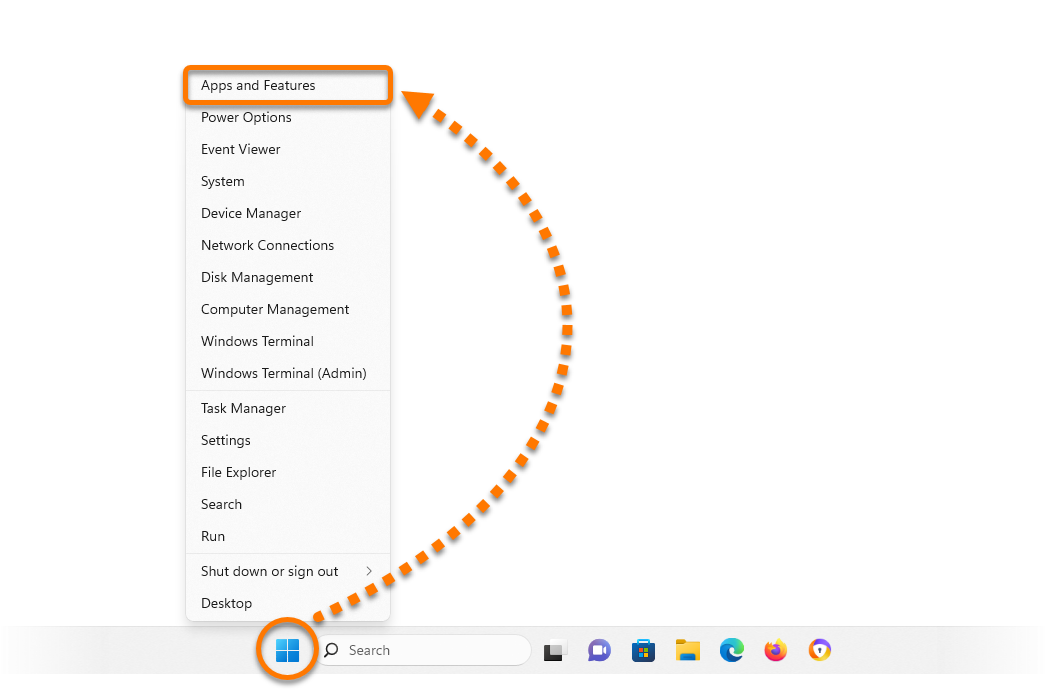
- Beside Avast One, click
⋮Options (the three dots) and select Uninstall twice.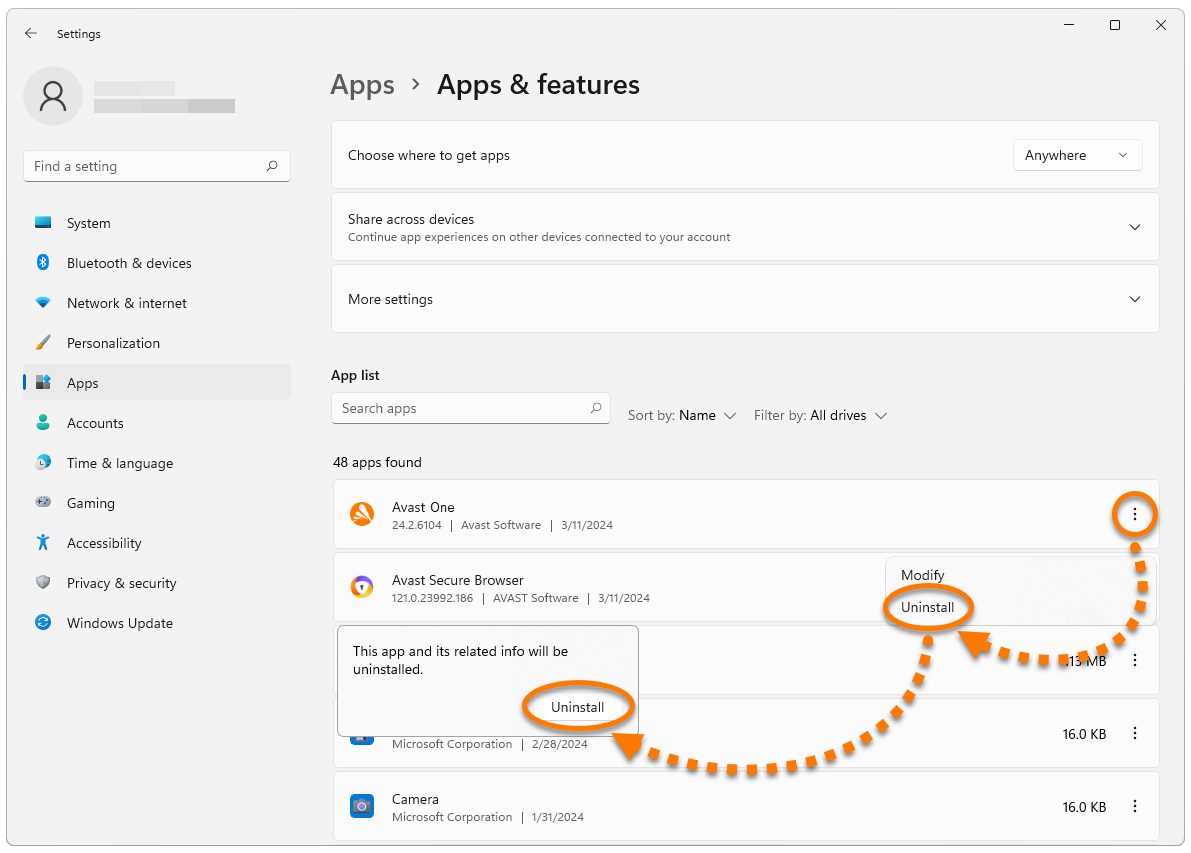
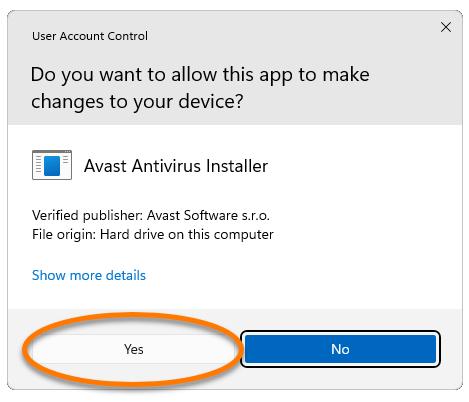
- If prompted for permission by the User Account Control dialog, click Yes.
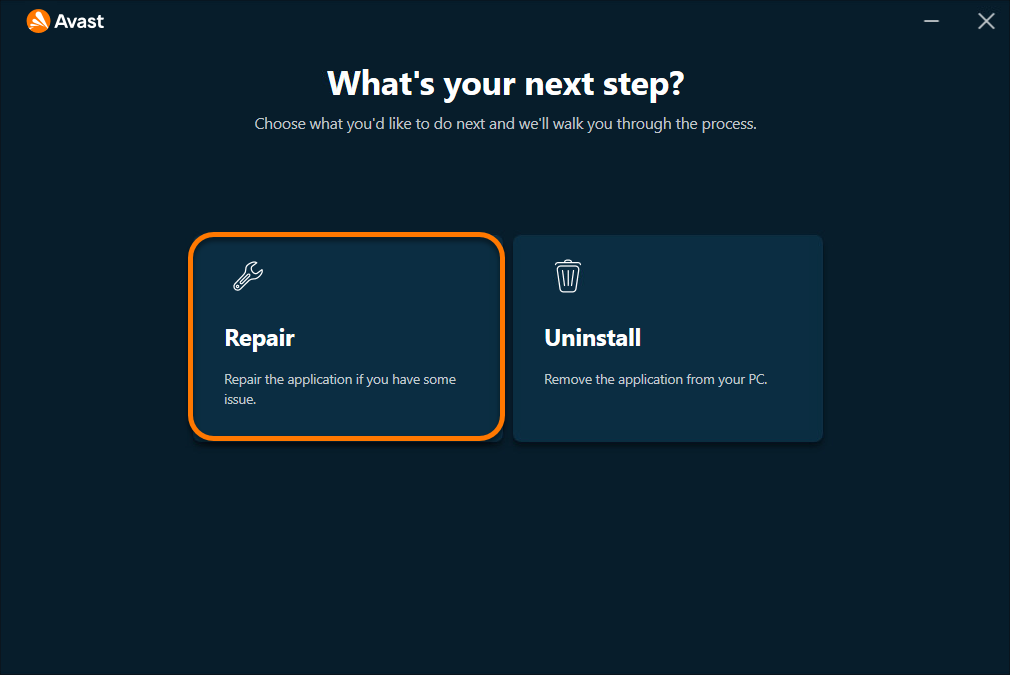
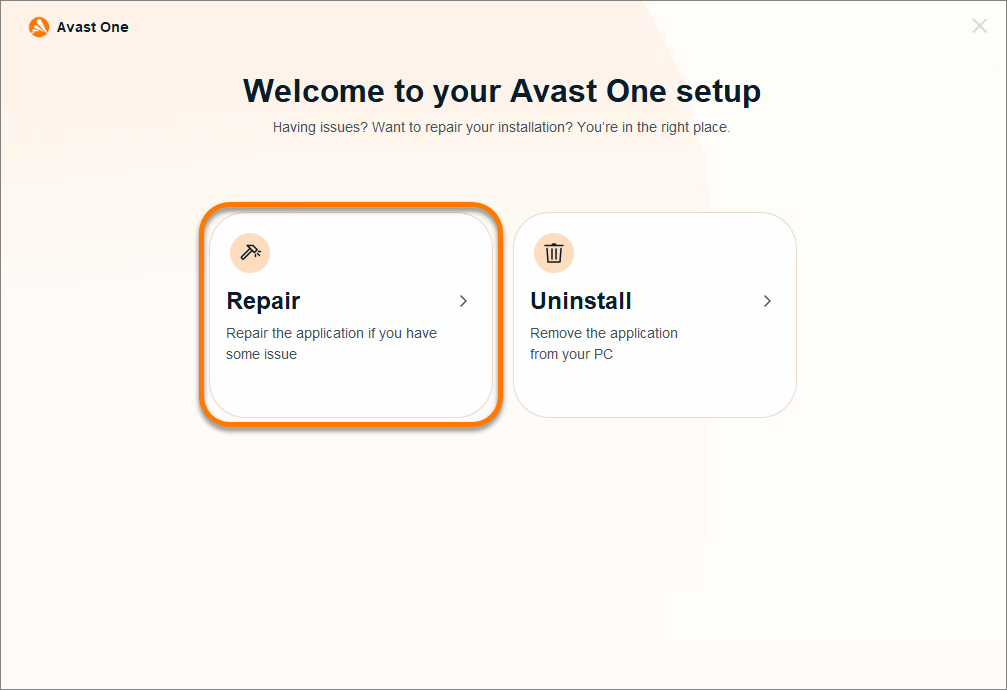
- When the Avast Setup window appears, click Repair.
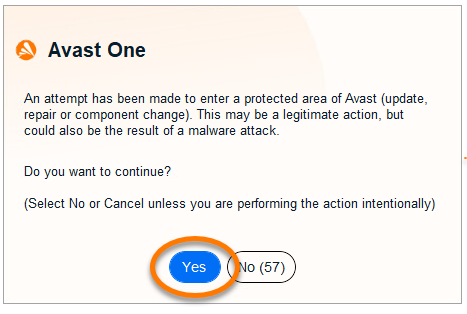
- Select Yes, to confirm that you have intentionally requested to repair the application.
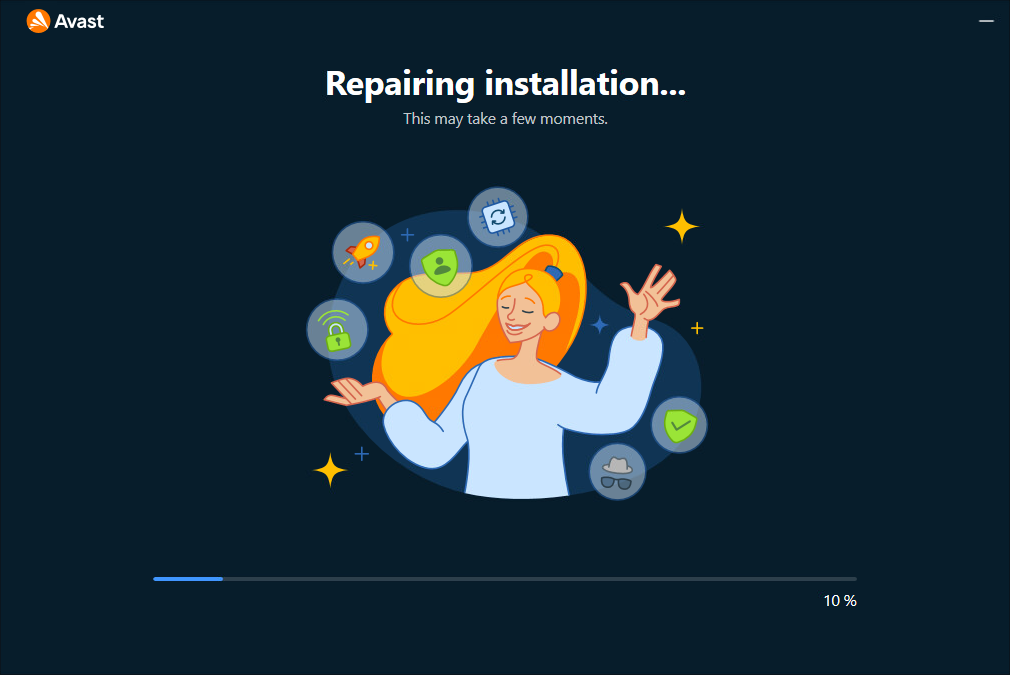
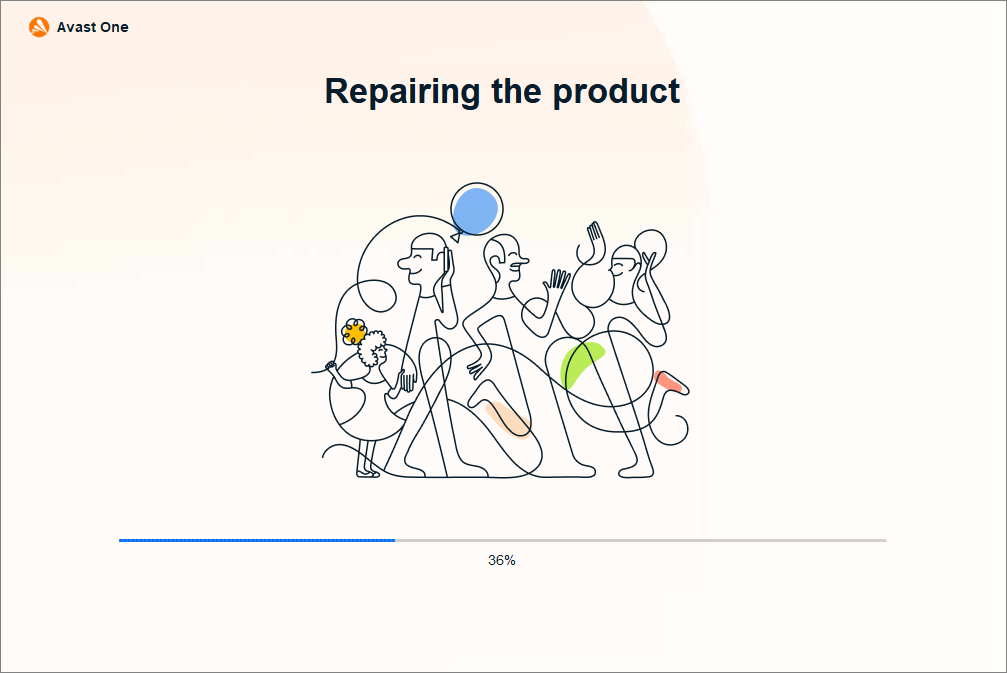
- Wait while setup repairs your Avast application.
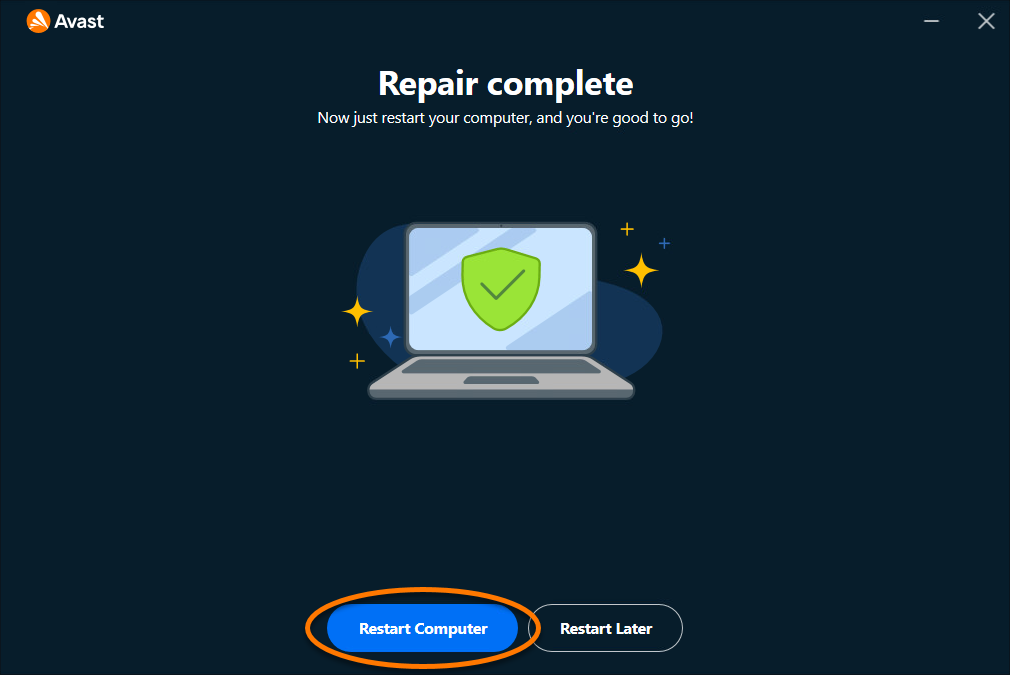
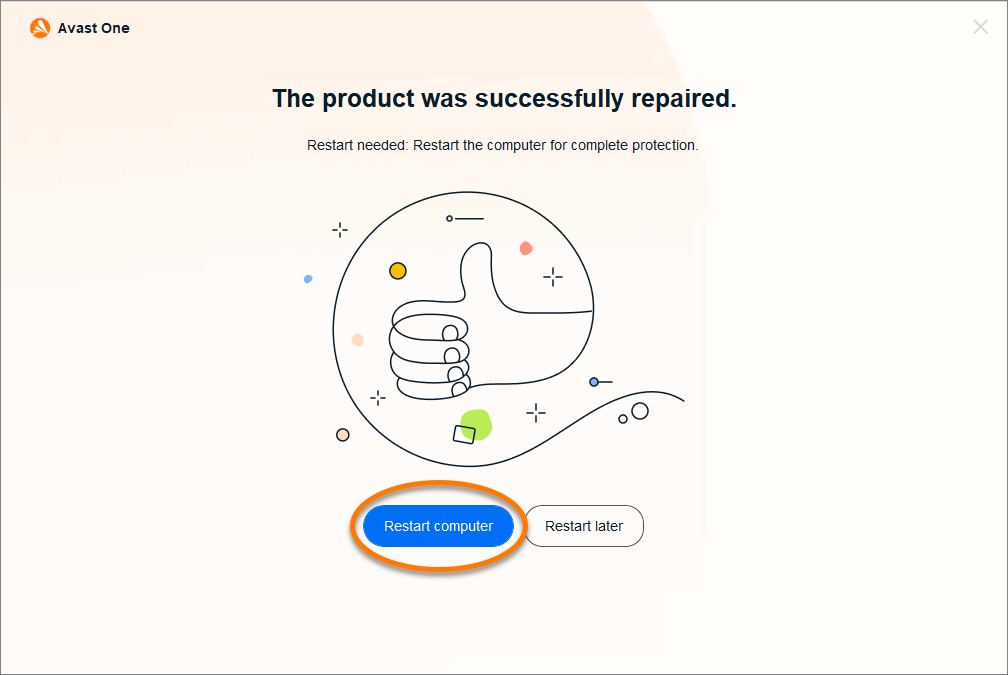
- If prompted, click Restart computer to immediately reboot your PC and complete the repair. If a restart is not necessary, click Done.
Windows 10
- Ensure that no other applications are running on your PC.
- Right-click the Windows
 Start icon and select Apps and Features from the menu that appears.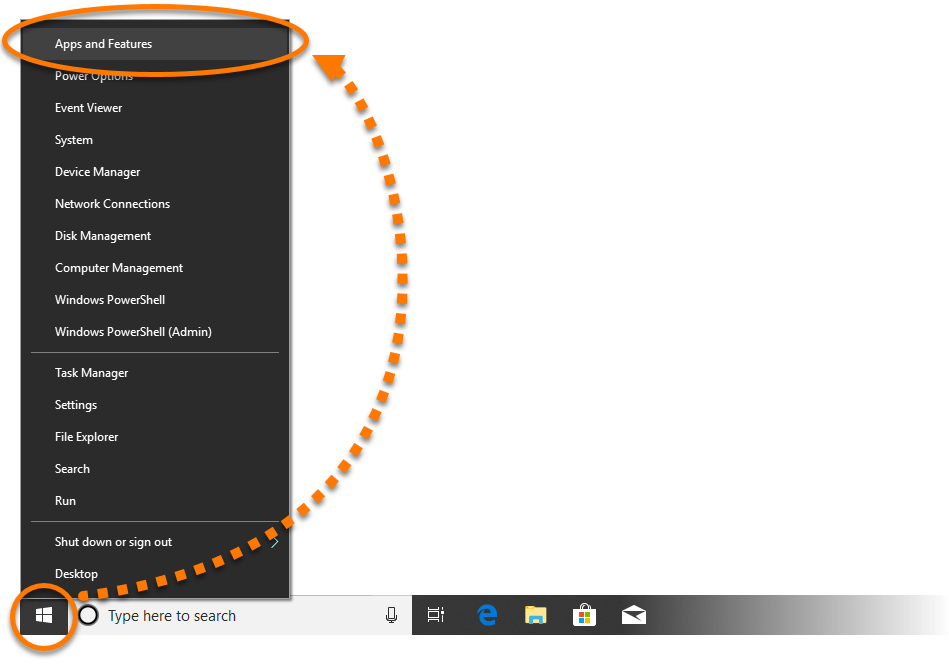
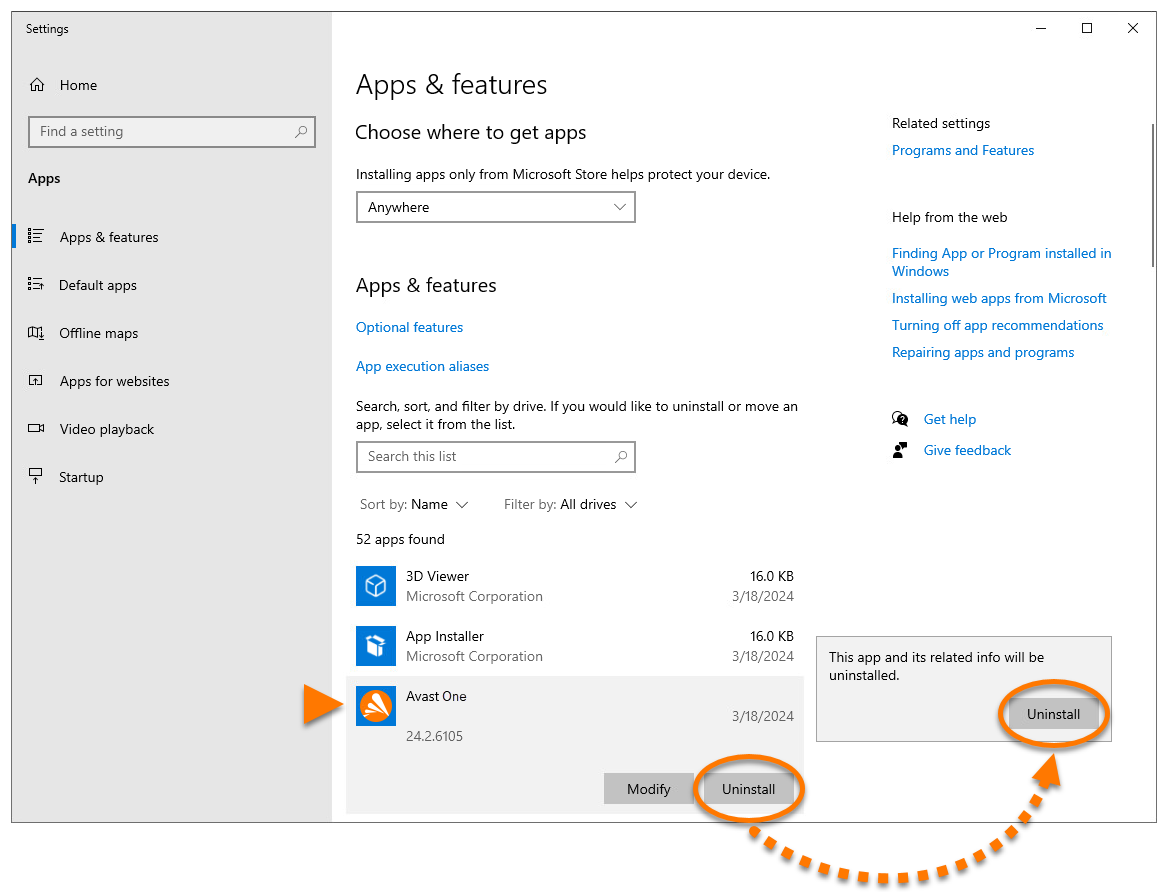
- Click Avast One, and select Uninstall twice.
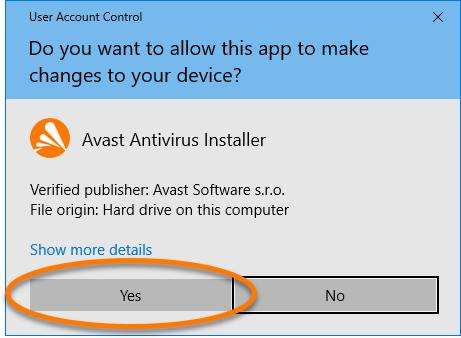
- If prompted for permission by the User Account Control dialog, click Yes.
- When the Avast Setup window appears, click Repair.
- Select Yes, to confirm that you have intentionally requested to repair the application.
- Wait while setup repairs your Avast application.
- If prompted, click Restart computer to immediately reboot your PC and complete the repair. If a restart is not necessary, click Done.
Windows 8
- Ensure that no other applications are running on your PC.
- On your keyboard, press the Windows
 logo key.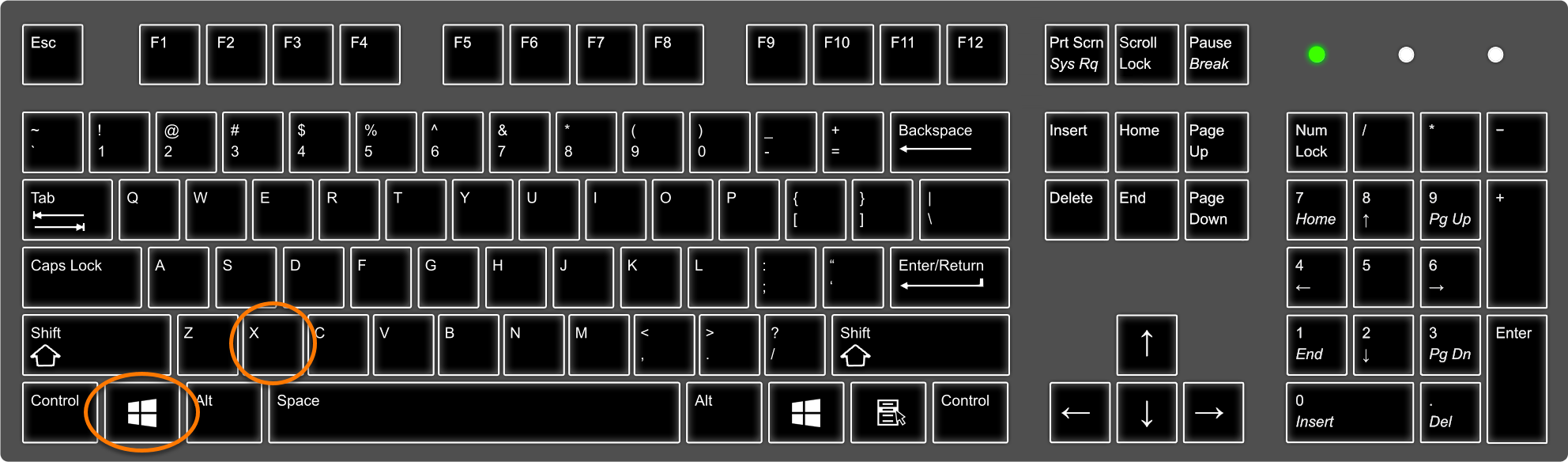
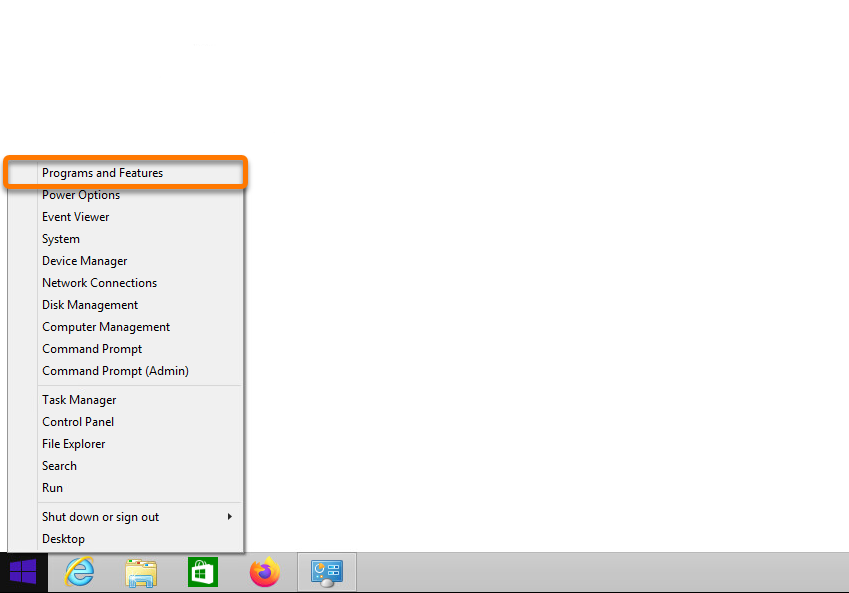
- Select Programs and Features from the menu that appears.
- Right-click Avast One, and select Uninstall.
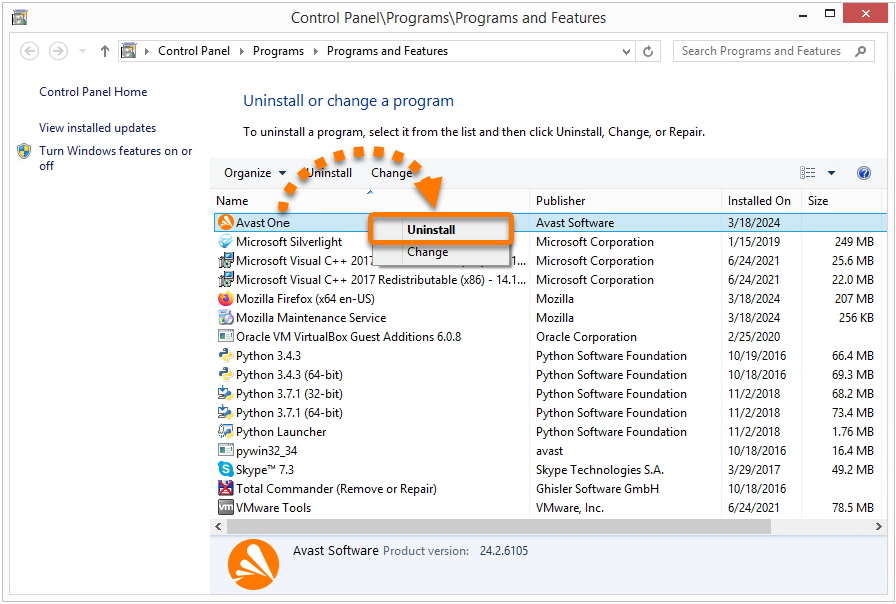
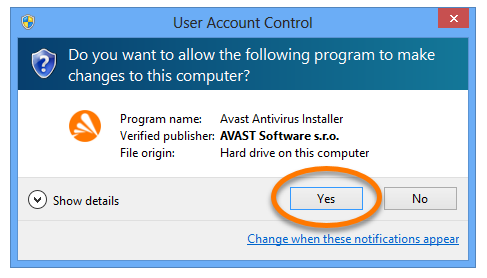
- If prompted for permission by the User Account Control dialog, click Yes.
- When the Avast Setup window appears, click Repair.
- Select Yes, to confirm that you have intentionally requested to repair the application.
- Wait while setup repairs your Avast application.
- If prompted, click Restart computer to immediately reboot your PC and complete the repair. If a restart is not necessary, click Done.
Windows 7
- Ensure that no other applications are running on your PC.
- Click the Windows
 Start icon and select Control Panel.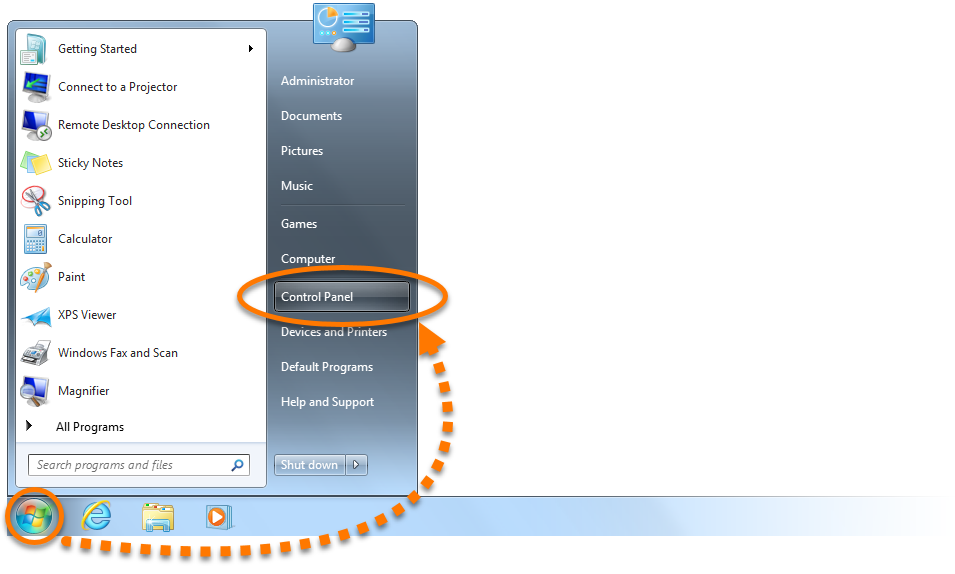
- Follow option A or option B below according to your view:
- Option A (Default category view): Under Programs, click Uninstall a program.

- Option B (Large/small icons view): Click Programs and Features.

- Option A (Default category view): Under Programs, click Uninstall a program.
- Right-click Avast One, and select Uninstall.
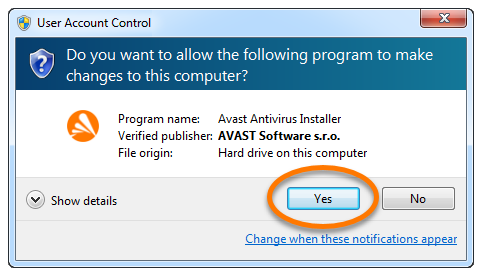
- If prompted for permission by the User Account Control dialog, click Yes.
- When the Avast Setup window appears, click Repair.
- Select Yes, to confirm that you have intentionally requested to repair the application.
- Wait while setup repairs your Avast application.
- If prompted, click Restart computer to immediately reboot your PC and complete the repair. If a restart is not necessary, click Done.
Your Avast application is repaired.
