Promotional banner image

IS YOUR COMPUTER SLOW? RUN LIKE NEW

If they are not maintained, computers lose performance over time. Avast Cleanup Premium can help significantly improve the performance of your computer.

Downloading Avast apps using your Avast Account

Android, ChromeOS, iOS, Mac, Windows

Your Avast Account serves as a central portal for managing your paid Avast subscriptions. This article explains how to download Avast apps directly from your account.

Your Avast Account login is the email address that you provided during the subscription purchase.

Download your Avast app

To install Avast apps directly using your Avast Account:

  1. Sign in to your Avast Account using the link below:
  2. In the top-right corner of the page, click My account ▸ My subscriptions.
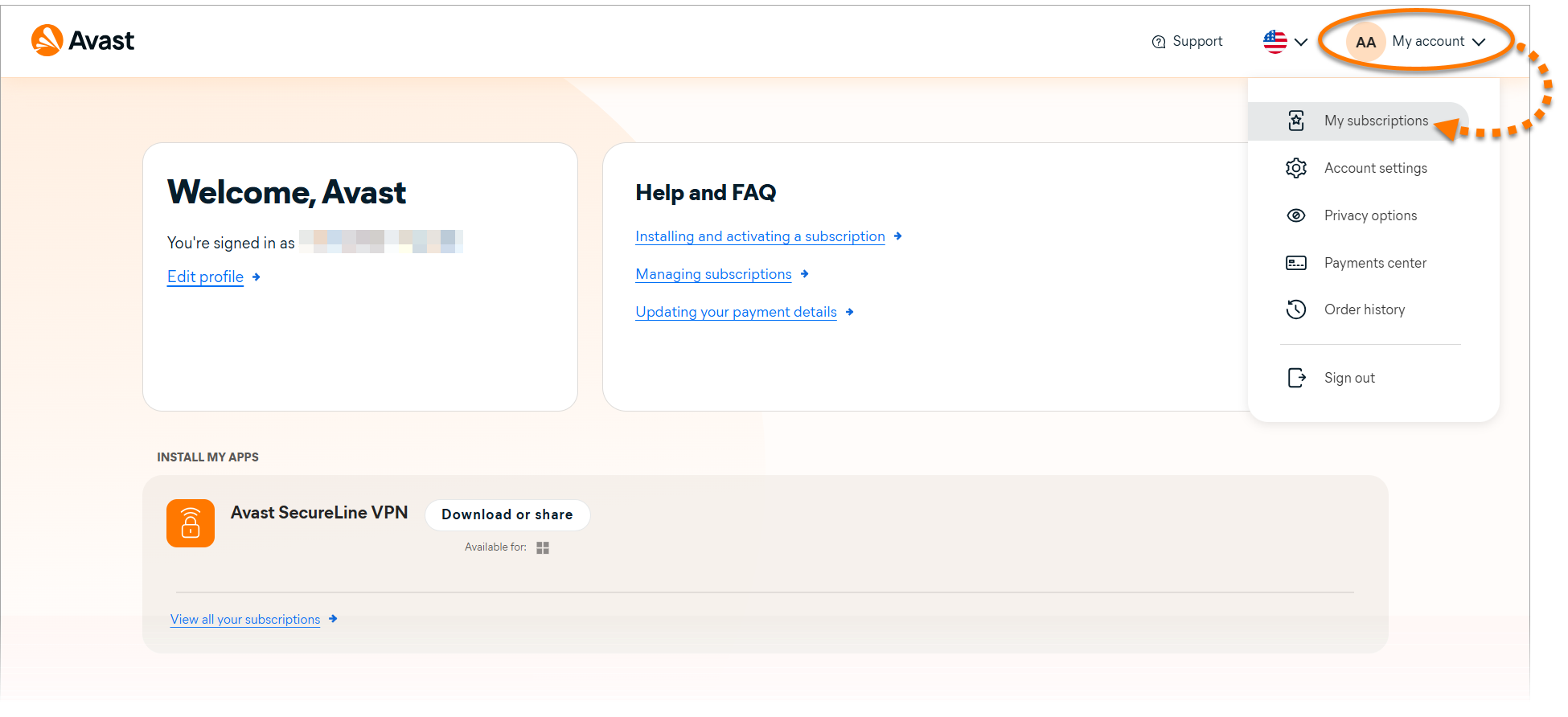
  3. The My subscriptions screen lists all of the Avast subscriptions that are currently linked to your Avast Account. Click Download or share next to the subscription you wish to install.

    If one of your Avast subscriptions is not displayed on the My subscriptions screen, refer to the following article: Adding a missing subscription to your Avast Account.
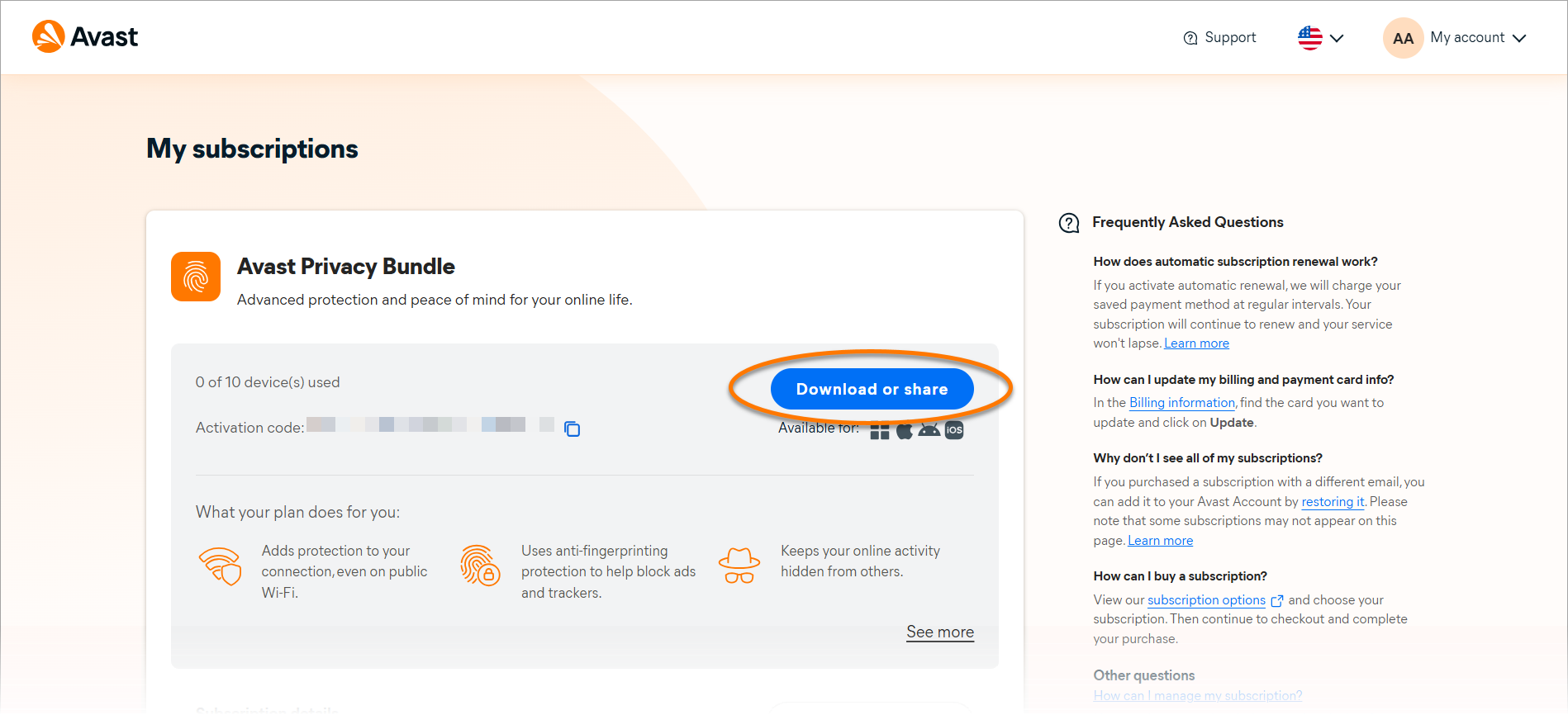
  4. If more than one Avast app is associated with your subscription, select the app that you want to download, then click Next.
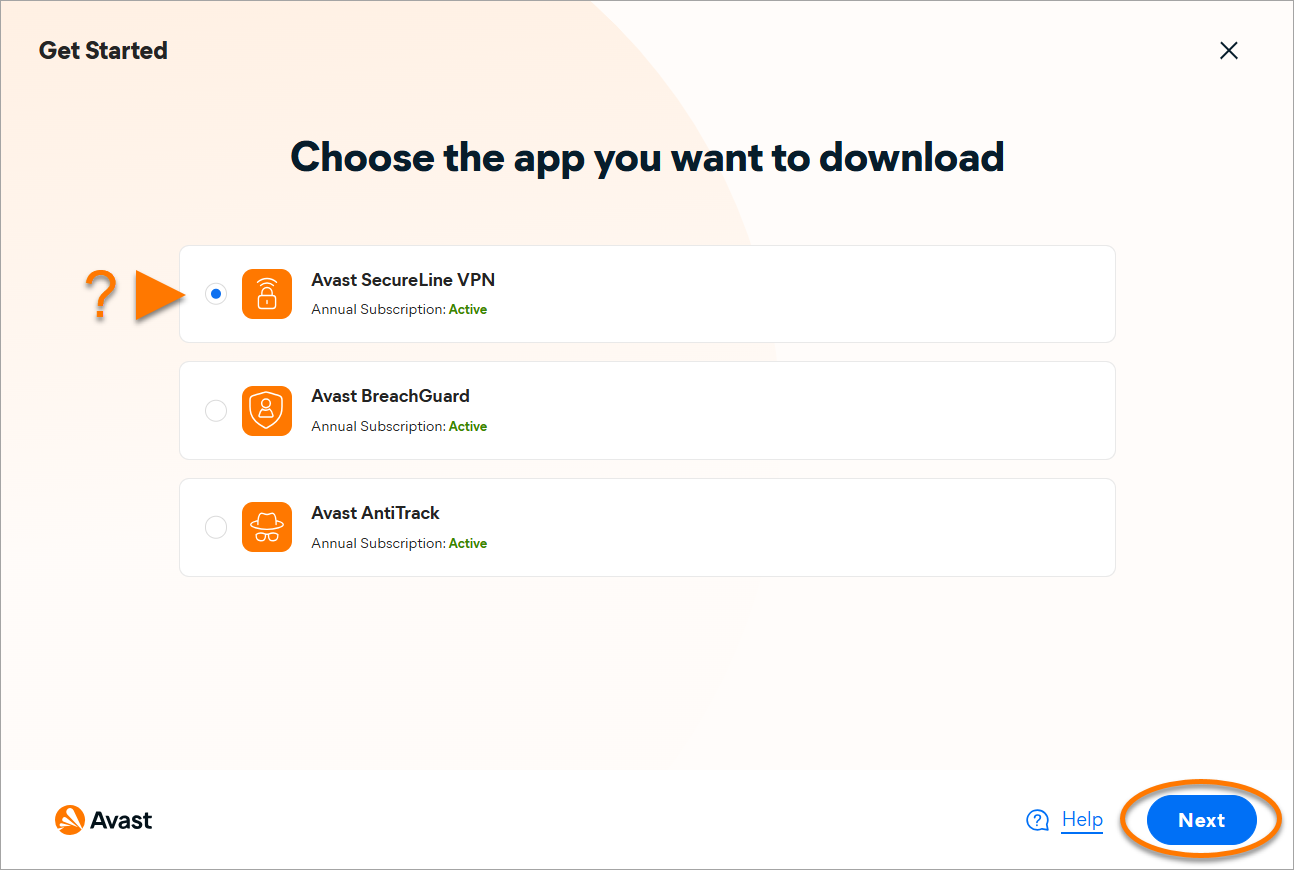
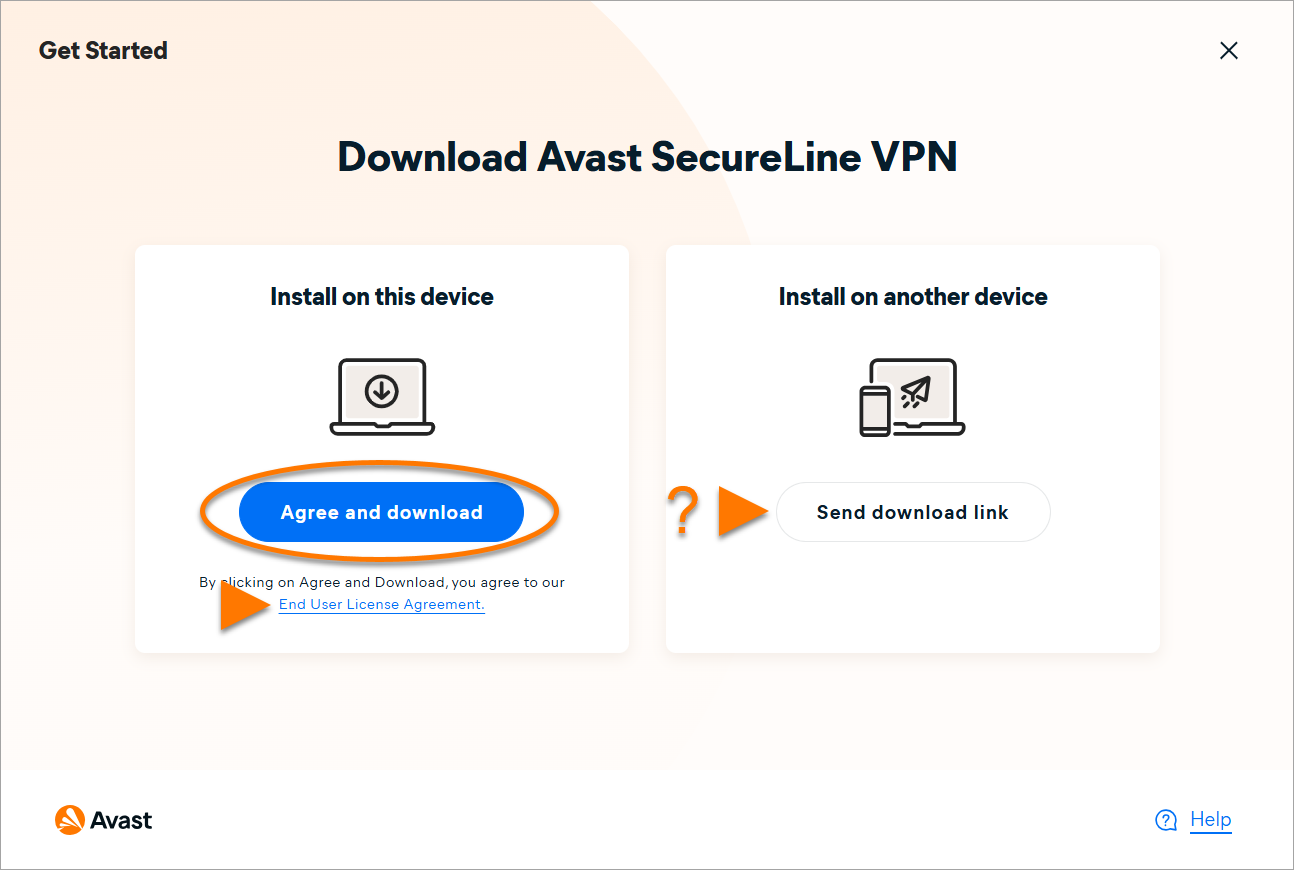
  5. Read the End User License Agreement then click Agree and download. Alternatively, to send a download link to another device, refer to this article: Send a download link to install Avast protection on another device.
  6. Wait for the installer to get downloaded, then click on the area pointed by the on-screen arrow to run the installer. If the installer does not start automatically, click start the download manually.
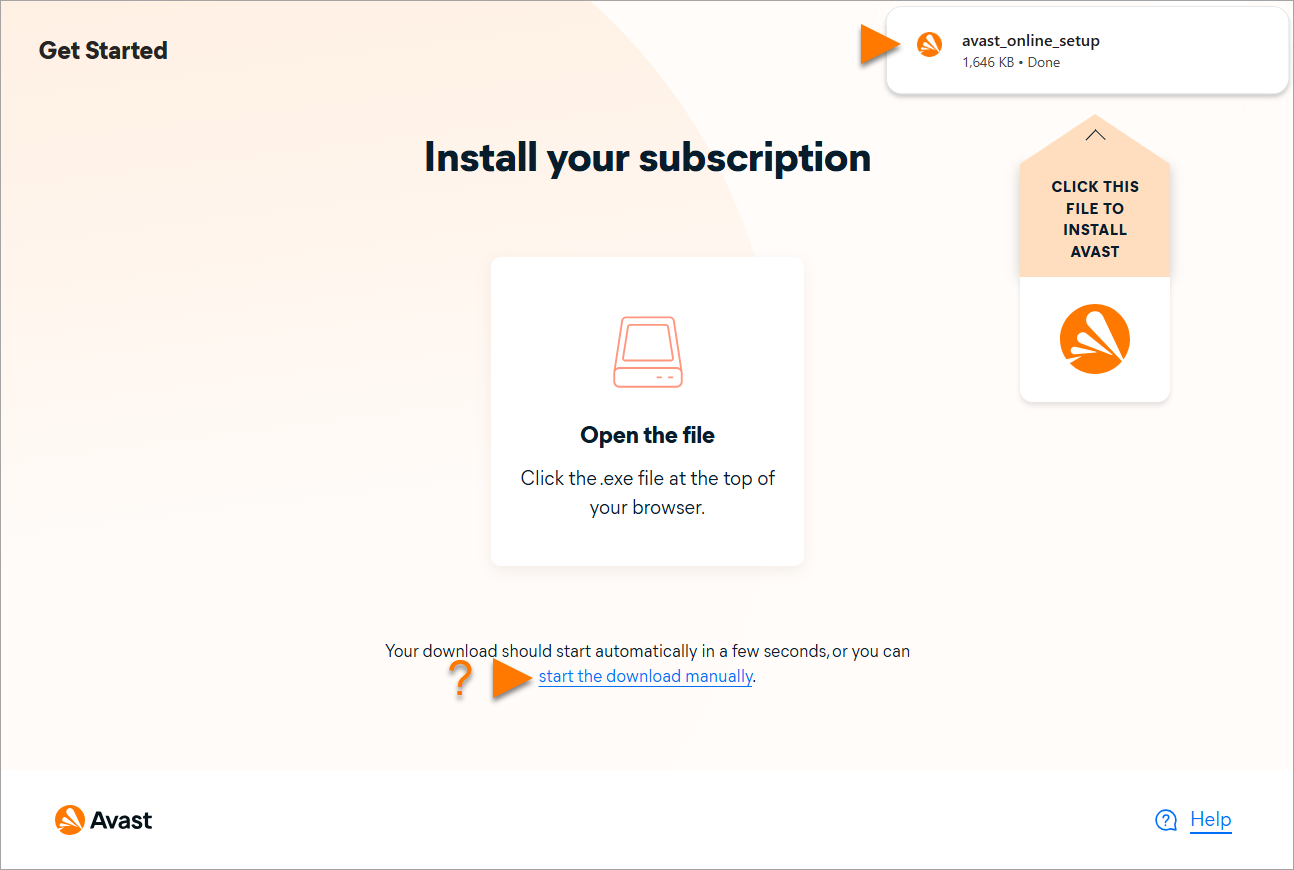
  7. Double-click the installed file, then follow the on-screen instructions to install your Avast app. For detailed installation and activation instructions for each app, refer to the following article: Installing and activating an Avast app.

When installing the app on your Windows device via your Avast Account, manual activation is not required.

To install Avast apps directly using your Avast Account:

  1. Sign in to your Avast Account using the link below:
  2. In the top-right corner of the page, click My account ▸ My subscriptions.
  3. The My subscriptions screen lists all of the Avast subscriptions that are currently linked to your Avast Account. Click Download or share next to the subscription you wish to install.

    If one of your Avast subscriptions is not displayed on the My subscriptions screen, refer to the following article: Adding a missing subscription to your Avast Account.

  4. If more than one Avast app is associated with your subscription, select the app that you want to download, then click Next.
  5. Read the End User License Agreement then click Agree and download. Alternatively, to send a download link to another device, refer to this article: Send a download link to install Avast protection on another device.
  6. Wait for the installer to get downloaded, then click on the area pointed by the on-screen arrow to run the installer. If the installer does not start automatically, click start the download manually.
  7. Double-click the installed file, then follow the on-screen instructions to install your Avast app. For detailed installation and activation instructions for each app, refer to the following article: Installing and activating an Avast app.
To install Avast apps directly using your Avast Account:

  1. Sign in to your Avast Account using the link below:
  2. Tap Download or share next to the subscription you wish to install.

    If one of your Avast subscriptions is not displayed on the My subscriptions screen, refer to the following article: Adding a missing subscription to your Avast Account.

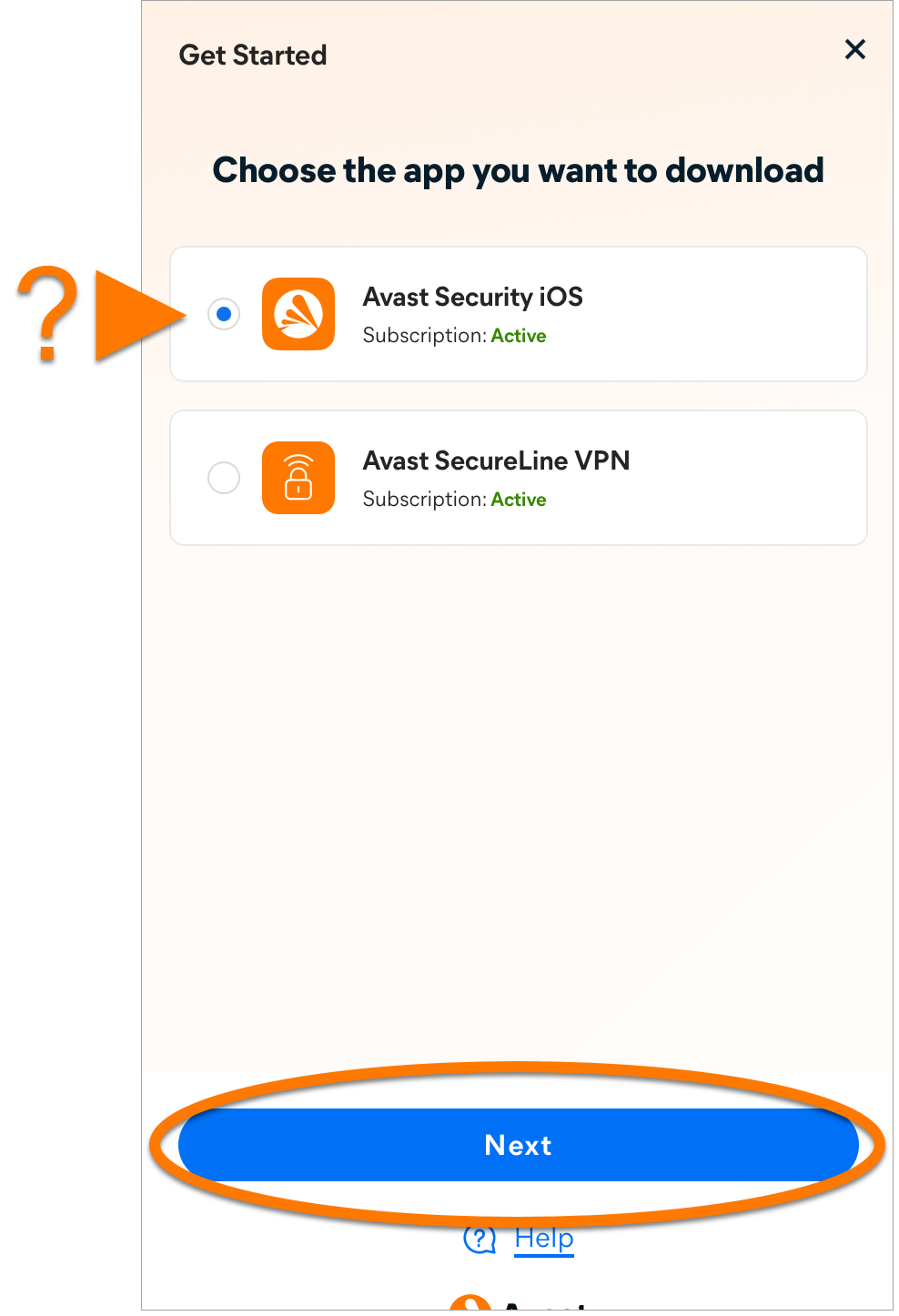
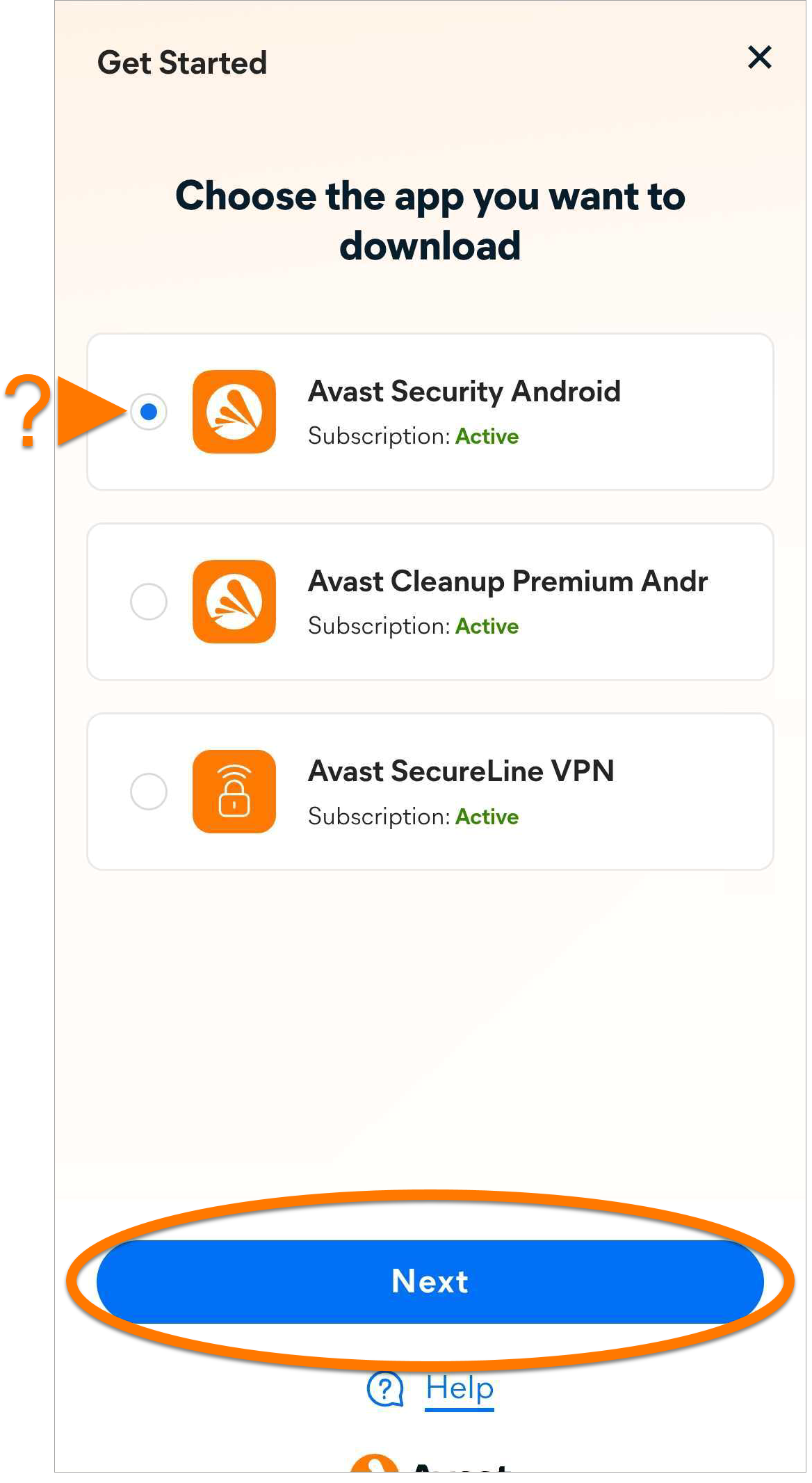
  3. If more than one Avast app is associated with your subscription, select the app that you want to download, then tap Next.
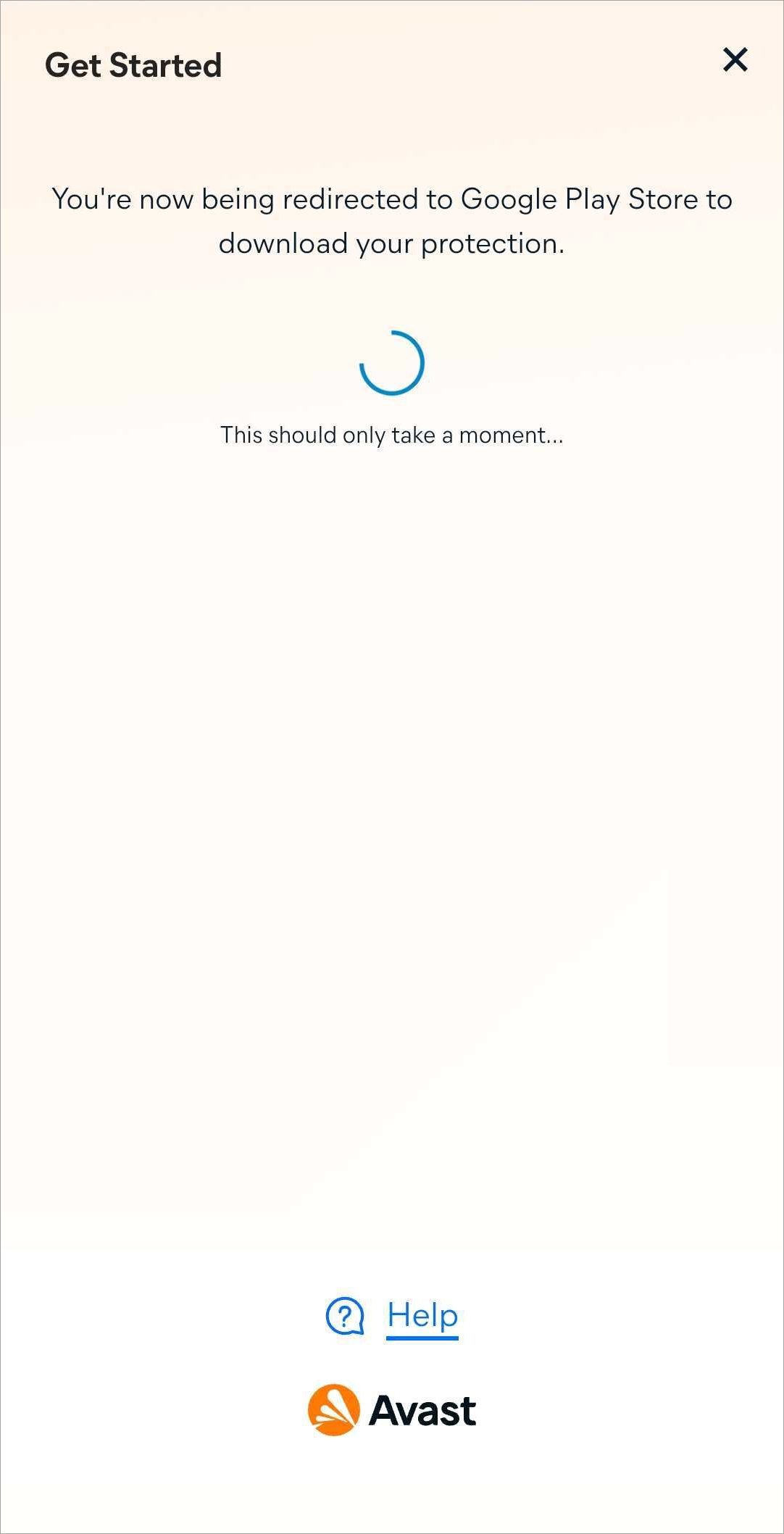
  4. Wait until you are redirected to Google Play Store.
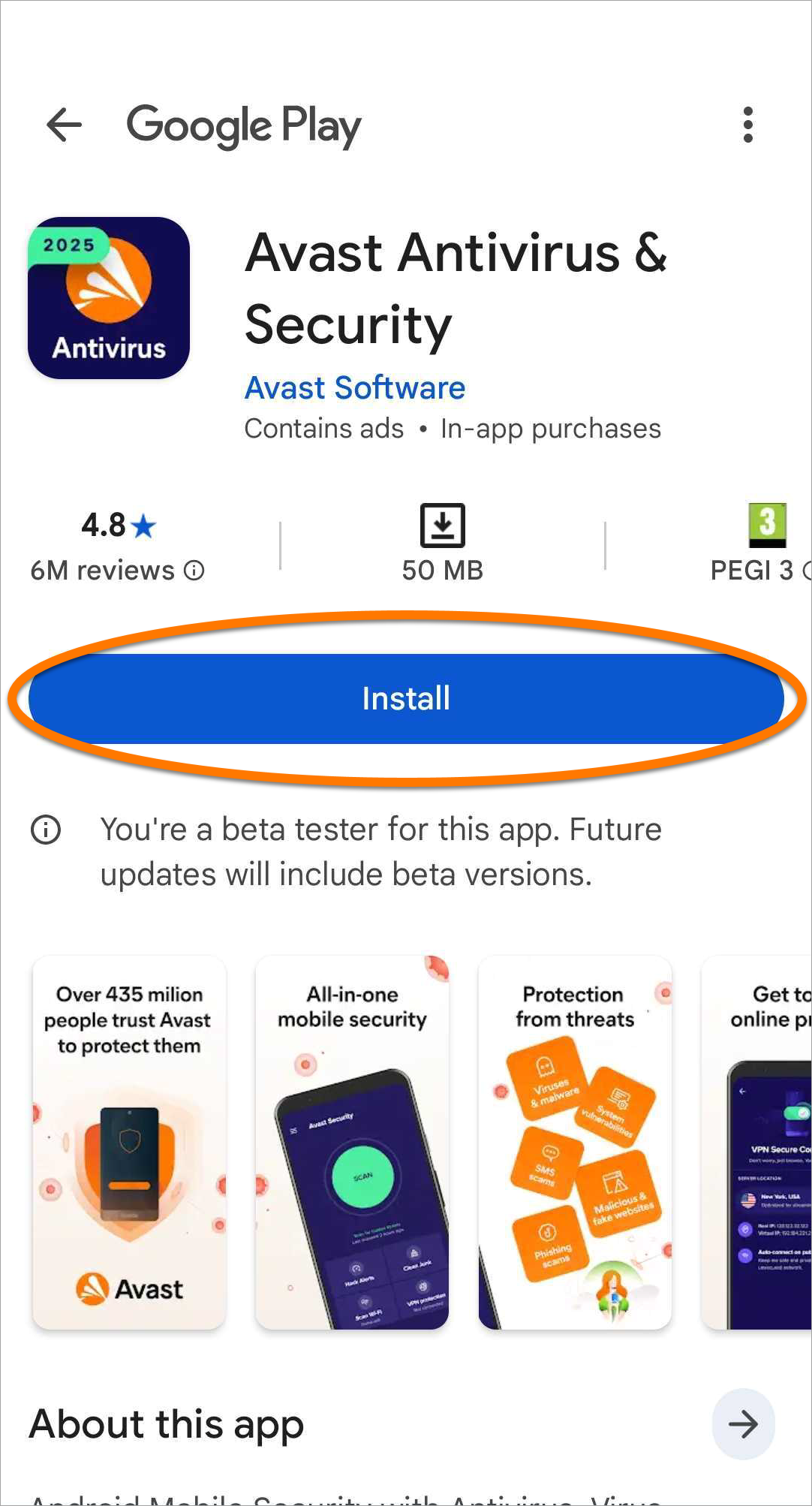
  5. On the Google Play Store app, tap Install and follow the on-screen instructions to complete the installation. For detailed installation and activation instructions for each app, refer to the following article: Installing and activating an Avast app.
To install Avast apps directly using your Avast Account:

  1. Sign in to your Avast Account using the link below:
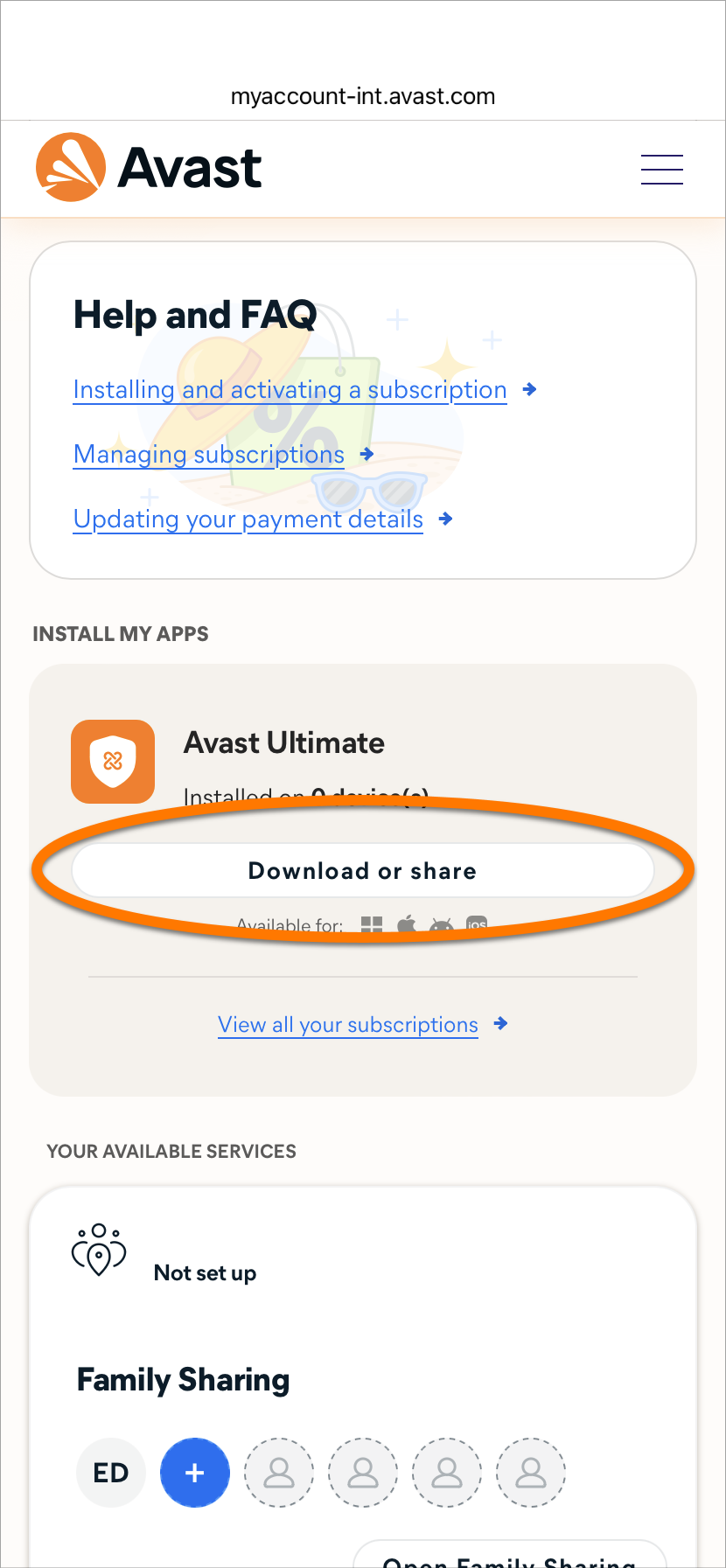
  2. Tap Download or share next to the subscription you wish to install.

    If one of your Avast subscriptions is not displayed on the My subscriptions screen, refer to the following article: Adding a missing subscription to your Avast Account.

  3. If more than one Avast app is associated with your subscription, select the app that you want to download, then tap Next.
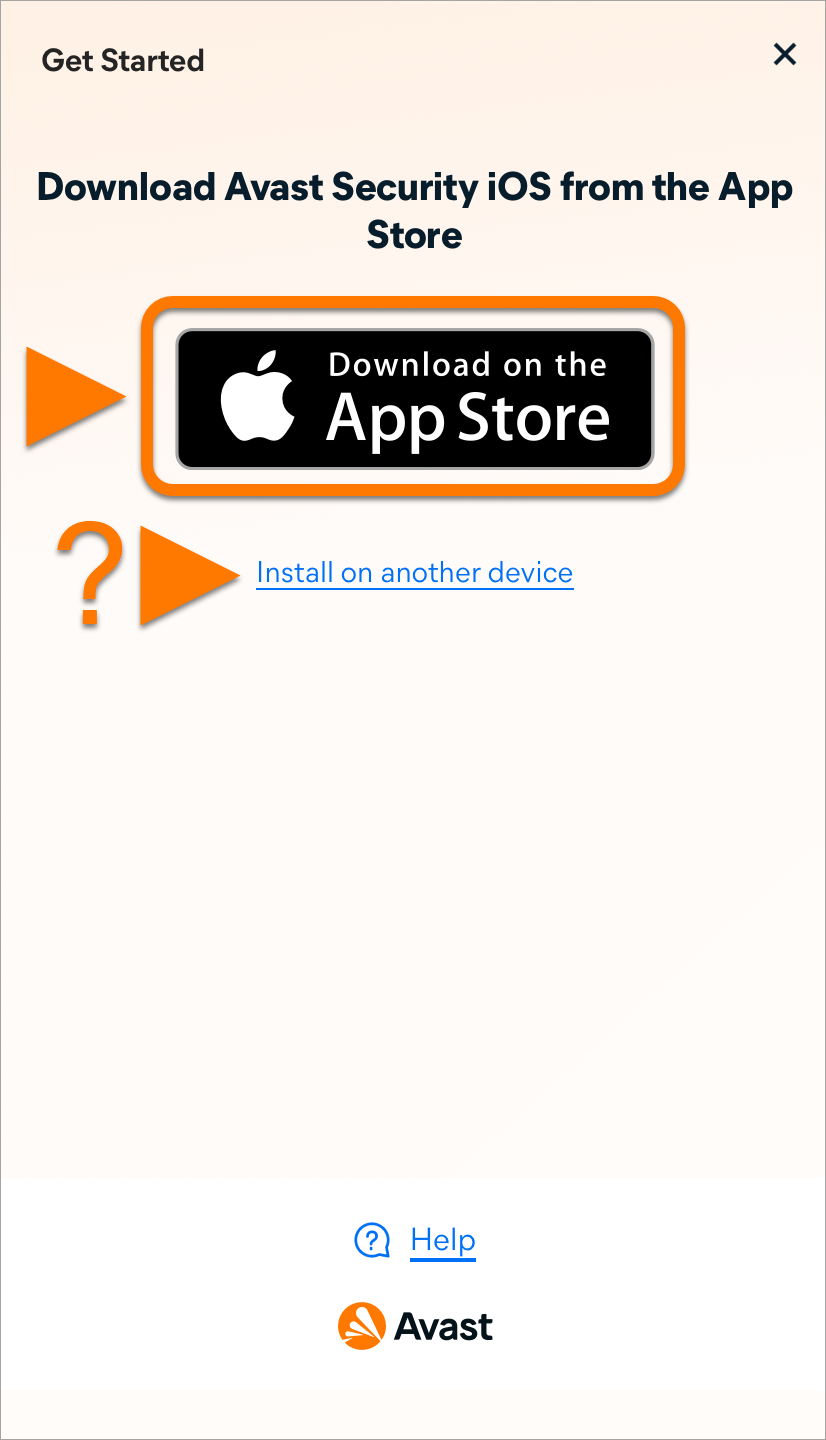
  4. Tap Download on the App Store. Alternatively, to send a download link to another device, tap Install on another device. For detailed instructions, refer to this article: Send a download link to install Avast protection on another device.
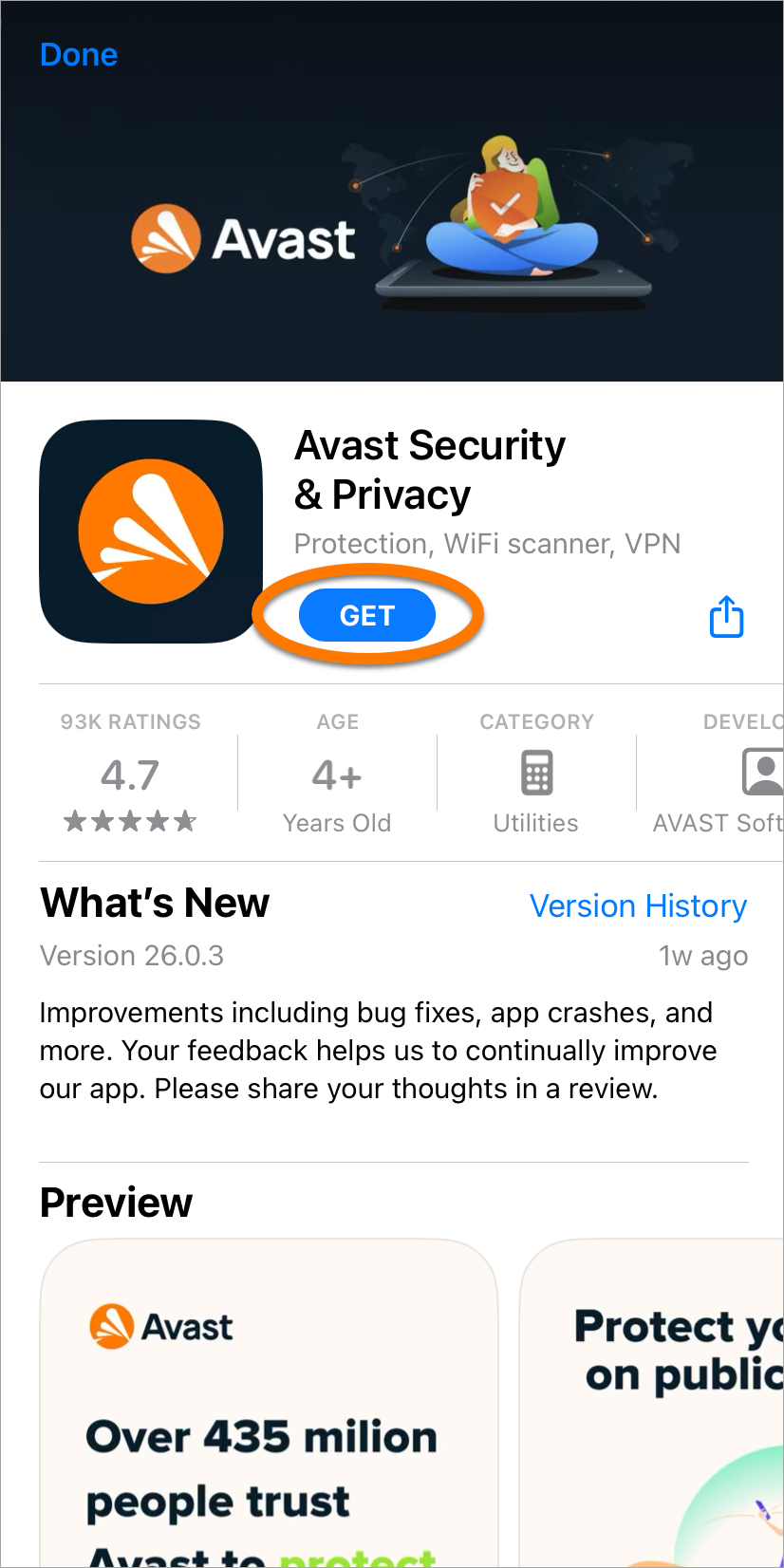
  5. On the App Store, tap Get and follow the on-screen instructions to complete the installation. For detailed installation and activation instructions for each app, refer to the following article: Installing and activating an Avast app.
Troubleshooting installation and activation issues

For help resolving common installation and activation issues, refer to the article below:

DocID: install-your-protection-on-this-deviceLast modified: 09/03/2026

Was this article helpful?

Promotional banner image

Keep your online identity private!

Browse like no one’s watching with Avast anti-tracking software.

Need more help?

Contact us
Avast account
Visit our forums
Visit academy