
IS YOUR COMPUTER SLOW? RUN LIKE NEW
If they are not maintained, computers lose performance over time. Avast Cleanup Premium can help significantly improve the performance of your computer.
Installing the Avast AntiTrack Premium browser extension
Windows
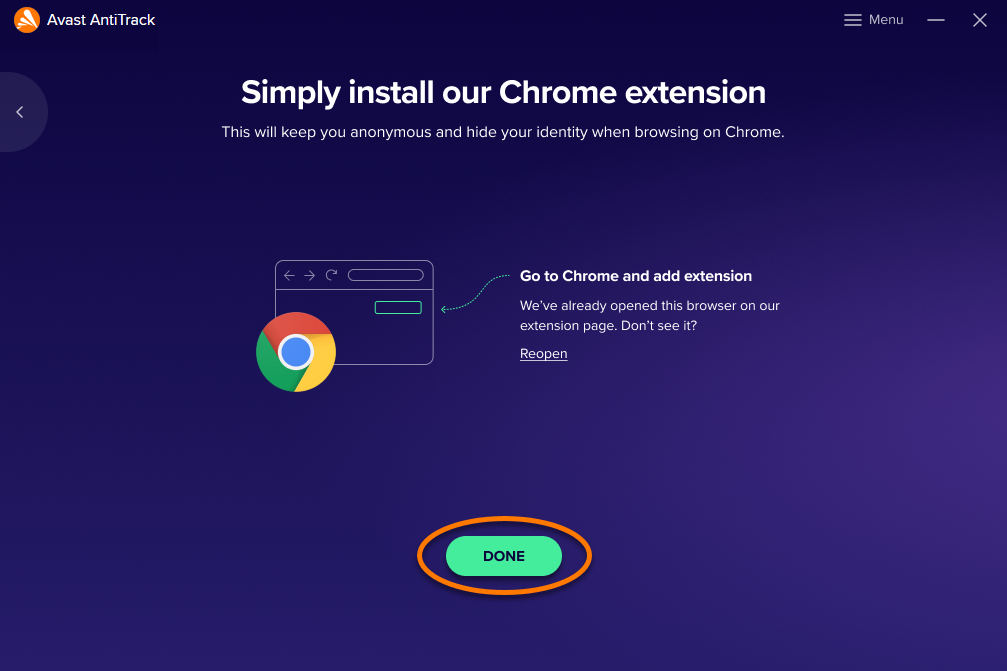
To enable all features in Avast AntiTrack Premium, you may need to manually install the extension on your Google Chrome web browser. The first time you open Avast AntiTrack after activation, the application automatically checks for Google Chrome, then prompts you to install the extension. If you skip this step, or need to install the extension later, follow the steps in this article.
The Avast AntiTrack browser extension is automatically installed and enabled on Mozilla Firefox, Microsoft Edge, Internet Explorer, and Opera browsers.
Install the extension
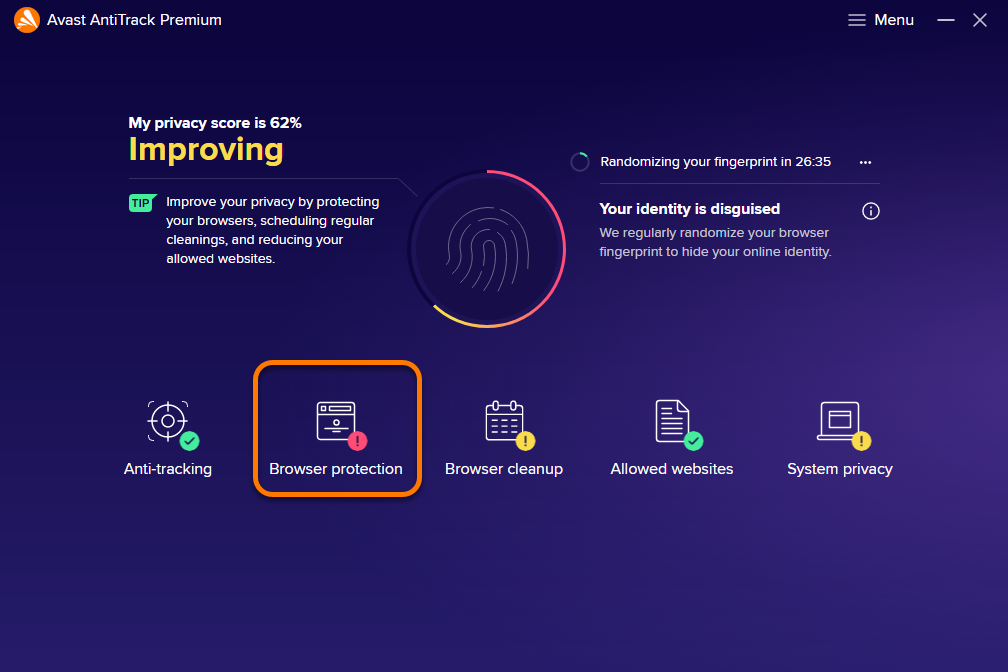
- Open Avast AntiTrack and select Browser protection.
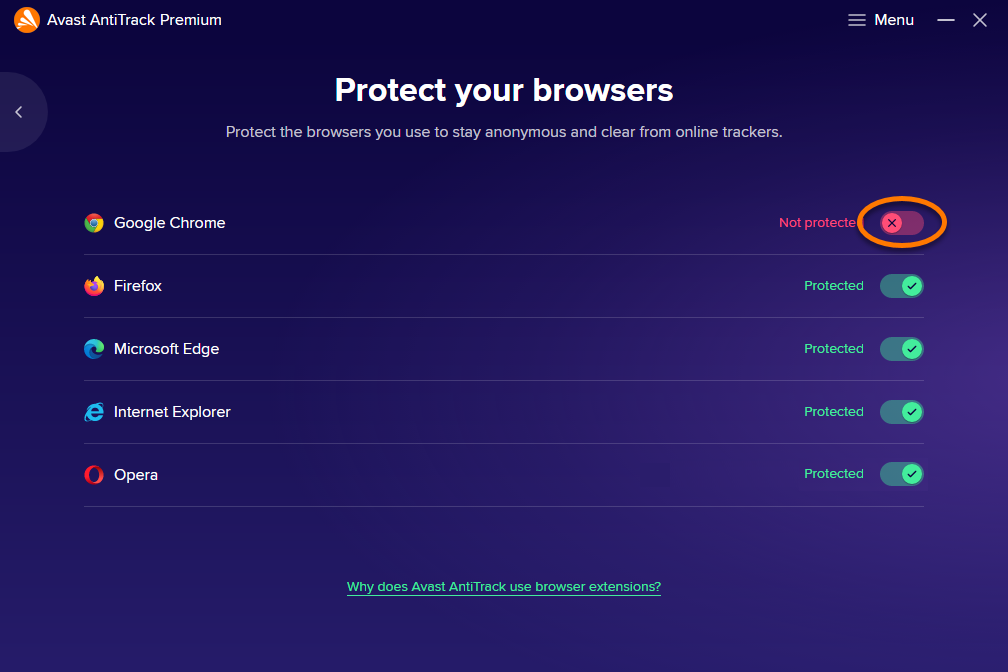
- Next to Google Chrome, click the red (Not protected) slider. Your Google Chrome browser opens automatically.
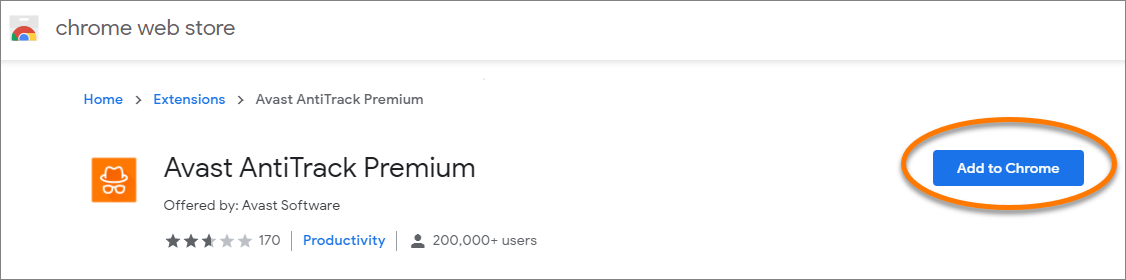
- Click Add to Chrome in your Google Chrome browser.
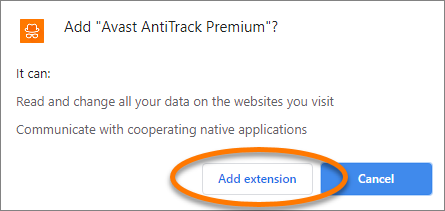
- Click Add extension in the dialog that appears.
- Return to Avast AntiTrack, and click Done. The Avast AntiTrack browser extension is now installed on your Google Chrome browser.
Check your extension status
- Open Avast AntiTrack and select Browser protection.
- Review the status for each compatible browser:
- Browsers that are enabled have a green (Protected) slider.
- Browsers that are disabled have a red (Not protected) slider.
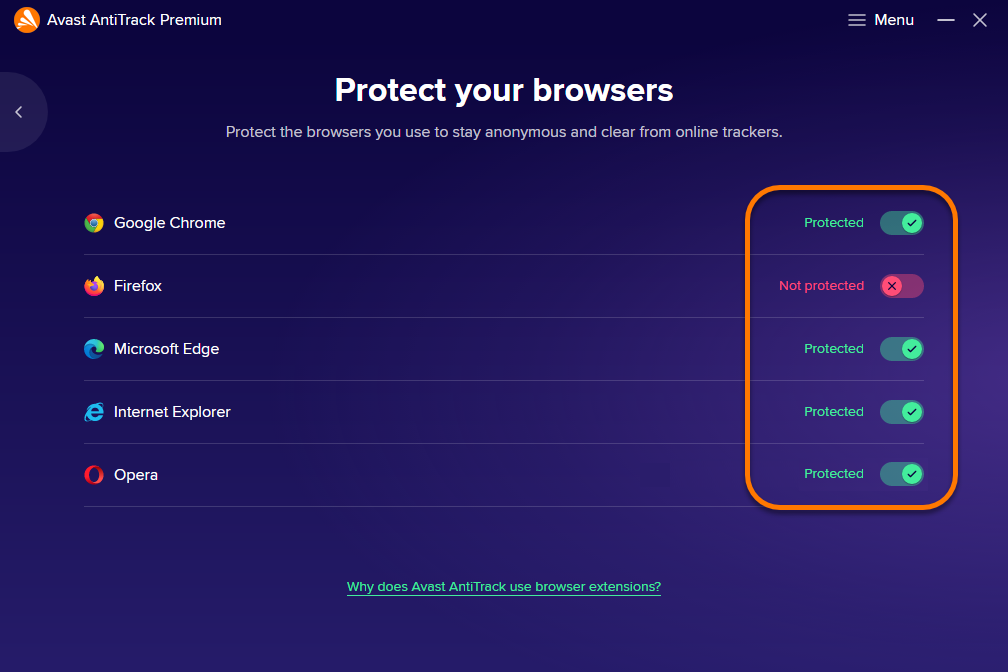
When a browser extension is disabled, Avast AntiTrack continues to detect tracking attempts on this browser, but is unable to block them.
To protect your privacy online, we recommend keeping the browser extension enabled for all installed browsers on your PC.
Troubleshooting
Review the information below to resolve the most common issues:
- If you are unable to install the extension via the AntiTrack browser protection screen, try manually adding the extension to your browser:
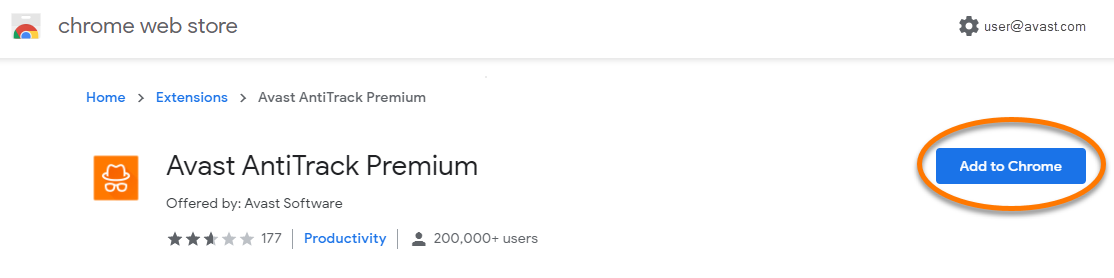
- Go to the chrome web store: Open chrome web store
- Click Add to Chrome in your Google Chrome browser.
- Click Add extension in the dialog that appears.
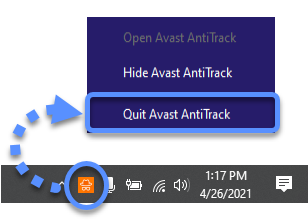
- In the notification area of your Windows taskbar, right-click the Avast AntiTrack icon, and click Quit Avast AntiTrack.
The Avast AntiTrack browser extension is now installed in Google Chrome.
- If your Anti-Track browser extension is installed and enabled, but the program is not blocking tracking attempts, try removing the extension from your browser and manually reinstalling the extension.
- In rare cases, Avast AntiTrack may slow down your browser, prevent certain webpages from loading, or prevent email attachments from downloading. If you experience this issue, refer to the following article:
Was this article helpful?

Keep your online identity private!
Browse like no one’s watching with Avast anti-tracking software.