
IS YOUR COMPUTER SLOW? RUN LIKE NEW
If they are not maintained, computers lose performance over time. Avast Cleanup Premium can help significantly improve the performance of your computer.
Enabling Ad Blocker and Acceptable Ads in the Avast SecureLine VPN browser extension
Windows
If you have not installed the Avast SecureLine VPN browser extension, refer to the following article: Using the Avast SecureLine VPN browser extension.
You can use the browser extension only if Avast SecureLine VPN is installed and activated on your device, either as a standalone application or as part of Avast One.
The Ad Blocker feature is a part of the Avast SecureLine VPN browser extension, which is supported on Google Chrome, Microsoft Edge, and Mozilla Firefox. It enhances your browsing experience by blocking unwanted ads in your desktop browser. Blocking ads can help make browsing the internet safer, as some ads may carry malware or redirect you to phishing websites.
Acceptable ads are advertisements that meet specific criteria designed to ensure they are user-friendly and non-intrusive. Acceptable ads are often associated with ad-blocking services or platforms that allow certain ads to be displayed because they adhere to guidelines, such as:
- Non-disruptive: Ads should not interfere with the user experience, meaning no pop-ups, autoplay videos, or flashy animations.
- Clear identification: Advertisements must be distinguishable from regular content.
- Respect for privacy: Ads should not collect excessive data about the user.
- Relevant placement: Ads should be placed in areas that do not obstruct the main page content.
The independent Acceptable Ads Committee (AAC) determines the criteria that define which ads are acceptable. It also governs the Acceptable Ads Standard. For more information about Acceptable Ads, visit the AAC website.
Follow the instructions below to enable Ad Blocker and enable Acceptable Ads.
Enable Ad Blocker
To enable Ad Blocker in your Avast SecureLine VPN browser extension, follow the steps below:
- Open your browser with the Avast SecureLine VPN browser extension.
- In the top-right corner of the screen, click the Avast SecureLine VPN browser extension icon.
- On the Ad Blocker panel, switch the slider from gray (OFF) to green (ON) to turn on Ad Blocker.
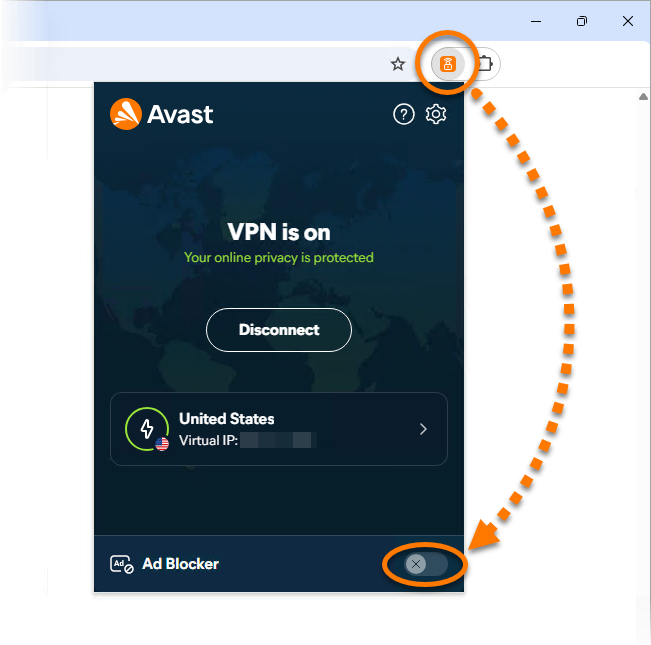
Ad Blocker is now enabled.
Enable Acceptable Ads
Acceptable ads can be enabled or disabled only when Ad Blocker is turned on.
To enable Acceptable Ads in your Avast SecureLine VPN browser extension, follow the steps below:
- Open your browser with the Avast SecureLine VPN browser extension.
- In the top-right corner of the screen, click the Avast SecureLine VPN browser extension icon.
- Click Settings.
- Next to Allow acceptable ads, switch the slider from gray (OFF) to green (ON) to enable this option.
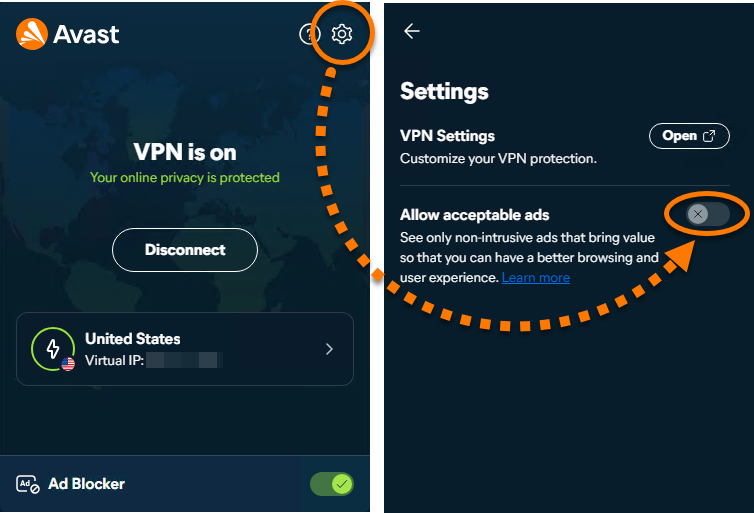
Acceptable Ads is now enabled.
Was this article helpful?

Keep your online identity private!
Browse like no one’s watching with Avast anti-tracking software.